
Lists of values keep data consistent: users pick a category, a city, or a tag from a list instead of typing it differently each time. Sometimes the right value is not in the list yet, and sending the user to another page to add it first interrupts their work.
Oracle APEX solves this with the Manual Entry setting of a Popup LOV: the user can pick from the list or type a new value. A small process then adds the new value to the lookup table when the form is saved. This guide sets it up for product categories and handles the typical problem with typed values: the same category in different spellings.
Step 1: The Lookup Table
The categories come from a PRODUCT_CATEGORIES table with a unique name. Here it is filled from the values already used in PRODUCTS:
Example:
create table product_categories (
    category_id number generated by default as identity primary key,
    name        varchar2(50) not null,
    constraint product_categories_name_uk unique (name)
);

insert into product_categories (name)
select distinct category
from   products
where  category is not null;

commit;

select name from product_categories order by name;
Output:
Table PRODUCT_CATEGORIES created.

4 rows inserted.

Commit complete.

NAME
______________
Accessories
Audio
Computers
Displays
Step 2: The Popup LOV with Manual Entry
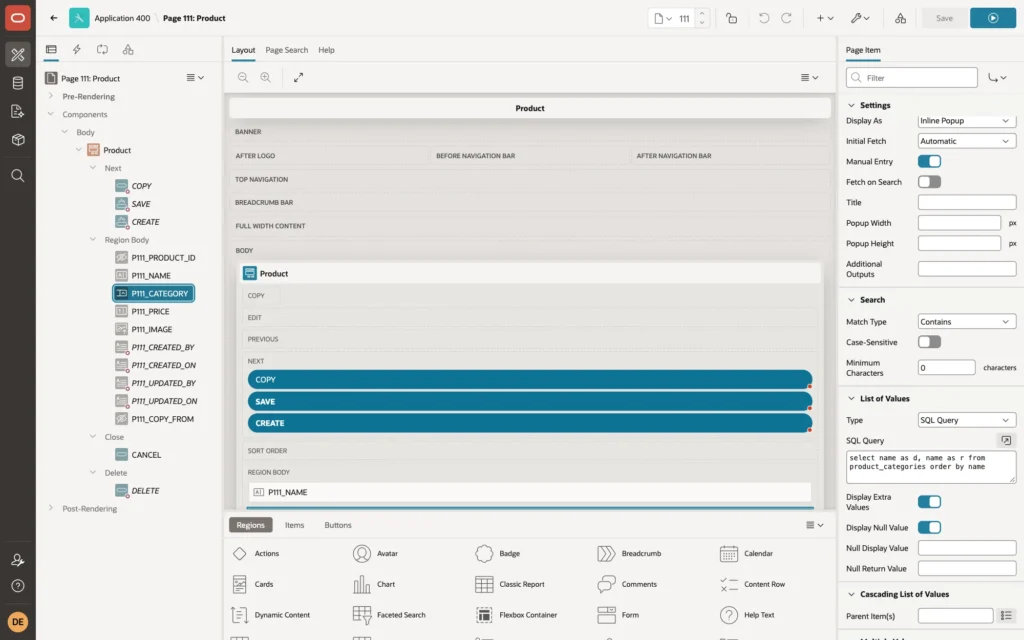
On the product form, change the CATEGORY item to type Popup LOV, with a SQL query as its List of Values. The display and the return value are both the name, because the PRODUCTS table stores the category name:
Example:
select name as d, name as r
from   product_categories
order  by name
In the item's Settings, turn on Manual Entry. Display As Inline Popup opens the list under the field:
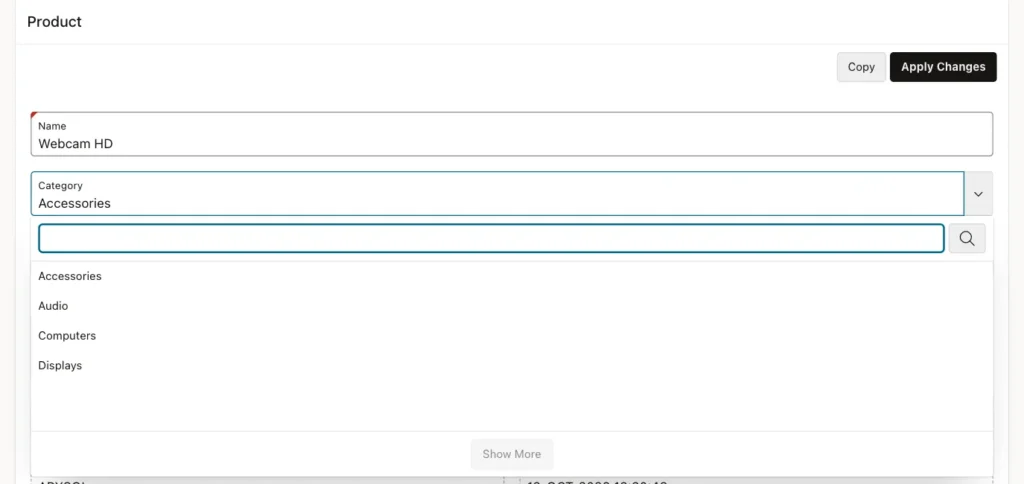
The user can open the list and pick a category, as before:
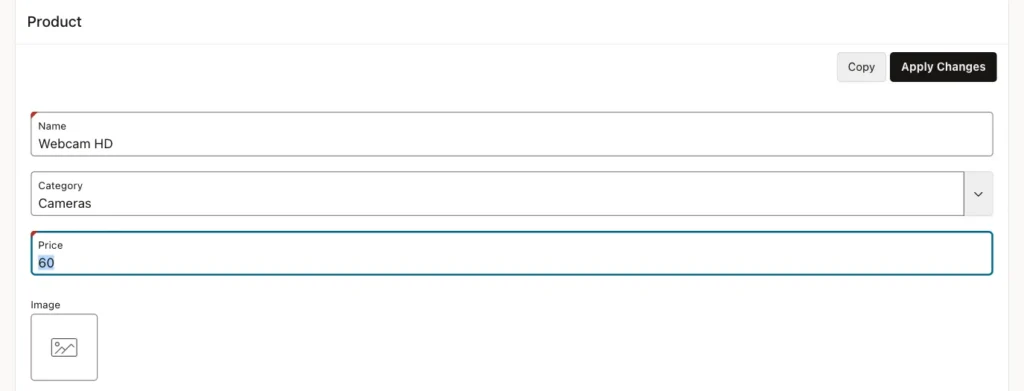
Or type a category that is not in the list. With Manual Entry on, the typed text becomes the item's value:
Step 3: Add the New Value When the Form Is Saved
Add a PL/SQL process before the form's Automatic Row Processing, here with sequence 5. A MERGE inserts the category only if no category with that name exists, ignoring case:
Example:
:P111_CATEGORY := trim(:P111_CATEGORY);

merge into product_categories c
using (select :P111_CATEGORY as name from dual) n
on    (upper(c.name) = upper(n.name))
when not matched then
    insert (name) values (n.name);

select name
into   :P111_CATEGORY
from   product_categories
where  upper(name) = upper(:P111_CATEGORY);
The final SELECT replaces the typed text with the spelling stored in the table. Without it, a user who types audio would save a product with audio while the list says Audio, and reports grouped by category would show two groups.
Set the process's server-side condition to the PL/SQL expression :REQUEST in ('CREATE', 'SAVE') and :P111_CATEGORY is not null, so it runs for Create and Apply Changes, not for Delete.
Testing It
Webcam HD was saved with the new category Cameras, and Headset with the text audio followed by a space:
Example:
select name, category
from   products
where  name in ('Webcam HD', 'Headset');

select name
from   product_categories
order  by name;
Output:
NAME         CATEGORY
____________ ___________
Headset      Audio
Webcam HD    Cameras

NAME
______________
Accessories
Audio
Cameras
Computers
Displays
Cameras was added to the lookup table and appeared in the popup list the next time the form was opened. The typed audio was stored as Audio, the existing spelling, and no duplicate category was created.
Things to Know
- Manual Entry suits lists where the return value is the display text. When the item stores an ID, the typed text is not a valid ID; the process must then insert the new row, get its ID, and set the item to it before the form's processing.
- Anyone who can use the form can add categories this way. If the list must be controlled, keep Manual Entry off and give a few users a separate page to maintain it.
- Validate typed values like any other input: a maximum length, and perhaps a check that rejects values that are too close to an existing one.
Related Guides
- How to Create Cascading Select Lists (Parent-Child LOVs) in Oracle APEX
- How to Build Forms in Oracle APEX
Conclusion
To let users add a new value from a Popup LOV in Oracle APEX, turn on Manual Entry for the item, and add a process before the form's row processing that merges the typed value into the lookup table.
Trim the value, compare names without regard to case, and set the item to the stored spelling, so the list stays free of duplicates.
