
In an editable grid, one column often limits the choices of another. A user picks a category in a row, and the product list of that same row should show only the products of that category. Each row has its own pair of values, so the filter must work per row, not for the whole page.
Oracle APEX does this declaratively with a Cascading List of Values on the grid column. This guide builds a stock request grid where the Product list depends on the Category of the same row, keeps the pair valid with a composite foreign key, and adds a validation with a clear message.
The older guide How to Create Cascading Select Lists (Parent-Child LOVs) in Oracle APEX links page items on a form with Parent Item(s). This one works inside an Interactive Grid: the parent is a column, the LOV query uses the column name as a bind variable, and every row filters on its own.
Step 1: Create the Tables
The categories and products come from the PRODUCT_CATEGORIES and PRODUCTS tables of the earlier guides. If you start from scratch, create them with a few rows:
Example:
create table product_categories (
    category_id number generated by default as identity
                constraint product_categories_pk primary key,
    name        varchar2(50) not null
                constraint product_categories_name_uk unique
);

create table products (
    product_id number generated by default as identity
               constraint products_pk primary key,
    name       varchar2(60)  not null,
    category   varchar2(30)  not null,
    price      number(10, 2) not null
               constraint products_price_ck check (price >= 0)
);

insert into product_categories (name) values ('Computers');
insert into product_categories (name) values ('Displays');
insert into product_categories (name) values ('Accessories');
insert into product_categories (name) values ('Audio');
insert into product_categories (name) values ('Cameras');

insert into products (name, category, price) values ('Laptop Pro 14', 'Computers', 1450);
insert into products (name, category, price) values ('Laptop Air 13', 'Computers', 990);
insert into products (name, category, price) values ('Monitor 27', 'Displays', 320);
insert into products (name, category, price) values ('Monitor 32', 'Displays', 480);
insert into products (name, category, price) values ('Keyboard', 'Accessories', 45);
insert into products (name, category, price) values ('Mouse', 'Accessories', 25);
insert into products (name, category, price) values ('Docking Station', 'Accessories', 180);
insert into products (name, category, price) values ('Headset', 'Audio', 95);
commit;
Now add a unique key on PRODUCTS (PRODUCT_ID, CATEGORY) and create the table STOCK_REQUESTS, which stores both the category and the product of each request. Three sample requests follow:
Example:
alter table products
  add constraint products_id_category_uk unique (product_id, category);

create table stock_requests (
    request_id   number generated by default as identity
                 constraint stock_requests_pk primary key,
    category     varchar2(30) not null,
    product_id   number       not null,
    quantity     number(6)    not null
                 constraint stock_requests_qty_ck check (quantity > 0),
    requested_by varchar2(255) default on null
                 coalesce(sys_context('APEX$SESSION', 'APP_USER'),
                          sys_context('USERENV', 'SESSION_USER')),
    requested_on date default on null sysdate,
    constraint stock_requests_product_fk
        foreign key (product_id, category)
        references products (product_id, category)
);

create index stock_requests_product_ix on stock_requests (product_id, category);

insert into stock_requests (category, product_id, quantity)
select category, product_id, 5 from products where name = 'Laptop Air 13';
insert into stock_requests (category, product_id, quantity)
select category, product_id, 20 from products where name = 'Mouse';
insert into stock_requests (category, product_id, quantity)
select category, product_id, 3 from products where name = 'Monitor 32';
commit;

select r.request_id, r.category, p.name as product, r.quantity, r.requested_by
from   stock_requests r
join   products p on p.product_id = r.product_id
order by r.request_id;
Output:
Table PRODUCTS altered.

Table STOCK_REQUESTS created.

Index STOCK_REQUESTS_PRODUCT_IX created.

1 row inserted.

1 row inserted.

1 row inserted.

Commit complete.

   REQUEST_ID CATEGORY       PRODUCT             QUANTITY REQUESTED_BY
_____________ ______________ ________________ ___________ _______________
            1 Computers      Laptop Air 13              5 APXSOL
            2 Accessories    Mouse                     20 APXSOL
3 Displays Monitor 32 3 APXSOL- PRODUCT_ID alone is already unique, so the unique key PRODUCTS_ID_CATEGORY_UK adds no new rule to PRODUCTS. It exists so that a foreign key can point at the pair.
- The composite foreign key STOCK_REQUESTS_PRODUCT_FK references (PRODUCT_ID, CATEGORY). A request can only store a product together with that product's own category.
- REQUESTED_BY and REQUESTED_ON are filled by DEFAULT ON NULL, so no trigger or process is needed. The sample rows show APXSOL because they were inserted from SQL, outside an APEX session.
- The index STOCK_REQUESTS_PRODUCT_IX covers the foreign key columns.
Step 2: Create the Interactive Grid Page
In App Builder, open the application and click Create Page. On the Component tab, click Interactive Grid:

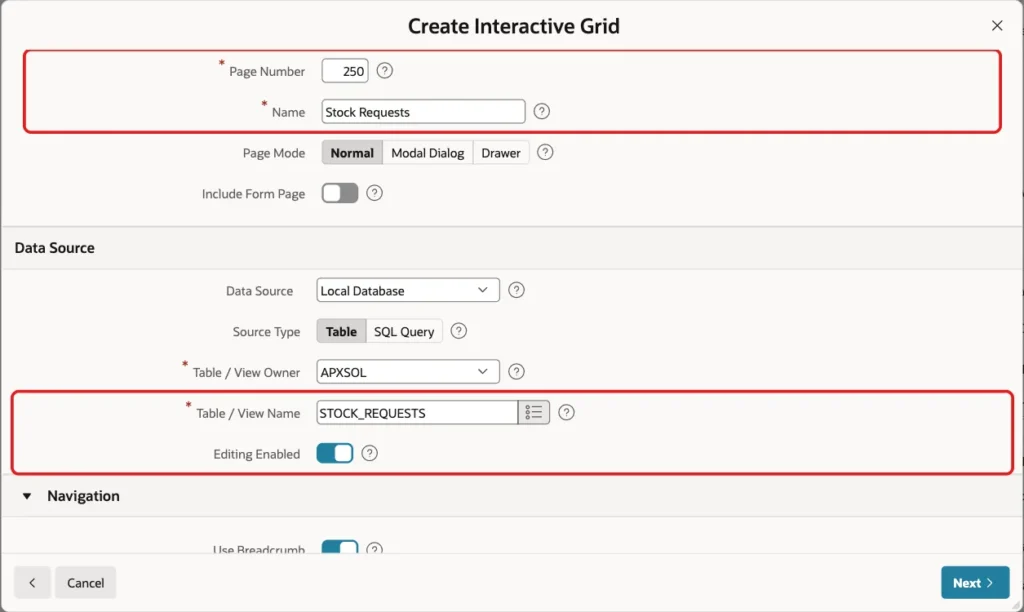
Enter Page Number 250 and Name Stock Requests. Keep Data Source Local Database and Source Type Table, enter STOCK_REQUESTS as Table / View Name, and turn on Editing Enabled:
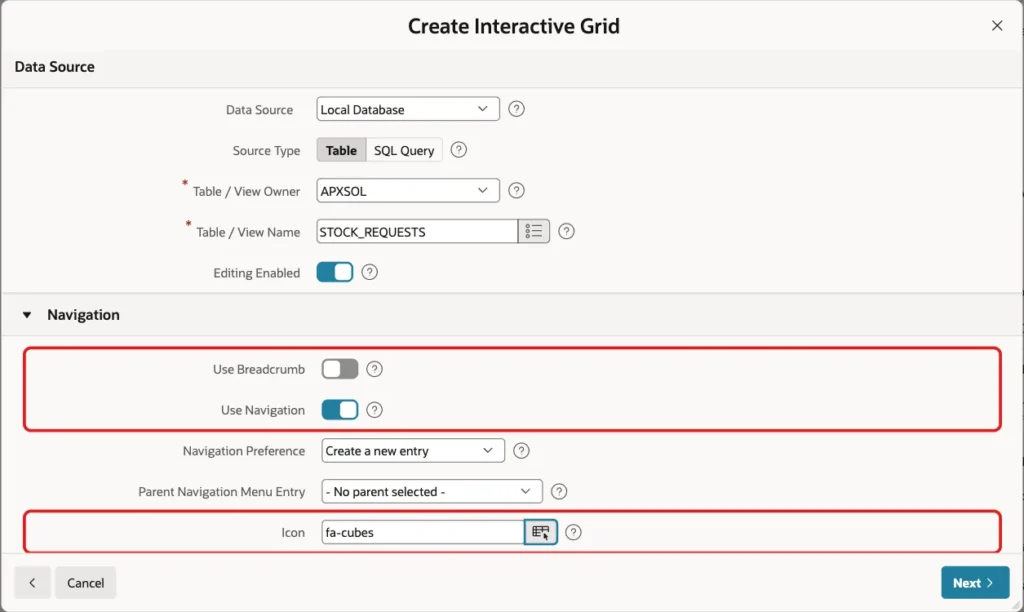
Scroll down to Navigation. Turn off Use Breadcrumb, keep Use Navigation on with Create a new entry, and set Icon to fa-cubes. Click Next:
Primary Key Column 1 is already REQUEST_ID (Number). Click Create Page:
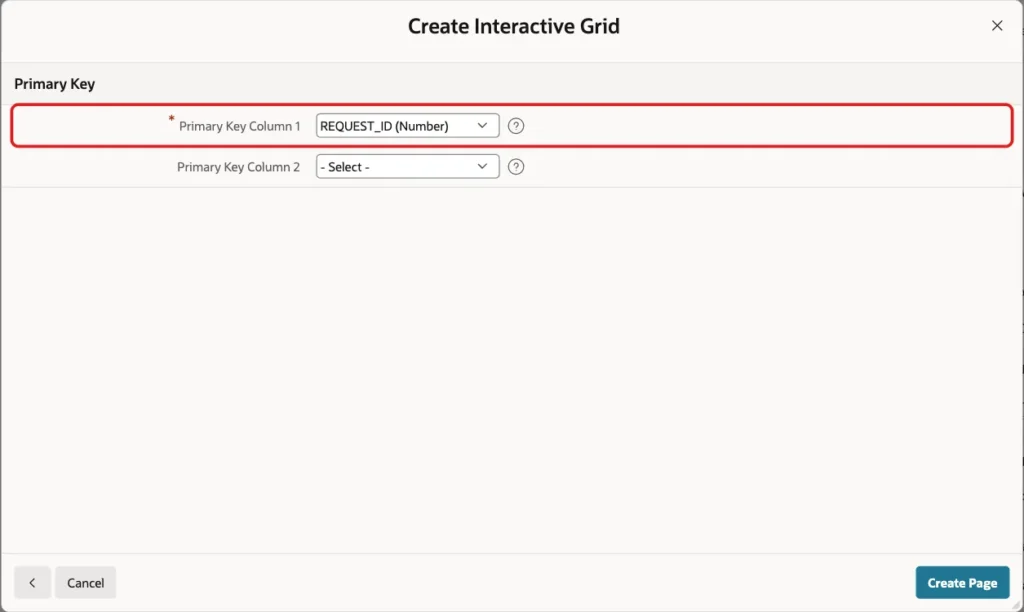
The wizard creates the grid region with one column per table column, and the process Stock Requests - Save Interactive Grid Data that saves the changes. At this point, CATEGORY is a Text Field and PRODUCT_ID a Number Field.
Step 3: Turn Category into a Select List
In Page Designer, expand Stock Requests > Columns and select CATEGORY. Set Type to Select List. In the List of Values group, set Type to SQL Query and enter this query:
Example:
select name as display_value,
       name as return_value
from   product_categories
order by name
Keep Display Null Value on and set Null Display Value to - Select Category -:
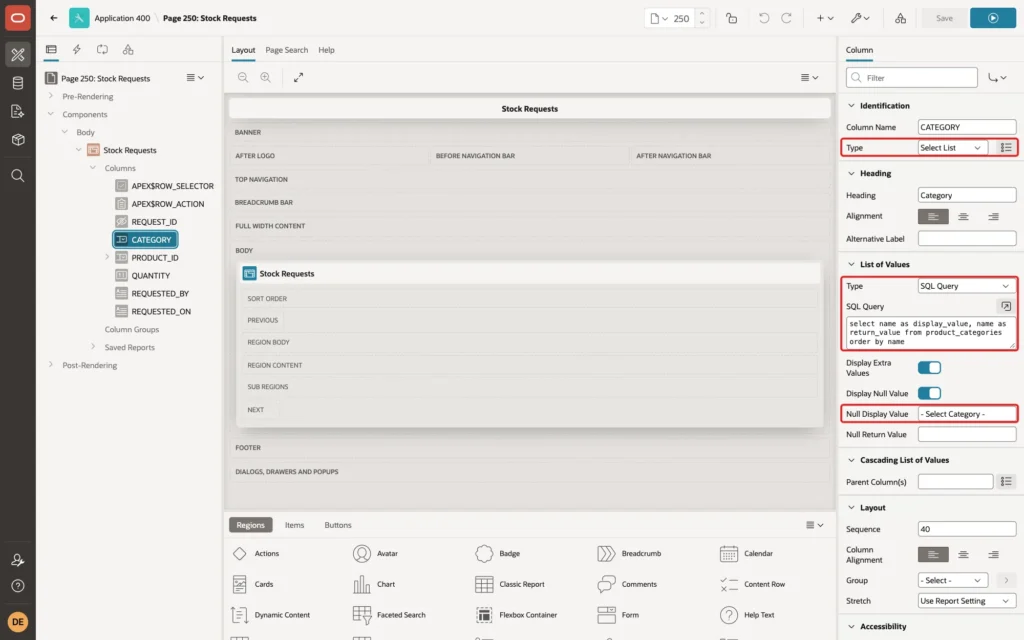
The table stores the category name, so the name is both the display and the return value.
Step 4: Make Product Depend on Category
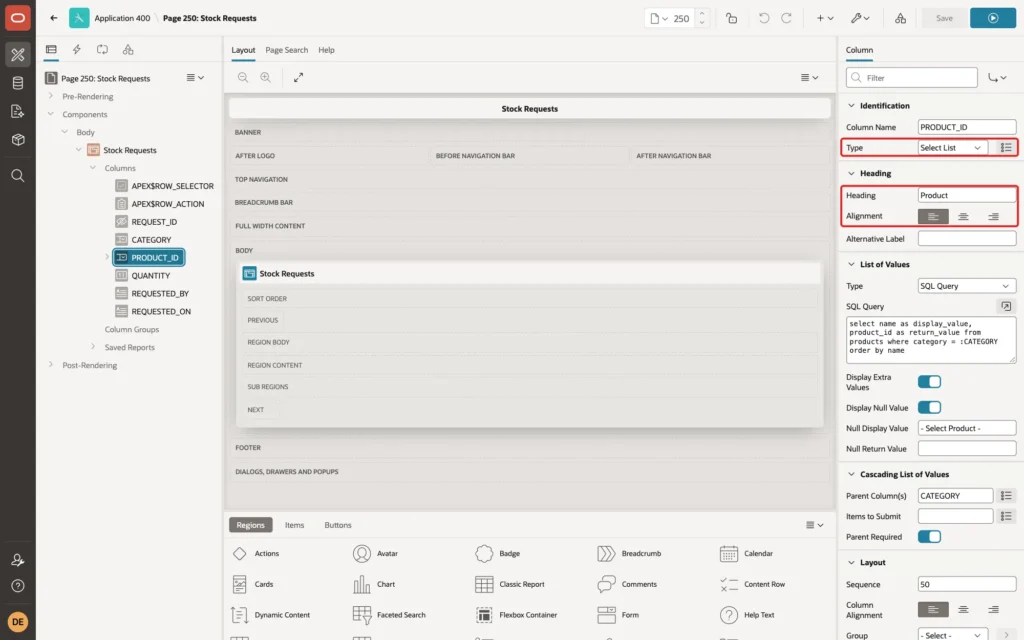
Select the column PRODUCT_ID. Set Type to Select List, Heading to Product, and the heading Alignment to start (left):
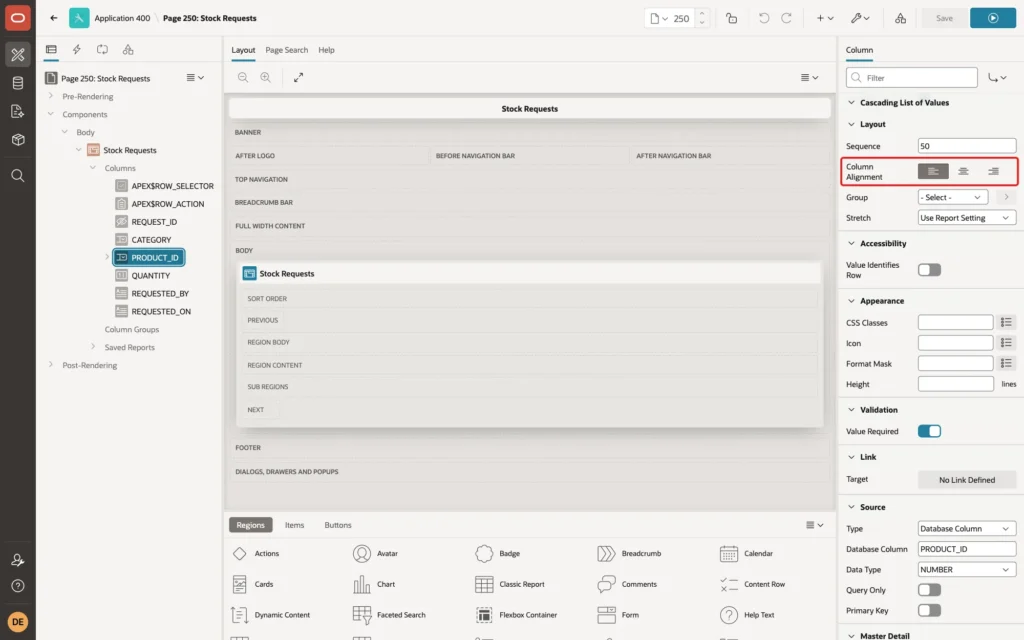
In the Layout group, set Column Alignment to start too. The wizard aligned the numbers to the end, which looks odd for product names:
In the List of Values group, set Type to SQL Query and enter this query. :CATEGORY is the CATEGORY column of the same row:
Example:
select name as display_value,
       product_id as return_value
from   products
where  category = :CATEGORY
order by name
Set Null Display Value to - Select Product -. Then, in the Cascading List of Values group, set Parent Column(s) to CATEGORY and keep Parent Required on:
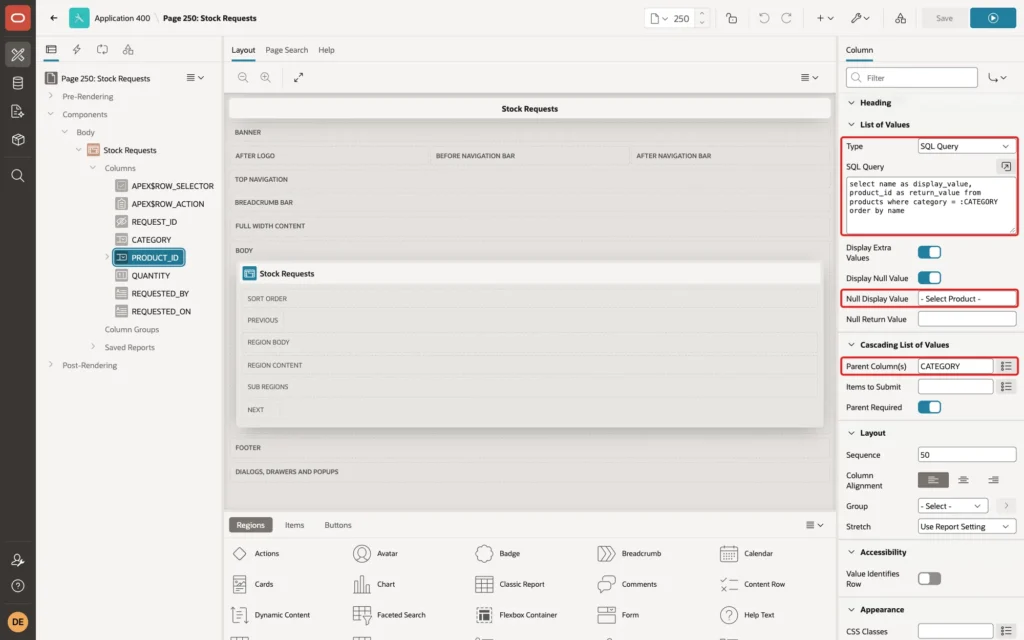
Parent Column(s) does two things. It sends the row's CATEGORY value with the LOV request, so the bind variable has a value. And when the category of a row changes, APEX clears the product of that row and loads the new list.
With Parent Required on, the product list stays empty while the row has no category. It then shows only - Select Product -.
Step 5: Show the Default Columns as Display Only
The wizard made REQUESTED_BY and REQUESTED_ON editable and required, because they are NOT NULL. The database fills them, so users should only see them. Select REQUESTED_BY and set Type to Display Only:

In the Source group, turn on Query Only. The grid process then leaves the column out of INSERT and UPDATE, and DEFAULT ON NULL fills it:
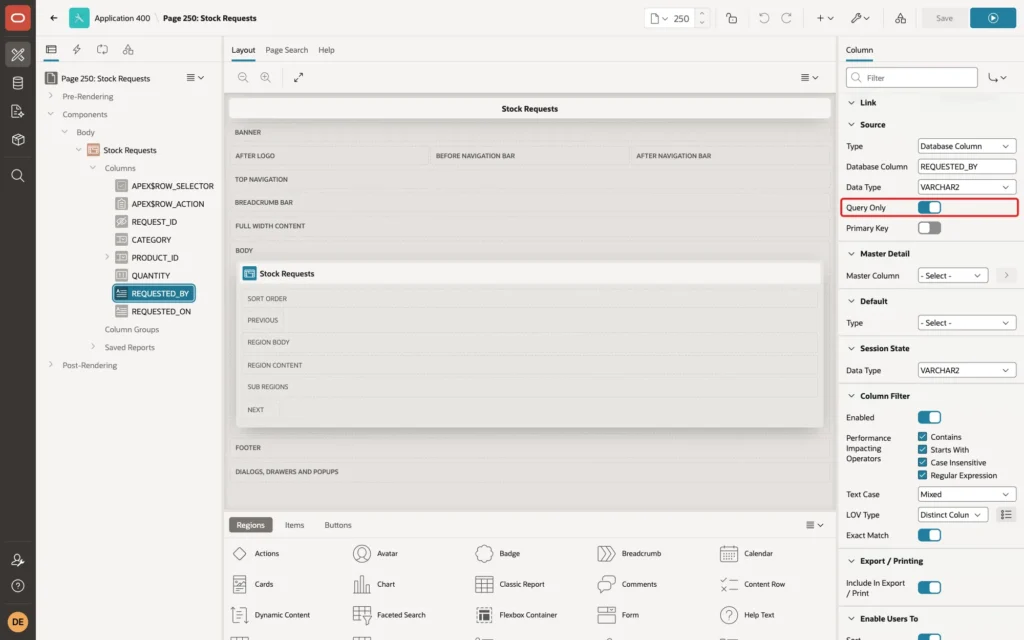
Make the same two changes on REQUESTED_ON. Then click Save.
Step 6: Add a Validation for the Pair
The cascading list guides the user, but the browser can still send any product ID. The composite foreign key already stops a wrong pair. In a first test without a validation, a forced product failed with this message in the grid:
Output:
ORA-02291: integrity constraint (APXSOL.STOCK_REQUESTS_PRODUCT_FK) violated - parent key not found
That keeps the data safe, but the message is not for users. In the Processing tab, create a validation named Product belongs to category. Set Editable Region to Stock Requests, Type to Rows returned, and enter this query:
Example:
select null
from   products
where  product_id = :PRODUCT_ID
and    category   = :CATEGORY
Set Error Message to Choose a product of the selected category. and Associated Column to PRODUCT_ID:
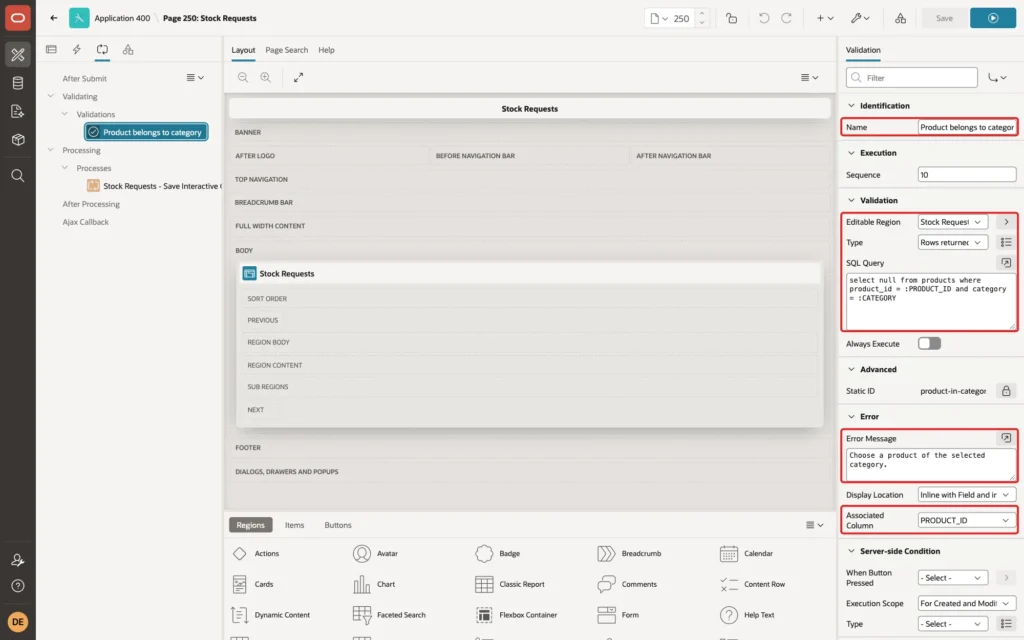
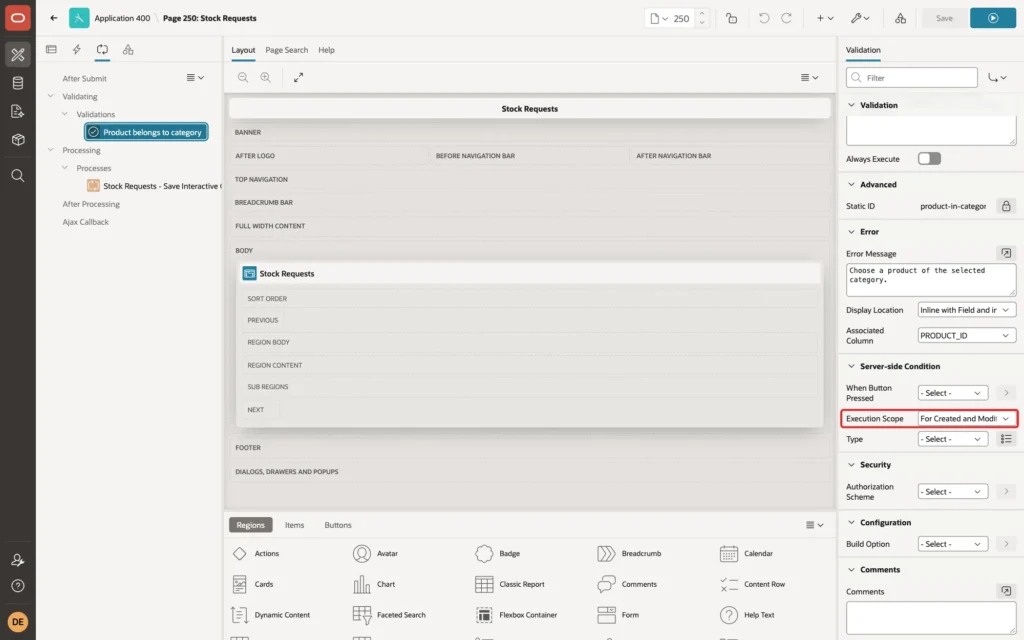
Because Editable Region is set, the validation runs for each grid row, and :PRODUCT_ID and :CATEGORY hold that row's values. In the Server-side Condition group, Execution Scope is For Created and Modified Rows by default, so deleted rows are not checked:
Step 7: Test It
ORDER_EDITOR opened Stock Requests. The grid showed the three sample requests:

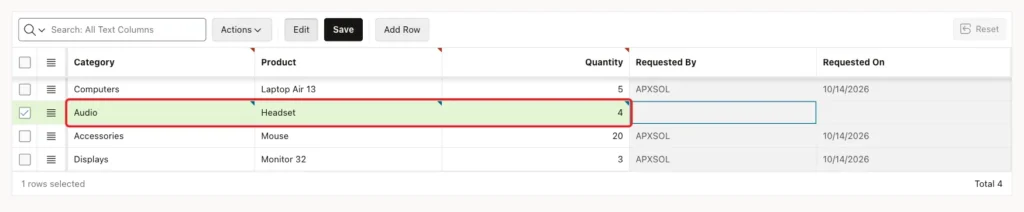
Add Row inserted an empty row. Before a category was chosen, the Product list held only - Select Product -. After Audio was chosen as the category, the Product list held - Select Product - and Headset, the only Audio product. Headset and quantity 4 were entered:
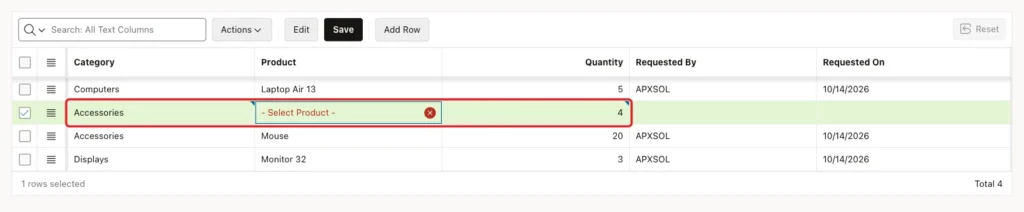
Then the category of the same row was changed to Accessories. APEX cleared Headset at once and marked the empty Product cell as required. The Product list now held Docking Station, Keyboard, Mouse and Webcam HD:
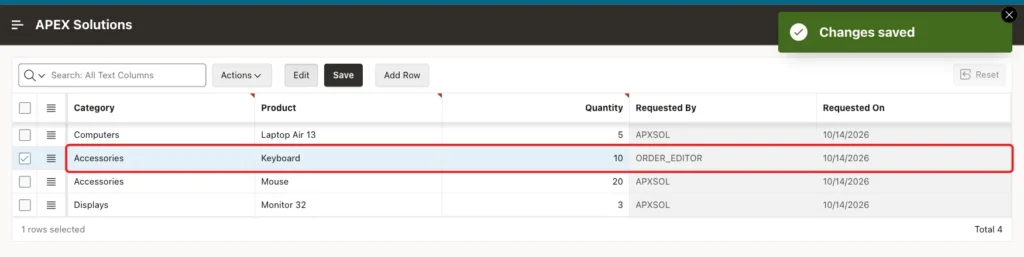
Keyboard was chosen, the quantity set to 10, and Save clicked. APEX showed Changes saved, and the new row showed ORDER_EDITOR as Requested By:
Example:
select r.request_id, r.category, p.name as product, r.quantity,
       r.requested_by, to_char(r.requested_on, 'YYYY-MM-DD') as requested_on
from   stock_requests r
join   products p on p.product_id = r.product_id
order by r.request_id;
Output:
   REQUEST_ID CATEGORY       PRODUCT             QUANTITY REQUESTED_BY    REQUESTED_ON
_____________ ______________ ________________ ___________ _______________ _______________
            1 Computers      Laptop Air 13              5 APXSOL          2026-10-14
            2 Accessories    Mouse                     20 APXSOL          2026-10-14
            3 Displays       Monitor 32                 3 APXSOL          2026-10-14
           22 Accessories    Keyboard                  10 ORDER_EDITOR    2026-10-14
A forced value came last. In the browser console, the grid model of the Displays row was given the product Laptop Pro 14, which belongs to Computers, and Save was clicked. The validation stopped the save:

Example:
select r.request_id, r.category, p.name as product
from   stock_requests r
join   products p on p.product_id = r.product_id
where  r.category = 'Displays';

insert into stock_requests (category, product_id, quantity)
select 'Computers', product_id, 1 from products where name = 'Mouse';
Output:
   REQUEST_ID CATEGORY    PRODUCT
_____________ ___________ _____________
            3 Displays    Monitor 32

Error starting at line : 6 File @ b27/02-checks.sql
In command -
insert into stock_requests (category, product_id, quantity)
select 'Computers', product_id, 1 from products where name = 'Mouse'
Error report -
ORA-02291: integrity constraint (APXSOL.STOCK_REQUESTS_PRODUCT_FK) violated -
parent key not found
Help: https://docs.oracle.com/error-help/db/ora-02291/
The Displays row still holds Monitor 32. The INSERT shows that the foreign key refuses a wrong pair from any program, not only from this page.
Things to Know
- Use the column name as the bind variable in the child LOV query, such as :CATEGORY. In a grid, it holds the value of the current row.
- Parent Column(s) clears the child value when the parent changes. Users must pick the product again, as the test showed.
- The composite foreign key has a cost: a product cannot move to another category while requests point to it. Moving Mouse to Computers failed with ORA-02292 in this example:
Example:
update products
set    category = 'Computers'
where  name = 'Mouse';
Output:
Error starting at line : 1 File @ b27/03-move-product.sql
In command -
update products
set    category = 'Computers'
where  name = 'Mouse'
Error report -
ORA-02292: integrity constraint (APXSOL.STOCK_REQUESTS_PRODUCT_FK) violated -
child record found
Help: https://docs.oracle.com/error-help/db/ora-02292/
- If products must move between categories, drop the composite key and keep only the validation, or do not store the category in the request at all.
- Keep the validation even with the foreign key: the key protects the data, the validation gives the user a clear message on the right cell.
Related Guides
- How to Create Cascading Select Lists (Parent-Child LOVs) in Oracle APEX
- How to Validate Interactive Grid Rows Before Saving in Oracle APEX
Conclusion
To build cascading select lists in an Interactive Grid in Oracle APEX, make both columns Select Lists, use the parent column as a bind variable in the child LOV query, and set Parent Column(s) on the child. Each row then filters its own list, and a change of the parent clears the child.
Protect the pair in the database with a composite foreign key, and add a row validation for a clear message. DEFAULT ON NULL with Query Only columns fills who and when without any code.
See my articles more often when you search Google.
