
Not every piece of state needs a database table. A user's preferred sort order, a half-written note, or the last tab they opened can live in the browser. Oracle APEX wraps the browser's storage in apex.storage, which keeps your keys separate from every other application on the same instance. Its neighbor, apex.pwa, handles the progressive web app side of an application: whether it is running as an installed app, whether it can be installed, and push notification subscriptions.
This guide covers both namespaces with tested examples and their real output, and ends with two recipes: remembering a user's choice for the next visit, and keeping a draft of a form until it is saved.
Quick Reference
| Function | What it does |
|---|---|
| apex.storage.getScopedLocalStorage | Local storage with keys scoped to the app, page, or region |
| apex.storage.getScopedSessionStorage | The same for session storage, which lasts until the tab closes |
| apex.storage.hasLocalStorageSupport, hasSessionStorageSupport | Check whether the browser allows storage |
| apex.storage.setCookie, getCookie | Set and read a session cookie |
| apex.pwa.getDisplayMode | browser, or how the installed app is displayed |
| apex.pwa.isInstallable | Whether the user can install the app right now |
| apex.pwa.openInstallDialog | Starts the installation |
| apex.pwa push functions | Subscribe and unsubscribe the device to push notifications |
How to Run These Examples
The examples ran in Oracle APEX 26.1 on a test application with Progressive Web App enabled. The output under each example is exactly what the browser console printed.
Most examples work on any page: press F12, paste the code into the Console tab, and run it. The two recipes include steps that reload the page; a line such as "--- on the next page ---" marks where the reload happens, and the code below it ran after the page came back. The recipe code itself belongs in the page's Execute when Page Loads attribute. Several examples use await at the top level, which the console allows; inside a dynamic action, wrap such code in an async function.
Why Scoped Storage
The browser gives you localStorage, which keeps data until it is deleted, and sessionStorage, which keeps it until the tab closes. Both belong to the origin, meaning the host and port. Every application on an APEX instance shares that origin, so a key called "sort" in one app would overwrite "sort" in another. The scoped storage functions solve this by putting a prefix built from the application ID, page ID, and region in front of every key.
Browser Storage with apex.storage
apex.storage.getScopedLocalStorage and getScopedSessionStorage
Return a wrapper around localStorage or sessionStorage whose keys all start with a prefix built from the options. The wrapper also works in a browser with no storage, where it simply stores nothing, so you do not need to check for support first.
apex.storage.getScopedLocalStorage(pOptions) → storageWrapper
apex.storage.getScopedSessionStorage(pOptions) → storageWrapper
| Option | Type | Description |
|---|---|---|
| prefix | string | A prefix of your own. Empty by default. |
| useAppId | boolean | Include the application ID. The default is true. |
| usePageId | boolean | Include the page ID. The default is false. |
| regionId | string | Include a region or other part of the page. |
The wrapper has these members:
| Member | Description |
|---|---|
| prefix | The key prefix, ending with a dot. |
| length | The number of keys with the prefix. |
| getItem(key), setItem(key, value), removeItem(key) | As in the browser's Storage, using keys without the prefix. |
| key(n) | The nth key, including its prefix. |
| clear() | Removes the keys with the prefix, and no others. |
| sync() | Recounts length after keys were changed outside the wrapper. |
const prefs = apex.storage.getScopedLocalStorage({ prefix: "orbit", useAppId: true, usePageId: true, regionId: "recent_orders" });
console.log("prefix:", prefs.prefix);
prefs.setItem("pageSize", "12");
prefs.setItem("sort", "ORDER_DATE desc");
console.log("length:", prefs.length, "- key(0):", prefs.key(0), "- pageSize:", prefs.getItem("pageSize"));
console.log("in localStorage:", Object.keys(localStorage).filter((k) => k.startsWith("orbit")));
prefs.removeItem("sort");
localStorage.setItem(prefs.prefix + ".extra", "added directly");      // behind the wrapper's back
console.log("length:", prefs.length);
prefs.sync();
console.log("after sync:", prefs.length);
prefs.clear();
console.log("after clear:", prefs.length, Object.keys(localStorage).filter((k) => k.startsWith("orbit")));
Output:
prefix: orbit.200.1.recent_orders.
length: 2 - key(0): orbit.200.1.recent_orders.pageSize - pageSize: 12
in localStorage: ["orbit.200.1.recent_orders.pageSize", "orbit.200.1.recent_orders.sort"]
length: 1
after sync: 2
after clear: 0 []
Two details catch people out. key(n) returns the full key with its prefix, while getItem expects the key without it, so you cannot pass one straight to the other. And length only counts changes made through the wrapper; the key added directly to localStorage was not counted until sync ran. clear, on the other hand, is safe: it removed only this wrapper's keys.
Session storage works the same way. Here usePageId is false, so the prefix holds only the custom prefix and the application ID, and the value is shared by every page of the app in that tab:
const state = apex.storage.getScopedSessionStorage({ prefix: "orbit", usePageId: false });
state.setItem("lastOrder", "2282");
console.log("prefix:", state.prefix, "- lastOrder:", state.getItem("lastOrder"));
console.log("sessionStorage:", Object.keys(sessionStorage).filter((k) => k.startsWith("orbit")));
Output:
prefix: orbit.200. - lastOrder: 2282
sessionStorage: ["orbit.200.lastOrder"]
apex.storage.hasLocalStorageSupport and hasSessionStorageSupport
Return true when the browser supports that storage and the user has not switched it off.
apex.storage.hasLocalStorageSupport() → boolean
apex.storage.hasSessionStorageSupport() → boolean
console.log("localStorage:", apex.storage.hasLocalStorageSupport());
console.log("sessionStorage:", apex.storage.hasSessionStorageSupport());
Output:
localStorage: true
sessionStorage: true
Because the scoped wrappers already cope with missing storage, you mostly need these checks to tell the user why a "remember my choice" feature is not working.
apex.storage.setCookie and getCookie
Set and read a cookie for the current path. getCookie returns null for a cookie that does not exist. The cookie is a session cookie and travels to the server with every request, so keep it small, and use local storage for anything the server does not need to see.
apex.storage.setCookie(pName, pValue)
apex.storage.getCookie(pName) → string | null
apex.storage.setCookie("ORBIT_THEME", "dark");
console.log("getCookie:", apex.storage.getCookie("ORBIT_THEME"));
console.log("document.cookie has it:", document.cookie.includes("ORBIT_THEME=dark"));
console.log("missing cookie:", apex.storage.getCookie("NO_SUCH_COOKIE"));
Output:
getCookie: dark
document.cookie has it: true
missing cookie: null
Progressive Web Apps with apex.pwa
These functions only do something when the application has Progressive Web App switched on in its definition, which you can do when creating an application in Oracle APEX or later in its settings. The browser installs a PWA only over HTTPS, or from localhost.
apex.pwa.getDisplayMode
Returns how the page is displayed: browser in a normal browser tab, or the display mode of the installed app, which is standalone, fullscreen, or minimal-ui depending on the PWA attributes. Use it to adapt the page when it runs as an installed app, for example by hiding an "Install App" link.
apex.pwa.getDisplayMode() → string
apex.pwa.isInstallable
Returns a promise of true when the user can install the application now: either the browser offers installation, or the user is on iOS or iPadOS, where installation is a manual step. It resolves to false when the app is already installed or running as an app, and in browsers that cannot install it, such as the headless browser that produced this output.
apex.pwa.isInstallable() → Promise<boolean>
console.log("display mode:", apex.pwa.getDisplayMode());
console.log("installable:", await apex.pwa.isInstallable());
Output:
display mode: browser
installable: false
apex.pwa.openInstallDialog
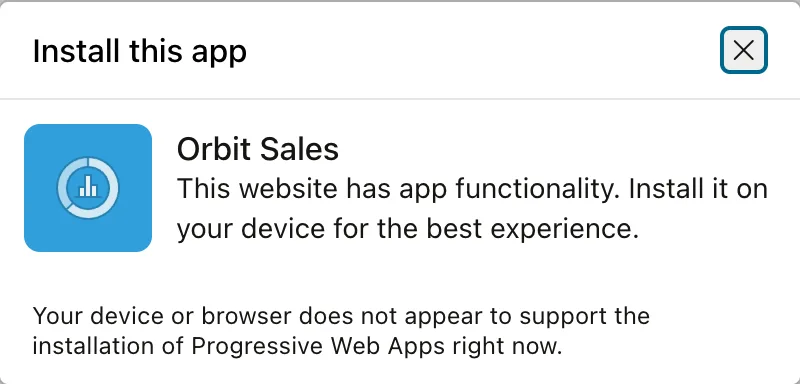
Starts the installation. In browsers that install PWAs themselves it shows the browser's own prompt; in the others it shows a dialog with instructions. Any click on an element with the class a-pwaInstall, or on the action a-pwa-install, calls it for you, which is how an Install App link in the navigation bar works.
apex.pwa.openInstallDialog()
apex.pwa.openInstallDialog();
await new Promise((resolve) => setTimeout(resolve, 1000));
console.log("dialog:", apex.jQuery(".ui-dialog:visible .ui-dialog-title").text());
Output:
dialog: Install this app
Combine it with isInstallable to show your own "Install" button only when installing is actually possible.
Push Notifications
With Enable Push Notifications switched on, users can subscribe a device to notifications that APEX_PWA.SEND_PUSH_NOTIFICATION sends from PL/SQL. subscribePushNotifications asks the user for permission and registers the subscription, and unsubscribePushNotifications removes it. hasPushSubscription and getPushSubscription return promises of whether the user is subscribed and of the browser's subscription object.
apex.pwa.subscribePushNotifications() → Promise
apex.pwa.unsubscribePushNotifications() → Promise
apex.pwa.hasPushSubscription() → Promise<boolean>
apex.pwa.getPushSubscription() → Promise<PushSubscription>
// Push notifications are off in the API Lab (Shared Components > Progressive Web App).
console.log("subscribed:", await apex.pwa.hasPushSubscription());
console.log("subscription:", await apex.pwa.getPushSubscription());
console.log("subscribePushNotifications returned:", await apex.pwa.subscribePushNotifications());
console.log("subscribed:", await apex.pwa.hasPushSubscription());
Output:
subscribed: false
subscription: undefined
subscribePushNotifications returned: undefined
subscribed: false
Push notifications are off in the test application, so the functions do nothing and report no subscription. In an app with them on, APEX adds a Push Notifications settings page to the user menu that calls these functions for you, so you only need them for a custom subscribe button. Sending the notifications is covered in the guide to automations, email, and push notifications.
Recipes
Remember a User's Choice for the Next Visit
A user sorts a product catalog by category, and next time the page opens sorted by name again. A preference like this needs no table: scoped local storage keeps it in the browser, under a key no other application on the instance uses. The code restores the saved value when the page loads and saves every new choice.
Put the code in the page's Execute when Page Loads attribute. The part after "--- after the page loads ---" only demonstrates it by choosing a sort and reloading.
// === Page › Execute when Page Loads ===
// Remembers the sort order the user chose in the catalog, in the browser, for the next visit.
const prefs = apex.storage.getScopedLocalStorage({ prefix: "catalog", useAppId: true });
const saved = prefs.getItem("orderBy");
if (saved && saved !== apex.item("P11_ORDER_BY").getValue()) {
    apex.item("P11_ORDER_BY").setValue(saved);              // the cards refresh in this order
}
$("#P11_ORDER_BY").on("change", () => prefs.setItem("orderBy", apex.item("P11_ORDER_BY").getValue()));
console.log("page loaded - sort:", apex.item("P11_ORDER_BY").getValue(), "- saved:", saved);
// --- after the page loads ---
// === Try it: sort by category, then come back to the page ===
apex.item("P11_ORDER_BY").setValue("CATEGORY_NAME");
await new Promise((resolve) => setTimeout(resolve, 800));
location.reload();
// --- on the next page ---
await new Promise((resolve) => setTimeout(resolve, 800));
console.log("first card:", $("#catalog .a-CardView-title").first().text().trim());
Output:
page loaded - sort: PRODUCT_NAME - saved: null
page loaded - sort: CATEGORY_NAME - saved: CATEGORY_NAME
first card: Pathfinder 22 L Daypack
Setting P11_ORDER_BY is enough, because the cards region re-sorts when its Order By item changes, as described in the guide to cards and template components. Keep in mind that local storage belongs to the browser, not the user: the choice will not be there on another computer, and another person using the same browser gets it too. For a preference that should follow the user, save it on the server with apex_util.set_preference instead.
Keep a Draft Until the Form Is Saved
A user writes long notes, and a reload, an expired session, or a closed tab throws them away. This code copies the notes to session storage as the user types, at most every half second thanks to apex.util.debounce, puts them back when the page loads again, and removes the draft once the page is submitted.
Put the code in the page's Execute when Page Loads attribute. The part after "--- after the page loads ---" simulates typing a note and reloading by mistake.
// === Page › Execute when Page Loads ===
// Keeps a draft of the order's notes in the browser tab until the order is saved.
const drafts = apex.storage.getScopedSessionStorage({ prefix: "notes-draft", usePageId: true });
const key = apex.item("P10_ORDER_ID").getValue();
const draft = drafts.getItem(key);
if (draft !== null && draft !== apex.item("P10_NOTES").getValue()) {
    apex.item("P10_NOTES").setValue(draft);
    apex.message.showPageSuccess("Your unsaved notes were restored.");
}
$("#P10_NOTES").on("input", apex.util.debounce(() =>
    drafts.setItem(key, apex.item("P10_NOTES").getValue()), 500));
apex.gPageContext$.on("apexbeforepagesubmit", () => drafts.removeItem(key));
// --- after the page loads ---
// === Try it: open an order, type notes, and reload the page by mistake ===
$("#orders a[href*='order']").first()[0].click();
// --- on the Order page ---
$("#P10_NOTES").val("Deliver to the loading dock.").trigger("input");
await new Promise((resolve) => setTimeout(resolve, 800));
location.reload();
// --- on the reloaded page ---
await new Promise((resolve) => setTimeout(resolve, 500));
console.log("notes:", apex.item("P10_NOTES").getValue());
console.log("message:", $("#APEX_SUCCESS_MESSAGE .t-Alert-title").text().trim());
Output:
notes: Deliver to the loading dock.
message: Your unsaved notes were restored.
The draft is kept per order, since the key is the order ID, and per page, through usePageId. Removing it in an apexbeforepagesubmit handler, an event covered in the guide to the apex namespace and page events, makes sure a saved form does not bring back an old draft. Session storage lasts only as long as the tab; use local storage to keep drafts after the browser closes, and remember to remove them.
Conclusion
apex.storage.getScopedLocalStorage and getScopedSessionStorage give you the browser's storage with keys scoped to the application, page, and region, so different apps on one instance never collide, and the wrappers keep working even where storage is unavailable. Watch the difference between key(n), which includes the prefix, and getItem, which does not, and call sync after changing keys outside the wrapper. setCookie and getCookie handle small values the server should see. apex.pwa reports how the app is displayed and whether it can be installed, opens the install dialog, and manages push subscriptions. Browser storage suits per-device conveniences like sort orders and drafts; anything that must follow the user belongs on the server.
