
Every page in an Oracle APEX application carries a single JavaScript object that everything else hangs from: apex. Items, regions, server calls, and messages all live under it, and knowing what sits directly on that object saves you from reinventing things APEX already gives you.
This guide covers the top level of the namespace: five properties that describe the page, five shortcut functions, and the twelve events APEX fires as a page loads, refreshes, submits, and opens dialogs. Each one comes with a tested example and the output it produced.
Quick Reference
| Name | What it gives you |
|---|---|
| apex.env | The signed-in user, application, page, session, and file paths |
| apex.items, apex.regions | Every item and region interface on the page, by name |
| apex.jQuery, apex.gPageContext$ | APEX's own jQuery, and the page context events fire on |
| apex.item, apex.region | The interface of one item or one region |
| apex.confirm, apex.submit | Confirm and submit the page with a request |
| apex.userHasTouched | Whether the user has used touch in this session |
| apexafterclosedialog, apexafterclosecanceldialog | A modal dialog closed, with the values it returned |
| apexbeforerefresh, apexafterrefresh | An item or region is about to get, or just got, new content |
| apexbeforepagesubmit, apexpagesubmit | The page is about to be validated, or about to leave |
| apexbeginrecordedit, apexendrecordedit | A grid record started or stopped being edited |
| apexselectionchange, apexcurrentrowchange | Row selection or the focused row changed |
| apexreadyend, apexwindowresized | All page-load work finished, or the user finished resizing |
How to Run These Examples
The examples were run in Oracle APEX 26.1 on a test application, each on the page it needs: a page with one item of every type, a customers report, a stores grid, or a home page with a list of recent orders. The output under each example is exactly what the browser console printed.
To try one, open a page of your own, press F12, paste the code into the Console tab, and swap in your own item names and region IDs. Code you want to keep goes into a dynamic action with an Execute JavaScript Code action, or into the page's JavaScript attributes.
A few examples pause with await at the top level so the output can catch up. The browser console allows that; inside a dynamic action, wrap such code in an async function.
The Properties of the apex Namespace
| Property | Type | What it holds |
|---|---|---|
| apex.env | Object | APP_USER, APP_ID, APP_PAGE_ID, APP_SESSION, the paths APP_FILES, WORKSPACE_FILES, and APEX_FILES, and APEX_VERSION and APEX_BASE_VERSION. |
| apex.items | Object | Every item interface on the page, keyed by item name. |
| apex.regions | Object | Every region interface on the page, keyed by the region's HTML DOM ID. |
| apex.jQuery | function | The jQuery APEX itself uses. Prefer it to $ or jQuery, which a plug-in may have replaced. |
| apex.gPageContext$ | jQuery | The current page's document, as a jQuery object. Page-level events fire on it. |
The environment object is the one you will reach for most. It answers who is signed in, which page is running, and where the static files live, without reading hidden page items.
console.log(apex.env);
Output:
{
  "APP_USER": "ADMIN",
  "APP_ID": "200",
  "APP_PAGE_ID": "1",
  "APP_SESSION": "16720227481840",
  "APP_FILES": "r/apexbook/200/files/static/v2461308010606/",
  "WORKSPACE_FILES": "r/apexbook/files/static/v2461307120002/",
  "APEX_VERSION": "26.1.0",
  "APEX_BASE_VERSION": "26.1",
  "COMPATIBILITY_MODE": 26.1,
  "NONCE": "G0gmk6zHS4S300uWZirSDw",
  "IS_RUNTIME": true,
  "APEX_FILES": "/i/"
}
The real object in 26.1 also carries COMPATIBILITY_MODE, NONCE, and IS_RUNTIME, which Oracle's documentation does not list. They are visible above, but code that depends on undocumented properties can break in a later release, so stick to the documented ones.
The remaining properties tell you what is on the page.
console.log("jQuery version:", apex.jQuery.fn.jquery);
console.log("items on the page:", Object.keys(apex.items).length);
console.log("first five:", Object.keys(apex.items).slice(0, 5));
console.log("regions:", Object.keys(apex.regions));
console.log("text fields in the page context:",
    apex.jQuery("input[type=text]", apex.gPageContext$).length);
Output:
jQuery version: 3.7.1
items on the page: 31
first five: [
  "P20_COMBOBOX",
  "P20_SELECT_ONE",
  "P20_SELECT_MANY",
  "P20_DATE",
  "P20_AUTOCOMPLETE"
]
regions: []
text fields in the page context: 11
The page has thirty-one items but an empty regions list. Its regions are all static content, and APEX only creates a region interface for regions with behavior of their own, such as reports, grids, cards, charts, and maps. That is worth knowing before you try to refresh a static region from code.
Getting Item and Region Interfaces
apex.item
Returns the interface of a page item, the object carrying getValue, setValue, show, hide, and the rest. For items APEX created, apex.items.P1_NAME is the very same object.
apex.item(pItemId) → item
| Parameter | Type | Description |
|---|---|---|
| pItemId | string | The item name, which is also the ID of its main element. |
const number = apex.item("P20_NUMBER");
console.log(number.id, "is a", number.item_type, "item with the value", number.getValue());

// apex.items holds the same interface
console.log(apex.items.P20_NUMBER === number);

// an item that is not on the page: the interface exists, its node is false
console.log("node of a missing item:", apex.item("P20_NO_SUCH_ITEM").node);
Output:
P20_NUMBER is a NUMBER item with the value 1,250.00
true
node of a missing item: false
The last line matters more than it looks. apex.item never returns null: an item that is not on the page still gives you an interface, just one whose node is false. If a server-side condition might have left an item out, test apex.item(name).node before relying on it. Every method of that interface is covered in the guide to getting and setting page items with apex.item.
apex.region
Returns the interface of a region, or null when no region has that ID. Every region interface has refresh, focus, element, and type, and regions with richer behavior add many more methods.
apex.region(pRegionId) → region | null
| Parameter | Type | Description |
|---|---|---|
| pRegionId | string | The region's HTML DOM ID, set under Advanced in the region's properties. Without one, APEX generates an ID such as R123456789, which changes when the region is copied. |
const report = apex.region("customers");
console.log("type:", report.type);
console.log("element:", report.element.attr("id"));

// apex.regions holds the same interface
console.log(apex.regions.customers === report);

// a region that is not on the page
console.log(apex.region("no_such_region"));
Output:
type: InteractiveReport
element: customers
true
null
Unlike apex.item, this one does return null for a missing region. Give every region you address from JavaScript an HTML DOM ID of your own, because a generated ID changes the moment somebody copies the region and your code silently stops working.
Shortcut Functions
apex.confirm
Shows a confirmation dialog and submits the page with a request when the user clicks OK. It is an alias of apex.page.confirm, which accepts more options.
apex.confirm(pMessage, pRequest)
apex.confirm("Discard the changes on this page?", "DISCARD");
await new Promise((resolve) => setTimeout(resolve, 400));
console.log("dialog open:", apex.jQuery(".ui-dialog:visible").length === 1);
Output:
dialog open: true
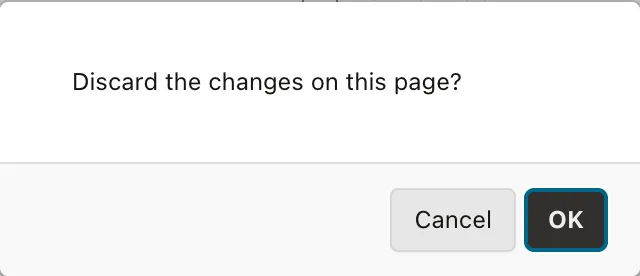
For more control over wording and buttons, see how to display a confirm dialog in Oracle APEX.
apex.submit
Submits the page, exactly like a button whose action is Submit Page. It is an alias of apex.page.submit and takes either a request string or an options object with request, set, showWait, validate, and more.
apex.submit(pOptions | pRequest)
The example listens for apexpagesubmit, which fires just before the page leaves, so it shows the request the server is about to receive:
apex.gPageContext$.on("apexpagesubmit", function (event, request) {
    console.log("submitting with request", request);
});
apex.submit({ request: "APPLY_FILTER", showWait: true });
Output:
submitting with request APPLY_FILTER
The declarative version is the Submit Page dynamic action, and submitting a page with a dynamic action shows when that is the simpler route.
apex.userHasTouched
Returns true when the user has used touch at any point in this browser session.
apex.userHasTouched() → boolean
if (apex.userHasTouched()) {
    console.log("touch: show larger targets");
} else {
    console.log("mouse and keyboard so far");
}
Output:
mouse and keyboard so far
Treat this as a last resort. Pages should work for touch and mouse alike, and most adjustments belong in CSS media queries; reserve this function for the rare case that CSS cannot handle.
Page Events
APEX fires these events through jQuery, so you listen with apex.jQuery(element).on(event, handler). Events about the whole page fire on apex.gPageContext$, while events about a particular item or region fire on its element and bubble up to the document.
Every one of them is also available as a dynamic action event, such as After Refresh, Dialog Closed, or Before Page Submit. That is the declarative way to use them, and the right choice whenever you do not need custom JavaScript; when you do need code, the Execute JavaScript Code dynamic action is where most of it ends up.
apexafterclosedialog
Fires on the calling page when a modal dialog is closed by the Close Dialog process or dynamic action. It fires on the element that opened the dialog and bubbles up, and the handler receives the values the dialog listed in its Items to Return.
apex.gPageContext$.on("apexafterclosedialog", function (event, data) { ... })| Property of data | Type | Description |
|---|---|---|
| dialogPageId | string | The page number of the dialog. |
| closeAction | string | Always "close" for this event. |
| Returned items | string | One property per item listed in Items to Return. |
The example opens the customer dialog from the first report row, then closes it from inside with apex.navigation.dialog.close, returning two items:
apex.gPageContext$.on("apexafterclosedialog", function (event, data) {
    console.log("returned from the dialog:", data);
    apex.region("customers").refresh();
});

// open the Customer dialog from the first row, then close it from inside the dialog,
// returning two of its items as the Close Dialog process does with "Items to Return"
apex.region("customers").element.find("td a").first()[0].click();
await new Promise((resolve) => setTimeout(resolve, 2500));
const dialog = apex.jQuery("iframe").last()[0].contentWindow;
dialog.apex.navigation.dialog.close(true, {
    P3_COMPANY_NAME: dialog.apex.item("P3_COMPANY_NAME").getValue(),
    P3_EMAIL: dialog.apex.item("P3_EMAIL").getValue()
});
Output:
returned from the dialog: {"P3_COMPANY_NAME":"", "P3_EMAIL":"wei.chen@example.com"}Two things to know. dialogPageId and closeAction are added only by the declarative Close Dialog process and action; when JavaScript closes the dialog, as here, data is exactly the object passed to dialog.close. And this event does not fire when the user cancels, which is what the next event is for. Refreshing the report behind the dialog, as this handler does, is covered in more depth in refreshing parent page regions when a dialog closes.
apexafterclosecanceldialog
Fires on the calling page however a modal dialog closes: the Close Dialog process or action, the Cancel Dialog action, the X button, or the Escape key. data.closeAction tells you which, as either "close" or "cancel".
apex.gPageContext$.on("apexafterclosecanceldialog", function (event, data) { ... })apex.gPageContext$.on("apexafterclosecanceldialog", function (event, data) {
console.log("dialog page", data.dialogPageId, "ended with", data.closeAction);
});
// open the Customer dialog, then cancel it as the Close (X) button does
apex.region("customers").element.find("td a").first()[0].click();
await new Promise((resolve) => setTimeout(resolve, 2500));
const dialog = apex.jQuery("iframe").last()[0].contentWindow;
dialog.apex.navigation.dialog.cancel(true);Output:
dialog page 3 ended with cancel
Use this one when you need to react to every way a dialog can end, for example to restore focus or undo a temporary highlight on the row the user clicked.
apexbeforerefresh and apexafterrefresh
Fire on an item or region just before and just after it gets new content from the server, such as a cascading select list reloading when its parent changes. The handler receives any refreshObjectData that came with the refresh.
item.element.on("apexbeforerefresh", function (event, data) { ... })
item.element.on("apexafterrefresh", function (event, data) { ... })
Here the category list depends on the department list, so choosing a department empties the categories and then loads the ones that belong to it:
const category = apex.item("P20_CATEGORY");
category.element
    .on("apexbeforerefresh", () =>
        console.log("before refresh:", category.element.find("option").length, "options"))
    .on("apexafterrefresh", () =>
        console.log("after refresh:", category.element.find("option").length, "options"));

// choosing a department refreshes the categories that depend on it
const department = apex.item("P20_DEPARTMENT");
department.setValue(department.element.find("option[value!='']").first().val());
Output:
before refresh: 1 options
after refresh: 5 options
The refresh is asynchronous, which is the whole reason these events exist. Code that reads a list's options immediately after its parent changes sees the old list; code that waits for apexafterrefresh sees the new one.
apexbeforepagesubmit
Fires on apex.gPageContext$ when the page is submitted through apex.page.submit or apex.page.confirm, which includes any button with the Submit Page action, and it fires before the page is validated. The handler receives the request.
apex.gPageContext$.on("apexbeforepagesubmit", function (event, request) { ... })Because it runs before validation, it is the right place for an extra client-side check. Here, setCustomValidity marks an empty text field invalid, so a submit with validate set to true stops and the page stays put:
apex.item("P20_TEXT").setValue("");

apex.gPageContext$.on("apexbeforepagesubmit", function (event, request) {
    const text = apex.item("P20_TEXT");
    console.log("before submit, request", request, "- text:", JSON.stringify(text.getValue()));
    // an extra check: an empty text field is not valid
    text.node.setCustomValidity(text.getValue() === "" ? "Enter a product name" : "");
});
apex.page.submit({ request: "SAVE", validate: true });
console.log("page is valid:", apex.item("P20_TEXT").node.checkValidity());
Output:
before submit, request SAVE - text: ""
page is valid: false
Do not start Ajax calls in this handler, because the page may be gone before they return. Also remember that a Confirm or Cancel Event action can still stop the submit after this event fires, so never assume the page actually left.
apexpagesubmit
Fires on apex.gPageContext$ after the page has passed validation, just before it is sent. It is the last chance to change an item's value before the server receives it.
apex.gPageContext$.on("apexpagesubmit", function (event, request) { ... })apex.gPageContext$.on("apexpagesubmit", function () {
const text = apex.item("P20_TEXT");
text.setValue(text.getValue().toUpperCase());
console.log("sent to the server:", text.getValue());
});
apex.page.submit("SAVE");Output:
sent to the server: TRAILBLAZER 2-PERSON TENT
The pair works as a sequence: apexbeforepagesubmit to check and possibly stop, apexpagesubmit to make last-moment adjustments to values that have already passed validation.
apexbeginrecordedit and apexendrecordedit
Fire on a region backed by a model, which in practice means the interactive grid, when a record begins and ends being edited: when the user moves to a record in edit mode, or edit mode switches on or off. The handler receives the model, the record, and its recordId.
region.element.on("apexbeginrecordedit", function (event, data) { ... })
region.element.on("apexendrecordedit", function (event, data) { ... })
const stores = apex.region("stores");
stores.element
.on("apexbeginrecordedit", (event, data) => console.log("begin editing store", data.recordId))
.on("apexendrecordedit", (event, data) => console.log("end editing store", data.recordId));
const grid = stores.call("getViews", "grid");
const first = grid.model.getRecordId(grid.model.recordAt(0));
const second = grid.model.getRecordId(grid.model.recordAt(1));
stores.call("getActions").set("edit", true); // edit mode
grid.view$.grid("gotoCell", first, "CITY"); // edit the first store
await new Promise((resolve) => setTimeout(resolve, 500));
grid.view$.grid("gotoCell", second, "CITY"); // move to the second storeOutput:
begin editing store 1
end editing store 1
begin editing store 3
Record IDs are primary key values, not row positions, which is why the second record in the grid reports itself as store 3. For a related technique, see making interactive grid rows editable on a condition.
apexselectionchange
Fires on a region whose rows can be selected, such as a template component report with row selection enabled, whenever the selection changes. It is debounced, so a user racing through rows with the keyboard produces one event a moment after they stop. The handler receives selectedValues, the primary keys of the selected rows.
region.element.on("apexselectionchange", function (event, data) { ... })The region here is a Content Row template component with Row Selection set to Multiple and the order ID as its primary key:
const orders = apex.region("recent_orders");
orders.element.on("apexselectionchange", function (event, data) {
    console.log("selected orders:", data.selectedValues);
});
const firstTwo = orders.element.find("[data-id]").slice(0, 2)
    .map((i, row) => row.getAttribute("data-id")).get();
orders.setSelectedValues(firstTwo, true);
Output:
selected orders: ["2282", "2280"]
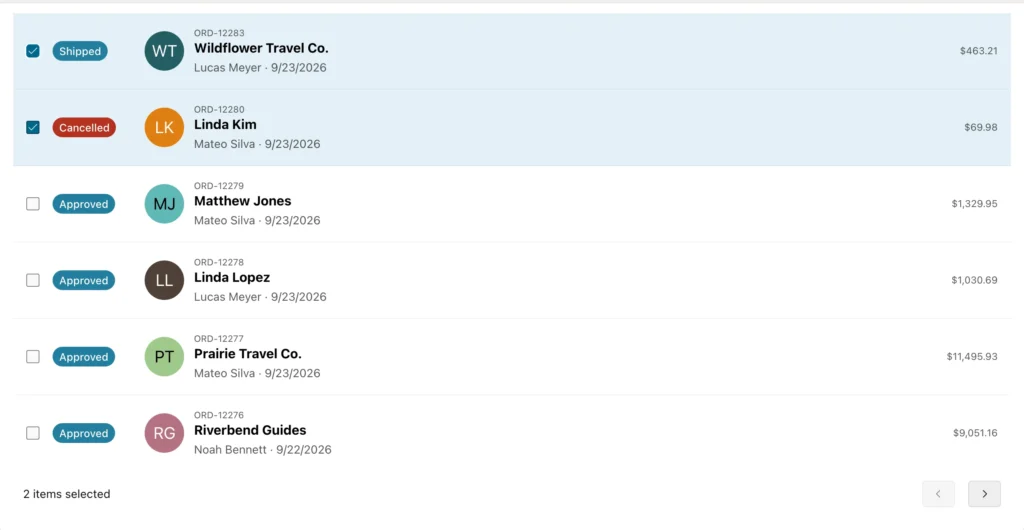
A template component needs a primary key column before it can offer row selection at all, and the page shows an error without one. The interactive grid has its own, more detailed selectionchange event.
apexcurrentrowchange
Fires on a region that supports keyboard navigation when its current row, the one holding focus, changes. The handler receives currentValue, the primary key of the new current row.
region.element.on("apexcurrentrowchange", function (event, data) { ... })const orders = apex.region("recent_orders");
orders.element.on("apexcurrentrowchange", function (event, data) {
console.log("current order:", data.currentValue);
});
const third = orders.element.find("[data-id]").eq(2).attr("data-id");
orders.setCurrentRowValue(third, true);Output:
current order: 2279
Selection and focus are different things: a user can move focus through ten rows while selecting none. Use this event for master-detail layouts that follow the focused row, and apexselectionchange for actions on chosen rows.
apexreadyend
Fires on apex.gPageContext$ once all page-load work is done. That is later than the browser's own DOMContentLoaded, because APEX waits for items that load asynchronously, such as the rich text editor.
apex.jQuery(apex.gPageContext$).on("apexreadyend", function (event) { ... })apex.jQuery(apex.gPageContext$).on("apexreadyend", function () {
console.log("page ready; the rich text editor is ready too:",
apex.item("P20_RICH_TEXT").isReady());
});Output:
page ready; the rich text editor is ready too: true
The handler has to be in place before the page finishes loading, so this code belongs in the page's Function and Global Variable Declaration attribute. Pasting it into the console after the page has loaded does nothing, because the event has already fired. It pairs well with reusable JavaScript functions in Oracle APEX, which live in the same attribute.
apexwindowresized
Fires on window once, a few hundred milliseconds after the user stops resizing the browser, unlike the native resize event, which fires dozens of times during a single drag.
apex.jQuery(window).on("apexwindowresized", function (event) { ... })apex.jQuery(window).on("apexwindowresized", function () {
console.log("done resizing:", apex.jQuery(window).width(), "x", apex.jQuery(window).height());
});
window.dispatchEvent(new Event("resize")); // as when the user resizes the windowOutput:
done resizing: 1280 x 800
Use it for work that is expensive to repeat, such as recalculating a chart's size, where responding to every intermediate pixel would make the page stutter.
Conclusion
The apex namespace is the entry point to everything JavaScript can do in Oracle APEX. apex.env tells you who and where you are without hidden items, apex.items and apex.regions list what is on the page, and apex.jQuery protects you from plug-ins that replace the global dollar sign. apex.item always returns an interface, so test its node, while apex.region returns null for a missing region, so give every region you script an HTML DOM ID of your own. apex.confirm and apex.submit are handy aliases of their apex.page counterparts. The twelve events cover the moments that matter: dialogs closing with or without returned values, items and regions refreshing, the page being checked and then submitted, grid records being edited, rows being selected or focused, the page finishing its load, and the window settling after a resize. Reach for the matching dynamic action events first, and for these handlers when you need logic the declarative actions cannot express.
