
Buttons and branches cover most page flow in Oracle APEX, but sooner or later a page needs JavaScript to decide when to submit, where to go, or which dialog to open. Three namespaces handle that: apex.page submits and checks the current page, apex.navigation moves between pages and opens dialogs and windows, and apex.theme opens collapsible regions, shows item help, and tests media queries.
This guide covers every function in them, from submitting with a request and item values to warning about unsaved changes, opening a modal dialog, and closing it with a result. Each has a tested example with the real output, and four recipes at the end solve common tasks: refreshing a report when its dialog closes, opening a dialog page from JavaScript, asking before leaving a page with unsaved changes, and approving the selected rows of an interactive report.
Quick Reference
| Function | What it does |
|---|---|
| apex.page.submit | Submits the page with a request, optionally setting items first |
| apex.page.confirm | Asks for confirmation, then submits |
| apex.page.validate | Reports invalid items and shows the errors |
| apex.page.isChanged | Tells whether the page has unsaved changes |
| apex.page.warnOnUnsavedChanges, cancelWarnOnUnsavedChanges | Turns the leave-page warning on or off |
| apex.navigation.redirect | Goes to another URL in the same window |
| apex.navigation.dialog | Opens a page as a modal or non-modal dialog |
| apex.navigation.popup, openInNewWindow | Open a popup window or a new window or tab |
| apex.navigation.dialog.close, cancel | Close a dialog from inside it, with or without a result |
| apex.navigation.popup.close | Sets an item on the opener and closes the popup |
| apex.theme.openRegion, closeRegion | Open and close collapsible and inline regions |
| apex.theme.popupFieldHelp | Shows an item's help dialog |
| apex.theme.mq | Tests a CSS media query |
How to Run These Examples
The examples ran in Oracle APEX 26.1 on a test application with a page of sample items, a customers report whose rows open a customer dialog page, and an orders page. The output under each example is exactly what the browser console printed.
To try one, open a page of your own, press F12, paste the code into the Console tab, and swap in your own item names, region IDs, and page aliases. Two things to keep in mind. A line reading "--- on the page that the submit loads ---", or similar, marks where the page reloads or navigates; the code below it ran on the next page, so in your console paste it separately after the page has loaded. And several examples pause with await at the top level, which the console allows; inside a dynamic action, wrap such code in an async function.
Submitting the Current Page
apex.page.submit
Submits the page. When the page attribute Reload on Submit is Only for Success, APEX submits with Ajax and reloads only when processing succeeds; otherwise it posts the page as a normal form. apex.submit is a shorter alias for the same function.
apex.page.submit([pOptions]) → boolean | undefined
pOptions is either the request value as a string or an object with these options, which apex.page.confirm accepts too:
| Option | Type | Description |
|---|---|---|
| request | string | The request value, available as :REQUEST in the page's processes and conditions. |
| set | object | Items to set before submitting, as { item: value }. |
| showWait | boolean | Show a wait spinner while the page submits. |
| validate | boolean | Check the items first and submit only when all are valid, as validate does. |
| ignoreChange | boolean | Defaults to true, meaning no unsaved-changes warning. Set it to false when the submit does not save anything. |
| reloadOnSubmit | string | "A" for always or "S" for on success, overriding the page attribute. |
| submitIfEnter | Event | Submit only if this key event is the Enter key. The function then returns false for Enter and true for any other key. |
apex.gPageContext$.on("apexbeforepagesubmit", (event, request) => console.log("apexbeforepagesubmit:", request));
apex.gPageContext$.on("apexpagesubmit", (event, request) => console.log("apexpagesubmit:", request));
apex.page.submit({
    request: "APPLY",
    set: { P20_TEXT: "Submitted from JavaScript", P20_NUMBER: "42" },
    showWait: true
});
// --- on the page that the submit loads ---
console.log("P20_TEXT:", apex.item("P20_TEXT").getValue());
console.log("P20_NUMBER:", apex.item("P20_NUMBER").getValue());
Output:
apexbeforepagesubmit: APPLY
apexpagesubmit: APPLY
P20_TEXT: Submitted from JavaScript
P20_NUMBER: 42.00
The page processed the APPLY request and loaded again with the values set gave the items. The number shows as 42.00 because the item has the format mask 999G999G990D00. The set option saves you from filling hidden items one by one before a submit. For the declarative version, see the Submit Page dynamic action example.
Before the page leaves, APEX fires apexbeforepagesubmit, whose handler can cancel the submit, and then apexpagesubmit. The handler receives the request as its second argument, so it can cancel some requests and allow others:
apex.gPageContext$.on("apexbeforepagesubmit", (event, request) => {
    if (request === "DELETE") {
        console.log("submit canceled:", request);
        event.preventDefault();                           // the page is not submitted
    }
});
apex.page.submit("DELETE");
console.log("still on page", apex.env.APP_PAGE_ID);
Output:
submit canceled: DELETE
still on page 20
Both events are covered in more depth in the guide to the apex namespace and page events.
apex.page.confirm
Asks the user to confirm and submits the page only if they click OK. It takes the same options as submit, and the default request is "Delete". apex.confirm is the shorter alias.
apex.page.confirm([pMessage], [pOptions])
apex.page.confirm("Delete the selected documents?", {
    request: "DELETE",
    set: { P20_HIDDEN: "42" }
});
await new Promise((resolve) => setTimeout(resolve, 500));   // the dialog opens asynchronously
console.log("dialog:", apex.jQuery(".ui-dialog:visible .ui-dialog-content").text().replace(/\s+/g, " ").trim());
Output:
dialog: Confirmation Delete the selected documents?
Always pass a message. The default text is not translated and is deprecated. For custom button labels and other dialog styles, see how to display a confirm dialog in Oracle APEX.
apex.page.validate
Checks every item and every submittable model on the page and shows the errors through apex.message.showErrors. It does not run any validation of its own. Instead it reports the browser's HTML constraints, such as required, pattern, min, and max, plus any errors set with setCustomValidity or by item validation.
apex.page.validate([pLocation]) → boolean
| Parameter | Type | Description |
|---|---|---|
| pLocation | string or string[] | Where to show errors: "inline", "page", or both, which is the default. |
const text = apex.item("P20_TEXT").node;
text.required = true;                                     // an HTML 5 constraint
text.value = "";
console.log("valid:", apex.page.validate());
text.value = "Orbit";
apex.message.clearErrors();
console.log("valid:", apex.page.validate());
text.value = "";
apex.page.validate();                                     // shows the error again for the screenshot
Output:
valid: false
valid: true
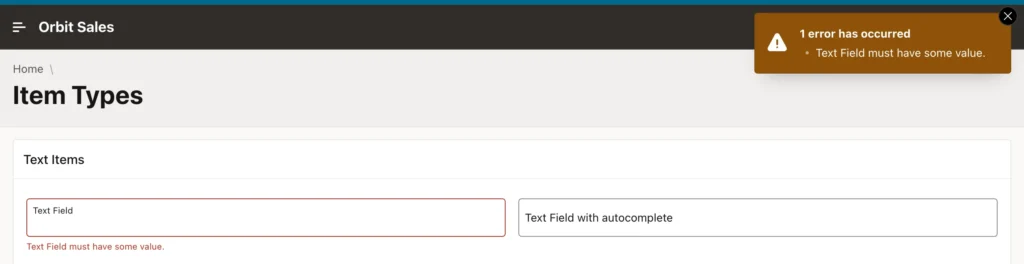
This is a client-side check only. Anything that matters must also be validated on the server, as covered in the guide to validations in Oracle APEX.
Protecting Unsaved Changes
apex.page.isChanged
Returns true when an item or model on the page has changed since the page loaded or was last saved. Disabled items, and items whose Warn on Unsaved Changes attribute is Ignore, are left out.
apex.page.isChanged() → boolean
const customer = apex.item("P19_CUSTOMER_ID");
const original = customer.getValue();
console.log("changed:", apex.page.isChanged());
customer.setValue("12");
console.log("changed:", apex.page.isChanged());
customer.setValue(original);
console.log("changed:", apex.page.isChanged());
Output:
changed: false
changed: true
changed: false
Putting the original value back makes the page unchanged again, as the last line shows. One quirk in 26.1: a Color Picker item with a value counts as changed from the moment the page loads, because its element has no default value, so isChanged is true on any page that has one. Set that item's Warn on Unsaved Changes attribute to Ignore.
apex.page.warnOnUnsavedChanges and cancelWarnOnUnsavedChanges
warnOnUnsavedChanges makes the browser ask before leaving the page whenever isChanged is true. APEX calls it for you on pages whose Warn on Unsaved Changes attribute is on. Call it yourself to include state that is not in items or models, such as a third-party editor. cancelWarnOnUnsavedChanges removes the check, for example just before a Cancel button leaves the page. Links and buttons with the class js-ignoreChange never trigger the warning.
apex.page.warnOnUnsavedChanges([pMessage], [pExtraIsChanged])
apex.page.cancelWarnOnUnsavedChanges()
| Parameter | Type | Description |
|---|---|---|
| pMessage | string | The warning message. Most browsers show their own text instead. |
| pExtraIsChanged | function | Returns true when there are other unsaved changes. It is called only when no item or model has changed. |
let editorDirty = false;                                  // state outside APEX items and models
apex.page.warnOnUnsavedChanges("You have unsaved changes.", () => editorDirty);
console.log("changed:", apex.page.isChanged());
editorDirty = true;
console.log("changed:", apex.page.isChanged());
apex.page.cancelWarnOnUnsavedChanges();
editorDirty = false;
console.log("after cancelWarnOnUnsavedChanges:", apex.page.isChanged());
Output:
changed: false
changed: true
after cancelWarnOnUnsavedChanges: false
The extra function also feeds isChanged, which is why the second line reports a change even though no APEX item changed.
Going to Other Pages
apex.navigation.redirect
Goes to another URL in the current window, the JavaScript counterpart of a Redirect branch.
apex.navigation.redirect(pWhere, [pIgnoreUnsavedChanges])
| Parameter | Type | Description |
|---|---|---|
| pWhere | string | The URL. |
| pIgnoreUnsavedChanges | boolean | Leave without the unsaved-changes warning. |
console.log("leaving page", apex.env.APP_PAGE_ID);
apex.navigation.redirect(`f?p=${apex.env.APP_ID}:customers:${apex.env.APP_SESSION}`);
// --- on the Customers page ---
console.log("now on page", apex.env.APP_PAGE_ID);
Output:
leaving page 1
now on page 2
The example builds an f?p URL from apex.env, using the page alias customers instead of a page number. That works for pages without Page Access Protection; for protected pages, and for passing item values, get the URL from the server, as the dialog recipe below does. To simply reload the current page, see reloading a page using JavaScript.
apex.navigation.dialog
Opens a page as a dialog: a modal dialog in an iframe over the current page, or with modal set to false, a non-modal dialog in a popup window.
apex.navigation.dialog(pUrl, pOptions, pCssClasses, pTriggeringElement)
| Parameter | Type | Description |
|---|---|---|
| pUrl | string | The dialog page's URL, generated on the server. |
| pOptions | object | title, modal (default true), width, height (non-modal only), maxWidth (default 1500), and any jQuery UI dialog option, such as resizable. |
| pCssClasses | string | Classes for the dialog, from the dialog page template. |
| pTriggeringElement | string | A selector for the element that opened the dialog. The close events fire on it. |
A dialog page checks that its URL carries the checksums the server adds, so the URL must come from the server: from a link APEX generated, from a page item filled with APEX_PAGE.GET_URL, or from an Ajax call. A URL assembled in JavaScript opens the page but ignores any item values in it. Here the URL is taken from the report's own link to the first customer:
// A dialog URL must come from the server, with its checksums: take the one of the
// report's link to the first customer.
const link = apex.jQuery("#customers a[href*='dialog-open']").first().attr("href");
const url = new URLSearchParams(link.split("?")[1]).get("url");
apex.navigation.dialog(url, { title: "Customer", modal: true, width: 900, height: 600 }, "t-Dialog-page--standard", "#customers");
await new Promise((resolve) => setTimeout(resolve, 3000));
const frame = document.querySelector(".ui-dialog iframe");
console.log("dialog:", apex.jQuery(".ui-dialog-title").text(), "- page", frame.contentWindow.apex.env.APP_PAGE_ID);
const $v = frame.contentWindow.apex.item;
console.log("customer:", $v("P3_FIRST_NAME").getValue(), $v("P3_LAST_NAME").getValue(), "-", $v("P3_EMAIL").getValue());
Output:
dialog: Customer - page 3
customer: Wei Chen - wei.chen@example.com
In 26.1, links to a dialog page use a URL of the form #action$a-dialog-open?url=..., which is where the example reads the dialog URL from. In most applications you never call dialog yourself; a link or branch to a dialog page does it. To change the title of a dialog once it is open, see changing a dialog title dynamically.
apex.navigation.popup
Opens a URL in a popup window and returns its window object, or null when the browser blocked it. A window with the same name is reused, and APEX makes the name unique to the application.
apex.navigation.popup(pOptions) → Window | null
| Option | Type | Description |
|---|---|---|
| url | string | The URL. Defaults to about:blank. |
| name | string | The window name. Defaults to _blank, which always opens a new window. |
| width, height | number | The size in pixels. Both default to 600. |
| scroll, resizeable, toolbar, location, statusbar, menubar | string | "yes" or "no". All default to "no" except resizeable. |
const win = apex.navigation.popup({
    url: `f?p=${apex.env.APP_ID}:products:${apex.env.APP_SESSION}`,
    name: "products", width: 800, height: 600
});
await new Promise((resolve) => win.addEventListener("load", resolve));
console.log("popup window:", win.name, "- page", win.apex.env.APP_PAGE_ID);
win.close();
Output:
popup window: products_9522612029304 - page 4
The window name "products" came back with a number appended, which is how APEX keeps popup names unique to the application.
apex.navigation.openInNewWindow
Opens a URL in a new window or tab, whichever the browser prefers, and returns its window object. Unlike a popup, the new window is independent of the application page.
apex.navigation.openInNewWindow(pURL, [pWindowName], [pOptions]) → Window | null
| Parameter | Type | Description |
|---|---|---|
| pURL | string | The URL. |
| pWindowName | string | The window name. Defaults to _blank. |
| pOptions | object | altSuffix, a suffix for the unique name; favorTabbedBrowsing, to avoid forcing a separate window; and noopener, to deny the new page access to its opener. noopener is the default for _blank, in which case the function returns null. |
const win = apex.navigation.openInNewWindow(`f?p=${apex.env.APP_ID}:stores:${apex.env.APP_SESSION}`, "stores");
await new Promise((resolve) => win.addEventListener("load", resolve));
console.log("window:", win.name, "- page", win.apex.env.APP_PAGE_ID, "- opener:", win.opener === window);
const again = apex.navigation.openInNewWindow(`f?p=${apex.env.APP_ID}:orders:${apex.env.APP_SESSION}`, "stores");
console.log("reused:", again === win);
win.close();
Output:
window: stores_14820361163425 - page 9 - opener: true
reused: true
Opening a second URL with the same name reused the window rather than creating another, which is useful for a "details" window that should follow whatever the user clicks.
Closing Dialogs and Popups
These functions run on the dialog or popup page itself, usually in one of its dynamic actions. The examples reach the dialog from the parent page through the iframe's contentWindow, which runs the same code.
apex.navigation.dialog.close
Closes the dialog and hands a result to the page that opened it. That page receives the apexafterclosedialog event, with the dialog's page number as dialogPageId and the values as properties of the event data. The Close Dialog process does the same thing on the server.
apex.navigation.dialog.close(pIsModal, [pAction])
| Parameter | Type | Description |
|---|---|---|
| pIsModal | boolean | true for a modal dialog. |
| pAction | string, function, object, array, or false | A URL to redirect the parent page to; a function that opens another dialog page in the same dialog; an object of item values for the event; an array of item names whose values go into the event; or false to cancel. |
// A dialog URL must come from the server, with its checksums: take the one of the
// report's link to the first customer.
const link = apex.jQuery("#customers a[href*='dialog-open']").first().attr("href");
const url = new URLSearchParams(link.split("?")[1]).get("url");
apex.jQuery("#customers").on("apexafterclosedialog", (event, data) =>
    console.log("apexafterclosedialog:", data.dialogPageId, data.P3_EMAIL));
apex.navigation.dialog(url, { title: "Customer", modal: true }, "", "#customers");
await new Promise((resolve) => setTimeout(resolve, 3000));
// in the dialog page (here reached through its iframe):
const dialogWindow = document.querySelector(".ui-dialog iframe").contentWindow;
dialogWindow.apex.navigation.dialog.close(true, ["P3_EMAIL"]);
await new Promise((resolve) => setTimeout(resolve, 500));
console.log("dialogs open:", apex.jQuery(".ui-dialog:visible").length);
Output:
apexafterclosedialog: 3 wei.chen@example.com
dialogs open: 0
apex.navigation.dialog.cancel
Closes the dialog without a result. The page that opened it receives apexafterclosecanceldialog, but not apexafterclosedialog, as the output confirms.
apex.navigation.dialog.cancel(pIsModal)
// A dialog URL must come from the server, with its checksums: take the one of the
// report's link to the first customer.
const link = apex.jQuery("#customers a[href*='dialog-open']").first().attr("href");
const url = new URLSearchParams(link.split("?")[1]).get("url");
apex.jQuery("#customers").on("apexafterclosecanceldialog", (event, data) =>
    console.log("apexafterclosecanceldialog:", data.dialogPageId));
apex.jQuery("#customers").on("apexafterclosedialog", () => console.log("apexafterclosedialog"));
apex.navigation.dialog(url, { title: "Customer", modal: true }, "", "#customers");
await new Promise((resolve) => setTimeout(resolve, 3000));
document.querySelector(".ui-dialog iframe").contentWindow.apex.navigation.dialog.cancel(true);
await new Promise((resolve) => setTimeout(resolve, 500));
console.log("dialogs open:", apex.jQuery(".ui-dialog:visible").length);
Output:
apexafterclosecanceldialog: 3
dialogs open: 0
apex.navigation.popup.close
On a page opened with apex.navigation.popup, sets an item on the page that opened it and closes the popup. It is a simple way to let the user pick a value on another page.
apex.navigation.popup.close(pItem, pValue)
const win = apex.navigation.popup({ url: `f?p=${apex.env.APP_ID}:products:${apex.env.APP_SESSION}`, name: "picker" });
await new Promise((resolve) => win.addEventListener("load", resolve));
// in the popup page:
win.apex.navigation.popup.close("P20_TEXT", "BAS-1001");
await new Promise((resolve) => setTimeout(resolve, 300));
console.log("P20_TEXT:", apex.item("P20_TEXT").getValue(), "- popup closed:", win.closed);
Output:
P20_TEXT: BAS-1001 - popup closed: true
Theme Functions
apex.theme.openRegion and closeRegion
Open and close a region that can be opened and closed: a collapsible region, an inline dialog, an inline drawer, or an inline popup. Both return the region's jQuery object.
apex.theme.openRegion(pRegion) → jQuery
apex.theme.closeRegion(pRegion) → jQuery
| Parameter | Type | Description |
|---|---|---|
| pRegion | string or jQuery | The region, as its DOM ID or a jQuery object. |
const about = apex.jQuery(".t-Region--hideShow").first();     // the collapsible "About This Page"
const state = () => about.hasClass("is-expanded") ? "expanded" : "collapsed";
apex.theme.closeRegion(about);
console.log("after closeRegion:", state());
apex.theme.openRegion(about);
console.log("after openRegion: ", state());
Output:
after closeRegion: collapsed
after openRegion:  expanded
The Open Region and Close Region dynamic actions call these same functions.
apex.theme.popupFieldHelp
Shows an item's help dialog, the one the help icon beside a label opens. Pass an item ID to load that item's help text from the server, or an object with title and helpText to show your own.
apex.theme.popupFieldHelp(pItemId | {title, helpText}, [pSessionId], [pUrl])apex.theme.popupFieldHelp({
title: "Text Field",
helpText: "<p>Enter up to <strong>100 characters</strong>. The value is saved in upper case.</p>"
});
await new Promise((resolve) => setTimeout(resolve, 800));
console.log("help dialog:", apex.jQuery(".ui-dialog-title:visible").text());Output:
help dialog: Text Field

Label templates do not call this function directly. A button with the class js-itemHelp and data-itemhelp="#CURRENT_ITEM_ID#" opens the help through a handler the theme provides. Because helpText is rendered as HTML, never pass it text a user typed.
apex.theme.mq
Tests a CSS media query. It is a thin wrapper around the browser's window.matchMedia.
apex.theme.mq(pMediaQuery) → boolean
console.log("wider than 640px:", apex.theme.mq("(min-width: 640px)"));
console.log("phone:", apex.theme.mq("(max-width: 480px)"));
console.log("dark mode:", apex.theme.mq("(prefers-color-scheme: dark)"));
Output:
wider than 640px: true
phone: false
dark mode: false
Recipes
Refresh a Report When Its Dialog Closes
A customers report opens each customer in a modal dialog page. When the user saves there, the dialog closes, but the report behind it still shows the old values. The fix is to listen for apexafterclosedialog, which fires on the element that opened the dialog, here a link inside the report region, with the dialog's page ID and how it was closed.
Declaratively, this is a dynamic action on the Dialog Closed event of the report region, with a Refresh action and a success message. In code, put the handler in the page's Execute when Page Loads attribute. The part marked Try it only simulates a user editing a phone number in the dialog.
// === Page › Execute when Page Loads (or a Dialog Closed dynamic action on the region) ===
apex.region("customers").element.on("apexafterclosedialog", (event, data) => {
    console.log("dialog closed:", data);
    if (data.dialogPageId === 3 && data.closeAction === "close") {
        apex.region("customers").refresh();
        apex.message.showPageSuccess("The customer was saved.");
    }
});
// === Try it: edit the first customer's phone in the dialog and click Apply Changes ===
apex.region("customers").element.find("td a").first()[0].click();
await new Promise((resolve) => setTimeout(resolve, 2500));
const dialog = $("iframe").last()[0].contentWindow;
dialog.apex.item("P3_PHONE").setValue("(457) 237-9000");
dialog.$("button").filter((i, button) => button.textContent.trim() === "Apply Changes")
    .trigger("click");
await new Promise((resolve) => setTimeout(resolve, 4000));
console.log("message:", $("#APEX_SUCCESS_MESSAGE .t-Alert-title").text().trim());
console.log("in the report:", $("#customers td")
    .filter((i, cell) => cell.textContent.includes("237-90"))
    .map((i, cell) => cell.textContent.trim()).get());
Output:
dialog closed: {"dialogPageId":3, "closeAction":"close", "showMessage":false}
message: The customer was saved.
in the report: ["(457) 237-9000"]
To learn which record was saved, list its item in Items to Return on the dialog's Close Dialog process; its value then arrives in the event data, for example as data.P3_CUSTOMER_ID. A dialog closed with Cancel or the close button reports a closeAction of "cancel", and nothing needs refreshing. There is a walkthrough of the declarative approach in refreshing parent page regions when a dialog closes.
Open a Dialog Page from JavaScript
A modal dialog page opens fine from a link or button that APEX renders with the dialog's URL, but not from a URL your JavaScript assembles, because a page with Page Access Protection needs a checksum only the server can compute. This recipe asks the server for the URL with an Ajax callback, then opens it with apex.navigation.redirect. Redirecting to a dialog page's URL opens it as a dialog, not as a new page.
Put the function in the page's Function and Global Variable Declaration attribute, and create an Ajax Callback application process named PAGE_URL with this code:
begin
    apex_json.open_object;
    apex_json.write('url', apex_page.get_url(
        p_page   => apex_application.g_x01,
        p_items  => apex_application.g_x02,
        p_values => apex_application.g_x03));
    apex_json.close_object;
end;
// === Page › Function and Global Variable Declaration ===
// Opens the Customer dialog (page 3) for a customer. A dialog's URL needs a checksum, so
// the server makes it: the Ajax callback PAGE_URL returns apex_page.get_url(...).
async function openCustomer(customerId) {
const { url } = await apex.server.process("PAGE_URL",
{ x01: "3", x02: "P3_CUSTOMER_ID", x03: String(customerId) });
apex.navigation.redirect(url); // a dialog page's URL opens the dialog
}
// === Try it: open customer 42 from a button, a menu, or a keyboard shortcut ===
await openCustomer(42);
await new Promise((resolve) => setTimeout(resolve, 2500));
const dialog = $("iframe").last()[0].contentWindow;
console.log("dialog:", $(".ui-dialog:visible .ui-dialog-title").text(), "-",
dialog.apex.item("P3_EMAIL").getValue());Output:
dialog: Customer - wei.chen@example.com
apex_page.get_url adds the checksum and the session. A process that builds URLs for any page and item the browser asks for is only as safe as the target pages' own protection, which still applies: a user still cannot open a page they are not authorized to see. When the target is always the same, a hidden page item whose value is computed with apex_page.get_url before the page renders avoids the extra call. The guide to Ajax callbacks in Oracle APEX explains how the callback side works.
Ask Before Leaving a Page with Unsaved Changes
A Back to Orders button should not throw away the user's edits without asking. apex.page.isChanged tells whether any item, or an interactive grid, has changed since the page loaded. The button leaves at once when nothing has changed and asks with apex.message.confirm otherwise.
Give the button the action Defined by Dynamic Action, and add a dynamic action on its Click event with an Execute JavaScript Code action that calls the function, or holds its body. The code before the function only opens an order so the example has something to edit.
// === Try it: open an order from the Orders page ===
$("#orders a[href*='order']").first()[0].click();
// --- on the Order page ---
// === Button Back to Orders › Dynamic Action on Click › Execute JavaScript Code ===
function backToOrders() {
    const leave = () =>
        apex.navigation.redirect(`f?p=${apex.env.APP_ID}:orders:${apex.env.APP_SESSION}`);
    if (!apex.page.isChanged()) {
        leave();
    } else {
        apex.message.confirm("This order has unsaved changes. Leave without saving?",
                             (okPressed) => { if (okPressed) leave(); });
    }
}
// === Try it: change the notes, click the button, and click Cancel ===
apex.item("P10_NOTES").setValue("Call before delivery.");
backToOrders();
await new Promise((resolve) => setTimeout(resolve, 500));
console.log("confirm:", $(".ui-dialog:visible .a-AlertMessage-details").text().trim());
$(".ui-dialog:visible .ui-dialog-buttonpane button").first().trigger("click");   // Cancel
await new Promise((resolve) => setTimeout(resolve, 300));
console.log("still on page", apex.env.APP_PAGE_ID, "- notes:", apex.item("P10_NOTES").getValue());
Output:
confirm: This order has unsaved changes. Leave without saving?
still on page 10 - notes: Call before delivery.
This covers the button only. For every other way of leaving, such as the browser's back button, a menu entry, or closing the tab, the page attribute Warn on Unsaved Changes or apex.page.warnOnUnsavedChanges shows the browser's own warning instead, because browsers do not let a page show its own dialog at that point.
Approve the Selected Rows of an Interactive Report
An orders interactive report has row selection switched on. The user checks some orders and clicks Approve Selected. The code reads the primary keys of the checked rows with getSelectedValues, puts them in the hidden item P8_SELECTED_ORDERS, asks for confirmation, and submits the page with the request APPROVE, where a page process approves each order.
Give the Approve Selected button the action Defined by Dynamic Action, and add a dynamic action on its Click event with an Execute JavaScript Code action holding the code under the Approve Selected heading, down to the next Try it line. The page process runs on the request APPROVE (Server-side Condition: When Button Pressed) and loops over the selected IDs. orb_sales.approve_order is the test application's own procedure; call yours in its place.
for r in (select column_value as order_id
            from apex_string.split(:P8_SELECTED_ORDERS, ':'))
loop
    orb_sales.approve_order(p_order_id => r.order_id);
end loop;
// === Try it: check two orders that are Pending Approval ===
apex.region("orders").setSelectedValues(["2259", "2260"]);
// === Button Approve Selected › Dynamic Action on Click › Execute JavaScript Code ===
const orderIds = apex.region("orders").getSelectedValues();
if (!orderIds.length) {
apex.message.alert("Select the orders to approve.");
} else {
apex.item("P8_SELECTED_ORDERS").setValue(orderIds.join(":"));
// submits the page with the request APPROVE when the user clicks OK
apex.page.confirm(`Approve ${orderIds.length} order(s)?`, "APPROVE");
}
// === Try it: click OK ===
await new Promise((resolve) => setTimeout(resolve, 400));
console.log("confirm:", $(".ui-dialog:visible .a-AlertMessage-details").text().trim());
$(".ui-dialog:visible .ui-dialog-buttonpane button").last().trigger("click");
// --- on the next page ---
console.log("message:", $("#APEX_SUCCESS_MESSAGE .t-Alert-title").text().trim());
const statusOf = (orderNumber) => $("#orders .a-IRR-table tr")
.filter((i, row) => row.textContent.includes(orderNumber))
.find("td").map((i, cell) => cell.textContent.trim()).get()
.find((text) => /Approv|Pending/.test(text));
console.log("ORD-12259:", statusOf("ORD-12259"), "- ORD-12260:", statusOf("ORD-12260"));Output:
confirm: Approve 2 order(s)?
message: The selected orders have been approved.
ORD-12259: Approved - ORD-12260: Approved
apex.page.confirm submits only when the user clicks OK. The hidden item must not be Value Protected, since JavaScript changes it. And because a request like this can be crafted by hand, the process should check that the user is allowed to approve each order rather than trusting the list it receives. More on row selection methods is in the guide to selecting rows and paging through reports and cards.
Conclusion
apex.page.submit and confirm submit the page with a request and item values, after an apexbeforepagesubmit event a handler can cancel. validate reports invalid items on the client, and isChanged together with warnOnUnsavedChanges protects unsaved work. apex.navigation.redirect moves to another page, dialog opens a dialog page from a URL the server generated, and the dialog closes itself with apex.navigation.dialog.close, passing values to apexafterclosedialog, or with cancel. popup and openInNewWindow open windows, and apex.navigation.popup.close returns a value from a popup. apex.theme opens and closes collapsible and inline regions, shows item help, and tests media queries. The recurring rule is that any URL carrying item values into a protected or dialog page must come from the server, never be built in JavaScript.
