
A list of values (LOV) is a window that lists rows from which the user picks one: the patient of an appointment, the doctor who will see them, the room. The user presses Ctrl+L, clicks the small button inside the item, or just types part of a value and leaves the item. Forms shows the matching rows and copies the chosen row's values into the form.
This guide builds an appointment booking form with four LOVs in Oracle Forms 14.1.2. It covers the LOV Wizard, the LOV properties, Validate from List, the FRM-40502 error and its fix, LOV queries that depend on other items, and the LOV built-ins.
Sample Form for This Guide
The examples and screenshots use the sample form CH15_BOOKING from the Oracle Forms code repository on GitHub. Download it, open it in Forms Builder, and connect as CAREWELL to follow along.
| Form | File | What it shows |
|---|---|---|
| CH15_BOOKING | forms/ch15/ch15_booking.fmb | An appointment booking form with four lists of values |
The forms run against the CareWell Clinic sample schema, which you install first.
What You Build
The sample booking form books an appointment with four LOVs: patients, doctors, the rooms of the doctor's department, and appointment durations. The user sees only names; the LOVs fill in the hidden keys.
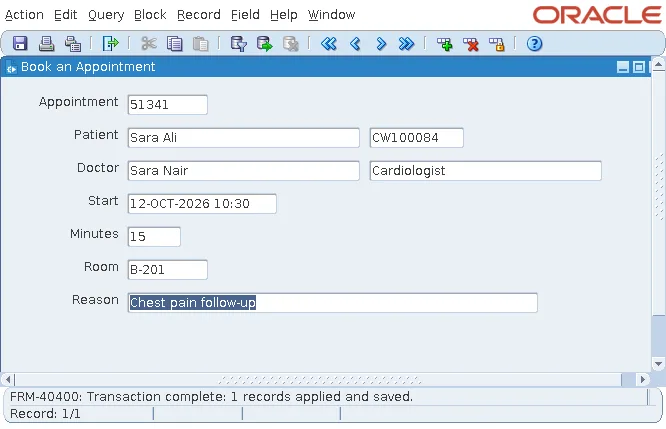
Behind every LOV is a record group, a table in the form's memory that holds its rows. Most LOVs use a query record group, which the wizard creates for you.
Create an LOV with the LOV Wizard
Choose Tools, LOV Wizard. It creates an LOV and its record group together.
Step 1: Choose the Record Group
The first page asks whether to base the LOV on a new record group from a query, or on an existing one.
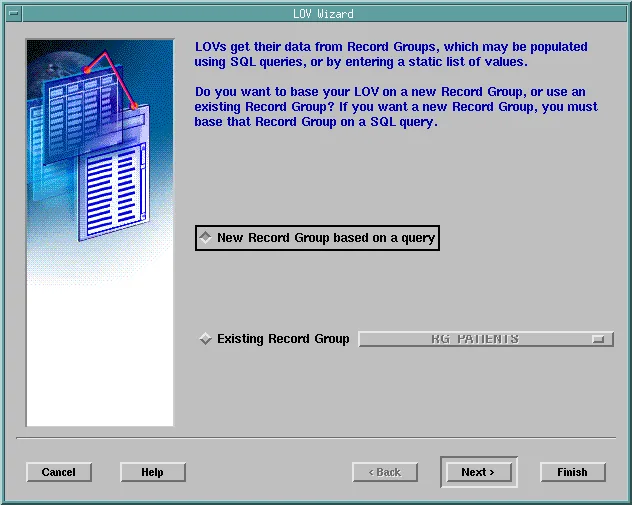
Step 2: Enter the Query
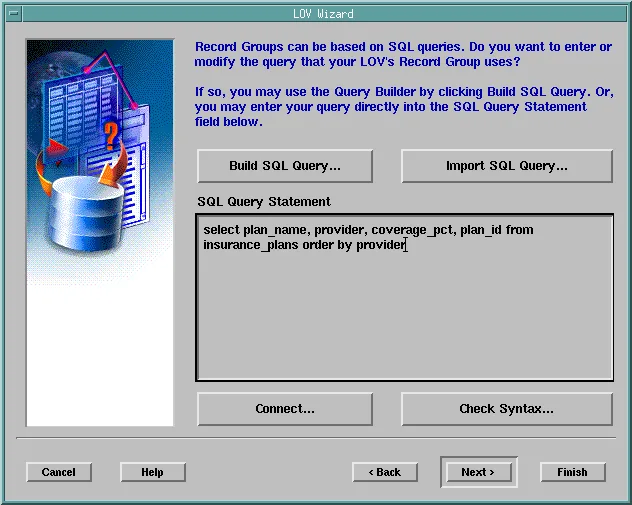
Type the query, or build it with Build SQL Query, and check it with Check Syntax.
Step 3: Set the Columns and Return Items
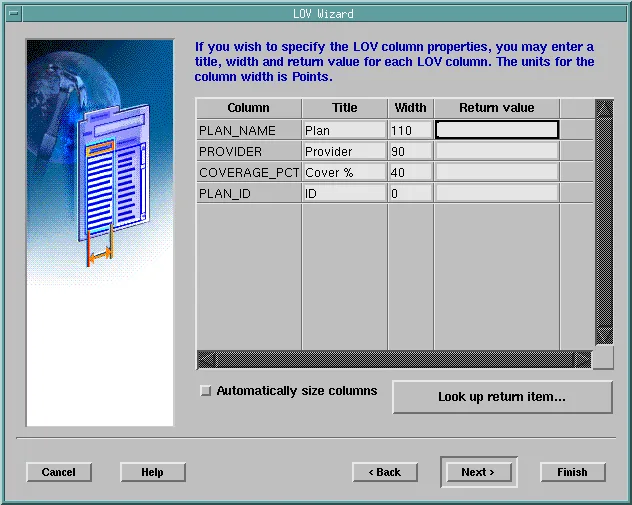
Choose the columns the LOV shows, and set for each:
- The Title of its column heading.
- Its Width, in points. A width of 0 hides the column, which is how an LOV carries a key the user does not need to see.
- Its Return value, the item that receives the column's value when the user picks a row. Look up return item lists the items of the form.
Step 4: Set the Window and Behavior
The next pages set the LOV window's title, size, and position.
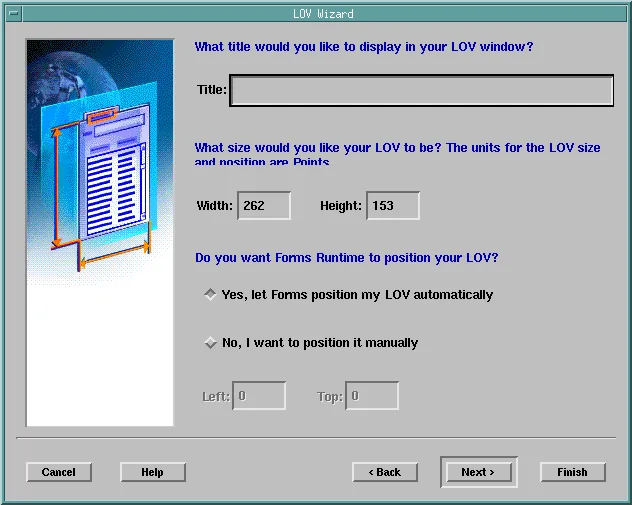
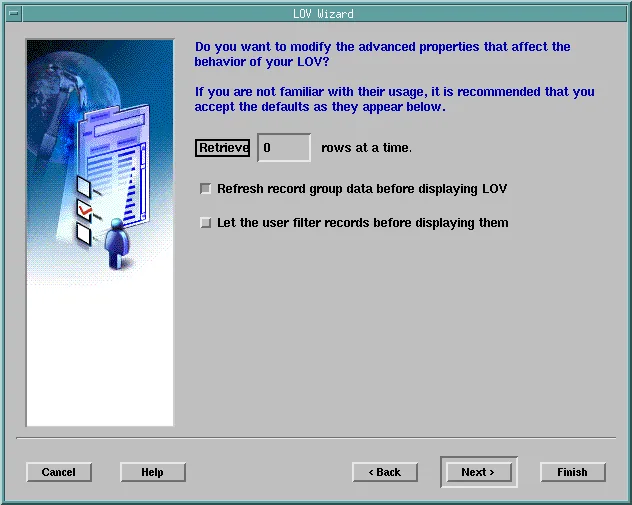
Then come the number of rows fetched at a time, whether to refresh the data each time the LOV is shown, and whether to let the user filter before the rows are fetched.
Finally, choose the items to attach the LOV to; every item that receives a value can be one. Like the other wizards, the LOV Wizard is reentrant: select an LOV and run it again to change it.
LOV Properties
An LOV's properties are those of the wizard, and a few more.
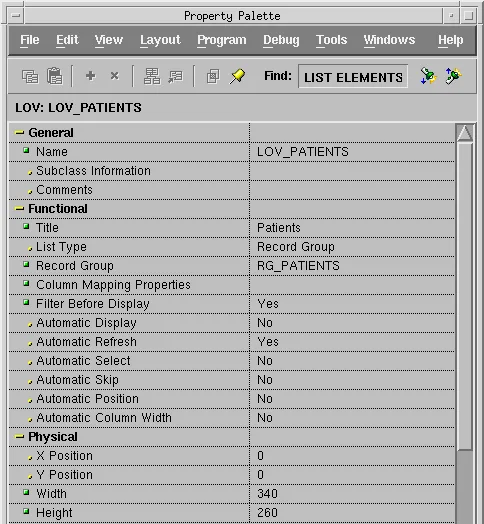
| Property | What it does |
|---|---|
| Record Group | Names the group. Column Mapping Properties opens the dialog of titles, widths, and return items. |
| Filter Before Display | Shows a Find field before the LOV fetches any row, so the user narrows a long list first. Forms appends a % and filters on the first column shown. |
| Automatic Display | Shows the LOV as soon as the cursor enters the item. |
| Automatic Refresh | Runs the query again each time the LOV is displayed. With No, Forms keeps the rows from the first time: faster, but stale if the data changes or the query depends on items. |
| Automatic Select | Picks the row by itself when the user's search narrows the list to one row. SET_LOV_PROPERTY calls it AUTO_CONFIRM. |
| Automatic Skip | Moves the cursor to the next item after the user picks a row. |
| Automatic Position | Places the LOV near the item; otherwise X Position and Y Position do. |
| Automatic Column Width | Widens columns whose title is wider than their width. |
On the item side, three properties matter: List of Values attaches the LOV, LOV Button shows the small button that opens it when the cursor is in the item, and Validate from List checks typed values.
Help Users Find a Value
The patient of an appointment is chosen by name. The item PATIENT_NAME is not a database item. The user types part of a name, and LOV_PATIENTS returns the full name, the MRN, and the PATIENT_ID (a hidden column of width 0) to the items of the block. Only PATIENT_ID is saved.
Validate from List
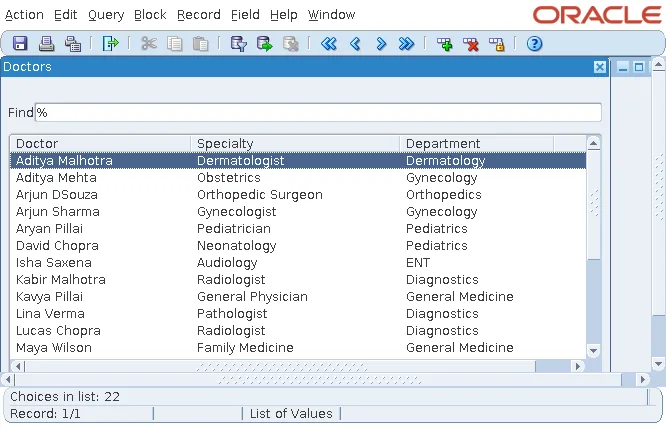
With Validate from List set to Yes, Forms checks the item's value against the first column shown in the LOV when the item is validated. If the value is in the list, the item is valid. If not, Forms displays the LOV, reduced to the rows that begin with what the user typed.
Typing Sar in Patient and pressing Tab opens the LOV with the nine patients whose names start with Sara, and Enter picks the first.
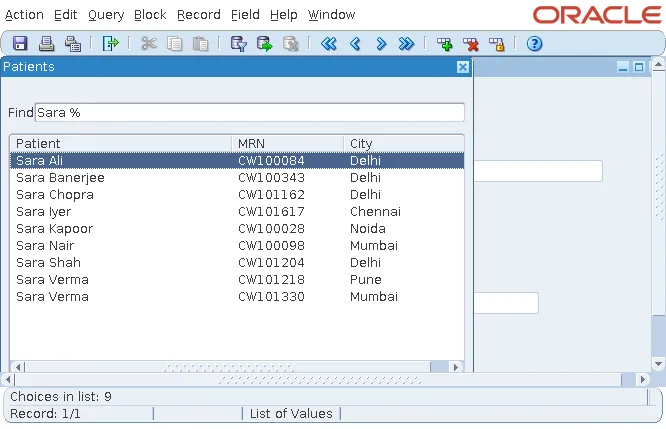
The same auto-reduction works inside the LOV: typing in its Find field narrows the list as the user types. The doctors LOV works the same way.
Fix FRM-40502: The First Column Must Be a Column
To reduce the list, Forms queries the record group again with a condition on its first column. When that column is an expression with an alias, such as first_name || ' ' || last_name as name, the modified query is invalid, and the LOV fails to open.
Output:
FRM-40502: ORACLE error: unable to read list of values.
The cure is to put the query in an inline view, so the columns Forms sees are plain columns. This is the query of LOV_PATIENTS, and LOV_DOCTORS is written the same way.
The query of LOV_PATIENTS:
select name, mrn, city, patient_id
from   (select first_name || ' ' || last_name as name, mrn, city, patient_id
        from   patients)
order  by name
Help, Display Error (Shift+Ctrl+E) shows the database error behind an FRM-40502. It is the first thing to check when an LOV fails.
Write an LOV Query That Depends on Another Item
A record group query can refer to items, parameters, and globals of the form as bind variables. The rooms of an appointment must belong to the doctor's department, so LOV_ROOMS depends on the doctor chosen.
The query of LOV_ROOMS:
select room_no, room_type
from   rooms
where  dept_id = (select dept_id from doctors where doctor_id = :appointments.doctor_id)
order  by room_no
Forms binds :APPOINTMENTS.DOCTOR_ID when it runs the query, so the LOV lists the rooms of the current doctor's department: the three Cardiology rooms for Dr. Sara Nair.
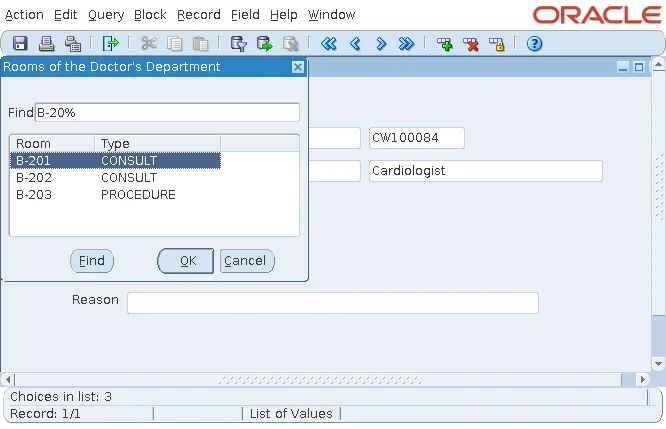
Because the value can change between two displays of the LOV, Automatic Refresh must be Yes, or the LOV would keep showing the rooms of the first doctor. For another dependent-list example, see cascading LOVs in Oracle Forms.
LOV Built-ins
Syntax:
show_lov(lov_name varchar2 | lov_id lov [, x number, y number]) return boolean
list_values [(kbd_state number)]
set_lov_property(lov_name varchar2 | lov_id lov, property number, value number)
set_lov_property(lov_name varchar2 | lov_id lov, property number, x number, y number)
get_lov_property(lov_name varchar2 | lov_id lov, property number) return varchar2
set_lov_column_property(lov_name varchar2 | lov_id lov, colnum number,
property number, value varchar2)| Built-in | Purpose |
|---|---|
| SHOW_LOV | Displays any LOV, from a button for example, and returns TRUE if the user picked a row. |
| LIST_VALUES | Displays the LOV of the current item, like Ctrl+L. With RESTRICT, it reduces the list by the item's value and picks the row at once when only one matches. |
| SET_LOV_PROPERTY | Changes GROUP_NAME, TITLE, AUTO_REFRESH, AUTO_DISPLAY, AUTO_CONFIRM, AUTO_SKIP, POSITION, WIDTH, and HEIGHT. |
| SET_LOV_COLUMN_PROPERTY | Changes a column's TITLE or WIDTH, for example to hide it with a width of 0. |
| FIND_LOV | Returns an LOV's ID. |
SET_LOV_PROPERTY with GROUP_NAME can switch an LOV to a record group built in code, as the durations LOV does in how to create record groups at run time. For more ways to fill LOVs, see how to populate an LOV dynamically.
Save the Appointment
With the four LOVs filled in, Save inserts the appointment, and a PRE-INSERT trigger takes its key from a sequence.
Example (PRE-INSERT trigger on APPOINTMENTS):
:appointments.appt_id := appointments_seq.nextval;
Check the saved appointment:
select appt_id, patient_id, doctor_id,
       to_char(appt_start, 'DD-MON-YYYY HH24:MI') as appt_start,
       duration_min, room_no, status
from   appointments
where  appt_id = 51341;
Output:
   APPT_ID PATIENT_ID  DOCTOR_ID APPT_START                 DURATION_MIN ROOM_NO STATUS
---------- ---------- ---------- -------------------------- ------------ ------- --------
     51341      10012       1003 12-OCT-2026 10:30                    15 B-201   BOOKED
The LOVs put the keys 10012 and 1003 into the hidden items PATIENT_ID and DOCTOR_ID, while the user saw only names. STATUS is not an item of the block, so the database gave it its default, BOOKED. The key technique is explained in how to populate primary keys from a sequence.
Conclusion
The LOV Wizard in Oracle Forms creates an LOV and its record group, with column titles, widths (0 hides a column), and return items. Turn on Validate from List to check typed values and open a reduced list, use Filter Before Display for long lists, and write expressions inside an inline view so auto-reduction does not fail with FRM-40502. When an LOV query uses items as bind variables, set Automatic Refresh to Yes, and use SHOW_LOV, LIST_VALUES, and SET_LOV_PROPERTY to control LOVs from code.
