
The wizards lay out a block in a few clicks, but a finished form needs more: items aligned by hand, a banner, and colors and fonts that mean something. That work happens in the Layout Editor, where you draw a canvas exactly as users will see it.
This guide covers the Layout Editor in Oracle Forms 14.1.2: creating objects, selecting and arranging them, working with frames, and setting colors and fonts, including the difference between design-time and run-time color names.
Sample Form for This Guide
The examples and screenshots use the sample form CH14_SCHEDULE from the Oracle Forms code repository on GitHub. Download it, open it in Forms Builder, and connect as CAREWELL to follow along.
| Form | File | What it shows |
|---|---|---|
| CH14_SCHEDULE | forms/ch14/ch14_schedule.fmb | One doctor's appointments with a banner, styled records, and a property class |
The forms run against the CareWell Clinic sample schema, which you install first.
Open the Layout Editor
Select a canvas, or any item on it, and press F2 (Tools, Layout Editor). The editor's title names the form, the canvas, and the current block. The Canvas and Block lists of its toolbar switch to another canvas and set the block that new items join.
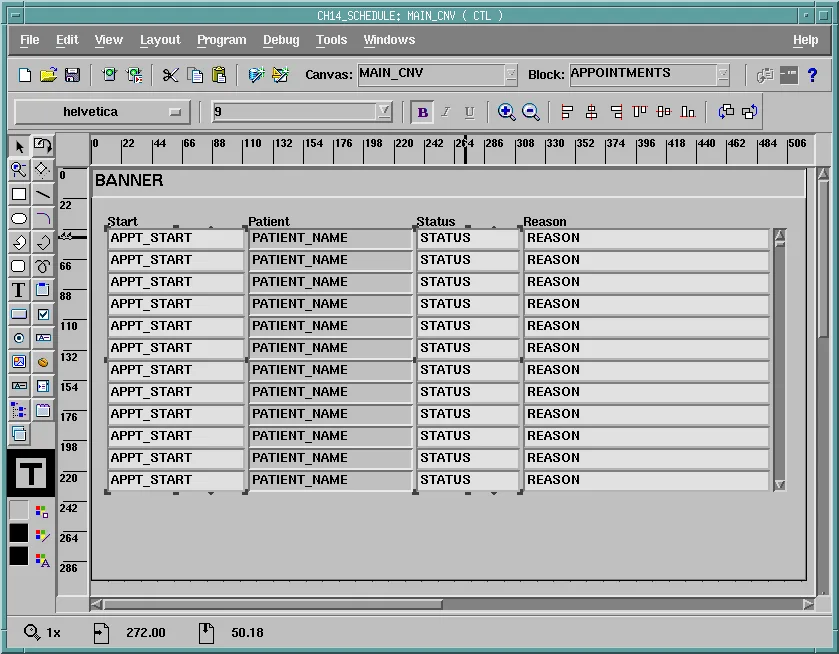
Create Objects with the Tool Palette
The tool palette on the left creates two kinds of objects:
| Tools | Create | Belong to |
|---|---|---|
| Upper tools | Boilerplate: rectangles, lines, ellipses, arcs, polygons, rounded rectangles, freehand shapes, text, and frames. | The canvas. They never change at run time. |
| Lower tools | Items of every type, plus stacked and tab canvases. | The block shown in the toolbar, as control items, until you set their properties. |
Choose a tool, then drag the object's rectangle on the canvas. Double-clicking a tool keeps it selected, so you can draw several objects in a row.
Below the tools, three swatches set the fill color, line color, and text color of the selected objects, from the Forms color palette.
Select, Move, and Resize Objects
- Click an object to select it, Shift+click to add objects, or drag a rectangle on the canvas to select everything inside it.
- Drag selected objects to move them, or use the arrow keys to move them one point at a time.
- Drag a handle to resize them.
- Use the rulers and grid to place objects, and View, Snap to Grid to make objects jump to the grid lines.
Arrange Objects with the Layout Menu
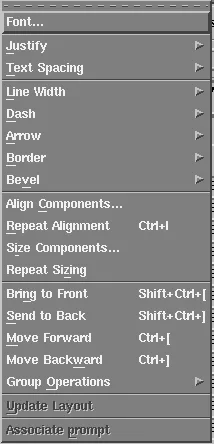
The Layout menu arranges the selection.
| Command | What it does |
|---|---|
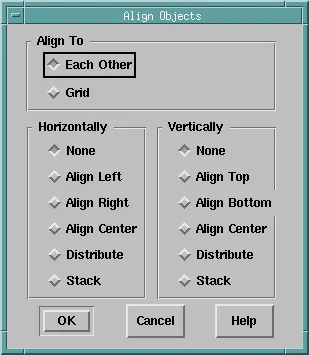
| Align Components | Lines objects up to each other or to the grid, by their left or right edges or centers, or distributes or stacks them. Repeat Alignment (Ctrl+L) applies the last alignment to a new selection. |
| Size Components | Makes the selected objects the same width or height: the largest, the smallest, the average, or a value you type. Repeat Sizing repeats it. |
| Bring to Front, Send to Back, Move Forward, Move Backward | Change which objects cover others, and the order in which Forms draws them. |
| Group Operations | Group objects so they move as one. |
| Font, Justify, Line Width, Dash, Arrow, Border, Bevel | Style the selected objects. The toolbar has the most used: font name and size, bold, italic, underline, and alignment. |
| Associate Prompt | Makes a boilerplate text the prompt of an item. |
Work with Frames
A frame, created by the Layout Wizard or drawn with the frame tool, arranges the items of one block. Its Layout Style (Form or Tabular), Number of Records Displayed, margins, and distances decide where the items go.
While its Update Layout property is Automatically, the frame lays out its items again whenever you change it, and moves back any item you moved by hand. To arrange items yourself, you have three choices:
- Set Update Layout to Manually, and choose Layout, Update Layout when you want the frame to rearrange.
- Set Update Layout to Locked.
- Delete the frame. The items stay where they are, because the frame was only a helper.
Set Colors and Fonts
Every visible object has color and font properties, under Color and Font in its Property Palette: Foreground Color (the text), Background Color, Fill Pattern, Font Name, Font Size, Font Weight, Font Style, and Font Spacing. When they are <Unspecified>, the object takes the defaults of the Forms client's look and feel.
Design-Time Color Names
In Forms Builder, colors come from the Forms color palette, and they have names:
- A few words, such as black, white, red, darkblue, and cyan.
- Grays from gray4 to gray96, where the number says how dark the gray is, so gray92 is nearly black.
- Names like r75g0b0, which give red, green, and blue as percentages: 0, 25, 50, 75, 88, or 100. r75g0b0 is a dark red, and r88g88b88 a light gray.
A name that is not in the palette, such as r16g34b69, is ignored at design time, and the object keeps its default color.
Run-Time RGB Colors
At run time, SET_ITEM_PROPERTY and the other SET_ built-ins accept any color as rRRRgGGGbBBB, with values from 0 to 255. That is a different meaning for the same kind of name, so watch which one you are writing.
The banner of the sample schedule form is royal blue, r40g86b176, which the palette does not have, so it is set when the form starts.
Example (WHEN-NEW-FORM-INSTANCE trigger on the form):
begin
  set_item_property('CTL.BANNER', background_color, 'r40g86b176');   -- 0-255 values
  set_item_property('CTL.BANNER', foreground_color, 'r255g255b255');
  :ctl.banner := '  Dr. Sara Nair - Cardiology';
  go_block('APPOINTMENTS');
  execute_query;
end;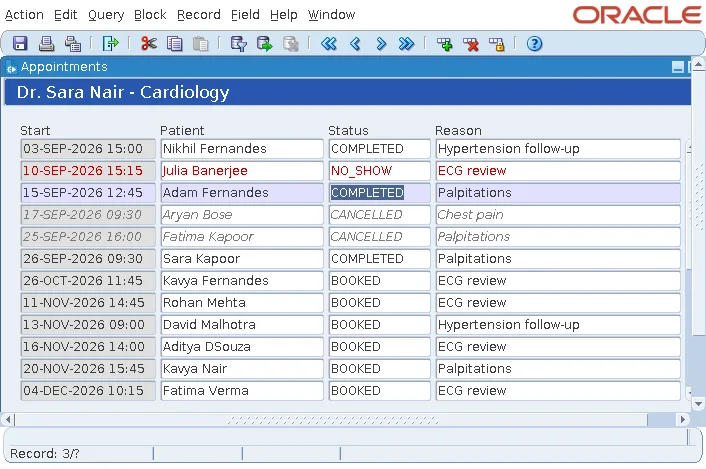
Fonts
Fonts are named by family: Dialog, SansSerif, Serif, and Monospaced are the Java logical fonts every Forms client has, or you can name a font installed on the user's computer. Sizes are in points.
To style many objects the same way, use named visual attributes instead of setting colors one object at a time; see how to highlight records using visual attributes. For a tour of the other Forms Builder tools, see how to use Forms Builder in Oracle Forms 14.1.2.
Conclusion
The Layout Editor in Oracle Forms draws a canvas: its tool palette creates boilerplate and items, and the Layout menu aligns, sizes, orders, groups, and styles the selection. A frame lays out a block's items while Update Layout is Automatically, so set it to Manually or Locked, or delete it, to arrange items by hand. Choose design-time colors from the Forms palette, whose rNNgNNbNN names are percentages, and remember that the SET_ built-ins take 0 to 255 RGB values at run time.
