
Forms Builder is where you design every Oracle Forms application. It shows a form as a tree of objects: the form module, its blocks, their items, the canvases they are drawn on, and the triggers that give them behavior.
You can look at the same form in four ways: as a tree, as a list of properties, as a drawing, and as PL/SQL code. This guide tours those four views in Forms Builder 14.1.2, using a small patient form called CH03_PATIENTS, and shows how to set it up to run forms with one keystroke.
Sample Form for This Guide
The examples and screenshots use the sample form CH03_PATIENTS from the Oracle Forms code repository on GitHub. Download it, open it in Forms Builder, and connect as CAREWELL to follow along.
| Form | File | What it shows |
|---|---|---|
| CH03_PATIENTS | forms/ch03/ch03_patients.fmb | A patients form with an age function and the triggers that use it |
The forms run against the CareWell Clinic sample schema, which you install first.
Forms Builder at a Glance
| Tool | Shortcut | What it shows |
|---|---|---|
| Object Navigator | Always open | Every open module as a tree of objects |
| Property Palette | F4 | The properties of the selected object |
| Layout Editor | F2 | The canvas with its items, as users will see it |
| PL/SQL Editor | F11 | The code of a trigger or program unit |
| Run Form | Ctrl+R | Compiles the form and runs it |
| Compile Module | Ctrl+T | Creates the runnable .fmx file |
Start Forms Builder and Connect to the Database
Start Forms Builder from the Start menu on Windows, or with frmbld.sh in the Forms instance's bin directory on Linux. If you have not installed it yet, follow the guide on how to install Oracle Forms 14.1.2.
You can also name a module and a user on the command line.
Syntax:
frmbld [module=file] [userid=user/password@database]
Example:
frmbld.sh module=ch03_patients.fmb userid=carewell@formspdb
Forms Builder needs a database connection for anything that reads the data dictionary, such as the Data Block Wizard, the LOV Wizard, and compiling a form whose code uses tables.
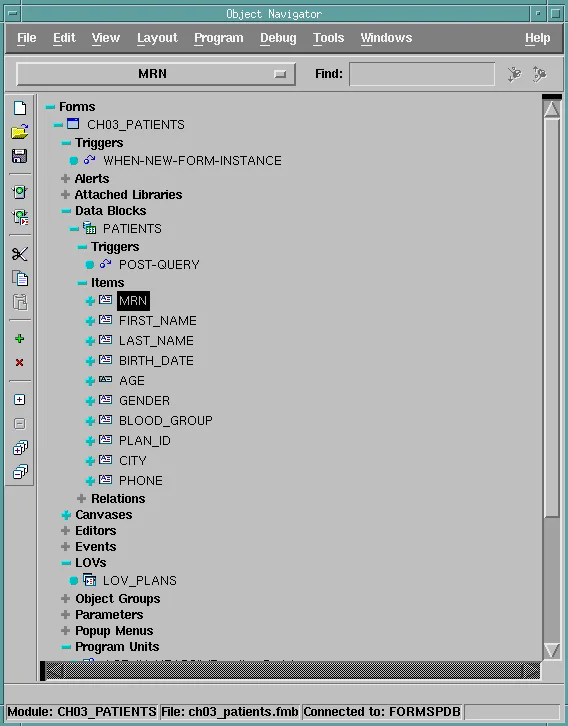
Choose File, Connect, and enter the user, the password, and the database. The database can be a net service name from tnsnames.ora or an Easy Connect string such as dbhost:1521/formspdb. The status bar at the bottom of the Object Navigator then shows the module, its file, and the database you are connected to.
The Object Navigator
The Object Navigator shows everything Forms Builder has open as a tree. At the top level are the four kinds of modules you can build (Forms, Menus, PL/SQL Libraries, and Object Libraries) plus two nodes to explore:
- Built-in Packages, the packages of PL/SQL built-ins that Forms supplies.
- Database Objects, the tables, views, and stored program units of the database you are connected to.
What a Form Module Contains
Under a form module, the navigator lists its objects by type:
| Node | What it holds |
|---|---|
| Triggers | Form-level triggers, such as WHEN-NEW-FORM-INSTANCE. |
| Alerts | Message boxes that ask the user a question. |
| Attached Libraries | PL/SQL libraries whose program units the form can call. |
| Data Blocks | The blocks, each with its own Triggers, Items, and Relations. |
| Canvases, Windows | The surfaces items are drawn on, and the windows that show them. |
| Editors | Custom editors for long text. |
| Events | Events that Java code in the client can raise. |
| LOVs, Record Groups | Lists of values and the data behind them. |
| Object Groups | Groups of objects to copy or subclass together. |
| Parameters | Values passed to the form when it starts. |
| Popup Menus | Menus that appear on a right-click. |
| Program Units | The form's own procedures, functions, and packages. |
| Property Classes, Visual Attributes | Named sets of properties, and of colors and fonts. |
| Reports | Oracle Reports that the form runs. |
Working in the Navigator
A plus sign before a node means it can be expanded, and a node whose icon is in color has objects under it. Click the plus sign, or double-click the node, to expand it. Each object's icon shows its type, such as a text item, a display item, or a trigger.
The toolbar on the left has buttons for open, save, run, compile, cut, copy, and paste. The two you will use most are Create (the green plus) and Delete (the red cross).
To create an object, select the node of its type, or an object of that type, and click Create. Forms Builder adds an object with a default name such as BLOCK3 or ITEM12, which you can rename in the navigator or the Property Palette. The Find field searches the tree for an object by name.
Ownership View vs. Visual View
The View menu expands and collapses the tree (Expand All, Ctrl+Right, opens every node below the selected one) and can show only the objects that have PL/SQL. It also switches between two views:
- Ownership View, the default, shows objects under their owners, such as items under their block.
- Visual View shows objects under the window and canvas they are displayed on.
Use the Visual View when you want to know what is on a particular canvas, a question the Ownership View does not answer.
The Property Palette
Every object has properties, and the Property Palette shows them. Open it with Tools, Property Palette, or press F4. It shows the properties of the object selected in the navigator or the Layout Editor, grouped in sections such as General, Functional, Navigation, Data, Database, Records, Physical, Visual Attributes, Color, Font, Prompt, and Help.
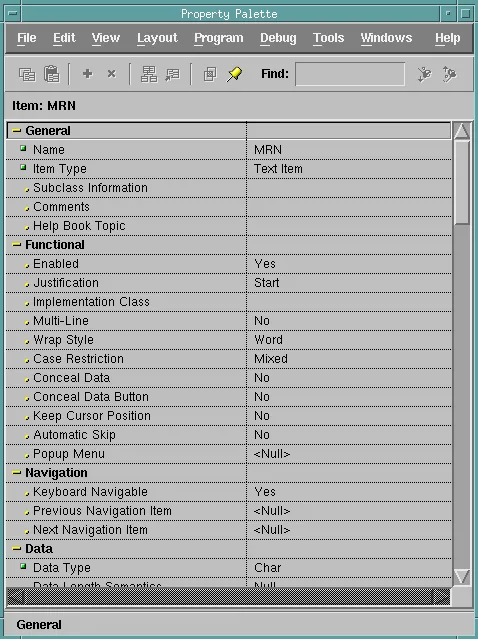
To change a property, click its value. Text properties become editable, Yes/No properties and lists become drop-down lists, and longer values, such as a WHERE clause or a record group's query, open a small editor.
A green square marks a property that has its own value, different from the default. A small dot marks a property that still has its default value.
Editing Several Objects at Once
Select several objects with Ctrl+click in the navigator or the Layout Editor, and the palette shows the properties they have in common. A change then applies to all of them, and properties whose values differ show *****.
The palette's toolbar has a few useful tools:
- Copy and paste properties from one object onto others.
- Add and delete properties of a property class.
- Intersection and Union switch between the properties that several selected objects share and all of their properties.
- Inherit returns a property to its default or inherited value.
- The pin freezes the palette on one object while you select others.
Press F1 on any property to open its description in the online help: what it does, its values, its default, and the built-ins that read and change it at run time.
The Layout Editor
The Layout Editor draws a canvas with its items, prompts, and graphics exactly as the user will see them. Open it with Tools, Layout Editor, or press F2. The Canvas and Block lists in its toolbar tell you which canvas you are looking at and which block new items join.
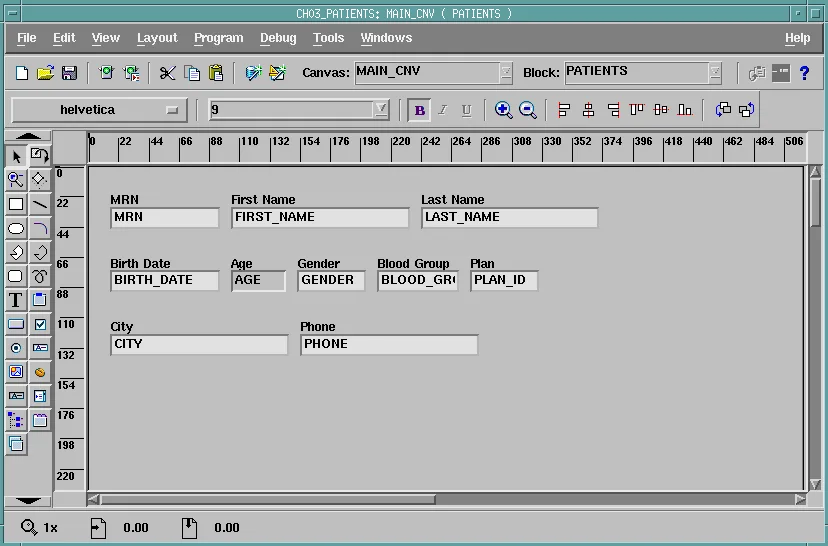
The tool palette on the left creates objects: text items, display items, push buttons, check boxes, radio buttons, list items, images, charts, hierarchical trees, bean areas, tab canvases, stacked canvases, and graphics such as rectangles, lines, ellipses, and text. Choose a tool and drag on the canvas to create an object of that kind.
The toolbars above the canvas set fonts and align and size objects. If you would rather not place items by hand, the Layout Wizard arranges the items of a block for you.
The PL/SQL Editor
The PL/SQL Editor edits the code of triggers and program units. Select a trigger or program unit in the navigator and open it with Tools, PL/SQL Editor, or press F11.
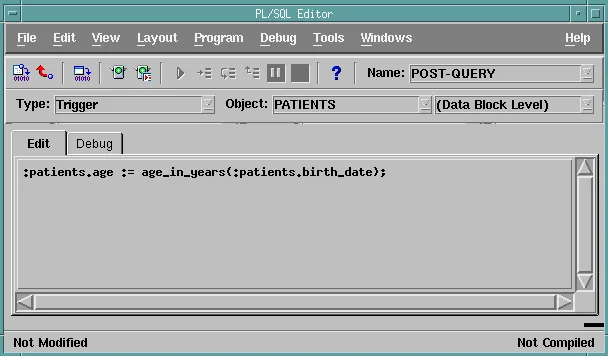
The top line says what you are editing: the Type (trigger or program unit), the Object it belongs to, its level (form, block, or item), and its Name. Change these lists to jump to another trigger without going back to the navigator.
The Compile button compiles the code and lists any errors below it, and the status line tells you whether the code is compiled and saved.
The Code of the Patient Form
CH03_PATIENTS has three pieces of code that show where PL/SQL lives in a form. The first is a function in the form's Program Units node that computes a patient's age.
Program unit AGE_IN_YEARS:
function age_in_years (p_birth_date date) return number is
begin
  return trunc(months_between(sysdate, p_birth_date) / 12);
end;
The POST-QUERY trigger in the screenshot fills the AGE item for each patient that a query fetches.
Example (POST-QUERY trigger on the PATIENTS block):
:patients.age := age_in_years(:patients.birth_date);
A WHEN-VALIDATE-ITEM trigger on the BIRTH_DATE item rejects dates in the future and recomputes the age when the user types a new date.
Example (WHEN-VALIDATE-ITEM trigger on PATIENTS.BIRTH_DATE):
if :patients.birth_date > trunc(sysdate) then
  message('The birth date cannot be in the future.');
  raise form_trigger_failure;
end if;
:patients.age := age_in_years(:patients.birth_date);
RAISE FORM_TRIGGER_FAILURE stops the validation, so the cursor stays in the item until the user enters a valid date.
The Program, Tools, and Debug Menus
The menu bar is the same in every Forms Builder window. Besides File, Edit, and View, three menus hold most of your work.
The Program menu compiles and runs:
- Run Form (Ctrl+R) compiles the form and runs it.
- Compile Module (Ctrl+T) creates the runnable .fmx file.
- Compile PL/SQL compiles all the code, or only the changed code.
- SmartTriggers lists the triggers that make sense for the selected object, so you can create one in two clicks.
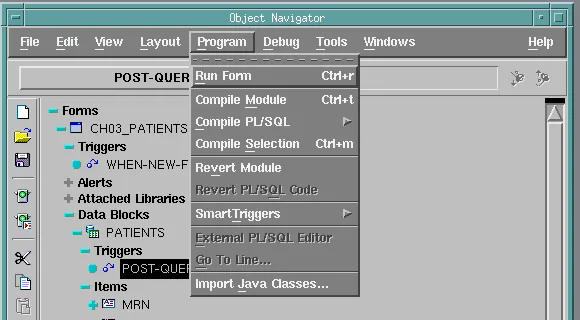
The Tools menu opens the editors and the wizards:
- The Data Block Wizard creates a block on a table, a view, or a procedure.
- The Layout Wizard lays out a block's items on a canvas.
- The LOV Wizard builds a list of values.
- The REST Package Designer, new in 14.1.2, generates PL/SQL packages that call a REST service.
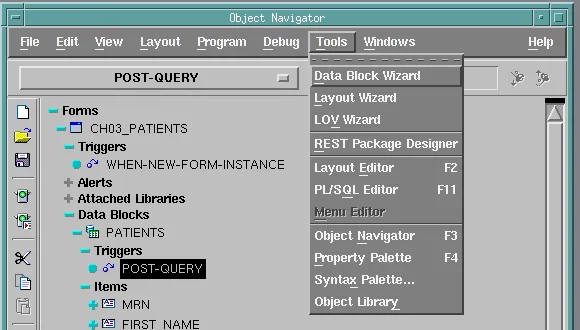
The Debug menu runs a form in the debugger, and the Windows menu brings any open window to the front.
Set Preferences to Run Forms from Forms Builder
Edit, Preferences holds Forms Builder's settings in four tabs. The General tab controls whether to save or compile before running, where to write compiler output, how often to back up, and which web browser runs forms.
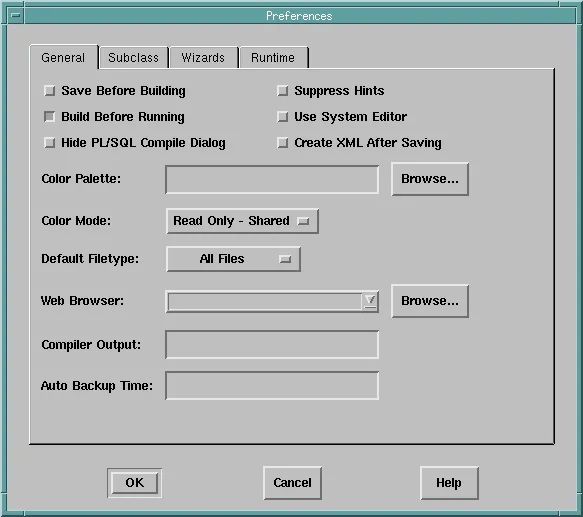
The Runtime tab controls how Run Form runs a form. Set the Application Server URL to the Forms servlet of your development domain, with any parameters you want, such as the window size.
Application Server URL:
http://localhost:7001/forms/frmservlet?config=book&width=760&height=460
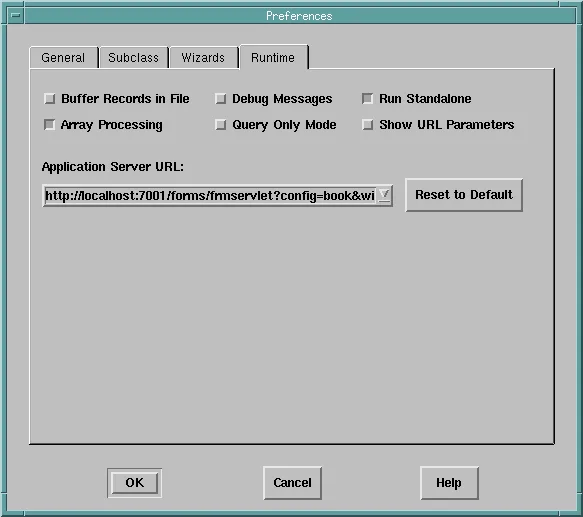
Select Run Standalone to run forms in the Forms Standalone Launcher instead of a web browser. The other options add runtime parameters:
| Option | Effect |
|---|---|
| Array Processing | Changes how records are fetched. |
| Buffer Records in File | Changes how fetched records are kept. |
| Query Only Mode | Runs the form without allowing changes. |
| Debug Messages | Shows a message each time a trigger fires. |
| Show URL Parameters | Shows the URL that Forms Builder builds. |
With these preferences, Program, Run Form compiles the form and starts the launcher with your URL. Forms Builder adds the form's file, the user it is connected as, and the options you selected.
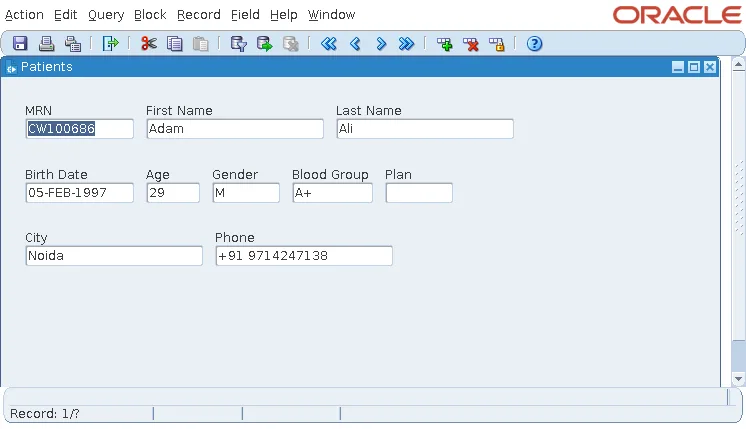
For more on compiling and running, see how to run and compile an Oracle Form.
The Files Forms Builder Uses
Forms Builder works with one pair of files for each kind of module:
| Module | Design file | Runnable file | Text versions |
|---|---|---|---|
| Form | .fmb | .fmx | .xml (frmf2xml), .fmt |
| Menu | .mmb | .mmx | .mmt |
| PL/SQL library | .pll | .plx | .pld |
| Object library | .olb | None | .olt |
You design in the binary design files and deploy the runnable files the Compiler makes from them. A runnable file is specific to the platform it was compiled on, so compile your forms on the server they will run on.
The text versions let you compare forms in a version control system or search them.
Conclusion
Forms Builder shows a form as a tree in the Object Navigator, while the Property Palette (F4), the Layout Editor (F2), and the PL/SQL Editor (F11) show the selected object's properties, drawing, and code. Use Create and Delete in the navigator to add and remove objects, and the Visual View to see objects by window and canvas. The Program menu compiles and runs, the Tools menu holds the wizards and the new REST Package Designer, and the Runtime preferences let Run Form open your form in the Forms Standalone Launcher.
