
Some text is too long for its item: a doctor's notes, a description, a comment of a thousand characters. Oracle Forms handles that with editors, windows with room for long text that open over the item.
This guide covers editors in Oracle Forms 14.1.2: the default editor every text item has, custom editors with their own size and wrapping, and the built-ins that open an editor from code.
Sample Form for This Guide
The examples and screenshots use the sample form CH16_VISITS from the Oracle Forms code repository on GitHub. Download it, open it in Forms Builder, and connect as CAREWELL to follow along.
| Form | File | What it shows |
|---|---|---|
| CH16_VISITS | forms/ch16/ch16_visits.fmb | Visit notes with the custom editor ED_NOTES |
The forms run against the CareWell Clinic sample schema, which you install first.
Editors at a Glance
| Editor | What it is | How an item uses it |
|---|---|---|
| Default editor | A plain window of fixed size, with a Search button to find and replace. | Every text item has it, with no setup. |
| Custom editor | An object of the form with its own title, size, position, wrapping, scroll bars, colors, and font. | The item's Editor property names it. |
| FORMS_EDITOR | A system editor outside Forms, named by an environment variable on the server. | The item's Editor property is FORMS_EDITOR. Rarely useful on the web. |
Open the Default Editor
Press Ctrl+E (the Edit key) in any text item, or choose Edit, Edit, and Forms opens the item's value in the default editor. It has room for long text and a Search button to find and replace. No setup is needed.
Create a Custom Editor
A custom editor is an object of the form, under Editors in the Object Navigator. Its properties include:
- Title and Bottom Title.
- Width, Height, X Position, and Y Position.
- Wrap Style, such as wrapping at word boundaries.
- Scroll bars, colors, and font.
A text item uses the custom editor when its Editor property names it.
Example: an Editor for Visit Notes
The visit notes of the sample visits form hold up to 2,000 characters, but their item shows only the first words. The item's editor, ED_NOTES, shows them all, wrapped at word boundaries.
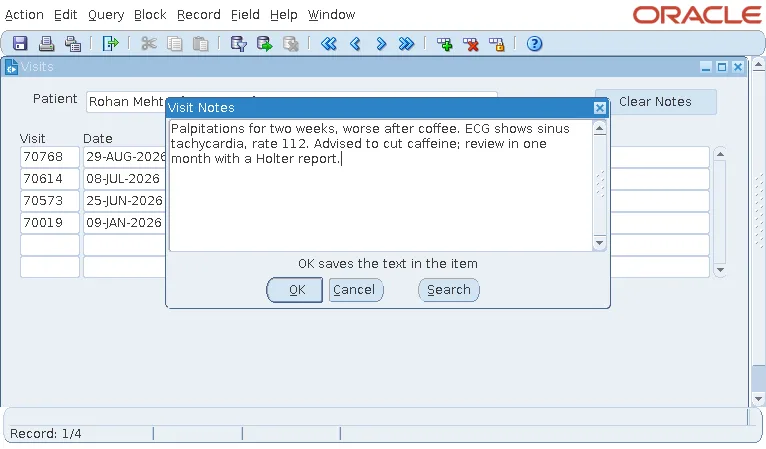
OK copies the text back into the item, which the user then saves like any other change. Cancel leaves the item as it was.
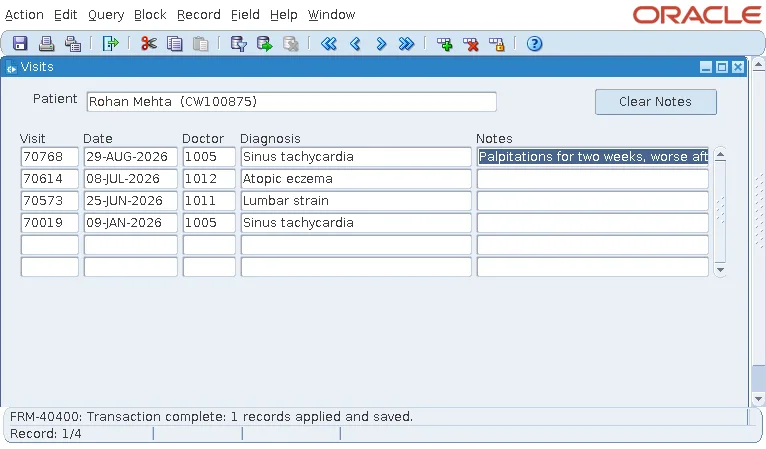
The saved notes, as the database holds them:
select visit_id, notes from visits where visit_id = 70768;
Output:
  VISIT_ID NOTES
---------- ------------------------------------------------------------
     70768 Palpitations for two weeks, worse after coffee. ECG shows
           sinus tachycardia, rate 112. Advised to cut caffeine; review
           in one month with a Holter report.
The item itself can also show several lines with its Multi-Line property, described in how to use text items in Oracle Forms. An editor is still the better choice when the text is much longer than the space on the canvas.
Open an Editor from Code
Syntax:
edit_textitem [(x number, y number [, width number, height number])]
show_editor(editor_name varchar2 | editor_id editor, message_in varchar2
[, x number, y number], message_out out varchar2, result out boolean)| Built-in | What it does |
|---|---|
| EDIT_TEXTITEM | Opens the current item's editor, like Ctrl+E, optionally at a position and size of your choice. |
| SHOW_EDITOR | Opens an editor on any text, not necessarily an item's, and returns the edited text in message_out, with result TRUE if the user pressed OK. |
| FIND_EDITOR | Returns an editor's ID. |
EDIT_TEXTITEM suits a button next to a notes item, while SHOW_EDITOR lets you edit a value held in a variable and decide yourself what to do with the result. The same visits form uses alerts to confirm actions, as shown in how to show alerts using SHOW_ALERT.
Conclusion
Every text item in Oracle Forms has an editor: press Ctrl+E to read and write long text in a larger window. Create a custom editor to set its title, size, position, and word wrapping, and name it in the item's Editor property. From code, EDIT_TEXTITEM opens the current item's editor, and SHOW_EDITOR edits any text and tells you whether the user pressed OK.
