
An item is a field of a block: a value the user sees, types, or clicks. Text items are the default item type in Oracle Forms and by far the most common, and display items are their read-only cousins.
This guide covers text items and display items in Oracle Forms 14.1.2: the properties that control their data, format masks, initial values, queries and updates, input and navigation, and hints and tooltips, plus the built-ins that change them at run time.
Sample Form for This Guide
The examples and screenshots use the sample form CH09_INVOICE from the Oracle Forms code repository on GitHub. Download it, open it in Forms Builder, and connect as CAREWELL to follow along.
| Form | File | What it shows |
|---|---|---|
| CH09_INVOICE | forms/ch09/ch09_invoice.fmb | Formatted amounts, initial values, and computed totals |
The forms run against the CareWell Clinic sample schema, which you install first.
The Item Types of Oracle Forms
| Item type | What it is |
|---|---|
| Text Item | A field the user can type into |
| Display Item | A field that shows a value the user cannot change |
| List Item | A drop-down list, a list box, or a combo box |
| Check Box | A value that is on or off |
| Radio Group | A choice among a few values, one button each |
| Push Button | A button that runs code |
| Image | A picture, from a BLOB column or a file |
| Hierarchical Tree | A tree of nodes that open and close |
| Bean Area | A Java component in the form |
| User Area | An area for a user-defined component |
Every item is an object of a block, with the properties of its type. Many of the properties below apply to other item types too.
Text Items vs. Display Items
A text item is a box in which the user types a value. Forms validates it, stores it in the record, and, for a database item, writes it to its column.
A display item shows a value but cannot be navigated to or typed into. The value comes from the database, from code, or from a calculation. Display items use less memory and draw faster than text items, which matters in blocks that show many records.
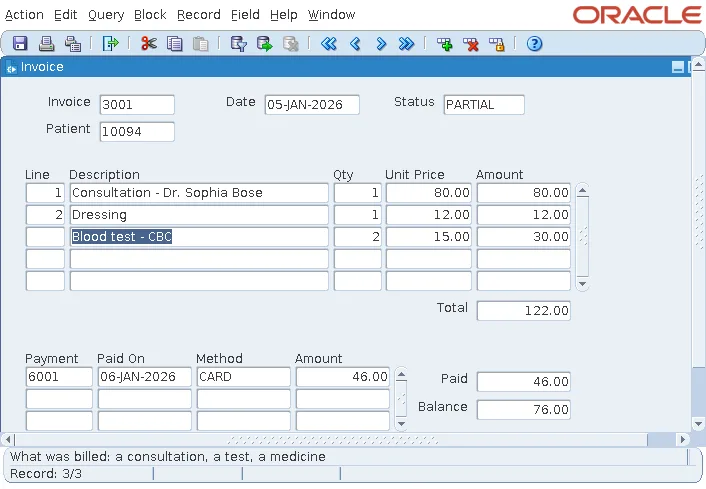
The sample form CH09_INVOICE shows both. Its amounts are formatted, the line quantity starts at 1 and cannot be 0, the status is always in capitals, and display items compute each line's amount and the invoice totals.
Data Properties of a Text Item
These properties, in the Data group of the Property Palette, describe the value an item holds:
| Property | What it sets |
|---|---|
| Data Type | Char, Number, Date, Datetime, Long, and a few legacy types such as Integer and Money kept for old forms. A database item's type should match its column; the Data Block Wizard sets it for you. |
| Maximum Length | How many characters the item accepts. For a Char item, use the column's length. Data Length Semantics says whether it counts bytes or characters, which matters with a multibyte character set such as AL32UTF8. |
| Initial Value | The value in a new record (see below). |
| Required | The item must have a value before the record can be saved, or Forms shows FRM-40202: Field must be entered. |
| Lowest Allowed Value, Highest Allowed Value | The range of values the item accepts. Each can also be an item, global, or parameter reference. |
| Copy Value from Item | The item takes its value from another item, as a detail key does from its master. |
| Synchronize with Item | Two items of the same block share one value, for example to show it on two canvases. |
| Format Mask | How the value is shown and entered. |
Initial Values
The Initial Value can be:
- A literal, such as OPEN or 1.
- Another item (:block.item), a global variable, or a parameter.
- The next value of a sequence, :SEQUENCE.name.NEXTVAL.
- A date and time: $$DATE$$, $$TIME$$, and $$DATETIME$$ from the machine that runs the form, or $$DBDATE$$, $$DBTIME$$, and $$DBDATETIME$$ from the database.
In CH09_INVOICE, the line quantity has an Initial Value of 1 and a Lowest Allowed Value of 1. Type 0, and Forms refuses it when the user leaves the item.
Output:
FRM-40207: Must be in range 1 to ....
The invoice date has an Initial Value of $$DATE$$. The status has OPEN and a Case Restriction of Upper (in the Functional group), which turns what the user types into capitals as they type it.
Format Masks in Oracle Forms
A format mask controls how a Number or Date item shows its value and what the user may type. Forms uses the format models of Oracle's TO_CHAR and TO_DATE functions, with a few additions for character items.
| Mask | Meaning | 1234.5 shows as |
|---|---|---|
| 9999 | Digits; leading zeros shown as blanks | 1235 |
| 9990 | A zero value shows as 0, not blank | 1235 |
| 99G990D00 | Group and decimal separators of the session's language, two decimals | 1,234.50 |
| $9,990.00 | Dollar sign, comma, and period | $1,234.50 |
| 9990MI | A minus sign after negative numbers | 1235 |
| DD-MON-YYYY | Day, abbreviated month, four-digit year | Not a number mask |
| DD-MM-YYYY HH24:MI | A date and time | Not a number mask |
| FMXX99 | Character data: fill mode (FM) accepts shorter input | Not a number mask |
Prefer G and D to a comma and a period in number masks. They take the separators from the session's language, so the same form shows 1.234,50 to a user in Germany.
A date mask also decides how the user types the date; without one, the item uses the session's NLS_DATE_FORMAT. A format mask changes only how the value looks, and the item still holds the number or date. CH09_INVOICE formats its amounts with 99G990D00 and right-justifies them with the Justification property, so the decimals line up.
Queries, Inserts, and Updates
The Database group decides how a database item takes part in queries and changes, within what its block allows:
- Query Allowed lets the user type a criterion into the item in Enter Query mode. Query Length is how long that criterion can be, which can exceed the item's own length for criteria such as #between 100 and 200. Case Insensitive Query makes a criterion match regardless of case.
- Insert Allowed and Update Allowed let the user type into the item in a new record, or in a queried one. Update Only if NULL allows an update only while the item has no value.
- Query Only means the item is queried but never inserted or updated, like a column the database fills itself.
- Lock Record makes typing in a non-database item still lock the record's row, as a database item does.
- Primary Key marks the item as part of the key that the block's Enforce Primary Key checks.
Input and Navigation
The Functional group changes how an item takes input:
| Property | Effect |
|---|---|
| Multi-Line | Turns a text item into a box of several lines, with Wrap Style set to Word or Character. Show Vertical Scroll Bar, in the Physical group, adds a scroll bar. |
| Conceal Data | Shows asterisks instead of what the user types, for a password. |
| Automatic Skip | Moves the cursor to the next item as soon as the item is full, which suits codes of a fixed length. |
| Keep Cursor Position | Puts the cursor back where it was in the value when the user returns to the item. |
| Popup Menu | Names a menu shown on a right-click. |
The Navigation group has Keyboard Navigable, which decides whether Tab and the arrow keys can reach the item, and Mouse Navigate, which decides whether a click moves the cursor to it. Previous Navigation Item and Next Navigation Item change the tab order, which is otherwise the order of the items in the navigator.
Hints and Tooltips
Two properties of the Help group explain an item to the user:
- The Hint is a sentence shown on the message line at the bottom of the form, when the cursor enters the item if Display Hint Automatically is Yes, or otherwise when the user presses the Help key.
- The Tooltip is a short text that appears next to the mouse pointer when it rests on the item.
In the screenshot above, the cursor is in Description, and its hint is on the message line.
Change Text Items at Run Time
Most item properties can be read and changed while the form runs, with GET_ITEM_PROPERTY and SET_ITEM_PROPERTY.
Syntax:
get_item_property(item_name varchar2 | item_id item, property number) return varchar2
set_item_property(item_name varchar2 | item_id item, property number,
                  value {varchar2 | number})
set_item_property(item_name varchar2 | item_id item, property number, x number [, y number])
SET_ITEM_PROPERTY changes the item in every record of the block. For example, this call makes the status read-only.
Example:
set_item_property('INVOICES.STATUS', update_allowed, property_false)To change one record only, use SET_ITEM_INSTANCE_PROPERTY, described in SET_ITEM_INSTANCE_PROPERTY in Oracle Forms. More run-time examples are in how to change item properties at run time.
GO_ITEM
GO_ITEM moves the cursor to an item, like a click, validating the item the cursor leaves.
Syntax:
go_item(item_name varchar2 | item_id item)
The item must be navigable, or GO_ITEM fails. :SYSTEM.CURSOR_ITEM names the item the cursor is in, as BLOCK.ITEM.
The invoice form builds on the one in how to create a master-detail form in Oracle Forms.
Conclusion
Text items take input and display items only show values. The Data properties set an item's type, length, initial value, required status, range, format mask, and the items it copies or synchronizes with, while the Database, Functional, Navigation, and Help groups control queries and updates, input behavior, tab order, and hints and tooltips. Use format masks with G and D for portable numbers, and change items at run time with SET_ITEM_PROPERTY and GO_ITEM.
