
Every item a user sees is drawn on a canvas, and every canvas is shown in a window. A one-screen form has one window with one canvas, but real applications need more: several pages of information, a toolbar, a panel that appears on request.
This guide covers the five types of canvas in Oracle Forms 14.1.2 with a patient file form that uses them all: content, tab, stacked, and the two toolbar canvases. It also shows the triggers and built-ins that switch tab pages and show and hide canvases at run time.
Sample Form for This Guide
The examples and screenshots use the sample form CH13_PATIENT_FILE from the Oracle Forms code repository on GitHub. Download it, open it in Forms Builder, and connect as CAREWELL to follow along.
| Form | File | What it shows |
|---|---|---|
| CH13_PATIENT_FILE | forms/ch13/ch13_patient_file.fmb | A patient file with content, tab, stacked, and toolbar canvases and a modal dialog |
The forms run against the CareWell Clinic sample schema, which you install first.
Canvas Types at a Glance
| Canvas Type | What it is | Typical use |
|---|---|---|
| Content | The window's main surface, filling the window. | Every window has at least one. |
| Tab | A set of tab pages drawn over a content canvas, one visible at a time. | Several pages of a record's information. |
| Stacked | A canvas shown over the content canvas that can be shown and hidden. | Help panels, extra fields, search panels. |
| Horizontal Toolbar | A strip across the top of a window. | Buttons for common actions. |
| Vertical Toolbar | A strip down the side of a window. | Buttons or navigation. |
How Windows, Canvases, and Items Fit Together
The objects nest in one direction. An item belongs to a block but is drawn on a canvas, set by its Canvas property, and the canvas is shown in a window, set by its Window property. A block's items can be spread over several canvases and windows, and a canvas can hold items of several blocks.
The Object Navigator's Visual View shows the form in this order: windows, their canvases, and the items on each.
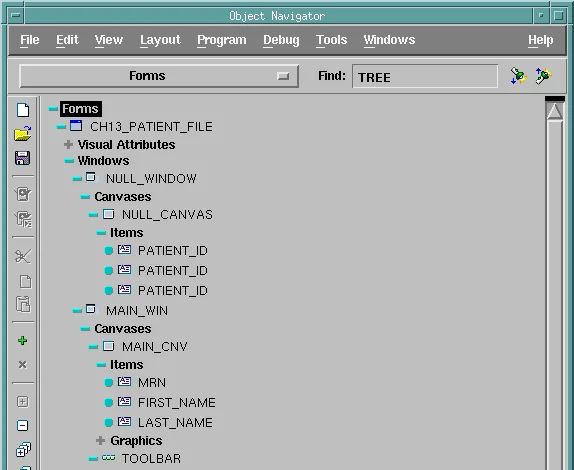
An item with no canvas, like the PATIENT_ID keys of this form's blocks, is listed under NULL_CANVAS in NULL_WINDOW. It is part of its block and holds its value, but it is never displayed, which is exactly right for keys the user never needs to see.
Content Canvases
A content canvas fills its window, and every window has at least one. When a window has several content canvases, it shows one at a time, the one that holds the cursor, and the window's Primary Canvas is the one shown first.
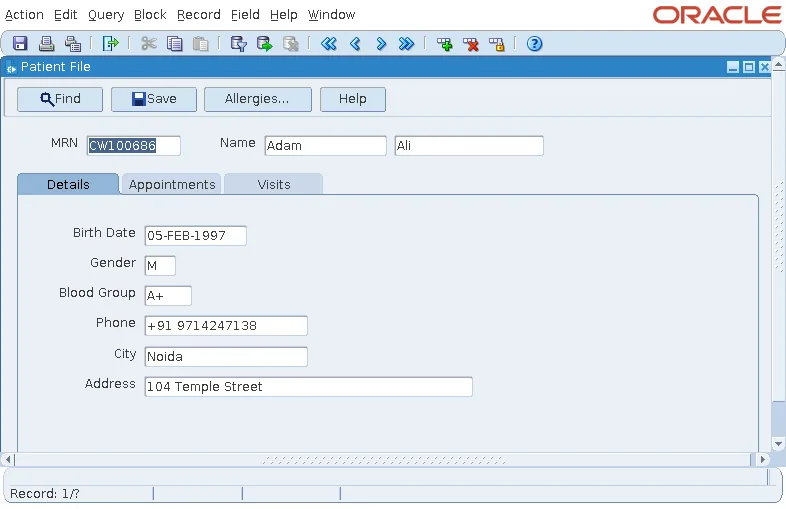
In the sample form, MAIN_CNV holds the patient's MRN and name, which stay visible whatever page is open.
Tab Canvases
A tab canvas holds tab pages, which appear under the canvas in the navigator, each with a Label on its tab. Only one page is visible at a time, and the user moves between pages by clicking their tabs. To place an item on a page, set both its Canvas (the tab canvas) and its Tab Page.
A tab canvas is drawn on top of a content canvas, in a rectangle given by its Viewport X Position, Viewport Y Position, Viewport Width, and Viewport Height. Tab Attachment Edge (top, bottom, left, or right), Tab Style, Corner Style, and Width Style change how the tabs look.
The sample tab canvas TABS has three pages: Details, with more of the patient's items; Appointments, with the block APPOINTMENTS; and Visits, with the block VISITS.
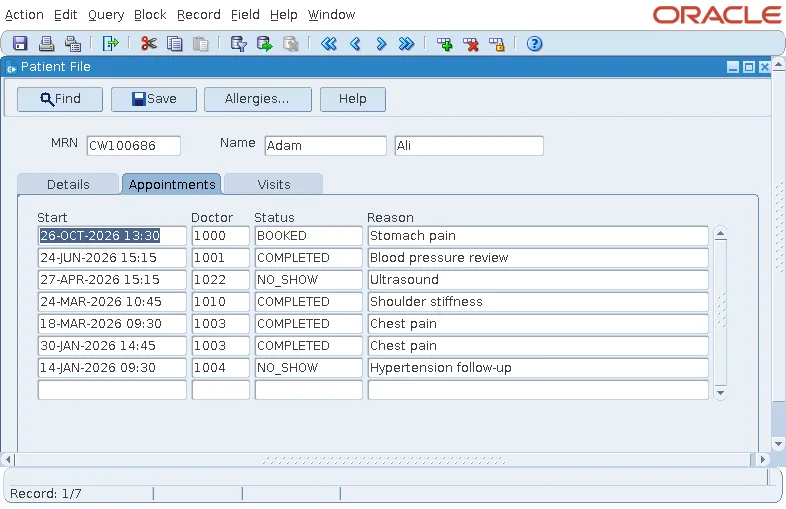
The two detail blocks are joined to PATIENTS by relations with Deferred coordination and Automatic Query, so their records are queried only when the user opens their page. See how to create a master-detail form in Oracle Forms for those settings.
Move the Cursor with WHEN-TAB-PAGE-CHANGED
Clicking a tab shows the page but does not move the cursor. It stays in the item it was in, perhaps on another page, so a page of deferred details would show empty records until the user clicks into them.
The sample form uses WHEN-TAB-PAGE-CHANGED, which fires when the user changes pages with the mouse or keyboard, to move the cursor into the page's block.
Example (WHEN-TAB-PAGE-CHANGED trigger on the form):
if :system.tab_new_page = 'APPTS' then
  go_block('APPOINTMENTS');
elsif :system.tab_new_page = 'VISITS' then
  go_block('VISITS');
else
  go_item('PATIENTS.BIRTH_DATE');
end if;
:SYSTEM.TAB_NEW_PAGE names the page the user chose, and :SYSTEM.TAB_PREVIOUS_PAGE the page they left. :SYSTEM.EVENT_CANVAS names the tab canvas, when a form has several. The trigger does not fire when code changes the page, or when navigation from item to item crosses onto another page.
Stacked Canvases
A stacked canvas is shown on top of the content canvas of its window, in its viewport, and can be shown and hidden while the form runs. Stacked canvases suit panels that appear on demand, such as help text, extra fields of a record, or a search panel, and parts of a large canvas that scroll on their own.
HELP_STK is a panel of help text at the top right of the window. Its Visible property is No, so it starts hidden, and the toolbar's Help button shows and hides it.
Example (WHEN-BUTTON-PRESSED trigger on TOOLS.HELP):
if get_view_property('HELP_STK', visible) = 'TRUE' then
  hide_view('HELP_STK');
else
  show_view('HELP_STK');
end if;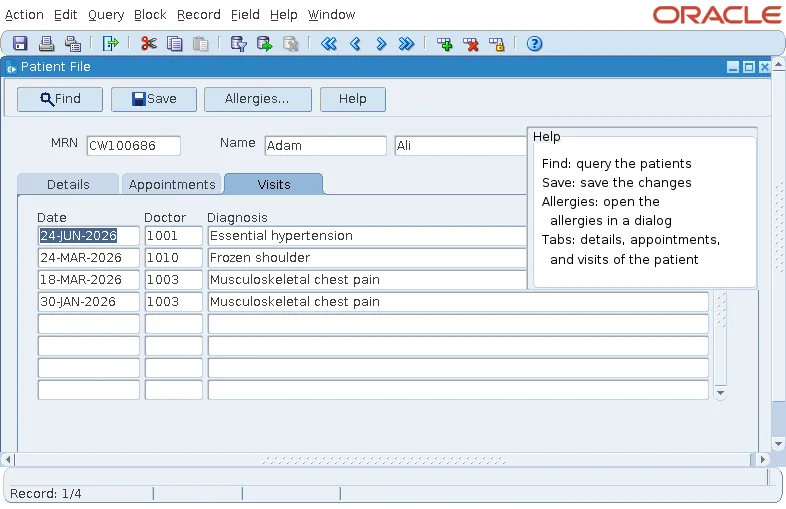
Forms also shows a stacked canvas by itself when the cursor moves to one of its items. Raise on Entry decides whether it then always comes to the front, or only when the item would otherwise be hidden behind another canvas.
Toolbar Canvases
A window shows a toolbar canvas when its Horizontal Toolbar Canvas or Vertical Toolbar Canvas property names it. The form module has the same two properties, for a toolbar shown in the Forms client's application window, above all the form's windows.
The sample TOOLBAR canvas holds four buttons that do not take the cursor: Find, Save, Allergies..., and Help. Why toolbar buttons should not take the cursor is explained in how to create push buttons in Oracle Forms.
Built-ins for Canvases and Views
In these built-ins, a view is a stacked or content canvas as it appears in its window.
Syntax:
show_view(view_name varchar2 | view_id viewport)
hide_view(view_name varchar2 | view_id viewport)
set_view_property(view_name varchar2 | view_id viewport, property number,
                  value {number | varchar2})
get_view_property(view_name varchar2 | view_id viewport, property number) return varchar2
The view properties include VISIBLE, DISPLAY_POSITION (in the window), VIEWPORT_X_POS_ON_CANVAS and VIEWPORT_Y_POS_ON_CANVAS (which part of the canvas shows), WIDTH, and HEIGHT. SCROLL_VIEW scrolls a view to another part of its canvas.
Tab Page Built-ins
Syntax:
set_tab_page_property(tab_page_name varchar2 | tab_page_id tab_page, property number,
                      value {number | varchar2})
get_tab_page_property(tab_page_name varchar2 | tab_page_id tab_page, property number) return varchar2
A tab page is named CANVAS.PAGE, and its properties include LABEL, VISIBLE, ENABLED, and the page's colors. To make a page the visible one from code, use SET_CANVAS_PROPERTY with TOPMOST_TAB_PAGE, which, unlike a click, does not fire WHEN-TAB-PAGE-CHANGED.
FIND_CANVAS, FIND_VIEW, and FIND_TAB_PAGE return the IDs of these objects. For an older overview of canvases, blocks, and items, see canvases, blocks, and items in Oracle Forms.
Conclusion
Items are drawn on canvases, and canvases are shown in windows; items on no canvas hold values without being displayed. A content canvas fills its window, a tab canvas shows one of its pages, a stacked canvas appears over the content canvas and can be shown and hidden, and toolbar canvases hold buttons along a window's edge. Clicking a tab does not move the cursor, so use WHEN-TAB-PAGE-CHANGED to follow it, and change canvases at run time with SHOW_VIEW, HIDE_VIEW, and the view and tab page property built-ins.
