
Time tracking is easiest when people see a whole week at once: one row per project and one column per day, like a paper timesheet. The data, however, is best stored as one row per person, project and day. A normal interactive grid on the table would show seven rows per project instead of one.
In Oracle APEX you can have both. A SQL query turns the daily rows into Monday to Sunday columns, and the grid saves its changes with your own PL/SQL code instead of a table update.
This guide builds the grid with a week picker, row and day totals, a 0 to 24 limit per cell and a check that no day has more than 24 hours.
This guide uses projects and hours as the example; the same steps work for any "rows by period" entry screen, such as weekly stock counts or monthly budgets. The guide How to Show Totals and Calculated Columns in an Interactive Grid in Oracle APEX covers grid totals on a normal table; here the grid edits a pivoted query.
Step 1: Create the Tables
The example needs two tables. TS_PROJECTS lists the projects people can book time on. TIMESHEET_ENTRIES stores one row for each employee, project and day, with the hours worked.
Create the tables, the indexes and the sample data:
Example:
set lines 200 pages 100 feedback on
create table ts_projects (
  project_id   number generated by default on null as identity constraint ts_projects_pk primary key,
  project_code varchar2(20)  not null,
  project_name varchar2(100) not null,
  is_active    varchar2(1)   default on null 'Y' not null,
  constraint ts_projects_code_uk unique (project_code),
  constraint ts_projects_active_ck check (is_active in ('Y', 'N'))
);

create table timesheet_entries (
  entry_id      number generated by default on null as identity constraint timesheet_entries_pk primary key,
  employee_name varchar2(255) default on null coalesce(sys_context('APEX$SESSION', 'APP_USER'), user) not null,
  project_id    number        not null,
  work_date     date          not null,
  hours         number(4,2)   not null,
  created_on    date          default on null sysdate not null,
  constraint timesheet_entries_project_fk foreign key (project_id)
    references ts_projects (project_id),
  constraint timesheet_entries_uk unique (employee_name, project_id, work_date),
  constraint timesheet_entries_hours_ck check (hours > 0 and hours <= 24),
  constraint timesheet_entries_date_ck check (work_date = trunc(work_date))
);

create index timesheet_entries_date_ix on timesheet_entries (employee_name, work_date);
create index timesheet_entries_project_ix on timesheet_entries (project_id);

insert into ts_projects (project_code, project_name) values ('WEB', 'Website Redesign');
insert into ts_projects (project_code, project_name) values ('CRM', 'CRM Migration');
insert into ts_projects (project_code, project_name) values ('SUP', 'Customer Support');
insert into ts_projects (project_code, project_name) values ('ADM', 'Internal Admin');
insert into ts_projects (project_code, project_name, is_active) values ('OLD', 'Legacy Reports', 'N');

insert into timesheet_entries (employee_name, project_id, work_date, hours)
select 'DEMO_DEV', 1, date '2026-10-05' + level - 1, 6 from dual connect by level <= 5;
insert into timesheet_entries (employee_name, project_id, work_date, hours)
select 'DEMO_DEV', 3, date '2026-10-05' + level - 1, 2 from dual connect by level <= 5;
insert into timesheet_entries (employee_name, project_id, work_date, hours)
values ('SALES_USER', 2, date '2026-10-12', 8);
commit;

select p.project_code, e.employee_name, to_char(e.work_date, 'Dy DD-MON-YYYY') as work_day, e.hours
from   timesheet_entries e
join   ts_projects p on p.project_id = e.project_id
order  by e.employee_name, e.work_date, p.project_code;
Output:
Table TS_PROJECTS created.

Table TIMESHEET_ENTRIES created.

Index TIMESHEET_ENTRIES_DATE_IX created.

Index TIMESHEET_ENTRIES_PROJECT_IX created.

1 row inserted.

1 row inserted.

1 row inserted.

1 row inserted.

1 row inserted.

5 rows inserted.

5 rows inserted.

1 row inserted.

Commit complete.

PROJECT_CODE    EMPLOYEE_NAME    WORK_DAY              HOURS
_______________ ________________ __________________ ________
SUP             DEMO_DEV         Mon 05-OCT-2026           2
WEB             DEMO_DEV         Mon 05-OCT-2026           6
SUP             DEMO_DEV         Tue 06-OCT-2026           2
WEB             DEMO_DEV         Tue 06-OCT-2026           6
SUP             DEMO_DEV         Wed 07-OCT-2026           2
WEB             DEMO_DEV         Wed 07-OCT-2026           6
SUP             DEMO_DEV         Thu 08-OCT-2026           2
WEB             DEMO_DEV         Thu 08-OCT-2026           6
SUP             DEMO_DEV         Fri 09-OCT-2026           2
WEB             DEMO_DEV         Fri 09-OCT-2026           6
CRM             SALES_USER       Mon 12-OCT-2026           8

11 rows selected.
- TIMESHEET_ENTRIES_UK allows only one row per employee, project and day, so a cell in the grid always maps to exactly one row.
- TIMESHEET_ENTRIES_HOURS_CK keeps each value above 0 and at most 24. An empty cell means "no row", so zero hours are never stored.
- TIMESHEET_ENTRIES_DATE_CK makes sure WORK_DATE has no time part.
- EMPLOYEE_NAME and CREATED_ON use DEFAULT ON NULL, so no trigger is needed. The employee is the APEX user name (APP_USER).
- TIMESHEET_ENTRIES_DATE_IX supports the queries by employee and date, and TIMESHEET_ENTRIES_PROJECT_IX indexes the foreign key.
- The project OLD is inactive. It will not appear in the grid unless someone already booked hours on it that week.
Step 2: Write the Weekly Grid Query
The grid needs one row per project and seven day columns. Conditional aggregation does this: SUM(CASE WHEN ...) picks the hours of one day for each column. The week starts on the Monday of the date in P650_WEEK_START, found with TRUNC(date, 'IW').
Example:
select p.project_id,
       to_char(w.week_start, 'YYYY-MM-DD') as week_start,
       p.project_code || ' - ' || p.project_name as project,
       sum(case when e.work_date = w.week_start     then e.hours end) as mon,
       sum(case when e.work_date = w.week_start + 1 then e.hours end) as tue,
       sum(case when e.work_date = w.week_start + 2 then e.hours end) as wed,
       sum(case when e.work_date = w.week_start + 3 then e.hours end) as thu,
       sum(case when e.work_date = w.week_start + 4 then e.hours end) as fri,
       sum(case when e.work_date = w.week_start + 5 then e.hours end) as sat,
       sum(case when e.work_date = w.week_start + 6 then e.hours end) as sun,
       sum(e.hours) as week_total
from   ts_projects p
cross  join (select trunc(to_date(:P650_WEEK_START, 'DD-MON-YYYY'), 'IW') as week_start
             from   dual) w
left   join timesheet_entries e
       on  e.project_id    = p.project_id
       and e.employee_name = :APP_USER
       and e.work_date    >= w.week_start
       and e.work_date     < w.week_start + 7
where  p.is_active = 'Y'
or     e.entry_id is not null
group  by p.project_id, w.week_start, p.project_code, p.project_name
order by p.project_code- PROJECT_ID is the row key of the grid. Each row is one project.
- WEEK_START travels with each row as text (YYYY-MM-DD). The save code uses it, so every row is saved into the week it was loaded from.
- The LEFT JOIN keeps active projects without hours, so users can type into empty rows. No Add Row button is needed.
- The filter on :APP_USER shows each user only their own hours.
Test the query in SQL with a Wednesday date. TRUNC(..., 'IW') moves it to Monday, 05-OCT-2026:
Example:
set lines 200 pages 100 feedback on
variable P650_WEEK_START varchar2(20)
variable APP_USER varchar2(30)
exec :P650_WEEK_START := '07-OCT-2026'; :APP_USER := 'DEMO_DEV'
column project format a26
column week_start format a11
select p.project_id,
       w.week_start,
       p.project_code || ' - ' || p.project_name as project,
       sum(case when e.work_date = w.week_start     then e.hours end) as mon,
       sum(case when e.work_date = w.week_start + 1 then e.hours end) as tue,
       sum(case when e.work_date = w.week_start + 2 then e.hours end) as wed,
       sum(case when e.work_date = w.week_start + 3 then e.hours end) as thu,
       sum(case when e.work_date = w.week_start + 4 then e.hours end) as fri,
       sum(case when e.work_date = w.week_start + 5 then e.hours end) as sat,
       sum(case when e.work_date = w.week_start + 6 then e.hours end) as sun,
       sum(e.hours) as week_total
from   ts_projects p
cross  join (select trunc(to_date(:P650_WEEK_START, 'DD-MON-YYYY'), 'IW') as week_start
             from   dual) w
left   join timesheet_entries e
       on  e.project_id    = p.project_id
       and e.employee_name = :APP_USER
       and e.work_date    >= w.week_start
       and e.work_date     < w.week_start + 7
where  p.is_active = 'Y'
or     e.entry_id is not null
group  by p.project_id, w.week_start, p.project_code, p.project_name
order by project
/
Output:
PL/SQL procedure successfully completed.

   PROJECT_ID WEEK_START    PROJECT                      MON    TUE    WED    THU    FRI    SAT    SUN    WEEK_TOTAL
_____________ _____________ _________________________ ______ ______ ______ ______ ______ ______ ______ _____________
            4 05-10-26      ADM - Internal Admin
            2 05-10-26      CRM - CRM Migration
            3 05-10-26      SUP - Customer Support         2      2      2      2      2                          10
            1 05-10-26      WEB - Website Redesign         6      6      6      6      6                          30

4 rows selected.
Step 3: Create the Interactive Grid Page
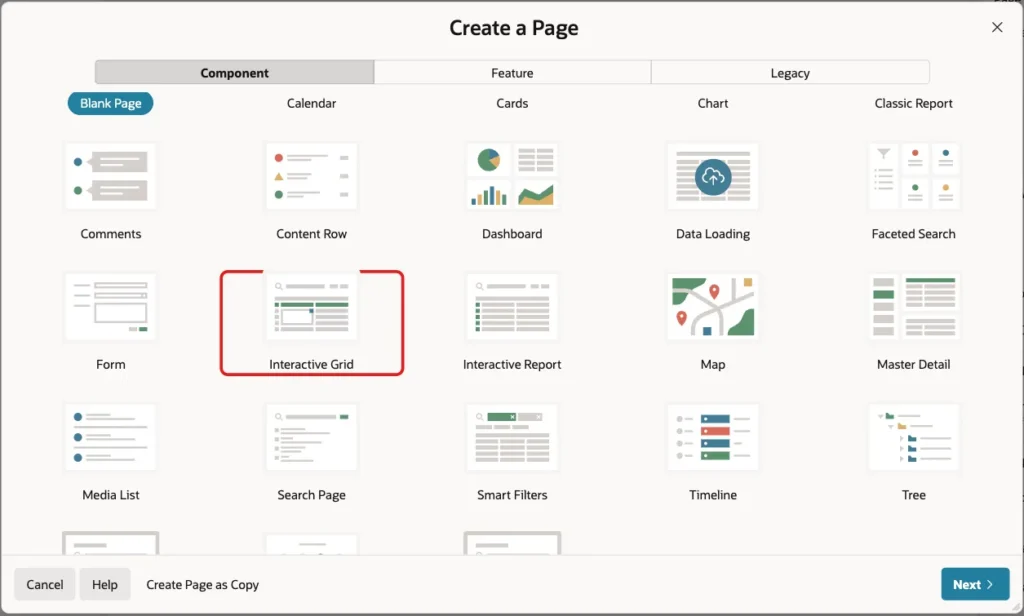
In App Builder, open the application and click Create Page. On the Component tab, choose Interactive Grid:
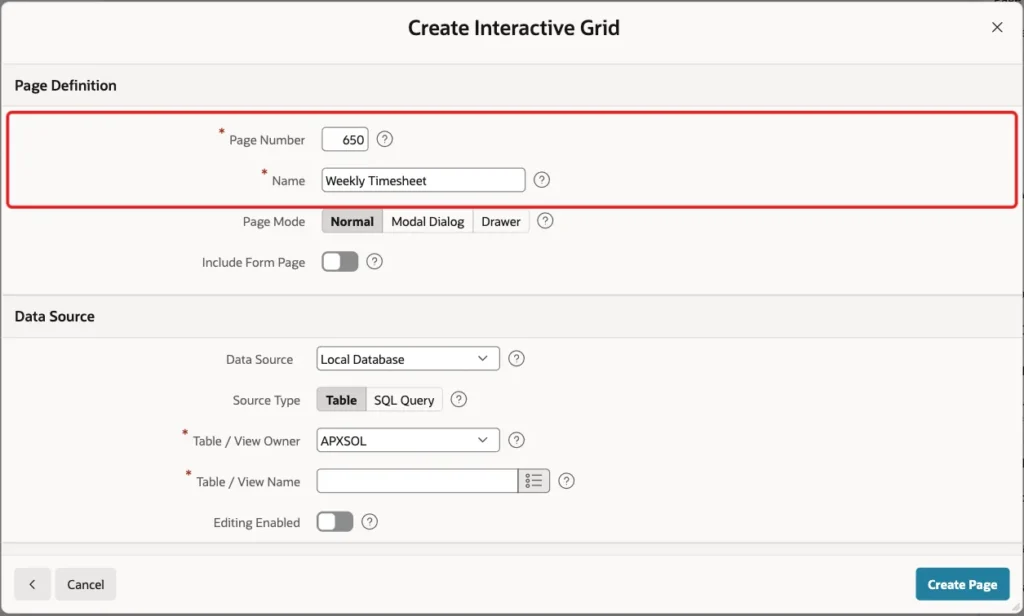
Enter the page number 650 and the name Weekly Timesheet. Keep Page Mode Normal:
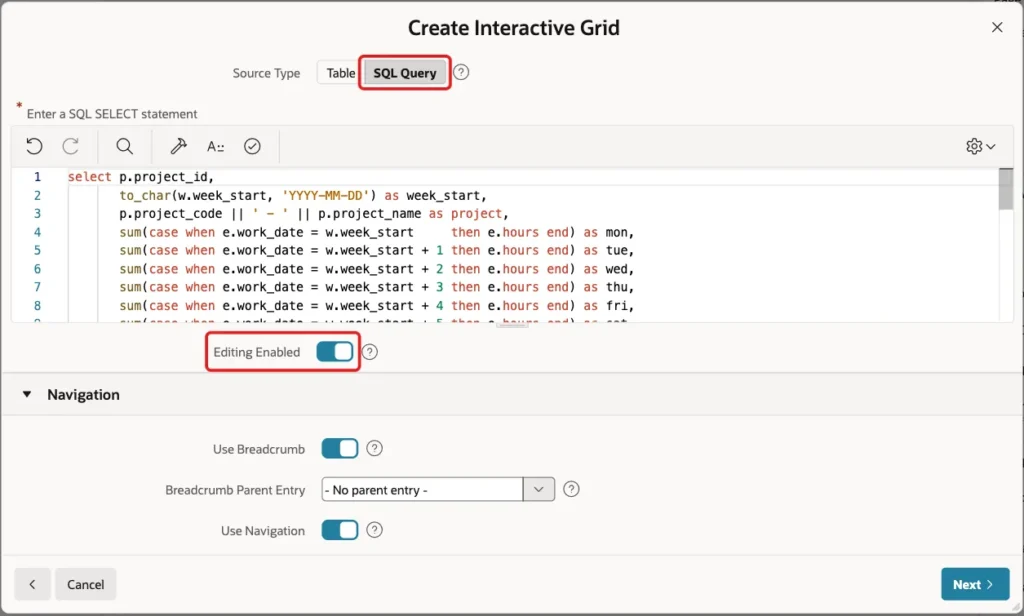
Under Data Source, set Source Type to SQL Query and paste the query from Step 2. Turn on Editing Enabled:
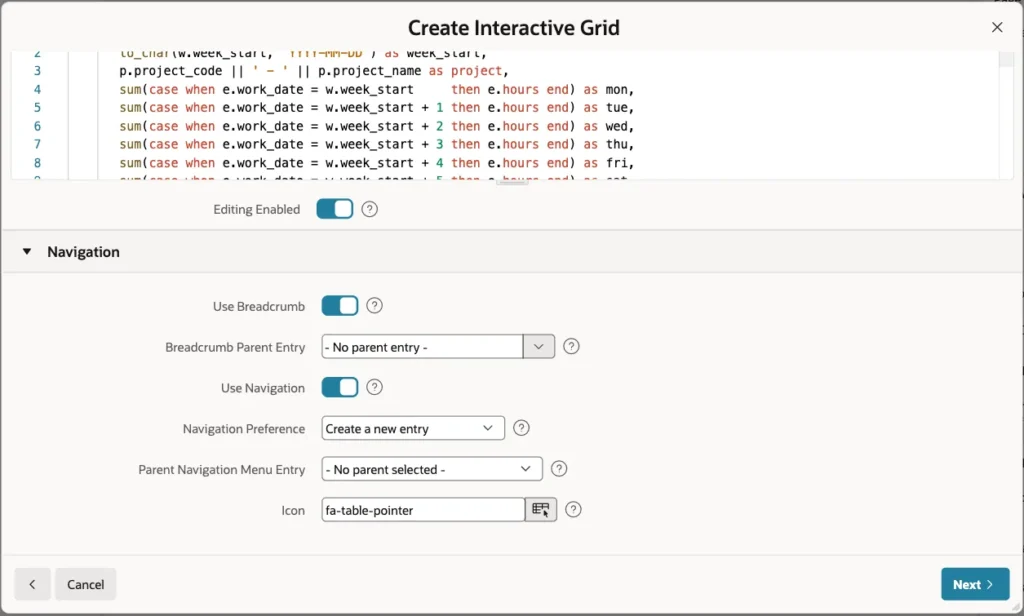
Keep the Navigation defaults. The wizard creates a breadcrumb and a new navigation menu entry:
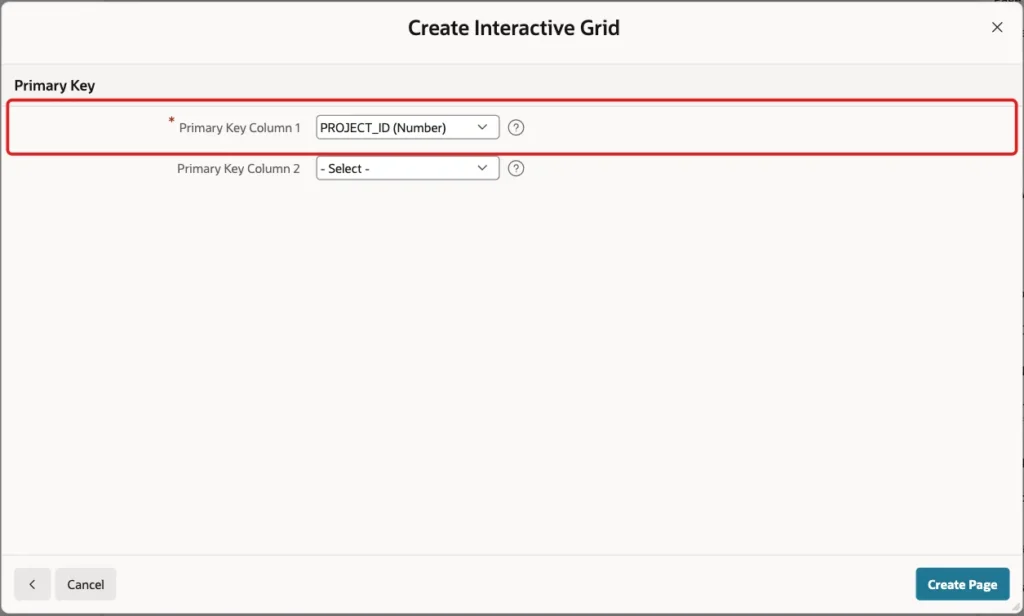
Click Next. An editable grid needs a primary key. Select PROJECT_ID (Number) as Primary Key Column 1 and click Create Page:
The query uses P650_WEEK_START, an item that does not exist yet. The next step creates it.
Step 4: Add the Week Picker Region
In Page Designer, right-click Body, choose Create Region and drag it above the grid. Set Name to Select Week and Type to Static Content:
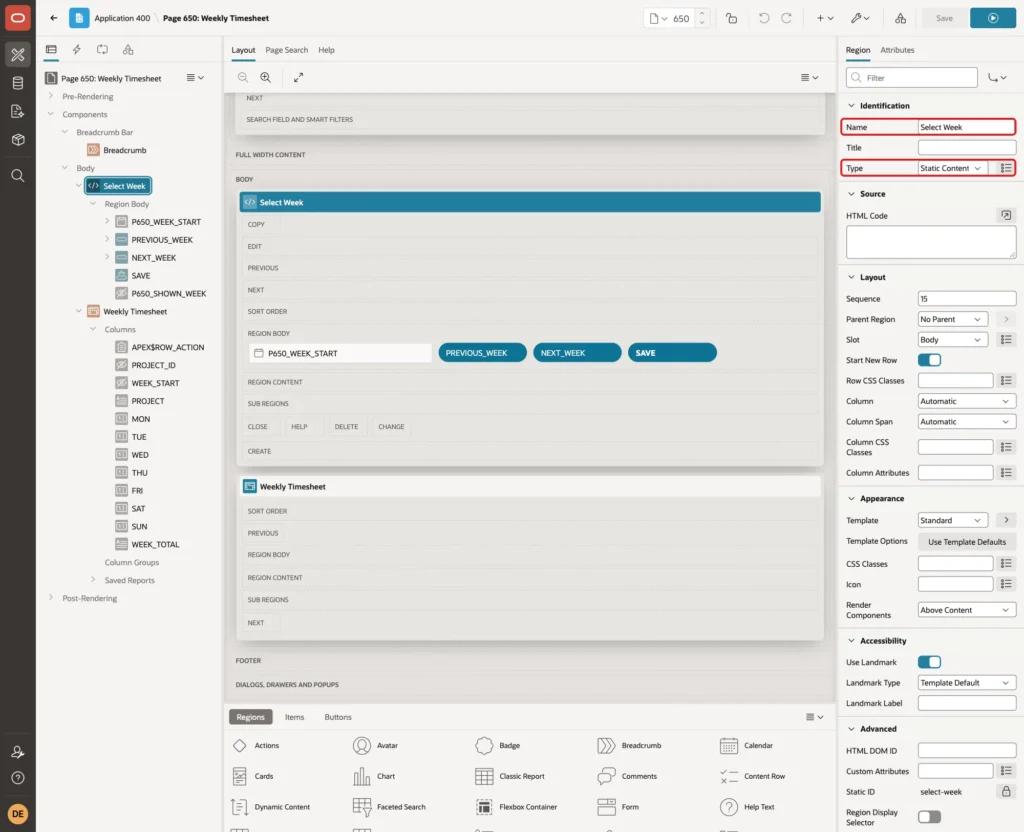
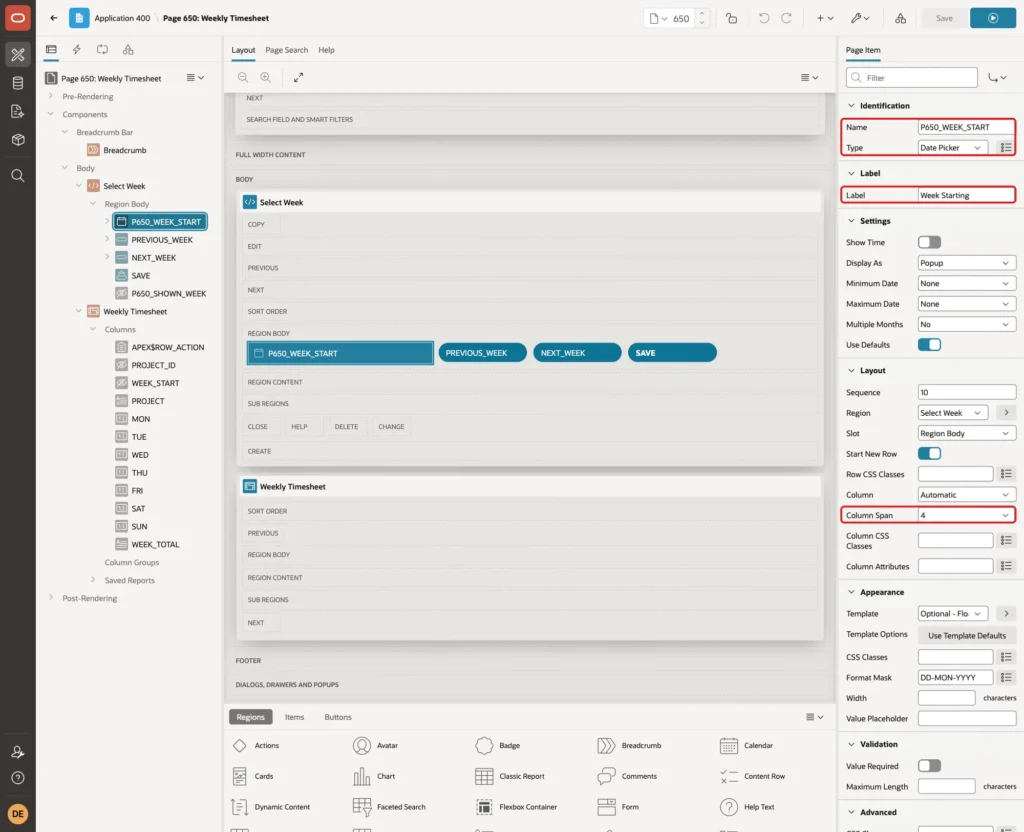
Right-click the Select Week region, choose Create Page Item, and set these properties:
- Name: P650_WEEK_START
- Type: Date Picker
- Label: Week Starting
- Layout, Column Span: 4
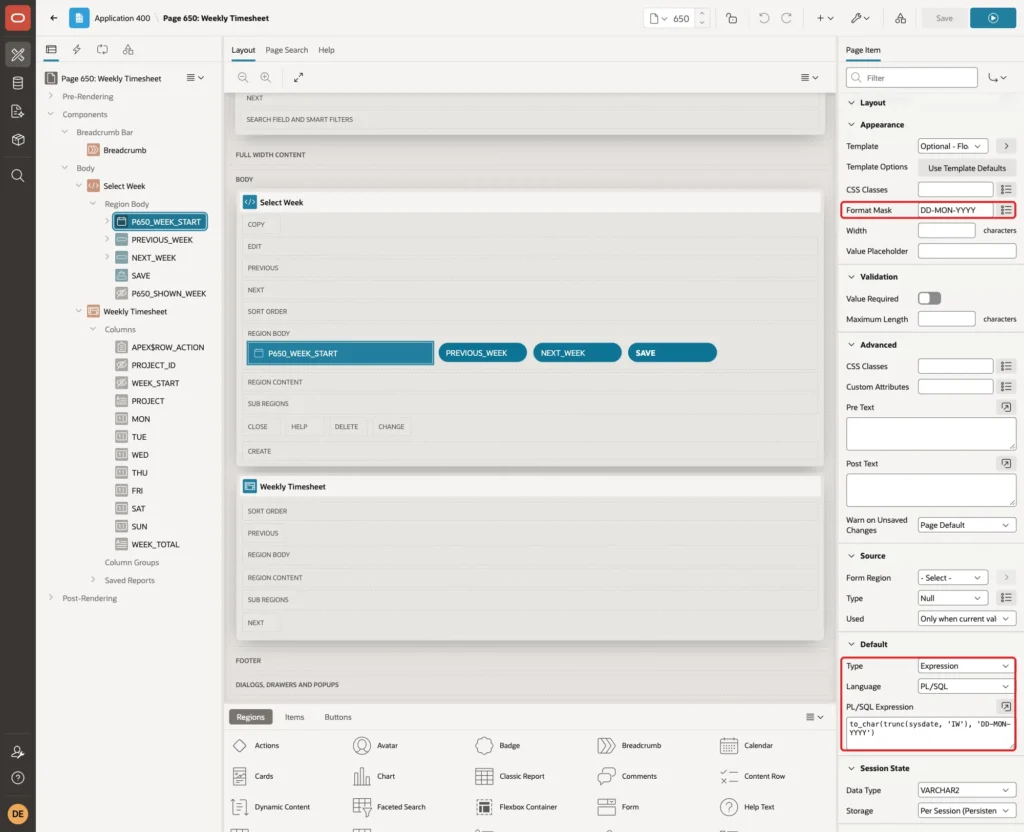
Set Format Mask to DD-MON-YYYY, the format the query expects. Under Default, set Type to Expression and enter this PL/SQL expression, the Monday of the current week:
Example:
to_char(trunc(sysdate, 'IW'), 'DD-MON-YYYY')
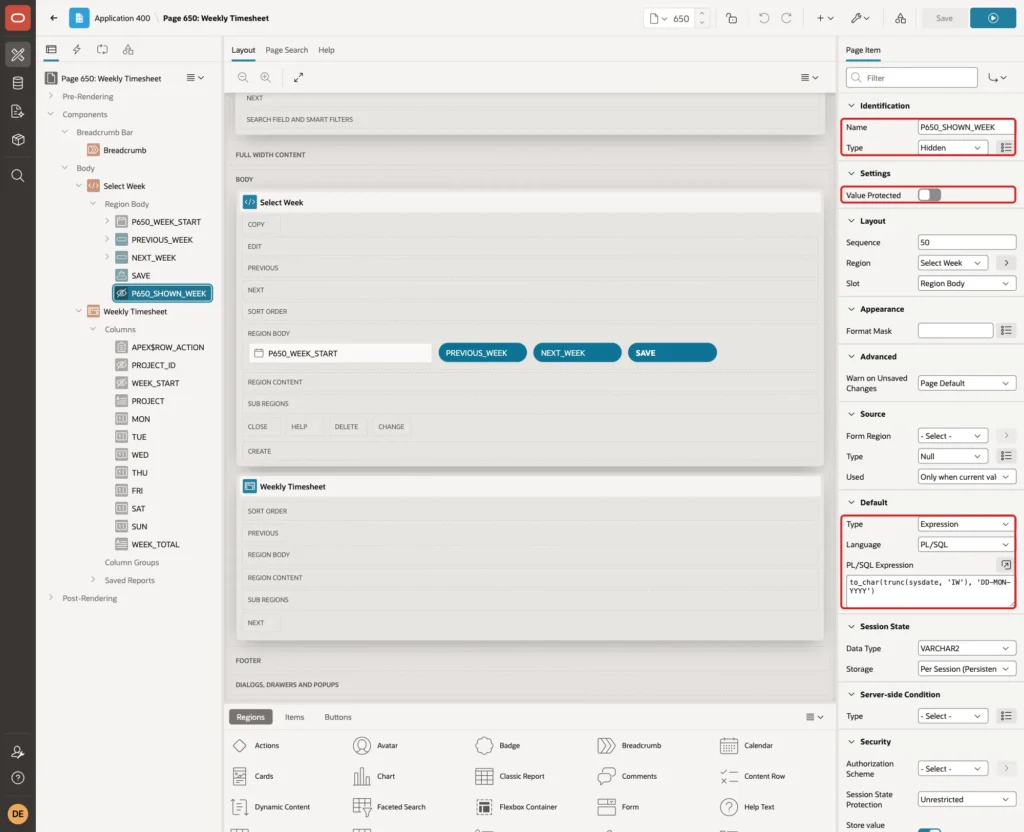
Create a second item in the same region. It remembers which week the grid shows, for the check in Step 9:
- Name: P650_SHOWN_WEEK
- Type: Hidden
- Value Protected: off, because JavaScript changes the value
- Default: the same PL/SQL expression as P650_WEEK_START
Step 5: Add the Buttons
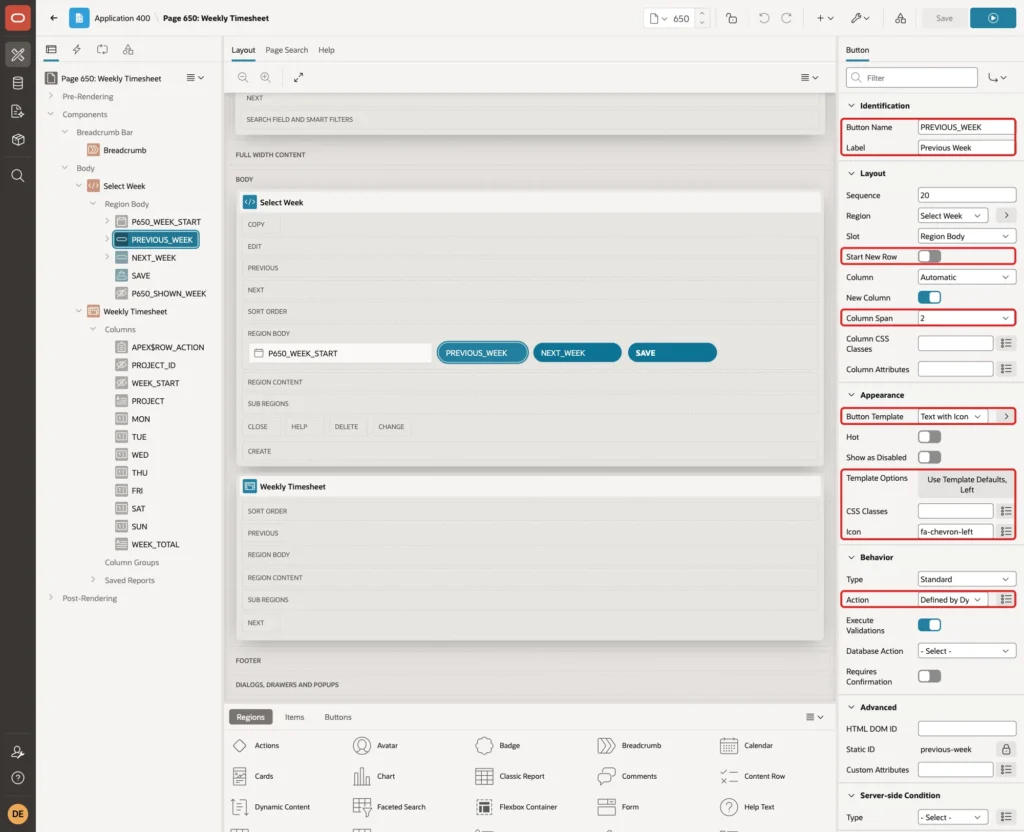
Create three buttons in the Select Week region, all with Slot Region Body, Start New Row off and Column Span 2, so they sit next to the picker:
- PREVIOUS_WEEK, label Previous Week, Button Template Text with Icon, Template Options Icon Position Left, Icon fa-chevron-left, Action Defined by Dynamic Action.
- NEXT_WEEK, label Next Week, Button Template Text with Icon, Icon Position Right, Icon fa-chevron-right, Action Defined by Dynamic Action.
- SAVE, label Save Timesheet, Button Template Text, Hot on, Action Submit Page.
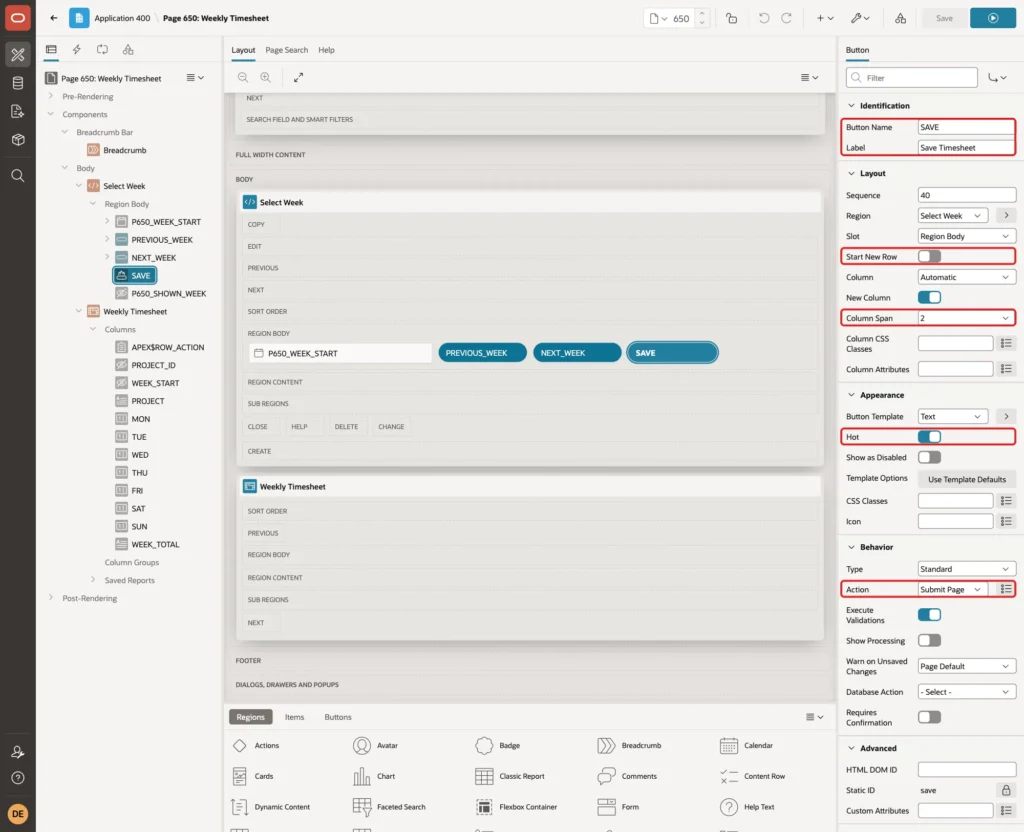
Save Timesheet submits the page instead of using the grid's own Save button. Step 8 explains why.
Step 6: Set Up the Grid Region and Its Columns
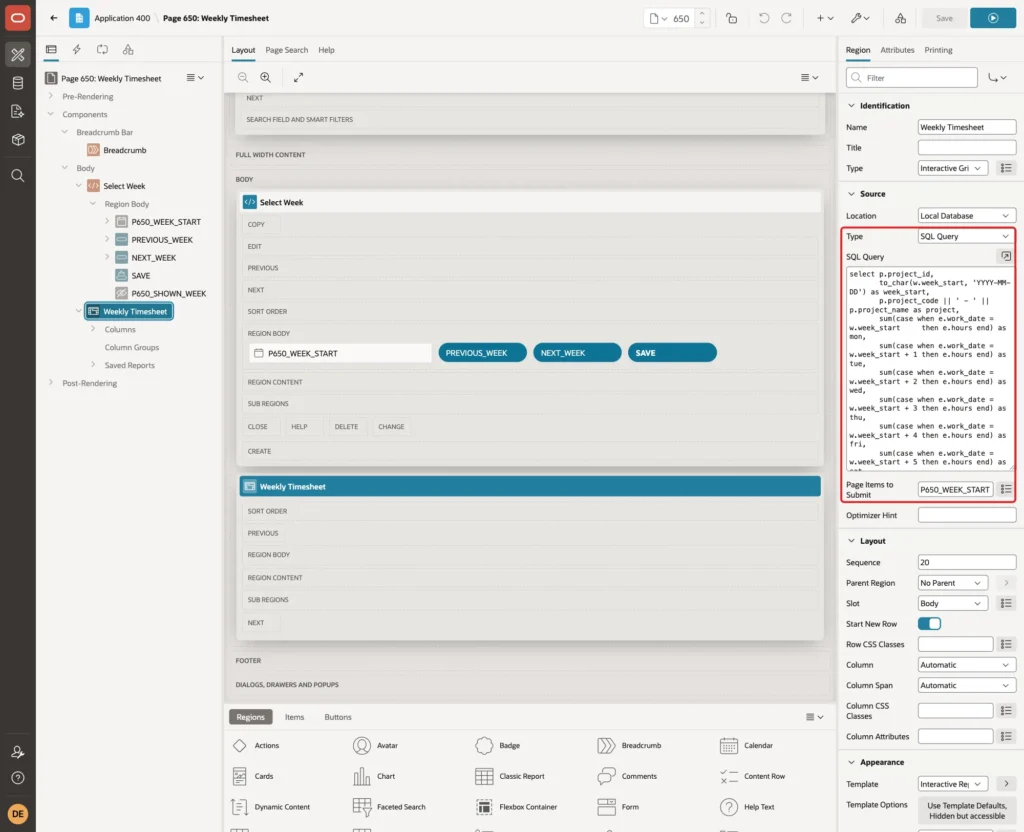
Select the Weekly Timesheet region. In the Source group, set Page Items to Submit to P650_WEEK_START, so the query gets the selected week when the grid refreshes:
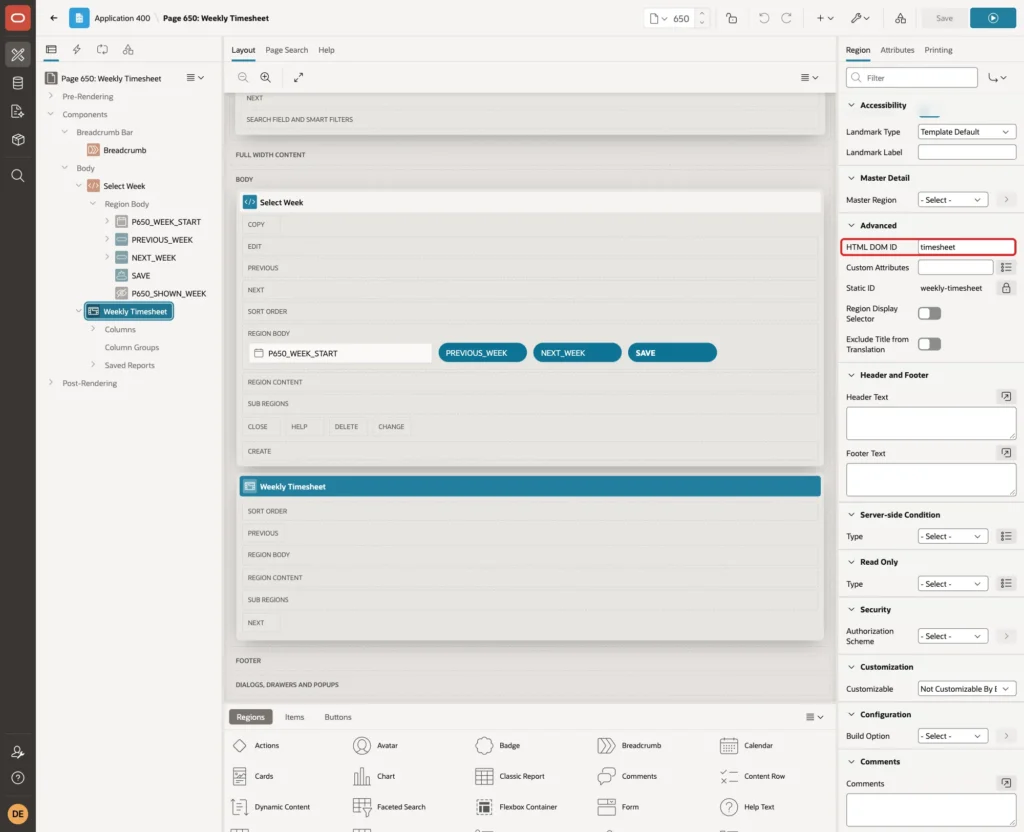
Under Advanced, set HTML DOM ID to timesheet. The JavaScript in Step 9 finds the grid by this ID:
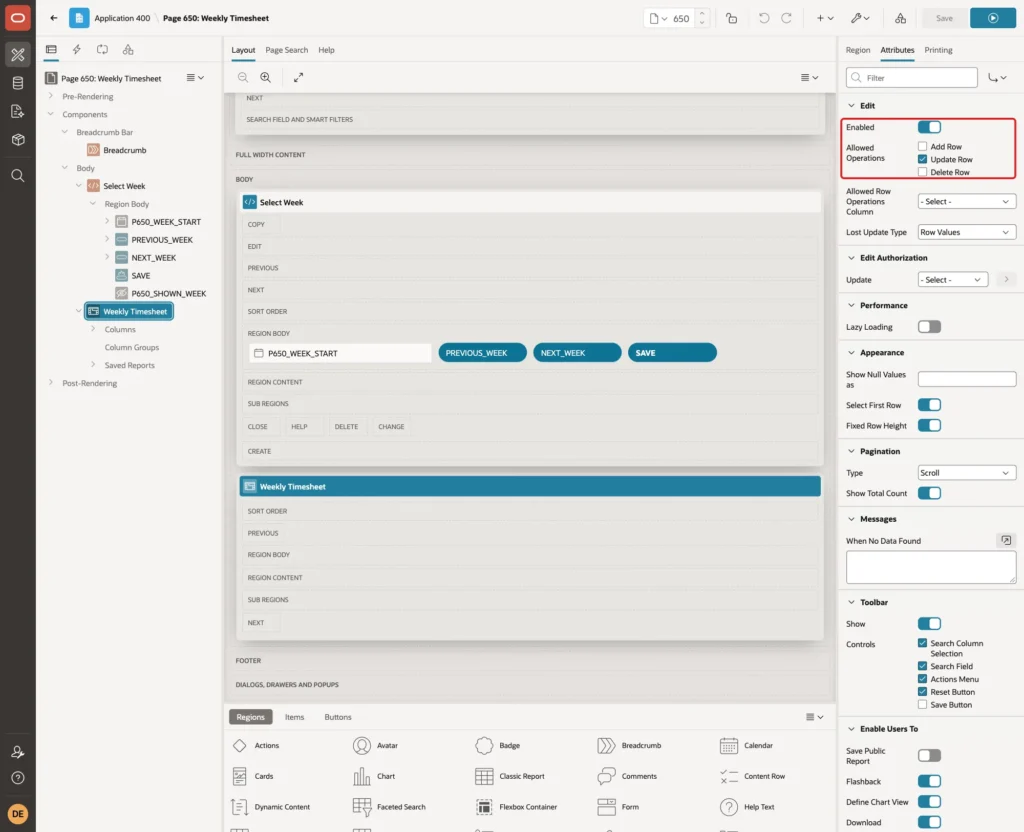
Open the Attributes tab of the region. Under Edit, keep Enabled on and leave only Update Row checked in Allowed Operations. Every active project already has a row, so Add Row and Delete Row are not needed:
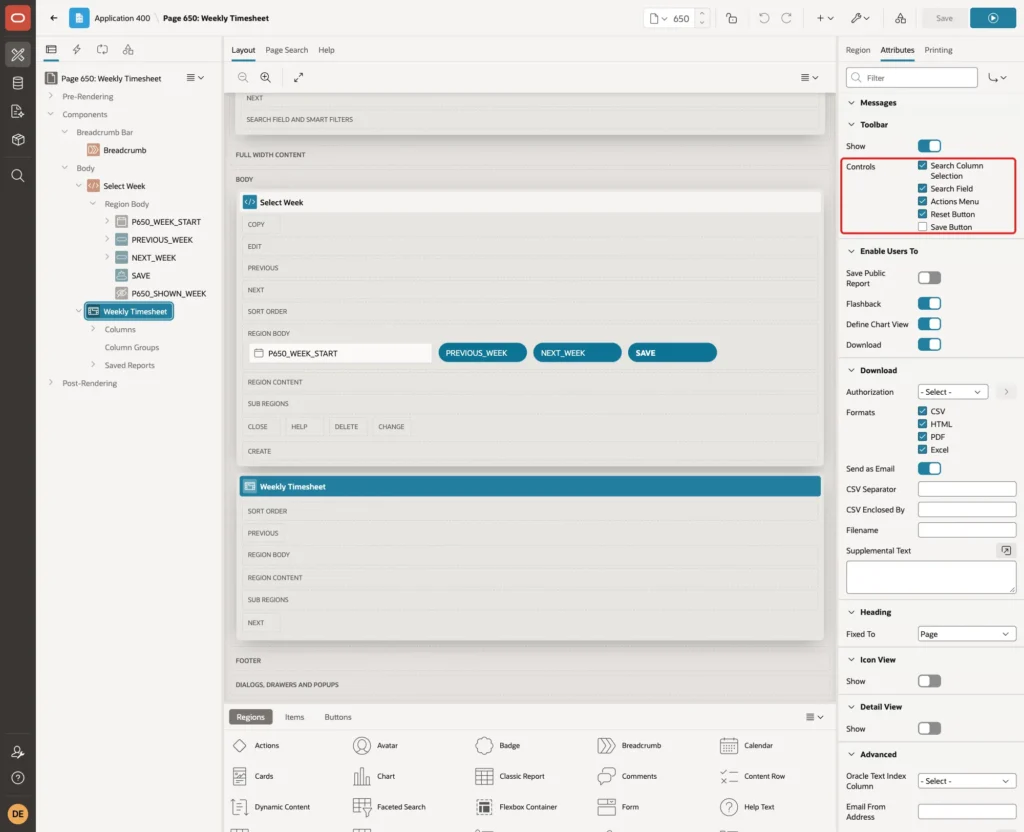
Under Toolbar, uncheck Save Button. The page uses Save Timesheet instead:
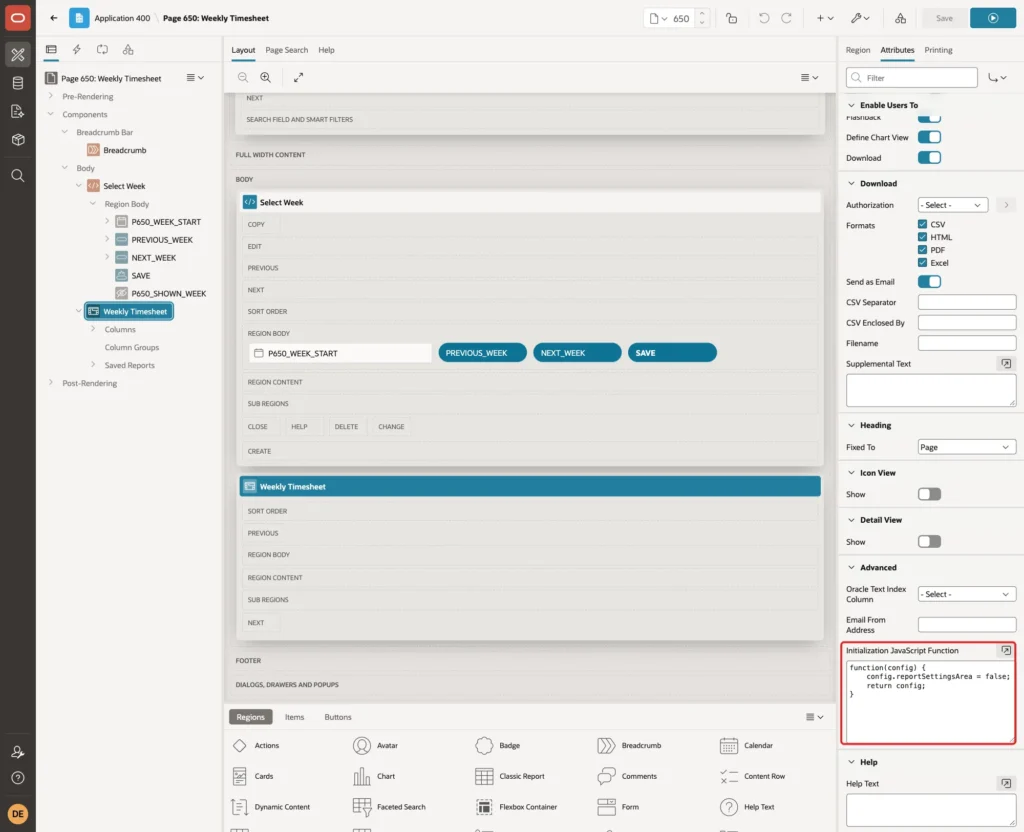
Under Advanced, enter this Initialization JavaScript Function. It hides the report settings bar that would list all eight Sum aggregates above the grid:
Example:
function(config) {
    config.reportSettingsArea = false;
    return config;
}
Now go back to the Region tab, expand Columns and change these columns:
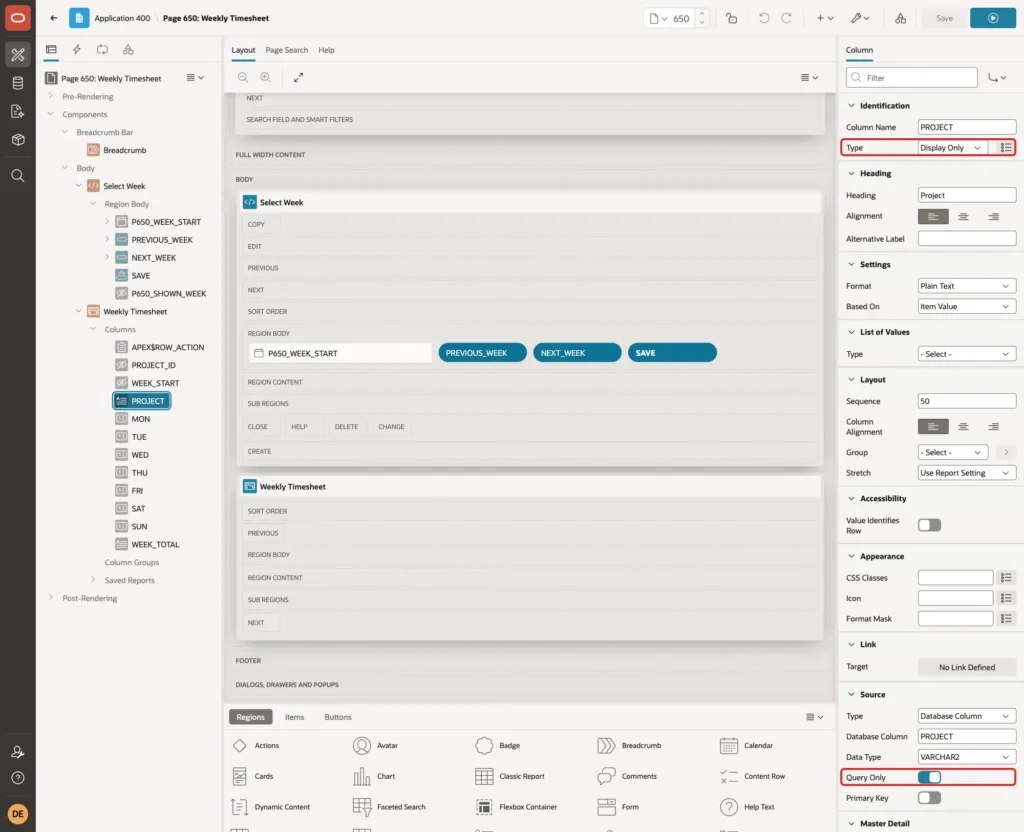
- PROJECT: Type Display Only, Query Only on.
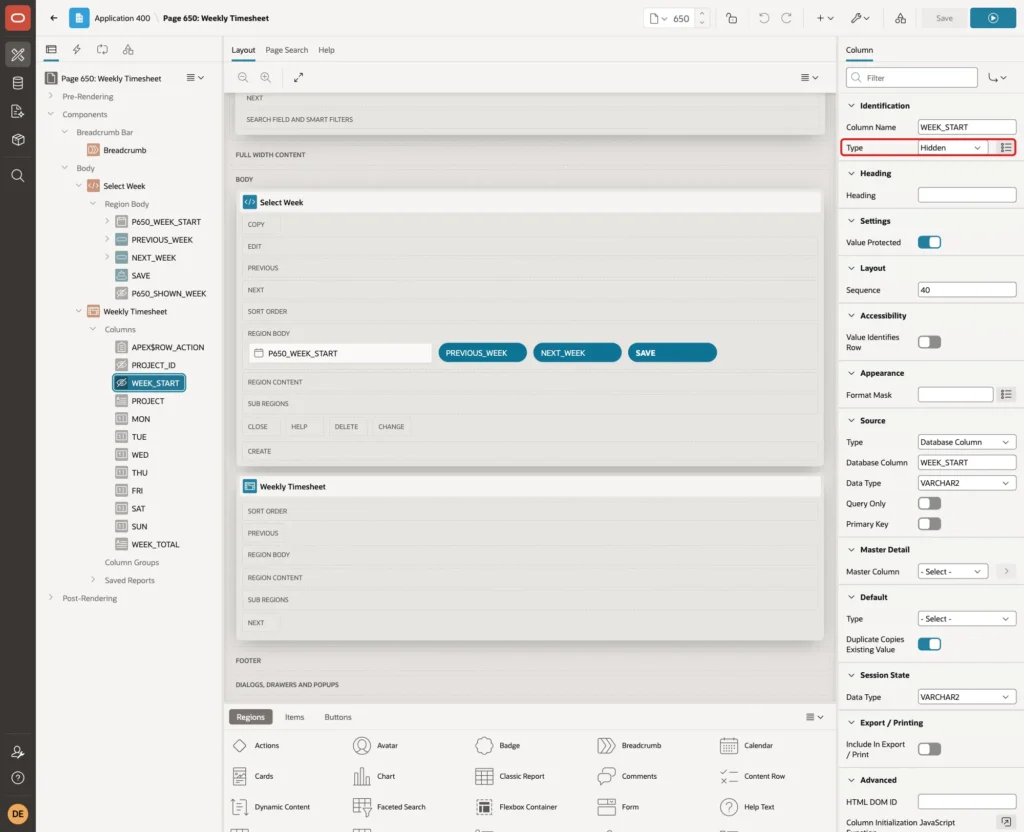
- WEEK_START: Type Hidden. It must stay a normal column, not Query Only, because the save code reads it.
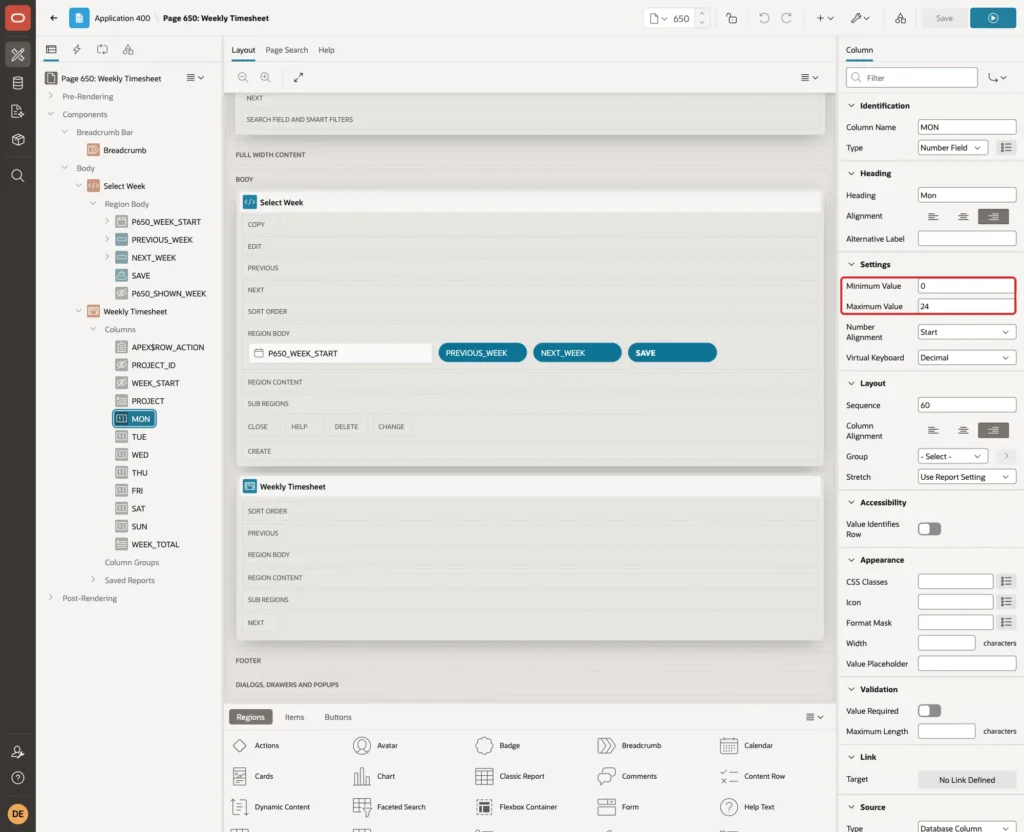
- MON to SUN: keep Number Field and set Minimum Value 0 and Maximum Value 24.
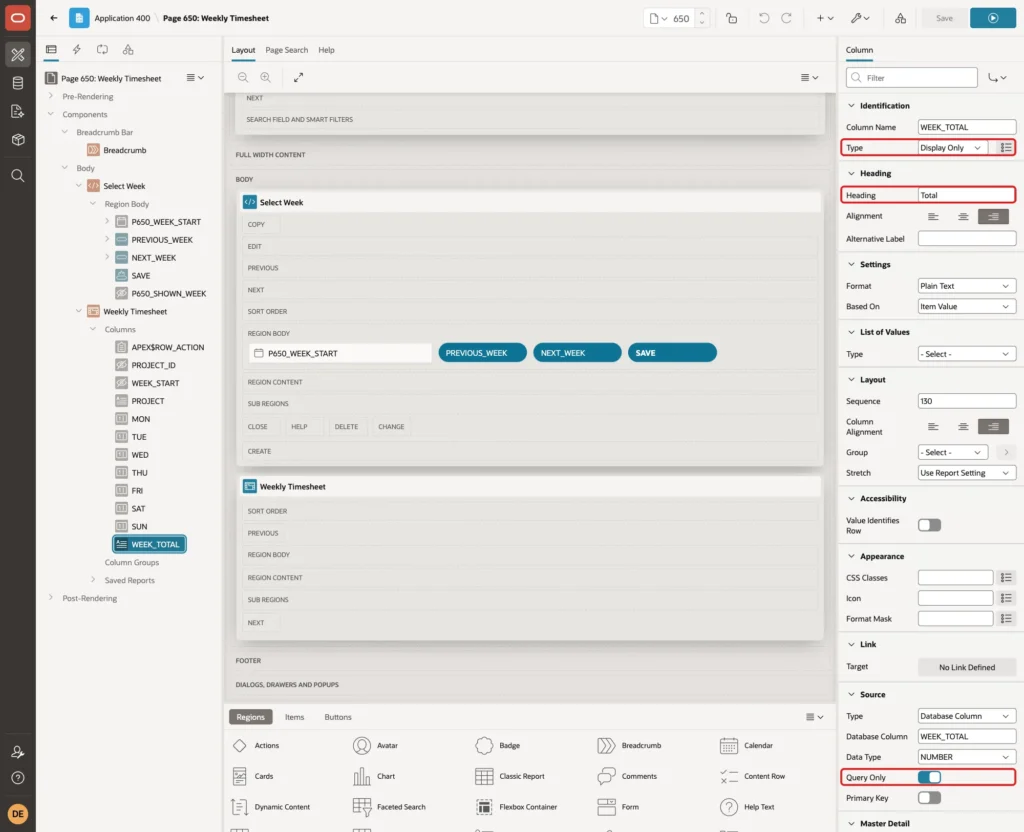
- WEEK_TOTAL: Type Display Only, Heading Total, Query Only on.
Step 7: Save the Grid with PL/SQL Code
The grid query has a GROUP BY, so APEX cannot update it like a table. Instead, the grid's save process runs your own PL/SQL code once for each changed row.
Open the Processing tab and select the process Weekly Timesheet - Save Interactive Grid Data. Under Target, set Target Type to PL/SQL Code and enter this code:
Example:
declare
    l_week  date := to_date(:WEEK_START, 'YYYY-MM-DD');
    l_hours apex_t_number := apex_t_number(:MON, :TUE, :WED, :THU, :FRI, :SAT, :SUN);
begin
    for i in 1 .. 7 loop
        if nvl(l_hours(i), 0) = 0 then
            delete from timesheet_entries
            where  employee_name = :APP_USER
            and    project_id    = :PROJECT_ID
            and    work_date     = l_week + i - 1;
        else
            merge into timesheet_entries t
            using (select :APP_USER      as employee_name,
                          :PROJECT_ID    as project_id,
                          l_week + i - 1 as work_date,
                          l_hours(i)     as hours
                   from   dual) s
            on (    t.employee_name = s.employee_name
                and t.project_id    = s.project_id
                and t.work_date     = s.work_date)
            when matched then
                update set t.hours = s.hours
            when not matched then
                insert (employee_name, project_id, work_date, hours)
                values (s.employee_name, s.project_id, s.work_date, s.hours);
        end if;
    end loop;
end;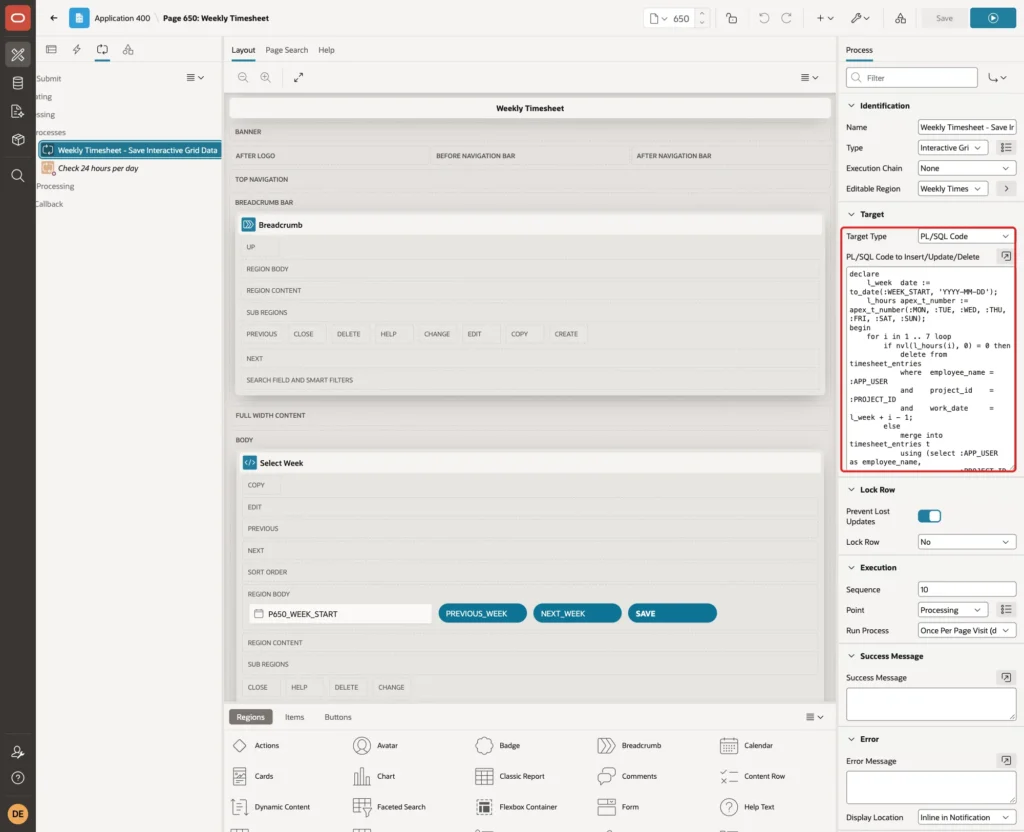
- The code turns the seven day columns into a list. For each day it deletes the row when the cell is empty or 0, and otherwise inserts or updates the row with MERGE.
- Column values are available as bind variables with the column name, such as :MON and :PROJECT_ID.
- The employee is always :APP_USER, so nobody can save hours for another user.
Under Lock Row, set Lock Row to No:
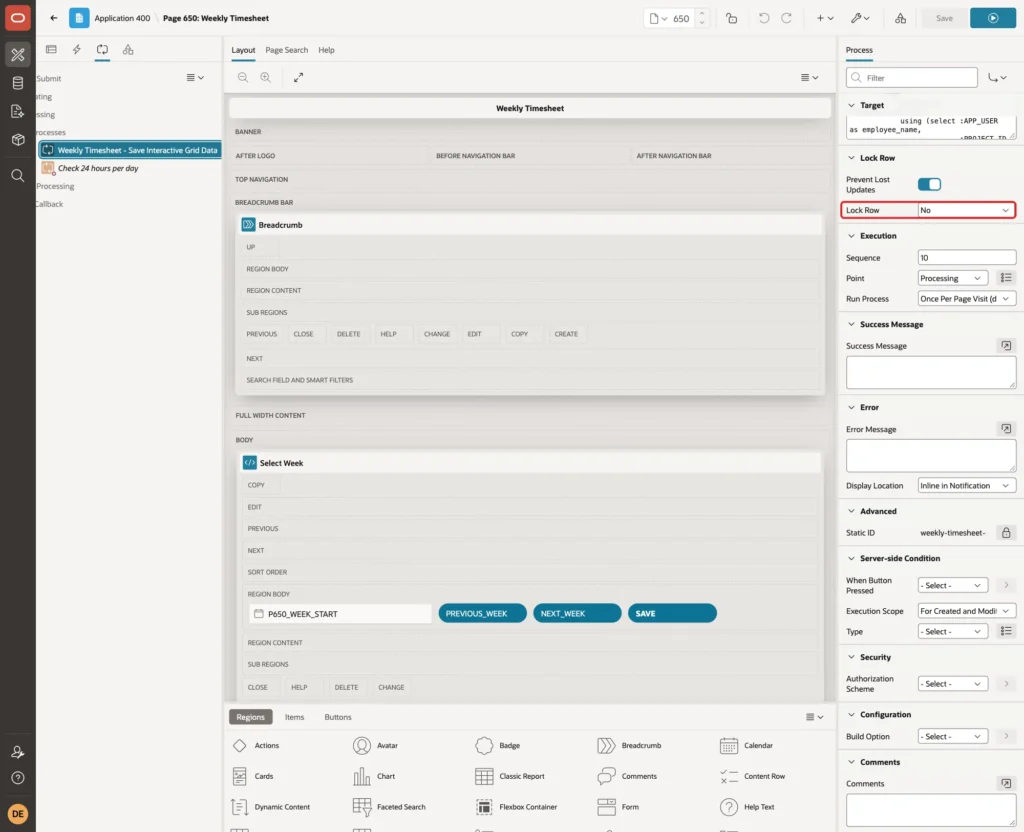
In a first test, Lock Row was left at Yes and every save failed with "ORA-02014: cannot select FOR UPDATE from view with DISTINCT, GROUP BY, etc.". APEX tries to lock the grid row with SELECT FOR UPDATE on the query, which a GROUP BY query does not allow.
Prevent Lost Updates stays on and still works without the lock.
Step 8: Check That No Day Has More Than 24 Hours
The column limits stop a single cell above 24, but a day can also go over 24 hours across several projects. That needs the total of all rows of the day, after the save. No constraint can check a sum over several rows, so a short process does it.
Right-click Processes, choose Create Process, and set Name to Check 24 hours per day, Type Execute Code, Sequence 20, so it runs after the grid save. Enter this PL/SQL code:
Example:
begin
    for d in (select work_date, sum(hours) as total_hours
              from   timesheet_entries
              where  employee_name = :APP_USER
              group  by work_date
              having sum(hours) > 24
              order  by work_date)
    loop
        apex_error.add_error(
            p_message          => to_char(d.work_date, 'Dy DD-MON-YYYY') || ' has '
                                  || d.total_hours || ' hours. A day can have at most 24 hours.',
            p_display_location => apex_error.c_inline_in_notification);
    end loop;
end;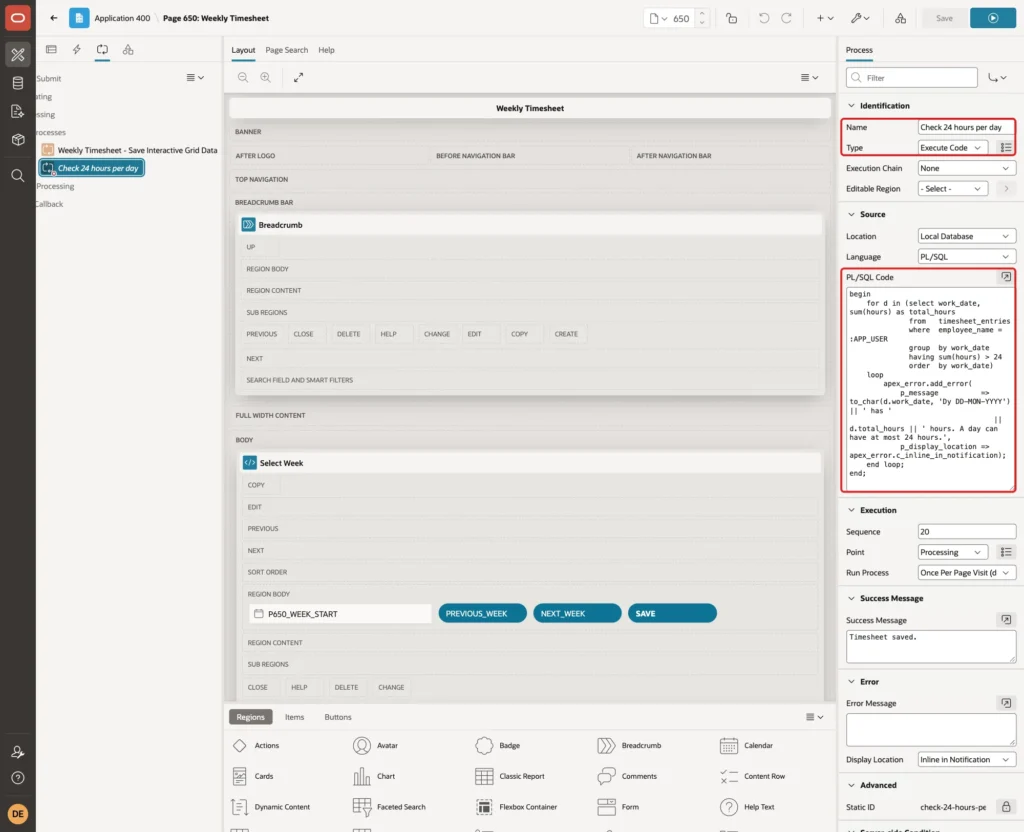
Set Success Message to Timesheet saved. and, under Server-side Condition, When Button Pressed to SAVE:
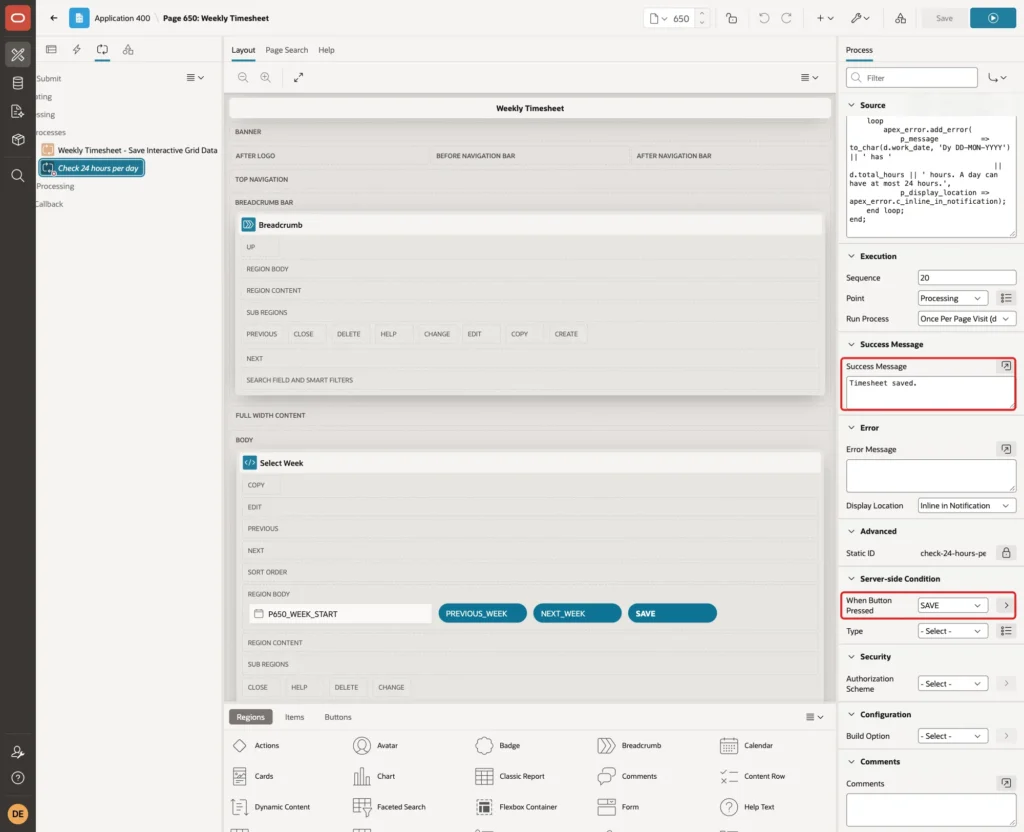
APEX_ERROR.ADD_ERROR stops the page processing and APEX rolls back the whole request, so the grid rows saved just before are undone too.
This is the reason for the Save Timesheet button. In a first test, the grid's own Save button was used. It saves with an Ajax request that runs only processes tied to the grid region, so this check never ran and a day with 24.5 hours was saved.
A page submit runs every process, once, after all grid rows are saved.
Step 9: Add the Week Navigation Dynamic Actions
Three dynamic actions change the week. The first one reacts when P650_WEEK_START changes, whether a user picks a date or a button sets it.
Right-click P650_WEEK_START, choose Create Dynamic Action and set Name to Week changed, Event Change. Under Client-side Condition, set Type to JavaScript expression and enter:
Example:
!apex.region("timesheet").call("getViews", "grid").model.isChanged()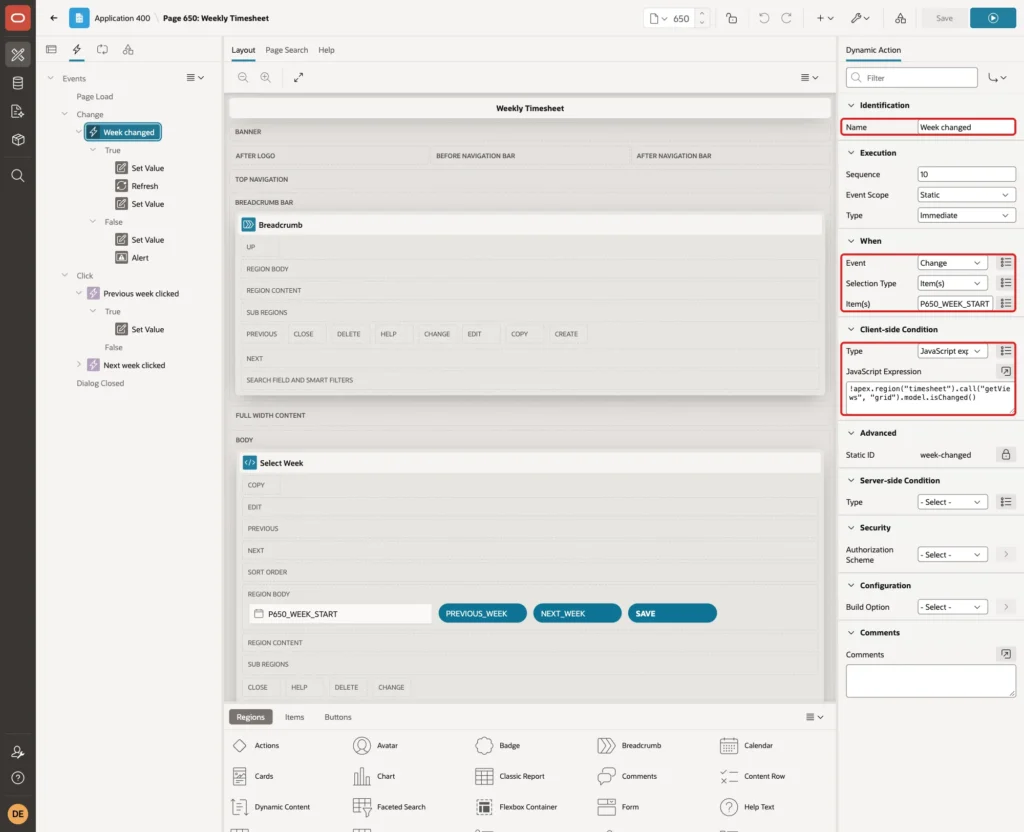
The condition is true when the grid has no unsaved changes. Add these True actions:
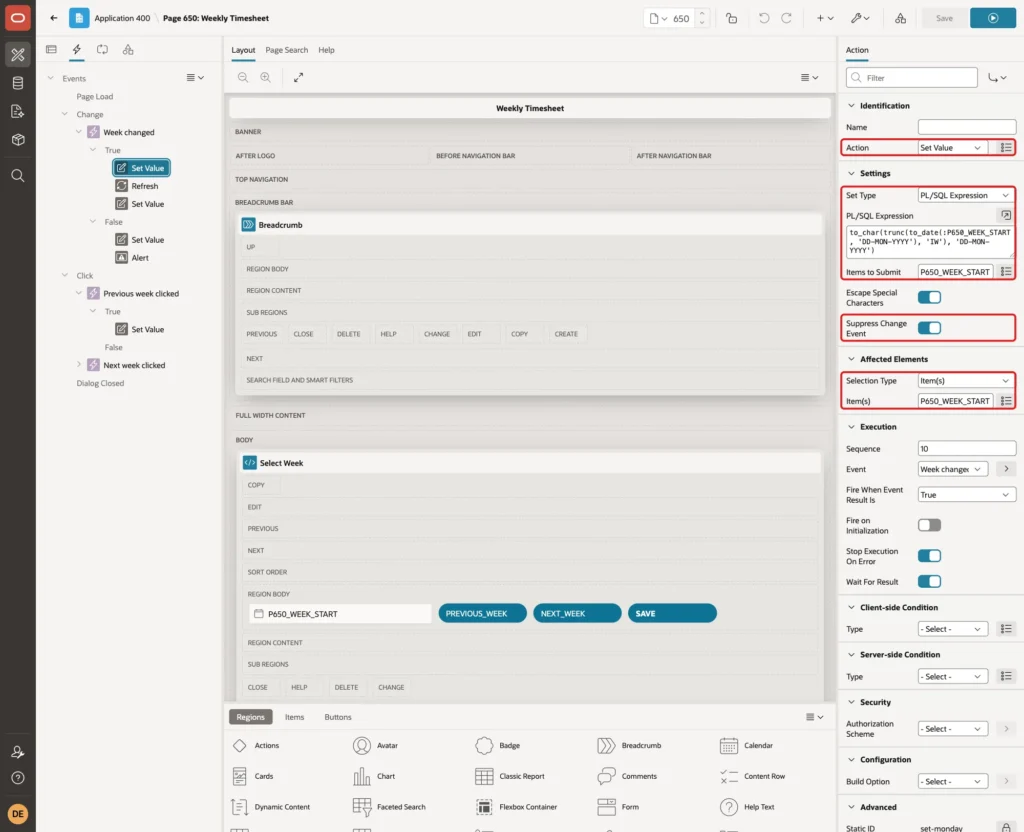
True action 1: Set Value, Set Type PL/SQL Expression, Items to Submit P650_WEEK_START, Suppress Change Event on, Affected Element item P650_WEEK_START. The expression moves any picked date to its Monday:
Example:
to_char(trunc(to_date(:P650_WEEK_START, 'DD-MON-YYYY'), 'IW'), 'DD-MON-YYYY')
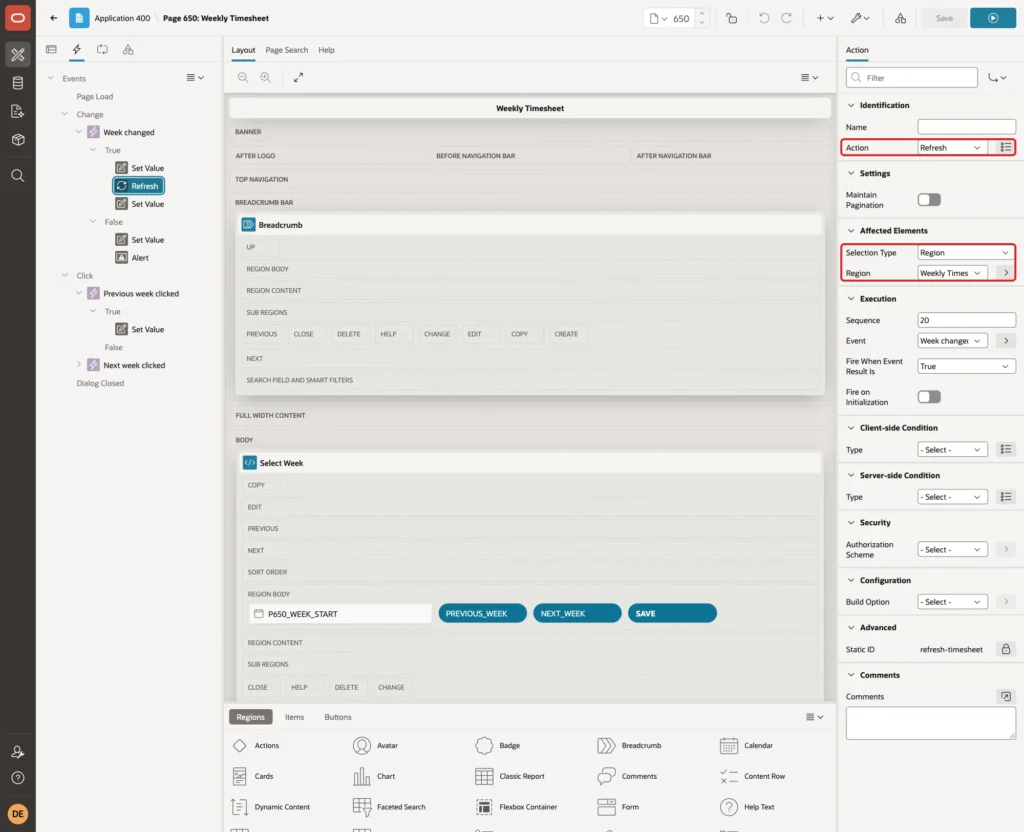
True action 2: Refresh, Affected Elements region Weekly Timesheet:
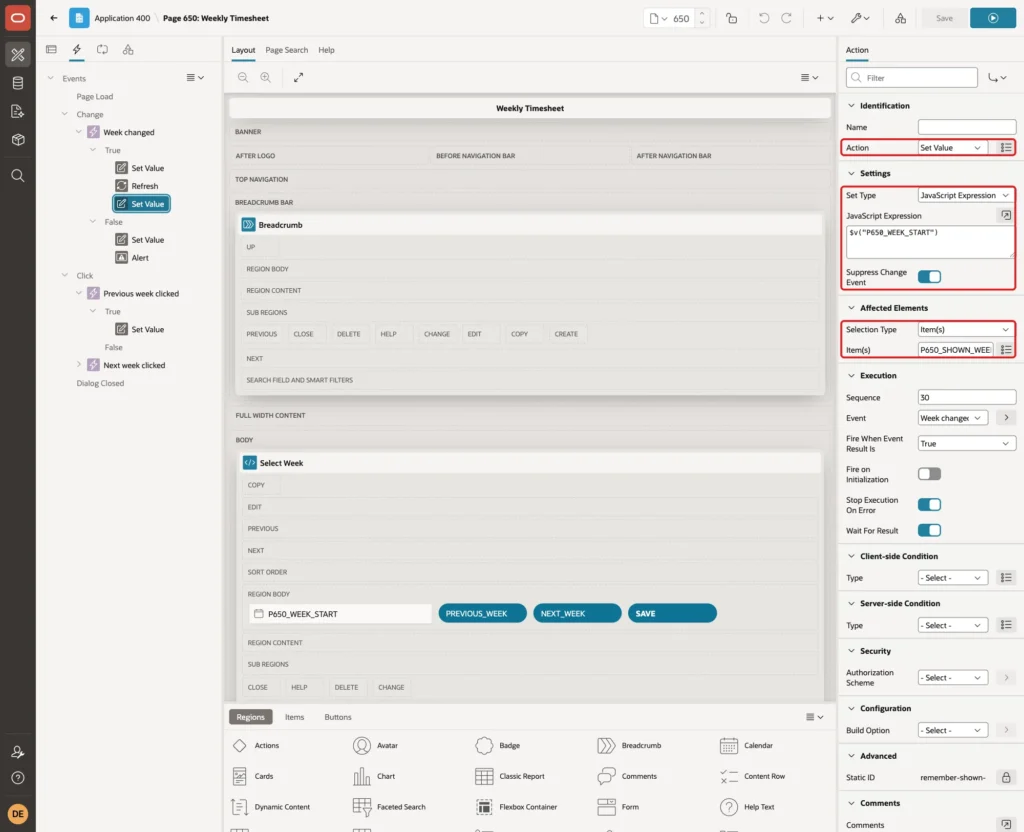
True action 3: Set Value, Set Type JavaScript Expression $v("P650_WEEK_START"), Suppress Change Event on, Affected Element item P650_SHOWN_WEEK:
When the grid has unsaved changes, the condition is false. Right-click False and add two actions. False action 1: Set Value, JavaScript Expression $v("P650_SHOWN_WEEK"), Suppress Change Event on, Affected Element P650_WEEK_START. It puts the old week back in the picker:
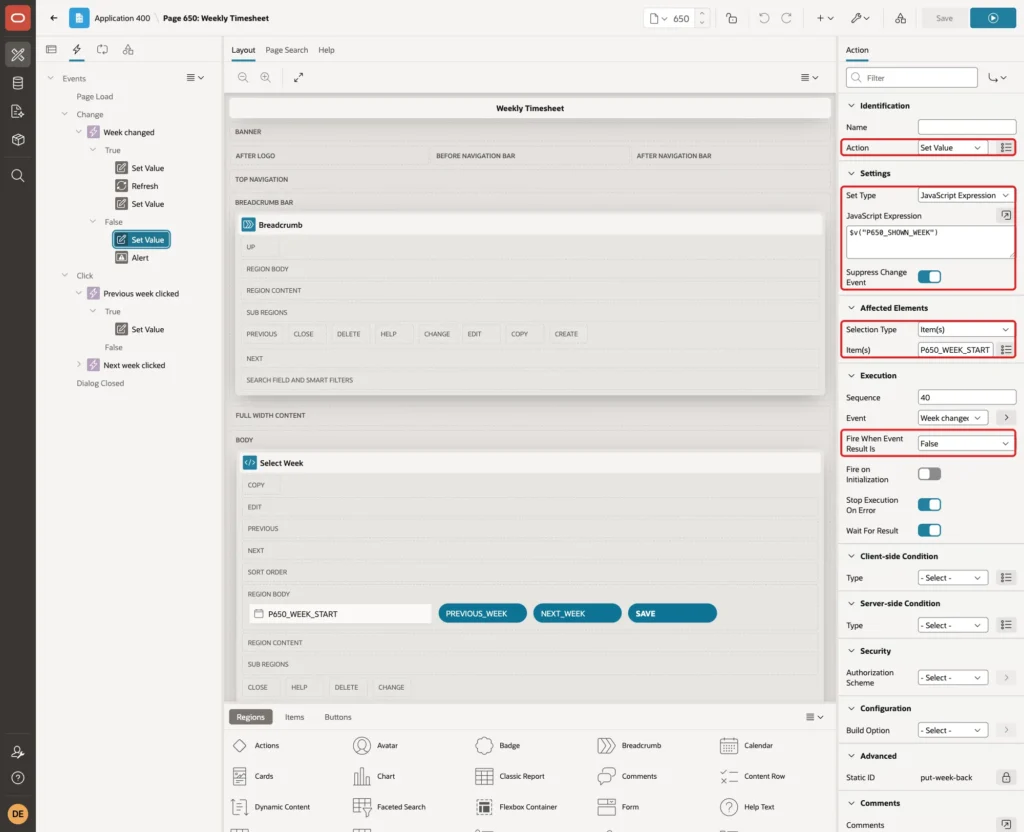
False action 2: Alert with the message "Save or undo your changes before you open another week.":
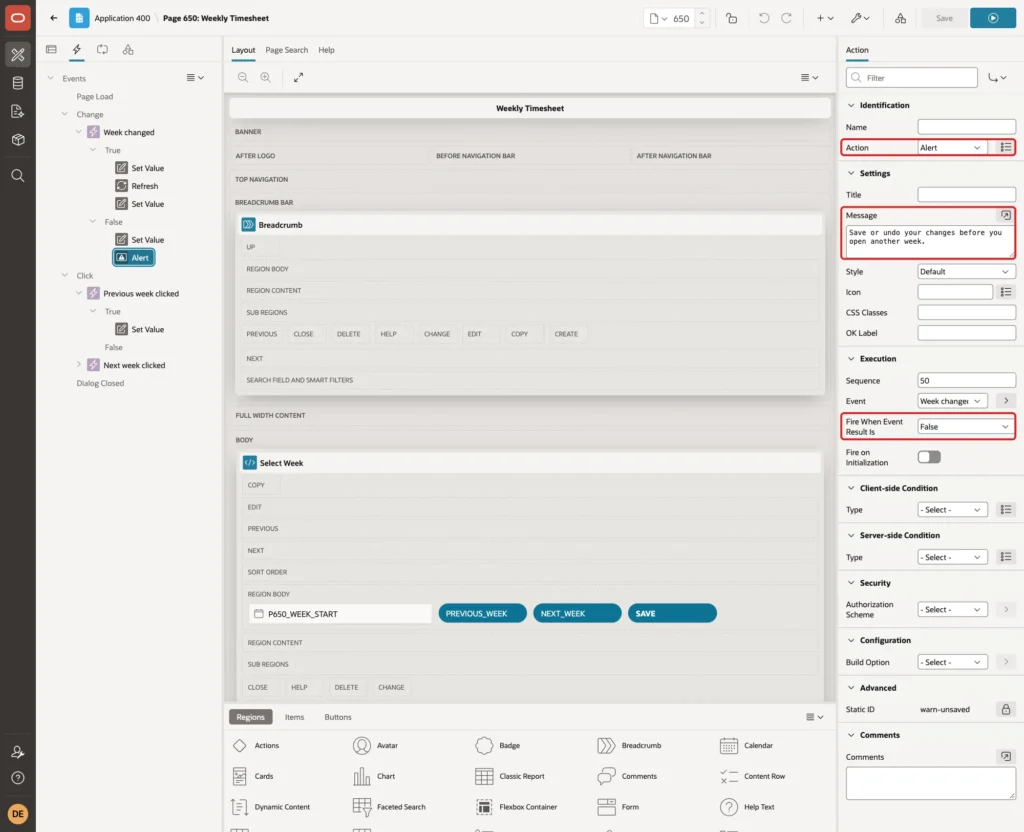
Without this guard, the grid shows its own question "There are unsaved changes. Do you want to continue?". In a test, Cancel kept the edits but left the picker on the new week.
The next save then failed with "Current version of data in database has changed since user initiated update process." Nothing wrong was saved, but the user was confused.
Now create a dynamic action on the PREVIOUS_WEEK button: Name Previous week clicked, Event Click:
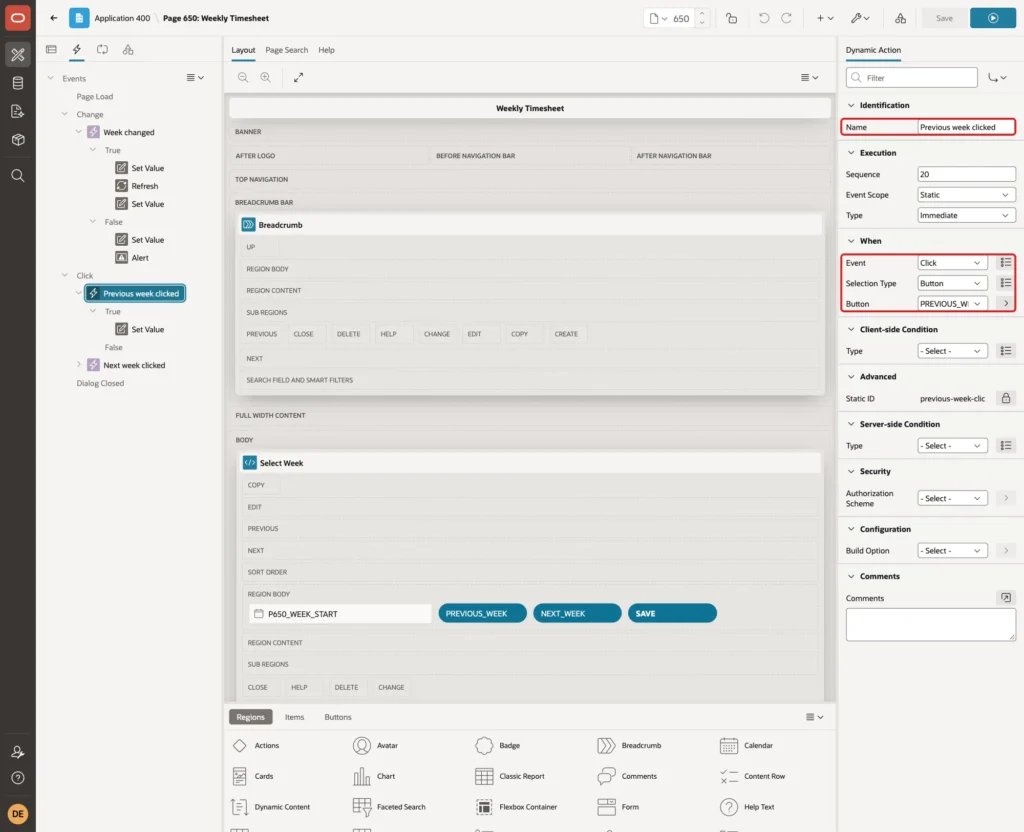
Its True action is Set Value, Set Type PL/SQL Expression, Items to Submit P650_WEEK_START, Affected Element P650_WEEK_START. Leave Suppress Change Event off, so the change starts the Week changed dynamic action:
Example:
to_char(to_date(:P650_WEEK_START, 'DD-MON-YYYY') - 7, 'DD-MON-YYYY')
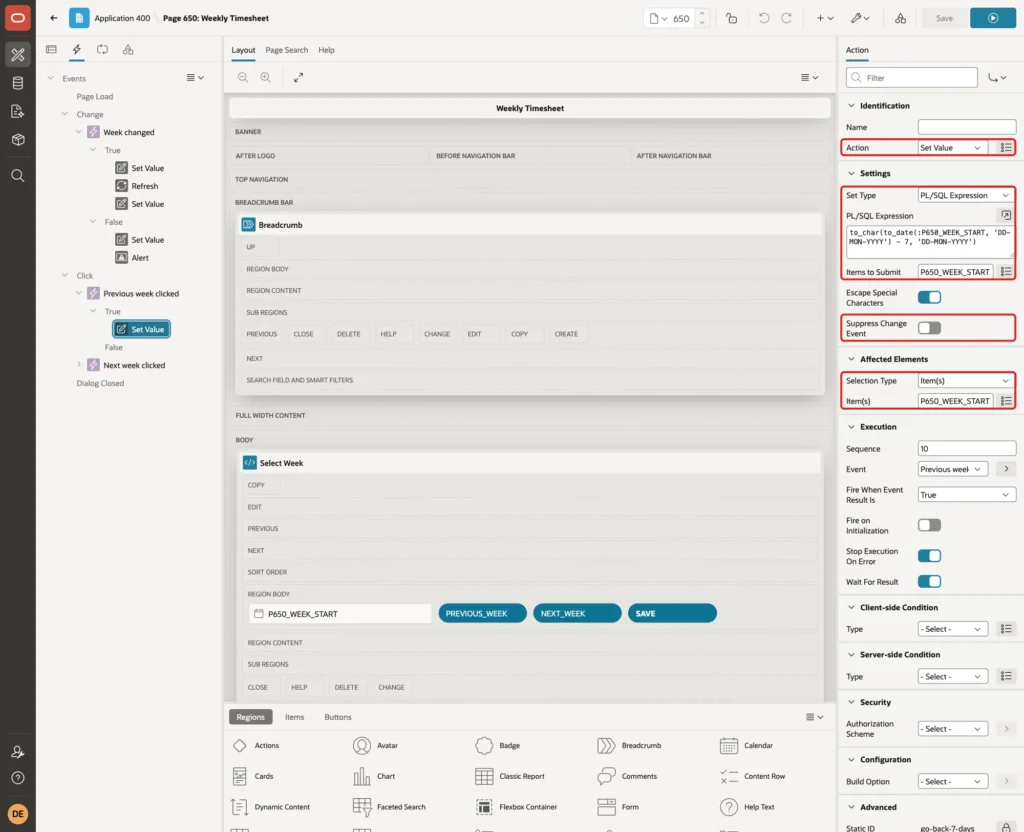
Create the same dynamic action for NEXT_WEEK, named Next week clicked, with + 7 instead of - 7. Save the page.
Step 10: Add the Day Totals
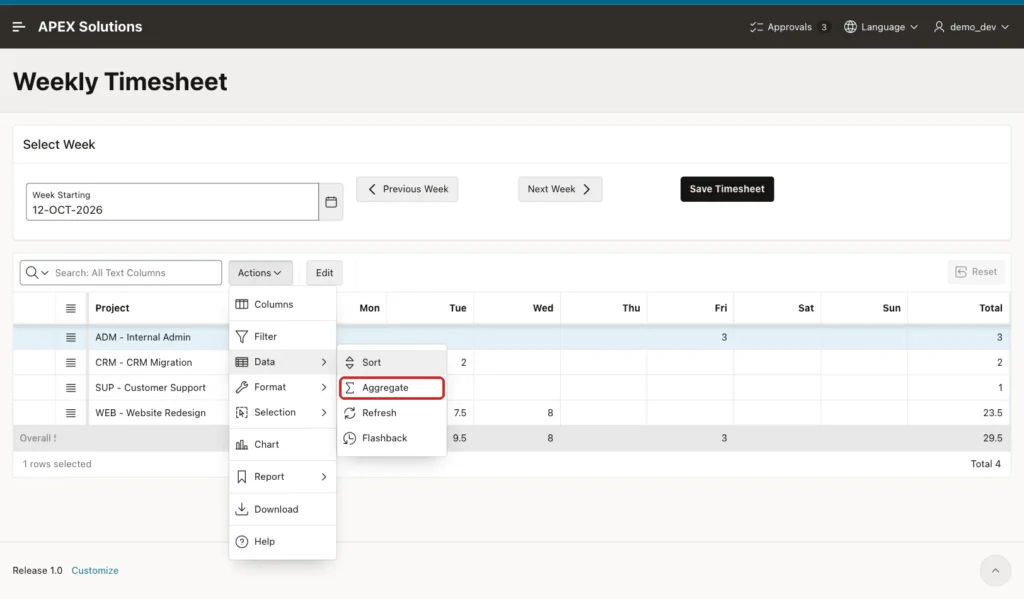
The Total column already sums each row. For the day totals, run the page as a developer and open Actions, Data, Aggregate:
Choose Column Mon and Aggregation Sum. Click the plus button and repeat for Tue to Sun and Total, then click Save:
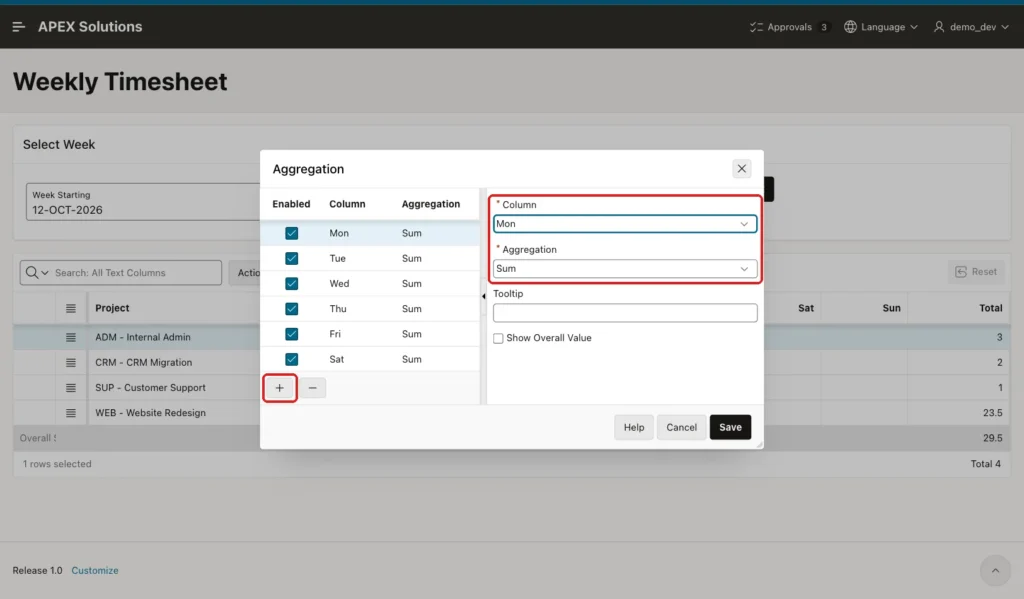
Then choose Actions, Report, Save. As a developer this saves the aggregates into the default report, so every user sees the Overall Sum row.
Step 11: Test the Timesheet
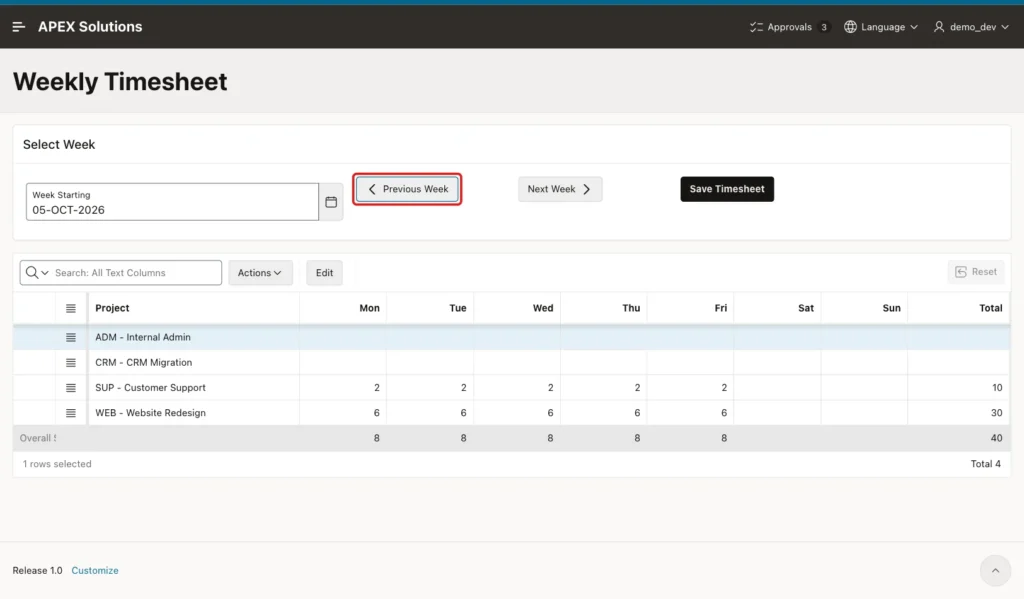
Sign in as DEMO_DEV and open Weekly Timesheet. It opens on the current week, 12-OCT-2026. Click Previous Week to see the sample hours of the week of 05-OCT-2026:
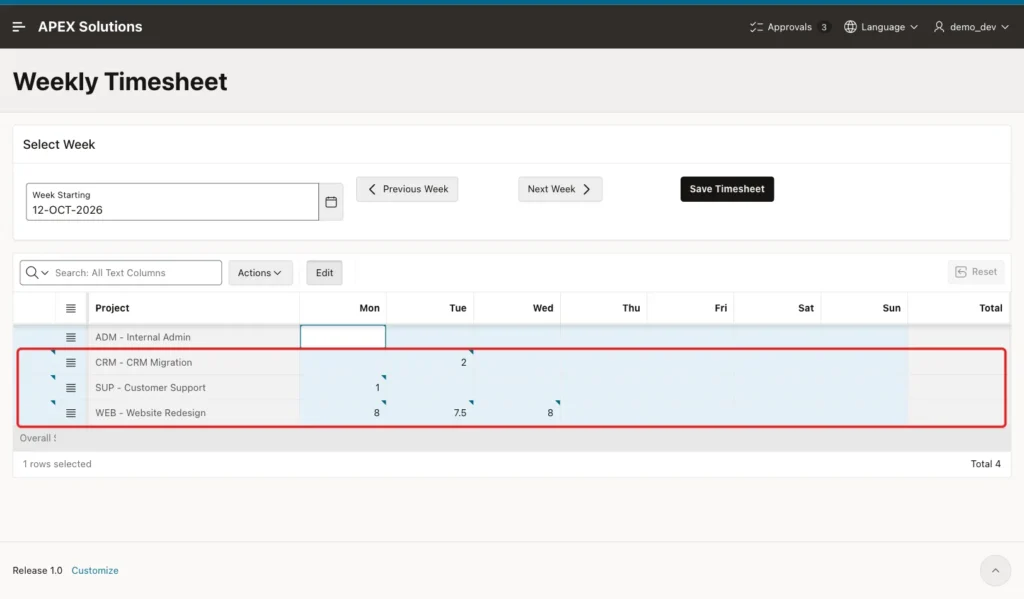
Click Next Week to return to 12-OCT-2026 and type some hours: WEB 8, 7.5 and 8 on Monday to Wednesday, SUP 1 on Monday and CRM 2 on Tuesday. The changed cells get a small marker:
Click Save Timesheet. The page reloads with the message Timesheet saved. and the new row and day totals:
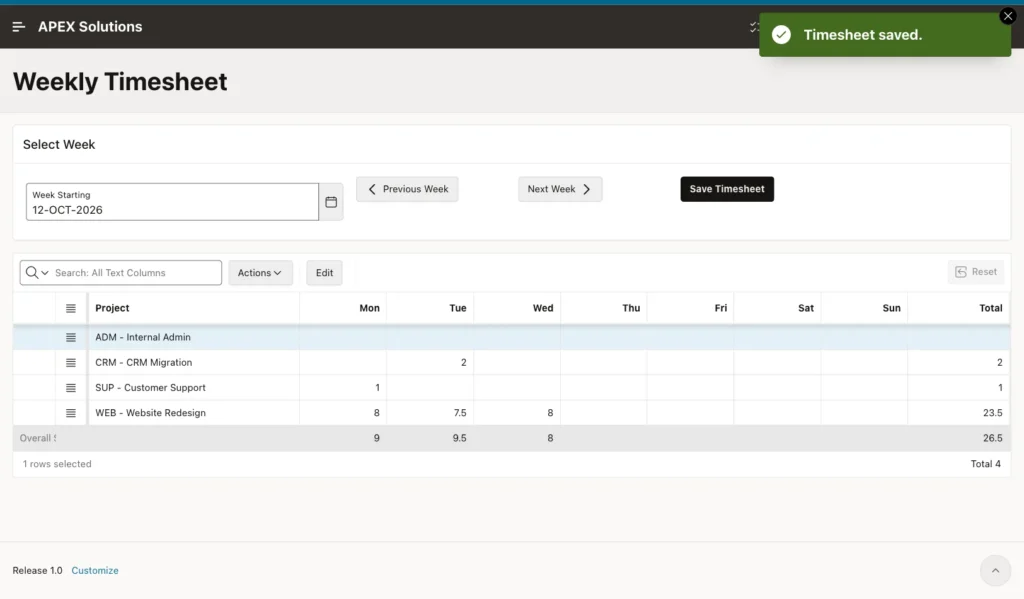
In SQL, the five cells are now five rows, one per project and day:
Example:
set lines 200 pages 100 feedback on
column project_code format a12
select p.project_code, to_char(e.work_date, 'Dy DD-MON-YYYY') as work_day, e.hours
from   timesheet_entries e
join   ts_projects p on p.project_id = e.project_id
where  e.employee_name = 'DEMO_DEV'
and    e.work_date >= date '2026-10-12'
order  by e.work_date, p.project_code;
Output:
PROJECT_CODE    WORK_DAY              HOURS
_______________ __________________ ________
SUP             Mon 12-OCT-2026           1
WEB             Mon 12-OCT-2026           8
CRM             Tue 13-OCT-2026           2
WEB             Tue 13-OCT-2026         7.5
WEB             Wed 14-OCT-2026           8

5 rows selected.
Next, type 25 in the Thursday cell of ADM. The cell turns red with the message "Thu must be a number between 0 and 24.", and clicking Save Timesheet shows the same error without saving:
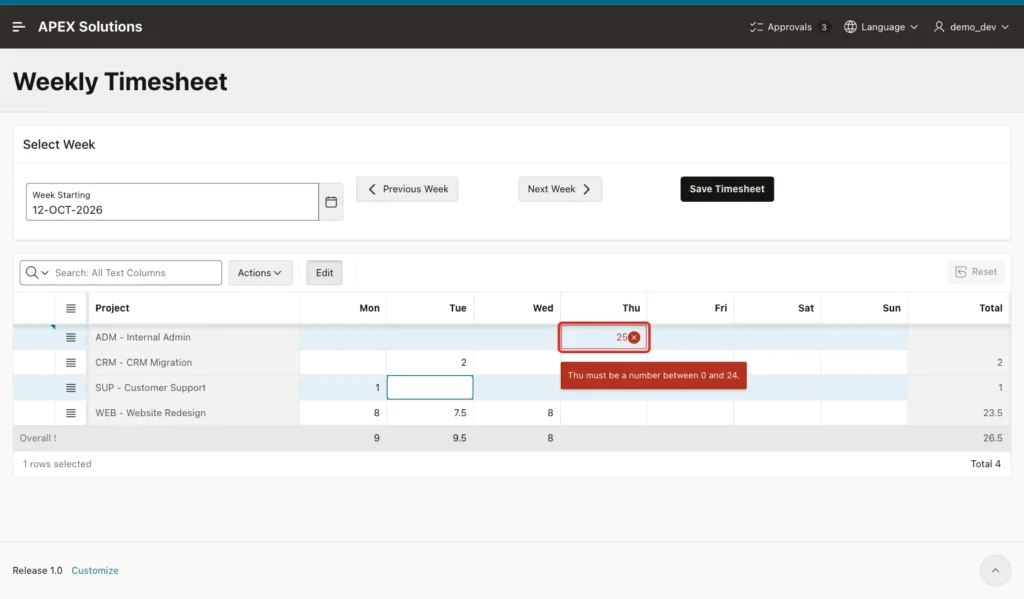
APEX also checks the limit on the server. In a test, 30 was put into the grid with JavaScript, so the browser showed no cell error. The page was submitted and APEX returned "Fri must be a number between 0 and 24.". Nothing was saved.
Now try to overbook a day. Tuesday already has 9.5 hours. Type 7 for ADM and 8 for SUP on Tuesday, which makes 24.5 hours, and click Save Timesheet:
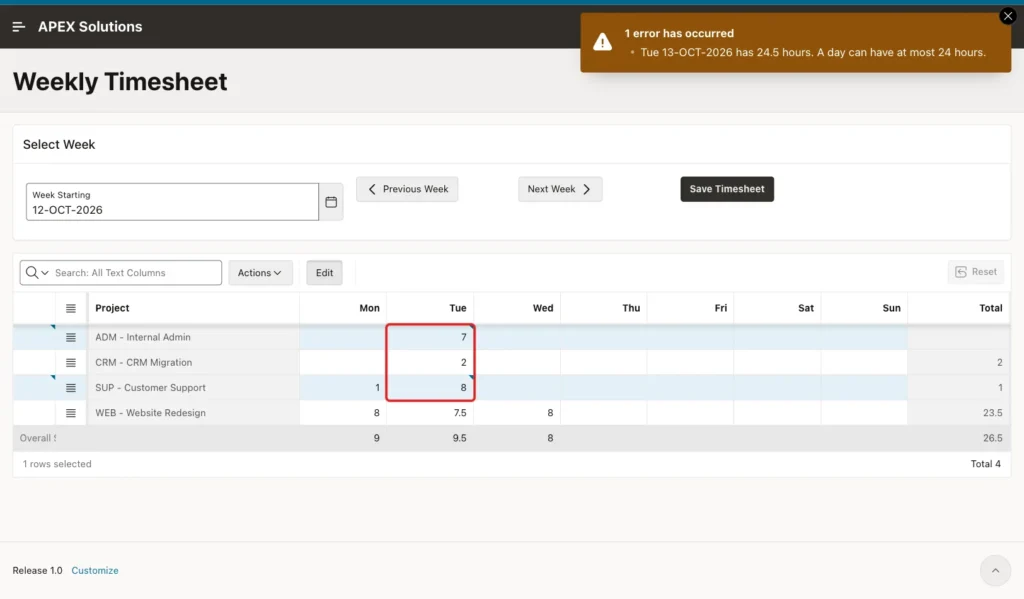
The page shows "Tue 13-OCT-2026 has 24.5 hours. A day can have at most 24 hours." The typed values stay in the grid, so the user can fix them. In SQL, nothing changed:
Example:
set lines 200 pages 100 feedback on
column project_code format a12
select p.project_code, to_char(e.work_date, 'Dy DD-MON-YYYY') as work_day, e.hours
from   timesheet_entries e
join   ts_projects p on p.project_id = e.project_id
where  e.employee_name = 'DEMO_DEV'
and    e.work_date >= date '2026-10-12'
order  by e.work_date, p.project_code;
Output:
PROJECT_CODE    WORK_DAY              HOURS
_______________ __________________ ________
SUP             Mon 12-OCT-2026           1
WEB             Mon 12-OCT-2026           8
CRM             Tue 13-OCT-2026           2
WEB             Tue 13-OCT-2026         7.5
WEB             Wed 14-OCT-2026           8

5 rows selected.
Moving hours inside a full day also works. In a test, Thursday had 16 hours on WEB and 8 on SUP. Clearing SUP and typing 8 for ADM in one save was accepted, because the check runs after all rows are saved. The cleared cell deleted the SUP row.
Finally, type a value and click Next Week without saving. The alert asks you to save or undo first, and the picker stays on 12-OCT-2026:
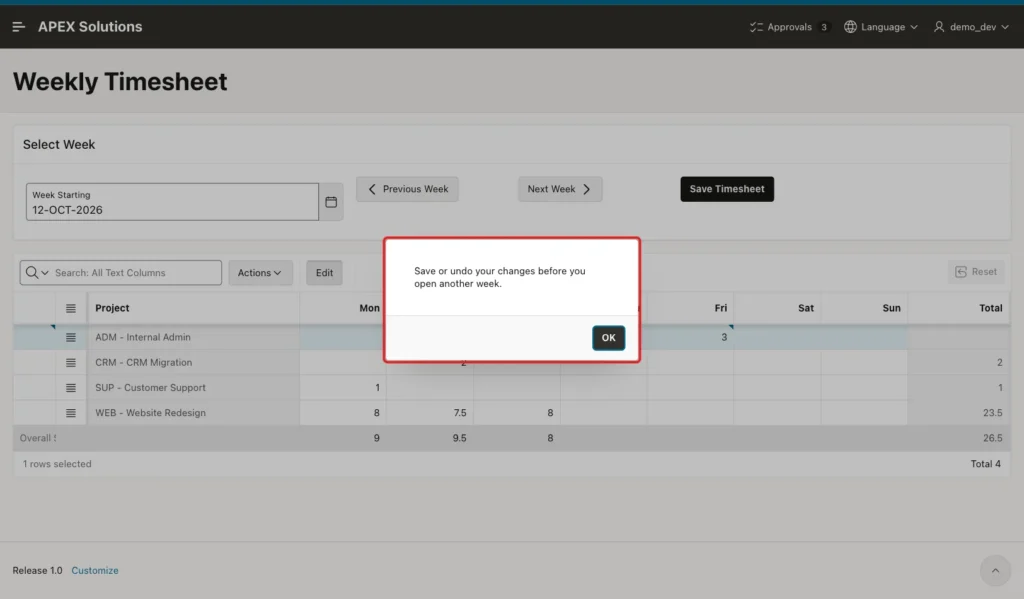
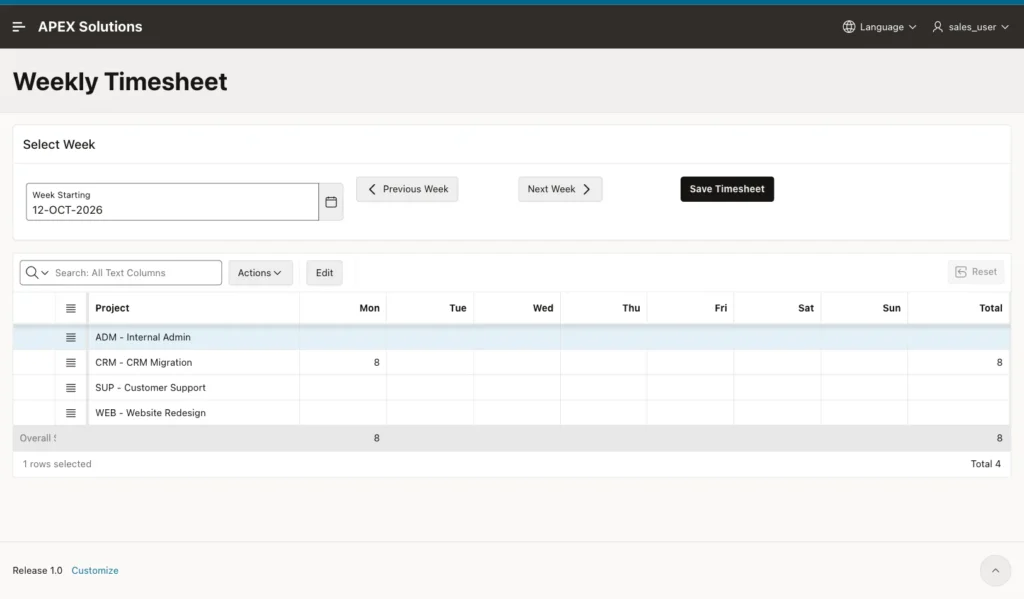
Picking a Wednesday, 07-OCT-2026, in the date picker loaded the week of Monday 05-OCT-2026. Sign in as SALES_USER, and the grid shows only that user's 8 hours on CRM:
Things to Know
- An interactive grid on a query with GROUP BY needs Target Type PL/SQL Code and Lock Row No; with Lock Row Yes the save fails with ORA-02014.
- The grid's own Save button saves with Ajax and skips processes that have no Editable Region. Use a page submit when a check must see all saved rows.
- The check reads all of the user's days, not only the shown week. The index on (EMPLOYEE_NAME, WORK_DATE) keeps this fast.
- An empty cell or 0 deletes the row, so the table never holds zero-hour rows.
- Aggregates are calculated on the server. The Overall Sum row changes after the save, not while you type.
- Each row carries WEEK_START, so a row is always saved into the week it came from, even if the picker shows another week.
- Any signed-in user can open the page and edit their own week. Add an authorization scheme to the page if only some users should book time.
Related Guides
- How to Show Totals and Calculated Columns in an Interactive Grid in Oracle APEX
- How to Let Users Add Custom Fields to a Record in Oracle APEX
Conclusion
A weekly timesheet in Oracle APEX is an interactive grid on a pivot query: one row per project and one column per day, while the table keeps one row per day. The grid's save process uses PL/SQL code that turns each grid row back into daily rows with MERGE and DELETE.
Number limits handle single cells, and a process after the save checks the daily total of all projects. A page submit button makes sure that check runs, and a small dynamic action guard stops users from losing unsaved hours when they change the week.
