
Order, invoice and quote screens almost always need numbers that come from other numbers. Each line has an amount built from quantity, price and discount, and the screen needs a total of all lines. Users expect both to change the moment they type, not only after they save.
Oracle APEX covers most of this declaratively. This guide stores the line amount as a virtual column, recalculates it in the browser with a Set Value dynamic action, shows a Sum in the grid footer with an IG aggregate, and adds a small live total for the rows that are not saved yet.
The older guide How to Validate Interactive Grid Rows Before Saving in Oracle APEX checks grid rows and stops bad data. This one calculates: a column computed by the database, an amount computed in the browser, and totals that stay correct before and after saving.
Step 1: Create the Tables
The products come from the PRODUCTS table of the earlier guides. If you start from scratch, create it with a few rows:
Example:
create table products (
    product_id number generated by default as identity
               constraint products_pk primary key,
    name       varchar2(60)  not null,
    category   varchar2(30)  not null,
    price      number(10, 2) not null
               constraint products_price_ck check (price >= 0)
);

insert into products (name, category, price) values ('Laptop Pro 14', 'Computers', 1450);
insert into products (name, category, price) values ('Laptop Air 13', 'Computers', 990);
insert into products (name, category, price) values ('Monitor 27', 'Displays', 320);
insert into products (name, category, price) values ('Monitor 32', 'Displays', 480);
insert into products (name, category, price) values ('Keyboard', 'Accessories', 45);
insert into products (name, category, price) values ('Mouse', 'Accessories', 25);
insert into products (name, category, price) values ('Docking Station', 'Accessories', 180);
insert into products (name, category, price) values ('Headset', 'Audio', 95);
commit;
Now create QUOTES and QUOTE_LINES, a view QUOTE_TOTALS_V with the total of each quote, and two sample quotes:
Example:
create table quotes (
    quote_id      number generated by default as identity
                  constraint quotes_pk primary key,
    customer_name varchar2(100) not null,
    quote_date    date default on null sysdate
);

create table quote_lines (
    line_id      number generated by default as identity
                 constraint quote_lines_pk primary key,
    quote_id     number not null
                 constraint quote_lines_quote_fk references quotes on delete cascade,
    product_id   number not null
                 constraint quote_lines_product_fk references products,
    quantity     number(6) not null
                 constraint quote_lines_qty_ck check (quantity > 0),
    unit_price   number(10, 2) not null
                 constraint quote_lines_price_ck check (unit_price >= 0),
    discount_pct number(5, 2) default on null 0
                 constraint quote_lines_disc_ck check (discount_pct between 0 and 100),
    line_amount  number(12, 2) generated always as
                 (round(quantity * unit_price * (1 - discount_pct / 100), 2)) virtual,
    constraint quote_lines_product_uk unique (quote_id, product_id)
);

create index quote_lines_product_ix on quote_lines (product_id);

create or replace view quote_totals_v as
select q.quote_id,
       q.customer_name,
       count(l.line_id)              as line_count,
       nvl(sum(l.line_amount), 0)    as total_amount
from   quotes q
left join quote_lines l on l.quote_id = q.quote_id
group by q.quote_id, q.customer_name;

insert into quotes (customer_name) values ('Northwind Traders');
insert into quotes (customer_name) values ('Blue Harbor Hotels');

insert into quote_lines (quote_id, product_id, quantity, unit_price, discount_pct)
select 1, product_id, 2, price, 0 from products where name = 'Laptop Pro 14';
insert into quote_lines (quote_id, product_id, quantity, unit_price, discount_pct)
select 1, product_id, 2, price, 10 from products where name = 'Monitor 27';
insert into quote_lines (quote_id, product_id, quantity, unit_price, discount_pct)
select 1, product_id, 5, price, 0 from products where name = 'Mouse';
insert into quote_lines (quote_id, product_id, quantity, unit_price, discount_pct)
select 2, product_id, 10, price, 5 from products where name = 'Headset';
commit;

select l.line_id, l.quote_id, p.name as product, l.quantity,
       l.unit_price, l.discount_pct, l.line_amount
from   quote_lines l
join   products p on p.product_id = l.product_id
order by l.line_id;

select quote_id, customer_name, line_count, total_amount
from   quote_totals_v
order by quote_id;
Output:
Table QUOTES created.

Table QUOTE_LINES created.

Index QUOTE_LINES_PRODUCT_IX created.

View QUOTE_TOTALS_V created.

1 row inserted.

1 row inserted.

1 row inserted.

1 row inserted.

1 row inserted.

1 row inserted.

Commit complete.

   LINE_ID    QUOTE_ID PRODUCT             QUANTITY    UNIT_PRICE    DISCOUNT_PCT    LINE_AMOUNT
__________ ___________ ________________ ___________ _____________ _______________ ______________
         1           1 Laptop Pro 14              2          1450               0           2900
         2           1 Monitor 27                 2           320              10            576
         3           1 Mouse                      5            25               0            125
         4           2 Headset                   10            95               5          902.5

   QUOTE_ID CUSTOMER_NAME            LINE_COUNT    TOTAL_AMOUNT
___________ _____________________ _____________ _______________
          1 Northwind Traders                 3            3601
2 Blue Harbor Hotels 1 902.5- LINE_AMOUNT is a virtual column. The database calculates it from QUANTITY, UNIT_PRICE and DISCOUNT_PCT whenever the row is read, so the stored amount can never disagree with the line.
- QUOTE_TOTALS_V adds up the line amounts per quote. The total is not stored anywhere, so no trigger has to keep it up to date.
- DISCOUNT_PCT uses DEFAULT ON NULL 0, and the check constraints keep quantity, price and discount in range.
- The unique key QUOTE_LINES_PRODUCT_UK starts with QUOTE_ID, so it also serves the foreign key on QUOTE_ID. The index QUOTE_LINES_PRODUCT_IX covers the foreign key on PRODUCT_ID.
Step 2: Create the Interactive Grid Page
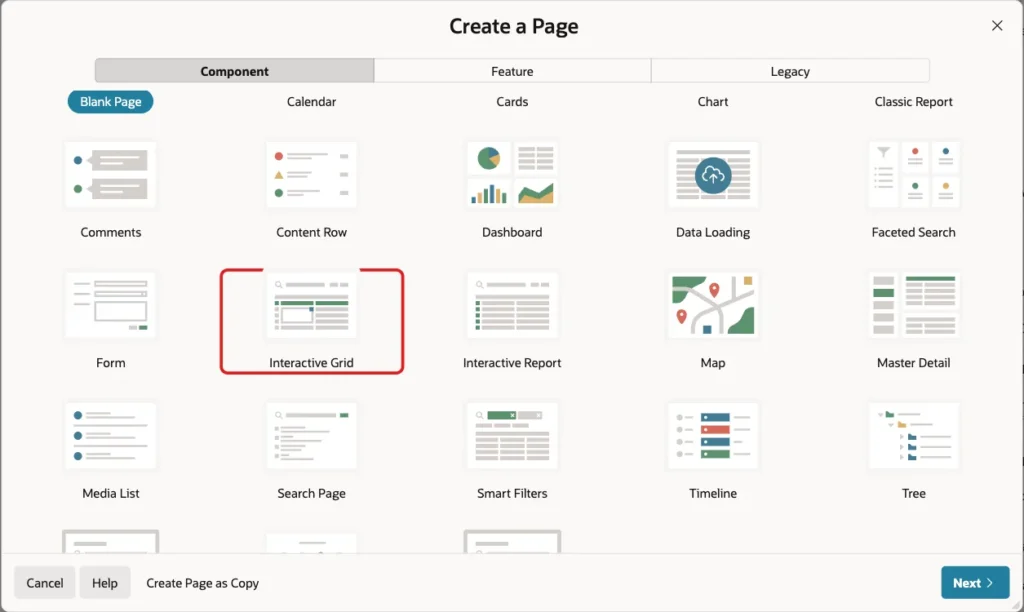
In App Builder, open the application and click Create Page. On the Component tab, click Interactive Grid:
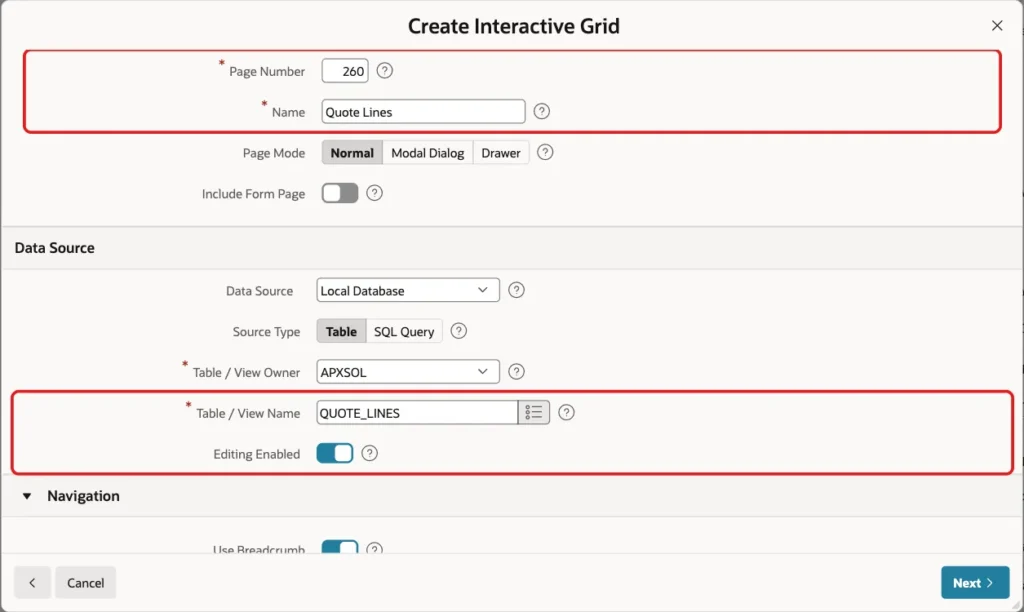
Enter Page Number 260 and Name Quote Lines. Keep Data Source Local Database and Source Type Table, enter QUOTE_LINES as Table / View Name, and turn on Editing Enabled:
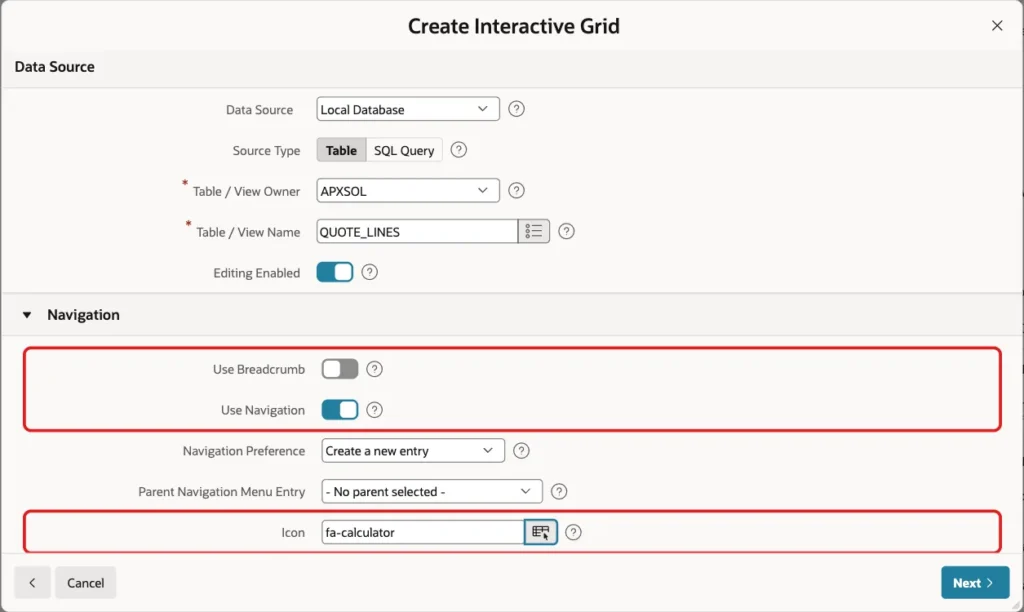
Scroll down to Navigation. Turn off Use Breadcrumb, keep Use Navigation on with Create a new entry, and set Icon to fa-calculator. Click Next:
Primary Key Column 1 is already LINE_ID (Number). Click Create Page:
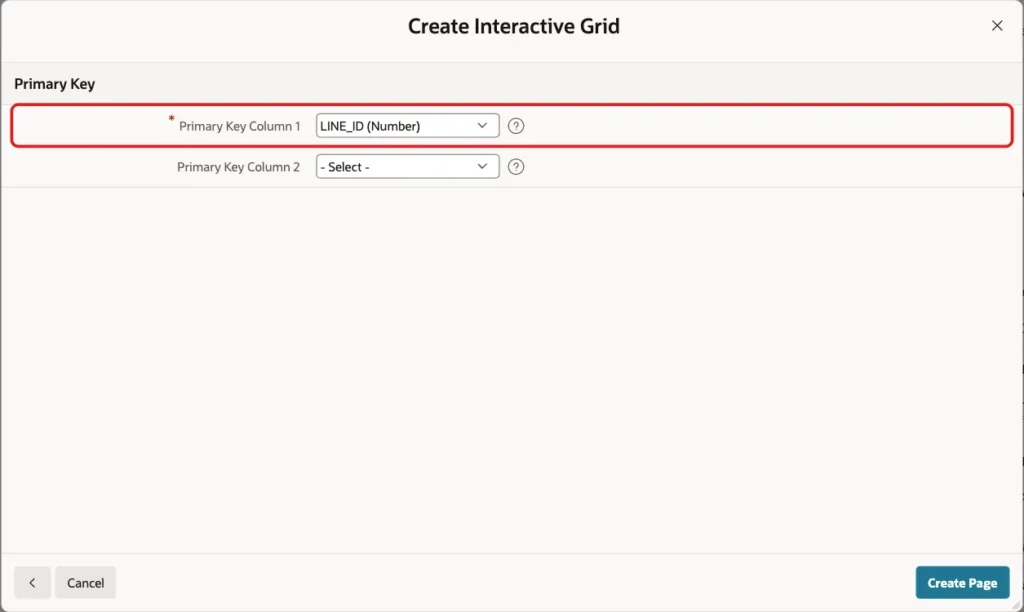
The wizard creates the region Quote Lines with one column per table column, and the process Quote Lines - Save Interactive Grid Data. It shows all lines of all quotes, and LINE_AMOUNT is an editable Number Field. The next steps change both.
Step 3: Add the Quote Selector and the Total Items
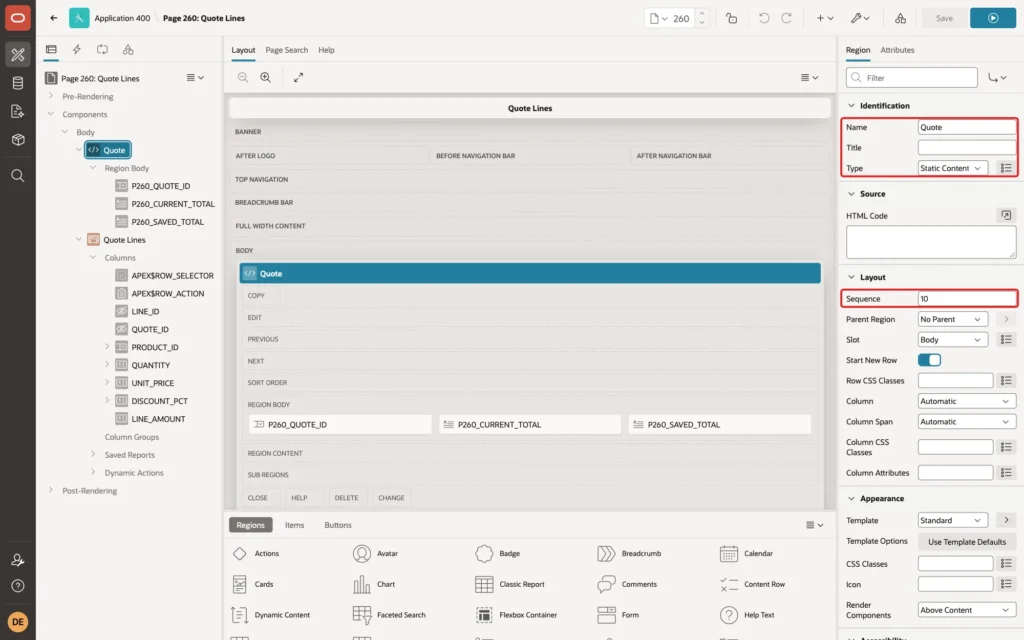
In Page Designer, right-click Body and choose Create Region. Set Name to Quote and Type to Static Content. Set Sequence to 10, so the region sits above the grid:
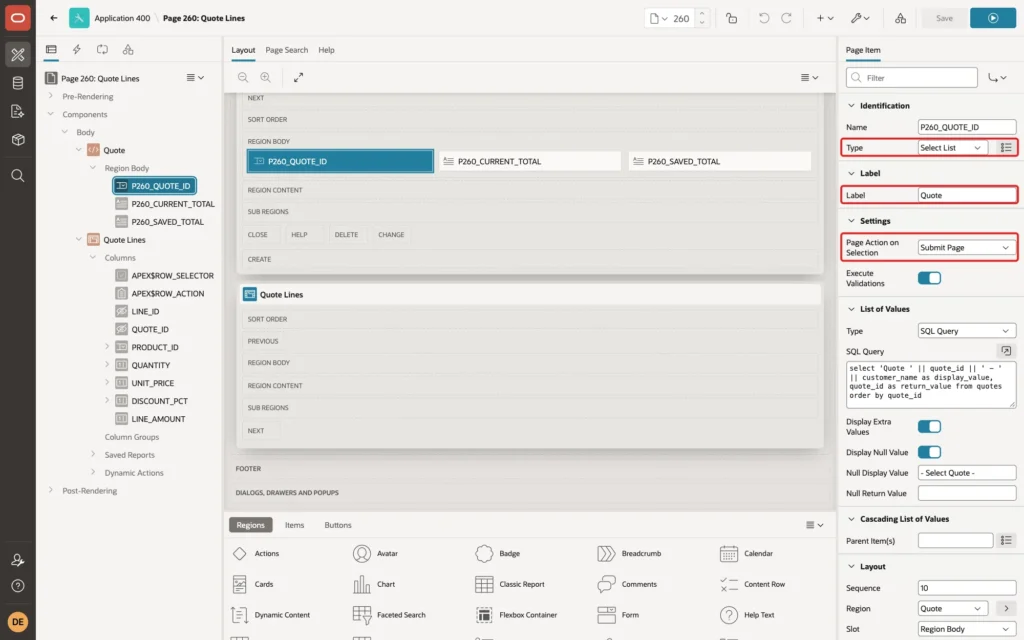
Right-click the Quote region and choose Create Page Item. Name it P260_QUOTE_ID, set Type to Select List and Label to Quote. In the Settings group, set Page Action on Selection to Submit Page:
In the List of Values group, set Type to SQL Query and enter this query. Set Null Display Value to - Select Quote -:
Example:
select 'Quote ' || quote_id || ' - ' || customer_name as display_value,
       quote_id as return_value
from   quotes
order by quote_id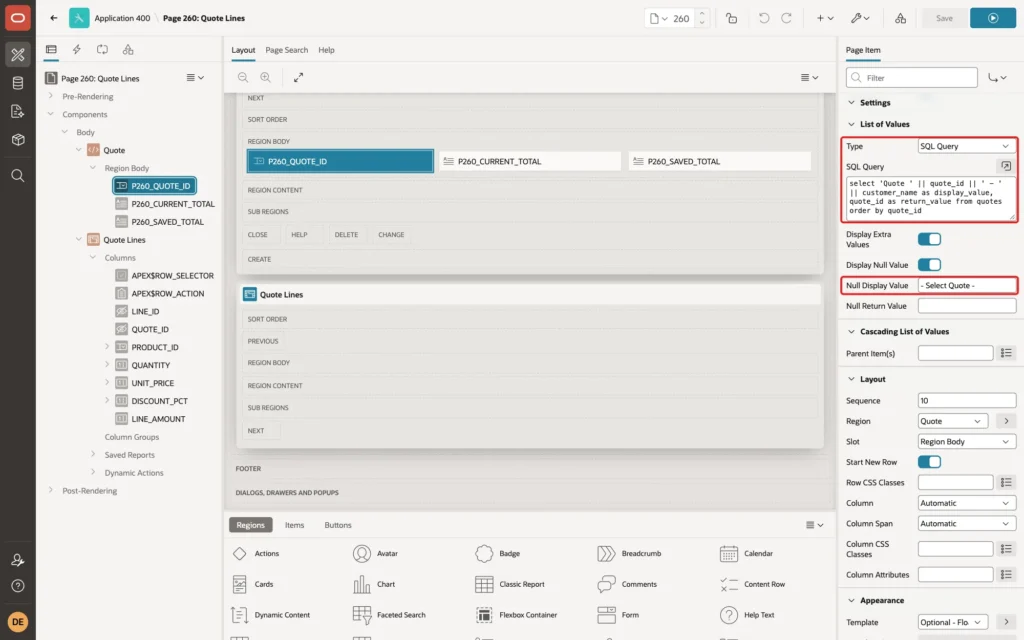
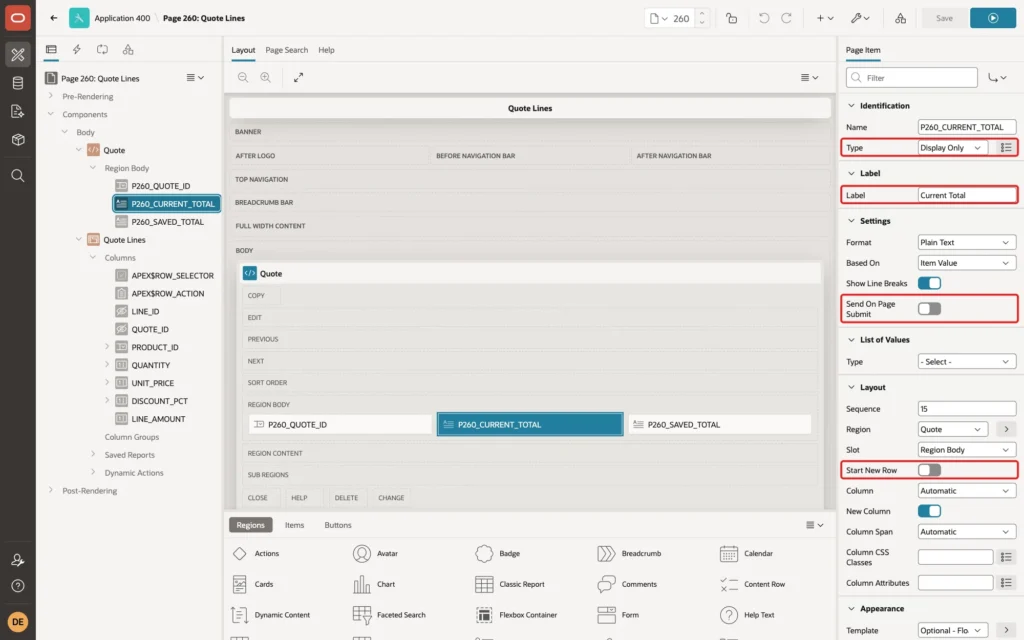
Create a second item in the Quote region: P260_CURRENT_TOTAL, Type Display Only, Label Current Total. Turn off Send On Page Submit, and in the Layout group turn off Start New Row, so the item sits next to the select list:
Create a third item, P260_SAVED_TOTAL, the same way with Label Saved Total. In its Source group, set Type to SQL Query (return single value), enter this query, and set Used to Always, replacing any existing value in session state:
Example:
select to_char(total_amount, 'FM999G999G990D00')
from   quote_totals_v
where  quote_id = :P260_QUOTE_ID
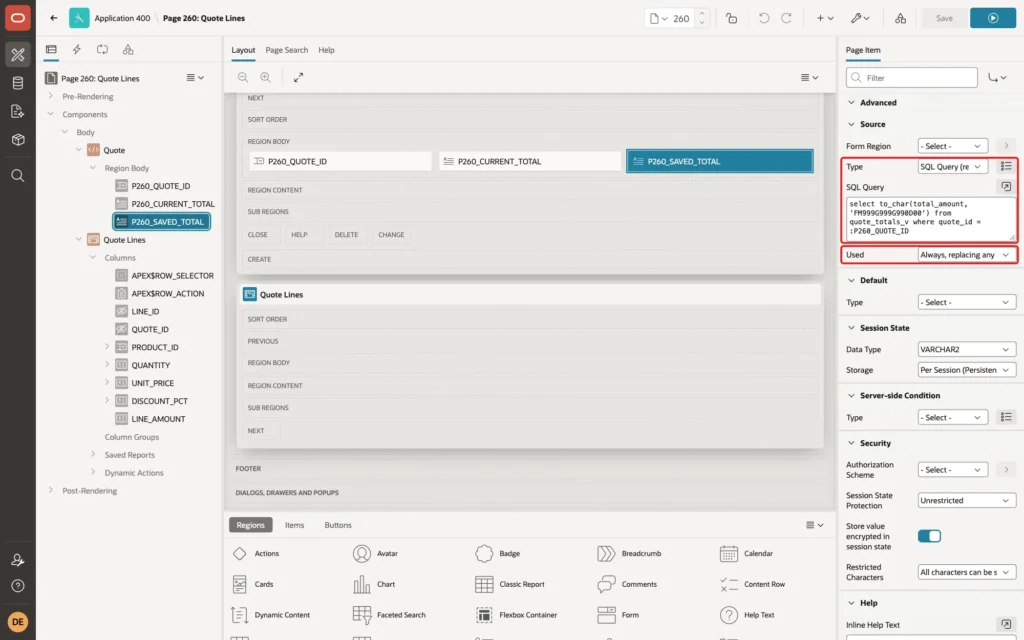
In a first test, the item had Format Mask 999G999G990D00 and a query that returned the plain number. The page still showed 3601 without separators, so the query now formats the value with TO_CHAR.
Step 4: Show Only the Lines of the Selected Quote
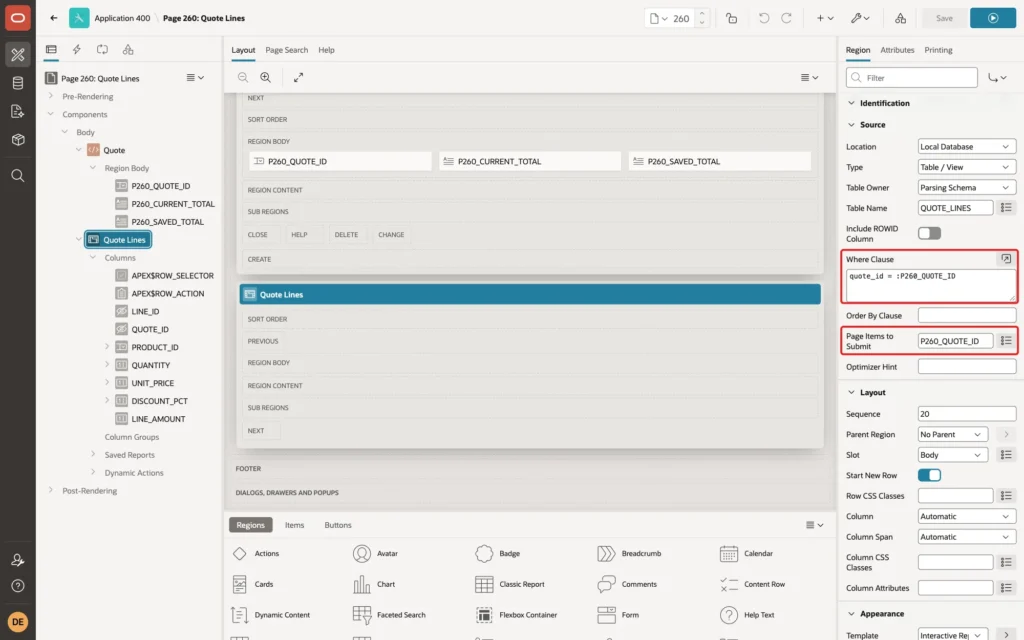
Select the Quote Lines region. In the Source group, enter this Where Clause and set Page Items to Submit to P260_QUOTE_ID:
Example:
quote_id = :P260_QUOTE_ID
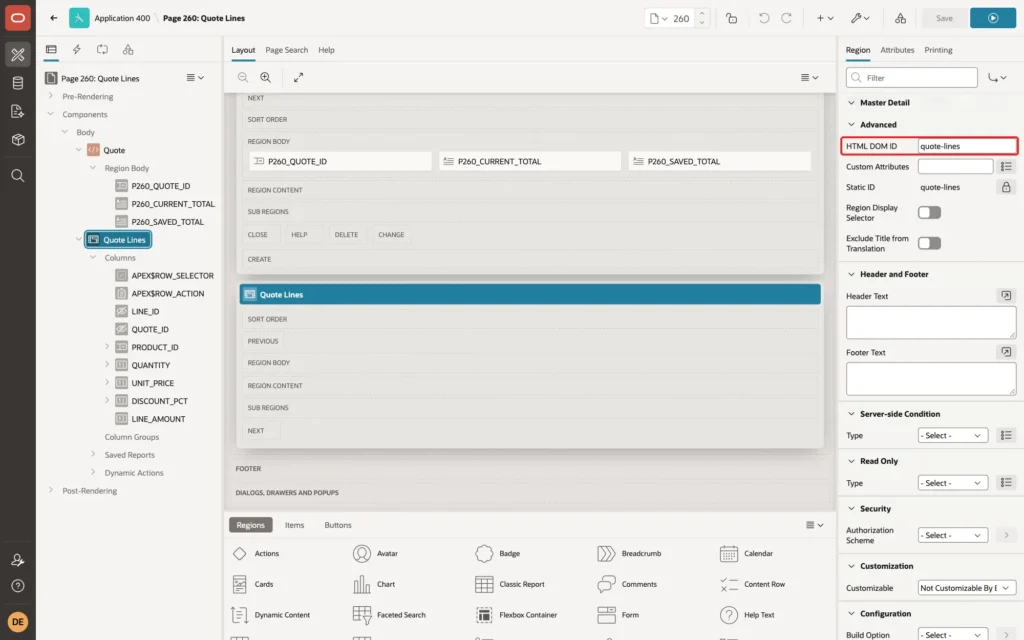
In the Advanced group of the same region, set HTML DOM ID to quote-lines. The JavaScript of Step 10 finds the grid by this ID:
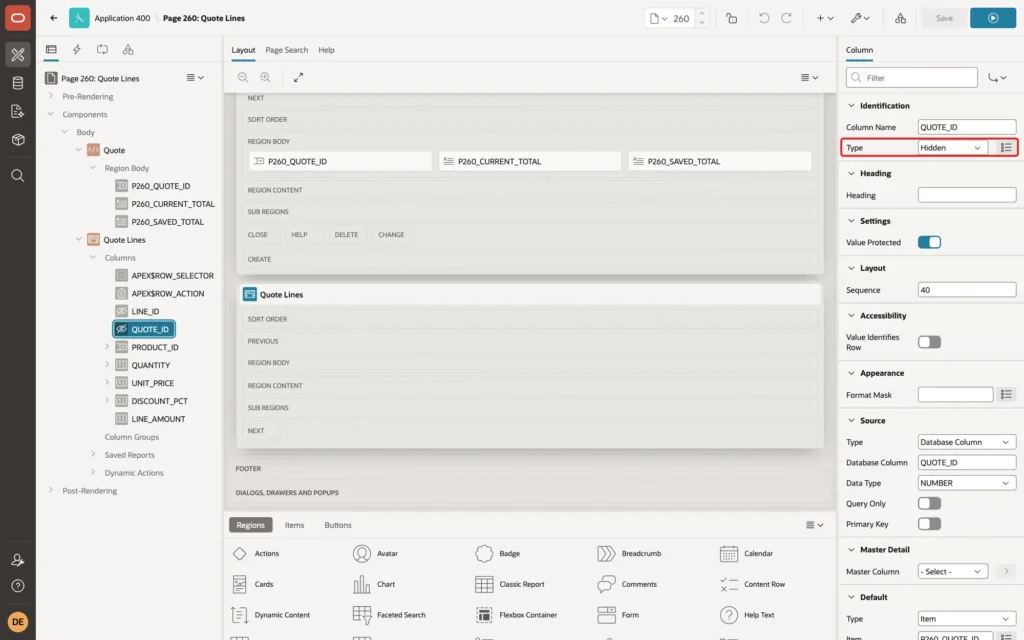
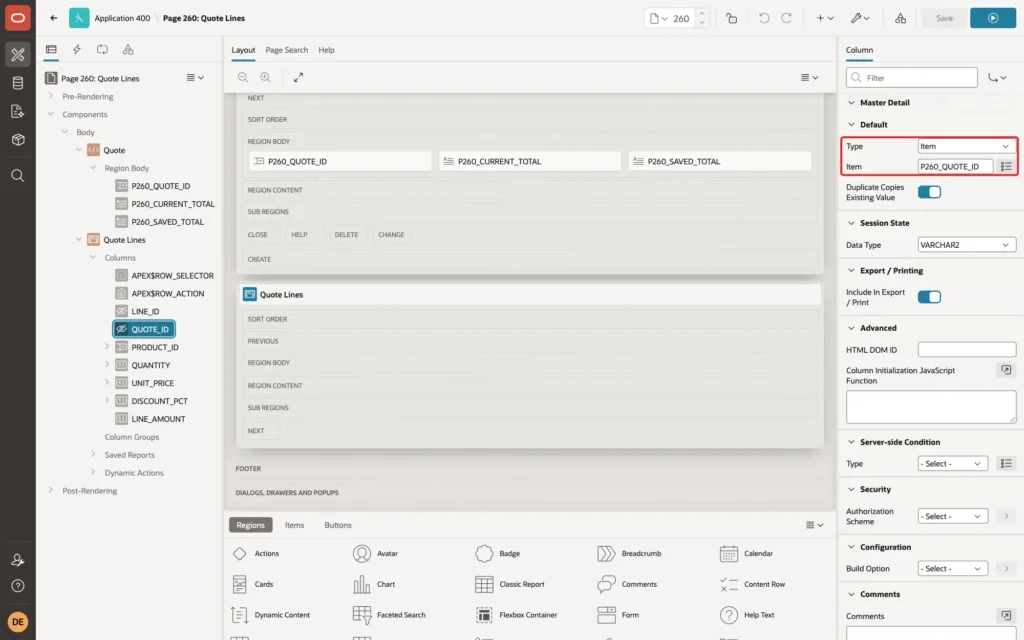
Expand Quote Lines > Columns and select QUOTE_ID. Set Type to Hidden:
In the Default group, set Type to Item and Item to P260_QUOTE_ID. A new row then gets the selected quote:
Step 5: Set Up the Editable Columns
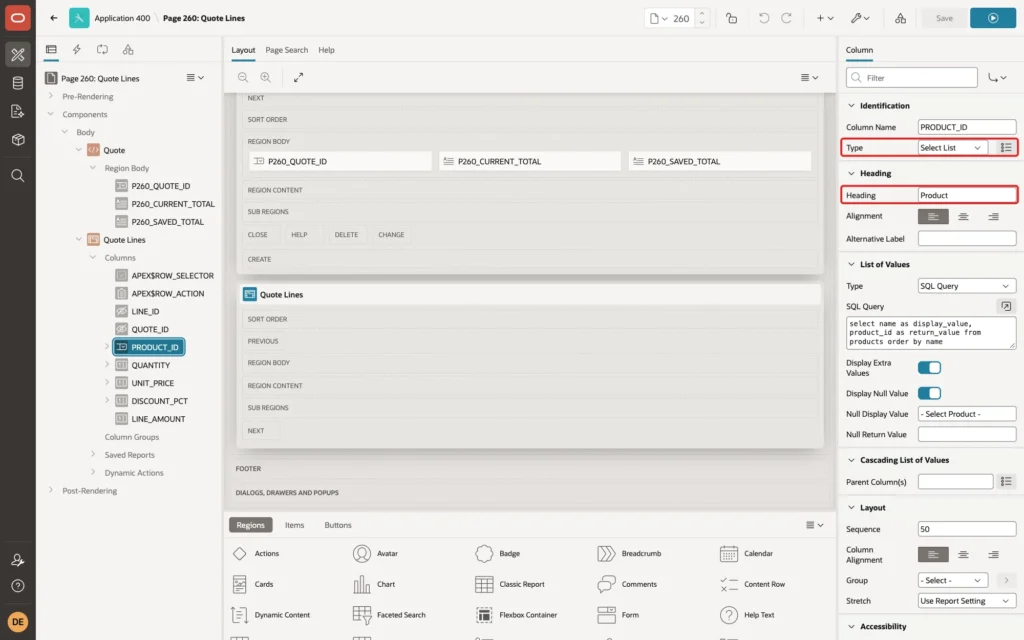
Select PRODUCT_ID. Set Type to Select List and Heading to Product:
In the List of Values group, set Type to SQL Query, enter this query, and set Null Display Value to - Select Product -:
Example:
select name as display_value,
       product_id as return_value
from   products
order by name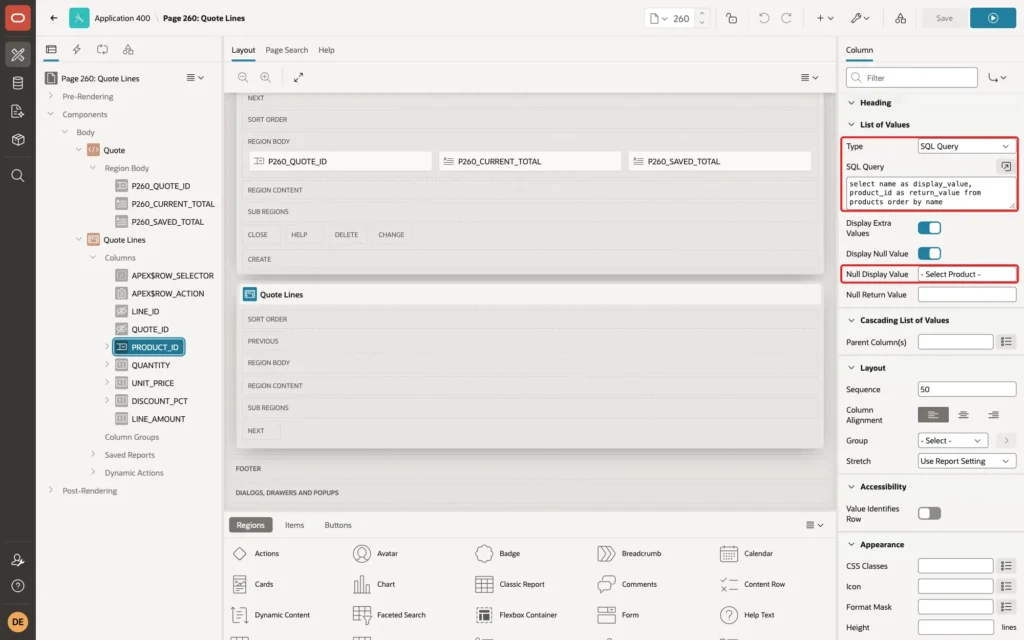
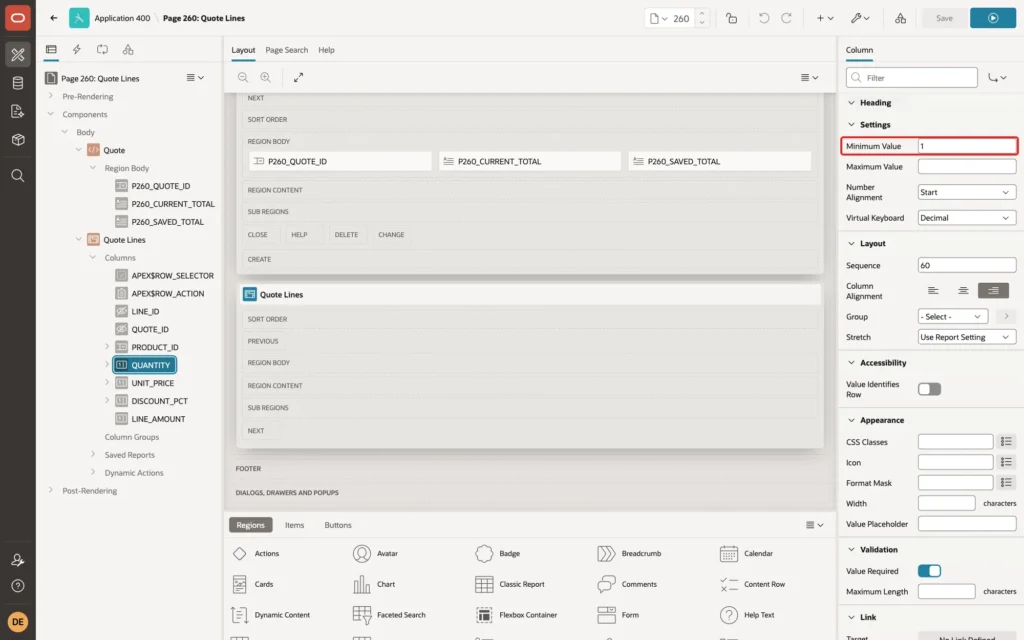
Select QUANTITY. In the Settings group, set Minimum Value to 1. The grid then refuses 0 and negative numbers before the row is sent to the database:
The JavaScript of Step 8 reads the column values with $v("QUANTITY"). In a first test, $v("QUANTITY") returned an empty string. Grid column items get generated IDs such as C31813497886340839, not the column name. In the Advanced group, set HTML DOM ID to QUANTITY:
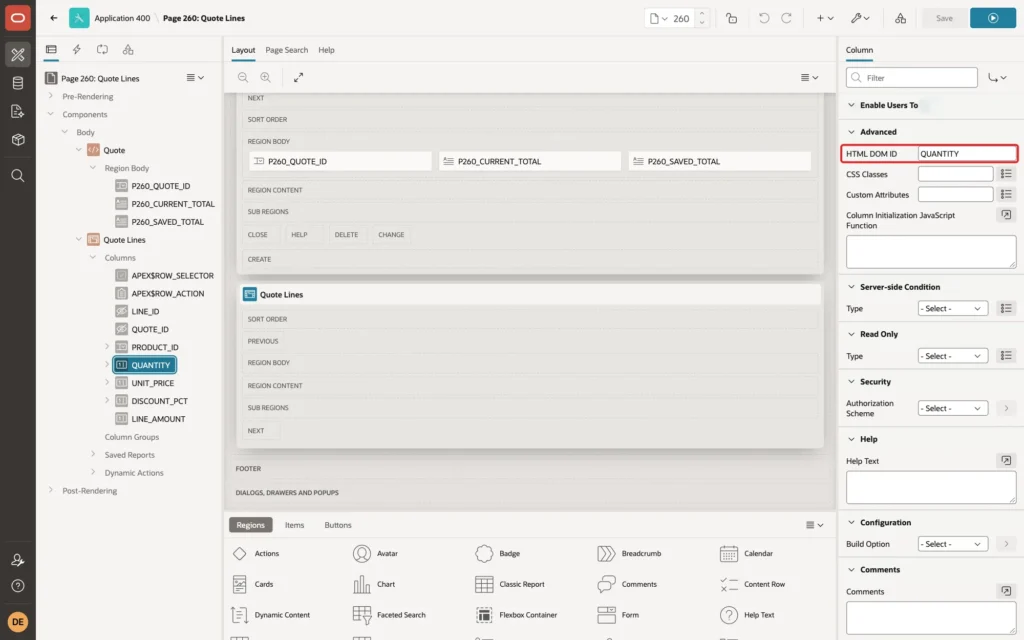
Select UNIT_PRICE and set HTML DOM ID to UNIT_PRICE in the same way:
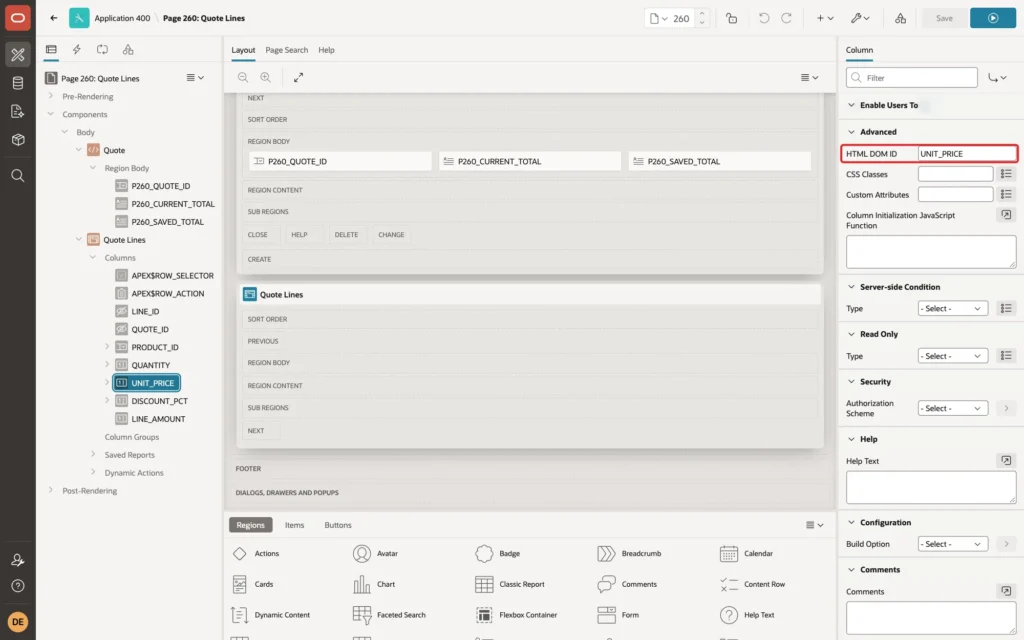
Select DISCOUNT_PCT. Set Heading to Discount %, Minimum Value to 0 and Maximum Value to 100:
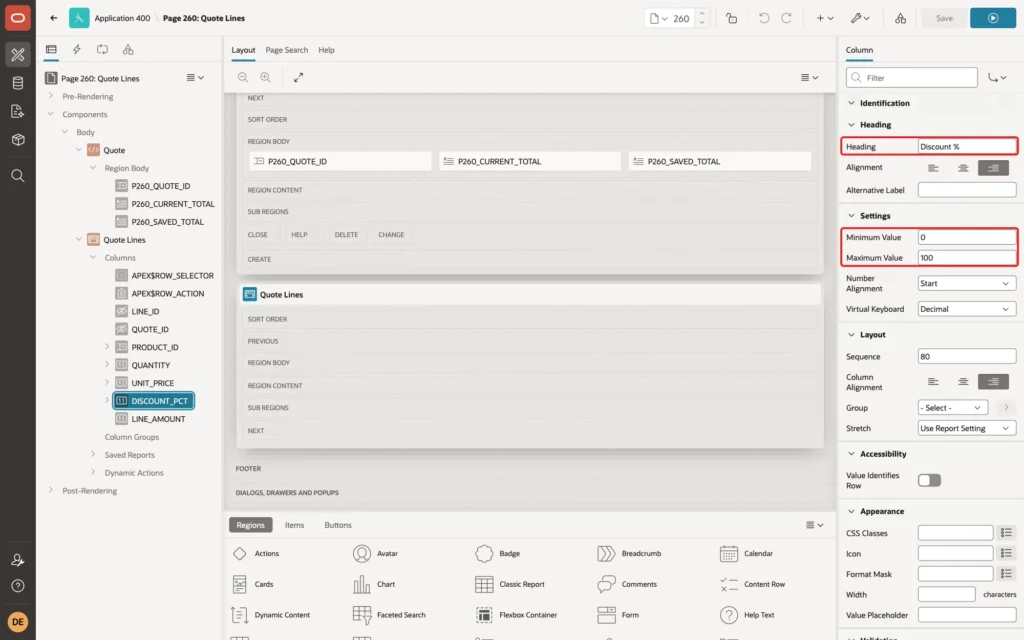
In the Default group, set Type to Static and Static Value to 0. A new row then starts with no discount, and the amount formula has a number to work with:
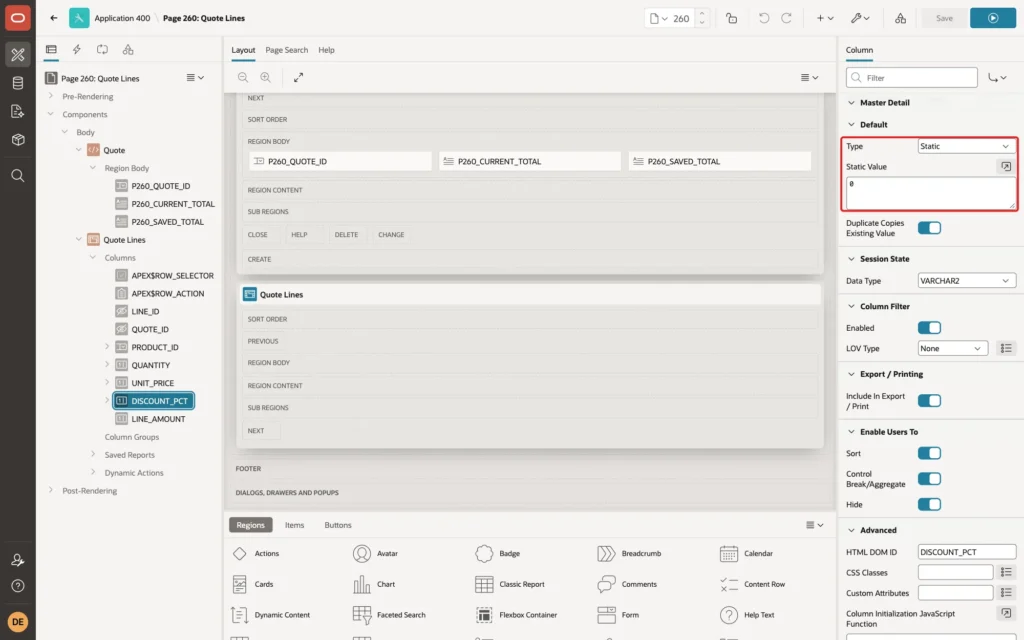
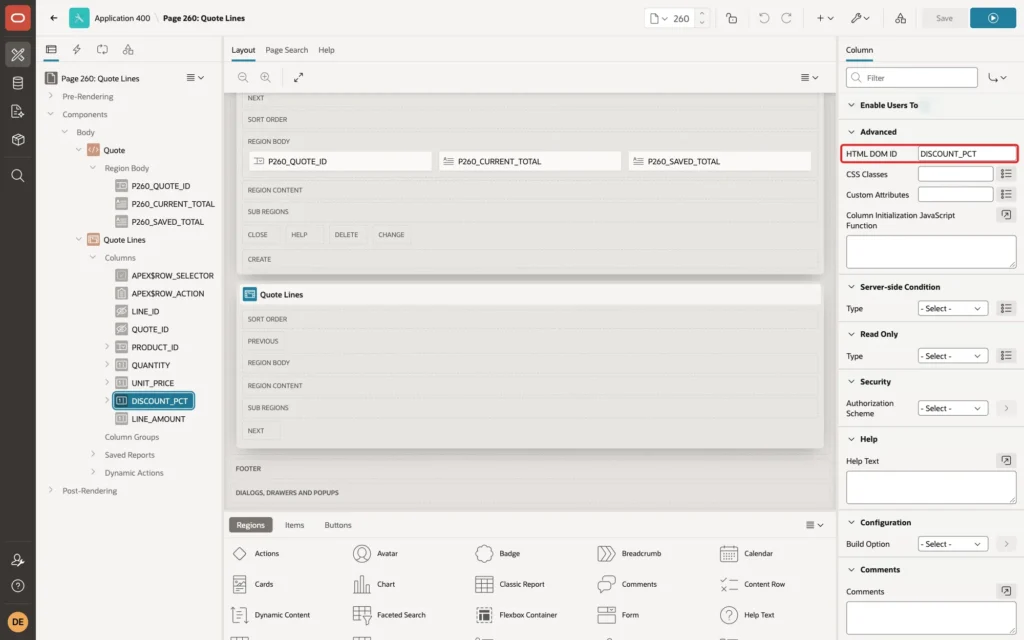
Set HTML DOM ID to DISCOUNT_PCT as well:
Step 6: Make Amount a Query Only Column
The wizard made LINE_AMOUNT an editable column that the save process writes. In a first test, changing a quantity and clicking Save failed with this message:
Output:
ORA-54017: UPDATE operation disallowed on virtual columns
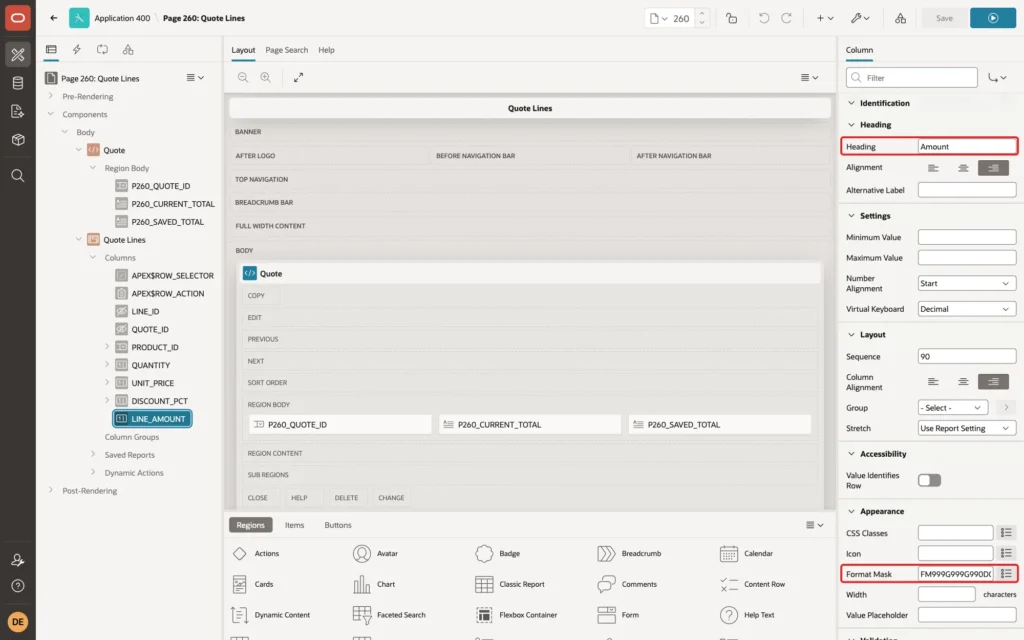
Select LINE_AMOUNT. Keep Type Number Field, set Heading to Amount, and in the Appearance group set Format Mask to FM999G999G990D00:
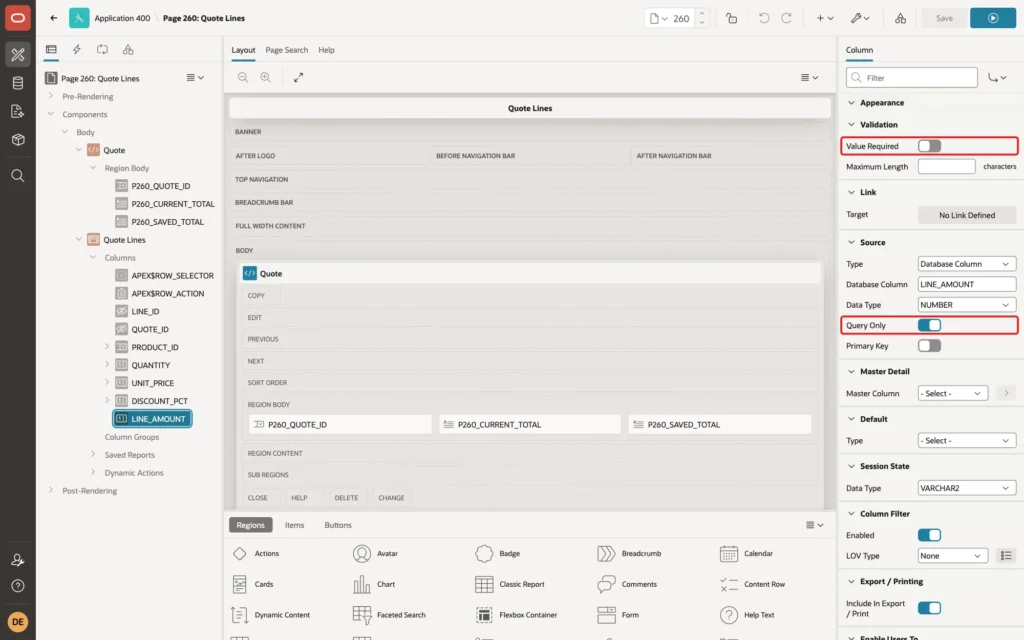
Turn off Value Required in the Validation group, and turn on Query Only in the Source group. The save process then leaves LINE_AMOUNT out of INSERT and UPDATE, and the database calculates it:
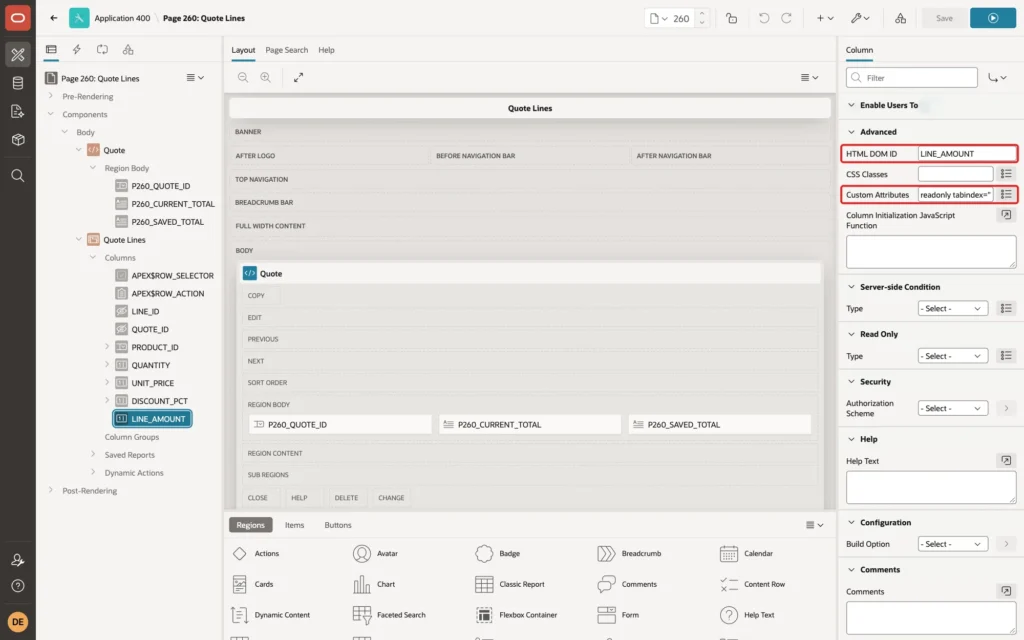
In the Advanced group, set HTML DOM ID to LINE_AMOUNT and Custom Attributes to readonly tabindex="-1". Users cannot type into the cell, and Tab skips it:
Why not Display Only or Read Only? Both were tested first. With Type Display Only, the browser console showed Set value not allowed for field, and the amount did not change. Read Only Type Always gave the same error. The grid model refuses new values for such columns, so the readonly HTML attribute is used instead.
Step 7: Fill the Unit Price from the Product
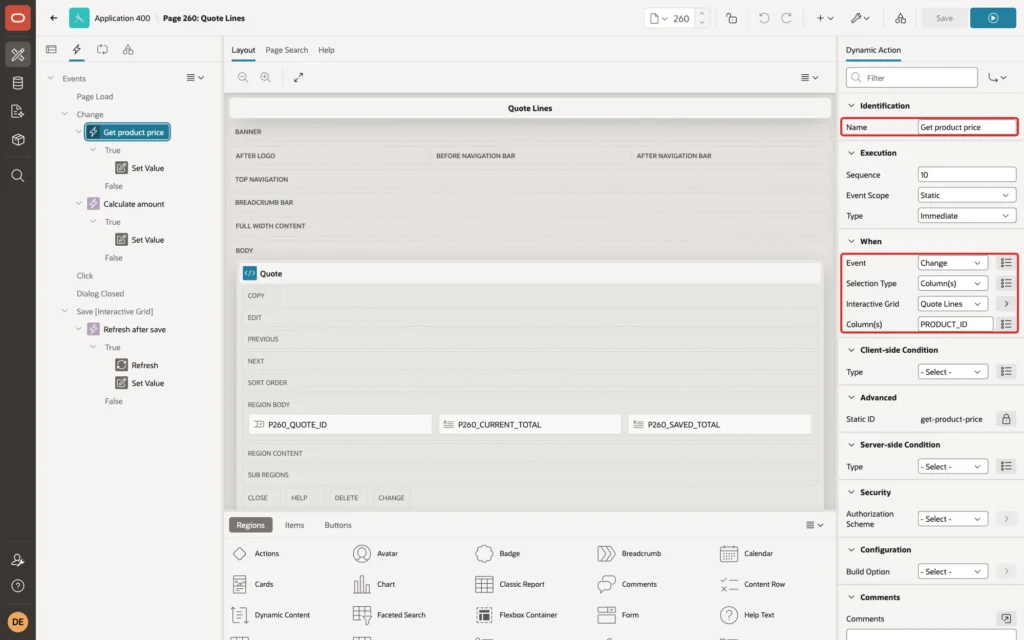
Open the Dynamic Actions tab, right-click Events and choose Create Dynamic Action. Name it Get product price. In the When group, set Event to Change, Selection Type to Column(s), Interactive Grid to Quote Lines and Column(s) to PRODUCT_ID:
Select the True action and set Action to Set Value. Set Set Type to SQL Statement, enter this query, and set Items to Submit to PRODUCT_ID. In Affected Elements, set Selection Type to Column(s) and Column(s) to UNIT_PRICE:
Example:
select price
from   products
where  product_id = :PRODUCT_ID
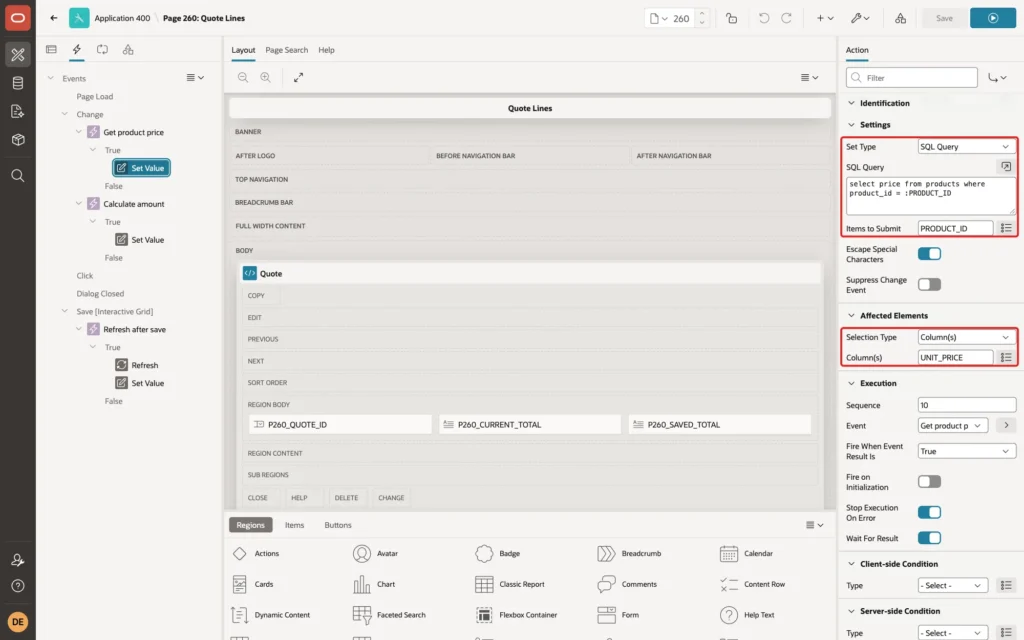
Items to Submit PRODUCT_ID sends the column value of the current row, so :PRODUCT_ID in the query holds that value. Suppress Change Event stays off: the new price fires a change on UNIT_PRICE, and that change starts the next dynamic action.
Step 8: Calculate the Amount in the Browser
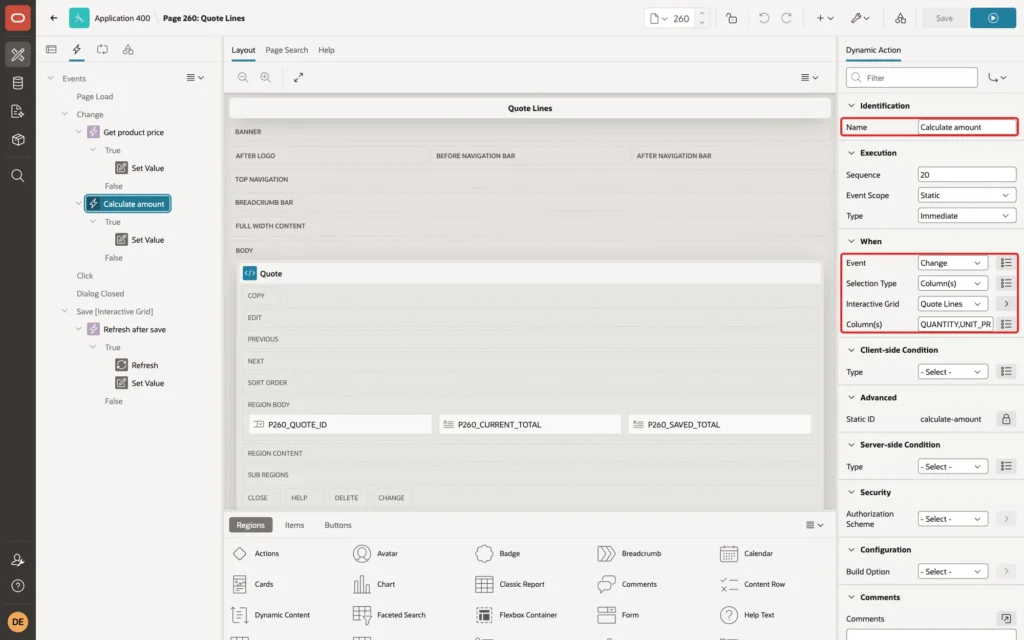
Create a second dynamic action named Calculate amount. Set Event to Change, Selection Type to Column(s), Interactive Grid to Quote Lines, and Column(s) to QUANTITY, UNIT_PRICE and DISCOUNT_PCT:
Set the True action to Set Value with Set Type JavaScript Expression and this expression. In Affected Elements, set Selection Type to Column(s) and Column(s) to LINE_AMOUNT:
Example:
apex.locale.formatNumber(
    Math.round($v("QUANTITY") * $v("UNIT_PRICE") * (100 - $v("DISCOUNT_PCT"))) / 100,
    "FM999G999G990D00"
)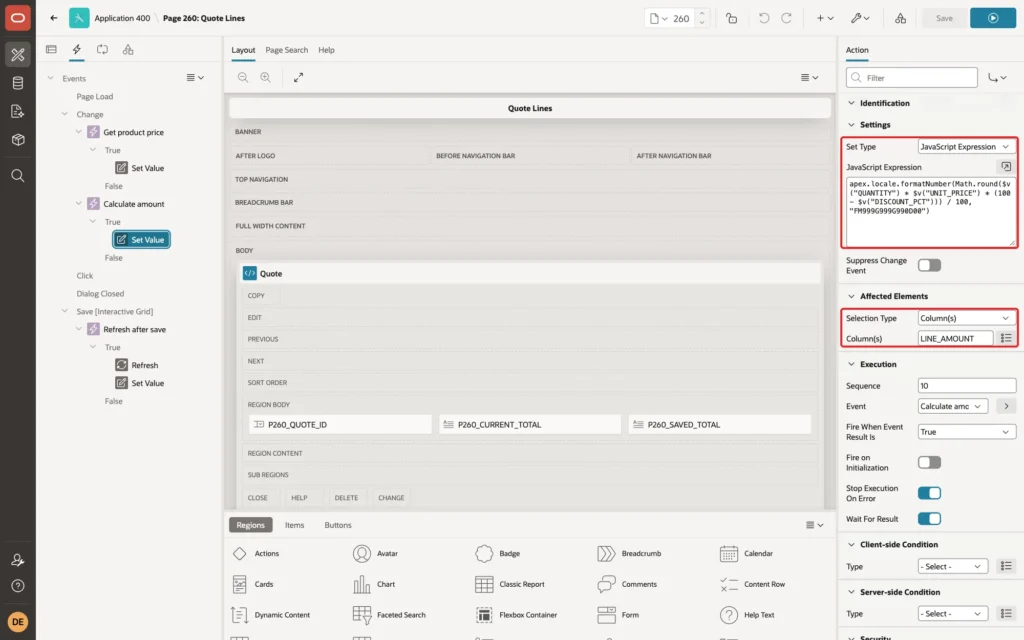
Quantity times price times (100 minus discount) gives the amount in cents, Math.round rounds it, and the division by 100 brings it back. This is the same rounding as ROUND(..., 2) in the virtual column, so the browser and the database agree.
Leave Suppress Change Event off. In a first test it was on: the column item got 200.00, but the grid model and the visible cell kept the old 125.00. The grid copies a column item into the model only on its change event.
Step 9: Add the Sum to the Grid Footer
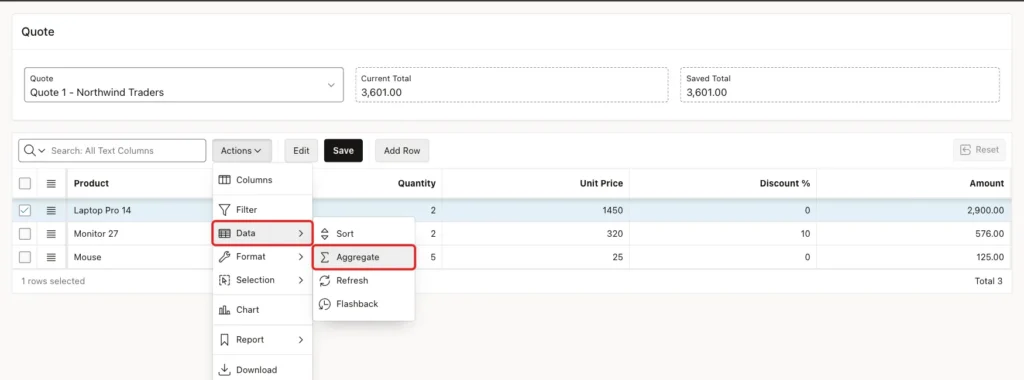
An aggregate is part of the grid's saved report, so it is set at runtime. Run the page as a developer from App Builder, choose Quote 1, and open Actions > Data > Aggregate:
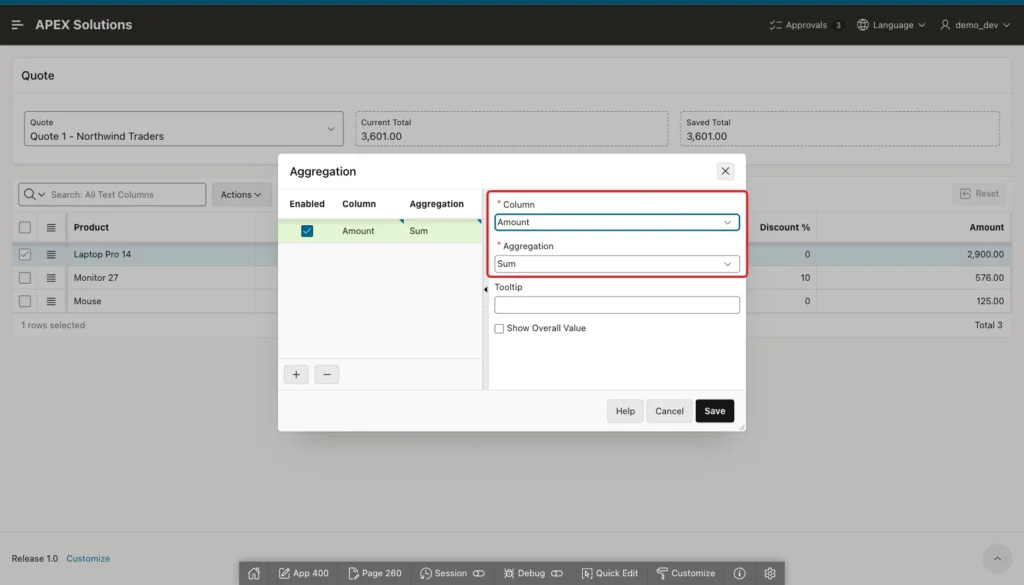
Set Column to Amount and Aggregation to Sum, and click Save:
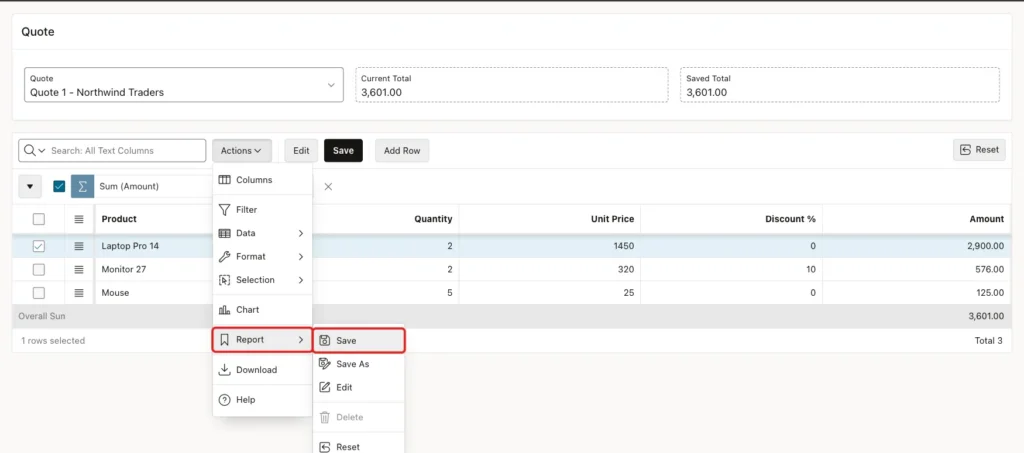
The grid now shows an Overall Sum row under the lines. To keep it for every user, open Actions > Report > Save. This menu entry is enabled only when you run the page with a developer session:
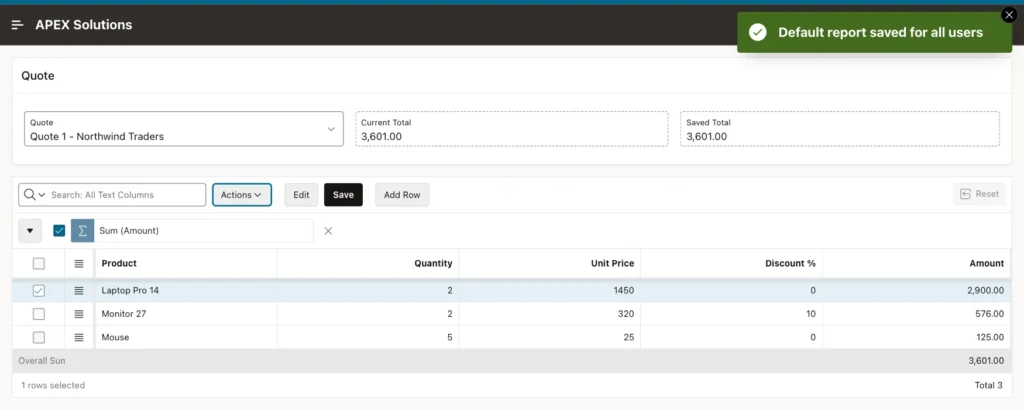
APEX confirms with Default report saved for all users:
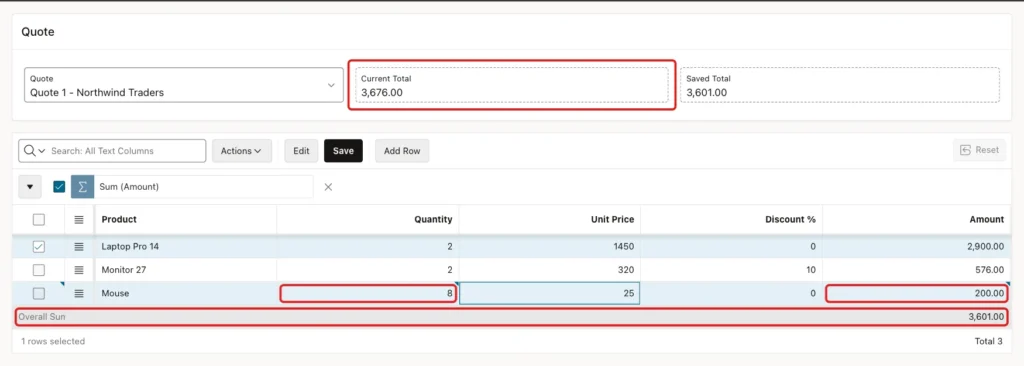
The aggregate is calculated by the database with the grid query. In a test, the quantity of Mouse was changed from 5 to 8. The Amount cell showed 200.00 at once, but Overall Sum stayed at 3,601.00. After Save it still showed 3,601.00 until the page was reloaded. Steps 10 and 11 handle both cases.
Step 10: Show a Live Total of the Unsaved Rows
The grid model in the browser holds every row, including changed, new and deleted ones. A small function adds up the amounts in the model and writes the result into P260_CURRENT_TOTAL. Select the page (Page 260: Quote Lines) and open the JavaScript group:
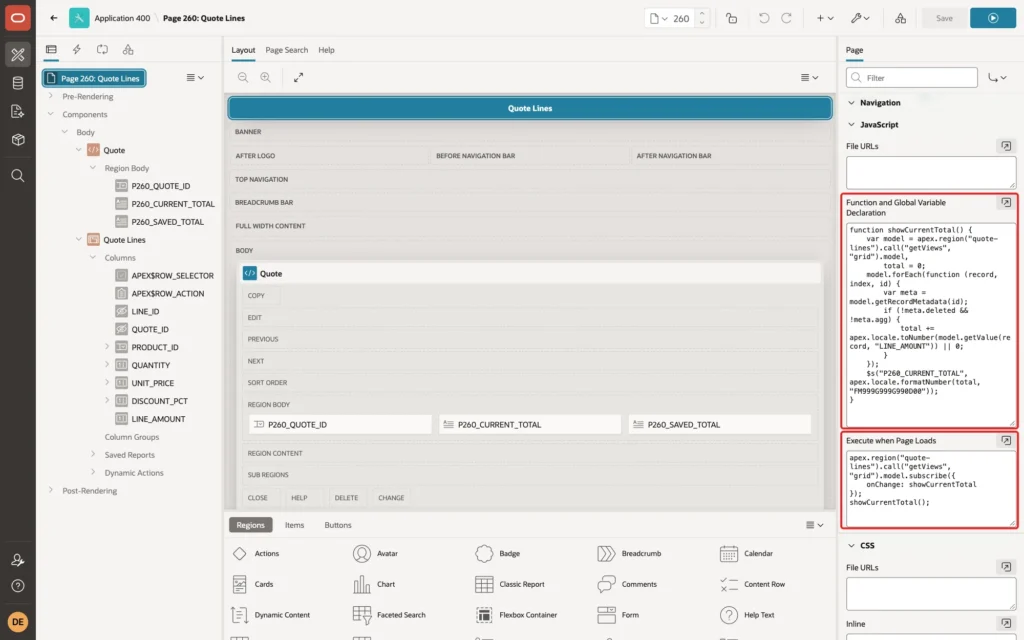
Enter this code in Function and Global Variable Declaration:
Example:
function showCurrentTotal() {
    var model = apex.region("quote-lines").call("getViews", "grid").model,
        total = 0;
    model.forEach(function (record, index, id) {
        var meta = model.getRecordMetadata(id);
        if (!meta.deleted && !meta.agg) {
            total += apex.locale.toNumber(model.getValue(record, "LINE_AMOUNT")) || 0;
        }
    });
    $s("P260_CURRENT_TOTAL", apex.locale.formatNumber(total, "FM999G999G990D00"));
}
And this code in Execute when Page Loads:
Example:
apex.region("quote-lines").call("getViews", "grid").model.subscribe({
    onChange: showCurrentTotal
});
showCurrentTotal();
quote-lines is the HTML DOM ID set in Step 4. The function skips rows marked as deleted, and it skips the aggregate row, which the model also holds (meta.agg). apex.locale.toNumber reads amounts like 2,900.00 back as numbers.
subscribe with onChange calls the function on every model change: a new value, a new row, a deleted row, or a refresh. This is the only JavaScript code in the guide that a declarative setting could not replace.
Step 11: Refresh the Totals After Save
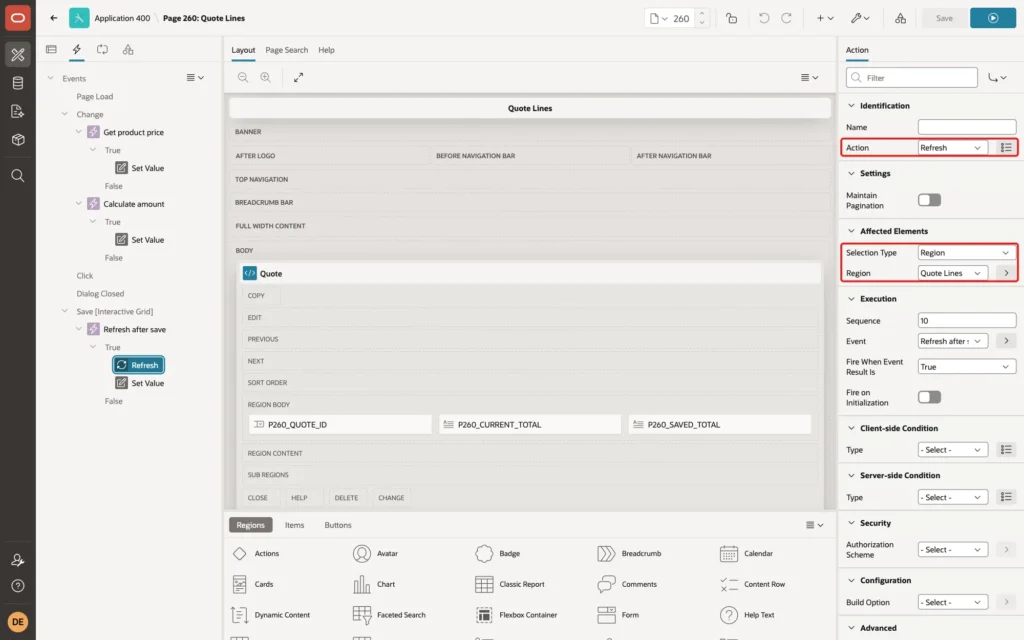
Create a dynamic action named Refresh after save. Set Event to Save [Interactive Grid], Selection Type to Region, and Region to Quote Lines:
![Page Designer showing the dynamic action Refresh after save with Event Save [Interactive Grid], Selection Type Region and Region Quote Lines marked with red boxes](https://vinish.dev/wp-content/uploads/2026/10/apxigtot-apex-igtot-da-save-pd-1024x640.webp)
Set the True action to Refresh with Selection Type Region and Region Quote Lines. The refresh runs the grid query again, so the aggregate is calculated again:
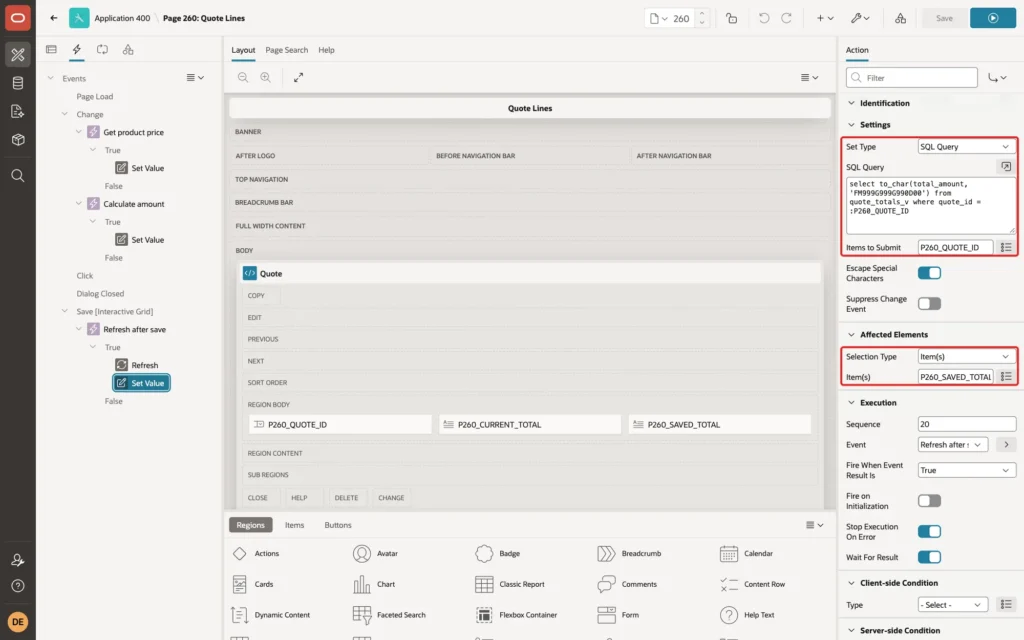
Right-click True and add a second action: Set Value with Set Type SQL Statement, Items to Submit P260_QUOTE_ID, and Affected Elements Item(s) P260_SAVED_TOTAL. Use the same query as the item source:
Example:
select to_char(total_amount, 'FM999G999G990D00')
from   quote_totals_v
where  quote_id = :P260_QUOTE_ID
Click Save in Page Designer.
Step 12: Test It
ORDER_EDITOR opened Quote Lines and chose Quote 1 - Northwind Traders. All three totals showed 3,601.00:
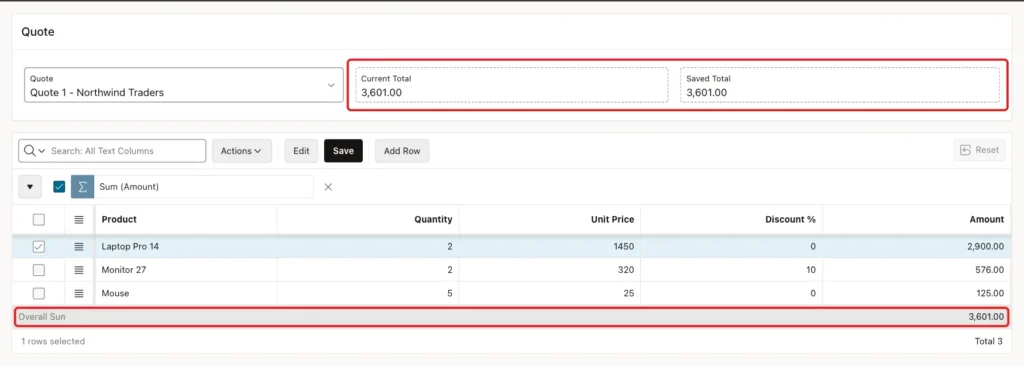
The quantity of Mouse was changed from 5 to 8. Amount changed to 200.00 and Current Total to 3,676.00 before anything was saved. Overall Sum and Saved Total still showed the saved state, 3,601.00:
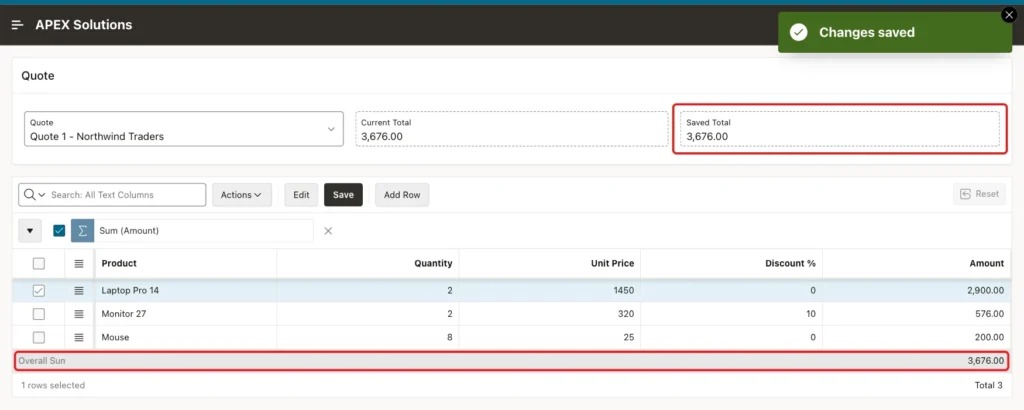
Save was clicked. APEX showed Changes saved, the grid was refreshed, and Overall Sum and Saved Total moved to 3,676.00:
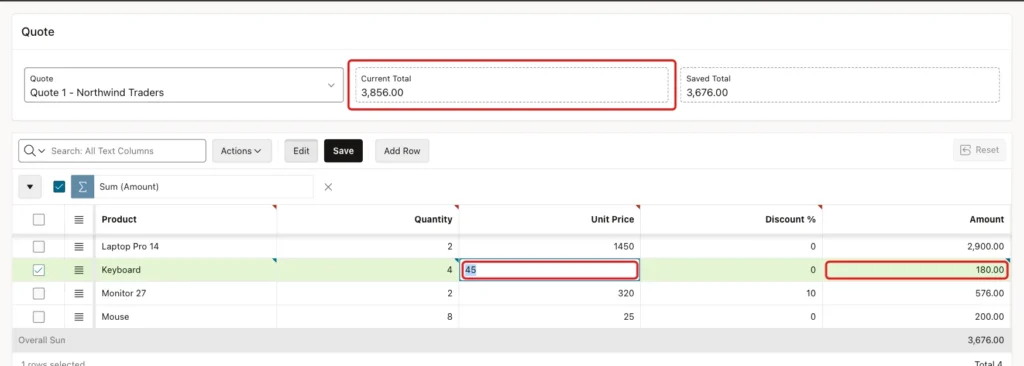
Next, Add Row inserted a new line and Keyboard was chosen. The Get product price action filled Unit Price with 45. After quantity 4, Amount showed 180.00 and Current Total 3,856.00:
After Save, the database held these rows:
Example:
select l.line_id, p.name as product, l.quantity, l.unit_price,
       l.discount_pct, l.line_amount
from   quote_lines l
join   products p on p.product_id = l.product_id
where  l.quote_id = 1
order by l.line_id;

select quote_id, customer_name, line_count, total_amount
from   quote_totals_v
order by quote_id;
Output:
   LINE_ID PRODUCT             QUANTITY    UNIT_PRICE    DISCOUNT_PCT    LINE_AMOUNT
__________ ________________ ___________ _____________ _______________ ______________
         1 Laptop Pro 14              2          1450               0           2900
         2 Monitor 27                 2           320              10            576
         3 Mouse                      8            25               0            200
        22 Keyboard                   4            45               0            180

   QUOTE_ID CUSTOMER_NAME            LINE_COUNT    TOTAL_AMOUNT
___________ _____________________ _____________ _______________
          1 Northwind Traders                 4            3856
          2 Blue Harbor Hotels                1           902.5
The view returns 3856 for Quote 1, the same as the page showed.
Then a wrong value: the discount of Monitor 27 was set to 150. The Minimum and Maximum Value settings marked the cell, and Save stopped with Correct errors before saving. The cell showed this message:
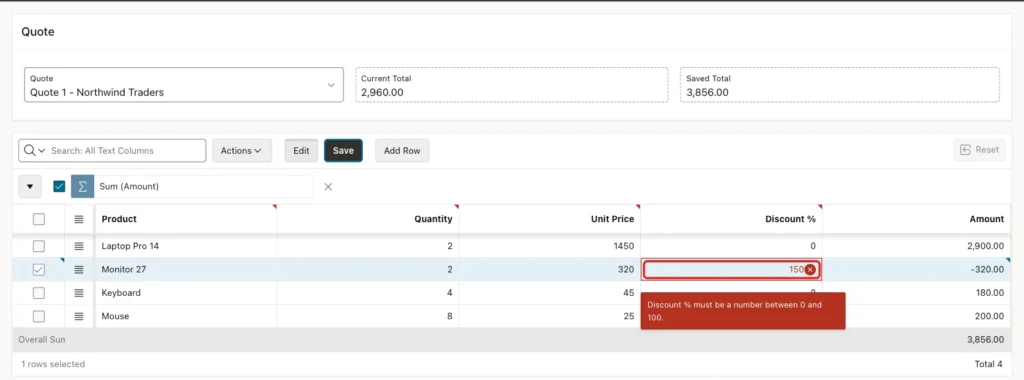
Note that the browser formula still ran, so Amount showed -320.00 and Current Total dropped until the value was fixed. In a first test without Minimum and Maximum Value, the same input reached the database and failed with ORA-02290 on QUOTE_LINES_DISC_CK.
Last, a forced amount. In the browser console, the model value of LINE_AMOUNT for Laptop Pro 14 was set to 1.00, and Save was clicked. APEX showed Changes saved, but after the refresh the row showed 2,900.00 again. Query Only kept the value out of the UPDATE, and the database calculated the amount.
The database rules also hold for any other program:
Example:
insert into quote_lines (quote_id, product_id, quantity, unit_price, discount_pct)
select 2, product_id, 1, price, 150 from products where name = 'Mouse';

update quote_lines set line_amount = 1 where line_id = 1;

insert into quote_lines (quote_id, product_id, quantity, unit_price)
select 2, product_id, 3, price from products where name = 'Mouse';

select line_id, quantity, unit_price, discount_pct, line_amount
from   quote_lines
where  quote_id = 2
order by line_id;

rollback;
Output:
Error starting at line : 1 File @ b28/02-checks.sql
In command -
insert into quote_lines (quote_id, product_id, quantity, unit_price, discount_pct)
select 2, product_id, 1, price, 150 from products where name = 'Mouse'
Error report -
ORA-02290: check constraint (APXSOL.QUOTE_LINES_DISC_CK) violated
Help: https://docs.oracle.com/error-help/db/ora-02290/

Error starting at line : 4 File @ b28/02-checks.sql
In command -
update quote_lines set line_amount = 1 where line_id = 1
Error at Command Line : 4 Column : 24 File @ b28/02-checks.sql
Error report -
SQL Error: ORA-54017: UPDATE operation disallowed on virtual columns
Help: https://docs.oracle.com/error-help/db/ora-54017/

1 row inserted.

   LINE_ID    QUANTITY    UNIT_PRICE    DISCOUNT_PCT    LINE_AMOUNT
__________ ___________ _____________ _______________ ______________
         4          10            95               5          902.5
        24           3            25               0             75

Rollback complete.
The insert with discount 150 fails on the check constraint, the update of LINE_AMOUNT fails with ORA-54017, and the insert without a discount gets 0 from DEFAULT ON NULL and an amount of 75.
Things to Know
- An IG aggregate is calculated by the database with the grid query. It does not follow unsaved edits, and a save alone does not update it. Refresh the region after Save [Interactive Grid].
- Set Value can only change a grid column that the model accepts values for. Display Only and Read Only columns fail with Set value not allowed for field.
- Keep Suppress Change Event off when Set Value targets a grid column. With it on, the model kept the old value in this example.
- Give grid columns an HTML DOM ID when JavaScript reads them with $v. Without it, the column items have generated IDs.
- The browser formula is for display only. Query Only and the virtual column make sure the saved amount always comes from the database.
- The live total is a browser figure. The Saved Total from QUOTE_TOTALS_V is the one to trust in reports and other programs.
Related Guides
- How to Validate Interactive Grid Rows Before Saving in Oracle APEX
- How to Read and Change Grid Data Using apex.model in Oracle APEX
Conclusion
To show calculated columns and totals in an Interactive Grid in Oracle APEX, let the database own the numbers. A virtual column calculates each line amount, a view calculates the quote total, and the grid column is Query Only, so no trigger and no save code is needed.
On the page, a Set Value dynamic action repeats the formula as users type, an IG aggregate shows the saved Sum in the footer, and a short model subscription shows the live total before saving. A refresh after Save brings all totals back in line.
