
Business users often need one more field on a form: a serial number, a warranty date or a color. Adding a table column for each request means a database change, a new page item and a new deployment every time.
Custom fields solve this. An administrator defines the fields on a page, and every record form shows them at once. This guide builds the definition page, shows the fields on a form with an editable Interactive Grid, checks each value by its type, enforces required fields and lists the values in a report.
The example uses office assets such as laptops and printers; the same steps work for any table. If the extra data should live in a JSON column instead, see How to Edit JSON Column Data in a Form in Oracle APEX. Here, an administrator can add fields at runtime without any change to the page.
Step 1: Create the Tables
Three tables hold the data:
- ASSETS is the record table. Any table can take its place.
- CUSTOM_FIELD_DEFS holds one row per custom field: its label, data type (TEXT, NUMBER, DATE or LIST), a required flag, the allowed values of a LIST field, a display order and an active flag.
- CUSTOM_FIELD_VALUES holds one row per record and field, with the value as text.
The rules that do not depend on the field type are declared in the tables. Check constraints limit the data type and the Y/N flags, and a LIST field must have list values. A unique key allows only one value per record and field, and DEFAULT ON NULL fills the flags and the display order.
Example:
create table assets (
  asset_id      number generated by default on null as identity,
  asset_tag     varchar2(20 char)  not null,
  asset_name    varchar2(100 char) not null,
  assigned_to   varchar2(100 char),
  purchased_on  date,
  constraint assets_pk primary key (asset_id),
  constraint assets_tag_uk unique (asset_tag)
);

create table custom_field_defs (
  field_id      number generated by default on null as identity,
  field_label   varchar2(60 char)  not null,
  data_type     varchar2(10 char)  default on null 'TEXT' not null,
  is_required   varchar2(1 char)   default on null 'N' not null,
  list_values   varchar2(400 char),
  display_seq   number             default on null 10 not null,
  is_active     varchar2(1 char)   default on null 'Y' not null,
  constraint custom_field_defs_pk primary key (field_id),
  constraint custom_field_defs_label_uk unique (field_label),
  constraint custom_field_defs_type_ck check (data_type in ('TEXT', 'NUMBER', 'DATE', 'LIST')),
  constraint custom_field_defs_req_ck check (is_required in ('Y', 'N')),
  constraint custom_field_defs_active_ck check (is_active in ('Y', 'N')),
  constraint custom_field_defs_list_ck check (data_type <> 'LIST' or list_values is not null)
);

create table custom_field_values (
  value_id      number generated by default on null as identity,
  asset_id      number not null,
  field_id      number not null,
  value_text    varchar2(4000 char) not null,
  constraint custom_field_values_pk primary key (value_id),
  constraint custom_field_values_uk unique (asset_id, field_id),
  constraint custom_field_values_asset_fk foreign key (asset_id)
    references assets (asset_id) on delete cascade,
  constraint custom_field_values_field_fk foreign key (field_id)
    references custom_field_defs (field_id)
);

create index custom_field_values_field_ix on custom_field_values (field_id);

insert into assets (asset_tag, asset_name, assigned_to, purchased_on)
values ('AST-1001', 'Dell Latitude 5440 Laptop', 'Priya Nair', date '2025-03-12');
insert into assets (asset_tag, asset_name, assigned_to, purchased_on)
values ('AST-1002', 'HP LaserJet Pro Printer', 'Front Office', date '2024-11-05');
insert into assets (asset_tag, asset_name, assigned_to, purchased_on)
values ('AST-1003', 'Samsung 27 inch Monitor', 'Rahul Mehta', date '2025-06-20');

insert into custom_field_defs (field_label, data_type, list_values, display_seq)
values ('Color', 'LIST', 'Black,Silver,White', 10);
insert into custom_field_defs (field_label, data_type, display_seq)
values ('Purchase Cost', 'NUMBER', 20);

insert into custom_field_values (asset_id, field_id, value_text)
values (1, 1, 'Black');
insert into custom_field_values (asset_id, field_id, value_text)
values (1, 2, '1250');
insert into custom_field_values (asset_id, field_id, value_text)
values (2, 1, 'White');

commit;

select field_id, field_label, data_type, is_required, list_values, display_seq, is_active
from custom_field_defs
order by display_seq;

select a.asset_tag, d.field_label, v.value_text
from custom_field_values v
join assets a on a.asset_id = v.asset_id
join custom_field_defs d on d.field_id = v.field_id
order by a.asset_tag, d.display_seq;
Output:
Table ASSETS created.

Table CUSTOM_FIELD_DEFS created.

Table CUSTOM_FIELD_VALUES created.

Index CUSTOM_FIELD_VALUES_FIELD_IX created.

1 row inserted.

1 row inserted.

1 row inserted.

1 row inserted.

1 row inserted.

1 row inserted.

1 row inserted.

1 row inserted.

Commit complete.

   FIELD_ID FIELD_LABEL      DATA_TYPE    IS_REQUIRED    LIST_VALUES              DISPLAY_SEQ IS_ACTIVE
___________ ________________ ____________ ______________ _____________________ ______________ ____________
          1 Color            LIST         N              Black,Silver,White                10 Y
          2 Purchase Cost    NUMBER       N                                                20 Y

ASSET_TAG    FIELD_LABEL      VALUE_TEXT
____________ ________________ _____________
AST-1001     Color            Black
AST-1001     Purchase Cost    1250
AST-1002     Color            White
Two fields exist at the start: Color, a LIST field with three values, and Purchase Cost, a NUMBER field. Asset AST-1001 has both values and AST-1002 has a color.
The constraints reject bad rows even when someone bypasses the application. A LIST field without values, a second value for the same asset and field, and an unknown data type all fail:
Example:
insert into custom_field_defs (field_label, data_type)
values ('Department', 'LIST');

insert into custom_field_values (asset_id, field_id, value_text)
values (1, 1, 'Silver');

insert into custom_field_defs (field_label, data_type)
values ('Size', 'TEXTAREA');
Output:
Error starting at line : 1 File @ b56/01-constraint-test.sql
In command -
insert into custom_field_defs (field_label, data_type)
values ('Department', 'LIST')
Error report -
ORA-02290: check constraint (APXSOL.CUSTOM_FIELD_DEFS_LIST_CK) violated
Help: https://docs.oracle.com/error-help/db/ora-02290/

Error starting at line : 4 File @ b56/01-constraint-test.sql
In command -
insert into custom_field_values (asset_id, field_id, value_text)
values (1, 1, 'Silver')
Error report -
ORA-00001: unique constraint (APXSOL.CUSTOM_FIELD_VALUES_UK) violated on table
APXSOL.CUSTOM_FIELD_VALUES columns (ASSET_ID, FIELD_ID)
ORA-03301: (ORA-00001 details) row with column values (ASSET_ID:1, FIELD_ID:1)
already exists
Help: https://docs.oracle.com/error-help/db/ora-00001/

Error starting at line : 7 File @ b56/01-constraint-test.sql
In command -
insert into custom_field_defs (field_label, data_type)
values ('Size', 'TEXTAREA')
Error report -
ORA-02290: check constraint (APXSOL.CUSTOM_FIELD_DEFS_TYPE_CK) violated
Help: https://docs.oracle.com/error-help/db/ora-02290/
Step 2: Create the Custom Fields Page
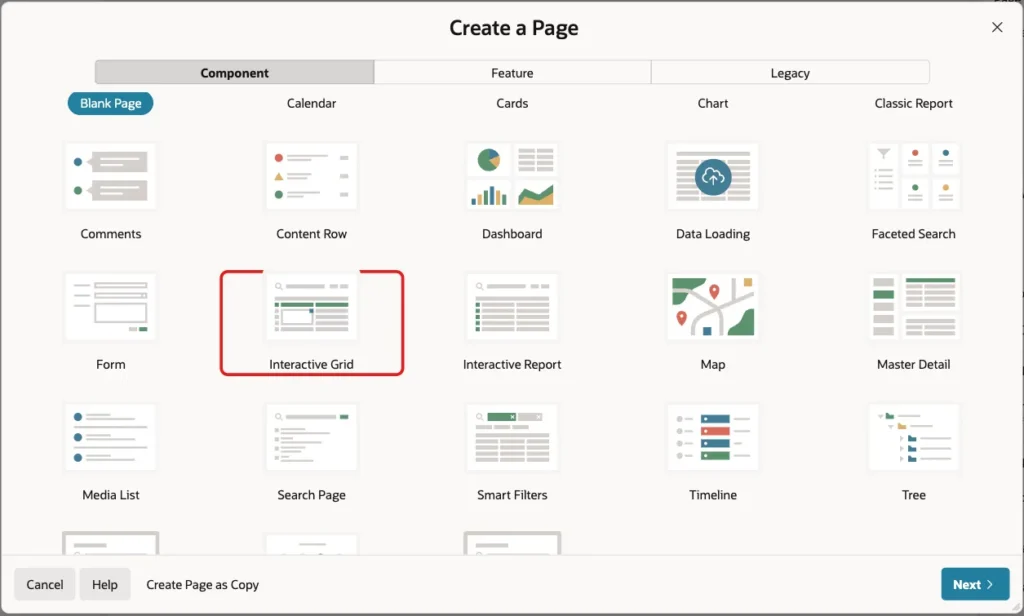
Administrators define the fields on an editable Interactive Grid. In App Builder, open the application, click Create Page and select Interactive Grid:
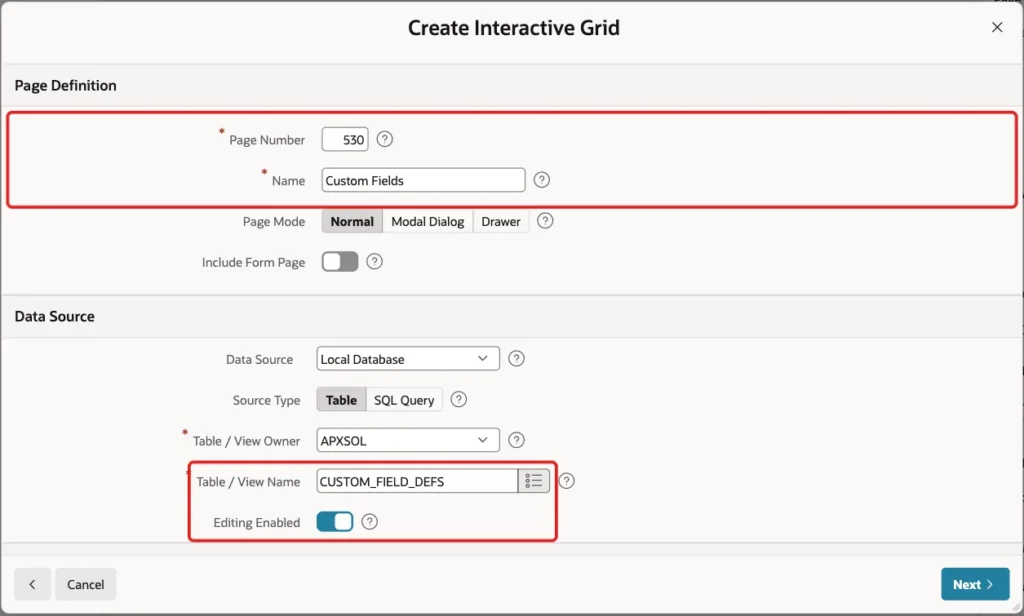
Enter 530 as the Page Number and Custom Fields as the Name. In the Data Source section, enter CUSTOM_FIELD_DEFS as the Table / View Name and turn on Editing Enabled:
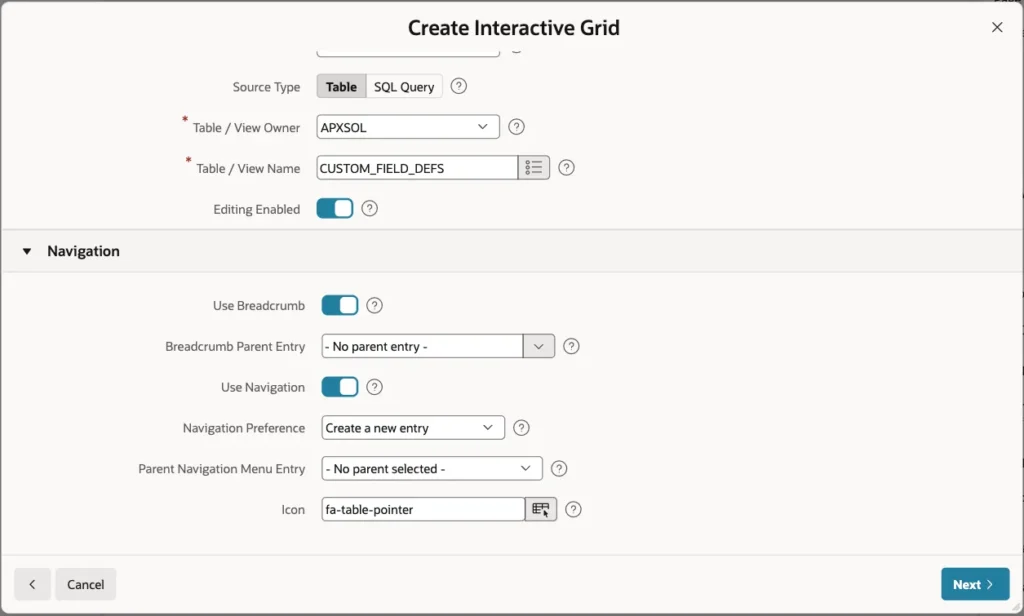
Keep the Navigation settings and click Next:
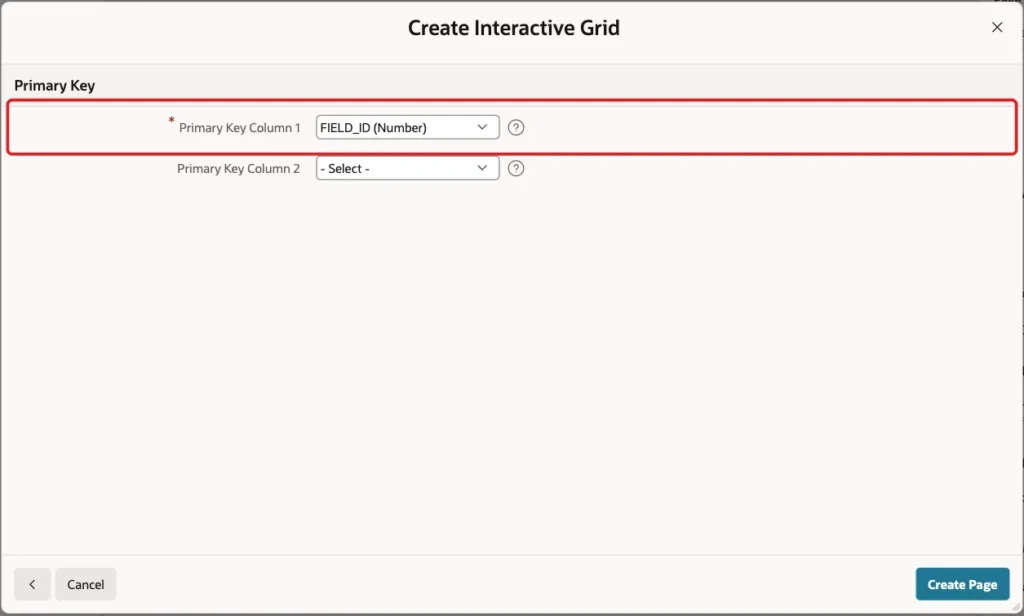
On the Primary Key screen, keep FIELD_ID as Primary Key Column 1 and click Create Page:
Step 3: Set Up the Columns of the Custom Fields Grid
The wizard creates text fields for every column. Change the columns so administrators pick values instead of typing codes.
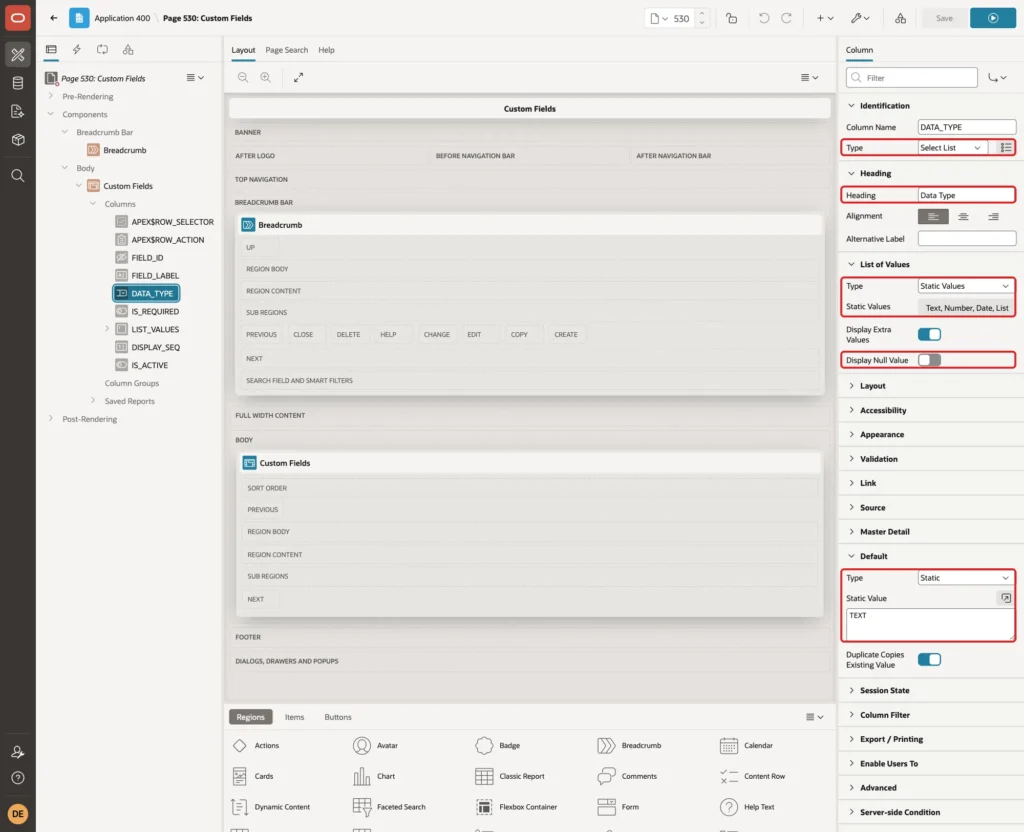
Open page 530 in Page Designer, expand the Custom Fields region and its Columns, and select DATA_TYPE. Set these properties:
- Identification > Type: Select List
- Heading > Heading: Data Type
- List of Values > Type: Static Values, with the entries Text (TEXT), Number (NUMBER), Date (DATE) and List (LIST)
- List of Values > Display Null Value: off
- Default > Type: Static, Static Value: TEXT
Select IS_REQUIRED. Set Type to Switch, Heading to Required, and the Default to Static with the value N:
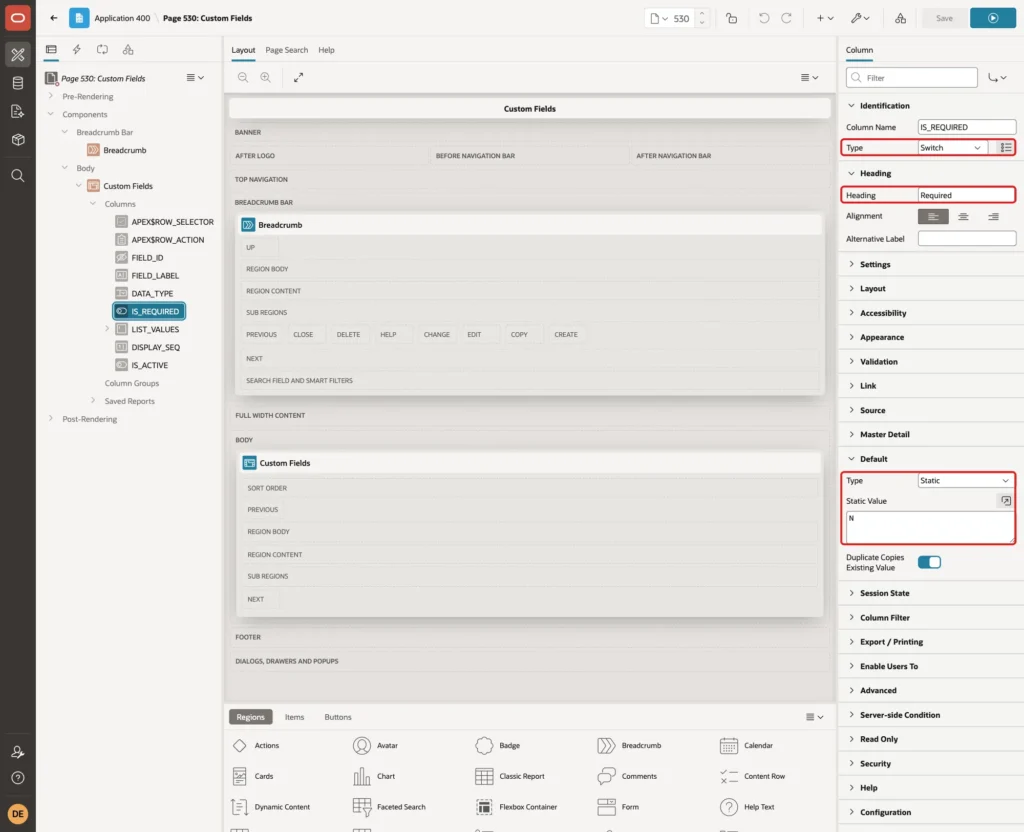
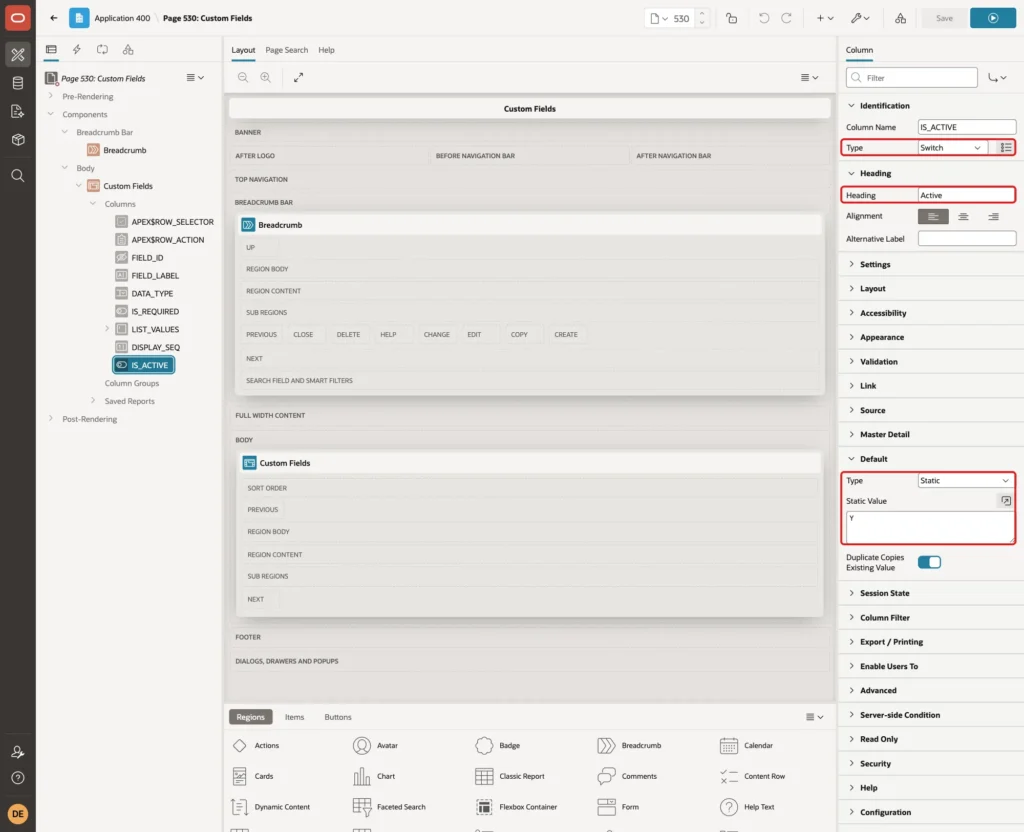
The Switch uses Y and N by default, which matches the check constraint. Select IS_ACTIVE and set Type to Switch, Heading to Active, and the Default to Static with the value Y:
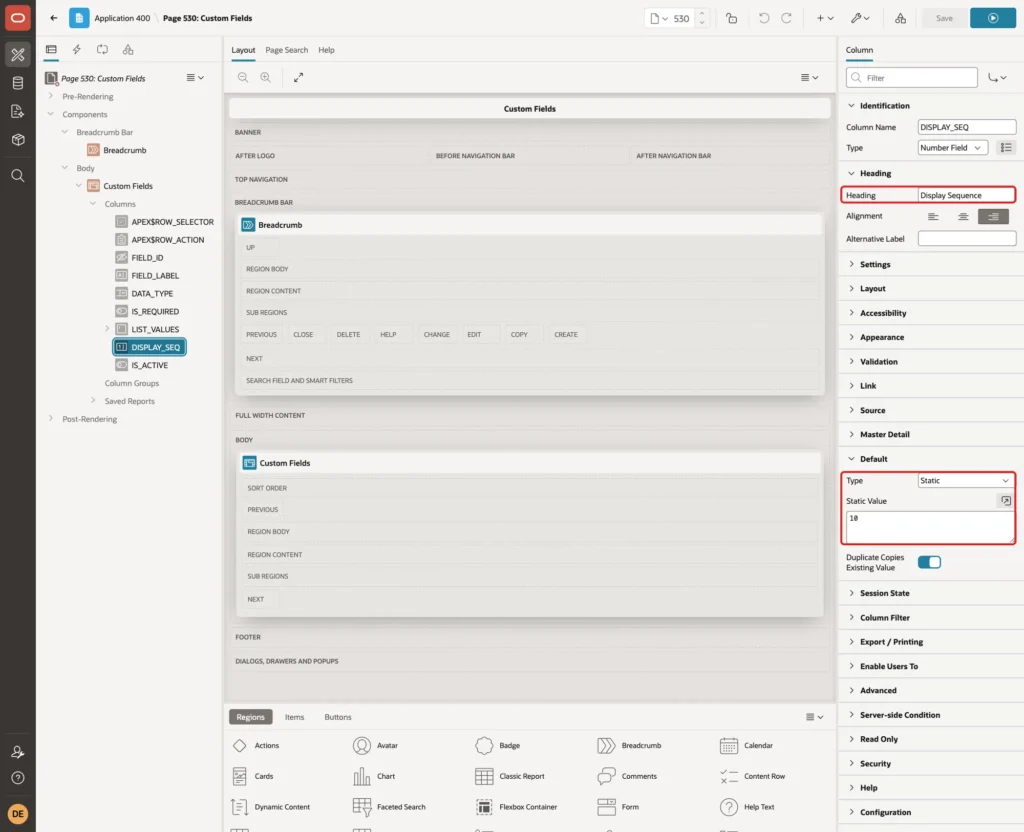
Select DISPLAY_SEQ. Set Heading to Display Sequence and the Default to Static with the value 10:
Allow Only Administrators
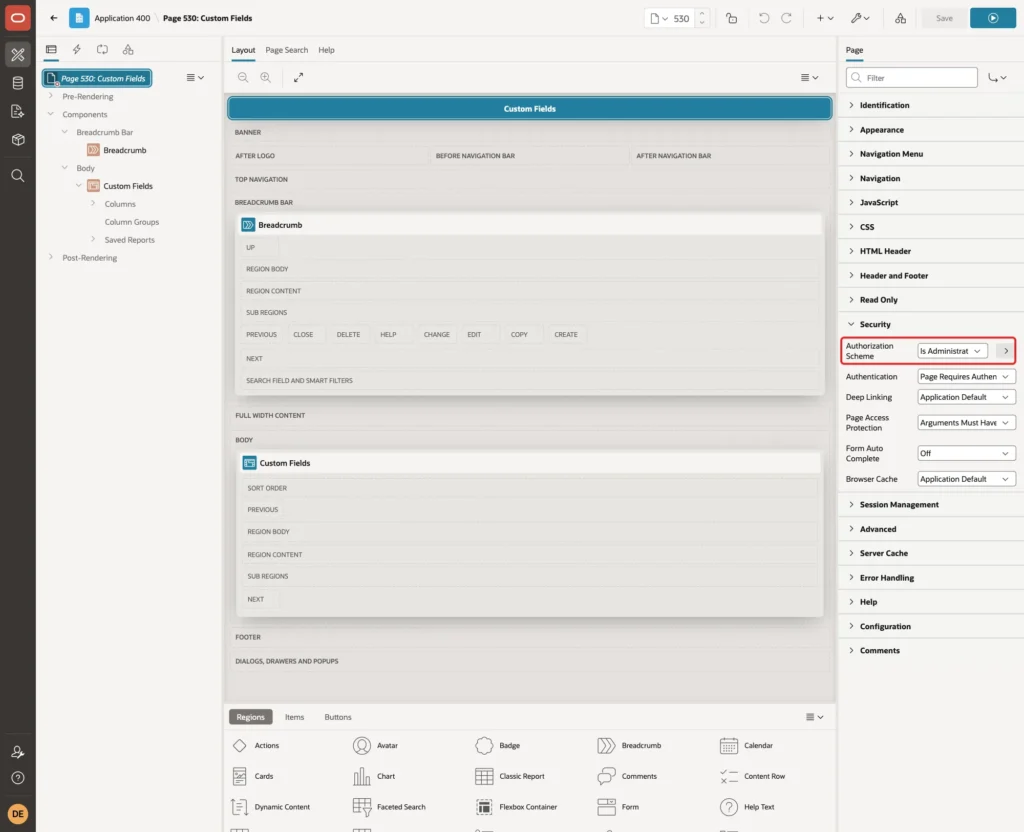
Select the page node, Page 530: Custom Fields, and set Security > Authorization Scheme to Is Administrator. The sample application already has this scheme; create one under Shared Components > Authorization Schemes if your application does not:
Ask for the Values of a List Field
The check constraint stops a LIST field without values, but the user would see a raw ORA-02290 error. A grid validation gives a clear message first.
Open the Processing tab, right-click Validations and select Create Validation. Set these properties:
- Name: List Values required for List fields
- Editable Region: Custom Fields
- Type: Column is NOT NULL, Column: LIST_VALUES
- Error Message: Enter the allowed values, separated by commas, for a List field.
- Associated Column: LIST_VALUES
- Server-side Condition: Type Expression, with the PL/SQL Expression below
The server-side condition:
Example:
:DATA_TYPE = 'LIST' and :APEX$ROW_STATUS in ('C', 'U')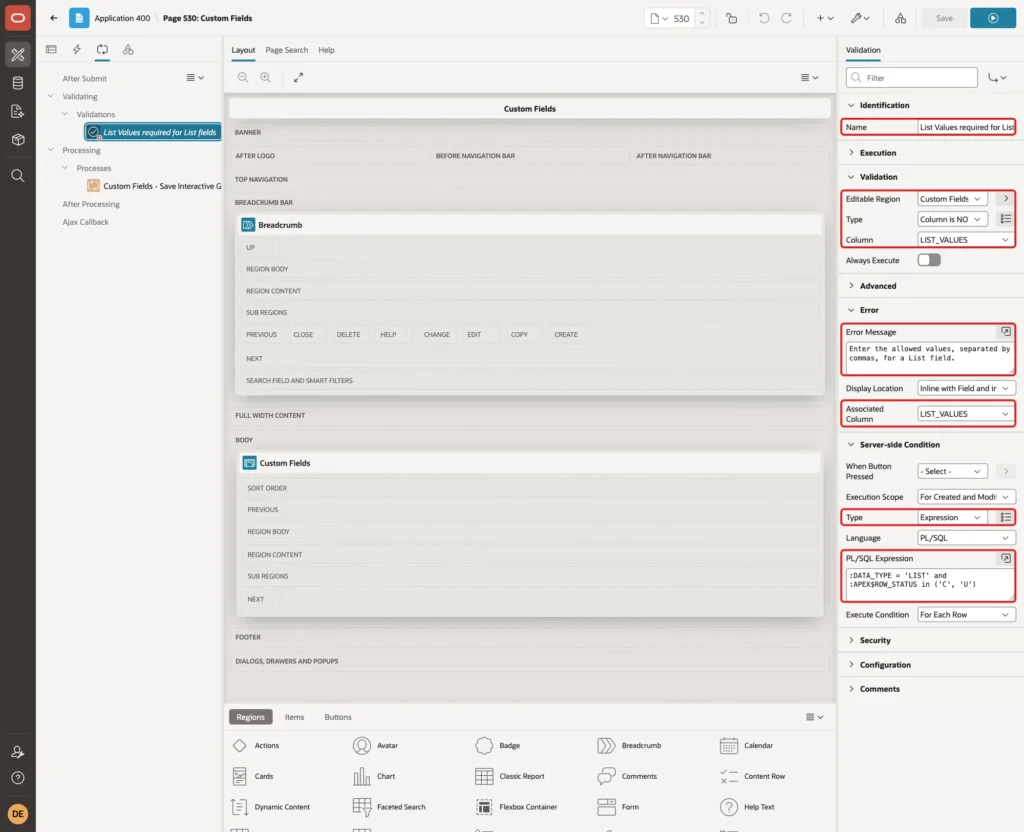
Save the page.
Step 4: Sort the Custom Fields Grid
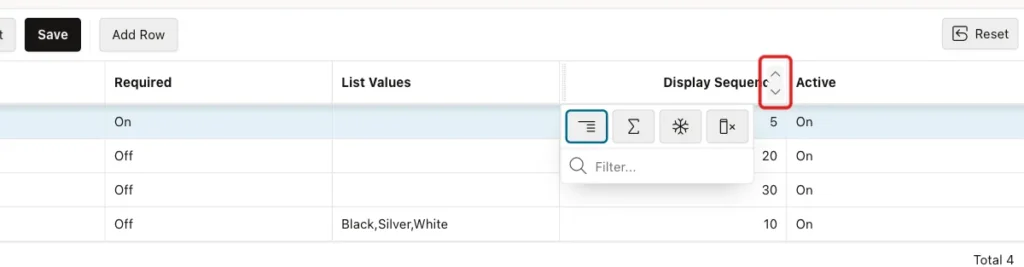
The fields should appear in their display order. Run page 530, click the Display Sequence heading and click the Sort Ascending arrow:
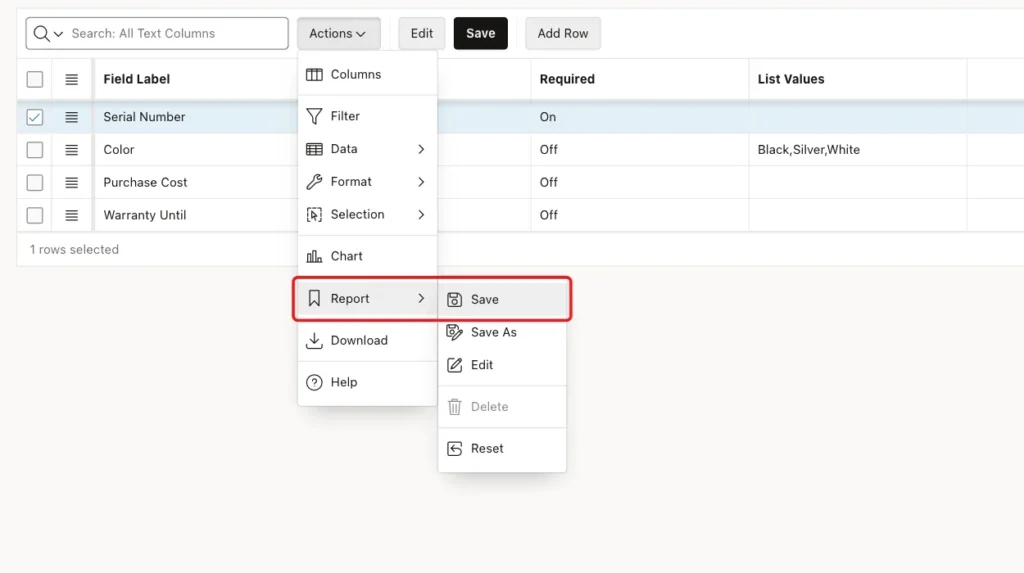
Then, while you are logged in to App Builder as a developer, open Actions > Report > Save. APEX shows "Default report saved for all users":
Step 5: Create the Report and Form Pages
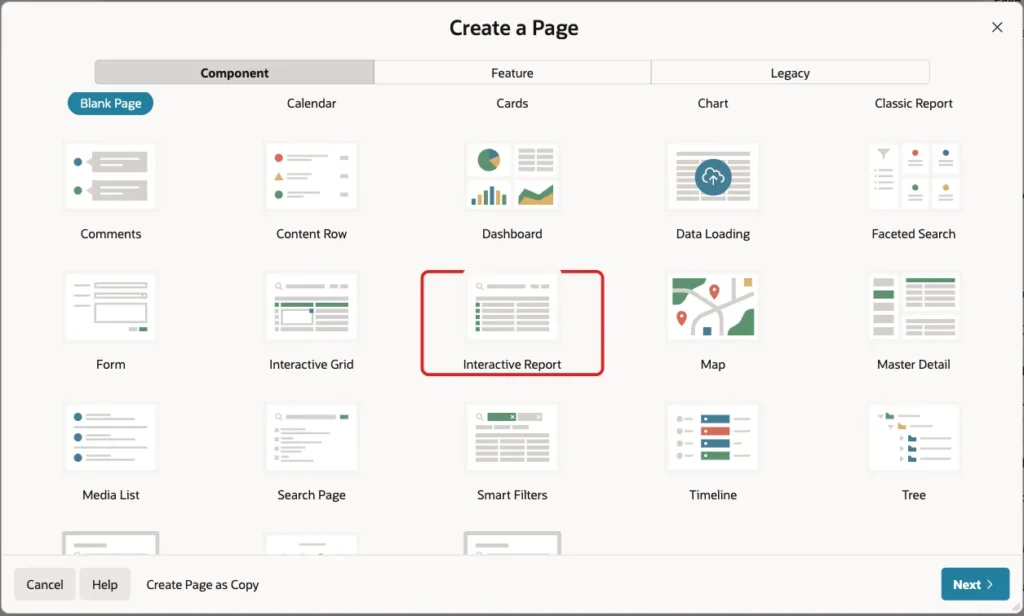
Now create the pages for the records. Click Create Page and select Interactive Report:
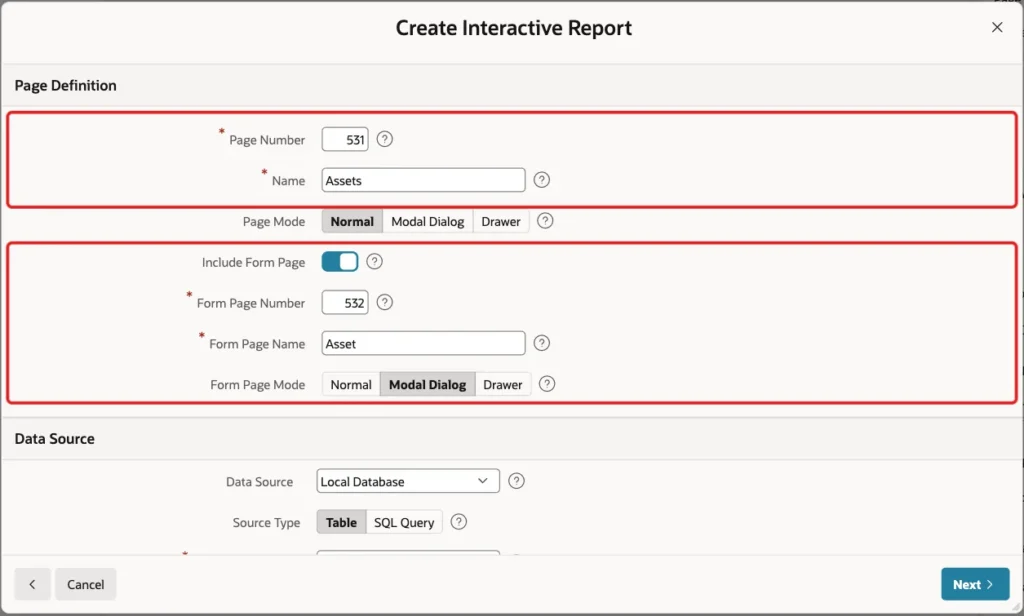
Enter 531 as the Page Number and Assets as the Name. Turn on Include Form Page, enter 532 and Asset for the form page, and select Modal Dialog as its page mode:
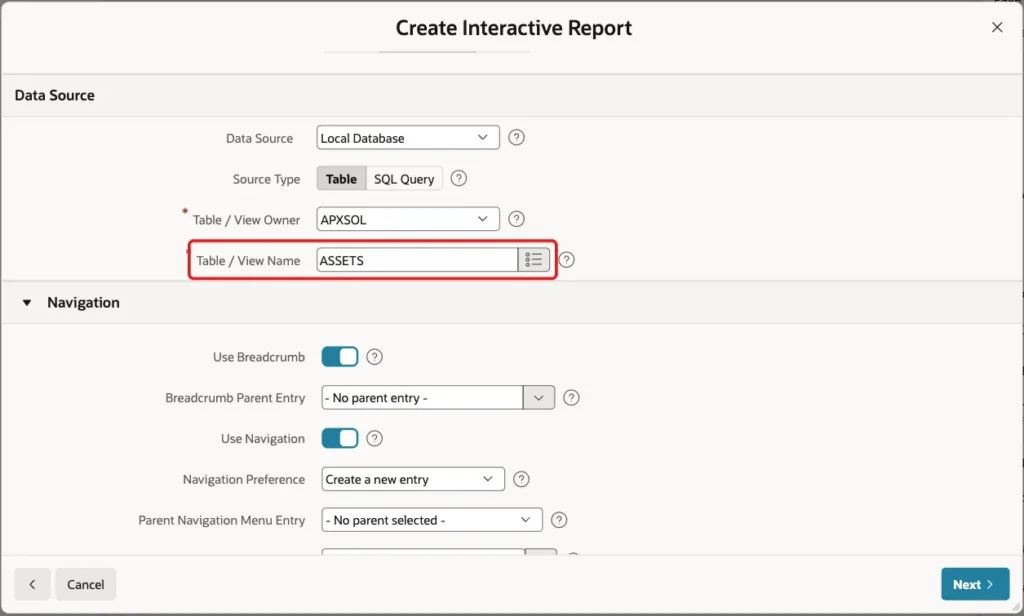
In the Data Source section, enter ASSETS as the Table / View Name:
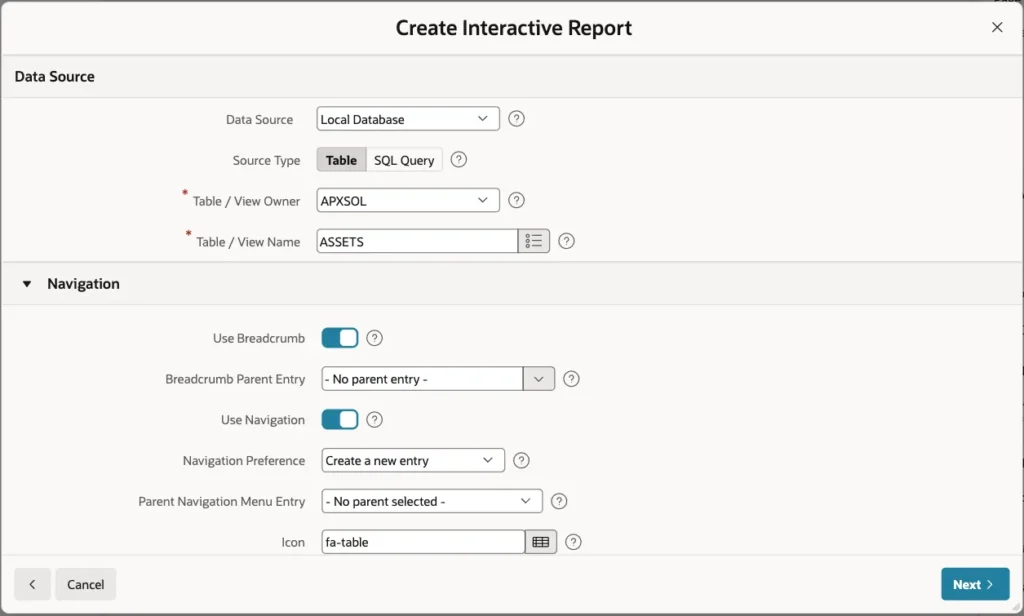
Keep the Navigation settings and click Next:
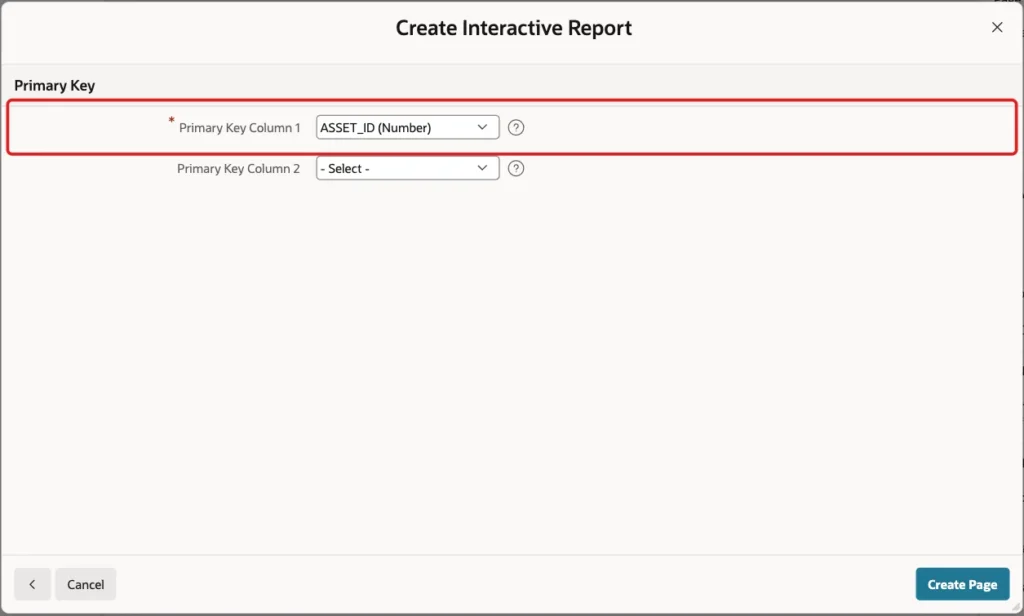
On the Primary Key screen, select ASSET_ID and click Create Page:
Step 6: Add the Custom Fields Grid to the Form
The form page 532 shows one grid row per active custom field. The query left joins the definitions with the values of the current asset, so a field without a value still gets a row. It also builds a Format text that tells the user what to enter:
Example:
select d.field_id,
       d.field_label,
       case d.data_type
         when 'NUMBER' then 'Number'
         when 'DATE'   then 'Date (YYYY-MM-DD)'
         when 'LIST'   then 'One of: ' || replace(d.list_values, ',', ', ')
         else 'Text'
       end as value_format,
       v.value_text
from   custom_field_defs d
left join custom_field_values v
       on  v.field_id = d.field_id
       and v.asset_id = :P532_ASSET_ID
where  d.is_active = 'Y'
order by d.display_seq, d.field_label
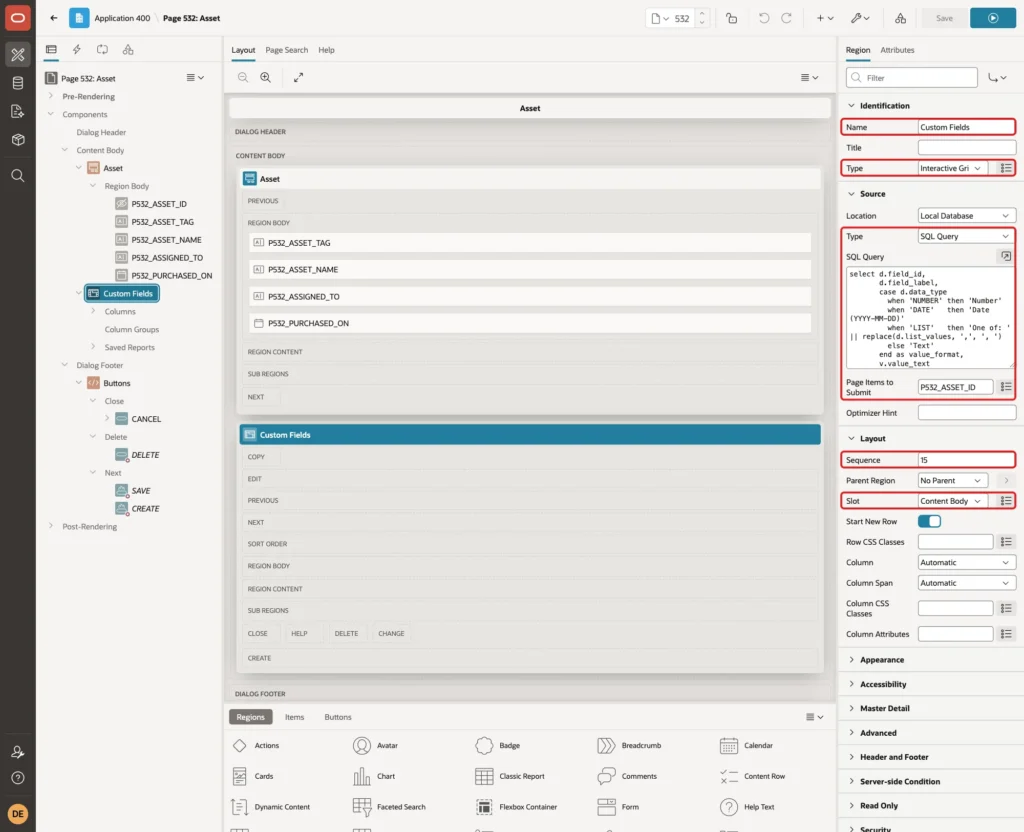
Open page 532 in Page Designer, right-click Content Body and select Create Region. Set these properties:
- Identification > Name: Custom Fields, Type: Interactive Grid
- Source > Type: SQL Query, with the query above
- Source > Page Items to Submit: P532_ASSET_ID
- Layout > Sequence: 15 (after the form fields), Slot: Content Body
In a first test without the ORDER BY clause, the fields came in a random order. With the ORDER BY and no sort in the grid report, they follow the display sequence.
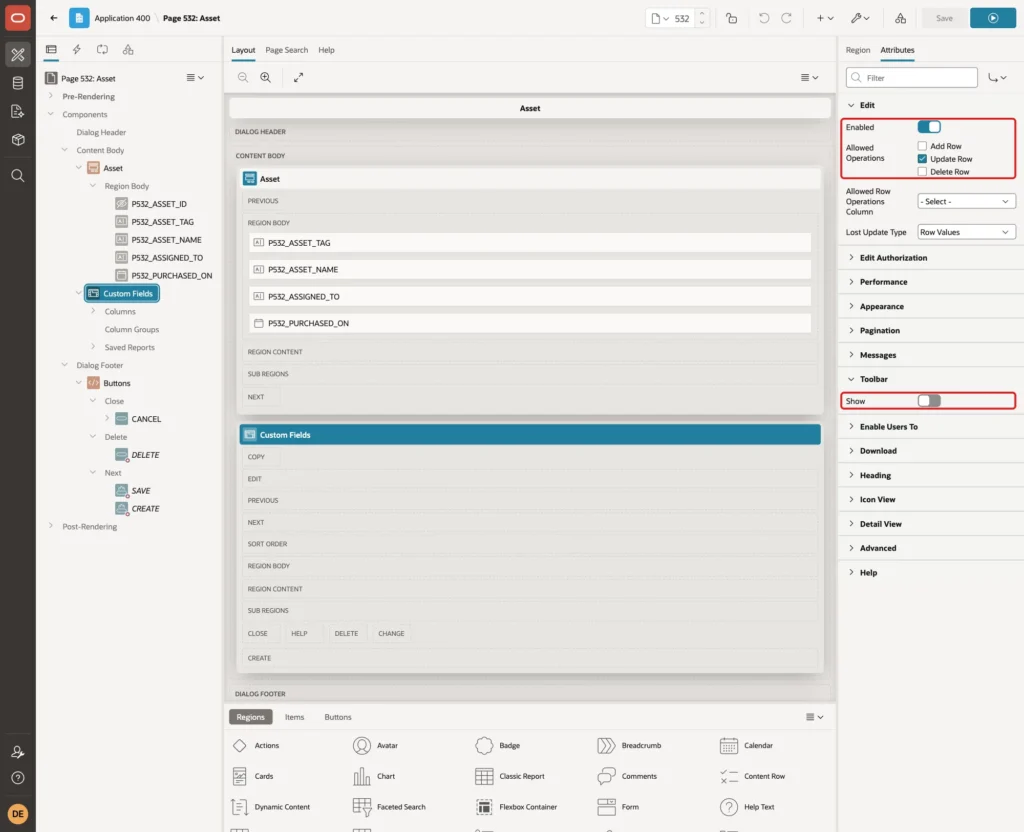
Click the Attributes tab of the region. Turn on Edit > Enabled and allow only Update Row, because users must not add or delete field rows here. Turn off Toolbar > Show; the form's own buttons submit the grid:
Set Up the Grid Columns
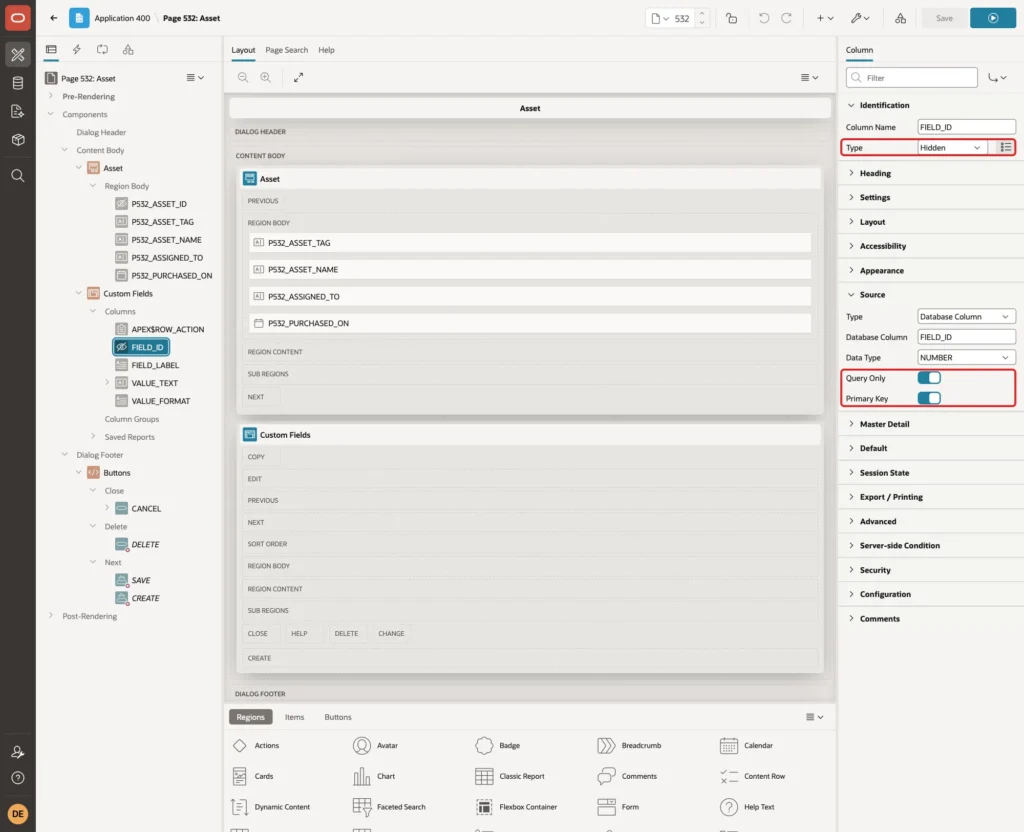
Expand the region's Columns. Select FIELD_ID, keep Type Hidden, and turn on Source > Query Only and Primary Key:
Select FIELD_LABEL. Set Type to Display Only, Heading to Field, and turn on Query Only:
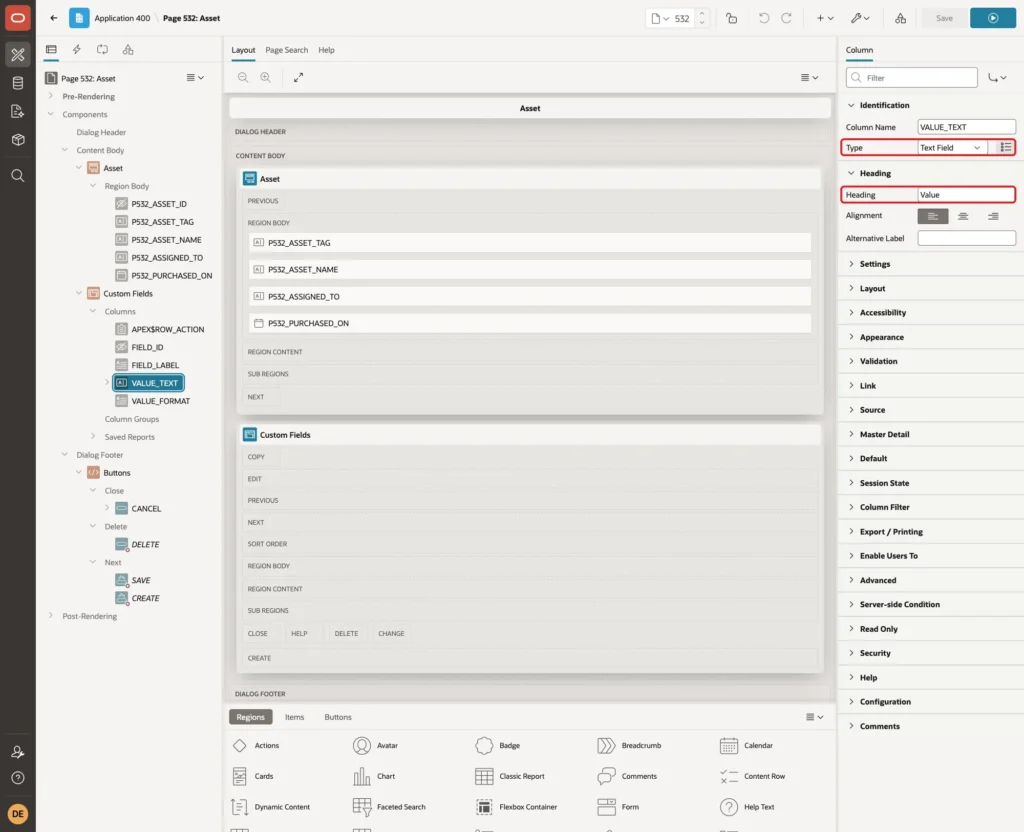
Select VALUE_TEXT. Keep Type Text Field and set Heading to Value. This is the only editable column:
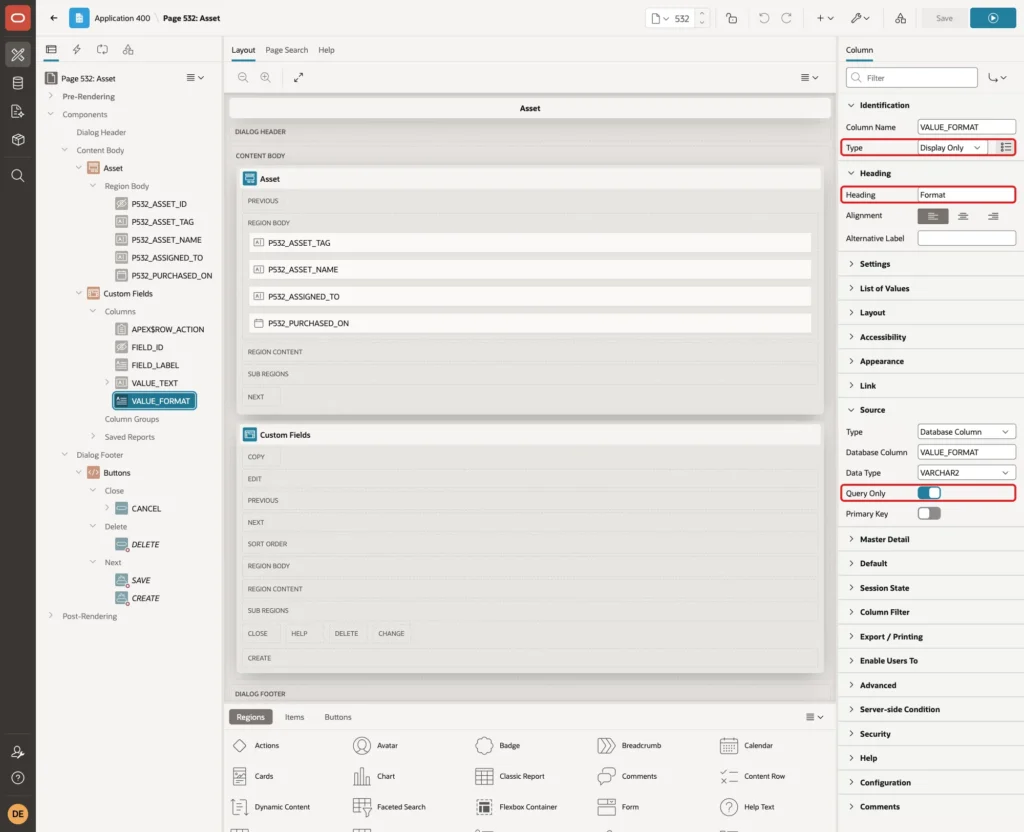
Select VALUE_FORMAT. Set Type to Display Only, Heading to Format, and turn on Query Only:
Step 7: Check Each Value by Its Field Type
One grid validation reads the field definition and checks the value. VALIDATE_CONVERSION tests numbers and dates without raising an error. The FX modifier makes the date format strict, so 2026-2-3 is rejected and only 2026-02-03 passes.
Open the Processing tab, right-click Validations and select Create Validation. Set Name to Custom field value is valid, Editable Region to Custom Fields, and Type to Function Body (returning Error Text). Set Associated Column to VALUE_TEXT so the error appears in the cell:
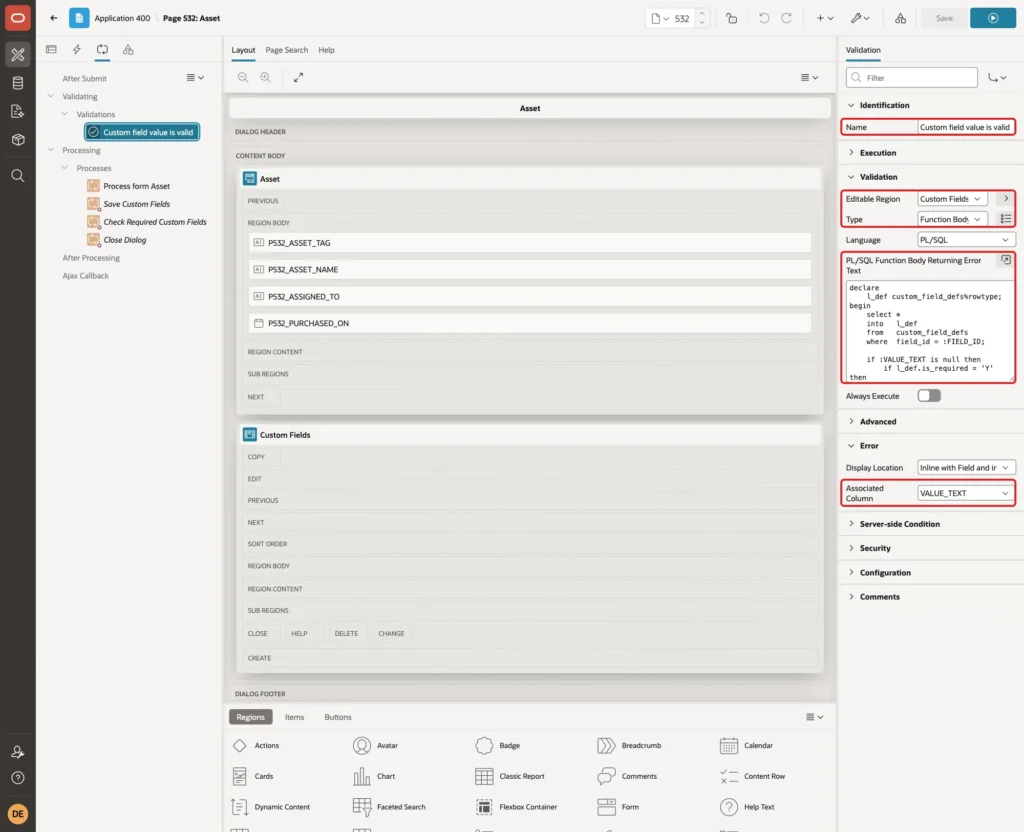
The PL/SQL Function Body Returning Error Text:
Example:
declare
    l_def custom_field_defs%rowtype;
begin
    select *
    into   l_def
    from   custom_field_defs
    where  field_id = :FIELD_ID;

    if :VALUE_TEXT is null then
        if l_def.is_required = 'Y' then
            return l_def.field_label || ' is required.';
        end if;
    elsif l_def.data_type = 'NUMBER'
          and validate_conversion(:VALUE_TEXT as number) = 0 then
        return l_def.field_label || ' must be a number.';
    elsif l_def.data_type = 'DATE'
          and validate_conversion(:VALUE_TEXT as date, 'FXYYYY-MM-DD') = 0 then
        return l_def.field_label || ' must be a date in the format YYYY-MM-DD.';
    elsif l_def.data_type = 'LIST'
          and instr(',' || l_def.list_values || ',', ',' || :VALUE_TEXT || ',') = 0 then
        return l_def.field_label || ' must be one of: '
               || replace(l_def.list_values, ',', ', ') || '.';
    end if;
    return null;
end;
A grid validation runs only for the rows the user changed. That is enough for the type checks, but a required field that nobody touched is never submitted. Step 9 covers that case.
Step 8: Save the Values with PL/SQL
The grid query joins two tables, so APEX cannot save it automatically. Create a process with these properties:
- Name: Save Custom Fields
- Type: Interactive Grid - Automatic Row Processing (DML), Editable Region: Custom Fields
- Target > Target Type: PL/SQL Code
- Execution > Sequence: 20, after the Process form Asset process
- Server-side Condition: Request is contained in Value, Value: CREATE,SAVE
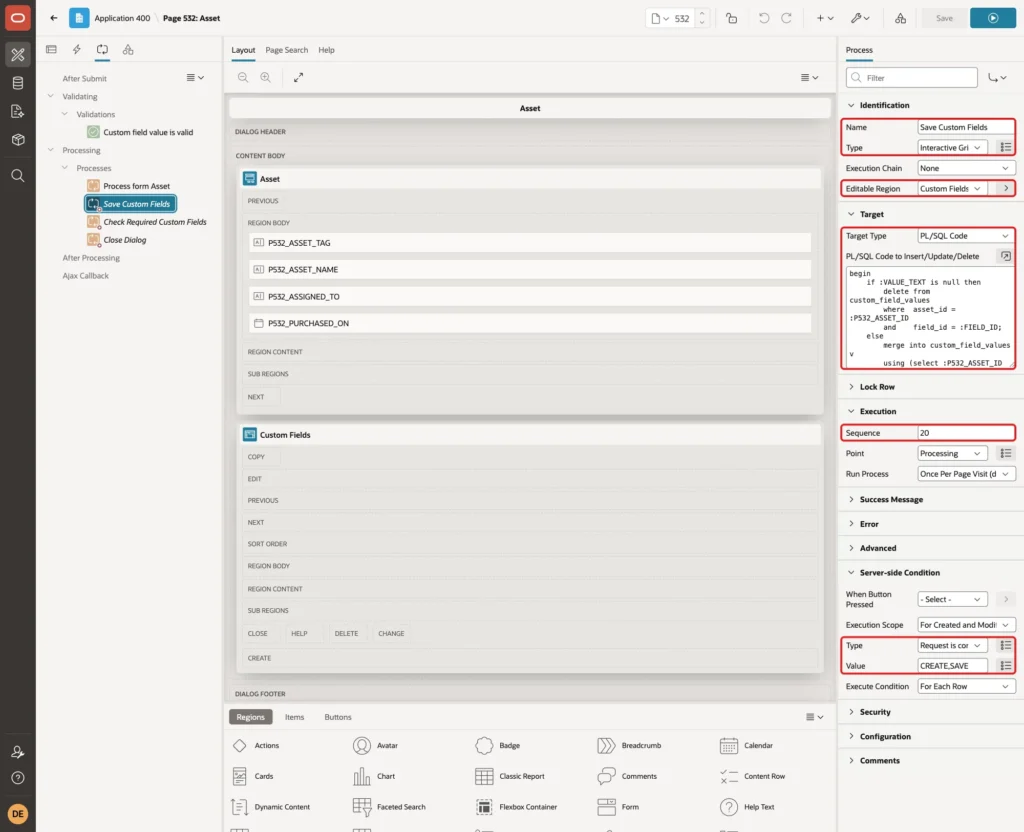
The PL/SQL Code to Insert/Update/Delete runs once for each changed row. An empty value deletes the row; any other value is inserted or updated with MERGE:
Example:
begin
    if :VALUE_TEXT is null then
        delete from custom_field_values
        where  asset_id = :P532_ASSET_ID
        and    field_id = :FIELD_ID;
    else
        merge into custom_field_values v
        using (select :P532_ASSET_ID as asset_id,
                      :FIELD_ID      as field_id,
                      :VALUE_TEXT    as value_text
               from   dual) s
        on (v.asset_id = s.asset_id and v.field_id = s.field_id)
        when matched then
            update set v.value_text = s.value_text
        when not matched then
            insert (asset_id, field_id, value_text)
            values (s.asset_id, s.field_id, s.value_text);
    end if;
end;
The process runs after the form process, so :P532_ASSET_ID already holds the new key when a user creates an asset.
Step 9: Enforce Required Fields on Save
The last check runs after the values are saved. It looks for active required fields that still have no value for the asset and adds an error for each one. Create a process with these properties:
- Name: Check Required Custom Fields
- Type: Execute Code
- Execution > Sequence: 30
- Server-side Condition: Request is contained in Value, Value: CREATE,SAVE
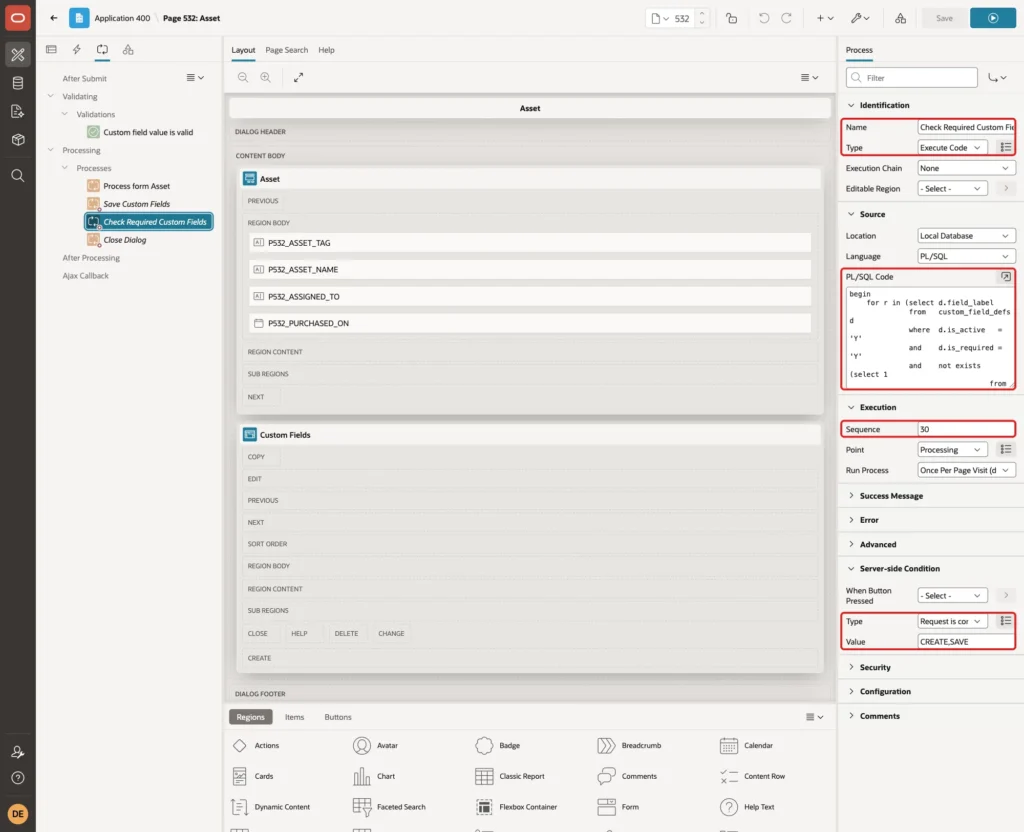
The PL/SQL Code:
Example:
begin
    for r in (select d.field_label
              from   custom_field_defs d
              where  d.is_active   = 'Y'
              and    d.is_required = 'Y'
              and    not exists (select 1
                                 from   custom_field_values v
                                 where  v.field_id = d.field_id
                                 and    v.asset_id = :P532_ASSET_ID)
              order by d.display_seq)
    loop
        apex_error.add_error(
            p_message          => r.field_label || ' is required.',
            p_display_location => apex_error.c_inline_in_notification);
    end loop;
end;
When APEX_ERROR.ADD_ERROR adds an error in a process, APEX stops the page processing and rolls back. The asset row and the custom values of that submit are not saved, and the dialog stays open with the message. The test in this guide confirms it.
Step 10: Show the Custom Fields in the Report
The report can list all values of an asset in one column. Open page 531, select the Assets region, set Source > Type to SQL Query and enter this query:
Example:
select a.asset_id,
       a.asset_tag,
       a.asset_name,
       a.assigned_to,
       a.purchased_on,
       (select listagg(d.field_label || ': ' || v.value_text, '; ')
                 within group (order by d.display_seq)
        from   custom_field_values v
        join   custom_field_defs d on d.field_id = v.field_id
        where  v.asset_id  = a.asset_id
        and    d.is_active = 'Y') as custom_fields
from   assets a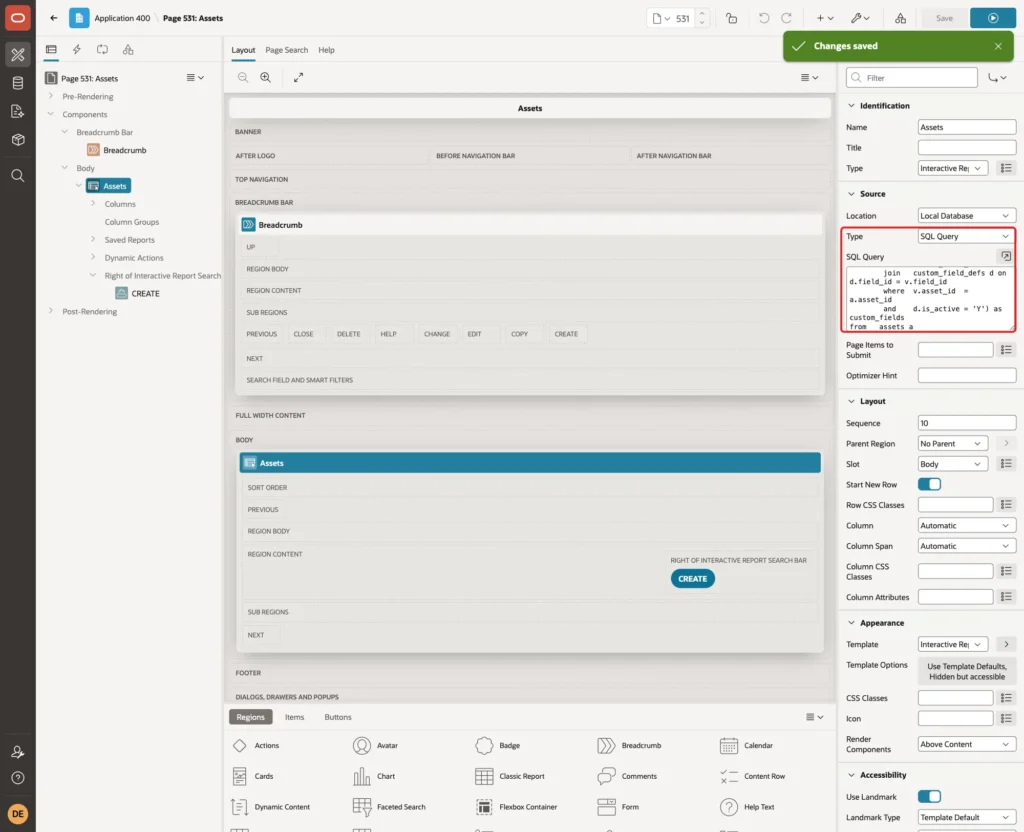
APEX adds the new CUSTOM_FIELDS column to the region, but the saved default report does not show it yet. Run the page as a developer, open Actions > Columns and move Custom Fields to Display in Report:
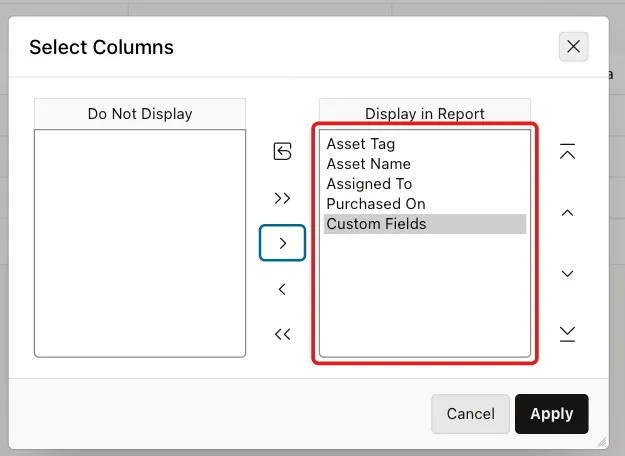
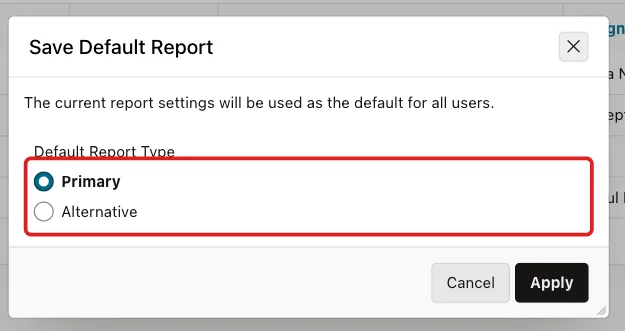
Click Apply. Then open Actions > Report > Save Report, select As Default Report Settings, keep Primary and click Apply:
Test the Custom Fields
Define New Fields
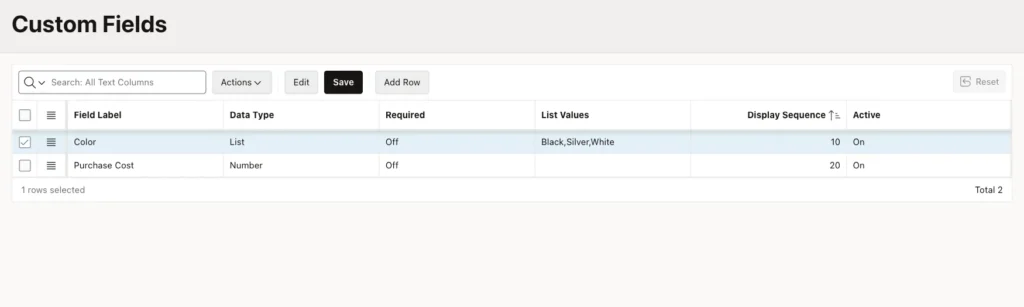
Log in as an administrator and open the Custom Fields page. It lists the two sample fields:
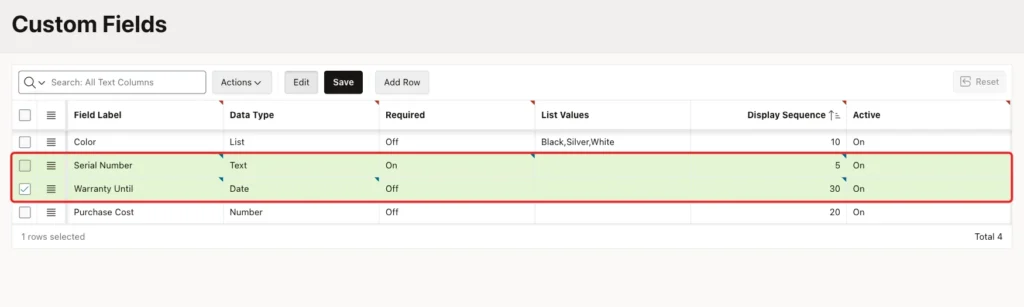
Click Add Row twice and enter Serial Number (Text, Required on, sequence 5) and Warranty Until (Date, sequence 30):
Click Save. After a reload, the grid shows the four fields in display order:
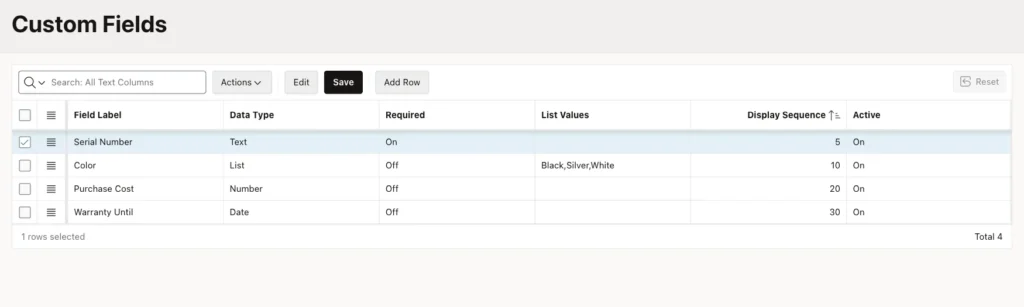
The table now has four definitions:
Example:
select field_id, field_label, data_type, is_required, list_values, display_seq, is_active
from custom_field_defs
order by display_seq;
Output:
   FIELD_ID FIELD_LABEL       DATA_TYPE    IS_REQUIRED    LIST_VALUES              DISPLAY_SEQ IS_ACTIVE
___________ _________________ ____________ ______________ _____________________ ______________ ____________
         41 Serial Number     TEXT         Y                                                 5 Y
          1 Color             LIST         N              Black,Silver,White                10 Y
          2 Purchase Cost     NUMBER       N                                                20 Y
         42 Warranty Until    DATE         N                                                30 Y
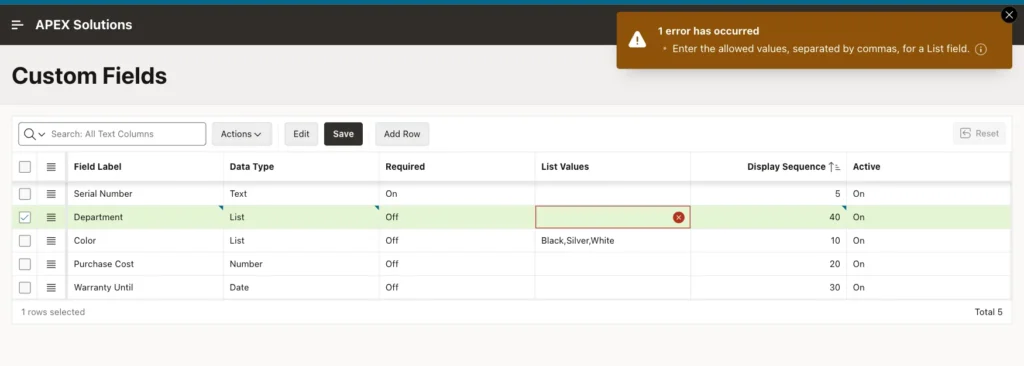
Next, add a row named Department with the type List but no list values, and click Save. The validation stops it with a clear message:
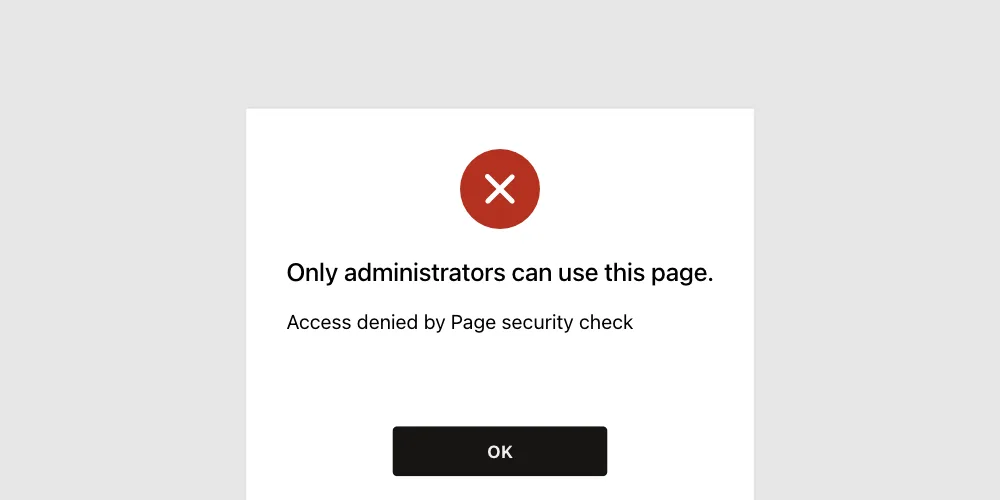
A user without the administrator role, SALES_USER in this example, cannot open the page at all:
Open a Record
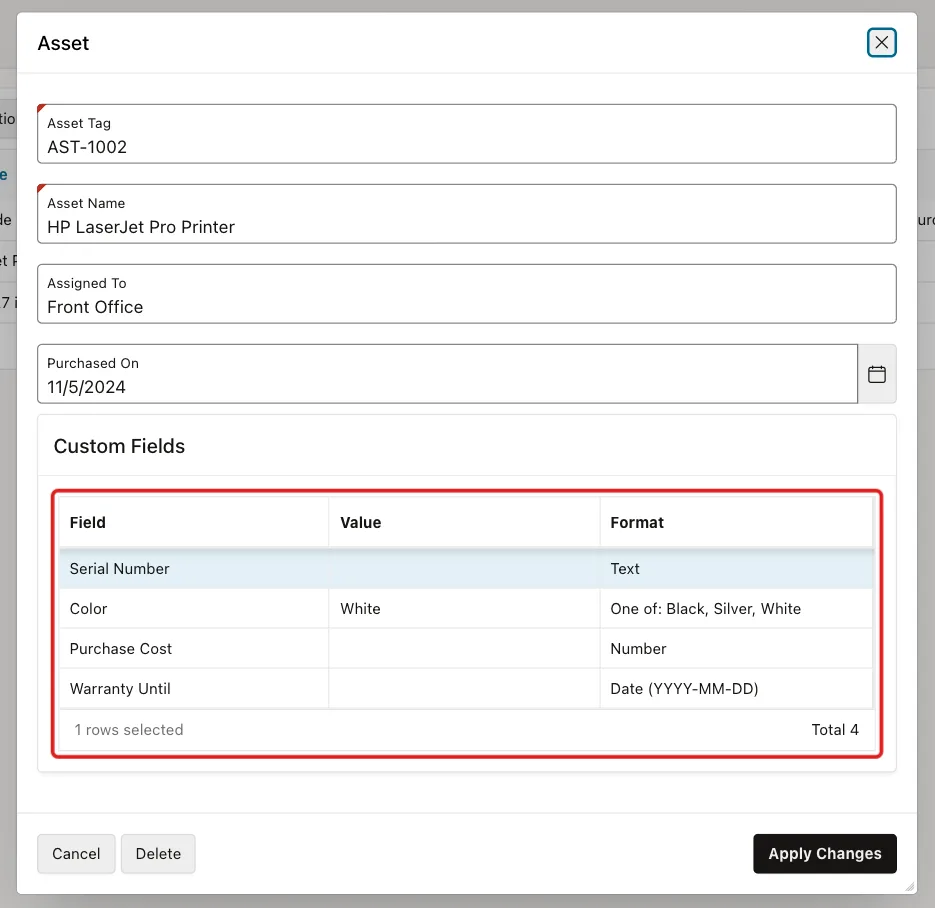
Open the Assets page and edit AST-1002. The new fields appear on the form at once, in display order, with the format hints:
Required Field
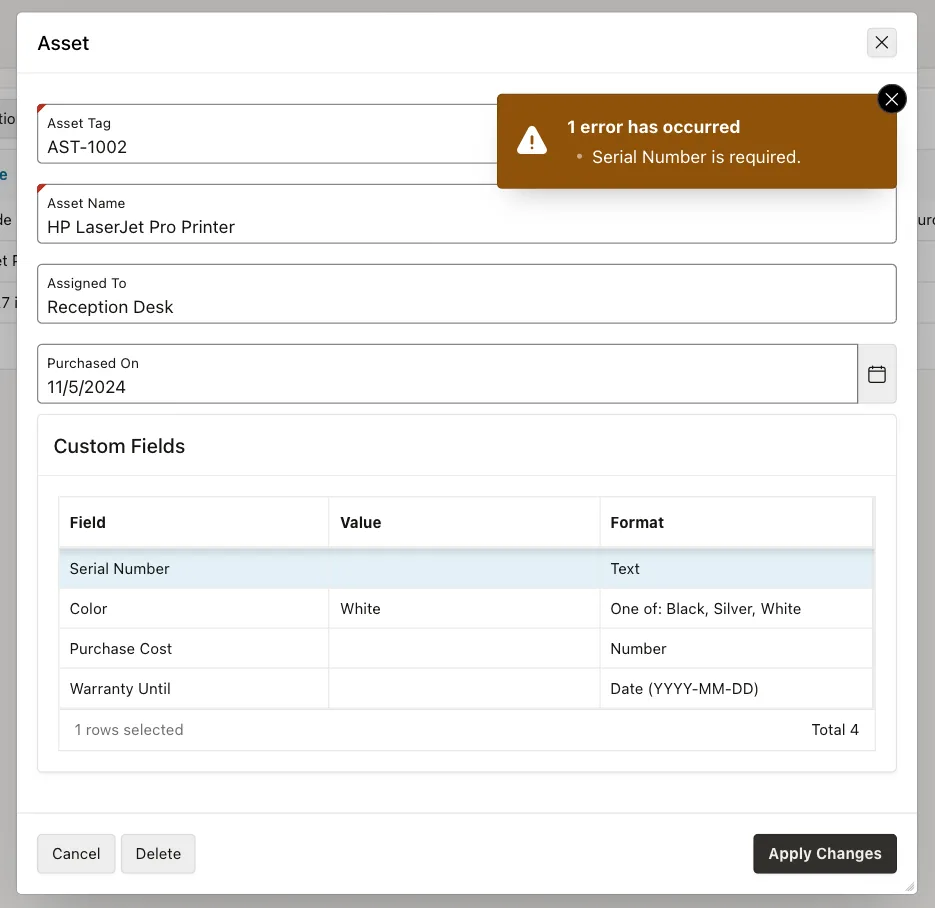
Change Assigned To to Reception Desk and click Apply Changes without a serial number. The required check stops the save:
The rollback kept the old Assigned To value, and the asset still has only its color:
Example:
select asset_tag, assigned_to
from assets
where asset_tag = 'AST-1002';

select count(*) as value_rows
from custom_field_values v
join assets a on a.asset_id = v.asset_id
where a.asset_tag = 'AST-1002';
Output:
ASSET_TAG    ASSIGNED_TO
____________ _______________
AST-1002     Front Office

   VALUE_ROWS
_____________
            1
Wrong Formats
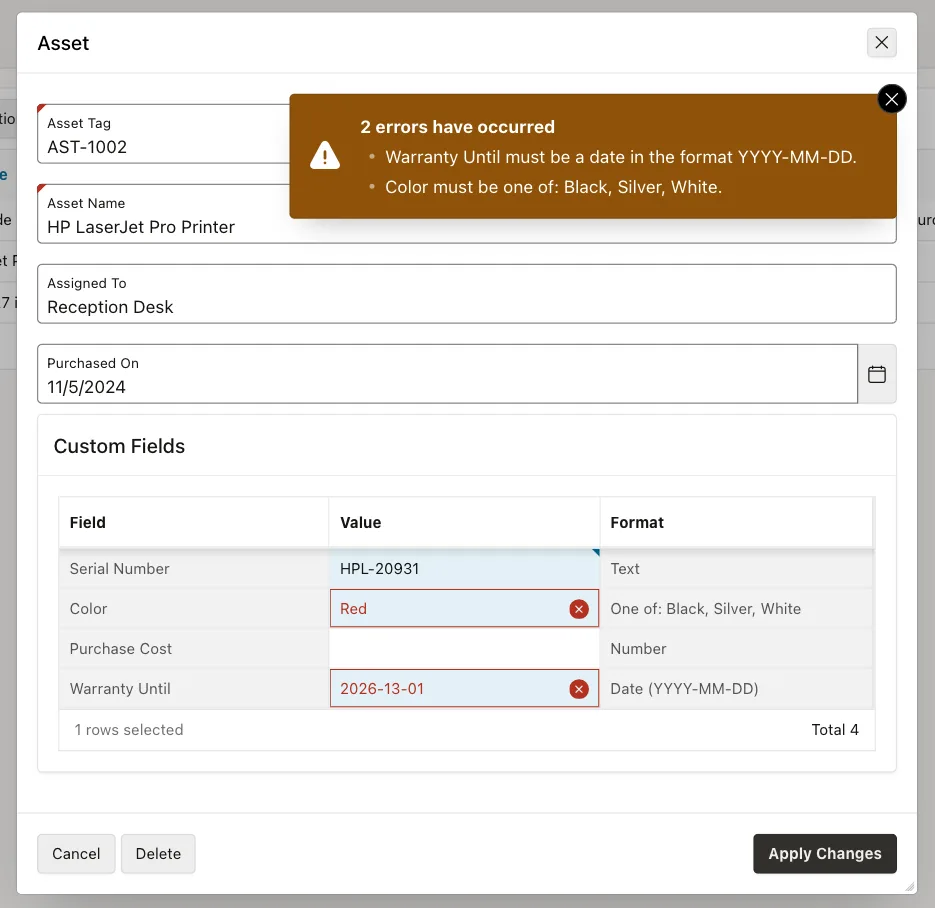
Enter HPL-20931 as the serial number, 2026-13-01 as the warranty date and Red as the color. Click Apply Changes. Both wrong values are marked in their cells:
Valid Values
Correct the warranty date to 2027-11-05 and the color to Black:
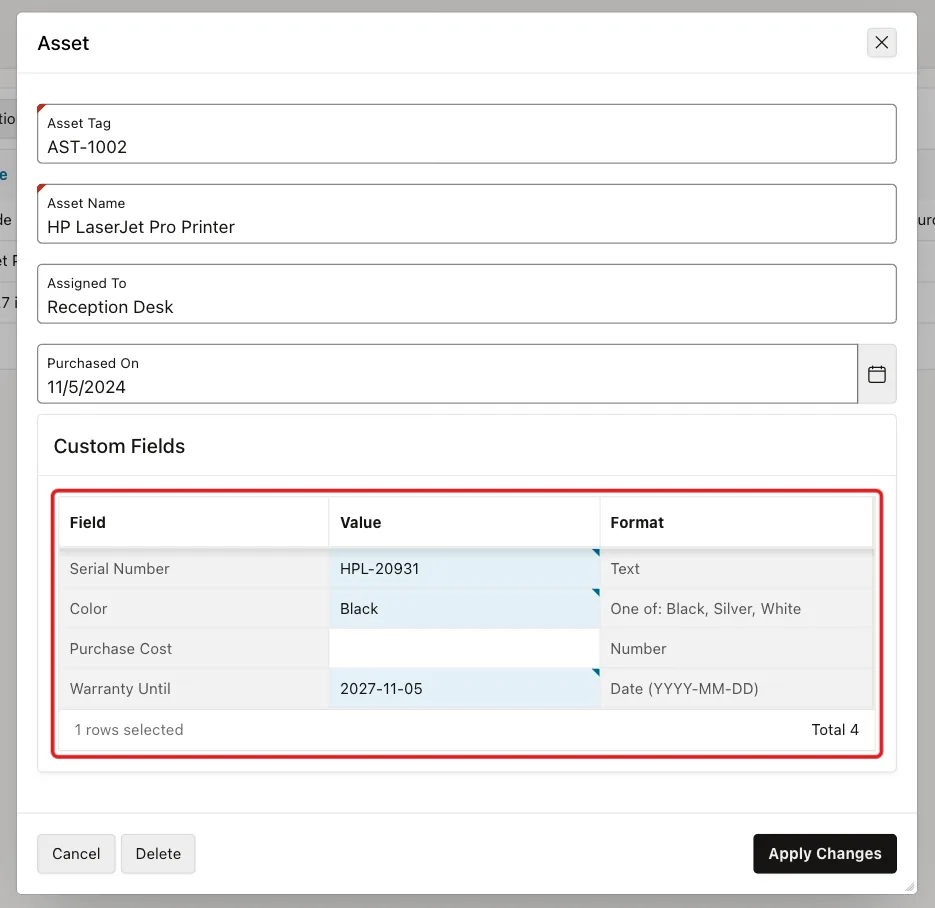
Click Apply Changes. The dialog closes with "Row updated."
A New Record
Click Create, enter AST-1004 and Logitech Conference Camera, and click Create without a serial number. The required check stops it here too:
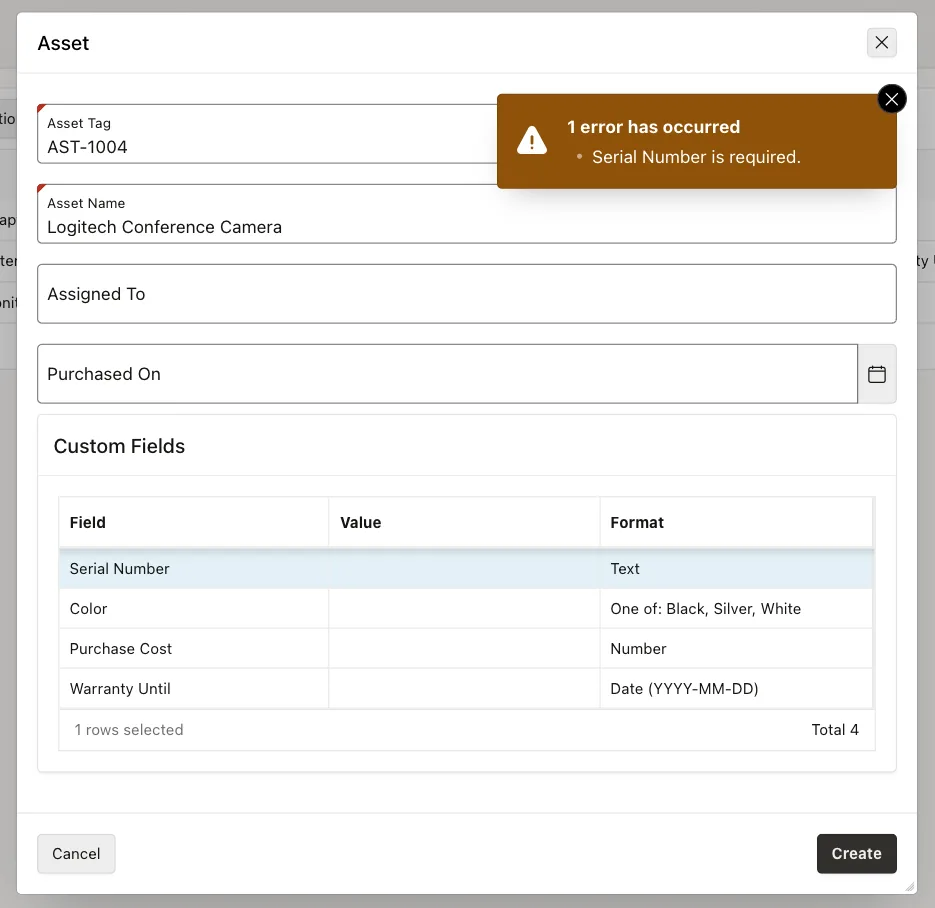
Enter LGC-55120 as the serial number and click Create. APEX creates the asset, and the values of both assets are in the table:
Example:
select a.asset_tag, a.assigned_to, d.field_label, v.value_text
from custom_field_values v
join assets a on a.asset_id = v.asset_id
join custom_field_defs d on d.field_id = v.field_id
where a.asset_tag in ('AST-1002', 'AST-1004')
order by a.asset_tag, d.display_seq;
Output:
ASSET_TAG    ASSIGNED_TO       FIELD_LABEL       VALUE_TEXT
____________ _________________ _________________ _____________
AST-1002     Reception Desk    Serial Number     HPL-20931
AST-1002     Reception Desk    Color             Black
AST-1002     Reception Desk    Warranty Until    2027-11-05
AST-1004                       Serial Number     LGC-55120
The failed first attempt left no asset row behind, so the second click created the asset only once.
Clear a Value
Edit AST-1001, enter the serial number DLL-5440-778 and clear Purchase Cost. Click Apply Changes. The save process deleted the Purchase Cost row:
Example:
select a.asset_tag, d.field_label, v.value_text
from custom_field_values v
join assets a on a.asset_id = v.asset_id
join custom_field_defs d on d.field_id = v.field_id
where a.asset_tag = 'AST-1001'
order by d.display_seq;
Output:
ASSET_TAG    FIELD_LABEL      VALUE_TEXT
____________ ________________ _______________
AST-1001     Serial Number    DLL-5440-778
AST-1001     Color            Black
A first try without the serial number was blocked with "Serial Number is required." A field marked as required applies to old records too, the next time someone saves them.
The Report
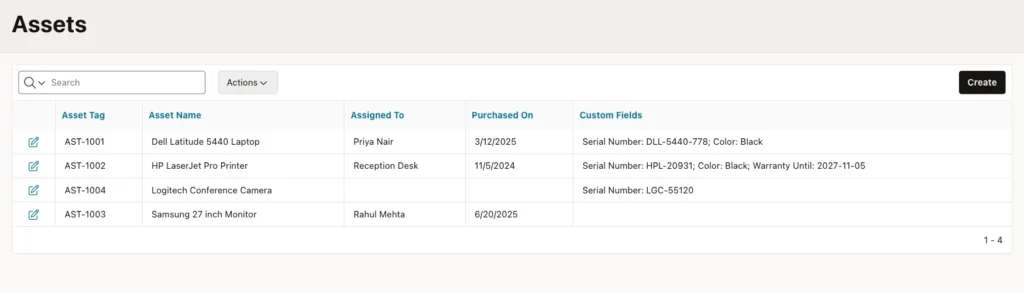
The Assets report lists each asset's custom values in the Custom Fields column:
Things to Know
- All values are stored as text. Store dates in one fixed format (here YYYY-MM-DD with FX) and convert them in queries with TO_DATE or TO_NUMBER when you need to sort or calculate.
- Grid validations run only for changed rows. Check required fields in a process after the save, or an untouched empty field passes.
- APEX_ERROR.ADD_ERROR in a process rolls back the whole submit, including the record row created by the form process.
- Give the grid query an ORDER BY. Without it, the fields came in a random order on the form.
- Turning off a field with Active hides it from forms and from the report but keeps the stored values.
- A new required field blocks the next save of every older record until a user enters a value.
- A new column in an interactive report source does not show in the saved default report until you add it and save the report again.
- Many custom fields per record make queries harder. Use real columns for data that every record needs and that users filter or sort on often.
Related Guides
- How to Manage All Lookup Values from One Page in Oracle APEX
- How to Edit JSON Column Data in a Form in Oracle APEX
Conclusion
With a definitions table, a values table and an editable grid on the form, administrators in Oracle APEX can add custom fields at runtime. Every record form shows the new fields at once, and no page or table change is needed.
Constraints protect the tables, a grid validation checks each value by its type, and a process after the save enforces required fields with a full rollback. A LISTAGG column brings the values into the report.
