
A notification bell tells users that something happened that concerns them: a request was approved, a task was assigned, a document was shared. The bell sits in the navigation bar on every page, shows how many notifications are unread, and opens a list of them with one click.
Oracle APEX has no ready-made notification bell, but its parts are all declarative: a Navigation Bar entry with a badge, an Inline Drawer region on the Global Page, the Media List report template, and one dynamic action.
This guide stores notifications in a table, creates one when a travel request is approved or rejected, and marks them as read with Ajax. Travel requests are only the example; the same steps work for any table or event.
The guide How to Show Badge Counts on Navigation Menu Entries in Oracle APEX shows counts of open records next to menu entries. This guide adds what a count alone cannot do: a stored message per user, a read state, a list in a drawer, and a badge that updates without reloading the page.
The guide How to Show a Dismissible Announcement Banner to All Users in Oracle APEX shows the same message to every user. Notifications here are personal: each row belongs to one user and is created by an event in the application.
Step 1: Create the Tables
The example needs two tables and a small procedure. USER_NOTIFICATIONS holds the notifications of every user. TRAVEL_REQUESTS is the example data whose approval creates a notification. NOTIFY_USER is the one place that inserts a notification, so any page, process or automation can call it:
Example:
create table user_notifications (
    notification_id number generated by default on null as identity,
    user_name       varchar2(255) not null,
    message         varchar2(400) not null,
    link_page       number,
    created_on      date          default on null sysdate not null,
    read_on         date,
    constraint user_notifications_pk primary key (notification_id),
    constraint user_notifications_read_ck check (read_on is null or read_on >= created_on)
);

create index user_notifications_user_ix on user_notifications (user_name, read_on);

create table travel_requests (
    request_id   number generated by default on null as identity,
    requested_by varchar2(255) default on null
                     coalesce(sys_context('APEX$SESSION', 'APP_USER'),
                              sys_context('USERENV', 'SESSION_USER')) not null,
    destination  varchar2(100) not null,
    travel_date  date          not null,
    purpose      varchar2(200) not null,
    status       varchar2(10)  default on null 'PENDING' not null,
    decided_by   varchar2(255),
    decided_on   date,
    constraint travel_requests_pk primary key (request_id),
    constraint travel_requests_status_ck check (status in ('PENDING', 'APPROVED', 'REJECTED')),
    constraint travel_requests_decided_ck check (
        (status = 'PENDING' and decided_by is null and decided_on is null)
        or (status <> 'PENDING' and decided_by is not null and decided_on is not null))
);

create index travel_requests_status_ix on travel_requests (status, requested_by);

create or replace procedure notify_user (
    p_user_name in varchar2,
    p_message   in varchar2,
    p_link_page in number default null)
is
begin
    insert into user_notifications (user_name, message, link_page)
    values (upper(p_user_name), p_message, p_link_page);
end notify_user;
/

insert into travel_requests (requested_by, destination, travel_date, purpose)
values ('SALES_USER', 'Munich', trunc(sysdate) + 10, 'Customer visit');

insert into travel_requests (requested_by, destination, travel_date, purpose)
values ('SALES_USER', 'Lisbon', trunc(sysdate) + 21, 'Trade fair');

insert into travel_requests (requested_by, destination, travel_date, purpose)
values ('ORDER_EDITOR', 'Vienna', trunc(sysdate) + 14, 'Supplier meeting');

insert into travel_requests (requested_by, destination, travel_date, purpose, status, decided_by, decided_on)
values ('SALES_USER', 'Berlin', trunc(sysdate) - 5, 'Sales training', 'APPROVED', 'DEMO_DEV', sysdate - 12);

insert into user_notifications (user_name, message, link_page, created_on, read_on)
values ('SALES_USER', 'Your travel request to Berlin was approved by DEMO_DEV.', 1090, sysdate - 12, sysdate - 11);

insert into user_notifications (user_name, message, created_on)
values ('DEMO_DEV', 'The travel policy was updated. Please read the new limits.', sysdate - 2);

insert into user_notifications (user_name, message, link_page, created_on)
values ('DEMO_DEV', 'Three travel requests are waiting for your decision.', 1090, sysdate - 1/24);

commit;

select request_id, requested_by, destination,
       to_char(travel_date, 'YYYY-MM-DD') as travel_date, status, decided_by
from   travel_requests
order  by request_id;

select notification_id, user_name, message, link_page,
       case when read_on is null then 'UNREAD' else 'READ' end as state
from   user_notifications
order  by notification_id;
Output:
Table USER_NOTIFICATIONS created.

Index USER_NOTIFICATIONS_USER_IX created.

Table TRAVEL_REQUESTS created.

Index TRAVEL_REQUESTS_STATUS_IX created.

Procedure NOTIFY_USER compiled

1 row inserted.

1 row inserted.

1 row inserted.

1 row inserted.

1 row inserted.

1 row inserted.

1 row inserted.

Commit complete.

   REQUEST_ID REQUESTED_BY    DESTINATION    TRAVEL_DATE    STATUS      DECIDED_BY
_____________ _______________ ______________ ______________ ___________ _____________
            1 SALES_USER      Munich         2026-11-03     PENDING
            2 SALES_USER      Lisbon         2026-11-14     PENDING
            3 ORDER_EDITOR    Vienna         2026-11-07     PENDING
            4 SALES_USER      Berlin         2026-10-19     APPROVED    DEMO_DEV

   NOTIFICATION_ID USER_NAME     MESSAGE                                                          LINK_PAGE STATE
__________________ _____________ _____________________________________________________________ ____________ _________
                 1 SALES_USER    Your travel request to Berlin was approved by DEMO_DEV.               1090 READ
                 2 DEMO_DEV      The travel policy was updated. Please read the new limits.                 UNREAD
                 3 DEMO_DEV      Three travel requests are waiting for your decision.                  1090 UNREAD
A few details in the tables:
- READ_ON is empty while a notification is unread. The index USER_NOTIFICATIONS_USER_IX on USER_NAME and READ_ON supports the unread count that runs on every page.
- LINK_PAGE is the page a notification opens. The page number is stored instead of a URL, because a URL contains the session ID and would not work in the next session.
- CREATED_ON, REQUESTED_BY and STATUS use DEFAULT ON NULL, so no trigger is needed for them.
- TRAVEL_REQUESTS_DECIDED_CK makes sure a decided request always has DECIDED_BY and DECIDED_ON, and a pending one has neither.
The sample data has three pending requests, one approved request with a read notification for SALES_USER, and two unread notifications for DEMO_DEV, the administrator in this example.
Step 2: Create the Travel Requests Page
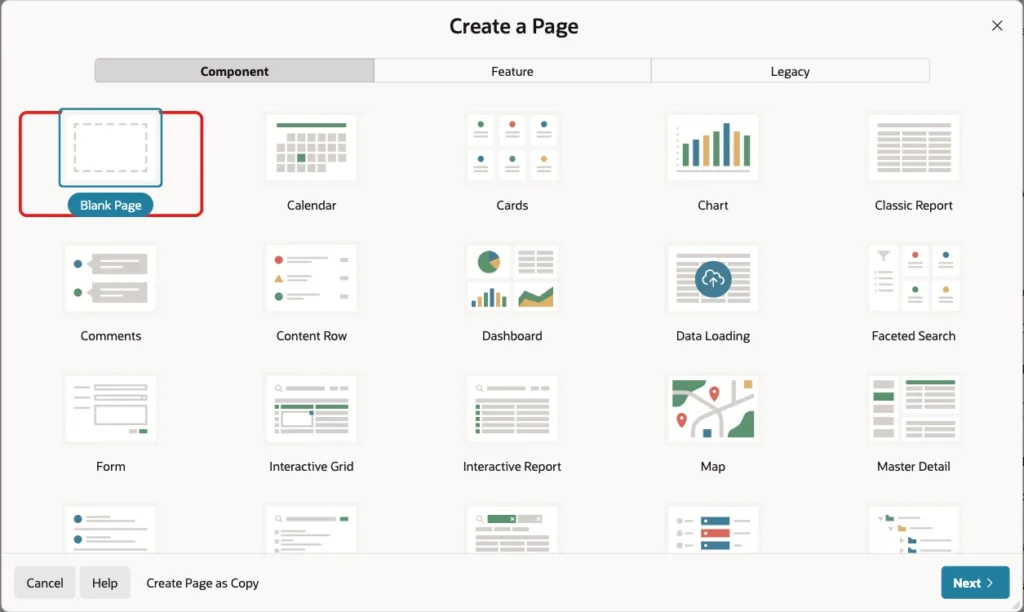
The Travel Requests page lists the requests and lets administrators approve or reject them. In App Builder, open the application and click Create Page. On the Component tab, select Blank Page:
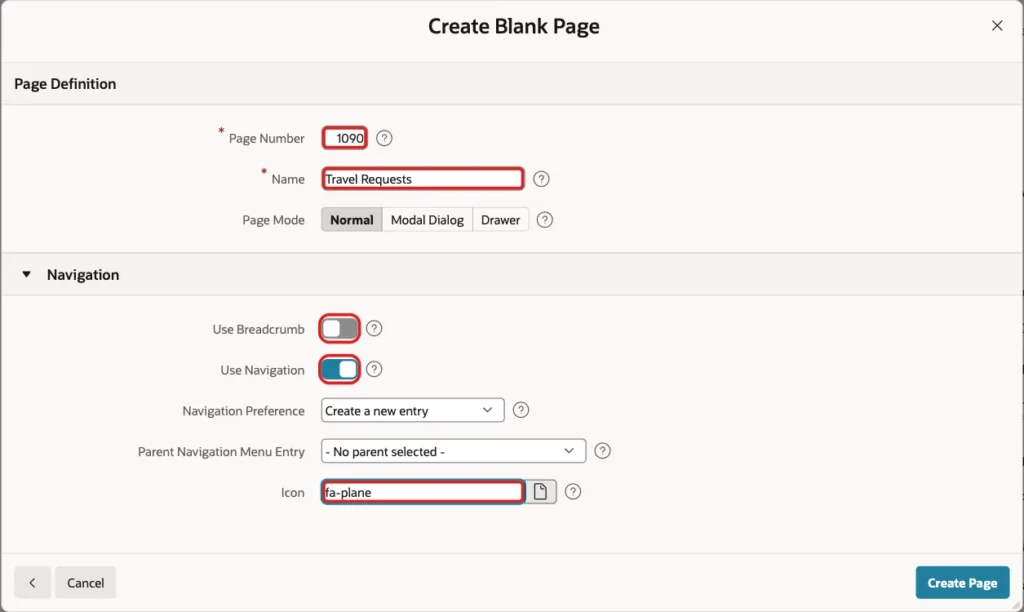
Set Page Number to 1090 and Name to Travel Requests. Turn Use Breadcrumb off, keep Use Navigation on with Create a new entry, set Icon to fa-plane and click Create Page:
Step 3: Add the Travel Requests Report
In Page Designer, right-click Body and choose Create Region. Set Name to Travel Requests and Type to Classic Report. Under Source, keep Type SQL Query and enter this query:
Example:
select r.request_id,
       r.requested_by,
       r.destination,
       r.travel_date,
       r.purpose,
       r.status,
       r.decided_by,
       case when r.status = 'PENDING' then 'Approve' end as approve_label,
       case when r.status = 'PENDING' then 'Reject' end as reject_label
from   travel_requests r
where  r.requested_by = :APP_USER
or     apex_authorization.is_authorized('Is Administrator')
order  by r.travel_date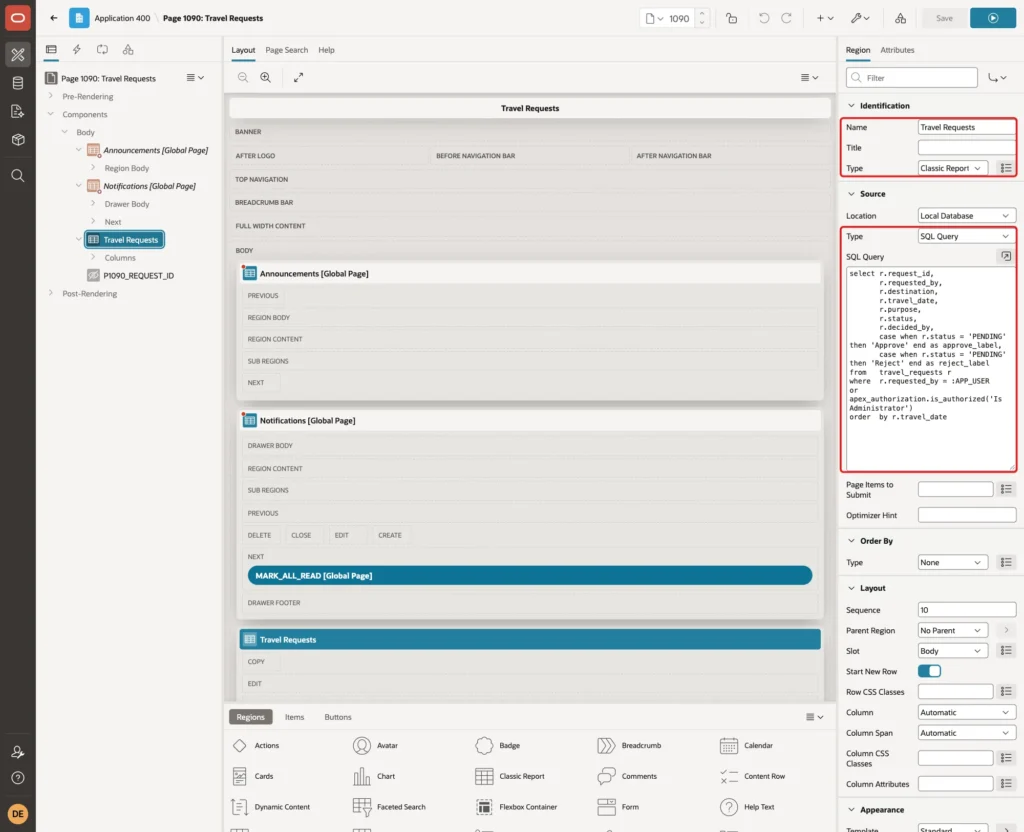
Users see their own requests, and administrators see all of them. APPROVE_LABEL and REJECT_LABEL are filled only for pending requests. A link column with an empty link text renders nothing, so decided rows show no links.
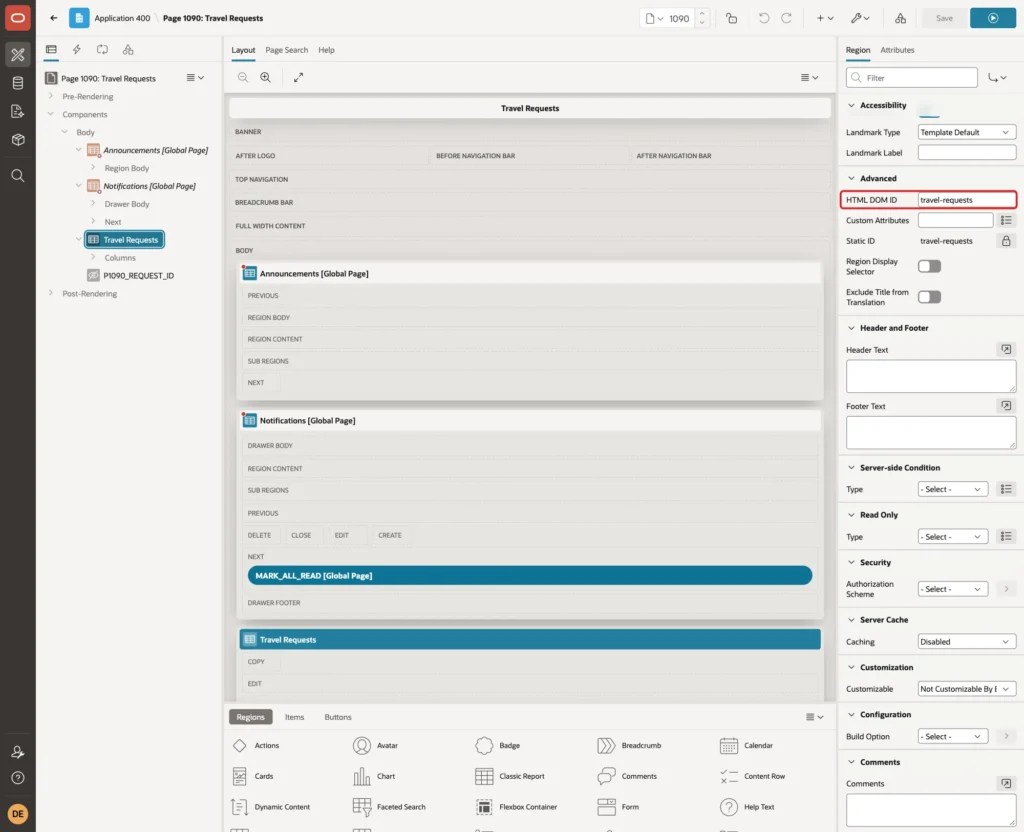
Under Advanced, set HTML DOM ID to travel-requests:
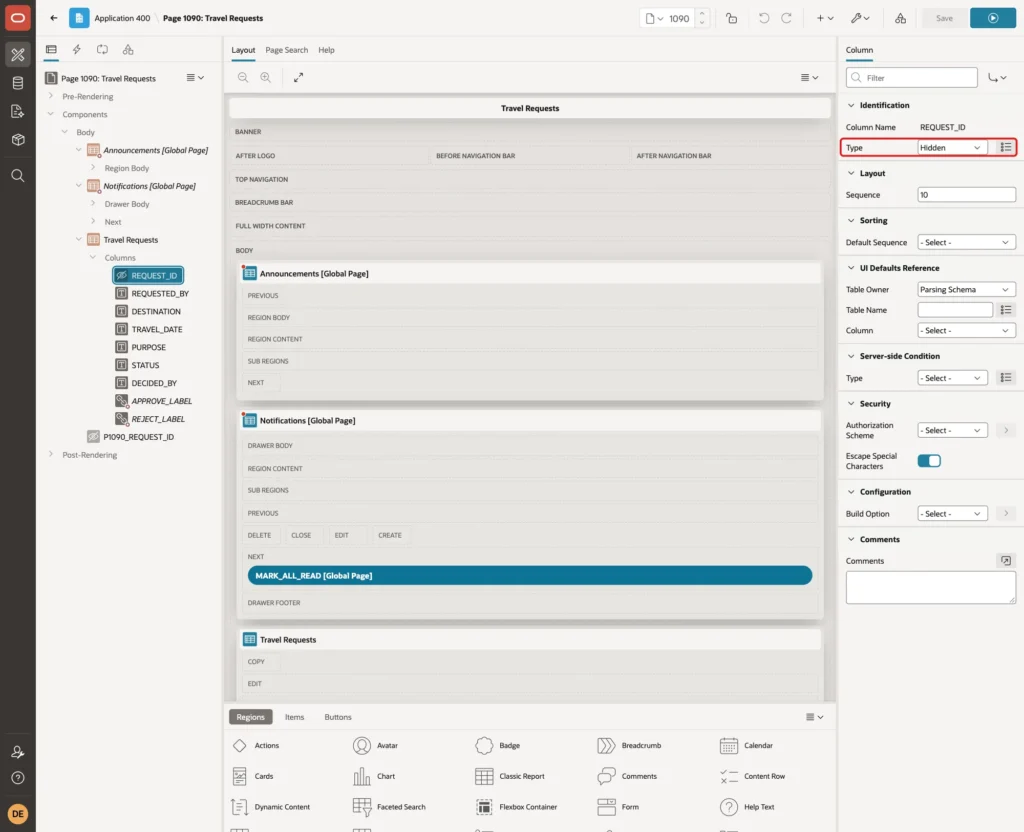
Expand the region's Columns and select REQUEST_ID. Set Type to Hidden Column:
Select APPROVE_LABEL. Set Type to Link. Under Link, click Target, set Type to URL and enter the URL below. Set Link Text to #APPROVE_LABEL#:
Example:
javascript:apex.page.submit({request: 'APPROVE', set: {'P1090_REQUEST_ID': '#REQUEST_ID#'}});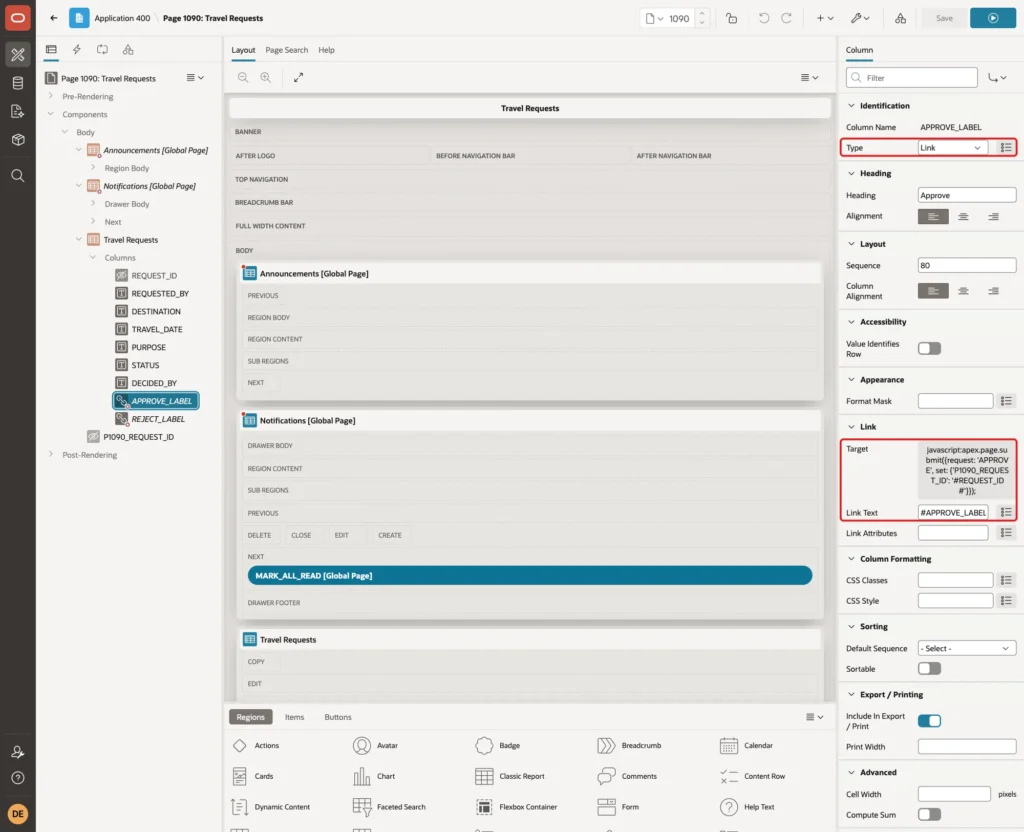
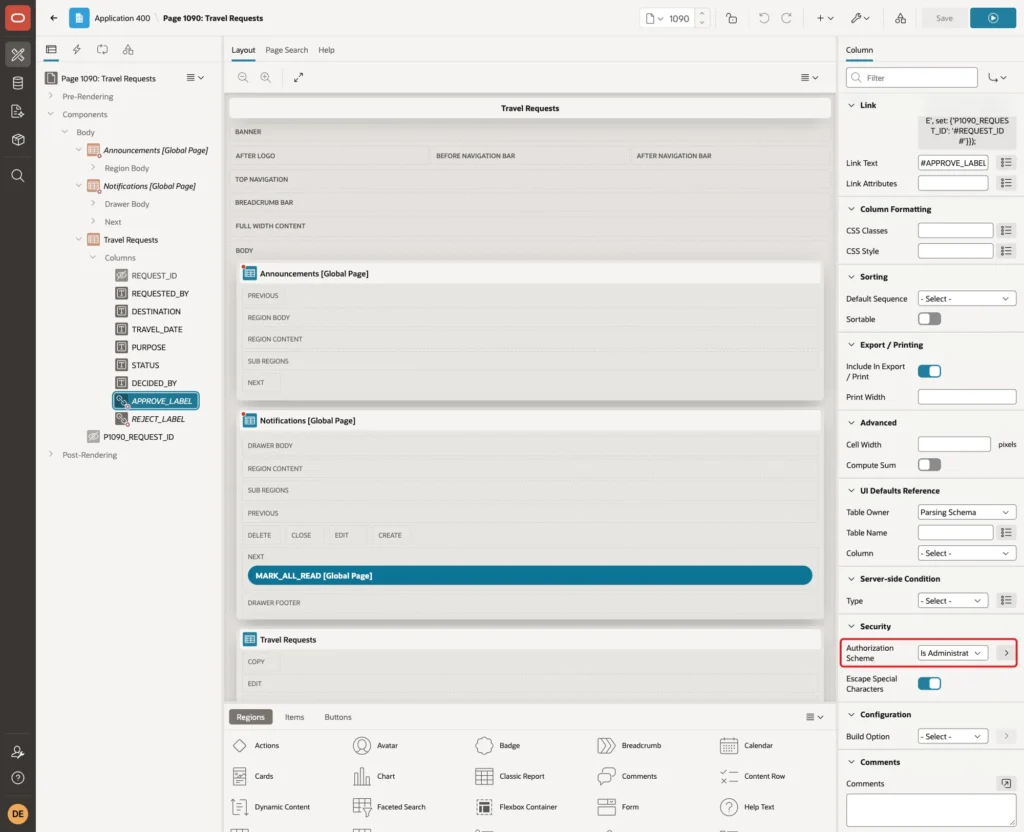
Under Security, set Authorization Scheme to Is Administrator, so only administrators see the column:
Set up REJECT_LABEL the same way, with request REJECT in the URL and #REJECT_LABEL# as Link Text. Is Administrator is an authorization scheme of the example application; use the scheme that marks your own approvers.
Step 4: Add the Hidden Item and the Decide Process
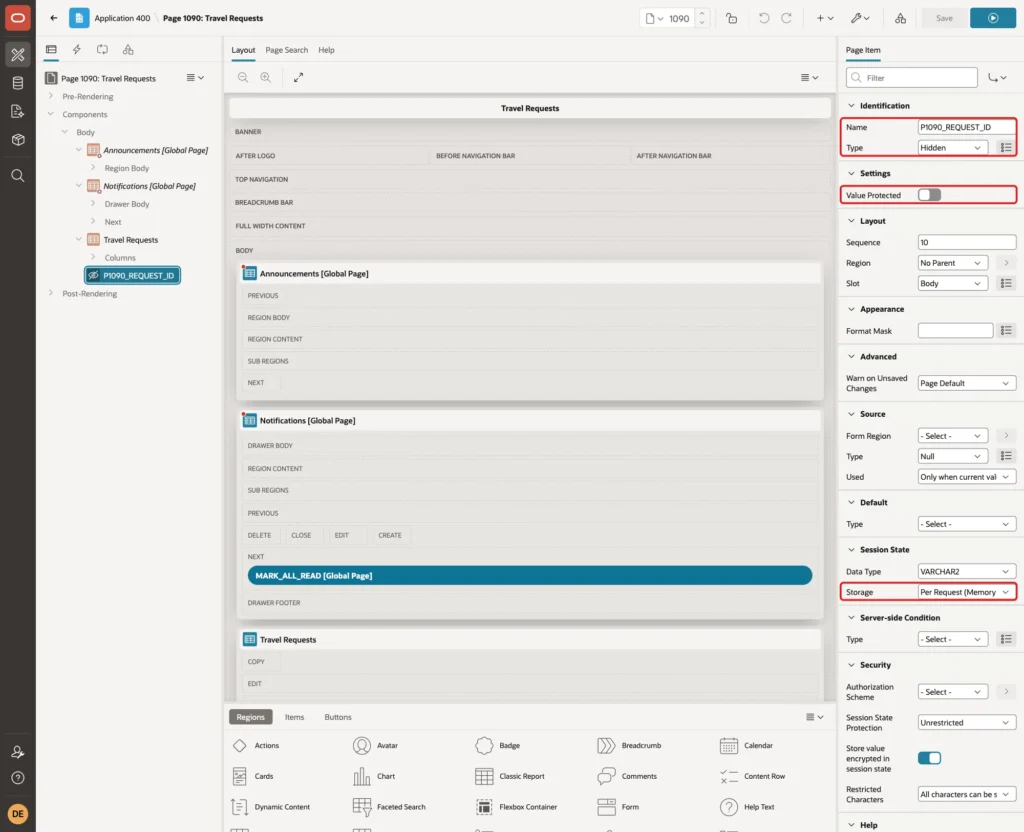
Right-click Body and choose Create Page Item. Set Name to P1090_REQUEST_ID and Type to Hidden. Turn Value Protected off, because JavaScript sets the value. Under Session State, set Storage to Per Request (Memory Only):
Open the Processing tab, right-click Processing and choose Create Process. Set Name to Decide Request and Type to Execute Code, and enter this PL/SQL code:
Example:
declare
    l_status       travel_requests.status%type;
    l_requested_by travel_requests.requested_by%type;
    l_destination  travel_requests.destination%type;
begin
    l_status := case :REQUEST when 'APPROVE' then 'APPROVED' else 'REJECTED' end;

    update travel_requests
    set    status     = l_status,
           decided_by = :APP_USER,
           decided_on = sysdate
    where  request_id = to_number(:P1090_REQUEST_ID default null on conversion error)
    and    status     = 'PENDING'
    returning requested_by, destination into l_requested_by, l_destination;

    if sql%rowcount = 0 then
        raise_application_error(-20001, 'This request was already decided.');
    end if;

    notify_user(
        p_user_name => l_requested_by,
        p_message   => 'Your travel request to ' || l_destination || ' was '
                       || lower(l_status) || ' by ' || :APP_USER || '.',
        p_link_page => 1090);
end;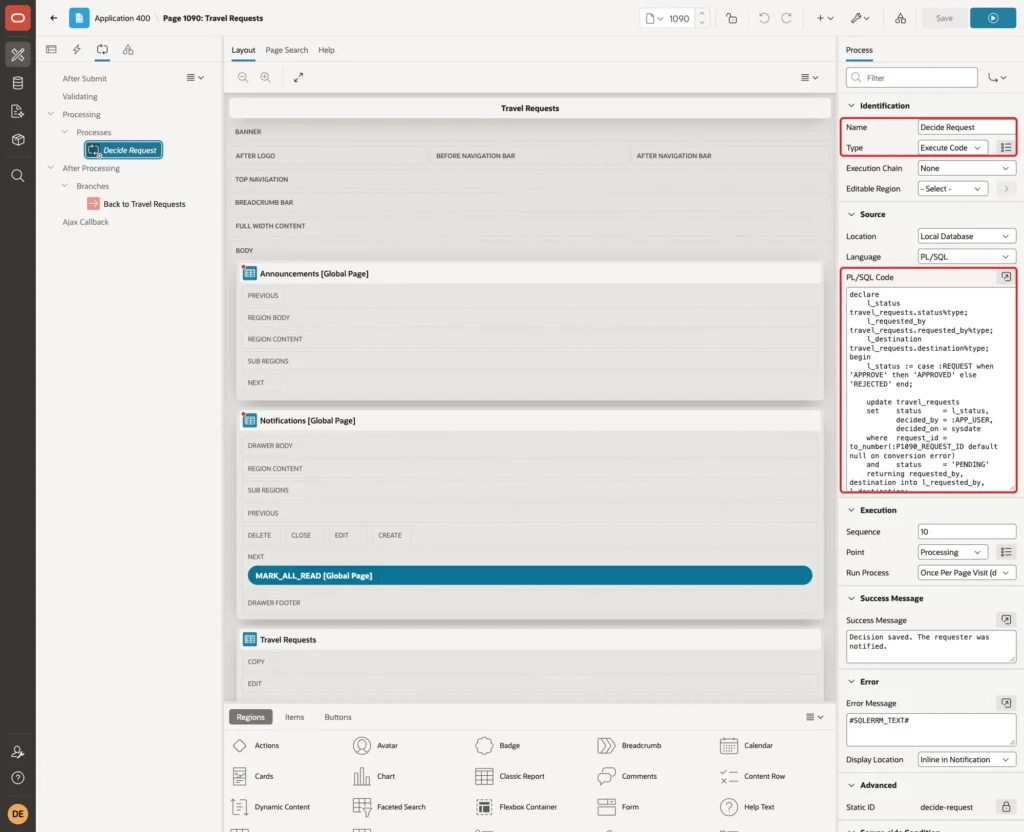
The UPDATE changes only a pending request and returns the requester and destination. When no row was updated, the request was decided already, and the process raises an error. Otherwise NOTIFY_USER creates the notification in the same transaction, so a decision and its notification are saved together.
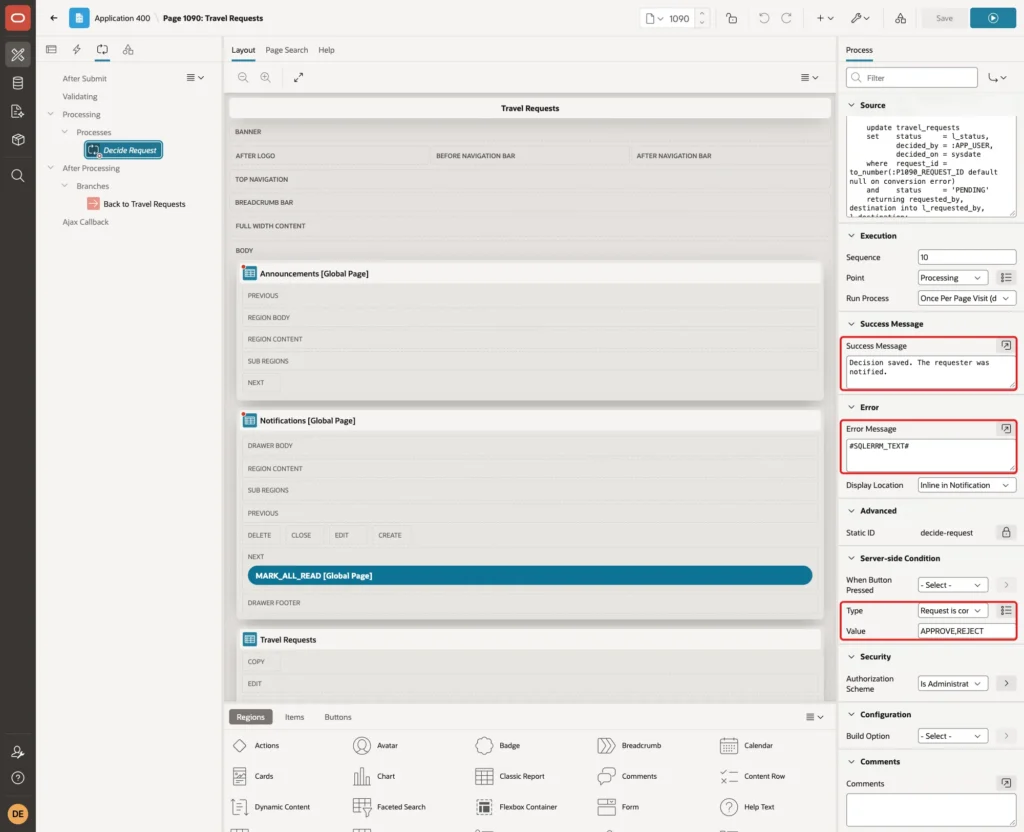
Set Success Message to "Decision saved. The requester was notified." and Error Message to #SQLERRM_TEXT#. Under Server-side Condition, set Type to Request is contained in Value and Value to APPROVE,REJECT:
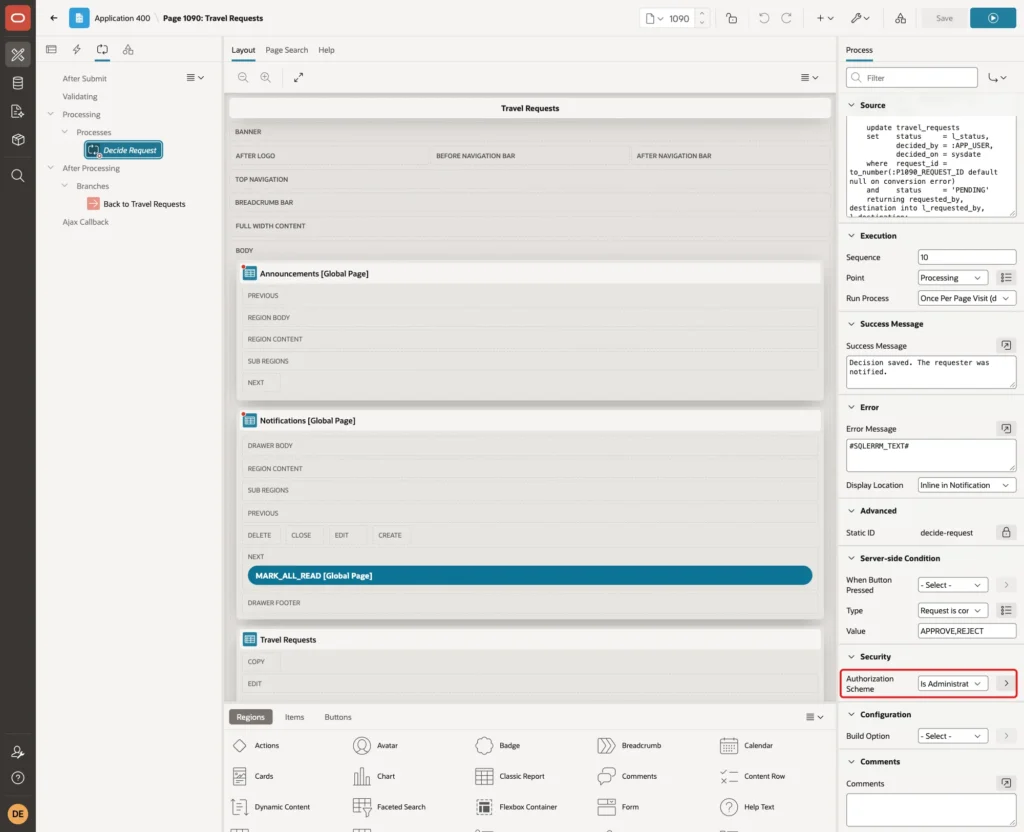
Under Security, set Authorization Scheme to Is Administrator. Hiding the links is not enough, because anyone can submit the page with a request from the browser console:
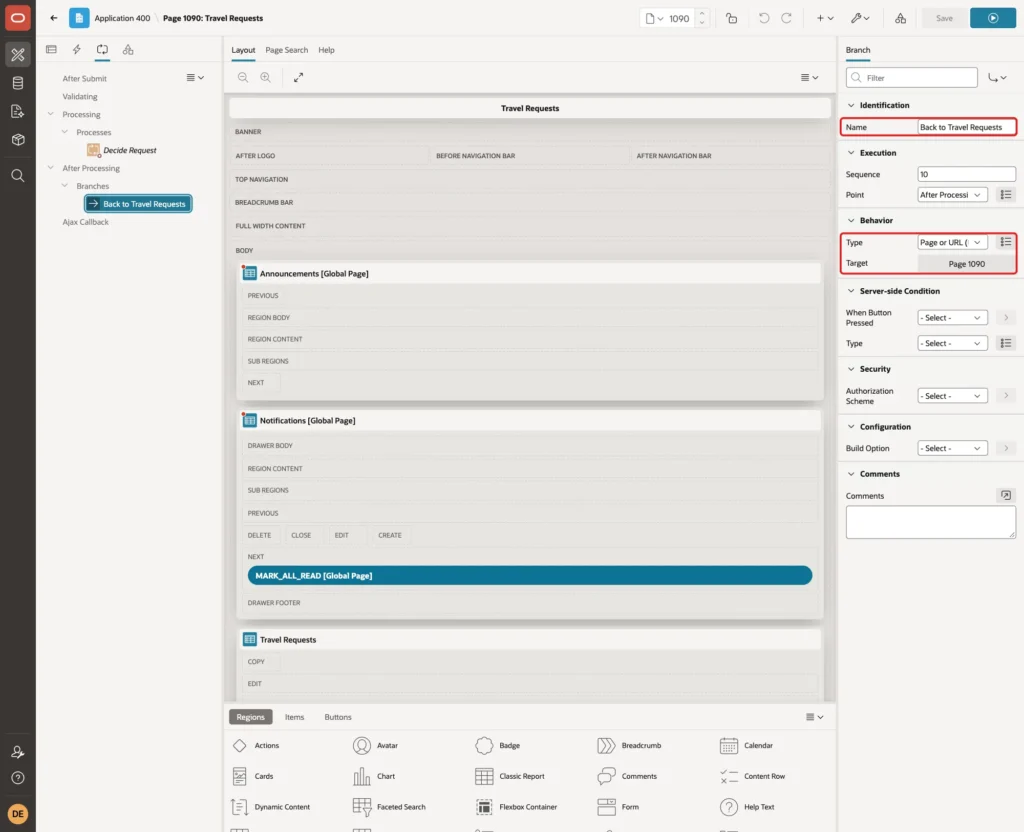
Right-click After Processing and choose Create Branch. Set Name to Back to Travel Requests, and under Behavior set Type to Page or URL (Redirect) and Target to page 1090:
Step 5: Create the Unread Count Application Item and Computation
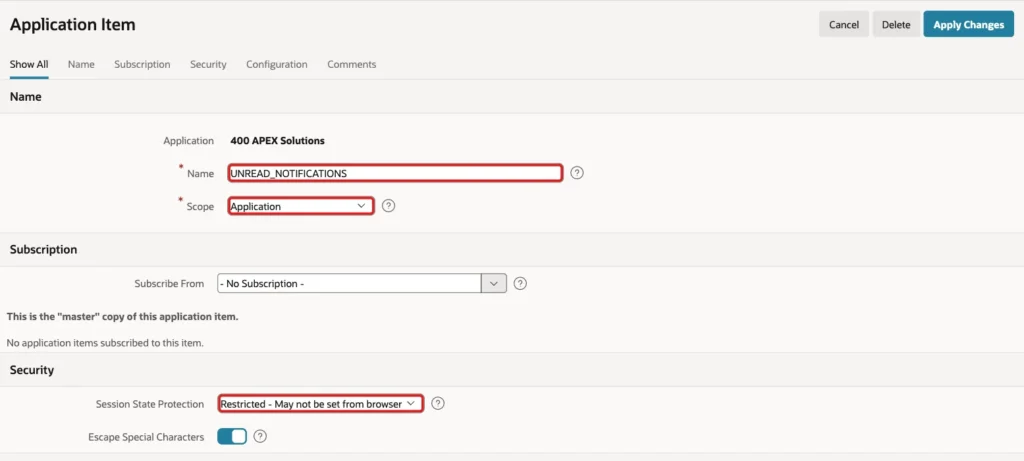
The bell needs the number of unread notifications on every page. In Shared Components, open Application Items and click Create. Set Name to UNREAD_NOTIFICATIONS, keep Scope Application, and set Session State Protection to Restricted - May not be set from browser:
Open Application Computations and click Create. Set Sequence to 40, Computation Item to UNREAD_NOTIFICATIONS, Computation Point to Before Header, and Computation Type to SQL Query (return single value). Enter this query:
Example:
select nullif(count(*), 0)
from   user_notifications
where  user_name = :APP_USER
and    read_on is null
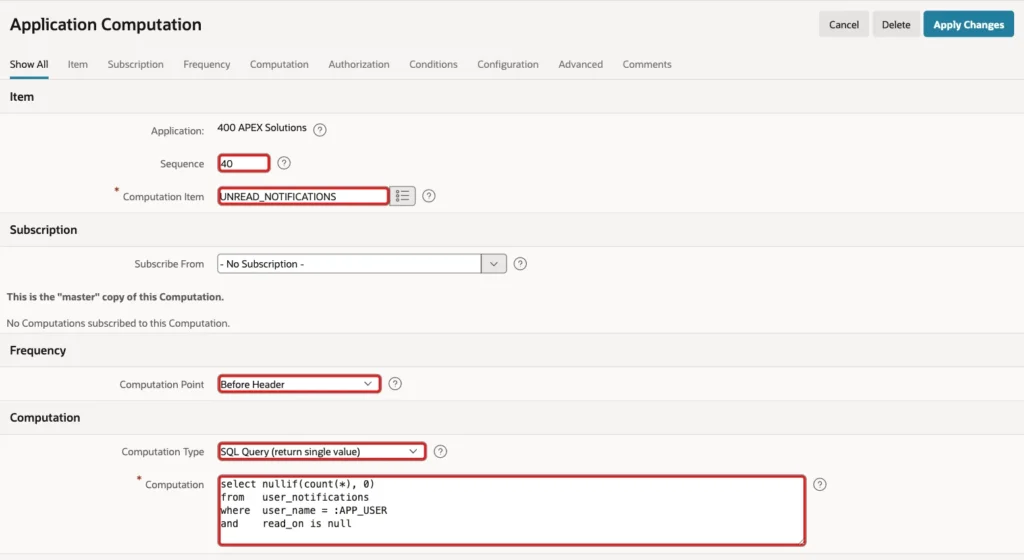
NULLIF returns NULL instead of 0. An empty badge is hidden by the Universal Theme, so the bell shows no number when everything is read.
Step 6: Add the Bell to the Navigation Bar
In Shared Components, open Navigation Bar List and then the Navigation Bar list. Click Create Entry. Set List Entry Label to Notifications, Sequence to 6 and Icon to fa-bell:

Under Target, set Target type to URL and URL Target to the JavaScript below. It opens the drawer region you create in Step 7:
Example:
javascript:apex.theme.openRegion('notifications');
Set List Entry Current for Pages Type to Never, because the bell is not a page. Under Conditions, set Condition Type to User is Authenticated (not public):

Under User Defined Attributes, set 1. Badge Value to &UNREAD_NOTIFICATIONS. and 2. List Item CSS Classes to notif-bell. Click Create List Entry:

The Navigation Bar list template uses attribute 1 as the badge and attribute 2 as a CSS class on the list item. The class notif-bell lets the dynamic action in Step 10 find the badge.
Step 7: Add the Notifications Drawer to the Global Page
The Global Page (page 0) renders its regions on every page, so the drawer is available wherever the bell is. Open page 0 in Page Designer, right-click Body and choose Create Region. Set Title to Notifications and Type to Classic Report. Under Source, keep Type SQL Query and enter this query:
Example:
select n.notification_id,
       '#'                as link,
       'js-notification'  as link_class,
       'data-id="' || n.notification_id || '"'
       || case when n.link_page is not null then
              ' data-url="' || apex_page.get_url(p_page => n.link_page) || '"'
          end             as link_attr,
       case when n.read_on is null then 'fa fa-bell' else 'fa fa-check' end as icon_class,
       case when n.read_on is null then 'u-color-1' else 'u-color-15' end  as icon_color_class,
       null               as list_class,
       n.message          as list_title,
       apex_util.get_since(n.created_on) as list_text,
       case when n.read_on is null then 'New' end as list_badge
from   user_notifications n
where  n.user_name = :APP_USER
order  by case when n.read_on is null then 0 else 1 end, n.created_on desc
fetch  first 10 rows only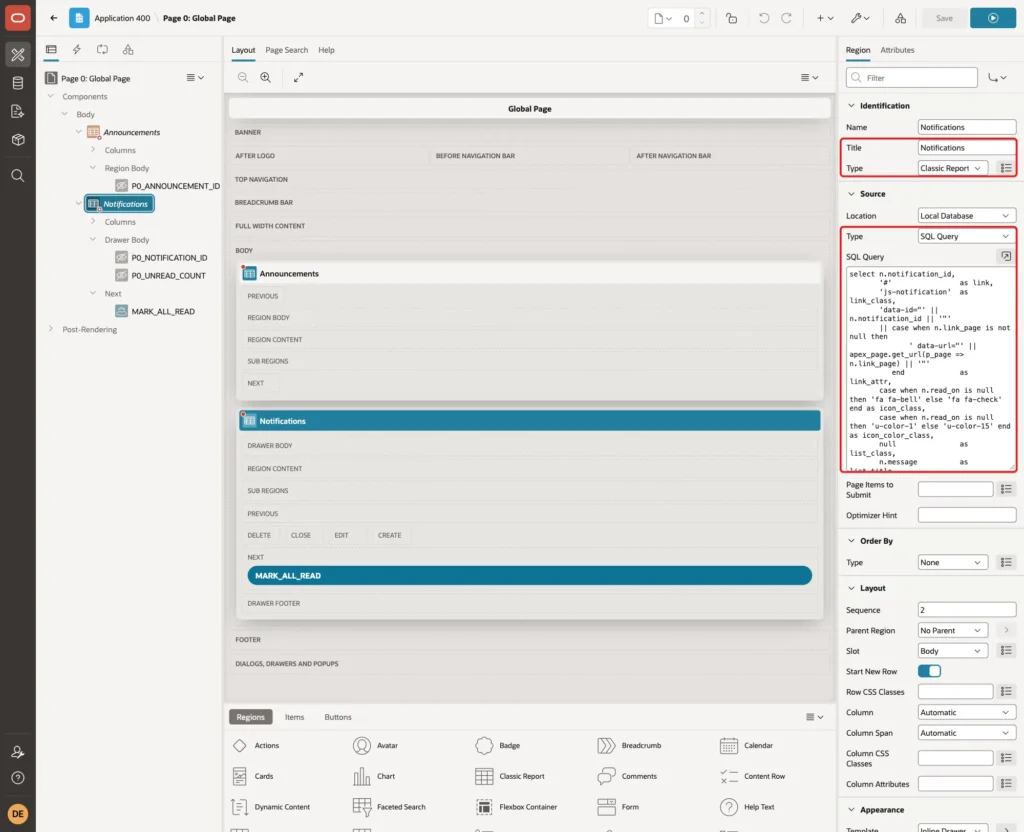
The column aliases are the names the Media List report template expects (set in this step). LINK_ATTR puts the notification ID in data-id, and the target page URL in data-url when the notification has a page. APEX_PAGE.GET_URL builds the URL with the current session. Unread notifications come first, with a bell icon and a New badge.
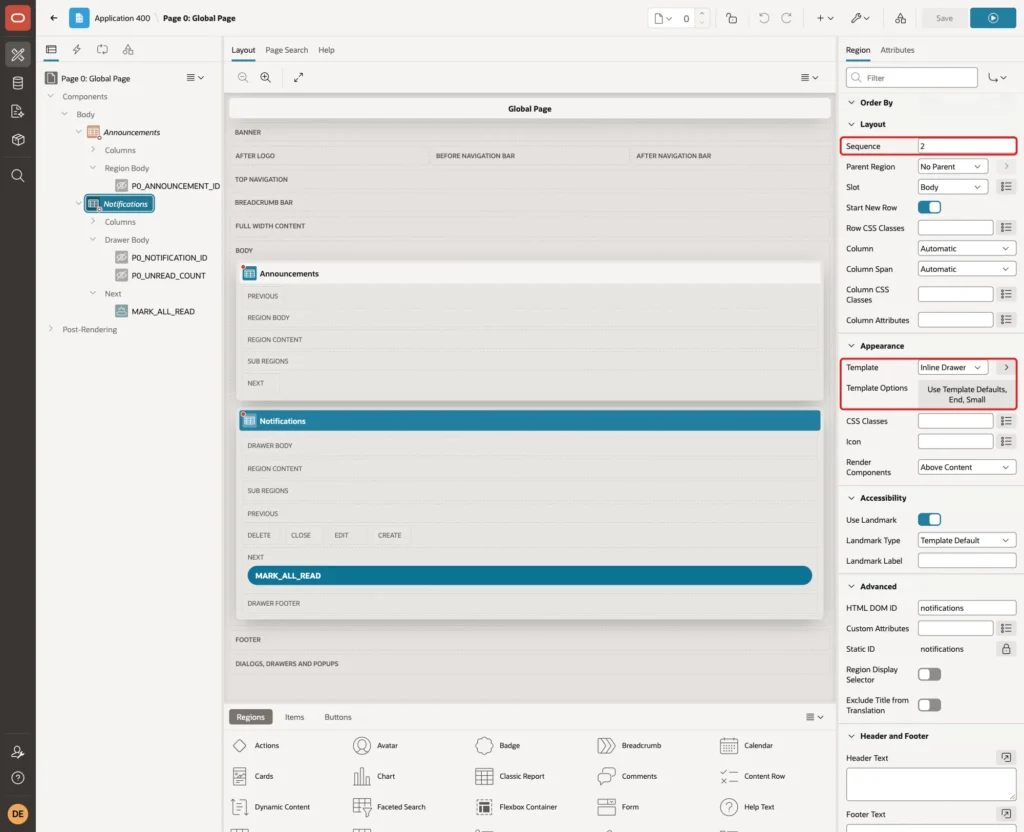
Under Layout, set Sequence to 2. Under Appearance, set Template to Inline Drawer. Click Template Options and set Position to End and Size to Small:
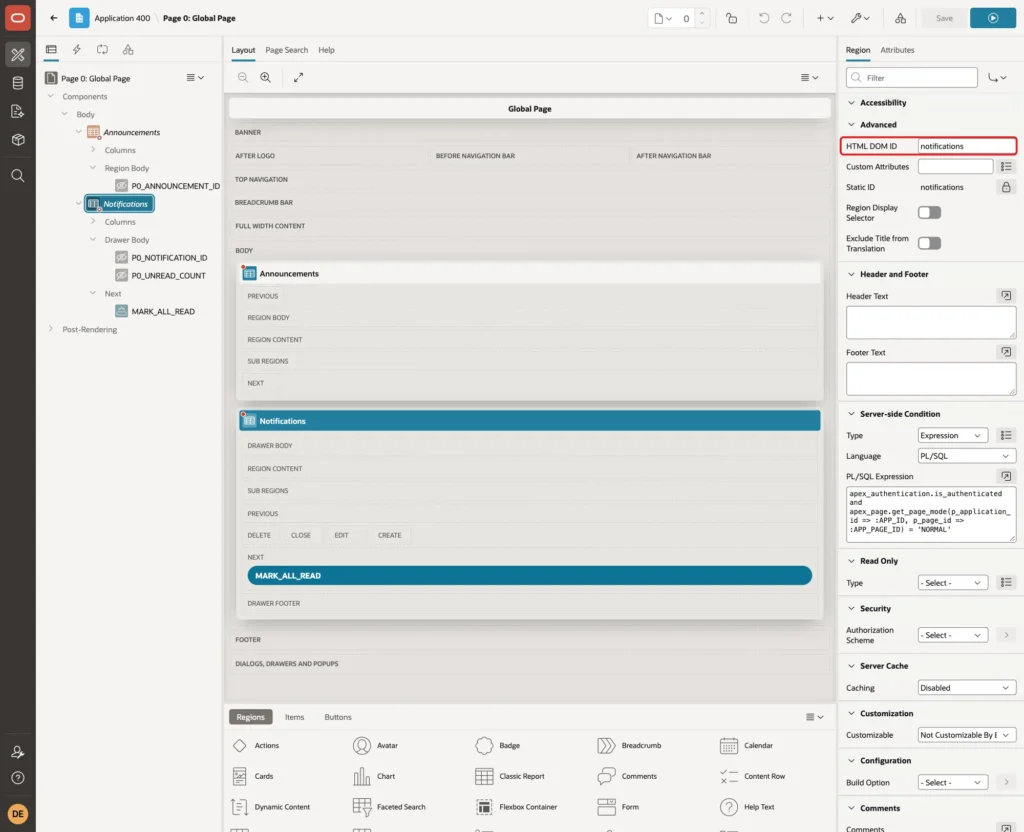
Under Advanced, set HTML DOM ID to notifications. apex.theme.openRegion in the bell's URL opens the region by this ID:
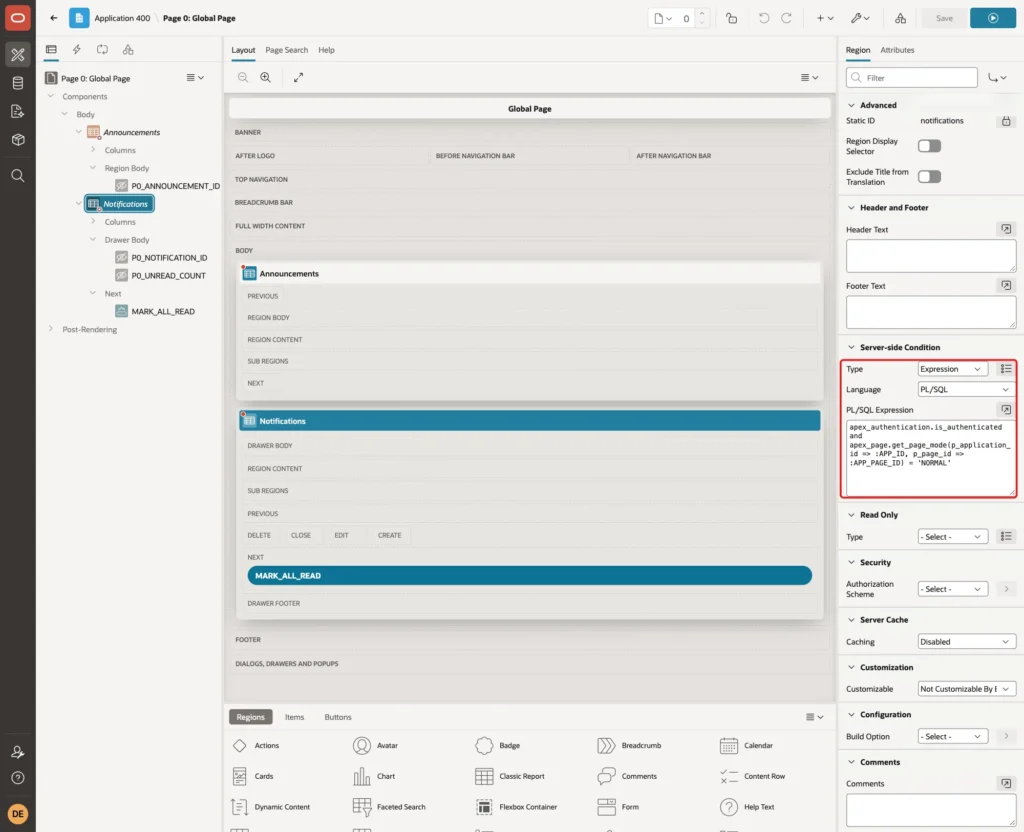
Global Page regions also render inside modal dialog pages and on the login page. Under Server-side Condition, set Type to Expression, Language PL/SQL, and enter this expression:
Example:
apex_authentication.is_authenticated and apex_page.get_page_mode(p_application_id => :APP_ID, p_page_id => :APP_PAGE_ID) = 'NORMAL'
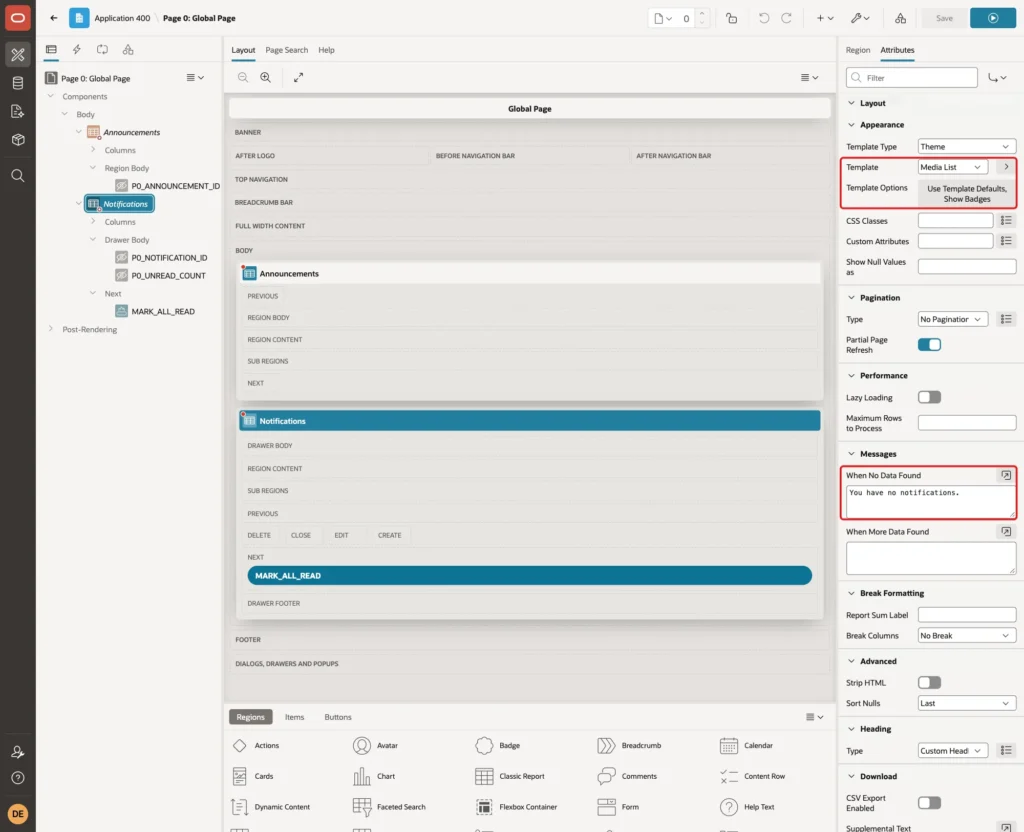
Click the Attributes tab. Under Appearance, set Template to Media List and turn on Show Badges in the Template Options. Under Messages, set When No Data Found to "You have no notifications.":
Step 8: Allow HTML in the Link Attributes Column
Classic report columns escape special characters by default. The quotes in LINK_ATTR would then reach the page as text, and the data-id and data-url attributes would not exist. Expand the region's Columns, select LINK_ATTR, and under Security turn Escape Special Characters off:

This is safe here because the column contains only a number and a URL that APEX builds. Keep escaping on for LIST_TITLE, because the message text could contain HTML.
Step 9: Add the Hidden Items and the Mark All as Read Button
The dynamic action needs two hidden items: one to send the clicked notification ID to the server, and one to bring back the new unread count. Right-click the Notifications region and choose Create Page Item. Set Name to P0_NOTIFICATION_ID and Type to Hidden. Turn Value Protected off and set Storage to Per Request (Memory Only):
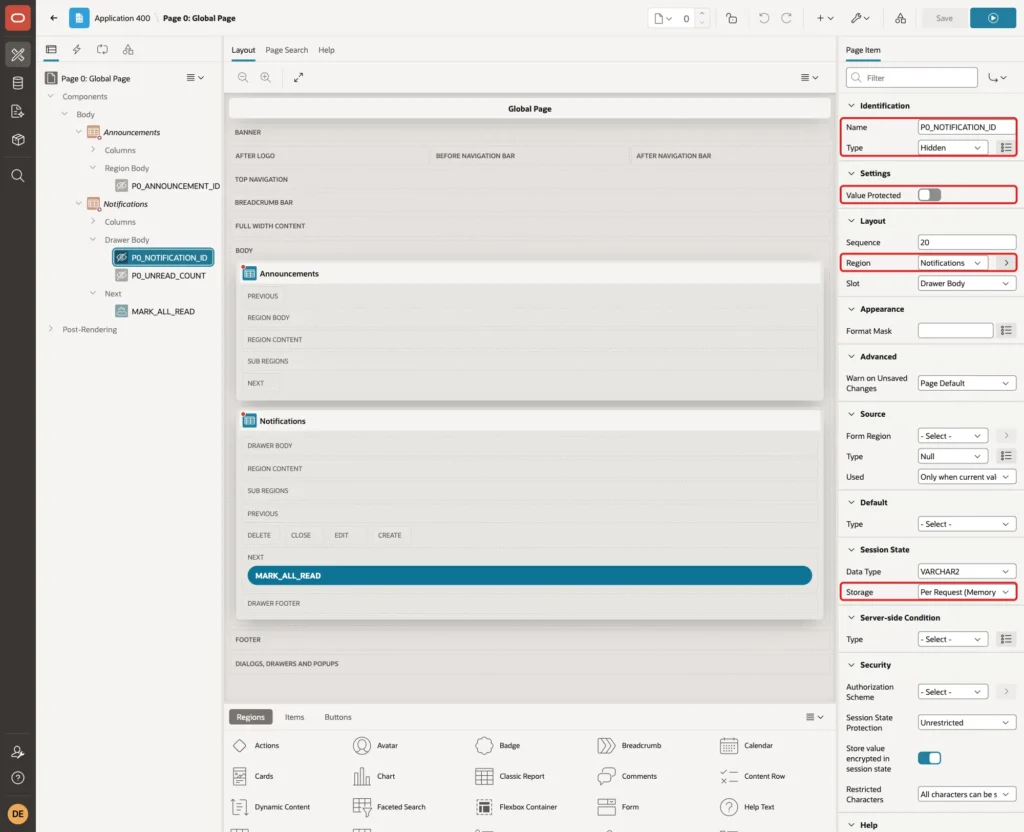
Create P0_UNREAD_COUNT in the same region with the same settings.
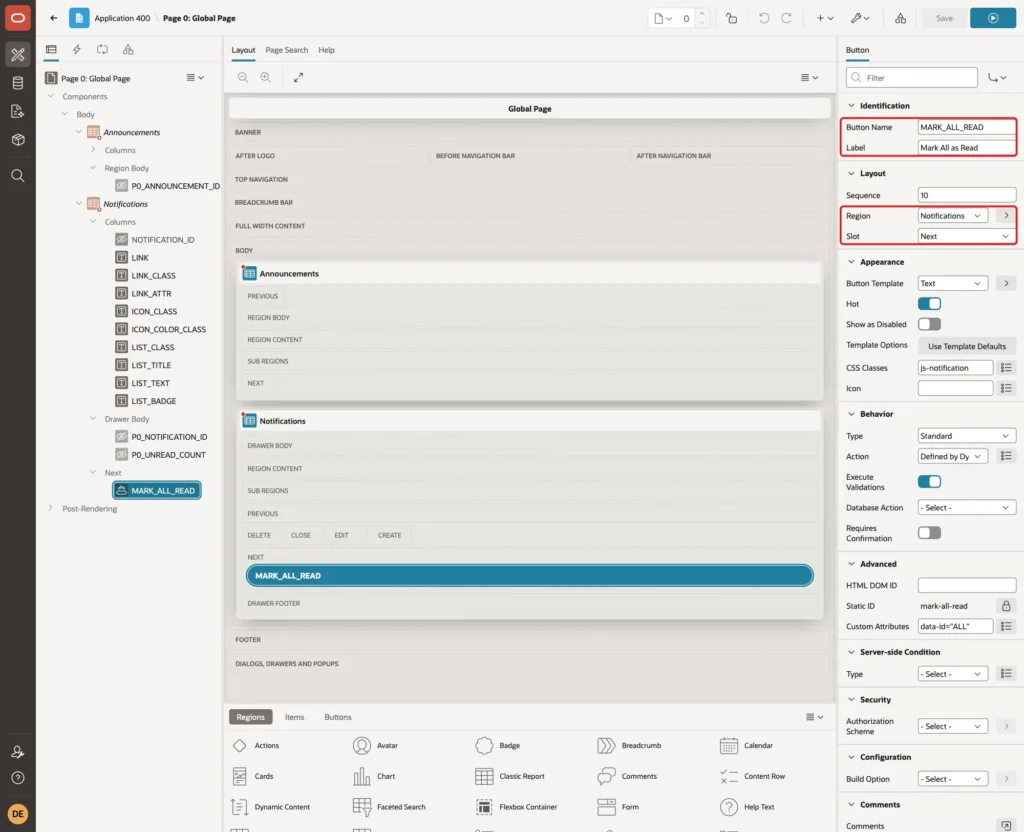
Right-click the Notifications region and choose Create Button. Set Button Name to MARK_ALL_READ and Label to Mark All as Read. Under Layout, keep Region Notifications and set Slot to Next:
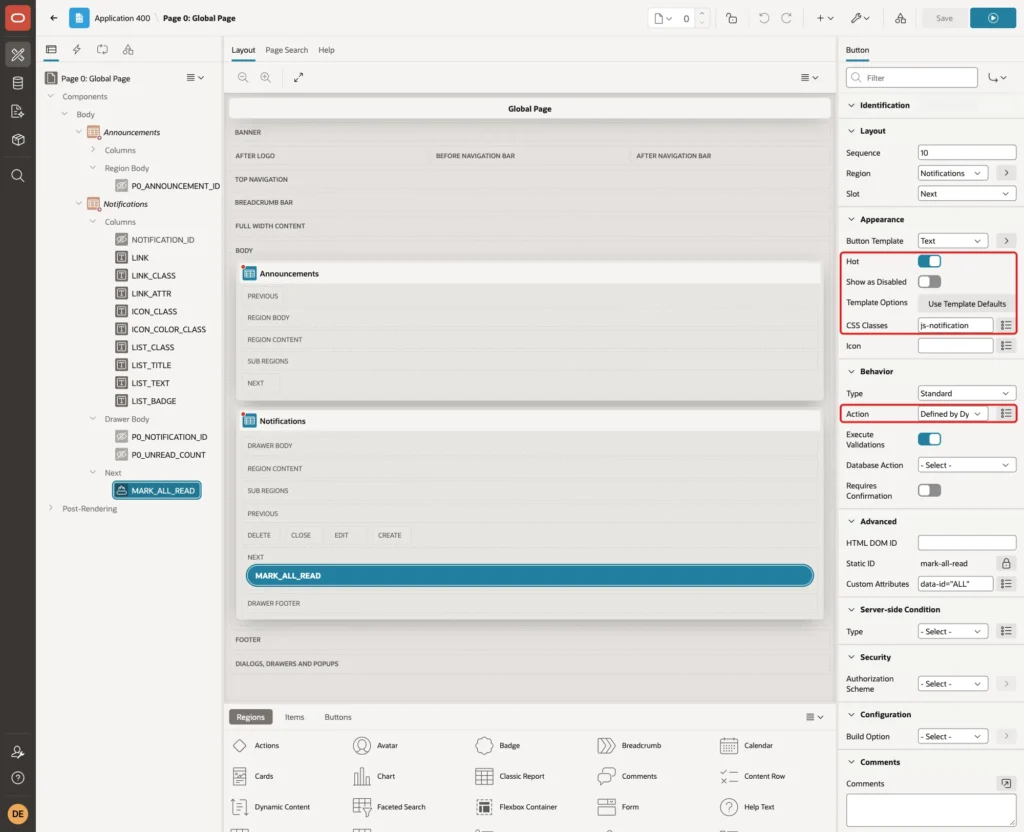
Under Appearance, turn Hot on and set CSS Classes to js-notification. Under Behavior, set Action to Defined by Dynamic Action:
Under Advanced, set Custom Attributes to data-id="ALL":
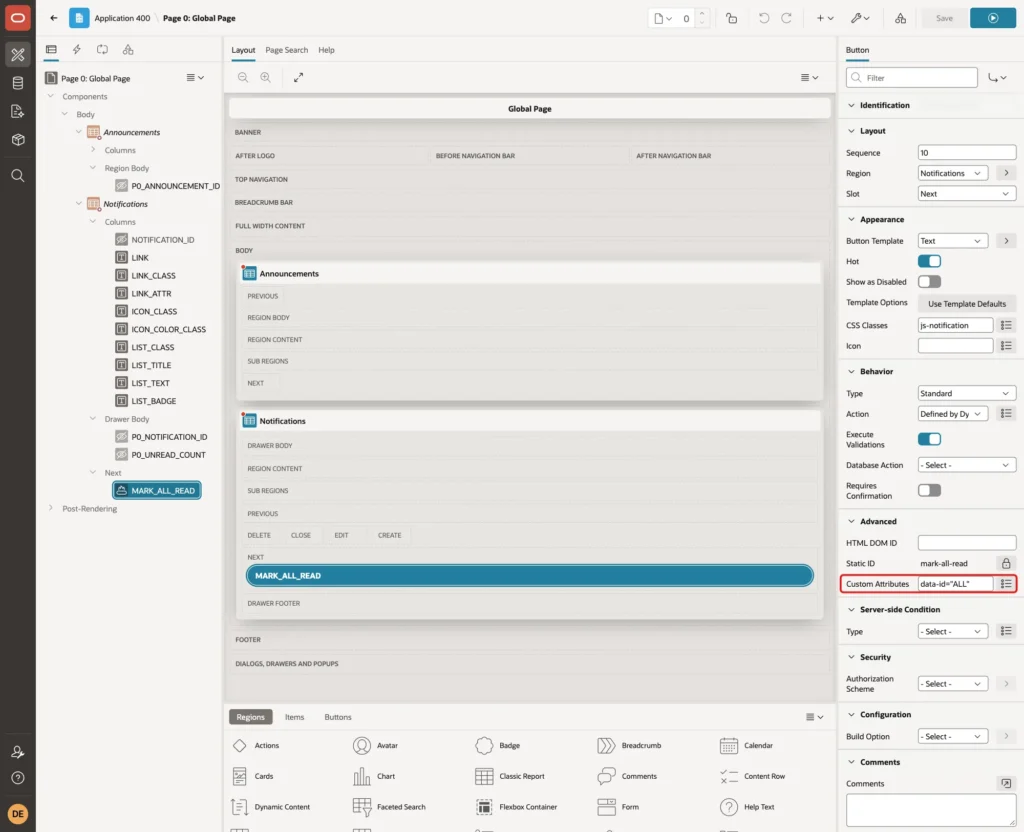
Because the button has the class js-notification and a data-id, one dynamic action handles both a single notification and all of them.
Step 10: Create the Mark as Read Dynamic Action
Open the Dynamic Actions tab of page 0, right-click Click and choose Create Dynamic Action. Set Name to Mark Notification Read. Under When, set Event to Click, Selection Type to jQuery Selector and jQuery Selector to .js-notification. Under Execution, set Event Scope to Dynamic and Static Container (jQuery Selector) to #notifications:
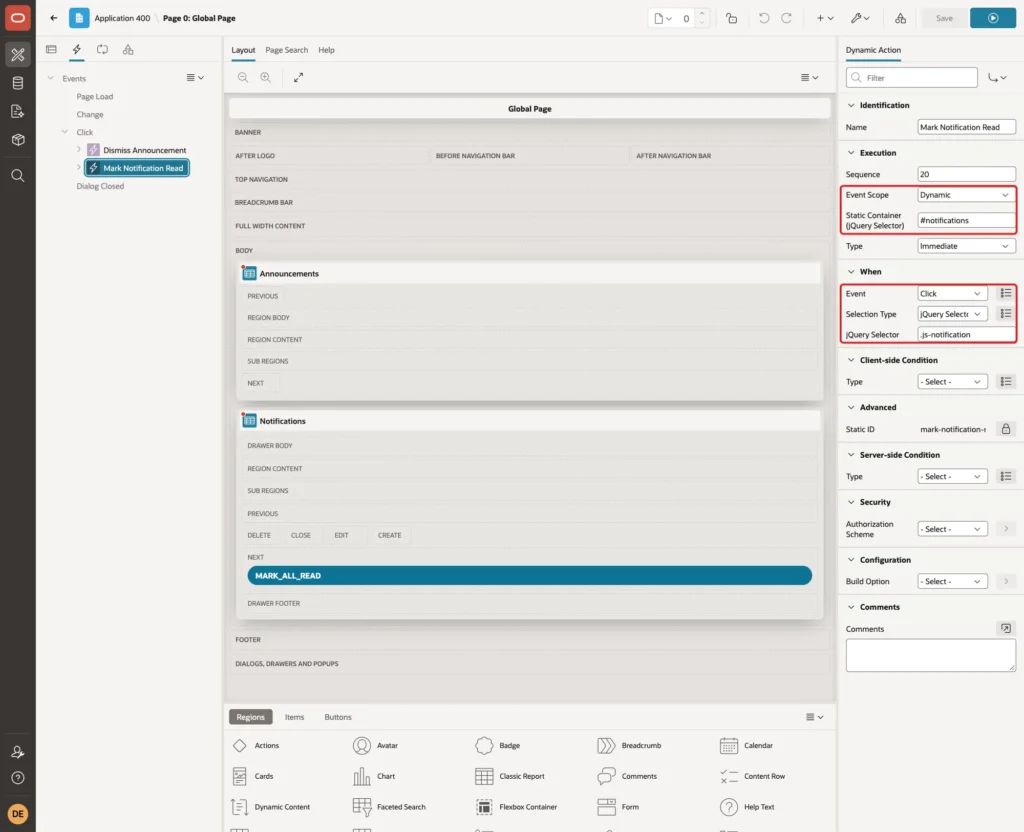
The scope must be Dynamic. The report rows are replaced on every refresh, and a static event would stop working on the new rows.
Select the first true action and set Action to Execute JavaScript Code with this code. The notification links point to #, and this stops the browser from following them:
Example:
this.browserEvent.preventDefault();

Add a second action: Set Value with Set Type JavaScript Expression and the expression below. Under Affected Elements, set Selection Type to Item(s) and Item(s) to P0_NOTIFICATION_ID:
Example:
this.triggeringElement.dataset.id
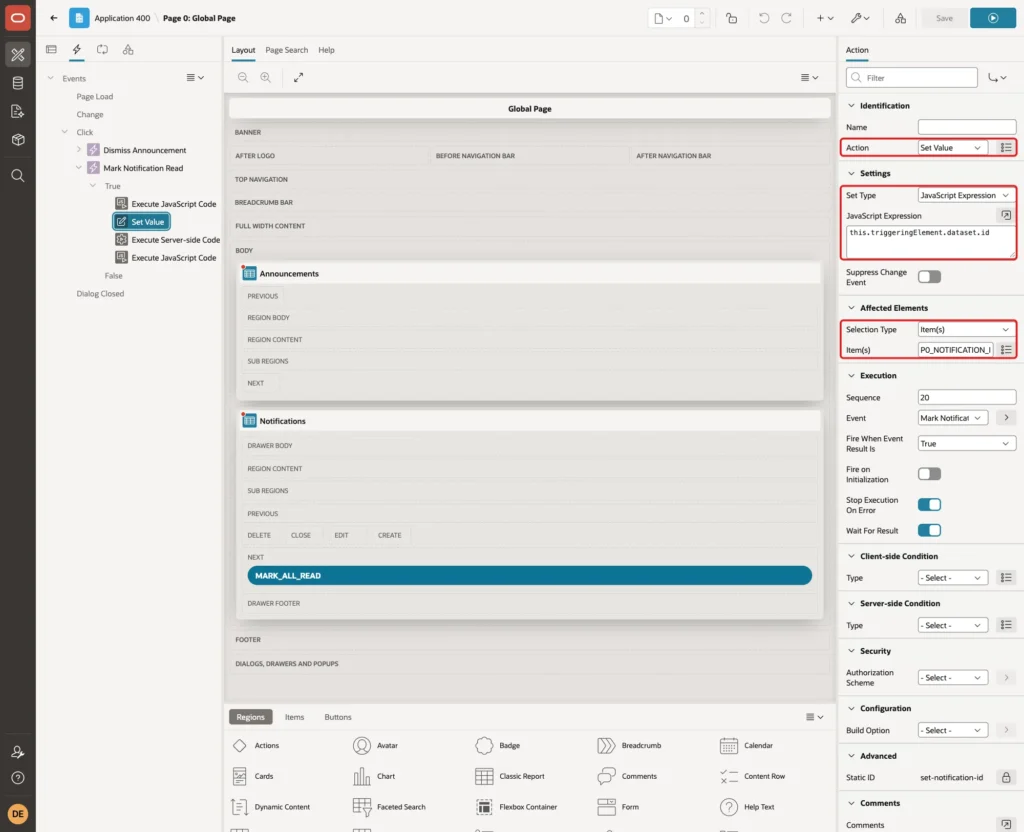
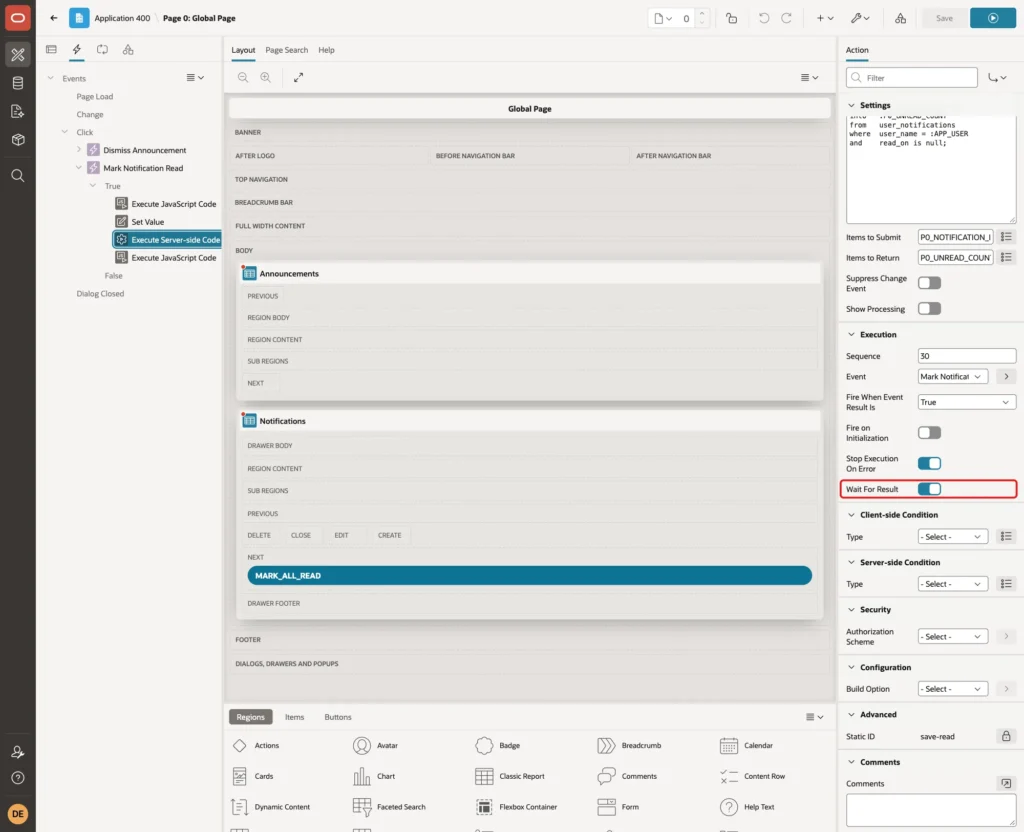
Add a third action: Execute Server-side Code with this PL/SQL code. Set Items to Submit to P0_NOTIFICATION_ID and Items to Return to P0_UNREAD_COUNT:
Example:
update user_notifications
set    read_on = sysdate
where  user_name = :APP_USER
and    read_on is null
and    (:P0_NOTIFICATION_ID = 'ALL'
        or notification_id = to_number(:P0_NOTIFICATION_ID default null on conversion error));

select nullif(count(*), 0)
into   :P0_UNREAD_COUNT
from   user_notifications
where  user_name = :APP_USER
and    read_on is null;
The UPDATE always checks USER_NAME = :APP_USER. A user who changes data-id in the browser can only mark their own notifications. Under Execution, turn Wait For Result on, so the next action sees the returned count:
Add a fourth action: Execute JavaScript Code with this code:
Example:
$(".notif-bell .t-Button-badge").text($v("P0_UNREAD_COUNT"));
var url = this.triggeringElement.dataset.url;
if (url) {
    apex.navigation.redirect(url);
} else {
    apex.region("notifications").refresh();
}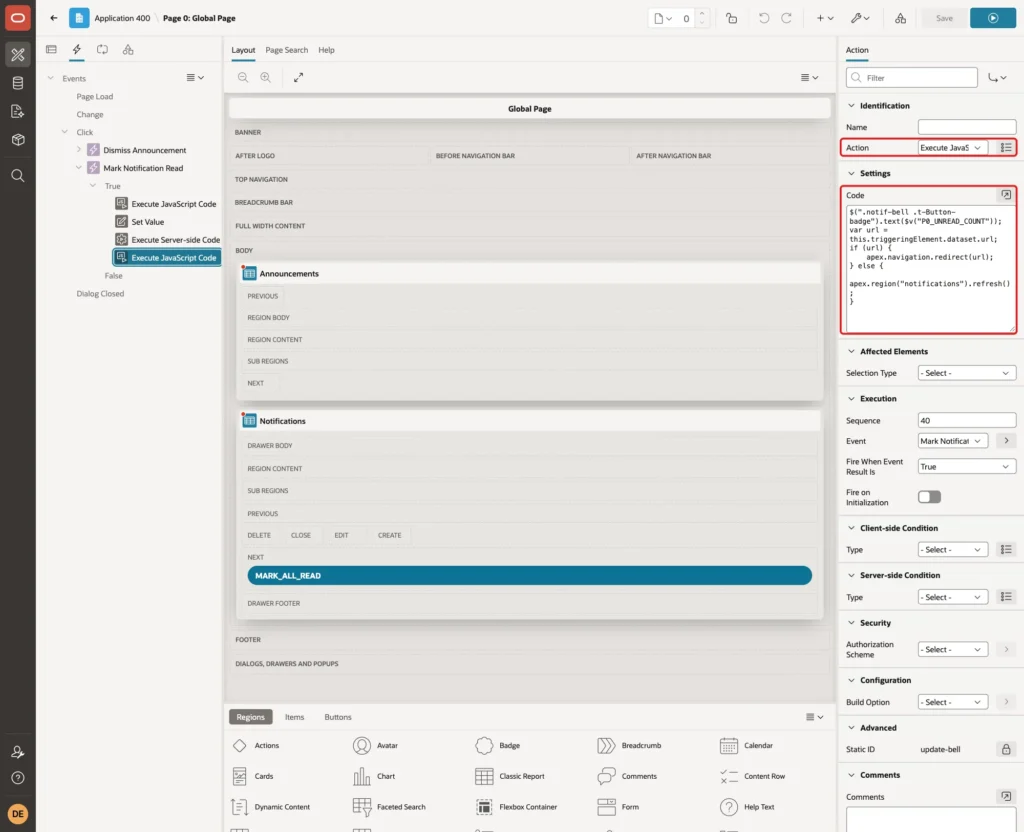
The first line writes the new count into the badge of the bell, or empties it. A notification with a page then opens that page. Without a page, the drawer stays open and the list refreshes, so the notification shows as read.
Step 11: Test the Notification Bell
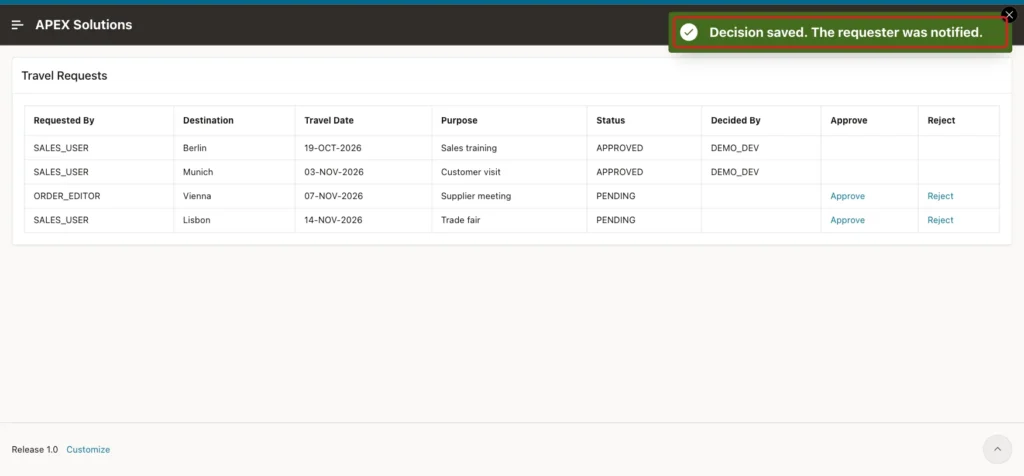
Sign in as DEMO_DEV, an administrator, and open Travel Requests. The bell shows 2 unread notifications, and pending requests have Approve and Reject links. The Approvals entry next to the bell comes from an earlier guide in the same example application. Click Approve for the Munich request:
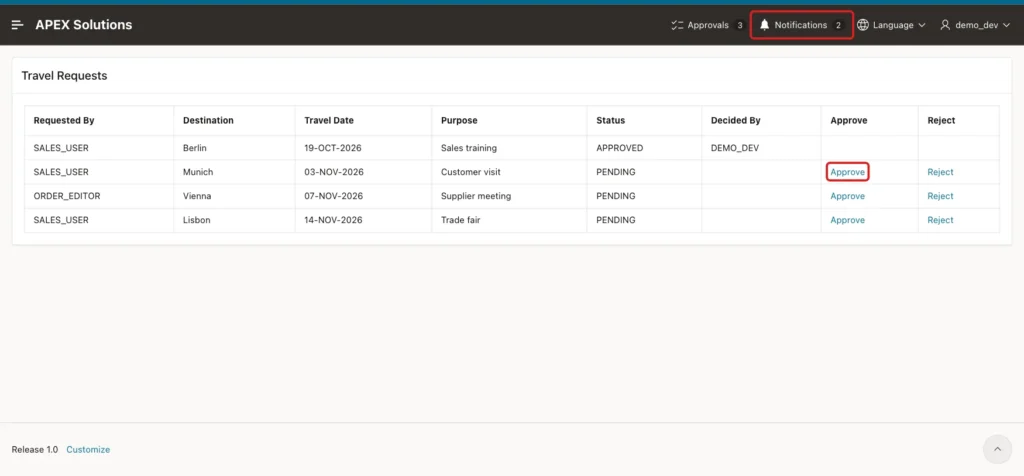
The page reloads with the success message, and the Munich request is now approved:
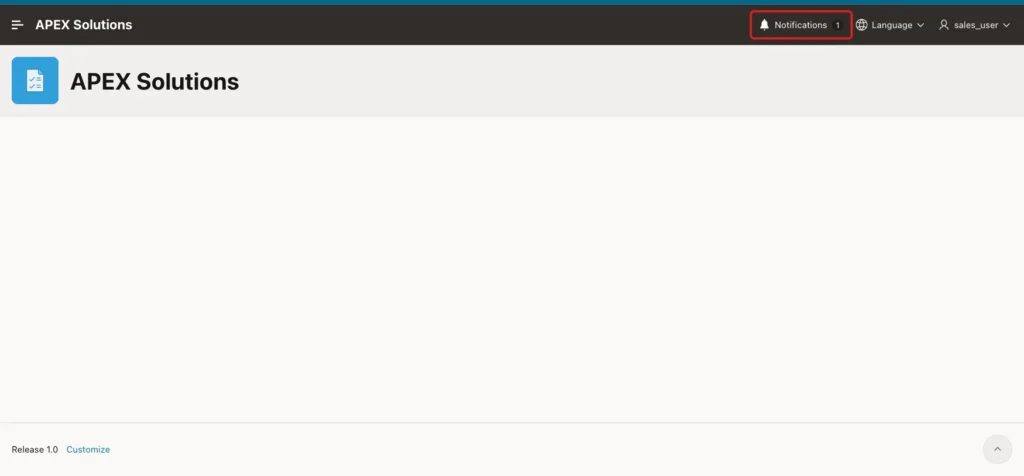
Sign in as SALES_USER, who requested the trip. Before the approval this user had no unread notification and the bell showed no number. Now the bell shows 1 on the home page:
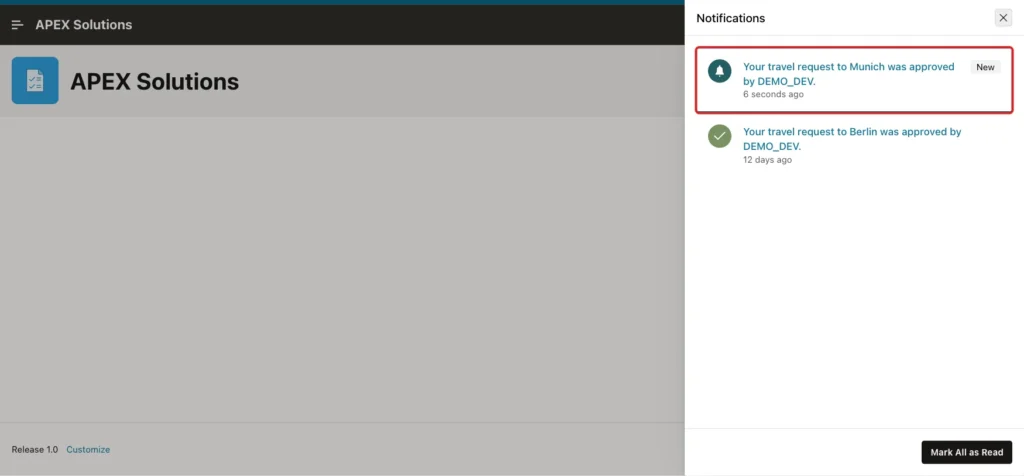
Click the bell. The drawer slides in from the right with the new notification first, marked New:
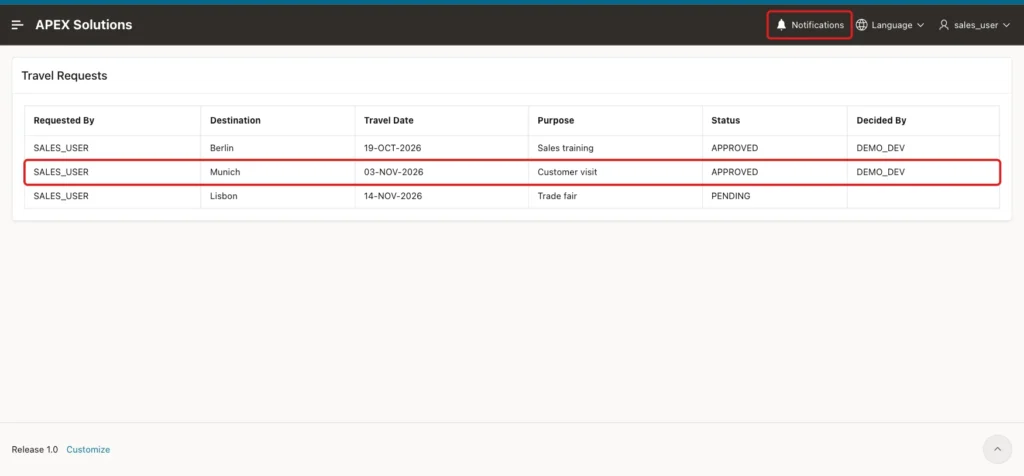
Click the notification. It is marked as read and APEX opens Travel Requests, where the Munich request shows as approved. The bell no longer shows a number:
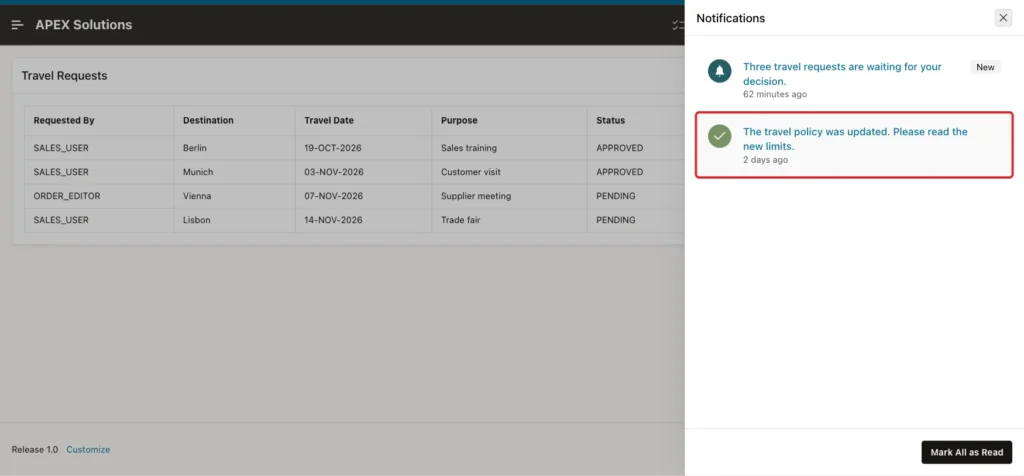
Sign in as DEMO_DEV again and open the drawer. Click the travel policy notification, which has no page. The drawer stays open, the list refreshes and the notification shows a check mark. Only two Ajax requests were sent and the page did not reload:
With the drawer closed, the bell shows 1 instead of 2:

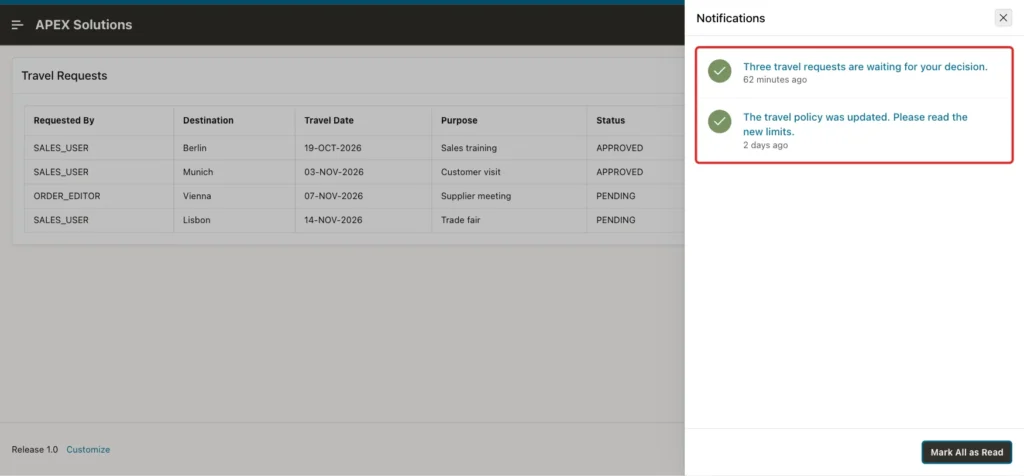
Open the drawer again and click Mark All as Read. Both notifications now show a check mark:
The bell shows no number any more:

Three negative tests checked the server side:
- As SALES_USER, a link with data-id 3 (a notification of DEMO_DEV) was added to the drawer from the browser console and clicked. No row changed; notification 3 stayed unread.
- As SALES_USER, apex.page.submit with request APPROVE and request ID 2 was run from the console. The process did not run because of its authorization scheme: no message, the Lisbon request stayed pending, and no notification was created.
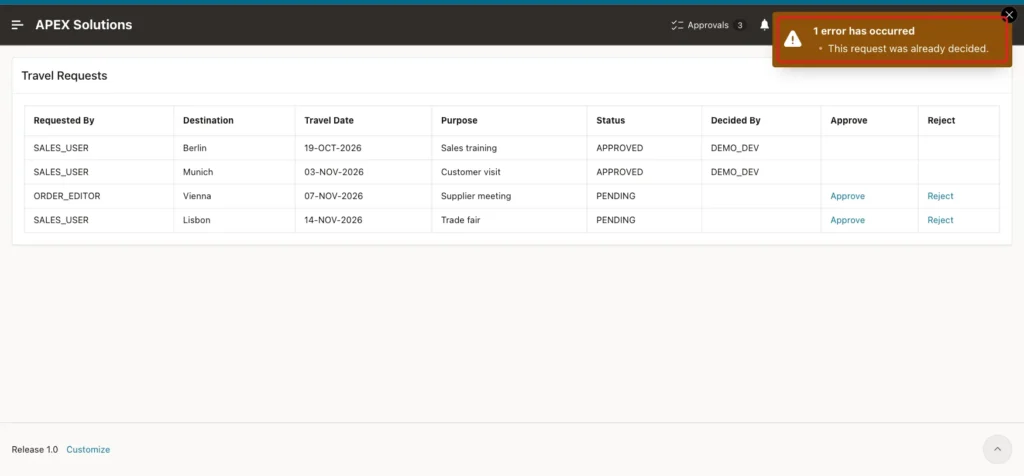
- As DEMO_DEV, the already approved Munich request was approved again from the console. The process raised its error instead of sending a second notification:
In a first test the drawer query sorted with ORDER BY READ_ON NULLS FIRST, CREATED_ON DESC. The read notifications then appeared in the order they were read, not the order they were created: a 12-day-old notification was listed above a new one. Sorting by a CASE on READ_ON first and CREATED_ON second fixed it.
Step 12: Check the Data in SQL
This query shows the requests and notifications. It was run after each test:
Example:
select request_id, requested_by, destination, status, decided_by
from   travel_requests
order  by request_id;

select notification_id, user_name, message, link_page,
       case when read_on is null then 'UNREAD' else 'READ' end as state
from   user_notifications
order  by notification_id;
After DEMO_DEV approved the Munich request, notification 4 for SALES_USER was unread:
Output:
   REQUEST_ID REQUESTED_BY    DESTINATION    STATUS      DECIDED_BY
_____________ _______________ ______________ ___________ _____________
            1 SALES_USER      Munich         APPROVED    DEMO_DEV
            2 SALES_USER      Lisbon         PENDING
            3 ORDER_EDITOR    Vienna         PENDING
            4 SALES_USER      Berlin         APPROVED    DEMO_DEV

   NOTIFICATION_ID USER_NAME     MESSAGE                                                          LINK_PAGE STATE
__________________ _____________ _____________________________________________________________ ____________ _________
                 1 SALES_USER    Your travel request to Berlin was approved by DEMO_DEV.               1090 READ
                 2 DEMO_DEV      The travel policy was updated. Please read the new limits.                 UNREAD
                 3 DEMO_DEV      Three travel requests are waiting for your decision.                  1090 UNREAD
                 4 SALES_USER    Your travel request to Munich was approved by DEMO_DEV.               1090 UNREAD
After SALES_USER opened it, notification 4 was read:
Output:
   REQUEST_ID REQUESTED_BY    DESTINATION    STATUS      DECIDED_BY
_____________ _______________ ______________ ___________ _____________
            1 SALES_USER      Munich         APPROVED    DEMO_DEV
            2 SALES_USER      Lisbon         PENDING
            3 ORDER_EDITOR    Vienna         PENDING
            4 SALES_USER      Berlin         APPROVED    DEMO_DEV

   NOTIFICATION_ID USER_NAME     MESSAGE                                                          LINK_PAGE STATE
__________________ _____________ _____________________________________________________________ ____________ _________
                 1 SALES_USER    Your travel request to Berlin was approved by DEMO_DEV.               1090 READ
                 2 DEMO_DEV      The travel policy was updated. Please read the new limits.                 UNREAD
                 3 DEMO_DEV      Three travel requests are waiting for your decision.                  1090 UNREAD
                 4 SALES_USER    Your travel request to Munich was approved by DEMO_DEV.               1090 READ
After the two forged requests by SALES_USER, notification 3 of DEMO_DEV was still unread, and the Lisbon request was still pending:
Output:
   REQUEST_ID REQUESTED_BY    DESTINATION    STATUS      DECIDED_BY
_____________ _______________ ______________ ___________ _____________
            1 SALES_USER      Munich         APPROVED    DEMO_DEV
            2 SALES_USER      Lisbon         PENDING
            3 ORDER_EDITOR    Vienna         PENDING
            4 SALES_USER      Berlin         APPROVED    DEMO_DEV

   NOTIFICATION_ID USER_NAME     MESSAGE                                                          LINK_PAGE STATE
__________________ _____________ _____________________________________________________________ ____________ _________
                 1 SALES_USER    Your travel request to Berlin was approved by DEMO_DEV.               1090 READ
                 2 DEMO_DEV      The travel policy was updated. Please read the new limits.                 UNREAD
                 3 DEMO_DEV      Three travel requests are waiting for your decision.                  1090 UNREAD
                 4 SALES_USER    Your travel request to Munich was approved by DEMO_DEV.               1090 READ
After DEMO_DEV clicked one notification and then Mark All as Read, every notification was read:
Output:
   REQUEST_ID REQUESTED_BY    DESTINATION    STATUS      DECIDED_BY
_____________ _______________ ______________ ___________ _____________
            1 SALES_USER      Munich         APPROVED    DEMO_DEV
            2 SALES_USER      Lisbon         PENDING
            3 ORDER_EDITOR    Vienna         PENDING
            4 SALES_USER      Berlin         APPROVED    DEMO_DEV

   NOTIFICATION_ID USER_NAME     MESSAGE                                                          LINK_PAGE STATE
__________________ _____________ _____________________________________________________________ ____________ ________
                 1 SALES_USER    Your travel request to Berlin was approved by DEMO_DEV.               1090 READ
                 2 DEMO_DEV      The travel policy was updated. Please read the new limits.                 READ
                 3 DEMO_DEV      Three travel requests are waiting for your decision.                  1090 READ
                 4 SALES_USER    Your travel request to Munich was approved by DEMO_DEV.               1090 READ
Things to Know
- The unread count is computed by the Before Header computation, so it changes when a page loads or when the dynamic action returns a new count. A notification created for another user appears on that user's next page view.
- Call NOTIFY_USER from anywhere: a page process, an automation, a workflow activity or a database job. Inside the decision process it runs in the same transaction, so a failed decision creates no notification.
- Store the target page, not a URL. APEX_PAGE.GET_URL builds the URL with the current session when the list is shown.
- Restricted session state protection keeps users from setting UNREAD_NOTIFICATIONS in the URL. Every query and update also filters by :APP_USER on the server.
- Turn off Escape Special Characters only for LINK_ATTR. Message texts stay escaped.
- The Global Page condition keeps the drawer out of modal dialogs and the login page. Without it, the region is rendered inside every modal dialog page too.
- Old notifications can be removed with a scheduled job or automation, for example all read notifications older than 90 days.
Related Guides
- How to Show Badge Counts on Navigation Menu Entries in Oracle APEX
- Oracle APEX Automations, Email, and Push Notifications
Conclusion
A notification bell in Oracle APEX needs one table, a procedure that inserts notifications, a Navigation Bar entry with a badge, and an Inline Drawer with the Media List template on the Global Page. One dynamic action marks a single notification or all of them as read and updates the badge without a page reload.
The tests showed the count rise after an approval, drop after opening the notification, and clear with Mark All as Read. Forged IDs and forced requests changed nothing, because every update checks the current user and the decision process has its own authorization.
See my articles more often when you search Google.
