
An announcement banner tells every user about planned downtime, a new feature or a changed process the moment they open the application. It is more visible than an email, and users do not have to look for it on a news page.
A good banner also respects the user. It shows only between a start and an end date, and each user can close it once without hiding it for anyone else. This guide stores announcements in a table, shows them on every page from the Global Page, and saves each dismissal per user.
The guide How to Put an Oracle APEX Application in Maintenance Mode blocks the whole application and shows one message instead of the pages. This guide keeps the application running and shows messages above the page content, with scheduling and a Dismiss button for each user.
The guide How to Show Success, Error, and Confirm Messages Using apex.message in Oracle APEX shows short messages from JavaScript after an action. The messages here come from the database, are managed by administrators on their own page, and stay until each user dismisses them or they expire.
Step 1: Create the Tables
The example needs two tables. ANNOUNCEMENTS holds the messages with their severity and dates. ANNOUNCEMENT_DISMISSALS records which user closed which announcement:
Example:
create table announcements (
    announcement_id number generated by default on null as identity,
    title           varchar2(100)  not null,
    message         varchar2(1000) not null,
    severity        varchar2(10)   default on null 'INFO' not null,
    start_on        date           default on null sysdate not null,
    end_on          date           not null,
    created_by      varchar2(255)  default on null
                        coalesce(sys_context('APEX$SESSION', 'APP_USER'),
                                 sys_context('USERENV', 'SESSION_USER')) not null,
    created_on      date           default on null sysdate not null,
    constraint announcements_pk primary key (announcement_id),
    constraint announcements_severity_ck check (severity in ('INFO', 'SUCCESS', 'WARNING', 'DANGER')),
    constraint announcements_dates_ck check (end_on > start_on)
);

create index announcements_dates_ix on announcements (start_on, end_on);

create table announcement_dismissals (
    announcement_id number        not null,
    user_name       varchar2(255) not null,
    dismissed_on    date          default on null sysdate not null,
    constraint announcement_dismissals_pk primary key (announcement_id, user_name),
    constraint announcement_dismissals_fk foreign key (announcement_id)
        references announcements (announcement_id) on delete cascade
);

insert into announcements (title, message, severity, start_on, end_on)
values ('Planned downtime on Sunday',
        'The application will be offline on Sunday from 06:00 to 08:00 for a database upgrade. Please save your work before then.',
        'WARNING', sysdate - 1, sysdate + 7);

insert into announcements (title, message, severity, start_on, end_on)
values ('New report available',
        'The Shipping Dashboard now loads its regions in parallel. Open it from the navigation menu.',
        'INFO', sysdate - 2, sysdate + 14);

insert into announcements (title, message, severity, start_on, end_on)
values ('Holiday support hours',
        'Support desk hours were reduced during the holiday week.',
        'INFO', sysdate - 30, sysdate - 20);

insert into announcements (title, message, severity, start_on, end_on)
values ('Year-end freeze',
        'No new price changes after 20 December.',
        'DANGER', sysdate + 30, sysdate + 60);

commit;

select announcement_id, title, severity,
       to_char(start_on, 'YYYY-MM-DD HH24:MI') as starts,
       to_char(end_on, 'YYYY-MM-DD HH24:MI') as ends,
       case when sysdate >= start_on and sysdate < end_on then 'Y' else 'N' end as active
from   announcements
order  by announcement_id;
Output:
Table ANNOUNCEMENTS created.

Index ANNOUNCEMENTS_DATES_IX created.

Table ANNOUNCEMENT_DISMISSALS created.

1 row inserted.

1 row inserted.

1 row inserted.

1 row inserted.

Commit complete.

   ANNOUNCEMENT_ID TITLE                         SEVERITY    STARTS              ENDS                ACTIVE
__________________ _____________________________ ___________ ___________________ ___________________ _________
                 1 Planned downtime on Sunday    WARNING     2026-10-23 18:57    2026-10-31 18:57    Y
                 2 New report available          INFO        2026-10-22 18:57    2026-11-07 18:57    Y
                 3 Holiday support hours         INFO        2026-09-24 18:57    2026-10-04 18:57    N
                 4 Year-end freeze               DANGER      2026-11-23 18:57    2026-12-23 18:57    N
A few details in the tables:
- ANNOUNCEMENTS_SEVERITY_CK allows INFO, SUCCESS, WARNING and DANGER. These match the four alert colors of the Universal Theme.
- ANNOUNCEMENTS_DATES_CK makes sure every announcement ends after it starts.
- SEVERITY, START_ON, CREATED_BY and CREATED_ON use DEFAULT ON NULL. A new announcement needs only a title, a message and an end date, and no trigger is required.
- The primary key of ANNOUNCEMENT_DISMISSALS is the announcement plus the user name, so one user can dismiss one announcement only once. ON DELETE CASCADE removes the dismissals with their announcement.
The sample data has two active announcements, one expired announcement and one that starts in 30 days. The ACTIVE column shows which ones a user should see today.
Step 2: Create the Manage Announcements Page
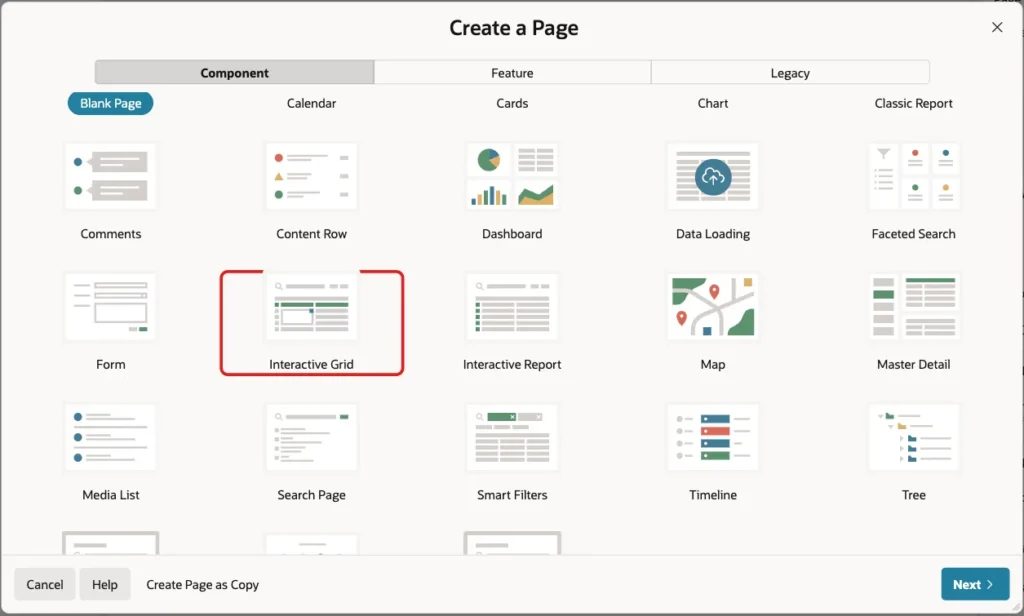
Administrators need a page to write and schedule announcements. An editable interactive grid is enough for that. In App Builder, open the application and click Create Page. On the Component tab, select Interactive Grid:
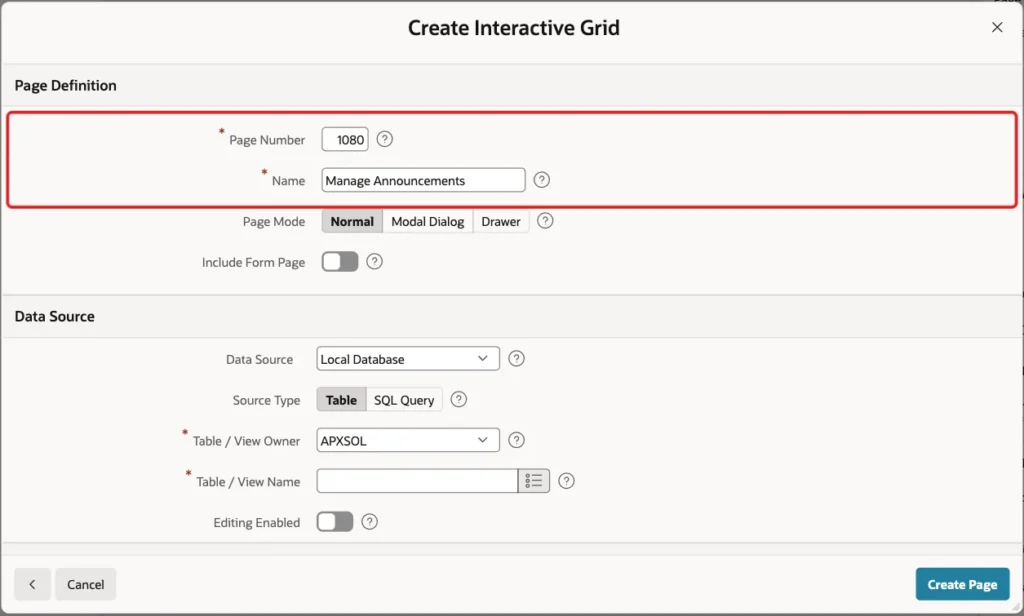
Set Page Number to 1080 and Name to Manage Announcements. Keep Page Mode Normal and Include Form Page off:
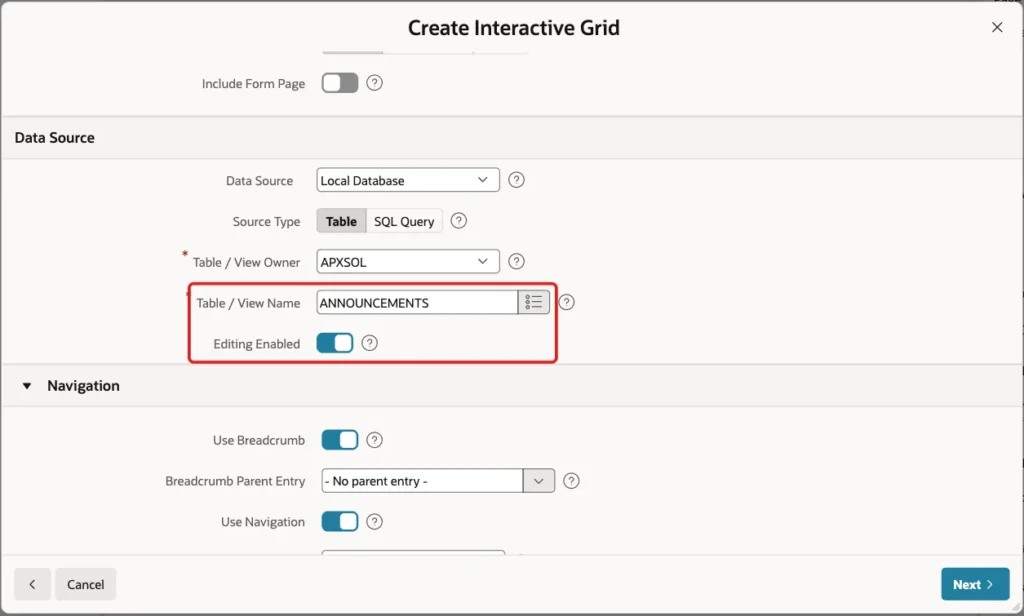
Under Data Source, enter ANNOUNCEMENTS as Table / View Name and turn Editing Enabled on:
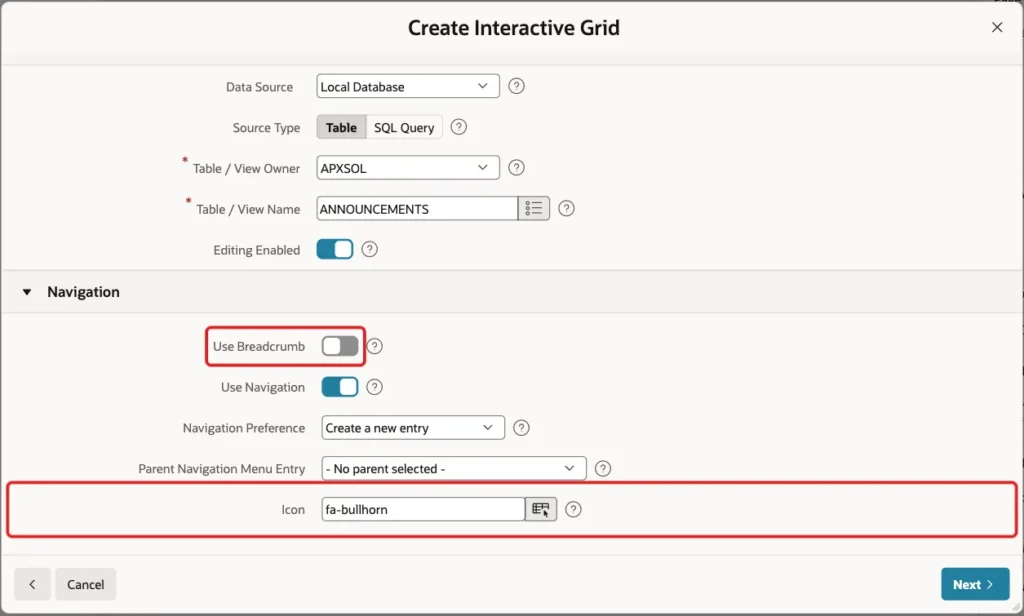
Under Navigation, turn Use Breadcrumb off. Keep Use Navigation on with Create a new entry, set Icon to fa-bullhorn and click Next:
On the Primary Key screen, select ANNOUNCEMENT_ID (Number) as Primary Key Column 1 and click Create Page:
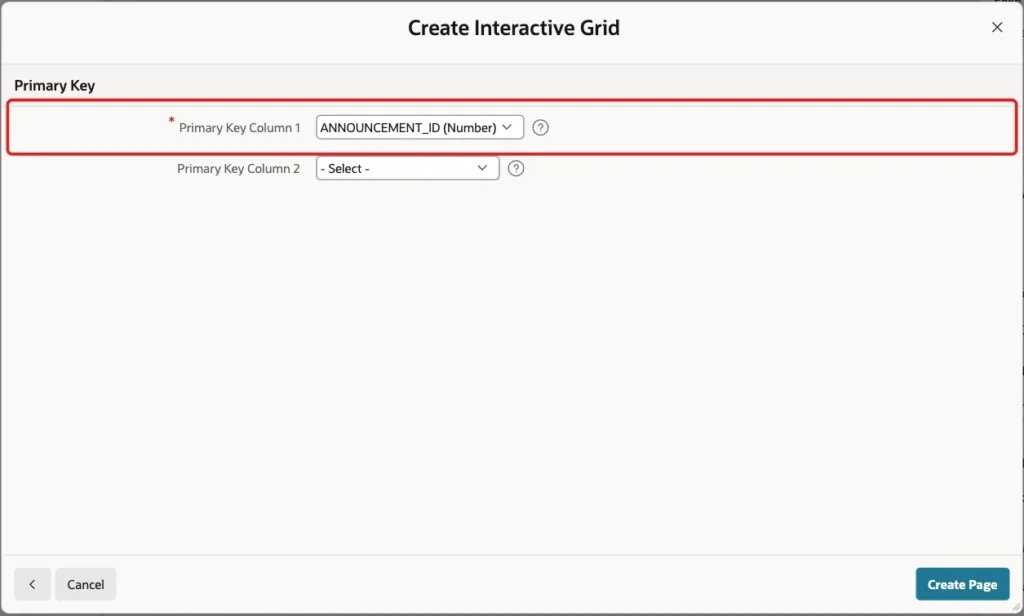
The wizard creates the page with the grid, an automatic row processing process, and a Manage Announcements entry in the navigation menu.
Step 3: Set Up the Grid Columns
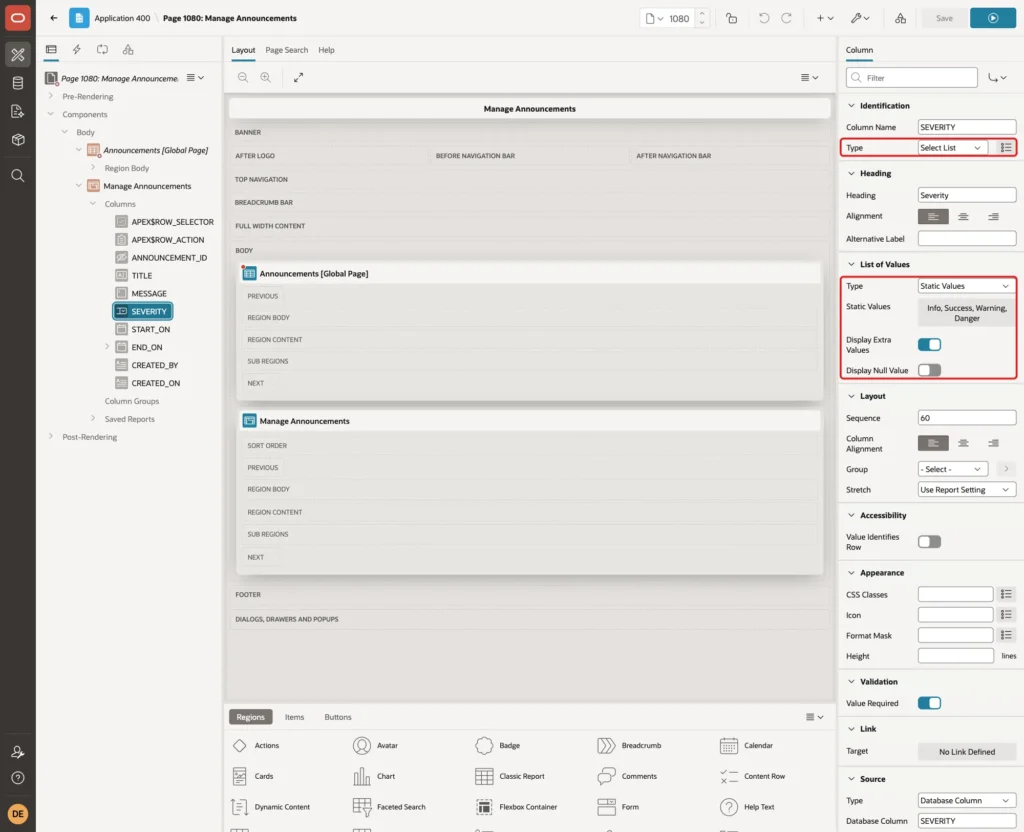
The wizard makes every column a text field or date picker. A few changes make the grid easier and safer to use. In Page Designer, expand the Manage Announcements region and its Columns, and select SEVERITY.
Set Type to Select List. Under List of Values, set Type to Static Values and enter four values: Info (INFO), Success (SUCCESS), Warning (WARNING) and Danger (DANGER). Turn Display Null Value off:
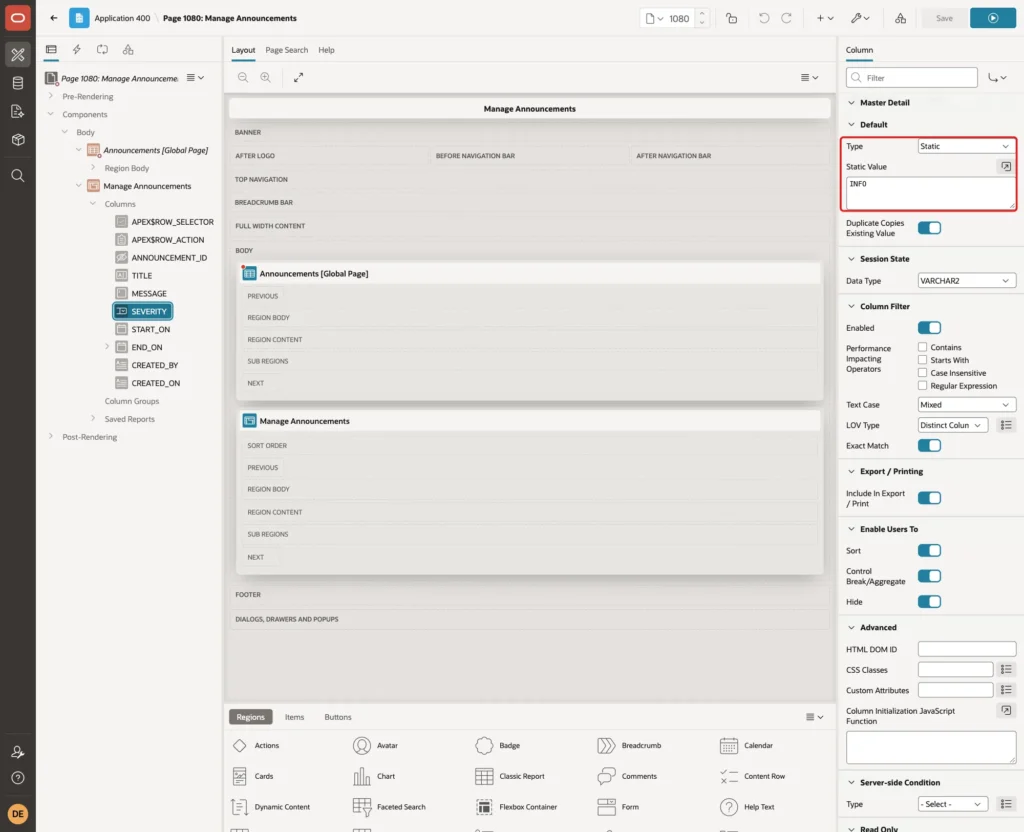
Under Default, set Type to Static and Static Value to INFO, so new rows start as Info:
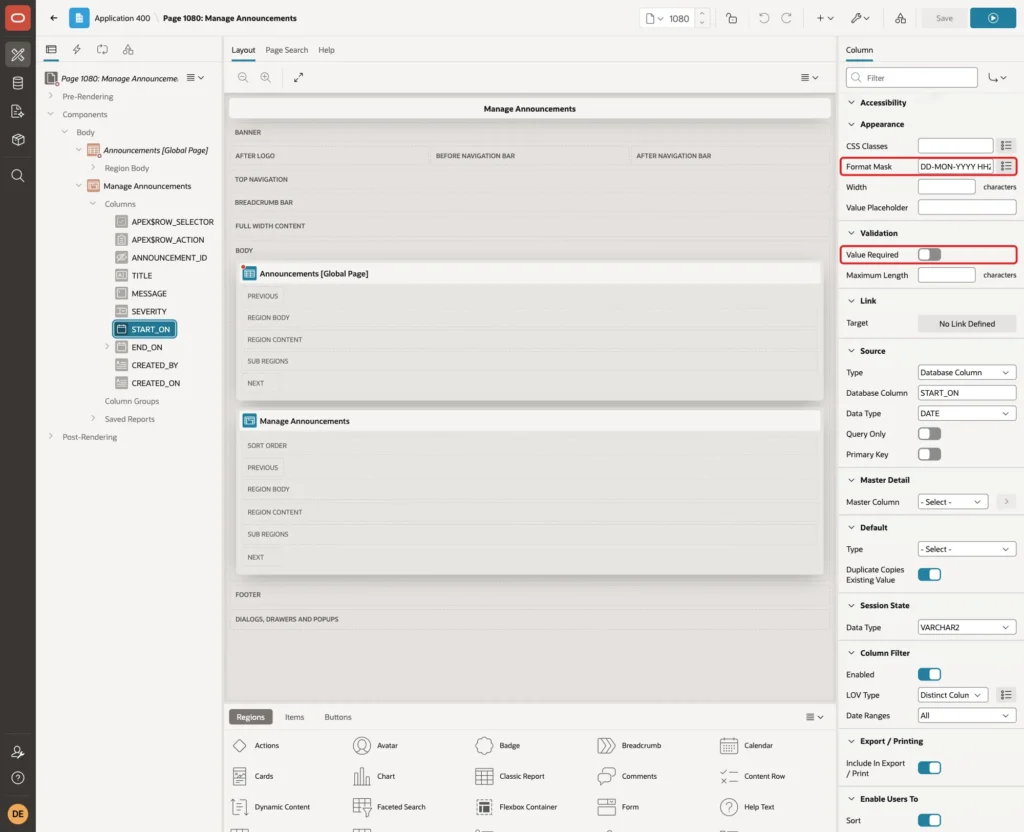
Select START_ON. Set Format Mask to DD-MON-YYYY HH24:MI, so administrators can enter a time, and turn Value Required off. An empty Start On is filled with the current date and time by the DEFAULT ON NULL of the column:
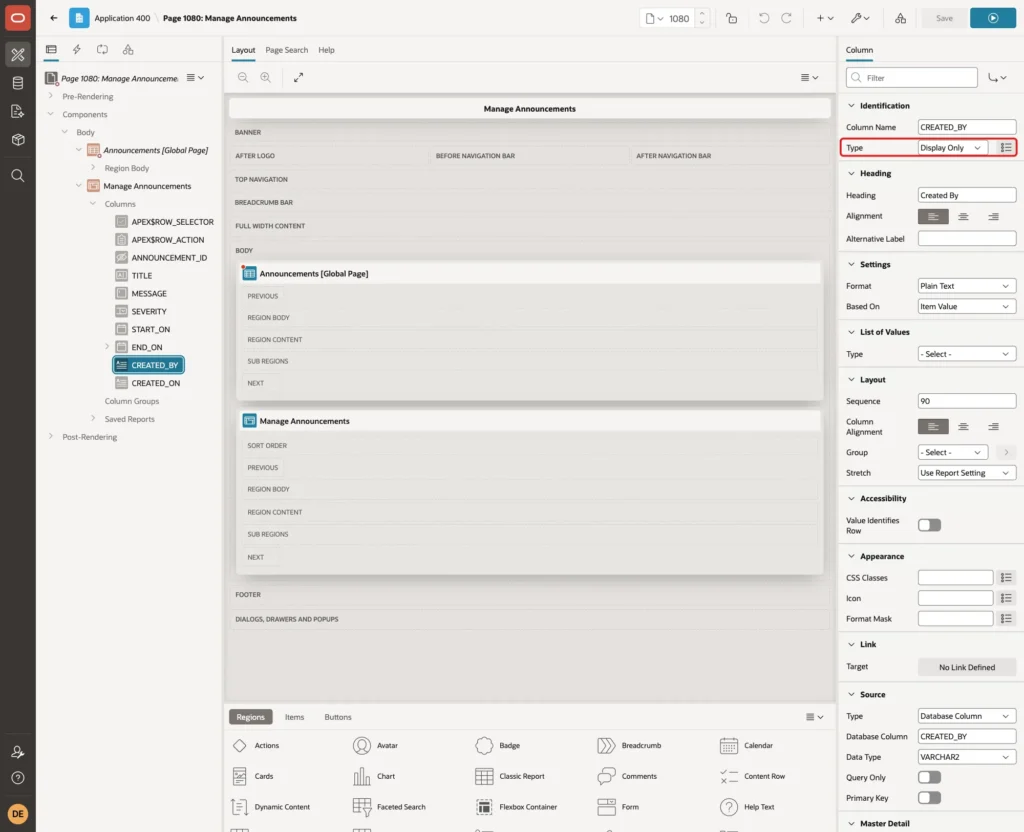
Select END_ON and set the same Format Mask, but keep Value Required on. Then select CREATED_BY and set Type to Display Only. Do the same for CREATED_ON, with Format Mask DD-MON-YYYY HH24:MI:
Step 4: Add a Validation for the Dates
The check constraint already rejects an end date before the start date. Without a validation, however, the user sees the raw ORA-02290 error. In a first test, saving a row with End On before Start On showed "ORA-02290: check constraint (APXSOL.ANNOUNCEMENTS_DATES_CK) violated".
Open the Processing tab, right-click Validating and choose Create Validation. Set Name to End On after Start On and Editable Region to Manage Announcements. Set Type to Expression, Language PL/SQL, and enter this expression:
Example:
:END_ON is null or to_date(:END_ON, 'DD-MON-YYYY HH24:MI') > nvl(to_date(:START_ON, 'DD-MON-YYYY HH24:MI'), sysdate)
Set Error Message to "End On must be later than Start On (or later than now when Start On is empty)." and Associated Column to END_ON:
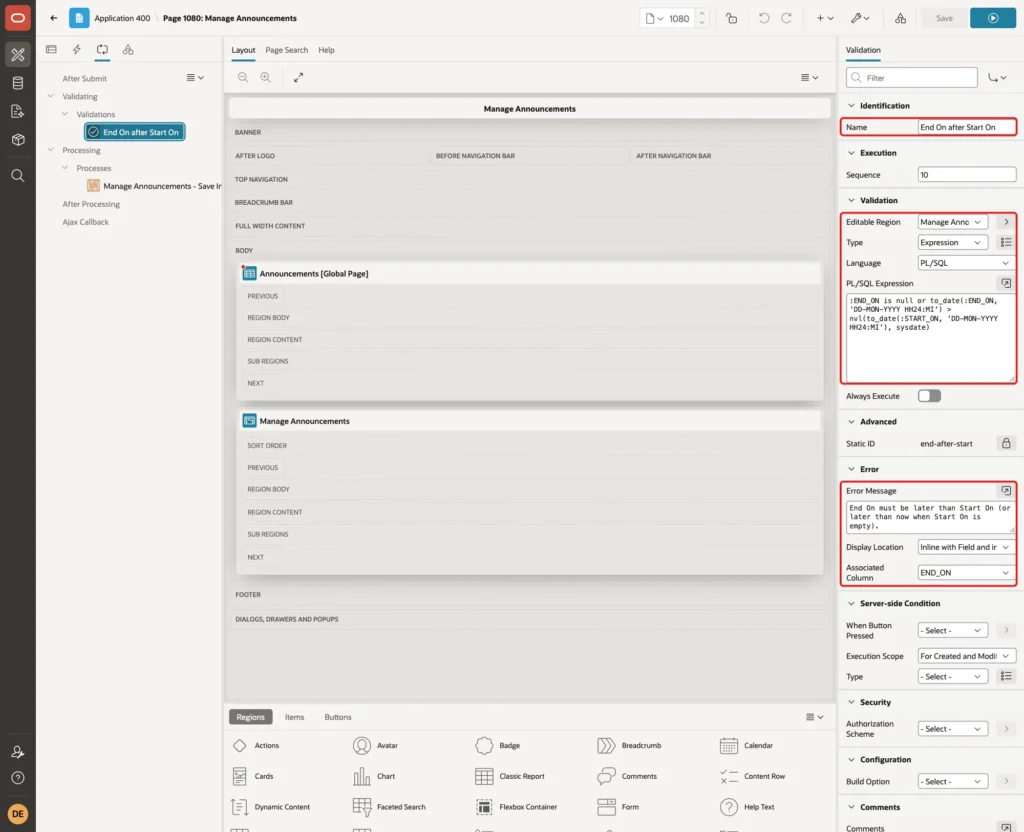
Grid columns are bound as text in the column's format mask, so the expression converts them with the same mask. An empty End On is left to the Value Required check of the column. The default Execution Scope, For Created and Modified Rows, skips deleted rows:

Step 5: Restrict the Page to Administrators
Select Page 1080 at the top of the Rendering tree. Under Security, set Authorization Scheme to Is Administrator:
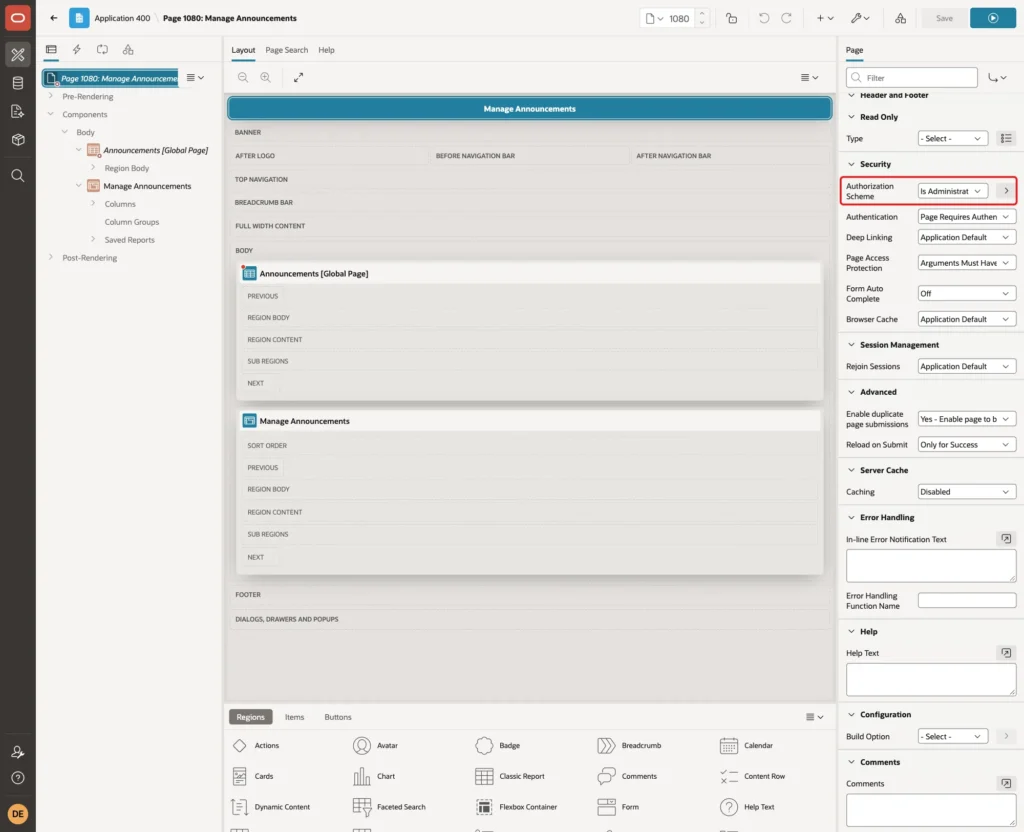
Is Administrator is an authorization scheme of the example application. Use the scheme that marks your own administrators. APEX also hides the navigation menu entry from users who fail the scheme.
Step 6: Add the Banner Region to the Global Page
The Global Page (page 0) renders its regions on every page of the application. That makes it the right place for the banner.
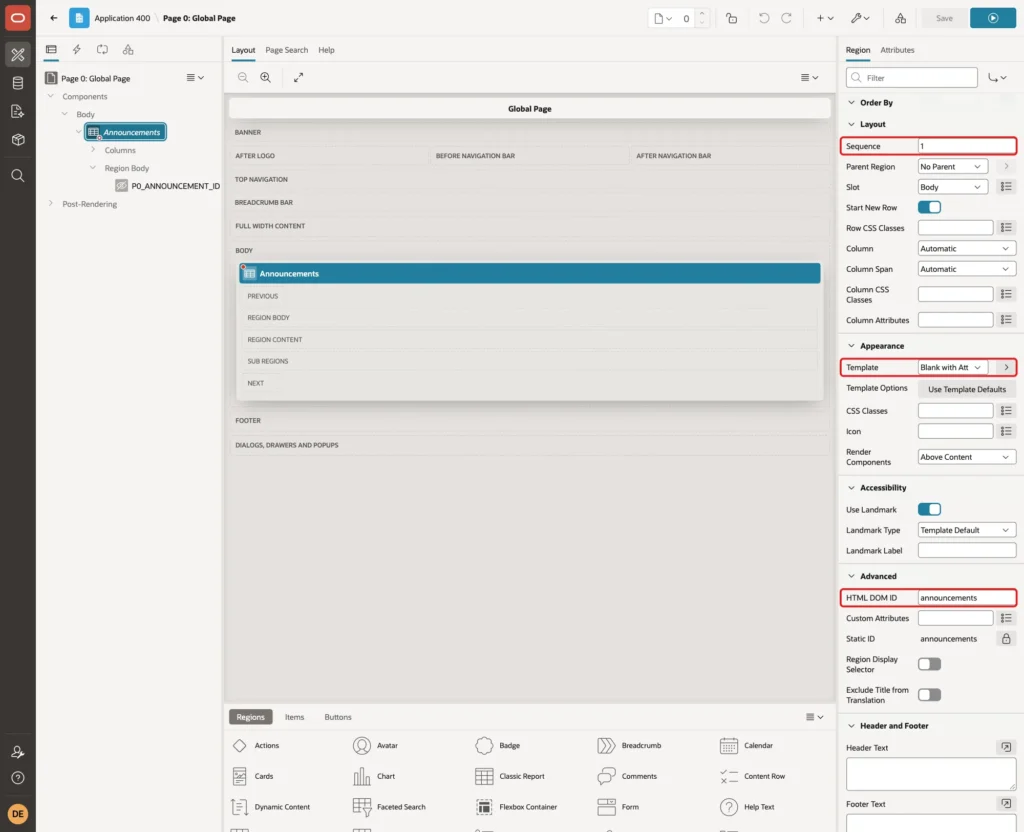
Open page 0 in Page Designer, right-click Body and choose Create Region. Set Name to Announcements and Type to Classic Report. Under Source, keep Type SQL Query and enter this query:
Example:
select a.announcement_id,
       lower(a.severity) as alert_type,
       a.title           as alert_title,
       a.message         as alert_desc,
       null              as alert_action
from   announcements a
where  sysdate >= a.start_on
and    sysdate <  a.end_on
and    not exists (
         select 1
         from   announcement_dismissals d
         where  d.announcement_id = a.announcement_id
         and    d.user_name = :APP_USER)
order  by case a.severity
            when 'DANGER'  then 1
            when 'WARNING' then 2
            else 3
          end,
          a.start_on desc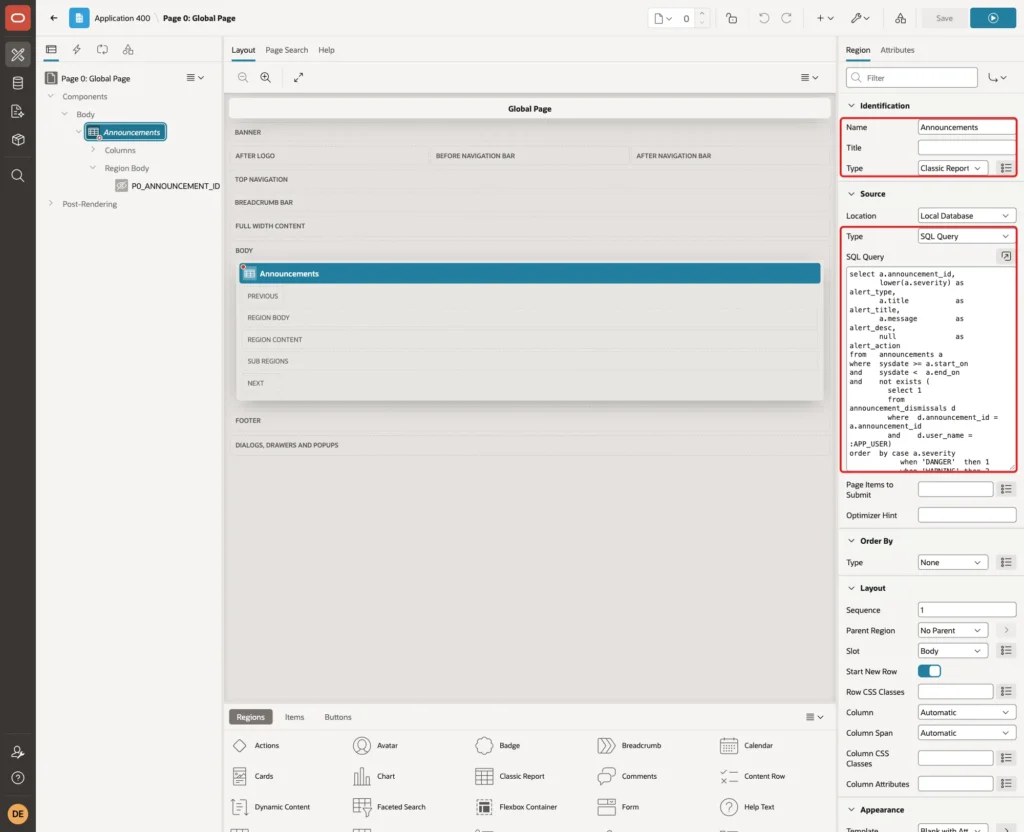
The query returns only the announcements that are active now and that the current user has not dismissed. The column aliases ALERT_TYPE, ALERT_TITLE, ALERT_DESC and ALERT_ACTION are the names the Alerts report template expects (Step 8). Danger messages come first, then warnings, then the newest of the rest.
Under Layout, set Sequence to 1, so the banner comes before the regions of each page. Under Appearance, set Template to Blank with Attributes (No Grid), so no region frame is drawn around the alerts. Under Advanced, set HTML DOM ID to announcements:
Step 7: Show the Banner Only on Normal Pages
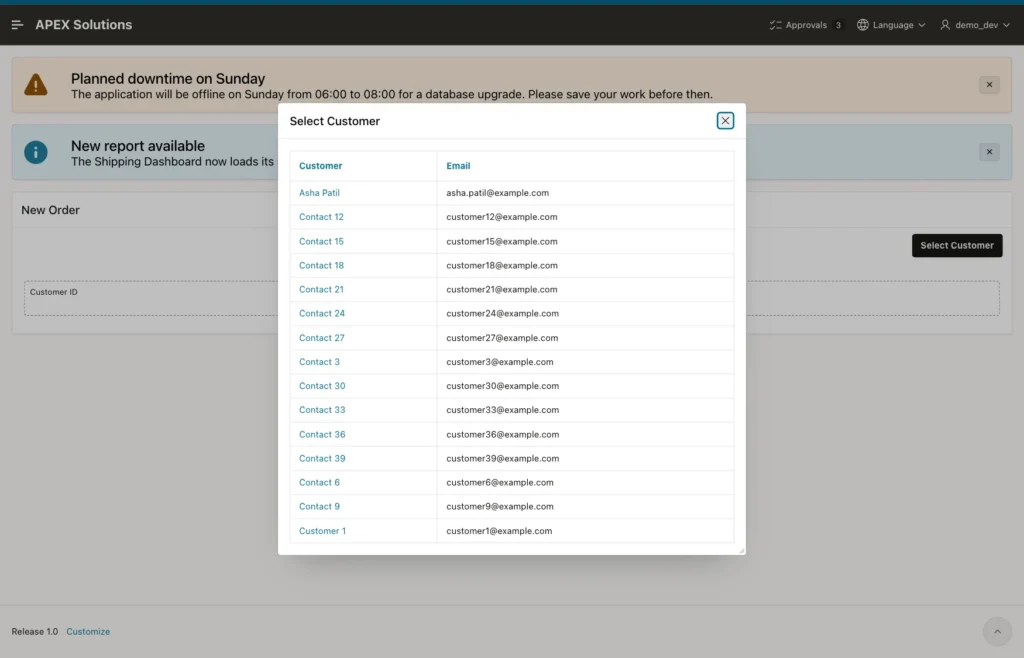
Global Page regions also render inside modal dialog pages. In a first test without a condition, the banner appeared twice when a modal dialog was open: once on the page and once inside the dialog:
The banner should also stay off the login page, where no user is signed in yet. Under Server-side Condition, set Type to Expression, Language PL/SQL, and enter this expression:
Example:
apex_authentication.is_authenticated
and apex_page.get_page_mode(p_application_id => :APP_ID, p_page_id => :APP_PAGE_ID) = 'NORMAL'
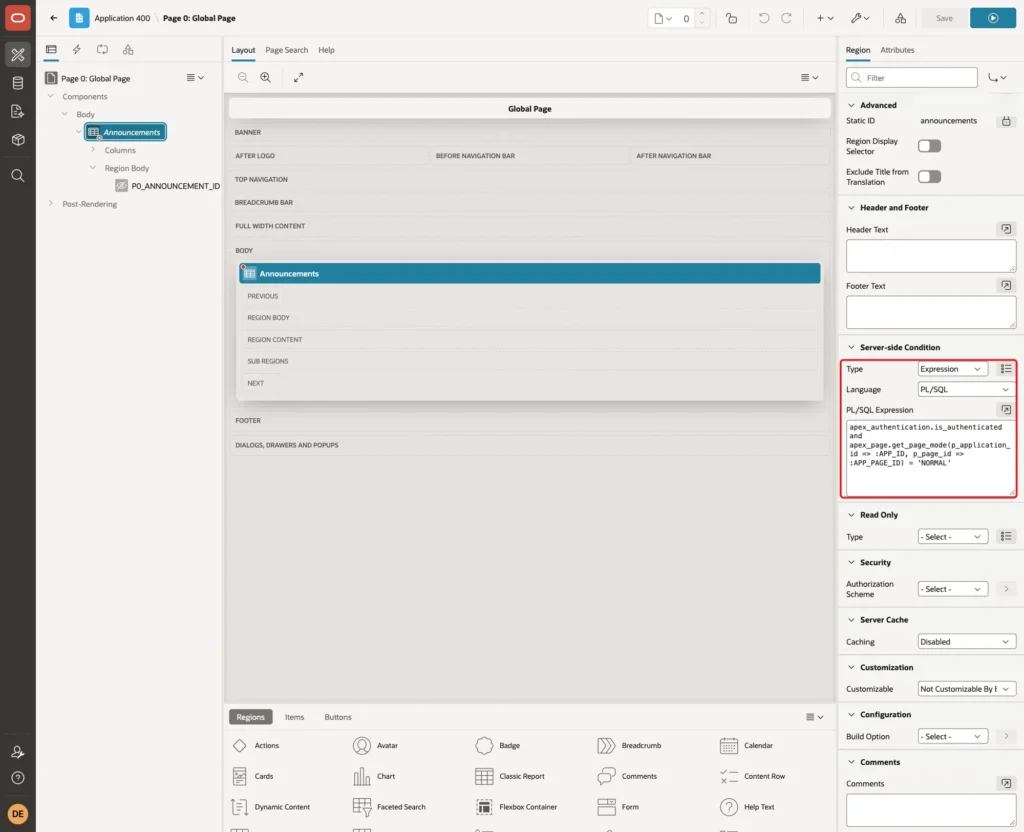
APEX_PAGE.GET_PAGE_MODE returns NORMAL for normal pages and MODAL for modal dialog pages. The region now shows only on normal pages of signed-in users.
Step 8: Use the Alerts Report Template
Click the Attributes tab of the region. Under Appearance, set Template to Alerts. Under Pagination, set Type to No Pagination (Show All Rows). Under Messages, clear When No Data Found, so nothing shows when there are no announcements:
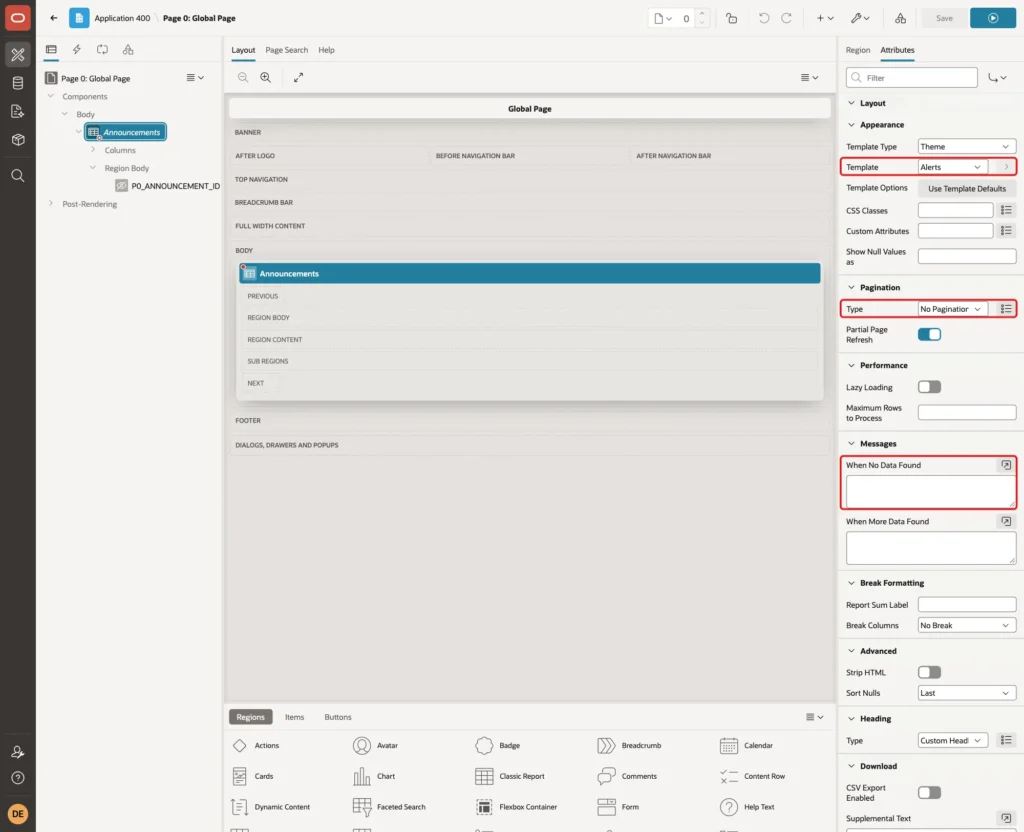
The Alerts report template is part of the Universal Theme. It draws each row as an alert and uses four columns:
- ALERT_TYPE: info, success, warning or danger. It sets the color and icon, so the query returns the severity in lowercase.
- ALERT_TITLE: the heading of the alert.
- ALERT_DESC: the text below the heading.
- ALERT_ACTION: the content on the right side, used here for the Dismiss button.
Step 9: Add the Dismiss Button Column
Expand the region's Columns. Set Type of ANNOUNCEMENT_ID to Hidden. Then select ALERT_ACTION and, under Column Formatting, enter this HTML Expression:
Example:
<button type="button" class="t-Button t-Button--noLabel t-Button--icon t-Button--small js-dismiss-announcement" data-id="#ANNOUNCEMENT_ID#" title="Dismiss" aria-label="Dismiss"><span class="t-Icon fa fa-times" aria-hidden="true"></span></button>
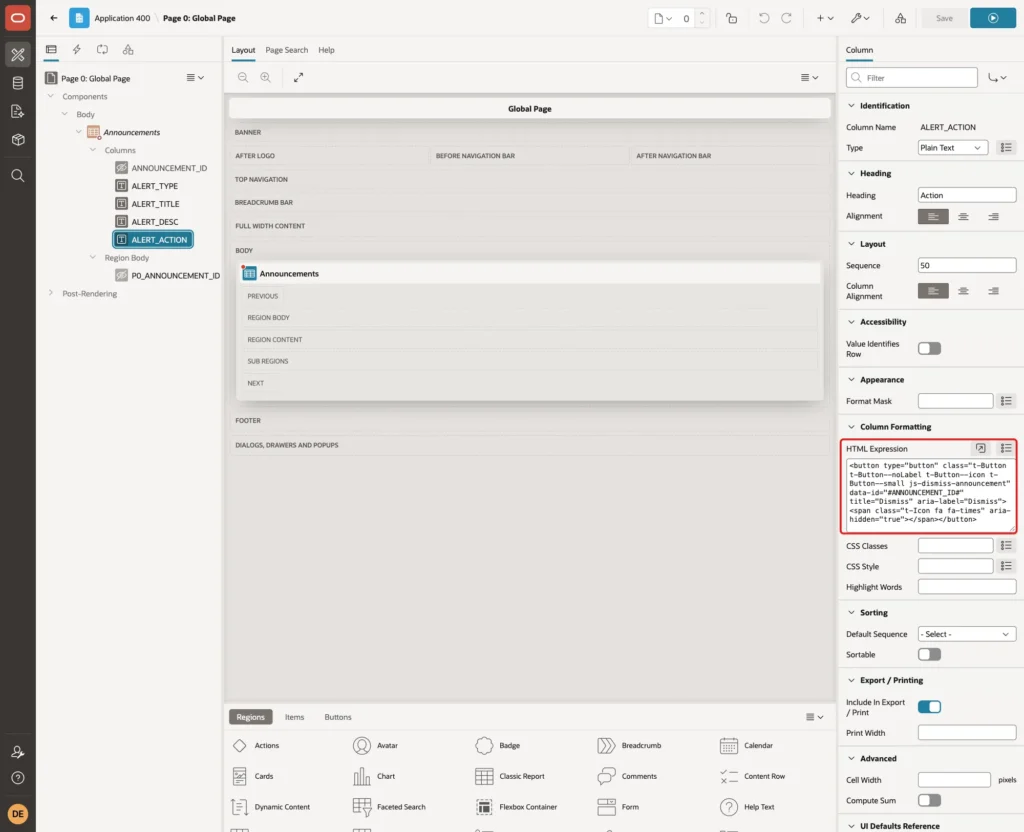
The js-dismiss-announcement class lets a dynamic action find every Dismiss button. The data-id attribute carries the ID of the announcement. ALERT_TITLE and ALERT_DESC keep Escape Special Characters on, so HTML typed into a message is shown as text and is not run.
Step 10: Add the Hidden Item
Right-click the Announcements region and choose Create Page Item. Set Name to P0_ANNOUNCEMENT_ID and Type to Hidden. Turn Value Protected off, because JavaScript sets its value. Under Session State, set Storage to Per Request (Memory Only):
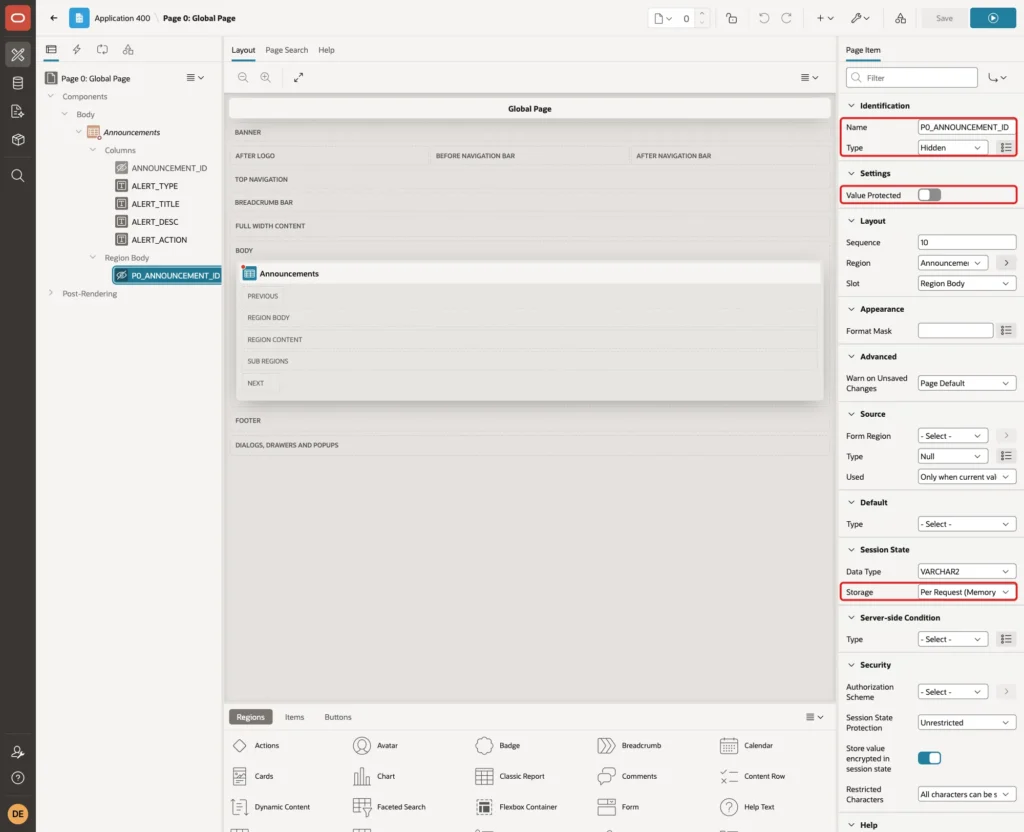
Per Request storage keeps the value only for the request that submits it. Nothing about the clicked button is left in session state.
Step 11: Create the Dismiss Dynamic Action
Open the Dynamic Actions tab, right-click Events and choose Create Dynamic Action. Set Name to Dismiss Announcement. Under When, set Event to Click, Selection Type to jQuery Selector and jQuery Selector to .js-dismiss-announcement. Under Execution, set Event Scope to Dynamic and Static Container to body:
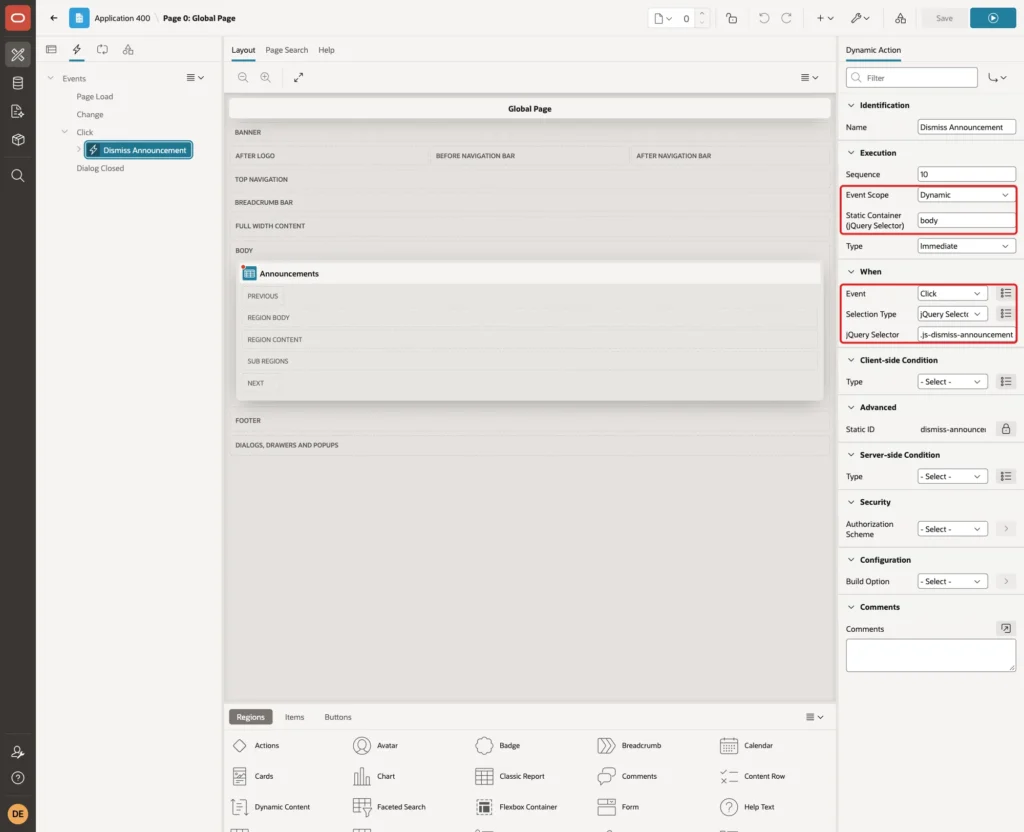
With Event Scope Dynamic, the click handler sits on the body element. Buttons that appear later, such as the ones redrawn by the refresh at the end of this dynamic action, react to clicks too.
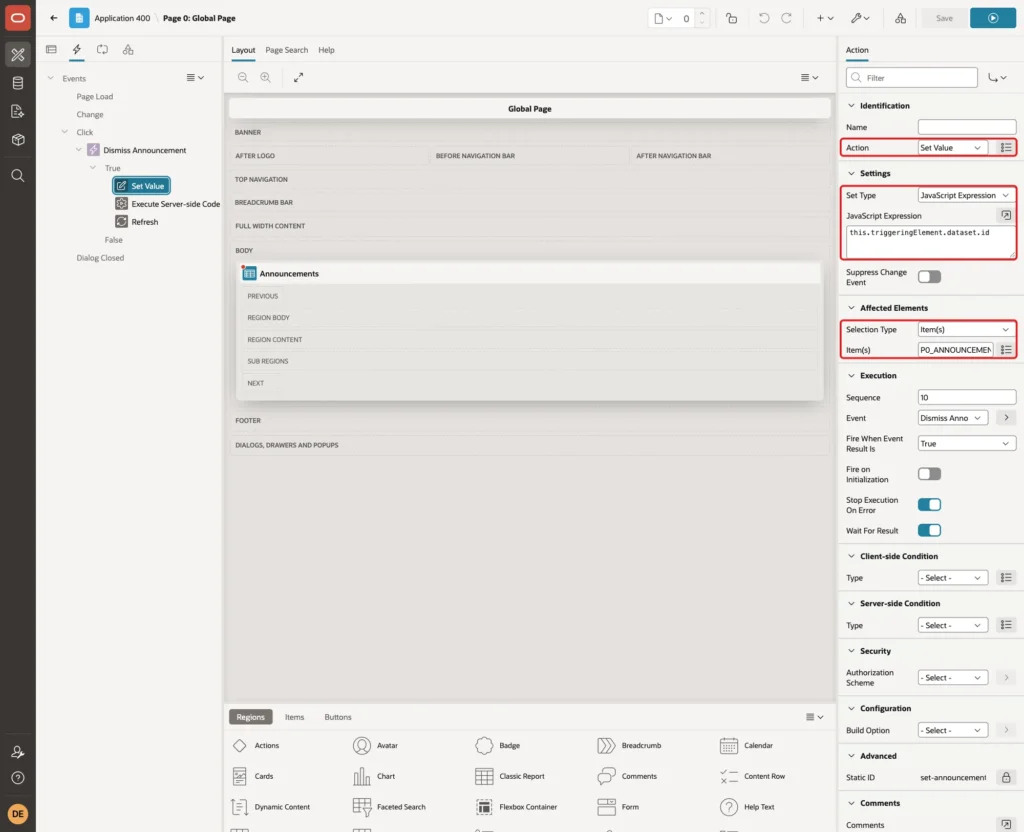
Change the first True action to Set Value. Set Set Type to JavaScript Expression with this expression, and Item(s) to P0_ANNOUNCEMENT_ID:
Example:
this.triggeringElement.dataset.id
Add a second True action of type Execute Server-side Code. Enter this PL/SQL code, set Items to Submit to P0_ANNOUNCEMENT_ID, and turn Wait For Result on:
Example:
insert into announcement_dismissals (announcement_id, user_name)
select a.announcement_id, :APP_USER
from   announcements a
where  a.announcement_id = to_number(:P0_ANNOUNCEMENT_ID default null on conversion error)
and    sysdate >= a.start_on
and    sysdate <  a.end_on
and    not exists (
         select 1
         from   announcement_dismissals d
         where  d.announcement_id = a.announcement_id
         and    d.user_name = :APP_USER);
The insert uses :APP_USER, so a user can only dismiss announcements for themselves. It saves nothing for an unknown, expired or future announcement, or for one the user has already dismissed. TO_NUMBER with DEFAULT NULL ON CONVERSION ERROR turns a forged non-numeric value into NULL instead of an error.
Add a third True action of type Refresh, with Selection Type Region and Region Announcements:

Wait For Result on the server-side action makes the refresh start only after the insert has finished, so the redrawn banner no longer contains the dismissed announcement.
Step 12: Test the Banner
SALES_USER, a Reader in the example application, signed in and opened the home page. Both active announcements appeared, the warning first. The expired and the future announcement did not appear:
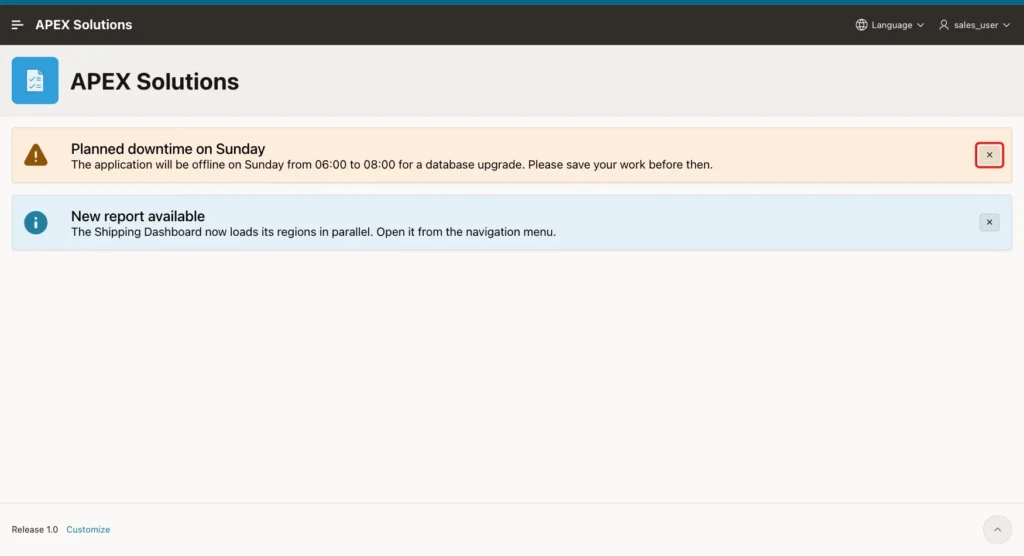
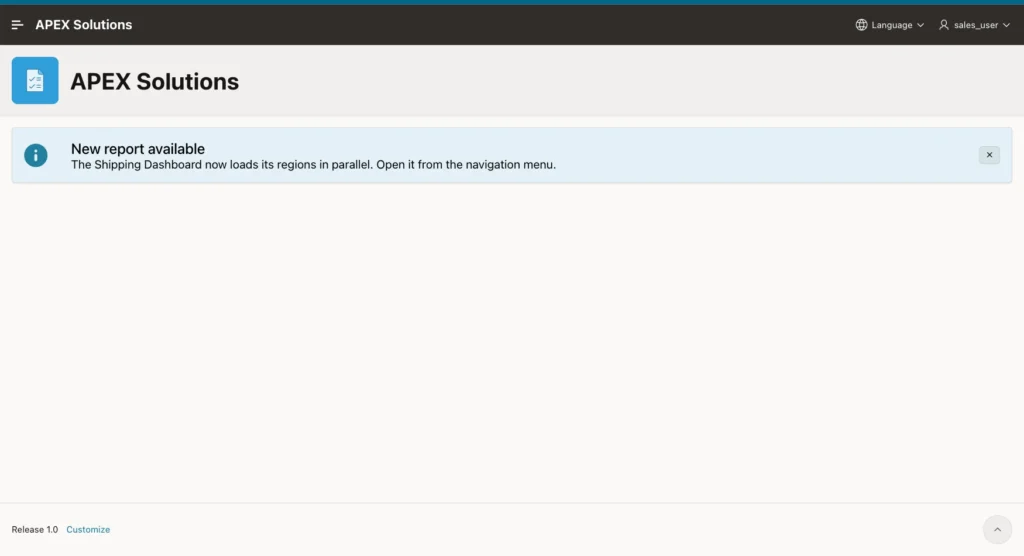
SALES_USER clicked the X on the warning. One Ajax call saved the dismissal and a second one refreshed the region. The warning disappeared without a page reload, and it stayed hidden after reloading the page:
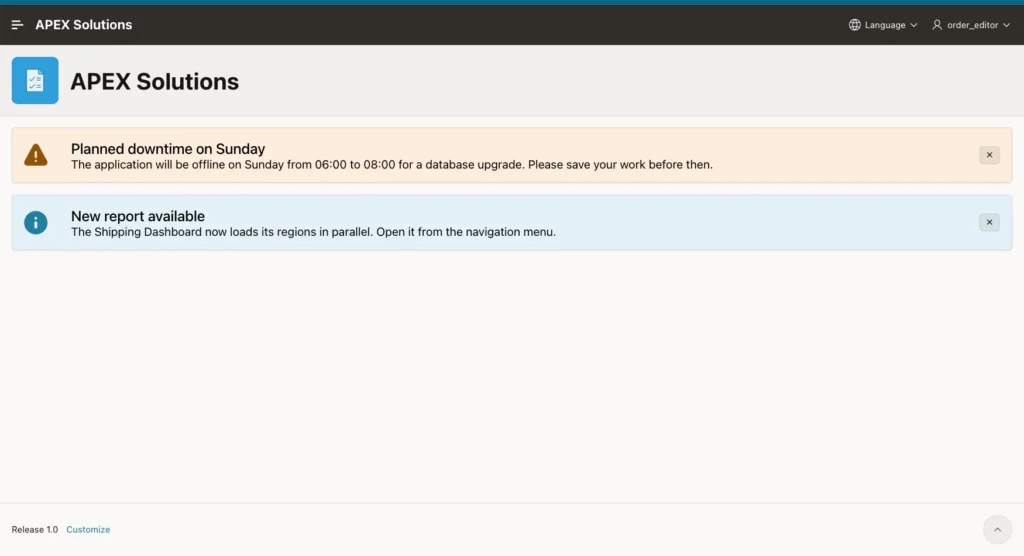
ORDER_EDITOR then signed in. This user still saw both announcements, because the dismissal belongs to SALES_USER only:
Next, SALES_USER tried to dismiss announcements that were not shown. In the browser console, a fake Dismiss button with data-id 3 (the expired announcement) was added and clicked:
Example:
var b = document.createElement('button');
b.className = 'js-dismiss-announcement';
b.dataset.id = '3';
document.body.appendChild(b);
b.click();
b.remove();
The same was repeated with 4 (the future announcement), abc and 999, one after the other.
Each click ran the dynamic action and the server returned no error. The insert found no matching active announcement, so no row was saved, and the banner kept showing one announcement. The SQL check in Step 13 confirms it.
Then DEMO_DEV, an administrator, opened Manage Announcements and tried to save a row with End On before Start On. The validation stopped it with the friendly message:
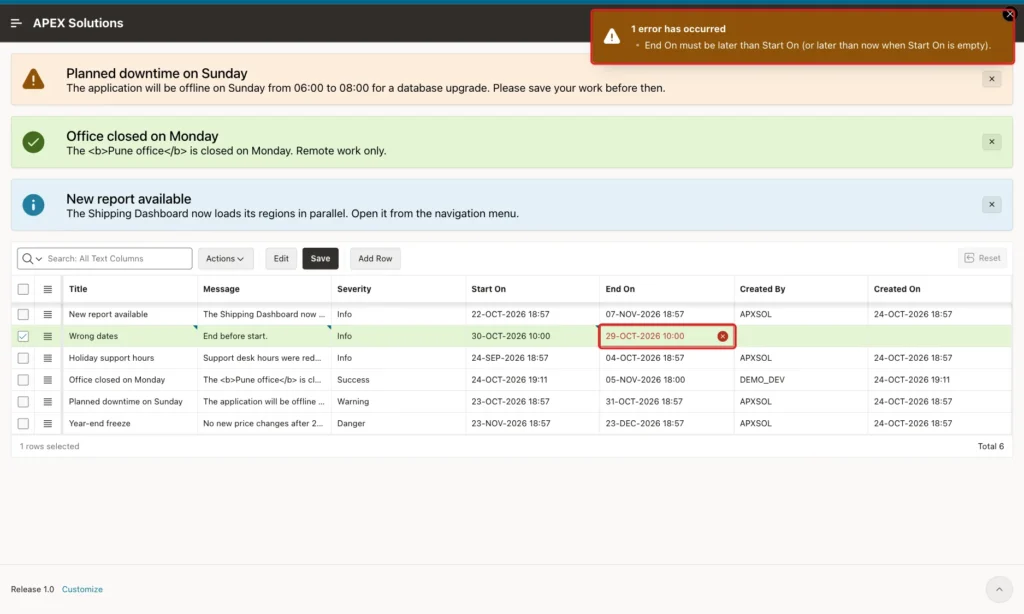
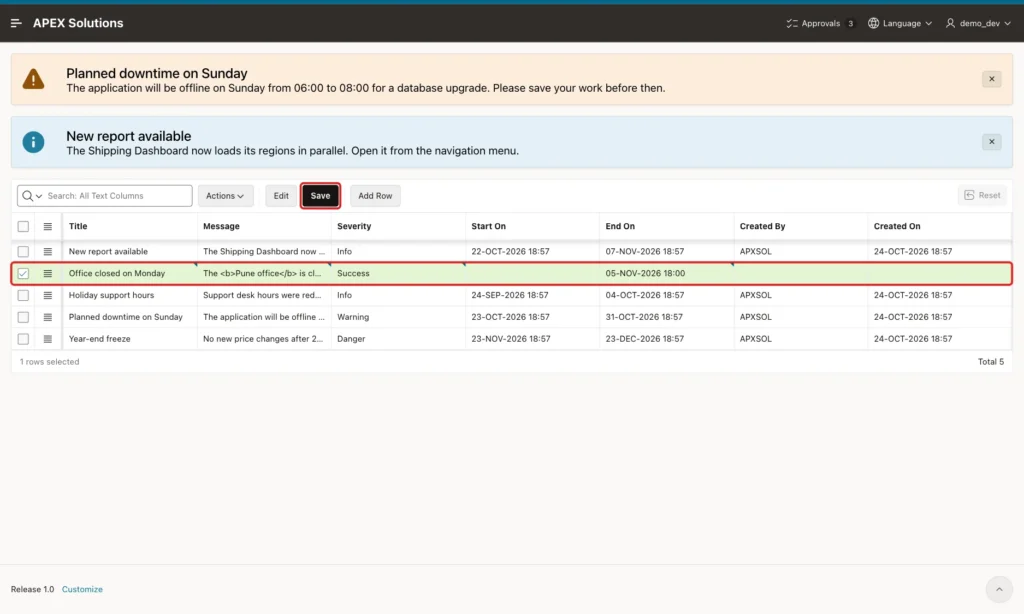
DEMO_DEV then added a correct row: Office closed on Monday, Success, End On 05-NOV-2026 18:00 and an empty Start On. The message contained HTML bold tags on purpose:
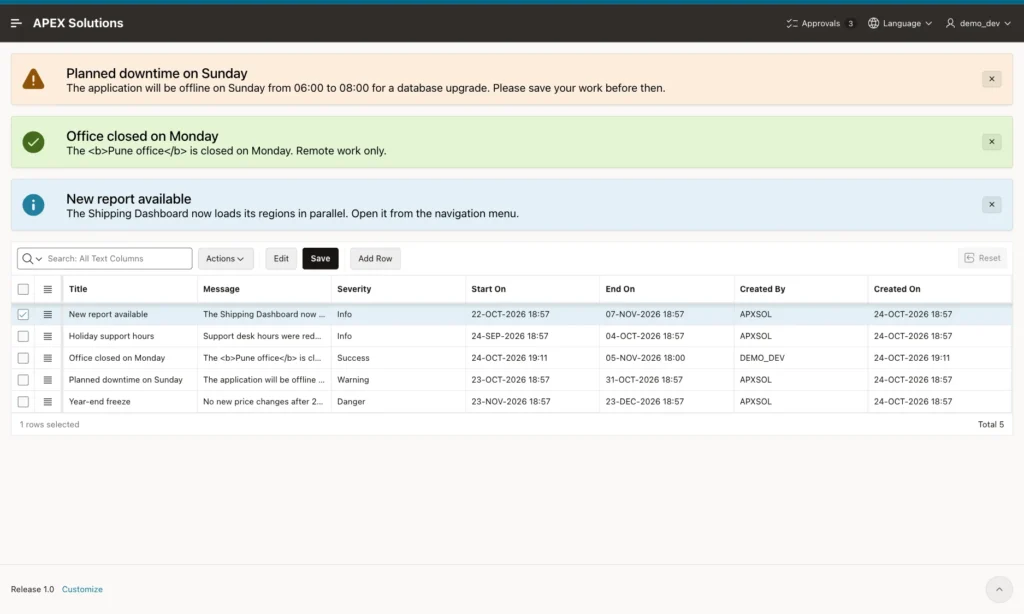
After Save and a page reload, the new announcement appeared in green at once, on the admin page too. Start On was filled with the current date and time, and Created By with DEMO_DEV. The bold tags were shown as plain text:
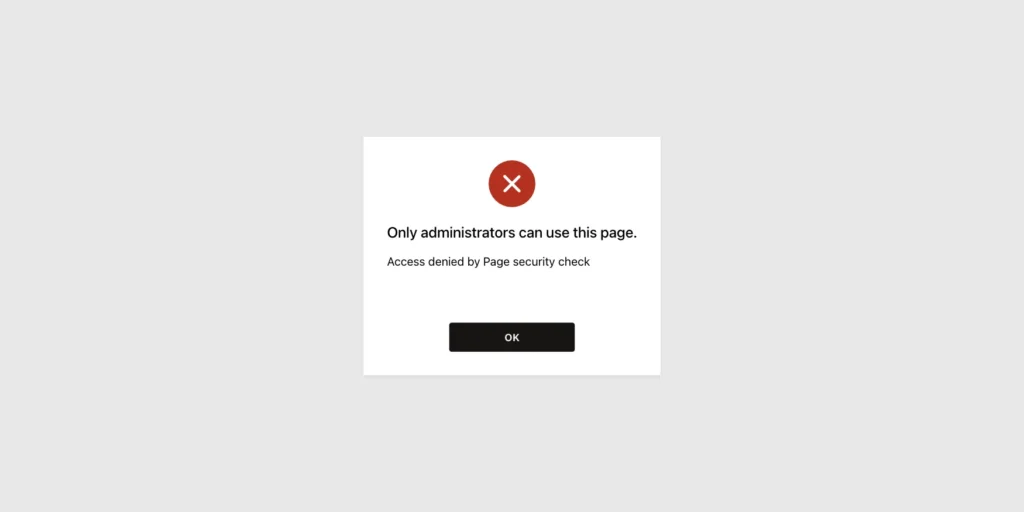
SALES_USER then opened the Manage Announcements URL directly. APEX refused the page, and the menu entry was not shown to this user:
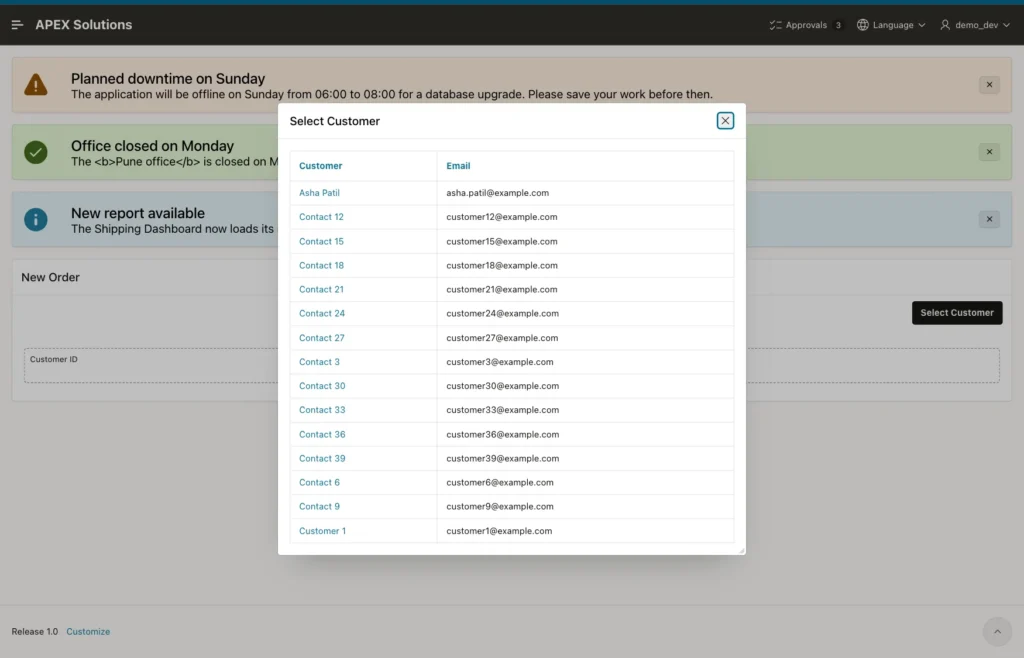
Finally, DEMO_DEV opened the Select Customer modal dialog from the New Order page. The banner showed once on the page behind the dialog, and not inside the dialog:
Step 13: Check the Data in SQL
This query lists the saved dismissals:
Example:
select d.announcement_id, a.title, d.user_name,
       to_char(d.dismissed_on, 'YYYY-MM-DD HH24:MI') as dismissed_on
from   announcement_dismissals d
join   announcements a on a.announcement_id = d.announcement_id
order  by d.announcement_id, d.user_name;
Output:
   ANNOUNCEMENT_ID TITLE                         USER_NAME     DISMISSED_ON
__________________ _____________________________ _____________ ___________________
                 1 Planned downtime on Sunday    SALES_USER    2026-10-24 19:07
Only one row exists: SALES_USER dismissed announcement 1. The forged clicks for 3, 4, abc and 999 saved nothing. This query shows the announcements after the tests:
Example:
select announcement_id, title, severity, created_by,
       to_char(start_on, 'YYYY-MM-DD HH24:MI') as starts,
       to_char(end_on, 'YYYY-MM-DD HH24:MI') as ends,
       case when sysdate >= start_on and sysdate < end_on then 'Y' else 'N' end as active
from   announcements
order  by announcement_id;
Output:
   ANNOUNCEMENT_ID TITLE                         SEVERITY    CREATED_BY    STARTS              ENDS                ACTIVE
__________________ _____________________________ ___________ _____________ ___________________ ___________________ _________
                 1 Planned downtime on Sunday    WARNING     APXSOL        2026-10-23 18:57    2026-10-31 18:57    Y
                 2 New report available          INFO        APXSOL        2026-10-22 18:57    2026-11-07 18:57    Y
                 3 Holiday support hours         INFO        APXSOL        2026-09-24 18:57    2026-10-04 18:57    N
                 4 Year-end freeze               DANGER      APXSOL        2026-11-23 18:57    2026-12-23 18:57    N
                23 Office closed on Monday       SUCCESS     DEMO_DEV      2026-10-24 19:11    2026-11-05 18:00    Y
The new announcement has CREATED_BY DEMO_DEV from the DEFAULT ON NULL of the column. The sample rows show the schema owner, because they were inserted from SQL outside an APEX session. Its ID is 23 and not 5; gaps in identity values are normal.
Things to Know
- Global Page regions render on every page of the application, also inside modal dialogs. Use a server-side condition to choose where the banner appears.
- The Global Page region also appears in the Rendering tree of every page in Page Designer, marked [Global Page].
- The dates are compared with SYSDATE, the clock of the database server. In this example the database runs in UTC, so enter start and end times in the server time zone, or store TIMESTAMP WITH TIME ZONE values instead.
- The banner query runs on every page view, so keep it small. The index on START_ON and END_ON and the primary key of the dismissals table support it.
- Keep Escape Special Characters on for the title and message columns. HTML typed by an administrator is then shown as text.
- Delete an announcement to remove its dismissals as well (ON DELETE CASCADE). To show a dismissed message again, create a new announcement.
- The Alerts template takes ALERT_TYPE values in lowercase: info, success, warning and danger.
Related Guides
- How to Put an Oracle APEX Application in Maintenance Mode
- How to Show Success, Error, and Confirm Messages Using apex.message in Oracle APEX
Conclusion
A dismissible announcement banner in Oracle APEX needs two tables, one classic report on the Global Page with the Alerts template, and one dynamic action. Table defaults, a check constraint and a grid validation handle the admin side without triggers.
The tests showed the banner for each user until that user dismissed it, ignored expired, future and forged IDs, and escaped HTML in messages. Remember the server-side condition, or the banner also appears inside modal dialogs and on the login page.
See my articles more often when you search Google.
