
Interactive Grids (IG) in Oracle APEX are powerful tools for displaying and editing data. However, users often need to extract this data for analysis in Excel or PDF formats.
While APEX has a built-in menu for this, it is often hidden or requires too many clicks, or for other reasons, we need to create a custom download button.
In this guide, we will explore two robust ways to add a custom download button to an interactive grid in Oracle APEX: building a specific page button and hacking the toolbar with JavaScript.
Prerequisites: Enabling the Feature
For the custom buttons below to work, the underlying Download functionality must be active on the Interactive Grid region.
- Open your page in Page Designer.
- Select your Interactive Grid Region.
- Go to the Attributes tab in the Property Editor.
- Scroll to the Download section and set Download to On.
Note: You can check/uncheck specific formats here, but the main switch must be On for the JavaScript API to function.
Method 1: Creating a Custom Download Button for Interactive Grid
This method allows you to place a prominent "Download" button anywhere on the page (e.g., next to the region title or in a separate button container), triggering the standard download dialog.
Phase 1: Preparation
- Select your Interactive Grid Region in Page Designer.
- In the Property Editor (right side), go to Advanced > Static ID.
- Enter a unique ID, for example:
my_ig_data.
Note: You will use this ID in the JavaScript code later.
Phase 2: Create the Custom Button
- Create a Button component to your desired location (e.g., "Right of Interactive Grid").
- Name it
BTN_DOWNLOAD. - Set the Label to "Download Data".
- (Optional) Set the Icon to
fa-download-alt. - Set Behavior > Action to Defined by Dynamic Action.
Phase 3: Create the Dynamic Action
This wires the button to the Interactive Grid's internal functionality.
- Right-click your new button (
BTN_DOWNLOAD) and select Create Dynamic Action. - Name it:
DA_Open_Download_Dialog. - Set Event to Click and Selection Type to Button.
- Under the True action, select Execute JavaScript Code.
- Paste the following code:
var igRegion = apex.region("my_ig_data");

if (igRegion) {   igRegion.widget().interactiveGrid("getActions").invoke("show-download-dialog");
}
Important: Ensure Fire on Initialization is turned OFF. Save and run your page; clicking the button should now trigger the standard APEX download popup.
 button for interactive grid in Oracle APEX to open download dialog." class="wp-image-21100"/>
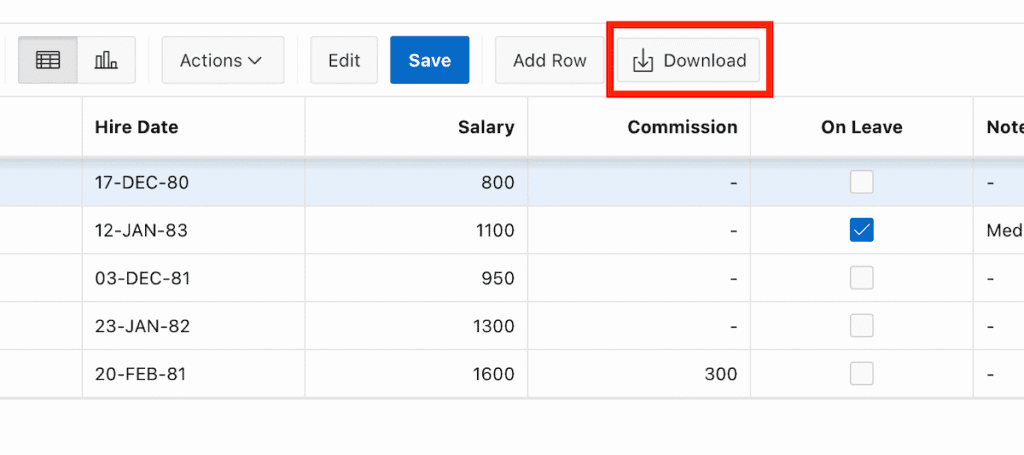
Method 2: Adding a Download Button to the IG Toolbar (Advanced)
If you prefer the button to be inside the Interactive Grid's own toolbar (next to the Search bar) rather than a separate page button, you can do this via initialization code.
Implementation Steps
- Select the Interactive Grid region.
- Go to the Attributes tab.
- Scroll down to Advanced > JavaScript Initialization Code.
- Paste the following code:
function(config) {
    var $ = apex.jQuery;
    var toolbarData = $.apex.interactiveGrid.copyDefaultToolbar();

    // Find the group usually containing actions (often named 'actions3' or similar)
    var toolbarGroup = toolbarData.toolbarFind("actions3");

    // Add a new button to the toolbar
    toolbarGroup.controls.push({
        type: "BUTTON",
        action: "show-download-dialog", // This links directly to the internal action
        icon: "fa fa-download-alt", // Icon
        iconBeforeLabel: true,
        label: "Download" // Button Text
    });

    config.toolbarData = toolbarData;
    return config;
}
This code intercepts the toolbar configuration before the grid renders and injects a new button that triggers the download action. This will also open the download dialog, as shown in the example above.
 Oracle APEX." class="wp-image-21101"/>
Conclusion: Choose Your User Experience
These methods give you flexibility in how you present data export options to your users. Whether you want a big, obvious button on the page or a seamless integration into the toolbar, the JavaScript API makes it possible.
Tip: If you want to force users to use your button, you can use CSS or Toolbar configuration to hide the standard "Actions" menu, creating a cleaner interface while keeping the functionality accessible via your custom controls.
Frequently Asked Questions (FAQ)
- Why is my custom button not doing anything? Ensure your Static ID is correct and that the "Download" switch is enabled in the IG Attributes.
- Can I hide the Actions menu but keep my button? Yes, you can disable the Actions menu in attributes, but you must ensure the underlying download functionality remains active for your custom button to work.
