
A progressive web app (PWA) is a web application that users can install like a native app. It gets its own icon on the phone home screen or the desktop, opens in its own window without the browser address bar, and shows a friendly page when the network is gone.
Oracle APEX builds the two technical parts of a PWA for you: the web app manifest and the service worker. This guide sets them up declaratively. It changes the app icon, makes the app installable, sets the display mode, colors and names, adds a store-style screenshot, and then checks the result in the browser.
The guide uses a small field visits page as the example; the same steps work for any APEX app. The earlier guide How to Save Data in the Browser and Prompt App Installs Using apex.storage and apex.pwa covers the JavaScript API for installs. This one covers the declarative setup in App Builder and does not repeat that API.
Step 1: Create the Tables
An installed app is most useful for pages that people open on the move. The example is a list of site inspection visits. It needs two tables: VISIT_SITES for the places and FIELD_VISITS for the visits, with a foreign key between them and a check constraint on the status.
Create the tables, an index on the foreign key column and the sample data:
Example:
create table visit_sites (
  site_id    number generated by default on null as identity,
  site_name  varchar2(100) not null,
  city       varchar2(60)  not null,
  constraint visit_sites_pk primary key (site_id),
  constraint visit_sites_name_uk unique (site_name)
);

create table field_visits (
  visit_id    number generated by default on null as identity,
  site_id     number        not null,
  visit_date  date          not null,
  inspector   varchar2(60)  not null,
  status      varchar2(10)  default on null 'PLANNED' not null,
  notes       varchar2(400),
  constraint field_visits_pk primary key (visit_id),
  constraint field_visits_site_fk foreign key (site_id) references visit_sites (site_id),
  constraint field_visits_status_ck check (status in ('PLANNED', 'DONE', 'MISSED'))
);

create index field_visits_site_ix on field_visits (site_id);

insert into visit_sites (site_name, city) values ('North Warehouse', 'Leeds');
insert into visit_sites (site_name, city) values ('Riverside Plant', 'York');
insert into visit_sites (site_name, city) values ('City Depot', 'Hull');

insert into field_visits (site_id, visit_date, inspector, status, notes)
values (1, date '2026-10-12', 'Anna Reid', 'DONE', 'Fire doors checked');
insert into field_visits (site_id, visit_date, inspector, status, notes)
values (2, date '2026-10-14', 'Omar Khan', 'DONE', 'Forklift log reviewed');
insert into field_visits (site_id, visit_date, inspector, notes)
values (3, date '2026-10-16', 'Anna Reid', 'Quarterly safety walk');
insert into field_visits (site_id, visit_date, inspector, notes)
values (1, date '2026-10-20', 'Omar Khan', 'Racking inspection');
commit;

select v.visit_id, s.site_name, to_char(v.visit_date, 'YYYY-MM-DD') visit_date, v.inspector, v.status
from   field_visits v join visit_sites s on s.site_id = v.site_id
order  by v.visit_date;
Output:
Table VISIT_SITES created.

Table FIELD_VISITS created.

Index FIELD_VISITS_SITE_IX created.

1 row inserted.

1 row inserted.

1 row inserted.

1 row inserted.

1 row inserted.

1 row inserted.

1 row inserted.

Commit complete.

   VISIT_ID SITE_NAME          VISIT_DATE    INSPECTOR    STATUS
___________ __________________ _____________ ____________ __________
          1 North Warehouse    2026-10-12    Anna Reid    DONE
          2 Riverside Plant    2026-10-14    Omar Khan    DONE
          3 City Depot         2026-10-16    Anna Reid    PLANNED
4 North Warehouse 2026-10-20 Omar Khan PLANNED- Both primary keys use identity columns, so the inserts do not pass IDs.
- STATUS has DEFAULT ON NULL 'PLANNED', so the two visits inserted without a status got PLANNED from the database, with no trigger.
- FIELD_VISITS_STATUS_CK allows only PLANNED, DONE and MISSED.
Step 2: Create the Field Visits Page
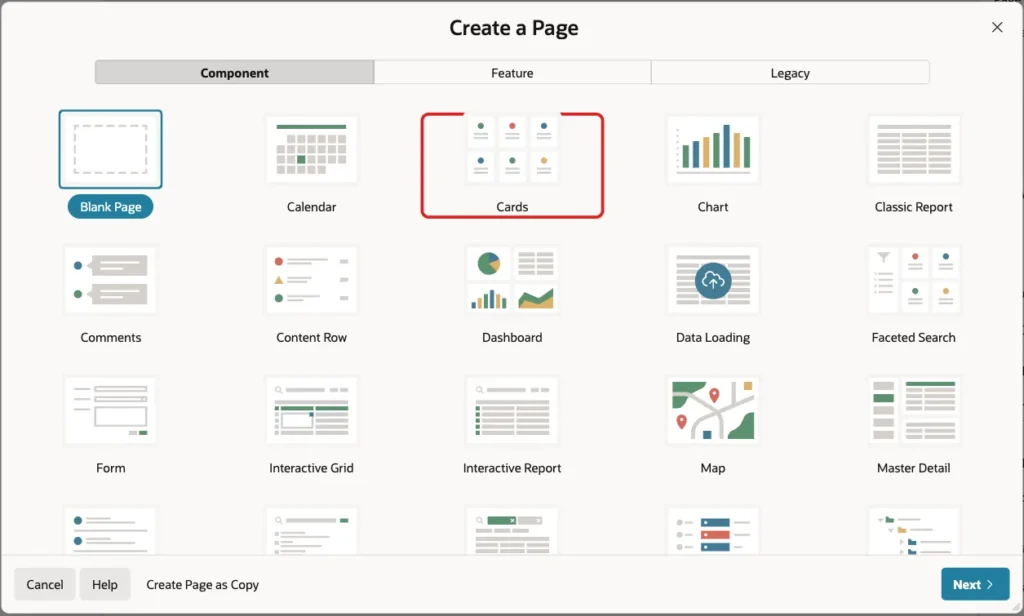
In App Builder, open the application and click Create Page. On the Component tab, click Cards:
Enter Page Number 355 and Name Field Visits. Under Data Source, set Source Type to SQL Query and enter this query:
Example:
select v.visit_id,
       s.site_name,
       s.city,
       v.visit_date,
       v.inspector,
       v.status,
       v.notes
  from field_visits v
  join visit_sites s on s.site_id = v.site_id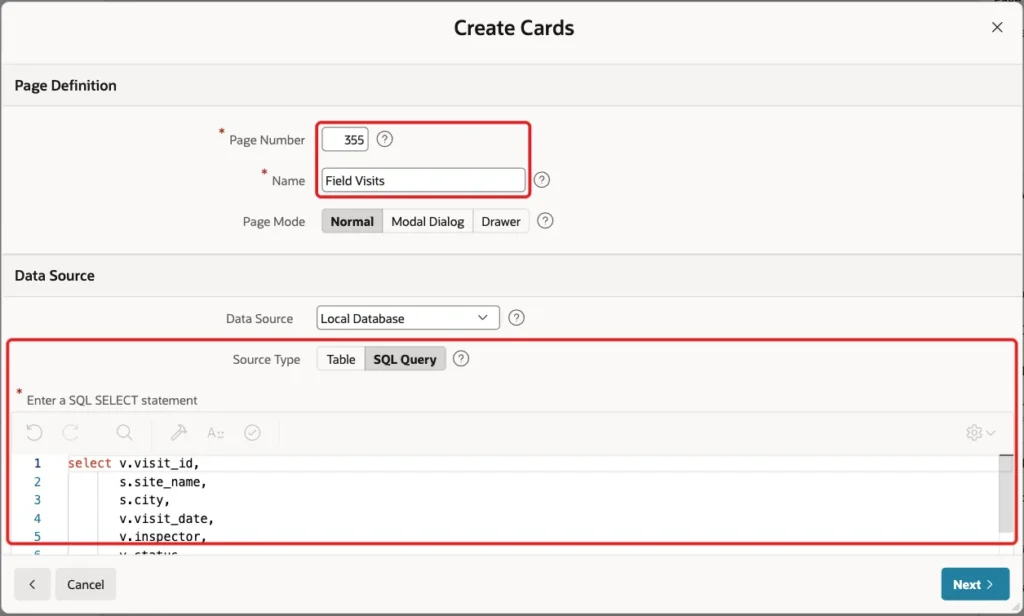
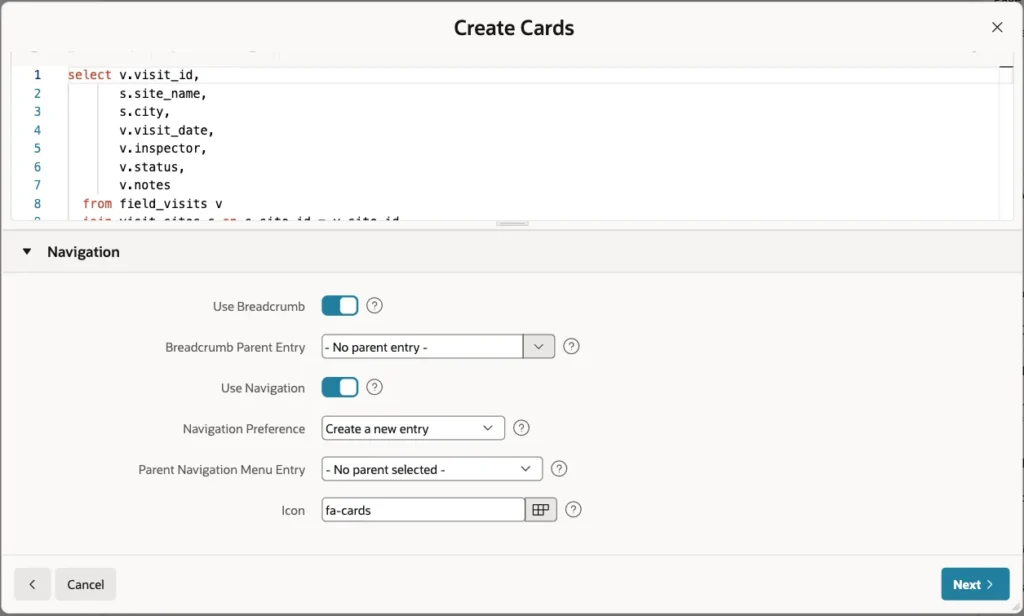
Scroll down to Navigation. Keep the defaults: a breadcrumb and a new navigation menu entry with the icon fa-cards. Click Next:
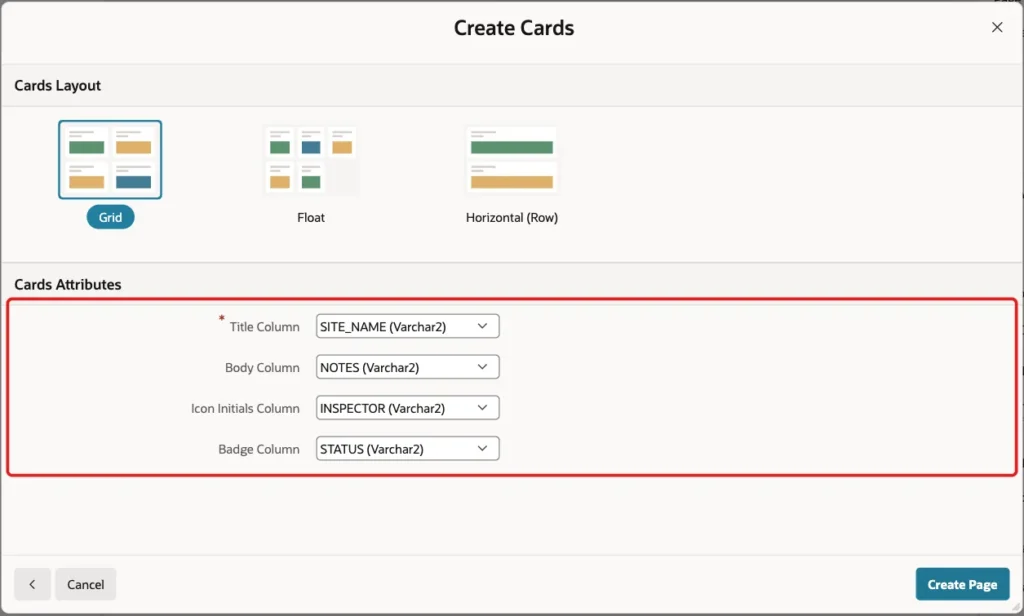
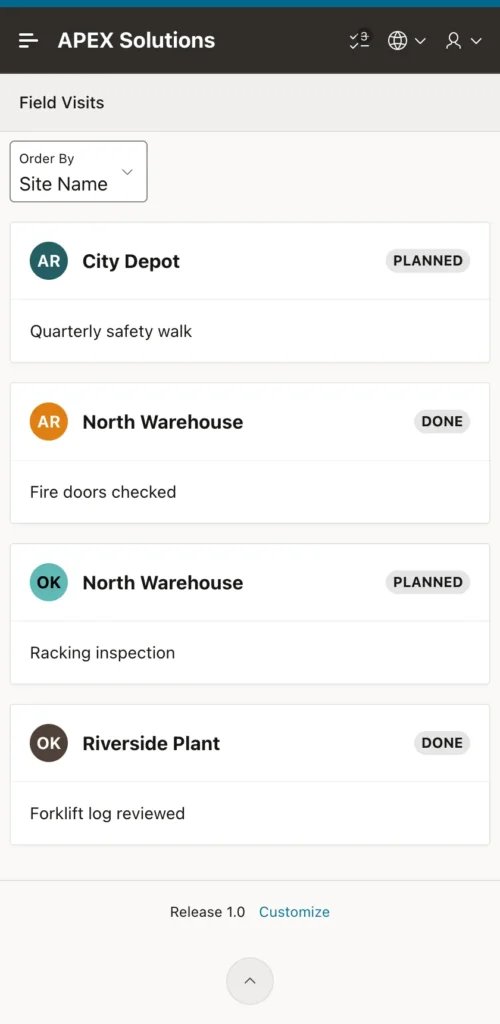
Keep the Grid layout. Set Title Column to SITE_NAME, Body Column to NOTES, Icon Initials Column to INSPECTOR and Badge Column to STATUS. Click Create Page:
Run the page. On a phone-sized screen, each visit is one card with the inspector's initials and the status badge:
Step 3: Change the App Icon
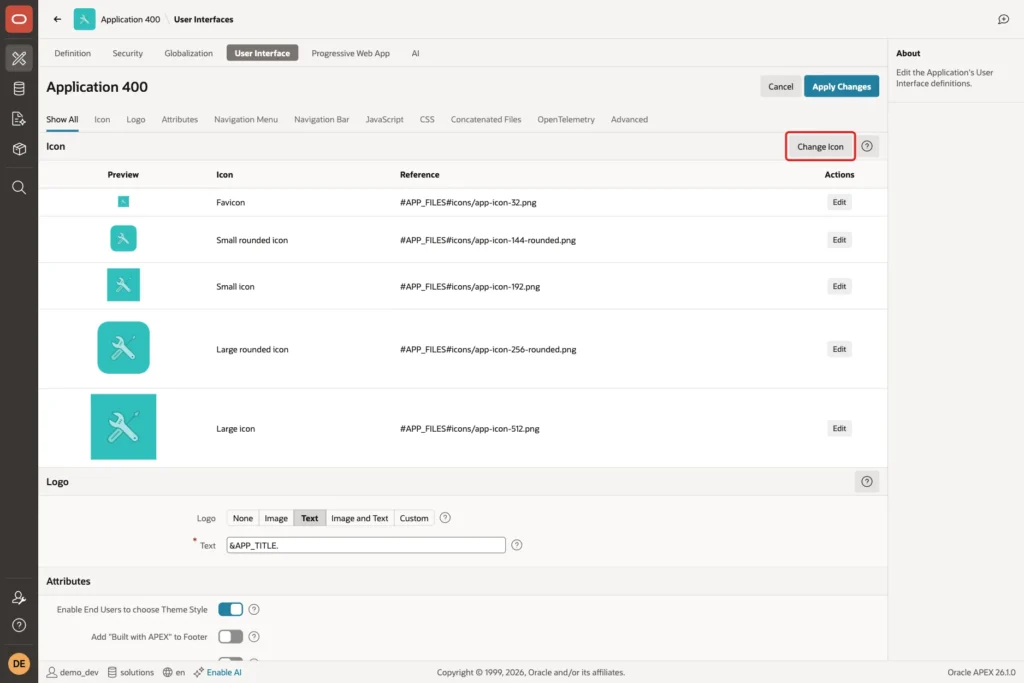
The installed app uses the application icon on the home screen, in the task bar and in the install dialog. Go to Shared Components, then User Interface Attributes. The Icon section lists the five icon files APEX keeps for the app. Click Change Icon:
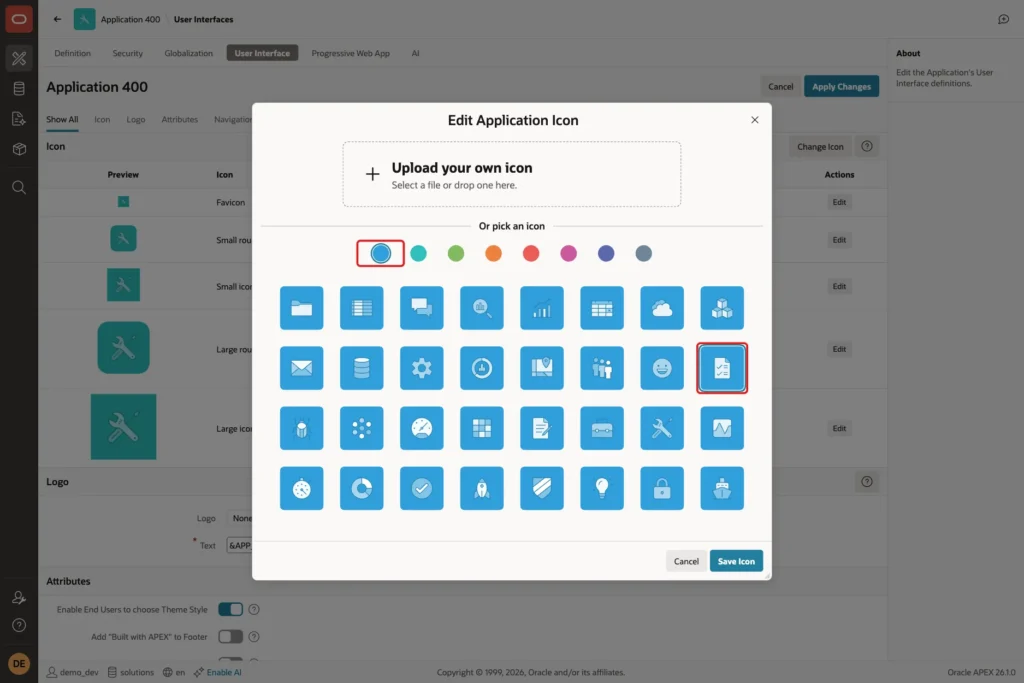
In Edit Application Icon, either upload your own image or pick one. This example picks the blue color and the To Do icon. Click Save Icon:
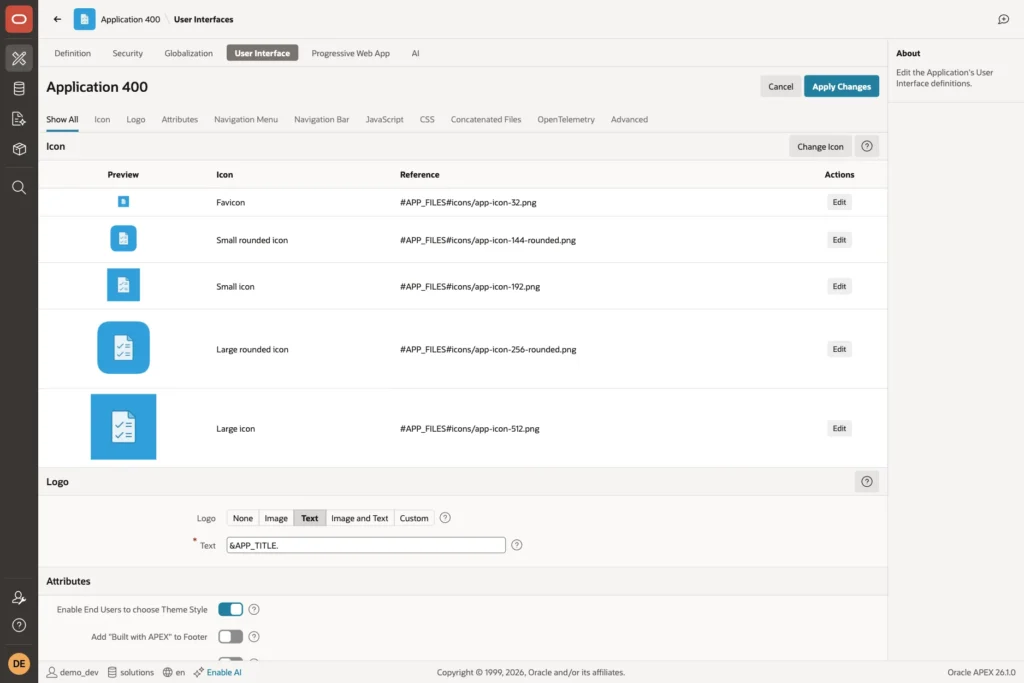
APEX writes all five sizes again, from the 32 pixel favicon to the 512 pixel large icon. The breadcrumb at the top already shows the new icon:
Step 4: Make the App Installable
Click the Progressive Web App tab, or go to Shared Components and then Progressive Web App. In this example, Enable Progressive Web App was already on, so APEX already served a service worker. Installable was off:
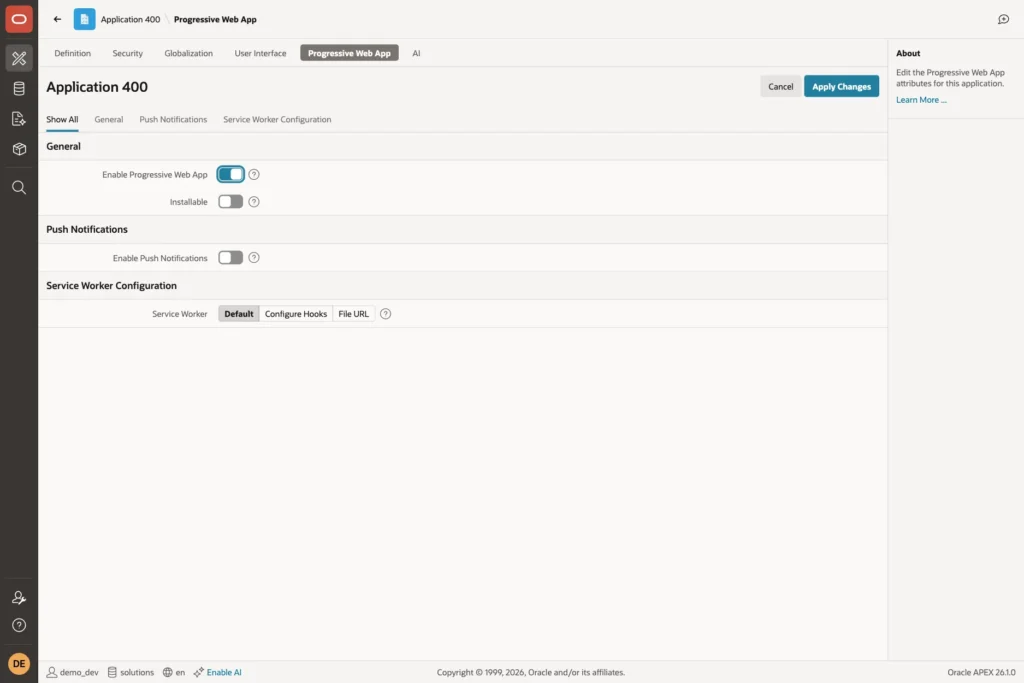
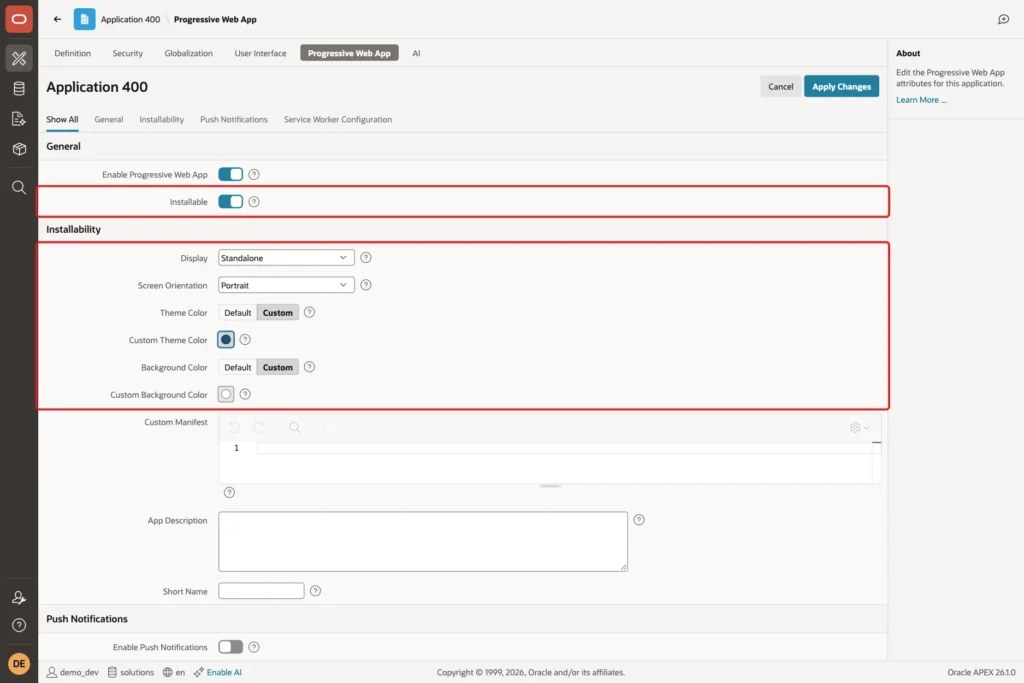
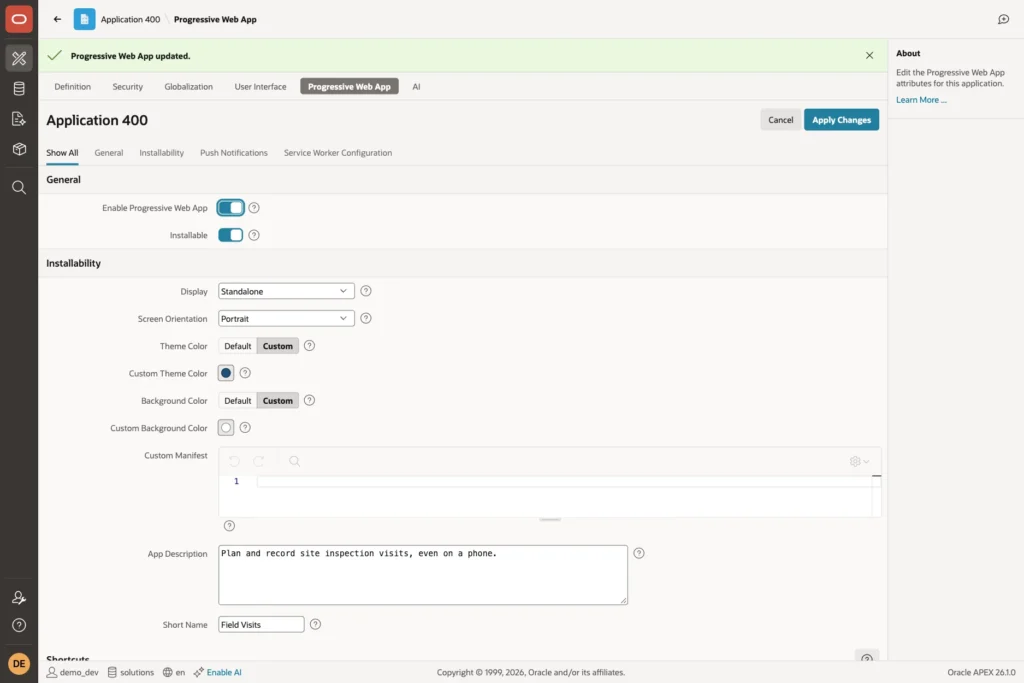
If Enable Progressive Web App is off in your app, turn it on first. Then turn on Installable. The Installability section opens. Set these values:
- Display: Standalone. The app opens in its own window without the address bar. The other choices are Fullscreen, Minimal UI and Browser.
- Screen Orientation: Portrait, because the cards are made for a phone held upright. Any lets the device rotate.
- Theme Color: Custom. The browser uses it to color the app window's title bar, and APEX also adds it to every page as the theme-color meta tag.
- Background Color: Custom. It fills the splash screen while the app starts.
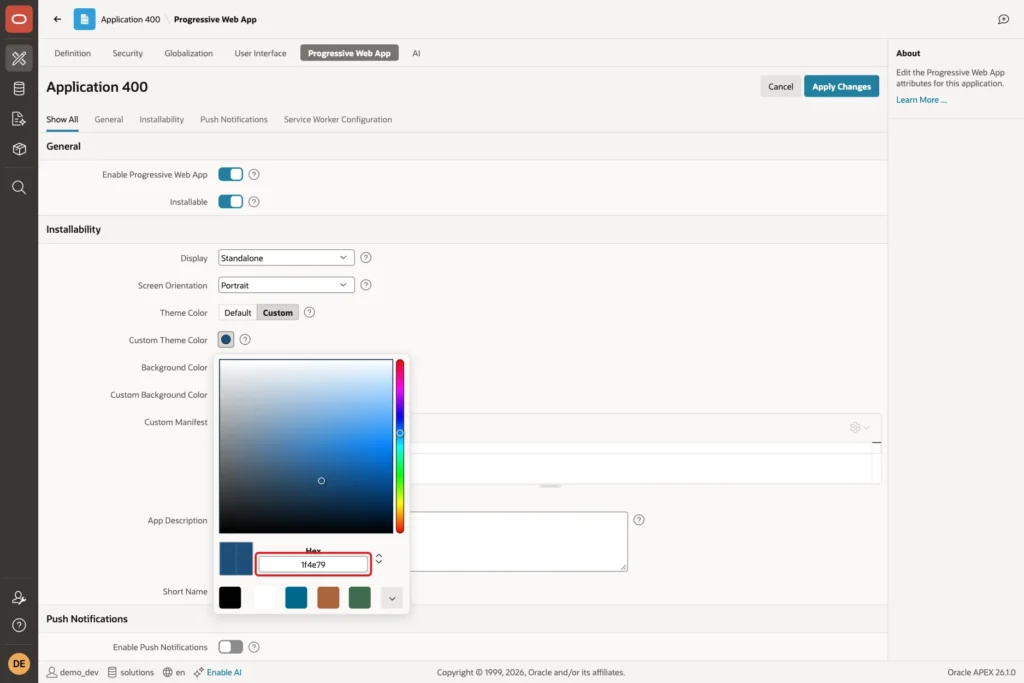
Click the color button next to Custom Theme Color and type 1f4e79 in the Hex field. Do the same for Custom Background Color with ffffff:
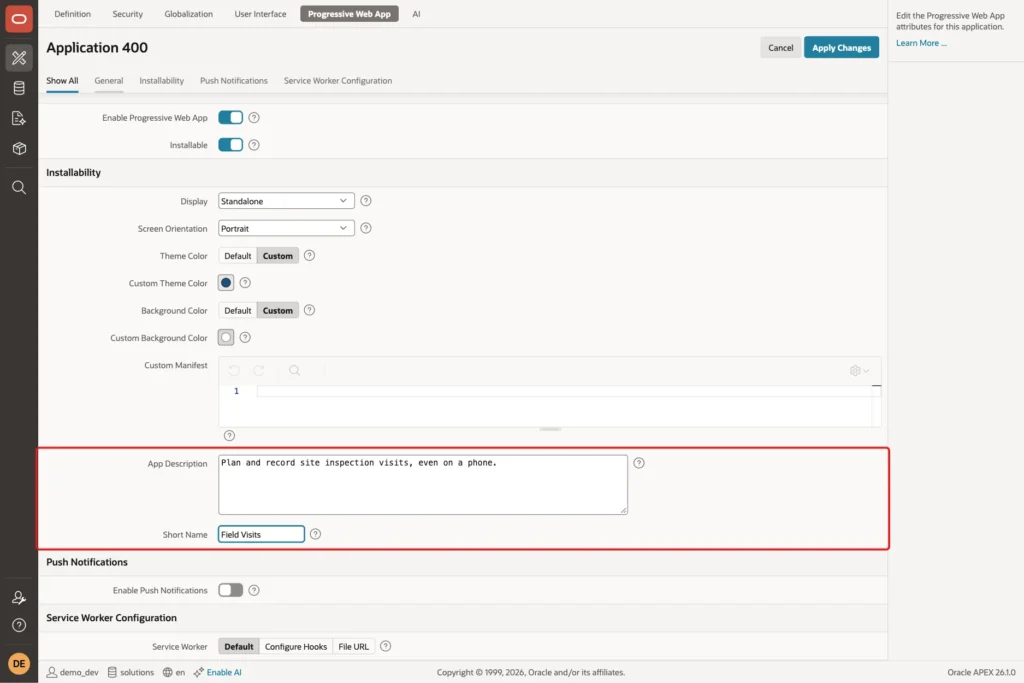
Leave Custom Manifest empty. Enter an App Description and a Short Name. The device shows the short name under the home screen icon, where the full application name may not fit:
Click Apply Changes. APEX confirms "Progressive Web App updated." and the new icon shows in the breadcrumb:
Step 5: Add a Screenshot
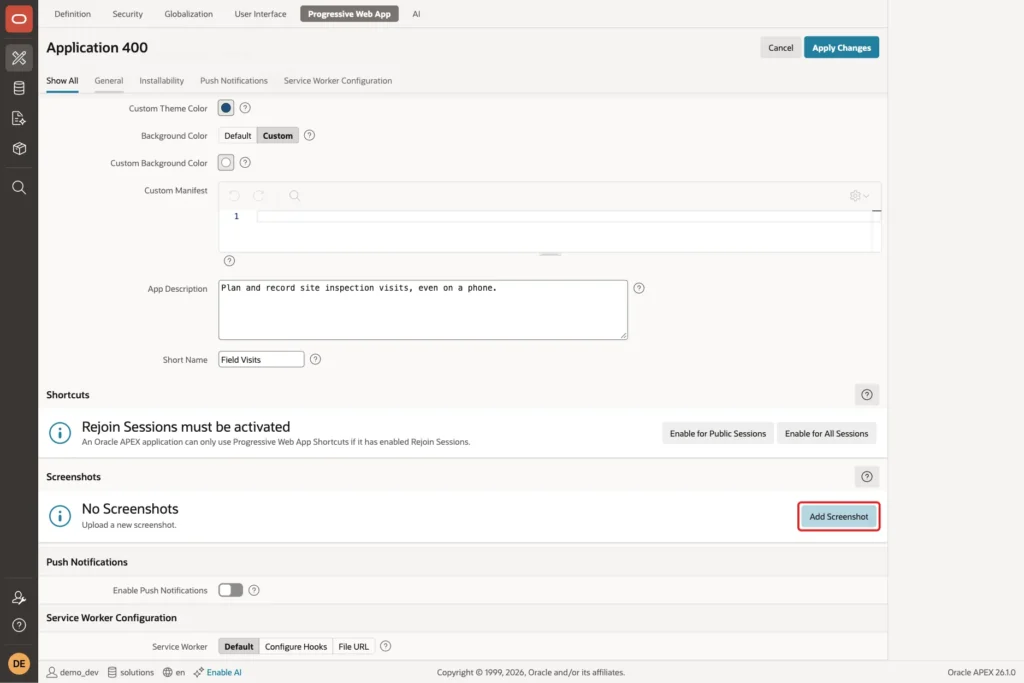
After Apply Changes, two new sections appear below Short Name: Shortcuts and Screenshots. Shortcuts need Rejoin Sessions, as the message says, so this guide leaves them out. Screenshots go into the manifest, where browsers can use them as a preview in the install dialog. Click Add Screenshot:
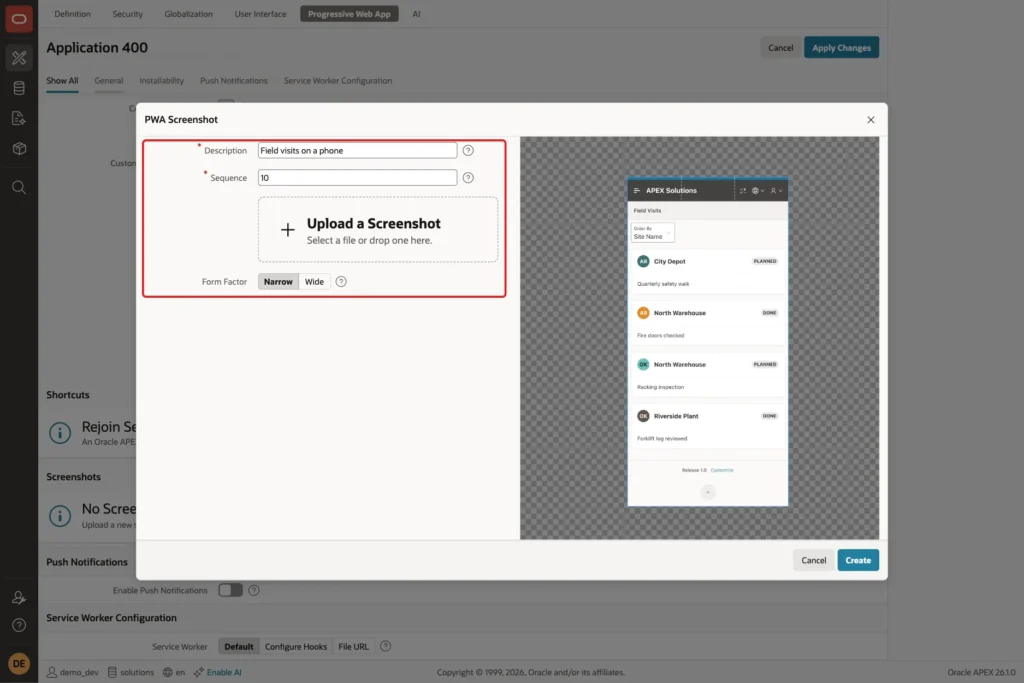
Upload a screenshot of the app. This example uses the phone-sized picture from Step 2, 840 by 1720 pixels. Enter the Description Field visits on a phone and select the Form Factor Narrow, which is for phones. Wide is for desktop screenshots. Click Create:
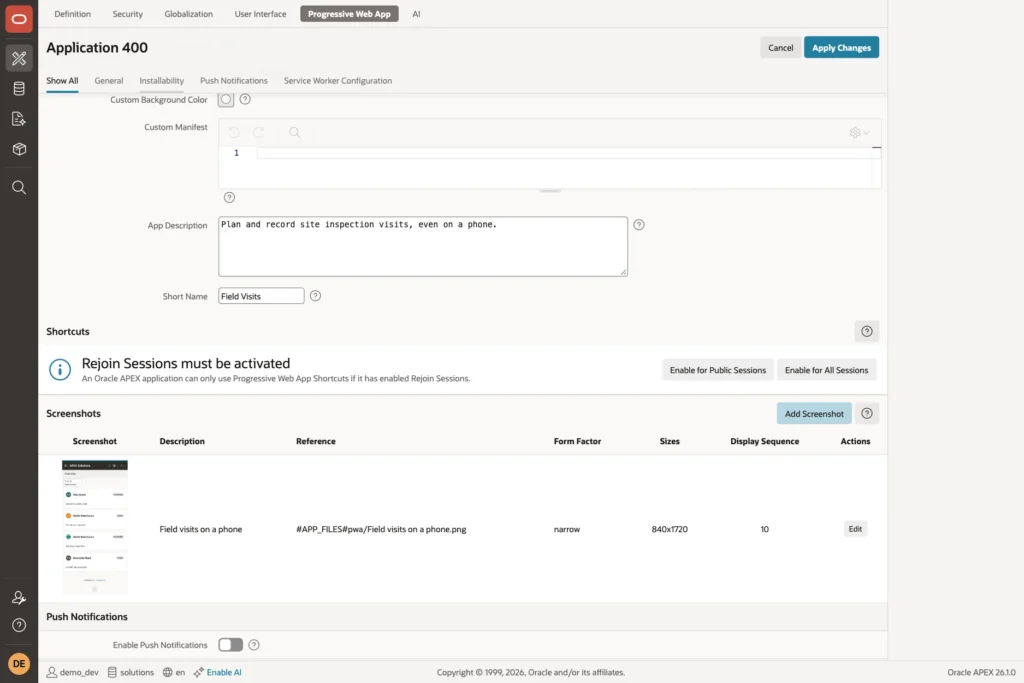
APEX stores the picture as a static application file under pwa/ and reads its size from the file:
Step 6: Check the Install App Entry
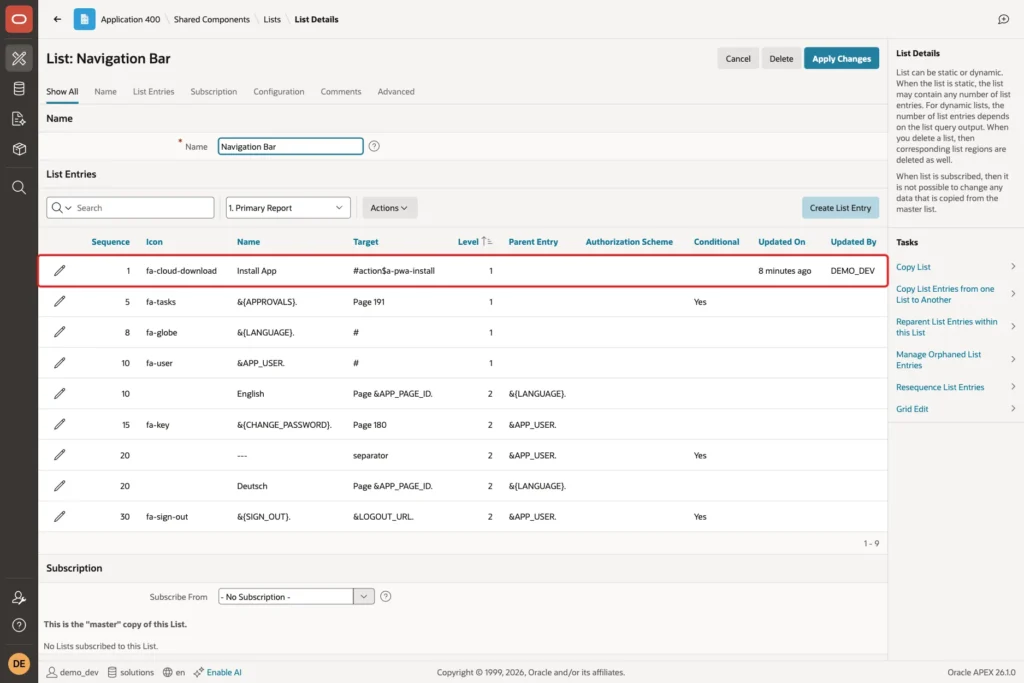
When Installable was turned on, APEX also added an entry to the navigation bar. You do not have to create it. Open Shared Components, Navigation Bar List, and then the list Navigation Bar. The entry Install App is at sequence 1:
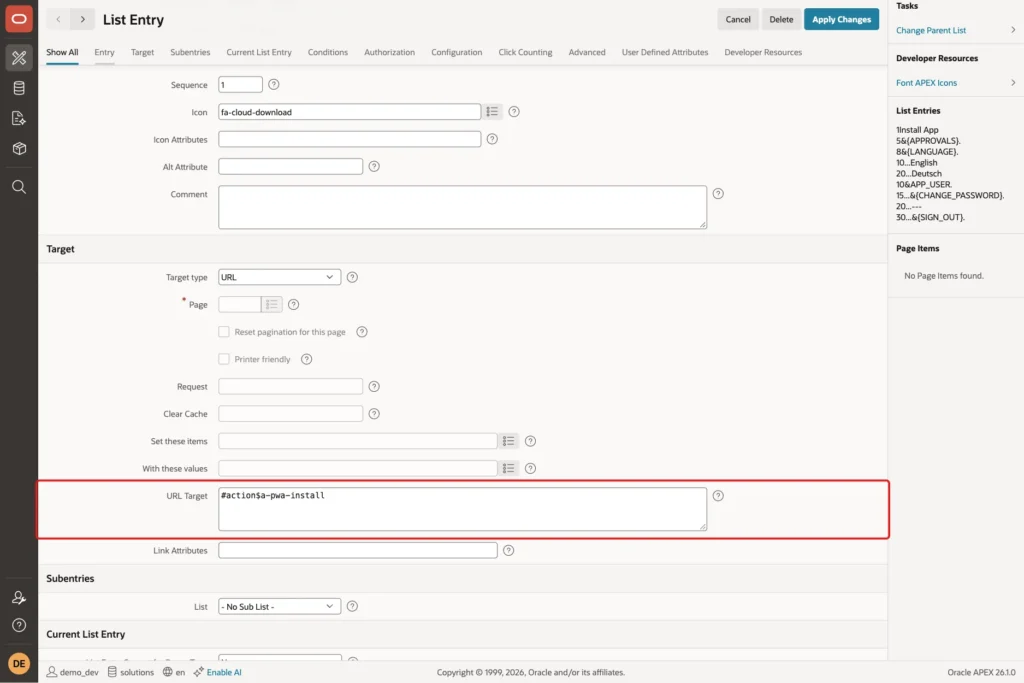
Open the entry to see how it works. Its URL Target is #action$a-pwa-install, an APEX action that asks the browser to start the installation:
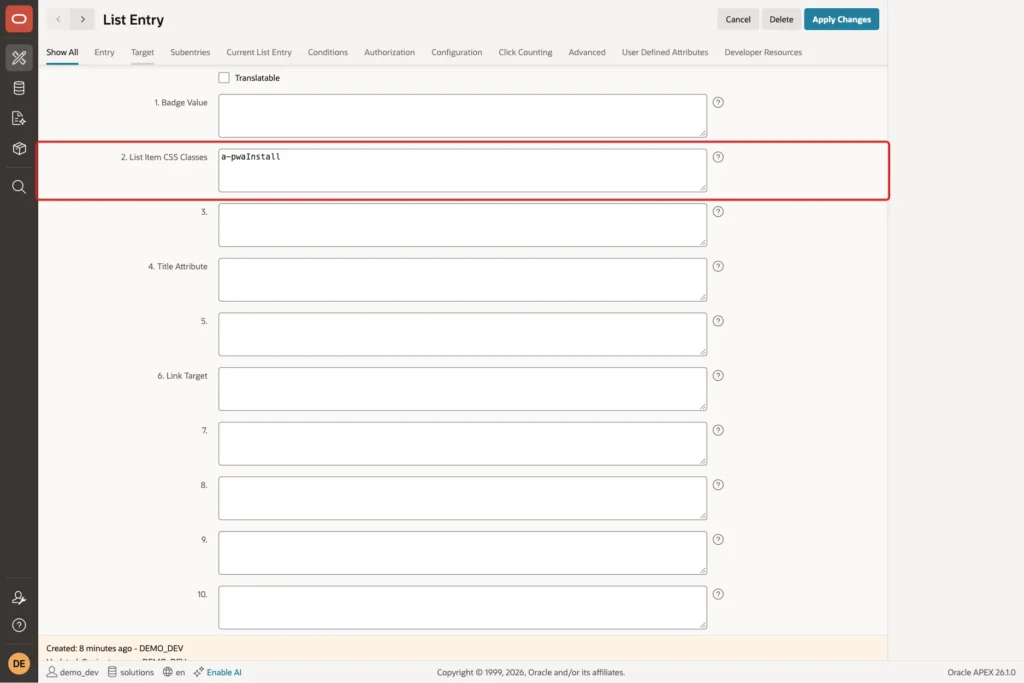
Its List Item CSS Classes is a-pwaInstall. This class hides the entry until the browser reports that the app can be installed:
Keep both values. Do not create another Install App entry by hand. In a first test, an entry was added manually before the automatic one was noticed, and the list then had two Install App entries.
Step 7: Test the Progressive Web App
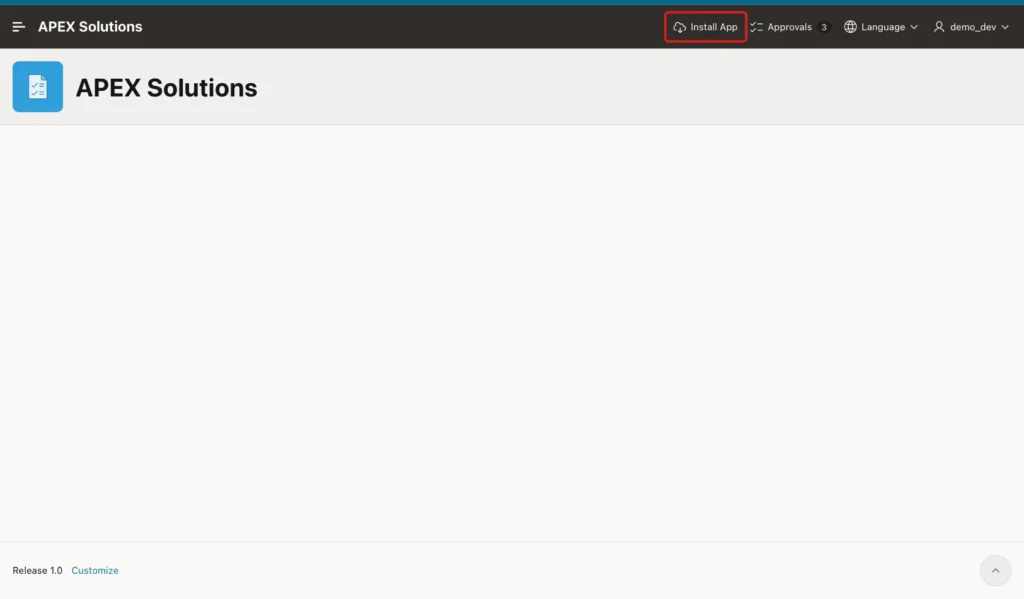
Sign in to the app in Chrome in a normal window. The Install App entry now shows in the navigation bar. Clicking it calls the browser's install prompt, which asks the user to confirm the installation:
To see what APEX sends to the browser, press F12, open the Console tab, and run this code. It reads the manifest, lists the service worker, and asks apex.pwa whether the app can be installed:
Example:
const m = await (await fetch(document.querySelector('link[rel=manifest]').href)).json();
console.log(m.name, '|', m.short_name, '|', m.display, '|', m.orientation);
console.log('colors:', m.theme_color, m.background_color);
console.log('icons:', m.icons.map(i => i.sizes + ' ' + i.purpose).join(', '));
console.log('screenshots:', m.screenshots.map(s => s.sizes + ' ' + s.form_factor + ' "' + s.label + '"').join(', '));
const regs = await navigator.serviceWorker.getRegistrations();
console.log('service worker:', regs.map(r => r.active.scriptURL.split('?')[0]));
console.log('display mode:', apex.pwa.getDisplayMode(), '- installable:', await apex.pwa.isInstallable());
Output:
APEX Solutions | Field Visits | standalone | portrait
colors: #1f4e79 #ffffff
icons: 144x144 any, 192x192 any, 192x192 maskable, 256x256 any, 512x512 any
screenshots: 840x1720 narrow "Field visits on a phone"
service worker: [https://localhost:8443/ords/r/solutions/apex-solutions/sw.js]
display mode: browser - installable: true
Every value from Steps 3 to 5 is in the manifest: the short name, Standalone, Portrait, both colors, the five icons and the narrow screenshot. The service worker is sw.js in the app's path, and the browser reports that the app is installable. The display mode is browser because the code ran in a normal tab.
Run the same code in a private window. The manifest and the service worker are the same, but Chrome does not install apps from a private window, so the last line changes and the Install App entry stays hidden:
Output:
APEX Solutions | Field Visits | standalone | portrait
colors: #1f4e79 #ffffff
icons: 144x144 any, 192x192 any, 192x192 maskable, 256x256 any, 512x512 any
screenshots: 840x1720 narrow "Field visits on a phone"
service worker: [https://localhost:8443/ords/r/solutions/apex-solutions/sw.js]
display mode: browser - installable: false
You can also check the saved settings in SQL with the APEX_APPLICATIONS view:
Example:
set lines 200 pages 100
col short_name format a14
col display format a12
col orientation format a12
col theme format a8
col background format a10
select is_pwa,
       pwa_is_installable          installable,
       pwa_manifest_short_name     short_name,
       pwa_manifest_display        display,
       pwa_manifest_orientation    orientation,
       pwa_manifest_theme_color    theme,
       pwa_manifest_background_color background
from   apex_applications
where  application_id = 400;
Output:
IS_PWA    INSTALLABLE    SHORT_NAME      DISPLAY       ORIENTATION    THEME      BACKGROUND
_________ ______________ _______________ _____________ ______________ __________ _____________
Yes       Yes            Field Visits    standalone    portrait       #1f4e79    #ffffff
Step 8: Test the Offline Page
Open the Field Visits page once, so the service worker is active. Then switch off the network, for example with airplane mode or the Offline option in the browser's developer tools, and reload the page.
The request does not reach the server. The service worker answers instead and shows the APEX offline page with a Retry button:
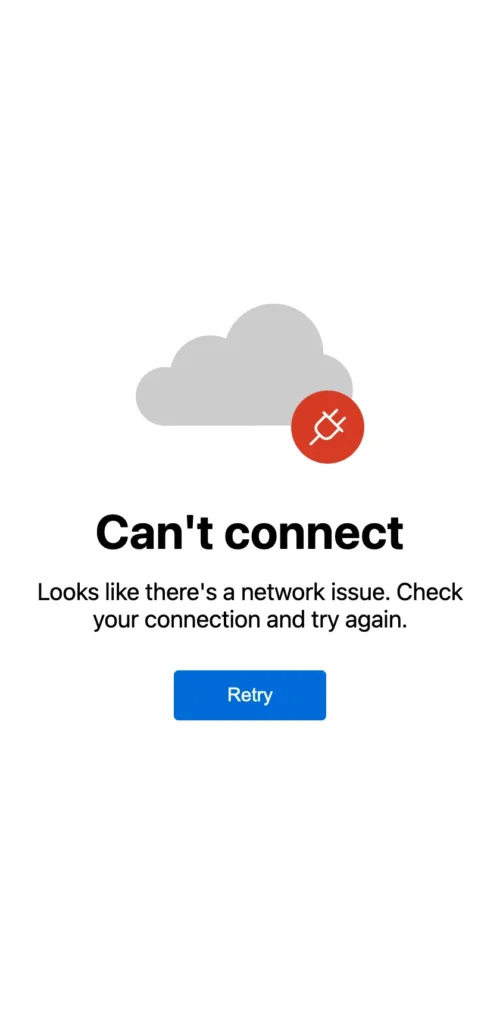
Switch the network on again and click Retry. In this example, the Field Visits page loaded again with all four cards. The default service worker does not keep page data for offline use; it only replaces the browser's error with this page.
Things to Know
- A service worker needs HTTPS with a certificate the browser trusts. With a self-signed certificate, Chrome refused to load sw.js ("An SSL certificate error occurred when fetching the script"), and the app was not installable.
- Installed apps open at the application's Home URL. Without Rejoin Sessions, that URL has no session, so users sign in again when they open the installed app.
- The Install App entry appears only when the browser offers installation. In a private window it stayed hidden, because Chrome does not install apps there.
- Changing the app icon also changes the favicon in the browser tab, because APEX writes all five sizes from the same picture.
- Push notifications are a separate switch on the same page and need more setup.
- APEX exports the PWA settings and screenshots with the application, so they move with it to test and production.
Related Guides
- How to Save Data in the Browser and Prompt App Installs Using apex.storage and apex.pwa
- Oracle APEX Automations, Email, and Push Notifications
Conclusion
Making an Oracle APEX app installable takes no code. Change the app icon in User Interface Attributes, then turn on Installable on the Progressive Web App page and set the display mode, orientation, colors, description and short name. A narrow screenshot gives the install dialog a preview.
APEX builds the manifest from these settings, runs a service worker with an offline page, and adds an Install App entry that shows only when the browser can install the app. The console check confirms each value before users install it.
