
A day and hour heat map is a grid with the weekdays as rows and the 24 hours as columns. Each cell holds a count, and its color gets darker as the count grows. Busy times, quiet times and empty hours stand out at a glance, which makes the grid ideal for staffing, support desks and system load.
Oracle APEX has no heat map chart type, but a classic report can do the job. This guide builds the grid with a SQL query that fills empty hours with 0, colors the cells with a small JavaScript function and CSS, adds a legend and a filter, and checks every cell against SQL.
The guide How to Build a Pivot Report in Oracle APEX explains the SQL PIVOT query and the Interactive Report pivot in detail. This guide uses PIVOT only as one part. Its focus is a complete 7 x 24 grid with no missing cells, colors by intensity and a legend.
The example counts contact requests from customers by channel. The same steps work for any table with a date column, such as orders, logins, sensor readings or ticket updates.
Step 1: Create the Tables
The example needs two tables. CONTACT_CHANNELS holds the channels Email, Phone and Live Chat. CONTACT_REQUESTS holds one row per request with the date and time it arrived. The script also loads four weeks of sample requests, from Monday 21 September to Sunday 18 October 2026:
Example:
create table contact_channels (
  channel_id    number generated by default on null as identity,
  channel_code  varchar2(10) not null,
  channel_name  varchar2(30) not null,
  constraint contact_channels_pk primary key (channel_id),
  constraint contact_channels_code_uk unique (channel_code)
);

create table contact_requests (
  request_id   number generated by default on null as identity,
  channel_id   number not null,
  received_on  date default on null sysdate not null,
  subject      varchar2(100) not null,
  constraint contact_requests_pk primary key (request_id),
  constraint contact_requests_channel_fk foreign key (channel_id)
    references contact_channels (channel_id)
);

create index contact_requests_channel_ix on contact_requests (channel_id);
create index contact_requests_received_ix on contact_requests (received_on);

insert into contact_channels (channel_code, channel_name)
select 'EMAIL', 'Email' from dual union all
select 'PHONE', 'Phone' from dual union all
select 'CHAT', 'Live Chat' from dual;

insert into contact_requests (channel_id, received_on, subject)
with days as (
  select level - 1 as d from dual connect by level <= 28
), hrs as (
  select level - 1 as h from dual connect by level <= 24
), slots as (
  select d, h,
         case
           when mod(d, 7) < 5 and h in (10, 11, 14) then 5
           when mod(d, 7) < 5 and h between 9 and 17 then 3
           when mod(d, 7) < 5 and h between 7 and 20 then 1
           when mod(d, 7) >= 5 and h between 10 and 15 then 1
           else 0
         end
         + case when mod(d, 7) = 0 and h between 9 and 11 then 3 else 0 end
         + case when mod(d * 24 + h, 11) = 0 then 1 else 0 end as n
  from days cross join hrs
)
select c.channel_id,
       date '2026-09-21' + s.d + s.h / 24 + mod(k.k * 13 + s.d, 60) / 1440,
       'Request ' || to_char(s.d * 24 + s.h) || '-' || k.k
from slots s
cross apply (select level as k from dual where s.n > 0 connect by level <= s.n) k
join contact_channels c
  on c.channel_code = case mod(s.d + s.h + k.k, 3)
                        when 0 then 'EMAIL'
                        when 1 then 'PHONE'
                        else 'CHAT'
                      end;

commit;

select c.channel_name, count(r.request_id) as requests,
       to_char(min(r.received_on), 'YYYY-MM-DD HH24:MI') as first_request,
       to_char(max(r.received_on), 'YYYY-MM-DD HH24:MI') as last_request
from contact_channels c
left join contact_requests r on r.channel_id = c.channel_id
group by c.channel_name
order by c.channel_name;
Output:
Table CONTACT_CHANNELS created.

Table CONTACT_REQUESTS created.

Index CONTACT_REQUESTS_CHANNEL_IX created.

Index CONTACT_REQUESTS_RECEIVED_IX created.

3 rows inserted.

906 rows inserted.

Commit complete.

CHANNEL_NAME       REQUESTS FIRST_REQUEST       LAST_REQUEST
_______________ ___________ ___________________ ___________________
Email                   304 2026-09-21 08:13    2026-10-18 23:40
Live Chat               301 2026-09-21 07:13    2026-10-18 13:40
Phone                   301 2026-09-21 00:13    2026-10-18 15:40
A few details matter for the heat map:
- RECEIVED_ON is a DATE, so it holds the time as well as the day. The heat map reads the hour from it.
- The index CONTACT_REQUESTS_RECEIVED_IX helps when you later filter the requests by a date range.
- The sample data has a busy Monday morning, peaks at 10, 11 and 14 on weekdays, few weekend requests and many empty night hours.
The sample insert builds the requests with CONNECT BY LEVEL <= s.n. In a first run, every empty hour got one request anyway. CONNECT BY always returns the first level, even when n is 0. The filter WHERE s.n > 0 inside the CROSS APPLY fixed it.
Step 2: Write the Heat Map Query
The heat map needs one row per weekday and one column per hour. Run this query in SQLcl or SQL Developer first. The VARIABLE line creates the bind variable :P1020_CHANNEL, which the page item will fill later. Left empty, it means all channels:
Example:
variable P1020_CHANNEL varchar2(10)
set linesize 200
with grid as (
  select d.day_no, h.hour_no
  from (select level - 1 as day_no from dual connect by level <= 7) d
  cross join (select level - 1 as hour_no from dual connect by level <= 24) h
), counts as (
  select trunc(r.received_on) - trunc(r.received_on, 'IW') as day_no,
         to_number(to_char(r.received_on, 'HH24')) as hour_no,
         count(*) as cnt
  from contact_requests r
  join contact_channels c on c.channel_id = r.channel_id
  where :P1020_CHANNEL is null or c.channel_code = :P1020_CHANNEL
  group by trunc(r.received_on) - trunc(r.received_on, 'IW'),
           to_number(to_char(r.received_on, 'HH24'))
)
select day_no,
       to_char(date '2026-01-05' + day_no, 'Dy', 'nls_date_language=english') as day_name,
       h00, h01, h02, h03, h04, h05, h06, h07, h08, h09, h10, h11,
       h12, h13, h14, h15, h16, h17, h18, h19, h20, h21, h22, h23,
       total
from (
  select g.day_no, g.hour_no, nvl(c.cnt, 0) as cnt,
         sum(nvl(c.cnt, 0)) over (partition by g.day_no) as total
  from grid g
  left join counts c on c.day_no = g.day_no and c.hour_no = g.hour_no
)
pivot (sum(cnt) for hour_no in (
  0 as h00, 1 as h01, 2 as h02, 3 as h03, 4 as h04, 5 as h05,
  6 as h06, 7 as h07, 8 as h08, 9 as h09, 10 as h10, 11 as h11,
  12 as h12, 13 as h13, 14 as h14, 15 as h15, 16 as h16, 17 as h17,
  18 as h18, 19 as h19, 20 as h20, 21 as h21, 22 as h22, 23 as h23))
order by day_no;
Output:
   DAY_NO DAY_NAME       H00    H01    H02    H03    H04    H05    H06    H07    H08    H09    H10    H11    H12    H13    H14    H15    H16    H17    H18    H19    H20    H21    H22    H23    TOTAL
_________ ___________ ______ ______ ______ ______ ______ ______ ______ ______ ______ ______ ______ ______ ______ ______ ______ ______ ______ ______ ______ ______ ______ ______ ______ ______ ________
        0 Mon              1      0      1      0      0      1      0      4      5     24     32     33     12     13     20     12     13     12      4      5      4      0      1      0      197
        1 Tue              1      0      0      1      0      0      1      4      4     13     20     21     12     12     21     12     12     13      4      4      5      0      1      0      161
        2 Wed              0      1      0      0      1      0      0      5      4     13     20     20     13     12     20     13     12     12      5      4      5      0      0      1      161
        3 Thu              0      0      1      0      0      1      0      5      4     12     21     20     12     13     20     12     13     12      5      4      4      1      0      0      160
        4 Fri              1      0      0      1      0      1      0      4      5     12     20     21     12     12     21     12     13     12      4      5      4      0      1      0      161
        5 Sat              0      1      0      1      0      0      1      0      0      1      4      4      5      4      5      4      0      1      0      0      1      0      0      1       33
        6 Sun              0      1      0      0      1      0      0      1      0      0      5      4      5      4      4      5      0      0      1      0      0      1      0      1       33

7 rows selected.
The query works in four parts:
- GRID builds all 168 cells, 7 days times 24 hours, with two CONNECT BY row generators.
- COUNTS counts the requests per weekday and hour. The channel filter sits here.
- The left join from GRID to COUNTS keeps every cell, and NVL turns an empty cell into 0. The analytic SUM adds the day total.
- PIVOT turns the 24 hour rows of each day into the columns H00 to H23.
The weekday number comes from TRUNC(received_on) - TRUNC(received_on, 'IW'). IW is the ISO week, which always starts on Monday, so Monday is 0 and Sunday is 6. The day name uses a fixed Monday, 5 January 2026, plus the day number, in English.
Avoid TO_CHAR(date, 'D') for the day number. It depends on the session's NLS_TERRITORY. The same Monday returned 2 for AMERICA and 1 for GERMANY, while the IW calculation returned 0 in both cases:
Example:
alter session set nls_territory = 'AMERICA';
select sys_context('USERENV', 'NLS_TERRITORY') as territory,
       to_char(date '2026-10-19', 'D') as d_format,
       date '2026-10-19' - trunc(date '2026-10-19', 'IW') as day_no
from dual;
alter session set nls_territory = 'GERMANY';
select sys_context('USERENV', 'NLS_TERRITORY') as territory,
       to_char(date '2026-10-19', 'D') as d_format,
       date '2026-10-19' - trunc(date '2026-10-19', 'IW') as day_no
from dual;
Output:
Session altered.

TERRITORY    D_FORMAT       DAY_NO
____________ ___________ _________
AMERICA      2                   0

Session altered.

TERRITORY    D_FORMAT       DAY_NO
____________ ___________ _________
GERMANY      1                   0
Step 3: Create a Blank Page
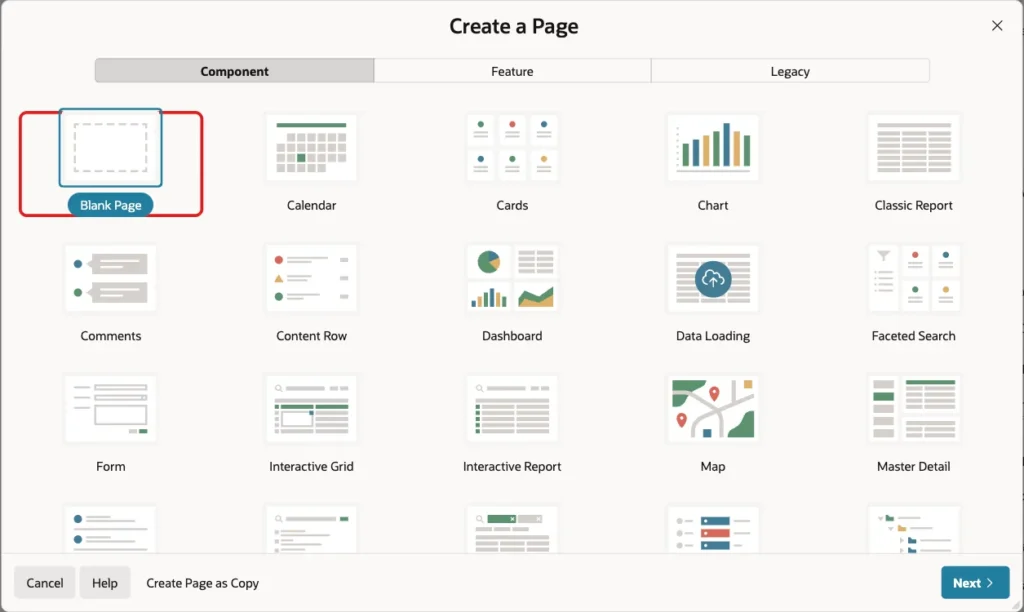
In App Builder, open the application and click Create Page. On the Component tab, select Blank Page:
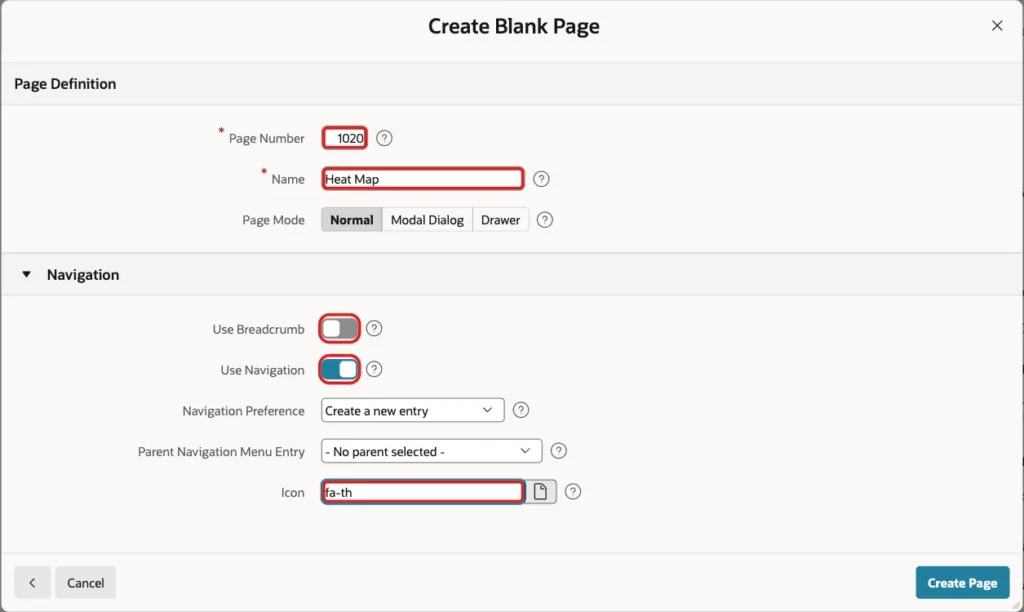
Set Page Number to 1020 and Name to Heat Map. Turn Use Breadcrumb off, keep Use Navigation on, set Icon to fa-th and click Create Page:
APEX opens the new page in Page Designer.
Step 4: Add the Channel Filter
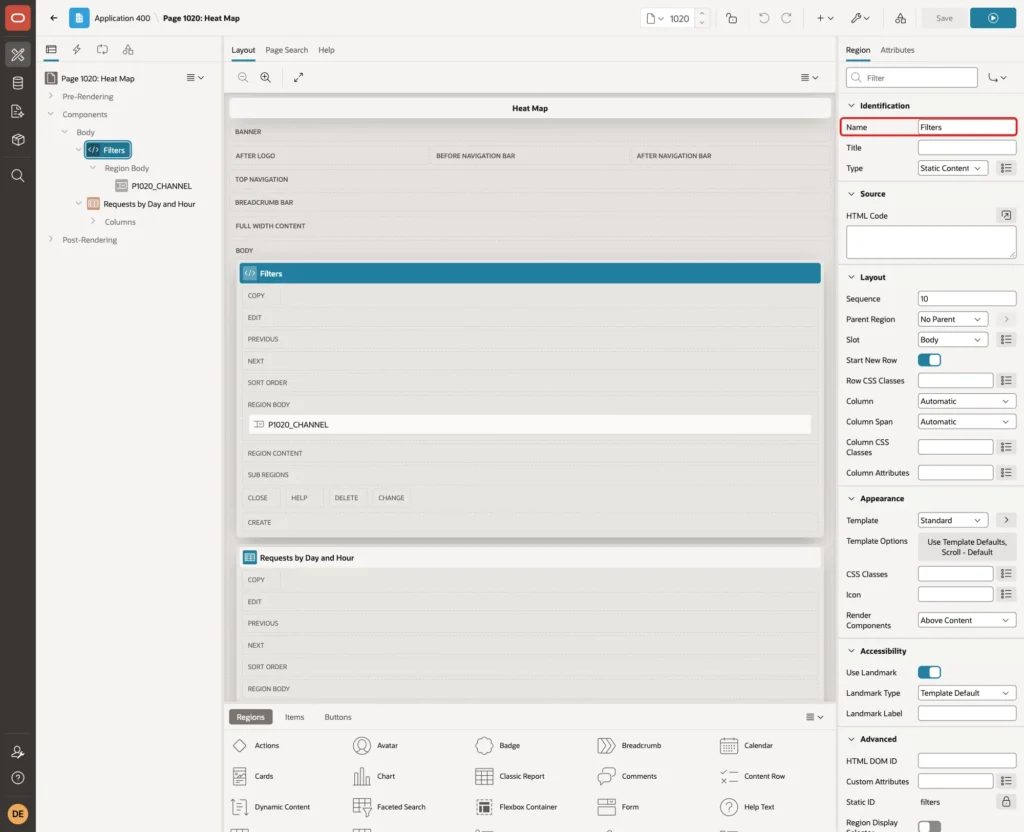
In the Rendering tree, right-click Body and choose Create Region. Set Name to Filters and keep the Type Static Content:
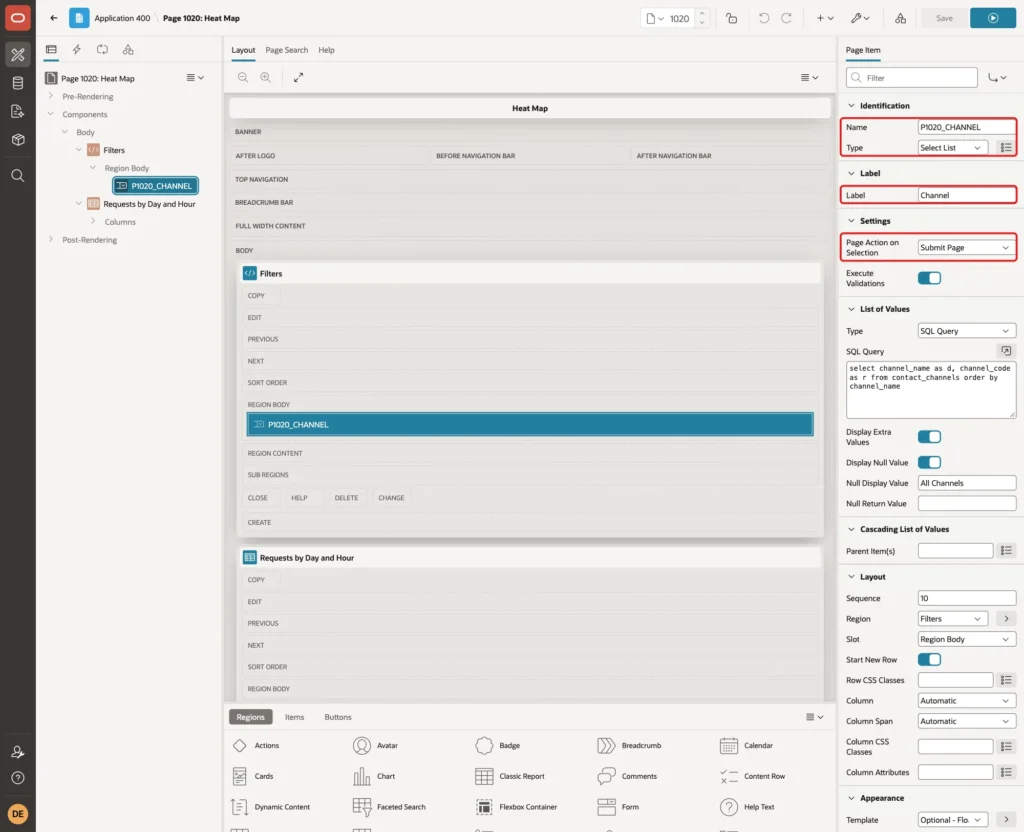
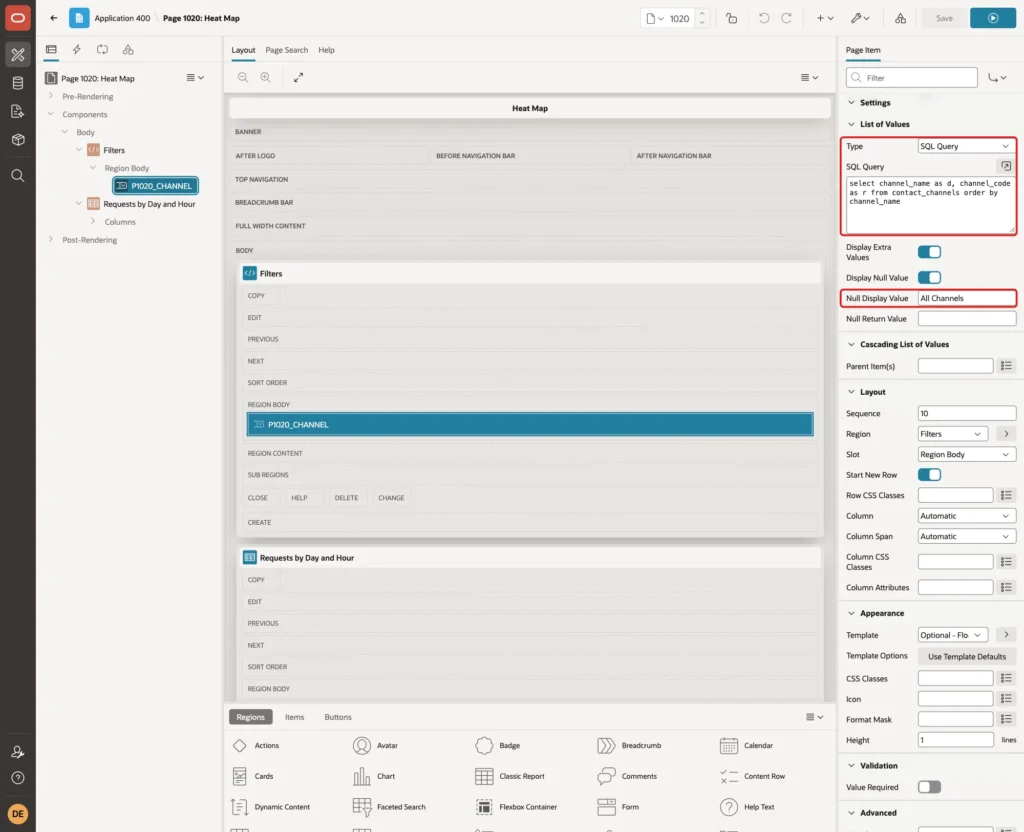
Right-click the Filters region and choose Create Page Item. Set Name to P1020_CHANNEL, Type to Select List and Label to Channel. Under Settings, set Page Action on Selection to Submit Page, so the page reloads when the user picks a channel:
Under List of Values, set Type to SQL Query and enter this query. Keep Display Null Value on and set Null Display Value to All Channels. An empty value means all channels together:
Example:
select channel_name as d, channel_code as r from contact_channels order by channel_name
Step 5: Add the Classic Report Region
Right-click Body and choose Create Region. Set Name to Requests by Day and Hour and Type to Classic Report. Under Source, keep Location Local Database, set Type to SQL Query and enter the query from Step 2 without the VARIABLE and SET lines and without the final semicolon:
Example:
with grid as (
  select d.day_no, h.hour_no
  from (select level - 1 as day_no from dual connect by level <= 7) d
  cross join (select level - 1 as hour_no from dual connect by level <= 24) h
), counts as (
  select trunc(r.received_on) - trunc(r.received_on, 'IW') as day_no,
         to_number(to_char(r.received_on, 'HH24')) as hour_no,
         count(*) as cnt
  from contact_requests r
  join contact_channels c on c.channel_id = r.channel_id
  where :P1020_CHANNEL is null or c.channel_code = :P1020_CHANNEL
  group by trunc(r.received_on) - trunc(r.received_on, 'IW'),
           to_number(to_char(r.received_on, 'HH24'))
)
select day_no,
       to_char(date '2026-01-05' + day_no, 'Dy', 'nls_date_language=english') as day_name,
       h00, h01, h02, h03, h04, h05, h06, h07, h08, h09, h10, h11,
       h12, h13, h14, h15, h16, h17, h18, h19, h20, h21, h22, h23,
       total
from (
  select g.day_no, g.hour_no, nvl(c.cnt, 0) as cnt,
         sum(nvl(c.cnt, 0)) over (partition by g.day_no) as total
  from grid g
  left join counts c on c.day_no = g.day_no and c.hour_no = g.hour_no
)
pivot (sum(cnt) for hour_no in (
  0 as h00, 1 as h01, 2 as h02, 3 as h03, 4 as h04, 5 as h05,
  6 as h06, 7 as h07, 8 as h08, 9 as h09, 10 as h10, 11 as h11,
  12 as h12, 13 as h13, 14 as h14, 15 as h15, 16 as h16, 17 as h17,
  18 as h18, 19 as h19, 20 as h20, 21 as h21, 22 as h22, 23 as h23))
order by day_no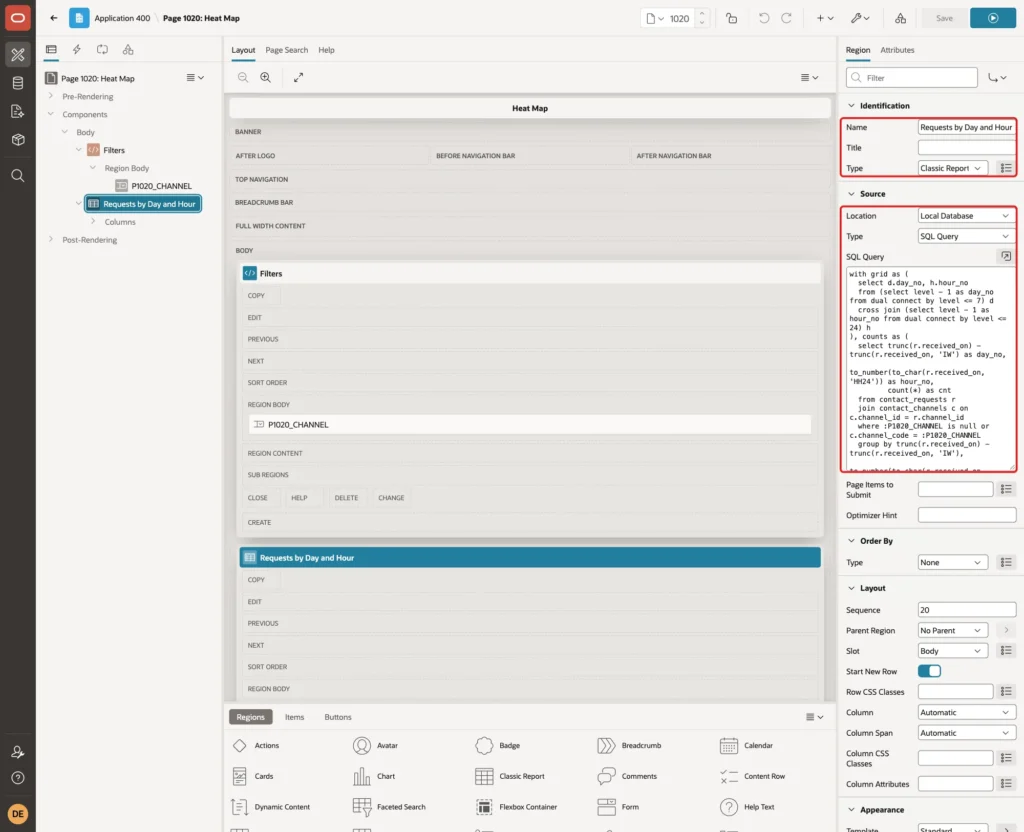
The query uses :P1020_CHANNEL directly. Because the item submits the page, its value is in session state when the report runs, so Page Items to Submit is not needed here.
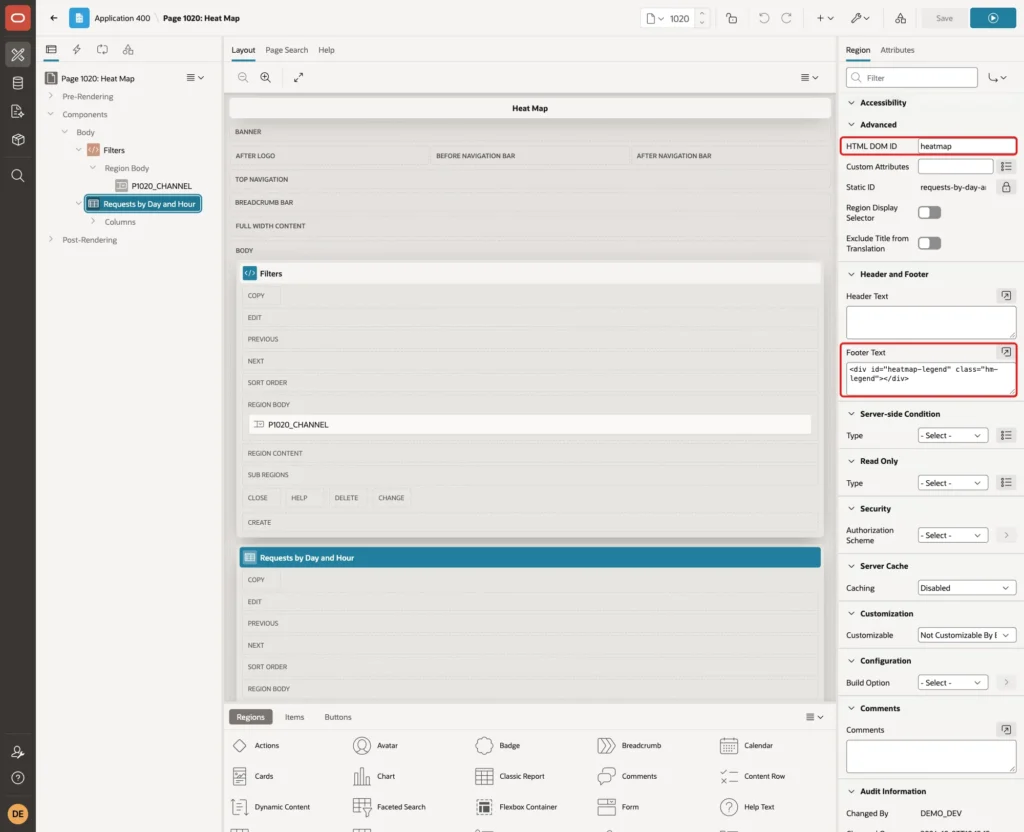
Under Advanced, set HTML DOM ID to heatmap. The JavaScript and CSS in Step 7 find the report by this ID. Under Header and Footer, set Footer Text to this empty element. It will hold the legend:
Example:
<div id="heatmap-legend" class="hm-legend"></div>
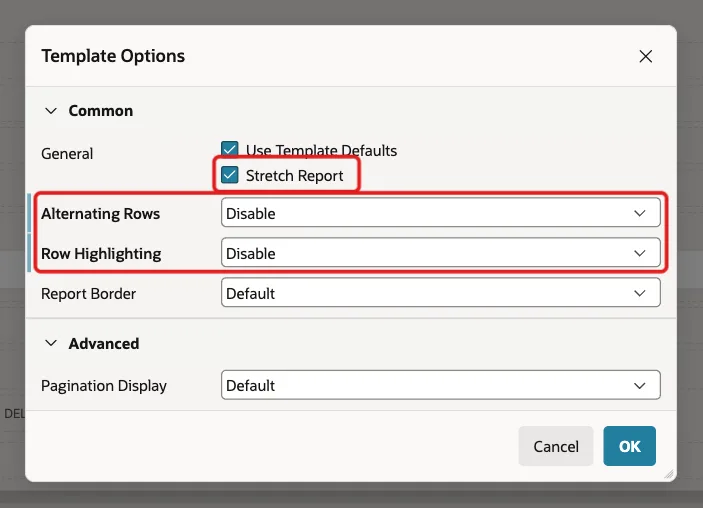
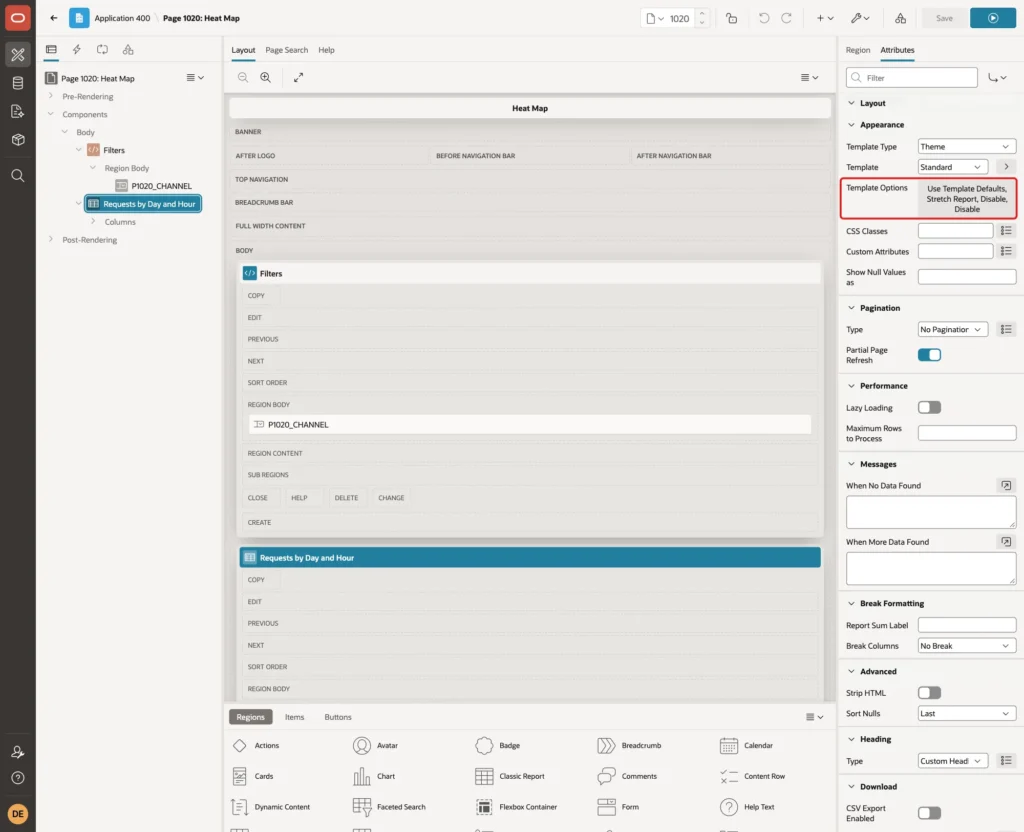
Click the Attributes tab and click Template Options under Appearance. In the dialog, check Stretch Report, and set Alternating Rows and Row Highlighting to Disable. The cell colors then come only from the heat map, and the grid uses the full width of the region. Click OK:
The Template Options property now lists the new settings:
Step 6: Set the Report Columns
Expand Columns under the region. APEX created one column for every column of the query. Select DAY_NO and set Type to Hidden. The column is only needed for the sort order:

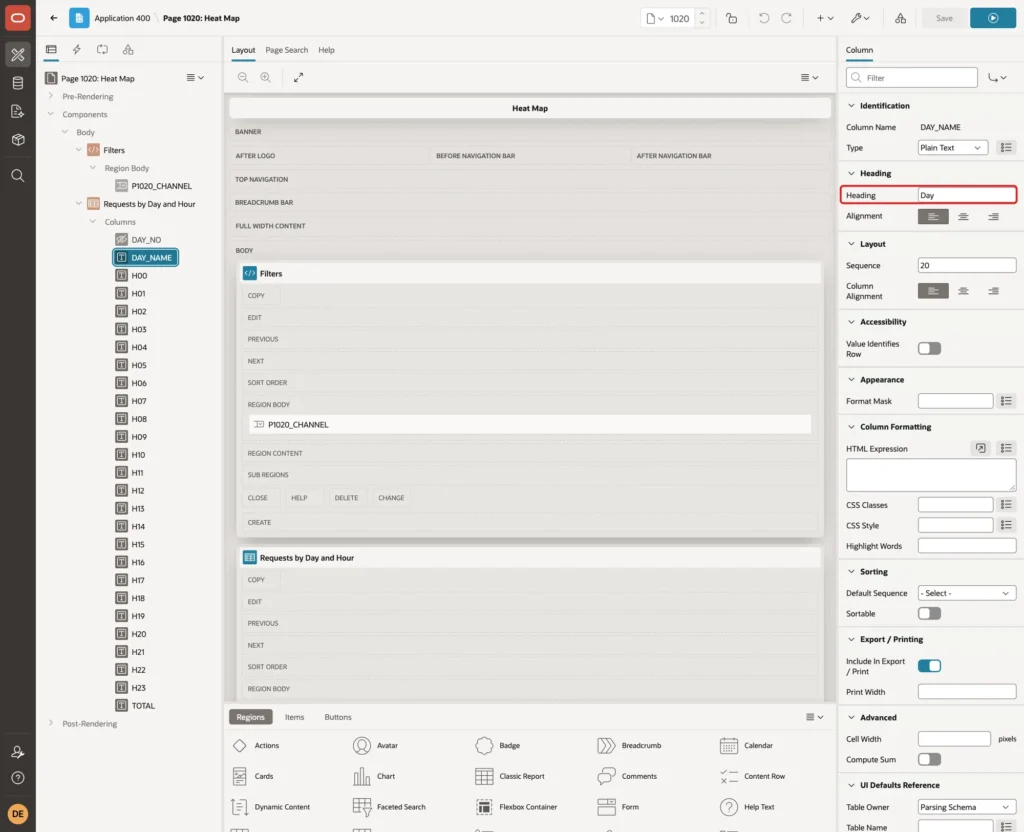
Select DAY_NAME and set Heading to Day:
Select H00. Under Heading, set Heading to 00 and Alignment to center. Under Layout, set Column Alignment to center:
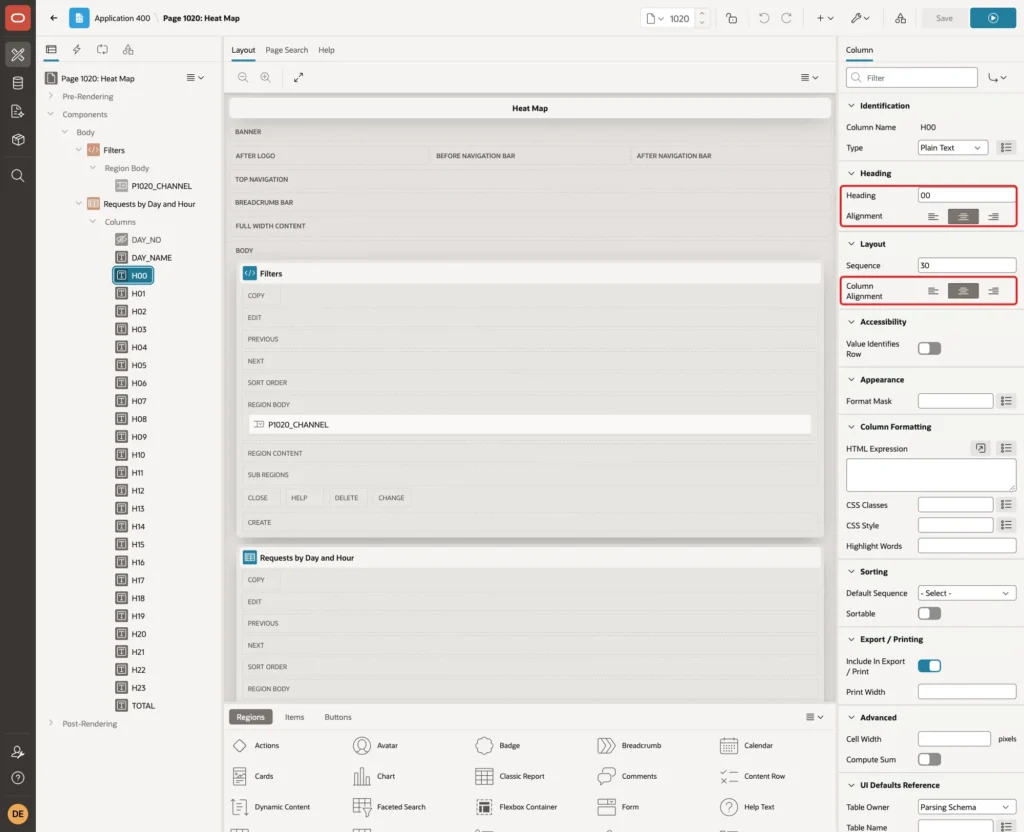
Repeat this for H01 to H23 with the headings 01 to 23. Keep the column names H00 to H23 as they are: the JavaScript in the next step finds the hour cells by these names. Leave TOTAL as it is.
Step 7: Color the Cells with JavaScript and CSS
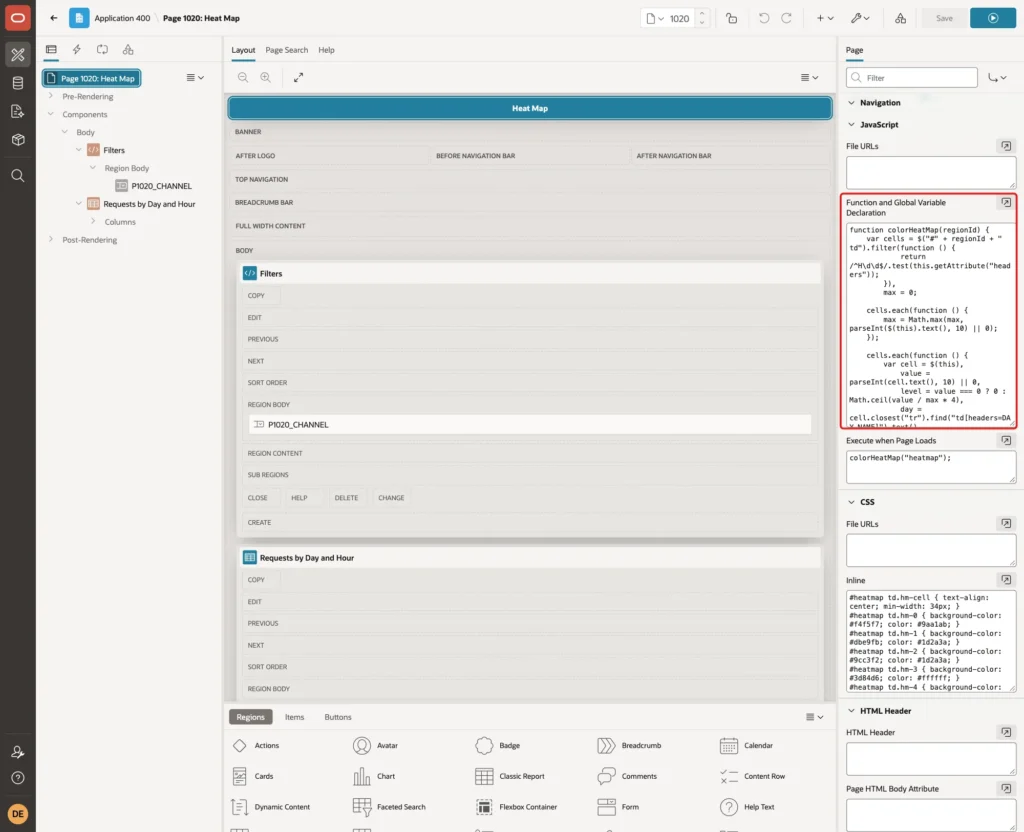
Select the page node, Page 1020: Heat Map, at the top of the Rendering tree. Under JavaScript, enter this function in Function and Global Variable Declaration:
Example:
function colorHeatMap(regionId) {
    var cells = $("#" + regionId + " td").filter(function () {
            return /^H\d\d$/.test(this.getAttribute("headers"));
        }),
        max = 0;

    cells.each(function () {
        max = Math.max(max, parseInt($(this).text(), 10) || 0);
    });

    cells.each(function () {
        var cell = $(this),
            value = parseInt(cell.text(), 10) || 0,
            level = value === 0 ? 0 : Math.ceil(value / max * 4),
            day = cell.closest("tr").find("td[headers=DAY_NAME]").text(),
            hour = cell.attr("headers").substring(1);

        cell.addClass("hm-cell hm-" + level)
            .attr("title", day + " " + hour + ":00 - " + value + " requests");
    });

    var legend = $("#" + regionId + "-legend").empty().append("<span>Requests:</span>");
    legend.append("<span class='hm-swatch hm-0'>0</span>");
    for (var l = 1; l <= 4; l++) {
        var from = Math.floor((l - 1) * max / 4) + 1,
            to = Math.floor(l * max / 4);
        if (from <= to) {
            legend.append("<span class='hm-swatch hm-" + l + "'>" +
                (from === to ? from : from + "-" + to) + "</span>");
        }
    }
}
The function does three things:
- It finds the hour cells. In a classic report, every cell has a headers attribute with its column name, so the filter keeps only H00 to H23. The day name and the total are not colored.
- It finds the highest count and gives each cell a level from 0 to 4. Level 0 is an empty hour, and level 4 is the top quarter up to the highest count.
- It adds a title to each cell, such as Mon 11:00 - 33 requests, and builds the legend with the range of each level.
Enter this call in Execute when Page Loads:
Example:
colorHeatMap("heatmap");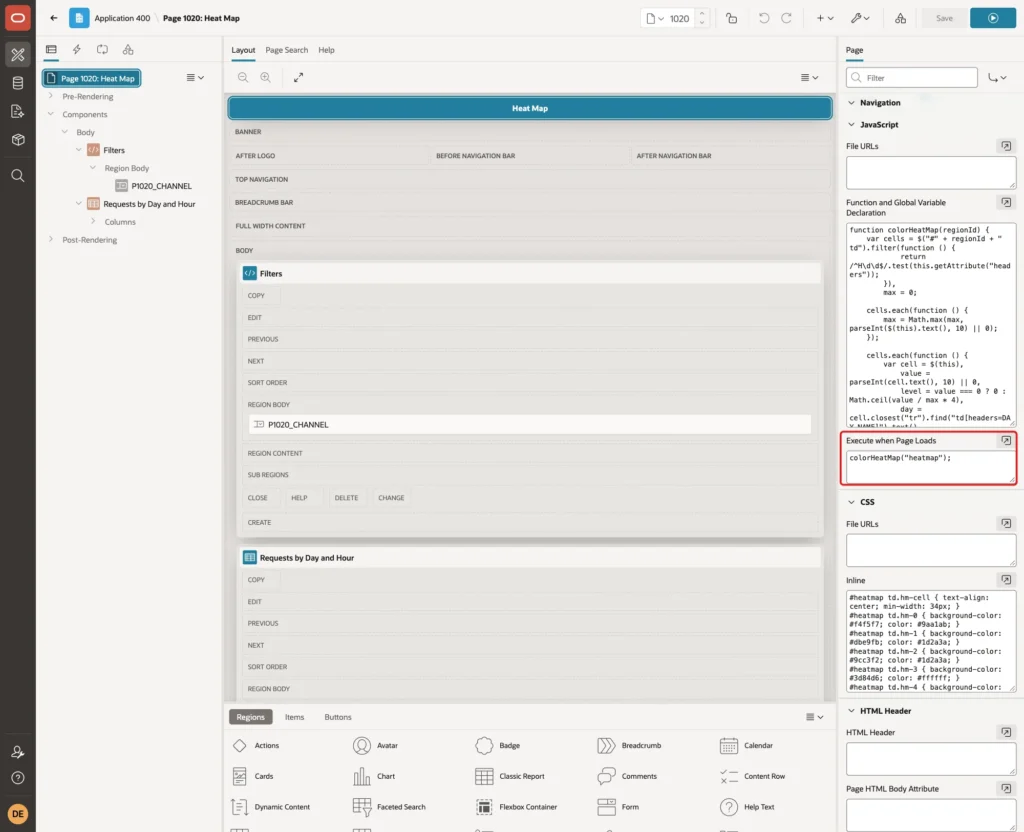
Under CSS, enter the colors in Inline. Each level has its own background color, from light gray for 0 to dark blue for level 4. The two dark levels use white text so the numbers stay readable:
Example:
#heatmap td.hm-cell { text-align: center; min-width: 34px; }
#heatmap td.hm-0 { background-color: #f4f5f7; color: #9aa1ab; }
#heatmap td.hm-1 { background-color: #dbe9fb; color: #1d2a3a; }
#heatmap td.hm-2 { background-color: #9cc3f2; color: #1d2a3a; }
#heatmap td.hm-3 { background-color: #3d84d6; color: #ffffff; }
#heatmap td.hm-4 { background-color: #17457f; color: #ffffff; }
.hm-legend { display: flex; gap: 6px; align-items: center; padding: 12px 0 4px; }
.hm-swatch { padding: 2px 10px; border-radius: 4px; font-size: 12px; }
.hm-swatch.hm-0 { background-color: #f4f5f7; color: #6b7280; }
.hm-swatch.hm-1 { background-color: #dbe9fb; color: #1d2a3a; }
.hm-swatch.hm-2 { background-color: #9cc3f2; color: #1d2a3a; }
.hm-swatch.hm-3 { background-color: #3d84d6; color: #ffffff; }
.hm-swatch.hm-4 { background-color: #17457f; color: #ffffff; }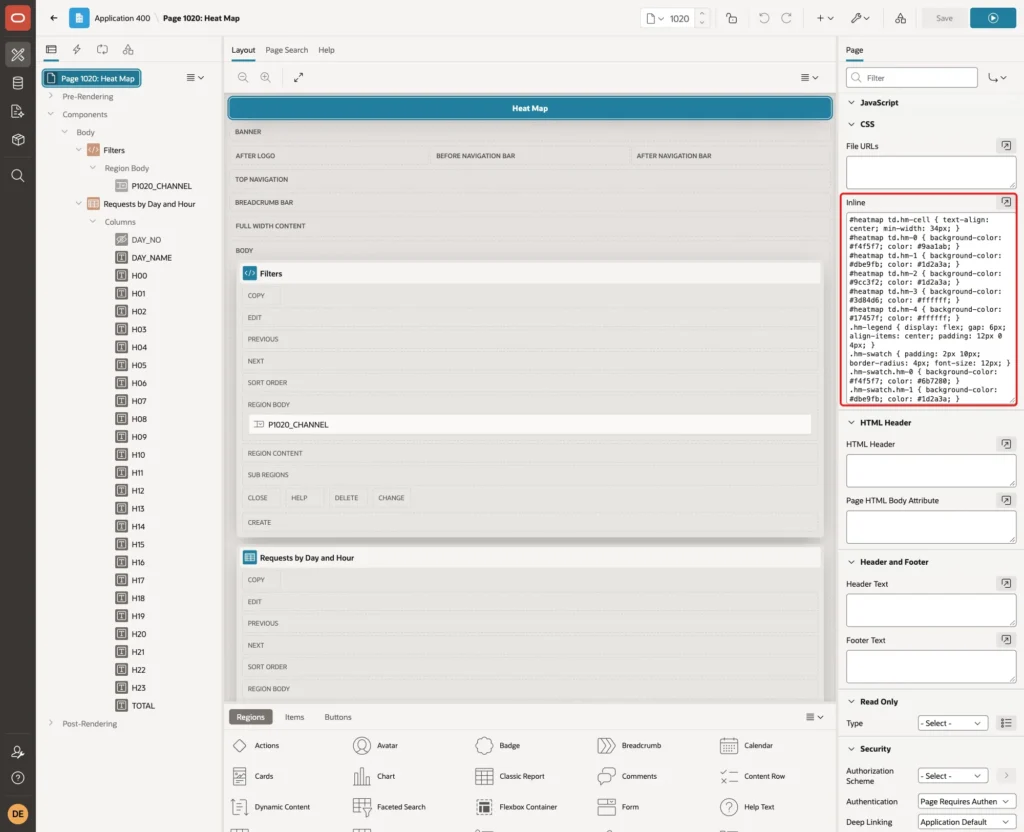
Click Save.
Step 8: Run and Test the Heat Map
Run the page. It opens with All Channels. The Monday morning rush and the weekday peaks at 10, 11 and 14 are dark blue, and the nights and weekends stay light:
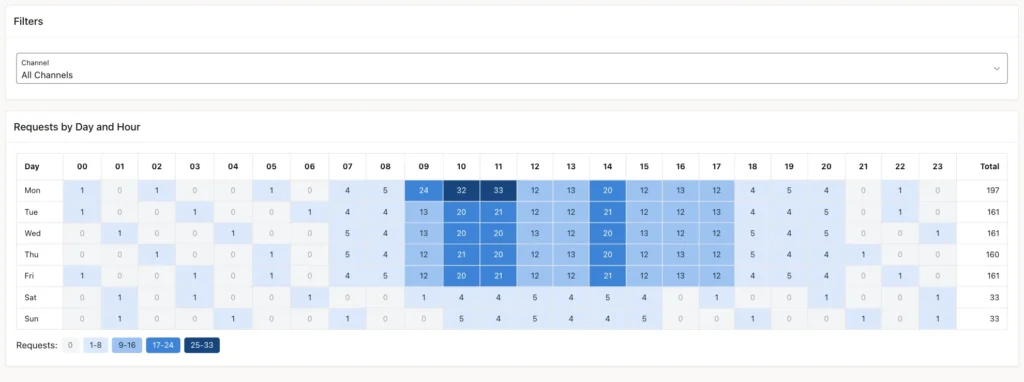
The legend shows 0, 1-8, 9-16, 17-24 and 25-33. The highest count is 33, on Monday at 11:00, so each level covers a quarter of that range.
Select Live Chat in the Channel list. The page submits and the grid shows only chat requests:
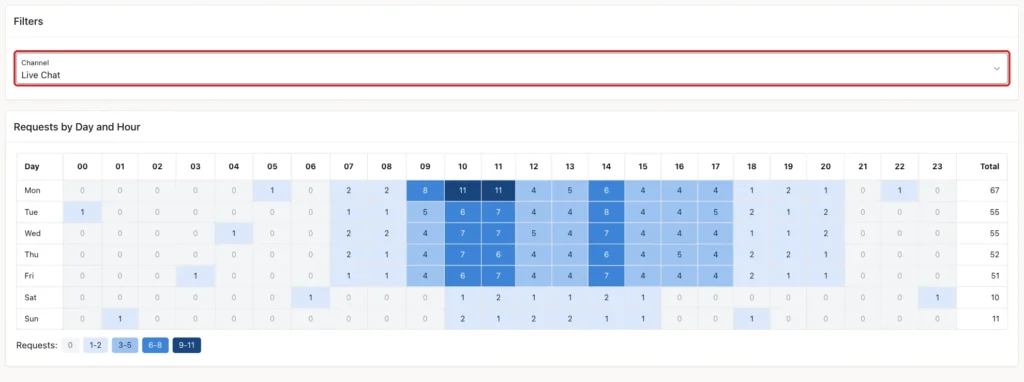
The highest chat count is 11, so the legend changes to 0, 1-2, 3-5, 6-8 and 9-11. The colors always compare cells within the current filter, not with the full data.
Now check the grid against SQL. This query lists the three busiest hours straight from the table:
Example:
select to_char(received_on, 'Dy', 'nls_date_language=english') as day_name,
       to_char(received_on, 'HH24') as hour,
       count(*) as requests
from contact_requests
group by to_char(received_on, 'Dy', 'nls_date_language=english'),
         to_char(received_on, 'HH24')
order by requests desc
fetch first 3 rows only;
Output:
DAY_NAME    HOUR       REQUESTS
___________ _______ ___________
Mon         11               33
Mon         10               32
Mon         09               24
They are the three dark cells of the Monday row: 24, 32 and 33. The next query counts the hours that have no requests at all:
Example:
select 7 * 24 as all_slots,
       count(distinct to_char(received_on, 'Dy HH24')) as slots_with_requests,
       7 * 24 - count(distinct to_char(received_on, 'Dy HH24')) as empty_slots
from contact_requests;
Output:
   ALL_SLOTS    SLOTS_WITH_REQUESTS    EMPTY_SLOTS
____________ ______________________ ______________
         168                    113             55
The page shows exactly 55 cells with 0, all in the light gray level 0. None of the 168 cells is missing. The chat totals per day match the Total column of the Live Chat grid:
Example:
select to_char(r.received_on, 'Dy', 'nls_date_language=english') as day_name,
       count(*) as chat_requests
from contact_requests r
join contact_channels c on c.channel_id = r.channel_id
where c.channel_code = 'CHAT'
group by to_char(r.received_on, 'Dy', 'nls_date_language=english'),
         trunc(r.received_on) - trunc(r.received_on, 'IW')
order by trunc(r.received_on) - trunc(r.received_on, 'IW');
Output:
DAY_NAME       CHAT_REQUESTS
___________ ________________
Mon                       67
Tue                       55
Wed                       55
Thu                       52
Fri                       51
Sat                       10
Sun                       11

7 rows selected.
A test script also read all 168 cells from the page and compared them with the SQL result of the region query, for All Channels and for Live Chat. Every cell matched.
Next, test the hour boundaries. These two requests arrive one second apart, at the end of a Sunday and the start of a Monday:
Example:
insert into contact_requests (channel_id, received_on, subject)
select channel_id, to_date('2026-10-18 23:59:59', 'YYYY-MM-DD HH24:MI:SS'), 'Boundary test 1'
from contact_channels where channel_code = 'EMAIL'
union all
select channel_id, to_date('2026-10-19 00:00:00', 'YYYY-MM-DD HH24:MI:SS'), 'Boundary test 2'
from contact_channels where channel_code = 'EMAIL';

commit;

select subject,
       to_char(received_on, 'Dy YYYY-MM-DD HH24:MI:SS', 'nls_date_language=english') as received,
       trunc(received_on) - trunc(received_on, 'IW') as day_no,
       to_number(to_char(received_on, 'HH24')) as hour_no
from contact_requests
where subject like 'Boundary test%'
order by received_on;
Output:
2 rows inserted.

Commit complete.

SUBJECT            RECEIVED                      DAY_NO    HOUR_NO
__________________ __________________________ _________ __________
Boundary test 1    Sun 2026-10-18 23:59:59            6         23
Boundary test 2    Mon 2026-10-19 00:00:00            0          0
After a reload, the Sunday 23 cell went from 1 to 2 and the Monday 00 cell went from 1 to 2. The day totals changed from 33 to 34 and from 197 to 198. The two test rows were deleted afterwards.
Last, try a forged filter value. Signed in as a user with read-only access, a value FAX was added to the Channel list from the browser console and the page was submitted. APEX accepted the value, and the grid showed 168 cells with 0 and a legend with only 0. There was no error and no JavaScript error.
The channel is a bind variable, so a forged value can never change the SQL. It only matches no rows.
Things to Know
- The chart types in APEX 26.1 do not include a heat map. A classic report with colored cells is a simple way to build one.
- Build the full grid first and left join the counts. Without the grid, hours with no data disappear instead of showing 0.
- Use TRUNC(date) - TRUNC(date, 'IW') for the weekday. TO_CHAR(date, 'D') depends on NLS_TERRITORY.
- The colors are relative to the highest count of the current filter. Show the legend with real ranges, so users know what dark means.
- Keep the numbers in the cells. The colors give the overview, and the numbers give the exact value.
- The hour comes from the stored DATE value. Store all times in one time zone, or convert them before you count.
- APEX accepts a submitted select list value that is not in the list. Use the item as a bind variable, as in this query, so such a value only returns an empty grid.
Related Guides
- How to Build a Pivot Report in Oracle APEX
- How to Show Progress Bars Inside Report Columns in Oracle APEX
Conclusion
A heat map by day and hour in Oracle APEX is a classic report on a query that builds all 168 cells, counts the rows per weekday and hour, and pivots the hours into columns. A small JavaScript function then colors each cell by its share of the highest count and writes the legend.
The result is an easy page to read: dark cells show when the work arrives, light cells show the quiet hours, and a filter shows the same picture for each channel. Because every cell is checked against SQL, users can trust both the colors and the numbers.
See my articles more often when you search Google.
