
A percentage is easier to read as a bar than as a number. In a long report, a row of bars shows at a glance which work is nearly done, which has not started and which is running over its budget.
Oracle APEX can draw these bars with the HTML Expression of a report column, a few lines of CSS and template directives for the colors. No JavaScript and no plug-in are needed. This guide builds two bars in an interactive report: a progress bar and a budget bar that turns orange and red at fixed thresholds.
How to Add a Checklist with Progress to Each Record in Oracle APEX used the built-in Percent Graph column type of a classic report. Here you build your own bar instead, so you control the colors, the label, values over 100% and the accessibility attributes, and it works in an interactive report too.
The example uses project work items with a percent complete and a budget in hours. The same steps work for any table with a percentage, such as quotas, stock levels or survey completion.
Step 1: Create the Tables
Two tables hold the data:
- DELIVERY_PROJECTS has one row per project with its manager.
- DELIVERY_ITEMS has one row per work item: the percent complete, the budget hours and the hours spent so far.
Example:
set pages 100 lines 200 feedback on
set sqlformat
column project_name format a18
column item_name format a22
create table delivery_projects (
  project_id    number generated by default on null as identity,
  project_name  varchar2(100) not null,
  manager       varchar2(100) not null,
  constraint delivery_projects_pk primary key (project_id),
  constraint delivery_projects_name_uk unique (project_name)
);

create table delivery_items (
  item_id          number generated by default on null as identity,
  project_id       number not null,
  item_name        varchar2(200) not null,
  pct_complete     number(3) default on null 0 not null,
  budget_hours     number(7,1) not null,
  spent_hours      number(7,1) default on null 0 not null,
  constraint delivery_items_pk primary key (item_id),
  constraint delivery_items_project_fk foreign key (project_id) references delivery_projects (project_id),
  constraint delivery_items_name_uk unique (project_id, item_name),
  constraint delivery_items_pct_ck check (pct_complete between 0 and 100),
  constraint delivery_items_budget_ck check (budget_hours > 0),
  constraint delivery_items_spent_ck check (spent_hours >= 0)
);

create index delivery_items_project_ix on delivery_items (project_id);

insert into delivery_projects (project_name, manager)
values ('Website Redesign', 'Anita Rao');

insert into delivery_projects (project_name, manager)
values ('Mobile App Launch', 'David Chen');

insert into delivery_items (project_id, item_name, pct_complete, budget_hours, spent_hours)
select p.project_id, v.item_name, v.pct_complete, v.budget_hours, v.spent_hours
  from (values ('Website Redesign',  'Requirements workshop', 100,  40,  38),
               ('Website Redesign',  'Page templates',         45,  80,  70),
               ('Website Redesign',  'Content migration',      70, 120, 126),
               ('Website Redesign',  'Accessibility review',    0,  24,   0),
               ('Mobile App Launch', 'API integration',        85,  60,  50),
               ('Mobile App Launch', 'Store listing',          20,  16,   4),
               ('Mobile App Launch', 'Beta testing',          100,  30,  45),
               ('Mobile App Launch', 'Push notifications',     10,  40,   6)
       ) v (project_name, item_name, pct_complete, budget_hours, spent_hours)
  join delivery_projects p on p.project_name = v.project_name;

commit;

select p.project_name, i.item_name, i.pct_complete, i.budget_hours, i.spent_hours
  from delivery_items i
  join delivery_projects p on p.project_id = i.project_id
 order by p.project_name, i.item_id;
Output:
SQL Format Cleared

Table DELIVERY_PROJECTS created.

Table DELIVERY_ITEMS created.

Index DELIVERY_ITEMS_PROJECT_IX created.

1 row inserted.

1 row inserted.

8 rows inserted.

Commit complete.

PROJECT_NAME       ITEM_NAME              PCT_COMPLETE BUDGET_HOURS SPENT_HOURS
------------------ ---------------------- ------------ ------------ -----------
Mobile App Launch  API integration                  85           60          50
Mobile App Launch  Store listing                    20           16           4
Mobile App Launch  Beta testing                    100           30          45
Mobile App Launch  Push notifications               10           40           6
Website Redesign   Requirements workshop           100           40          38
Website Redesign   Page templates                   45           80          70
Website Redesign   Content migration                70          120         126
Website Redesign   Accessibility review              0           24           0

8 rows selected.
- DELIVERY_ITEMS_PROJECT_FK links each item to its project, and DELIVERY_ITEMS_PROJECT_IX indexes that foreign key.
- DELIVERY_ITEMS_PCT_CK keeps the percent complete between 0 and 100, so the progress bar never gets an impossible width.
- DELIVERY_ITEMS_BUDGET_CK rejects a zero budget, which would make the budget percentage a division by zero.
- DEFAULT ON NULL sets PCT_COMPLETE and SPENT_HOURS to 0 for new rows, so no trigger is needed.
The sample rows cover the cases a bar must handle: 0%, 45%, 100%, and two items that used more hours than planned (126 of 120 and 45 of 30).
Step 2: Write the Report Query
The query returns the values the bars need. The HTML of the bars comes later, in the report columns:
Example:
select item_id,
       project_name,
       item_name,
       pct_complete,
       case
         when pct_complete = 100 then 'DONE'
         when pct_complete = 0 then 'NOT_STARTED'
         else 'ACTIVE'
       end as progress_band,
       budget_hours,
       spent_hours,
       budget_used_pct,
       least(budget_used_pct, 100) as budget_bar_width,
       case
         when budget_used_pct > 100 then 'OVER'
         when budget_used_pct >= 80 then 'NEAR'
         else 'OK'
       end as budget_band
  from (select i.item_id,
               p.project_name,
               i.item_name,
               i.pct_complete,
               i.budget_hours,
               i.spent_hours,
               round(i.spent_hours / i.budget_hours * 100) as budget_used_pct
          from delivery_items i
join delivery_projects p on p.project_id = i.project_id)- BUDGET_USED_PCT is the spent hours as a percentage of the budget. It can be higher than 100.
- BUDGET_BAR_WIDTH caps that value at 100 with LEAST, so an over-budget bar fills its track and does not spill out of the cell.
- PROGRESS_BAND and BUDGET_BAND turn the numbers into a few named states. The colors are chosen from these states in Step 5 and Step 6.
Run the query with an ORDER BY to check the values:
Example:
set sqlformat
set pages 100 lines 300 feedback on
column project_name format a18
column item_name format a22
column progress_band format a13
column budget_band format a11
select item_id,
       project_name,
       item_name,
       pct_complete,
       case
         when pct_complete = 100 then 'DONE'
         when pct_complete = 0 then 'NOT_STARTED'
         else 'ACTIVE'
       end as progress_band,
       budget_hours,
       spent_hours,
       budget_used_pct,
       least(budget_used_pct, 100) as budget_bar_width,
       case
         when budget_used_pct > 100 then 'OVER'
         when budget_used_pct >= 80 then 'NEAR'
         else 'OK'
       end as budget_band
  from (select i.item_id,
               p.project_name,
               i.item_name,
               i.pct_complete,
               i.budget_hours,
               i.spent_hours,
               round(i.spent_hours / i.budget_hours * 100) as budget_used_pct
          from delivery_items i
          join delivery_projects p on p.project_id = i.project_id)
 order by project_name desc, item_id;
Output:
SQL Format Cleared

   ITEM_ID PROJECT_NAME       ITEM_NAME              PCT_COMPLETE PROGRESS_BAND BUDGET_HOURS SPENT_HOURS BUDGET_USED_PCT BUDGET_BAR_WIDTH BUDGET_BAND
---------- ------------------ ---------------------- ------------ ------------- ------------ ----------- --------------- ---------------- -----------
         1 Website Redesign   Requirements workshop           100 DONE                    40          38              95               95 NEAR
         2 Website Redesign   Page templates                   45 ACTIVE                  80          70              88               88 NEAR
         3 Website Redesign   Content migration                70 ACTIVE                 120         126             105              100 OVER
         4 Website Redesign   Accessibility review              0 NOT_STARTED             24           0               0                0 OK
         5 Mobile App Launch  API integration                  85 ACTIVE                  60          50              83               83 NEAR
         6 Mobile App Launch  Store listing                    20 ACTIVE                  16           4              25               25 OK
         7 Mobile App Launch  Beta testing                    100 DONE                    30          45             150              100 OVER
         8 Mobile App Launch  Push notifications               10 ACTIVE                  40           6              15               15 OK

8 rows selected.
Content migration used 105% and Beta testing 150% of their budgets. Both are OVER, and both bar widths are 100.
In a first version of this example, BUDGET_USED_PCT was a virtual column of DELIVERY_ITEMS. On the database used here (Oracle AI Database 26ai Free, version 23.26.3), the sorted query then returned an empty BUDGET_USED_PCT for the two rows over 100, while BUDGET_BAND still said OVER. The same query without ORDER BY was correct.
Computing the percentage once in the inline view, with no virtual column on the table, returned the right values in every test. An interactive report always adds its own ORDER BY, so check sorted results if your percentage comes from a virtual column.
Step 3: Create the Interactive Report Page
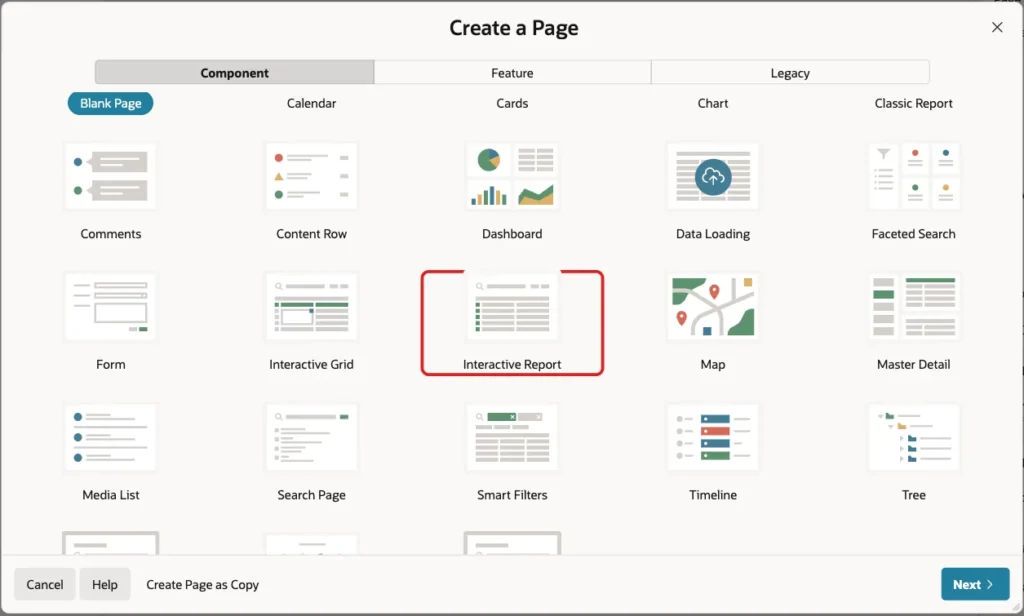
In the application, click Create Page. On the Component tab, select Interactive Report:
Set Page Number to 870 and Name to Work Progress:

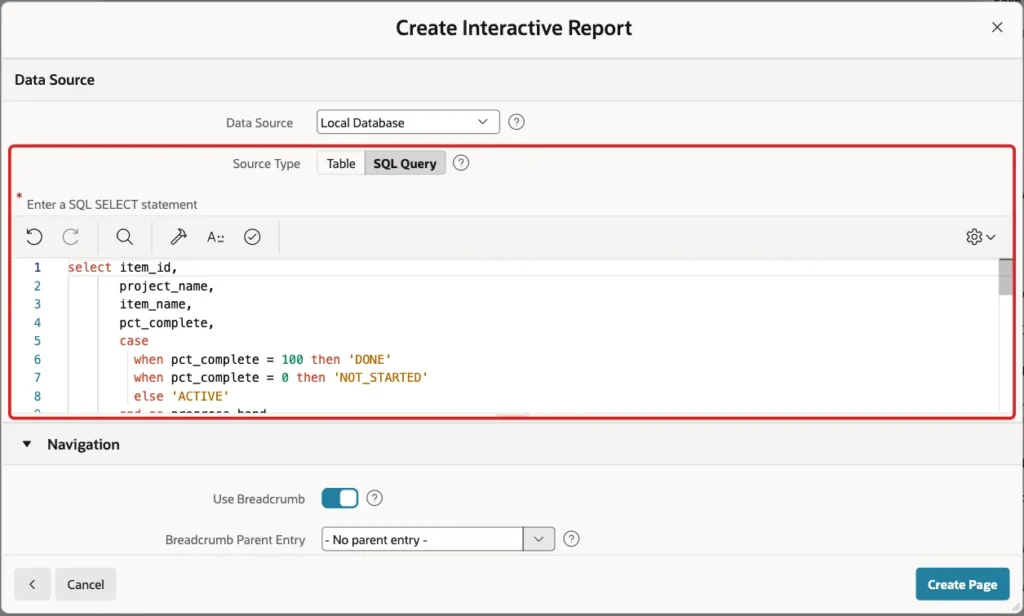
Under Data Source, set Source Type to SQL Query and paste the query from Step 2:
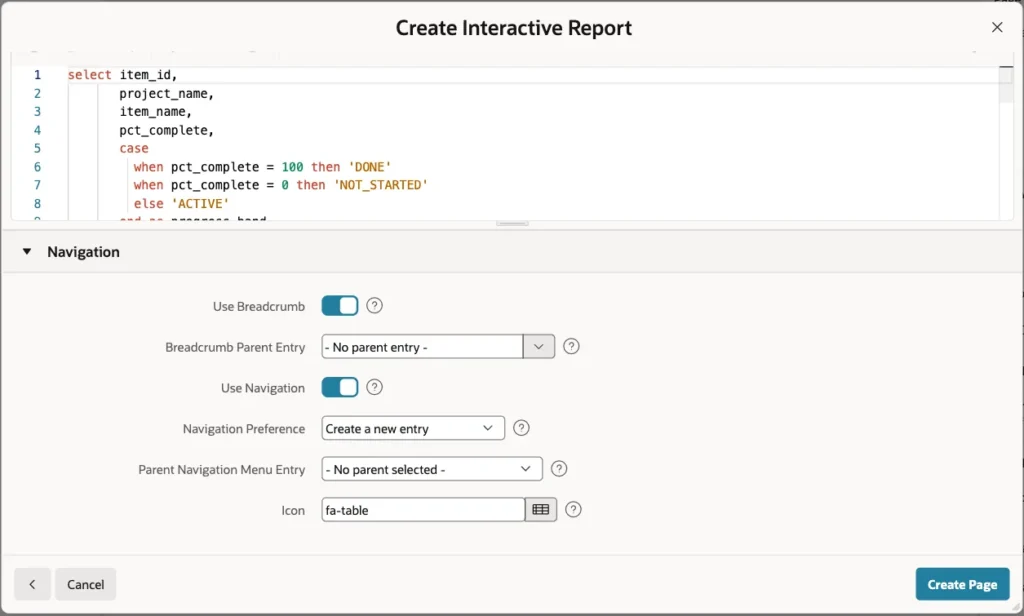
Leave the Navigation settings as they are. Use Navigation adds a menu entry for the page. Click Create Page:
Page Designer opens the new page. The Work Progress region is an interactive report with the query as its source:

Step 4: Hide the Helper Columns
Expand Columns under the region. Select PROGRESS_BAND and set Type to Hidden:
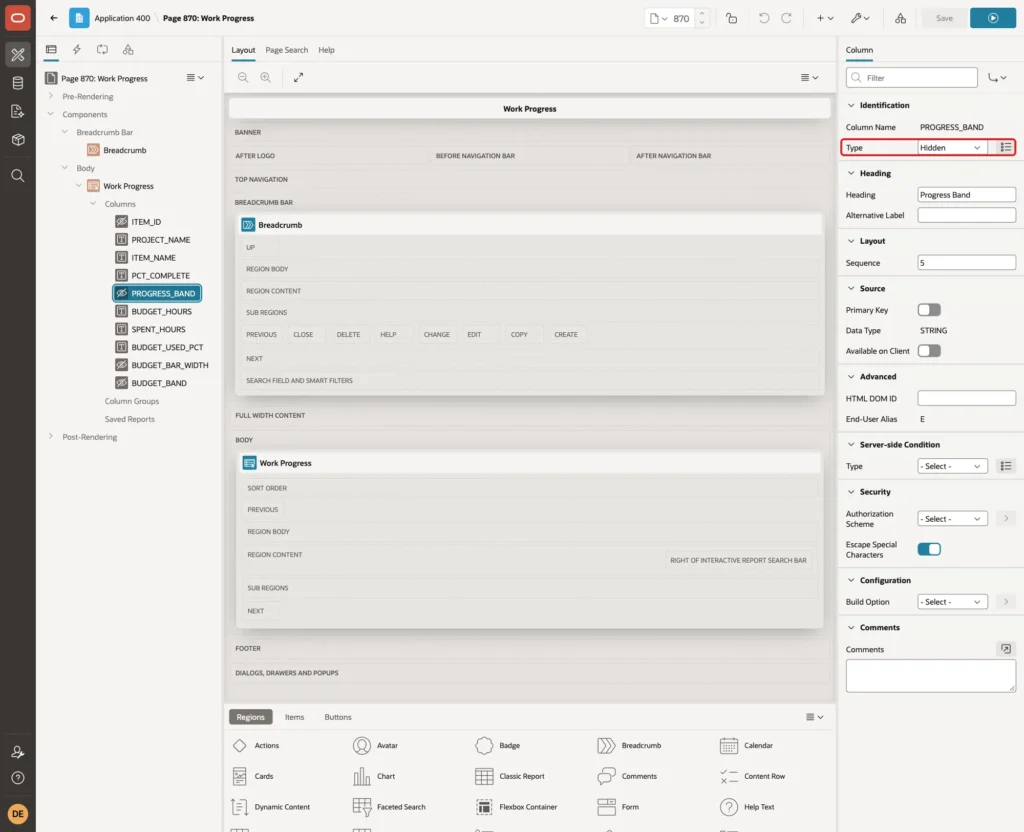
Do the same for ITEM_ID, BUDGET_BAR_WIDTH and BUDGET_BAND. The report then shows six visible columns.
Step 5: Add the Progress Bar
Select PCT_COMPLETE. Set Heading to Progress and enter this HTML Expression under Column Formatting:
Example:
<div class="pbar-cell">
  <div class="pbar" role="progressbar" aria-valuemin="0" aria-valuemax="100" aria-valuenow="#PCT_COMPLETE#" aria-label="Progress of #ITEM_NAME#">
    <span class="pbar-fill{case PROGRESS_BAND/}{when DONE/} is-done{when NOT_STARTED/} is-idle{otherwise/} is-active{endcase/}" style="width: #PCT_COMPLETE#%"></span>
  </div>
  <span class="pbar-label">#PCT_COMPLETE#%</span>
</div>
How it works:
- The outer .pbar element is the grey track. The inner .pbar-fill span is the colored part, and its width is the value itself: style="width: 45%" for 45.
- The {case PROGRESS_BAND/} template directive adds the class is-done, is-idle or is-active, depending on the hidden PROGRESS_BAND column.
- role="progressbar" with aria-valuenow, aria-valuemin and aria-valuemax tells a screen reader that this is a bar and what its value is. The aria-label names the item.
- The label next to the bar shows the number, so the value can be read without the color.
Note where the space is. In a first test, the class was written as "pbar-fill {case ...", and the page showed class="pbar-fillis-done": the space before the directive was removed.
With the space inside each {when/} branch, the result is "pbar-fill is-done". A space after {endcase/} is kept, so you can also put the directive first in the attribute.
Step 6: Add the Budget Bar
Select BUDGET_USED_PCT. Set Heading to Budget Used and enter this HTML Expression:
Example:
<div class="pbar-cell">
  <div class="pbar" role="progressbar" aria-valuemin="0" aria-valuemax="100" aria-valuenow="#BUDGET_BAR_WIDTH#" aria-valuetext="#BUDGET_USED_PCT#% of the budget used" aria-label="Budget used by #ITEM_NAME#">
    <span class="pbar-fill{case BUDGET_BAND/}{when OVER/} is-over{when NEAR/} is-near{otherwise/} is-ok{endcase/}" style="width: #BUDGET_BAR_WIDTH#%"></span>
  </div>
  <span class="pbar-label">#BUDGET_USED_PCT#%{case BUDGET_BAND/}{when OVER/} over{endcase/}</span>
</div>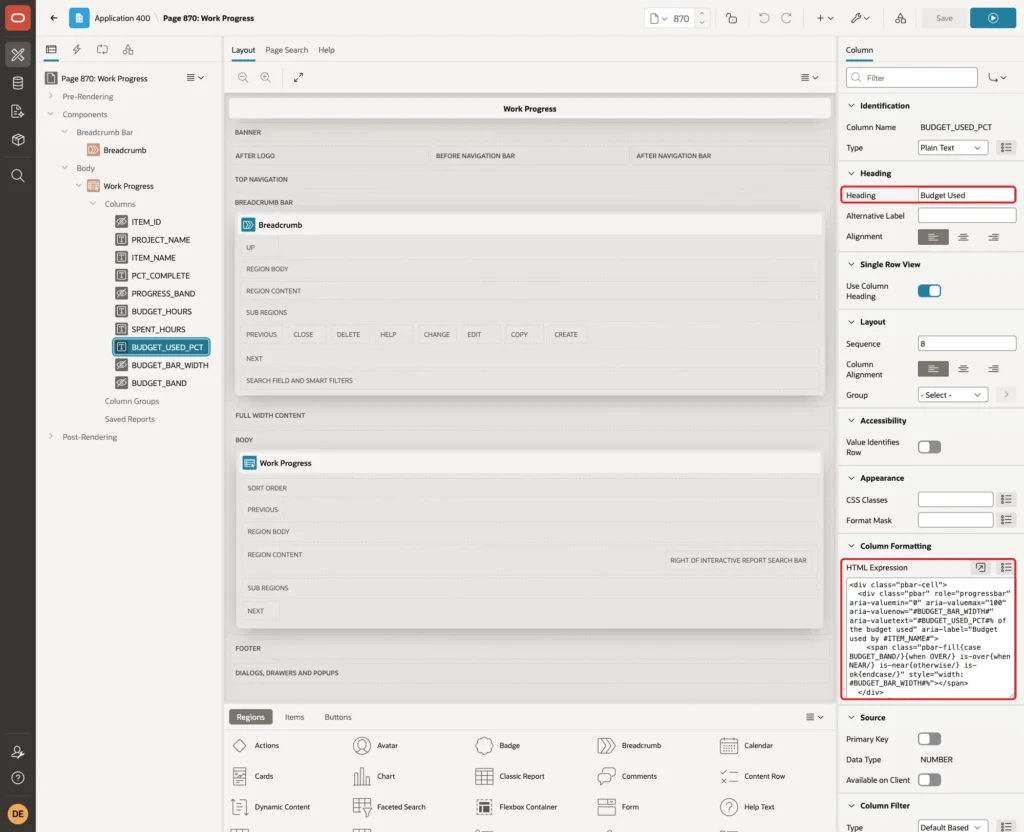
- The width comes from BUDGET_BAR_WIDTH, which is never above 100. The label shows the real BUDGET_USED_PCT, for example 150%.
- BUDGET_BAND selects green (OK), orange (NEAR, 80% or more) or red (OVER, above 100%).
- For an over-budget row, the second {case/} adds the word "over" to the label. Color alone is not enough for users who cannot tell red from green.
- aria-valuenow stays within 0 to 100, and aria-valuetext reads the real value, such as "150% of the budget used".
Step 7: Add the CSS
Select the page (Page 870: Work Progress) and enter this CSS under CSS > Inline:
Example:
.pbar-cell { display: flex; align-items: center; gap: 8px; min-width: 200px; }
.pbar { flex: 1; height: 10px; border-radius: 5px; background-color: #e3e7ec; overflow: hidden; }
.pbar-fill { display: block; height: 100%; border-radius: 5px; }
.pbar-fill.is-active { background-color: #2f7bbf; }
.pbar-fill.is-done, .pbar-fill.is-ok { background-color: #2e8540; }
.pbar-fill.is-near { background-color: #e08a00; }
.pbar-fill.is-over { background-color: #c62828; }
.pbar-label { flex: 0 0 5.5em; text-align: end; font-variant-numeric: tabular-nums; }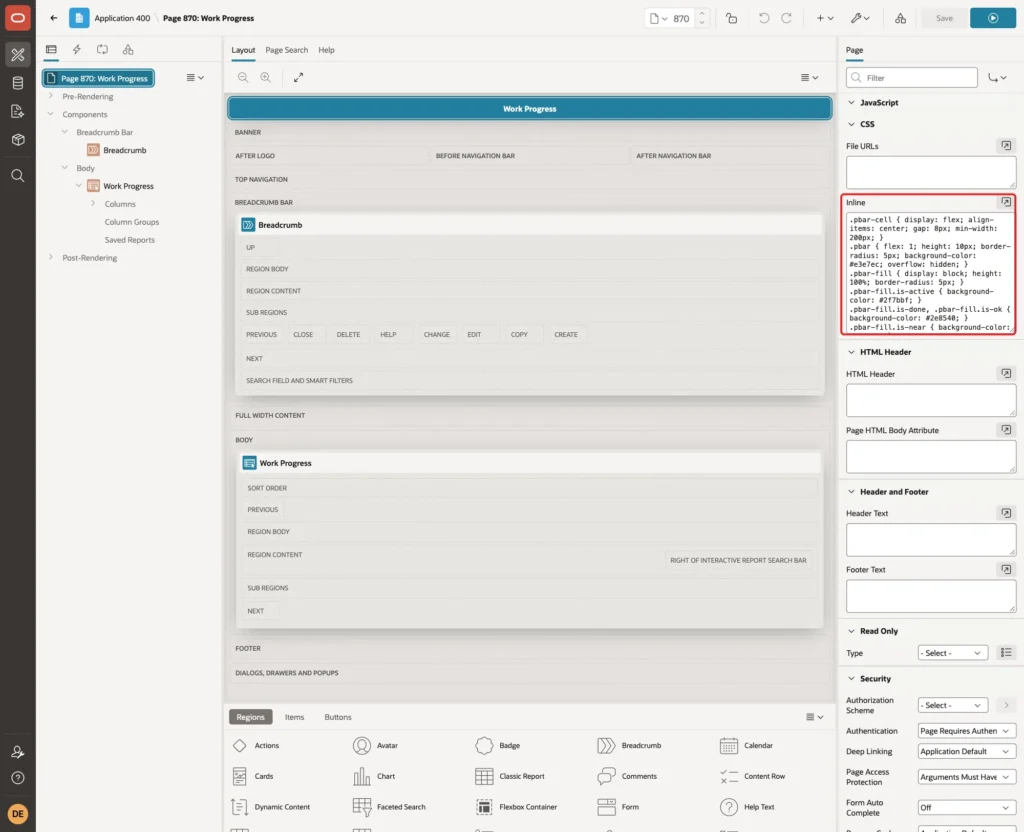
- .pbar-cell puts the bar and the label on one line, and .pbar takes the free width of the cell.
- overflow: hidden on the track keeps the rounded fill inside it.
- The label has a fixed width (5.5em), so all bars start and end at the same place, even when a label says "150% over".
- is-idle has no color on purpose: a 0% bar shows only the grey track.
To change the colors, edit the hex values. The bars only need one class per state.
Step 8: Set the Other Headings
Select BUDGET_HOURS and set Heading to Budget (h):

Set the heading of SPENT_HOURS to Spent (h), PROJECT_NAME to Project and ITEM_NAME to Work Item. Click Save.
Step 9: Test the Bars
Run the page. Here it was opened as SALES_USER, a user with the Reader role:
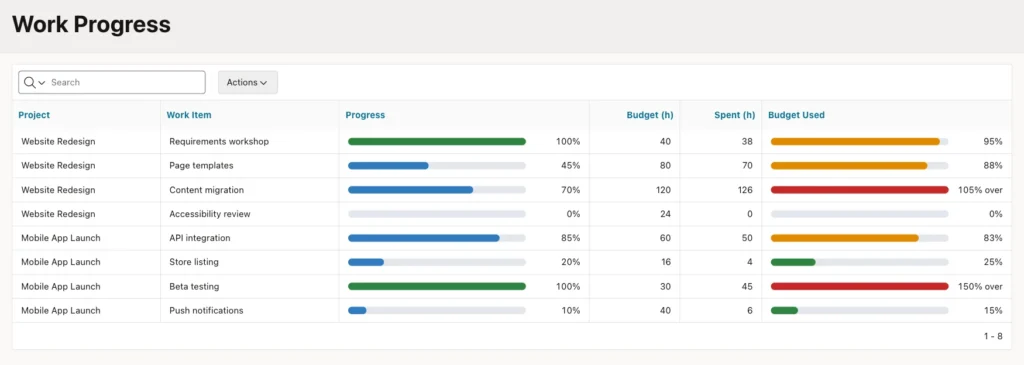
The page was checked row by row with Playwright, reading the class and the width of each bar:
- Accessibility review at 0% had an empty track (class is-idle, width 0%). Page templates at 45% had a blue bar of 45%, and the two finished items had full green bars.
- Requirements workshop (95%), Page templates (88%) and API integration (83%) had orange budget bars, because they are at 80% or more.
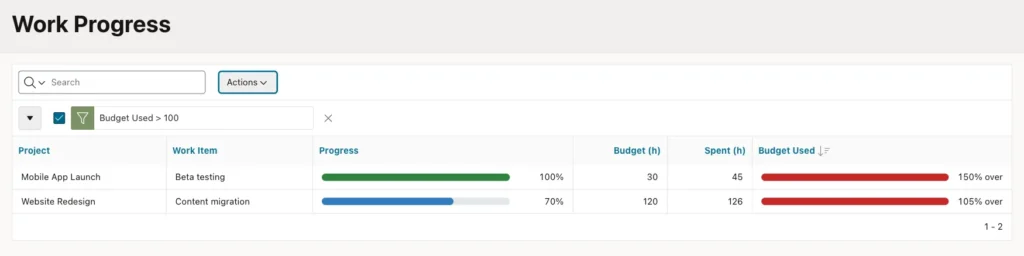
- Content migration (105%) and Beta testing (150%) had full red bars with the labels "105% over" and "150% over". Their fill was exactly as wide as the track.
- Every bar had role="progressbar", an aria-valuenow between 0 and 100 and an aria-label with the item name.
Step 10: Test Sorting, Filtering and Download
The column value is still the number. Only its display is HTML, so the interactive report features keep working. Click the Budget Used heading and click Sort Descending:
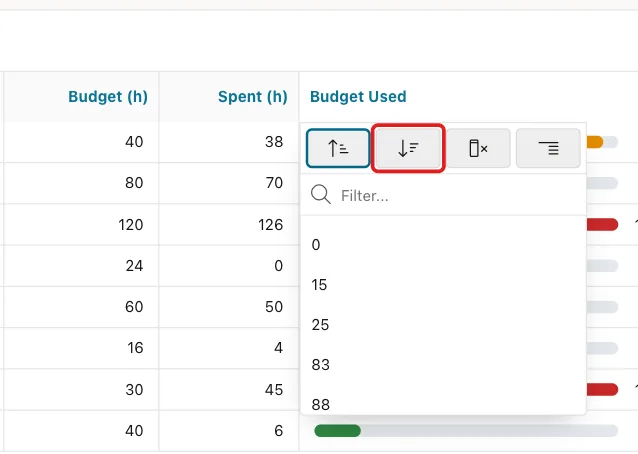
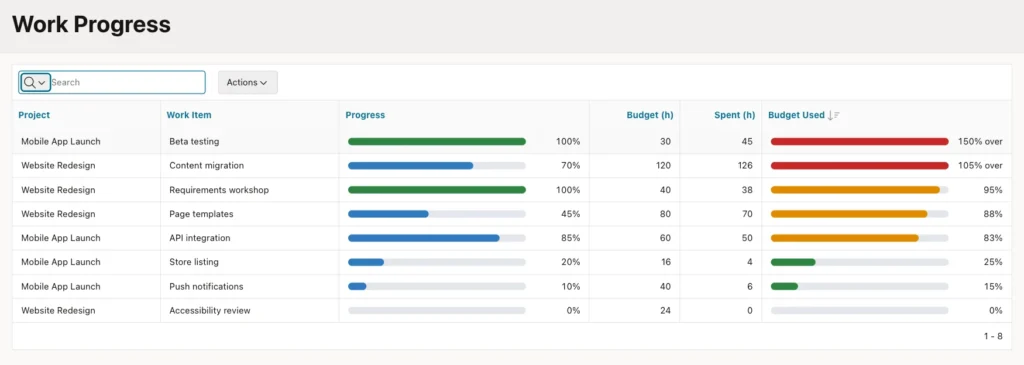
The order was 150, 105, 95, 88, 83, 25, 15, 0. That is a numeric sort; a text sort would have put 95 before 150.
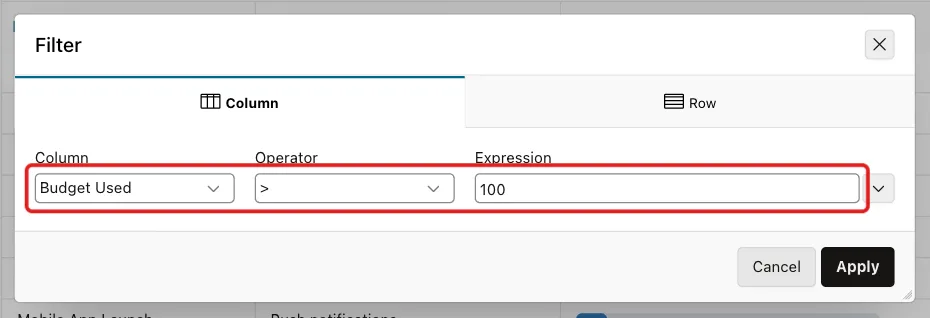
Next, click Actions > Filter. Set Column to Budget Used, Operator to > and Expression to 100:
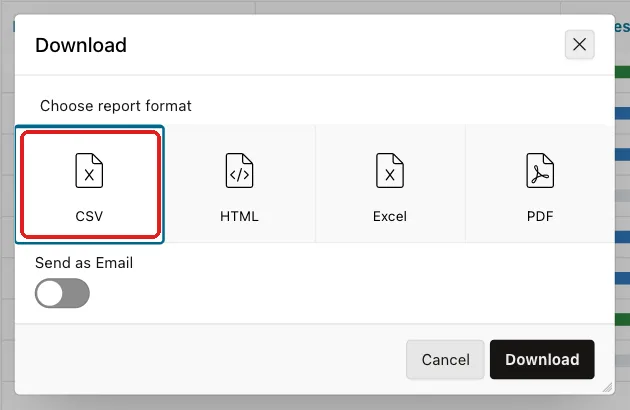
Finally, reset the report (Actions > Report > Reset) and click Actions > Download. Choose CSV and click Download:
Output:
Project,Work Item,Progress,Budget (h),Spent (h),Budget Used
Website Redesign,Requirements workshop,100,40,38,95
Website Redesign,Page templates,45,80,70,88
Website Redesign,Content migration,70,120,126,105
Website Redesign,Accessibility review,0,24,0,0
Mobile App Launch,API integration,85,60,50,83
Mobile App Launch,Store listing,20,16,4,25
Mobile App Launch,Beta testing,100,30,45,150
Mobile App Launch,Push notifications,10,40,6,15
The file contains the plain numbers and no HTML. The hidden helper columns are not included.
Step 11: Test Escaping and Invalid Values
The HTML Expression puts ITEM_NAME inside the aria-label attribute. To check that a name cannot break out of the attribute, add an item whose name contains quotes, an event handler and a tag:
Example:
insert into delivery_items (project_id, item_name, pct_complete, budget_hours, spent_hours)
select project_id, 'Logo "v2" onmouseover="alert(1)" <b>draft</b>', 30, 10, 2
  from delivery_projects
 where project_name = 'Website Redesign';

commit;
Output:
1 row inserted.

Commit complete.
Reload the page:

The rendered bar of that row:
Output:
<div class="pbar" role="progressbar" aria-valuemin="0" aria-valuemax="100" aria-valuenow="30" aria-label="Progress of Logo "v2" onmouseover="alert(1)" <b>draft</b>">
APEX escaped the quotes and the angle brackets of #ITEM_NAME#. The row had no onmouseover attribute and no b element, and hovering over the bar opened no alert.
Now try an impossible percentage:
Example:
update delivery_items
   set pct_complete = 120
 where item_name = 'Page templates';
Output:
Error starting at line : 1 File @ b90/41-bad-pct.sql
In command -
update delivery_items
   set pct_complete = 120
 where item_name = 'Page templates'
Error report -
ORA-02290: check constraint (APXSOL.DELIVERY_ITEMS_PCT_CK) violated
Help: https://docs.oracle.com/error-help/db/ora-02290/
The check constraint stops the value before it reaches the report. Delete the test row again:
Example:
delete from delivery_items
 where item_name like 'Logo "v2"%';

commit;
Output:
1 row deleted.

Commit complete.
Things to Know
- A template directive removes the white space in front of it. Put the space inside the {when/} branches, as in Step 5, or check the generated class in the browser.
- Template directives such as {case/} compare text values. They cannot compare numbers with > or <, so compute the band in SQL and choose the color from the band.
- Cap the bar width with LEAST, but show the real value in the label.
- Sorting, filtering and downloads use the column value, not the HTML. The CSV file contains only numbers.
- For a simple bar in a classic report, the built-in Percent Graph column type is enough. Use the HTML Expression when you need threshold colors, labels or ARIA attributes.
- On Oracle AI Database 26ai Free 23.26.3, a virtual column used in this query returned empty values for rows over 100 when the query was sorted. Computing the value in the query avoided it.
Related Guides
- How to Add a Checklist with Progress to Each Record in Oracle APEX
- How to Show a Top 10 Leaderboard in Oracle APEX
Conclusion
Progress bars in Oracle APEX report columns need a query that returns the value, a capped width and a band, plus an HTML Expression and a few CSS rules. Template directives pick the color, and ARIA attributes and a text label keep the bars readable for everyone.
In this example, the bars matched the SQL values for 0%, 45%, 100% and the over-budget rows, sorting and filtering used the numbers, and a hostile item name was escaped. The same steps work for any percentage in any report.
See my articles more often when you search Google.
