
A pivot report turns the values of one column into column headings. Instead of a long list of orders, readers see one row per customer and one column per month, with the total in each cell. Month-by-month comparisons, gaps and the busiest months become visible at a glance.
Oracle APEX offers two ways to build one. The Interactive Report has a Pivot action that needs no SQL changes, and a developer can save the pivot as a report for all users. A classic report can show the result of a SQL PIVOT query. This guide builds both on one page and compares their numbers with plain SQL.
The guide Oracle APEX Interactive Reports: The Complete Guide gives an overview of every Interactive Report feature, including Pivot in one sentence. This guide is the full task: the pivot settings, sorting the rows, saving the pivot for all users, opening it from the menu, and the SQL alternative.
The example uses customer orders and their amounts. The same steps work for any table with a column to group by, a column to turn into headings, and a number to add up.
Step 1: Create the Tables
Two tables hold the data:
- SALES_CUSTOMERS has one row per customer with a unique name and a region.
- SALES_ORDERS has one row per order with the customer, the order date, the sales channel and the amount.
Create the tables with six customers and 33 orders from January to June 2026:
Example:
create table sales_customers (
  customer_id     number generated by default on null as identity,
  customer_name   varchar2(100)  not null,
  region          varchar2(10)   not null,
  constraint sales_customers_pk primary key (customer_id),
  constraint sales_customers_name_uk unique (customer_name),
  constraint sales_customers_region_ck check (region in ('North', 'South', 'East', 'West'))
);

create table sales_orders (
  order_id        number generated by default on null as identity,
  customer_id     number         not null,
  order_date      date           not null,
  channel         varchar2(10)   not null,
  amount          number(12,2)   not null,
  constraint sales_orders_pk primary key (order_id),
  constraint sales_orders_customer_fk foreign key (customer_id) references sales_customers (customer_id),
  constraint sales_orders_channel_ck check (channel in ('Online', 'Store', 'Phone')),
  constraint sales_orders_amount_ck check (amount > 0)
);

create index sales_orders_customer_ix on sales_orders (customer_id);
create index sales_orders_date_ix on sales_orders (order_date);

insert into sales_customers (customer_name, region) values
  ('Bluebell Stores', 'North'),
  ('Cedar Mart', 'South'),
  ('Harbor Foods', 'East'),
  ('Lotus Supplies', 'West'),
  ('Summit Traders', 'North'),
  ('Willow Market', 'South');

insert into sales_orders (customer_id, order_date, channel, amount)
select c.customer_id, v.order_date, v.channel, v.amount
from sales_customers c
join (values
  ('Bluebell Stores', date '2026-01-08', 'Online', 1200),
  ('Bluebell Stores', date '2026-01-22', 'Store',   450),
  ('Bluebell Stores', date '2026-02-14', 'Online',  980),
  ('Bluebell Stores', date '2026-03-03', 'Phone',   310),
  ('Bluebell Stores', date '2026-04-19', 'Online', 1500),
  ('Bluebell Stores', date '2026-06-11', 'Store',   720),
  ('Cedar Mart',      date '2026-01-15', 'Store',   860),
  ('Cedar Mart',      date '2026-02-02', 'Store',   640),
  ('Cedar Mart',      date '2026-03-21', 'Online',  990),
  ('Cedar Mart',      date '2026-04-07', 'Phone',   275),
  ('Cedar Mart',      date '2026-05-12', 'Store',  1130),
  ('Cedar Mart',      date '2026-06-25', 'Online',  880),
  ('Harbor Foods',    date '2026-01-30', 'Phone',  2100),
  ('Harbor Foods',    date '2026-02-18', 'Online', 1750),
  ('Harbor Foods',    date '2026-02-27', 'Online',  400),
  ('Harbor Foods',    date '2026-04-10', 'Store',  1980),
  ('Harbor Foods',    date '2026-05-05', 'Online', 2240),
  ('Harbor Foods',    date '2026-06-16', 'Phone',  1320),
  ('Lotus Supplies',  date '2026-03-09', 'Online',  560),
  ('Lotus Supplies',  date '2026-04-23', 'Online',  610),
  ('Lotus Supplies',  date '2026-05-28', 'Store',   705),
  ('Lotus Supplies',  date '2026-06-04', 'Online',  930),
  ('Summit Traders',  date '2026-01-11', 'Store',   330),
  ('Summit Traders',  date '2026-02-09', 'Phone',   290),
  ('Summit Traders',  date '2026-03-17', 'Store',   415),
  ('Summit Traders',  date '2026-05-20', 'Store',   505),
  ('Summit Traders',  date '2026-06-29', 'Online',  640),
  ('Willow Market',   date '2026-01-05', 'Online', 1420),
  ('Willow Market',   date '2026-03-13', 'Online', 1610),
  ('Willow Market',   date '2026-03-30', 'Store',   380),
  ('Willow Market',   date '2026-04-15', 'Online', 1290),
  ('Willow Market',   date '2026-05-22', 'Phone',   470),
  ('Willow Market',   date '2026-06-08', 'Online', 1555)
) v (customer_name, order_date, channel, amount)
  on v.customer_name = c.customer_name;

commit;

select c.customer_name, c.region, count(o.order_id) as orders, sum(o.amount) as total_amount
from sales_customers c
left join sales_orders o on o.customer_id = c.customer_id
group by c.customer_name, c.region
order by c.customer_name;
Output:
Table SALES_CUSTOMERS created.

Table SALES_ORDERS created.

Index SALES_ORDERS_CUSTOMER_IX created.

Index SALES_ORDERS_DATE_IX created.

6 rows inserted.

33 rows inserted.

Commit complete.

CUSTOMER_NAME      REGION       ORDERS    TOTAL_AMOUNT
__________________ _________ _________ _______________
Bluebell Stores    North             6            5160
Cedar Mart         South             6            4775
Harbor Foods       East              6            9790
Lotus Supplies     West              4            2805
Summit Traders     North             5            2180
Willow Market      South             6            6725

6 rows selected.
- SALES_ORDERS_CUSTOMER_FK links each order to an existing customer, and SALES_ORDERS_CUSTOMER_IX indexes that foreign key.
- The check constraints allow only known regions and channels, and amounts above zero.
- SALES_ORDERS_DATE_IX supports date filters, which a pivot over many months will need.
- The orders are inserted with a multi-row VALUES list joined to the customer names, so the identity columns create all IDs.
Some customers have no orders in some months. Bluebell Stores has nothing in May, and Lotus Supplies starts in March. These gaps show how each pivot displays a missing value.
Step 2: Get the Expected Numbers with SQL
Before building the report, get the numbers it must show. Sum the amounts per customer and month with GROUP BY:
Example:
set pagesize 100
select c.customer_name, to_char(o.order_date, 'YYYY-MM') as order_month, sum(o.amount) as sales
from sales_orders o
join sales_customers c on c.customer_id = o.customer_id
group by c.customer_name, to_char(o.order_date, 'YYYY-MM')
order by c.customer_name, order_month;
Output:
CUSTOMER_NAME      ORDER_MONTH       SALES
__________________ ______________ ________
Bluebell Stores    2026-01            1650
Bluebell Stores    2026-02             980
Bluebell Stores    2026-03             310
Bluebell Stores    2026-04            1500
Bluebell Stores    2026-06             720
Cedar Mart         2026-01             860
Cedar Mart         2026-02             640
Cedar Mart         2026-03             990
Cedar Mart         2026-04             275
Cedar Mart         2026-05            1130
Cedar Mart         2026-06             880
Harbor Foods       2026-01            2100
Harbor Foods       2026-02            2150
Harbor Foods       2026-04            1980
Harbor Foods       2026-05            2240
Harbor Foods       2026-06            1320
Lotus Supplies     2026-03             560
Lotus Supplies     2026-04             610
Lotus Supplies     2026-05             705
Lotus Supplies     2026-06             930
Summit Traders     2026-01             330
Summit Traders     2026-02             290
Summit Traders     2026-03             415
Summit Traders     2026-05             505
Summit Traders     2026-06             640
Willow Market      2026-01            1420
Willow Market      2026-03            1990
Willow Market      2026-04            1290
Willow Market      2026-05             470
Willow Market      2026-06            1555

30 rows selected.
The pivot must also show a total per month. Sum the amounts per month:
Example:
select to_char(o.order_date, 'YYYY-MM') as order_month, sum(o.amount) as sales
from sales_orders o
group by to_char(o.order_date, 'YYYY-MM')
order by order_month;
Output:
ORDER_MONTH       SALES
______________ ________
2026-01            6360
2026-02            4060
2026-03            4265
2026-04            5655
2026-05            5050
2026-06            6045

6 rows selected.
Each row of the first result becomes one cell of the pivot. The second result becomes its totals row.
Step 3: Create the Interactive Report Page
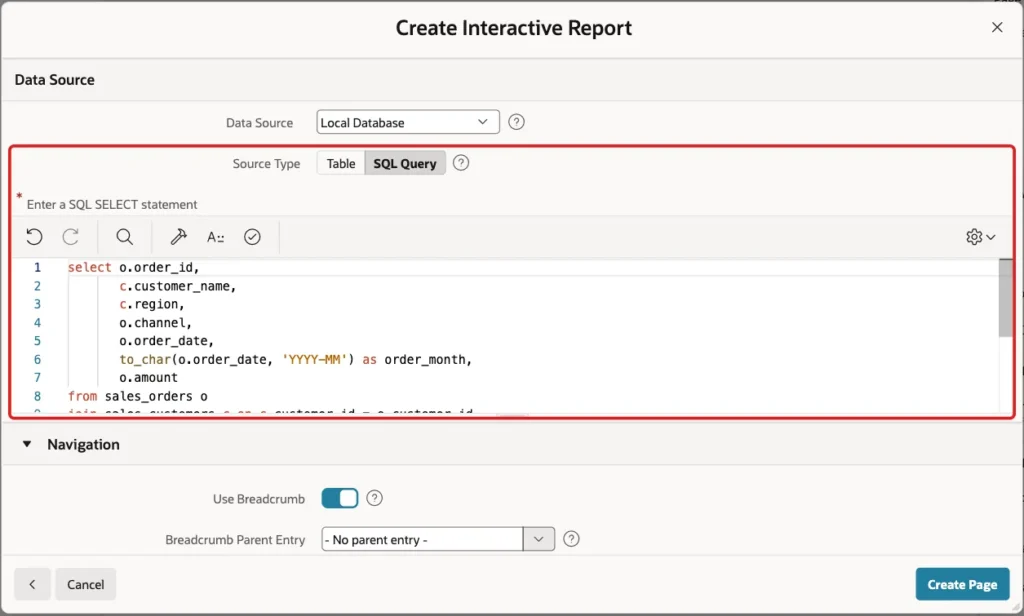
The pivot needs a month column that sorts correctly. TO_CHAR(order_date, 'YYYY-MM') gives values such as 2026-01, which sort in calendar order. Month names such as Jan or Feb are text and do not sort in calendar order. The report source query is:
Example:
select o.order_id,
       c.customer_name,
       c.region,
       o.channel,
       o.order_date,
       to_char(o.order_date, 'YYYY-MM') as order_month,
       o.amount
from sales_orders o
join sales_customers c on c.customer_id = o.customer_id
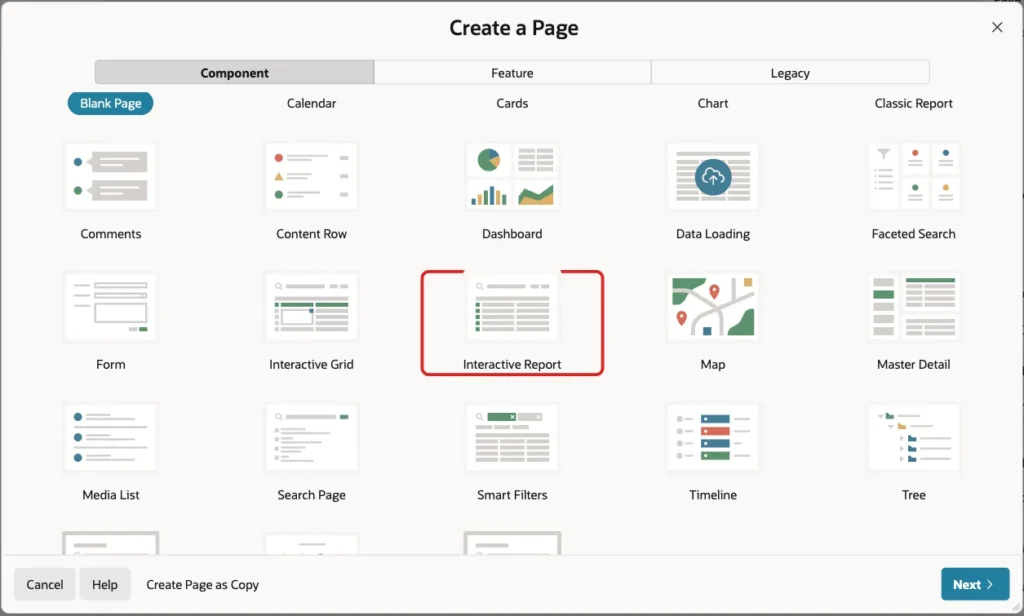
In Page Designer, click Create (the plus icon) and choose Page. Select the Interactive Report tile:
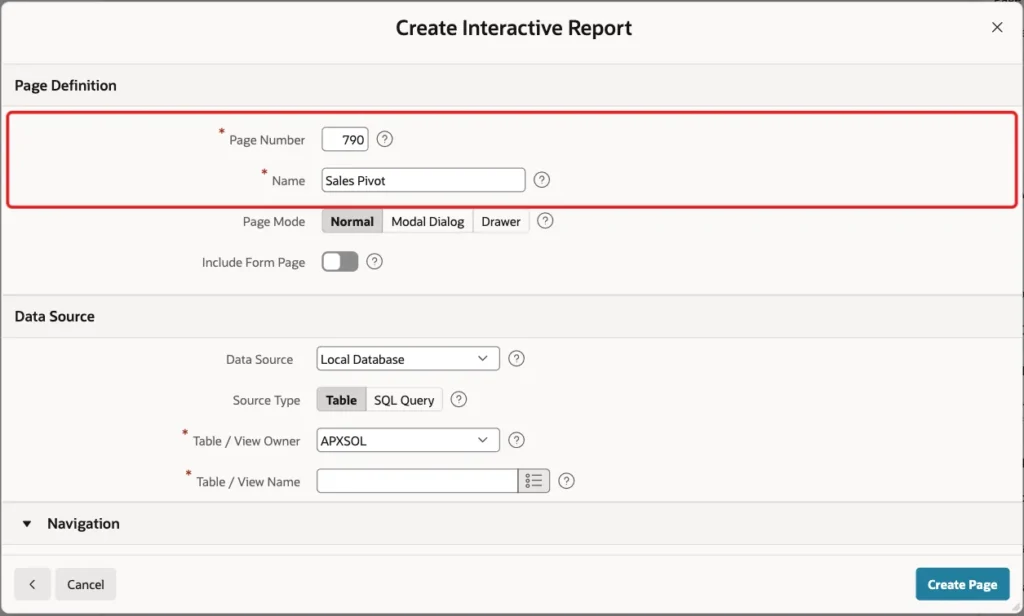
On the Create Interactive Report screen, enter Page Number 790 and Name Sales Pivot. Leave Page Mode Normal and Include Form Page off:
Under Data Source, keep Local Database, set Source Type to SQL Query and paste the query above into the editor:
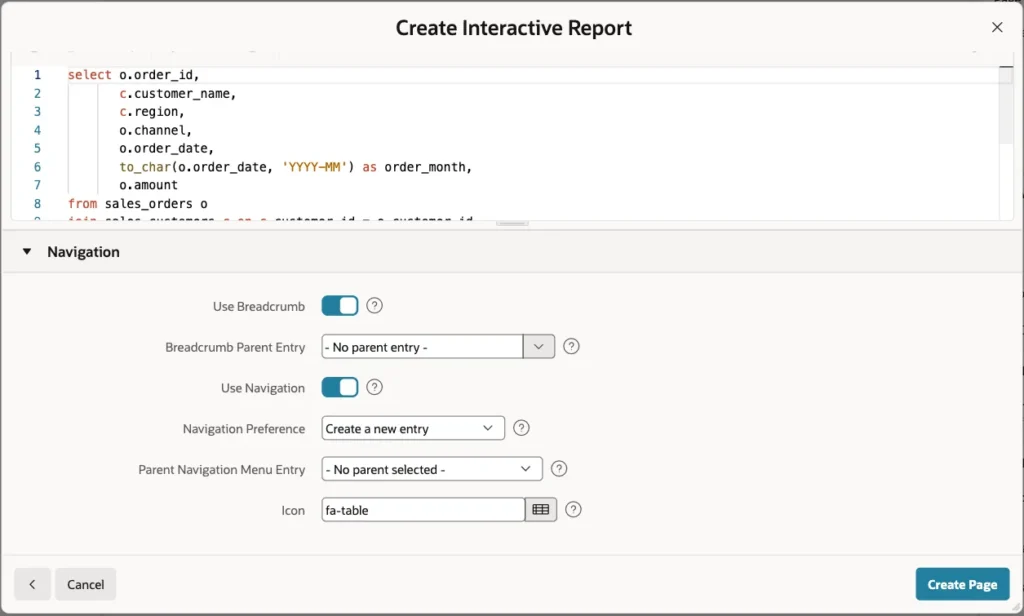
Under Navigation, keep the defaults: a breadcrumb and a new navigation menu entry with the icon fa-table. Click Create Page:
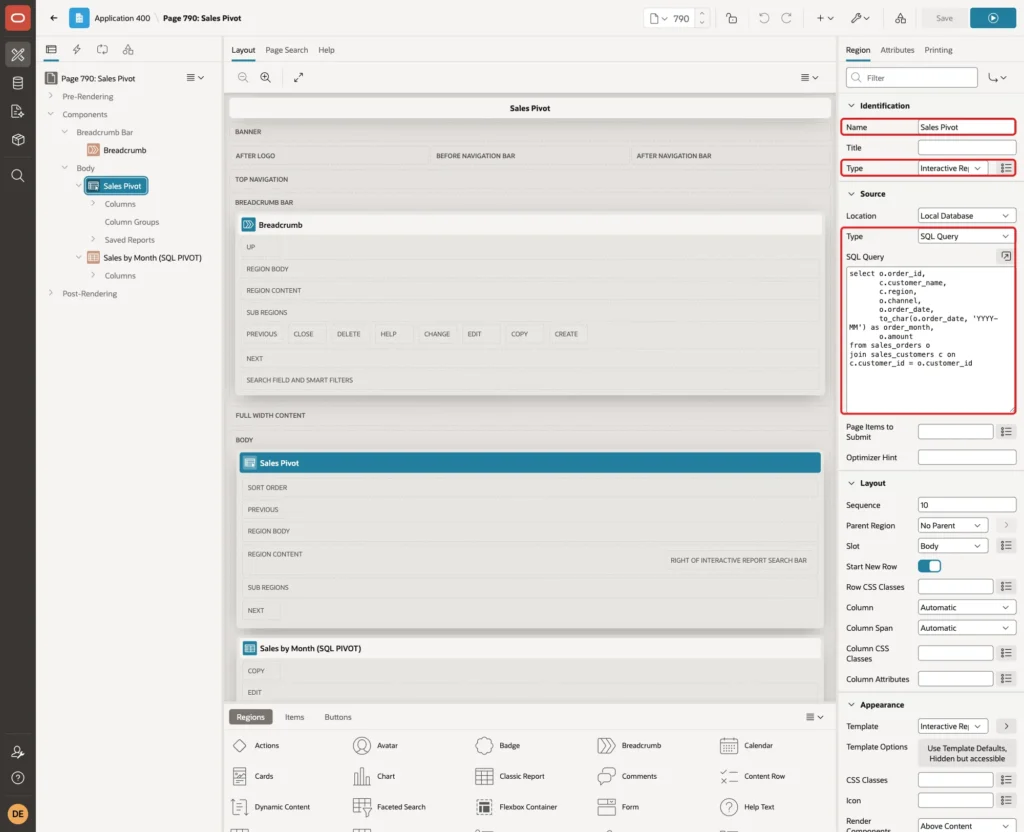
Page Designer opens page 790 with the Sales Pivot region of type Interactive Report:
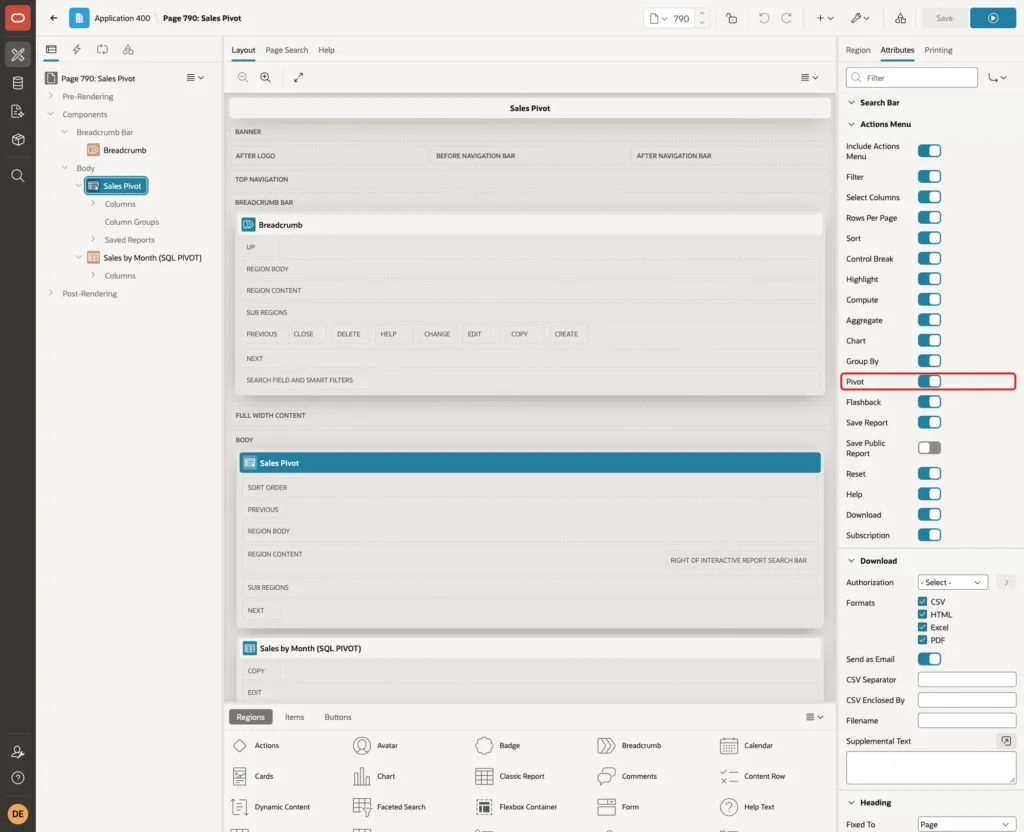
Select the region and open the Attributes tab. Under Actions Menu, the Pivot switch is on by default. This switch decides whether users see the Pivot entry in the Actions menu:
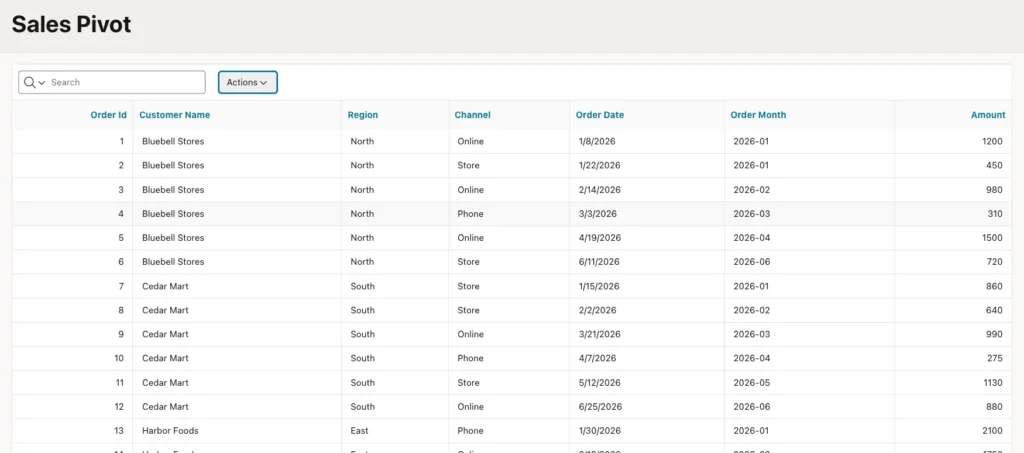
Run the page. The report lists all 33 orders with the month column next to the amount:
Step 4: Pivot the Report by Month
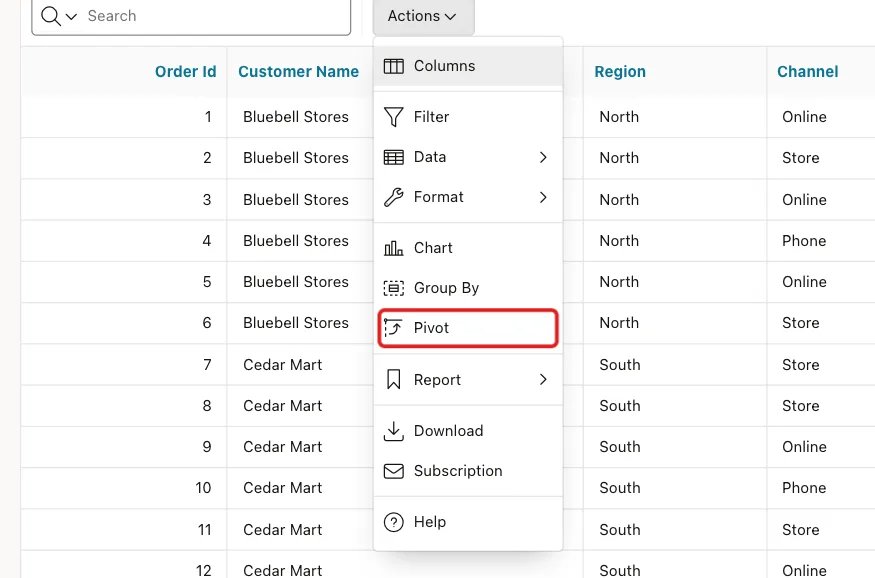
Sign in to the application as a developer, open page 790, click Actions and choose Pivot:
Fill in the Pivot dialog:
- Pivot Columns: Order Month. Each month value becomes a column.
- Row Columns: Customer Name, then click Add Row Column and choose Region. Each customer becomes a row.
- Functions: Sum, Column Amount, Label Sales, Format Mask 999G999G990, and switch Sum on.
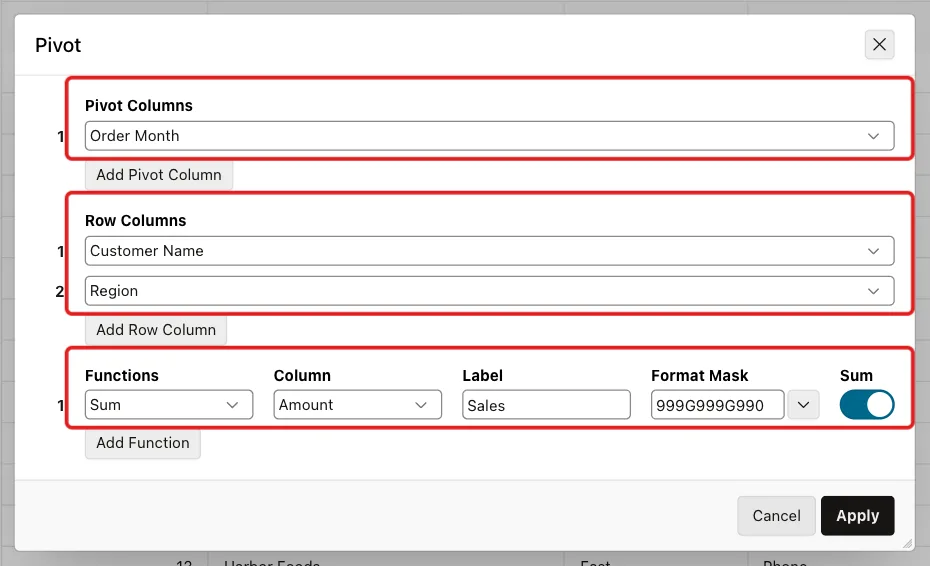
Click Apply. The report now has one row per customer, one column per month, and a totals row at the bottom:
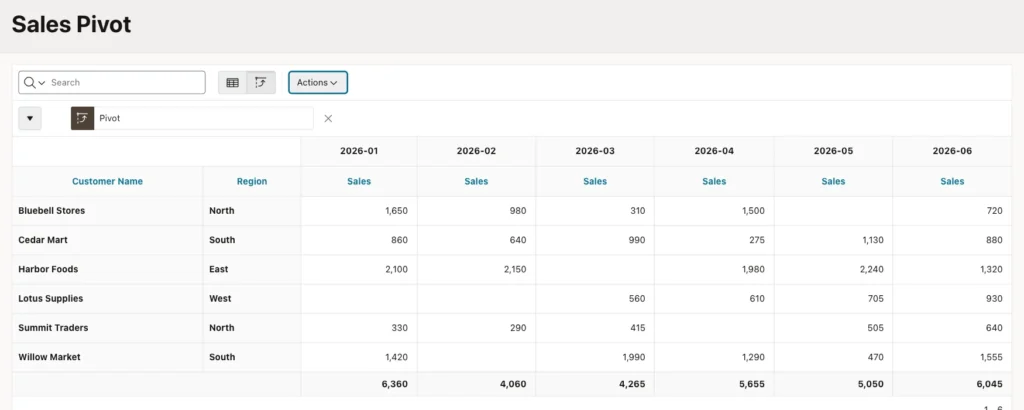
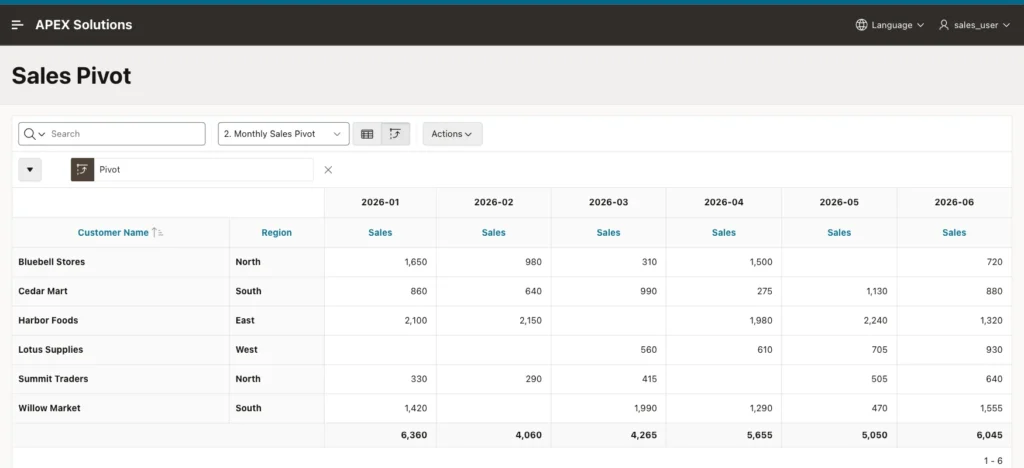
Compare it with Step 2. Bluebell Stores shows 1,650 in 2026-01 and 980 in 2026-02, the same as the GROUP BY result. The totals row shows 6,360, 4,060, 4,265, 5,655, 5,050 and 6,045, which match the month totals.
Months without orders stay empty, such as Bluebell Stores in 2026-05. The Sum switch adds the totals row per pivot column. It does not add a total per customer.
Step 5: Sort the Pivot Rows
In a later test, one customer received an order in a new month and its row moved to the top of the pivot. The pivot does not sort rows by itself, so add a sort. Click Actions, then Data, then Pivot Sort:
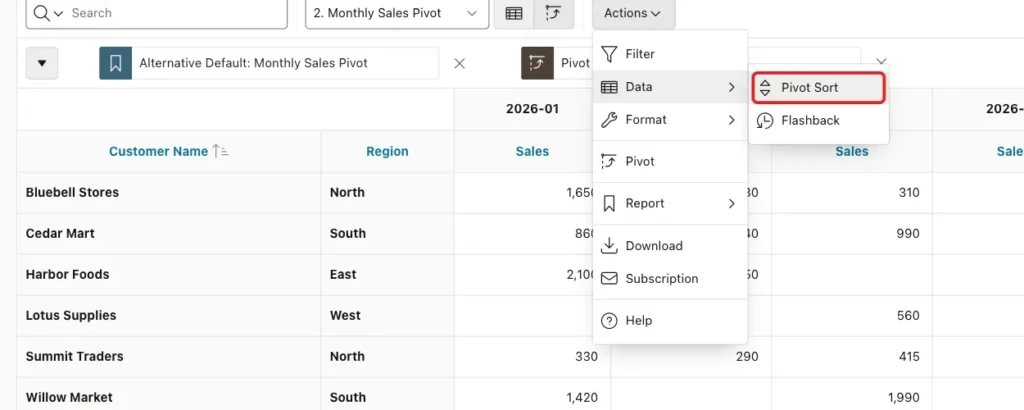
Set Column 1 to Customer Name with Direction Ascending, and click Apply:
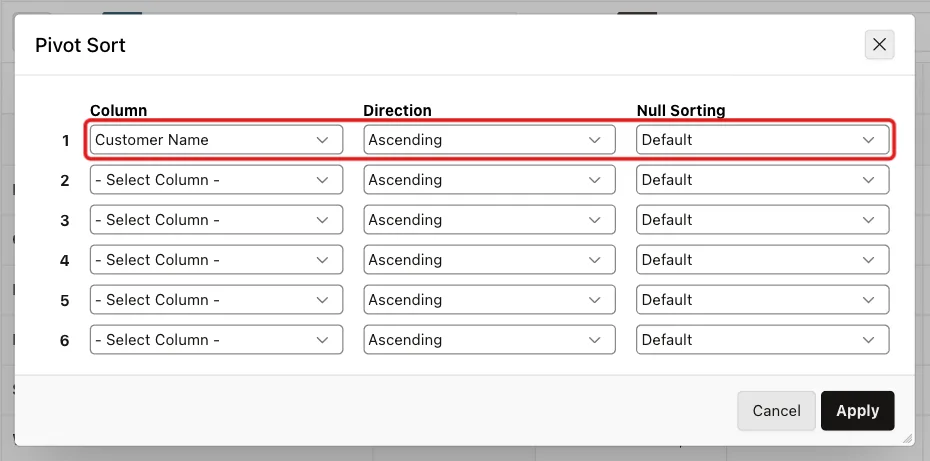
The Column list also offers Pivot Column 1, Pivot Column 2 and so on. Choose one of those, with Direction Descending, to rank customers by the sales of a month instead.
Step 6: Save the Pivot for All Users
The pivot is now in your own working copy of the report. To give it to every user, save it as a default report. This option appears only when you run the application from the App Builder, so a developer session exists.
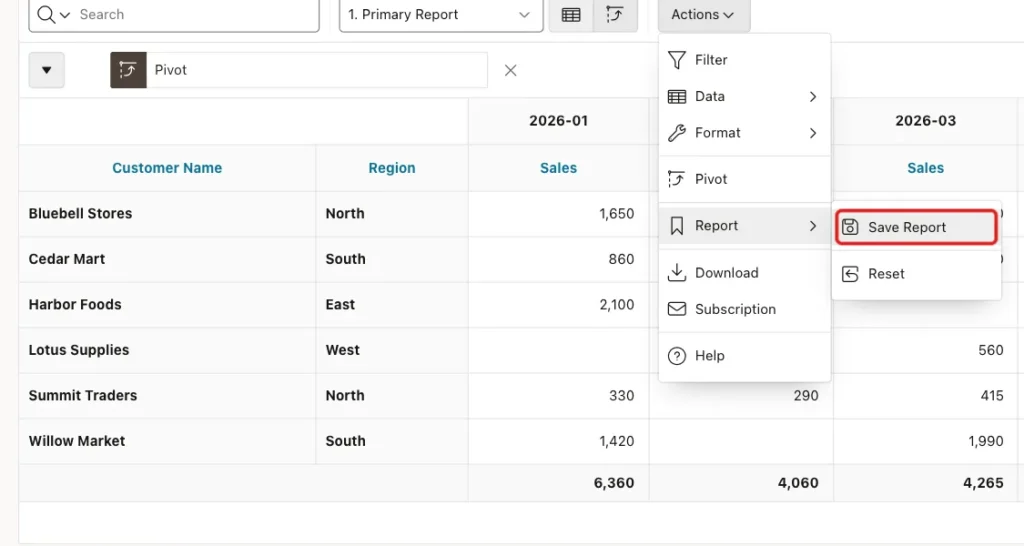
Click Actions, then Report, then Save Report:
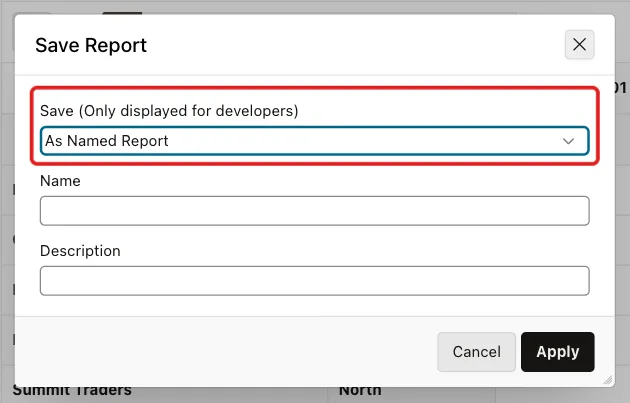
The Save Report dialog has a list labeled Save (Only displayed for developers). Change it from As Named Report to As Default Report Settings:
The Save Default Report dialog opens. Choose Alternative and enter the Name Monthly Sales Pivot, then click Apply:
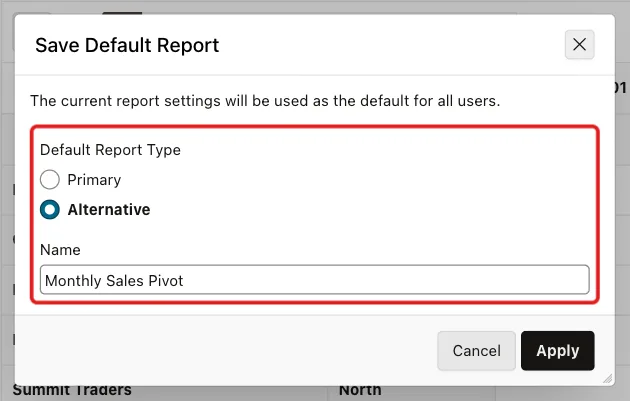
Primary would replace the plain order list that every user sees first. Alternative keeps that list as the primary report and adds the pivot as a second report. A Reports select list appears in the search bar with 1. Primary Report and 2. Monthly Sales Pivot.
The alternative report is part of the application. In Page Designer it appears under Saved Reports of the region, with Visibility Alternative Default and View Pivot:
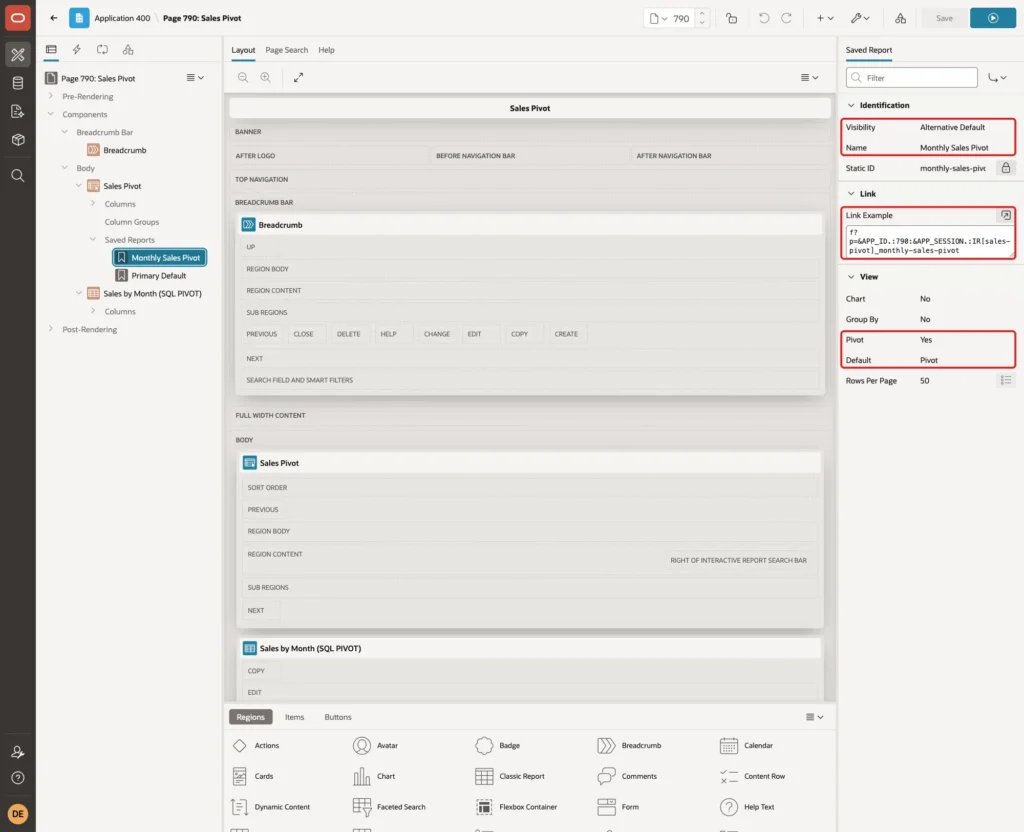
Because it is stored with the page, it is exported and deployed with the application. After the Pivot Sort was added, saving again with the same name updated this report instead of creating a second one.
Step 7: Open the Pivot from the Navigation Menu
The saved report has a Link Example: request IR[sales-pivot]_monthly-sales-pivot, where sales-pivot is the region's Static ID and monthly-sales-pivot the report's Static ID.
Typing that URL into the browser by hand failed in this example with "Session state protection violation". The wizard set Page Access Protection to Arguments Must Have Checksum, and a hand-made URL has no checksum. Let APEX build the link instead, so it adds the checksum.
Open Shared Components, Navigation Menu, and edit the Sales Pivot entry that the wizard created. In the Target section, keep Page 790 and enter the Request IR[sales-pivot]_monthly-sales-pivot. Click Apply Changes:
![List Entry edit page for Sales Pivot with Request IR[sales-pivot]_monthly-sales-pivot marked with a red box](https://vinish.dev/wp-content/uploads/2026/10/apxpivot-apex-pivot-nav-entry-1024x683.webp)
The menu link now contains the request and a checksum (cs=...). Clicking Sales Pivot in the menu opens the page with 2. Monthly Sales Pivot selected:
Step 8: Add a SQL PIVOT Version in a Classic Report
A classic report has no Pivot action, but it can show a SQL PIVOT query. The SQL version is useful for a fixed layout, a printed report, or when the pivot needs a total column per row. Test the query first:
Example:
select customer_name, region, jan, feb, mar, apr, may, jun,
       nvl(jan, 0) + nvl(feb, 0) + nvl(mar, 0) + nvl(apr, 0) + nvl(may, 0) + nvl(jun, 0) as total
from (
  select c.customer_name, c.region, to_char(o.order_date, 'YYYY-MM') as order_month, o.amount
  from sales_orders o
  join sales_customers c on c.customer_id = o.customer_id
)
pivot (
  sum(amount) for order_month in (
    '2026-01' as jan, '2026-02' as feb, '2026-03' as mar,
    '2026-04' as apr, '2026-05' as may, '2026-06' as jun
  )
)
order by customer_name;
Output:
CUSTOMER_NAME      REGION        JAN     FEB     MAR     APR     MAY     JUN    TOTAL
__________________ _________ _______ _______ _______ _______ _______ _______ ________
Bluebell Stores    North        1650     980     310    1500             720     5160
Cedar Mart         South         860     640     990     275    1130     880     4775
Harbor Foods       East         2100    2150            1980    2240    1320     9790
Lotus Supplies     West                          560     610     705     930     2805
Summit Traders     North         330     290     415             505     640     2180
Willow Market      South        1420            1990    1290     470    1555     6725

6 rows selected.
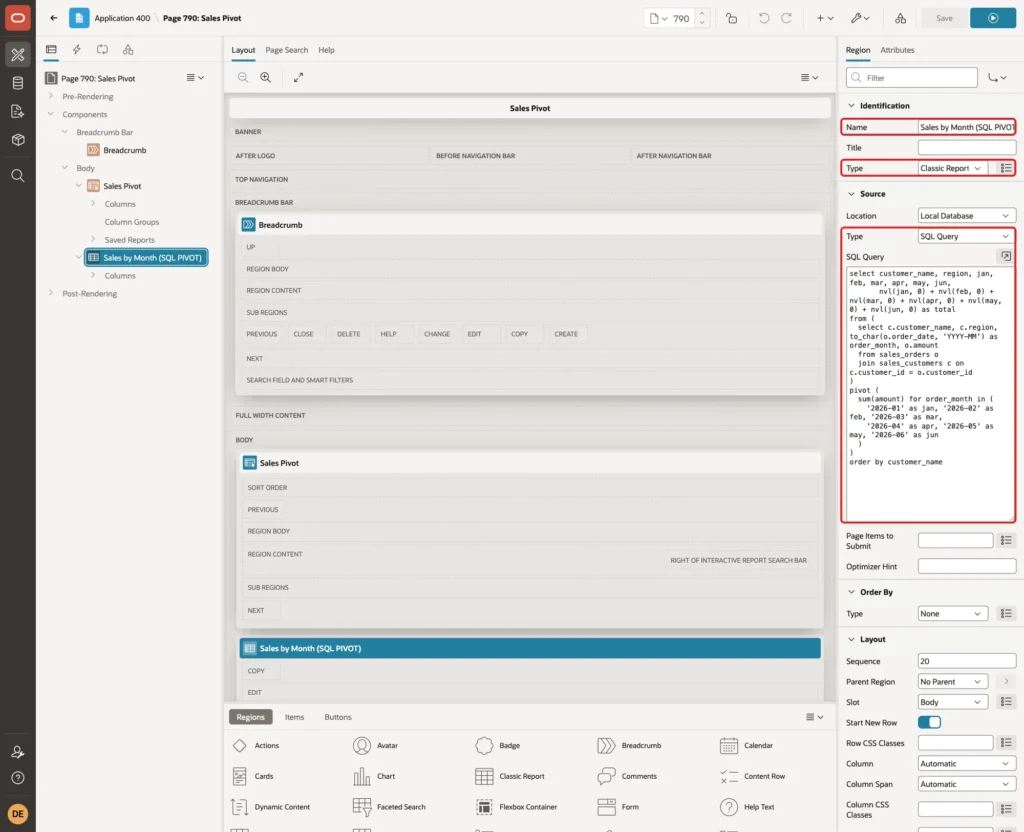
The inner query returns customer, region, month and amount. PIVOT sums the amount for each month listed in the IN clause and names the columns JAN to JUN. The outer query adds TOTAL with NVL, because a month without orders is NULL, and NULL plus a number is NULL.
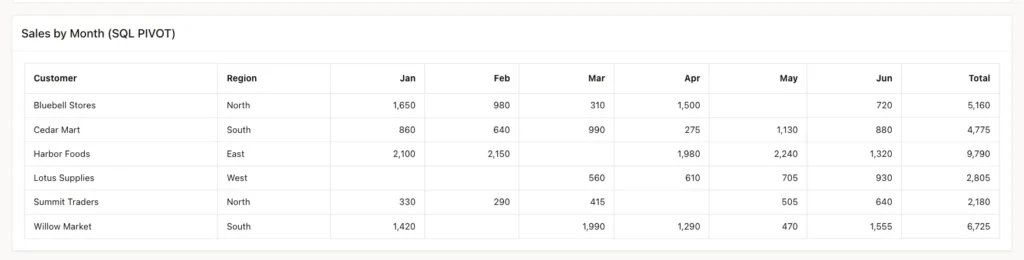
The numbers match Step 2. Harbor Foods has 2,150 in February, the sum of its two February orders, and a total of 9,790.
In Page Designer on page 790, add a Classic Report region below the Interactive Report. Name it Sales by Month (SQL PIVOT), set Source Type SQL Query and paste the query:
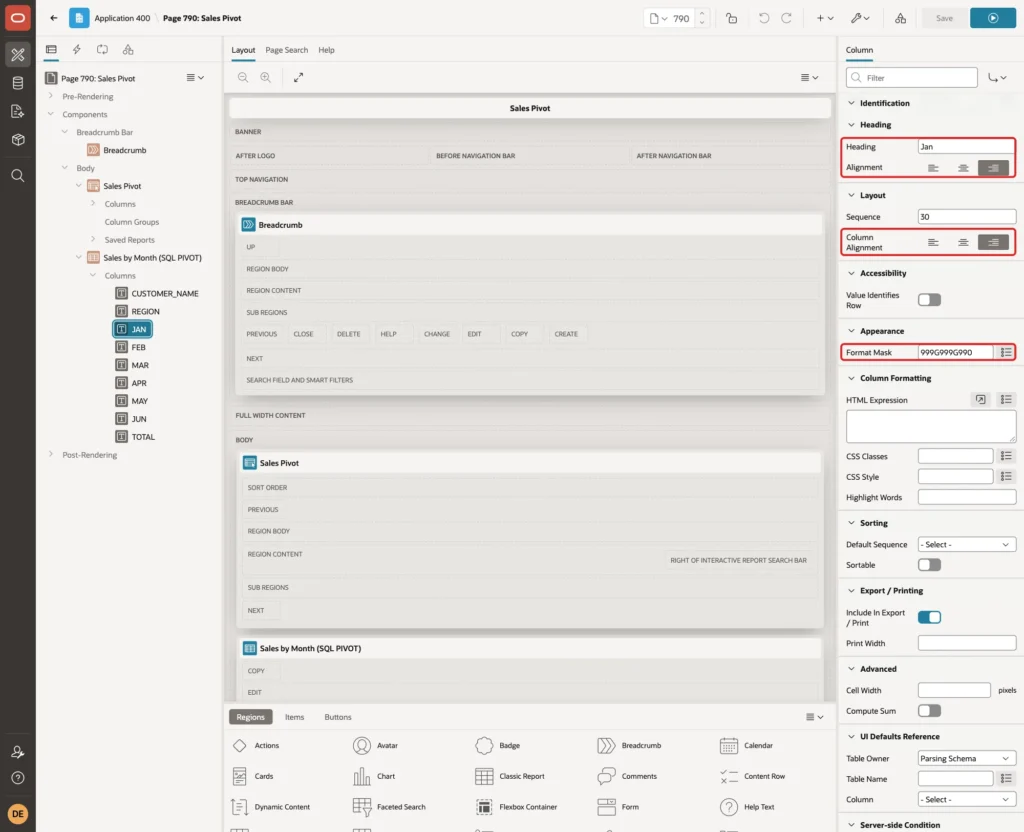
APEX creates one column per query column. For each of JAN to JUN and TOTAL, set the Heading (Jan, Feb, and so on), Alignment end, Column Alignment end, and Format Mask 999G999G990:
Also set Heading Customer for CUSTOMER_NAME, and turn Sortable off for all columns, so the ORDER BY of the query decides the row order. Save and run the page:
Step 9: Test the Pivot Reports
Sign in as SALES_USER, a reader without developer rights, and open Sales Pivot from the menu. The Reports select list offers both reports, and Monthly Sales Pivot shows the same numbers as for the developer, sorted by customer:
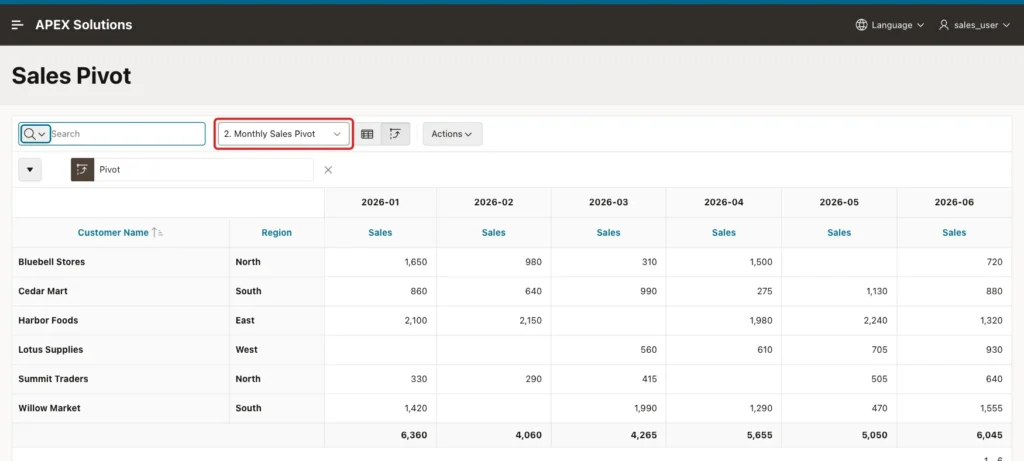
All 36 cells and the six totals were read from the page and compared with the GROUP BY results of Step 2. They matched for the developer and for SALES_USER, and the classic report matched the SQL PIVOT output.
SALES_USER then opened Actions, Report, Save Report. The dialog has only Name and Description, without the Save list for developers:
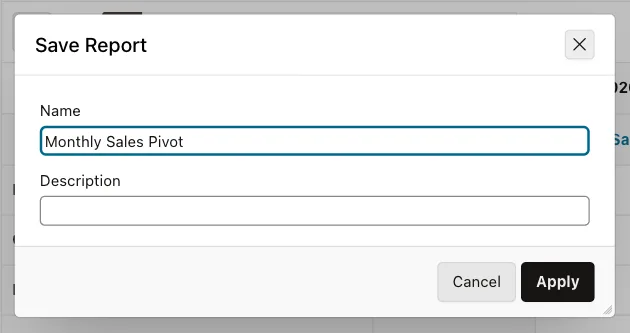
Next, add one order in a new month, July 2026, to see how each pivot reacts:
Example:
insert into sales_orders (customer_id, order_date, channel, amount)
select customer_id, date '2026-07-02', 'Online', 800
from sales_customers
where customer_name = 'Cedar Mart';

commit;

select to_char(order_date, 'YYYY-MM') as order_month, count(*) as orders, sum(amount) as sales
from sales_orders
where order_date >= date '2026-07-01'
group by to_char(order_date, 'YYYY-MM');
Output:
1 row inserted.

Commit complete.

ORDER_MONTH       ORDERS    SALES
______________ _________ ________
2026-07                1      800
Reload the page. The Interactive Report pivot added a 2026-07 column with 800 for Cedar Mart and 800 in the totals row, without any change to the report:
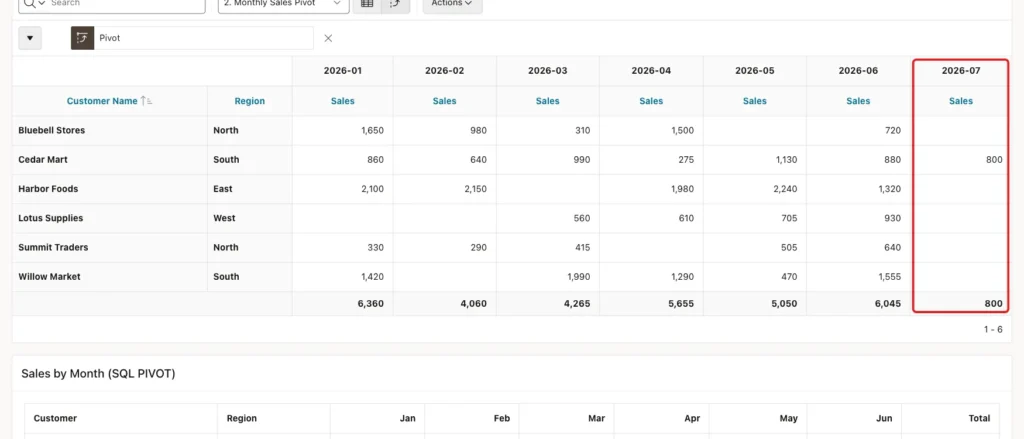
The SQL PIVOT report did not change. Its columns come from the fixed IN list, so the July order is not shown, and Cedar Mart's Total stayed 4,775. The query must be edited for every new month.
Remove the test order:
Example:
delete from sales_orders where order_date = date '2026-07-02' and amount = 800;
commit;
select count(*) as orders, sum(amount) as total from sales_orders;
Output:
1 row deleted.

Commit complete.

   ORDERS    TOTAL
_________ ________
       33    31435
Things to Know
- Pivot on a value that sorts well, such as YYYY-MM. Month names are text, so Apr comes before Jan.
- The Interactive Report pivot creates a column for every distinct value, so new months appear by themselves. Filter the report, for example to the last 12 months, before pivoting large data.
- The Sum switch in the Pivot dialog adds a totals row, not a total per row. Use SQL PIVOT when each row needs a total.
- Add a Pivot Sort. Without it, the row order of the pivot is not guaranteed and changed when the data changed.
- Only a developer session shows As Default Report Settings. Alternative keeps the plain list as the first report; Primary replaces it.
- Link to the alternative report through APEX, such as a navigation menu entry with the request, so the URL gets its checksum. A hand-typed URL failed with a session state protection violation.
- SQL PIVOT needs a fixed IN list of values. New values are ignored until the query is changed.
Related Guides
- Oracle APEX Interactive Reports: The Complete Guide
- How to Pivot Rows into Columns with PIVOT in Oracle
Conclusion
An Interactive Report in Oracle APEX can pivot any query without SQL changes: choose the pivot column, the row columns and a function, add a pivot sort, and save the result as an alternative default report. A menu entry with the report's request opens it directly for every user.
For a fixed layout with a total per row, a classic report on a SQL PIVOT query works well, as long as the IN list is kept up to date. In this example both versions matched the GROUP BY results exactly.
