
Favorites let each user pick the records they care about and find them again quickly. A star next to every row is the familiar pattern: click it once to save the record, click it again to remove it, and switch the list to show only your own favorites.
Oracle APEX has no built-in favorites feature, but it is easy to build with one table, an HTML Expression column, an Ajax Callback process and a few lines of JavaScript. The star changes without reloading the page, and every user keeps a separate list.
This guide uses a course catalog as the example. The same steps work for any table, and the favorites table is generic, so one table can hold favorites for several kinds of records.
Step 1: Create the Tables
The example needs two tables. COURSES is the example data. USER_FAVORITES stores one row for each record a user has marked as a favorite:
Example:
create table courses (
    course_id      number generated by default on null as identity,
    title          varchar2(100) not null,
    category       varchar2(30)  not null,
    course_level   varchar2(12)  not null,
    duration_hours number(4,1)   not null,
    constraint courses_pk primary key (course_id),
    constraint courses_title_uk unique (title),
    constraint courses_level_ck check (course_level in ('BEGINNER', 'INTERMEDIATE', 'ADVANCED')),
    constraint courses_duration_ck check (duration_hours > 0)
);

create table user_favorites (
    favorite_id number generated by default on null as identity,
    user_name   varchar2(255) default on null
                    coalesce(sys_context('APEX$SESSION', 'APP_USER'),
                             sys_context('USERENV', 'SESSION_USER')) not null,
    entity_type varchar2(30)  not null,
    entity_id   number        not null,
    created_on  date          default on null sysdate not null,
    constraint user_favorites_pk primary key (favorite_id),
    constraint user_favorites_uk unique (user_name, entity_type, entity_id),
    constraint user_favorites_type_ck check (entity_type in ('COURSE'))
);

create index user_favorites_entity_ix on user_favorites (entity_type, entity_id);

insert into courses (title, category, course_level, duration_hours)
values ('SQL Basics', 'Database', 'BEGINNER', 6);

insert into courses (title, category, course_level, duration_hours)
values ('PL/SQL Programming', 'Database', 'INTERMEDIATE', 12);

insert into courses (title, category, course_level, duration_hours)
values ('Performance Tuning', 'Database', 'ADVANCED', 10);

insert into courses (title, category, course_level, duration_hours)
values ('Building Forms and Reports', 'Oracle APEX', 'BEGINNER', 8);

insert into courses (title, category, course_level, duration_hours)
values ('Dynamic Actions in Depth', 'Oracle APEX', 'INTERMEDIATE', 5);

insert into courses (title, category, course_level, duration_hours)
values ('REST APIs with ORDS', 'Integration', 'INTERMEDIATE', 7);

insert into courses (title, category, course_level, duration_hours)
values ('Writing Clear Reports', 'Soft Skills', 'BEGINNER', 2.5);

insert into courses (title, category, course_level, duration_hours)
values ('Security Best Practices', 'Oracle APEX', 'ADVANCED', 4);

insert into user_favorites (user_name, entity_type, entity_id)
values ('DEMO_DEV', 'COURSE', 2);

insert into user_favorites (user_name, entity_type, entity_id)
values ('SALES_USER', 'COURSE', 2);

insert into user_favorites (user_name, entity_type, entity_id)
values ('SALES_USER', 'COURSE', 4);

commit;

select course_id, title, category, course_level, duration_hours
from   courses
order  by course_id;

select favorite_id, user_name, entity_type, entity_id
from   user_favorites
order  by favorite_id;
Output:
Table COURSES created.

Table USER_FAVORITES created.

Index USER_FAVORITES_ENTITY_IX created.

1 row inserted.

1 row inserted.

1 row inserted.

1 row inserted.

1 row inserted.

1 row inserted.

1 row inserted.

1 row inserted.

1 row inserted.

1 row inserted.

1 row inserted.

Commit complete.

   COURSE_ID TITLE                         CATEGORY       COURSE_LEVEL       DURATION_HOURS
____________ _____________________________ ______________ _______________ _________________
           1 SQL Basics                    Database       BEGINNER                        6
           2 PL/SQL Programming            Database       INTERMEDIATE                   12
           3 Performance Tuning            Database       ADVANCED                       10
           4 Building Forms and Reports    Oracle APEX    BEGINNER                        8
           5 Dynamic Actions in Depth      Oracle APEX    INTERMEDIATE                    5
           6 REST APIs with ORDS           Integration    INTERMEDIATE                    7
           7 Writing Clear Reports         Soft Skills    BEGINNER                      2.5
           8 Security Best Practices       Oracle APEX    ADVANCED                        4

8 rows selected.

   FAVORITE_ID USER_NAME     ENTITY_TYPE       ENTITY_ID
______________ _____________ ______________ ____________
             1 DEMO_DEV      COURSE                    2
             2 SALES_USER    COURSE                    2
             3 SALES_USER    COURSE                    4
A few details in the tables:
- USER_FAVORITES_UK on USER_NAME, ENTITY_TYPE and ENTITY_ID allows each user to save a record only once. The database enforces this, not the page.
- ENTITY_TYPE says which table the record belongs to. The check constraint USER_FAVORITES_TYPE_CK lists the allowed types; add a value when you add favorites to another table.
- USER_NAME and CREATED_ON use DEFAULT ON NULL, so no trigger is needed. USER_NAME takes the APEX user, or the database user outside APEX.
- The index USER_FAVORITES_ENTITY_IX supports the count of users per record shown in the report.
The sample data has eight courses. DEMO_DEV has saved PL/SQL Programming, and SALES_USER has saved PL/SQL Programming and Building Forms and Reports.
Step 2: Create the Course Catalog Page
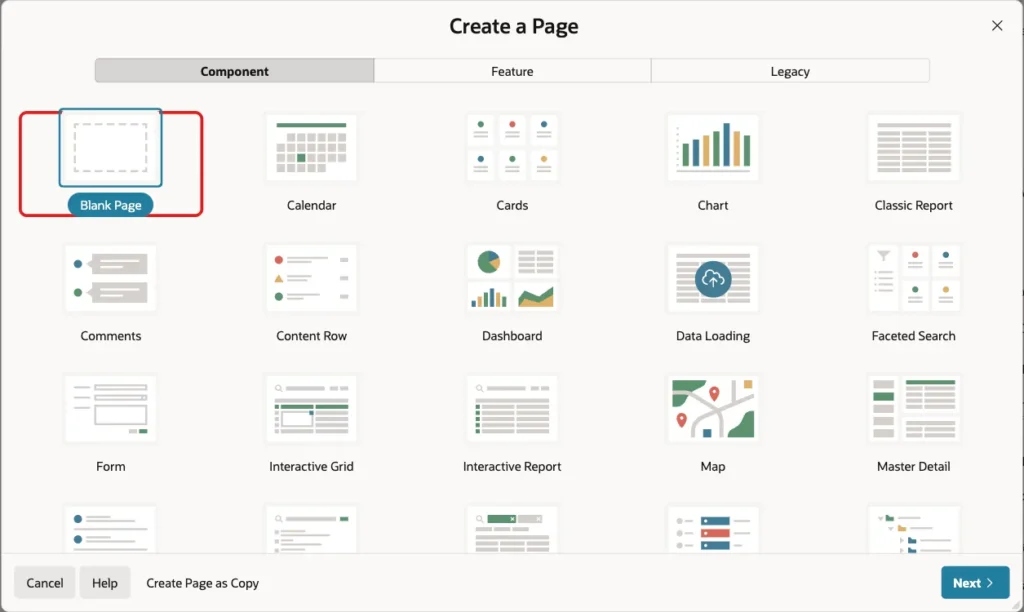
In App Builder, open the application and click Create Page. On the Component tab, select Blank Page:
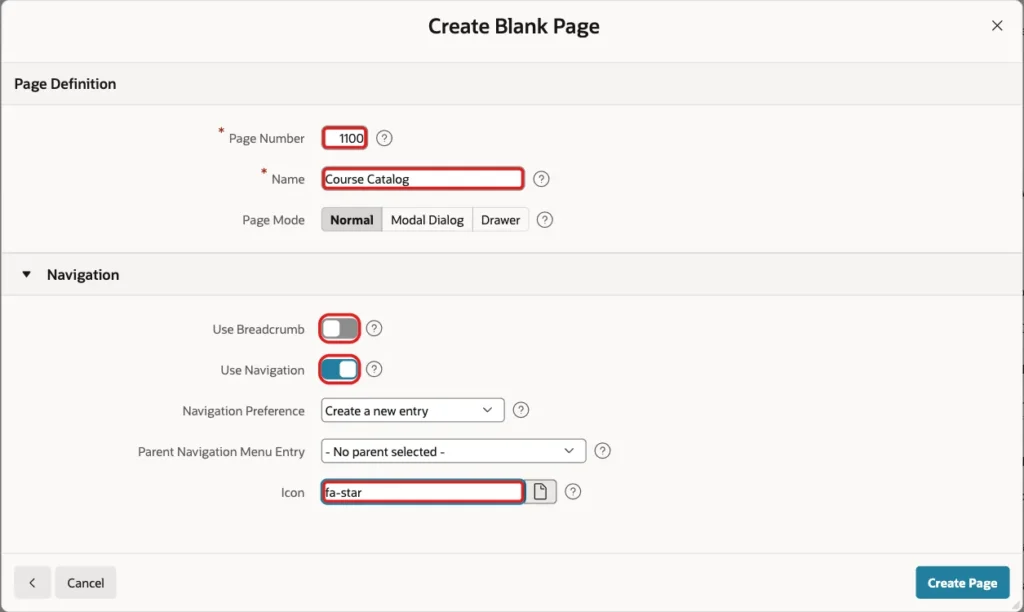
Set Page Number to 1100 and Name to Course Catalog. Turn Use Breadcrumb off, keep Use Navigation on with Create a new entry, set Icon to fa-star and click Create Page:
Step 3: Add the Course Catalog Report
In Page Designer, right-click Body and choose Create Region. Set Name to Course Catalog and Type to Classic Report. Under Source, keep Type SQL Query and enter this query. Set Page Items to Submit to P1100_SHOW (the item is created in Step 5):
Example:
select c.course_id,
       c.title,
       c.category,
       initcap(c.course_level) as course_level,
       c.duration_hours,
       case when f.favorite_id is null then 'false' else 'true' end as is_favorite,
       case when f.favorite_id is null then 'fa-star-o' else 'fa-star' end as star_icon,
       (select count(*)
        from   user_favorites x
        where  x.entity_type = 'COURSE'
        and    x.entity_id   = c.course_id) as favorite_count
from   courses c
left join user_favorites f
       on  f.entity_type = 'COURSE'
       and f.entity_id   = c.course_id
       and f.user_name   = :APP_USER
where  nvl(:P1100_SHOW, 'ALL') = 'ALL'
or     f.favorite_id is not null
order  by c.title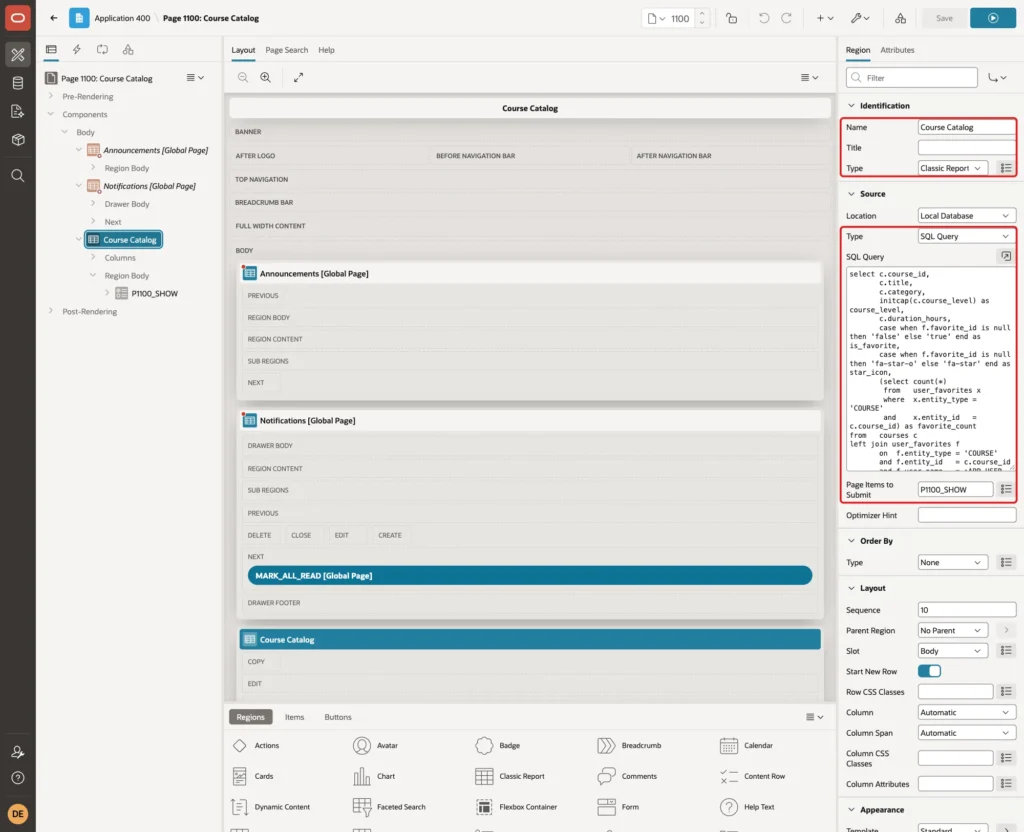
The outer join adds the favorite row of the current user, if there is one. IS_FAVORITE and STAR_ICON tell the star button whether to show a filled or an empty star. FAVORITE_COUNT counts how many users saved the course.
The WHERE clause shows all courses when P1100_SHOW is ALL, and only the current user's favorites when it is FAVORITES.
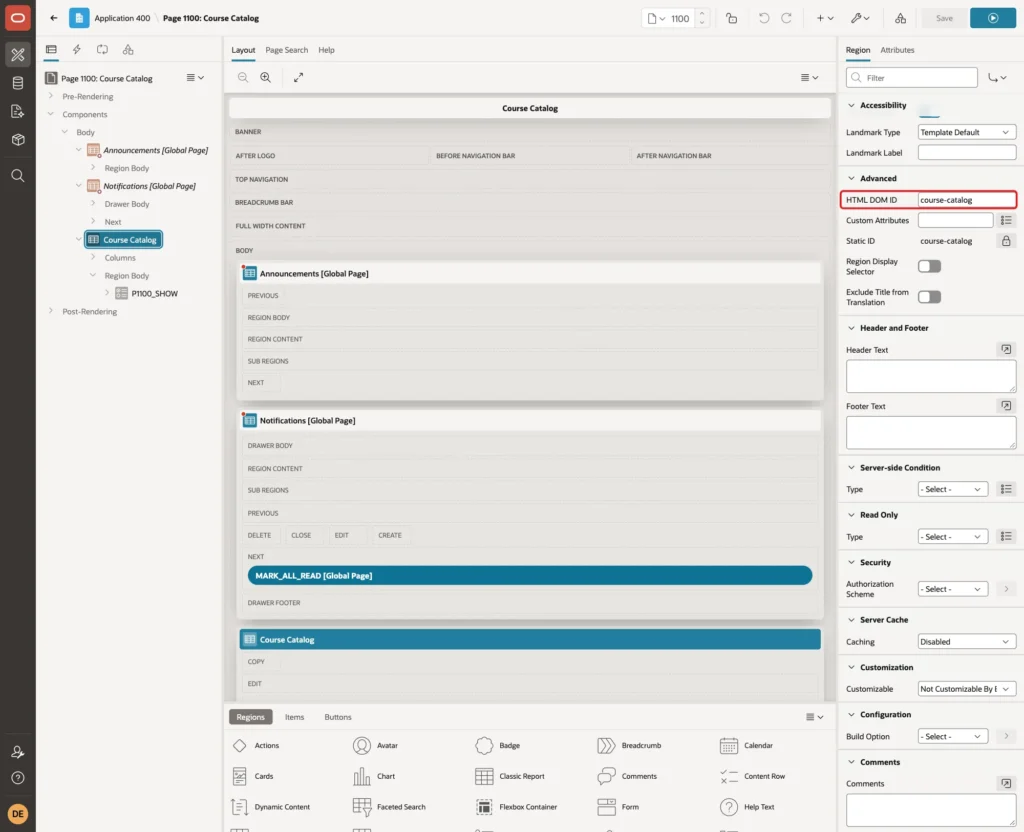
Under Advanced, set HTML DOM ID to course-catalog. The JavaScript in Step 8 uses this ID:
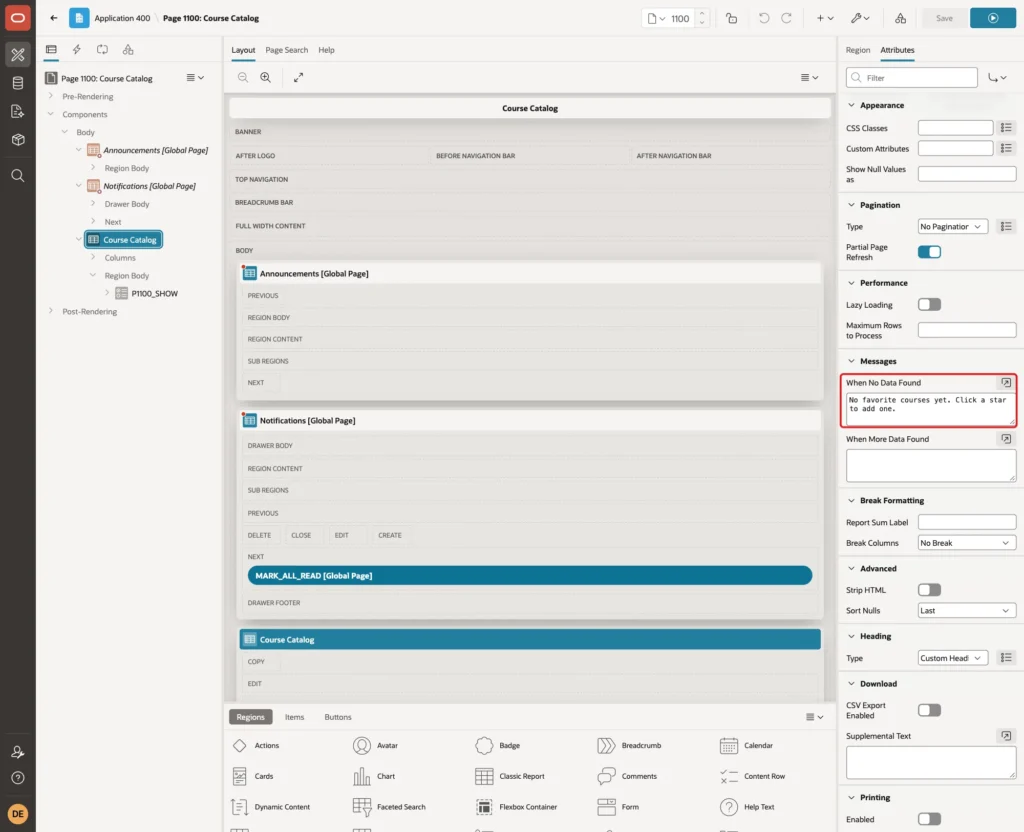
Click the Attributes tab. Under Messages, set When No Data Found to "No favorite courses yet. Click a star to add one.":
Step 4: Set Up the Report Columns
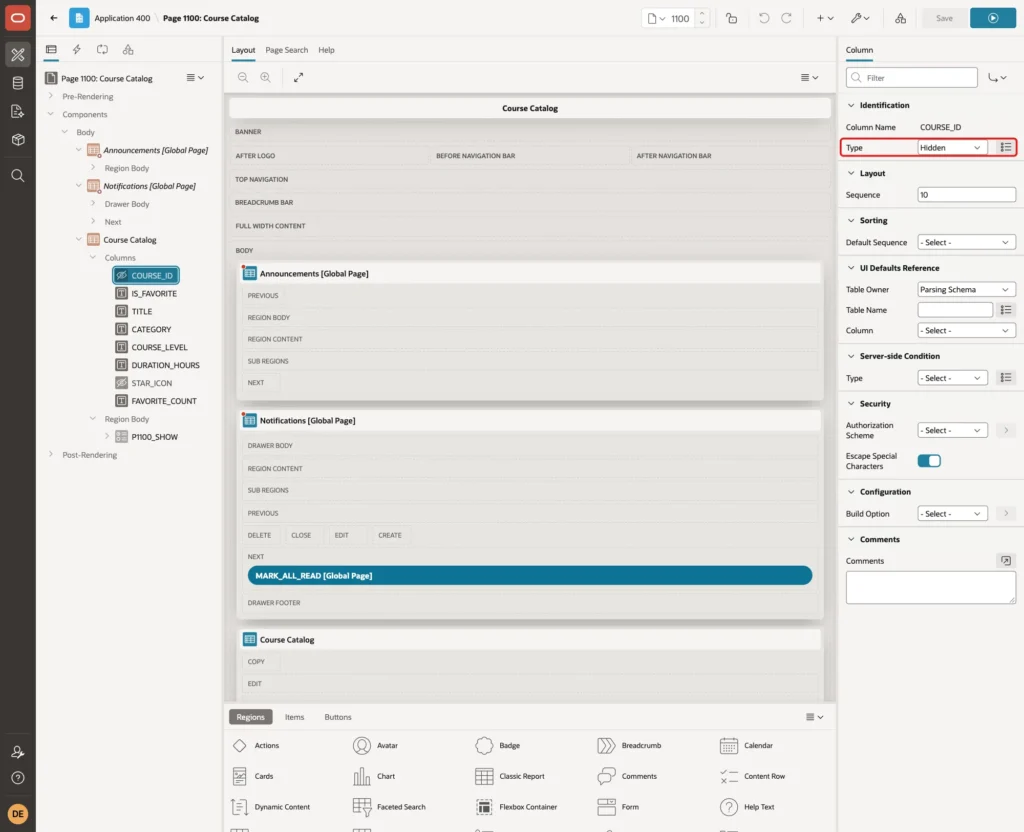
Expand the region's Columns and select COURSE_ID. Set Type to Hidden Column. Do the same for STAR_ICON. Both stay available as substitution strings for the star column:
Select IS_FAVORITE. Set Heading to Favorite, and set both the heading Alignment and the Layout Column Alignment to center. Under Column Formatting, enter this HTML Expression:
Example:
<button type="button" class="t-Button t-Button--noUI t-Button--iconOnly js-favorite" data-id="#COURSE_ID#" aria-pressed="#IS_FAVORITE#" aria-label="Favorite: #TITLE#" title="Add to or remove from My Favorites"><span class="fa #STAR_ICON#" aria-hidden="true"></span></button>
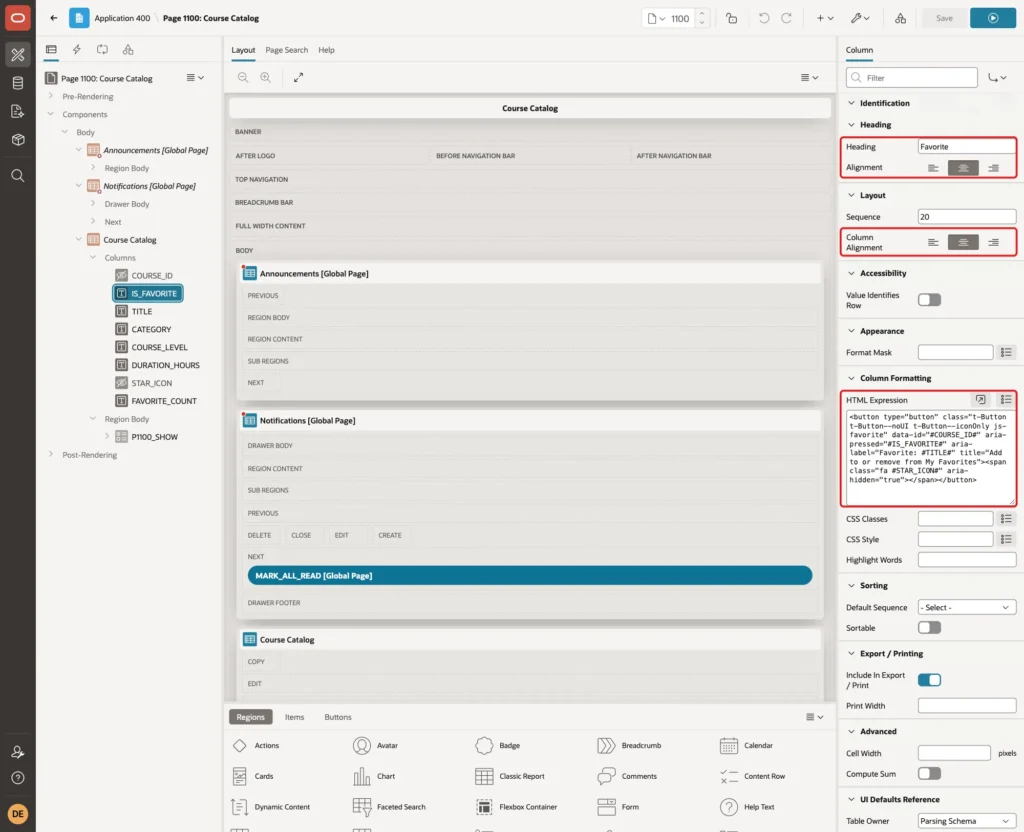
The column shows a button instead of the text true or false. data-id carries the course ID, and aria-pressed tells screen readers whether the star is on. The class js-favorite lets the JavaScript find the buttons.
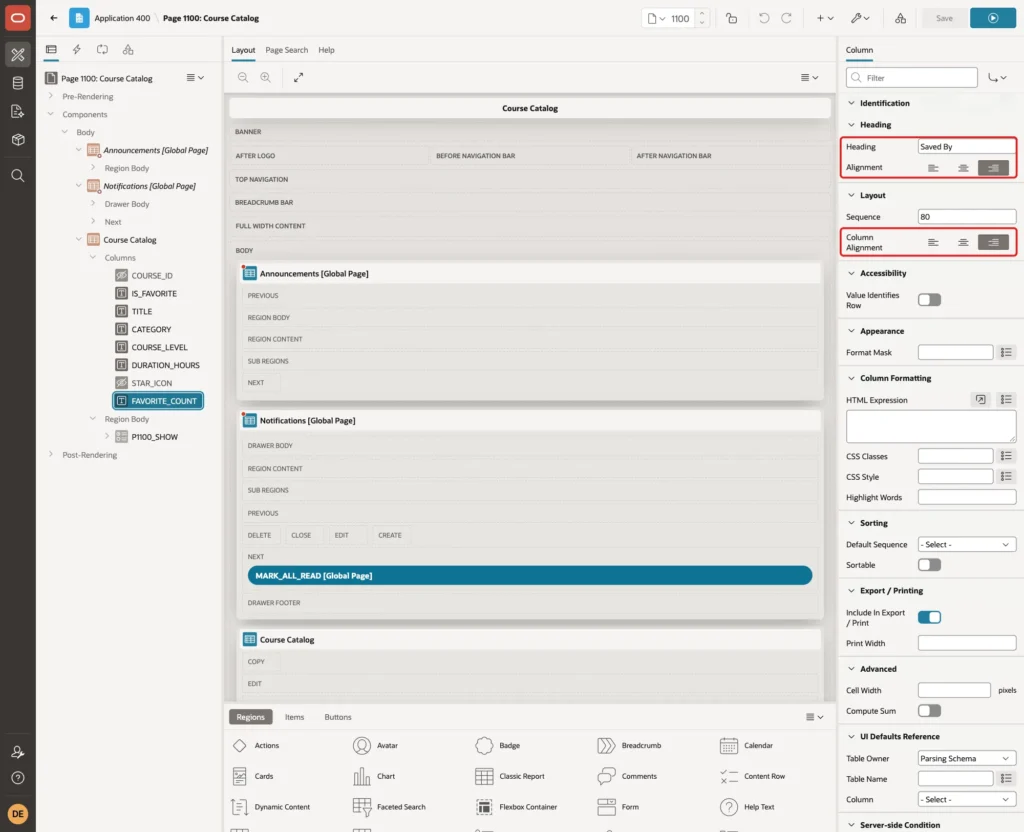
Set the headings of the other columns to Course, Category, Level, Hours and Saved By. For DURATION_HOURS and FAVORITE_COUNT, set the heading Alignment and Column Alignment to end, so the numbers line up on the right:
Step 5: Add the Show Radio Group
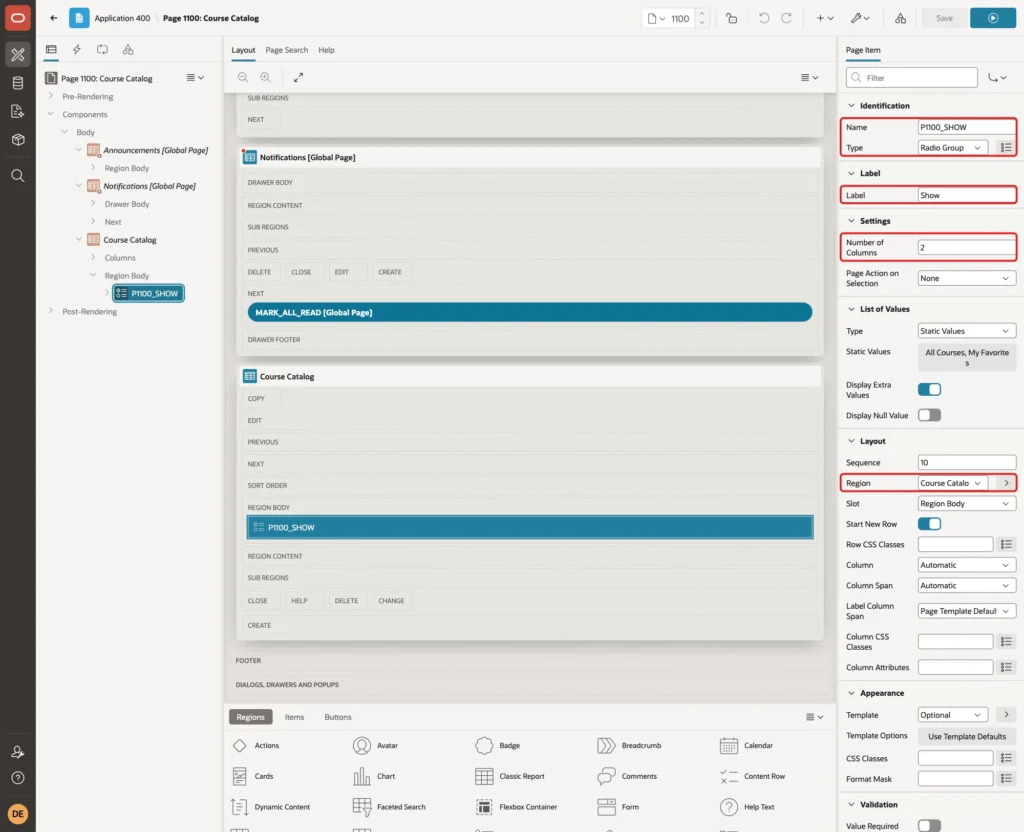
Right-click the Course Catalog region and choose Create Page Item. Set Name to P1100_SHOW, Type to Radio Group and Label to Show. Under Settings, set Number of Columns to 2. Under Layout, keep Region Course Catalog with Slot Region Body:
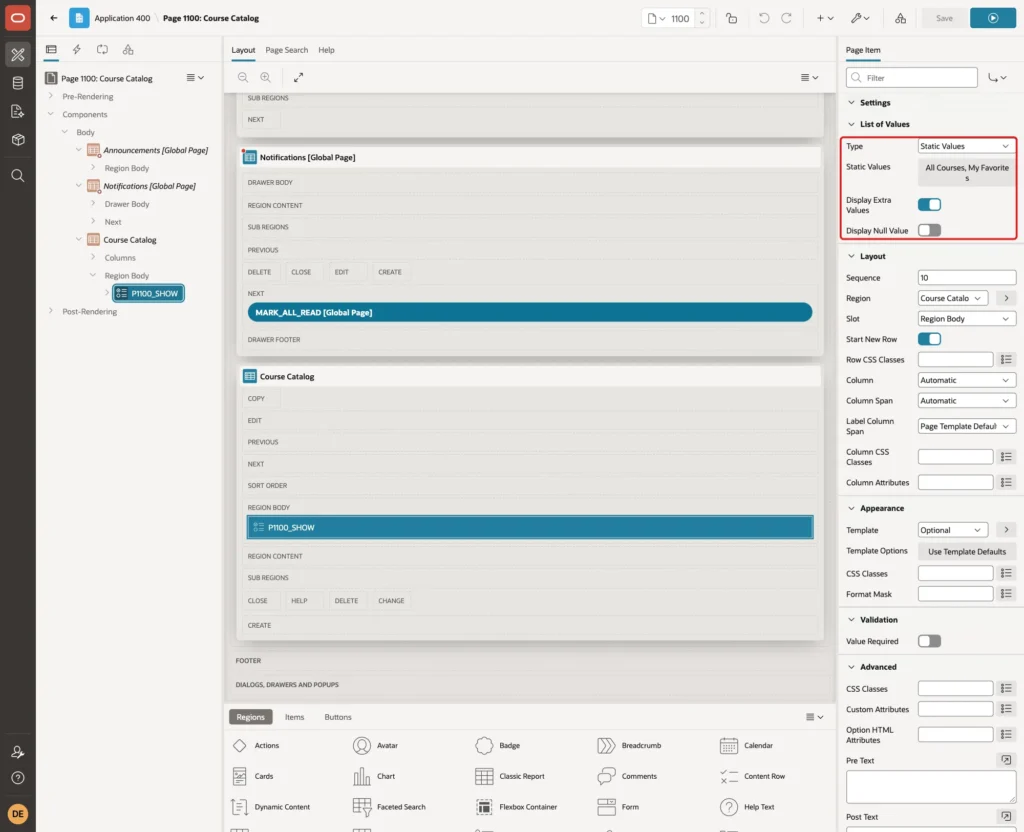
Under List of Values, set Type to Static Values. Click Static Values and enter two entries: Display Value All Courses with Return Value ALL, and Display Value My Favorites with Return Value FAVORITES. Turn Display Null Value off:
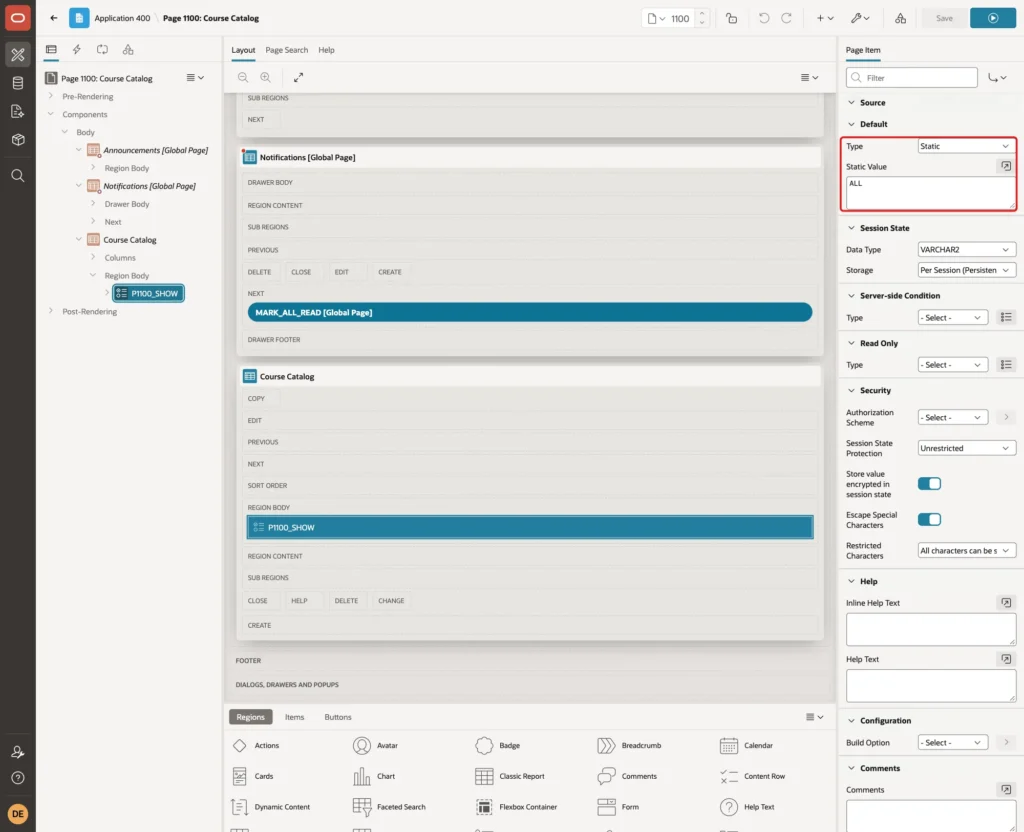
Under Default, set Type to Static and Static Value to ALL:
Step 6: Refresh the Report When the Filter Changes
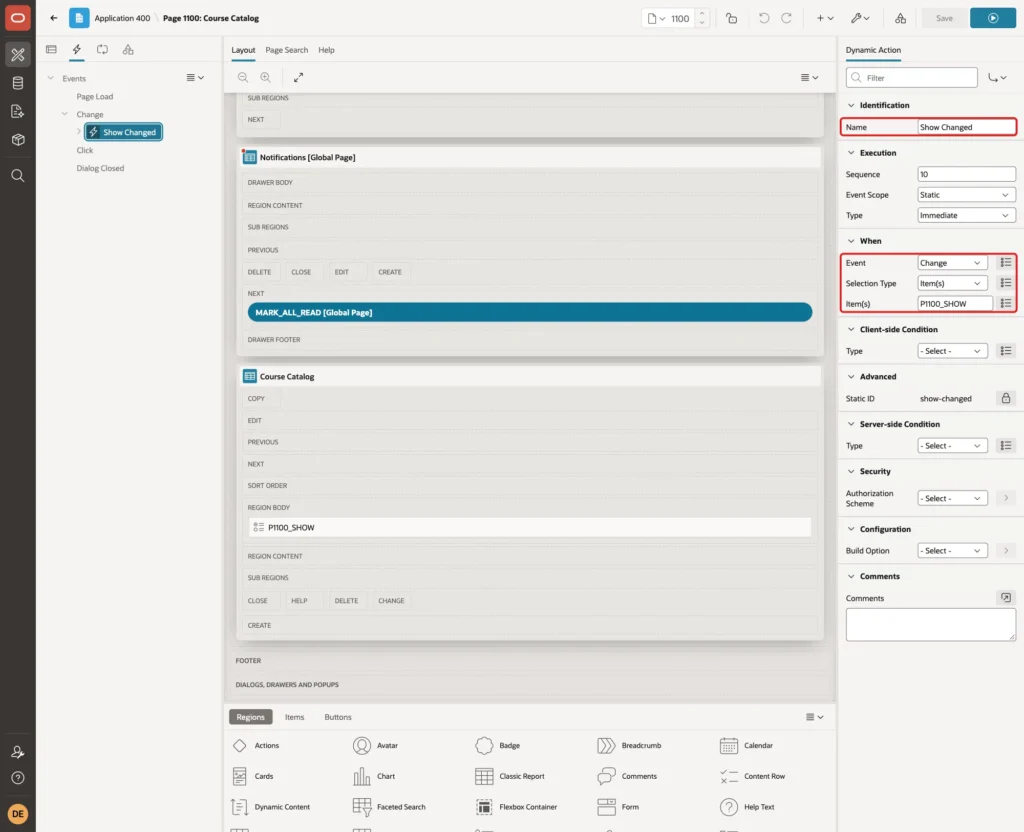
Open the Dynamic Actions tab, right-click Change and choose Create Dynamic Action. Set Name to Show Changed. Under When, keep Event Change, set Selection Type to Item(s) and Item(s) to P1100_SHOW:
Select the true action and set Action to Refresh. Under Affected Elements, set Selection Type to Region and Region to Course Catalog. Turn Fire on Initialization off:
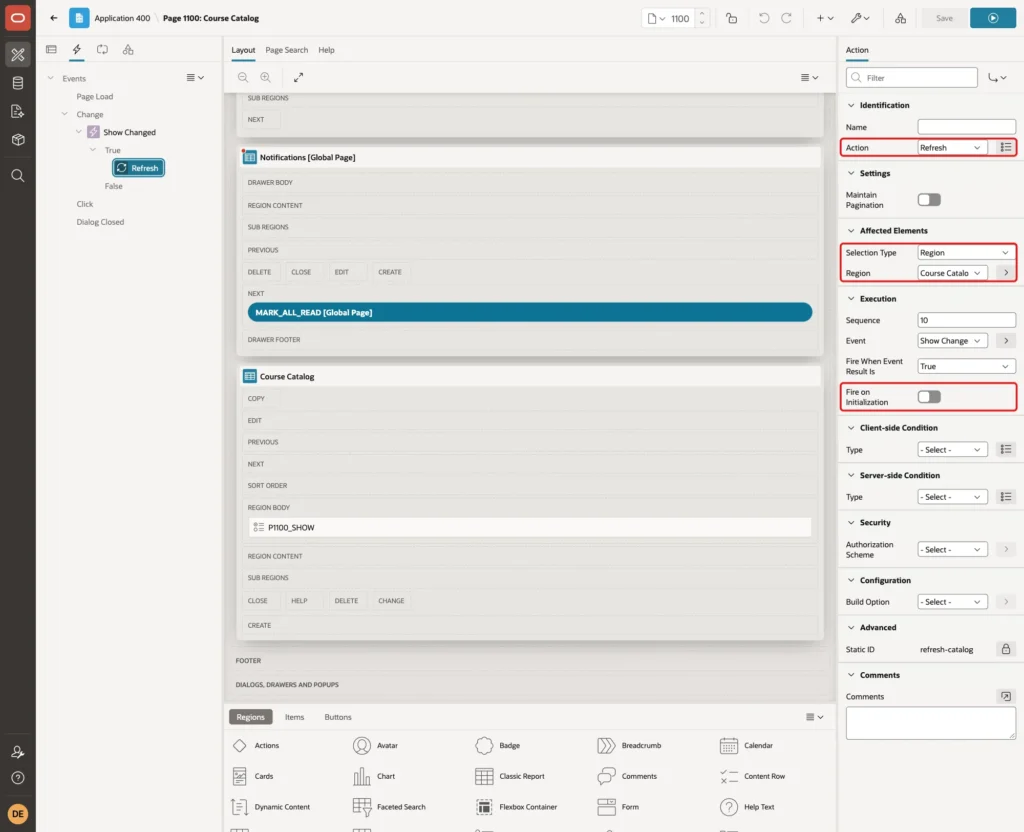
Because the region submits P1100_SHOW (Step 3), the refreshed report uses the new choice.
Step 7: Create the Ajax Callback Process
Open the Processing tab, right-click Ajax Callback and choose Create Process. Set Name to TOGGLE_FAVORITE and Type to Execute Code, and enter this PL/SQL code:
Example:
declare
    l_course_id courses.course_id%type;
    l_favorite  boolean;
    l_count     pls_integer;
begin
    select max(course_id)
    into   l_course_id
    from   courses
    where  course_id = to_number(apex_application.g_x01 default null on conversion error);

    if l_course_id is null then
        apex_json.open_object;
        apex_json.write('success', false);
        apex_json.write('message', 'This course does not exist.');
        apex_json.close_object;
        return;
    end if;

    delete from user_favorites
    where  user_name   = :APP_USER
    and    entity_type = 'COURSE'
    and    entity_id   = l_course_id;

    l_favorite := sql%rowcount = 0;

    if l_favorite then
        begin
            insert into user_favorites (user_name, entity_type, entity_id)
            values (:APP_USER, 'COURSE', l_course_id);
        exception
            when dup_val_on_index then
                null;
        end;
    end if;

    select count(*)
    into   l_count
    from   user_favorites
    where  entity_type = 'COURSE'
    and    entity_id   = l_course_id;

    apex_json.open_object;
    apex_json.write('success', true);
    apex_json.write('favorite', l_favorite);
    apex_json.write('count', l_count);
    apex_json.close_object;
end;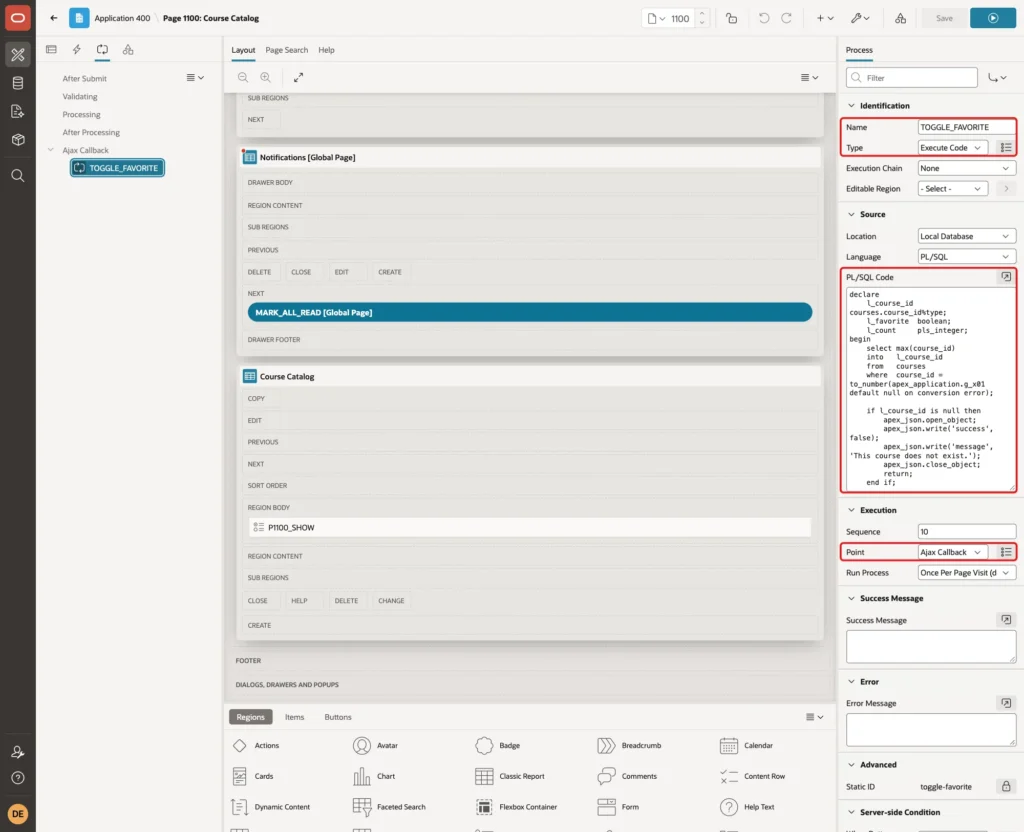
The process first checks that the course exists. A value that is not a number becomes NULL instead of raising an error, so a forged ID gets the message "This course does not exist."
Then it deletes the favorite of the current user. If no row was deleted, the course was not a favorite yet, and the process inserts it. DUP_VAL_ON_INDEX covers the rare case where the same user saves the same course twice at the same moment.
The process always uses :APP_USER, never a user name from the browser, so users can only change their own favorites. It returns the new state and the new count as JSON.
Step 8: Add the JavaScript and CSS
Select the page (Page 1100: Course Catalog) in the Rendering tree. Under JavaScript, enter this code in Execute when Page Loads:
Example:
$('#course-catalog').on('click', '.js-favorite', function () {
    var button = this;
    button.disabled = true;
    apex.server.process('TOGGLE_FAVORITE', { x01: button.dataset.id })
        .done(function (data) {
            apex.message.clearErrors();
            if (!data.success) {
                apex.message.showErrors([{ type: 'error', location: 'page', message: data.message }]);
                return;
            }
            if ($v('P1100_SHOW') === 'FAVORITES') {
                apex.region('course-catalog').refresh();
                return;
            }
            button.setAttribute('aria-pressed', data.favorite);
            button.querySelector('.fa').className = 'fa ' + (data.favorite ? 'fa-star' : 'fa-star-o');
            $(button).closest('tr').find('td[headers=FAVORITE_COUNT]').text(data.count);
        })
        .always(function () {
            button.disabled = false;
        });
});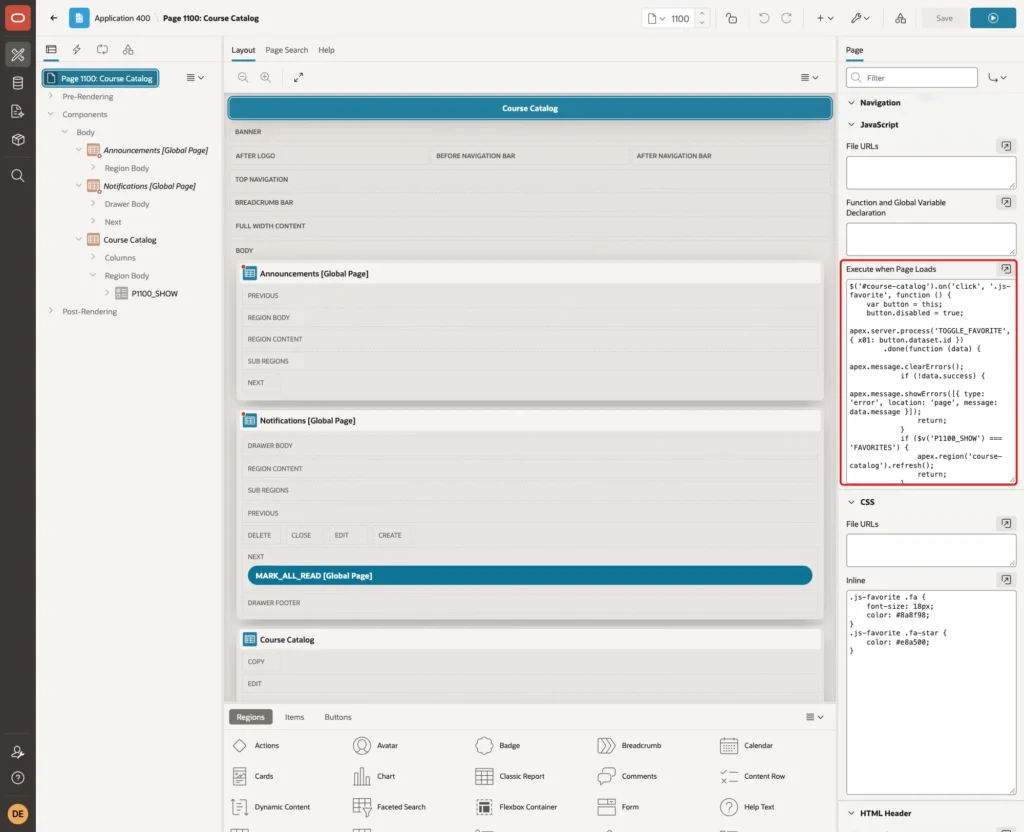
The handler is attached to the region, not to the buttons. When the report is refreshed, its rows are replaced, but the region element stays, so the new buttons work too.
On a click, the button is disabled and apex.server.process calls TOGGLE_FAVORITE with the course ID in x01. When the answer comes back, the star and the Saved By count of the row are updated in place. In the My Favorites view, the report is refreshed instead, so a removed course disappears from the list.
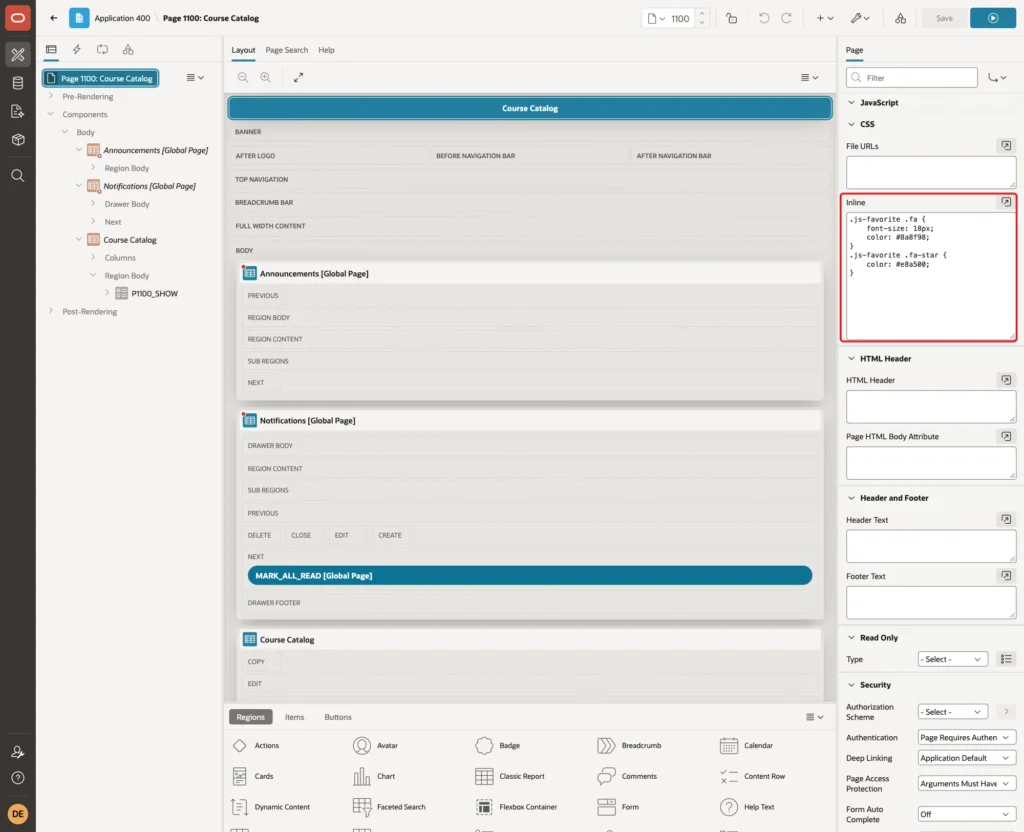
Under CSS, enter this code in Inline. It makes the stars larger, gray when off and gold when on:
Example:
.js-favorite .fa {
    font-size: 18px;
    color: #8a8f98;
}
.js-favorite .fa-star {
    color: #e8a500;
}
Save the page.
Step 9: Test the Favorites
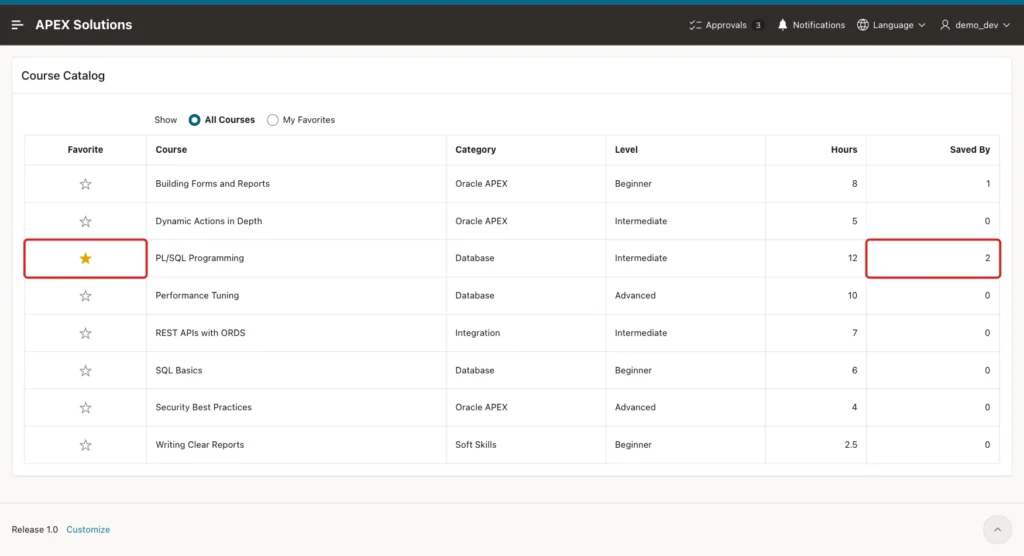
Sign in as DEMO_DEV and open Course Catalog. PL/SQL Programming has a gold star, because DEMO_DEV saved it. Saved By shows 2, because SALES_USER saved it too:
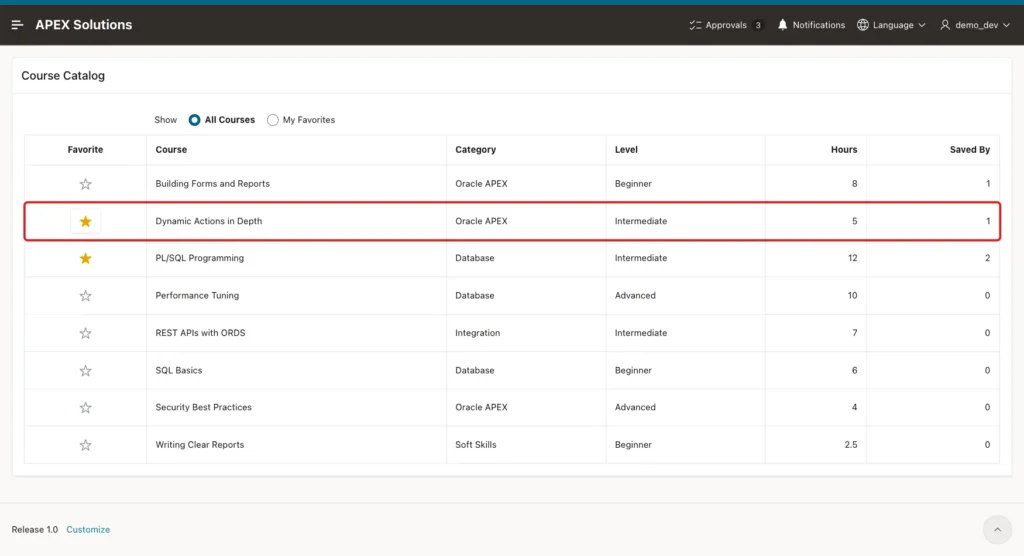
Click the star of Dynamic Actions in Depth. The star turns gold and Saved By changes from 0 to 1. The page did not reload; Playwright counted one POST request, the Ajax call:
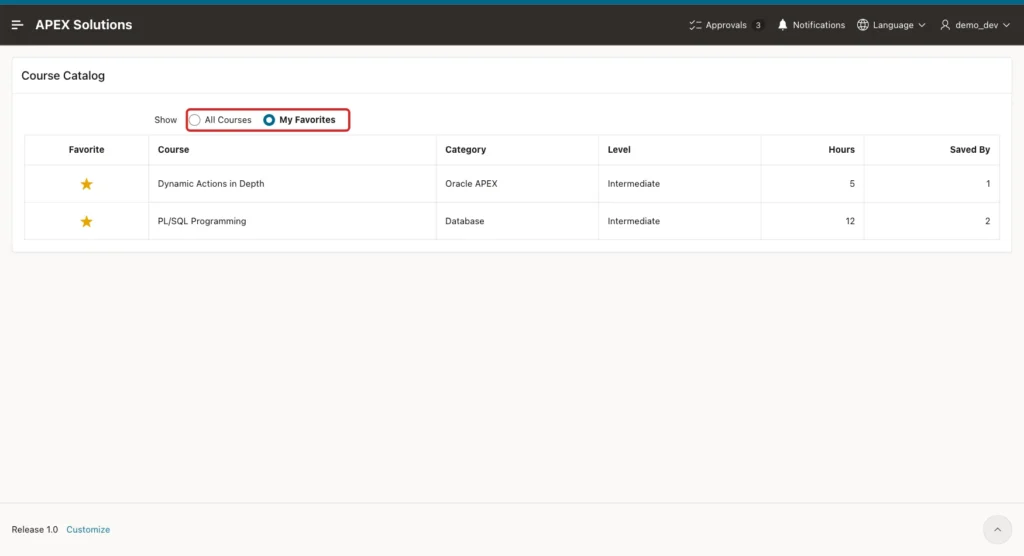
Select My Favorites. The report is refreshed and shows only the two courses DEMO_DEV saved:
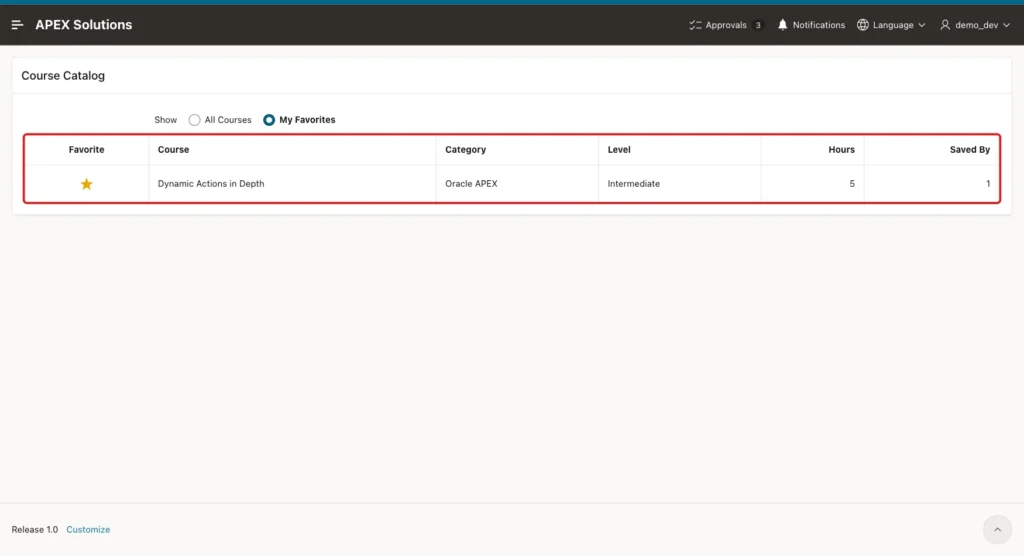
Click the star of PL/SQL Programming. The course is removed from the favorites and disappears from the list:
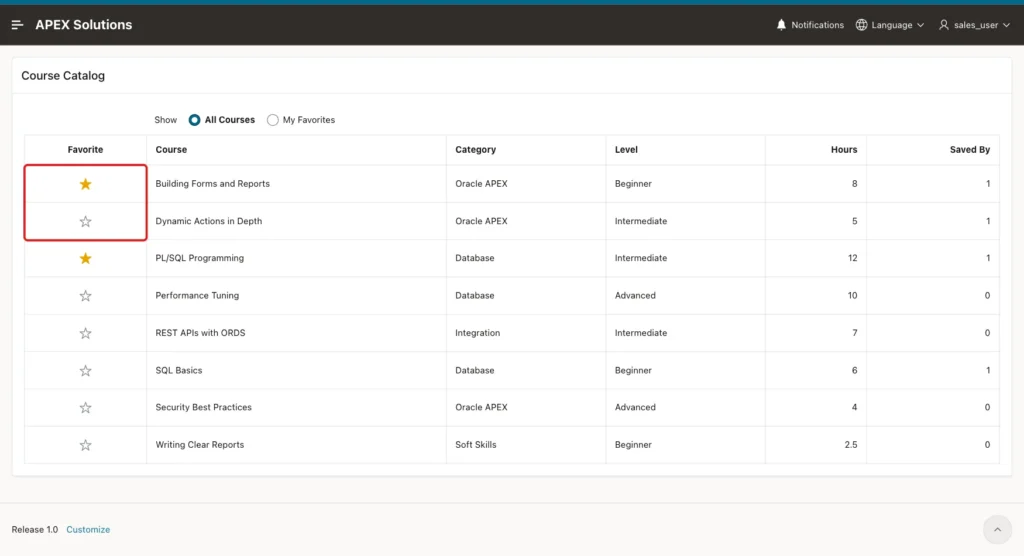
Sign in as SALES_USER. Building Forms and Reports and PL/SQL Programming still have gold stars. The star DEMO_DEV added to Dynamic Actions in Depth is not shown, only its Saved By count of 1:
Three more tests checked the edge cases:
- As SALES_USER, apex.server.process('TOGGLE_FAVORITE') was called from the browser console with x01 set to 999, abc and an empty string. Each call returned success false with the message "This course does not exist." and no row changed.
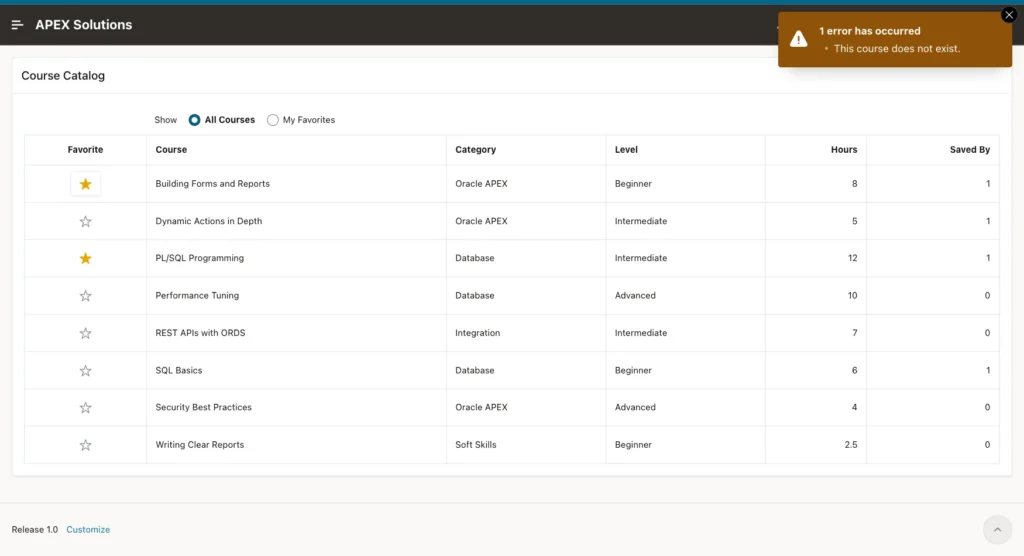
- The data-id of the first star was changed to 999 in the browser and the star was clicked. The page showed the error message below.
- As DEMO_DEV, the star of SQL Basics was double-clicked. Only one request was sent, because the button is disabled while the request runs. The course stayed a favorite after a reload, with Saved By 1.
Favorites are stored in the table, so they survive signing out. When DEMO_DEV signed in again in a new session, the stars were still there and the filter was back on All Courses.
Step 10: Check the Data in SQL
This query lists the favorites with the course titles. It was run after the tests:
Example:
select f.user_name, c.title, to_char(f.created_on, 'YYYY-MM-DD') as created_on
from   user_favorites f
join   courses c on c.course_id = f.entity_id
where  f.entity_type = 'COURSE'
order  by f.user_name, c.title;
After DEMO_DEV added Dynamic Actions in Depth and removed PL/SQL Programming, the favorites of SALES_USER were unchanged:
Output:
USER_NAME     TITLE                         CREATED_ON
_____________ _____________________________ _____________
DEMO_DEV      Dynamic Actions in Depth      2026-10-25
SALES_USER    Building Forms and Reports    2026-10-25
SALES_USER    PL/SQL Programming            2026-10-25
After the forged calls and the double click on SQL Basics, there was exactly one new row:
Output:
USER_NAME     TITLE                         CREATED_ON
_____________ _____________________________ _____________
DEMO_DEV      Dynamic Actions in Depth      2026-10-25
DEMO_DEV      SQL Basics                    2026-10-25
SALES_USER    Building Forms and Reports    2026-10-25
SALES_USER    PL/SQL Programming            2026-10-25
The constraints also stop bad rows that do not come from the page. A second favorite for the same user and course, and an entity type that is not in the list, were both refused:
Example:
insert into user_favorites (user_name, entity_type, entity_id)
values ('DEMO_DEV', 'COURSE', 5);

insert into user_favorites (user_name, entity_type, entity_id)
values ('DEMO_DEV', 'ORDER', 5);
Output:
Error starting at line : 1 File @ b113/05-duplicate.sql
In command -
insert into user_favorites (user_name, entity_type, entity_id)
values ('DEMO_DEV', 'COURSE', 5)
Error report -
ORA-00001: unique constraint (APXSOL.USER_FAVORITES_UK) violated on table
APXSOL.USER_FAVORITES columns (USER_NAME, ENTITY_TYPE, ENTITY_ID)
ORA-03301: (ORA-00001 details) row with column values (USER_NAME:'DEMO_DEV',
ENTITY_TYPE:'COURSE', ENTITY_ID:5) already exists
Help: https://docs.oracle.com/error-help/db/ora-00001/

Error starting at line : 4 File @ b113/05-duplicate.sql
In command -
insert into user_favorites (user_name, entity_type, entity_id)
values ('DEMO_DEV', 'ORDER', 5)
Error report -
ORA-02290: check constraint (APXSOL.USER_FAVORITES_TYPE_CK) violated
Help: https://docs.oracle.com/error-help/db/ora-02290/
Because USER_FAVORITES has no foreign key to COURSES, deleting a course leaves its favorites behind. The report joins to COURSES, so these rows never show up. This script created a course, saved it, deleted it, counted the leftover row and removed it:
Example:
insert into courses (title, category, course_level, duration_hours)
values ('Temporary Course', 'Database', 'BEGINNER', 1);

insert into user_favorites (user_name, entity_type, entity_id)
select 'DEMO_DEV', 'COURSE', course_id from courses where title = 'Temporary Course';

delete from courses where title = 'Temporary Course';

select count(*) as orphan_favorites
from   user_favorites f
where  f.entity_type = 'COURSE'
and    not exists (select 1 from courses c where c.course_id = f.entity_id);

delete from user_favorites f
where  f.entity_type = 'COURSE'
and    not exists (select 1 from courses c where c.course_id = f.entity_id);

commit;
Output:
1 row inserted.

1 row inserted.

1 row deleted.

   ORPHAN_FAVORITES
___________________
                  1

1 row deleted.

Commit complete.
Things to Know
- The unique constraint is the real protection against double favorites. The disabled button and the DUP_VAL_ON_INDEX handler only make the page behave nicely.
- A generic table with ENTITY_TYPE cannot have a foreign key. Run the cleanup DELETE from Step 10 in a scheduled job, or use one favorites table per entity with a foreign key ON DELETE CASCADE if you favor only one kind of record.
- For favorites on another table, add its type to USER_FAVORITES_TYPE_CK and use the same pattern with that type in the query and the process.
- The Ajax Callback checks the record itself. If users may only see some records, check that rule in the process too, not only in the report query.
- Attach the click handler to the region, not to the buttons, because a region refresh replaces the rows.
- P1100_SHOW keeps its value for the session. To remember the filter between sessions, set its Storage to Per User (Persistent).
Related Guides
- How to Show a Detail Popup When Hovering Over a Report Row in Oracle APEX
- How to Show Progress Bars Inside Report Columns in Oracle APEX
Conclusion
Favorites in Oracle APEX need one table with a unique constraint, a classic report with a star button in an HTML Expression column, and an Ajax Callback process that adds or removes the row for the current user. A few lines of JavaScript update the star and the count without a page reload.
The tests showed separate lists for two users, a My Favorites filter that updates at once, and forged or repeated requests that changed nothing. The same table and pattern can hold favorites for any other kind of record in the application.
See my articles more often when you search Google.
