
A drawer is a dialog page that slides in from the side of the screen. It is a good fit for quick edits on a Cards page: the user clicks Edit on a card, changes a value in the drawer, and the cards behind it update without a full page reload.
This guide builds that flow step by step. It creates a Cards page and a Form page with Page Mode Drawer, returns the edited key from the drawer, refreshes the Cards region when the drawer closes, and highlights the card that was just edited. Every step was tested, including errors, Cancel, and Delete.
The older post Oracle Apex - On Close Dialog Refresh Parent Page Regions shows the Dialog Closed refresh in general, and How to Return Values from a Modal Dialog to the Parent Page in Oracle APEX copies returned values into page items. This one is the complete Cards and drawer build.
The guide uses products as the example. The same steps work for any table.
Step 1: Create the Tables
The example uses two tables. SHOP_CATEGORIES holds the category names, and SHOP_PRODUCTS holds the products shown on the cards. Run this script in SQL Workshop or SQLcl:
Example:
create table shop_categories (
  category_id   number generated by default on null as identity,
  category_name varchar2(50) not null,
  constraint shop_categories_pk primary key (category_id),
  constraint shop_categories_name_uk unique (category_name)
);

create table shop_products (
  product_id    number generated by default on null as identity,
  category_id   number not null,
  product_name  varchar2(100) not null,
  description   varchar2(400),
  unit_price    number(10,2) not null,
  stock_qty     number(6) default on null 0 not null,
  constraint shop_products_pk primary key (product_id),
  constraint shop_products_category_fk foreign key (category_id)
    references shop_categories (category_id),
  constraint shop_products_name_uk unique (product_name),
  constraint shop_products_price_ck check (unit_price > 0),
  constraint shop_products_stock_ck check (stock_qty >= 0)
);

create index shop_products_category_ix on shop_products (category_id);

insert into shop_categories (category_name) values ('Furniture');
insert into shop_categories (category_name) values ('Electronics');
insert into shop_categories (category_name) values ('Stationery');

insert into shop_products (category_id, product_name, description, unit_price, stock_qty)
select c.category_id, p.product_name, p.description, p.unit_price, p.stock_qty
  from shop_categories c
  join (select 'Furniture' cat, 'Standing Desk' product_name, 'Electric height-adjustable desk' description, 499 unit_price, 12 stock_qty from dual union all
        select 'Furniture', 'Office Chair', 'Ergonomic mesh chair with lumbar support', 189, 30 from dual union all
        select 'Furniture', 'Bookshelf', 'Five-shelf oak bookshelf', 129, 8 from dual union all
        select 'Furniture', 'Filing Cabinet', 'Three-drawer steel cabinet', 149, 5 from dual union all
        select 'Electronics', 'Wireless Mouse', 'Silent-click mouse with USB receiver', 25, 120 from dual union all
        select 'Electronics', 'Mechanical Keyboard', 'Tenkeyless keyboard with brown switches', 89, 45 from dual union all
        select 'Electronics', 'USB-C Hub', 'Seven-port hub with HDMI output', 39, 60 from dual union all
        select 'Electronics', 'Webcam', '1080p webcam with microphone', 59, 0 from dual union all
        select 'Electronics', 'Monitor Arm', 'Gas-spring arm for one monitor', 79, 22 from dual union all
        select 'Stationery', 'Notebook Pack', 'Three A5 dotted notebooks', 15, 200 from dual union all
        select 'Stationery', 'Gel Pens', 'Box of twelve black gel pens', 9, 340 from dual union all
        select 'Stationery', 'Desk Organizer', 'Bamboo organizer with five slots', 24, 18 from dual) p
    on p.cat = c.category_name;

commit;

select p.product_id, c.category_name, p.product_name, p.unit_price, p.stock_qty
  from shop_products p
  join shop_categories c on c.category_id = p.category_id
 order by p.product_id;
Output:
Table SHOP_CATEGORIES created.

Table SHOP_PRODUCTS created.

Index SHOP_PRODUCTS_CATEGORY_IX created.

1 row inserted.

1 row inserted.

1 row inserted.

12 rows inserted.

Commit complete.

   PRODUCT_ID CATEGORY_NAME    PRODUCT_NAME              UNIT_PRICE    STOCK_QTY
_____________ ________________ ______________________ _____________ ____________
            1 Furniture        Standing Desk                    499           12
            2 Furniture        Office Chair                     189           30
            3 Furniture        Bookshelf                        129            8
            4 Furniture        Filing Cabinet                   149            5
            5 Electronics      Wireless Mouse                    25          120
            6 Electronics      Mechanical Keyboard               89           45
            7 Electronics      USB-C Hub                         39           60
            8 Electronics      Webcam                            59            0
            9 Electronics      Monitor Arm                       79           22
           10 Stationery       Notebook Pack                     15          200
           11 Stationery       Gel Pens                           9          340
           12 Stationery       Desk Organizer                    24           18

12 rows selected.- SHOP_PRODUCTS_CATEGORY_FK links each product to a category, and SHOP_PRODUCTS_CATEGORY_IX indexes that foreign key.
- SHOP_PRODUCTS_PRICE_CK allows only prices above zero. The test at the end uses it to show how the drawer reports an error.
- STOCK_QTY uses DEFAULT ON NULL 0, so no trigger is needed to fill it.
Step 2: Create the Cards Page
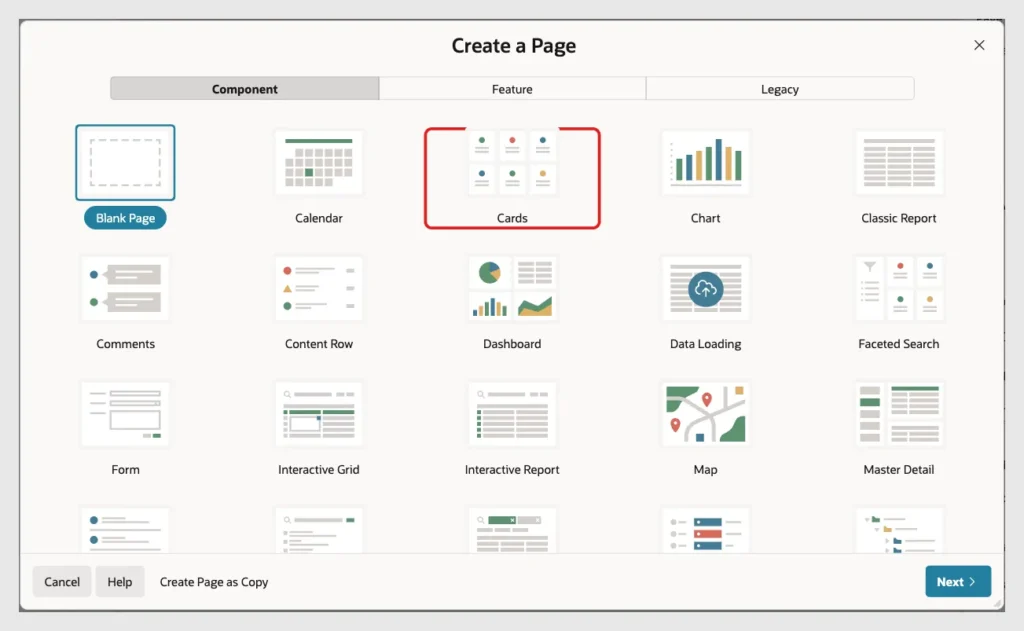
In App Builder, open the application and click Create Page. On the Component tab, click Cards:
Enter Page Number 320 and Name Product Cards. Keep Page Mode Normal. Set Source Type to SQL Query and enter the query below. It joins the category name to each product:
Example:
select p.product_id,
       p.product_name,
       c.category_name,
       p.description,
       p.unit_price,
       p.stock_qty
  from shop_products p
  join shop_categories c on c.category_id = p.category_id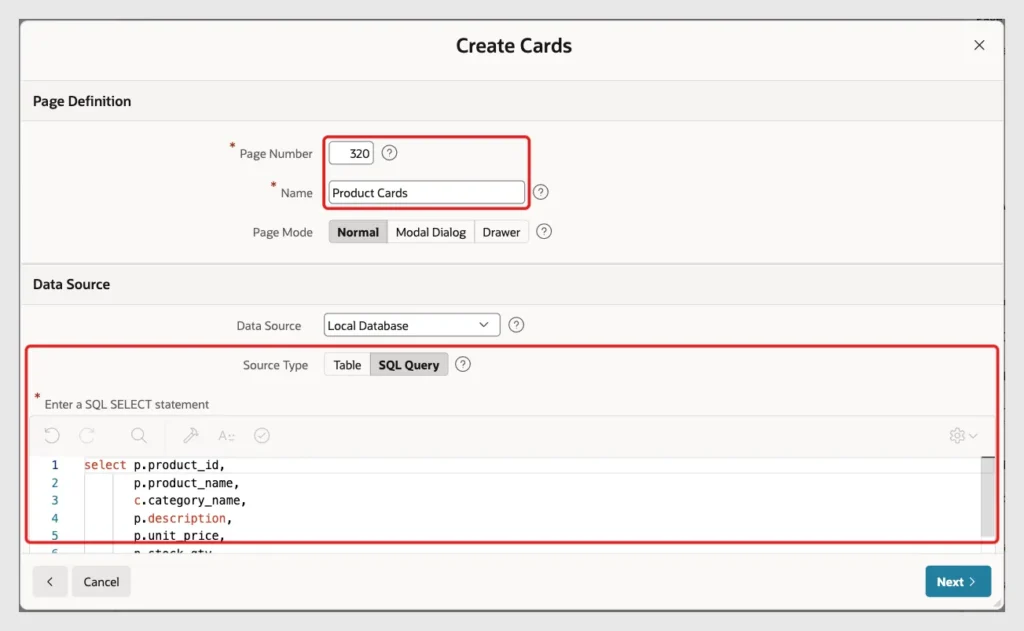
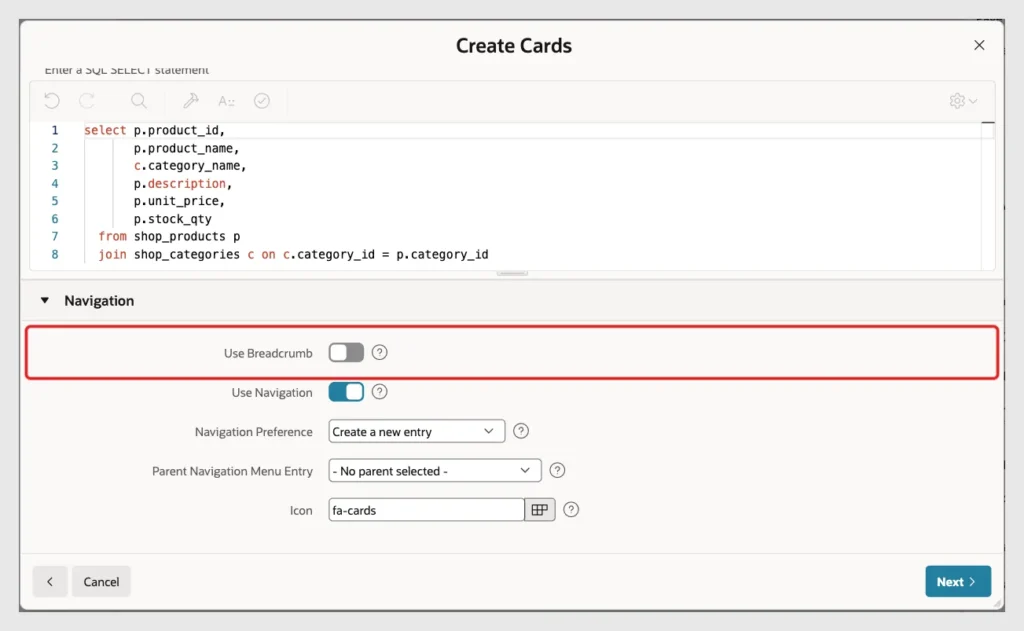
Scroll down to Navigation. Turn off Use Breadcrumb and keep Use Navigation on, so the page gets a menu entry. Click Next:
On the second screen, keep the Grid layout. Set Title Column to PRODUCT_NAME, Body Column to DESCRIPTION and Badge Column to UNIT_PRICE. Leave Icon Initials Column empty and click Create Page:
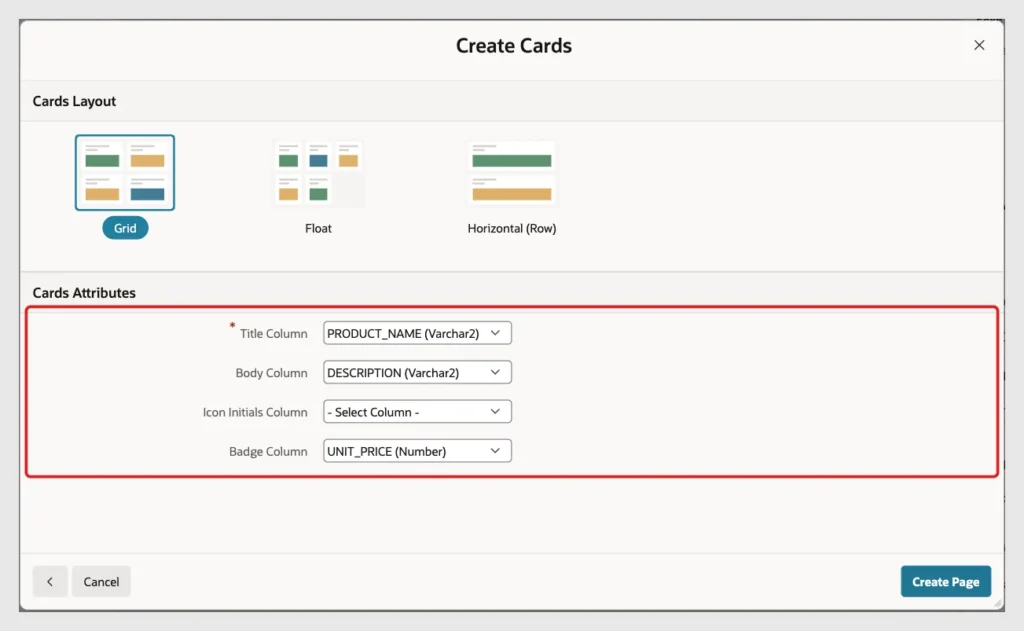
The wizard created page 320 with a Cards region named Product Cards and a sort item P320_ORDER_BY.
Step 3: Set the Card Attributes
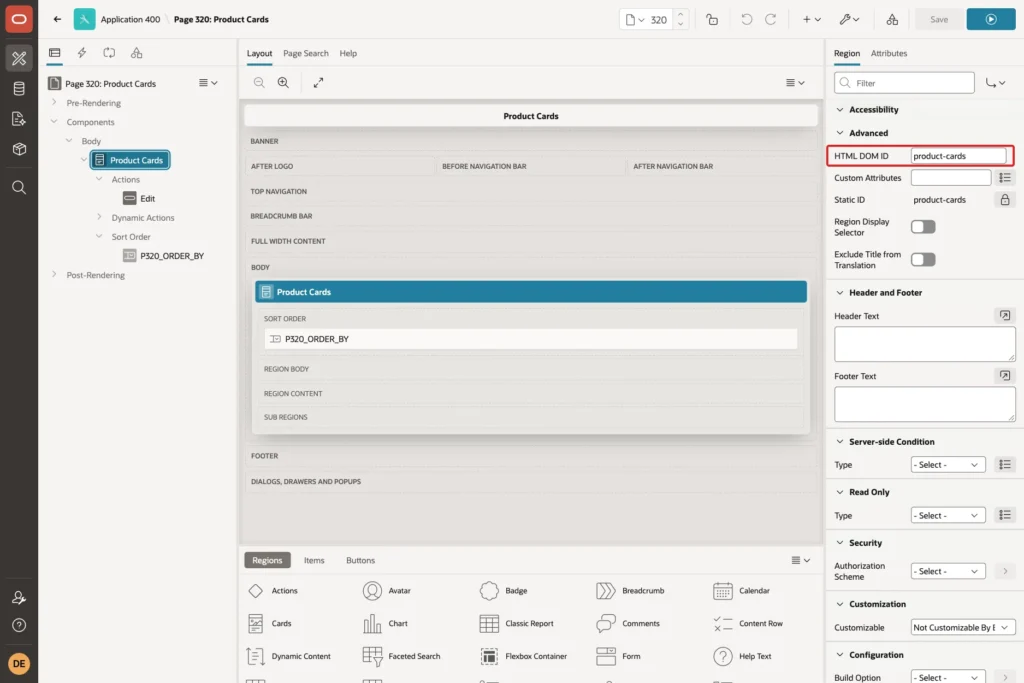
In Page Designer, select the Product Cards region. On the Region tab, under Advanced, enter product-cards in HTML DOM ID. The JavaScript in Step 8 uses this ID to find the cards:
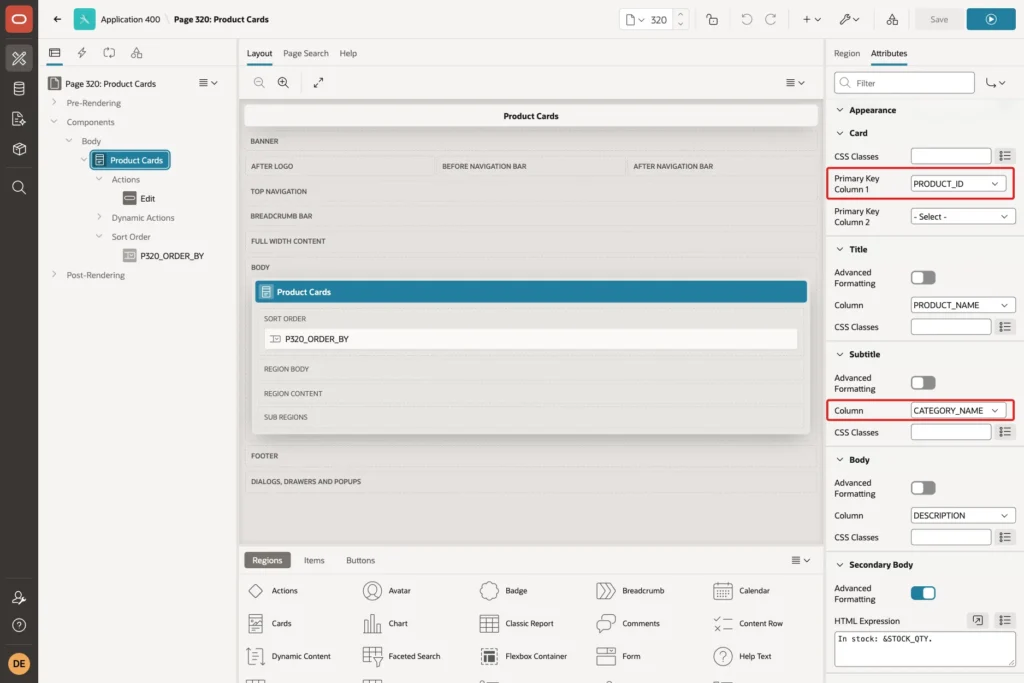
Open the Attributes tab. Under Card, set Primary Key Column 1 to PRODUCT_ID. Under Subtitle, set Column to CATEGORY_NAME:
Under Secondary Body, turn on Advanced Formatting and enter In stock: &STOCK_QTY. in HTML Expression. Under Icon and Badge, enter Price in Badge Label:
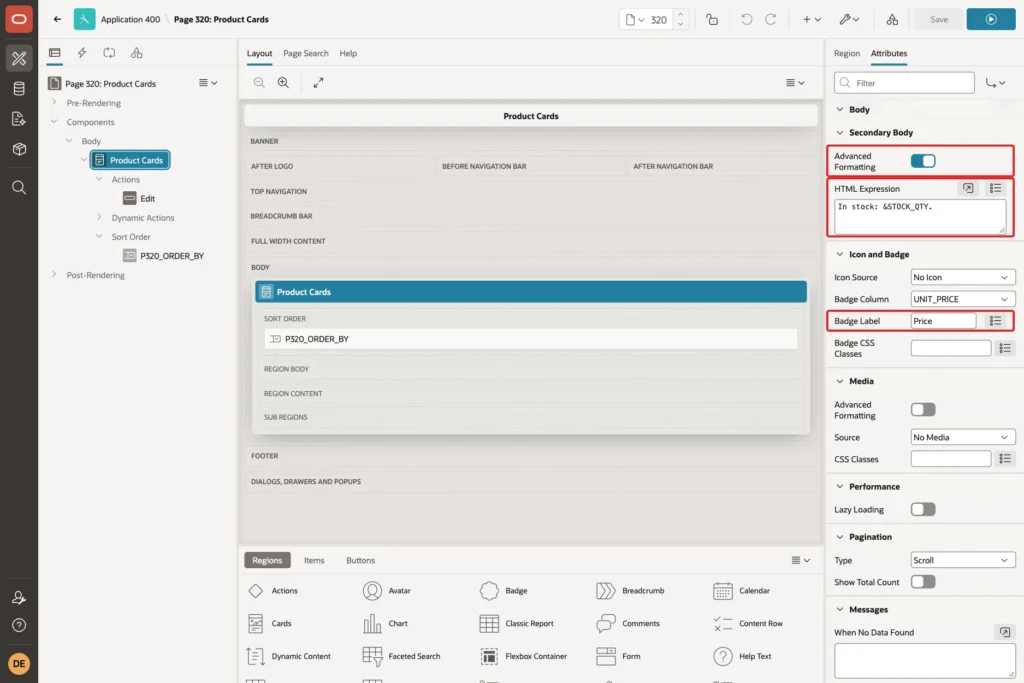
The badge label is not shown on the card in the default card style. In the page HTML it became the badge title, Price 129 for the Bookshelf card, plus a badge label element.
Step 4: Create the Drawer Form Page
Click Create Page again. This time choose Form:
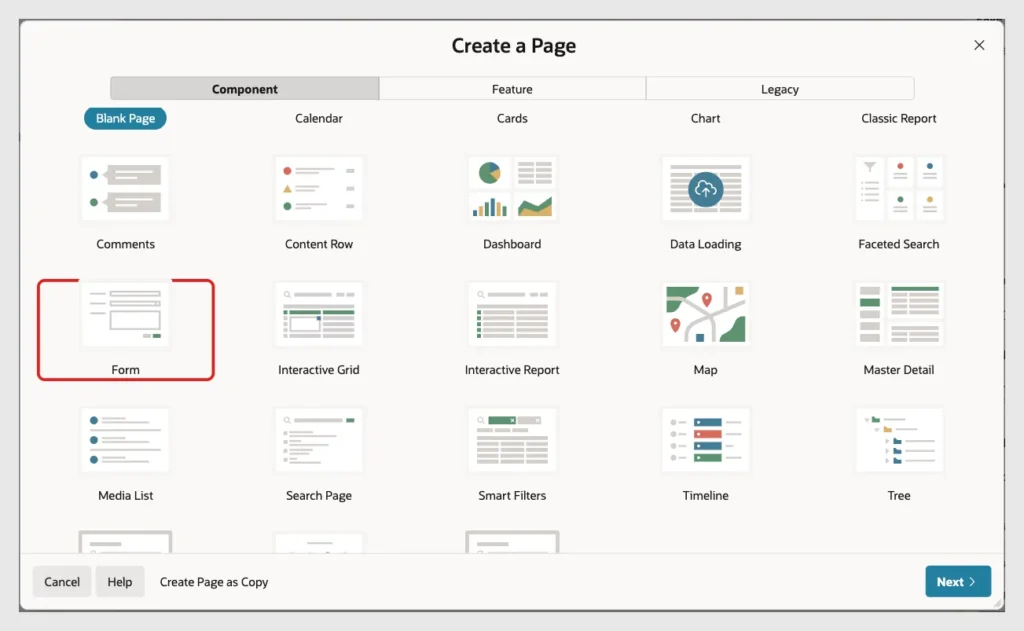
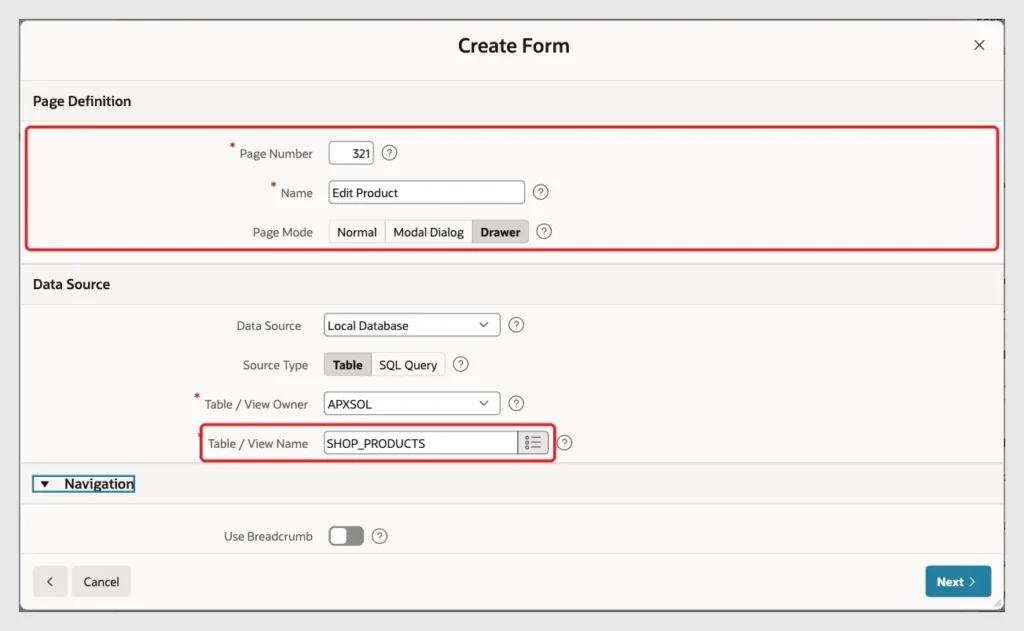
Enter Page Number 321 and Name Edit Product, and click Drawer in Page Mode. Enter SHOP_PRODUCTS in Table / View Name. After Drawer was selected, the wizard turned off Use Breadcrumb and Use Navigation by itself. Click Next:
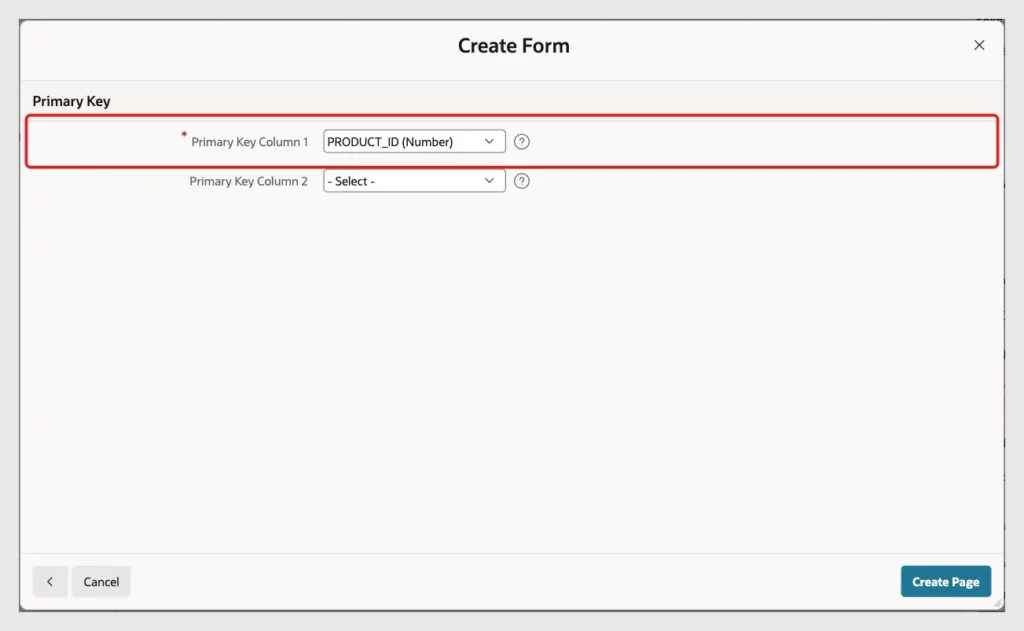
The wizard picked PRODUCT_ID as Primary Key Column 1 from the table's primary key. Click Create Page:
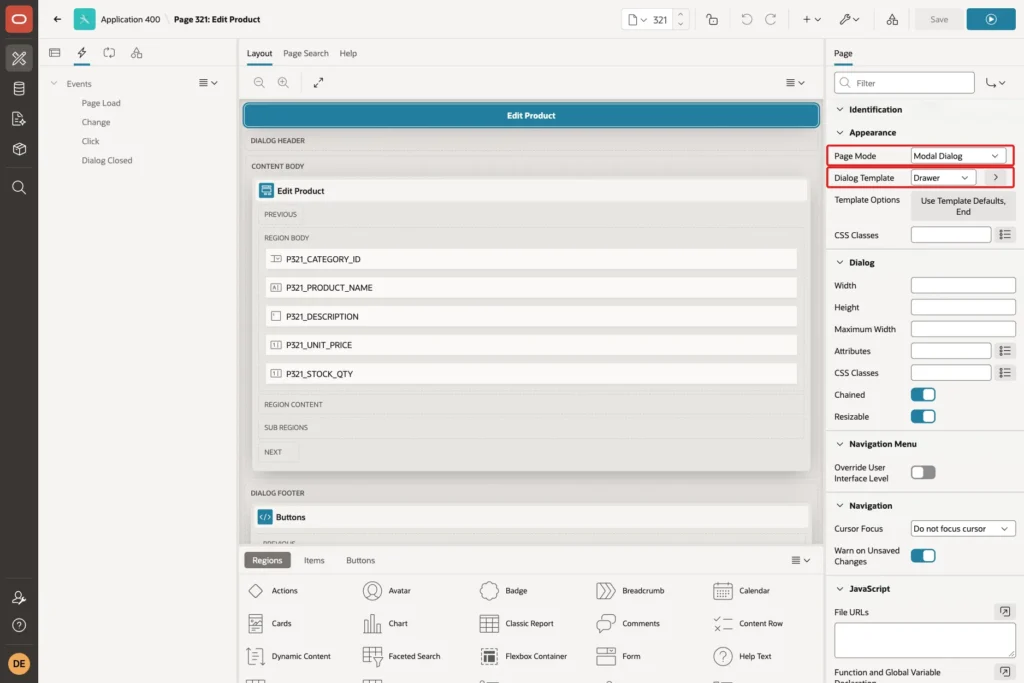
In Page Designer, page 321 shows Page Mode Modal Dialog with Dialog Template Drawer. That is how APEX stores a drawer page:
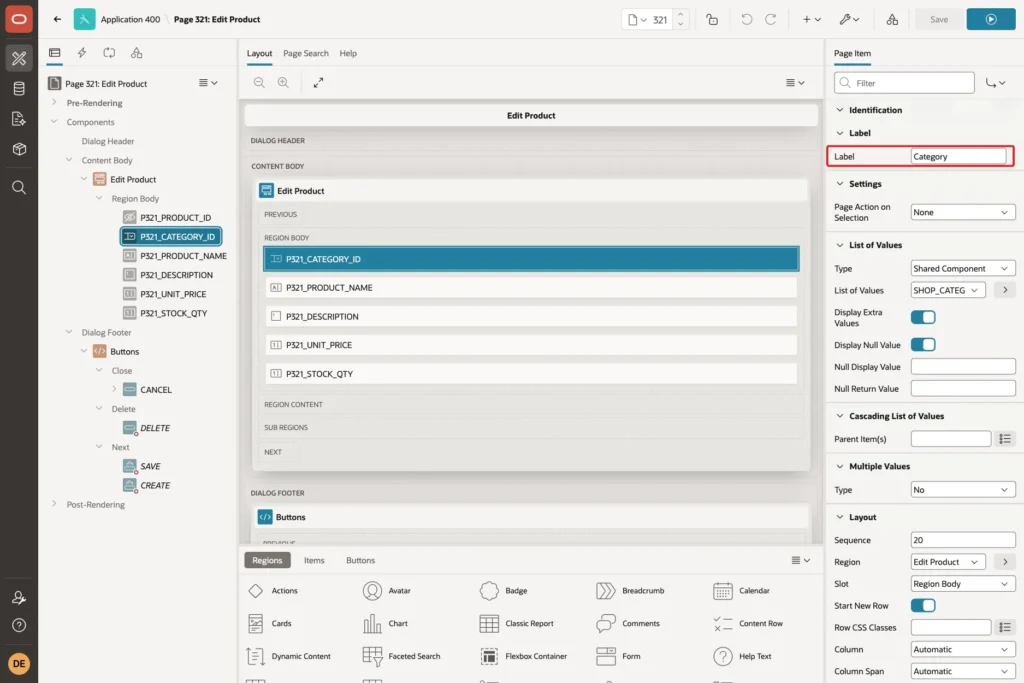
Because of the foreign key, the wizard made P321_CATEGORY_ID a select list and created the shared list of values SHOP_CATEGORIES.CATEGORY_NAME. Its label was Category Id. Change Label to Category:
Step 5: Return the Product ID from the Drawer
The wizard also created a Close Dialog process that runs after Create, Apply Changes and Delete. Open the Processing tab and select Close Dialog. In Items to Return, enter P321_PRODUCT_ID:
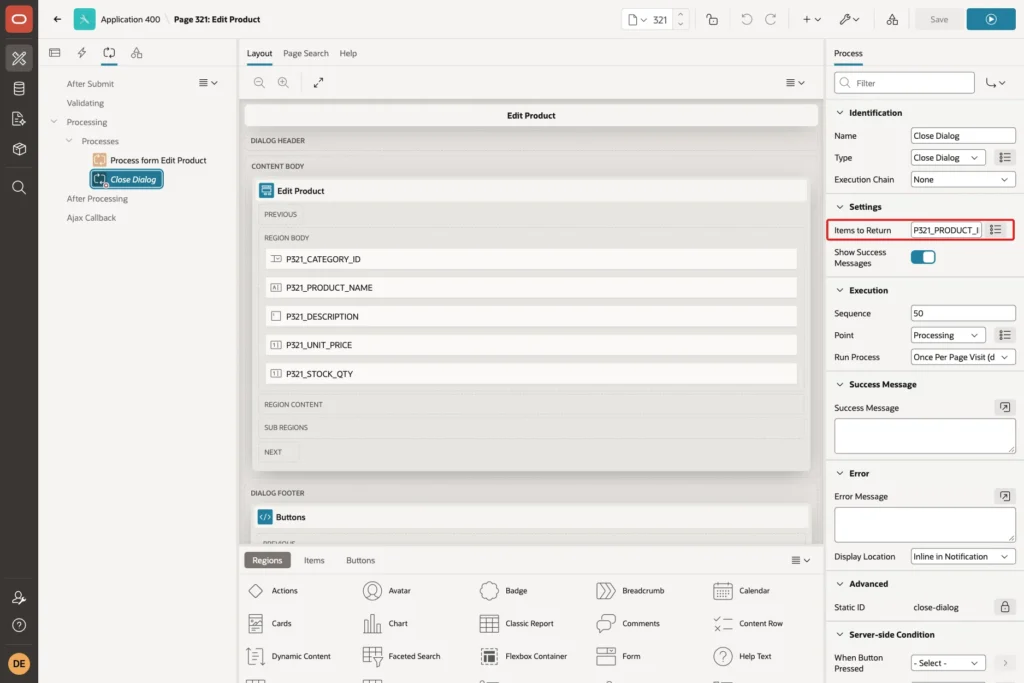
Keep Show Success Messages on. The success message of the form, Row updated., then appears on the cards page after the drawer closes.
Step 6: Add an Edit Action to the Cards
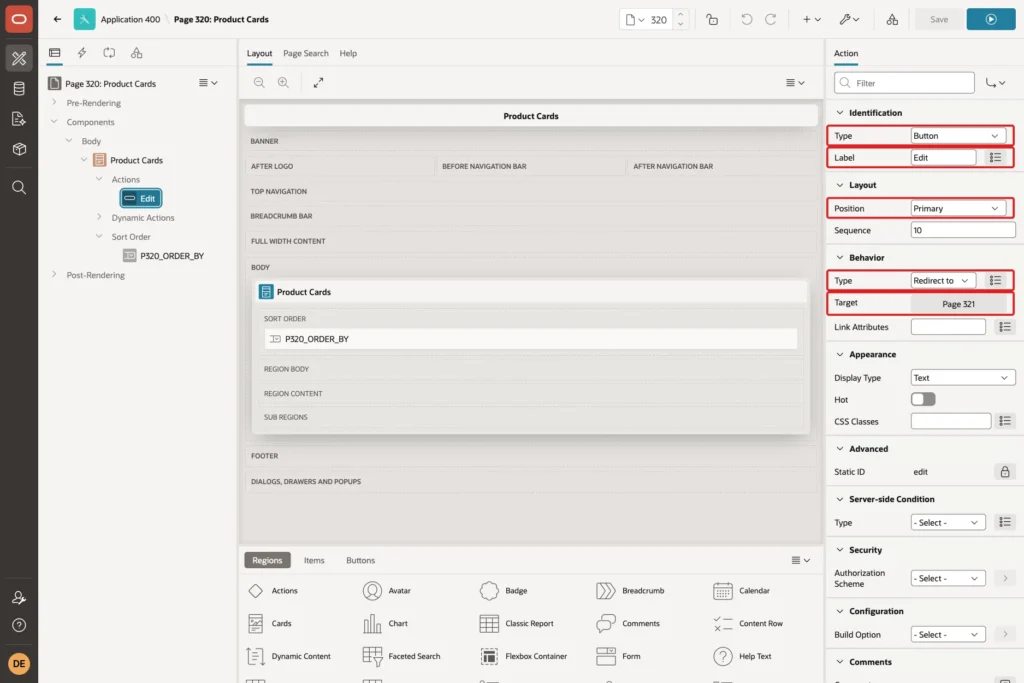
Go back to page 320. In the Rendering tree, right-click Actions under Product Cards and click Create Action. Set Type to Button, Label to Edit and Position to Primary. Set Behavior Type to Redirect to Page in this Application and click Target:
In the Link Builder, enter Page 321. Under Set Items, set Name P321_PRODUCT_ID and Value &PRODUCT_ID., and enter 321 in Clear Cache. Click OK:
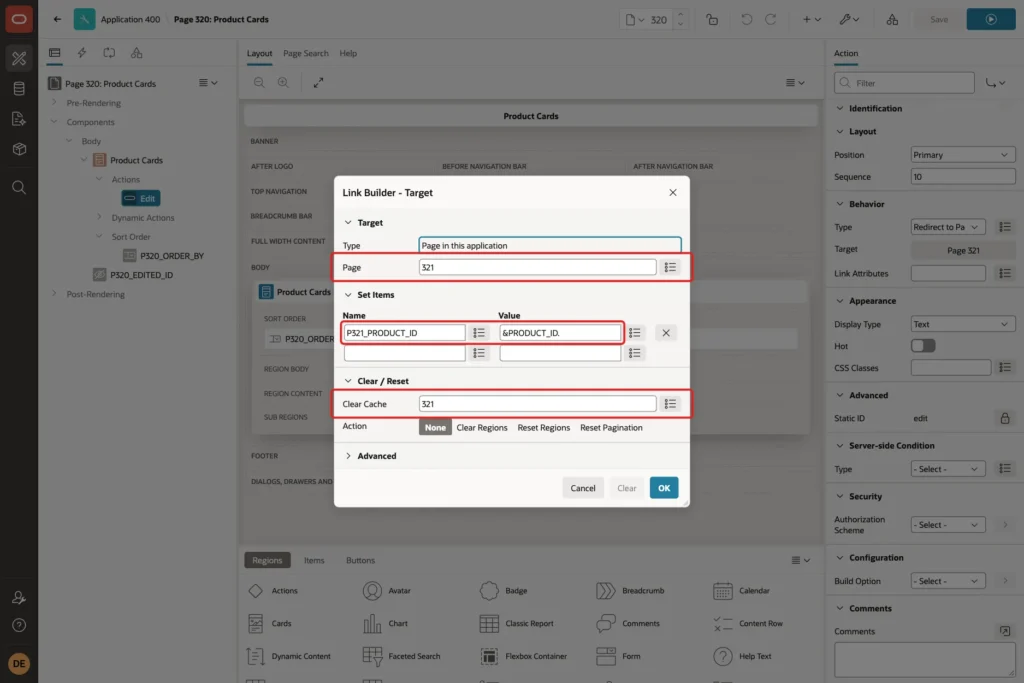
Because page 321 is a drawer, APEX opens it as a dialog. In the page HTML the button link started with #action$a-dialog-open and carried a checksum for the item value.
Step 7: Refresh the Cards When the Drawer Closes
The cards page needs a place to keep the returned ID. Create a page item P320_EDITED_ID of Type Hidden in the Body:
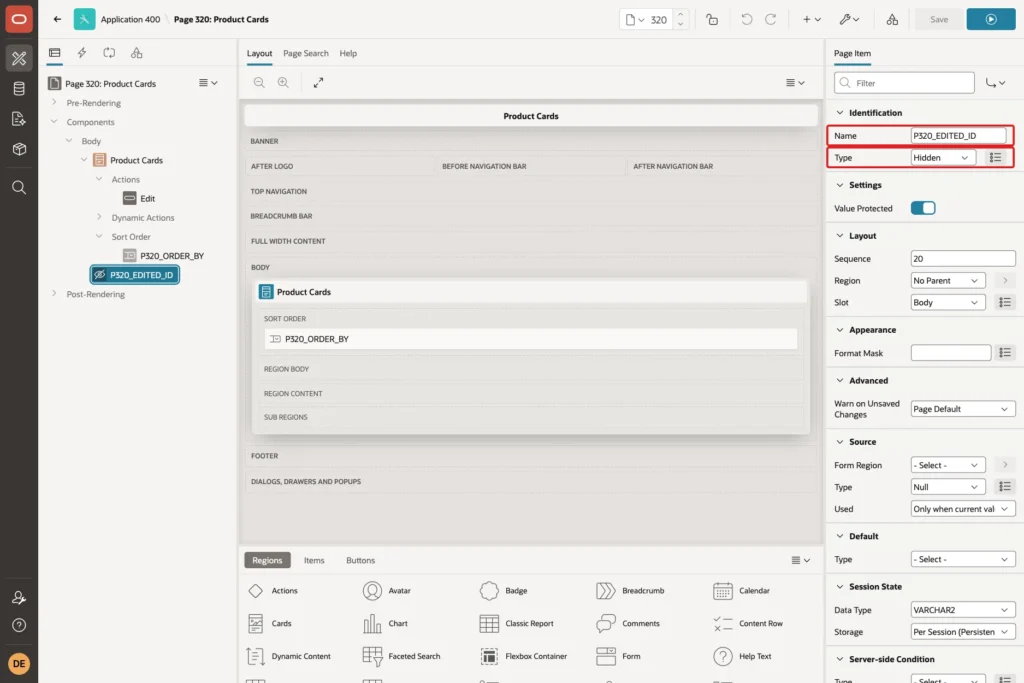
Open the Dynamic Actions tab, right-click Events and create a dynamic action. Enter the Name Refresh edited card, set Event to Dialog Closed, Selection Type to Region and Region to Product Cards:
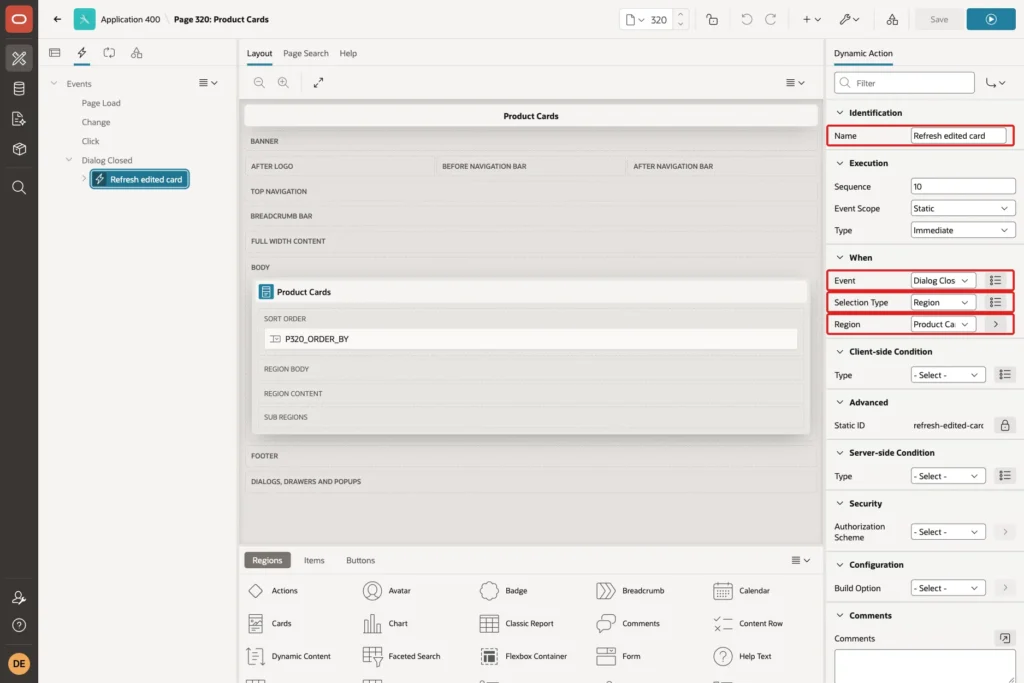
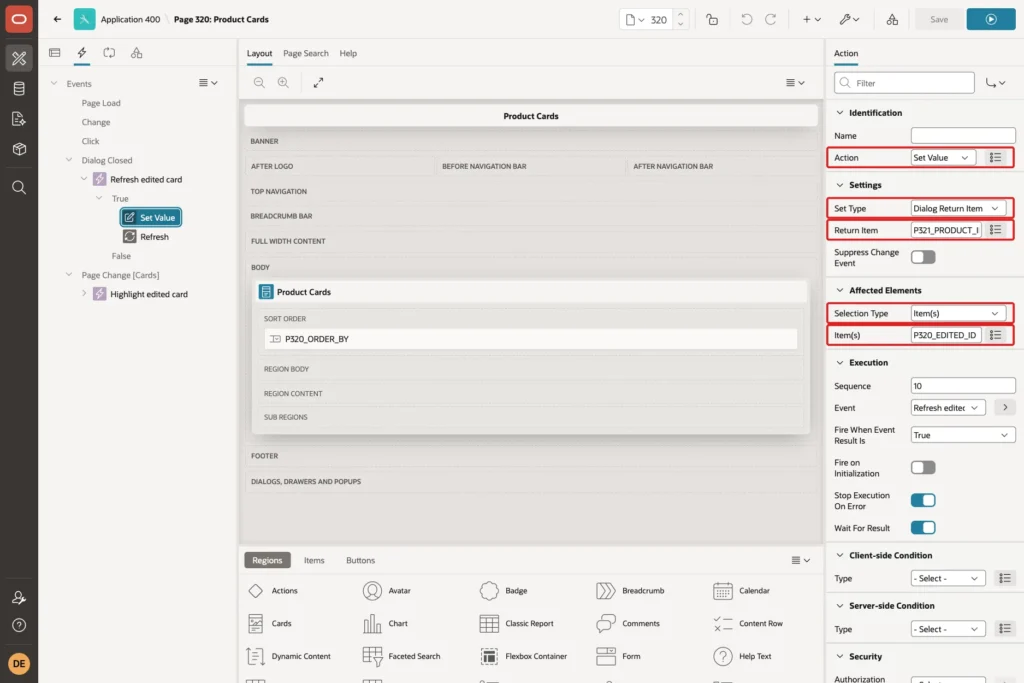
With Selection Type Region, the dynamic action caught the event from the Edit buttons inside the region. Change the first True action to Set Value. Set Set Type to Dialog Return Item, Return Item to P321_PRODUCT_ID and Item(s) to P320_EDITED_ID:
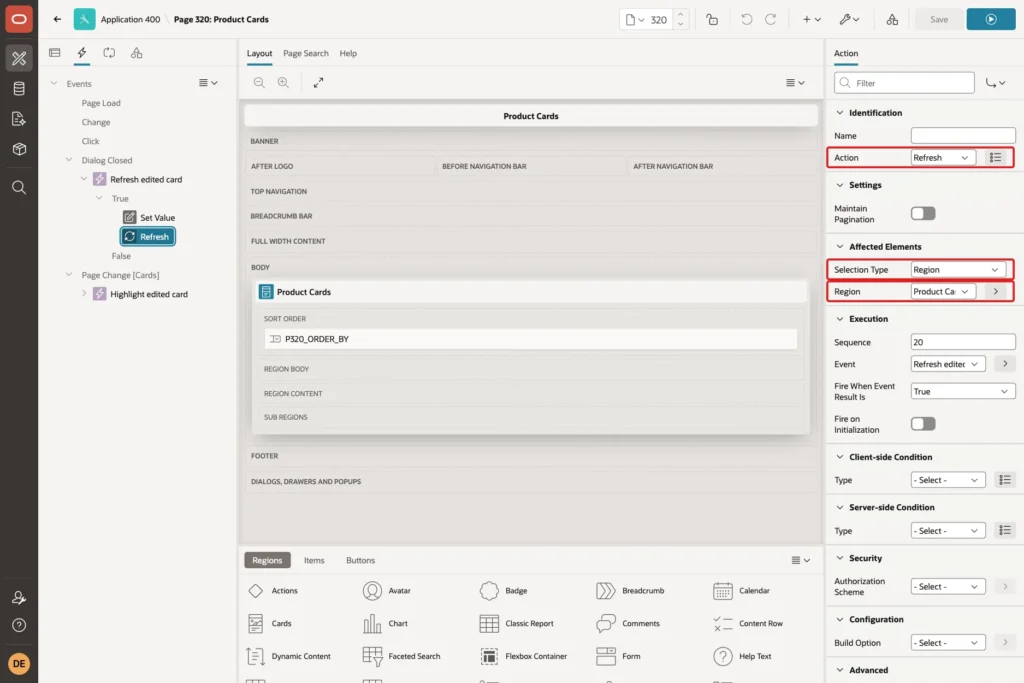
Add a second True action. Set Action to Refresh, Selection Type to Region and Region to Product Cards:
Both actions are declarative. At this point the flow already works: save in the drawer, and the cards show the new values.
Step 8: Highlight the Edited Card
After a refresh the user may not see which card changed. A green ring on the edited card helps. On page 320, under CSS, enter this rule in Inline:
Example:
#product-cards .is-edited { box-shadow: 0 0 0 3px #2e7d32; }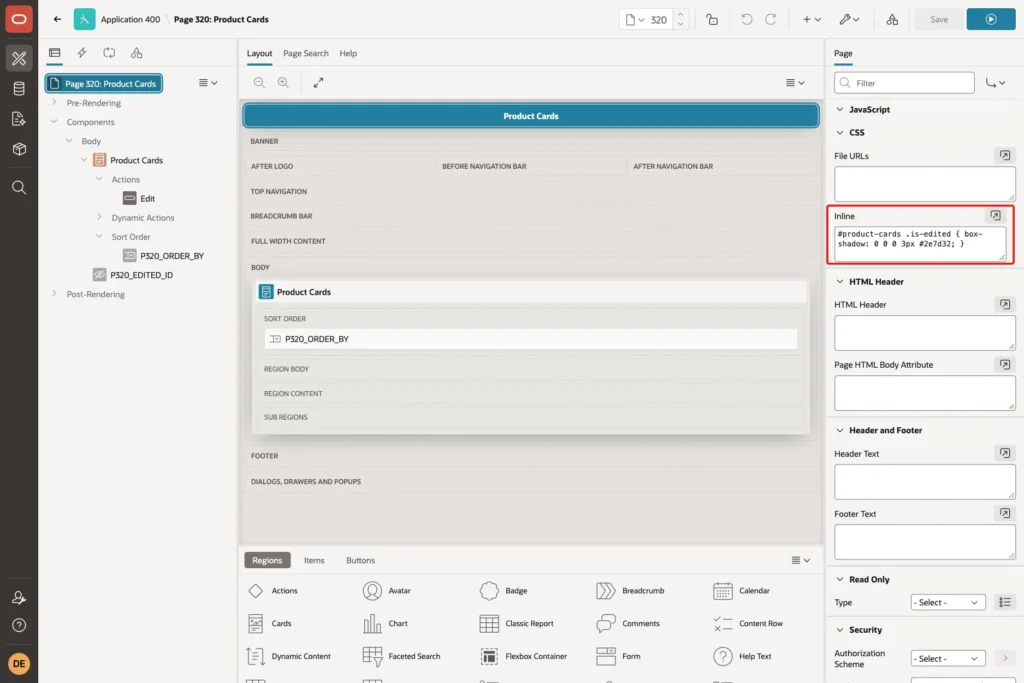
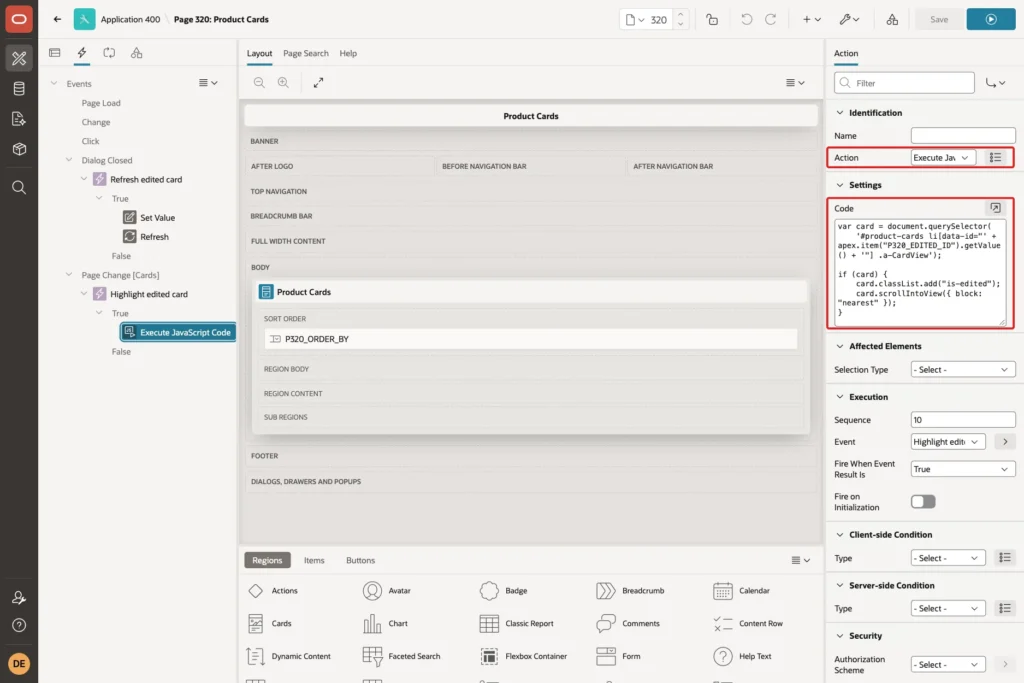
The class must be added after the new cards are drawn. Create a second dynamic action named Highlight edited card. Set Event to Page Change [Cards], Selection Type to Region and Region to Product Cards:
![Dynamic action Highlight edited card with Event Page Change [Cards], Selection Type Region and Region Product Cards marked with red boxes](https://vinish.dev/wp-content/uploads/2026/10/apxdrawer-apex-drawer-pd-da2-1024x683.webp)
In a first test this dynamic action used the After Refresh event and nothing happened. A listener on the region showed that a Cards refresh fired tablemodelviewpagechange, which is Page Change [Cards], and not apexafterrefresh.
Set the True action to Execute JavaScript Code with this code. It finds the card whose data-id equals P320_EDITED_ID, adds the class, and scrolls the card into view if needed:
Example:
var card = document.querySelector(
    '#product-cards li[data-id="' + apex.item("P320_EDITED_ID").getValue() + '"] .a-CardView');

if (card) {
    card.classList.add("is-edited");
    card.scrollIntoView({ block: "nearest" });
}
The Cards region writes the Primary Key Column 1 value into the data-id attribute of each card, so Step 3 is required for this lookup. When the product was deleted, no card matches and the code does nothing.
Step 9: Test the Drawer
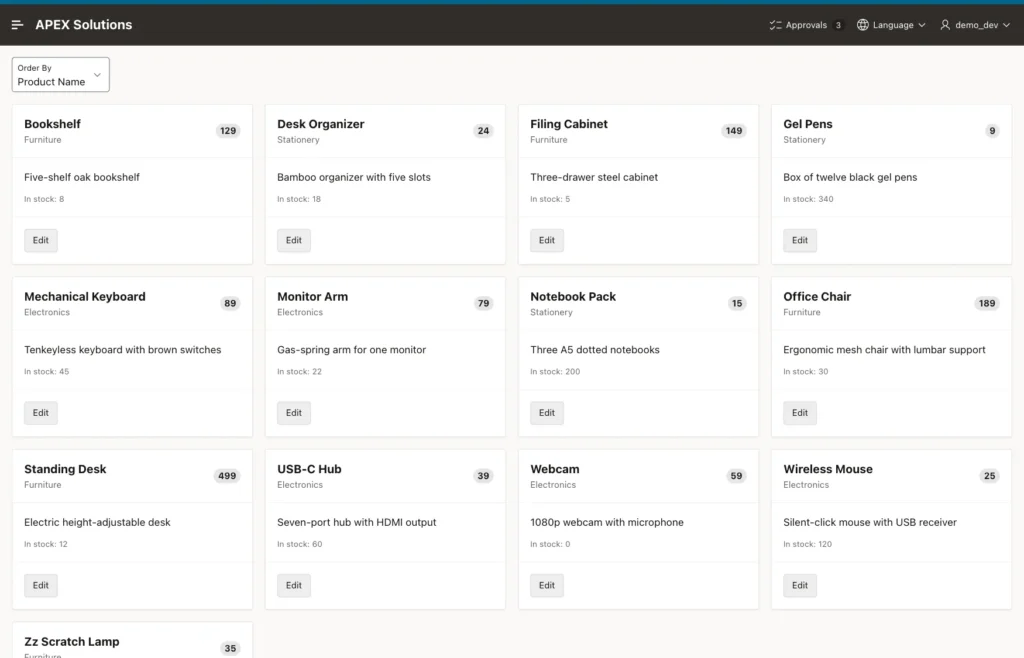
Run page 320. The cards show the name, category, price badge, description and stock:
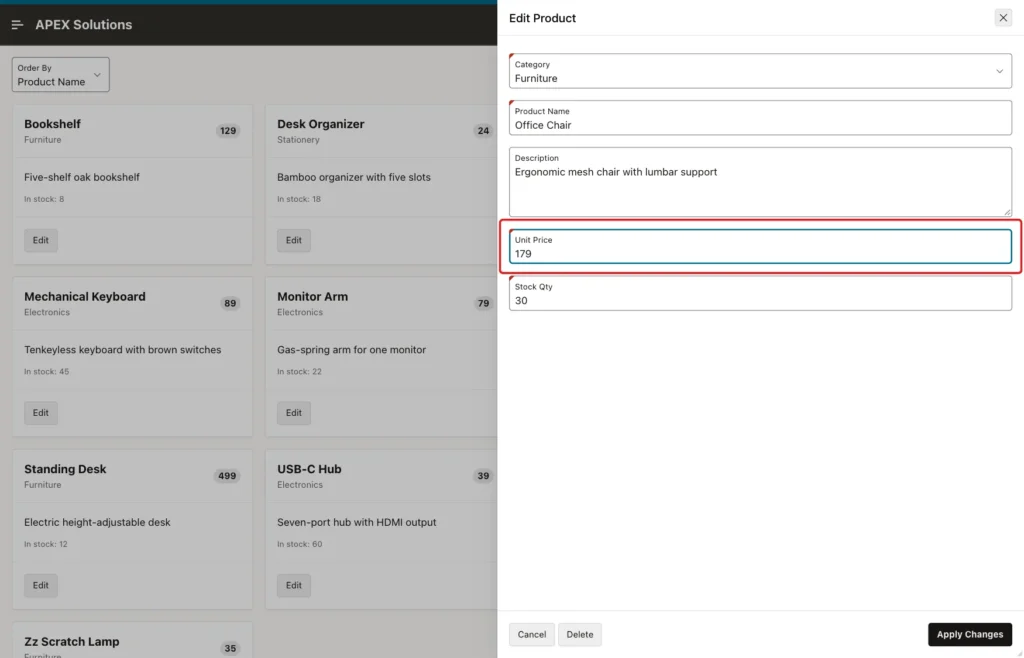
Click Edit on Office Chair. The drawer slides in from the right with the product loaded. Change Unit Price from 189 to 179 and click Apply Changes:
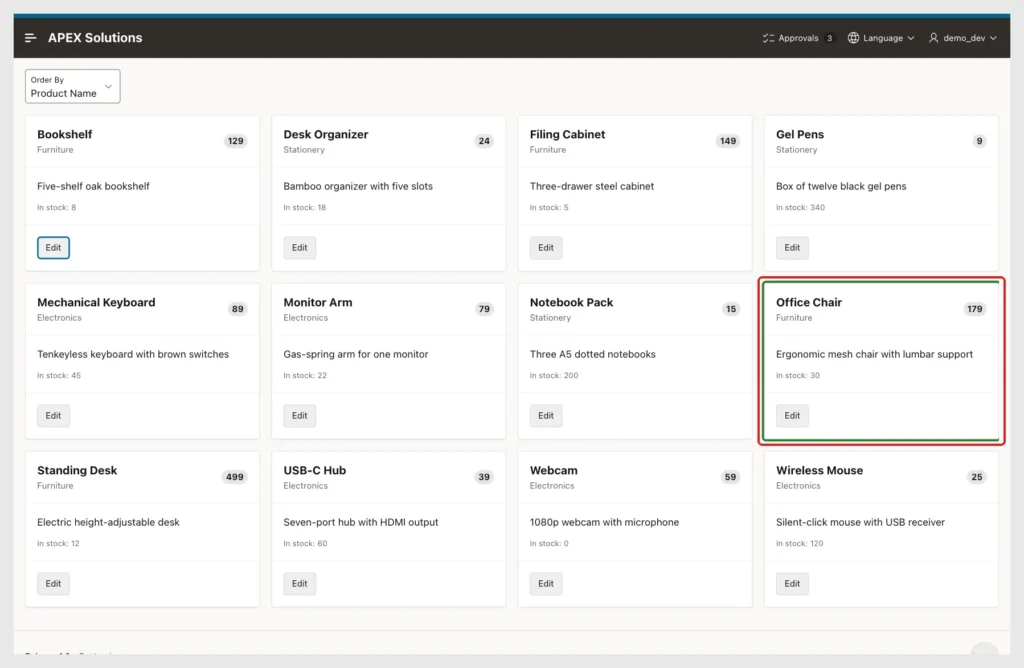
The drawer closed, Row updated. appeared, and the Office Chair card showed 179 with the green ring:
To prove that the page was not reloaded, the test stored a JavaScript variable on page 320 before opening the drawer. It was still there after the save. The browser sent two requests: the drawer page submit and one Ajax call to refresh the Cards region. P320_EDITED_ID held 2.
As a negative test, Bookshelf was opened and Unit Price set to -5. The drawer stayed open and showed the check constraint error. Nothing was saved and the cards were not refreshed:
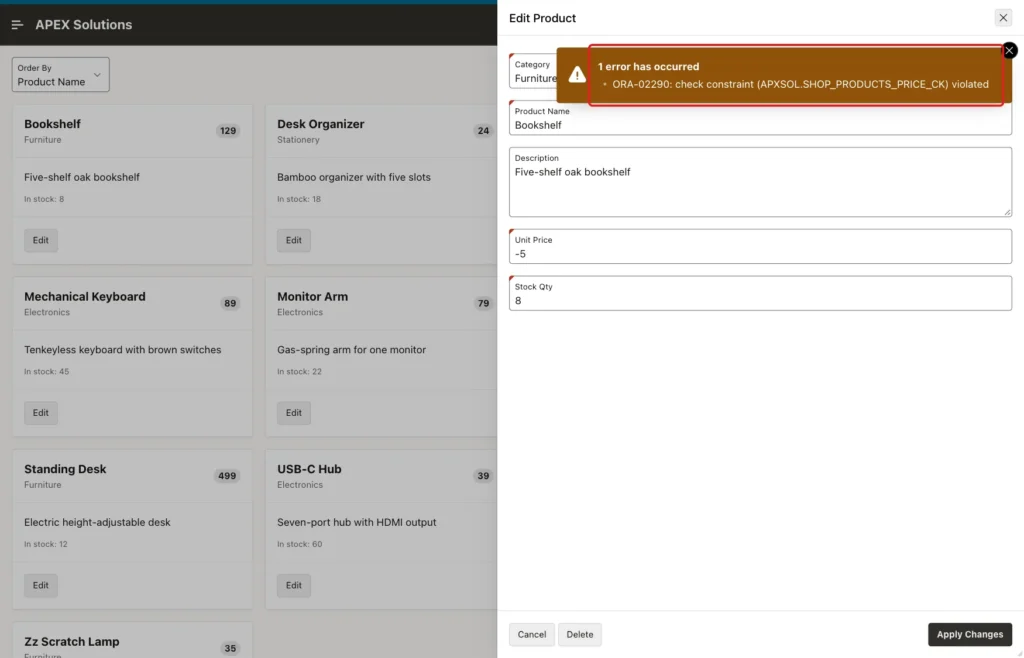
Clicking Cancel then closed the drawer without any request to the server. Cancel does not run the Close Dialog process, so Dialog Closed did not fire and the cards were not refreshed.
Finally, a scratch product was deleted from its drawer. The drawer closed, the region refresh removed the card, and the page showed 12 cards again. No card was highlighted because the deleted ID no longer exists.
After all tests, the table shows the new Office Chair price, the Bookshelf price unchanged after the failed save, and 12 products again:
Example:
select p.product_id, p.product_name, c.category_name, p.unit_price, p.stock_qty
  from shop_products p
  join shop_categories c on c.category_id = p.category_id
 where p.product_name in ('Office Chair', 'Bookshelf', 'Zz Scratch Lamp')
 order by p.product_id;

select count(*) as product_count from shop_products;
Output:
   PRODUCT_ID PRODUCT_NAME    CATEGORY_NAME       UNIT_PRICE    STOCK_QTY
_____________ _______________ ________________ _____________ ____________
            2 Office Chair    Furniture                  179           30
            3 Bookshelf       Furniture                  129            8

   PRODUCT_COUNT
________________
              12
Things to Know
- A drawer page is stored as Page Mode Modal Dialog with Dialog Template Drawer. The wizard also set the template option js-dialog-class-t-Drawer--pullOutEnd, which opened the drawer from the right.
- Dialog Closed fires when the Close Dialog process runs after a successful Create, Apply Changes or Delete. Cancel did not fire it.
- The Cards model has a fetchRecords method that sends only the edited key to the server. In APEX 26.1 the Cards region still returned all 12 rows, redrew every card, and left a deleted card on the page. The declarative Refresh action was simpler and removed deleted cards.
- After Refresh did not fire for the Cards region in this test. Use Page Change [Cards] to run code after the cards are drawn.
- The highlight lookup needs Primary Key Column 1 on the Cards region. Without it the cards have no data-id value to match.
- A constraint error is shown inside the drawer, and the drawer stays open until the save succeeds or the user cancels.
Related Guides
- How to Return Values from a Modal Dialog to the Parent Page in Oracle APEX
- Oracle APEX Cards, Content Rows, and Template Components
Conclusion
To edit cards in a drawer in Oracle APEX, create a Form page with Page Mode Drawer and open it from a card action that passes the primary key. Return the key from the Close Dialog process, and refresh the Cards region in a Dialog Closed dynamic action.
The tests showed that the page keeps its state, that errors stay in the drawer, and that Cancel changes nothing. A small Page Change [Cards] action with the returned ID shows the user which card was just edited.
