
Many lists have an order that people choose by hand: the items of a menu, the steps of a checklist, the questions of a survey or the slides of a home page. A number column such as DISPLAY_SEQ stores that order, but typing new numbers into a form is slow and easy to get wrong.
Drag and drop is the natural way to change such an order. Oracle APEX has no declarative "reorder rows" setting for reports, but it ships the jQuery UI Sortable widget. This guide adds a drag handle to a classic report, saves the new order with one Ajax Callback, and checks every request on the server.
The guide How to Build a Kanban Board for Order Status in Oracle APEX moves cards between status columns with the SortableJS library. This guide does something else: it changes the position of rows inside one list, stores the sequence numbers, and needs no extra library.
The example uses the items of a café menu; the same steps work for any table with a sequence column.
Step 1: Create the Tables
Two tables hold the data. CAFE_MENU_SECTIONS has one row per menu section, and CAFE_MENU_ITEMS has the items of each section with their position in DISPLAY_SEQ. Create the tables and the sample data:
Example:
create table cafe_menu_sections (
  section_id    number generated by default on null as identity
                constraint cafe_menu_sections_pk primary key,
  section_name  varchar2(50) not null
                constraint cafe_menu_sections_name_uk unique
);

create table cafe_menu_items (
  item_id      number generated by default on null as identity
               constraint cafe_menu_items_pk primary key,
  section_id   number not null
               constraint cafe_menu_items_section_fk references cafe_menu_sections,
  item_name    varchar2(100) not null,
  price        number(6,2) not null
               constraint cafe_menu_items_price_ck check (price >= 0),
  display_seq  number(4) not null
               constraint cafe_menu_items_seq_ck check (display_seq > 0),
  constraint cafe_menu_items_seq_uk unique (section_id, display_seq)
);

insert into cafe_menu_sections (section_name) values ('Coffee');
insert into cafe_menu_sections (section_name) values ('Breakfast');
insert into cafe_menu_sections (section_name) values ('Desserts');

insert into cafe_menu_items (section_id, item_name, price, display_seq)
select section_id, 'Espresso', 2.50, 1 from cafe_menu_sections where section_name = 'Coffee';
insert into cafe_menu_items (section_id, item_name, price, display_seq)
select section_id, 'Cappuccino', 3.20, 2 from cafe_menu_sections where section_name = 'Coffee';
insert into cafe_menu_items (section_id, item_name, price, display_seq)
select section_id, 'Flat White', 3.40, 3 from cafe_menu_sections where section_name = 'Coffee';
insert into cafe_menu_items (section_id, item_name, price, display_seq)
select section_id, 'Iced Latte', 3.80, 4 from cafe_menu_sections where section_name = 'Coffee';
insert into cafe_menu_items (section_id, item_name, price, display_seq)
select section_id, 'Mocha', 3.90, 5 from cafe_menu_sections where section_name = 'Coffee';
insert into cafe_menu_items (section_id, item_name, price, display_seq)
select section_id, 'Pancakes', 6.50, 1 from cafe_menu_sections where section_name = 'Breakfast';
insert into cafe_menu_items (section_id, item_name, price, display_seq)
select section_id, 'Avocado Toast', 7.20, 2 from cafe_menu_sections where section_name = 'Breakfast';
insert into cafe_menu_items (section_id, item_name, price, display_seq)
select section_id, 'Omelette', 6.90, 3 from cafe_menu_sections where section_name = 'Breakfast';
insert into cafe_menu_items (section_id, item_name, price, display_seq)
select section_id, 'Cheesecake', 4.50, 1 from cafe_menu_sections where section_name = 'Desserts';
insert into cafe_menu_items (section_id, item_name, price, display_seq)
select section_id, 'Brownie', 3.60, 2 from cafe_menu_sections where section_name = 'Desserts';

commit;

select s.section_name, i.display_seq, i.item_name, i.price
from cafe_menu_items i
join cafe_menu_sections s on s.section_id = i.section_id
order by s.section_id, i.display_seq;
Output:
Table CAFE_MENU_SECTIONS created.

Table CAFE_MENU_ITEMS created.

1 row inserted.

1 row inserted.

1 row inserted.

1 row inserted.

1 row inserted.

1 row inserted.

1 row inserted.

1 row inserted.

1 row inserted.

1 row inserted.

1 row inserted.

1 row inserted.

1 row inserted.

Commit complete.

SECTION_NAME       DISPLAY_SEQ ITEM_NAME           PRICE
_______________ ______________ ________________ ________
Coffee                       1 Espresso              2.5
Coffee                       2 Cappuccino            3.2
Coffee                       3 Flat White            3.4
Coffee                       4 Iced Latte            3.8
Coffee                       5 Mocha                 3.9
Breakfast                    1 Pancakes              6.5
Breakfast                    2 Avocado Toast         7.2
Breakfast                    3 Omelette              6.9
Desserts                     1 Cheesecake            4.5
Desserts                     2 Brownie               3.6

10 rows selected.
The constraints matter for the reorder feature:
- CAFE_MENU_SECTIONS_PK and CAFE_MENU_ITEMS_PK are identity primary keys. The page sends item IDs to the server, and the server updates rows by these keys.
- CAFE_MENU_ITEMS_SECTION_FK links each item to its section.
- CAFE_MENU_ITEMS_SEQ_UK allows each position only once per section. Its index starts with SECTION_ID, so it also serves the foreign key and the report query.
- CAFE_MENU_ITEMS_SEQ_CK keeps positions above zero, and CAFE_MENU_ITEMS_PRICE_CK stops negative prices.
Step 2: Save a New Order in One Statement
The unique key changes how the new order must be saved. When Mocha moves from position 5 to position 1, every row in the section gets a new number. Updating the rows one by one fails, because the first update gives Mocha position 1 while Espresso still has it:
Example:
declare
  l_pos pls_integer := 0;
begin
  for r in (select item_id
            from cafe_menu_items
            where section_id = 1
            order by case item_name when 'Mocha' then 0 else display_seq end)
  loop
    l_pos := l_pos + 1;
    update cafe_menu_items
    set display_seq = l_pos
    where item_id = r.item_id;
  end loop;
end;
/
rollback;
Output:
declare
*
ERROR at line 1:
ORA-00001: unique constraint (APXSOL.CAFE_MENU_ITEMS_SEQ_UK) violated on table APXSOL.CAFE_MENU_ITEMS columns (SECTION_ID, DISPLAY_SEQ)
ORA-03301: (ORA-00001 details) row with column values (SECTION_ID:1, DISPLAY_SEQ:1) already exists
ORA-06512: at line 10
ORA-06512: at line 10
Help: https://docs.oracle.com/error-help/db/ora-00001/

Rollback complete.
Oracle Database checks a unique constraint at the end of each statement. So one MERGE that sets all positions at once works. JSON_TABLE turns the list of IDs into rows, and FOR ORDINALITY numbers them 1, 2, 3 in the order of the list:
Example:
merge into cafe_menu_items i
using (
  select j.item_id, j.pos
  from json_table('[5, 1, 2, 3, 4]', '$[*]'
         columns (pos for ordinality, item_id number path '$')) j
) s
on (i.item_id = s.item_id)
when matched then update set i.display_seq = s.pos;

select display_seq, item_name
from cafe_menu_items
where section_id = 1
order by display_seq;

rollback;
Output:
5 rows merged.

   DISPLAY_SEQ ITEM_NAME
______________ _____________
             1 Mocha
             2 Espresso
             3 Cappuccino
             4 Flat White
             5 Iced Latte

Rollback complete.
The test ends with a rollback, so the sample data keeps its order. The Ajax Callback in Step 8 uses the same MERGE with the list that the browser sends.
Step 3: Create a Blank Page
In App Builder, open the application and click Create Page. On the Component tab, select Blank Page:

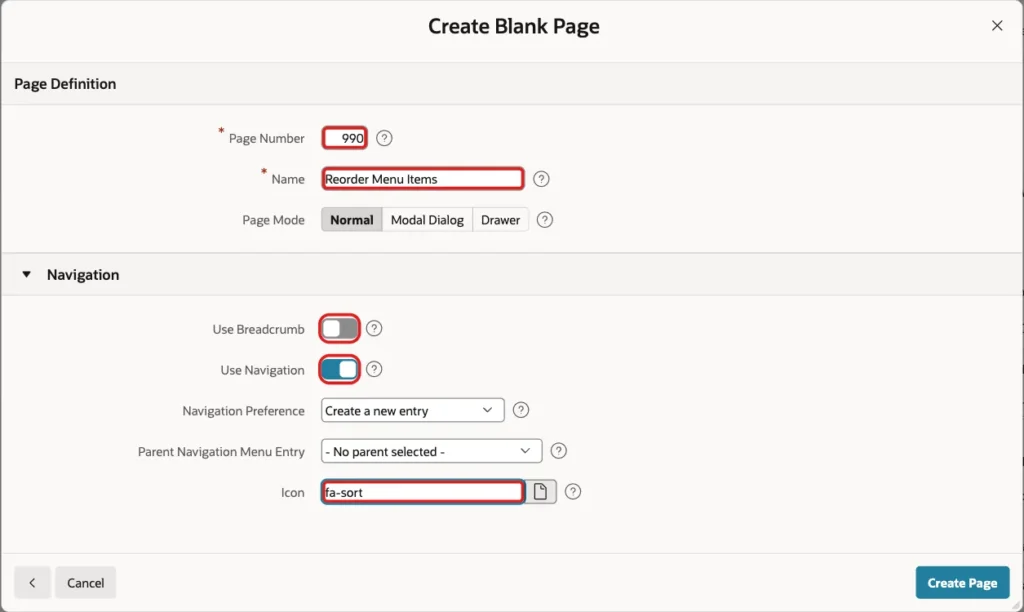
Set Page Number to 990 and Name to Reorder Menu Items. Turn Use Breadcrumb off, keep Use Navigation on, set Icon to fa-sort and click Create Page:
APEX opens the new page in Page Designer.
Step 4: Add the Section Select List
Users reorder one section at a time. In the Rendering tree, right-click Body and choose Create Region. Set Name to Section and Type to Static Content.
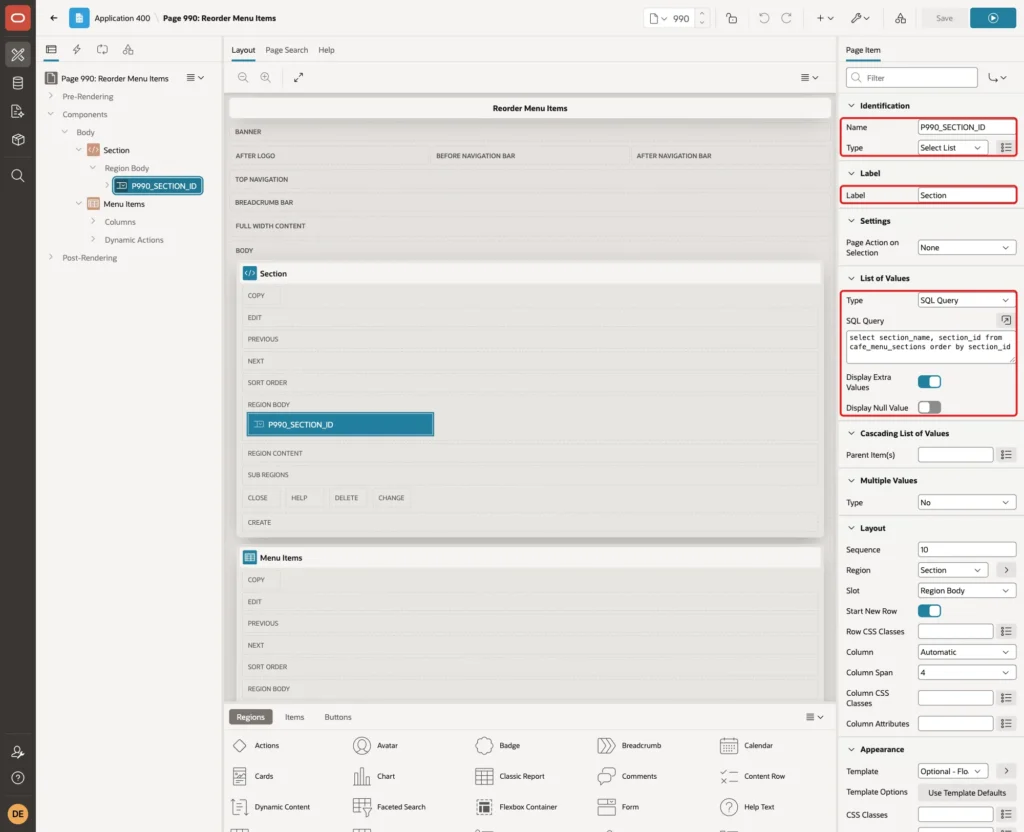
Right-click the Section region and choose Create Page Item. Set Name to P990_SECTION_ID, Type to Select List and Label to Section. Under List of Values, set Type to SQL Query and enter this query:
Example:
select section_name, section_id
from cafe_menu_sections
order by section_id
Turn Display Null Value off, so a section is always selected:
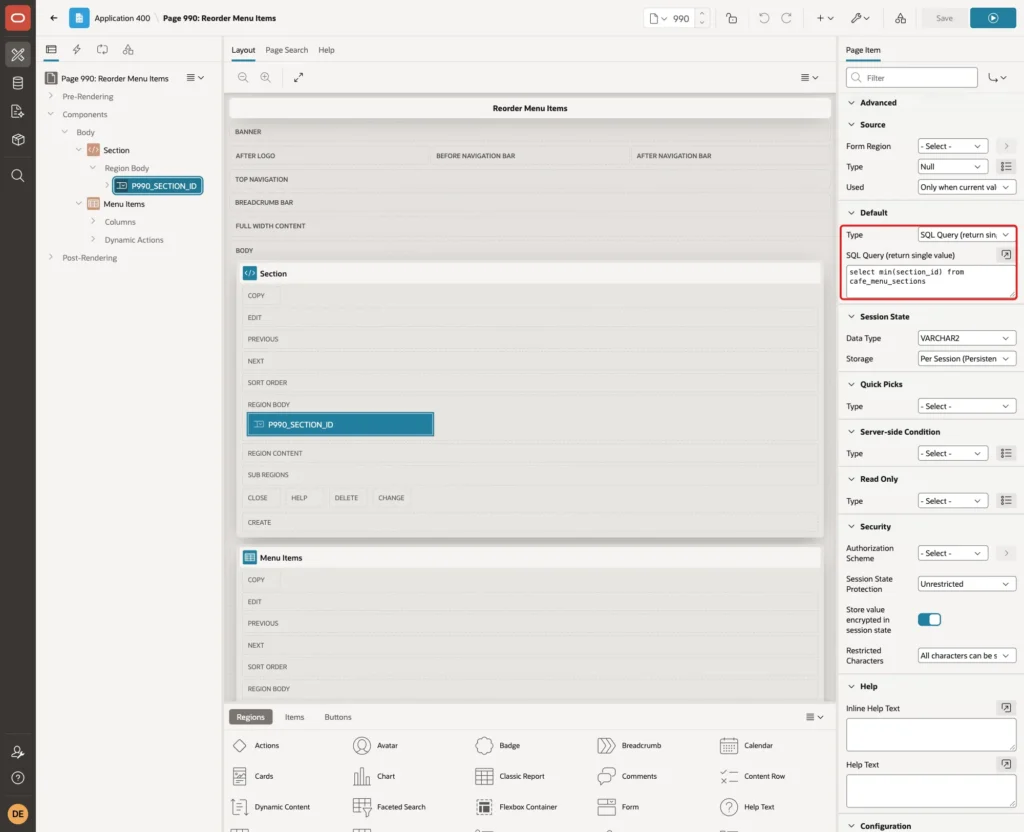
The report reads the item from session state, so give it a value from the first page load. Under Default, set Type to SQL Query (return single value) and enter select min(section_id) from cafe_menu_sections:
Step 5: Add the Menu Items Report
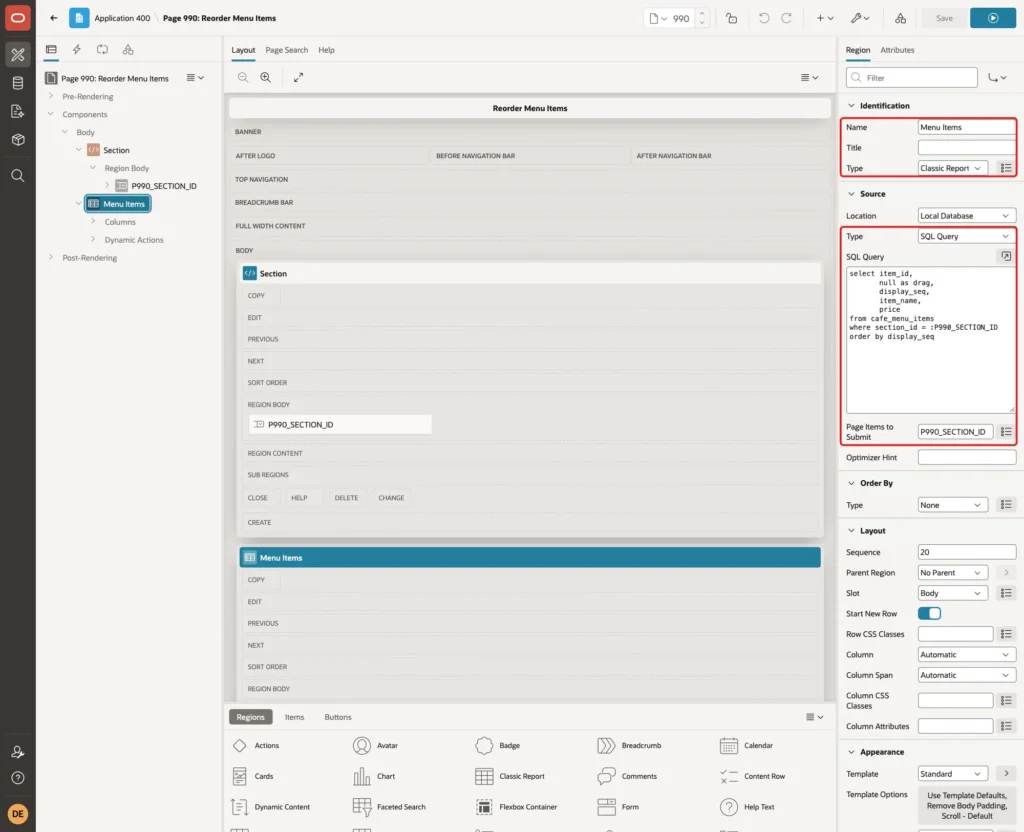
Right-click Body and choose Create Region. Set Name to Menu Items and Type to Classic Report. Under Source, set Type to SQL Query and enter this query:
Example:
select item_id,
       null as drag,
       display_seq,
       item_name,
       price
from cafe_menu_items
where section_id = :P990_SECTION_ID
order by display_seq
The DRAG column is always null. It only gives the report a column for the drag handle. Set Page Items to Submit to P990_SECTION_ID, so a refresh reads the selected section:
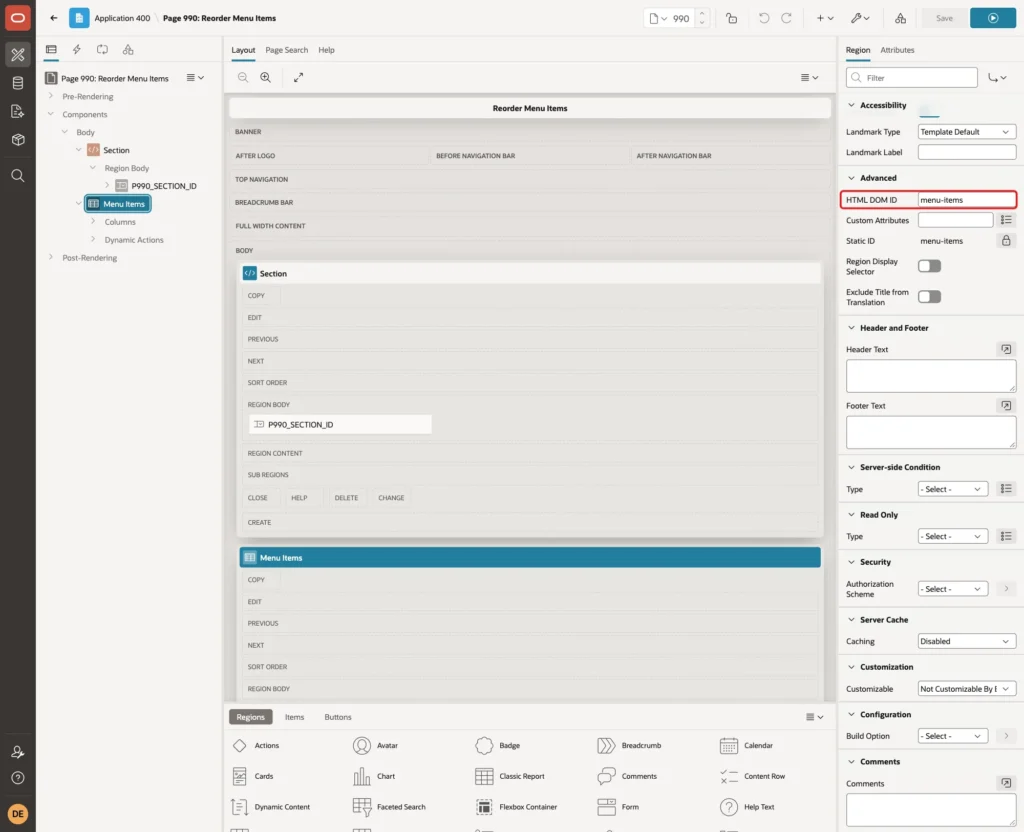
The JavaScript finds the report by its HTML ID. Under Advanced, set HTML DOM ID to menu-items:
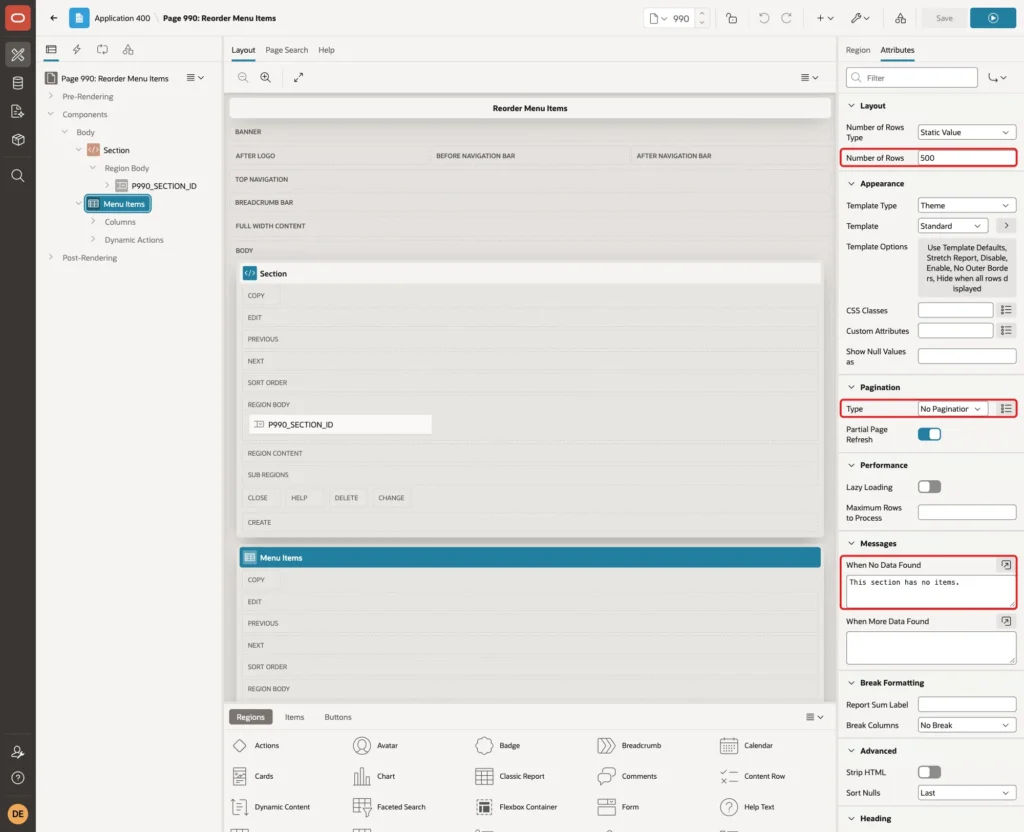
Drag and drop can only move rows that are on the screen, and the server accepts only a complete list. On the Attributes tab, set Number of Rows to 500 and Pagination Type to No Pagination (Show All Rows). Set When No Data Found to This section has no items.:
Step 6: Set Up the Report Columns
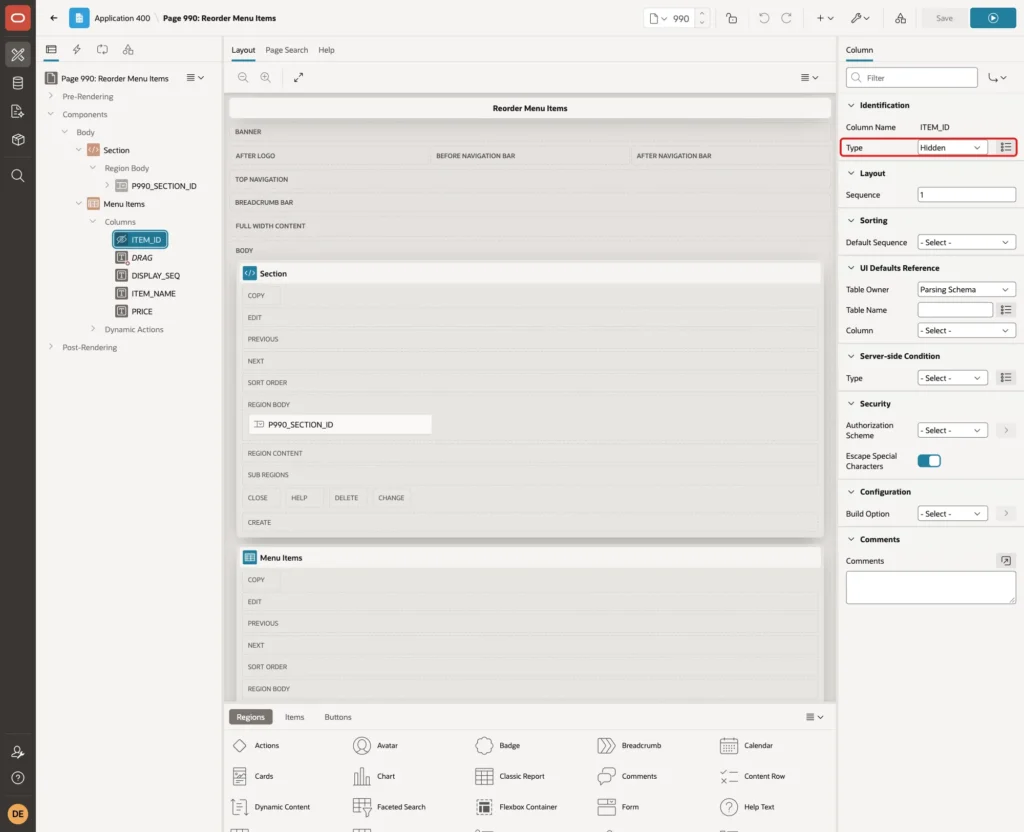
Expand Columns under Menu Items. Set ITEM_ID to Type Hidden. Its value is still available as #ITEM_ID# in the other columns:
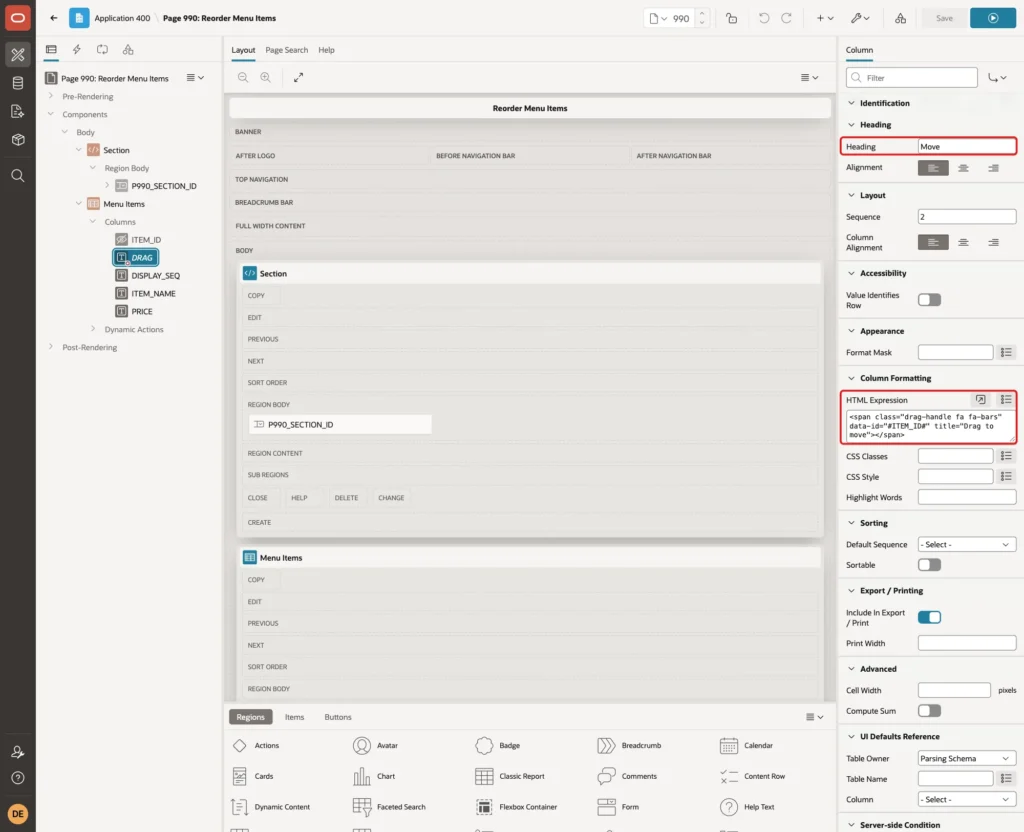
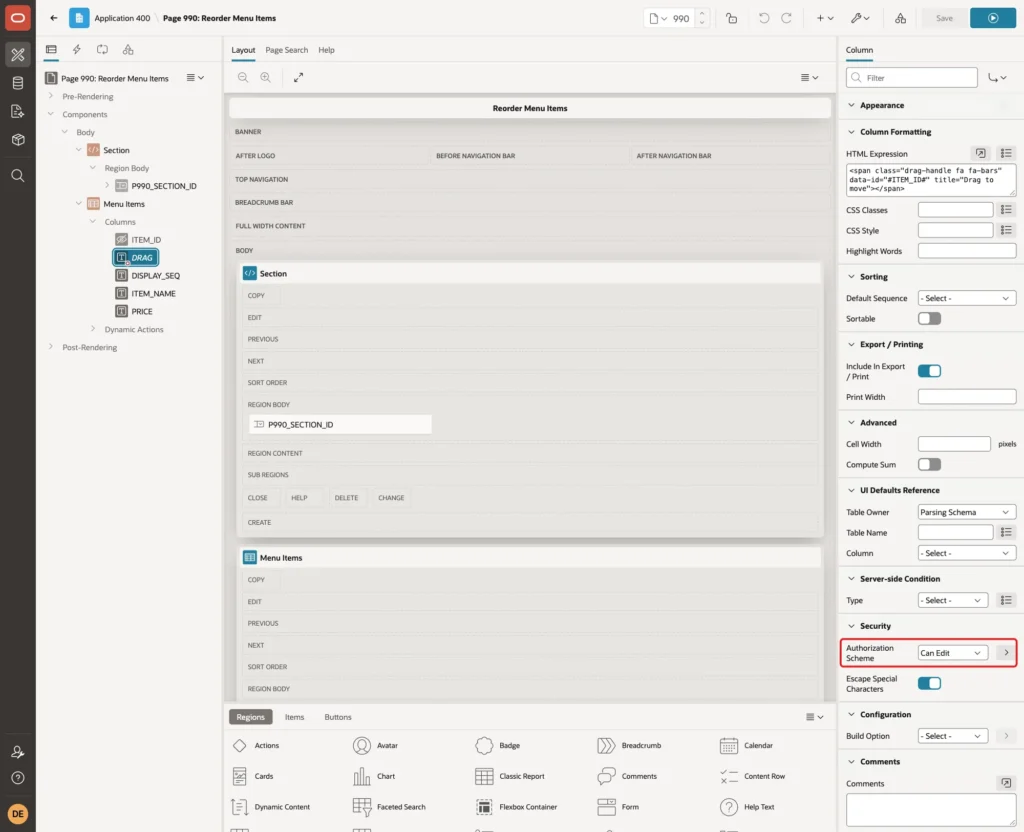
Select the DRAG column. Set Heading to Move and enter this HTML Expression:
Example:
<span class="drag-handle fa fa-bars" data-id="#ITEM_ID#" title="Drag to move"></span>
Only editors may change the order. Under Security, set Authorization Scheme to Can Edit. Users without that role do not get the Move column, so they have nothing to drag:
Set the headings of the other columns to Seq, Item and Price, and the Format Mask of PRICE to FM990D00. Keep Sortable off on all columns, so the report always shows the saved order.
Step 7: Add the JavaScript and CSS
Click the page name, Page 990: Reorder Menu Items, at the top of the Rendering tree. Under JavaScript, enter this code in Function and Global Variable Declaration:
Example:
function initMenuSort() {
    $("#menu-items .t-Report-report > tbody").sortable({
        items: "> tr:has(.drag-handle)",
        handle: ".drag-handle",
        axis: "y",
        placeholder: "sort-placeholder",
        helper: function (event, row) {
            var widths = row.children().map(function () {
                return $(this).outerWidth();
            }).get();
            var clone = row.clone().outerWidth(row.outerWidth());
            clone.children().each(function (i) {
                $(this).css({ boxSizing: "border-box", width: widths[i] });
            });
            return clone;
        },
        update: function () {
            saveMenuOrder(this);
        }
    });
}

function saveMenuOrder(list) {
    var ids = $(list).find(".drag-handle").map(function () {
        return Number(this.dataset.id);
    }).get();

    apex.server.process("SAVE_ITEM_ORDER", {
        x01: $v("P990_SECTION_ID"),
        x02: JSON.stringify(ids)
    }, {
        loadingIndicator: "#menu-items"
    }).then(function (data) {
        if (data.success) {
            apex.message.showPageSuccess("The new order is saved.");
        } else {
            apex.message.showErrors([{
                type: "error",
                location: "page",
                message: data.message,
                unsafe: false
            }]);
        }
    }).always(function () {
        apex.region("menu-items").refresh();
    });
}
initMenuSort turns the rows of the report into a sortable list:
- The selector #menu-items .t-Report-report > tbody picks only the body of the report table. In this example the region has a second, outer tbody around the report, so #menu-items tbody alone also matched the outer one.
- items limits dragging to rows that have a handle, and handle makes the icon the only place to grab a row.
- helper copies the width of every cell. Without it, the dragged row lost its column widths and shrank to a narrow strip.
- update runs once after a drop that changed the order.
saveMenuOrder reads the item IDs in their new order from the data-id attributes. It sends them as a JSON array in x02, with the section in x01. When the call ends, the report is always refreshed, so the screen shows what the database now holds.
Under CSS, enter these rules in Inline. They make the Move column narrow and style the handle, the empty slot and the dragged row:
Example:
#menu-items th#DRAG { width: 70px; }
.drag-handle { cursor: move; padding: 4px 8px; color: #6b6b6b; }
.sort-placeholder td { background-color: #fff6d5; height: 40px; }
.ui-sortable-helper { background-color: #ffffff; box-shadow: 0 4px 12px rgba(0, 0, 0, .2); }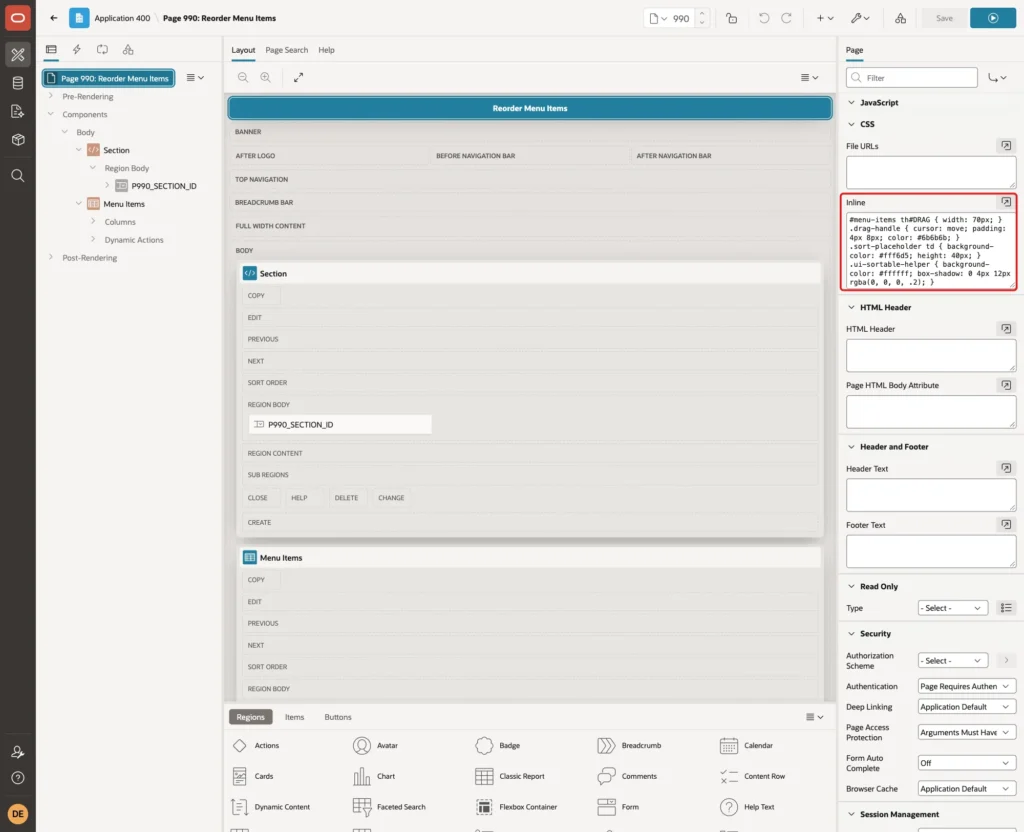
Step 8: Add the Ajax Callback Process
Click the Processing tab in the left pane. Right-click Ajax Callback and choose Create Process. Set Name to SAVE_ITEM_ORDER and Type to Execute Code, and enter this PL/SQL Code:
Example:
declare
    l_section_id cafe_menu_sections.section_id%type;
    l_locked     apex_t_number;
    l_sent       pls_integer;
    l_distinct   pls_integer;
    l_matched    pls_integer;
begin
    l_section_id := to_number(apex_application.g_x01 default null on conversion error);

    select item_id
    bulk collect into l_locked
    from cafe_menu_items
    where section_id = l_section_id
    for update;

    select count(*), count(distinct j.item_id), count(i.item_id)
    into l_sent, l_distinct, l_matched
    from json_table(apex_application.g_x02, '$[*]'
           columns (item_id number path '$')) j
    left join cafe_menu_items i
      on i.item_id = j.item_id
     and i.section_id = l_section_id;

    apex_json.open_object;
    if l_sent = 0
       or l_sent <> l_distinct
       or l_sent <> l_matched
       or l_sent <> l_locked.count
    then
        apex_json.write('success', false);
        apex_json.write('message', 'The list has changed since you opened it. Please try again.');
    else
        merge into cafe_menu_items i
        using (
            select j.item_id, j.pos
            from json_table(apex_application.g_x02, '$[*]'
                   columns (pos for ordinality, item_id number path '$')) j
        ) s
        on (i.item_id = s.item_id and i.section_id = l_section_id)
        when matched then update set i.display_seq = s.pos;

        apex_json.write('success', true);
    end if;
    apex_json.close_object;
end;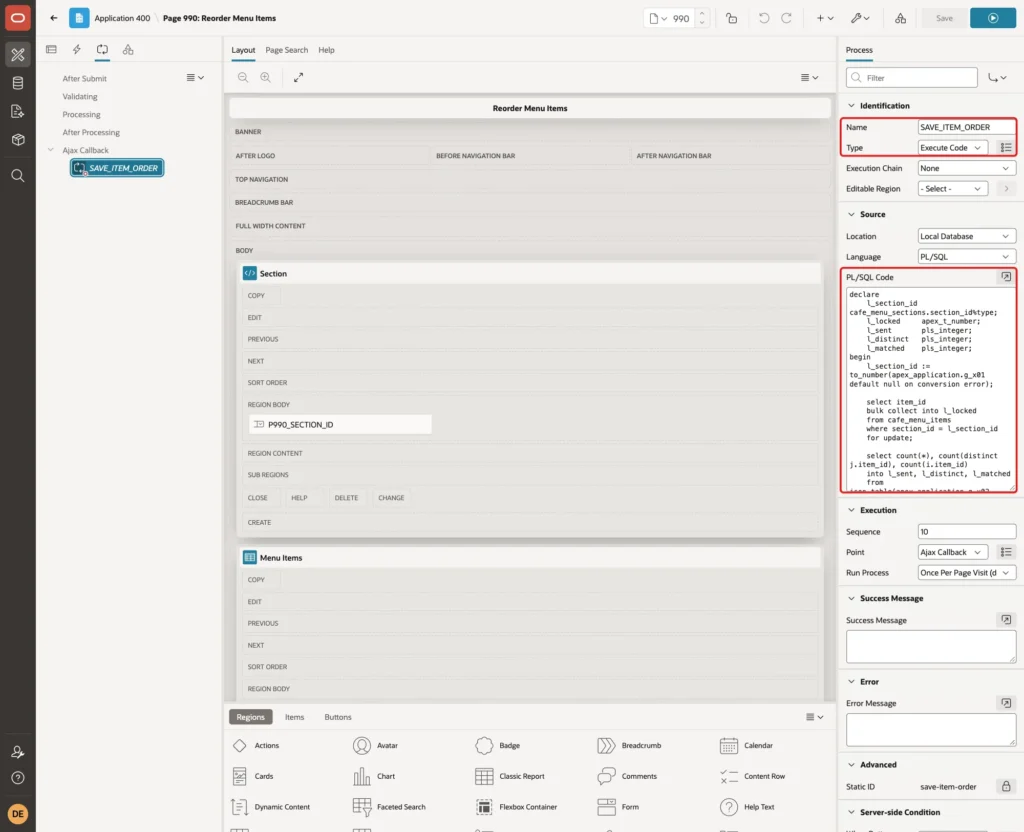
The browser can send anything, so the process trusts nothing:
- A section ID that is not a number becomes null, and then no rows match.
- SELECT ... FOR UPDATE locks the items of the section while the check and the MERGE run.
- The count check refuses a list that is empty, has an ID twice, has an ID from another section, or misses an item. It also refuses a list made before another user added or removed an item.
- The MERGE sets all positions in one statement, as tested in Step 2.
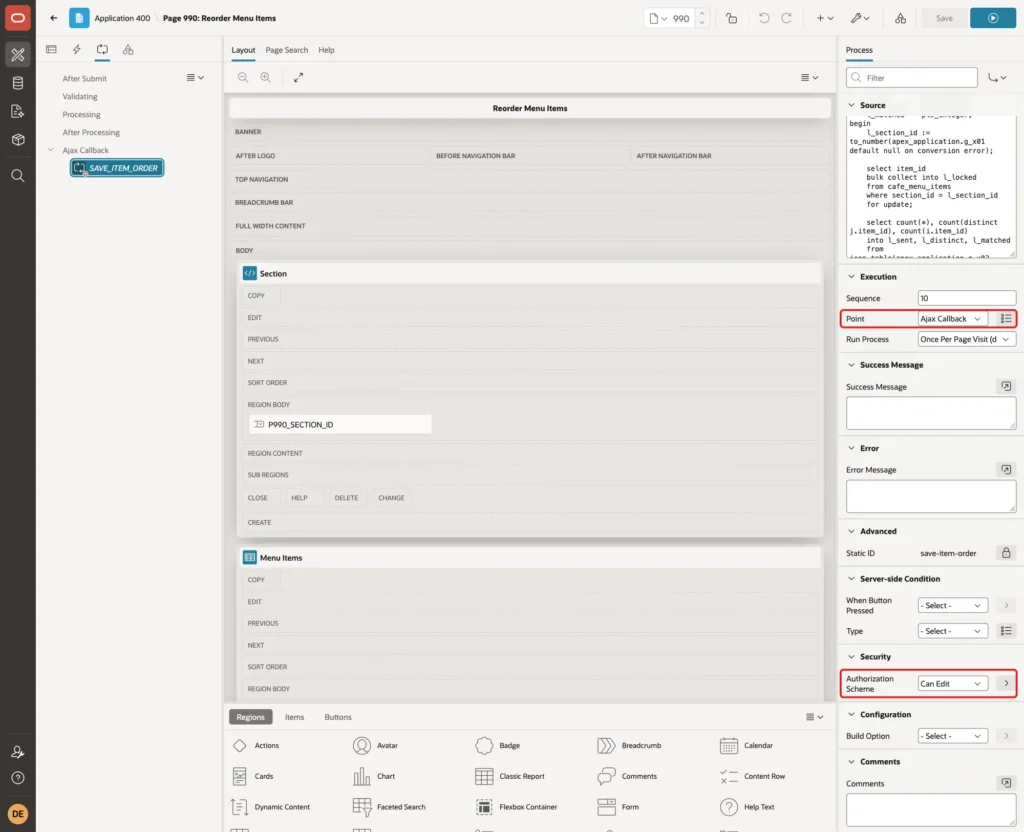
The answer is a small JSON object with success true or false and a message. Under Execution, Point is Ajax Callback. Under Security, set Authorization Scheme to Can Edit, so the server also refuses readers:
Step 9: Add the Dynamic Actions
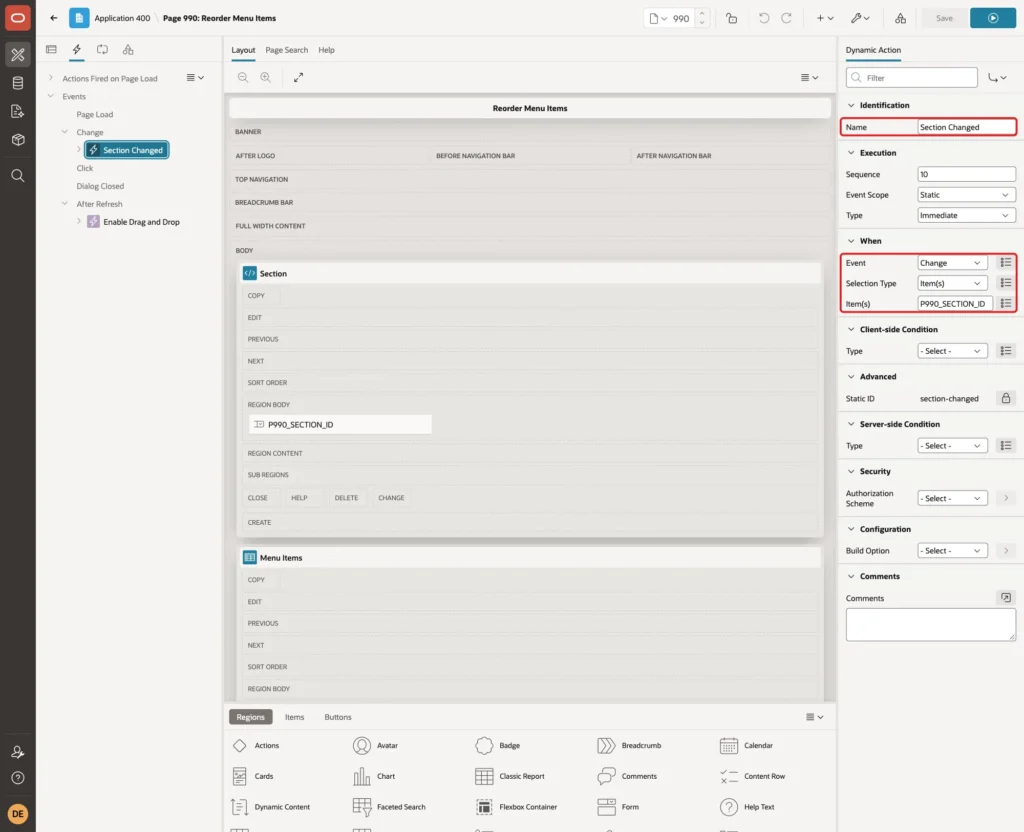
The first dynamic action reloads the report when the user picks another section. Click the Dynamic Actions tab, right-click Events and choose Create Dynamic Action. Set Name to Section Changed, Event to Change, Selection Type to Item(s) and Item(s) to P990_SECTION_ID:
Select its True action and set Action to Refresh, Selection Type to Region and Region to Menu Items:

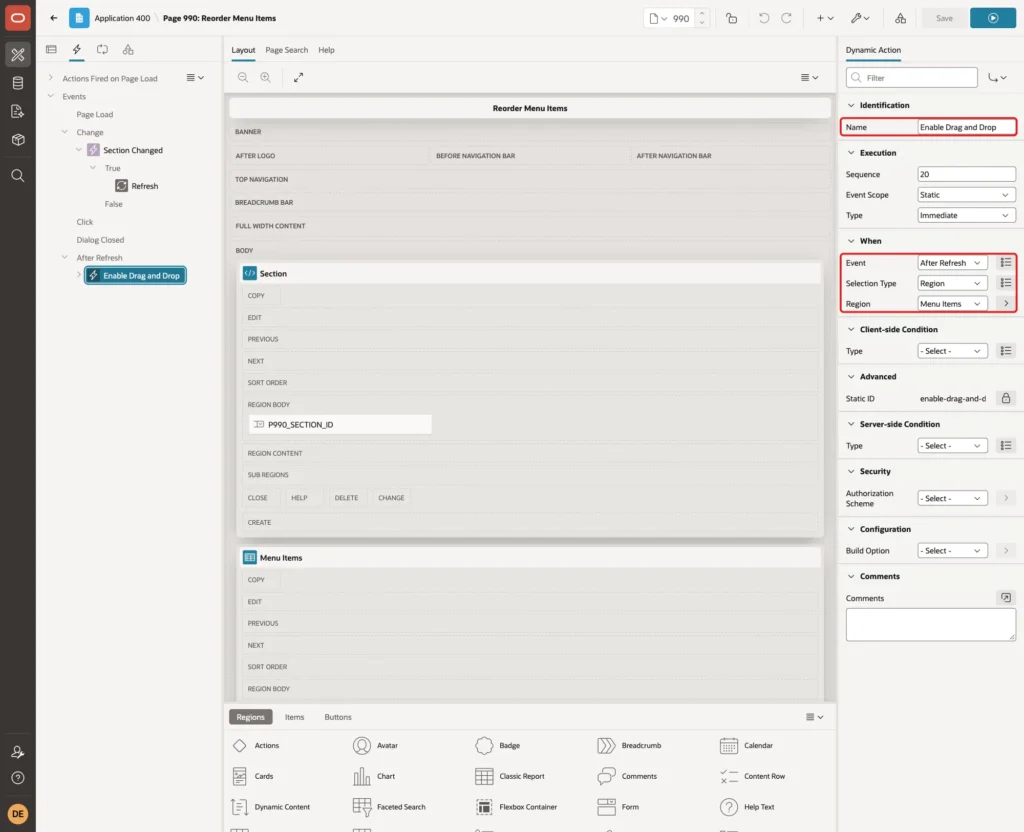
A refresh replaces the report table with new HTML. In a test, the old tbody was no longer in the page after the refresh, so its drag and drop was gone too. The second dynamic action starts drag and drop again after every refresh.
Right-click Events, choose Create Dynamic Action, and set Name to Enable Drag and Drop, Event to After Refresh, Selection Type to Region and Region to Menu Items:
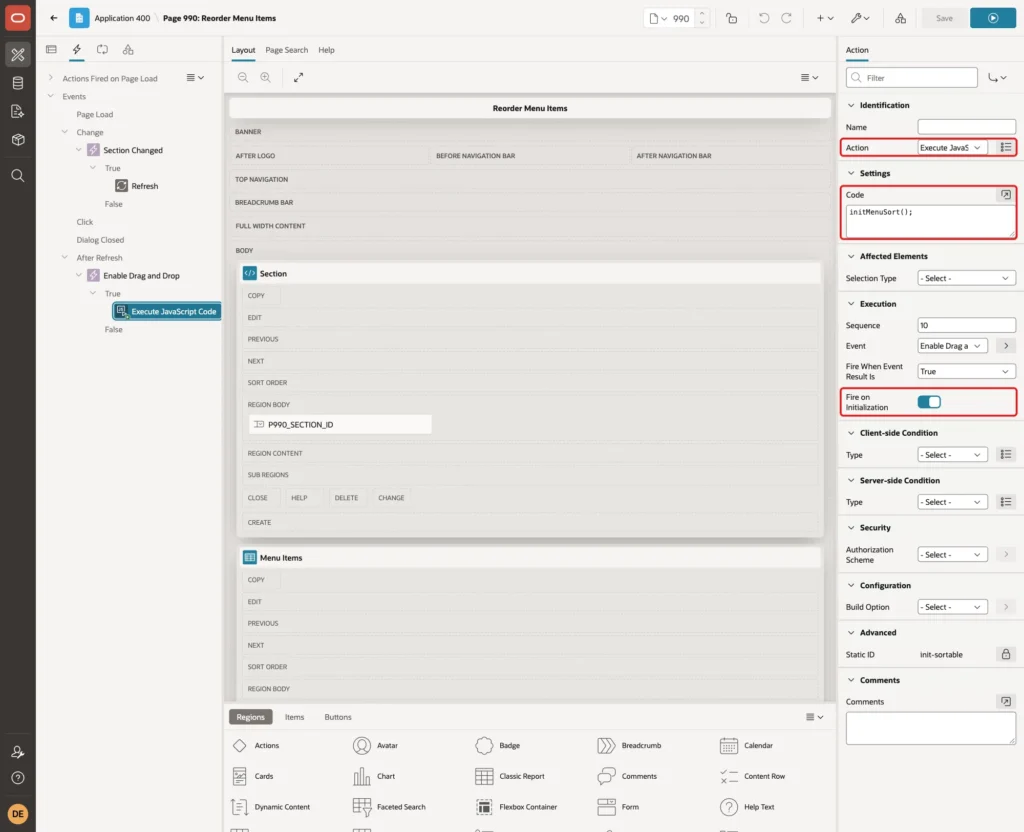
Select its True action and set Action to Execute JavaScript Code with the code initMenuSort();. Turn Fire on Initialization on, so the same action also runs when the page first loads:
Click Save.
Step 10: Test the Page
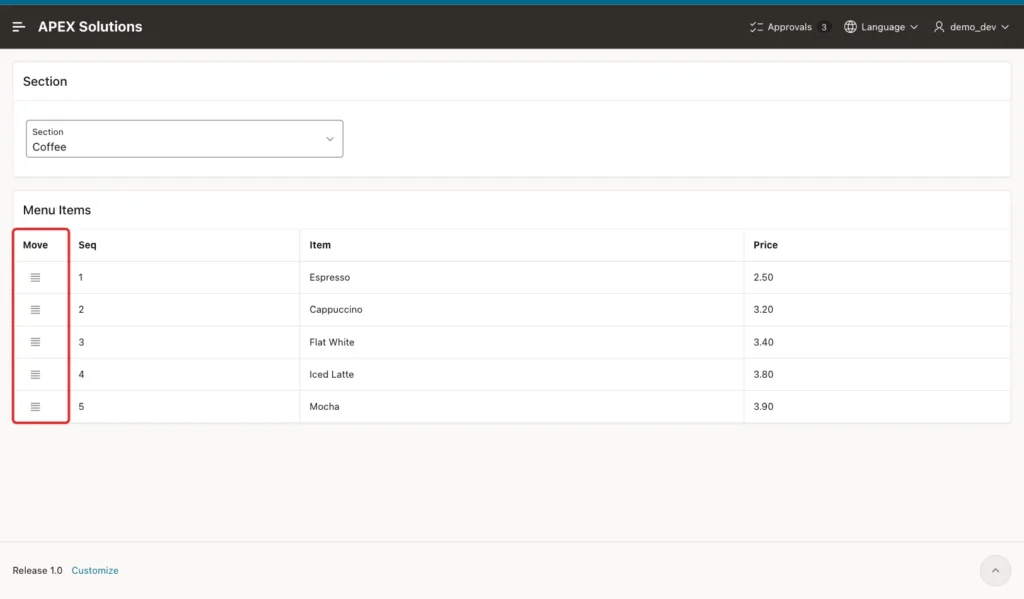
Run the page as an editor. The Coffee section shows its five items in the saved order, each with a handle in the Move column:
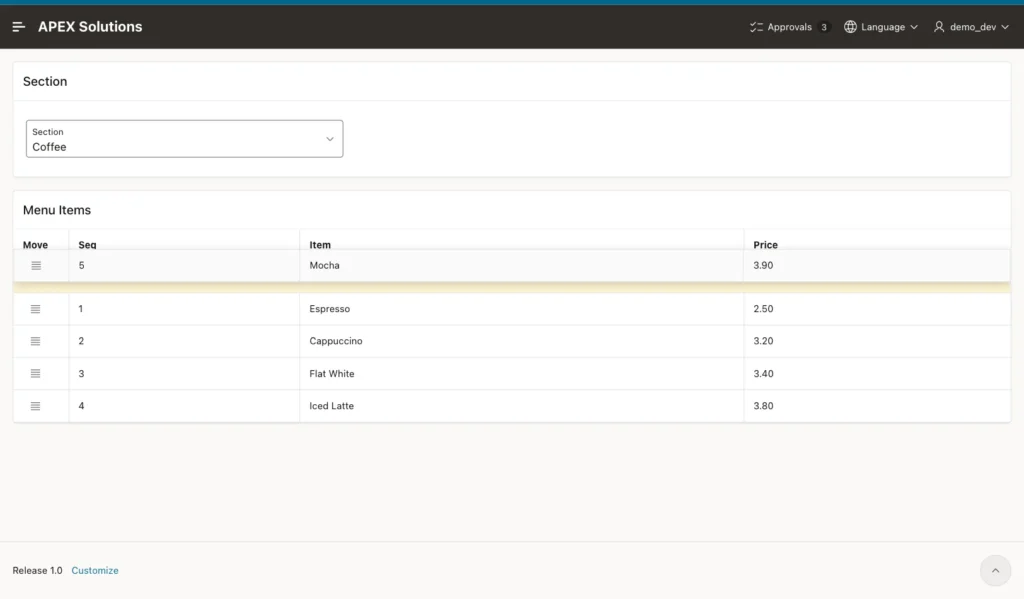
Grab the handle of Mocha and drag it above Espresso. A yellow slot shows where the row will land:
Drop the row. The page saves the new order, shows a success message and reloads the report. Mocha now has Seq 1 and the other items moved down by one:
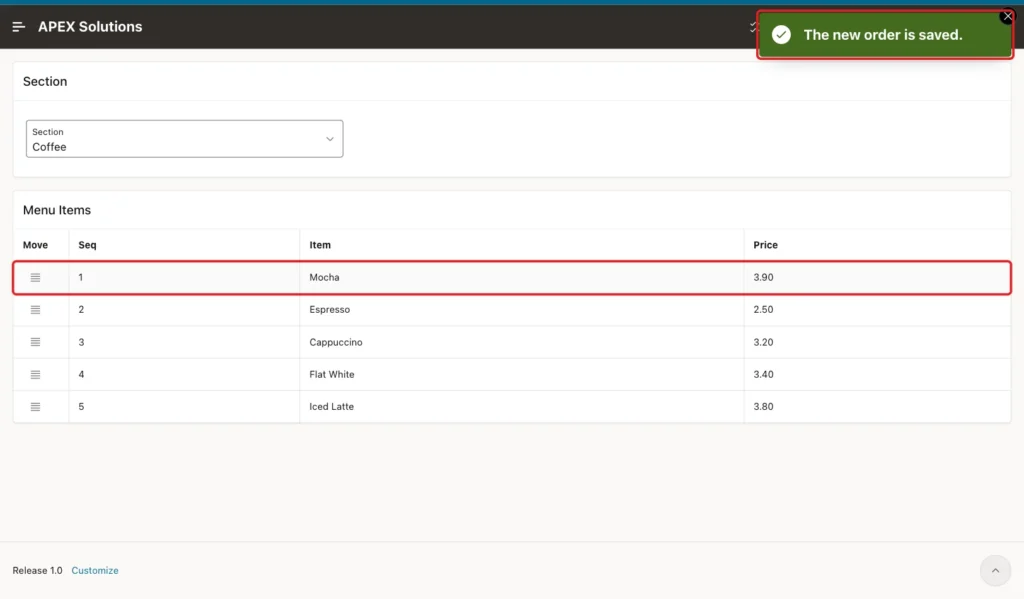
Reloading the page showed the same order, and so did a second drag in the Breakfast section after switching the select list. Both checks confirm that drag and drop works again after each refresh.
Next, test a list that changed after the page was opened. Keep the page open and add an item to the Coffee section from another session:
Example:
insert into cafe_menu_items (section_id, item_name, price, display_seq)
select section_id, 'Affogato', 4.20, 6
from cafe_menu_sections
where section_name = 'Coffee';

commit;
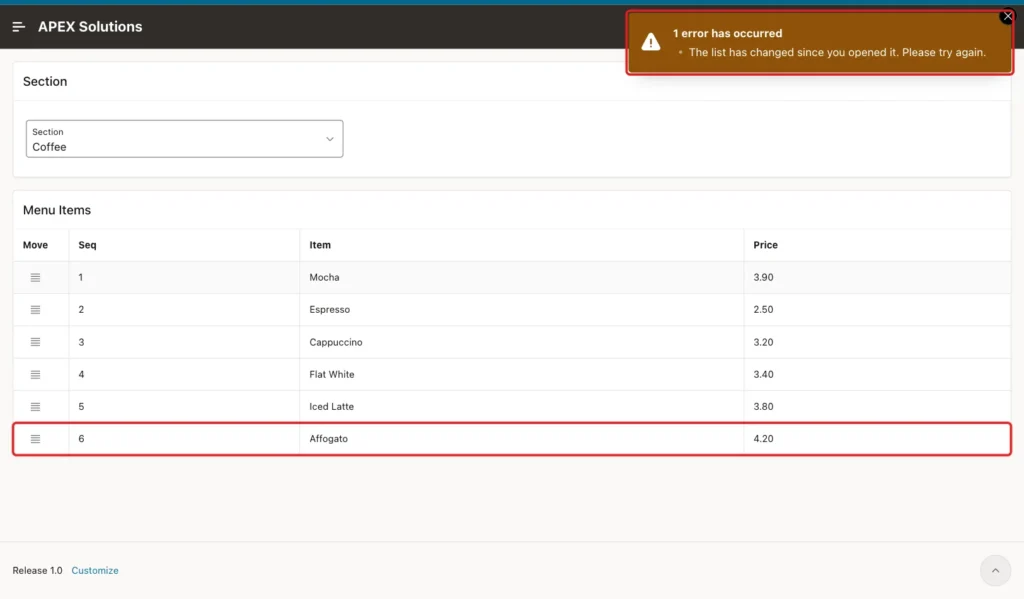
Now drag Flat White on the open page. The browser still knows only five items, so the process refuses the list. The page shows the error and reloads the report, which now includes Affogato:
Check the table. The refused drag changed nothing, and the order of the first save is still there:
Example:
select s.section_name, i.display_seq, i.item_name
from cafe_menu_items i
join cafe_menu_sections s on s.section_id = i.section_id
where s.section_name = 'Coffee'
order by i.display_seq;
Output:
SECTION_NAME       DISPLAY_SEQ ITEM_NAME
_______________ ______________ _____________
Coffee                       1 Mocha
Coffee                       2 Espresso
Coffee                       3 Cappuccino
Coffee                       4 Flat White
Coffee                       5 Iced Latte
Coffee                       6 Affogato

6 rows selected.
A user could also call the process from the browser console with a list of their own. This call sends the Coffee items in a new order plus item 9, which is Cheesecake from the Desserts section:
Example:
apex.server.process("SAVE_ITEM_ORDER", {
    x01: "1",
    x02: "[3, 1, 2, 4, 5, 9]"
}).then(function (data) {
    console.log(JSON.stringify(data));
});
Output:
{"success":false,"message":"The list has changed since you opened it. Please try again."}The process refused it. Other forged lists gave the same answer in testing: an ID sent twice, a missing ID, a section ID of x, the wrong section, and text that is not JSON.
Finally, run the page as a user without the Can Edit role. The report has no Move column, so there is nothing to drag:
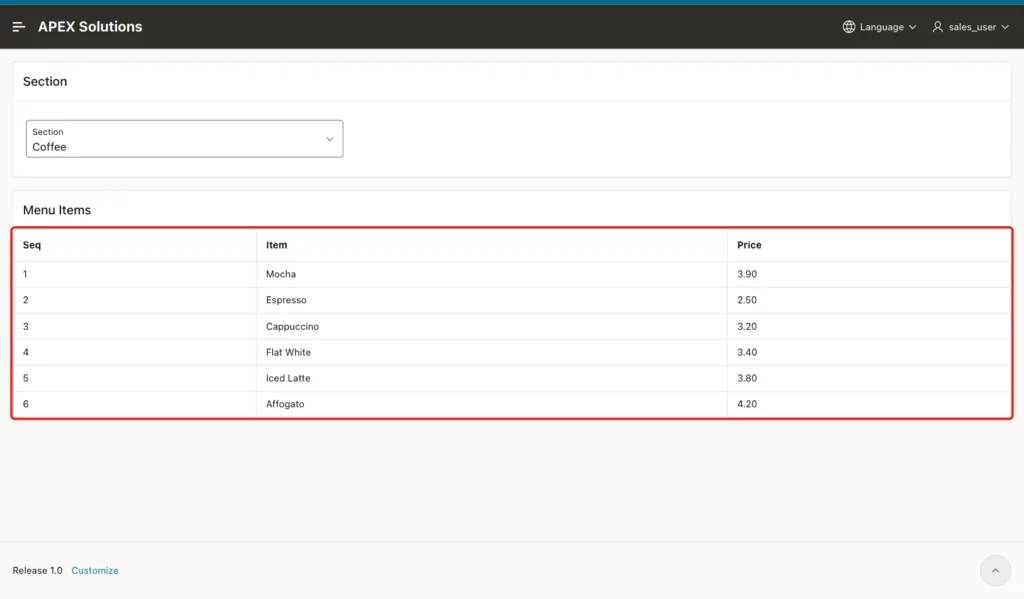
The same console call from this reader did not reach the save code. APEX skipped the process because of its authorization scheme and returned an empty response, so the call failed with a JSON parse error. The order in the table did not change.
Things to Know
- jQuery UI is bundled with APEX. On this APEX 26.1 page, $.ui.version returned 1.14.1 and $.fn.sortable was available without loading any file.
- Save all positions in one statement. Row-by-row updates of a column with a unique key failed with ORA-00001.
- Always check the list on the server. The page sends plain item IDs, and any user can change them in the browser.
- Put the authorization on the Ajax Callback, not only on the handle column. Hiding the column stops the drag, but only the process authorization stops a direct call.
- A region refresh replaces the report HTML and its drag and drop. Start it again in an After Refresh dynamic action.
- Pressing Escape during a drag did not cancel it in this example. The row was dropped and saved when the mouse button was released.
- The handle is a span that cannot get keyboard focus, so reordering here needs a mouse. Give keyboard users another way, such as a form where they can edit the Seq value.
Related Guides
- How to Build a Kanban Board for Order Status in Oracle APEX
- Oracle APEX Classic Report: A Complete Tutorial
Conclusion
Drag and drop reordering in Oracle APEX needs only a classic report, a handle column and the jQuery UI Sortable widget that APEX already loads. An After Refresh dynamic action keeps it working when the report reloads, and one Ajax Callback stores the new positions.
The server side is what makes it reliable. A single MERGE avoids unique key errors, the row lock and count check refuse outdated or forged lists, and the authorization scheme keeps readers out. Users get a fast way to arrange their lists, and the table always holds a clean sequence.
See my articles more often when you search Google.
