
A Kanban board shows work as cards in columns, one column per status. Users see at a glance how many orders are new, approved, shipped or cancelled, and they change a status by dragging a card to another column instead of opening a form.
Oracle APEX has no Kanban region, but it has every piece you need. This guide builds the columns from a status table with a Dynamic Content region, adds drag and drop with the SortableJS library, and saves each move through an Ajax Callback process that checks the allowed status changes on the server.
Step 1: Create the Tables
The board shows rows of the ORDERS table, with the customer name and the order total from CUSTOMERS and ORDER_LINES. If you start from scratch, create these tables with a few sample rows:
Example:
create table customers (
    customer_id number generated by default as identity
                constraint customers_pk primary key,
    name        varchar2(100) not null,
    email       varchar2(120) not null
);

create table products (
    product_id number generated by default as identity
               constraint products_pk primary key,
    name       varchar2(60)  not null,
    category   varchar2(30)  not null,
    price      number(10, 2) not null
);

create table orders (
    order_id    number generated by default as identity
                constraint orders_pk primary key,
    customer_id number not null
                constraint orders_customer_fk references customers,
    order_date  date default sysdate not null,
    status      varchar2(12) default 'NEW' not null
                constraint orders_status_ck
                check (status in ('NEW', 'APPROVED', 'SHIPPED', 'CANCELLED')),
    approved_by varchar2(60),
    approved_on date
);

create index orders_customer_ix on orders (customer_id);

create table order_lines (
    line_id    number generated by default as identity
               constraint order_lines_pk primary key,
    order_id   number not null
               constraint order_lines_order_fk references orders on delete cascade,
    product_id number not null
               constraint order_lines_product_fk references products,
    quantity   number not null
               constraint order_lines_qty_ck check (quantity > 0),
    unit_price number(10, 2) not null,
    constraint order_lines_product_uk unique (order_id, product_id)
);

create index order_lines_product_ix on order_lines (product_id);

insert into customers (name, email) values ('Customer 1', 'customer1@example.com');
insert into customers (name, email) values ('Customer 2', 'customer2@example.com');
insert into customers (name, email) values ('Customer 3', 'customer3@example.com');

insert into products (name, category, price) values ('Laptop Pro 14', 'Computers', 1450);
insert into products (name, category, price) values ('Monitor 27', 'Displays', 320);
insert into products (name, category, price) values ('Keyboard', 'Accessories', 45);

insert into orders (customer_id, order_date, status) values (1, trunc(sysdate) - 2, 'NEW');
insert into orders (customer_id, order_date, status) values (2, trunc(sysdate) - 5, 'NEW');
insert into orders (customer_id, order_date, status) values (3, trunc(sysdate) - 8, 'APPROVED');
insert into orders (customer_id, order_date, status) values (1, trunc(sysdate) - 12, 'SHIPPED');
insert into orders (customer_id, order_date, status) values (2, trunc(sysdate) - 15, 'CANCELLED');

insert into order_lines (order_id, product_id, quantity, unit_price) values (1, 1, 1, 1450);
insert into order_lines (order_id, product_id, quantity, unit_price) values (1, 3, 2, 45);
insert into order_lines (order_id, product_id, quantity, unit_price) values (2, 2, 2, 320);
insert into order_lines (order_id, product_id, quantity, unit_price) values (3, 1, 1, 1450);
insert into order_lines (order_id, product_id, quantity, unit_price) values (4, 2, 1, 320);
insert into order_lines (order_id, product_id, quantity, unit_price) values (5, 3, 4, 45);
commit;
Now create two tables for the board. ORDER_STATUSES holds the columns of the board in display order. ORDER_STATUS_MOVES lists every status change that is allowed. A foreign key then ties ORDERS.STATUS to the status table:
Example:
create table order_statuses (
    status_code varchar2(12) constraint order_statuses_pk primary key,
    status_name varchar2(30) not null,
    display_seq number(3)    not null
                constraint order_statuses_seq_uk unique
);

create table order_status_moves (
    from_status varchar2(12) not null
                constraint order_status_moves_from_fk references order_statuses,
    to_status   varchar2(12) not null
                constraint order_status_moves_to_fk references order_statuses,
    constraint order_status_moves_pk primary key (from_status, to_status),
    constraint order_status_moves_ck check (from_status <> to_status)
);

create index order_status_moves_to_ix on order_status_moves (to_status);

insert into order_statuses values ('NEW', 'New', 10);
insert into order_statuses values ('APPROVED', 'Approved', 20);
insert into order_statuses values ('SHIPPED', 'Shipped', 30);
insert into order_statuses values ('CANCELLED', 'Cancelled', 40);

insert into order_status_moves values ('NEW', 'APPROVED');
insert into order_status_moves values ('NEW', 'CANCELLED');
insert into order_status_moves values ('APPROVED', 'NEW');
insert into order_status_moves values ('APPROVED', 'SHIPPED');
insert into order_status_moves values ('APPROVED', 'CANCELLED');
insert into order_status_moves values ('CANCELLED', 'NEW');
commit;

alter table orders add constraint orders_status_fk
    foreign key (status) references order_statuses;

create index orders_status_ix on orders (status);

select m.from_status, m.to_status
from   order_status_moves m
join   order_statuses f on f.status_code = m.from_status
join   order_statuses t on t.status_code = m.to_status
order by f.display_seq, t.display_seq;
Output:
Table ORDER_STATUSES created.

Table ORDER_STATUS_MOVES created.

Index ORDER_STATUS_MOVES_TO_IX created.

1 row inserted.

1 row inserted.

1 row inserted.

1 row inserted.

1 row inserted.

1 row inserted.

1 row inserted.

1 row inserted.

1 row inserted.

1 row inserted.

Commit complete.

Table ORDERS altered.

Index ORDERS_STATUS_IX created.

FROM_STATUS    TO_STATUS
______________ ____________
NEW            APPROVED
NEW            CANCELLED
APPROVED       NEW
APPROVED       SHIPPED
APPROVED       CANCELLED
CANCELLED      NEW

6 rows selected.
- The board reads its columns from ORDER_STATUSES. A new status row adds a new column without changing the page.
- The rules live in ORDER_STATUS_MOVES as data. SHIPPED has no row as a from_status, so a shipped order can never move. CANCELLED can only go back to NEW.
- ORDER_STATUS_MOVES_CK stops a move from a status to itself. The primary key stops duplicate rules.
- ORDERS_STATUS_FK makes sure ORDERS.STATUS always has a row in ORDER_STATUSES. The indexes cover the foreign keys on TO_STATUS and STATUS.
Step 2: Create a Blank Page
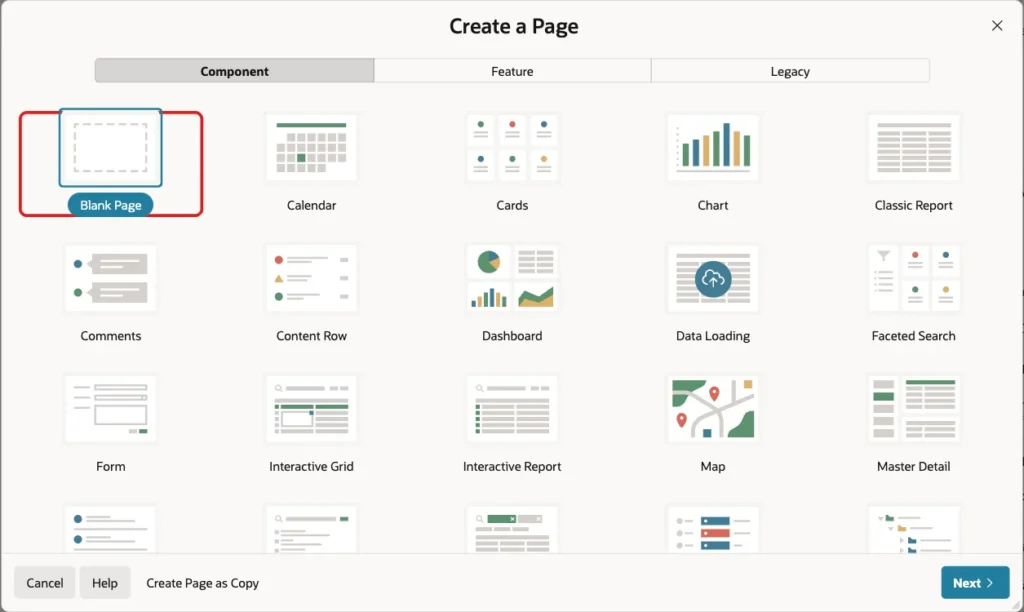
In App Builder, open the application and click Create Page. On the Component tab, click Blank Page:
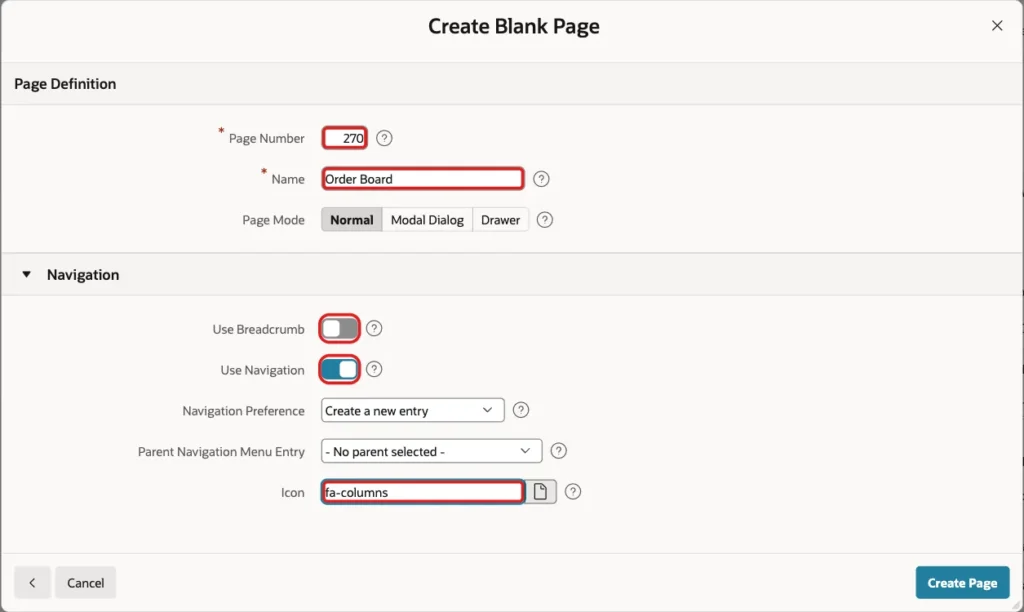
Enter Page Number 270 and Name Order Board. In the Navigation section, turn off Use Breadcrumb, keep Use Navigation on, and set Icon to fa-columns. Click Create Page:
Step 3: Add the Board Region
In Page Designer, right-click Body and choose Create Region. Set Name to Order Board and Type to Dynamic Content. A Dynamic Content region shows the HTML that a PL/SQL function returns.
Enter this code in PL/SQL Function Body returning a CLOB:
Example:
declare
    l_html clob;
begin
    for s in (select status_code, status_name
              from   order_statuses
              order by display_seq)
    loop
        l_html := l_html
            || '<div class="kb-column" data-status="' || apex_escape.html_attribute(s.status_code) || '">'
            || '<h3 class="kb-title">' || apex_escape.html(s.status_name)
            || ' <span class="kb-count"></span></h3>'
            || '<ul class="kb-list">';

        for o in (select o.order_id,
                         c.name as customer,
                         o.order_date,
                         (select sum(l.quantity * l.unit_price)
                          from   order_lines l
                          where  l.order_id = o.order_id) as total
                  from   orders o
                  join   customers c on c.customer_id = o.customer_id
                  where  o.status = s.status_code
                  and    o.order_date >= trunc(sysdate) - 30
                  order by o.order_date desc, o.order_id desc)
        loop
            l_html := l_html
                || '<li class="kb-card" data-id="' || o.order_id || '">'
                || '<strong>Order ' || o.order_id || '</strong>'
                || '<span>' || apex_escape.html(o.customer) || '</span>'
                || '<span class="kb-meta">' || to_char(o.order_date, 'DD-MON-YYYY')
                || ' | ' || to_char(nvl(o.total, 0), 'FM999G990D00') || '</span>'
                || '</li>';
        end loop;

        l_html := l_html || '</ul></div>';
    end loop;

    return '<div class="kb-board">' || l_html || '</div>';
end;
- The outer loop writes one column per status, in DISPLAY_SEQ order. Each column keeps its status code in a data-status attribute.
- The inner loop writes one card per order, with the order ID in data-id. The JavaScript in the next steps reads both attributes.
- APEX_ESCAPE.HTML and APEX_ESCAPE.HTML_ATTRIBUTE escape the text values, so a customer name with HTML in it is shown as text.
- The board shows the orders of the last 30 days. Without a filter, the columns of a busy system grow without limit.
Step 4: Load SortableJS and Add the Page Functions
SortableJS is a small open-source library for drag and drop between lists. Click the page name, Page 270: Order Board, at the top of the Rendering tree. In the JavaScript group, enter this in File URLs:
Example:
https://cdn.jsdelivr.net/npm/sortablejs@1.15.6/Sortable.min.js
Enter these functions in Function and Global Variable Declaration:
Example:
function updateCounts() {
    document.querySelectorAll(".kb-column").forEach(function (col) {
        col.querySelector(".kb-count").textContent = col.querySelectorAll(".kb-card").length;
    });
}

function moveBack(evt) {
    evt.from.insertBefore(evt.item, evt.from.children[evt.oldIndex] || null);
    updateCounts();
}

function showError(text) {
    apex.message.showErrors([{ type: "error", location: "page", message: text, unsafe: false }]);
}

function saveMove(evt) {
    var card = evt.item,
        toStatus = evt.to.closest(".kb-column").dataset.status;

    apex.message.clearErrors();
    apex.server.process("MOVE_ORDER", {
        x01: card.dataset.id,
        x02: toStatus
    }, {
        success: function (data) {
            if (data.ok) {
                apex.message.showPageSuccess(data.message);
                updateCounts();
            } else {
                moveBack(evt);
                showError(data.message);
            }
        },
        error: function () {
            moveBack(evt);
            showError("The order could not be moved. Reload the page and try again.");
        }
    });
}
Enter this line in Execute when Page Loads:
Example:
updateCounts();
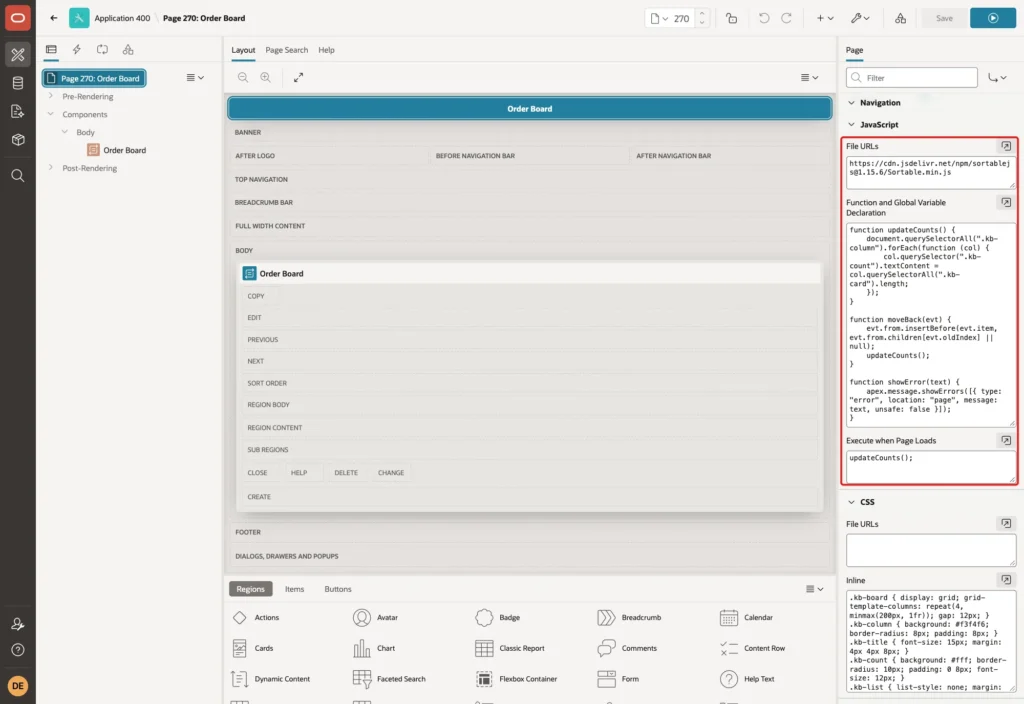
- updateCounts writes the number of cards next to each column title.
- saveMove sends the order ID (x01) and the new status (x02) to the Ajax Callback process MOVE_ORDER of Step 7.
- When the server refuses the move, or the call fails, moveBack puts the card back where it was and showError shows the reason.
- The error callback replaces the default APEX error handling. In a test with only a .fail() handler, APEX also showed its own message, Error: SyntaxError: Unexpected end of JSON input, next to the custom one.
Step 5: Style the Board
In the CSS group of the page, enter this in Inline:
Example:
.kb-board { display: grid; grid-template-columns: repeat(4, minmax(200px, 1fr)); gap: 12px; }
.kb-column { background: #f3f4f6; border-radius: 8px; padding: 8px; }
.kb-title { font-size: 15px; margin: 4px 4px 8px; }
.kb-count { background: #fff; border-radius: 10px; padding: 0 8px; font-size: 12px; }
.kb-list { list-style: none; margin: 0; padding: 0; min-height: 120px; }
.kb-card { background: #fff; border: 1px solid #d6d9de; border-radius: 6px; padding: 8px 10px; margin-bottom: 8px; display: flex; flex-direction: column; gap: 2px; }
.kb-editable .kb-card { cursor: grab; }
.kb-meta { color: #5f6773; font-size: 12px; }
.sortable-ghost { opacity: 0.4; }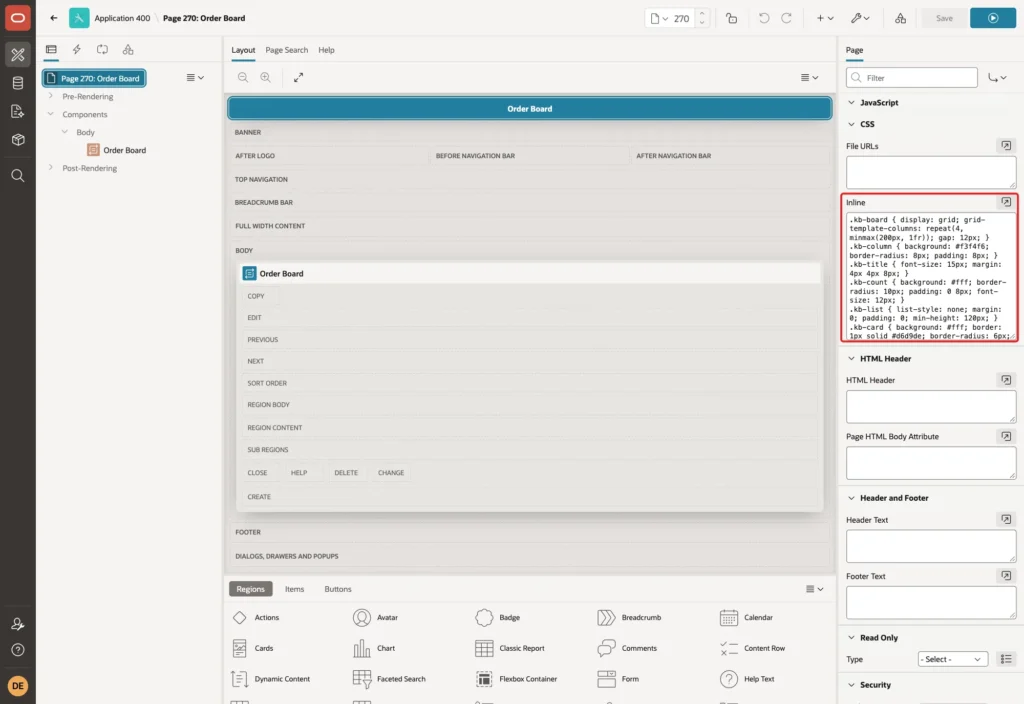
The grab cursor is set only under the kb-editable class. Step 6 adds that class for the users who may move cards.
Step 6: Turn On Drag and Drop for Editors Only
Not every user may change an order status. Instead of checking the role in JavaScript, use a dynamic action with an authorization scheme. APEX then sends the drag and drop code only to the users who pass the scheme.
Open the Dynamic Actions tab, right-click Page Load and choose Create Dynamic Action. Set Name to Enable drag and drop. In the Security group, set Authorization Scheme to Can Edit:

Click the True action under it. Set Action to Execute JavaScript Code and enter this code:
Example:
document.querySelector(".kb-board").classList.add("kb-editable");
document.querySelectorAll(".kb-list").forEach(function (list) {
    new Sortable(list, {
        group: "orders",
        sort: false,
        animation: 150,
        onEnd: function (evt) {
            if (evt.from !== evt.to) {
                saveMove(evt);
            }
        }
    });
});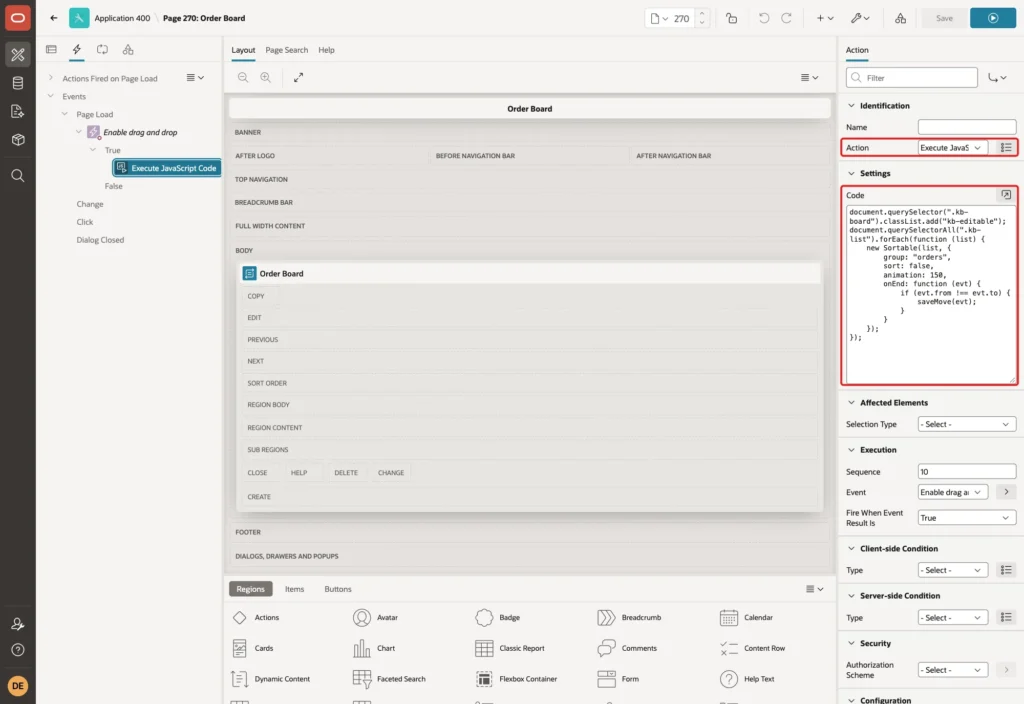
- All lists share the group orders, so a card can move from any column to any other.
- sort: false stops reordering inside a column. The order of the cards comes from the order date, so there is nothing to save there.
- onEnd runs when the card is dropped. It calls saveMove only when the card landed in a different column.
Step 7: Create the Ajax Callback Process
Open the Processing tab, right-click Ajax Callback and choose Create Process. Set Name to MOVE_ORDER, keep Type Execute Code, and enter this PL/SQL Code:
Example:
declare
    l_order_id orders.order_id%type;
    l_to       orders.status%type := apex_application.g_x02;
    l_from     orders.status%type;
    l_allowed  pls_integer;
begin
    l_order_id := to_number(apex_application.g_x01);

    select status
    into   l_from
    from   orders
    where  order_id = l_order_id
    for update;

    select count(*)
    into   l_allowed
    from   order_status_moves
    where  from_status = l_from
    and    to_status   = l_to;

    apex_json.open_object;
    if l_allowed = 0 then
        apex_json.write('ok', false);
        apex_json.write('message', 'Order ' || l_order_id || ' cannot move from '
                                   || l_from || ' to ' || nvl(l_to, 'nothing') || '.');
    else
        update orders
        set    status      = l_to,
               approved_by = case l_to when 'APPROVED' then :APP_USER
                                       when 'NEW'      then null
                                       else approved_by end,
               approved_on = case l_to when 'APPROVED' then sysdate
                                       when 'NEW'      then null
                                       else approved_on end
        where  order_id = l_order_id;

        apex_json.write('ok', true);
        apex_json.write('message', 'Order ' || l_order_id || ' moved to ' || l_to || '.');
    end if;
    apex_json.close_object;
exception
    when no_data_found or value_error then
        apex_json.open_object;
        apex_json.write('ok', false);
        apex_json.write('message', 'Order not found.');
        apex_json.close_object;
end;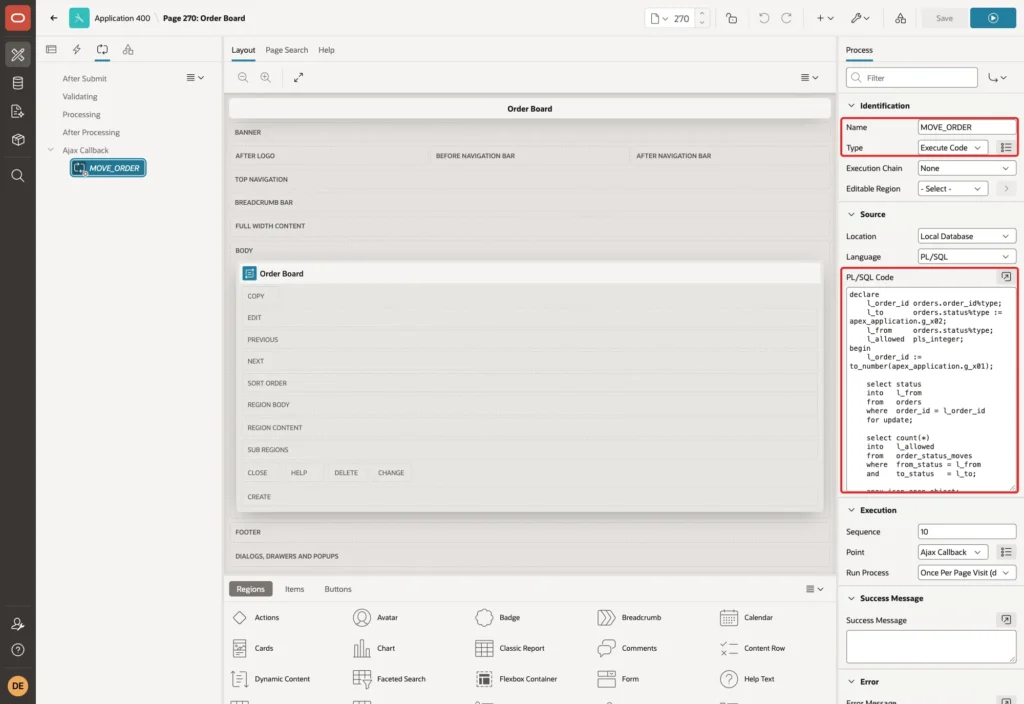
Check that Point is Ajax Callback, and set Authorization Scheme to Can Edit in the Security group. Click Save:

- The process reads the current status from the table, not from the browser, and locks the row with FOR UPDATE.
- It allows the move only when ORDER_STATUS_MOVES has a row for the old and the new status. Anyone can send any value with x02, so this server check is the real rule.
- Moving to APPROVED stores the user and the date in APPROVED_BY and APPROVED_ON. Moving back to NEW clears them.
- APEX commits the change at the end of the Ajax call. The process returns JSON with ok and message, which saveMove reads.
Step 8: Test the Board
Run the page as a user with the Can Edit role. In this example, the board shows 6 new, 9 approved, 8 shipped and 2 cancelled orders from the last 30 days:
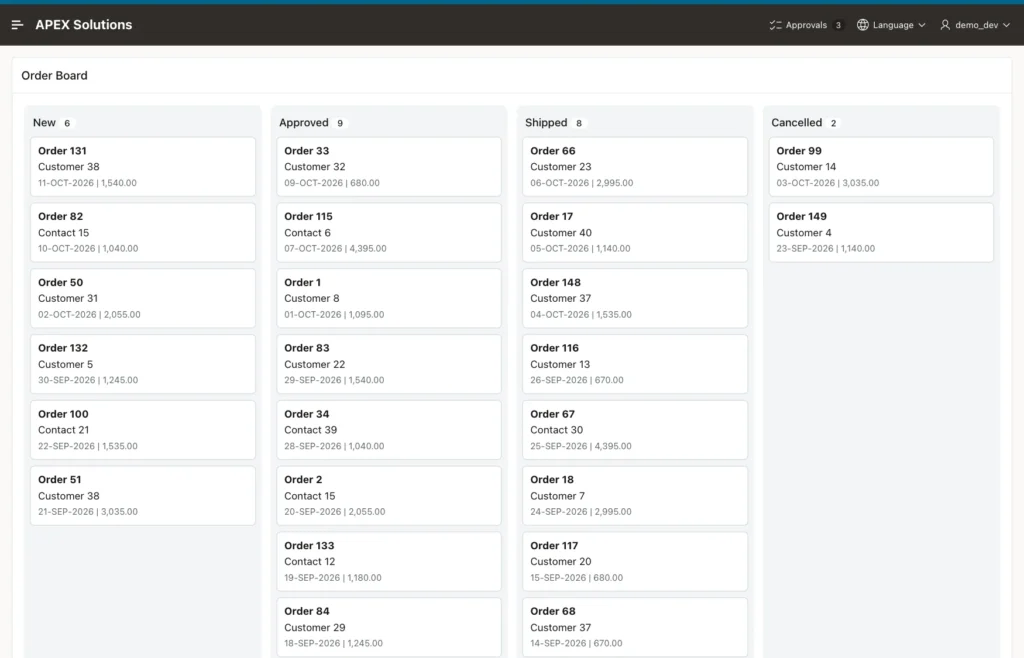
Drag Order 131 from New to Approved. While you drag, a faded copy shows where the card will land:

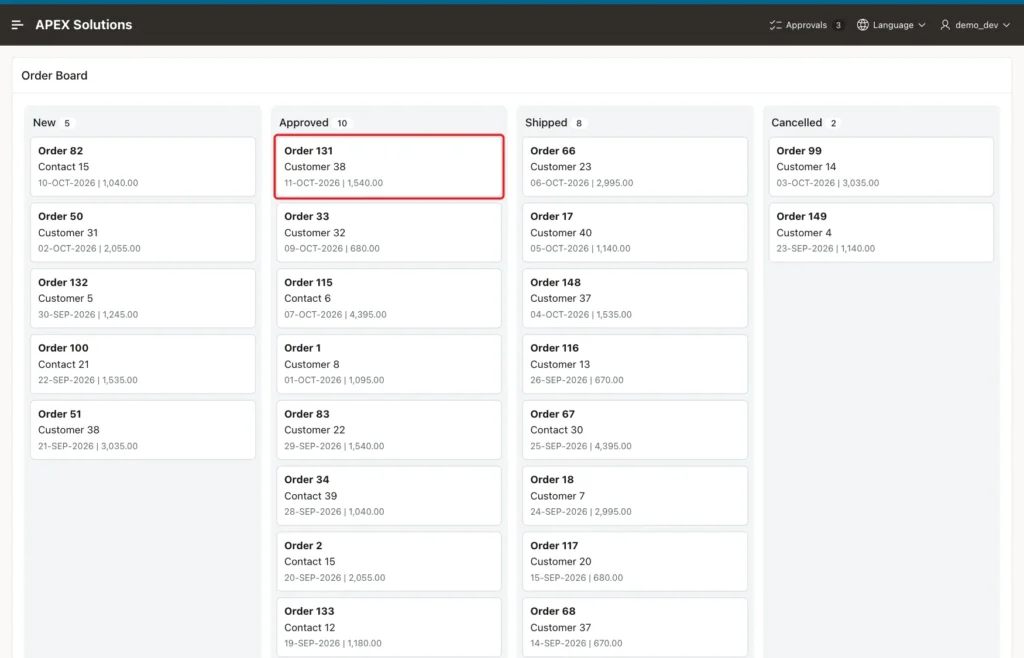
Drop the card. The process saves the new status, the success message appears, and the counts change to 5 new and 10 approved:
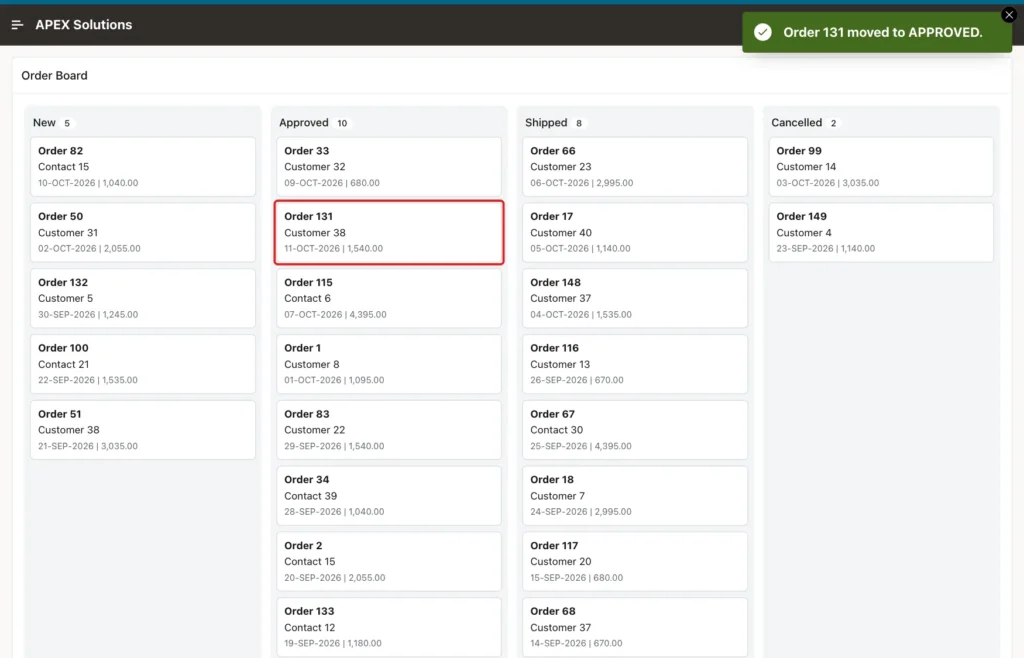
Reload the page. Order 131 is still in the Approved column, now sorted by its order date:
Check the orders in SQL:
Example:
select order_id, status, approved_by,
       to_char(approved_on, 'DD-MON-YYYY') as approved_on
from   orders
where  order_id in (131, 99, 82)
order by order_id;
Output:
   ORDER_ID STATUS       APPROVED_BY    APPROVED_ON
___________ ____________ ______________ ______________
         82 NEW
         99 CANCELLED
        131 APPROVED     DEMO_DEV       14-OCT-2026
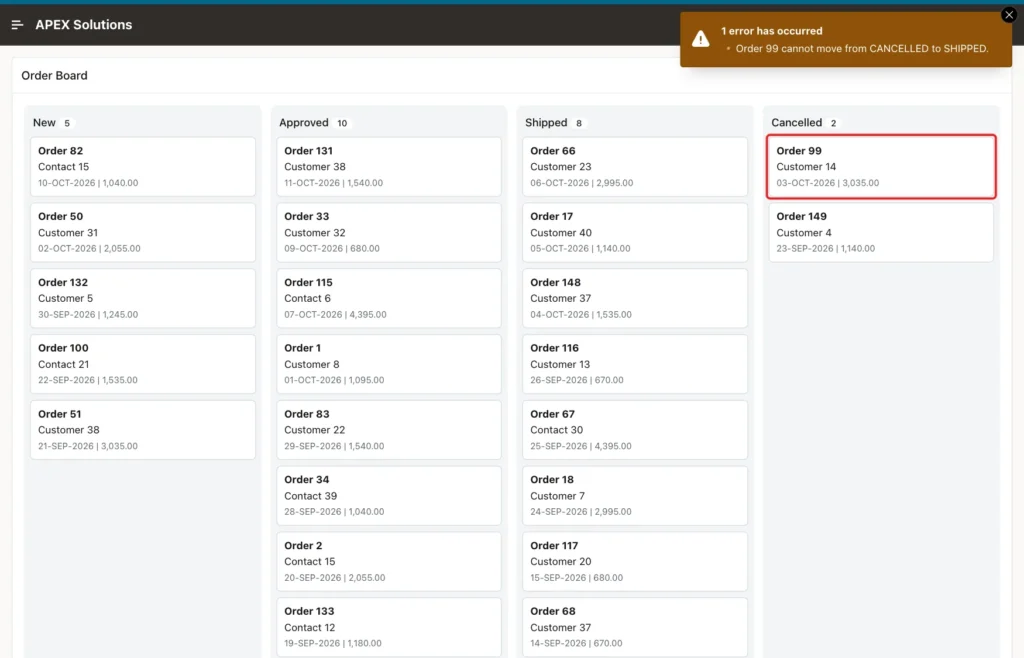
Now try a move that is not allowed. Drag Order 99 from Cancelled to Shipped. The process refuses it, the card jumps back to Cancelled, and the error message explains why:
Drag Order 131 back to New. APPROVED to NEW is allowed, and the process clears the approval columns:
Example:
select order_id, status, approved_by,
       to_char(approved_on, 'DD-MON-YYYY') as approved_on
from   orders
where  order_id in (131, 99, 82)
order by order_id;
Output:
   ORDER_ID STATUS       APPROVED_BY    APPROVED_ON
___________ ____________ ______________ ______________
         82 NEW
         99 CANCELLED
        131 NEW
The browser is not the only way to call the process. To test the server check on its own, run this in the browser console on the board page, as a user with the Can Edit role. It asks to ship order 82, which is still new:
Example:
apex.server.process("MOVE_ORDER", { x01: "82", x02: "SHIPPED" }, {
    success: function (data) { console.log(JSON.stringify(data)); },
    error: function (jqXHR, textStatus) { console.log(textStatus, jqXHR.status, "[" + jqXHR.responseText + "]"); }
});
Output:
{"ok":false,"message":"Order 82 cannot move from NEW to SHIPPED."}Next, sign in as SALES_USER, a user with the Reader role only. The board shows the same cards, but they cannot be dragged, because the dynamic action of Step 6 is not sent to this user.
Run the same kind of call in the console, this time with a move that is allowed, NEW to APPROVED:
Example:
apex.server.process("MOVE_ORDER", { x01: "82", x02: "APPROVED" }, {
    success: function (data) { console.log(JSON.stringify(data)); },
    error: function (jqXHR, textStatus) { console.log(textStatus, jqXHR.status, "[" + jqXHR.responseText + "]"); }
});
Output:
parsererror 200 []
APEX skips a process whose authorization scheme fails and returns an empty response, so the call ends in a parser error. Order 82 is still NEW:
Example:
select order_id, status, approved_by,
       to_char(approved_on, 'DD-MON-YYYY') as approved_on
from   orders
where  order_id in (131, 99, 82)
order by order_id;
Output:
   ORDER_ID STATUS       APPROVED_BY    APPROVED_ON
___________ ____________ ______________ ______________
         82 NEW
         99 CANCELLED
        131 NEW
In a first test, the drag and drop code was in Execute when Page Loads for every user. A Reader could then drag a card, and the empty response showed the raw message Error: SyntaxError: Unexpected end of JSON input. Moving the code into the dynamic action with Can Edit fixed that.
Finally, the foreign key protects the column even outside APEX. An update to a status that does not exist fails:
Example:
update orders set status = 'DONE' where order_id = 82;
Output:
Error starting at line : 1 File @ b29/02-bad-status.sql
In command -
update orders set status = 'DONE' where order_id = 82
Error report -
ORA-02291: integrity constraint (APXSOL.ORDERS_STATUS_FK) violated - parent key
not found
Help: https://docs.oracle.com/error-help/db/ora-02291/
Things to Know
- The transition rule is checked in the Ajax Callback process. Programs that update ORDERS directly are only limited by the foreign key, not by ORDER_STATUS_MOVES. Route every status change through one process or PL/SQL procedure.
- Always put an authorization scheme on the Ajax Callback process. Hiding the drag and drop code only changes the screen; the process is what protects the data.
- Read the old status in the process from the table. Never trust a status sent by the browser.
- The cards are built as HTML in PL/SQL, so escape every text value with APEX_ESCAPE.
- Pin the library version in the file URL, for example sortablejs@1.15.6, so a new release cannot change your page.
- The board loads all cards of the last 30 days with the page. For thousands of open orders, add a filter (customer, date range) or a limit per column.
Related Guides
- How to Build a Calendar Page with Drag-and-Drop Events in Oracle APEX
- Ajax in Oracle APEX: Callbacks and apex.server.process
Conclusion
To build a Kanban board for order status in Oracle APEX, keep the statuses and the allowed moves in tables, write the columns and cards with a Dynamic Content region, and let SortableJS handle drag and drop in the browser.
Every drop calls an Ajax Callback process that reads the saved status, checks ORDER_STATUS_MOVES and updates the order. The same Can Edit scheme on the dynamic action and the process keeps the board read-only for everyone else.
See my articles more often when you search Google.
