
Long forms get lost. A user types meeting notes for ten minutes, the browser crashes or the tab is closed by mistake, and everything is gone. The page never reached the database, so there is nothing to bring back.
An auto-saved draft fixes this. While the user types, the form quietly saves its values to a draft table on the server. When the user opens the form again, even on another day or another device, APEX offers to restore the draft or discard it. A successful save removes the draft.
This guide builds that in Oracle APEX with one table, a debounced dynamic action and a few lines of PL/SQL. It uses meeting notes as the example; the same steps work for any form.
The post How to Save Data in the Browser and Prompt App Installs Using apex.storage and apex.pwa keeps data in the browser with apex.storage. That data stays on one device and is lost when the browser storage is cleared. Here the draft lives in the database, belongs to the signed-in user, and needs no JavaScript code.
Step 1: Create the Tables
The example needs two tables. MEETING_NOTES is the table behind the form. FORM_DRAFTS holds one draft per user, application, page and record. The draft values are stored in a JSON column, so one draft table serves every form of the application.
Create the tables and the sample data:
Example:
create table meeting_notes (
  note_id       number generated by default on null as identity,
  title         varchar2(200)  not null,
  meeting_date  date           not null,
  attendees     varchar2(500),
  notes         varchar2(4000),
  created_by    varchar2(255)  default on null
                  coalesce(sys_context('APEX$SESSION', 'APP_USER'), user) not null,
  created_on    date           default on null sysdate not null,
  constraint meeting_notes_pk primary key (note_id)
);

create table form_drafts (
  draft_id      number generated by default on null as identity,
  app_user      varchar2(255)  not null,
  app_id        number         not null,
  page_id       number         not null,
  record_key    varchar2(100)  not null,
  draft_data    json           not null,
  saved_on      timestamp      default on null systimestamp not null,
  constraint form_drafts_pk primary key (draft_id),
  constraint form_drafts_uk unique (app_user, app_id, page_id, record_key)
);

insert into meeting_notes (title, meeting_date, attendees, notes, created_by)
values ('Sprint planning', date '2026-10-05', 'Anna, Raj, Mei',
        'Agreed on the scope of sprint 14. Raj takes the login changes.', 'DEMO_DEV');
insert into meeting_notes (title, meeting_date, attendees, notes, created_by)
values ('Supplier review', date '2026-10-08', 'Tom, Lisa',
        'Delivery times improved. Next review in December.', 'DEMO_DEV');
insert into meeting_notes (title, meeting_date, attendees, notes, created_by)
values ('Budget check', date '2026-10-12', 'Anna, Lisa, Omar',
        'Travel budget at 70 percent. No new requests this quarter.', 'SALES_MANAGER');
commit;

select note_id, title, to_char(meeting_date, 'YYYY-MM-DD') meeting_date,
       attendees, created_by
from   meeting_notes
order  by note_id;
Output:
Table MEETING_NOTES created.

Table FORM_DRAFTS created.

1 row inserted.

1 row inserted.

1 row inserted.

Commit complete.

   NOTE_ID TITLE              MEETING_DATE    ATTENDEES           CREATED_BY
__________ __________________ _______________ ___________________ ________________
         1 Sprint planning    2026-10-05      Anna, Raj, Mei      DEMO_DEV
         2 Supplier review    2026-10-08      Tom, Lisa           DEMO_DEV
3 Budget check 2026-10-12 Anna, Lisa, Omar SALES_MANAGER- RECORD_KEY is the primary key of the record being edited, or NEW for a record that does not exist yet.
- The unique constraint FORM_DRAFTS_UK allows only one draft per user, application, page and record. A new auto-save replaces the old draft instead of adding rows.
- DRAFT_DATA uses the JSON data type of Oracle Database 26ai, so it only accepts valid JSON.
- CREATED_BY, CREATED_ON and SAVED_ON are filled by DEFAULT ON NULL, so no trigger is needed.
Step 2: Create the Report and Form Pages
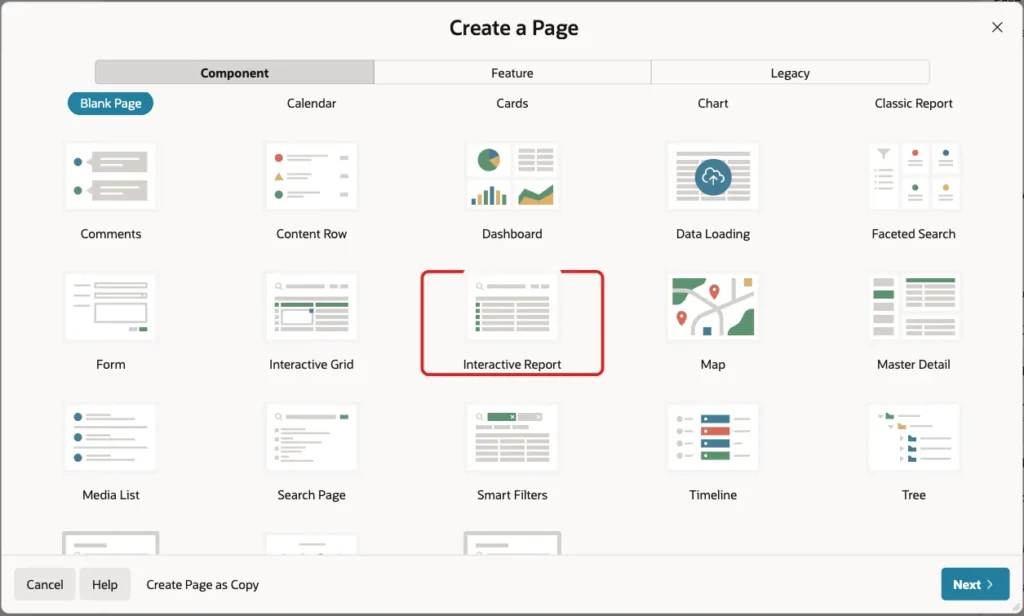
In App Builder, open the application and click Create Page. On the Component tab, click Interactive Report:
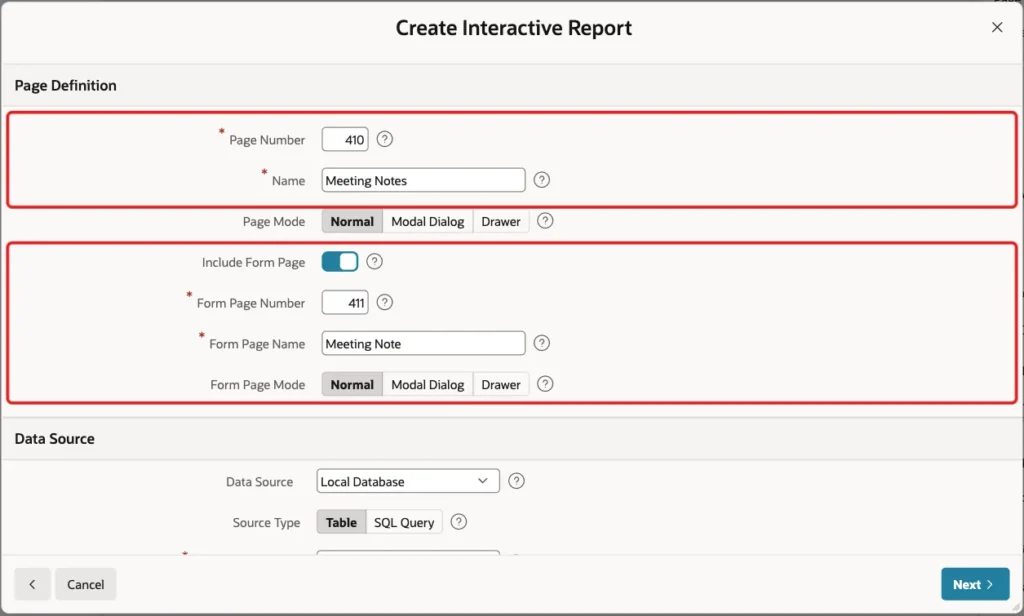
Enter Page Number 410 and Name Meeting Notes. Turn on Include Form Page, enter Form Page Number 411 and Form Page Name Meeting Note. Keep Form Page Mode Normal, so the form opens as a full page in its own tab:
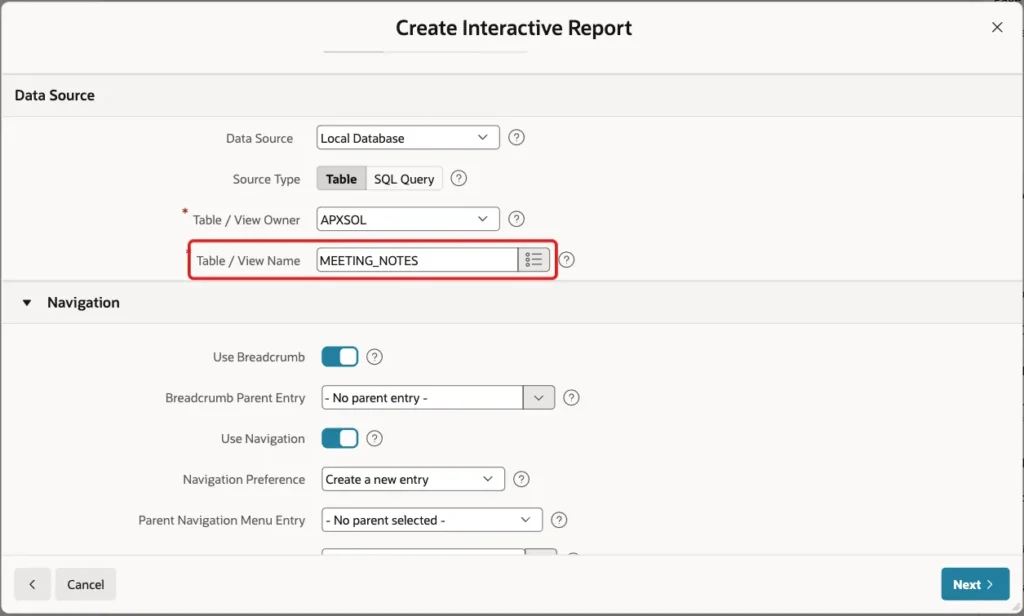
Scroll down to Data Source. Keep Source Type Table and enter MEETING_NOTES as the Table / View Name. Keep the Navigation settings, so the report gets a menu entry, and click Next:
The wizard reads the primary key and fills Primary Key Column 1 with NOTE_ID. Click Create Page:
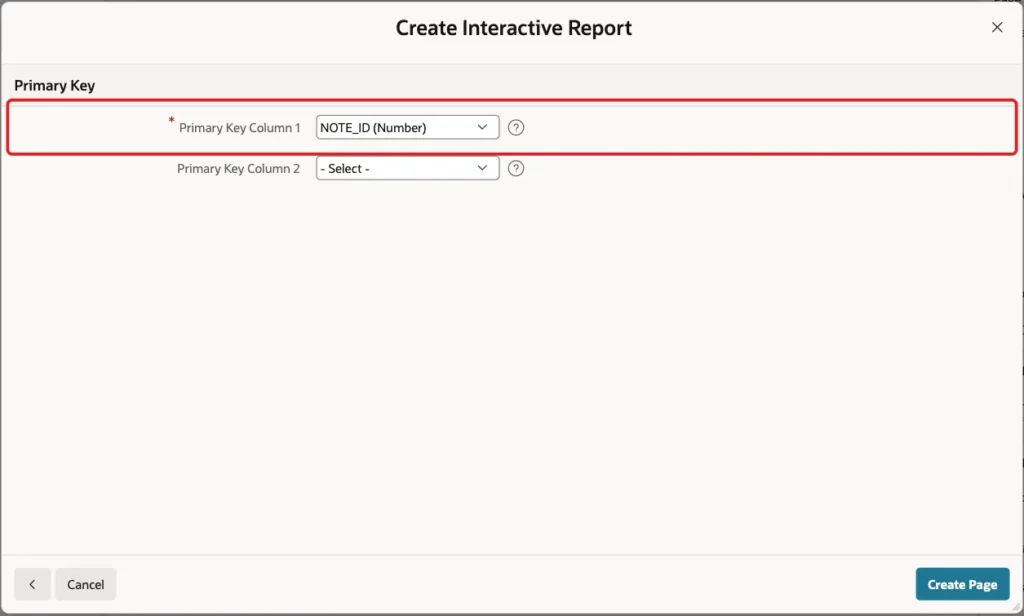
The wizard creates page 410 with the report and page 411 with the form.
Step 3: Remove the Created By and Created On Items
The wizard made a form item for every column. The two audit columns get their values from DEFAULT ON NULL, so users should not type them. Open page 411 in Page Designer. Right-click P411_CREATED_BY and choose Delete:
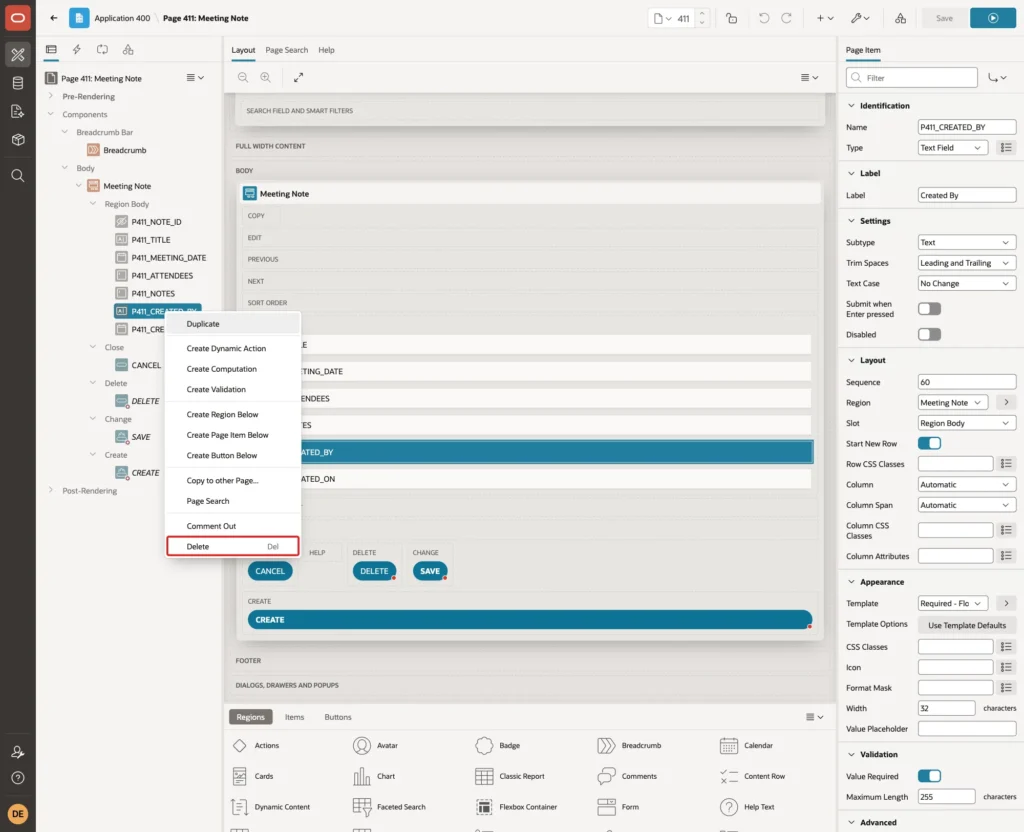
Delete P411_CREATED_ON the same way. The form now has P411_NOTE_ID (hidden), P411_TITLE, P411_MEETING_DATE, P411_ATTENDEES and P411_NOTES.
Step 4: Add the Unsaved Draft Region
This region tells the user that a draft exists. It is only rendered when there is one for the current user and record.
In the Rendering tree, right-click Body and choose Create Region. Set Name and Title to Unsaved Draft and Type to Static Content. Under Source, enter this text in HTML Code:
Example:
You have an unsaved draft of this form. Restore it to continue where you left off, or discard it.
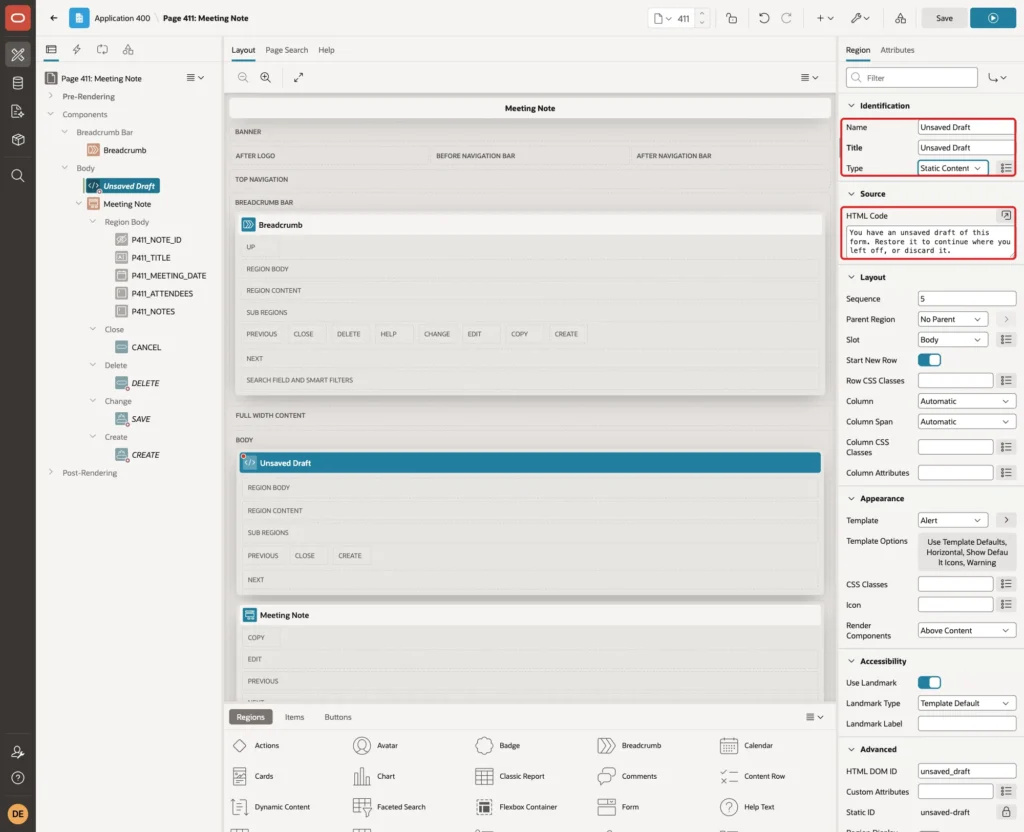
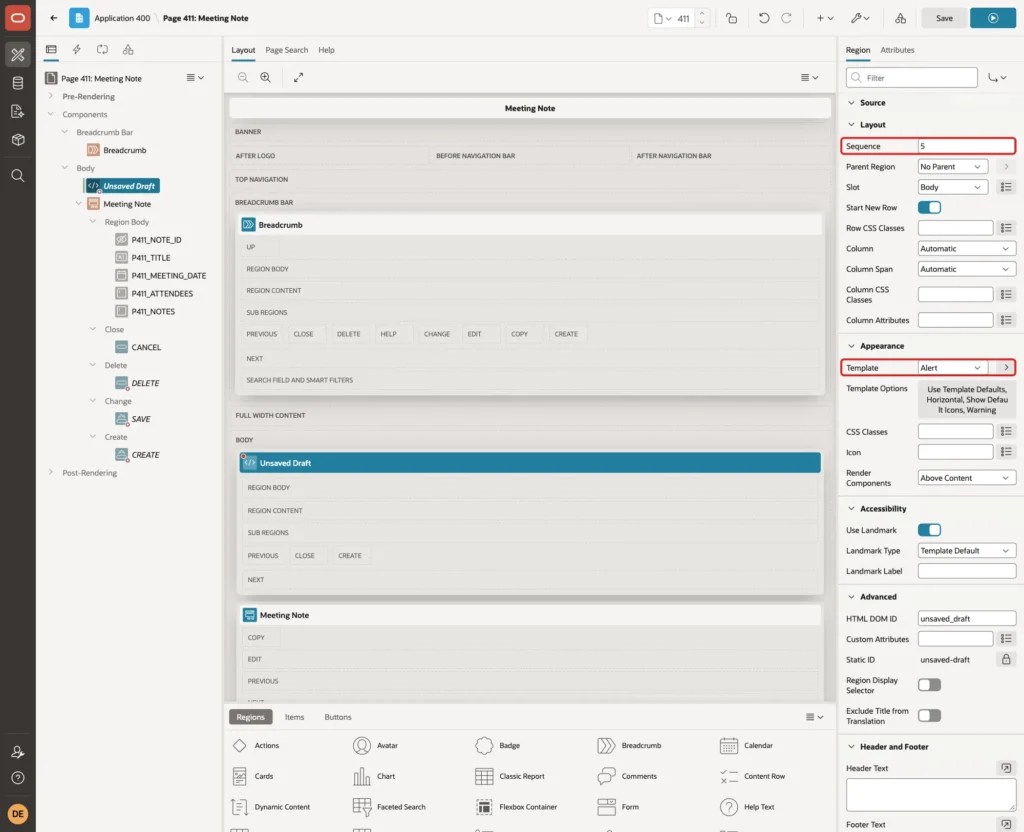
Under Layout, set Sequence to 5, so the region appears above the form. Under Appearance, set Template to Alert. Its default template options show a warning icon:
Under Advanced, set HTML DOM ID to unsaved_draft. The dynamic actions use this ID later.
Under Server-side Condition, set Type to Rows returned and enter this SQL Query:
Example:
select 1
from   form_drafts
where  app_user   = :APP_USER
and    app_id     = :APP_ID
and    page_id    = :APP_PAGE_ID
and    record_key = nvl(:P411_NOTE_ID, 'NEW')
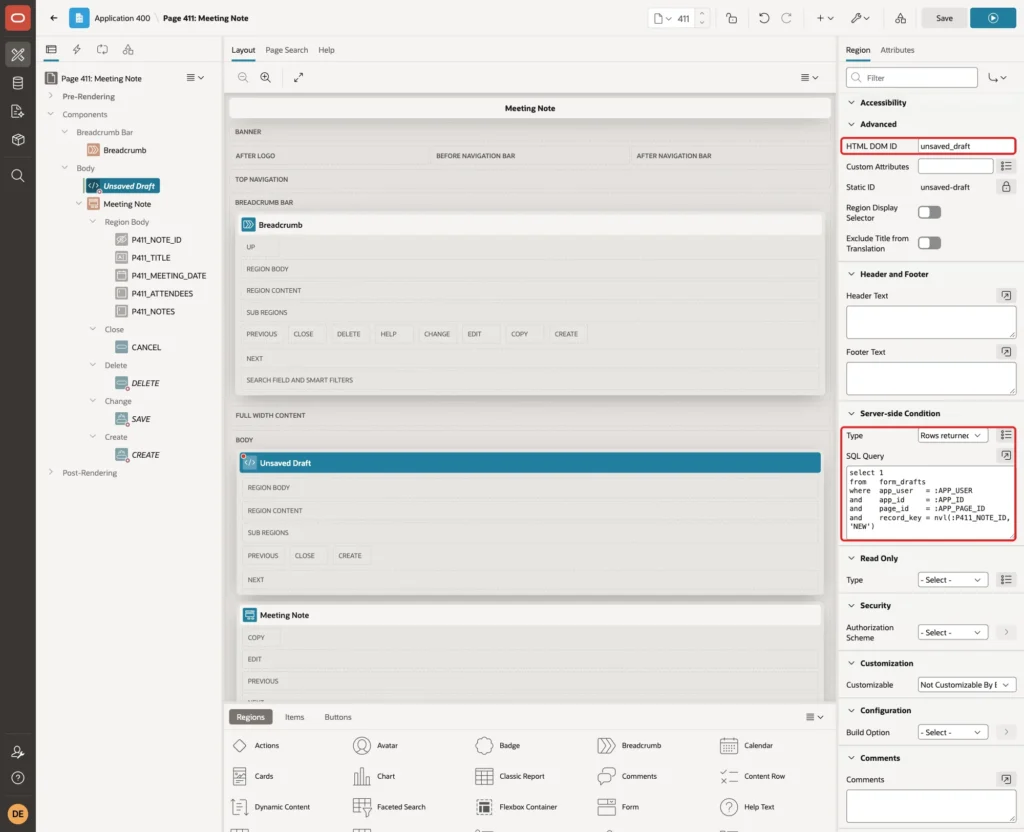
:APP_USER, :APP_ID and :APP_PAGE_ID are built-in substitution values, so the query works on any page without changes. The condition runs after the form's initialization process, so P411_NOTE_ID already holds the record being edited.
Step 5: Add the Restore and Discard Buttons
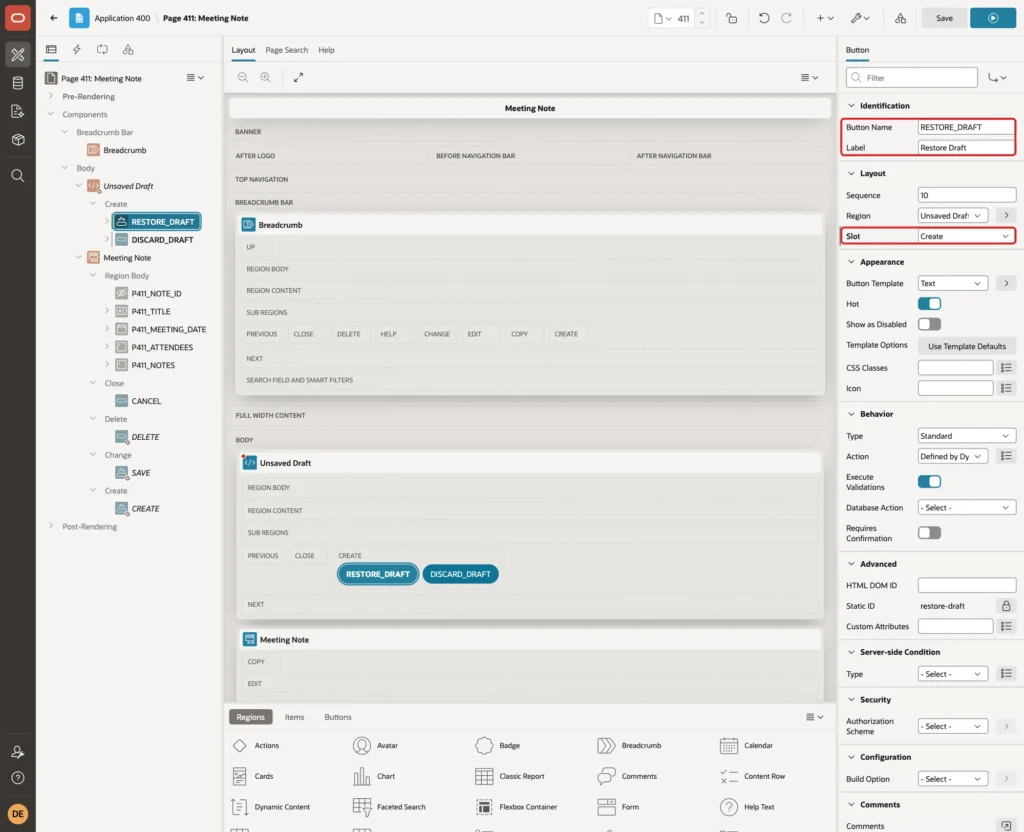
Right-click the Unsaved Draft region and choose Create Button. Set Button Name to RESTORE_DRAFT and Label to Restore Draft. Under Layout, set Slot to Create, which places the button on the right side of the alert:
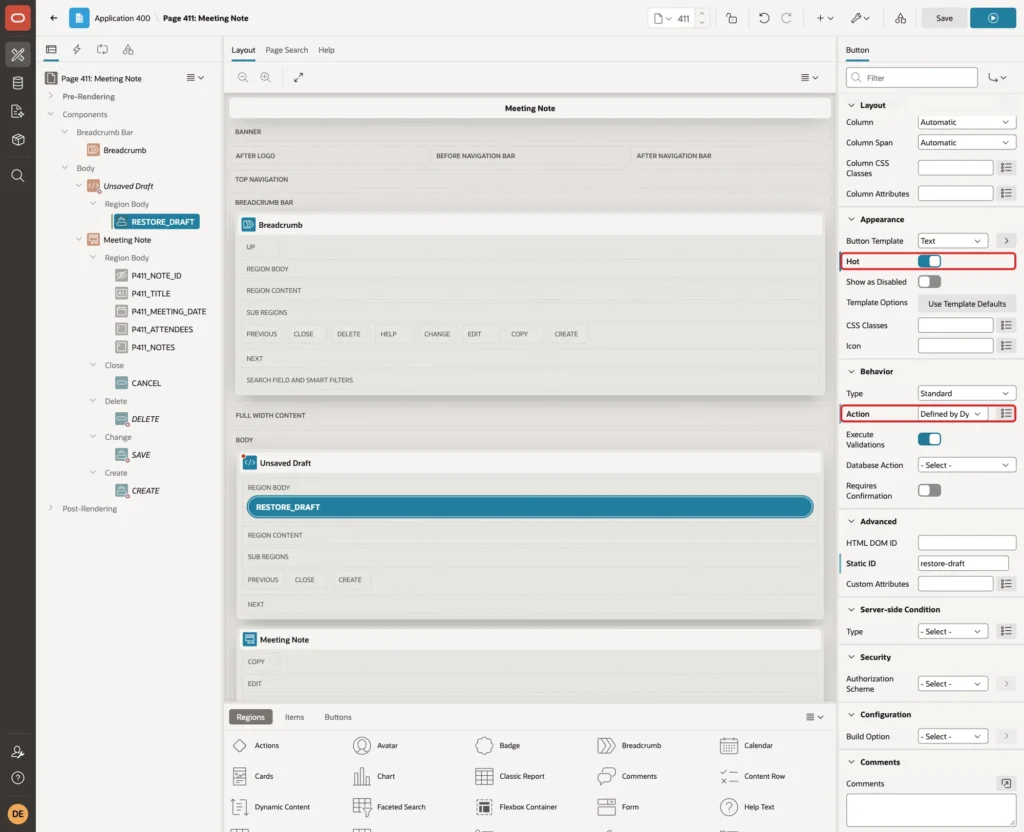
Under Appearance, turn on Hot. Under Behavior, set Action to Defined by Dynamic Action, because the button must not submit the page:
Create a second button in the same region the same way: Button Name DISCARD_DRAFT, Label Discard Draft, Slot Create and Action Defined by Dynamic Action. Leave Hot off.
Step 6: Auto-Save the Draft While the User Types
Right-click P411_TITLE and choose Create Dynamic Action. Set Name to Auto-save draft. Under When, set Event to Custom, Custom Event to input change, and Item(s) to P411_TITLE,P411_MEETING_DATE,P411_ATTENDEES,P411_NOTES.
Under Execution, set Type to Debounce and Time to 2000 milliseconds. Under Client-side Condition, set Type to JavaScript expression and enter the expression below:
Example:
!$('#unsaved_draft').is(':visible')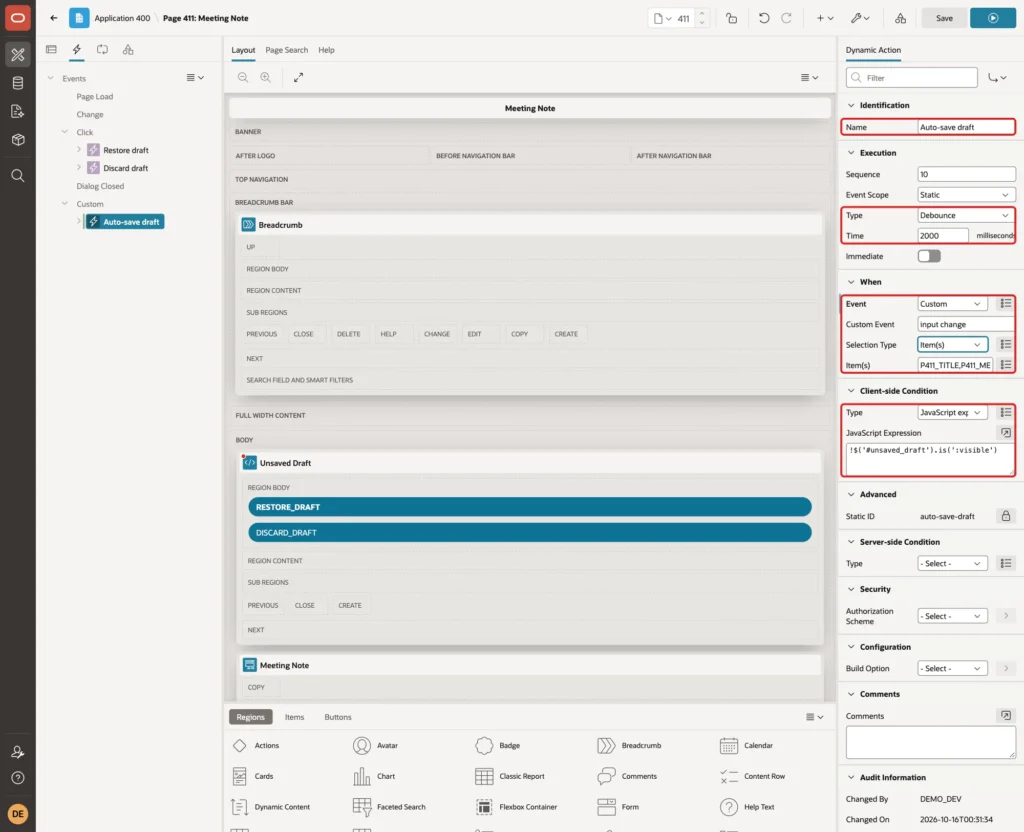
- The input event fires on every key in a text field or text area. In a first test with the built-in Input event, picking a date from the date picker popup sent no request at all. The change event covers that case, so the custom event lists both.
- Debounce waits until no event has fired for two seconds and then runs the actions once. In the test, typing the title and picking a date sent one request; typing the attendees and a short note sent one more.
- The client-side condition stops auto-saving while the Unsaved Draft region is visible. Otherwise a single key pressed before the user chooses would overwrite the old draft.
Under True, select the Show action that APEX created. Set Action to Execute Server-side Code and enter this PL/SQL Code:
Example:
declare
  l_key  form_drafts.record_key%type := nvl(:P411_NOTE_ID, 'NEW');
  l_data json := json_object(
                   'P411_TITLE'        value :P411_TITLE,
                   'P411_MEETING_DATE' value :P411_MEETING_DATE,
                   'P411_ATTENDEES'    value :P411_ATTENDEES,
                   'P411_NOTES'        value :P411_NOTES
                   returning json);
begin
  merge into form_drafts d
  using (select :APP_USER app_user, :APP_ID app_id, :APP_PAGE_ID page_id,
                l_key record_key
         from   dual) s
  on (    d.app_user   = s.app_user
      and d.app_id     = s.app_id
      and d.page_id    = s.page_id
      and d.record_key = s.record_key)
  when matched then
    update set d.draft_data = l_data,
               d.saved_on   = systimestamp
  when not matched then
    insert (app_user, app_id, page_id, record_key, draft_data)
    values (s.app_user, s.app_id, s.page_id, s.record_key, l_data);
end;
Set Items to Submit to P411_NOTE_ID,P411_TITLE,P411_MEETING_DATE,P411_ATTENDEES,P411_NOTES:
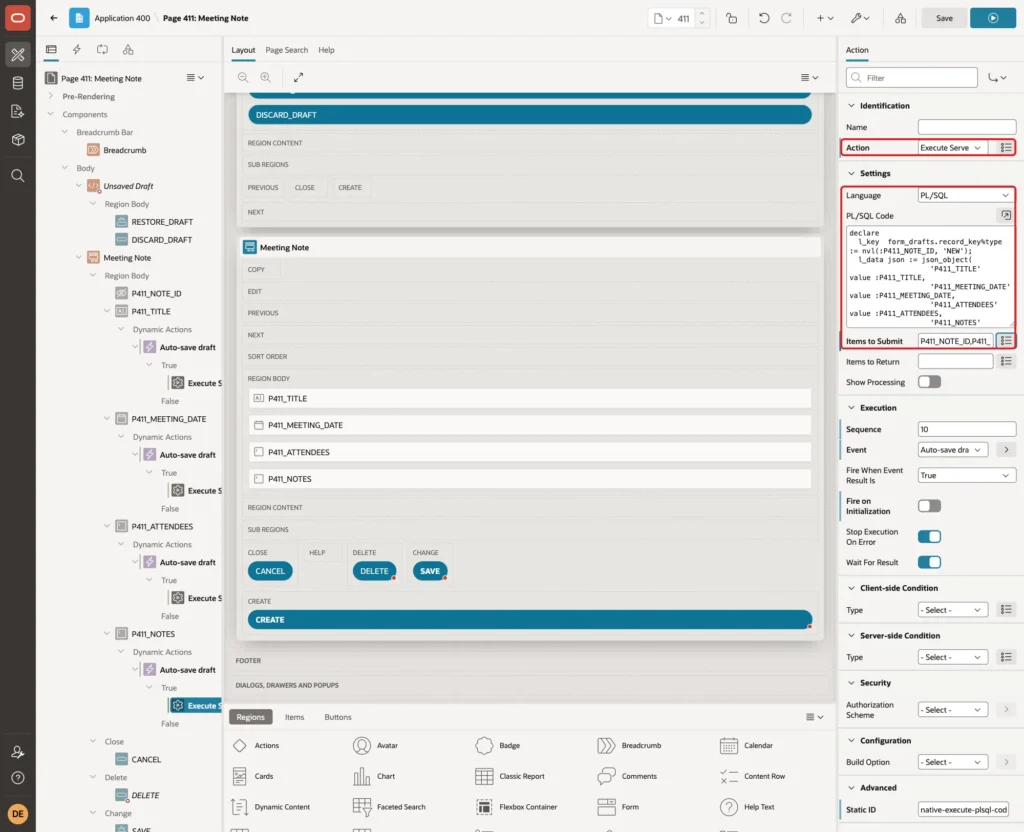
JSON_OBJECT builds the draft from the submitted values, using the item names as keys. MERGE inserts the draft the first time and updates it after that. No JavaScript code and no Ajax Callback process are needed.
Step 7: Restore the Draft
Right-click the RESTORE_DRAFT button and choose Create Dynamic Action. Set Name to Restore draft. APEX fills in Event Click, Selection Type Button and Button RESTORE_DRAFT:
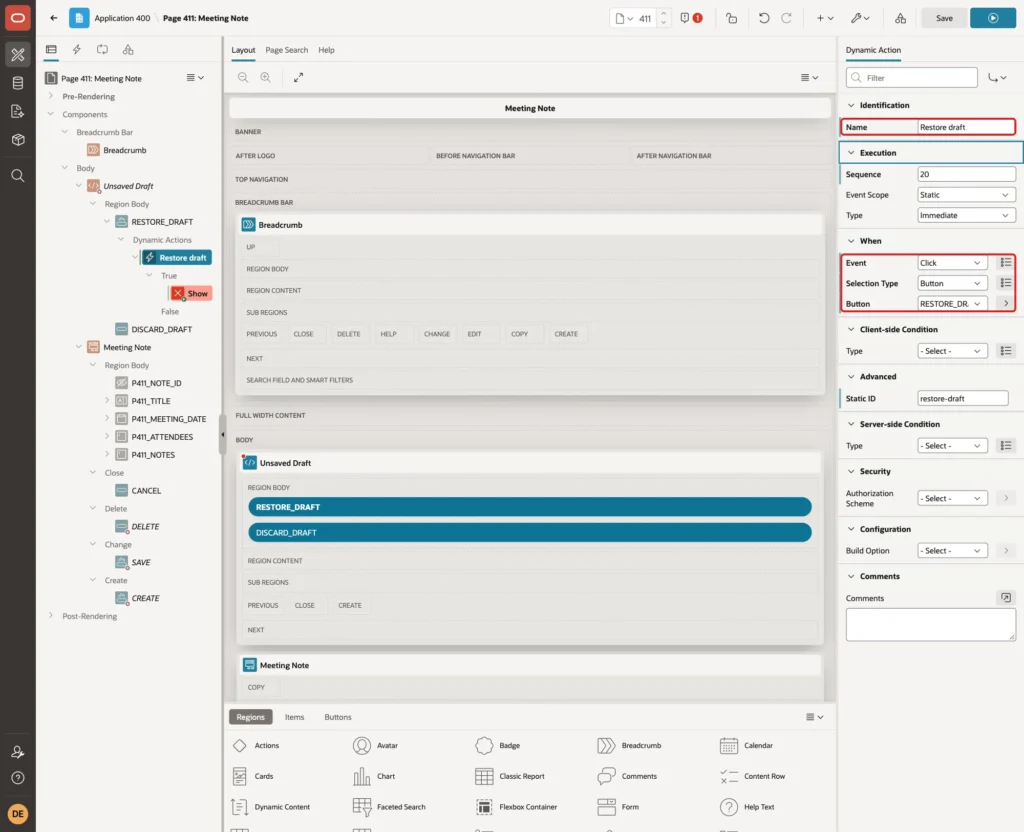
Select the Show action under True. Set Action to Execute Server-side Code and enter this PL/SQL Code:
Example:
select json_value(draft_data, '$.P411_TITLE'),
       json_value(draft_data, '$.P411_MEETING_DATE'),
       json_value(draft_data, '$.P411_ATTENDEES'),
       json_value(draft_data, '$.P411_NOTES')
into   :P411_TITLE,
       :P411_MEETING_DATE,
       :P411_ATTENDEES,
       :P411_NOTES
from   form_drafts
where  app_user   = :APP_USER
and    app_id     = :APP_ID
and    page_id    = :APP_PAGE_ID
and    record_key = nvl(:P411_NOTE_ID, 'NEW');
Set Items to Submit to P411_NOTE_ID and Items to Return to P411_TITLE,P411_MEETING_DATE,P411_ATTENDEES,P411_NOTES:
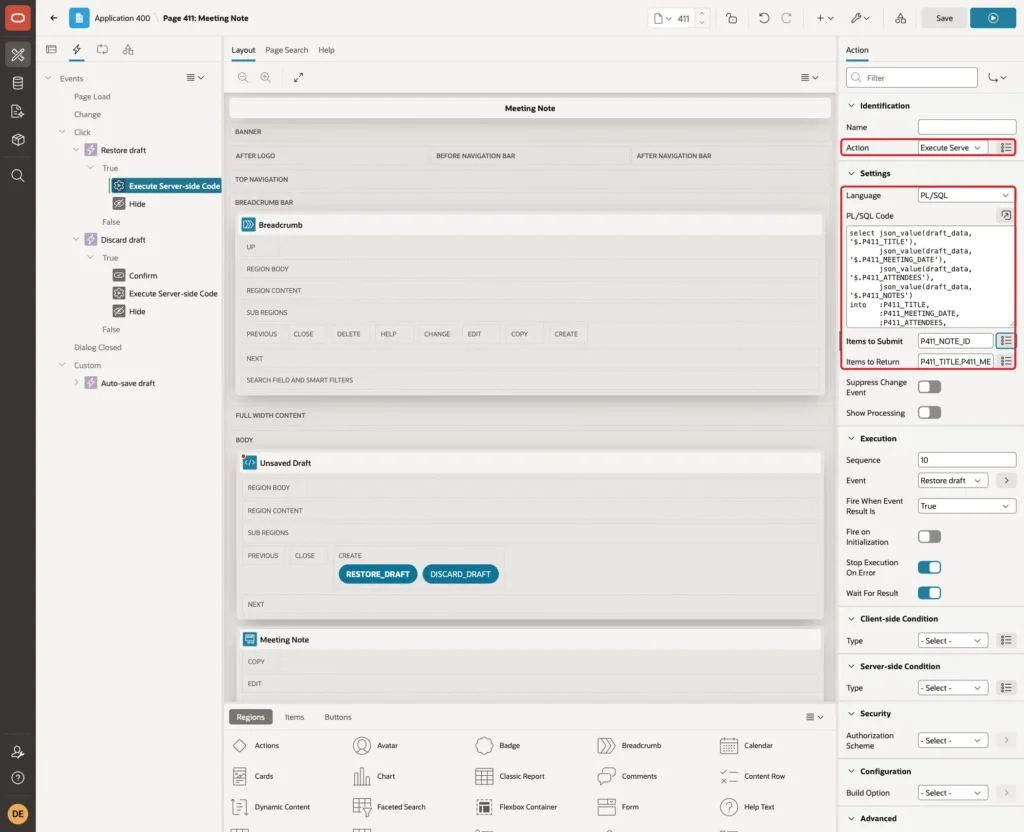
Do not skip Items to Submit. The wizard creates the form items with Storage Per Request (Memory Only), so P411_NOTE_ID is not kept in session state. In a first test without it, Discard did nothing on an existing record: the Ajax call saw an empty P411_NOTE_ID and looked for the NEW draft.
Right-click Execute Server-side Code under True and choose Create Action. Set Action to Hide, Selection Type to Region and Region to Unsaved Draft. Turn off Fire on Initialization:
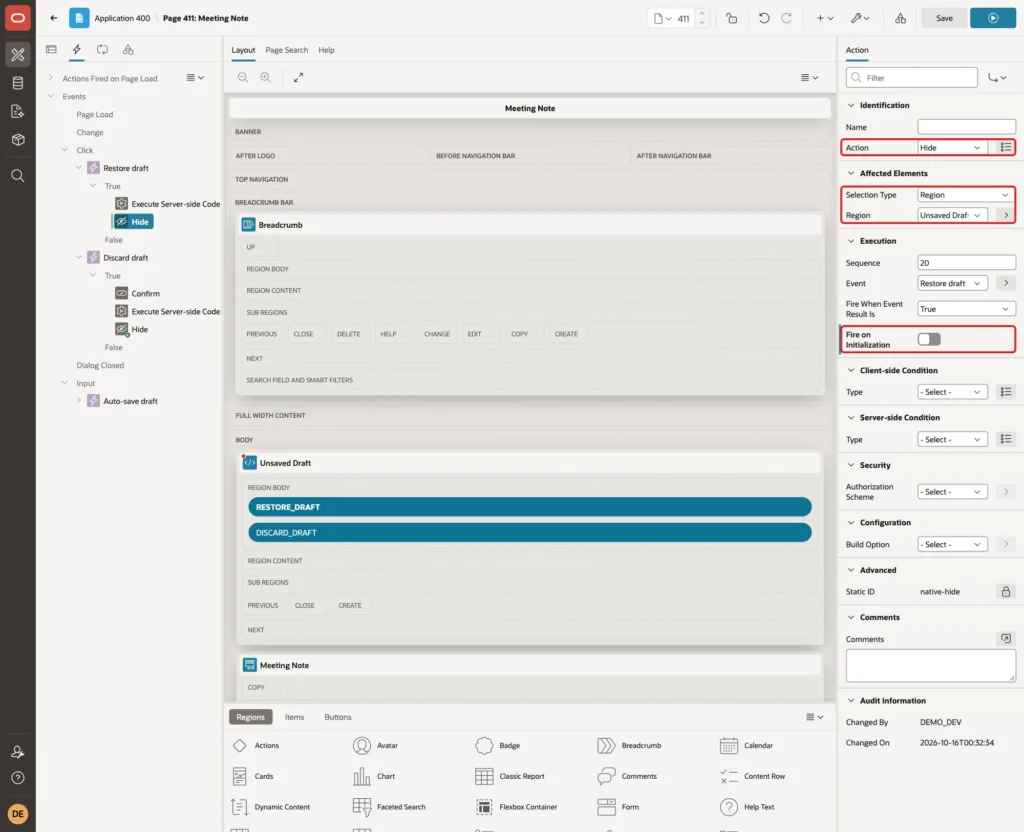
Fire on Initialization is on by default for a new Hide action. In a first test, it hid the Unsaved Draft region as soon as the page loaded, so users never saw it.
Step 8: Discard the Draft
Right-click the DISCARD_DRAFT button and choose Create Dynamic Action. Set Name to Discard draft. Select the Show action under True, set Action to Confirm and enter the Message "Discard the saved draft? This cannot be undone.":
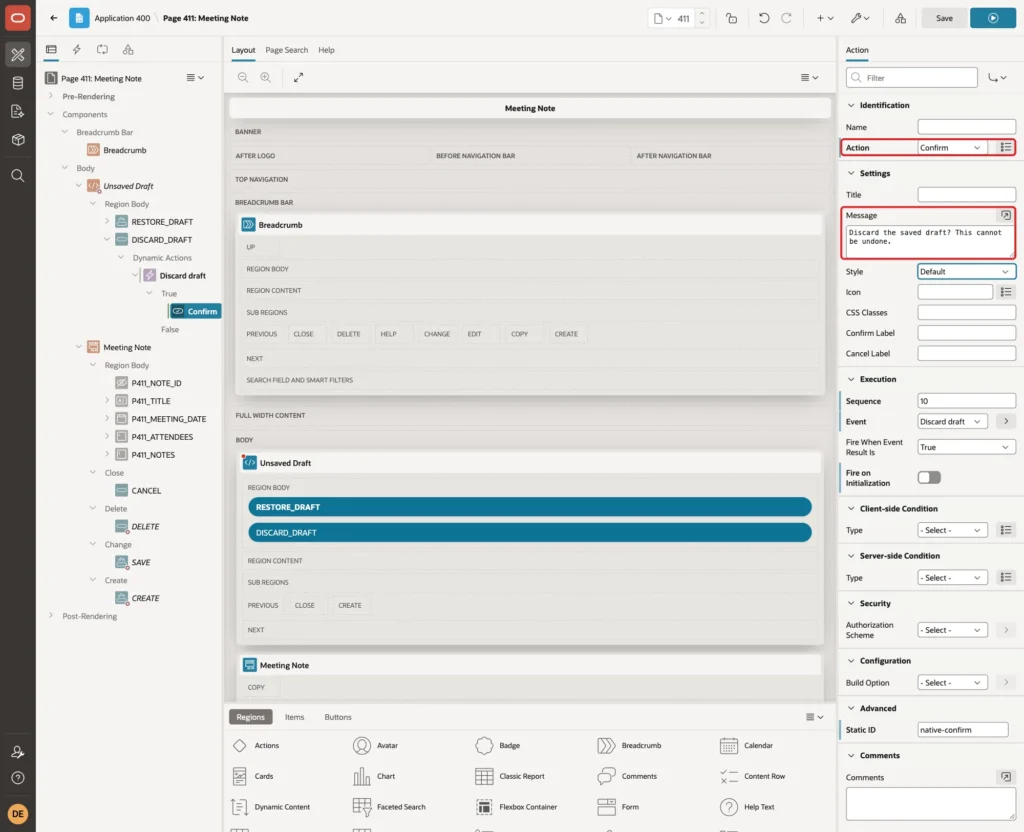
Right-click Confirm and choose Create Action. Set Action to Execute Server-side Code, enter this PL/SQL Code and set Items to Submit to P411_NOTE_ID:
Example:
delete from form_drafts
where  app_user   = :APP_USER
and    app_id     = :APP_ID
and    page_id    = :APP_PAGE_ID
and    record_key = nvl(:P411_NOTE_ID, 'NEW');
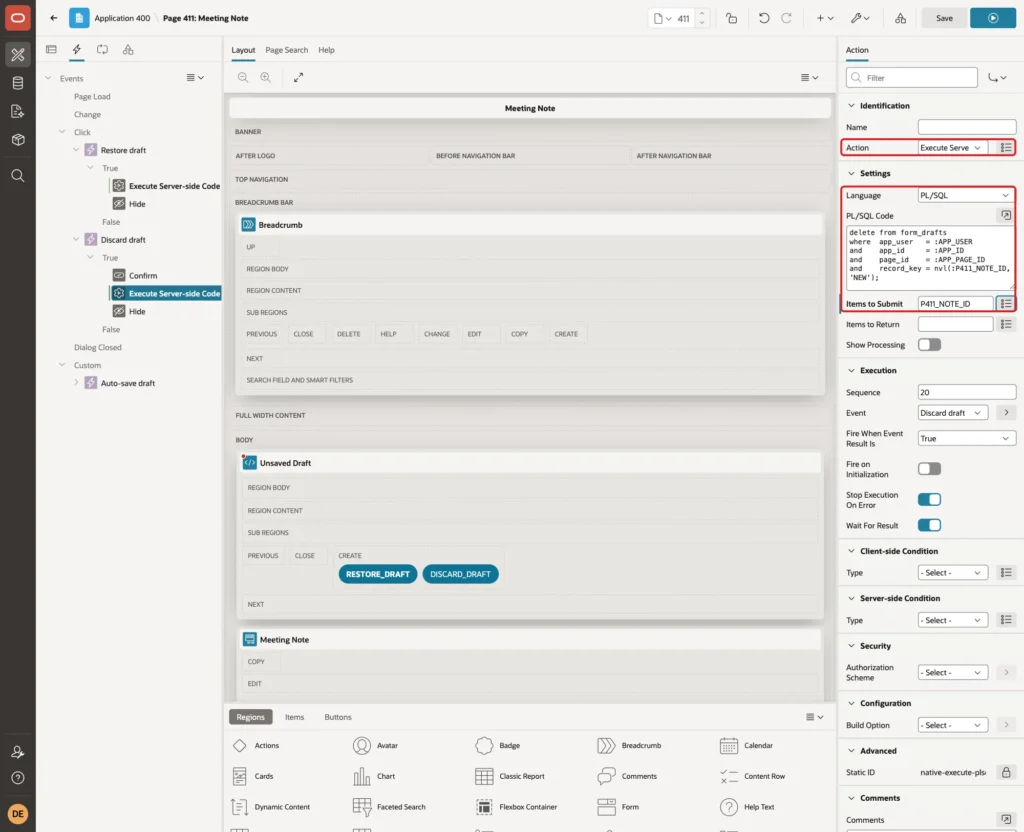
Add a third action below it: Hide, Selection Type Region, Region Unsaved Draft, with Fire on Initialization off, the same as in Step 7.
Step 9: Delete the Draft After a Successful Save
Click the Processing tab of Page Designer. Right-click Processes and choose Create Process. Set Name to Delete Draft and keep Type Execute Code. Enter this PL/SQL Code:
Example:
delete from form_drafts
where  app_user   = :APP_USER
and    app_id     = :APP_ID
and    page_id    = :APP_PAGE_ID
and    record_key = case when :REQUEST = 'CREATE' then 'NEW'
                         else :P411_NOTE_ID end;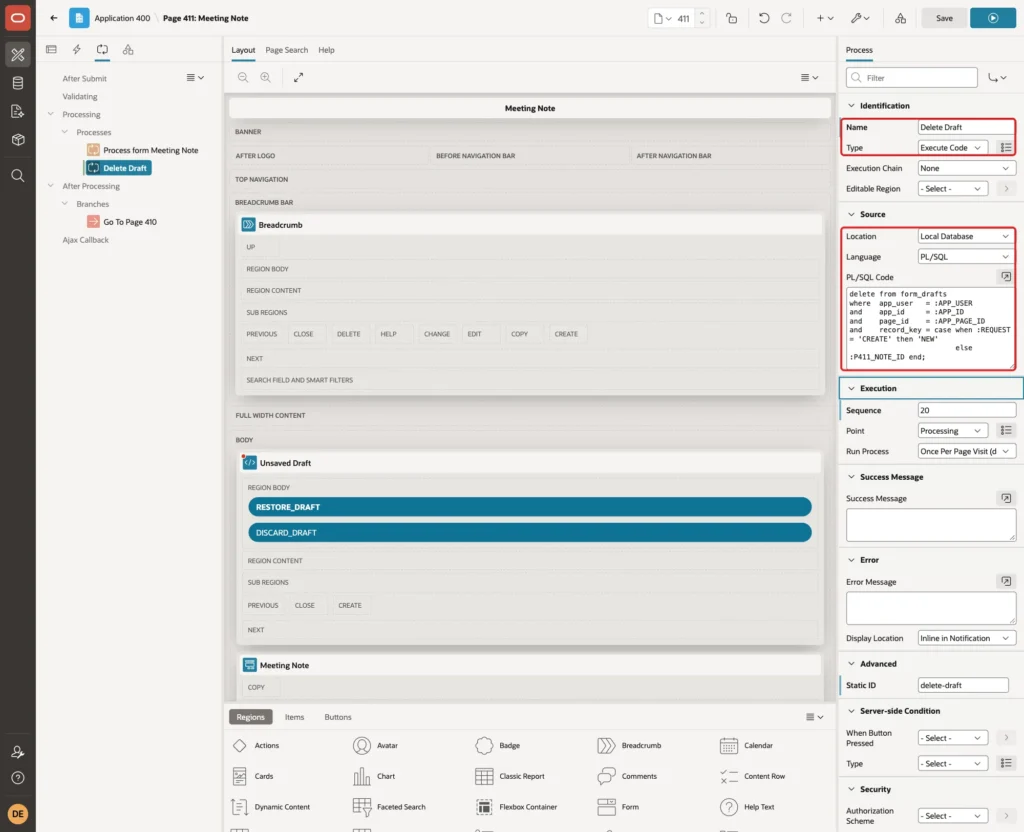
The new process gets Sequence 20, so it runs after Process form Meeting Note.
After an insert, the form process has already put the new ID into P411_NOTE_ID. That is why the code uses the request instead. A new record was drafted under the key NEW; for the SAVE and DELETE buttons, the key is the note ID. Save the page.
Step 10: Test the Draft
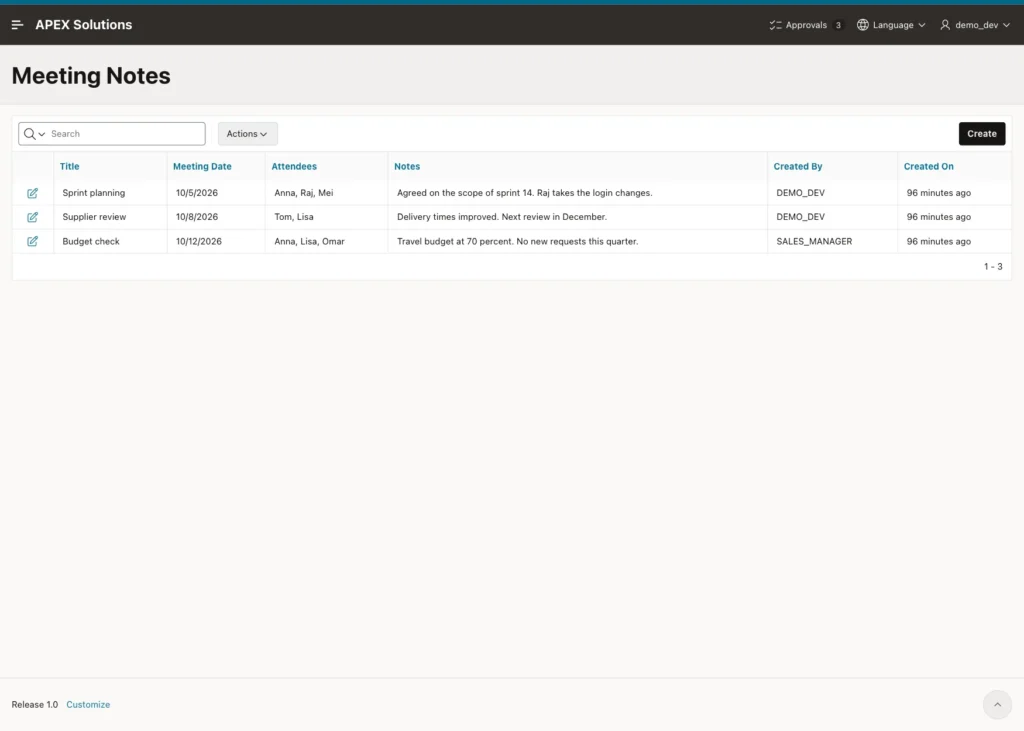
Sign in as DEMO_DEV and open Meeting Notes. The report shows the three sample notes:
Click Create and fill in the form. Type a title, pick a date from the calendar, then type the attendees and the notes:
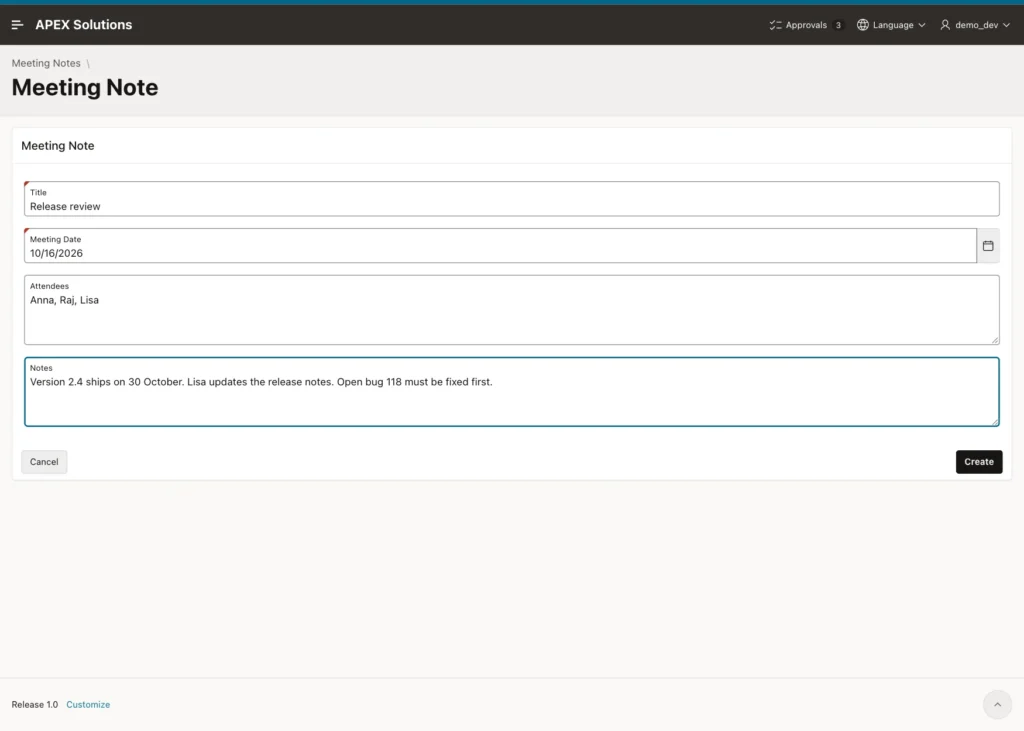
Now close the browser tab without clicking Create. The form was never submitted, but the draft is in the table:
Example:
select app_user, page_id, record_key,
       to_char(saved_on, 'HH24:MI:SS') saved_at
from   form_drafts;

select json_serialize(draft_data pretty) draft_data
from   form_drafts
where  app_user   = 'DEMO_DEV'
and    page_id    = 411
and    record_key = 'NEW';
Output:
APP_USER       PAGE_ID RECORD_KEY    SAVED_AT
___________ __________ _____________ ___________
DEMO_DEV           411 NEW           01:21:10

DRAFT_DATA
________________________________________________________________________________________________________________________
{
  "P411_TITLE" : "Release review",
  "P411_MEETING_DATE" : "10/16/2026",
  "P411_ATTENDEES" : "Anna, Raj, Lisa",
  "P411_NOTES" : "Version 2.4 ships on 30 October. Lisa updates the release notes. Open bug 118 must be fixed first."
}
Sign in again and click Create. The Unsaved Draft notice appears above the empty form:
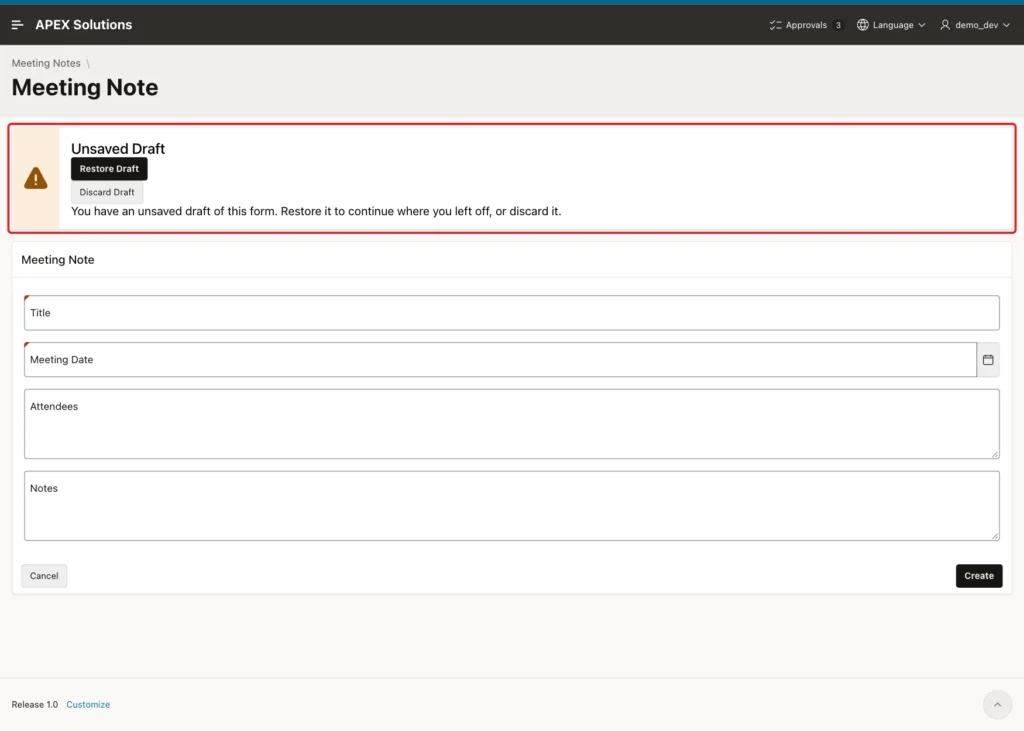
As a check, a key was typed into the title while the notice was visible. No request was sent, so the draft stayed intact.
Click Restore Draft. The notice disappears and every field is back, including the date:
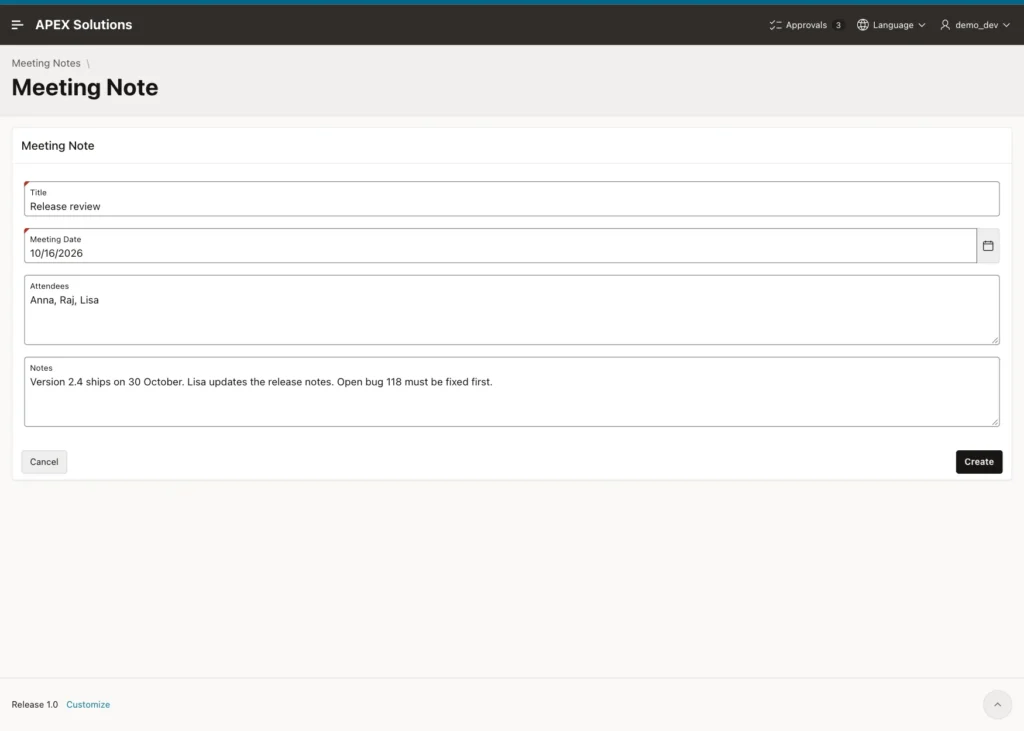
Setting the items fires their change events, so the auto-save ran once more after the restore and saved the same values again. That is harmless.
Click Create. The note is saved, and the report shows it:
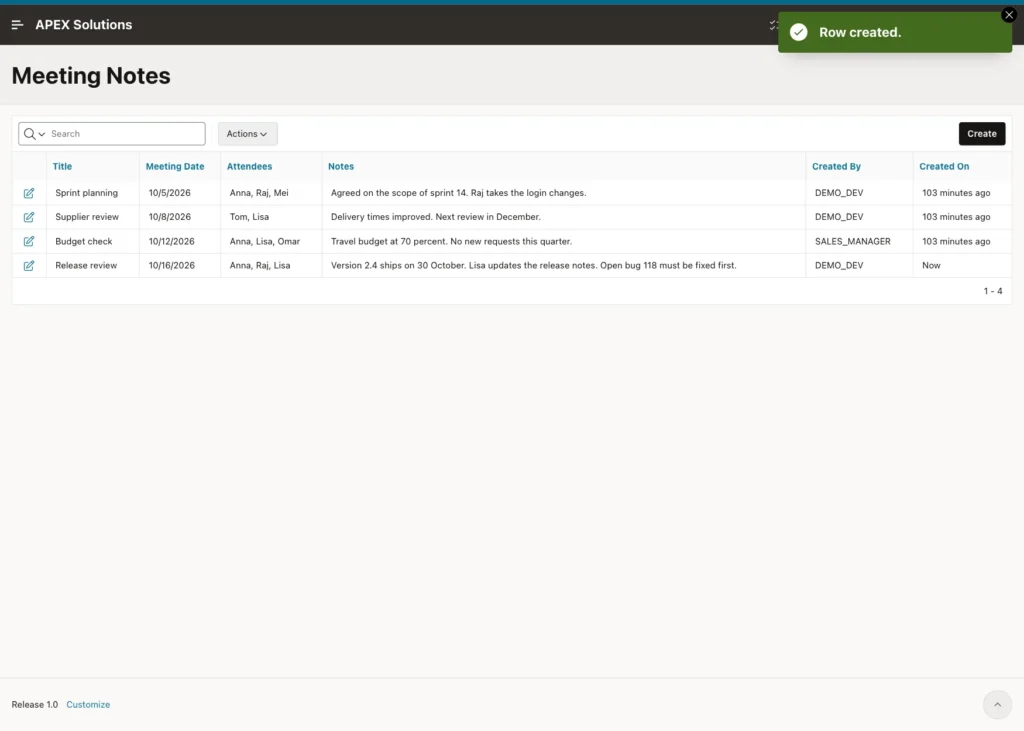
Click Create once more. The form is empty and the notice does not appear, because the Delete Draft process removed the draft.
Step 11: Test Drafts of Existing Records
Drafts also work when editing. Open Supplier review, add ", Omar" to the attendees and close the tab. Open Sprint planning: no notice appears, because its record key is 1. Open Supplier review again: the notice appears.
Click Restore Draft. The attendees field shows the unsaved change, while the other fields keep their values:
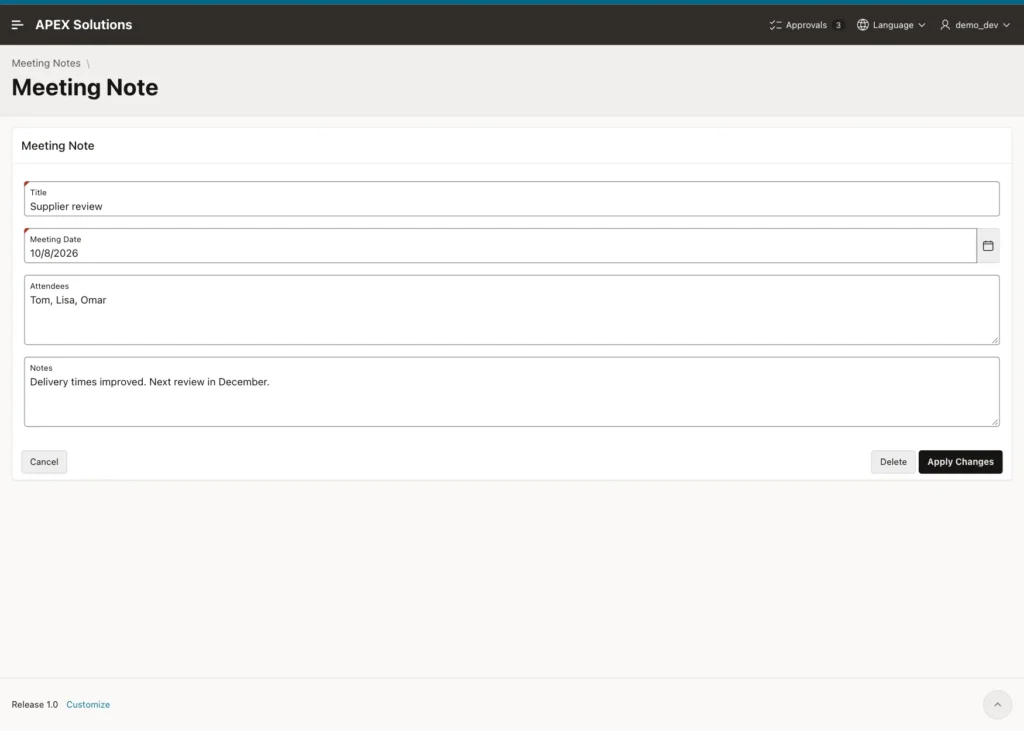
Click Apply Changes. The attendees are saved, and the Delete Draft process removes the draft with record key 2. No drafts are left:
Example:
select note_id, title, attendees, created_by
from   meeting_notes
order  by note_id;

select count(*) open_drafts
from   form_drafts;
Output:
   NOTE_ID TITLE              ATTENDEES           CREATED_BY
__________ __________________ ___________________ ________________
         1 Sprint planning    Anna, Raj, Mei      DEMO_DEV
         2 Supplier review    Tom, Lisa, Omar     DEMO_DEV
         3 Budget check       Anna, Lisa, Omar    SALES_MANAGER
        21 Release review     Anna, Raj, Lisa     DEMO_DEV

   OPEN_DRAFTS
______________
             0
The note from Step 10 got ID 21, not 4, because the identity column hands out cached values. That is normal.
To test Discard Draft, edit Supplier review again, change the notes and close the tab. Open the note and click Discard Draft. The confirm dialog appears:
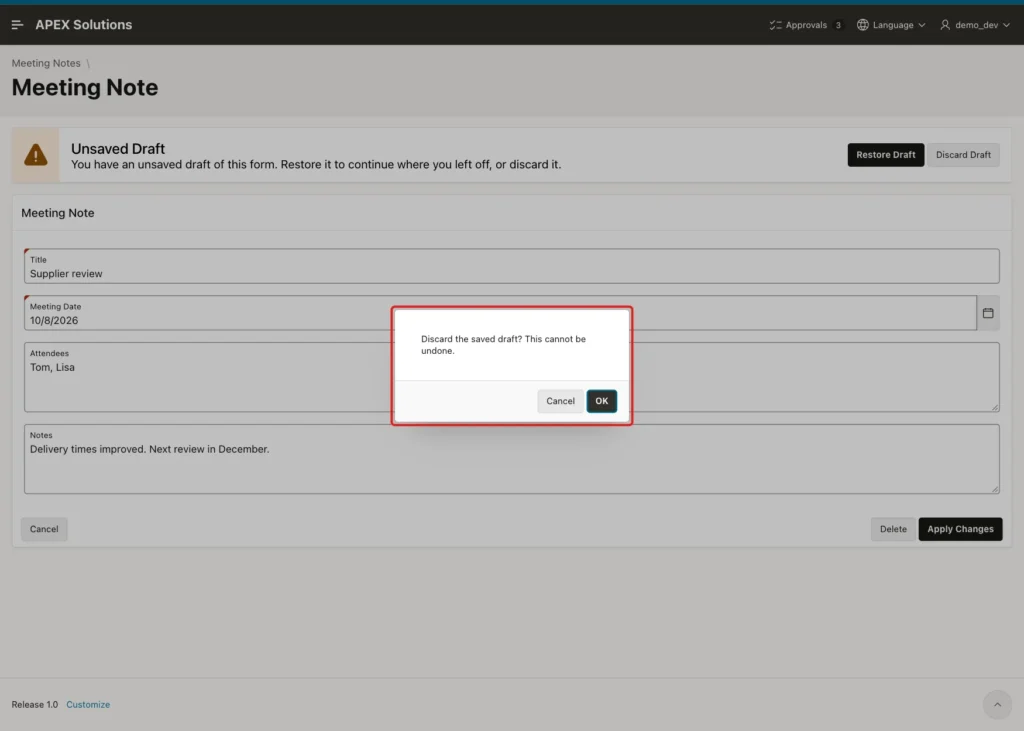
Click OK. The notice disappears, the fields keep the saved values, and reopening the note shows no notice.
Step 12: Test With a Second User
Drafts belong to the user who typed them. As DEMO_DEV, click Create, type the title Q4 planning and leave the page. Then sign in as SALES_MANAGER in another browser and click Create. The form is empty and no notice appears:
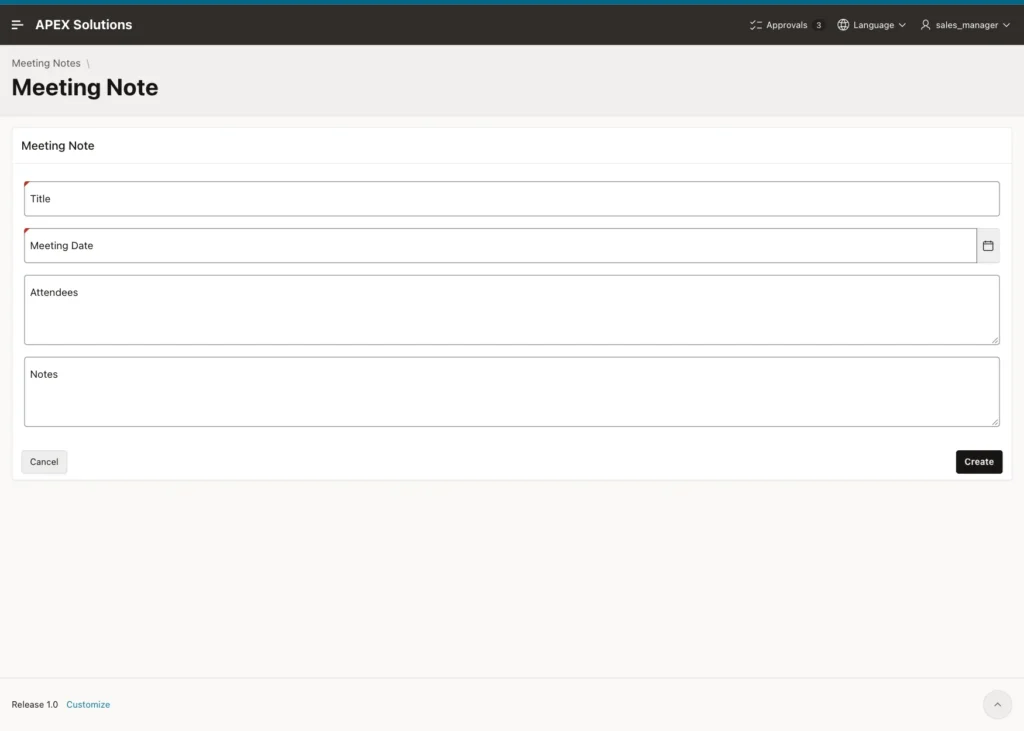
The table holds only the draft of DEMO_DEV:
Example:
select app_user, page_id, record_key,
       json_value(draft_data, '$.P411_TITLE') title
from   form_drafts
order  by app_user;
Output:
APP_USER       PAGE_ID RECORD_KEY    TITLE
___________ __________ _____________ ______________
DEMO_DEV           411 NEW           Q4 planning
Every draft query in this guide filters on :APP_USER, which APEX sets on the server. So one user's drafts are never shown to, restored for or deleted by another user.
Things to Know
- Drafts that nobody restores stay in the table. Remove old ones on a schedule, for example with an automation that runs the DELETE below. In this example it deleted 0 rows, as all drafts were new.
- Warn on Unsaved Changes stays on for the form page. The browser still asks before leaving the page; the draft covers crashes and tabs closed anyway.
- Do not put passwords or card numbers in a draft. They would be stored as plain JSON.
- To add drafts to another form, copy the region, buttons, dynamic actions and process, and change the item names. The FORM_DRAFTS table stays the same.
Example:
delete from form_drafts
where  saved_on < systimestamp - interval '30' day;
Output:
0 rows deleted.
Related Guides
- How to Save Data in the Browser and Prompt App Installs Using apex.storage and apex.pwa
- How to Warn Users Before Their Session Times Out in Oracle APEX
Conclusion
An auto-saved form draft in Oracle APEX needs one draft table, one region and three dynamic actions. A debounced dynamic action saves the item values as JSON while the user types, and a Rows returned condition shows the restore notice when the form is opened again.
Restore and Discard work through Execute Server-side Code with Items to Submit and Items to Return, and a process deletes the draft after a successful save. Remember the two traps from the tests: submit the primary key item, and turn off Fire on Initialization for the Hide actions.
