
The Mac is a popular and very capable machine for APEX development, on Intel and Apple Silicon alike. There is one constraint to understand first: Oracle does not produce Oracle Database for macOS, so on a Mac the database always runs in a Linux container. Everything else, including Java, ORDS, SQLcl, VS Code, and your browser, runs natively on macOS.
This guide covers what is specific to the Mac: choosing a container engine, Apple Silicon, the full installation sequence, macOS security prompts, start and stop scripts, and running ORDS automatically at login with launchd.
These steps come from Oracle APEX 26.1 Book: The Complete Guide.
Before You Start
You need Java 21 with JAVA_HOME set, and the APEX and ORDS zips unzipped into ~/apex-lab with ~/apex-lab/ords/bin on your PATH, as described in how to prepare your computer for Oracle APEX 26.1. The container steps are the same on every operating system and are explained one by one in how to install Oracle APEX 26.1 with Docker; keep that guide open alongside this one.
Choose a Container Engine
Three engines work well on macOS. Each runs a small Linux virtual machine behind the scenes, and each accepts the docker or podman commands used here.
| Engine | Cost | Notes |
|---|---|---|
| Docker Desktop | Free for personal use, education, and small businesses; paid for larger organizations | The most common choice, with a graphical dashboard for containers, images, and volumes |
| Podman Desktop / Podman | Free and open source | Commands use podman instead of docker; no background daemon |
| Colima | Free and open source | A lightweight command-line tool that provides the docker command without Docker Desktop |
Without a preference, use Docker Desktop. If your organization's license terms rule it out, Colima is the lightest alternative and needs no changes to any command.
Docker Desktop
Start Docker Desktop from Applications and open Settings, then Resources. Give the virtual machine at least 4 GB of memory (6 GB is better on a 16 GB Mac) and at least 40 GB of disk, and click Apply & restart.
Colima
With Homebrew, install Colima and the Docker command-line client, then start a virtual machine with enough memory.
Example:
brew install colima docker
colima start --cpu 4 --memory 6 --disk 60
colima start creates the virtual machine the first time and simply starts it afterward. colima stop shuts it down, and colima status checks it.
Podman
Example:
brew install podman
podman machine init --cpus 4 --memory 6144 --disk-size 60
podman machine start
With Podman, type podman wherever this guide shows docker.
Apple Silicon
Apple M-series processors use the ARM64 architecture. Oracle publishes Oracle AI Database 26ai Free for ARM64, and the container-registry.oracle.com/database/free:latest image contains both architectures. Your engine downloads the ARM64 variant automatically, and the database runs natively, with no emulation and no Rosetta.
Example:
docker image inspect container-registry.oracle.com/database/free:latest \
  --format '{{.Architecture}}'
Output (Apple Silicon):
arm64
An Intel Mac prints amd64. APEX, ORDS, and Java behave identically on both.
Some older tutorials add --platform linux/amd64 to docker run. On Apple Silicon that runs the Intel build under emulation, which is many times slower and sometimes fails during startup. Leave the option out.
Install the Stack
With a container engine running, here is the complete sequence in one place. Replace Welcome_2026# with your own password.
Example:
# 1. Database container
docker run -d --name apex-db -p 1521:1521 \
  -e ORACLE_PWD='Welcome_2026#' \
  -v apex-db-data:/opt/oracle/oradata \
  container-registry.oracle.com/database/free:latest
docker logs -f apex-db          # wait for DATABASE IS READY TO USE!

# 2. ORDS schema and configuration (the gateway stays disabled for now)
cd ~/apex-lab
echo 'Welcome_2026#' | ords --config ~/apex-lab/ords-config install \
  --admin-user SYS \
  --db-hostname localhost --db-port 1521 --db-servicename FREEPDB1 \
  --feature-db-api true --feature-rest-enabled-sql true \
  --feature-sdw true \
  --gateway-mode proxied --gateway-user APEX_PUBLIC_USER \
  --password-stdin

# 3. APEX and the instance administrator, inside the container
docker exec -u root apex-db mkdir -p /opt/oracle/apex-install
docker cp ~/apex-lab/apex apex-db:/opt/oracle/apex-install/
docker exec -u root apex-db chown -R oracle /opt/oracle/apex-install
docker exec -it -w /opt/oracle/apex-install/apex apex-db \
  sqlplus / as sysdba
#   SQL> alter session set container = FREEPDB1;
#   SQL> @apexins.sql SYSAUX SYSAUX TEMP /i/
#   SQL> @apxchpwd.sql
#   SQL> exit

# 4. Run the same "ords install" command again to enable the gateway

# 5. Start ORDS
ords --config ~/apex-lab/ords-config serve \
  --port 8080 --apex-images ~/apex-lab/apex/images
In brief: the first ords install creates the ORDS schema but leaves the PL/SQL gateway disabled, because APEX is not installed yet. apexins.sql installs APEX into FREEPDB1 with the SYSAUX tablespace and the image prefix /i/, and apxchpwd.sql creates the ADMIN account. Running ords install a second time detects APEX and sets the gateway to proxied. The output of every step is shown in the Docker guide.
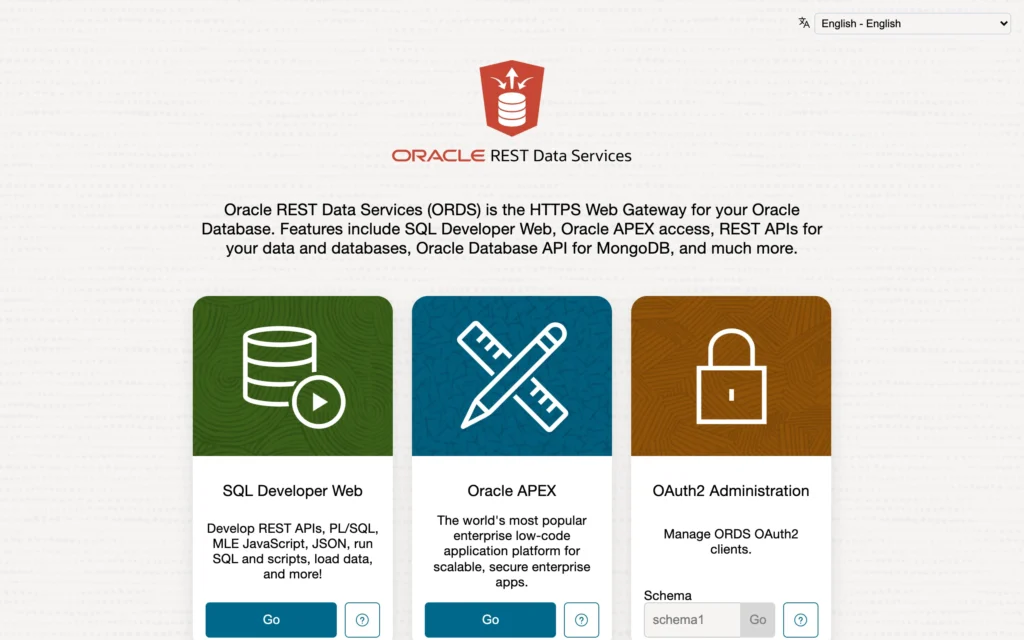
Open http://localhost:8080/ords/ to see the ORDS landing page, then http://localhost:8080/ords/apex for the workspace sign-in and /ords/apex_admin for Administration Services.
Finally, grant APEX outbound network access, so it can send email and call REST and AI services. Connect with sql sys@localhost:1521/FREEPDB1 as sysdba and run this block.
Example:
begin
    dbms_network_acl_admin.append_host_ace(
        host => '*',
        ace  => xs$ace_type(
                    privilege_list => xs$name_list('connect'),
                    principal_name => 'APEX_260100',
                    principal_type => xs_acl.ptype_db));
end;
/
macOS Security Prompts
The first time you run ORDS or SQLcl from a downloaded zip, macOS may say the program cannot be opened because the developer cannot be verified, or ask whether Java may accept incoming network connections.
- For the network prompt, click Allow. ORDS must accept connections from your browser.
- If macOS blocks a program, open System Settings, then Privacy & Security, scroll to the message about the blocked program, and click Open Anyway.
Alternatively, remove the quarantine attribute macOS adds to downloaded files before you unzip them.
Example:
xattr -d com.apple.quarantine ~/apex-lab/ords-latest.zip
Store the Port and Images in the ORDS Configuration
Typing --port 8080 --apex-images every time is tedious. Store both in the configuration, so a plain ords serve is enough.
Example:
ords --config ~/apex-lab/ords-config config set \
  standalone.static.path ~/apex-lab/apex/images
ords --config ~/apex-lab/ords-config config set \
  standalone.http.port 8080
Output:
The global setting named: standalone.static.path was set to: /Users/yourname/apex-lab/apex/images
The global setting named: standalone.http.port was set to: 8080
From now on, this starts ORDS with the right port and images.
Example:
ords --config ~/apex-lab/ords-config serve
Start and Stop Scripts
Two small scripts make the environment a one-command affair.
Contents of ~/apex-lab/start.sh:
#!/bin/zsh
# Starts the APEX lab: database container, then ORDS in the background.
set -e
LAB=~/apex-lab
docker start apex-db > /dev/null
echo -n "Waiting for the database"
until docker inspect -f '{{.State.Health.Status}}' apex-db \
      | grep -q healthy; do
  echo -n "."; sleep 3
done
echo " ready."
if pgrep -f "ords.*serve" > /dev/null; then
  echo "ORDS is already running."
else
  nohup ords --config $LAB/ords-config serve \
    > $LAB/ords.log 2>&1 &
  echo "ORDS starting: http://localhost:8080/ords/apex (log: $LAB/ords.log)"
fi
Contents of ~/apex-lab/stop.sh:
#!/bin/zsh
# Stops ORDS and the database container.
pkill -f "ords.*serve" && echo "ORDS stopped."
docker stop apex-db > /dev/null && echo "Database stopped."
Make them executable and use them from any terminal.
Example:
chmod +x ~/apex-lab/start.sh ~/apex-lab/stop.sh
~/apex-lab/start.sh
The start script waits for the container's health check, which the Oracle image reports as healthy once the database is open, so ORDS never starts before the database accepts connections.
Run ORDS Automatically with launchd
On macOS, background programs are managed by launchd. You describe the program in a property list file, a launch agent, and launchd starts it at login, restarts it if it stops, and captures its output.
Create ~/Library/LaunchAgents/dev.apexlab.ords.plist, replacing yourname with your macOS user name and the Java path with the output of /usr/libexec/java_home -v 21.
Contents of dev.apexlab.ords.plist:
<?xml version="1.0" encoding="UTF-8"?>
<!DOCTYPE plist PUBLIC "-//Apple//DTD PLIST 1.0//EN"
  "http://www.apple.com/DTDs/PropertyList-1.0.dtd">
<plist version="1.0">
<dict>
  <key>Label</key>
  <string>dev.apexlab.ords</string>
  <key>ProgramArguments</key>
  <array>
    <string>/Users/yourname/apex-lab/ords/bin/ords</string>
    <string>--config</string>
    <string>/Users/yourname/apex-lab/ords-config</string>
    <string>serve</string>
  </array>
  <key>EnvironmentVariables</key>
  <dict>
    <key>JAVA_HOME</key>
    <string>/Library/Java/JavaVirtualMachines/jdk-21.jdk/Contents/Home</string>
  </dict>
  <key>RunAtLoad</key>
  <true/>
  <key>KeepAlive</key>
  <true/>
  <key>StandardOutPath</key>
  <string>/Users/yourname/apex-lab/ords.log</string>
  <key>StandardErrorPath</key>
  <string>/Users/yourname/apex-lab/ords.log</string>
</dict>
</plist>
launchd does not expand ~ or environment variables, which is why every path is written out in full. Load the agent; ORDS starts immediately and again at every login.
Example:
launchctl bootstrap gui/$(id -u) \
  ~/Library/LaunchAgents/dev.apexlab.ords.plist
To stop it and keep it from starting, unload the agent. To check it, use launchctl print gui/$(id -u)/dev.apexlab.ords | grep state.
Example:
launchctl bootout gui/$(id -u)/dev.apexlab.ords
Start the Database Container Automatically
Docker Desktop has a setting under Settings, then General, to start Docker Desktop when you sign in. The restart policy unless-stopped makes the container start whenever Docker starts; apply it to the existing container.
Example:
docker update --restart unless-stopped apex-db
With a launch agent for ORDS and a restart policy on the container, both start on their own after you log in. If ORDS starts before the database is ready, it simply retries its connection pool, and the first page request after the database opens succeeds.
Where Things Live on a Mac
| What | Where |
|---|---|
| APEX installation files and images | ~/apex-lab/apex |
| ORDS program | ~/apex-lab/ords |
| ORDS configuration, including an encrypted password wallet | ~/apex-lab/ords-config |
| ORDS log, when started by the scripts or launchd | ~/apex-lab/ords.log |
| Database files | Docker volume apex-db-data, inside the engine's virtual machine |
| Java | /Library/Java/JavaVirtualMachines/ (see /usr/libexec/java_home -V) |
The database files are not visible in Finder. To back them up, use Data Pump, or stop the container and archive the volume.
Example:
docker run --rm -v apex-db-data:/data -v ~/backup:/backup \
  oraclelinux:9-slim tar czf /backup/apex-db-data.tgz /data
Troubleshooting
| Problem | Fix |
|---|---|
| Cannot connect to the Docker daemon | The engine is not running. Start Docker Desktop, or run colima start or podman machine start. |
| The container starts, then stops after a minute | The virtual machine has too little memory. Give it at least 4 GB, or recreate the Colima or Podman machine with more. |
| zsh: command not found: ords | Add export PATH="$HOME/apex-lab/ords/bin:$PATH" to ~/.zshrc and open a new terminal. |
| Unsupported major.minor version, or ORDS refuses to start | An old Java is first on the PATH. Check java -version and set JAVA_HOME with /usr/libexec/java_home -v 21. |
| Port 8080 or 1521 is already in use | Find the program with lsof -nP -iTCP:8080 -sTCP:LISTEN. Stop it, or use another port (-p 1522:1521 for the container, --port 8081 for ORDS). |
Related Guides
- Install Oracle Database on macOS Apple Silicon (ARM64) Using Docker
- How to Install Oracle APEX 26.1 on Windows
- How to Install Oracle APEX 26.1 on Oracle Linux
Conclusion
On macOS the database always runs in a Linux container, while ORDS, Java, and your tools run natively. Pick Docker Desktop, Colima, or Podman; on Apple Silicon the ARM64 image runs natively, so never force linux/amd64. Install the database, ORDS, APEX, and ADMIN with the container sequence, store standalone.static.path and standalone.http.port in the ORDS configuration, and use start and stop scripts or a launchd agent plus a restart policy so the environment starts by itself.
See my articles more often when you search Google.
