
If you have been looking for a way to speed up your Oracle APEX development, enabling the built-in AI assistant is one of the best moves you can make.
Oracle APEX has a native AI integration that puts an AI coding assistant right inside your SQL, JavaScript, and PL/SQL code editors. Once it is set up, you can ask it questions, generate code, and refine your queries without ever leaving the editor.
This guide walks you through exactly how to configure and enable AI in Oracle APEX from start to finish.
Navigate to Generative AI Services in Oracle APEX
The first thing you need to do is log into your Oracle APEX workspace as an administrator.
From the main workspace menu, go to Workspace Utilities and then click on Generative AI Services. This is where you manage all AI provider configurations for your workspace.
On that page, click the Create button to start adding a new Generative AI service.
Filling Out the Generative AI Service Form
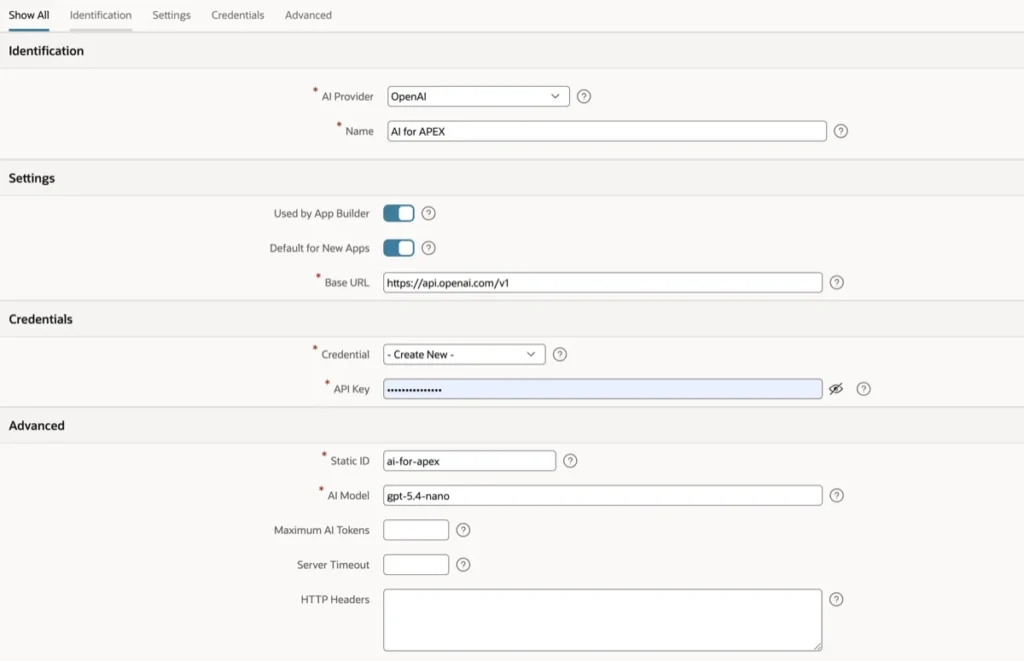
A configuration form will open with several sections. Here is a breakdown of every field you will see so you know exactly what to enter.
Identification
This section lets you identify the AI provider and give your configuration a name.
| Field | Description |
|---|---|
| AI Provider | Select your AI provider from the dropdown. In the example shown, OpenAI is selected. You can also choose OCI Generative AI or other supported providers depending on your setup. |
| Name | Give your configuration a recognizable name. Something like "AI for APEX" works well and makes it easy to identify later. |
Settings
This section controls how the AI service behaves inside your APEX environment.
| Field | Description |
|---|---|
| Used by App Builder | Toggle this on to make the AI assistant available inside the APEX App Builder. This is what enables the APEX Assistant in your code editors. |
| Default for New Apps | Toggle this on to automatically use this AI service for any new applications you create in the workspace. |
| Base URL | This is the API endpoint for your AI provider. For OpenAI, this will be https://api.openai.com/v1. Leave it as the default unless your provider requires a different endpoint. |
Credentials
This is where you connect your AI provider account to APEX.
| Field | Description |
|---|---|
| Credential | You can select an existing credential from the dropdown or choose "Create New" to add one fresh. If this is your first time setting this up, select "Create New." |
| API Key | Enter the API key from your AI provider account. For OpenAI, you can generate one from your OpenAI dashboard. This key is stored securely and masked after saving. |
Advanced
These settings give you more control over how the AI model behaves. Most of these are optional, but the first two are required.
| Field | Description |
|---|---|
| Static ID | A unique identifier for this service configuration. It is auto-generated based on the name you gave (for example, "ai-for-apex"). You can leave it as is. |
| AI Model | Specify which AI model to use. In the example, gpt-5.4-nano is entered. You can change this to any model supported by your provider, such as gpt-4o or gpt-4-turbo. |
| Maximum AI Tokens | Optional. Set a cap on how many tokens each AI request can use. Useful for controlling costs. Leave blank to use the provider default. |
| Server Timeout | Optional. Set how many seconds APEX should wait for a response before timing out. Leave blank to use the default timeout. |
| HTTP Headers | Optional. Add any custom HTTP headers required by your AI provider. Most standard configurations will not need this. |
| Comments | Optional. Add any internal notes about this configuration for your team's reference. |
Click Create to Enable AI in Oracle APEX
Once you have filled in all the required fields, scroll down and click the Create button.
That is all it takes. The Generative AI service is now configured and active for your workspace.
APEX will save your settings, and you will be taken back to the Generative AI Services list, where your new service will appear.
Using the APEX Assistant in Your Code Editors
Now that AI is enabled, you can start using the APEX Assistant directly inside your code editors.
Open any SQL Query, JavaScript, or PL/SQL editor inside APEX App Builder. You will notice a new APEX Assistant button appear in the editor toolbar.
Accepting the Terms on First Use
The first time you click the APEX Assistant button, APEX will show you a terms and conditions prompt.
You need to review and accept these terms before you can use the assistant. This is a one-time step, and you will not see it again after that.
The AI Chat Panel in the Editor
 AI in Oracle APEX code editors." class="wp-image-22135"/>
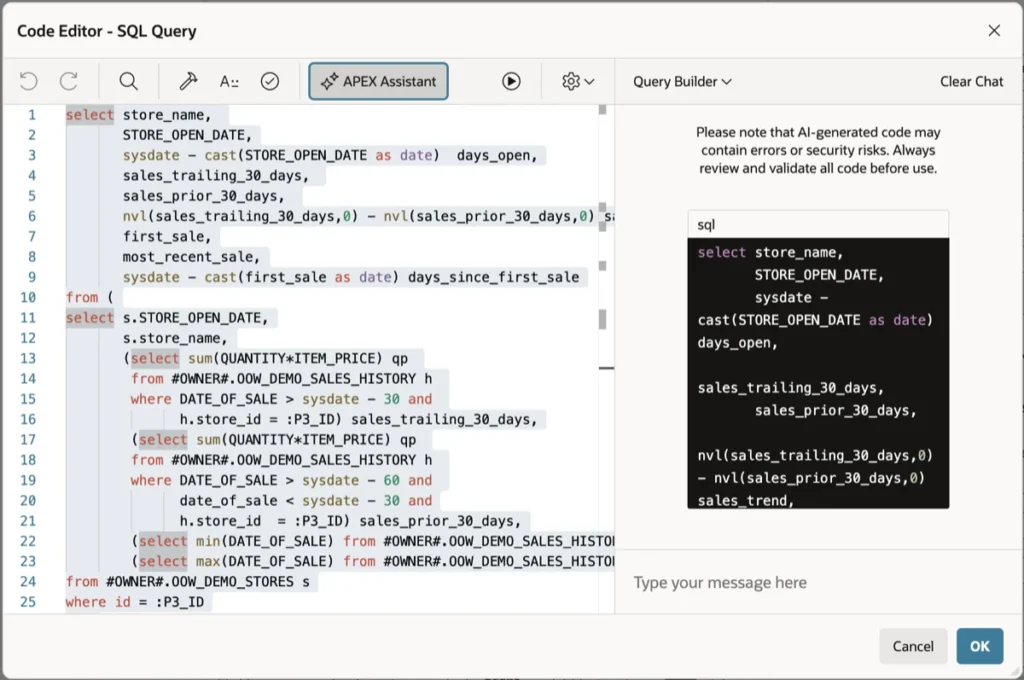
Once you accept the terms, a chat panel opens on the right side of your code editor.
As you can see in the screenshot above, the panel shows your current code on the left and the AI assistant on the right. You can type any prompt in the message box at the bottom of the chat panel.
For example, you can ask it to optimize your SQL query, generate a new query based on a description, add error handling to your PL/SQL, or explain what a piece of code does.
The assistant will respond with a suggested code block. You can review the suggestion, and if you like it, click OK to apply it directly into your editor.
There is also a Clear Chat button in the toolbar if you want to start a fresh conversation with the assistant.
"AI-generated code may contain errors or security risks. Always review and validate all code before use." — Oracle APEX Assistant notice
That disclaimer appears in the chat panel as a reminder. It is good practice to always review what the AI suggests before running it in a production environment.
Quick Reference: What Each Field Does
Here is a summary of the required fields you absolutely need to fill out to get started.
- AI Provider: Choose OpenAI or another supported provider
- Name: Give the configuration a clear label
- Used by App Builder: Must be toggled on for the editor assistant to appear
- Base URL: The API endpoint of your provider
- API Key: Your private key from the AI provider dashboard
- AI Model: The specific model version you want to use
Conclusion
Enabling AI in Oracle APEX takes just a few minutes, and the payoff is significant.
By configuring a Generative AI Service in your workspace, you unlock a powerful coding assistant that lives right inside your SQL, JavaScript, and PL/SQL editors.
Whether you are writing complex queries, debugging PL/SQL, or just trying to speed up your workflow, the APEX Assistant gives you an intelligent tool that responds to plain-language prompts and delivers ready-to-use code suggestions.
Go ahead and set it up in your workspace today. Once you try it, you will wonder how you ever worked without it.
