
Faceted search and smart filters let users narrow a report by clicking values instead of writing queries. Sooner or later you want to drive them from code too: preset a filter from a link, clear everything from a button, show a chart of the counts, or read how many records match.
Both region types share one JavaScript interface, facetsRegion. This guide covers how to set facet values from JavaScript, including the value formats each facet type expects, and every method of the interface, from reading counts to clearing, hiding, locking, charting, and applying facets. Each has a tested example with the real output.
Quick Reference
| Task | How |
|---|---|
| Set a facet value | apex.item(facetItem).setValue(value) |
| React to any facet change | The facetschange event |
| Count active facets | getFacetCount |
| Read the matching total and per-value counts | getTotalResourceCount, getFacetValueCounts |
| Remove filters | clear, clearFacets, reset |
| Hide or show a facet | hideFacet, showFacet |
| Show or remove a chart of a facet | addChart, removeChart |
| Disable facets during work | lock, unlock |
| Refetch counts, apply batched changes, redraw | fetchCounts, apply, refreshView |
| Move focus to the search field | focus |
How to Run These Examples
The examples ran in Oracle APEX 26.1 on a products page. A faceted search region with the DOM ID product_search filters a classic report with the DOM ID products. Its facets are the page items P4_CATEGORY_ID, P4_SUPPLIER_ID, P4_PRICE, P4_COLOR, and P4_IS_ACTIVE, plus the search field P4_SEARCH. The output under each example is exactly what the browser console printed.
To try one, open a page with faceted search, press F12, paste the code into the Console tab, and replace the region ID and item names with your own. Several examples pause with await at the top level while the report and counts reload, which the console allows; inside a dynamic action, wrap such code in an async function.
For building the regions themselves in Page Designer, see the guide to faceted search, smart filters, and search in Oracle APEX.
Faceted Search vs Smart Filters in JavaScript
Both regions report the type Facets and use the facets widget. The uiMode property tells them apart: "F" for faceted search, "S" for smart filters. Either one filters another region, its report, and that report names the filter region in its filterRegionId property, as covered in the guide to controlling regions with apex.region.
Reading the Region's Configuration
The region's settings are available as properties of its interface. Most come from Page Designer attributes and are effectively read-only; a few can be changed with region.call("option", ...) followed by refreshView.
const search = apex.region("product_search");
console.log("uiMode:", search.uiMode, "- batch:", search.batch, "- feedback:", search.feedback);
console.log("searchItem:", search.searchItem, "- currentFacets:", search.currentFacets);
for (const control of search.controls) {
    console.log(control.name.padEnd(15), control.type.padEnd(10), control.label.padEnd(10),
                (control.values || []).length, "values");
}
Output:
uiMode: F - batch: false - feedback: true
searchItem: P4_SEARCH - currentFacets: #active_facets
P4_CATEGORY_ID  list       Category   24 values
P4_SUPPLIER_ID  list       Supplier   12 values
P4_PRICE        rangeList  Price      4 values
P4_COLOR        list       Color      8 values
P4_IS_ACTIVE    list       Is Active  2 values
| Property | Type | Description |
|---|---|---|
| uiMode | string | "F" for faceted search, "S" for smart filters. Cannot be changed. |
| controls | object[] | The facets. Each has name (the page item), type (list, range, rangeList, selectList, group, checkbox, or input), label, displayAs (INLINE or FILTER_DIALOG), multiple, values (the LOV as objects with r and d), and type-specific options. List controls also have allowExclude, new in 26.1, which lets users exclude values. |
| batch | boolean | Hold changes until the user clicks Apply in faceted search, or closes the filter in smart filters. |
| externalApply | boolean | With batch on, hide the Apply button so your code calls apply instead. |
| feedback | boolean | Show counts next to facet values. |
| searchField | string or boolean | Whether to show a search field, or the ID of an item to use as one. |
| searchItem | string | The item that holds the search terms. |
| searchButton | string | The button that starts a search, when the search field is an item. |
| multipleSearches | boolean | Allow several search terms, combined with AND. |
| currentFacets | string or boolean | Where to list the applied filters: a selector, true for the top of the region, or false. |
| showTotalCount | string or boolean | Where to show the total count. |
| showCharts | string or boolean | Whether facet charts are allowed: true for a dialog, a selector for a specific element, or false. |
| chartTopNValues | number | How many values a chart shows before grouping the rest as Others. |
| numberFormat | string or boolean | How counts are formatted, together with numberFormatOptions and numberFormatThreshold. |
| persistState | boolean | Remember collapsed facets and open charts for the browser session. |
| clearOnHide | boolean | Clear a facet's value when the user hides it, in faceted search. |
| collapsibleSearchBar | boolean or null | Smart filters only: collapse the search bar, or null to collapse it on small screens only. |
| maxChips, moreFiltersChip | number, boolean | Smart filters only: how many suggestion chips to show, and whether to add a More Filters chip. |
| text | object | The region's translatable text strings. |
How to Set Facet Values from JavaScript
Every facet is a page item, so you set it with apex.item(name).setValue. The region notices the change, fires its change event, and refreshes the report. There is no separate facets method for this. What trips people up is the value format, which depends on the facet type:
| Facet | Value format | Example |
|---|---|---|
| List with multiple selection | I for include, then the values separated by colons. With Allow Exclude, E excludes them instead. | "I9:11" |
| List with a single value, or select list | The value as it is. | "TRUE" |
| Range or range list | Lower and upper bound separated by a bar. Leave one side empty for an open range. | "50|150", "|50", "300|" |
| Search item | The search term. | "merino" |
const search = apex.region("product_search");
const products = apex.region("products");
const done = () => new Promise((resolve) => setTimeout(resolve, 2000));   // report and counts
search.on("facetschange", () => console.log("facetschange"));

apex.item("P4_CATEGORY_ID").setValue("I9:11");            // Camp Kitchen and Backpacks
await done();
console.log("category:", apex.item("P4_CATEGORY_ID").getValue(), "->", search.getTotalResourceCount(), "products");
apex.item("P4_PRICE").setValue("50|150");                 // from 50 to 150
await done();
console.log("and price 50-150 ->", search.getTotalResourceCount(), "products");
Output:
facetschange
category: I9:11 -> 15 products
facetschange
and price 50-150 -> 8 products
The include prefix is not optional. In 26.1, a multiple-selection value without it, such as setValue("11"), is accepted in the browser but rejected by the server with ORA-20987: Filter prefix "1" is invalid, and the report does not refresh. The server reads the first character as the prefix, which is why the error mentions "1".
The example waits after each change because the new total only arrives after the report has refreshed. The same technique is behind a common request: opening a page with a filter already applied. Set the facet item's value in a dynamic action on page load, using these formats. The item methods themselves are covered in the guide to getting and setting page items with apex.item.
The change Event
Fires when one or more facet values change, whether the user or setValue changed them. With batch on, it fires when the changes are applied. Its full name is facetschange, and it carries no data. The dynamic action events Facets Change [Faceted Search] and Filters Change [Smart Filters] are this same event. The example above listens to it, which is why facetschange appears before each result.
Reading Counts
getFacetCount
Returns how many facets currently have a value. It is handy for a badge on a button that opens hidden facets.
region.getFacetCount(pIncludeSearchTerms) → number
| Parameter | Type | Description |
|---|---|---|
| pIncludeSearchTerms | boolean | Count search terms as well as facets. |
const search = apex.region("product_search");
const done = () => new Promise((resolve) => setTimeout(resolve, 2000));   // report and counts
apex.item("P4_COLOR").setValue("IBlack");
await done();
apex.item("P4_SEARCH").setValue("merino");
await done();
console.log("facets:", search.getFacetCount(false), "- with search terms:", search.getFacetCount(true));
Output:
facets: 1 - with search terms: 2
getTotalResourceCount and getFacetValueCounts
getTotalResourceCount returns the number of records matching the current filters, the same total the region displays but unformatted, or null when feedback is off. getFacetValueCounts returns every count the facets show, grouped by facet and value.
region.getTotalResourceCount() → number
region.getFacetValueCounts() → object
const search = apex.region("product_search");
const counts = search.getFacetValueCounts();
console.log("total:", search.getTotalResourceCount());
console.log("P4_PRICE:", counts.P4_PRICE);
console.log("P4_IS_ACTIVE:", counts.P4_IS_ACTIVE);
console.log("P4_COLOR:", counts.P4_COLOR);
Output:
total: 96
P4_PRICE: {"|50":23, "300|":10, "50|150":36, "150|300":27}
P4_IS_ACTIVE: {"FALSE":3, "TRUE":93}
P4_COLOR: {
  "Red": 9,
  "Slate Grey": 11,
  "Forest Green": 12,
  "Burnt Orange": 10,
  "Black": 15,
  "Sand": 11,
  "Ocean Blue": 14,
  "Olive": 8
}
The keys use the same formats as setValue: range buckets like "50|150" and plain values like "TRUE". That makes it easy to feed a count straight into a filter, for example to preselect the most common color.
Clearing and Resetting Filters
clear, clearFacets, and reset
clear removes every facet value and search term. clearFacets removes the facet values but keeps the search terms. reset does what clear does and also restores the remembered settings, such as collapsed facets and open charts, to the region's configuration.
region.clear()
region.clearFacets()
region.reset()
const search = apex.region("product_search");
const done = () => new Promise((resolve) => setTimeout(resolve, 2000));   // report and counts
const show = (label) => console.log(label.padEnd(12), search.getFacetCount(true), "filters,",
                                    search.getTotalResourceCount(), "products");
apex.item("P4_CATEGORY_ID").setValue("I11");            // Backpacks
await done();
apex.item("P4_SEARCH").setValue("daypack");
await done();
show("filtered:");
search.clearFacets();
await done();
show("clearFacets:");
search.clear();
await done();
show("clear:");
Output:
filtered:    2 filters, 2 products
clearFacets: 1 filters, 2 products
clear:       0 filters, 96 products
After clearFacets, the filter count drops from 2 to 1 but the product count stays at 2, because the search term "daypack" alone still narrows the results to the same two products. clear removes that too, and all 96 products come back.
const search = apex.region("product_search");
const done = () => new Promise((resolve) => setTimeout(resolve, 2000));   // report and counts
apex.item("P4_IS_ACTIVE").setValue("TRUE");
await done();
console.log("filtered:", search.getTotalResourceCount());
search.reset();
await done();
console.log("reset:   ", search.getTotalResourceCount(), "- filters:", search.getFacetCount(true));
Output:
filtered: 93
reset:    96 - filters: 0
A Reset Filters button of your own needs nothing more than a dynamic action that calls the region's reset method.
Changing What the User Sees
hideFacet and showFacet
Hide and show a facet. Hiding does not clear the facet's value, so the report stays filtered by it even though the user can no longer see why. They work for inline facets; in smart filters, a hidden facet is simply not suggested.
region.hideFacet(pFacetName)
region.showFacet(pFacetName)
const search = apex.region("product_search");
const visible = () => search.widget().find(".a-FS-label:visible").map((i, e) => e.textContent).get().join(", ");
search.hideFacet("P4_SUPPLIER_ID");
search.hideFacet("P4_IS_ACTIVE");
console.log("visible:", visible());
search.showFacet("P4_IS_ACTIVE");
console.log("visible:", visible());
Output:
visible: Category, Price, Color
visible: Category, Price, Color, Is Active
Because a hidden facet keeps filtering, clear its item's value first when you hide it for good, unless the hidden filter is exactly what you want, such as a fixed status the user should not change.
addChart and removeChart
Open and close a chart of a facet's counts, the same chart the user opens with a facet's chart button. By default the chart goes where the showCharts setting says, which on this page is a dialog. Pass an element as the second argument to put it somewhere of your own.
region.addChart(pFacetName, [pAppendTo$], [pConfig])
region.removeChart(pFacetName)
| Parameter | Type | Description |
|---|---|---|
| pFacetName | string | The facet to chart. |
| pAppendTo$ | jQuery | The element to put the chart in. |
| pConfig | object | type, either "bar" or "pie", and topN, the number of values to show. |
const search = apex.region("product_search");
search.on("facetsbeforeaddchart facetsafterremovechart", (event, data) =>
    console.log(event.type, data.chartName, "- charts:", data.count));
search.addChart("P4_COLOR", null, { type: "bar", topN: 5 });
await new Promise((resolve) => setTimeout(resolve, 1500));
Output:
facetsbeforeaddchart P4_COLOR - charts: 1
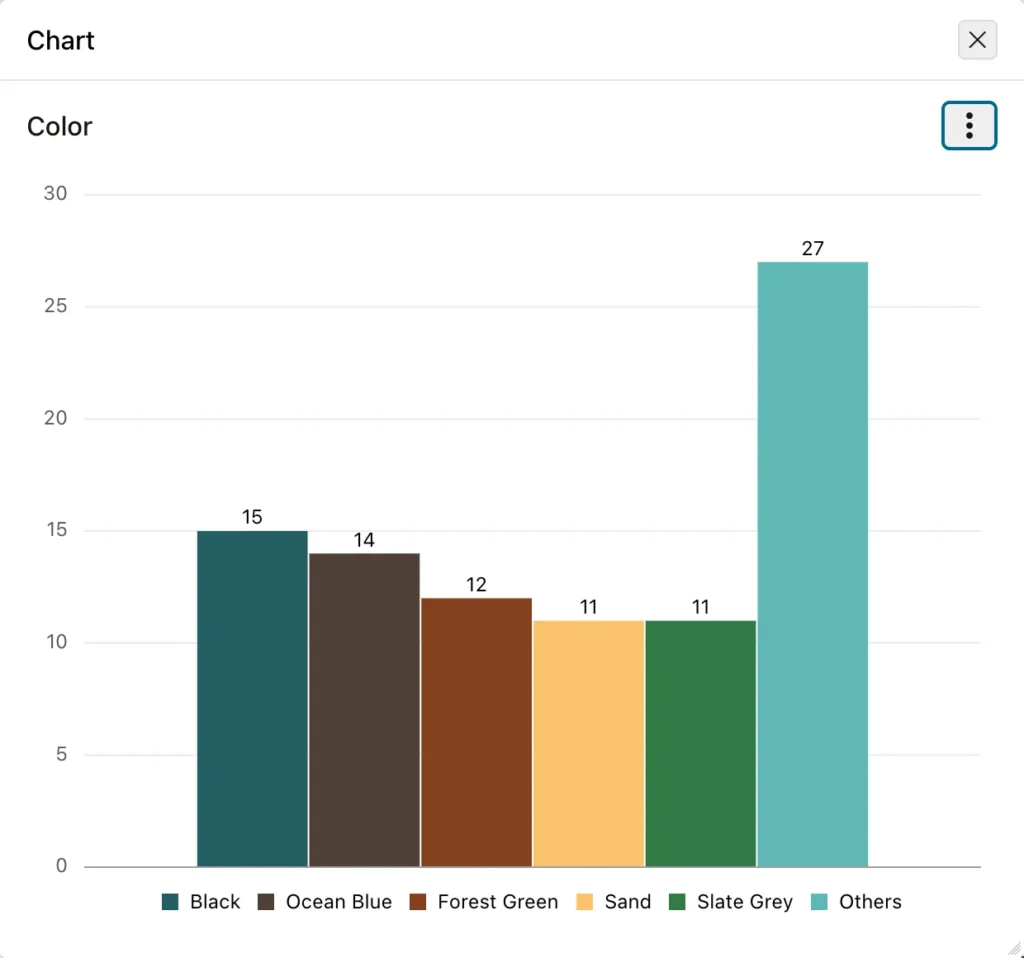
With topN set to 5, the chart shows the five most common colors and rolls the other three, 27 products in total, into Others.
const search = apex.region("product_search");
const pause = (ms) => new Promise((resolve) => setTimeout(resolve, ms));
search.on("facetsbeforeaddchart facetsafterremovechart", (event, data) =>
    console.log(event.type, data.chartName, "- charts:", data.count));
search.addChart("P4_COLOR");
await pause(1500);
search.removeChart("P4_COLOR");
await pause(500);
Output:
facetsbeforeaddchart P4_COLOR - charts: 1
facetsafterremovechart P4_COLOR - charts: 0
The beforeAddChart and afterRemoveChart Events
Fire just before a chart is added and just after one is removed. Their full names are facetsbeforeaddchart and facetsafterremovechart, and in dynamic actions they appear as Before Add Chart and After Remove Chart [Faceted Search]. The two examples above listen to both.
| Property of data | Type | Description |
|---|---|---|
| count | number | The number of charts after the change. |
| chartName | string | The chart's name, which is the facet item. |
| chart | Element | beforeAddChart only: the new chart's element. |
Controlling Updates
lock and unlock
Disable the facets, and enable them again. The report calls these itself while it refreshes, so a second request cannot start before the first finishes. Locks are counted: every lock needs its own unlock before the facets become usable again.
region.lock()
region.unlock()
const search = apex.region("product_search");
const locked = () => search.widget().hasClass("is-disabled");
search.lock();
console.log("locked:  ", locked());
search.lock();                                            // locks are counted
search.unlock();
console.log("unlock 1:", locked());
search.unlock();
console.log("unlock 2:", locked());
Output:
locked:   true
unlock 1: true
unlock 2: false
Call lock around your own slow work that the facets should not interrupt, and always pair it with unlock, ideally in a finally block, or the user is left with facets that never come back.
fetchCounts and refresh
Fetch every facet's counts from the server again. You need this when the report is also filtered by page items outside the facets region and one of them changes, because the facets do not know about it on their own. refresh does the same thing. Neither returns anything.
region.fetchCounts()
region.refresh()
const search = apex.region("product_search");
let requests = 0;
apex.jQuery(document).on("ajaxSend", () => requests++);   // count the calls to the server
console.log("fetchCounts returned:", search.fetchCounts());
await new Promise((resolve) => setTimeout(resolve, 1500));
console.log("server requests:", requests, "- total:", search.getTotalResourceCount());
Output:
fetchCounts returned: undefined
server requests: 1 - total: 96
apply
Applies the changes the user made while batch and externalApply are on. That combination suits facets in a dialog or drawer with an Apply button of your own.
region.apply()
const search = apex.region("product_search");
const pause = (ms) => new Promise((resolve) => setTimeout(resolve, ms));
search.call("option", { batch: true, externalApply: true });
search.refreshView();
const box = search.widget().find(".a-FS-control").first().find("input[value='11']");
box.prop("checked", true).trigger("change");              // as if the user checked Backpacks
await pause(3000);
console.log("before apply:", apex.item("P4_CATEGORY_ID").getValue(), "-", search.getTotalResourceCount(), "products");
search.apply();
await pause(3000);
console.log("after apply: ", apex.item("P4_CATEGORY_ID").getValue(), "-", search.getTotalResourceCount(), "products");
Output:
before apply: I11 - 96 products
after apply:  I11 - 7 products
Until apply runs, the item already holds the new value, I11, but the report and total are unchanged at 96. After apply, the report filters down to 7 products.
refreshView
Redraws the facets from the region's options. Call it after changing an option such as searchButton, or a control's label.
region.refreshView()
const search = apex.region("product_search");
const labels = () => search.widget().find(".a-FS-label").map((i, e) => e.textContent.trim()).get().join(" | ");
console.log(labels());
search.controls[0].label = "Product Category";
search.refreshView();                                     // render the facets again
console.log(labels());
Output:
Category | Supplier | Price | Color | Is Active
Product Category | Supplier | Price | Color | Is Active
focus
Moves focus to the search field, or to the first facet when there is no search field. In smart filters it focuses the search bar.
region.focus()
apex.region("product_search").focus();
console.log("focus is in:", document.activeElement.id, `(${document.activeElement.placeholder})`);
Output:
focus is in: product_search_fr_search (Search...)
Conclusion
Faceted search and smart filters share the facetsRegion interface, told apart by uiMode. Facet values are page items, so you set them with apex.item().setValue, using I-prefixed, colon-separated values for multi-select lists, bar-separated bounds for ranges, and plain values elsewhere; leaving out the I prefix fails on the server. facetschange tells you when filters change. getFacetCount, getTotalResourceCount, and getFacetValueCounts read the numbers. clear, clearFacets, and reset remove filters at different depths. hideFacet keeps a facet filtering while out of sight, addChart and removeChart manage count charts, lock and unlock are counted, fetchCounts picks up outside filters, apply commits batched changes, and refreshView redraws after you change an option. For selection and paging in the report that the facets filter, see the guide to selecting rows and paging through reports and cards.
