
An interactive report will happily filter anything, provided the user already knows what to ask for. That is a real limitation. Somebody browsing a product catalog does not know your categories, your price bands, or which suppliers you carry, so a blank filter dialog is not much help.
Faceted search flips the problem around by showing what exists in the data, with a count beside every value, so people narrow results by clicking. Smart filters do the same job in a compact bar above the report, and a search page lets users type one word and find it anywhere in the application. This guide covers all three.
How a Faceted Search Page Is Built
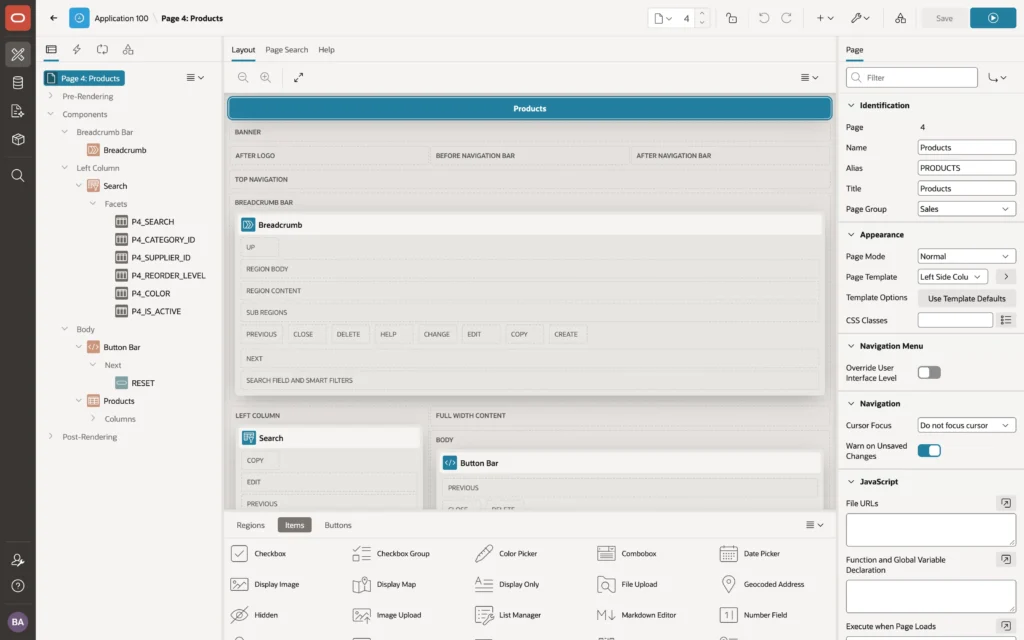
A faceted search page is two regions cooperating. One is a Faceted Search region, normally in the left column of a side-column page template, holding the facets. The other is the report that displays the rows, and the faceted search region's Filtered Region property is what ties them together.
Select a facet value and APEX adds a condition to the report's query, then refreshes the report and every facet without reloading the page. Each facet is really a page item with a Database Column property naming the column it filters. That detail has a practical consequence: the report's source must contain every column you want to build a facet on.
The region's own attributes control the panel as a whole.
- Batch Facet Changes waits for the user to click Apply instead of refreshing on every click, which is worth switching on when the report is slow.
- Show Current Facets displays the active selections as a summary above the report.
- Show Total Row Count puts a running total above the results.
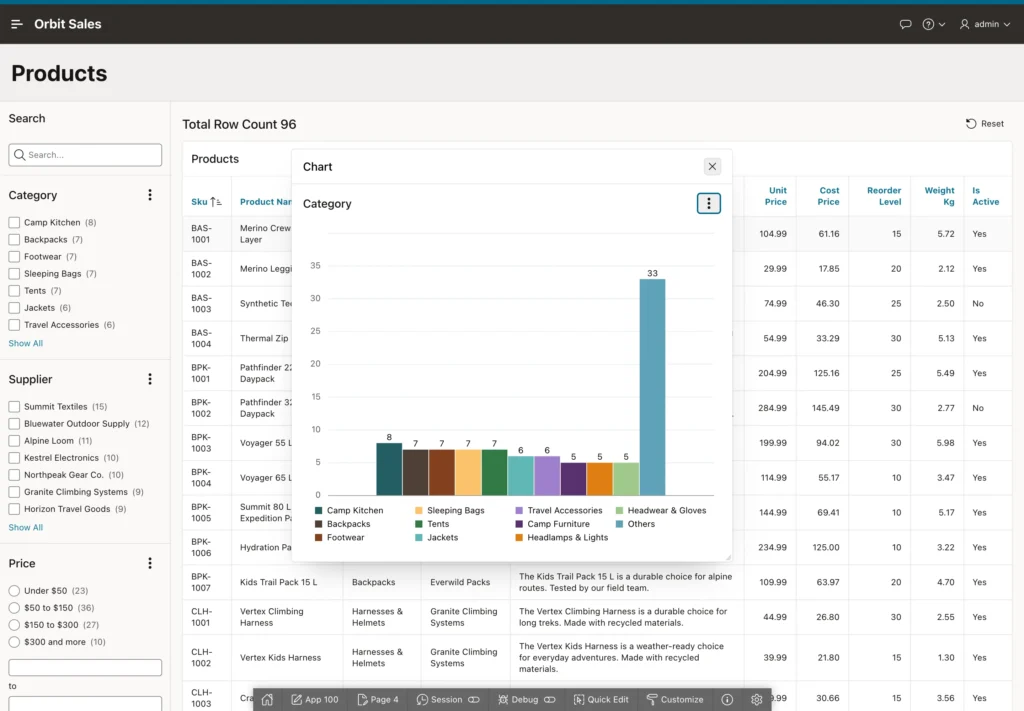
- Show Charts decides whether users can view a facet's values as a chart, and where it appears.
- Compact Numbers Threshold turns large counts into a short form such as 12K.
Facet Types
| Type | Lets users |
|---|---|
| Checkbox Group | Select one or more values, with counts |
| Radio Group | Select a single value, with counts |
| Range | Pick a range of numbers or dates, from a list or by typing bounds |
| Search | Type a word that is searched across several columns |
| Select List | Choose one value from a list |
| Input Field | Type a value to compare with a column |
Values for the list-style facets come from a list of values, which can be a shared component, a SQL query, static values, or simply the distinct values of the column. Using a shared list of values is what lets a facet display category names while filtering on category IDs.
The List Entries group decides how those values behave, and it repays a few minutes of attention. Compute Counts and Show Counts produce the numbers beside each value, recalculated as other facets change. Zero Count Entries decides whether values that would return nothing are hidden, disabled, or pushed to the bottom. Sort By Top Counts puts the most common values first, and Maximum Displayed Entries shows the first few with a Show All link. Facets can also depend on one another through the Parent Facet property, so a facet appears only once its parent has a value, much like a cascading list.
Building a Range Facet
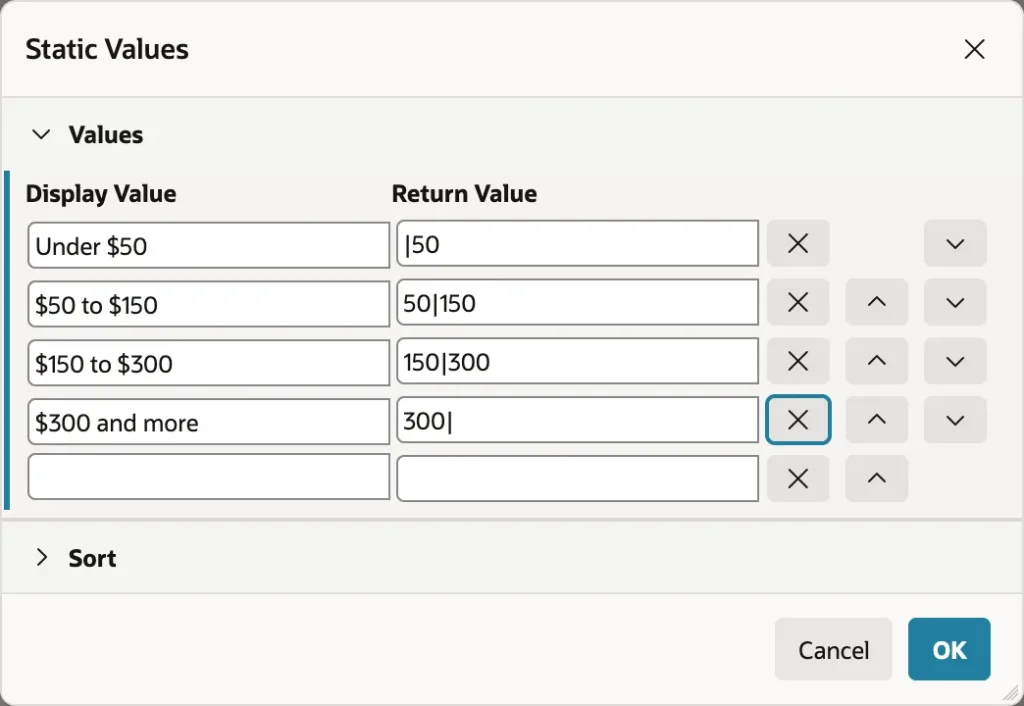
Range facets have a small syntax of their own. Each static value's return value is a lower bound and an upper bound separated by a vertical bar, and leaving a bound empty means open-ended, so a set of price bands reads as bar 50, then 50 bar 150, then 150 bar 300, then 300 bar.
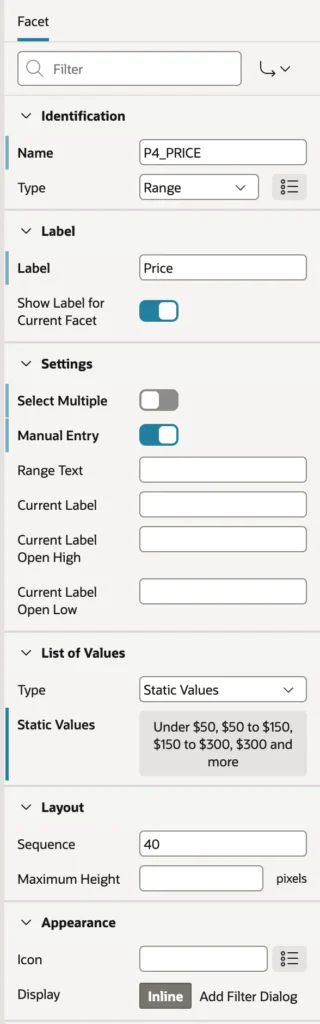
Switch on Manual Entry and users get from and to fields underneath the presets, which covers the person who wants everything between 80 and 95 rather than your tidy bands. To repurpose a facet the wizard generated, rename the item, change its label, and point its Database Column at the column you actually want.
Excluding Values
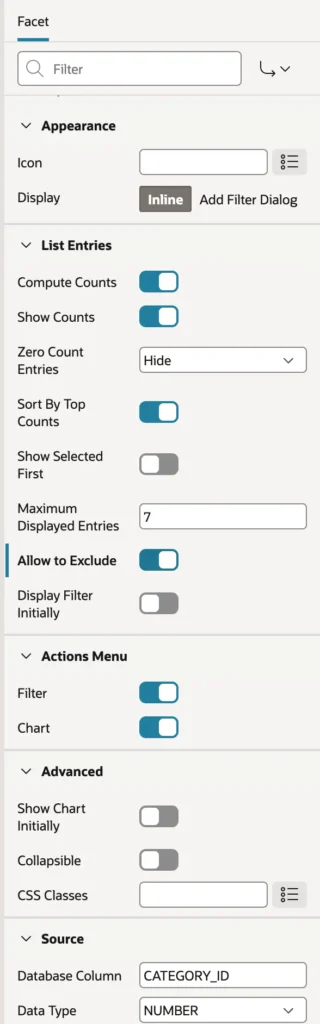
APEX 26.1 adds Allow to Exclude, which lets users say "everything except this" instead of only "just this". Switch it on and each value grows an exclude button when the user points at it. The same group also holds Display Filter Initially, useful when a facet has many values, and the Actions Menu group decides whether the facet offers Filter and Chart.
Faceted Search at Work
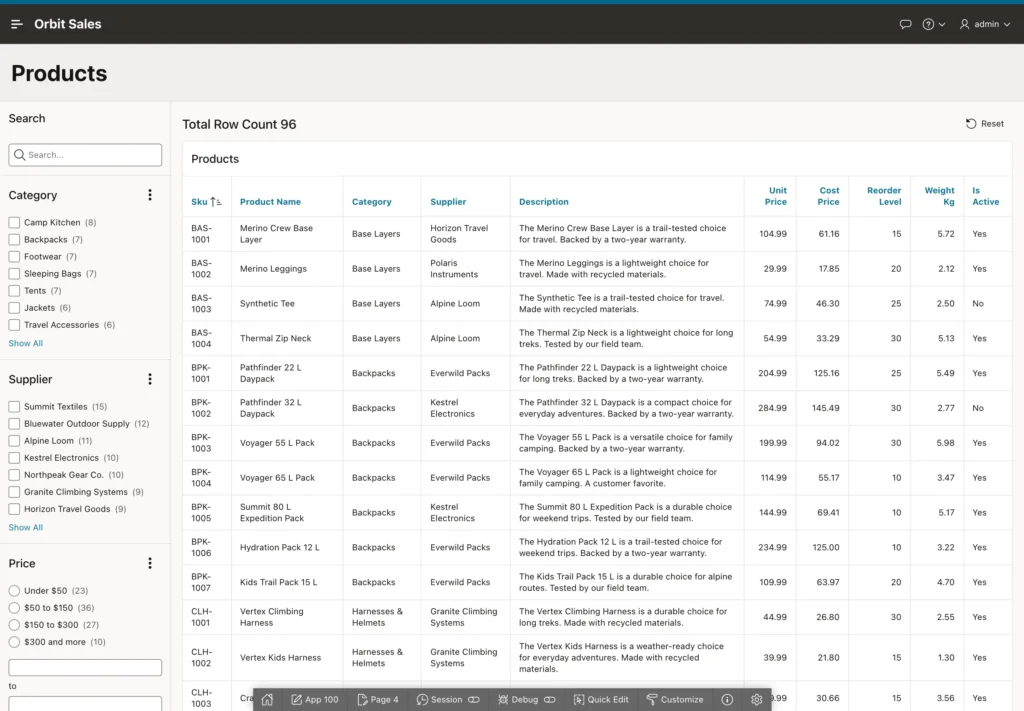
The counts are what make this worth building. A user who has never seen your catalog can tell at a glance that you stock seven tents and forty-one items under $50, without running a single search.
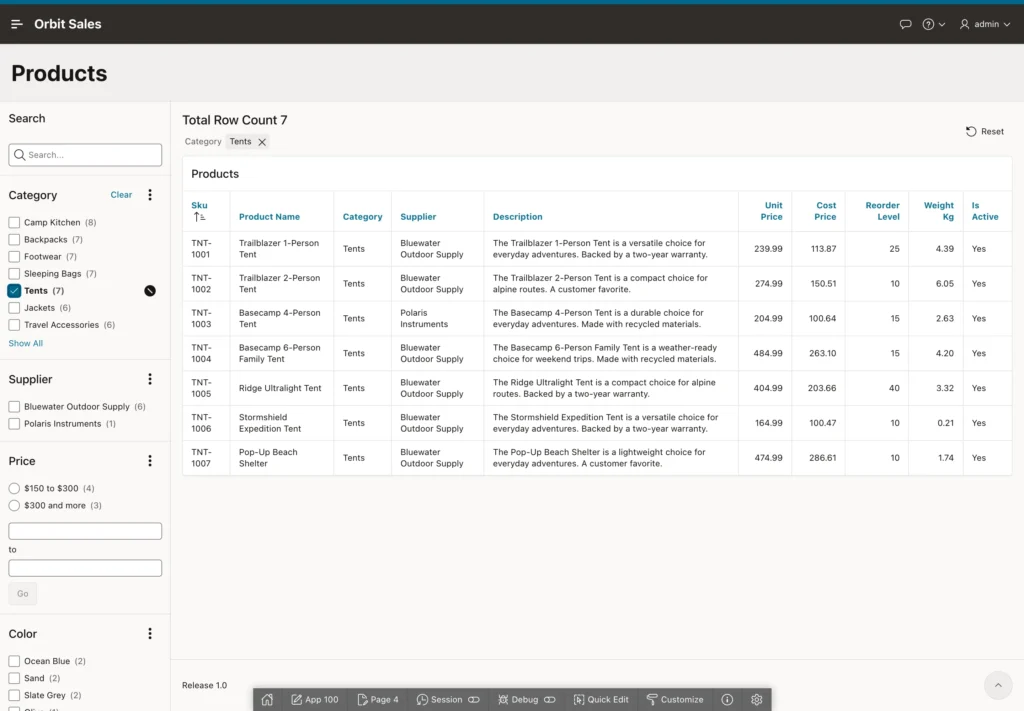
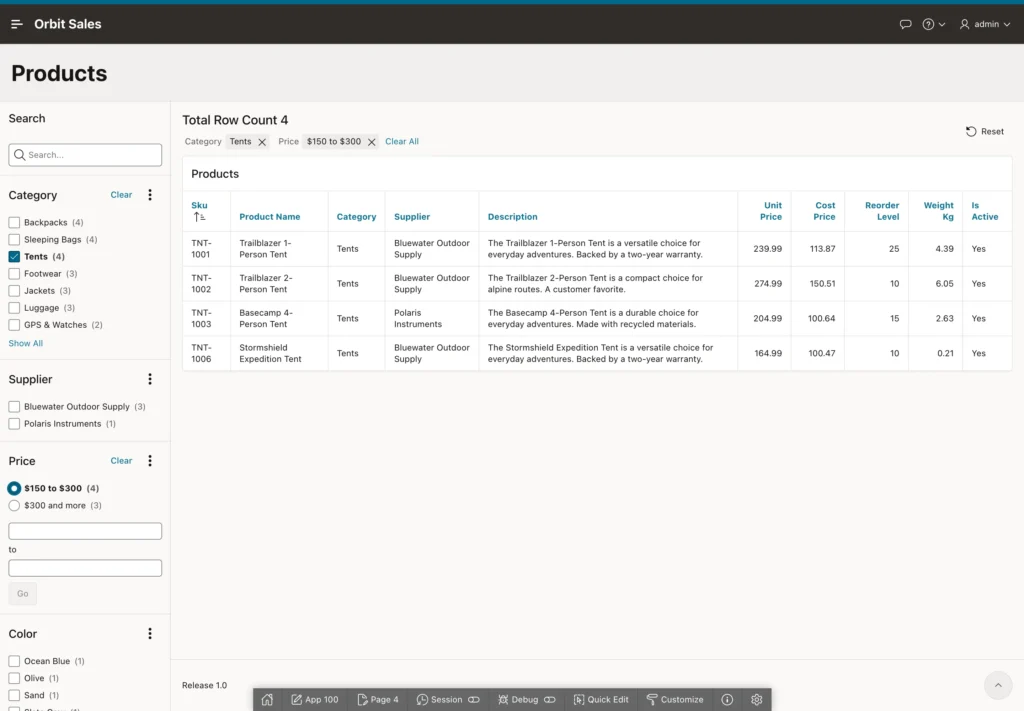
The logic is worth stating plainly, because users rely on it without thinking about it. Separate facets combine with and, while multiple values inside one checkbox facet combine with or. So tents or backpacks, and between 150 and 300.
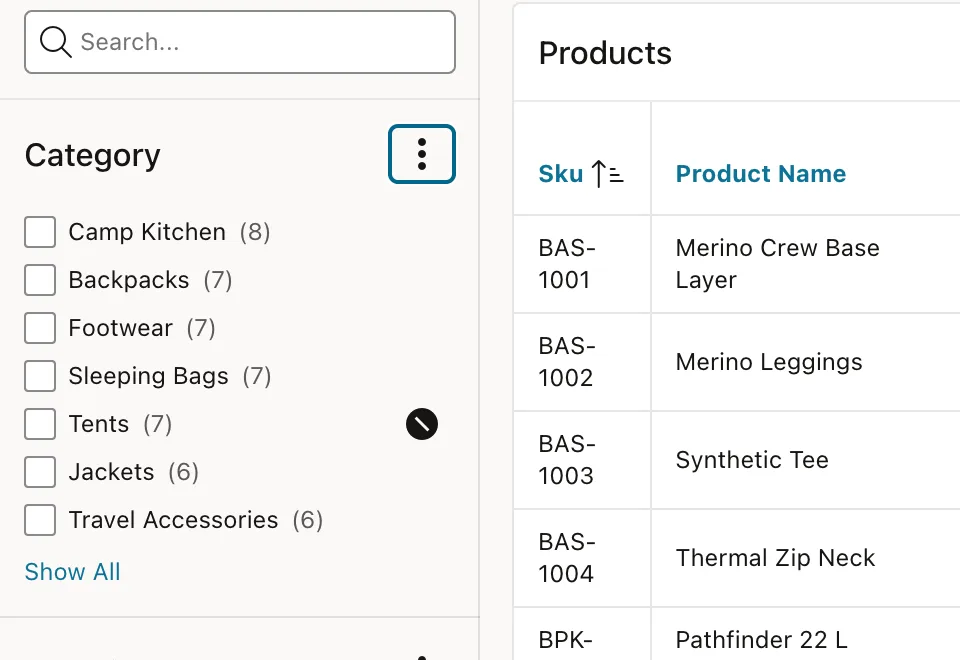
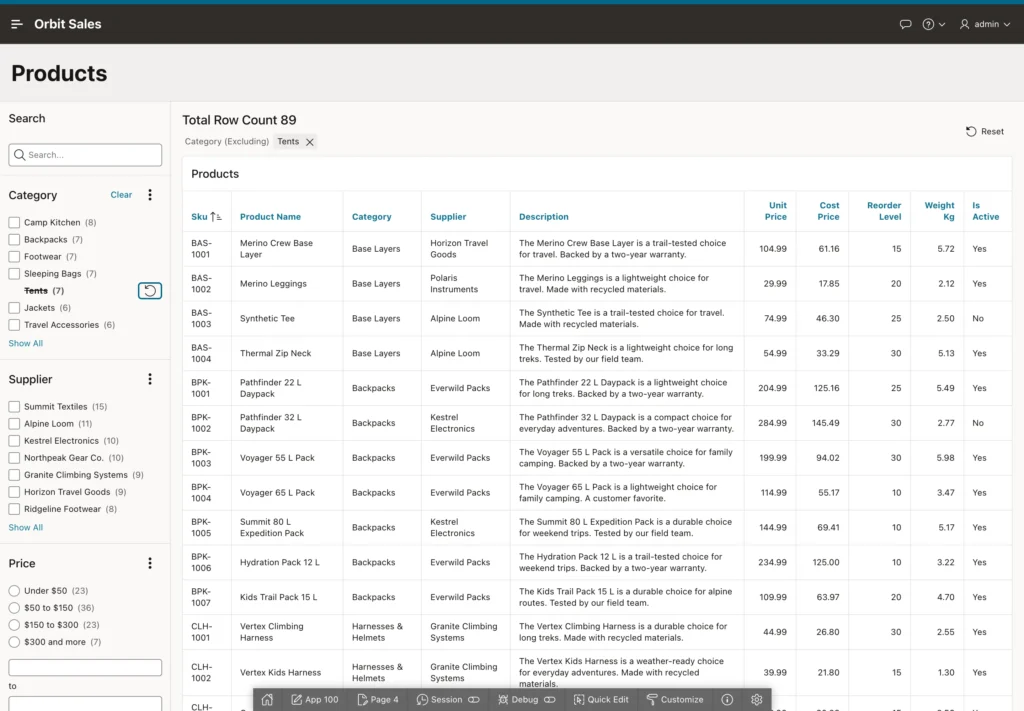
Notice how the summary above the report reads when a value is excluded. Making the difference between including and excluding visible matters, because a user who cannot tell which one is active will not trust the numbers.
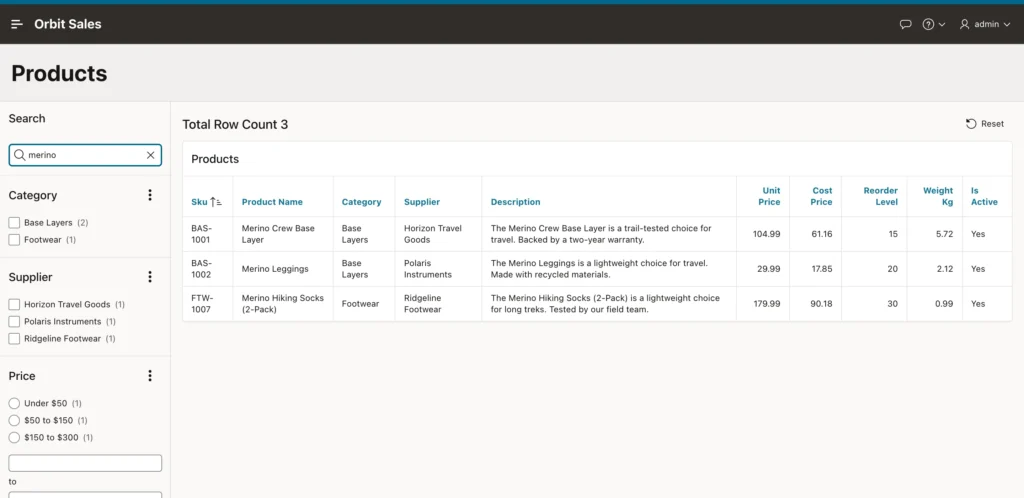
The search facet searches the columns named in its Database Columns property, so one field can cover a product name, category, supplier, description, and SKU at once, with the other facets recounting around it.
One thing the wizard will not tell you: a faceted search can filter any region built on a query, not just a classic report. Interactive grids, maps, and card regions all work. Adding facets to a card catalog takes about five minutes and transforms it.
Smart Filters
Smart filters solve the same problem with a different trade-off. Instead of a panel down the side, you get a search field with active filters shown as chips and suggestion chips below offering popular values. Nothing is taken from the width of the page, which makes them the better choice for wide reports and for phones.
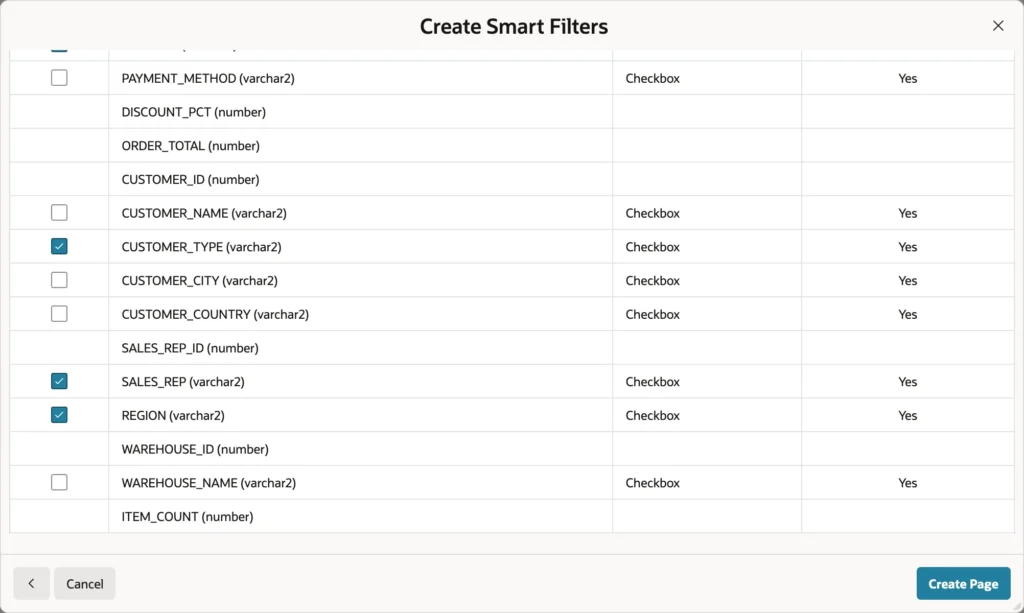
- Click Create Page, then Smart Filters.
- Name the page, choose Local Database and your table or view, and pick an icon.
- Click Next and select the columns that should become filters.
- Click Create Page.
You get a Smart Filters region in the search slot with one filter item per column, plus a results report. Two cleanups are worth doing immediately: rewrite the filter labels in plain words, and replace the generated report source with a query of the columns worth showing. Save the page after changing the query so the column list refreshes, then set headings and format masks, and switch any hidden column you want visible to Plain Text.
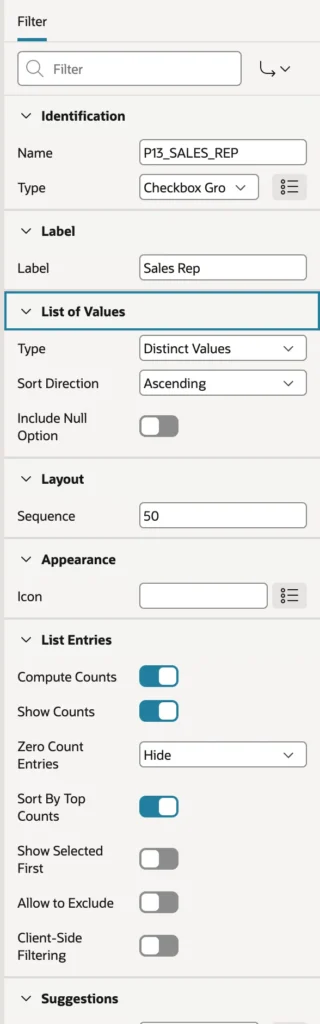
A smart filter has most of a facet's settings, including counts, exclusion, and its list of values, plus a Suggestions group that facets do not have. Dynamic suggestions, the default, offer each filter's most frequent value. Static values or a SQL query let you decide what gets suggested, and None switches suggestions off. Client-Side Filtering filters a short list in the browser, which feels faster.
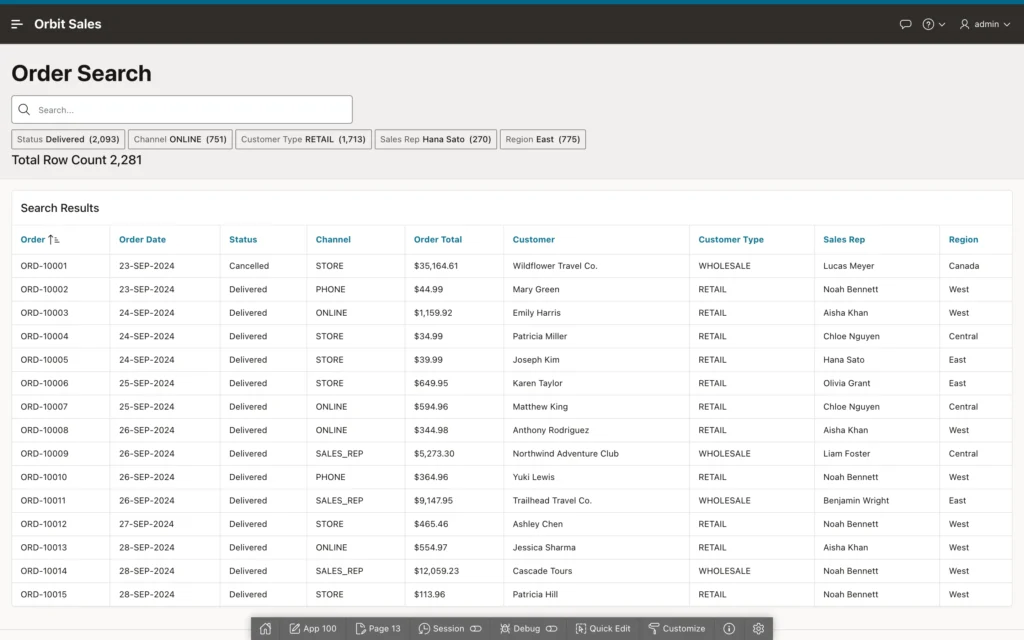
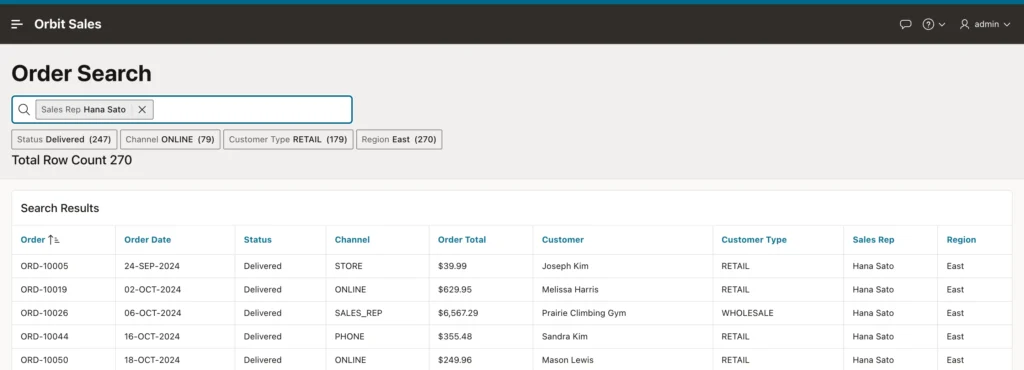
Suggestion chips are the feature that earns smart filters their name. A user arrives at an order list and is immediately offered the most common status and the busiest sales representative, with counts, so the first useful filter is one click away.
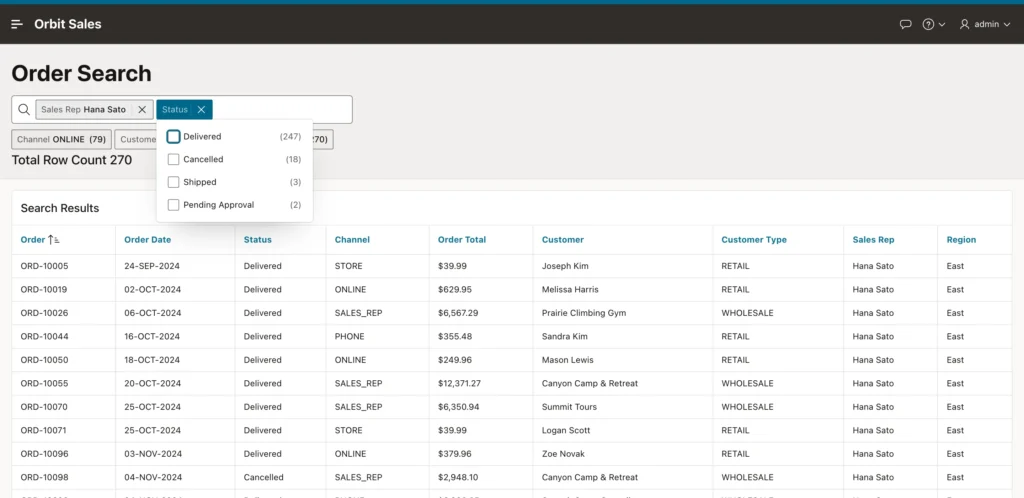
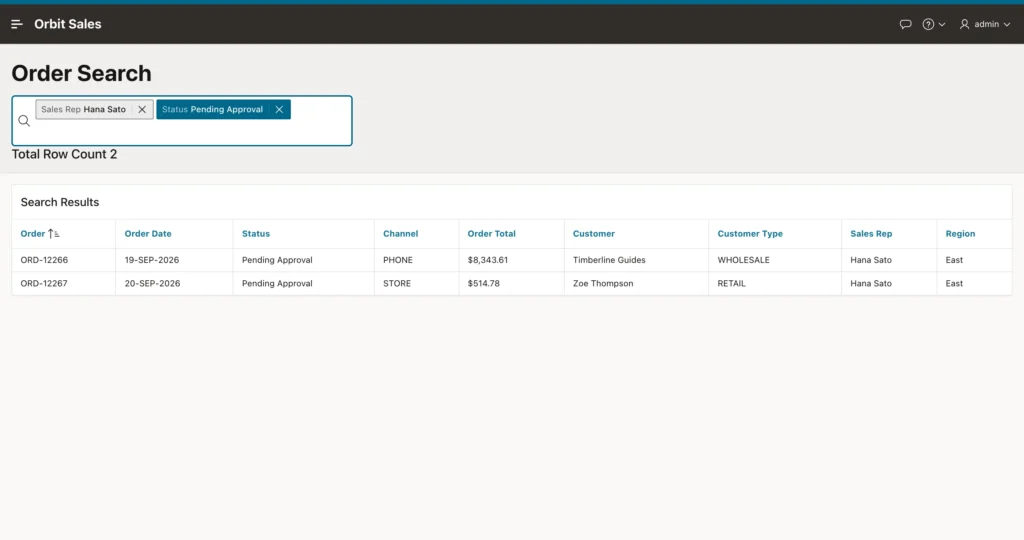
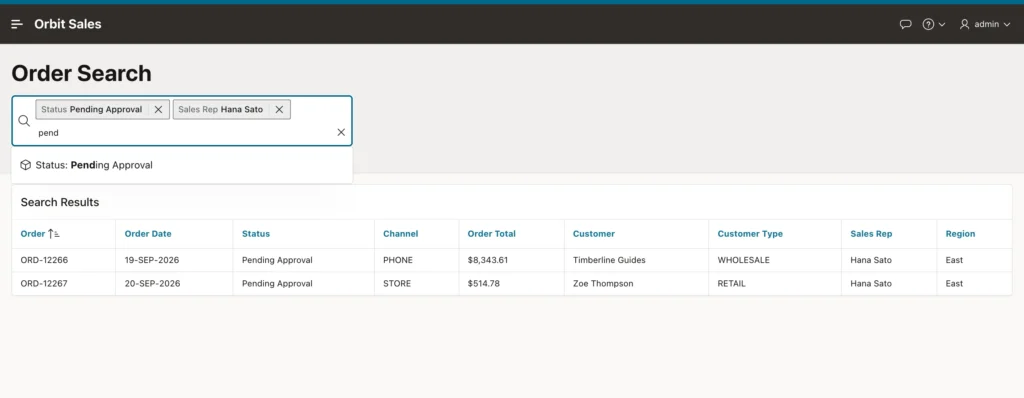
Filters, like facets, are page items held in session state, so users come back to the page and find their filters still applied.
Choosing between the two is mostly about intent. Use faceted search when people are exploring and seeing all the values helps them understand the data. Use smart filters when people roughly know what they want and the results need the room. Both are configured the same way, and switching a page from one to the other is a change of region type.
Searching the Whole Application
A search page looks through several sources at once and lists the results together. Each source is a search configuration, which is a shared component.
Search Configurations
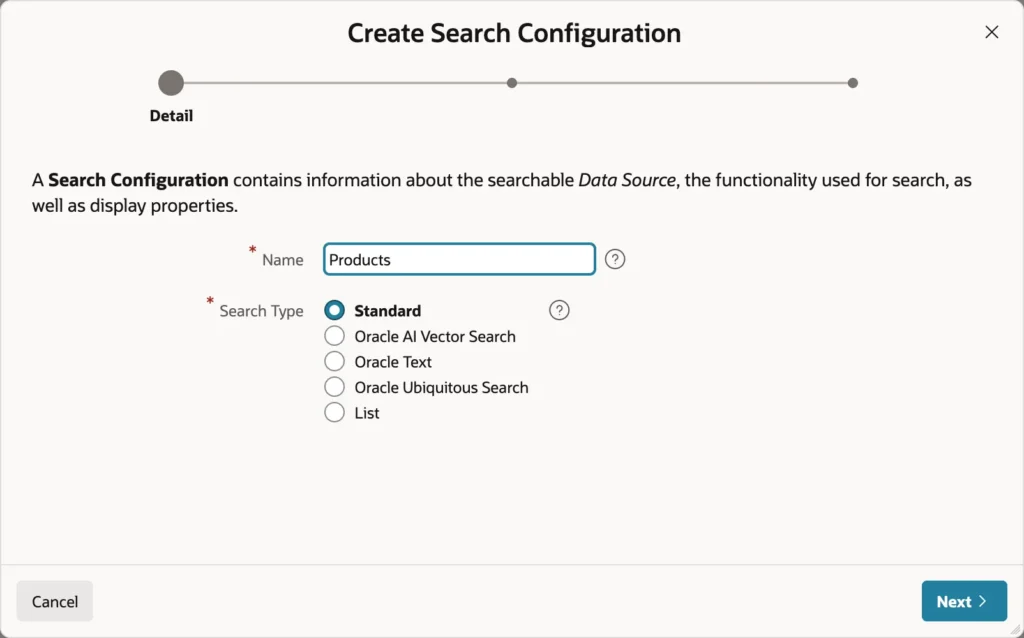
| Search Type | Finds results by |
|---|---|
| Standard | A simple case-insensitive search of the searchable columns, with no setup |
| Oracle Text | A full-text index, with stemming and fuzzy matching |
| Oracle Ubiquitous Search | A DBMS_SEARCH index that covers several tables at once |
| Oracle AI Vector Search | Meaning rather than words, using vector embeddings |
| List | The entries of an APEX list, so users can search for pages |
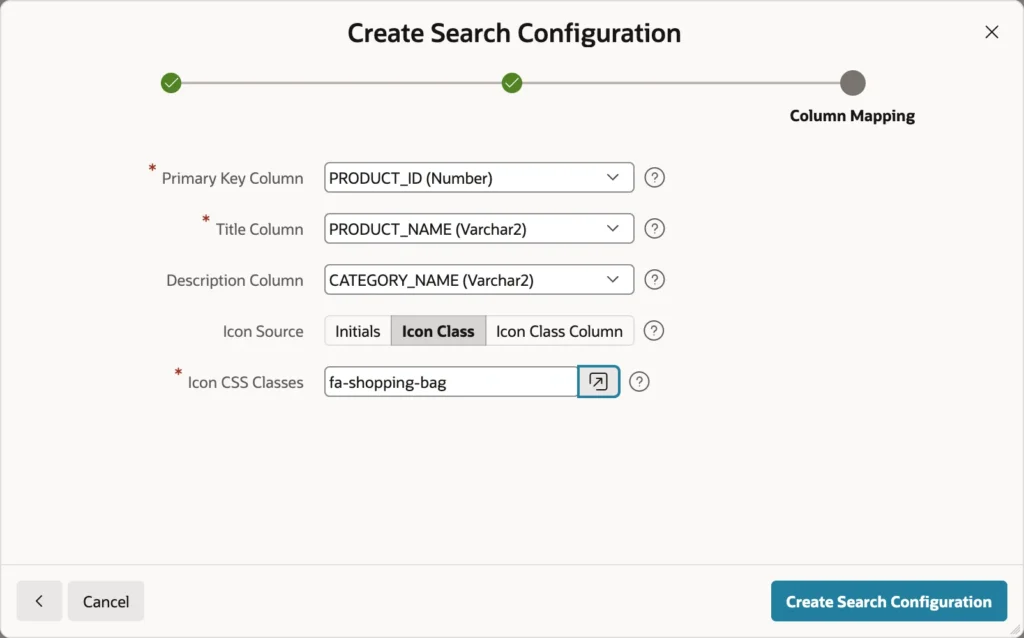
The wizard asks for the key, title, description, and icon. Open the finished configuration and you find the settings that matter more. A search query prefix lets users type a letter and a colon to search one source only. The column mapping also offers a subtitle, a badge, a last modified date, a score, and three custom columns for your own result templates.
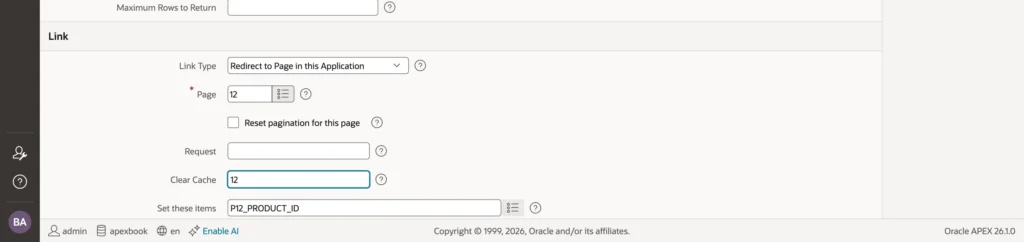
Set the link to the page that shows the record, pass the key, and clear that page's cache. Repeat the whole exercise for each source you want searchable, giving each its own icon and prefix.
The Search Page
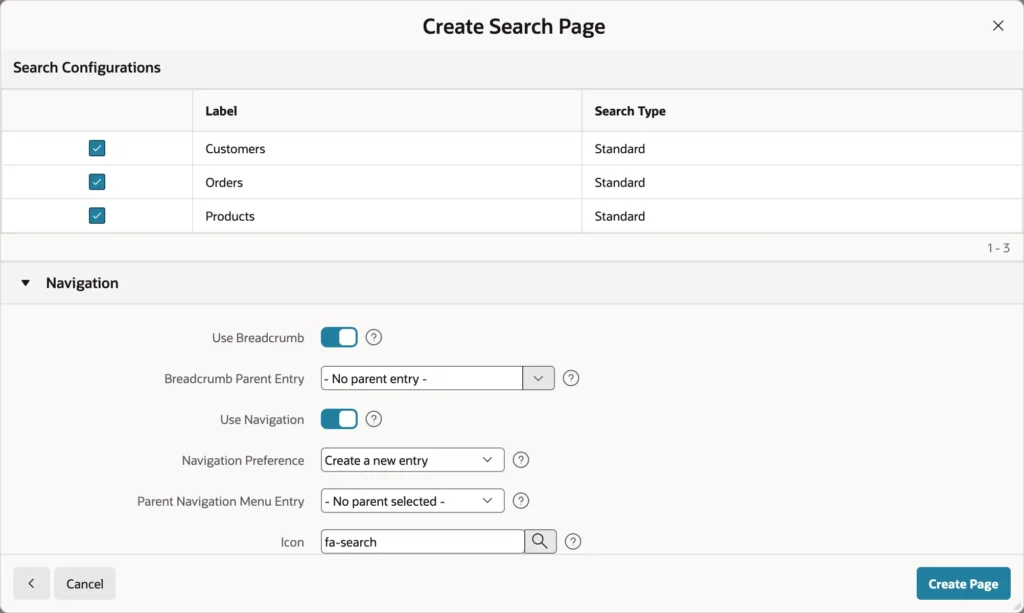
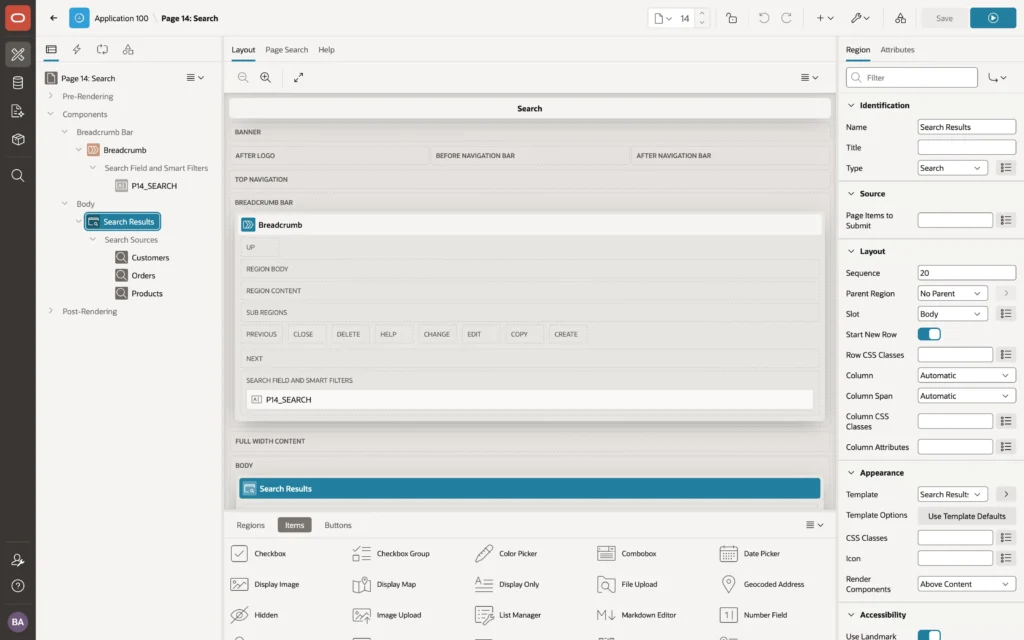
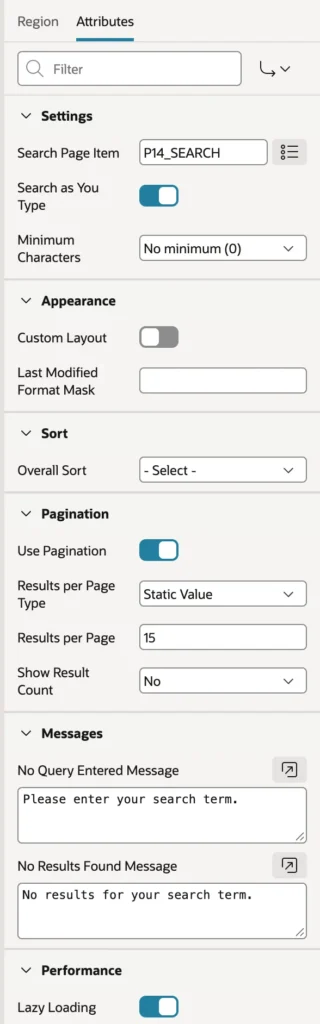
The region attributes include Search as You Type with a minimum character count, the order and number of results, and the messages shown before a search runs and when nothing matches. Those messages deserve better than the defaults, because they are what users read most often when a search goes wrong.
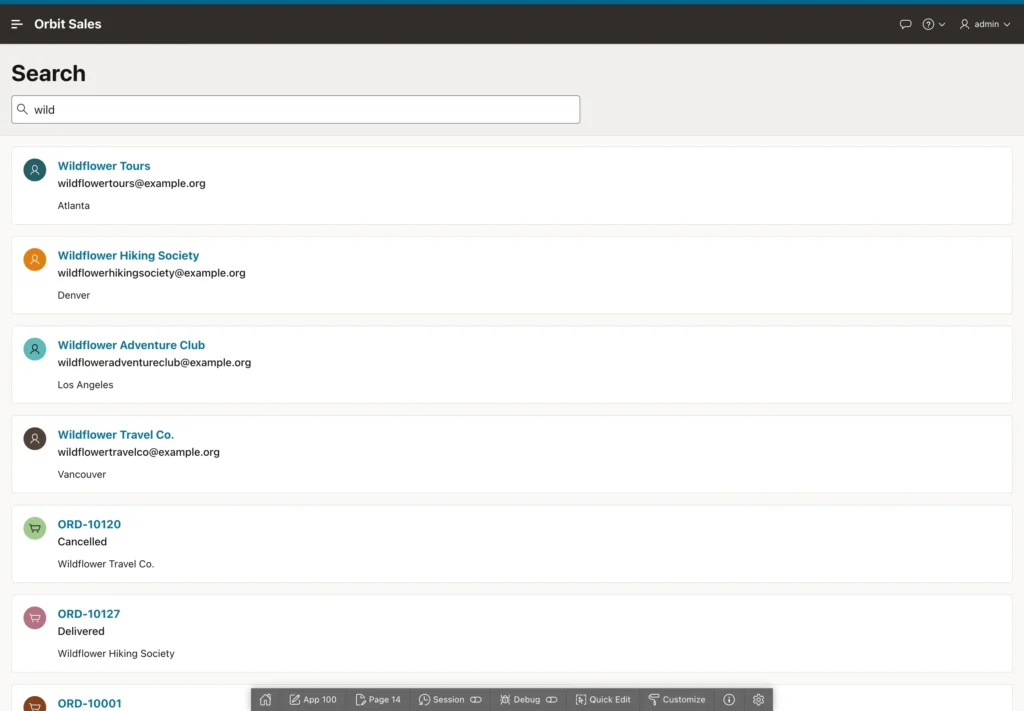
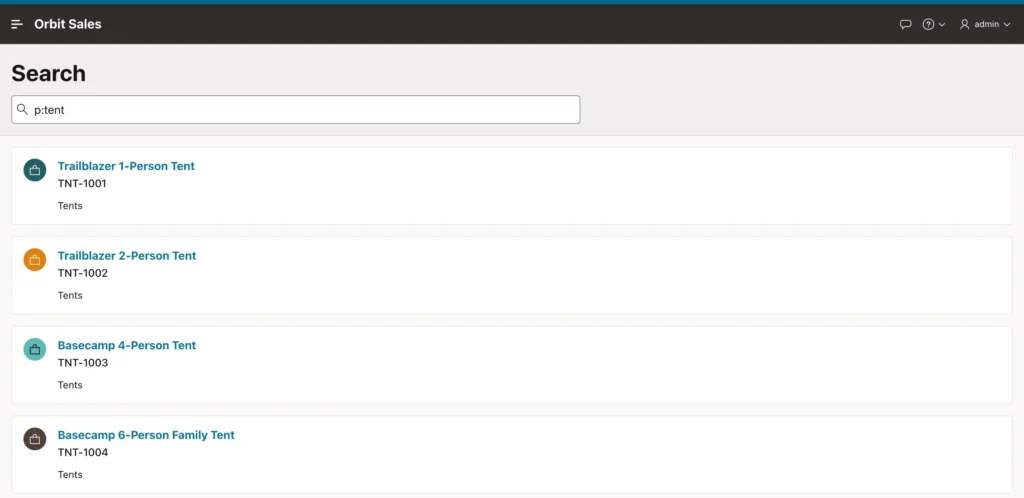
To finish the job, put a search field in the header of every page. Add a text field to page 0 and a dynamic action that redirects to the search page with the typed value when the user presses Enter, and the whole application becomes searchable from anywhere.
Conclusion
These three features answer the same question in three ways, and choosing well matters more than configuring well. A faceted search page pairs a Faceted Search region with any report built on a query, filtering through page items bound to columns, with counts that recount as selections change, optional charts, parent and child dependencies, range facets with preset bands or typed bounds, and in APEX 26.1 the ability to exclude values rather than only include them. Smart filters give the same power in a search bar with suggestion chips, which suits wide reports and small screens, and switching between the two is a change of region type rather than a rewrite. Search configurations describe what is searchable, from plain column matching through Oracle Text, ubiquitous search, and vector search that finds results by meaning, and a search page combines them so one word reaches across the whole application. Build facets where people explore, smart filters where they already know, and a search page for everyone who would rather just type.
