
Most report users do not think in date ranges. They ask for this week, last month or the year so far. A From and To date pair makes them pick two dates every time, and the range is out of date the next morning.
Oracle APEX can offer these periods as one select list. A small SQL macro turns each period into a start and end date, and the report filters with them. A Faceted Search page can do the same with a Range facet. This guide builds both pages and tests every period, also at its boundaries.
The guide Faceted Search, Smart Filters, and Search in Oracle APEX gives an overview of the filter regions. This guide is about one filter: periods that move with the current date. The example uses team expenses; the same steps work for any table with a date column.
Step 1: Create the Tables and the Period Macro
Two tables hold the data, and a table SQL macro returns the periods:
- EXPENSE_TYPES lists the expense types.
- TEAM_EXPENSES has one row per expense with its amount and date and time.
- DATE_PERIODS returns one row per period with a code, a name, a start date and an end date, for any reference date.
Example:
set define off

create table expense_types (
    expense_type_id  number generated by default on null as identity,
    type_name        varchar2(40) not null,
    constraint expense_types_pk primary key (expense_type_id),
    constraint expense_types_name_uk unique (type_name)
);

create table team_expenses (
    expense_id       number generated by default on null as identity,
    expense_type_id  number not null,
    description      varchar2(100) not null,
    amount           number(10,2) not null,
    expense_date     date default on null sysdate not null,
    constraint team_expenses_pk primary key (expense_id),
    constraint team_expenses_type_fk foreign key (expense_type_id)
        references expense_types (expense_type_id),
    constraint team_expenses_amount_ck check (amount > 0)
);

create index team_expenses_type_ix on team_expenses (expense_type_id);
create index team_expenses_date_ix on team_expenses (expense_date);

create or replace function date_periods (p_ref_date in date default sysdate)
return varchar2 sql_macro(table)
is
begin
    return q'{
        select period_code, period_name, sort_order, start_date, end_date
        from (
            select trunc(p_ref_date) as d from dual
        ) r,
        lateral (
            select 'TODAY' as period_code, 'Today' as period_name, 1 as sort_order,
                   r.d as start_date, r.d + 1 as end_date from dual
            union all
            select 'YESTERDAY', 'Yesterday', 2, r.d - 1, r.d from dual
            union all
            select 'THIS_WEEK', 'This Week', 3, trunc(r.d, 'IW'), trunc(r.d, 'IW') + 7 from dual
            union all
            select 'LAST_WEEK', 'Last Week', 4, trunc(r.d, 'IW') - 7, trunc(r.d, 'IW') from dual
            union all
            select 'THIS_MONTH', 'This Month', 5, trunc(r.d, 'MM'), add_months(trunc(r.d, 'MM'), 1) from dual
            union all
            select 'LAST_MONTH', 'Last Month', 6, add_months(trunc(r.d, 'MM'), -1), trunc(r.d, 'MM') from dual
            union all
            select 'LAST_30_DAYS', 'Last 30 Days', 7, r.d - 29, r.d + 1 from dual
            union all
            select 'YEAR_TO_DATE', 'Year to Date', 8, trunc(r.d, 'YYYY'), r.d + 1 from dual
        )
    }';
end date_periods;
/

insert into expense_types (type_name) values ('Travel');
insert into expense_types (type_name) values ('Meals');
insert into expense_types (type_name) values ('Software');
insert into expense_types (type_name) values ('Office Supplies');

insert into team_expenses (expense_type_id, description, amount, expense_date)
select expense_type_id, 'Taxi to client office', 42.50, trunc(sysdate) + 10.5/24
from expense_types where type_name = 'Travel';
insert into team_expenses (expense_type_id, description, amount, expense_date)
select expense_type_id, 'Team lunch', 96.00, trunc(sysdate) - 1 + 13/24
from expense_types where type_name = 'Meals';
insert into team_expenses (expense_type_id, description, amount, expense_date)
select expense_type_id, 'Printer paper', 18.75, trunc(sysdate, 'IW') + 9/24
from expense_types where type_name = 'Office Supplies';
insert into team_expenses (expense_type_id, description, amount, expense_date)
select expense_type_id, 'Late train ticket', 35.00, trunc(sysdate, 'IW') - 1/86400
from expense_types where type_name = 'Travel';
insert into team_expenses (expense_type_id, description, amount, expense_date)
select expense_type_id, 'Design tool licence', 120.00, trunc(sysdate, 'IW') - 7
from expense_types where type_name = 'Software';
insert into team_expenses (expense_type_id, description, amount, expense_date)
select expense_type_id, 'Cloud storage plan', 60.00, trunc(sysdate, 'MM')
from expense_types where type_name = 'Software';
insert into team_expenses (expense_type_id, description, amount, expense_date)
select expense_type_id, 'Hotel night', 145.00, trunc(sysdate, 'MM') - 1/86400
from expense_types where type_name = 'Travel';
insert into team_expenses (expense_type_id, description, amount, expense_date)
select expense_type_id, 'Client dinner', 210.40, add_months(trunc(sysdate, 'MM'), -1) + 14 + 19/24
from expense_types where type_name = 'Meals';
insert into team_expenses (expense_type_id, description, amount, expense_date)
select expense_type_id, 'Whiteboard markers', 12.30, trunc(sysdate) - 29 + 8/24
from expense_types where type_name = 'Office Supplies';
insert into team_expenses (expense_type_id, description, amount, expense_date)
select expense_type_id, 'Airport parking', 28.00, trunc(sysdate) - 30 + 20/24
from expense_types where type_name = 'Travel';
insert into team_expenses (expense_type_id, description, amount, expense_date)
select expense_type_id, 'Code editor subscription', 99.00, add_months(trunc(sysdate, 'MM'), -2) + 4
from expense_types where type_name = 'Software';
insert into team_expenses (expense_type_id, description, amount, expense_date)
select expense_type_id, 'Conference flight', 380.00, trunc(sysdate, 'YYYY') + 40
from expense_types where type_name = 'Travel';
insert into team_expenses (expense_type_id, description, amount, expense_date)
select expense_type_id, 'Year-end team dinner', 450.00, trunc(sysdate, 'YYYY') - 10 + 20/24
from expense_types where type_name = 'Meals';

commit;

select e.expense_id, to_char(e.expense_date, 'YYYY-MM-DD HH24:MI:SS') as expense_date,
       t.type_name, e.description, e.amount
from team_expenses e
join expense_types t on t.expense_type_id = e.expense_type_id
order by e.expense_date desc;

select period_code, period_name,
       to_char(start_date, 'YYYY-MM-DD Dy') as start_date,
       to_char(end_date, 'YYYY-MM-DD Dy') as end_date
from date_periods(sysdate)
order by sort_order;
Output:
Table EXPENSE_TYPES created.

Table TEAM_EXPENSES created.

Index TEAM_EXPENSES_TYPE_IX created.

Index TEAM_EXPENSES_DATE_IX created.

Function DATE_PERIODS compiled

1 row inserted.

1 row inserted.

1 row inserted.

1 row inserted.

1 row inserted.

1 row inserted.

1 row inserted.

1 row inserted.

1 row inserted.

1 row inserted.

1 row inserted.

1 row inserted.

1 row inserted.

1 row inserted.

1 row inserted.

1 row inserted.

1 row inserted.

Commit complete.

   EXPENSE_ID EXPENSE_DATE           TYPE_NAME          DESCRIPTION                    AMOUNT
_____________ ______________________ __________________ ___________________________ _________
            1 2026-10-22 10:30:00    Travel             Taxi to client office            42.5
            2 2026-10-21 13:00:00    Meals              Team lunch                         96
            3 2026-10-19 09:00:00    Office Supplies    Printer paper                   18.75
            4 2026-10-18 23:59:59    Travel             Late train ticket                  35
            5 2026-10-12 00:00:00    Software           Design tool licence               120
            6 2026-10-01 00:00:00    Software           Cloud storage plan                 60
            7 2026-09-30 23:59:59    Travel             Hotel night                       145
            9 2026-09-23 08:00:00    Office Supplies    Whiteboard markers               12.3
           10 2026-09-22 20:00:00    Travel             Airport parking                    28
            8 2026-09-15 19:00:00    Meals              Client dinner                   210.4
           11 2026-08-05 00:00:00    Software           Code editor subscription           99
           12 2026-02-10 00:00:00    Travel             Conference flight                 380
           13 2025-12-22 20:00:00    Meals              Year-end team dinner              450

13 rows selected.

PERIOD_CODE     PERIOD_NAME     START_DATE        END_DATE
_______________ _______________ _________________ _________________
TODAY           Today           2026-10-22 Thu    2026-10-23 Fri
YESTERDAY       Yesterday       2026-10-21 Wed    2026-10-22 Thu
THIS_WEEK       This Week       2026-10-19 Mon    2026-10-26 Mon
LAST_WEEK       Last Week       2026-10-12 Mon    2026-10-19 Mon
THIS_MONTH      This Month      2026-10-01 Thu    2026-11-01 Sun
LAST_MONTH      Last Month      2026-09-01 Tue    2026-10-01 Thu
LAST_30_DAYS    Last 30 Days    2026-09-23 Wed    2026-10-23 Fri
YEAR_TO_DATE    Year to Date    2026-01-01 Thu    2026-10-23 Fri

8 rows selected.- TEAM_EXPENSES_TYPE_FK links each expense to a type, and TEAM_EXPENSES_TYPE_IX indexes that foreign key. TEAM_EXPENSES_DATE_IX indexes the date column that the filter uses.
- TEAM_EXPENSES_AMOUNT_CK rejects zero and negative amounts. EXPENSE_DATE uses DEFAULT ON NULL, so a new row gets the current date without a trigger.
- The sample rows are inserted relative to SYSDATE, so the dates on your system will differ. Some rows sit exactly on a boundary, for example 23:59:59 on the last day of last month and 00:00:00 on the first day of this month.
Each period is a half-open range: the start date is included and the end date is not. This Month runs from the first day of this month up to, but not including, the first day of next month.
TRUNC with IW returns the Monday of the ISO week, MM returns the first day of the month, and YYYY returns 1 January. The macro is a table SQL macro, so the database expands it into the calling query.
Step 2: Check the Periods in SQL
Before building the page, count the rows in each period for a fixed reference date:
Example:
select p.period_name,
       count(e.expense_id) as row_count,
       nvl(sum(e.amount), 0) as total_amount,
       listagg(e.expense_id, ',') within group (order by e.expense_id) as expense_ids
from date_periods(date '2026-10-22') p
left join team_expenses e
       on e.expense_date >= p.start_date
      and e.expense_date <  p.end_date
group by p.period_name, p.sort_order
order by p.sort_order;
Output:
PERIOD_NAME        ROW_COUNT    TOTAL_AMOUNT EXPENSE_IDS
_______________ ____________ _______________ _____________________________
Today                      1            42.5 1
Yesterday                  1              96 2
This Week                  3          157.25 1,2,3
Last Week                  2             155 4,5
This Month                 6          372.25 1,2,3,4,5,6
Last Month                 4           395.7 7,8,9,10
Last 30 Days               8          529.55 1,2,3,4,5,6,7,9
Year to Date              12         1246.95 1,2,3,4,5,6,7,8,9,10,11,12

8 rows selected.
Row 4 (Sunday 23:59:59) is in Last Week, row 6 (00:00:00 on 1 October) is in This Month, and row 7 (23:59:59 on 30 September) is in Last Month. The periods overlap on purpose: today is also in This Week, This Month and Year to Date.
The half-open range matters for rows with a time. A BETWEEN filter that ends on the last day of September misses the hotel night at 23:59:59:
Example:
select count(*) as between_count
from team_expenses
where expense_date between date '2026-09-01' and last_day(date '2026-09-01');

select count(*) as range_count
from team_expenses
where expense_date >= date '2026-09-01'
  and expense_date <  add_months(date '2026-09-01', 1);
Output:
   BETWEEN_COUNT
________________
               3

   RANGE_COUNT
______________
             4
Step 3: Create the Classic Report Page
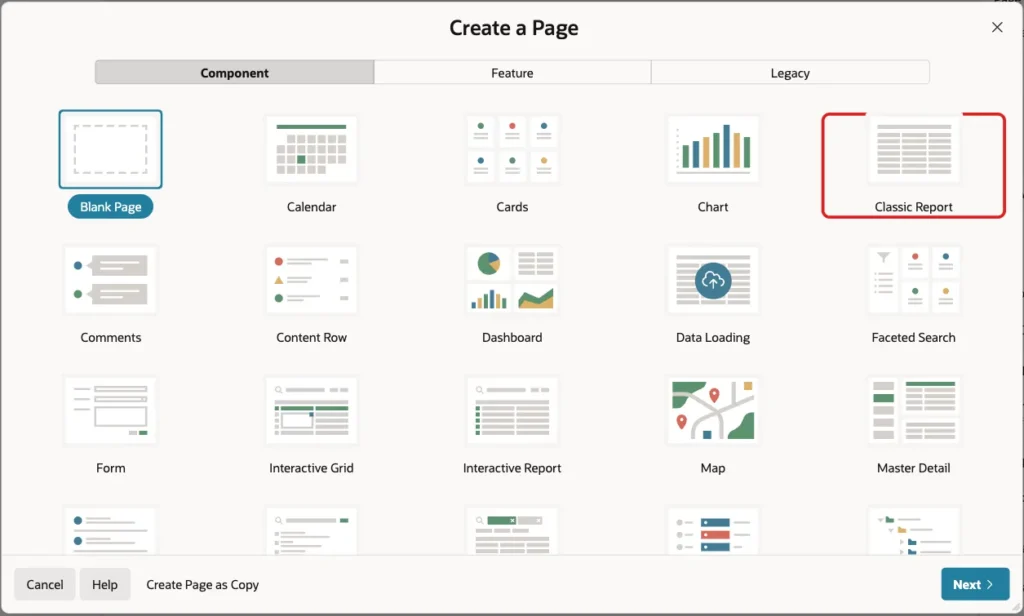
In App Builder, open the application and click Create Page. On the Component tab, select Classic Report:
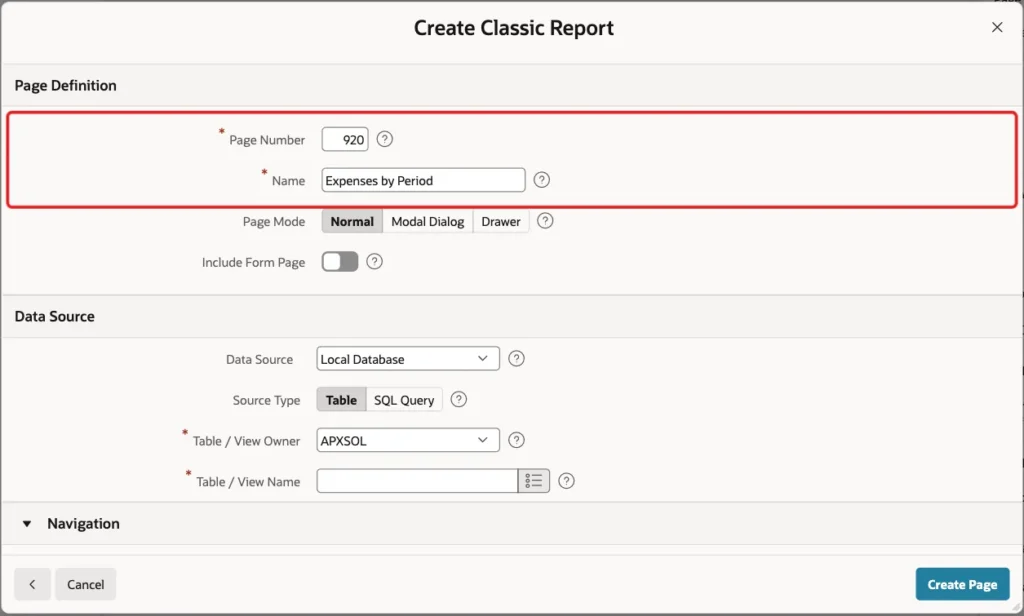
Set Page Number to 920 and Name to Expenses by Period:
Under Data Source, set Source Type to SQL Query and enter this query:
Example:
select e.expense_id,
       e.expense_date,
       t.type_name,
       e.description,
       e.amount
from team_expenses e
join expense_types t on t.expense_type_id = e.expense_type_id
where :P920_PERIOD is null
   or exists (
        select 1
        from date_periods(
                 nvl(to_date(:P920_REF_DATE default null on conversion error, 'YYYY-MM-DD'),
                     sysdate)) p
        where p.period_code = :P920_PERIOD
          and e.expense_date >= p.start_date
          and e.expense_date <  p.end_date
      )
order by e.expense_date desc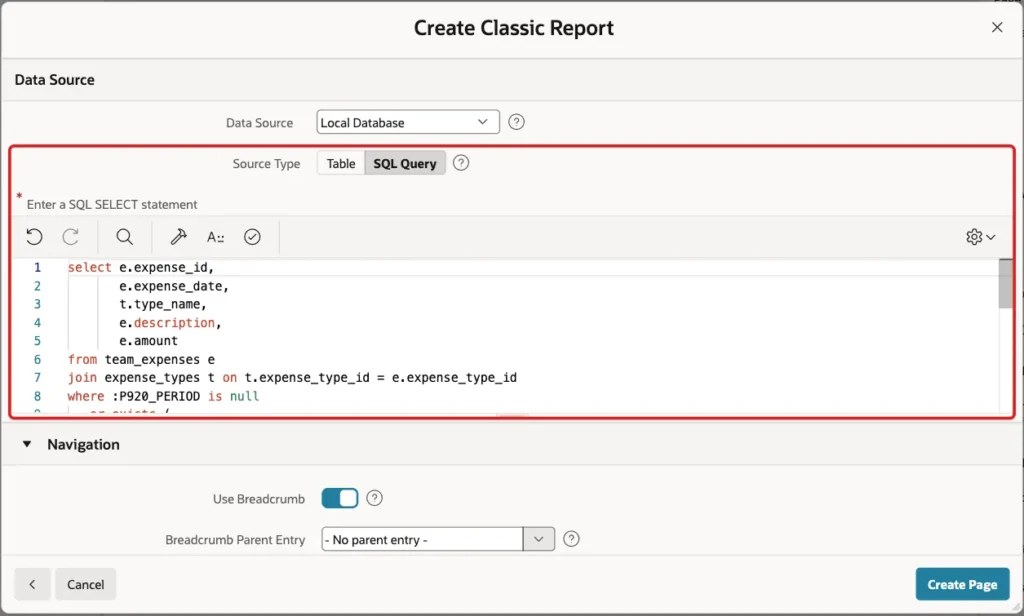
When P920_PERIOD is empty, the report shows all dates. Otherwise, EXISTS keeps only the rows inside the chosen period. The query compares EXPENSE_DATE itself with the two dates and does not wrap the column in TRUNC.
P920_REF_DATE is the reference date. TO_DATE with DEFAULT NULL ON CONVERSION ERROR turns an invalid value into NULL, and NVL then uses the current date.
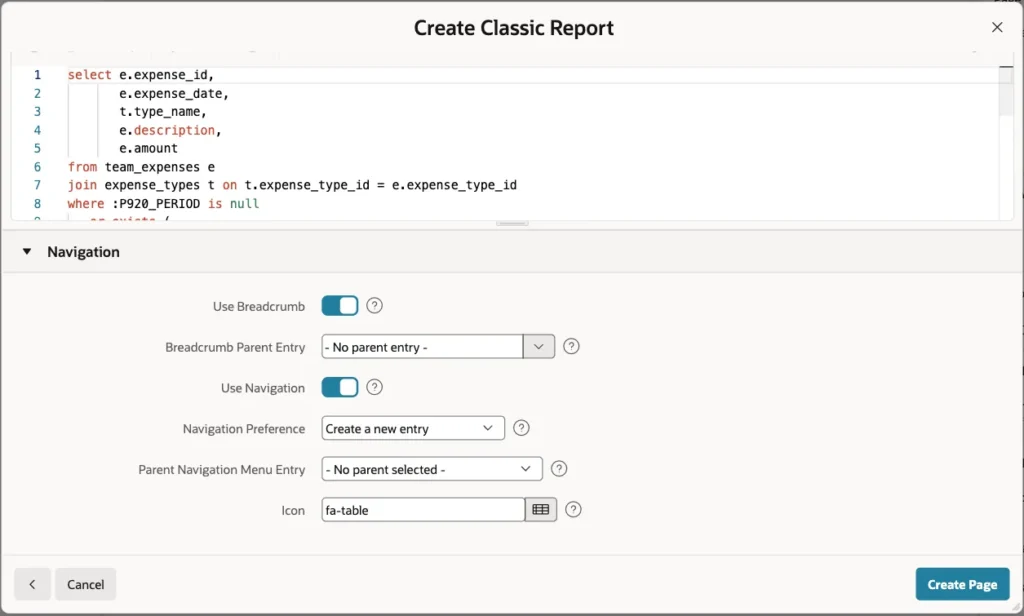
Leave the Navigation settings as they are, so the page gets a menu entry. Click Create Page:
Step 4: Set the Report Columns
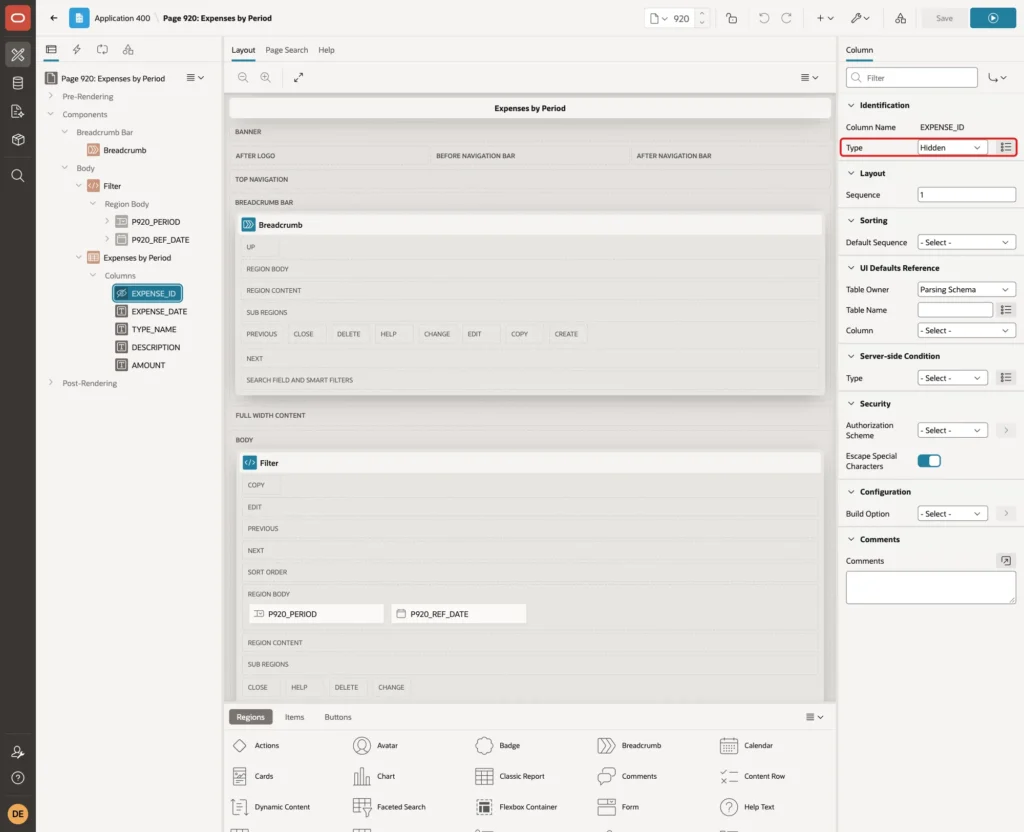
Page Designer opens page 920. Expand Columns under the Expenses by Period region. Select EXPENSE_ID and set Type to Hidden:
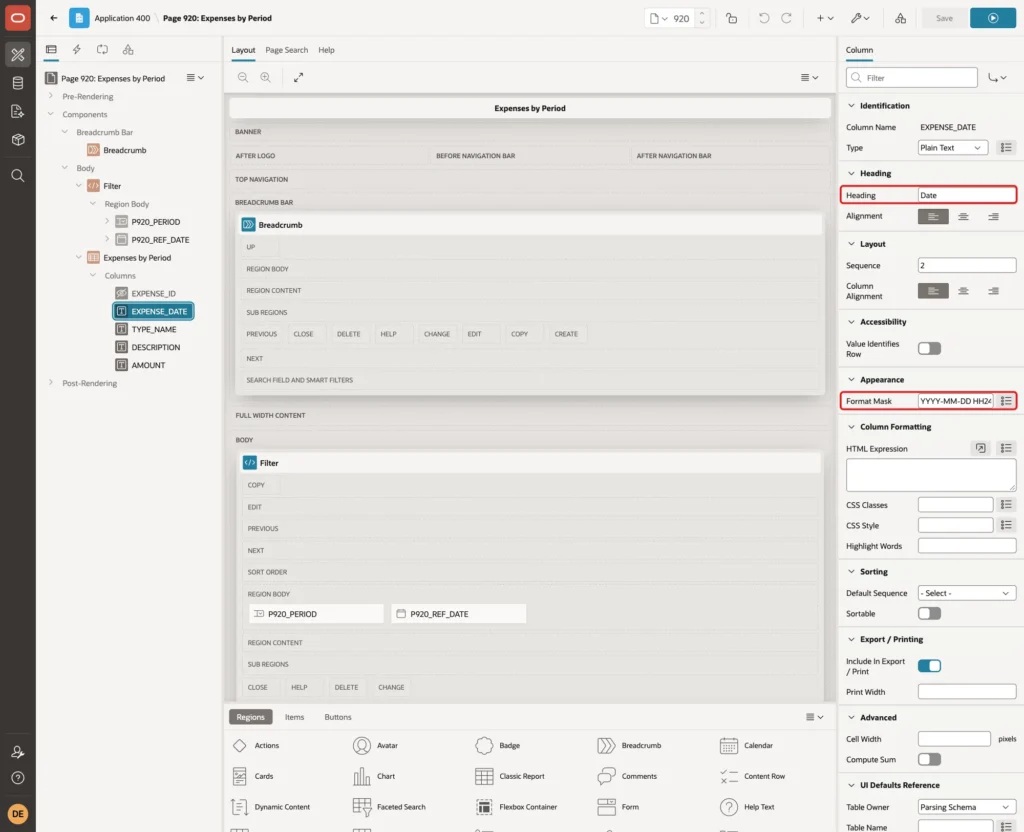
Select EXPENSE_DATE, set Heading to Date and Format Mask to YYYY-MM-DD HH24:MI. The time shows which boundary rows are included:
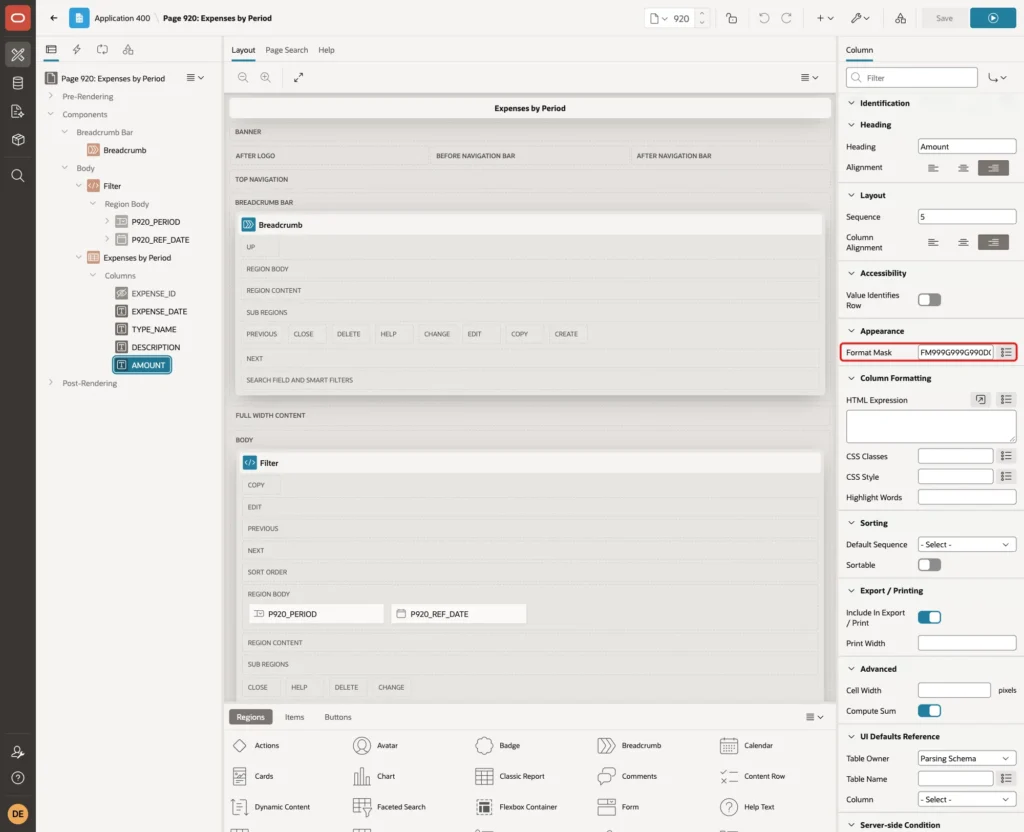
Set the heading of TYPE_NAME to Type. Select AMOUNT and set Format Mask to FM999G999G990D00:
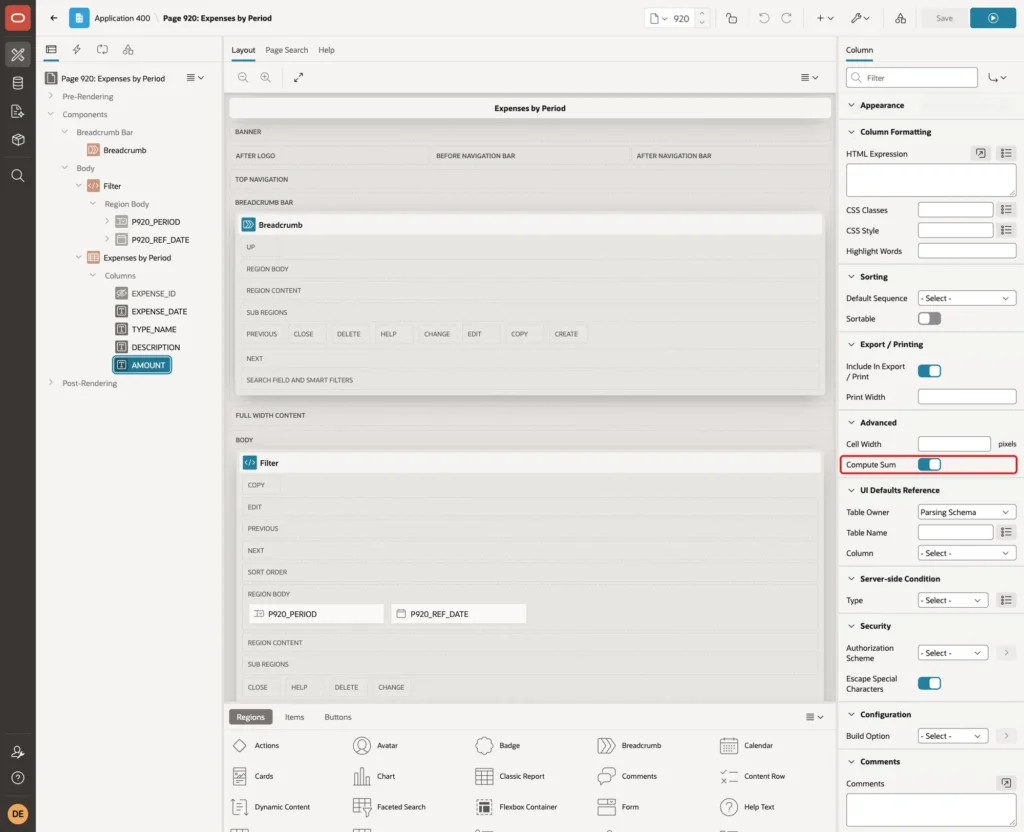
Scroll down to Advanced and turn on Compute Sum, so the report shows the total of the chosen period:
Step 5: Add the Filter Region
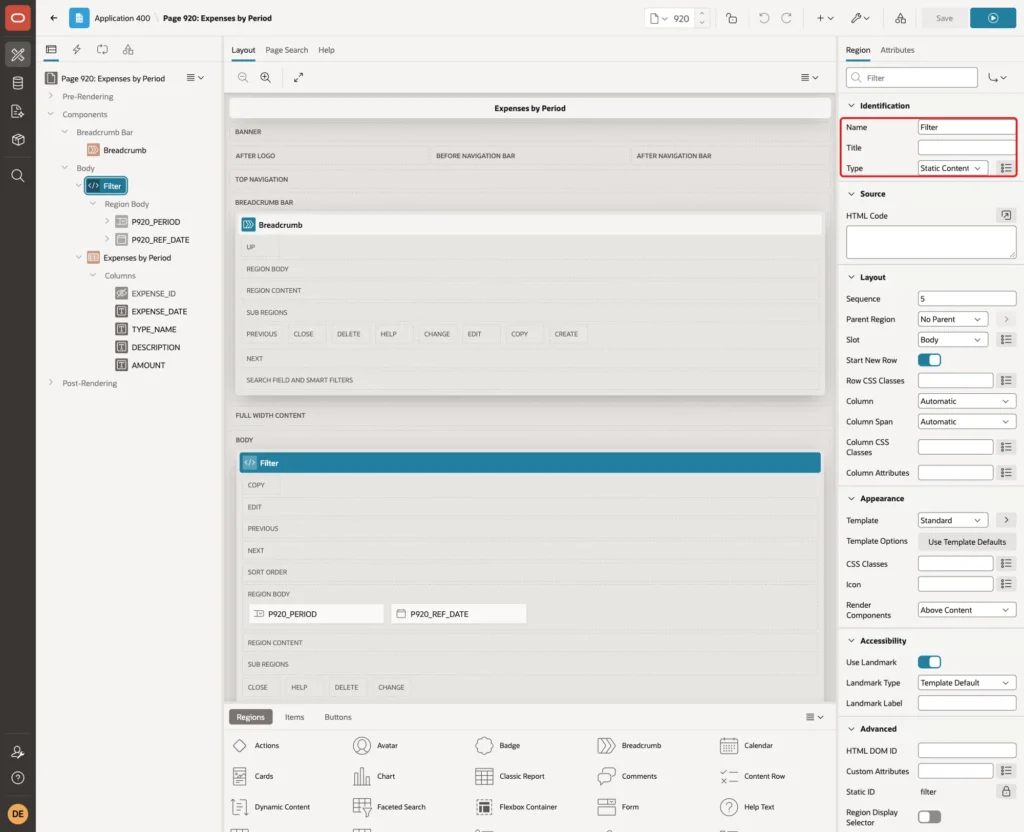
In the Rendering tree, right-click Body and click Create Region. Set Name to Filter and keep Type Static Content. Give it Sequence 5, so it sits above the report:
Step 6: Add the Period Select List
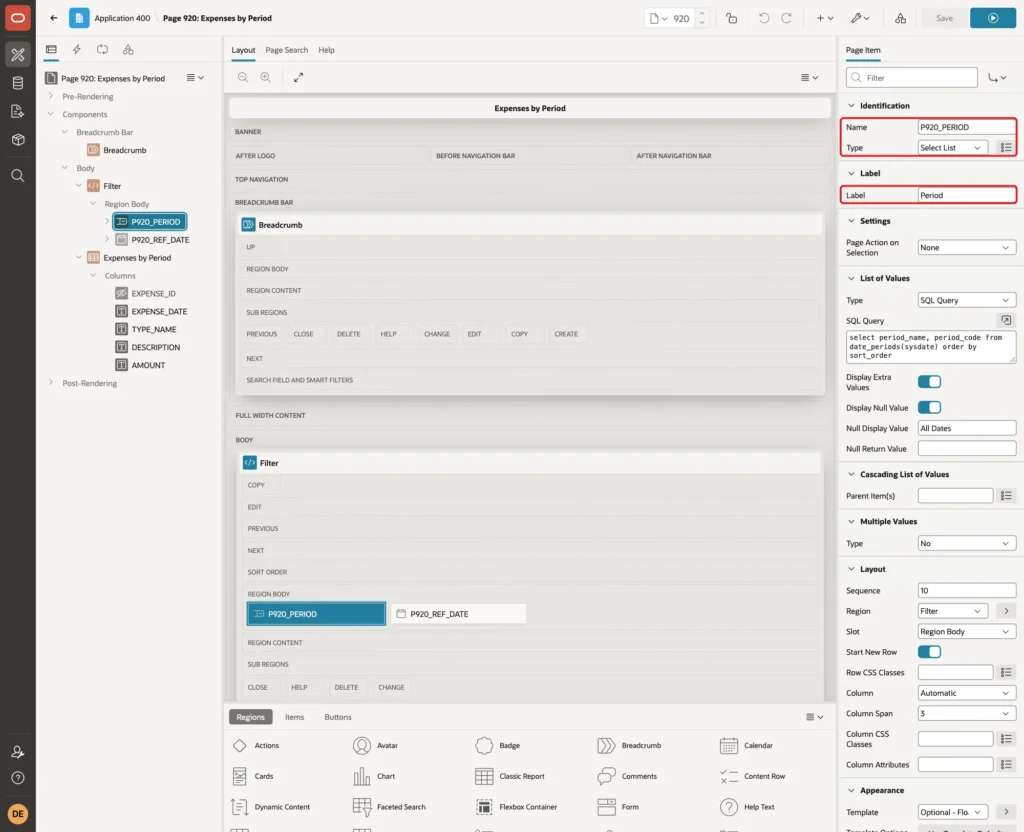
Right-click the Filter region and click Create Page Item. Set Name to P920_PERIOD, Type to Select List and Label to Period:
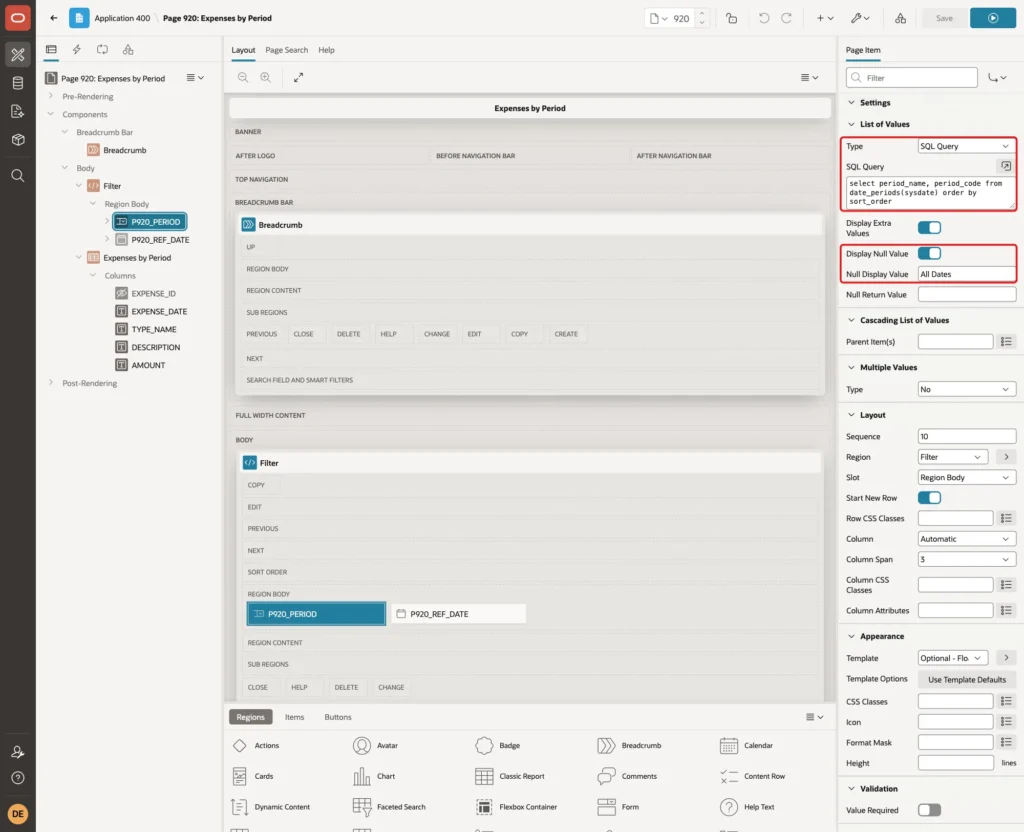
Under List of Values, set Type to SQL Query and enter this query:
Example:
select period_name, period_code from date_periods(sysdate) order by sort_order
Keep Display Null Value on and set Null Display Value to All Dates. Under Layout, set Column Span to 3:
The select list and the report both read DATE_PERIODS. A new period added to the macro appears in the list and works in the report without another change.
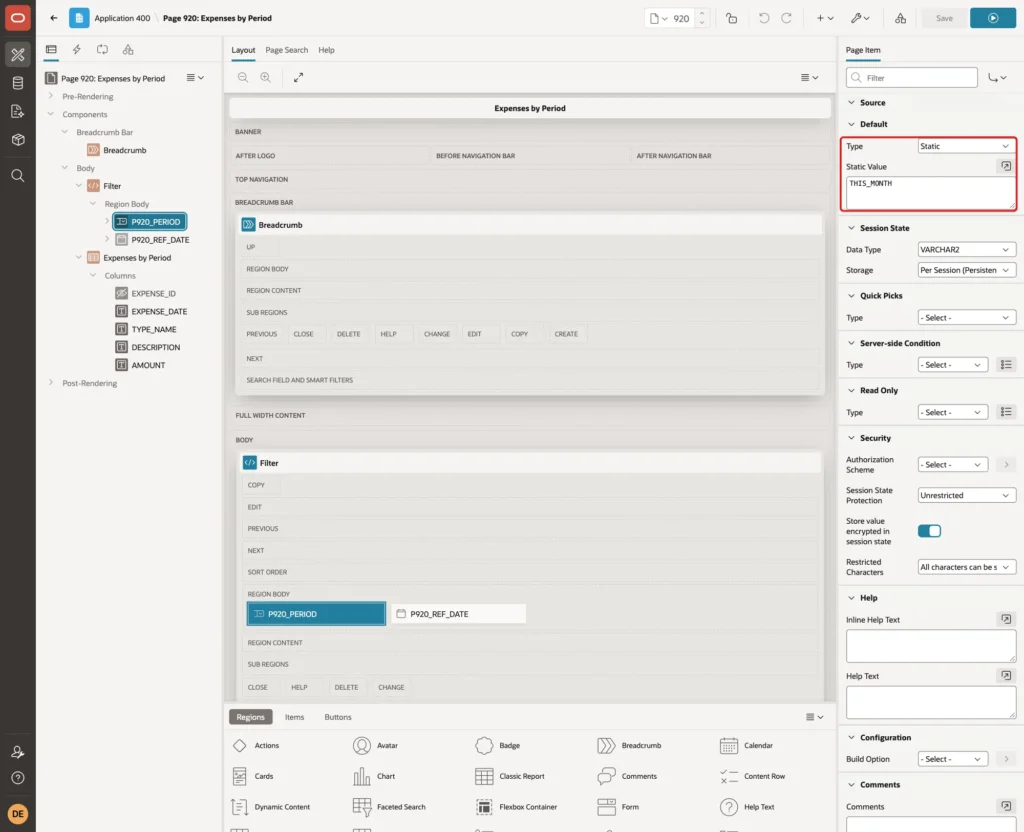
Under Default, set Type to Static and Static Value to THIS_MONTH, so the page opens with the current month:
Step 7: Add the Reference Date
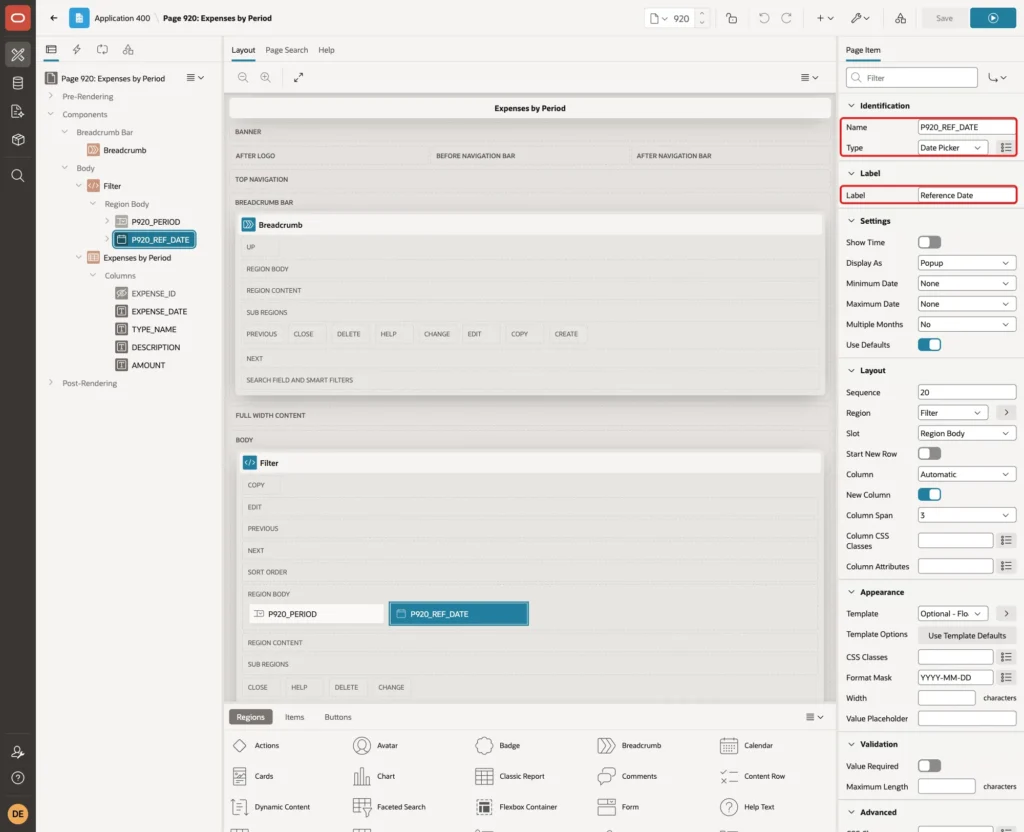
Create a second page item in the Filter region. Set Name to P920_REF_DATE, Type to Date Picker and Label to Reference Date:
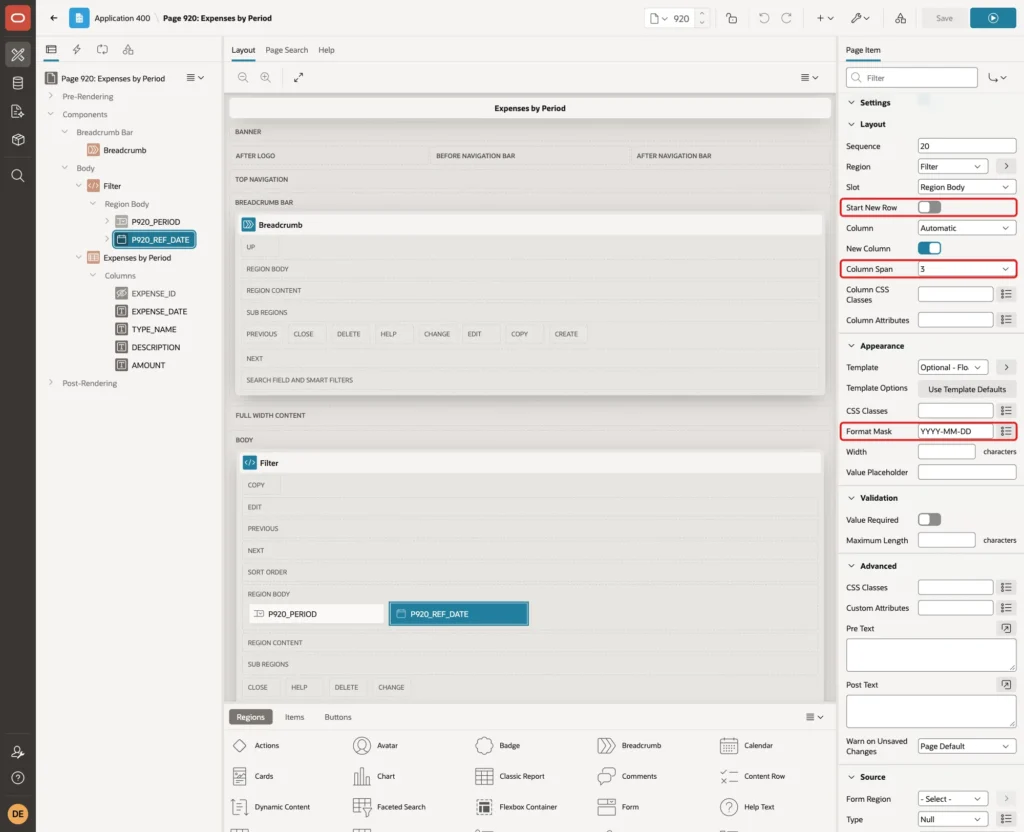
Under Layout, turn off Start New Row and set Column Span to 3, so both items sit on one line. Under Appearance, set Format Mask to YYYY-MM-DD. The report query uses the same format:
Under Default, set Type to Expression, keep Language PL/SQL, and enter this PL/SQL Expression:
Example:
to_char(sysdate, 'YYYY-MM-DD')

Users can leave the reference date as today. A different date answers questions like "what was last month as of 15 March?". It also makes the periods easy to test with fixed data.
Step 8: Submit the Items with the Report
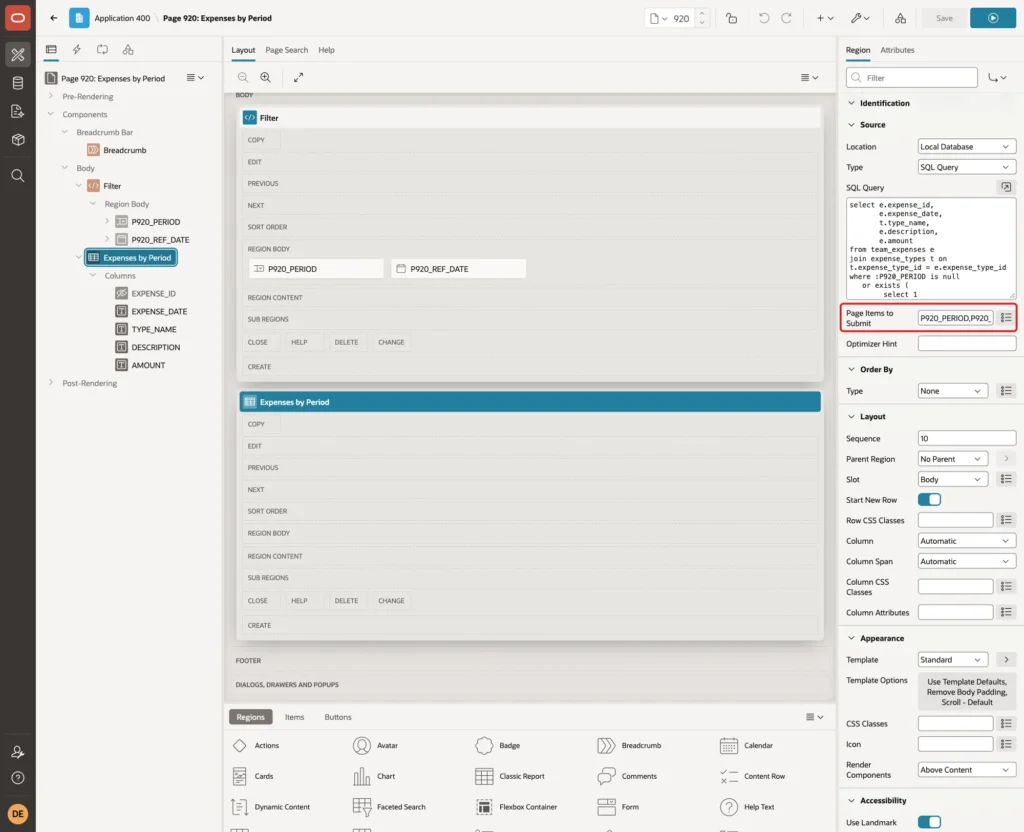
Select the Expenses by Period region. Under Source, set Page Items to Submit to P920_PERIOD,P920_REF_DATE:
Step 9: Refresh the Report When a Filter Changes
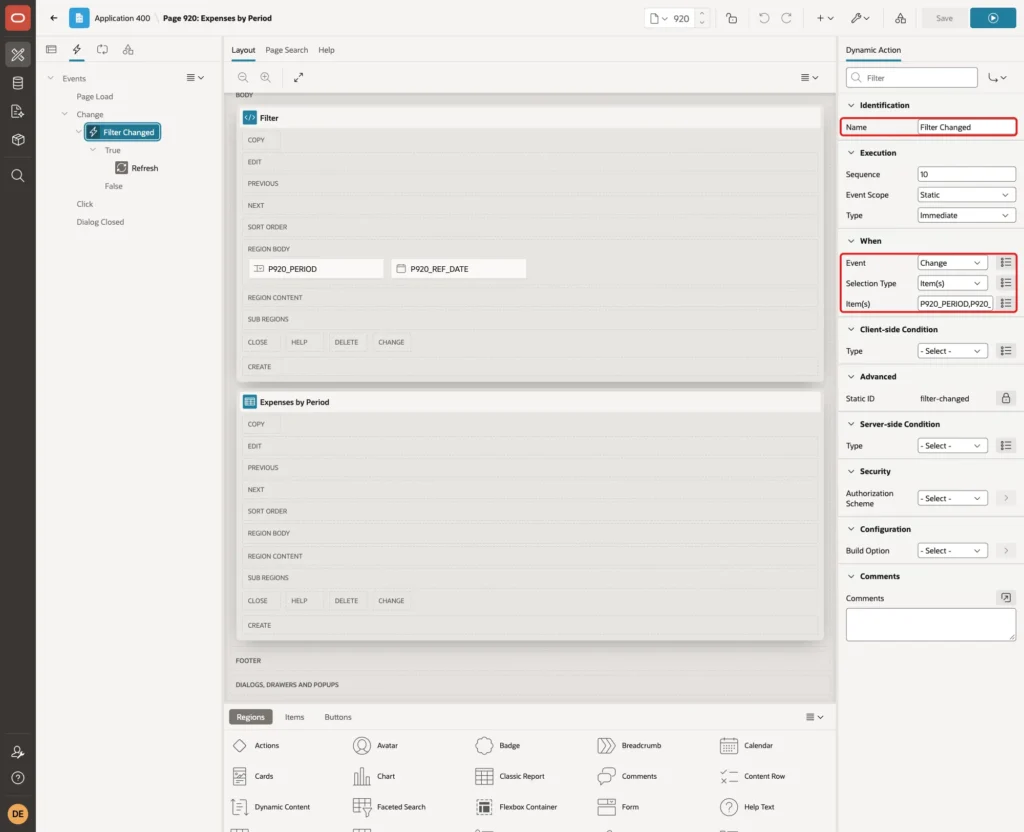
Open the Dynamic Actions tab, right-click Change under Events and click Create Dynamic Action. Set Name to Filter Changed, keep Event Change, set Selection Type to Item(s) and Item(s) to P920_PERIOD,P920_REF_DATE:
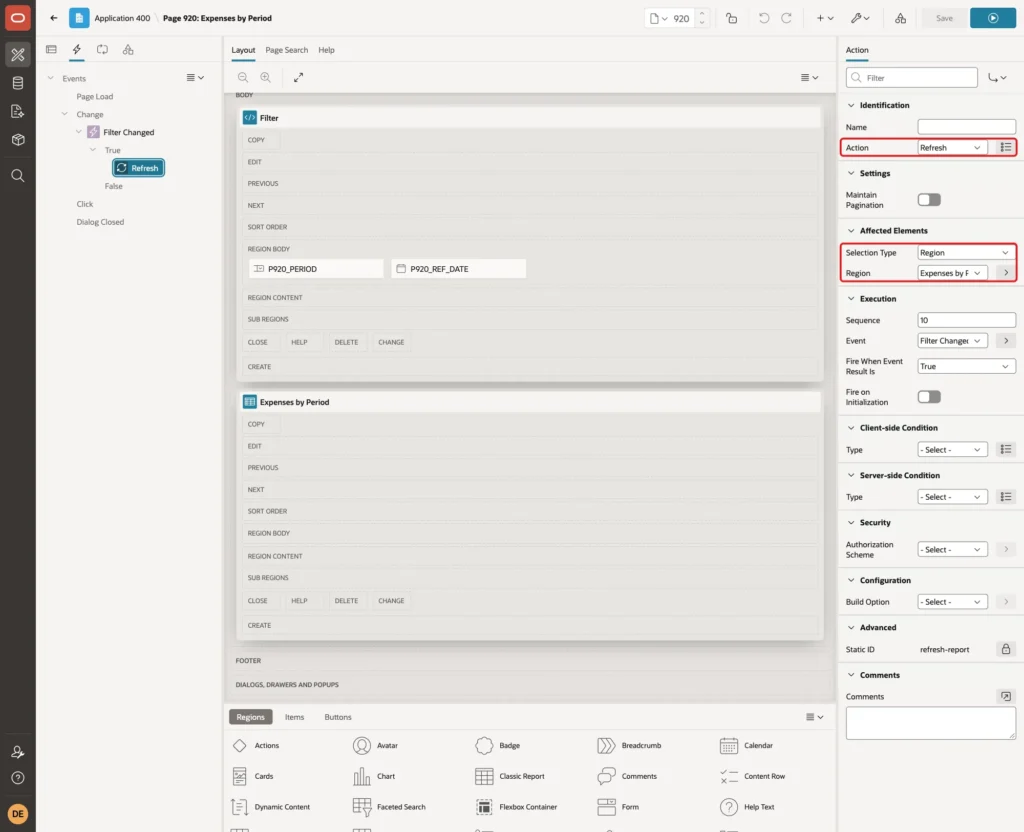
Select the True action. Set Action to Refresh, Selection Type to Region and Region to Expenses by Period:
Click Save.
Step 10: Test the Report Page
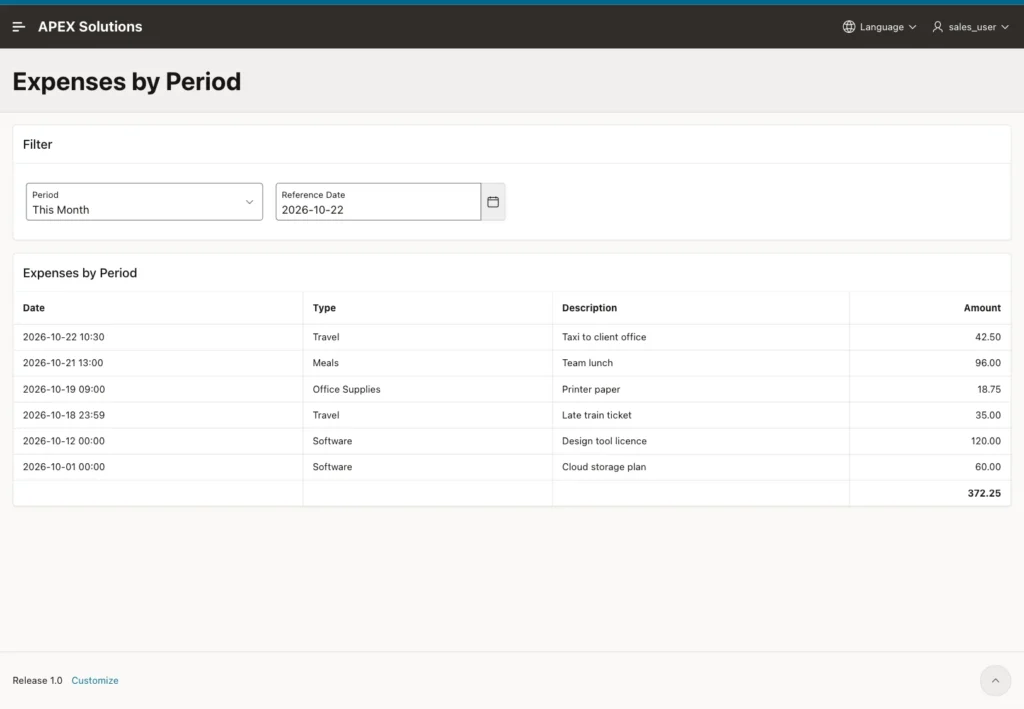
Run the page. It opens with This Month and today as the reference date. The report shows the six expenses from 1 October, including the row at 00:00 on the first day:
Select Last Week. The report shows Monday 00:00 to Sunday 23:59 of the previous week:
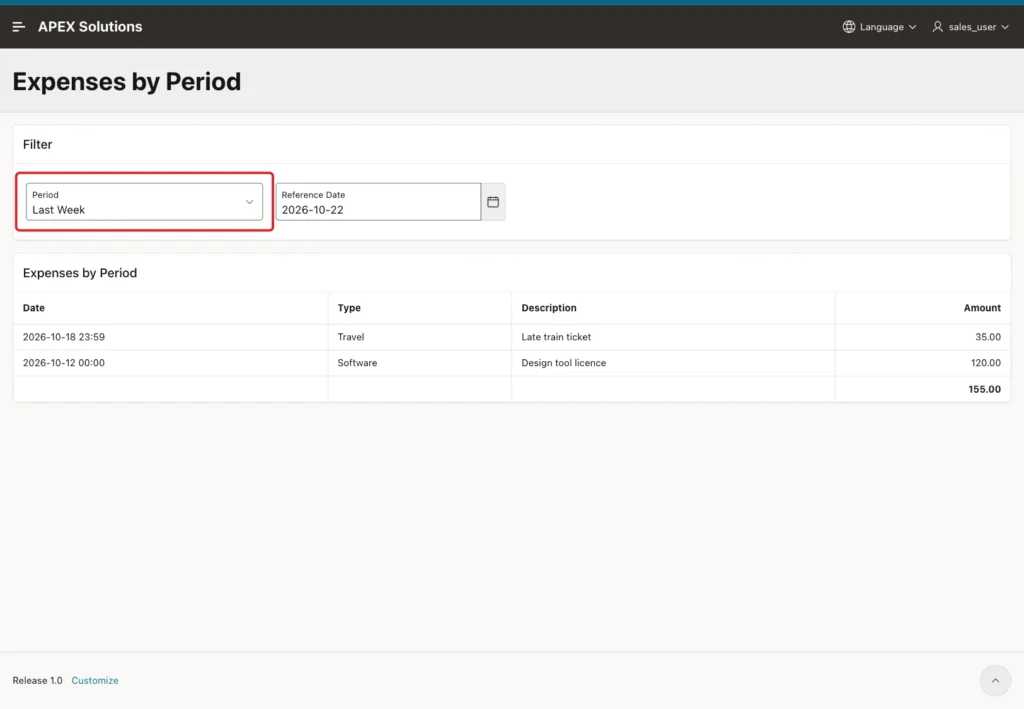
Each period returned the same rows as the SQL check in Step 2. All Dates showed all 13 rows with a total of 1,696.95.
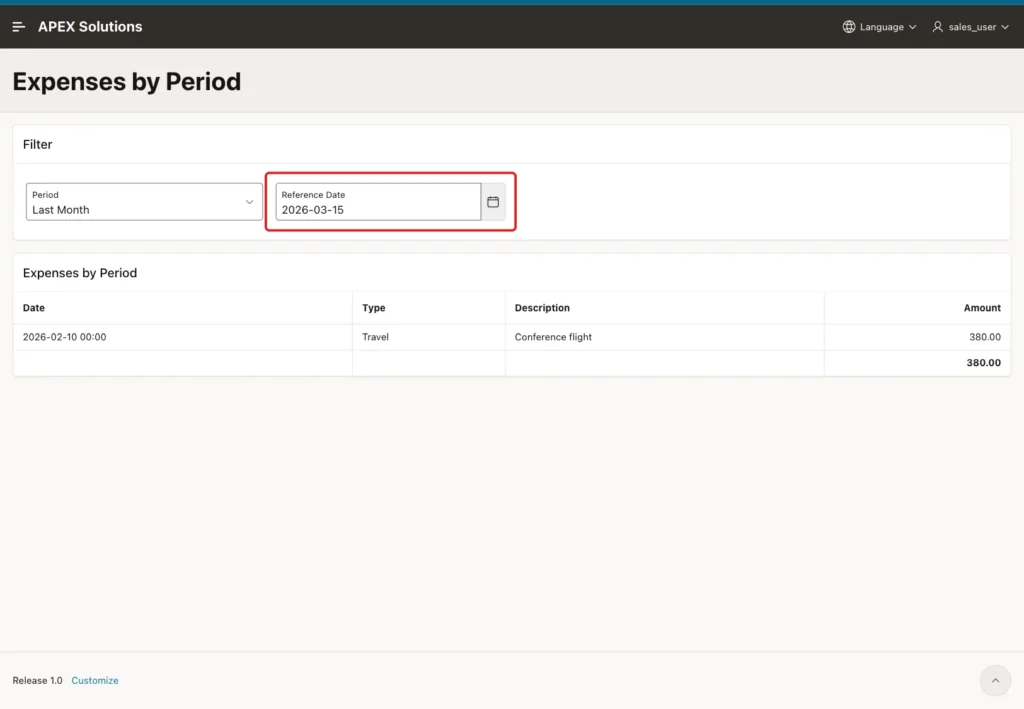
Now select Last Month and change Reference Date to 2026-03-15. The report shows February 2026:
Two negative tests followed. With "not a date" typed in Reference Date, the report used today as the reference date and showed September. No error was raised.
Next, a period code that is not in the list. A new option with the value BOGUS was added to the select list in the browser console and selected. The report showed "No data found.", because no period has that code.
Step 11: Create a Faceted Search Page
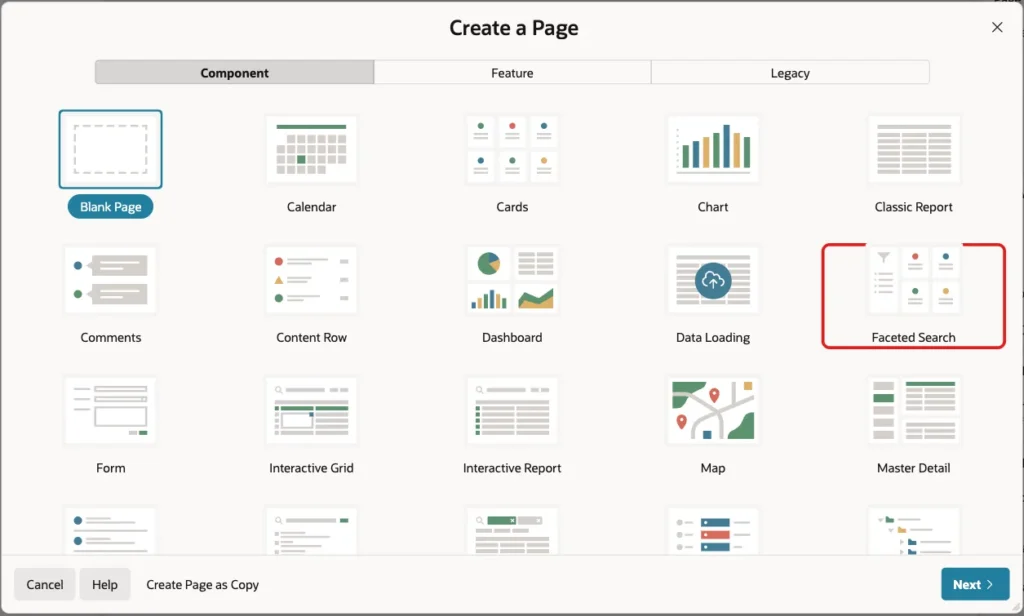
The same filter can be a facet. Click Create Page and select Faceted Search on the Component tab:
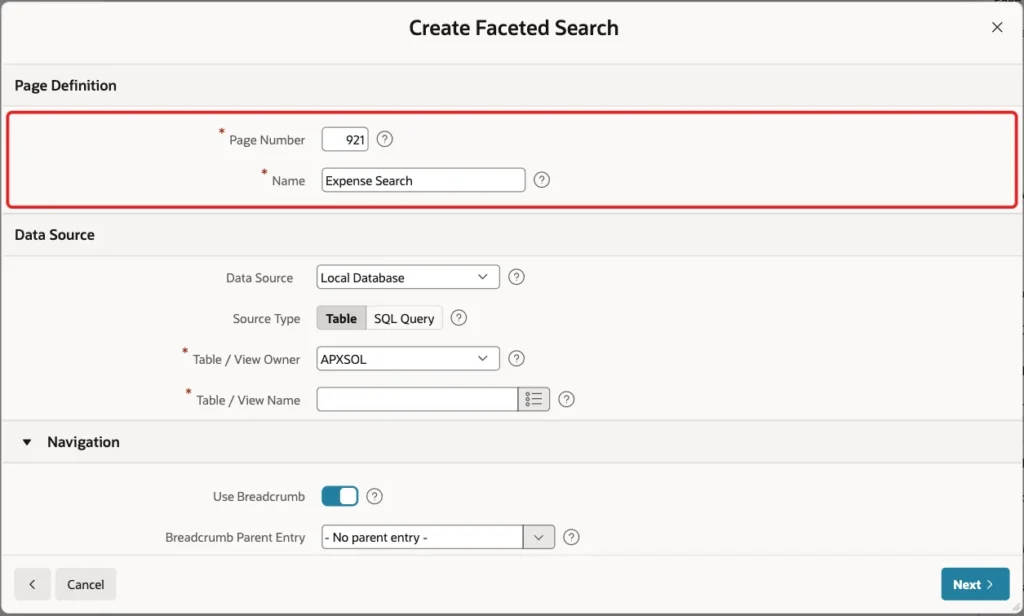
Set Page Number to 921 and Name to Expense Search:
Set Source Type to SQL Query and enter this query:
Example:
select e.expense_id,
       e.expense_date,
       t.type_name,
       e.description,
       e.amount
from team_expenses e
join expense_types t on t.expense_type_id = e.expense_type_id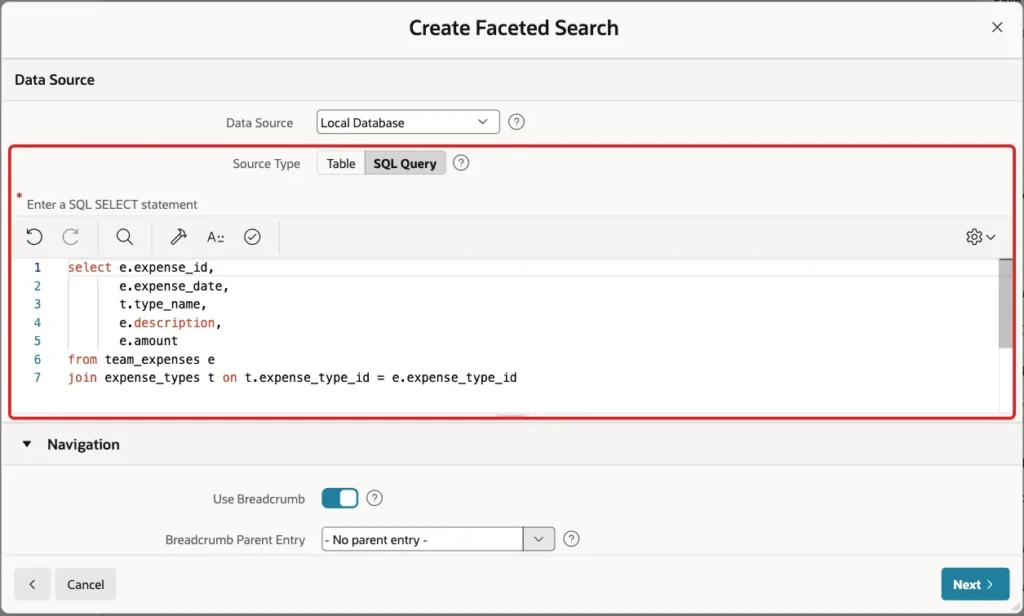
Keep the Navigation settings and click Next:

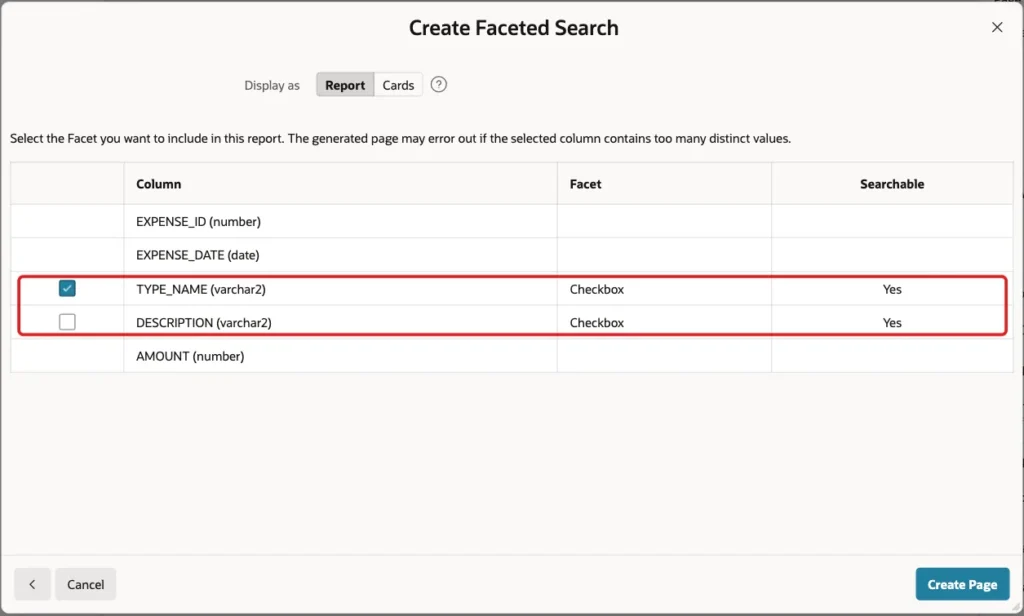
The last screen suggests facets. Keep TYPE_NAME and untick DESCRIPTION. The date column cannot be selected here, so its facet is added in Page Designer. Click Create Page:
Step 12: Add a Range Facet for the Period
In Page Designer, right-click Facets under the Search region and click Create Facet. Set Name to P921_EXPENSE_DATE, Type to Range and Label to Period:
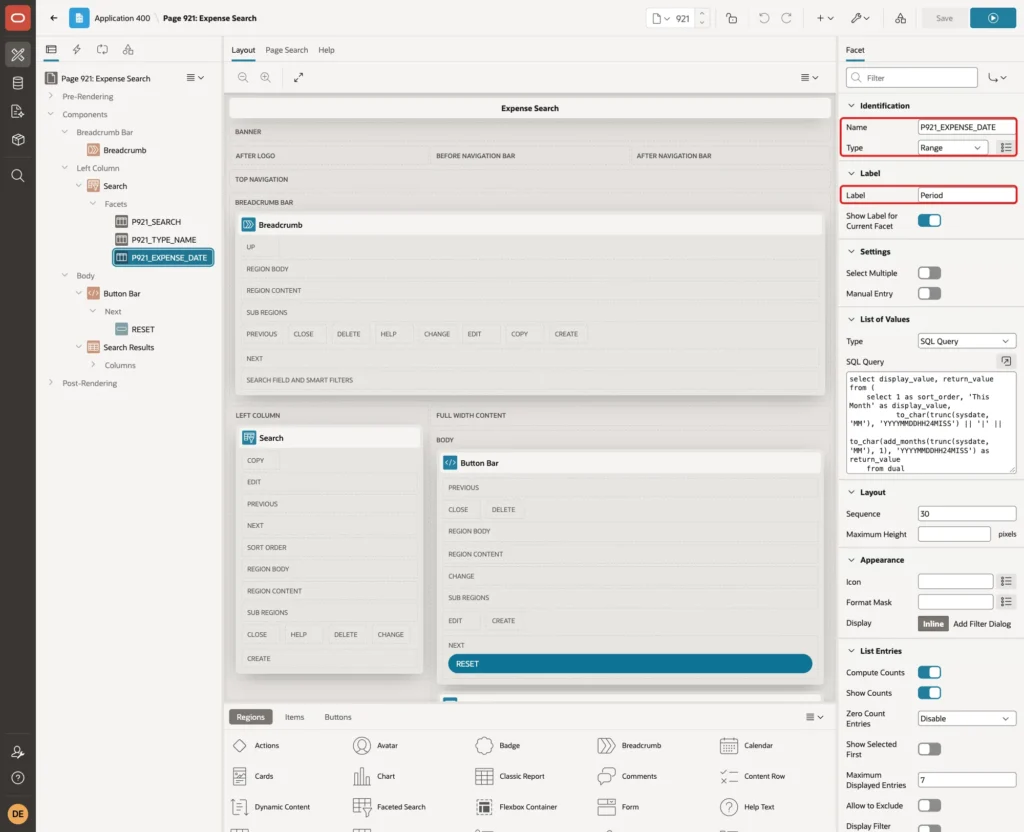
Under List of Values, set Type to SQL Query and enter this query:
Example:
select display_value, return_value
from (
    select 1 as sort_order, 'This Month' as display_value,
           to_char(trunc(sysdate, 'MM'), 'YYYYMMDDHH24MISS') || '|' ||
           to_char(add_months(trunc(sysdate, 'MM'), 1), 'YYYYMMDDHH24MISS') as return_value
    from dual
    union all
    select 2, 'Last Month',
           to_char(add_months(trunc(sysdate, 'MM'), -1), 'YYYYMMDDHH24MISS') || '|' ||
           to_char(trunc(sysdate, 'MM'), 'YYYYMMDDHH24MISS')
    from dual
    union all
    select 3, '2-3 Months Ago',
           to_char(add_months(trunc(sysdate, 'MM'), -3), 'YYYYMMDDHH24MISS') || '|' ||
           to_char(add_months(trunc(sysdate, 'MM'), -1), 'YYYYMMDDHH24MISS')
    from dual
    union all
    select 4, 'Older',
           '|' || to_char(add_months(trunc(sysdate, 'MM'), -3), 'YYYYMMDDHH24MISS')
    from dual
)
order by sort_order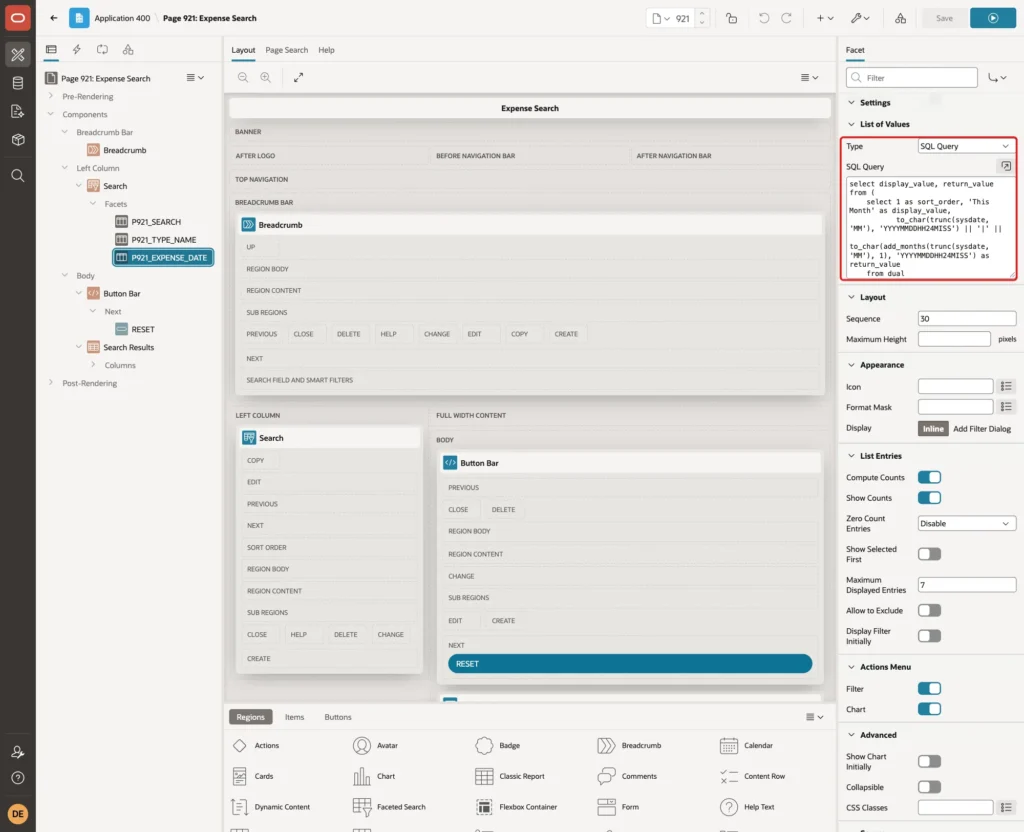
A Range facet expects the return value as lower|upper. For a DATE column, both values use the format YYYYMMDDHH24MISS. An empty lower value means no lower limit, so |20260701000000 is everything before July 2026.
Under List Entries, set Zero Count Entries to Disable, so an empty period stays visible but cannot be picked. Under Source, keep Database Column EXPENSE_DATE and set Data Type to DATE:

Click Save. These four periods never overlap: each row falls into exactly one of them. That is required for correct counts, as the next section shows.
Why the Facet Ranges Must Not Overlap
In a first test, the facet used the eight overlapping periods of DATE_PERIODS. The filter itself was right: This Month returned the six October rows. The counts were wrong. This Month showed 1 instead of 6, and Last 30 Days showed no count and was disabled:
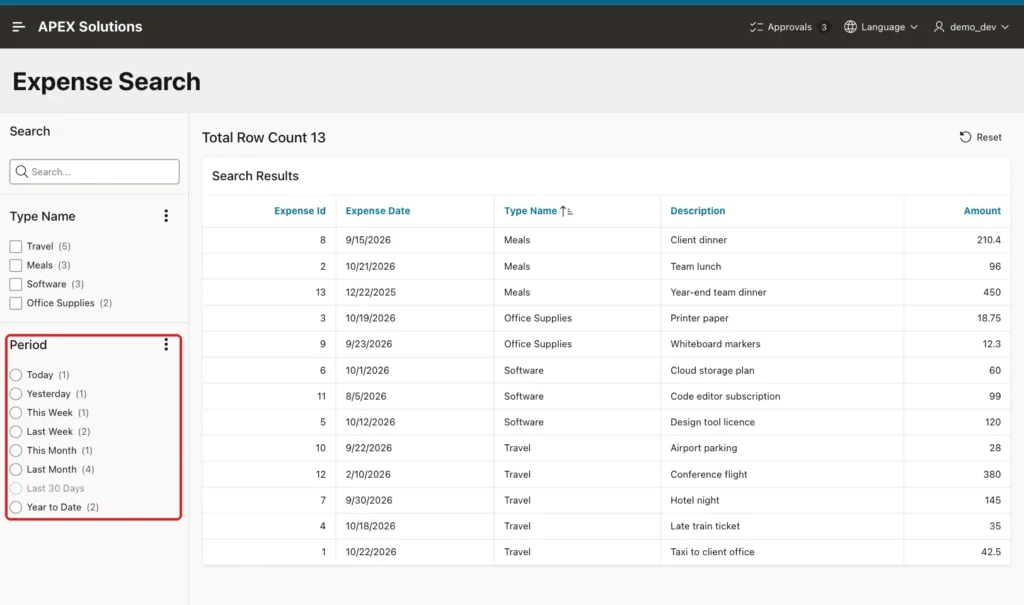
The counts matched a first-match rule. Each row was counted only under the first period in the list that contained it, so today's row was counted under Today and nowhere else.
Turning off Compute Counts for the facet made every period selectable. But after picking This Month, the page showed Total Row Count 1 above six rows, and the Type Name facet offered only Software (1):
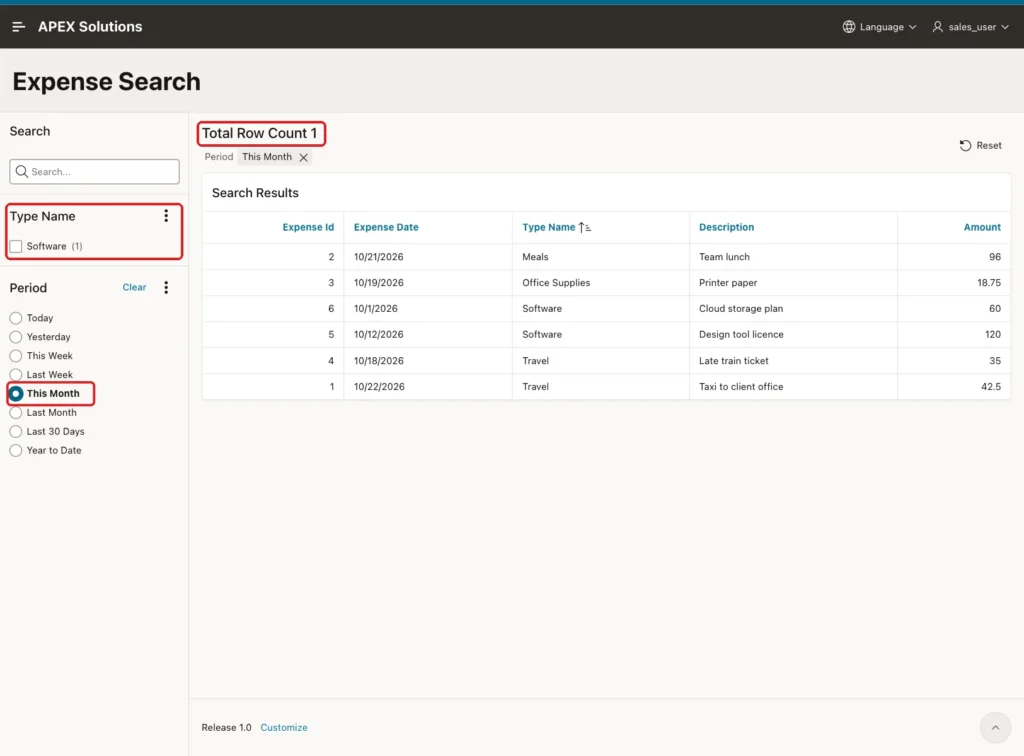
With the four non-overlapping ranges from Step 12, all counts were correct. Use overlapping periods such as This Week and This Month in a select list like page 920, and non-overlapping ranges in a Range facet.
Step 13: Test the Faceted Search Page
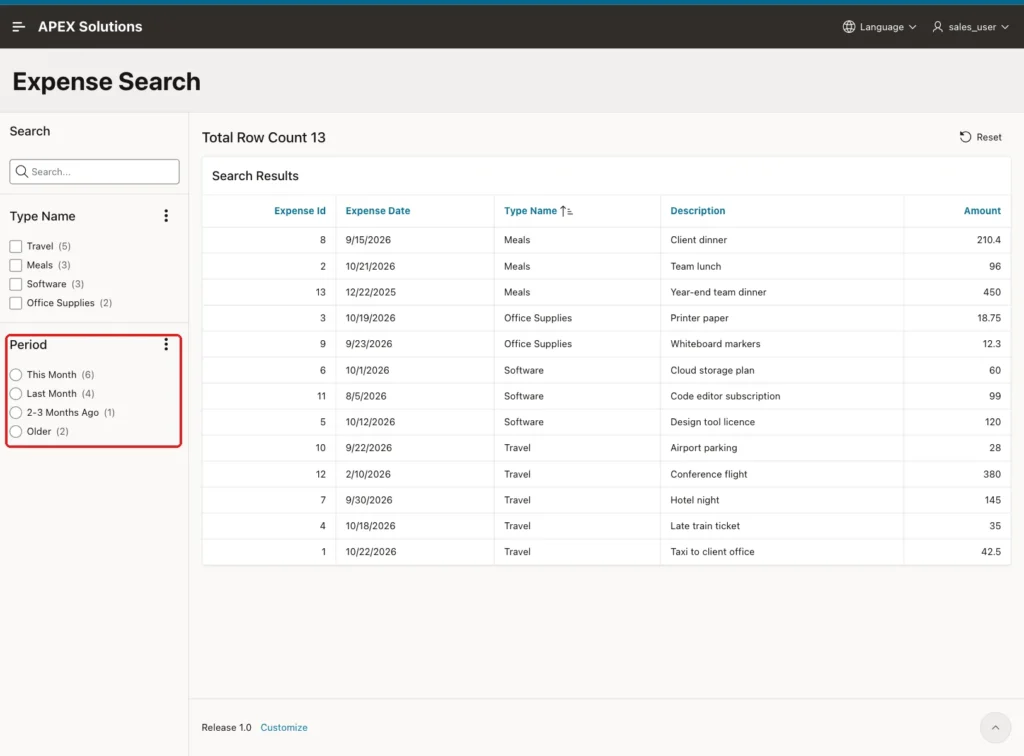
Run page 921. The Period facet shows This Month (6), Last Month (4), 2-3 Months Ago (1) and Older (2). Together they add up to the 13 rows:
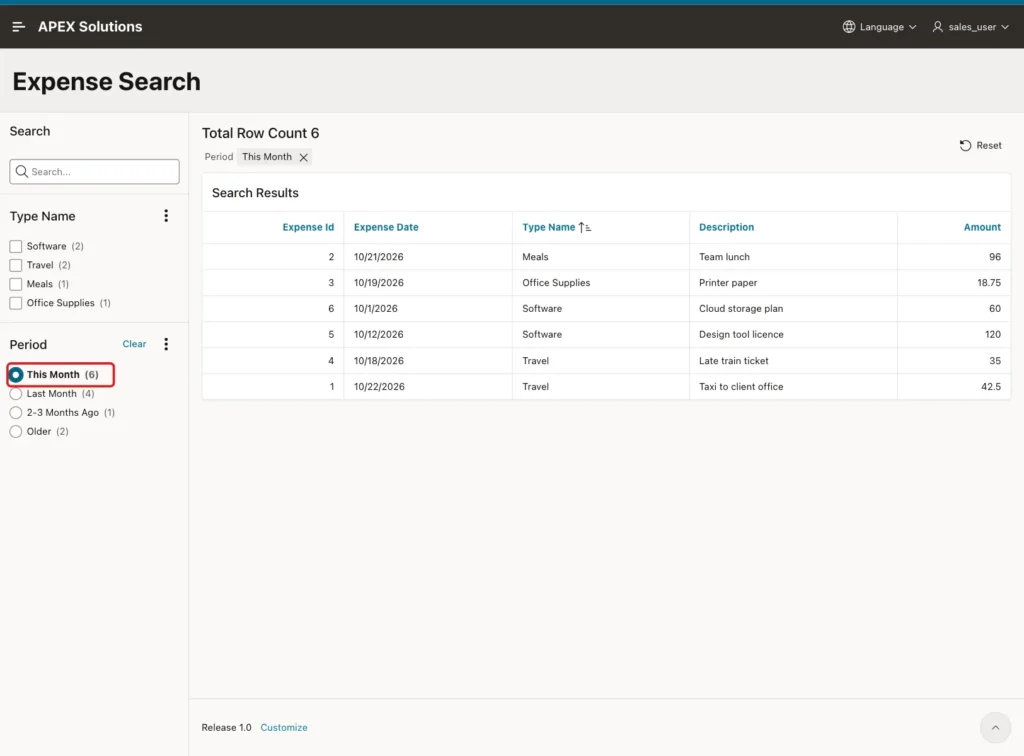
Select This Month. The report shows the six October rows, and the Type Name counts change to Software (2), Travel (2), Meals (1) and Office Supplies (1):
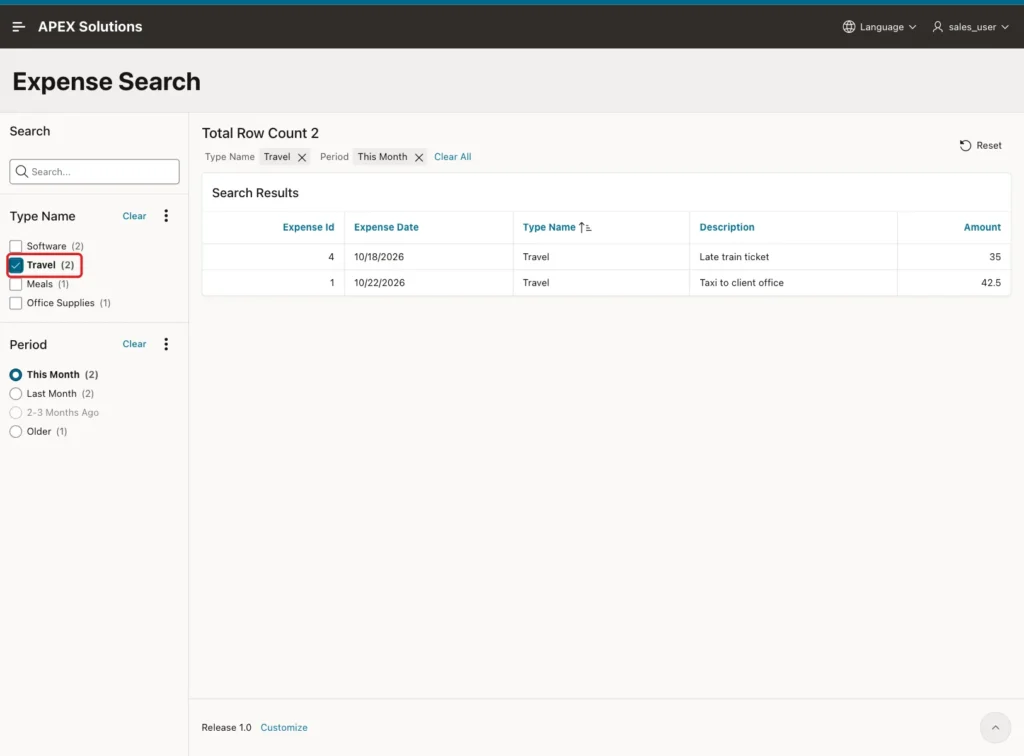
Now tick Travel. Two rows are left, Total Row Count is 2, and the Period counts show the travel expenses per period:
Older returned rows 12 and 13, from February 2026 and December 2025, so the open lower limit worked. A forged facet value (garbage) set from the browser console returned an Ajax error, ORA-01841, and no rows.
Things to Know
- Use a half-open range (start included, end excluded) for DATE columns with a time. BETWEEN with the last day of a period misses rows later than 00:00 on that day.
- Compare the column itself with the range, and do not apply TRUNC to the column. In a plan test with an index hint, the range used an INDEX RANGE SCAN on TEAM_EXPENSES_DATE_IX, while TRUNC(expense_date, 'MM') could only use an INDEX FULL SCAN.
- TRUNC(date, 'IW') always returns Monday. TRUNC(date, 'D') depends on NLS_TERRITORY, as the output below shows.
- SYSDATE is the clock of the database server, which was UTC in this example. If your users are in another time zone, "today" may change at a different hour for them.
- The period filter is a display choice, not security. Every user can pick every period.
- A Range facet counts each row under one entry only. Keep its ranges free of overlaps.
Example:
alter session set nls_territory = 'AMERICA';

select to_char(trunc(date '2026-10-22', 'D'), 'YYYY-MM-DD Dy') as d_week_start,
       to_char(trunc(date '2026-10-22', 'IW'), 'YYYY-MM-DD Dy') as iw_week_start
from dual;

alter session set nls_territory = 'GERMANY';

select to_char(trunc(date '2026-10-22', 'D'), 'YYYY-MM-DD Dy') as d_week_start,
       to_char(trunc(date '2026-10-22', 'IW'), 'YYYY-MM-DD Dy') as iw_week_start
from dual;
Output:
Session altered.

D_WEEK_START      IW_WEEK_START
_________________ _________________
2026-10-18 Sun    2026-10-19 Mon

Session altered.

D_WEEK_START      IW_WEEK_START
_________________ _________________
2026-10-19 Mon    2026-10-19 Mon
Related Guides
- Faceted Search, Smart Filters, and Search in Oracle APEX
- How to Show Aging Buckets (0-30, 31-60, 61-90 Days) in Oracle APEX
Conclusion
To filter a report by relative dates in Oracle APEX, return each period's start and end date from one SQL macro, list the periods in a select list, and filter with a half-open date range. A reference date item lets users and testers move the periods to any day.
In this example, every period returned the expected rows, including the boundary rows at 00:00 and 23:59:59. Invalid dates fell back to today and unknown periods returned no rows. In Faceted Search, a Range facet worked well once its ranges did not overlap.
See my articles more often when you search Google.
