
Wide reports are hard to read. One user needs phone numbers, another needs hire dates, and nobody needs all of them at once. An interactive report lets each user hide columns from its Actions menu, but a classic report has no such menu. Every user sees the same columns.
Oracle APEX can add this choice to a classic report without JavaScript. A checkbox group lists the optional columns, each column has a server-side condition that reads the checkbox group, and the item stores its value per user. This guide builds the page, cleans the submitted value, and tests it with two users.
The guide How to Remember Each User's Filters with Preferences in Oracle APEX explains the Per User (Persistent) storage for filter items. This guide uses the same storage for a different job: it decides which report columns are rendered. The example is a staff directory; the same steps work for any classic report.
Step 1: Create the Tables
Two tables hold the data:
- STAFF_DEPARTMENTS lists the departments.
- STAFF_MEMBERS has one row per person with the job title, email, phone, city and hire date.
Example:
set define off

create table staff_departments (
    department_id    number generated by default on null as identity,
    department_name  varchar2(50) not null,
    constraint staff_departments_pk primary key (department_id),
    constraint staff_departments_name_uk unique (department_name)
);

create table staff_members (
    member_id      number generated by default on null as identity,
    full_name      varchar2(80) not null,
    department_id  number not null,
    job_title      varchar2(60) not null,
    email          varchar2(120) not null,
    phone          varchar2(30),
    city           varchar2(50),
    hire_date      date default on null sysdate not null,
    constraint staff_members_pk primary key (member_id),
    constraint staff_members_dept_fk foreign key (department_id)
        references staff_departments (department_id),
    constraint staff_members_email_uk unique (email),
    constraint staff_members_email_ck check (email like '%_@_%._%')
);

create index staff_members_dept_ix on staff_members (department_id);

insert into staff_departments (department_name) values ('Finance');
insert into staff_departments (department_name) values ('Engineering');
insert into staff_departments (department_name) values ('Customer Support');

insert into staff_members (full_name, department_id, job_title, email, phone, city, hire_date)
select 'Anita Rao', department_id, 'Accountant', 'anita.rao@example.com', '+91 98450 11001', 'Bengaluru', date '2021-04-12'
from staff_departments where department_name = 'Finance';
insert into staff_members (full_name, department_id, job_title, email, phone, city, hire_date)
select 'Brian Cole', department_id, 'Backend Developer', 'brian.cole@example.com', '+44 20 7946 0102', 'London', date '2019-09-02'
from staff_departments where department_name = 'Engineering';
insert into staff_members (full_name, department_id, job_title, email, phone, city, hire_date)
select 'Chen Wei', department_id, 'Support Lead', 'chen.wei@example.com', '+65 6123 4503', 'Singapore', date '2020-01-20'
from staff_departments where department_name = 'Customer Support';
insert into staff_members (full_name, department_id, job_title, email, phone, city, hire_date)
select 'Divya Nair', department_id, 'QA Engineer', 'divya.nair@example.com', '+91 98450 11004', 'Kochi', date '2022-07-18'
from staff_departments where department_name = 'Engineering';
insert into staff_members (full_name, department_id, job_title, email, phone, city, hire_date)
select 'Erik Hansen', department_id, 'Financial Analyst', 'erik.hansen@example.com', '+45 32 12 34 05', 'Copenhagen', date '2023-03-06'
from staff_departments where department_name = 'Finance';
insert into staff_members (full_name, department_id, job_title, email, phone, city, hire_date)
select 'Fatima Khan', department_id, 'Support Agent', 'fatima.khan@example.com', null, 'Dubai', date '2024-11-25'
from staff_departments where department_name = 'Customer Support';
insert into staff_members (full_name, department_id, job_title, email, phone, city, hire_date)
select 'George Mills', department_id, 'DevOps Engineer', 'george.mills@example.com', '+1 415 555 0107', 'San Francisco', date '2018-05-14'
from staff_departments where department_name = 'Engineering';

commit;

select m.member_id, m.full_name, d.department_name, m.job_title, m.city,
       to_char(m.hire_date, 'YYYY-MM-DD') as hire_date
from staff_members m
join staff_departments d on d.department_id = m.department_id
order by m.full_name;
Output:
Table STAFF_DEPARTMENTS created.

Table STAFF_MEMBERS created.

Index STAFF_MEMBERS_DEPT_IX created.

1 row inserted.

1 row inserted.

1 row inserted.

1 row inserted.

1 row inserted.

1 row inserted.

1 row inserted.

1 row inserted.

1 row inserted.

1 row inserted.

Commit complete.

   MEMBER_ID FULL_NAME       DEPARTMENT_NAME     JOB_TITLE            CITY             HIRE_DATE
____________ _______________ ___________________ ____________________ ________________ _____________
           1 Anita Rao       Finance             Accountant           Bengaluru        2021-04-12
           2 Brian Cole      Engineering         Backend Developer    London           2019-09-02
           3 Chen Wei        Customer Support    Support Lead         Singapore        2020-01-20
           4 Divya Nair      Engineering         QA Engineer          Kochi            2022-07-18
           5 Erik Hansen     Finance             Financial Analyst    Copenhagen       2023-03-06
           6 Fatima Khan     Customer Support    Support Agent        Dubai            2024-11-25
           7 George Mills    Engineering         DevOps Engineer      San Francisco    2018-05-14

7 rows selected.- STAFF_MEMBERS_DEPT_FK links each person to a department, and STAFF_MEMBERS_DEPT_IX indexes that foreign key.
- STAFF_MEMBERS_EMAIL_UK stops duplicate email addresses, and STAFF_MEMBERS_EMAIL_CK rejects values without an @ and a dot.
- HIRE_DATE uses DEFAULT ON NULL, so a new row gets the current date without a trigger.
Step 2: Create the Classic Report Page
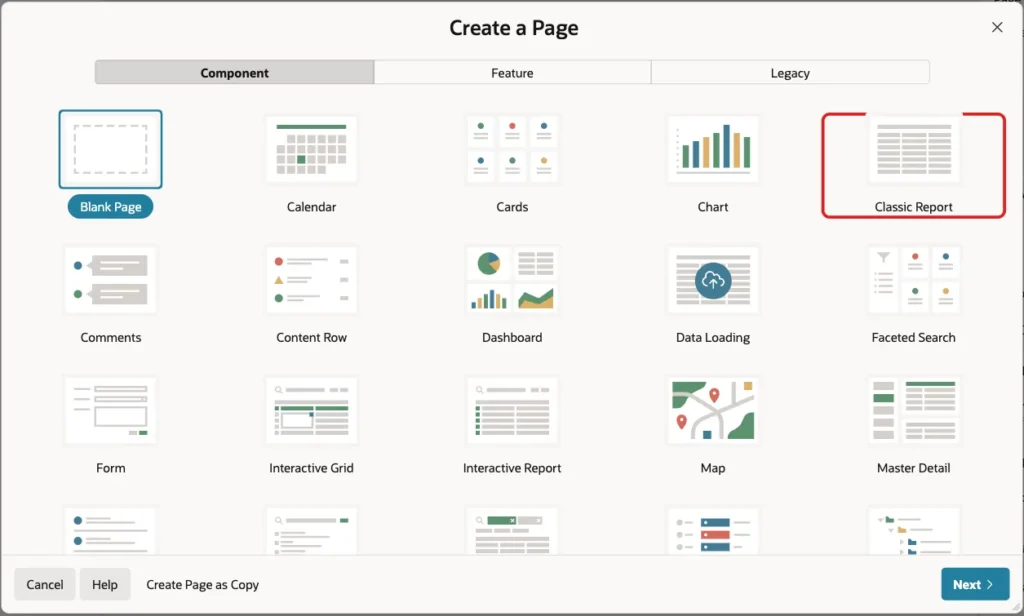
In App Builder, open the application and click Create Page. On the Component tab, select Classic Report:
Set Page Number to 910 and Name to Staff Directory:

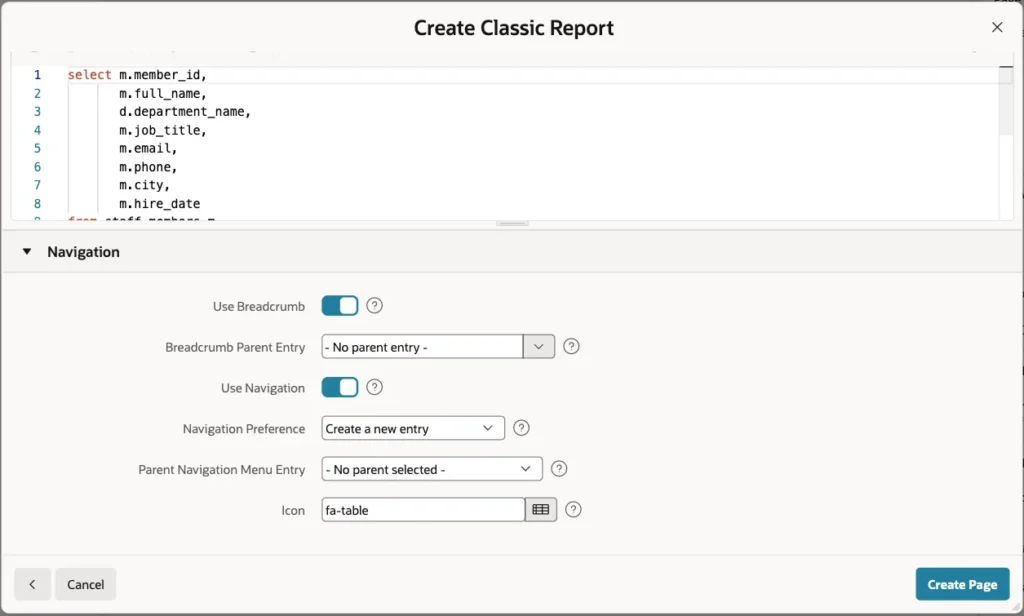
Under Data Source, set Source Type to SQL Query and enter this query:
Example:
select m.member_id,
       m.full_name,
       d.department_name,
       m.job_title,
       m.email,
       m.phone,
       m.city,
       m.hire_date
from staff_members m
join staff_departments d on d.department_id = m.department_id
order by m.full_name
The query selects every column that a user may want to see. The checkbox group decides later which of them are shown.
Leave the Navigation settings as they are, so the page gets a menu entry. Click Create Page:
Step 3: Set the Report Columns
Page Designer opens page 910. Expand Columns under the Staff Directory region. Select MEMBER_ID and set Type to Hidden:

Set these headings: FULL_NAME to Name, DEPARTMENT_NAME to Department, JOB_TITLE to Job Title. For HIRE_DATE, set Heading to Hire Date and Format Mask to DD-MON-YYYY:
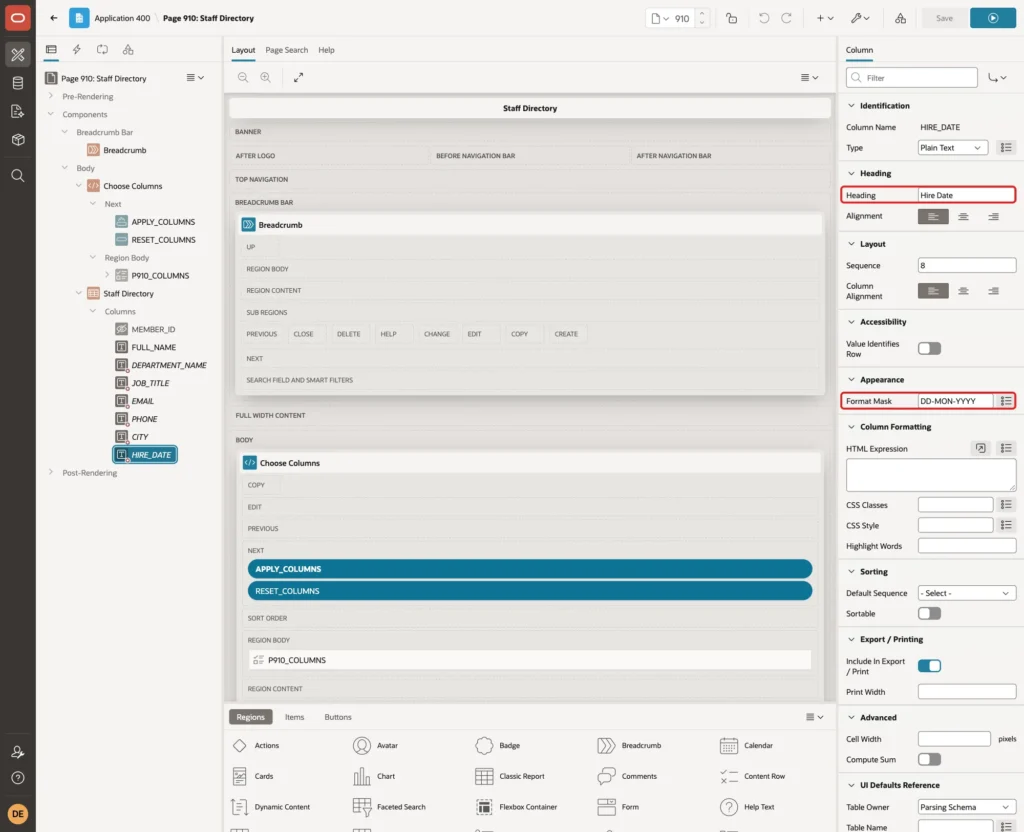
Name stays visible for every user. The other six columns are optional.
Step 4: Add the Choose Columns Region
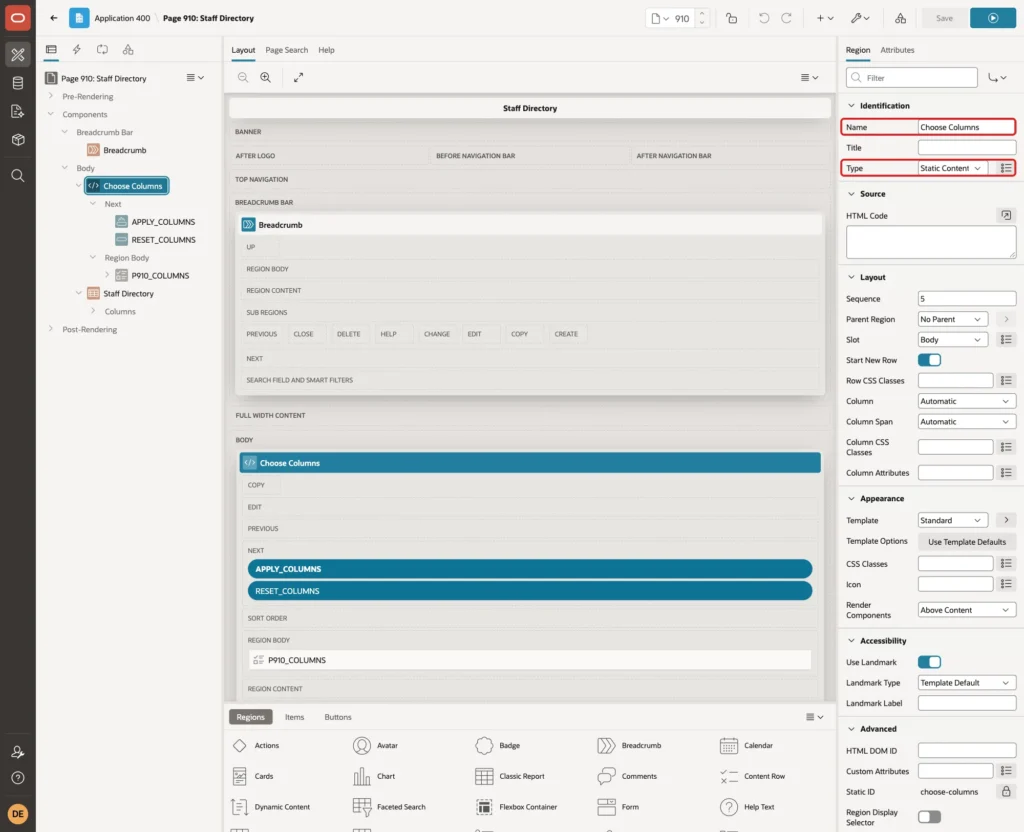
In the Rendering tree, right-click Body and click Create Region. Set Name to Choose Columns and keep Type Static Content. Drag it above the Staff Directory region, or give it a lower Sequence (5 in this example):
Step 5: Add the Checkbox Group
Right-click the Choose Columns region and click Create Page Item. Set Name to P910_COLUMNS, Type to Checkbox Group, Label to Show Columns, and Number of Columns to 6, so all boxes fit on one line:

Under List of Values, set Type to Static Values and set Template to Optional under Appearance:
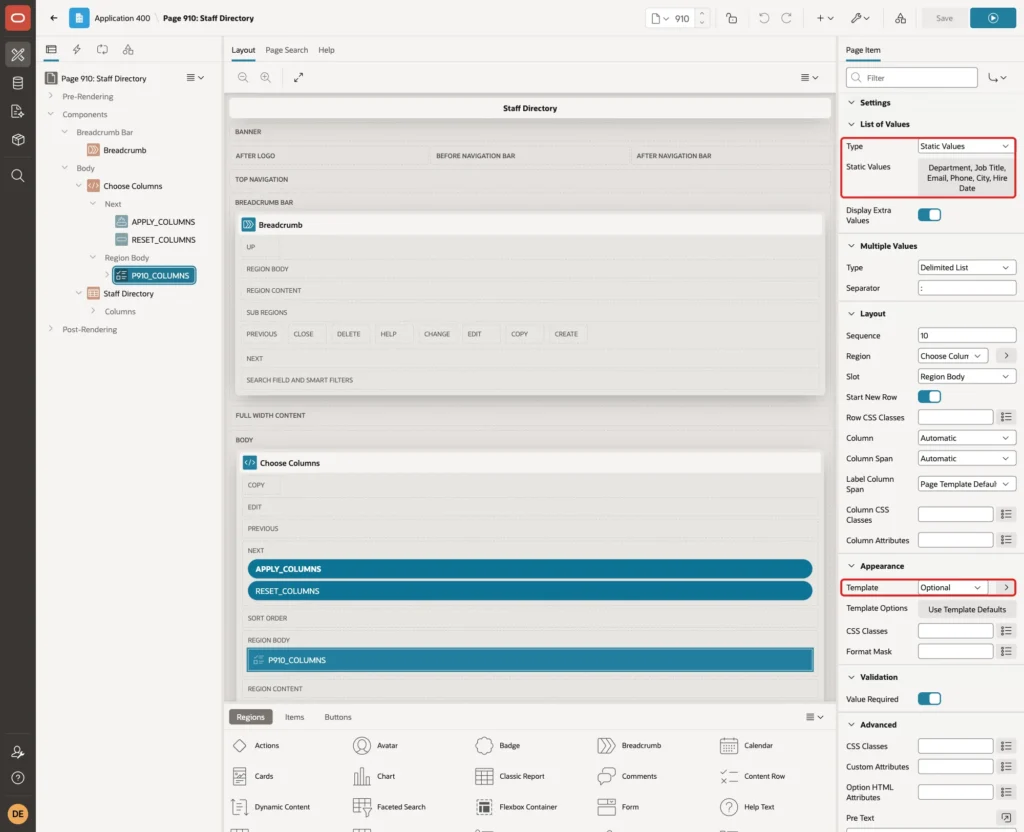
Click the Static Values property and enter one row per optional column. The return value is the column name in the report query:
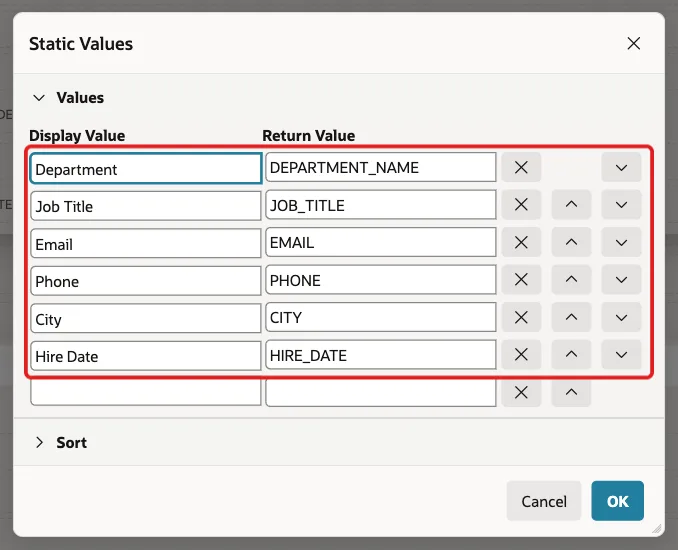
A checkbox group stores the ticked return values as one colon-separated string, for example JOB_TITLE:EMAIL:PHONE.
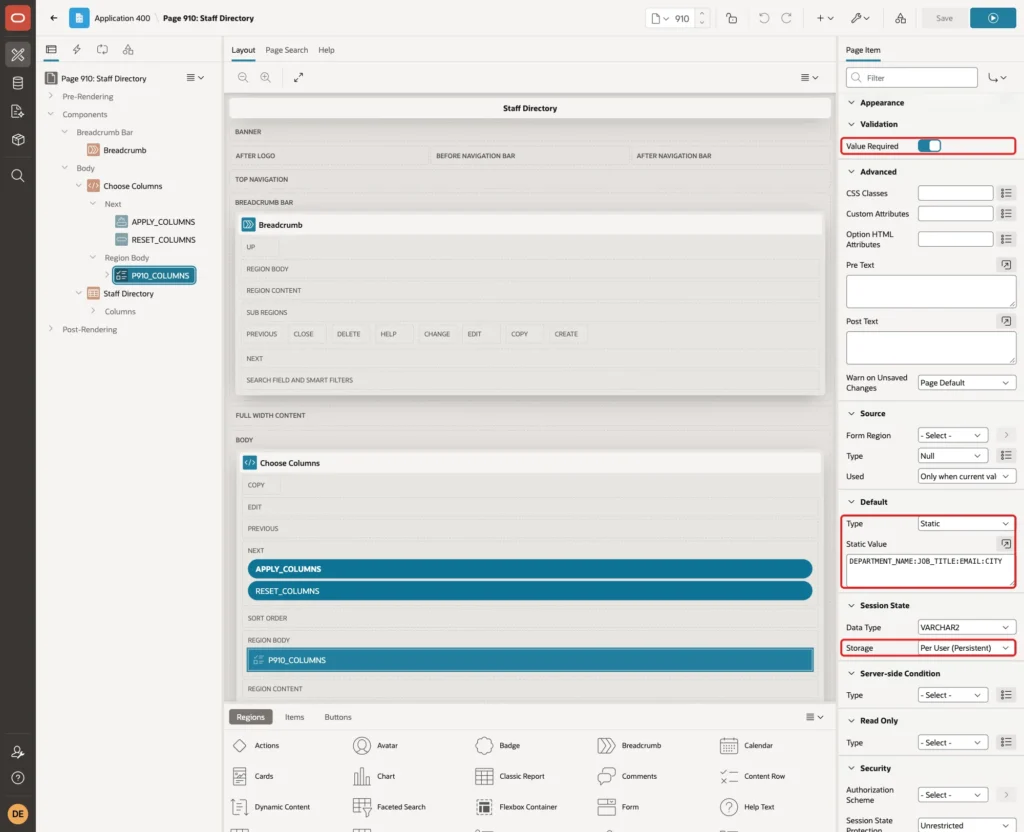
Now scroll down and set three more properties:
- Validation: turn on Value Required, so at least one column must be ticked.
- Default: Type Static, Static Value DEPARTMENT_NAME:JOB_TITLE:EMAIL:CITY. These are the columns a new user sees.
- Session State: set Storage to Per User (Persistent). APEX saves the value as a preference of the signed-in user.
Step 6: Add the Apply and Reset Buttons
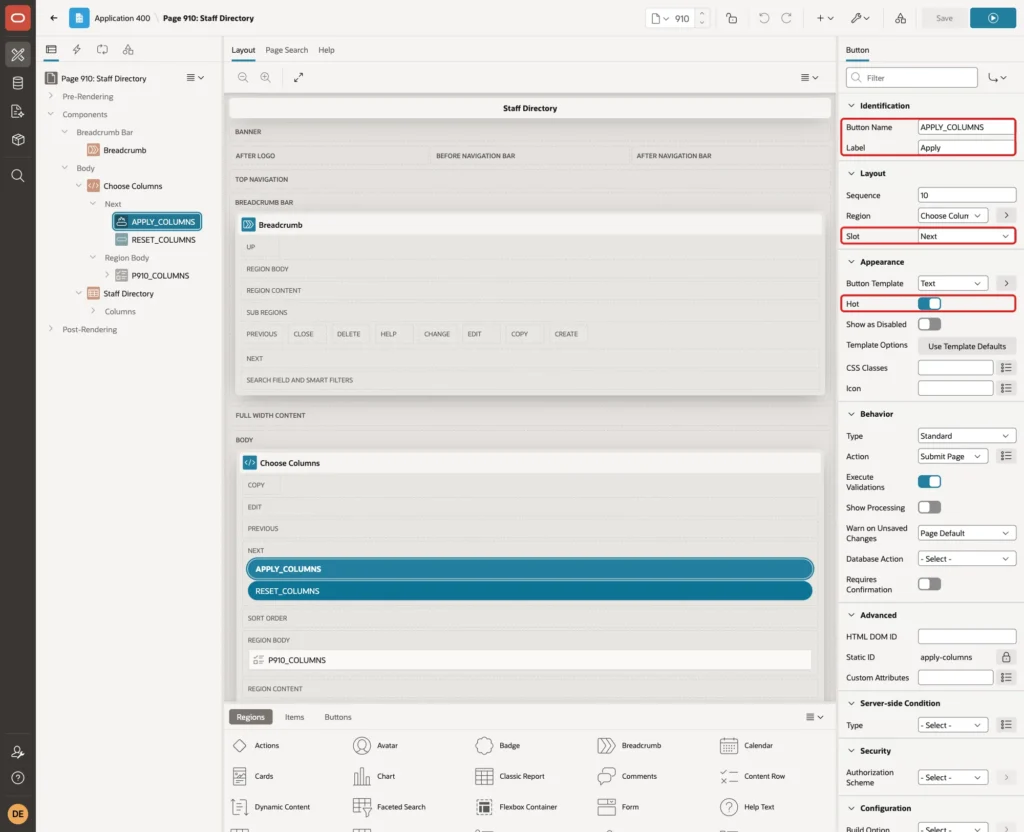
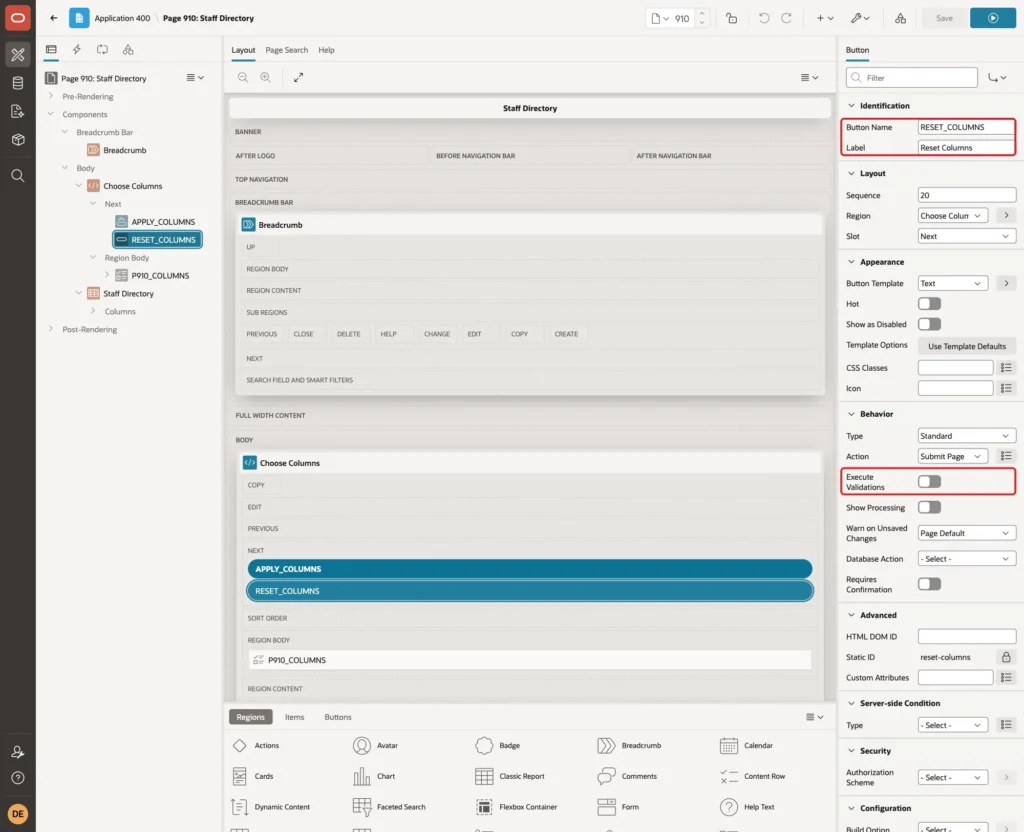
Right-click the Choose Columns region and click Create Button. Set Button Name to APPLY_COLUMNS, Label to Apply and Slot to Next, and turn on Hot. Keep Action Submit Page:
Create a second button with Button Name RESET_COLUMNS and Label Reset Columns in the same slot. Under Behavior, turn off Execute Validations:
Step 7: Show Each Column Only When It Is Ticked
Select the EMAIL column. Under Server-side Condition, set Type to Expression, keep Language PL/SQL, and enter this PL/SQL Expression:
Example:
'EMAIL' member of apex_string.split(:P910_COLUMNS, ':')

APEX_STRING.SPLIT turns the colon list into a collection, and MEMBER OF checks for an exact entry. A plain INSTR would also match parts of longer names.
Repeat this for DEPARTMENT_NAME, JOB_TITLE, PHONE, CITY and HIRE_DATE, each time with its own column name in quotes. Leave FULL_NAME without a condition.
The condition list for report columns in APEX 26.1 has no "text is contained in item" type, so the Expression type is used here.
Step 8: Keep Only Known Column Names
The browser sends the checkbox values, and a user can change them before the page is submitted. A validation alone does not help here. In a first test, a validation rejected a forged value, but APEX had already saved it as the user's preference.
APEX writes submitted values to session state, and for this item to the preference, before validations run. A computation can replace the value before the validations, and APEX saves the cleaned value.
Open the Processing tab. Right-click Computations under After Submit and click Create Computation. Set Item Name to P910_COLUMNS, Point to After Submit, Type to SQL Query (return single value), and enter this query:
Example:
select listagg(distinct column_value, ':') within group (order by column_value)
from apex_string.split(:P910_COLUMNS, ':')
where column_value in ('DEPARTMENT_NAME', 'JOB_TITLE', 'EMAIL',
                       'PHONE', 'CITY', 'HIRE_DATE')
Under Server-side Condition, set Type to Request = Value and Value to APPLY_COLUMNS:
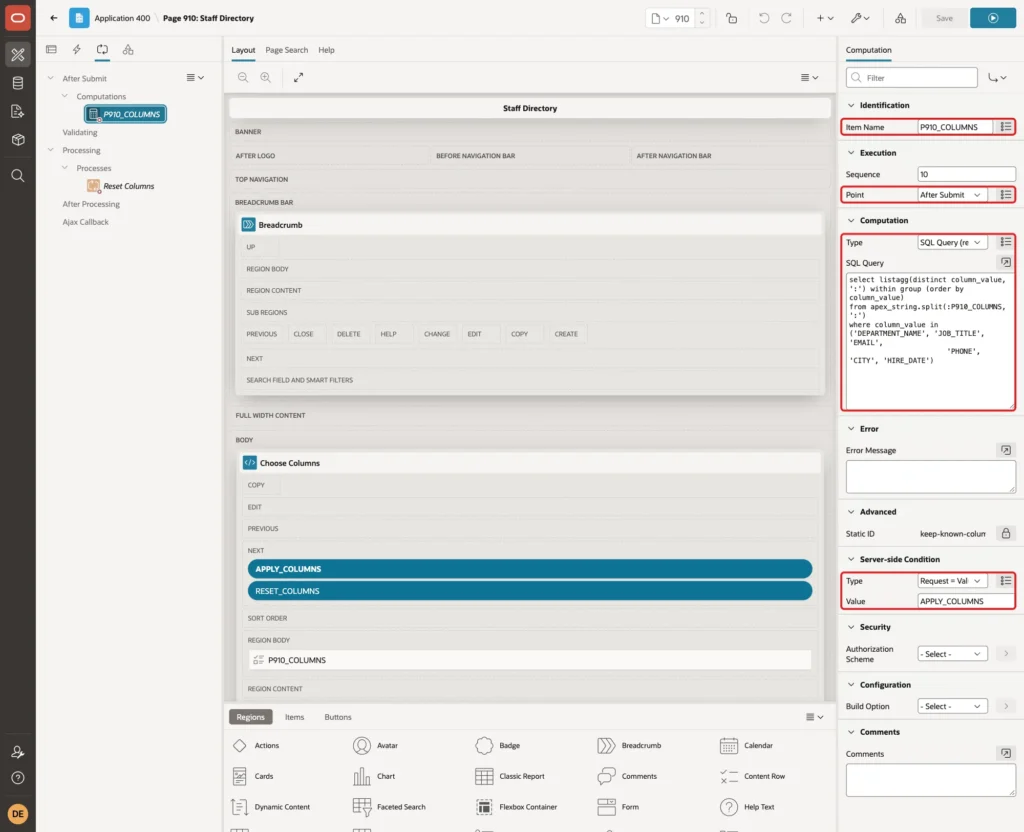
The query keeps only the six optional column names and joins them back into a colon list. DISTINCT removes duplicates, and ORDER BY sorts the names, for example EMAIL:JOB_TITLE:PHONE.
Step 9: Add the Reset Process
Right-click Processes and click Create Process. Set Name to Reset Columns and Type to Clear Session State, and keep Clear Type Clear all Items on the Current Page. Under Server-side Condition, set When Button Pressed to RESET_COLUMNS:
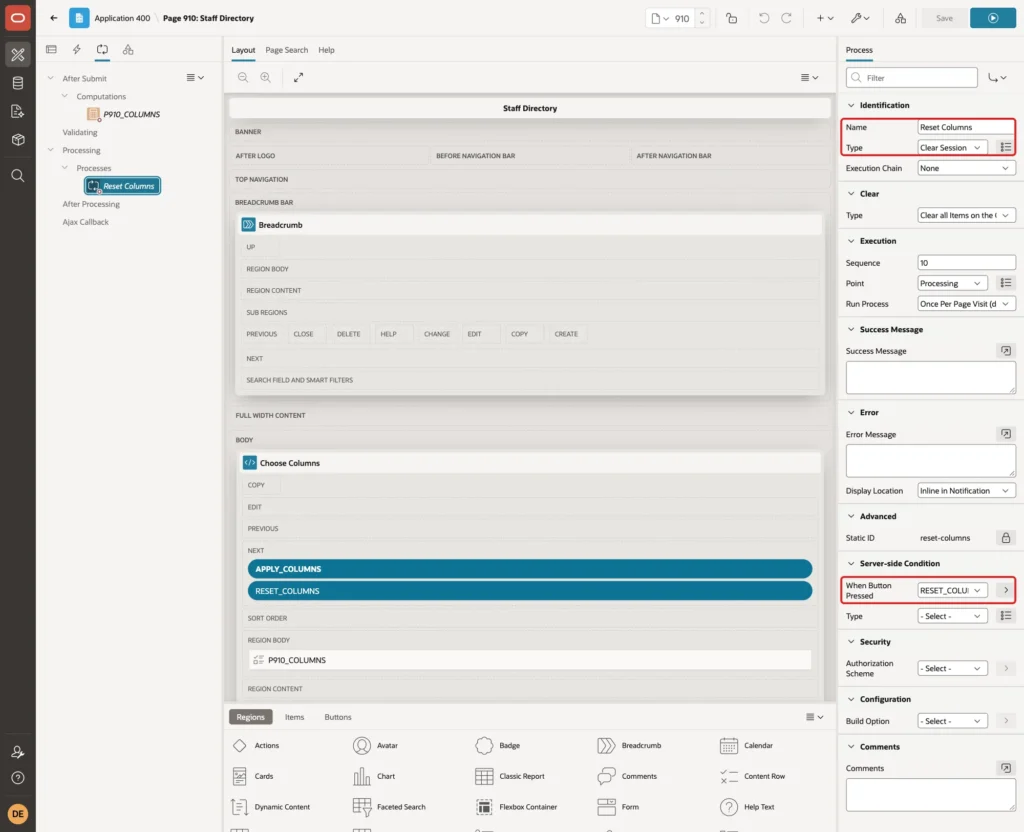
Click Save. Clearing a Per User item empties its preference, and an empty item shows the default columns again.
Step 10: Test the Page
Run the page as DEMO_DEV. With nothing saved yet, the user gets the default columns: Department, Job Title, Email and City:
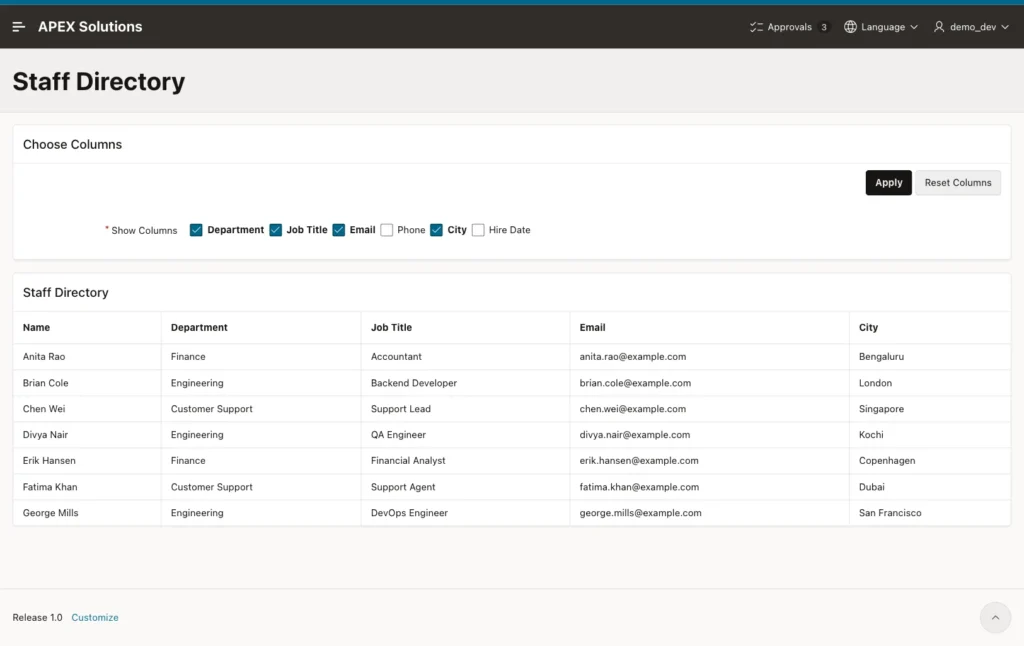
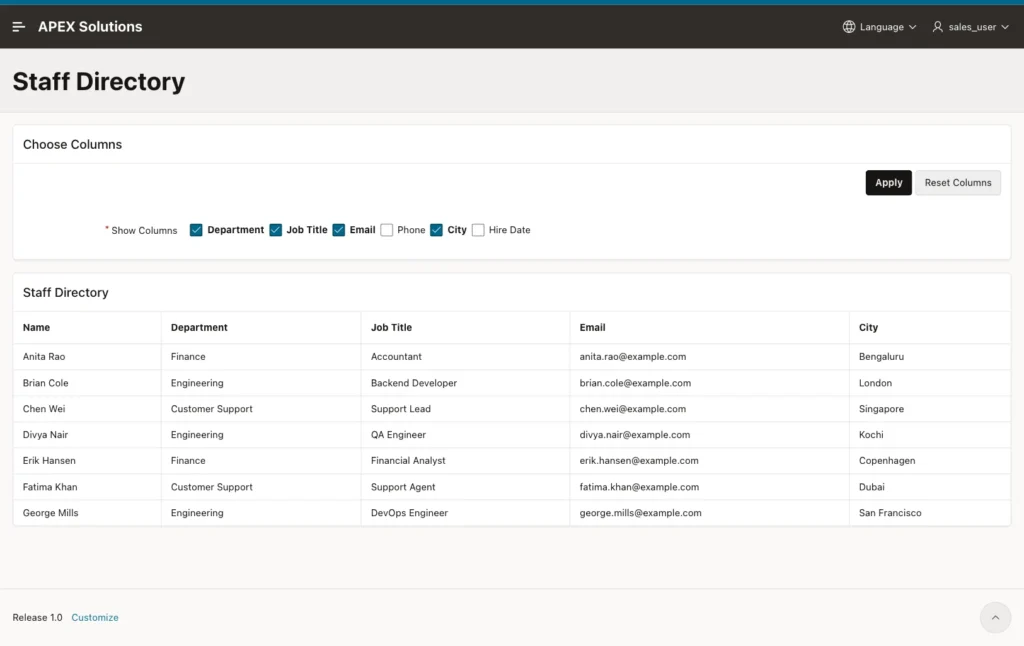
The default also worked on the very first visit of SALES_USER, before anything was saved. The column conditions saw the default value.
Untick Department and City, tick Phone, and click Apply:
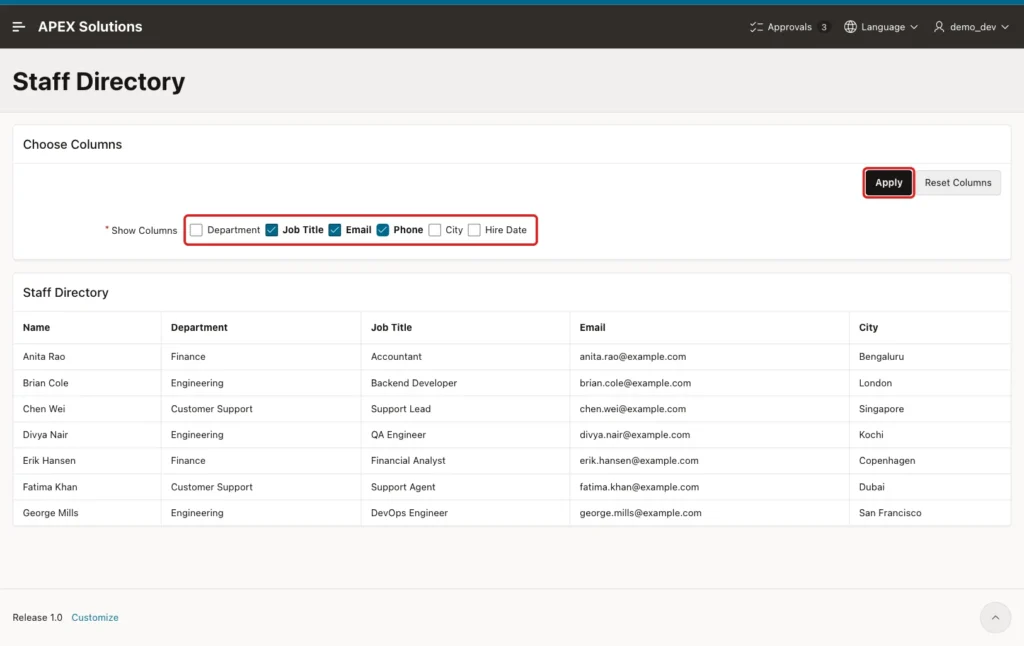
The report now shows Name, Job Title, Email and Phone:

The unticked columns are not just hidden with CSS. In a test with only Job Title and City ticked, the page HTML had no email addresses and no phone numbers. APEX does not render a column whose condition is false.
Sign out and sign in again as DEMO_DEV. The new session starts with the same three columns:
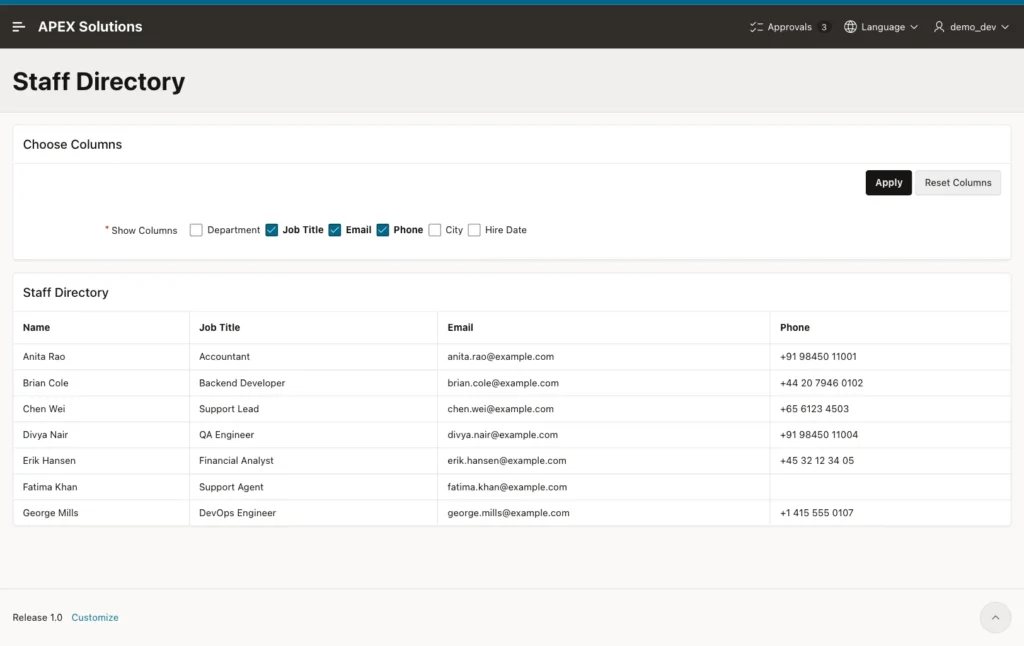
Now sign in as SALES_USER. This user still sees the default columns. The choice of DEMO_DEV does not affect other users:
As SALES_USER, untick every box and click Apply. APEX shows "Show Columns must have some value." and the report keeps its columns:
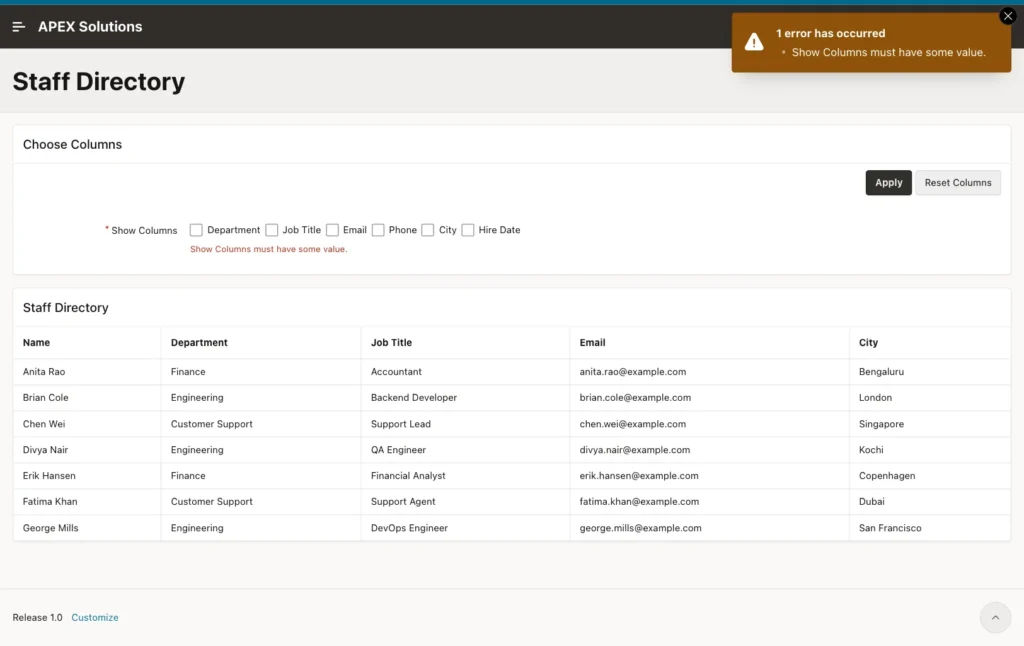
After reloading the page, SALES_USER saw the default columns again. In a separate test, DEMO_DEV did the same with a saved choice, and the saved choice came back after the reload. SALES_USER then clicked Reset Columns.
Next, a forged value. As DEMO_DEV, with Job Title, Email and Phone ticked, run this in the browser console and click Apply:
Example:
var box = document.querySelector('#P910_COLUMNS input[value="CITY"]');
box.value = 'FULL_NAME:SALARY';
box.checked = true;
The page submitted FULL_NAME and SALARY with the three real columns. The computation removed both names, the report still showed Name, Job Title, Email and Phone, and the reloaded page had no extra checkboxes.
When only unknown names were sent, the computation returned NULL. Value Required then showed its error, and the page went back to the default columns.
Finally, read the saved values. APEX_UTIL.GET_PREFERENCE needs an APEX session of the user, so the block creates one for each user:
Example:
set serveroutput on
declare
  procedure show_columns(p_user in varchar2) is
  begin
    apex_session.create_session(
      p_app_id   => 400,
      p_page_id  => 910,
      p_username => p_user);
    dbms_output.put_line(rpad(p_user, 12) || nvl(apex_util.get_preference('PERSISTENT_ITEM_P910_COLUMNS'), '(empty)'));
    apex_session.delete_session;
  end;
begin
  show_columns('DEMO_DEV');
  show_columns('SALES_USER');
end;
/
Output:
DEMO_DEV    EMAIL:JOB_TITLE:PHONE
SALES_USER  (empty)

PL/SQL procedure successfully completed.
DEMO_DEV has the three chosen columns, in the sorted order from the computation. SALES_USER has an empty value after Reset Columns, which means the default columns.
Things to Know
- A server-side condition on a report column is checked when the region is rendered. Apply submits the page, so the report is rendered again with the new choice.
- Use MEMBER OF with APEX_STRING.SPLIT, not INSTR or LIKE, so EMAIL never matches a longer name such as WORK_EMAIL.
- Hiding a column is a display choice, not security. Every user can tick every optional column. Protect sensitive columns with an Authorization Scheme on the column.
- APEX saves a Per User item before validations run. Clean the value in an After Submit computation, not in a validation.
- The preference is named PERSISTENT_ITEM_P910_COLUMNS. If you rename the item, users start again with the default.
- Interactive reports already let users hide columns from their Actions menu, so this technique is for classic reports.
Related Guides
- How to Remember Each User's Filters with Preferences in Oracle APEX
- How to Save Report Views for All Users in an Interactive Report in Oracle APEX
Conclusion
To let users choose the columns of a classic report in Oracle APEX, add a checkbox group with Per User (Persistent) storage, give each optional column a server-side condition that checks the list, and clean the submitted value in an After Submit computation.
In this example, each user kept their own columns across sessions, an empty choice was refused, forged column names were dropped, and Reset Columns brought back the default set. Unticked columns were not sent to the browser at all.
See my articles more often when you search Google.
