
Users of an Interactive Report often build the same view again and again: the same filter, the same sort, the same columns. A saved report keeps that view under a name. A public saved report goes one step further: one person builds the view once, and every user of the page can pick it from the Reports list.
Oracle APEX has public reports built into the Interactive Report, but they are switched off by default. This guide turns them on, limits who may publish a view, saves a public and a private report, tests both as a second user, and opens the public view from a button.
Two earlier guides are close to this one. How to Add Control Breaks and Subtotals to an Interactive Report in Oracle APEX saves a layout as the developer's primary default report. How to Remember Each User's Filters with Preferences in Oracle APEX stores filters per user in page items.
This guide covers the views end users save at runtime and share with each other, with no developer session.
The example uses helpdesk requests. The same steps work for any Interactive Report.
Step 1: Create the Tables
Two tables hold the data:
- HELPDESK_AGENTS has one row per support agent, with a unique name and a team.
- HELPDESK_REQUESTS has one row per request: a unique request number, subject, category, priority, status, the assigned agent and the date it was opened.
Create the tables with three agents and 12 requests:
Example:
create table helpdesk_agents (
  agent_id        number generated by default on null as identity,
  agent_name      varchar2(100)  not null,
  team            varchar2(30)   not null,
  constraint helpdesk_agents_pk primary key (agent_id),
  constraint helpdesk_agents_name_uk unique (agent_name)
);

create table helpdesk_requests (
  request_id      number generated by default on null as identity,
  request_no      varchar2(20)   not null,
  subject         varchar2(200)  not null,
  category        varchar2(30)   not null,
  priority        varchar2(10)   default on null 'MEDIUM' not null,
  status          varchar2(15)   default on null 'OPEN' not null,
  agent_id        number,
  opened_on       date           default on null sysdate not null,
  constraint helpdesk_requests_pk primary key (request_id),
  constraint helpdesk_requests_no_uk unique (request_no),
  constraint helpdesk_requests_agent_fk foreign key (agent_id) references helpdesk_agents (agent_id),
  constraint helpdesk_requests_priority_ck check (priority in ('HIGH', 'MEDIUM', 'LOW')),
  constraint helpdesk_requests_status_ck check (status in ('OPEN', 'IN PROGRESS', 'RESOLVED'))
);

create index helpdesk_requests_agent_ix on helpdesk_requests (agent_id);
create index helpdesk_requests_status_ix on helpdesk_requests (status, priority);

insert into helpdesk_agents (agent_name, team) values
  ('Meera Nair', 'Network'),
  ('Arjun Rao', 'Hardware'),
  ('Kavya Iyer', 'Software');

insert into helpdesk_requests (request_no, subject, category, priority, status, agent_id, opened_on)
select v.request_no, v.subject, v.category, v.priority, v.status, a.agent_id, v.opened_on
from (values
  ('HD-2001', 'VPN drops every hour',          'Network',  'HIGH',   'OPEN',        'Meera Nair', date '2026-10-01'),
  ('HD-2002', 'Printer on floor 3 jams',       'Hardware', 'LOW',    'RESOLVED',    'Arjun Rao',  date '2026-10-02'),
  ('HD-2003', 'Cannot install the PDF reader', 'Software', 'MEDIUM', 'IN PROGRESS', 'Kavya Iyer', date '2026-10-03'),
  ('HD-2004', 'Wi-Fi slow in meeting room',    'Network',  'MEDIUM', 'OPEN',        'Meera Nair', date '2026-10-05'),
  ('HD-2005', 'Laptop battery swells',         'Hardware', 'HIGH',   'OPEN',        'Arjun Rao',  date '2026-10-06'),
  ('HD-2006', 'Email client crashes on start', 'Software', 'HIGH',   'IN PROGRESS', 'Kavya Iyer', date '2026-10-07'),
  ('HD-2007', 'Request a second monitor',      'Hardware', 'LOW',    'OPEN',        null,         date '2026-10-08'),
  ('HD-2008', 'Firewall blocks the CRM site',  'Network',  'HIGH',   'RESOLVED',    'Meera Nair', date '2026-10-09'),
  ('HD-2009', 'Excel macros disabled',         'Software', 'MEDIUM', 'OPEN',        'Kavya Iyer', date '2026-10-12'),
  ('HD-2010', 'Docking station no display',    'Hardware', 'MEDIUM', 'IN PROGRESS', 'Arjun Rao',  date '2026-10-13'),
  ('HD-2011', 'Password reset link expired',   'Software', 'HIGH',   'OPEN',        null,         date '2026-10-14'),
  ('HD-2012', 'Network drive not mapped',      'Network',  'LOW',    'RESOLVED',    'Meera Nair', date '2026-10-15')
) v (request_no, subject, category, priority, status, agent_name, opened_on)
left join helpdesk_agents a on a.agent_name = v.agent_name;

commit;

select r.request_no, r.subject, r.priority, r.status, a.agent_name
from helpdesk_requests r
left join helpdesk_agents a on a.agent_id = r.agent_id
order by r.request_no;
Output:
Table HELPDESK_AGENTS created.

Table HELPDESK_REQUESTS created.

Index HELPDESK_REQUESTS_AGENT_IX created.

Index HELPDESK_REQUESTS_STATUS_IX created.

3 rows inserted.

12 rows inserted.

Commit complete.

REQUEST_NO    SUBJECT                          PRIORITY    STATUS         AGENT_NAME
_____________ ________________________________ ___________ ______________ _____________
HD-2001       VPN drops every hour             HIGH        OPEN           Meera Nair
HD-2002       Printer on floor 3 jams          LOW         RESOLVED       Arjun Rao
HD-2003       Cannot install the PDF reader    MEDIUM      IN PROGRESS    Kavya Iyer
HD-2004       Wi-Fi slow in meeting room       MEDIUM      OPEN           Meera Nair
HD-2005       Laptop battery swells            HIGH        OPEN           Arjun Rao
HD-2006       Email client crashes on start    HIGH        IN PROGRESS    Kavya Iyer
HD-2007       Request a second monitor         LOW         OPEN
HD-2008       Firewall blocks the CRM site     HIGH        RESOLVED       Meera Nair
HD-2009       Excel macros disabled            MEDIUM      OPEN           Kavya Iyer
HD-2010       Docking station no display       MEDIUM      IN PROGRESS    Arjun Rao
HD-2011       Password reset link expired      HIGH        OPEN
HD-2012       Network drive not mapped         LOW         RESOLVED       Meera Nair

12 rows selected.
- HELPDESK_REQUESTS_AGENT_FK links a request to an existing agent. AGENT_ID may stay empty, so a request can be unassigned.
- HELPDESK_REQUESTS_AGENT_IX indexes the foreign key, and HELPDESK_REQUESTS_STATUS_IX supports filters on status and priority.
- The check constraints allow only the known priorities and statuses.
- PRIORITY, STATUS and OPENED_ON use DEFAULT ON NULL, so a new request gets MEDIUM, OPEN and today's date without a trigger.
Step 2: Count the Rows the Views Must Show
The first saved view in this guide shows every request that is not resolved. Count those requests by status and priority:
Example:
select status, priority, count(*) as requests
from helpdesk_requests
where status <> 'RESOLVED'
group by status, priority
order by status, priority;
Output:
STATUS         PRIORITY       REQUESTS
______________ ___________ ___________
IN PROGRESS    HIGH                  1
IN PROGRESS    MEDIUM                2
OPEN           HIGH                  3
OPEN           LOW                   1
OPEN           MEDIUM                2
The counts add up to 9 unresolved requests, 4 of them with HIGH priority. These are the row counts to expect later.
Step 3: Create the Interactive Report Page
The report joins each request to its agent. The source query is:
Example:
select r.request_id,
       r.request_no,
       r.subject,
       r.category,
       r.priority,
       r.status,
       a.agent_name,
       r.opened_on
from helpdesk_requests r
left join helpdesk_agents a on a.agent_id = r.agent_id
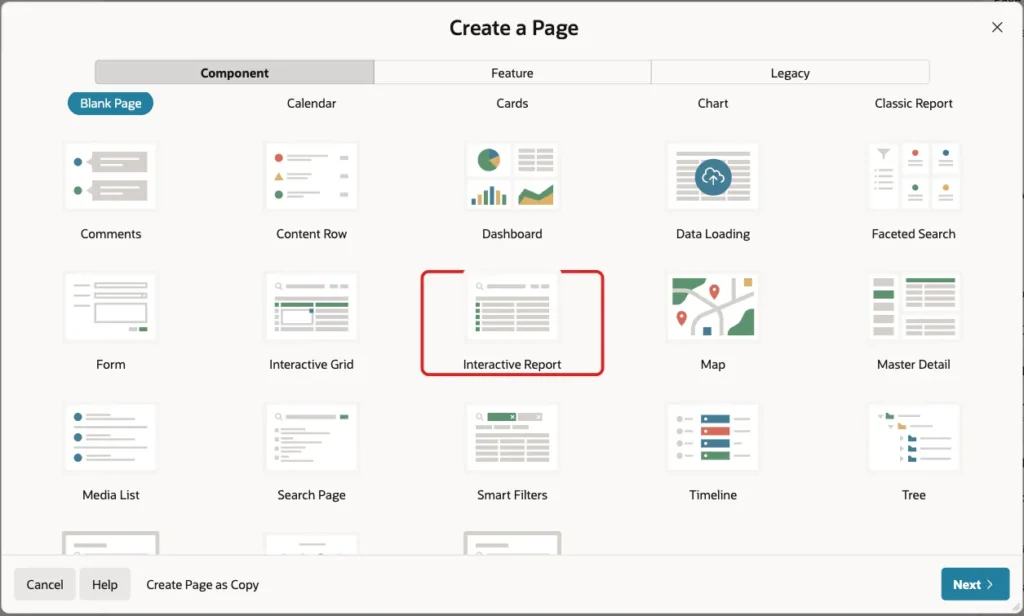
In Page Designer, click Create (the plus icon) and choose Page. Select the Interactive Report tile:
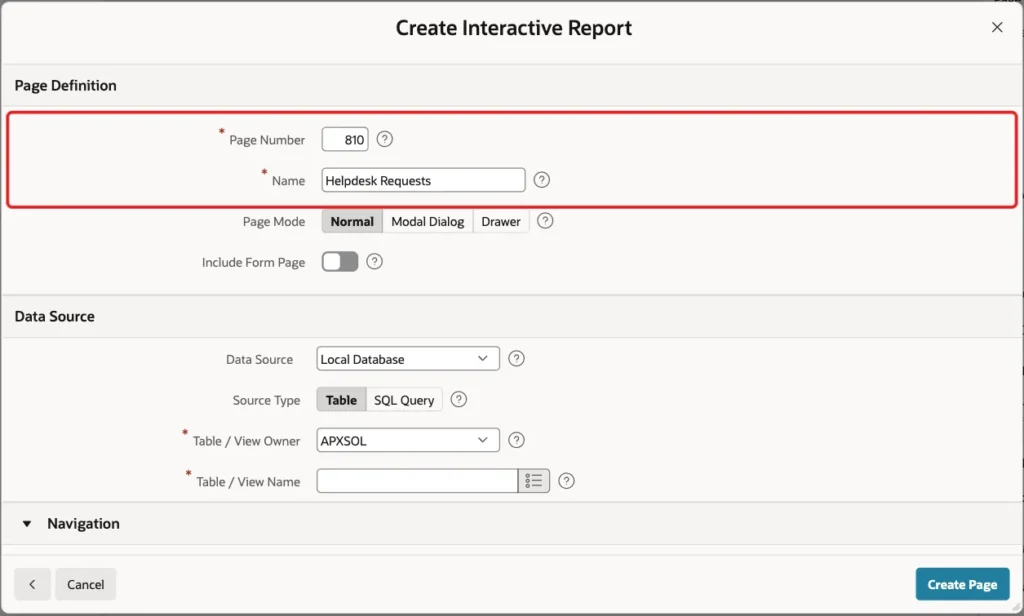
On the Create Interactive Report screen, enter Page Number 810 and Name Helpdesk Requests. Leave Page Mode Normal and Include Form Page off:
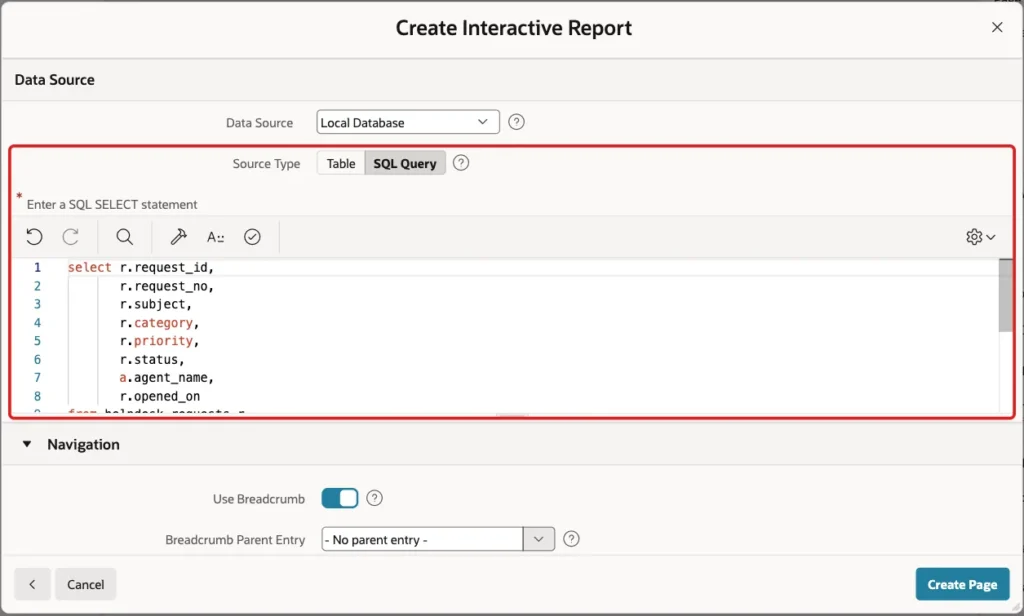
Under Data Source, keep Local Database, set Source Type to SQL Query and paste the query above into the editor:
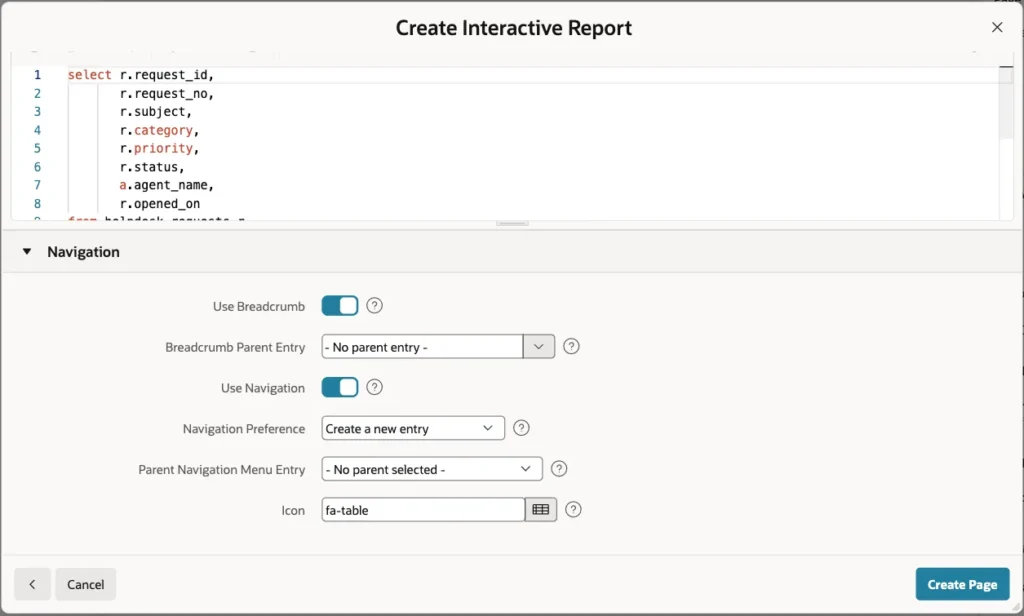
Under Navigation, keep the defaults: a breadcrumb and a new navigation menu entry with the icon fa-table. Click Create Page:
Step 4: Allow Public Reports and Limit Who Saves Them
Page Designer opens page 810. Select the Helpdesk Requests region and open the Attributes tab. Under Actions Menu, Save Report is on by default, but Save Public Report is off.
Turn on Save Public Report. A new property appears, Save Public Report Authorization. Set it to Is Administrator, an authorization scheme that already exists in this application:

Every user can still save private reports. Only users who pass the Is Administrator scheme see the Public option when they save.
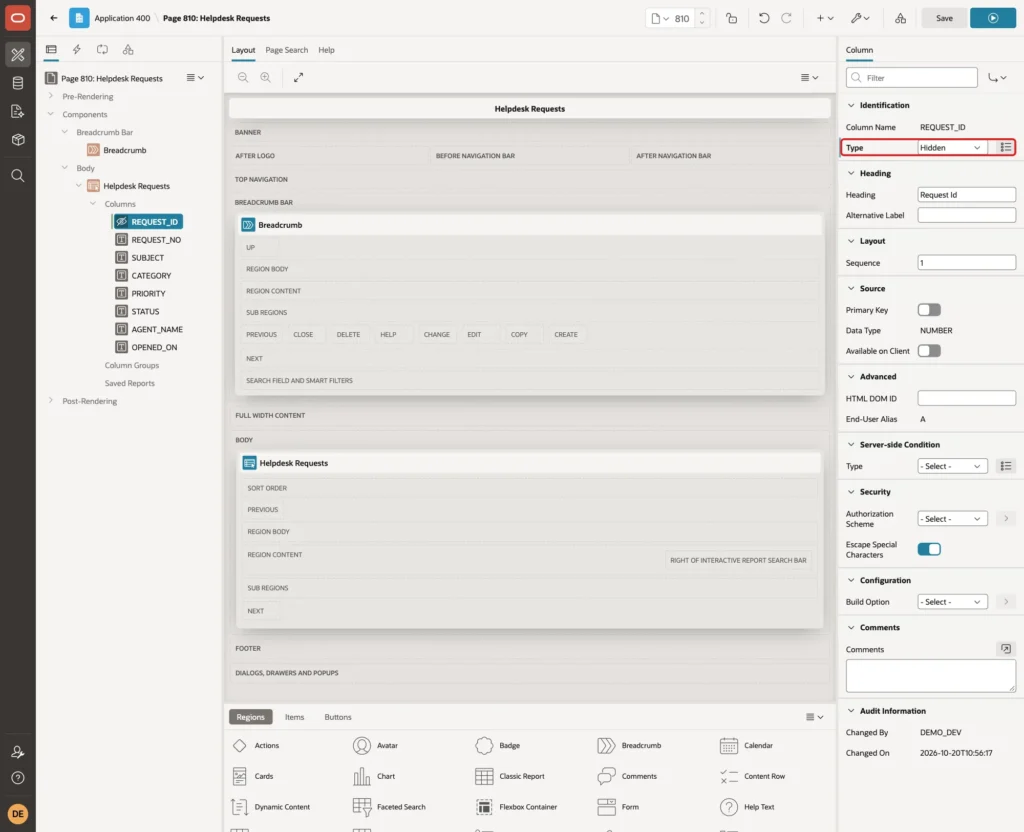
Next, tidy the columns. Expand Columns, select REQUEST_ID and set Type to Hidden:
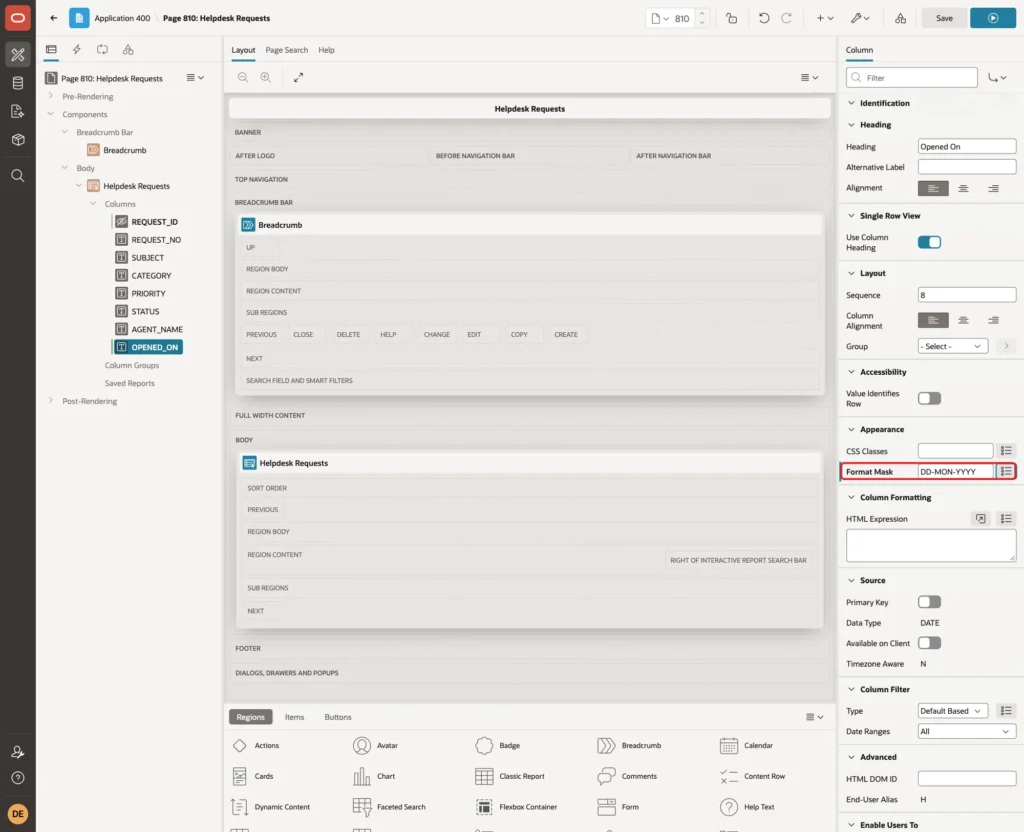
Select OPENED_ON and set Format Mask to DD-MON-YYYY under Appearance:
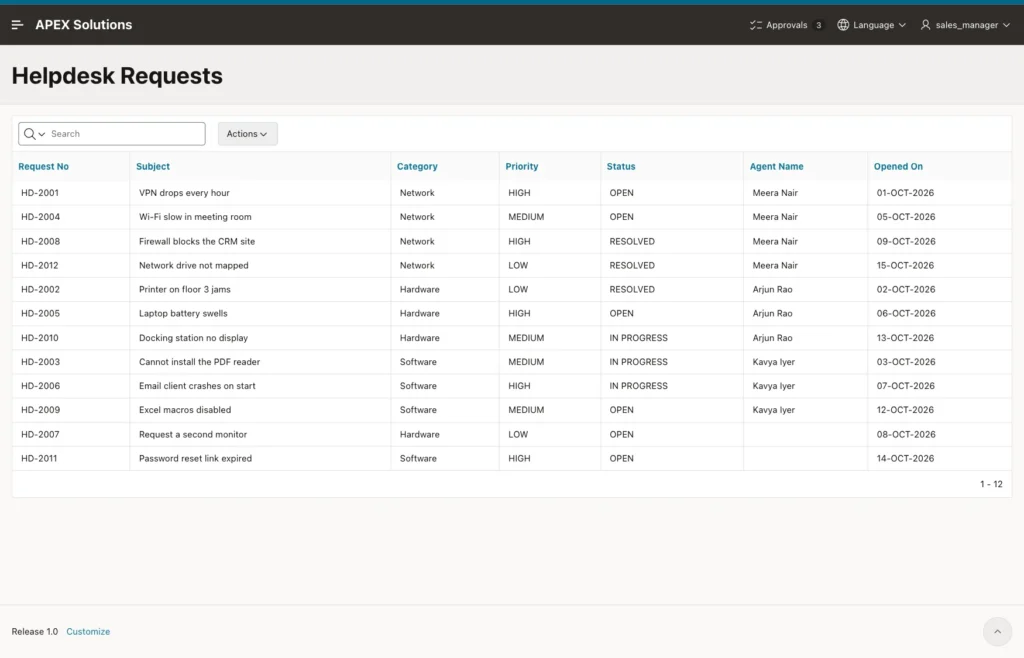
Click Save and run the page. The report lists all 12 requests:
Step 5: Build the View as an Administrator
Sign in to the application as an administrator. In this example, that is SALES_MANAGER, a user with the Administrator role and no App Builder session. Open page 810, click Actions, then Filter:

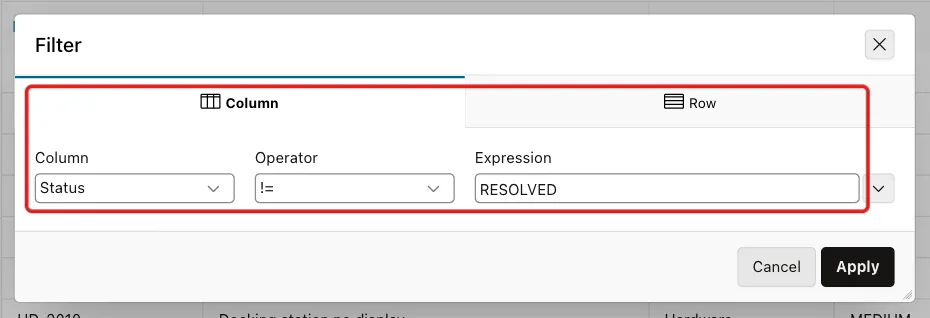
Set Column to Status, Operator to != and Expression to RESOLVED:
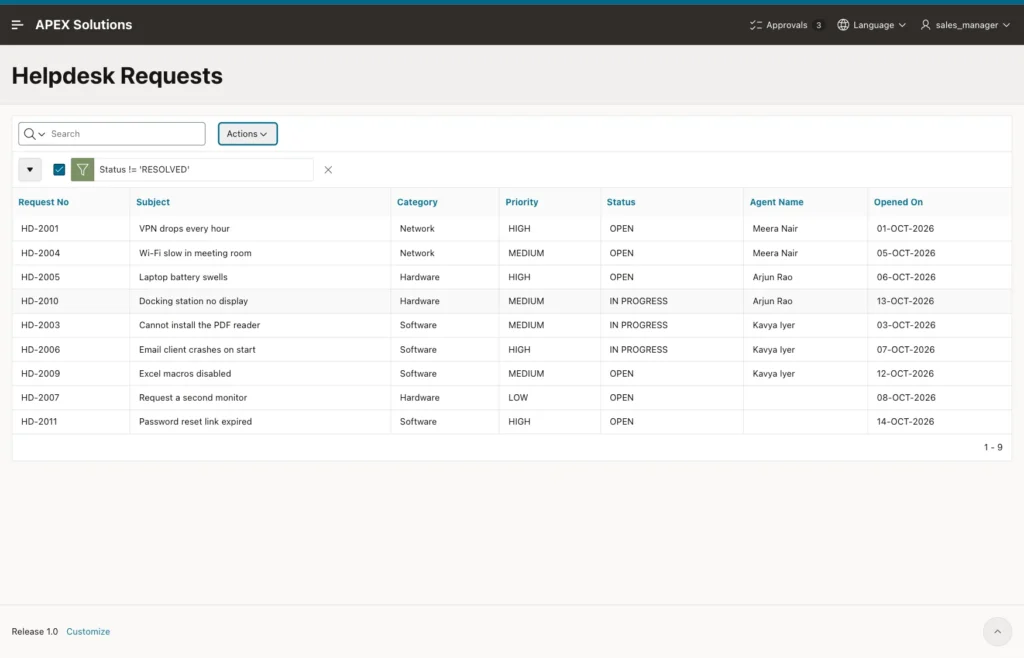
Click Apply. The report shows the 9 unresolved requests, the number from Step 2:
Step 6: Save the View as a Public Report
Click Actions, then Report, then Save Report:

Enter Name Unresolved Requests and Description Open and in-progress requests. Tick Public:

Click Apply. A Reports select list appears next to the search field, showing 1. Unresolved Requests. A Saved Report chip appears above the report, next to the filter:
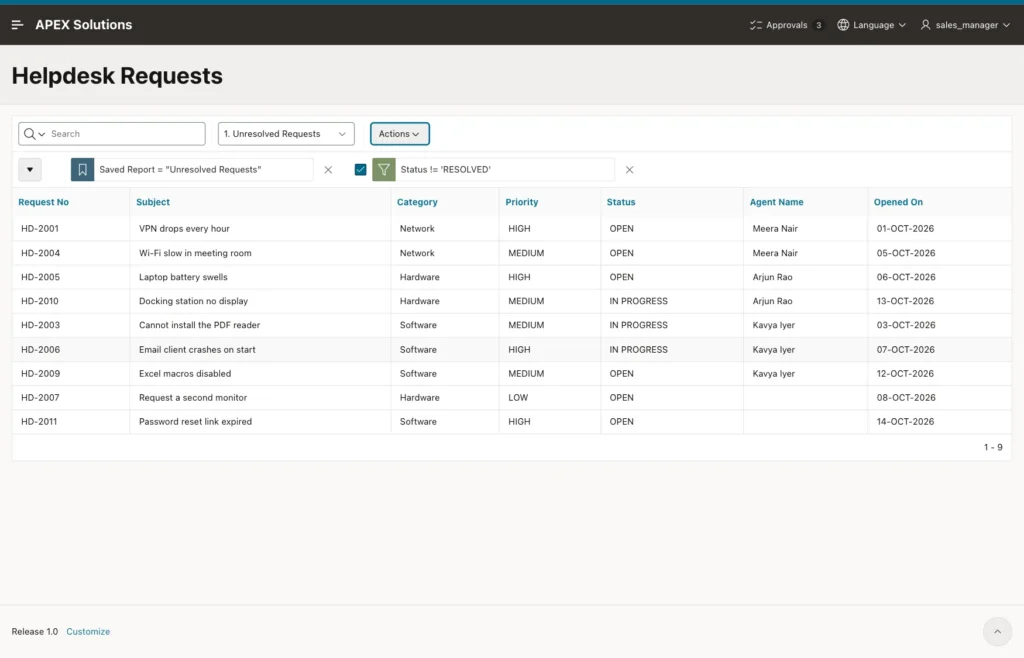
The Reports list groups the views. In this test it had a Default group with 1. Primary Report and a Public group with 1. Unresolved Requests.
Step 7: Update the Public Report
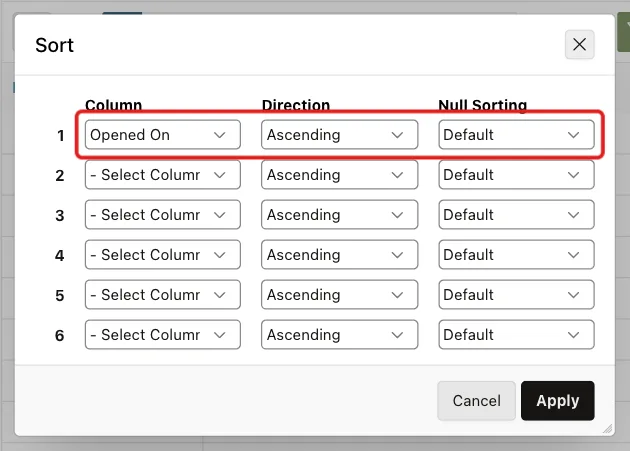
The rows of the public report are in no particular order. To add a sort, keep Unresolved Requests selected, click Actions, then Data, then Sort. Set Column 1 to Opened On, Ascending:
Click Apply, then Actions, Report, Save Report again. The dialog opens with the name, the description and Public already filled in from the selected report:
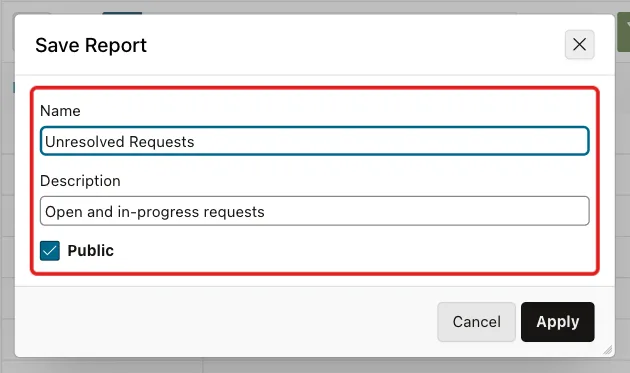
Click Apply. In this test, APEX updated the existing public report. It did not create a second one, and the dictionary query in Step 12 shows its new sort column.
Step 8: Save a Private Report
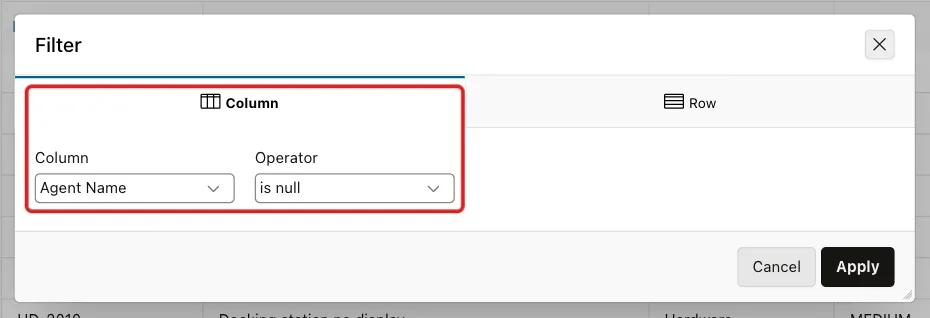
A report saved without Public stays visible to its owner only. In the Reports list, choose 1. Primary Report. Click Actions, then Filter, set Column to Agent Name and Operator to is null:
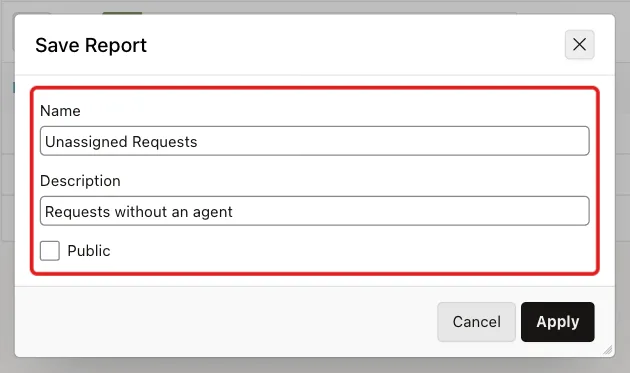
Click Apply, then Actions, Report, Save Report. Enter Name Unassigned Requests and Description Requests without an agent. Leave Public unticked:
Click Apply. The report shows the two unassigned requests, HD-2007 and HD-2011:
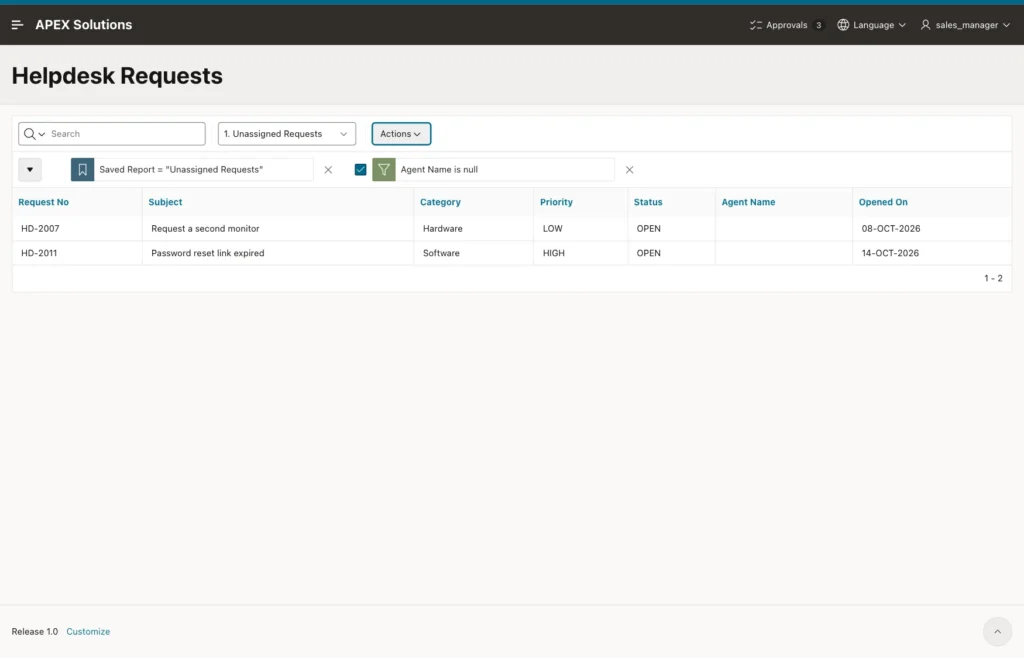
The Reports list of SALES_MANAGER now has three groups: Default, Private with Unassigned Requests, and Public with Unresolved Requests.
Step 9: Test the Public Report as Another User
Sign in as SALES_USER, a user with the Reader role. Reader does not pass the Is Administrator scheme. Open page 810. The Reports list shows 1. Primary Report and the public 1. Unresolved Requests. The private Unassigned Requests of SALES_MANAGER is not in the list:

Choose 1. Unresolved Requests in the Reports list. The report shows the 9 unresolved requests, sorted by Opened On:

Notice what is missing. The Saved Report chip with its remove button is not shown, because SALES_USER does not own this report. In this test, the Report menu offered only Save Report and Reset, so SALES_USER had no way to delete the public report.
Step 10: Save a Personal Copy as a Reader
Readers can still build on a public report. With Unresolved Requests selected, SALES_USER adds a filter Priority = HIGH. The report shows the 4 high-priority requests from Step 2.
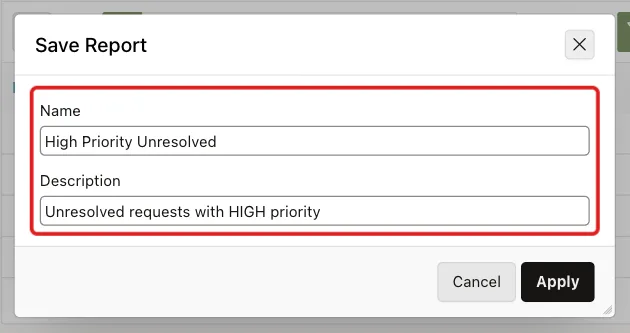
Click Actions, Report, Save Report. The dialog has Name and Description but no Public checkbox. In this test, it opened with the public report's name filled in. Change the Name to High Priority Unresolved and the description to match:
Click Apply. The new report appears in a Private group of SALES_USER's Reports list. A Saved Report chip appears, because SALES_USER owns this report:
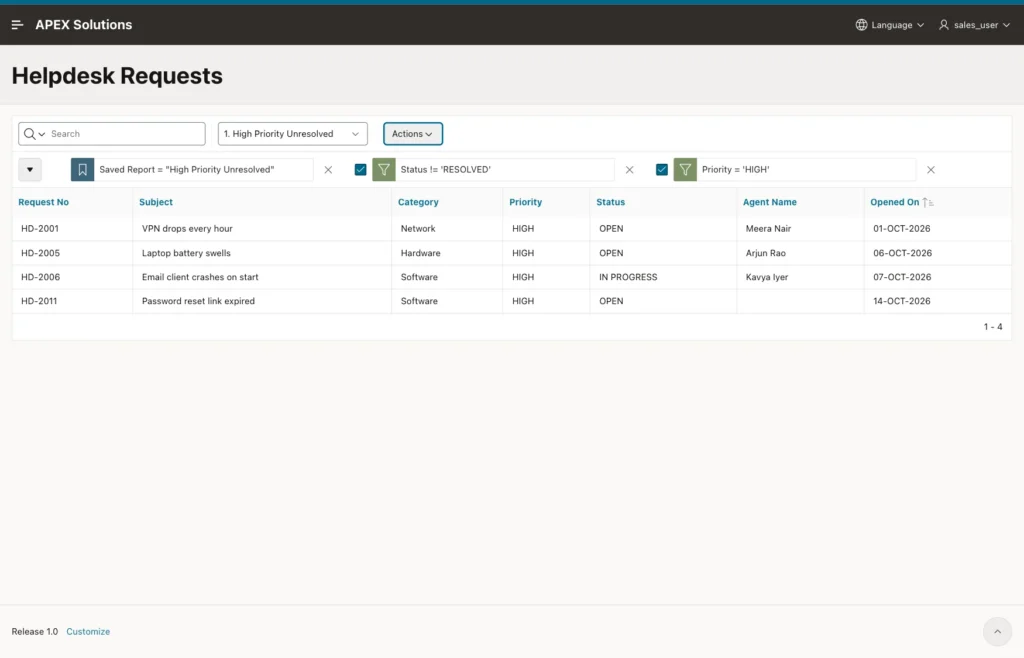
In a first test, SALES_USER kept the prefilled name and clicked Apply. APEX did not change the public report. It created a private report with the same name, Unresolved Requests, so the Reports list showed that name twice, once under Private and once under Public. Give a personal copy its own name to avoid that.
To delete a private report, its owner clicks the remove (X) button on the Saved Report chip. APEX asks for confirmation:

Apply deletes the report, and Cancel keeps it. The duplicate Unresolved Requests copy from the first test was deleted this way.
Step 11: Check That the Server Enforces the Authorization
The Public checkbox is only hidden from SALES_USER in the browser. As a negative test, a script added a checked checkbox with the same ID to the Save Report dialog of SALES_USER and clicked Apply. The browser sent the public flag to the server.
The server refused it. The Ajax call returned an error that included ORA-02290 for the check constraint WWV_FLOW_WS_RPT_STATUS_CK, and no report was saved, public or private. The authorization scheme is checked on the server, not only when the dialog is drawn.
Step 12: Look at the Saved Reports in the Dictionary
The APEX dictionary views show every saved report of the page, its type, its owner and its filters:
Example:
select report_name, report_type, application_user, report_alias, sort_column_1
from apex_application_page_ir_rpt
where application_id = 400
and page_id = 810
and report_type in ('PRIMARY_DEFAULT', 'PUBLIC', 'PRIVATE')
order by report_type, report_name;

select r.report_name, c.condition_column_name, c.condition_operator, c.condition_expression
from apex_application_page_ir_cond c
join apex_application_page_ir_rpt r on r.report_id = c.report_id
where r.application_id = 400
and r.page_id = 810
and r.report_type in ('PUBLIC', 'PRIVATE')
order by r.report_name, c.condition_column_name;
Output:
REPORT_NAME                 REPORT_TYPE        APPLICATION_USER    REPORT_ALIAS           SORT_COLUMN_1
___________________________ __________________ ___________________ ______________________ ________________
                            PRIMARY_DEFAULT    APXWS_DEFAULT       primary
High Priority Unresolved    PRIVATE            SALES_USER                                 OPENED_ON
Unassigned Requests         PRIVATE            SALES_MANAGER
Unresolved Requests         PUBLIC             SALES_MANAGER       unresolved-requests    OPENED_ON

REPORT_NAME                 CONDITION_COLUMN_NAME    CONDITION_OPERATOR    CONDITION_EXPRESSION
___________________________ ________________________ _____________________ _______________________
High Priority Unresolved    PRIORITY                 =                     HIGH
High Priority Unresolved    STATUS                   !=                    RESOLVED
Unassigned Requests         AGENT_NAME               is null
Unresolved Requests STATUS != RESOLVED- REPORT_TYPE is PUBLIC for the shared view and PRIVATE for the two personal ones.
- APPLICATION_USER is the user who saved the report, SALES_MANAGER for the public one.
- Only the public report has a REPORT_ALIAS, unresolved-requests. The next step uses it in a link.
- The second query shows that High Priority Unresolved copied the Status filter of the public report and added its own Priority filter.
Step 13: Open the Public Report from a Button
A link can open a page with a saved report already selected. The request is IR[region static ID]_ followed by the report alias, here IR[helpdesk-requests]_unresolved-requests.
First, give the region an ID the request can use. Select the Helpdesk Requests region, open the Region tab and set HTML DOM ID to helpdesk-requests under Advanced:
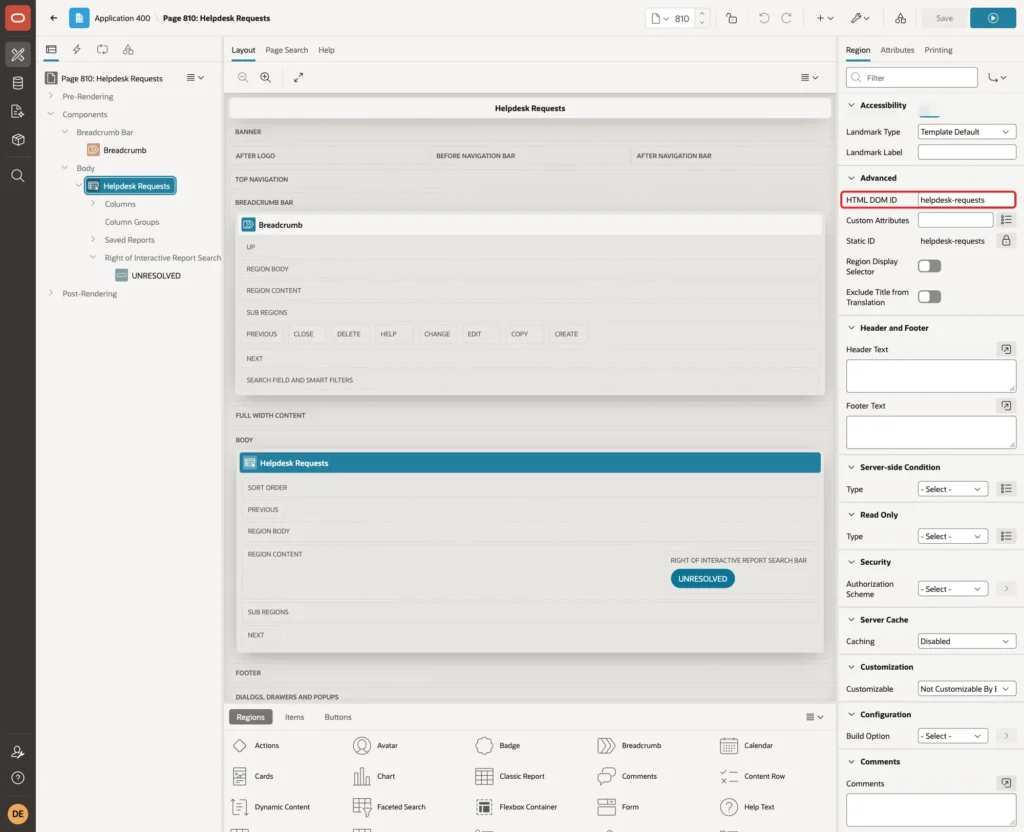
In a first test, this property was empty. Page Designer showed a locked Static ID of helpdesk-requests, but the region had no static ID in the APEX dictionary. The button below opened page 810 without an error, yet showed the Primary report. After HTML DOM ID was set, the same link opened Unresolved Requests.
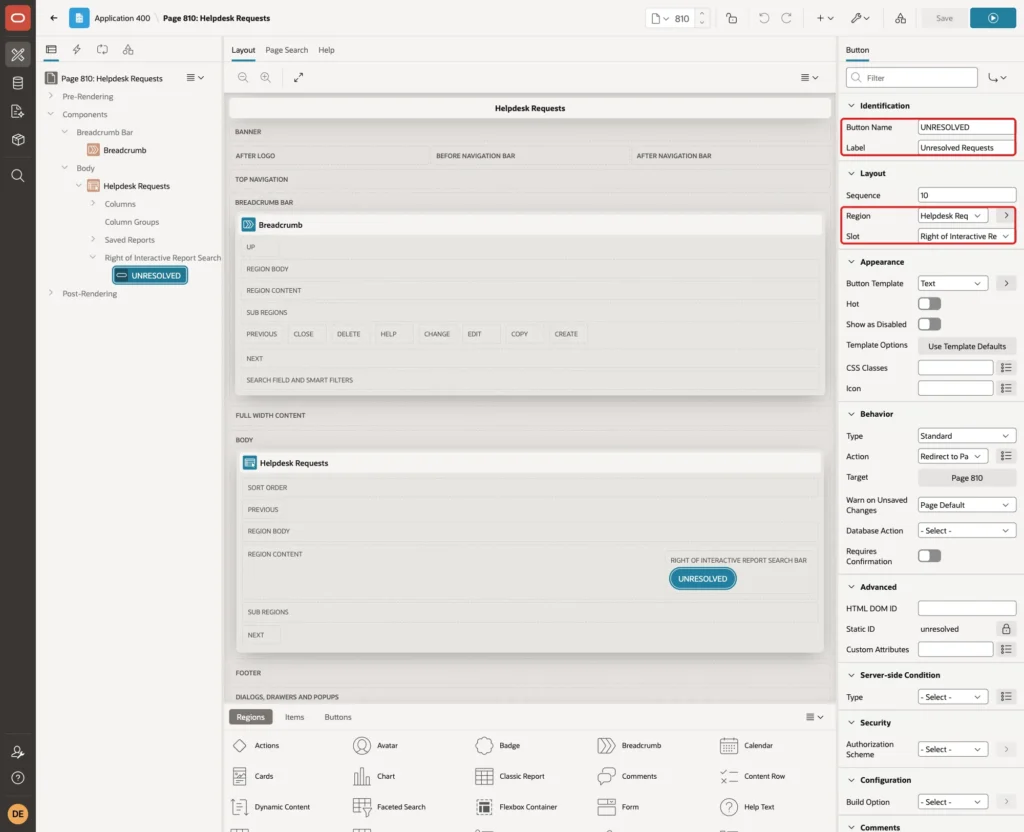
Next, add the button. Right-click the Helpdesk Requests region and choose Create Button. Set Button Name to UNRESOLVED and Label to Unresolved Requests. Under Layout, keep Region Helpdesk Requests and set Slot to Right of Interactive Report Search Bar:
Under Behavior, set Action to Redirect to Page in this Application and click Target:

In the Link Builder, set Type to Page in this application and Page to 810. Under Advanced, set Request to IR[helpdesk-requests]_unresolved-requests:
![Link Builder with Type Page in this application, Page 810 and Request IR[helpdesk-requests]_unresolved-requests marked with red boxes](https://vinish.dev/wp-content/uploads/2026/10/apex-pubrpt-apex-pubrpt-pd-button-link.webp)
Click OK and Save. Sign in as SALES_USER, choose 1. Primary Report and click the Unresolved Requests button. The page reloads with the public report selected and 9 rows:

The wizard set Page Access Protection of page 810 to Arguments Must Have Checksum. The button URL had a cs checksum parameter added by APEX. A hand-typed URL with the same request and no checksum failed with "Session state protection violation", so declarative links are the way to reach a saved report.
Step 14: Know How Public Reports Move Between Environments
Public and private reports are saved at runtime, as data of the workspace. They are not part of the page definition the way the primary default report is. Compare an application export with and without the public reports option:
Example:
set serveroutput on
declare
  l_files apex_t_export_files;
  function hits(p_files apex_t_export_files) return number is
    l_count number := 0;
  begin
    for i in 1 .. p_files.count loop
      if dbms_lob.instr(p_files(i).contents, 'Open and in-progress requests') > 0 then
        l_count := l_count + 1;
      end if;
    end loop;
    return l_count;
  end;
begin
  l_files := apex_export.get_application(p_application_id => 400);
  dbms_output.put_line('Default export, files with the public report: ' || hits(l_files));
  l_files := apex_export.get_application(p_application_id => 400, p_with_ir_public_reports => true);
  dbms_output.put_line('With public reports, files with the public report: ' || hits(l_files));
end;
/
Output:
Default export, files with the public report: 0
With public reports, files with the public report: 1

PL/SQL procedure successfully completed.
The default export did not contain the public report. With p_with_ir_public_reports set to true, it did. Without that option, the public views stay behind in the source workspace.
Things to Know
- Save Public Report is off by default. Turn it on per Interactive Report and use Save Public Report Authorization to decide who may publish views.
- Users without the authorization see no Public checkbox, and the server rejected a forged public save in this test.
- Only the owner sees the Saved Report chip with the remove button, so other users cannot delete a public report.
- Saving a public report again under the same name updates it for everyone. A user without the authorization who saves under that name gets a private copy instead.
- Users reopened the page on the report they last viewed, also in a new session.
- A link to a saved report needs the region's HTML DOM ID and a checksum, which declarative buttons and links add automatically.
- Default exports leave out public reports. Include them when you move the application, or recreate the views.
Related Guides
- How to Add Control Breaks and Subtotals to an Interactive Report in Oracle APEX
- How to Remember Each User's Filters with Preferences in Oracle APEX
Conclusion
Public reports let one person build a report view and share it with every user of an Interactive Report in Oracle APEX. Turn on Save Public Report, limit it with an authorization scheme, and save the view with Public ticked. Other users pick it from the Reports list and can save their own private copies.
In this example, the Reader saw the public report but could not change, delete or publish one, even with a forged request. A button with the report alias opened the shared view directly, once the region had an HTML DOM ID.
See my articles more often when you search Google.
