
Report pages often start with a few filter fields, such as a team and a status. Most users pick the same filters every day, and it is annoying when the page forgets them after each sign-in. A page that remembers the last choice of each user saves those clicks.
Oracle APEX can do this without code. When an item's Session State Storage is set to Per User (Persistent), APEX saves its value as a user preference and loads it again in the next session. This guide builds a filtered report with two such items, adds a Reset Filters button, and checks where APEX stores the values.
The guide uses service requests as the example; the same steps work for any report with filter items. The guide How to Manage Users, Preferences, and Caches Using APEX_UTIL covers the PL/SQL preference calls. This guide does the same job declaratively, with item settings and a Clear Session State process.
Step 1: Create the Tables
The example needs two tables. SUPPORT_TEAMS holds the teams. SERVICE_REQUESTS holds the requests, and its TEAM_ID column is a foreign key to SUPPORT_TEAMS.
Create the tables, the indexes and the sample data:
Example:
create table support_teams (
  team_id     number generated by default on null as identity,
  team_name   varchar2(60)  not null,
  constraint support_teams_pk primary key (team_id),
  constraint support_teams_name_uk unique (team_name)
);

create table service_requests (
  request_id  number generated by default on null as identity,
  subject     varchar2(200) not null,
  team_id     number        not null,
  status      varchar2(20)  default on null 'OPEN' not null,
  priority    varchar2(10)  default on null 'NORMAL' not null,
  opened_on   date          default on null sysdate not null,
  constraint service_requests_pk primary key (request_id),
  constraint service_requests_team_fk foreign key (team_id)
    references support_teams (team_id),
  constraint service_requests_status_ck
    check (status in ('OPEN', 'IN_PROGRESS', 'CLOSED')),
  constraint service_requests_priority_ck
    check (priority in ('LOW', 'NORMAL', 'HIGH'))
);

create index service_requests_team_ix on service_requests (team_id);
create index service_requests_status_ix on service_requests (status);

insert into support_teams (team_name) values ('Network');
insert into support_teams (team_name) values ('Hardware');
insert into support_teams (team_name) values ('Accounts');

insert into service_requests (subject, team_id, status, priority, opened_on)
values ('VPN drops every hour', 1, 'OPEN', 'HIGH', date '2026-10-12');
insert into service_requests (subject, team_id, status, priority, opened_on)
values ('Wi-Fi slow in meeting room B', 1, 'IN_PROGRESS', 'NORMAL', date '2026-10-10');
insert into service_requests (subject, team_id, status, priority, opened_on)
values ('Firewall rule for new server', 1, 'CLOSED', 'NORMAL', date '2026-10-01');
insert into service_requests (subject, team_id, status, priority, opened_on)
values ('Laptop battery swells', 2, 'OPEN', 'HIGH', date '2026-10-13');
insert into service_requests (subject, team_id, status, priority, opened_on)
values ('Second monitor request', 2, 'OPEN', 'LOW', date '2026-10-11');
insert into service_requests (subject, team_id, status, priority, opened_on)
values ('Printer jam on floor 2', 2, 'CLOSED', 'NORMAL', date '2026-10-03');
insert into service_requests (subject, team_id, status, priority, opened_on)
values ('Reset password for shared mailbox', 3, 'OPEN', 'NORMAL', date '2026-10-14');
insert into service_requests (subject, team_id, status, priority, opened_on)
values ('New hire account setup', 3, 'IN_PROGRESS', 'HIGH', date '2026-10-09');
commit;

select r.request_id, r.subject, t.team_name, r.status, r.priority
from   service_requests r join support_teams t on t.team_id = r.team_id
order  by r.request_id;
Output:
Table SUPPORT_TEAMS created.

Table SERVICE_REQUESTS created.

Index SERVICE_REQUESTS_TEAM_IX created.

Index SERVICE_REQUESTS_STATUS_IX created.

1 row inserted.

1 row inserted.

1 row inserted.

1 row inserted.

1 row inserted.

1 row inserted.

1 row inserted.

1 row inserted.

1 row inserted.

1 row inserted.

1 row inserted.

Commit complete.

   REQUEST_ID SUBJECT                              TEAM_NAME    STATUS         PRIORITY
_____________ ____________________________________ ____________ ______________ ___________
            1 VPN drops every hour                 Network      OPEN           HIGH
            2 Wi-Fi slow in meeting room B         Network      IN_PROGRESS    NORMAL
            3 Firewall rule for new server         Network      CLOSED         NORMAL
            4 Laptop battery swells                Hardware     OPEN           HIGH
            5 Second monitor request               Hardware     OPEN           LOW
            6 Printer jam on floor 2               Hardware     CLOSED         NORMAL
            7 Reset password for shared mailbox    Accounts     OPEN           NORMAL
            8 New hire account setup               Accounts     IN_PROGRESS    HIGH

8 rows selected.- SERVICE_REQUESTS_TEAM_FK allows only existing teams. The two check constraints limit STATUS and PRIORITY to the listed values.
- STATUS, PRIORITY and OPENED_ON use DEFAULT ON NULL, so a new request gets OPEN, NORMAL and the current date without a trigger.
- The indexes on TEAM_ID and STATUS support the two filters of the report.
Step 2: Create a Blank Page
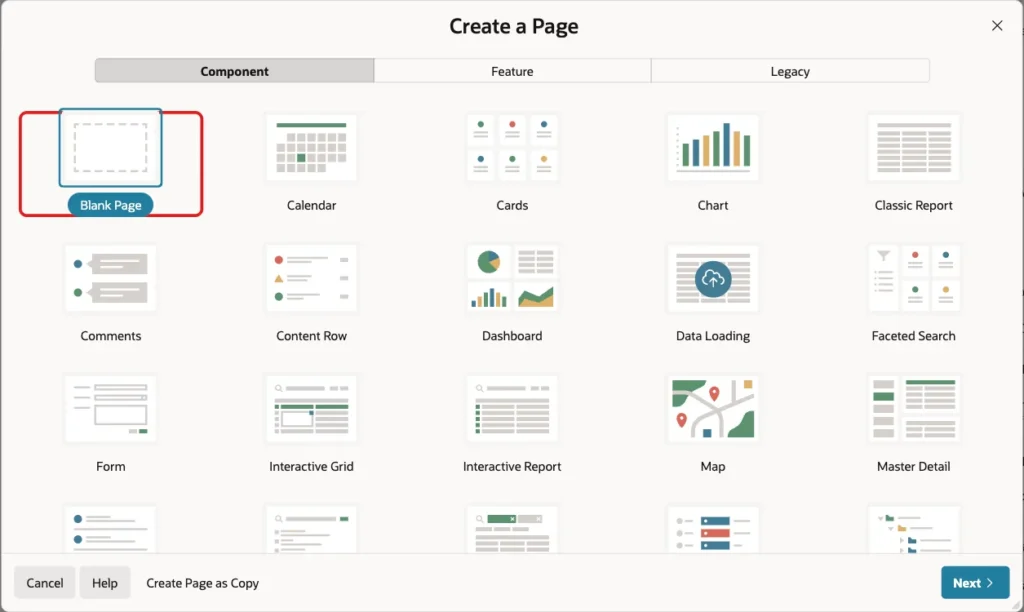
In App Builder, open the application and click Create Page. On the Component tab, click Blank Page:
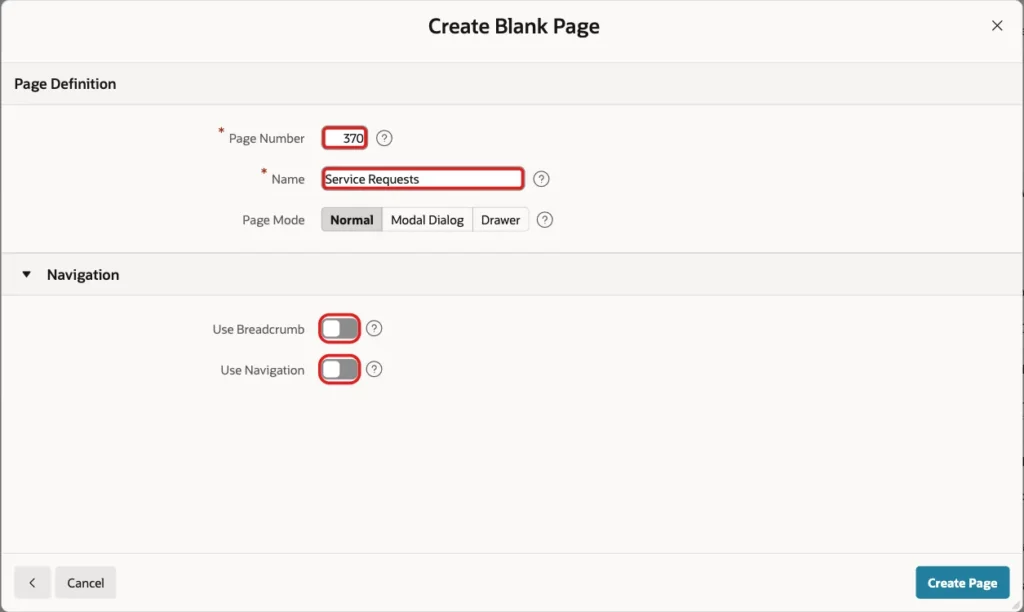
Enter Page Number 370 and Name Service Requests. Turn off Use Breadcrumb and Use Navigation, and click Create Page:
APEX opens the new page in Page Designer.
Step 3: Add the Filters Region
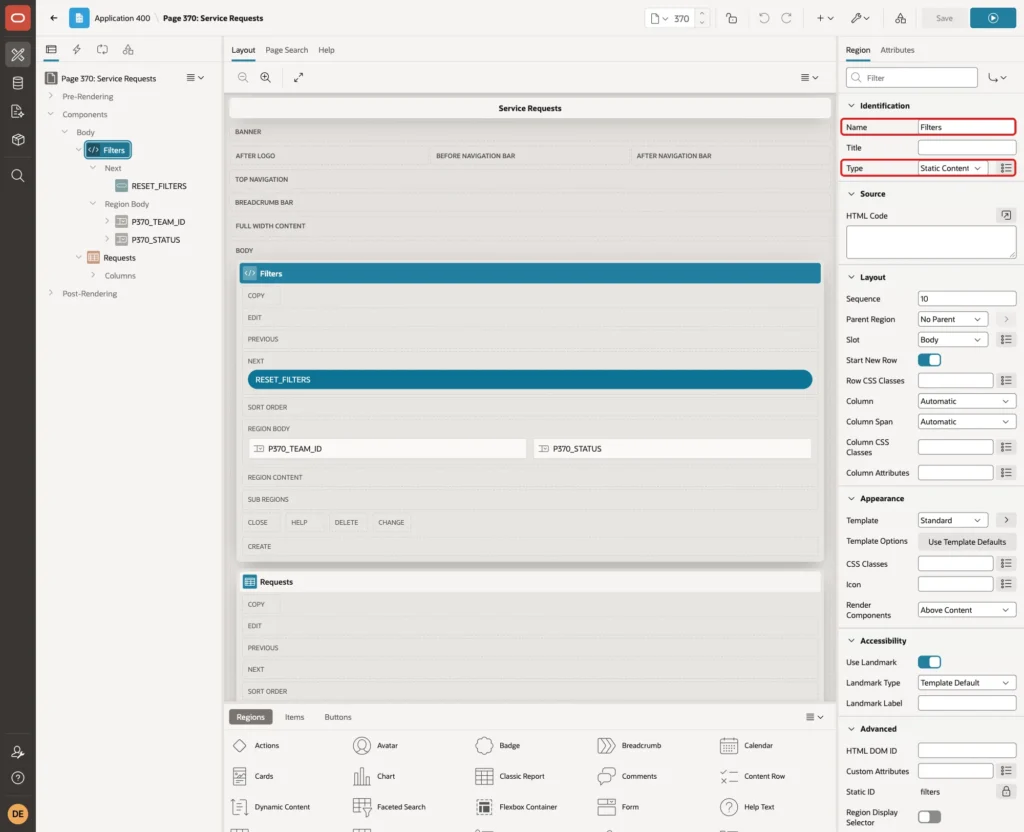
In the Rendering tree, right-click Body and click Create Region. Set Name to Filters and keep Type Static Content:
Step 4: Add the Team Filter Item
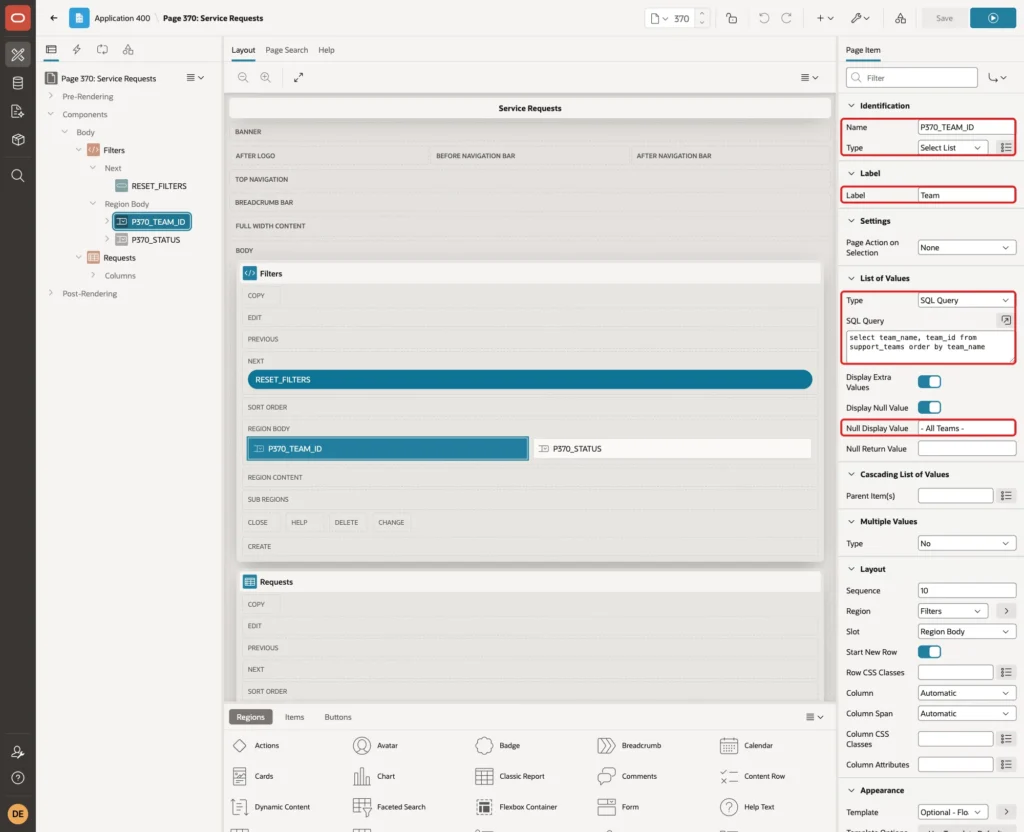
Right-click the Filters region and click Create Page Item. Set these properties:
- Identification: Name P370_TEAM_ID, Type Select List.
- Label: Team.
- List of Values: Type SQL Query, Null Display Value "- All Teams -".
Enter this SQL Query for the list of values:
Example:
select team_name, team_id from support_teams order by team_name
Now scroll to Session State and set Storage to Per User (Persistent):
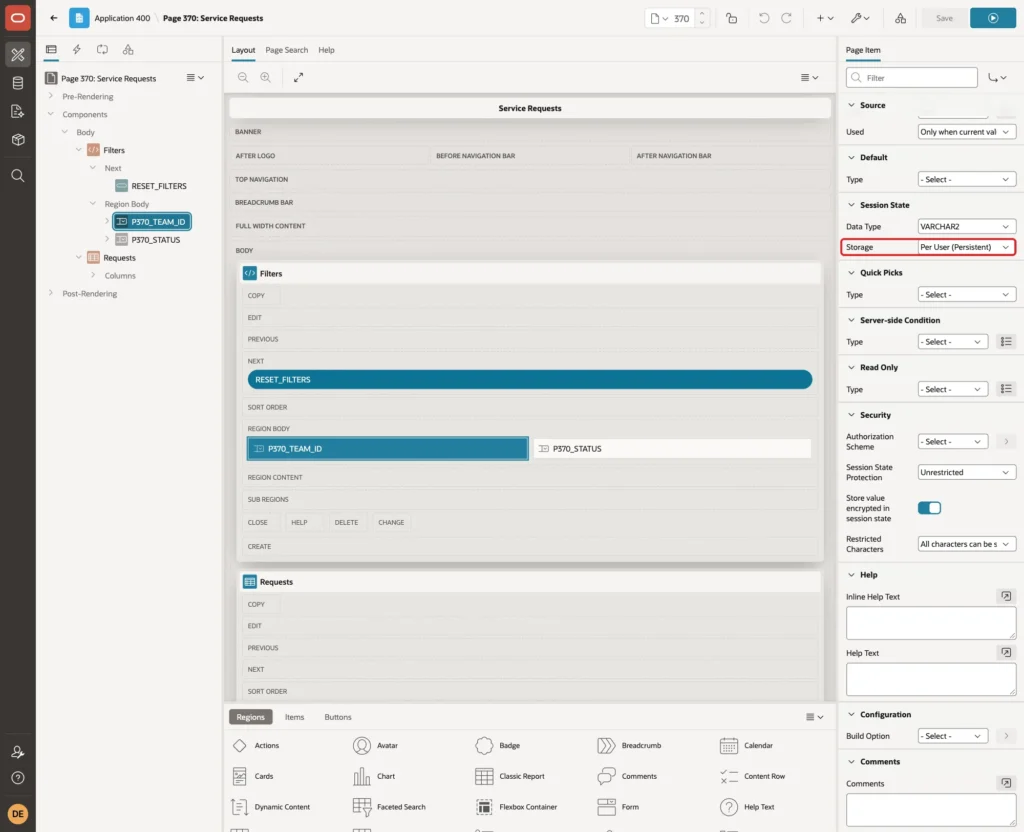
Storage has three choices: Per Request (Memory Only), Per Session (Persistent) and Per User (Persistent). Only the last one saves the value as a preference of the signed-in user, so it comes back in a later session.
Step 5: Add the Status Filter Item
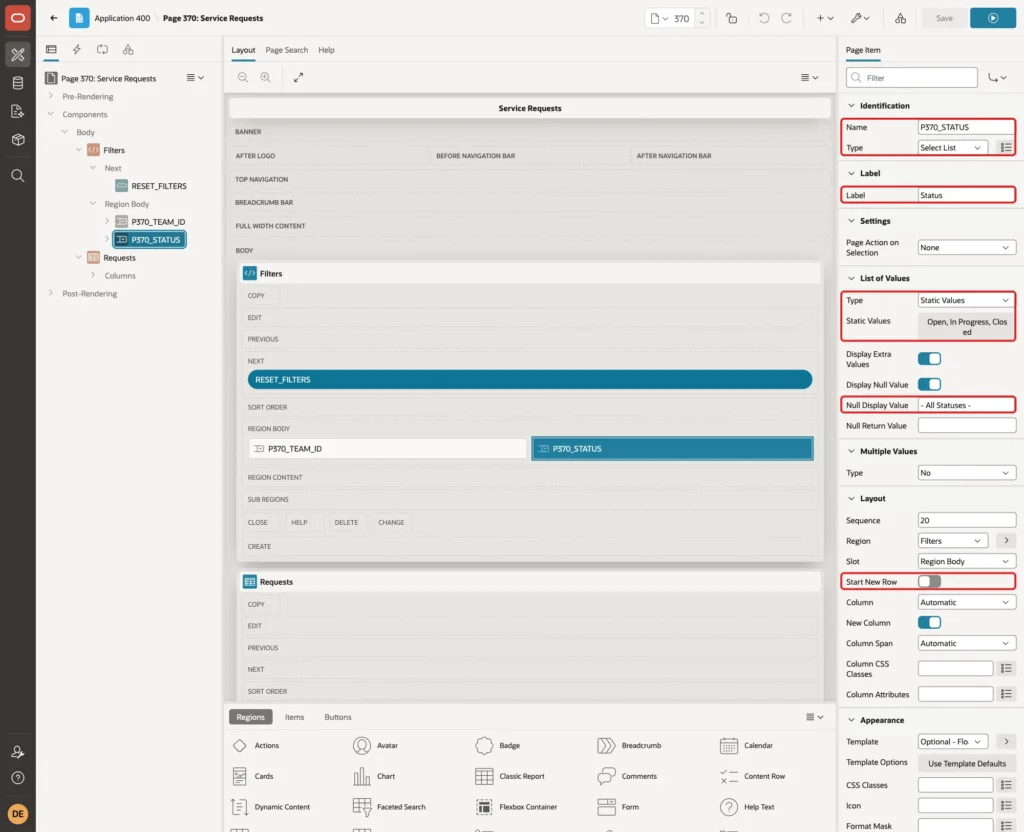
Create a second item in the Filters region with these properties:
- Identification: Name P370_STATUS, Type Select List.
- Label: Status.
- List of Values: Type Static Values, Null Display Value "- All Statuses -".
- Layout: turn off Start New Row, so the item sits next to Team.
Click the Static Values property and enter three entries: display Open with return OPEN, In Progress with IN_PROGRESS, and Closed with CLOSED.
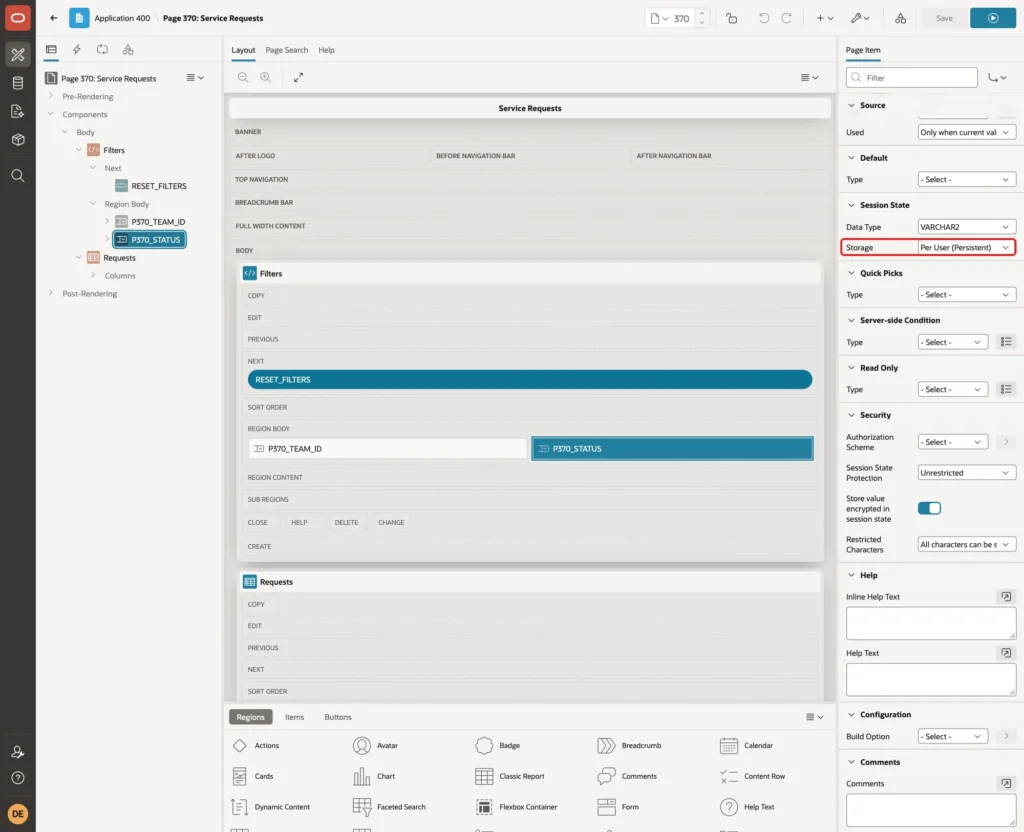
Set Session State Storage to Per User (Persistent) for this item too:
Step 6: Add the Report Region
Right-click Body and click Create Region again. Set Name to Requests and Type to Classic Report. Under Source, keep Location Local Database and Type SQL Query, and enter this query:
Example:
select r.request_id,
       r.subject,
       t.team_name,
       r.status,
       r.priority,
       r.opened_on
  from service_requests r
  join support_teams t on t.team_id = r.team_id
 where (:P370_TEAM_ID is null or r.team_id = :P370_TEAM_ID)
   and (:P370_STATUS is null or r.status = :P370_STATUS)
 order by r.opened_on desc
Set Page Items to Submit to P370_TEAM_ID,P370_STATUS:
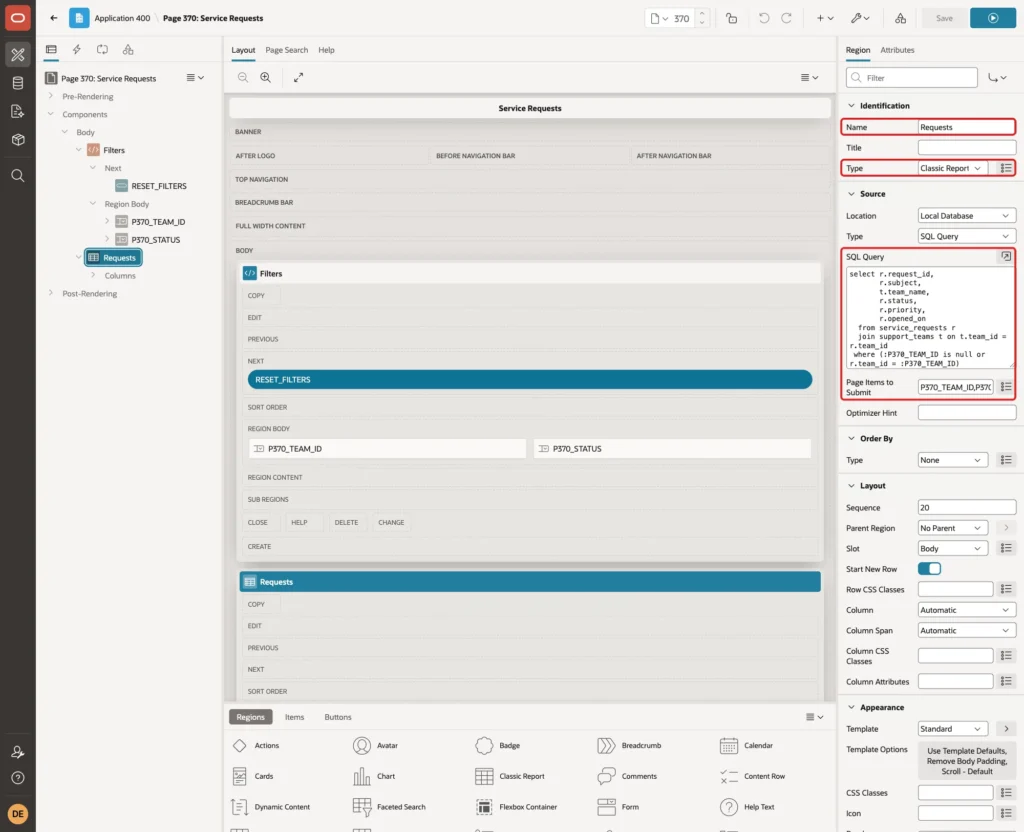
An empty filter matches all rows, because each condition starts with "item is null or". Page Items to Submit sends the current item values to the server when the report refreshes.
Step 7: Refresh the Report When a Filter Changes
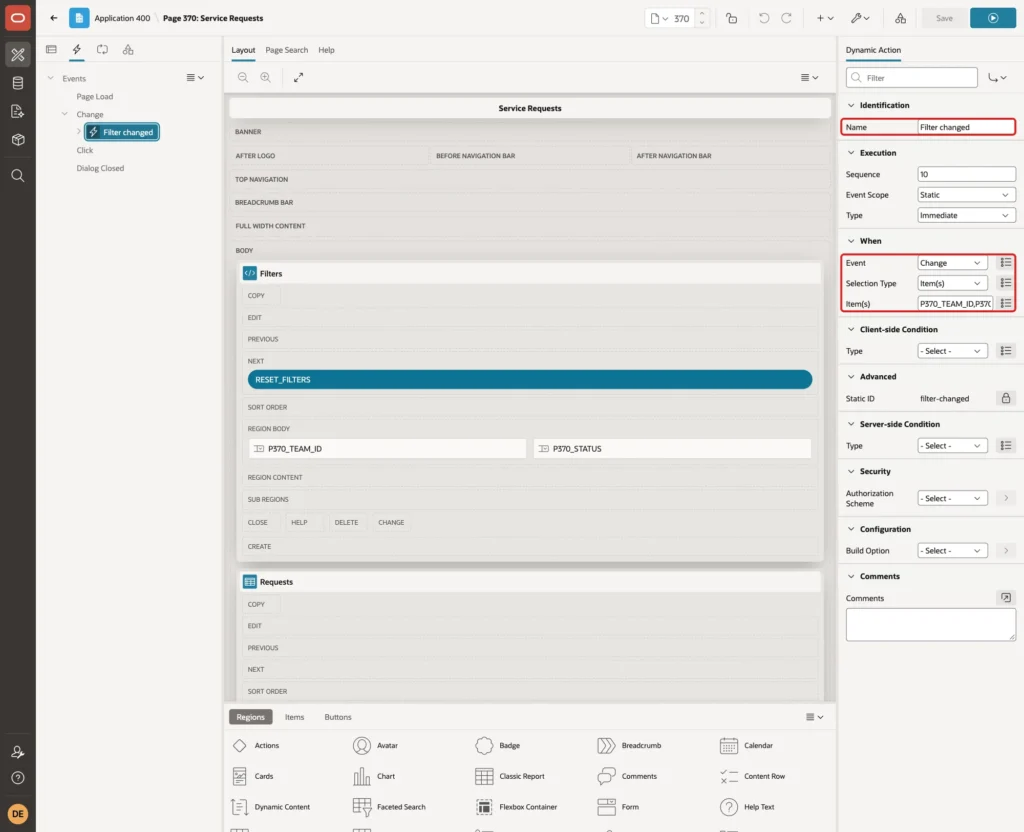
Open the Dynamic Actions tab. Right-click Change and click Create Dynamic Action. Set Name to Filter changed. Under When, keep Event Change, set Selection Type Item(s), and enter P370_TEAM_ID,P370_STATUS in Item(s):
Under True, click the action that APEX created with the dynamic action (Show). Set Action to Refresh, Selection Type to Region and Region to Requests:
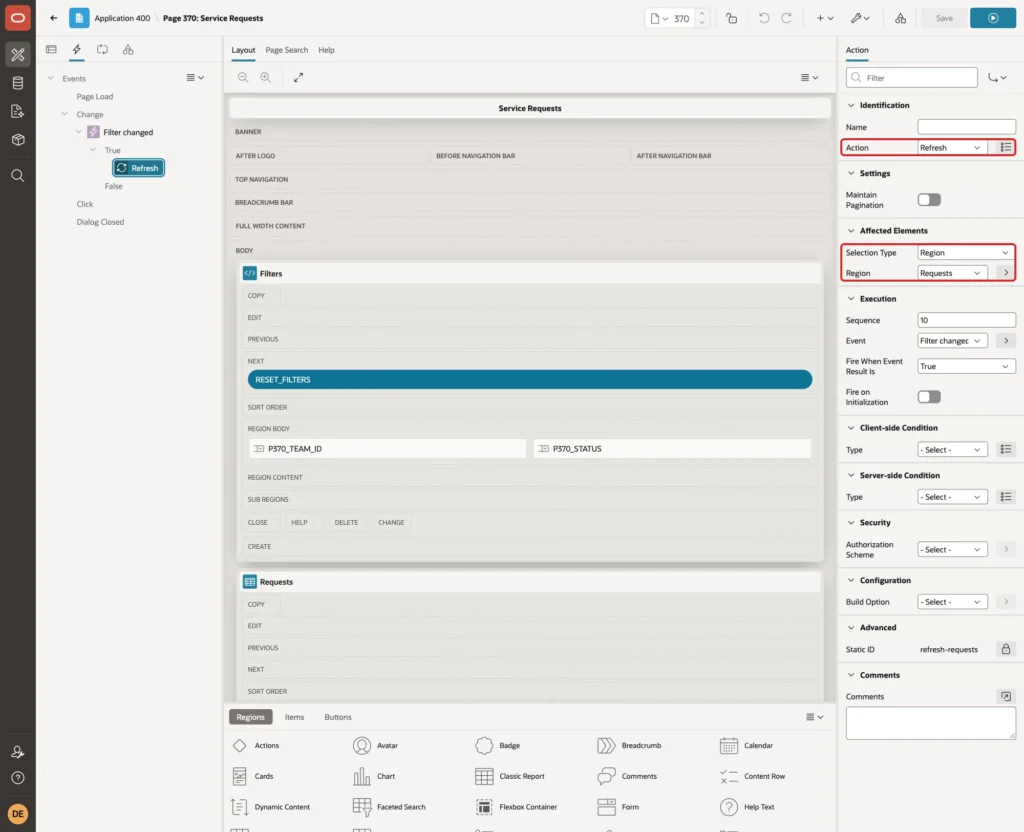
The page does not need a submit. When the report refreshes, APEX receives the new item values through Page Items to Submit and saves them as preferences at the same time. The test in Step 10 shows this.
Step 8: Add the Reset Filters Button
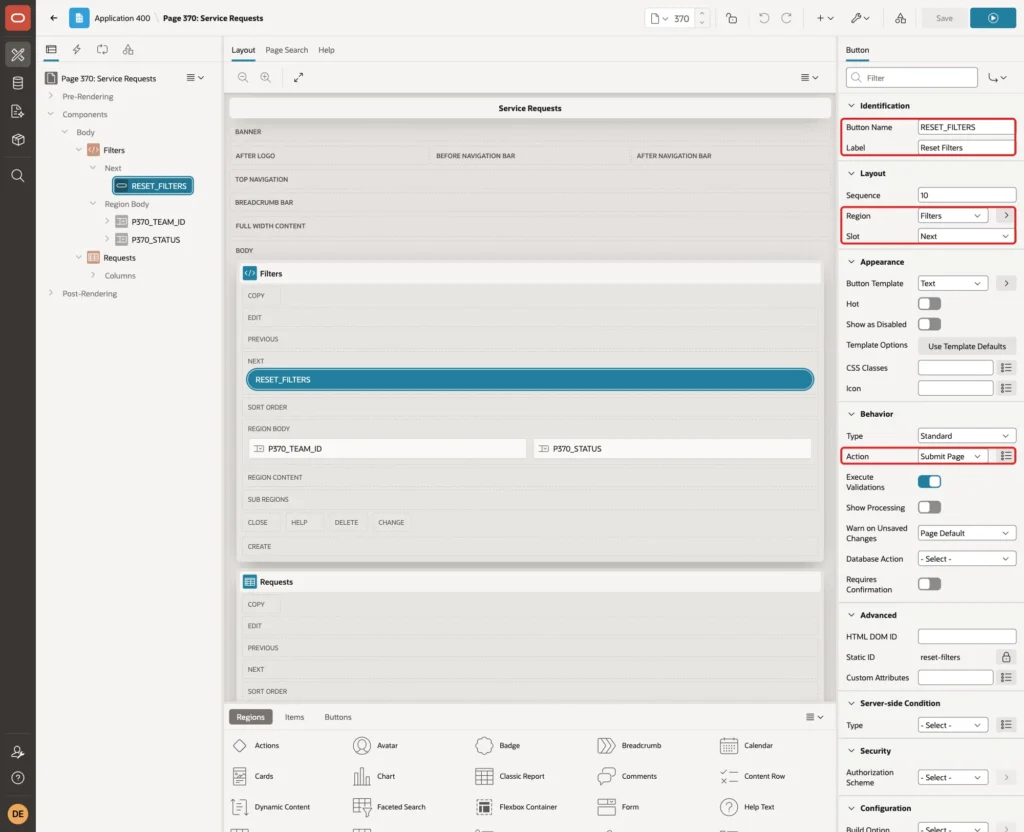
Right-click the Filters region and click Create Button. Set Button Name to RESET_FILTERS, Label to Reset Filters and Slot to Next. Keep Action Submit Page:
Step 9: Add the Reset Process
Open the Processing tab. Right-click Processing and click Create Process. Set Name to Reset filters and Type to Clear Session State. Under Clear, keep Type Clear all Items on the Current Page. Under Server-side Condition, set When Button Pressed to RESET_FILTERS:
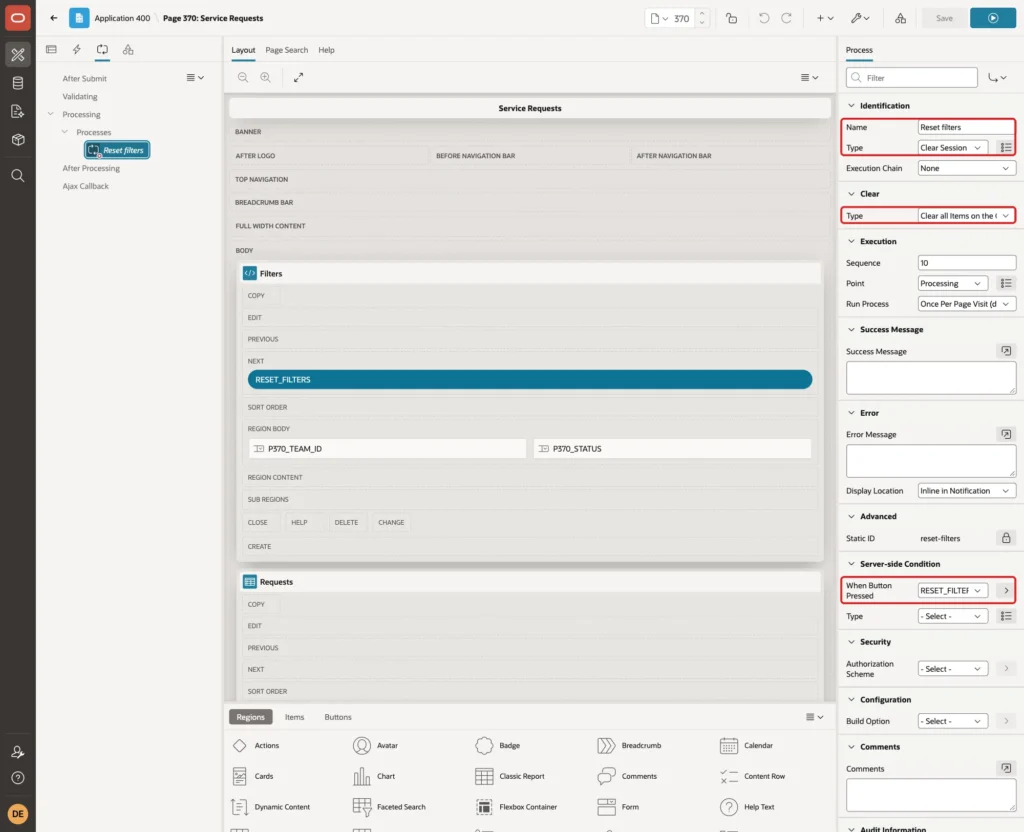
Click Save. Clearing a Per User item also clears its saved preference, as the next step shows. That is why a separate process for the preferences is not needed.
Step 10: Test the Page
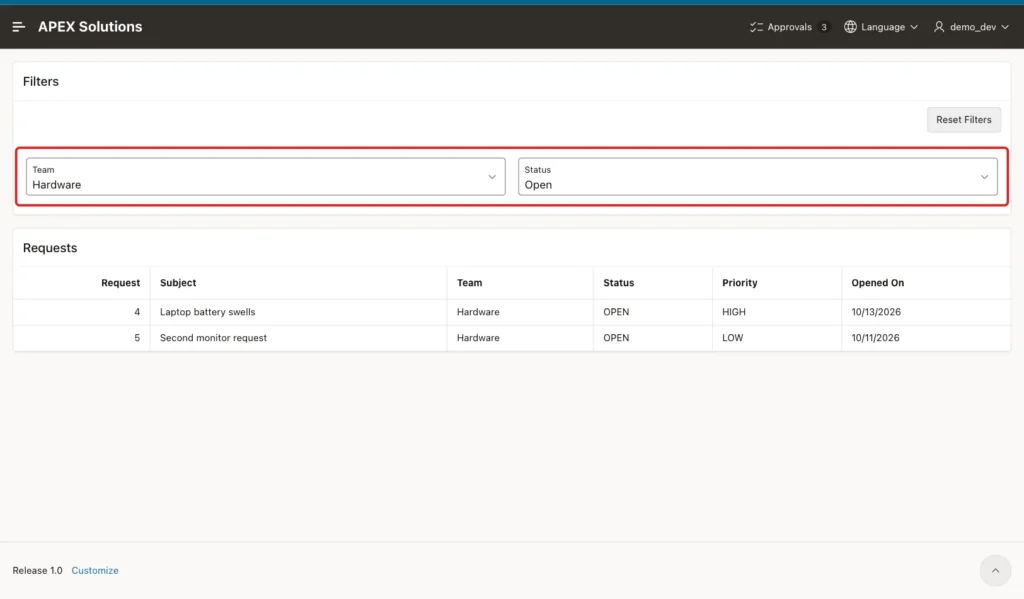
Run the page as DEMO_DEV. Select Team Hardware and Status Open. The report refreshes and shows two requests:
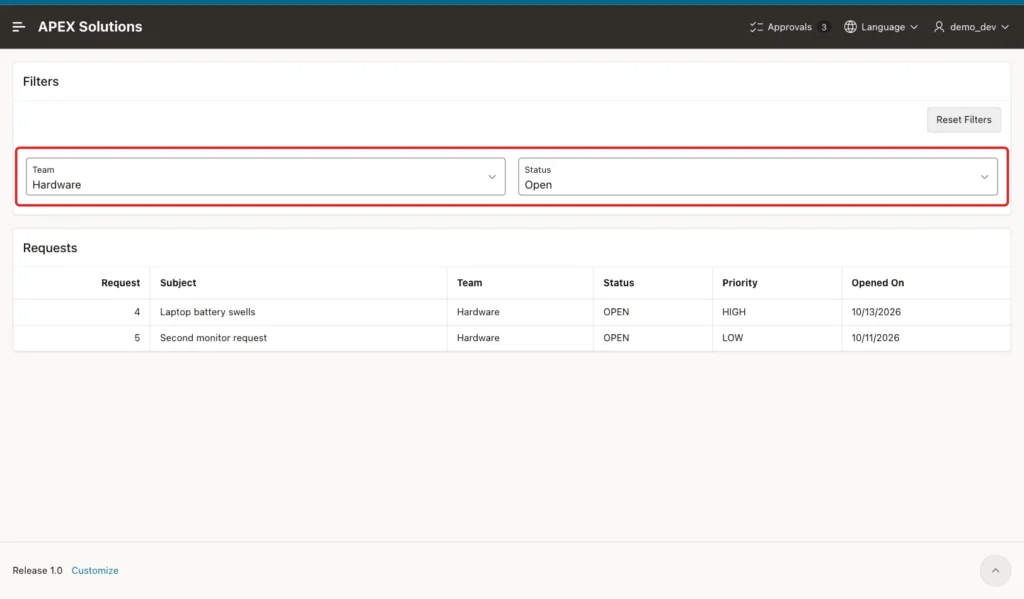
Sign out, sign in again as DEMO_DEV, and open the page. The new session starts with Hardware and Open, and the report already shows the same two rows:
Now sign in as SALES_USER. This user sees "All Teams" and "All Statuses" and all eight rows. The choice of DEMO_DEV does not affect other users:
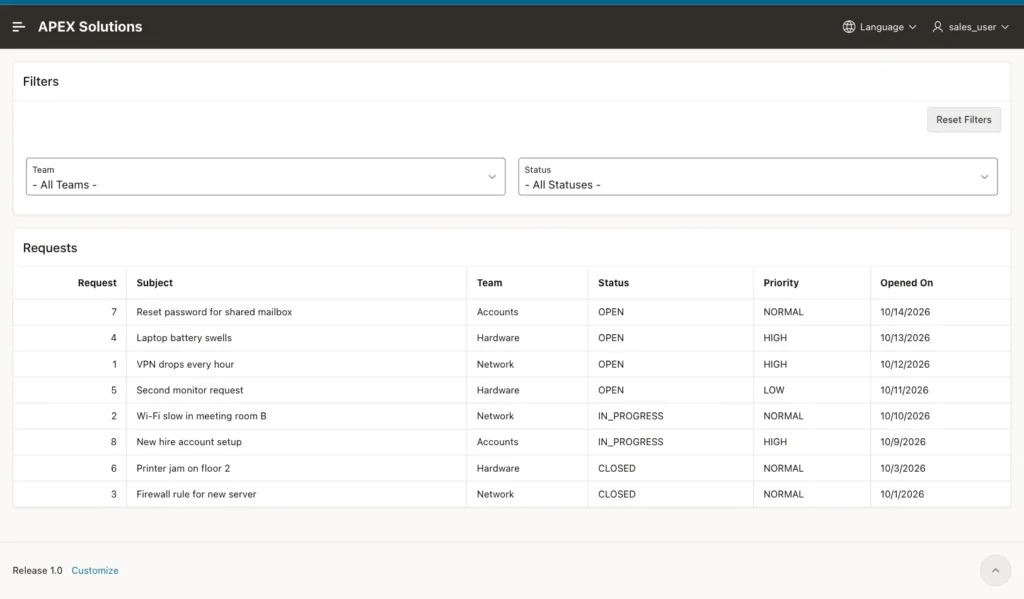
In this example, SALES_USER then picked Team Network. When DEMO_DEV signed in again afterwards, the page still showed Hardware and Open, not Network.
APEX stores the values as workspace preferences. Query APEX_WORKSPACE_PREFERENCES to see them:
Example:
select user_name, preference_name, preference_type
from   apex_workspace_preferences
where  preference_name like 'PERSISTENT_ITEM_P370%'
order  by user_name, preference_name;
Output:
USER_NAME     PREFERENCE_NAME                 PREFERENCE_TYPE
_____________ _______________________________ __________________________
DEMO_DEV      PERSISTENT_ITEM_P370_STATUS     PROTECTED_SESSION_STATE
DEMO_DEV      PERSISTENT_ITEM_P370_TEAM_ID    PROTECTED_SESSION_STATE
SALES_USER    PERSISTENT_ITEM_P370_TEAM_ID    PROTECTED_SESSION_STATE
Each preference is named PERSISTENT_ITEM_ followed by the item name. SALES_USER has only a TEAM_ID preference, because that user never changed Status. The type is PROTECTED_SESSION_STATE, and in this test the view returned PREFERENCE_VALUE empty for these rows.
To read the actual values, call APEX_UTIL.GET_PREFERENCE inside an APEX session of the user:
Example:
set serveroutput on
begin
  apex_session.create_session(
    p_app_id   => 400,
    p_page_id  => 370,
    p_username => 'DEMO_DEV');
  dbms_output.put_line('Team ID: ' || apex_util.get_preference('PERSISTENT_ITEM_P370_TEAM_ID'));
  dbms_output.put_line('Status : ' || apex_util.get_preference('PERSISTENT_ITEM_P370_STATUS'));
  apex_session.delete_session;
end;
/
Output:
Team ID: 2
Status : OPEN

PL/SQL procedure successfully completed.
Team ID 2 is the Hardware team, and the status is OPEN, as selected on the page.
Step 11: Test the Reset Button
Sign in as DEMO_DEV, open the page, and click Reset Filters. The page submits, the process clears both items, and the report shows all eight rows again:
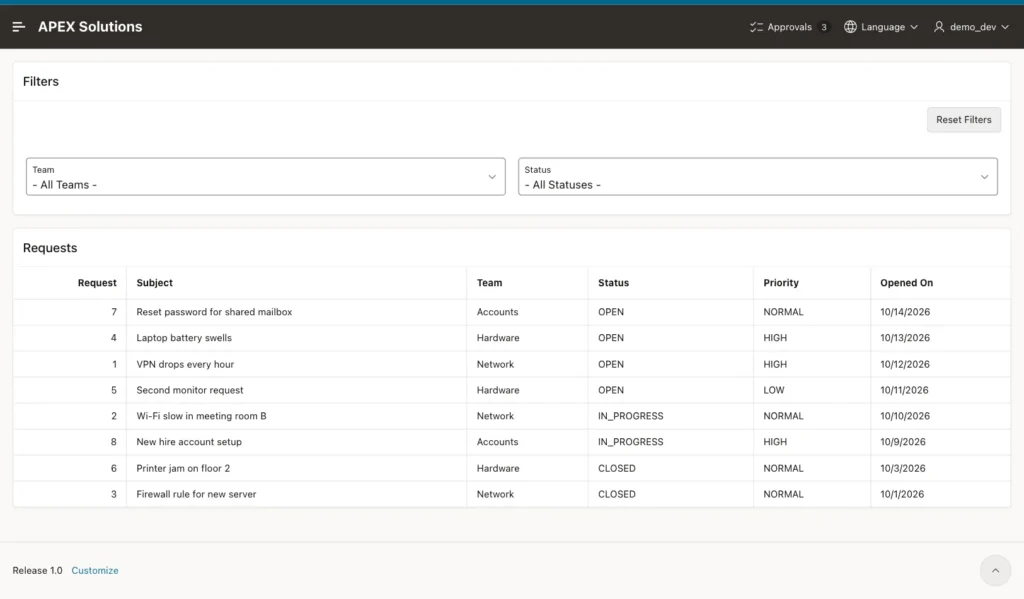
Run the two scripts of Step 10 again. The output:
Output:
Team ID:
Status :

PL/SQL procedure successfully completed.

USER_NAME     PREFERENCE_NAME                 PREFERENCE_TYPE
_____________ _______________________________ __________________________
DEMO_DEV      PERSISTENT_ITEM_P370_STATUS     PROTECTED_SESSION_STATE
DEMO_DEV      PERSISTENT_ITEM_P370_TEAM_ID    PROTECTED_SESSION_STATE
SALES_USER    PERSISTENT_ITEM_P370_TEAM_ID    PROTECTED_SESSION_STATE
The preferences of DEMO_DEV still exist, but they no longer hold a value. After the next sign-in, the page opened with "All Teams" and "All Statuses".
Things to Know
- The values belong to the signed-in user (APP_USER). Each user gets separate values, as the SALES_USER test showed.
- The preference name contains only the item name, such as PERSISTENT_ITEM_P370_TEAM_ID, not the application ID. Give persistent items clear page-based names.
- A Refresh dynamic action with Page Items to Submit is enough to save the preference. The page does not have to be submitted.
- A Clear Session State process on the item clears the saved preference too, so the reset needs no PL/SQL.
- APEX_WORKSPACE_PREFERENCES lists these preferences, but in this test it did not show their values. Use APEX_UTIL.GET_PREFERENCE in an APEX session to read them.
- The page keeps the default Page Access Protection "Arguments Must Have Checksum". In this example, a hand-made URL that set P370_TEAM_ID or cleared page 370 failed with "Session state protection violation", and the saved filter stayed unchanged.
Related Guides
- How to Manage Users, Preferences, and Caches Using APEX_UTIL
- How to Let Users Switch Between Light and Dark Mode in Oracle APEX
Conclusion
Remembering each user's filters in Oracle APEX takes one property: set Session State Storage of the filter items to Per User (Persistent). APEX then saves the values as user preferences and restores them in the next session.
A dynamic action with Page Items to Submit keeps the report in sync without a page submit, and a Clear Session State process gives users a Reset Filters button. The tests showed that the values survive a new sign-in, stay separate for each user, and are cleared by the reset.
