
A 360 view page shows everything about one record on a single screen. Instead of opening one page for the details, another for the orders and a third for the notes, the user picks a record and sees its key figures and all related data together.
Oracle APEX has the parts for this. A Content Row region shows the header, a Cards region shows the key figures, and a Region Display Selector turns the related reports into tabs. This guide builds such a page step by step, with an edit dialog that refreshes the header without reloading the page.
The earlier post How to Build a Dashboard Page with KPI Cards and Charts in Oracle APEX shows figures for the whole application. This page shows figures for one selected record, so the queries, the empty-record handling and the layout are different.
Downloading files is covered in How to Attach Files to Orders in Oracle APEX; here the files only appear as one tab.
The guide uses clients with their orders, notes and files as the example. The same steps work for any parent table with child tables, such as projects, suppliers or patients.
Step 1: Create the Tables
Four tables hold the data:
- CLIENTS is the parent table, one row per client.
- CLIENT_ORDERS holds the orders, with a status (OPEN, SHIPPED, CANCELLED) and an amount.
- CLIENT_NOTES holds short notes about the client.
- CLIENT_FILES holds documents as BLOBs.
Each child table has a foreign key to CLIENTS and an index on CLIENT_ID, because every region on the page filters by that column. Create the tables with four clients. Nova Startups has no orders, notes or files, so the page can be tested with an empty record:
Example:
create table clients (
  client_id    number generated by default on null as identity,
  client_name  varchar2(100) not null,
  email        varchar2(255),
  phone        varchar2(30),
  city         varchar2(50),
  segment      varchar2(20)  not null,
  created_on   date default on null sysdate not null,
  constraint clients_pk primary key (client_id),
  constraint clients_name_uk unique (client_name),
  constraint clients_segment_ck check (segment in ('ENTERPRISE', 'SMB', 'PUBLIC'))
);

create table client_orders (
  order_id    number generated by default on null as identity,
  client_id   number        not null,
  order_no    varchar2(20)  not null,
  order_date  date          not null,
  status      varchar2(20)  default on null 'OPEN' not null,
  amount      number(12,2)  not null,
  constraint client_orders_pk primary key (order_id),
  constraint client_orders_no_uk unique (order_no),
  constraint client_orders_client_fk foreign key (client_id) references clients (client_id),
  constraint client_orders_status_ck check (status in ('OPEN', 'SHIPPED', 'CANCELLED')),
  constraint client_orders_amount_ck check (amount >= 0)
);

create index client_orders_client_ix on client_orders (client_id);

create table client_notes (
  note_id     number generated by default on null as identity,
  client_id   number          not null,
  note_text   varchar2(4000)  not null,
  created_by  varchar2(255)   default on null coalesce(sys_context('APEX$SESSION', 'APP_USER'), sys_context('USERENV', 'SESSION_USER')) not null,
  created_on  date            default on null sysdate not null,
  constraint client_notes_pk primary key (note_id),
  constraint client_notes_client_fk foreign key (client_id) references clients (client_id) on delete cascade
);

create index client_notes_client_ix on client_notes (client_id);

create table client_files (
  file_id       number generated by default on null as identity,
  client_id     number         not null,
  file_name     varchar2(255)  not null,
  mime_type     varchar2(255)  not null,
  file_content  blob           not null,
  uploaded_by   varchar2(255)  default on null coalesce(sys_context('APEX$SESSION', 'APP_USER'), sys_context('USERENV', 'SESSION_USER')) not null,
  uploaded_on   date           default on null sysdate not null,
  constraint client_files_pk primary key (file_id),
  constraint client_files_client_fk foreign key (client_id) references clients (client_id) on delete cascade
);

create index client_files_client_ix on client_files (client_id);

insert into clients (client_name, email, phone, city, segment) values ('Asha Textiles',       'accounts@ashatextiles.example', '+91 22 4000 1100', 'Mumbai',    'ENTERPRISE');
insert into clients (client_name, email, phone, city, segment) values ('Blue River Foods',    'orders@blueriver.example',      '+91 20 4000 2200', 'Pune',      'SMB');
insert into clients (client_name, email, phone, city, segment) values ('City Hospital Trust', 'purchase@cityhospital.example', '+91 11 4000 3300', 'New Delhi', 'PUBLIC');
insert into clients (client_name, email, phone, city, segment) values ('Nova Startups',       'hello@novastartups.example',    '+91 80 4000 4400', 'Bengaluru', 'SMB');

insert into client_orders (client_id, order_no, order_date, status, amount) values (1, 'SO-1001', date '2026-07-04', 'SHIPPED',   125000);
insert into client_orders (client_id, order_no, order_date, status, amount) values (1, 'SO-1004', date '2026-08-12', 'SHIPPED',    84500);
insert into client_orders (client_id, order_no, order_date, status, amount) values (1, 'SO-1007', date '2026-09-02', 'CANCELLED',  40000);
insert into client_orders (client_id, order_no, order_date, status, amount) values (1, 'SO-1010', date '2026-10-06', 'OPEN',       62250);
insert into client_orders (client_id, order_no, order_date, status, amount) values (2, 'SO-1002', date '2026-07-18', 'SHIPPED',    18900);
insert into client_orders (client_id, order_no, order_date, status, amount) values (2, 'SO-1008', date '2026-09-21', 'OPEN',       22400);
insert into client_orders (client_id, order_no, order_date, status, amount) values (3, 'SO-1005', date '2026-08-25', 'SHIPPED',   310000);

insert into client_notes (client_id, note_text, created_by, created_on) values (1, 'Prefers delivery before 11 AM at the Bhiwandi warehouse.', 'SALES_MANAGER', date '2026-07-05');
insert into client_notes (client_id, note_text, created_by, created_on) values (1, 'Cancelled SO-1007 because the fabric shade did not match.', 'ORDER_EDITOR', date '2026-09-03');
insert into client_notes (client_id, note_text, created_by, created_on) values (1, 'Asked for a quote on 2,000 m of linen for Diwali.', 'SALES_MANAGER', date '2026-10-07');
insert into client_notes (client_id, note_text, created_by, created_on) values (2, 'Payment terms changed to 30 days from August.', 'SALES_MANAGER', date '2026-07-30');

insert into client_files (client_id, file_name, mime_type, file_content, uploaded_by, uploaded_on)
values (1, 'asha-contract-2026.txt', 'text/plain', utl_raw.cast_to_raw('Supply contract 2026 - Asha Textiles - signed 01-Jul-2026'), 'SALES_MANAGER', date '2026-07-01');
insert into client_files (client_id, file_name, mime_type, file_content, uploaded_by, uploaded_on)
values (1, 'asha-gst-certificate.txt', 'text/plain', utl_raw.cast_to_raw('GST registration certificate - Asha Textiles'), 'ORDER_EDITOR', date '2026-07-02');
insert into client_files (client_id, file_name, mime_type, file_content, uploaded_by, uploaded_on)
values (2, 'blue-river-price-list.txt', 'text/plain', utl_raw.cast_to_raw('Agreed price list for Blue River Foods, valid till March 2027'), 'SALES_MANAGER', date '2026-07-15');
commit;

select client_id, client_name, city, segment from clients order by client_id;

select client_id, count(*) as orders, sum(amount) as amount from client_orders group by client_id order by client_id;

select client_id, count(*) as notes from client_notes group by client_id order by client_id;

select client_id, file_name, dbms_lob.getlength(file_content) as bytes from client_files order by file_id;
Output:
Table CLIENTS created.

Table CLIENT_ORDERS created.

Index CLIENT_ORDERS_CLIENT_IX created.

Table CLIENT_NOTES created.

Index CLIENT_NOTES_CLIENT_IX created.

Table CLIENT_FILES created.

Index CLIENT_FILES_CLIENT_IX created.

1 row inserted.

1 row inserted.

1 row inserted.

1 row inserted.

1 row inserted.

1 row inserted.

1 row inserted.

1 row inserted.

1 row inserted.

1 row inserted.

1 row inserted.

1 row inserted.

1 row inserted.

1 row inserted.

1 row inserted.

1 row inserted.

1 row inserted.

1 row inserted.

Commit complete.

   CLIENT_ID CLIENT_NAME            CITY         SEGMENT
____________ ______________________ ____________ _____________
           1 Asha Textiles          Mumbai       ENTERPRISE
           2 Blue River Foods       Pune         SMB
           3 City Hospital Trust    New Delhi    PUBLIC
           4 Nova Startups          Bengaluru    SMB

   CLIENT_ID    ORDERS    AMOUNT
____________ _________ _________
           1         4    311750
           2         2     41300
           3         1    310000

   CLIENT_ID    NOTES
____________ ________
           1        3
           2        1

   CLIENT_ID FILE_NAME                       BYTES
____________ ____________________________ ________
           1 asha-contract-2026.txt             57
           1 asha-gst-certificate.txt           44
           2 blue-river-price-list.txt          61
CREATED_BY, CREATED_ON, UPLOADED_BY and UPLOADED_ON use DEFAULT ON NULL, so the database fills them with the APEX user and the date when a row is inserted. No trigger is needed for that. Notes and files are deleted with their client (ON DELETE CASCADE); orders are not, so a client with orders cannot be deleted by accident.
Step 2: Count the Related Rows Without Duplicates
The first idea for the key figures is one query that joins the client to all three child tables and counts the rows. Run it and look at Asha Textiles:
Example:
select c.client_name,
       count(o.order_id)  as orders,
       sum(o.amount)      as amount,
       count(n.note_id)   as notes,
       count(f.file_id)   as files
from   clients c
left join client_orders o on o.client_id = c.client_id
left join client_notes  n on n.client_id = c.client_id
left join client_files  f on f.client_id = c.client_id
group by c.client_name
order by c.client_name;
Output:
CLIENT_NAME               ORDERS     AMOUNT    NOTES    FILES
______________________ _________ __________ ________ ________
Asha Textiles                 24    1870500       24       24
Blue River Foods               2      41300        2        2
City Hospital Trust            1     310000        0        0
Nova Startups                  0                   0        0
Asha Textiles has 4 orders, 3 notes and 2 files, but the query shows 24 of each and an amount of 1,870,500. Each order row is joined to every note and every file, so 4 x 3 x 2 = 24 rows are counted. This is the most common mistake on a 360 page.
The fix is to group each child table on its own first and then join the totals to the client. Put this in a view, so the page and any report can use the same numbers:
Example:
create or replace view client_360_v as
select c.client_id,
       c.client_name,
       c.email,
       c.phone,
       c.city,
       c.segment,
       nvl(o.order_count, 0)  as order_count,
       nvl(o.open_orders, 0)  as open_orders,
       nvl(o.revenue, 0)      as revenue,
       o.last_order_date,
       nvl(n.note_count, 0)   as note_count,
       nvl(f.file_count, 0)   as file_count
from   clients c
left join (select client_id,
                  count(*)                                               as order_count,
                  count(case when status = 'OPEN' then 1 end)            as open_orders,
                  sum(case when status <> 'CANCELLED' then amount end)   as revenue,
                  max(order_date)                                        as last_order_date
           from   client_orders
           group by client_id) o on o.client_id = c.client_id
left join (select client_id, count(*) as note_count
           from   client_notes
           group by client_id) n on n.client_id = c.client_id
left join (select client_id, count(*) as file_count
           from   client_files
           group by client_id) f on f.client_id = c.client_id;

select client_name, order_count, open_orders, revenue,
       to_char(last_order_date, 'DD-Mon-YYYY') as last_order, note_count, file_count
from   client_360_v
order by client_id;
Output:
View CLIENT_360_V created.

CLIENT_NAME               ORDER_COUNT    OPEN_ORDERS    REVENUE LAST_ORDER        NOTE_COUNT    FILE_COUNT
______________________ ______________ ______________ __________ ______________ _____________ _____________
Asha Textiles                       4              1     271750 06-Oct-2026                3             2
Blue River Foods                    2              1      41300 21-Sep-2026                1             1
City Hospital Trust                 1              0     310000 25-Aug-2026                0             0
Nova Startups                       0              0          0                            0             0
Now the counts are right. Revenue leaves out the cancelled order SO-1007, so Asha Textiles shows 271,750. The LEFT JOINs keep clients with no child rows, and NVL turns their missing totals into 0. Nova Startups shows zeros instead of disappearing.
Step 3: Write the Key Figures Query
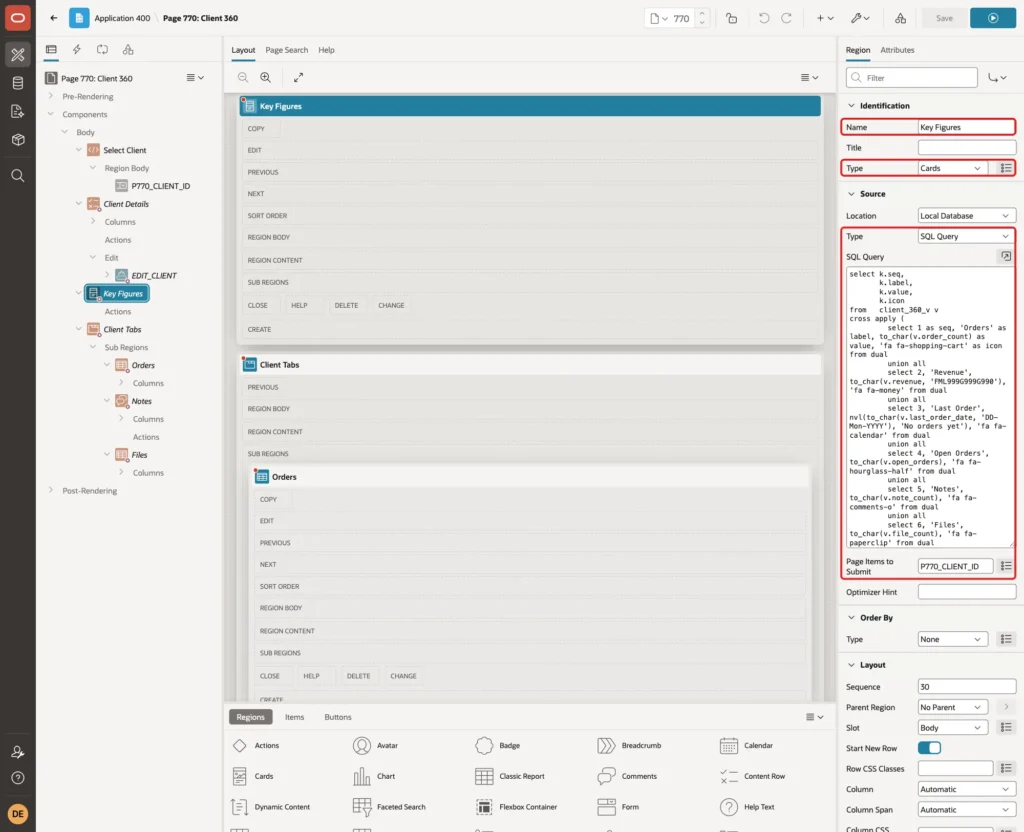
A Cards region shows one card per row. The view returns one row per client with six columns, so the query turns that one row into six rows: a label, a value and an icon for each figure. CROSS APPLY repeats a small UNION ALL list for the selected client:
Example:
select k.seq,
       k.label,
       k.value,
       k.icon
from   client_360_v v
cross apply (
         select 1 as seq, 'Orders' as label, to_char(v.order_count) as value, 'fa fa-shopping-cart' as icon from dual
         union all
         select 2, 'Revenue', to_char(v.revenue, 'FML999G999G990'), 'fa fa-money' from dual
         union all
         select 3, 'Last Order', nvl(to_char(v.last_order_date, 'DD-Mon-YYYY'), 'No orders yet'), 'fa fa-calendar' from dual
         union all
         select 4, 'Open Orders', to_char(v.open_orders), 'fa fa-hourglass-half' from dual
         union all
         select 5, 'Notes', to_char(v.note_count), 'fa fa-comments-o' from dual
         union all
         select 6, 'Files', to_char(v.file_count), 'fa fa-paperclip' from dual
       ) k
where  v.client_id = :P770_CLIENT_ID
order by k.seq
Test it in SQL for Asha Textiles (client 1) and for the empty client Nova Startups (client 4):
Example:
variable P770_CLIENT_ID number
exec :P770_CLIENT_ID := 1
select k.seq,
       k.label,
       k.value,
       k.icon
from   client_360_v v
cross apply (
         select 1 as seq, 'Orders' as label, to_char(v.order_count) as value, 'fa-shopping-cart' as icon from dual
         union all
         select 2, 'Revenue', to_char(v.revenue, 'FML999G999G990'), 'fa-money' from dual
         union all
         select 3, 'Last Order', nvl(to_char(v.last_order_date, 'DD-Mon-YYYY'), 'No orders yet'), 'fa-calendar' from dual
         union all
         select 4, 'Open Orders', to_char(v.open_orders), 'fa-hourglass-half' from dual
         union all
         select 5, 'Notes', to_char(v.note_count), 'fa-comments-o' from dual
         union all
         select 6, 'Files', to_char(v.file_count), 'fa-paperclip' from dual
       ) k
where  v.client_id = :P770_CLIENT_ID
order by k.seq
;
exec :P770_CLIENT_ID := 4
/
Output:
PL/SQL procedure successfully completed.

   SEQ LABEL          VALUE          ICON
______ ______________ ______________ ____________________
     1 Orders         4              fa-shopping-cart
     2 Revenue        ₹271,750       fa-money
     3 Last Order     06-Oct-2026    fa-calendar
     4 Open Orders    1              fa-hourglass-half
     5 Notes          3              fa-comments-o
     6 Files          2              fa-paperclip

6 rows selected.

PL/SQL procedure successfully completed.

   SEQ LABEL          VALUE            ICON
______ ______________ ________________ ____________________
     1 Orders         0                fa-shopping-cart
     2 Revenue        ₹0               fa-money
     3 Last Order     No orders yet    fa-calendar
     4 Open Orders    0                fa-hourglass-half
     5 Notes          0                fa-comments-o
     6 Files          0                fa-paperclip

6 rows selected.
The empty client still gets six cards. The last order shows "No orders yet" instead of an empty value. The currency symbol comes from the session language settings; in the APEX app of this example it was $.
Step 4: Create the 360 Page
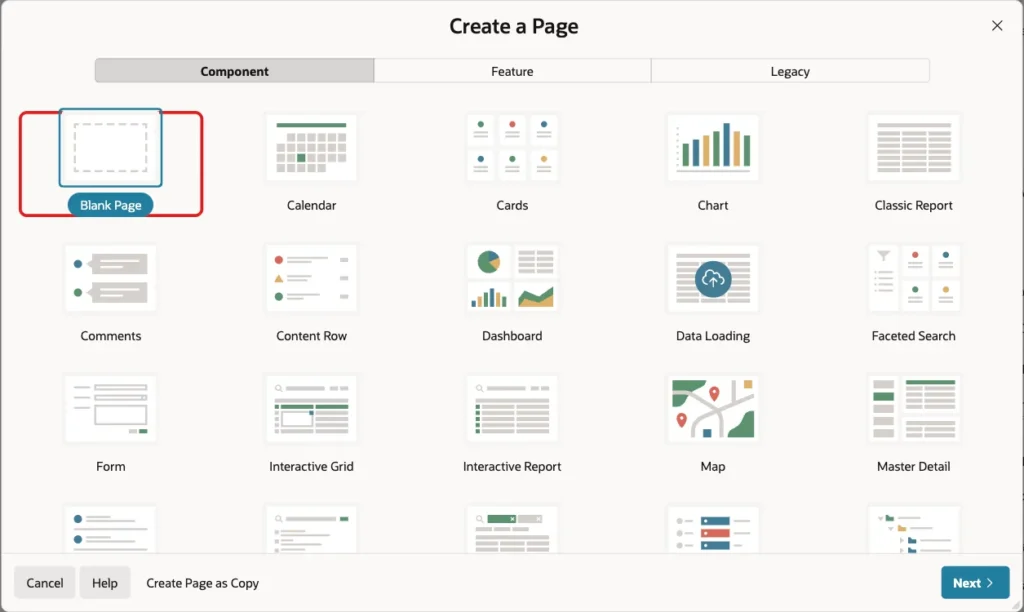
In App Builder, open the application, click Create Page, and select Blank Page:
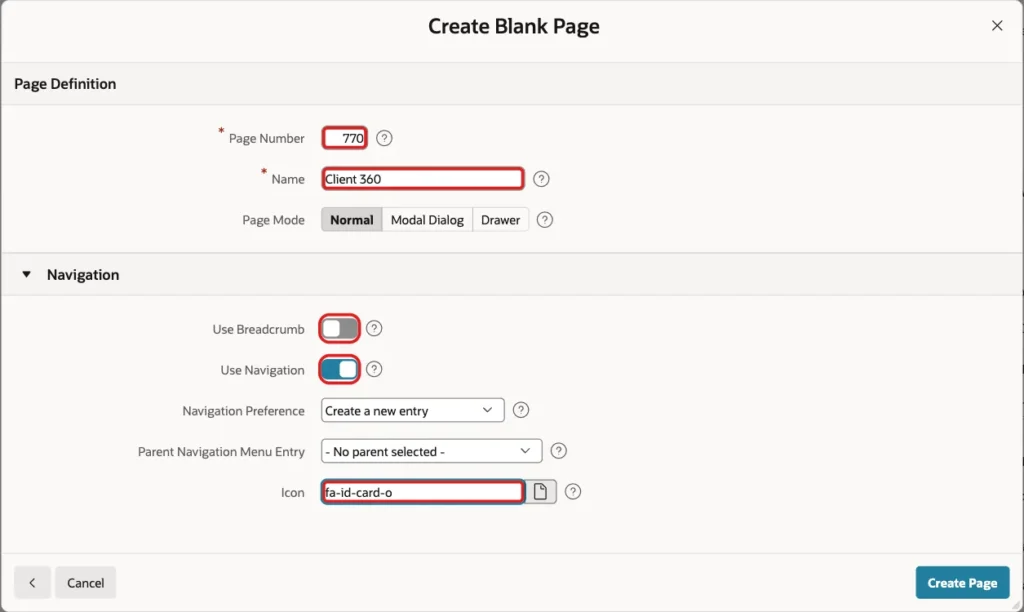
Enter Page Number 770 and Name Client 360. Turn off Use Breadcrumb, keep Use Navigation on, enter the icon fa-id-card-o, and click Create Page:
Step 5: Create the Edit Dialog
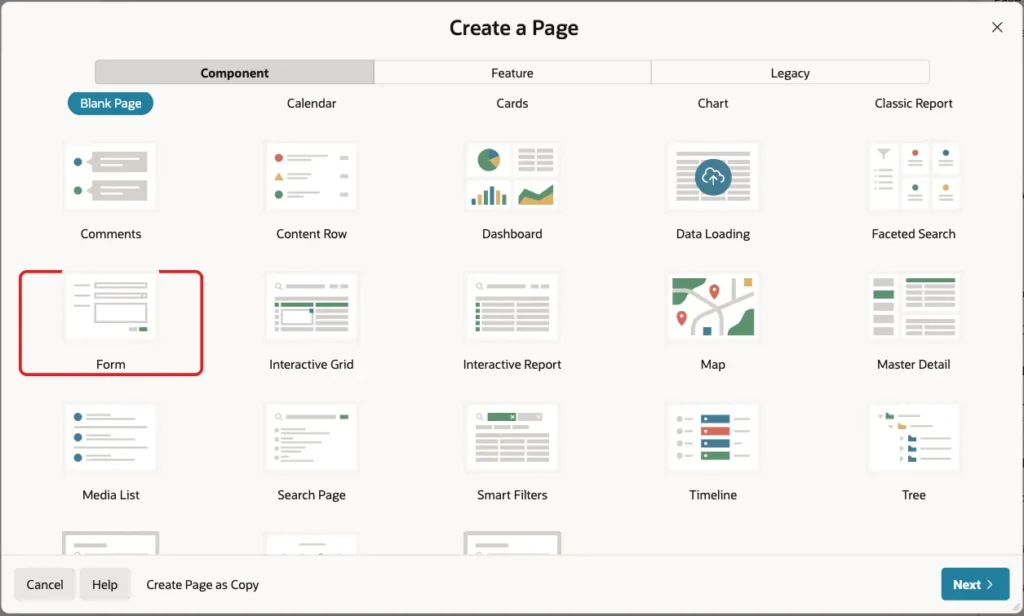
The 360 page shows data; changes happen in a separate modal form. Create it now, so the Edit button in Step 8 can open it. Click Create Page again and select Form:
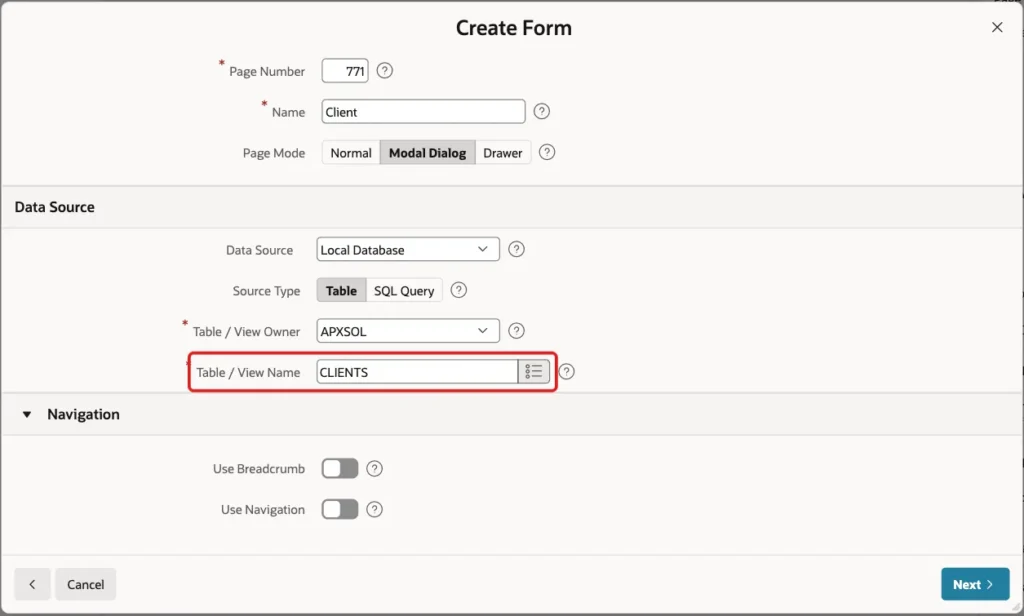
Enter Page Number 771 and Name Client, and select Page Mode Modal Dialog. For a modal page, the wizard turns breadcrumb and navigation off:
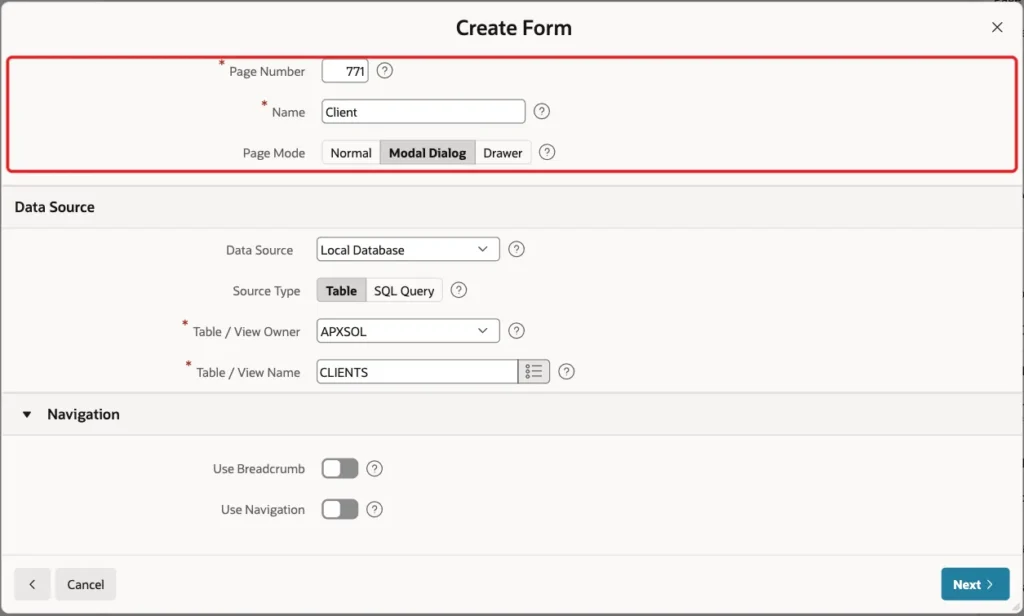
Keep Source Type Table and enter CLIENTS as Table / View Name. Click Next:
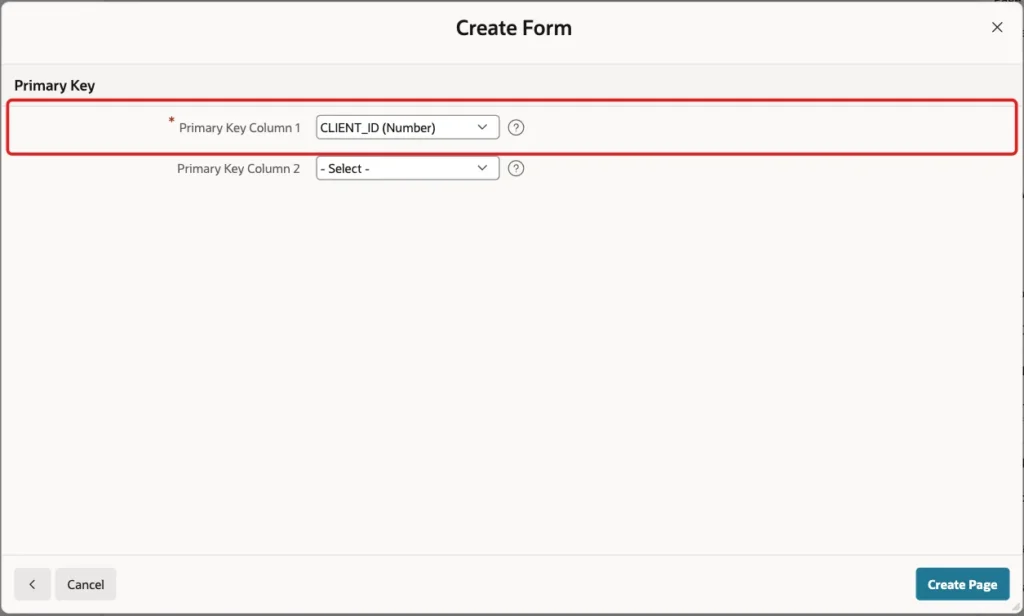
Select CLIENT_ID as Primary Key Column 1 and click Create Page:
The dialog only edits existing clients. Open page 771 in Page Designer and delete the CREATE and DELETE buttons (right-click, Delete). Select the page node at the top of the tree and set Security > Authorization Scheme to Can Edit:
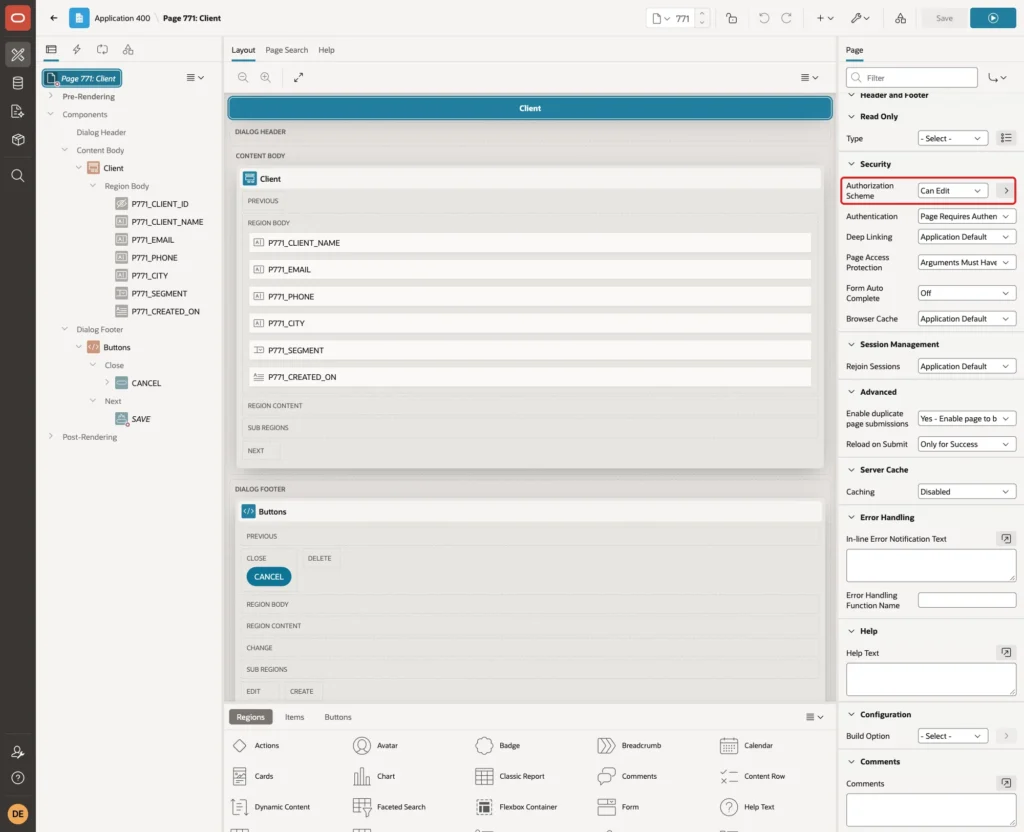
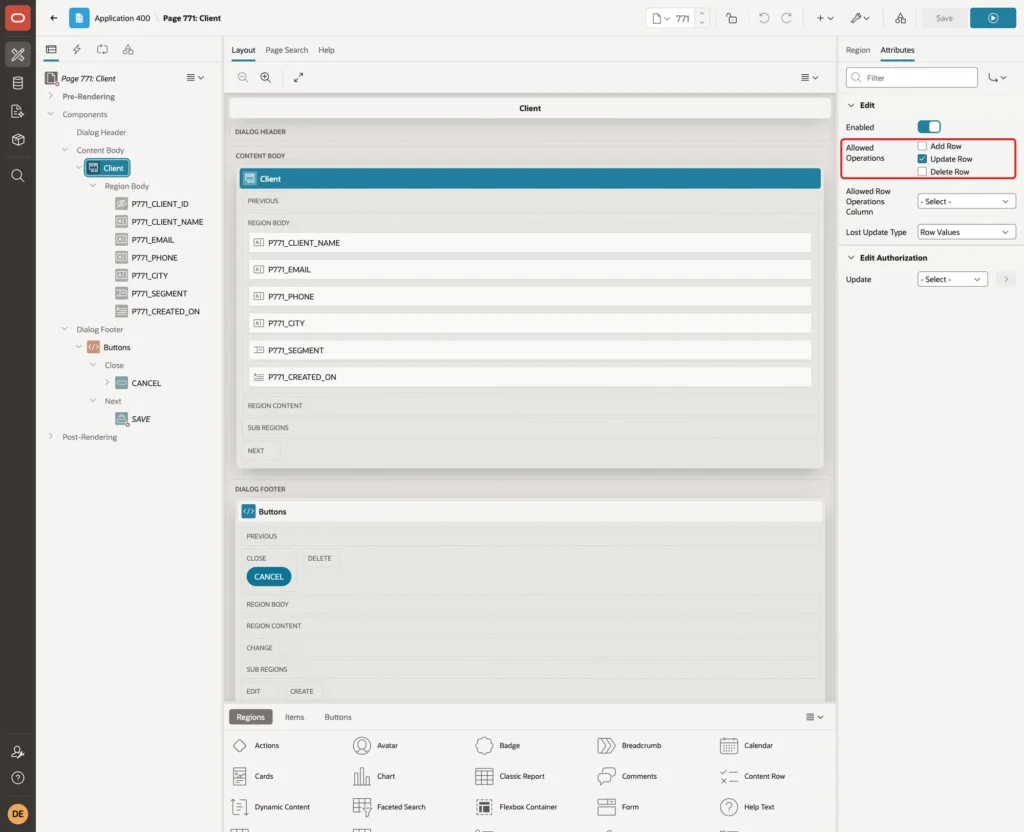
Can Edit is an authorization scheme of this application for the Administrator and Editor roles; use the scheme of your own application. Then select the Client region, open the Attributes tab, and keep only Update Row under Allowed Operations:
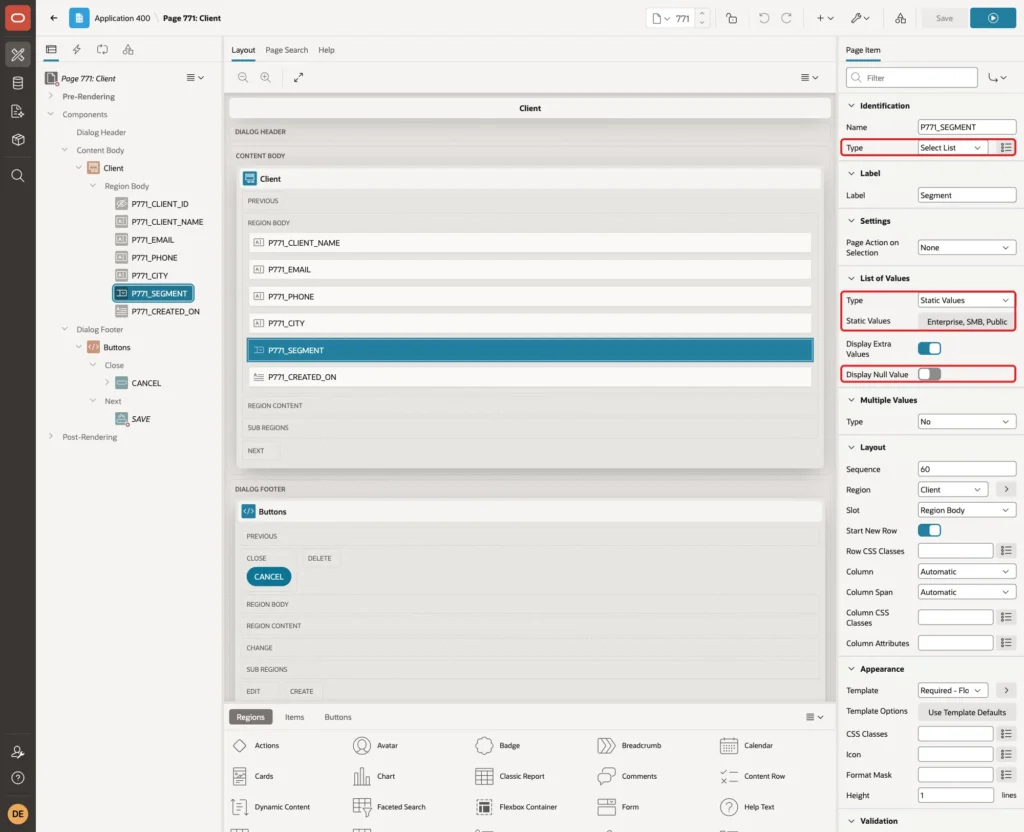
The wizard created P771_SEGMENT as a text field. Change Type to Select List, set List of Values Type to Static Values with Enterprise (ENTERPRISE), SMB (SMB) and Public (PUBLIC), and turn off Display Null Value:
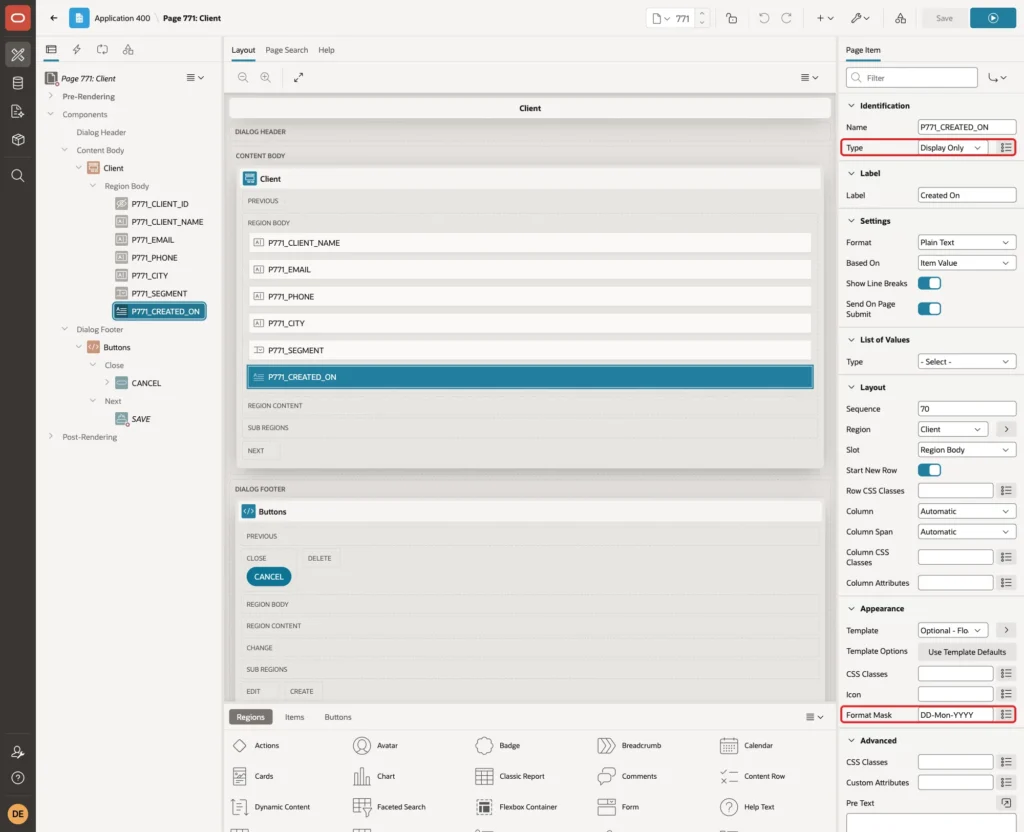
CREATED_ON is set by its DEFAULT ON NULL and should not change. Set P771_CREATED_ON Type to Display Only and Format Mask to DD-Mon-YYYY:
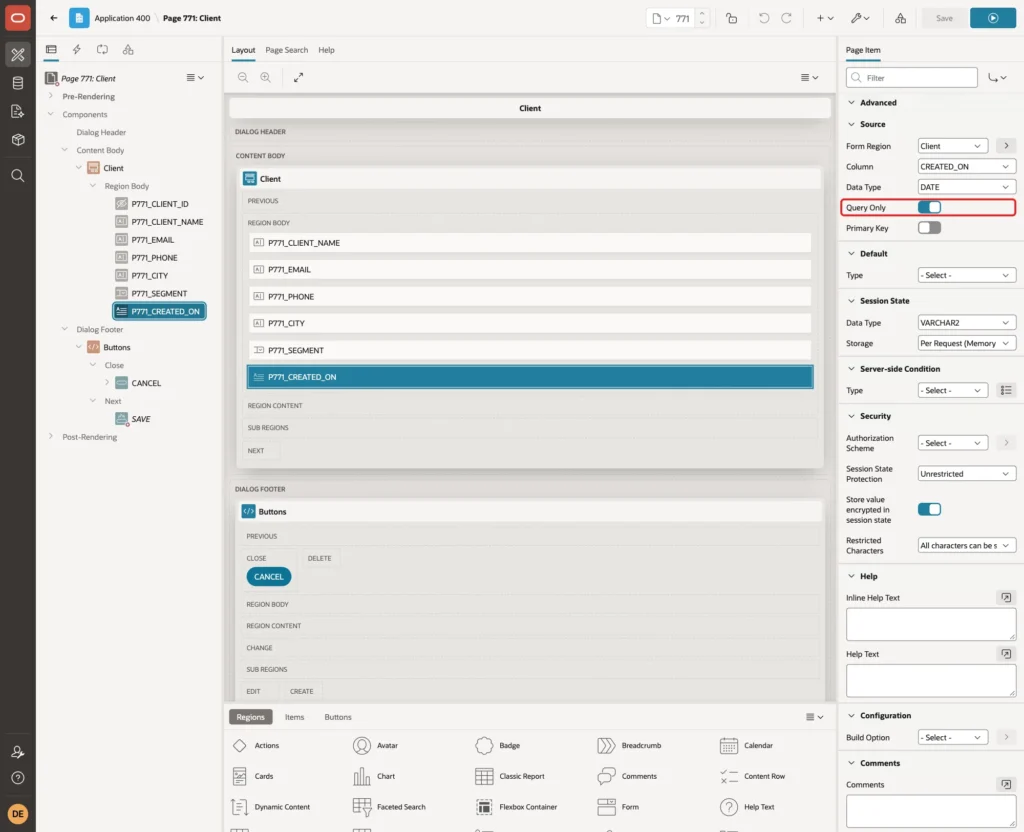
Under Source, turn on Query Only, so the form never writes this column:
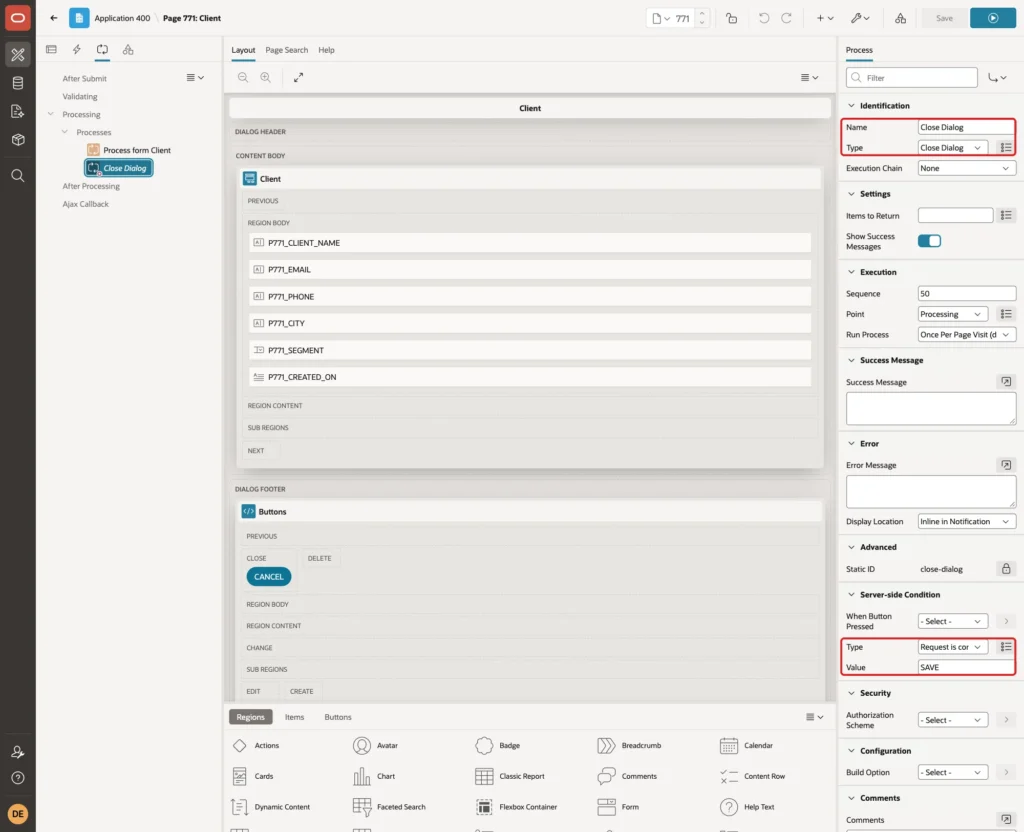
Finally, on the Processing tab, select the Close Dialog process and set its Server-side Condition Value to SAVE, the only button left that saves:
Step 6: Add the Client Select List
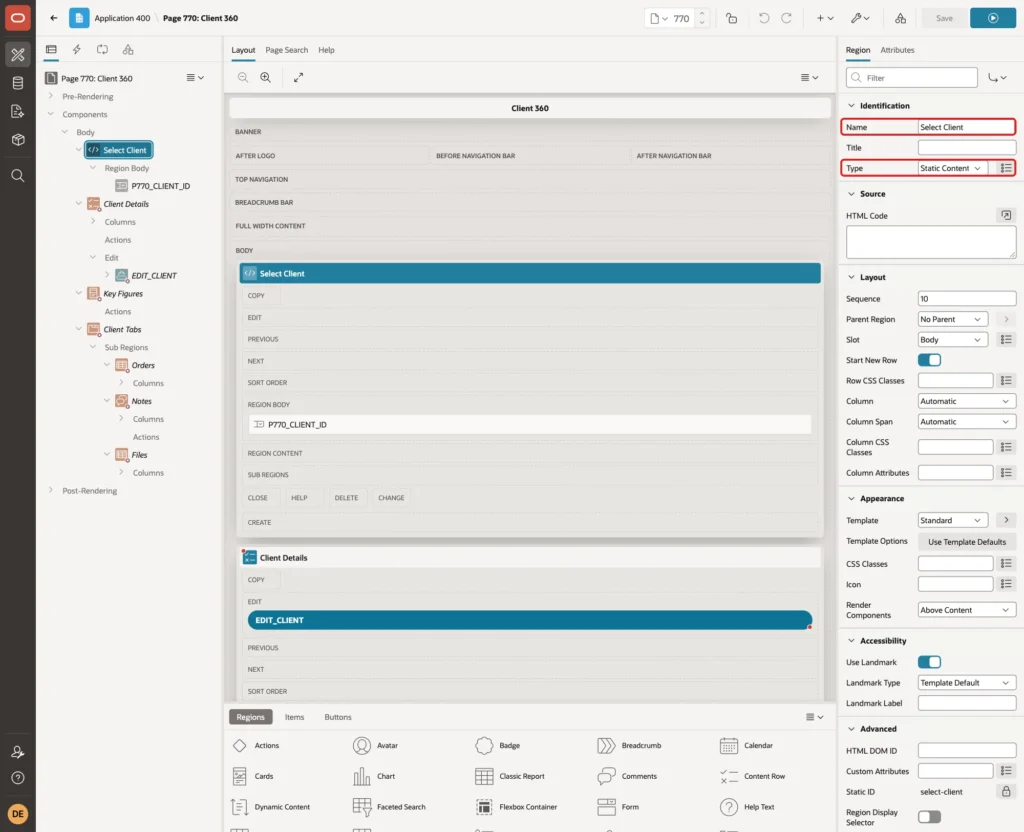
Back on page 770, add a Static Content region to the Body and name it Select Client:
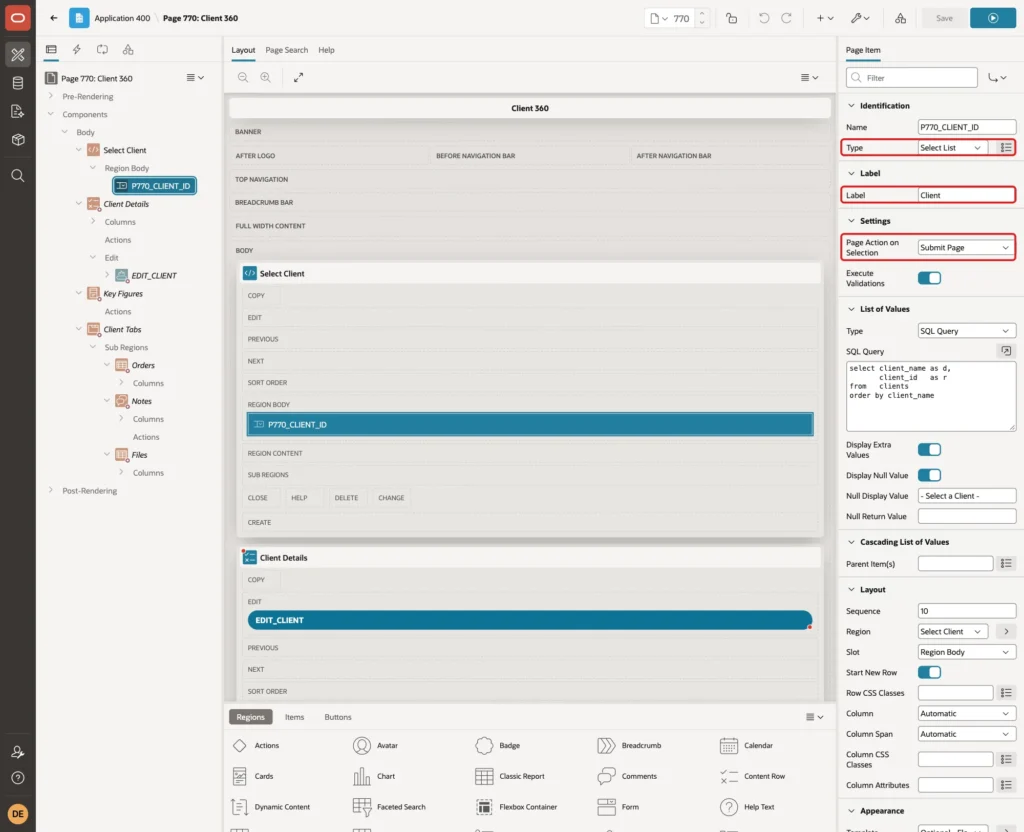
Add a page item P770_CLIENT_ID to the region. Set Type to Select List, Label to Client, and Page Action on Selection to Submit Page, so the page loads again for the selected client:
In List of Values, set Type to SQL Query and enter this query. Turn on Display Null Value and enter - Select a Client - as Null Display Value:
Example:
select client_name as d,
       client_id   as r
from   clients
order by client_name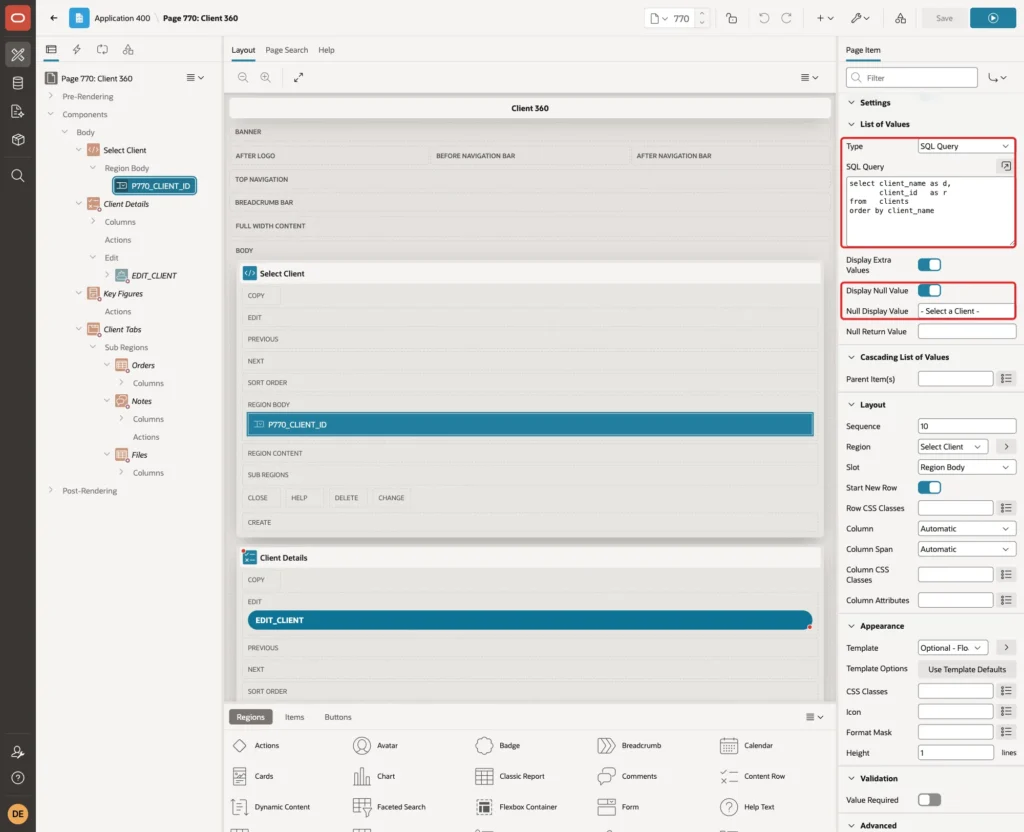
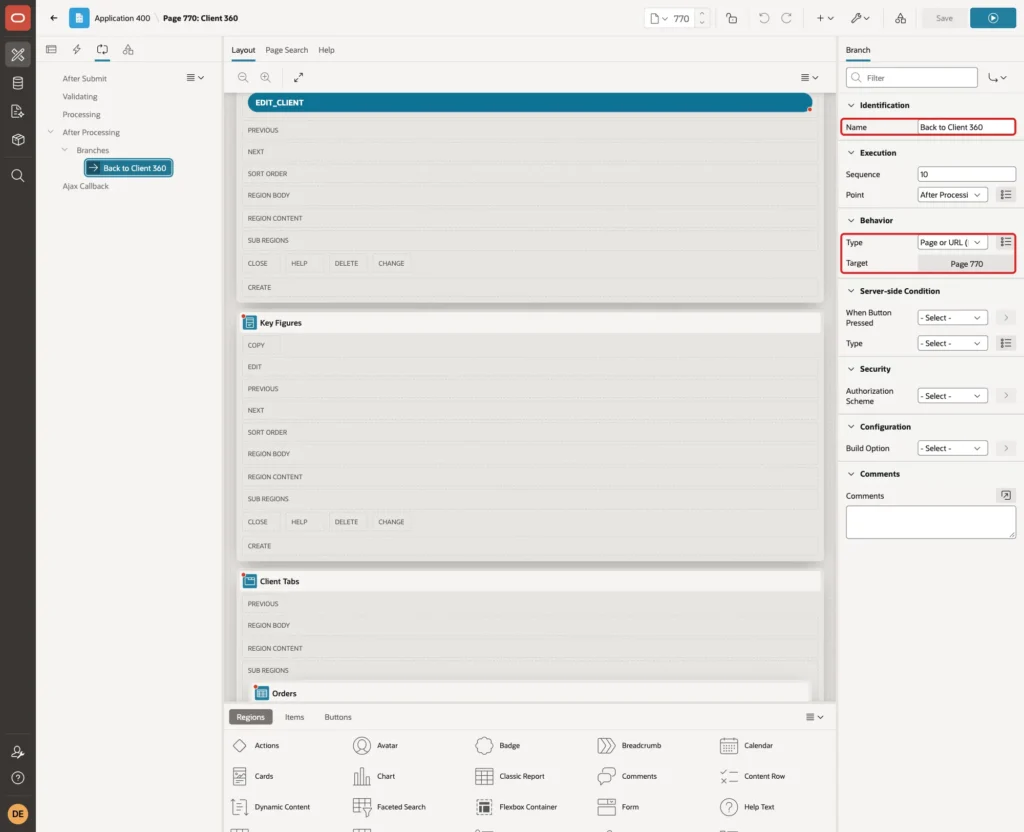
On the Processing tab, add a branch named Back to Client 360 with Type Page or URL (Redirect) and Target page 770. After the submit, the page opens again with the new client in session state:
Step 7: Add the Client Header
Add a region named Client Details below Select Client. Set Type to Content Row, Source Type to SQL Query, Page Items to Submit to P770_CLIENT_ID, and enter this query:
Example:
select client_id,
       client_name,
       apex_string.get_initials(client_name) as initials,
       email,
       phone,
       city,
       case segment when 'SMB' then 'SMB' else initcap(segment) end as segment
from   clients
where  client_id = :P770_CLIENT_ID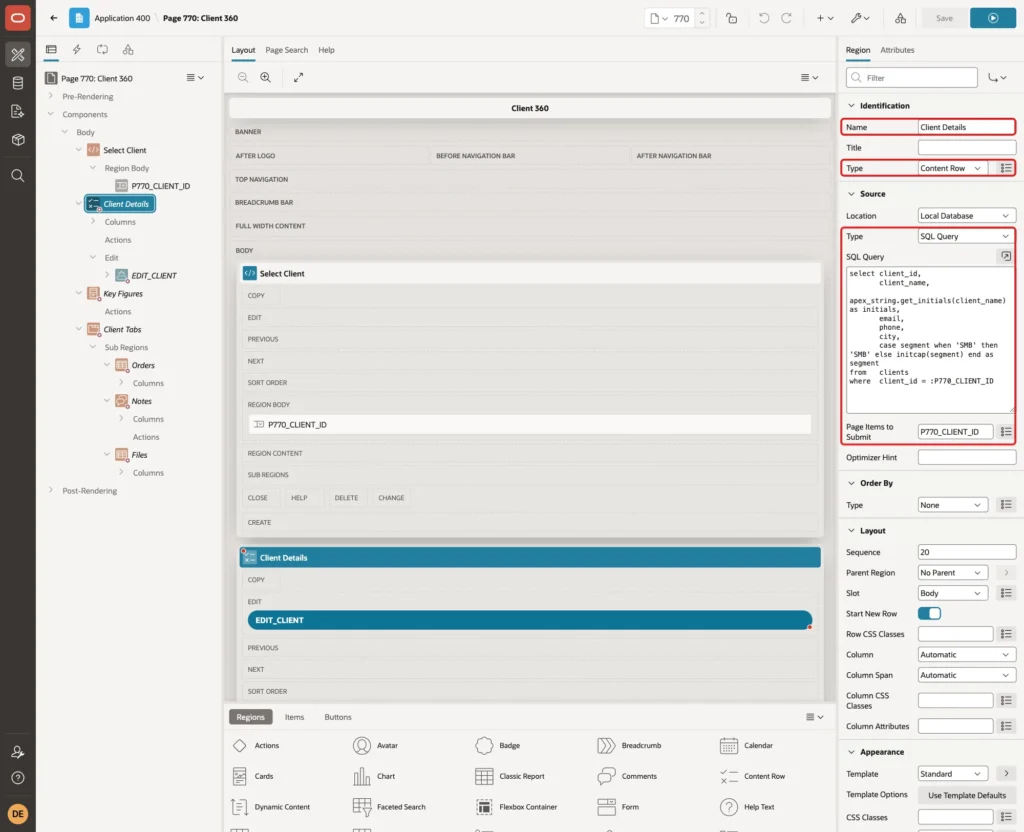
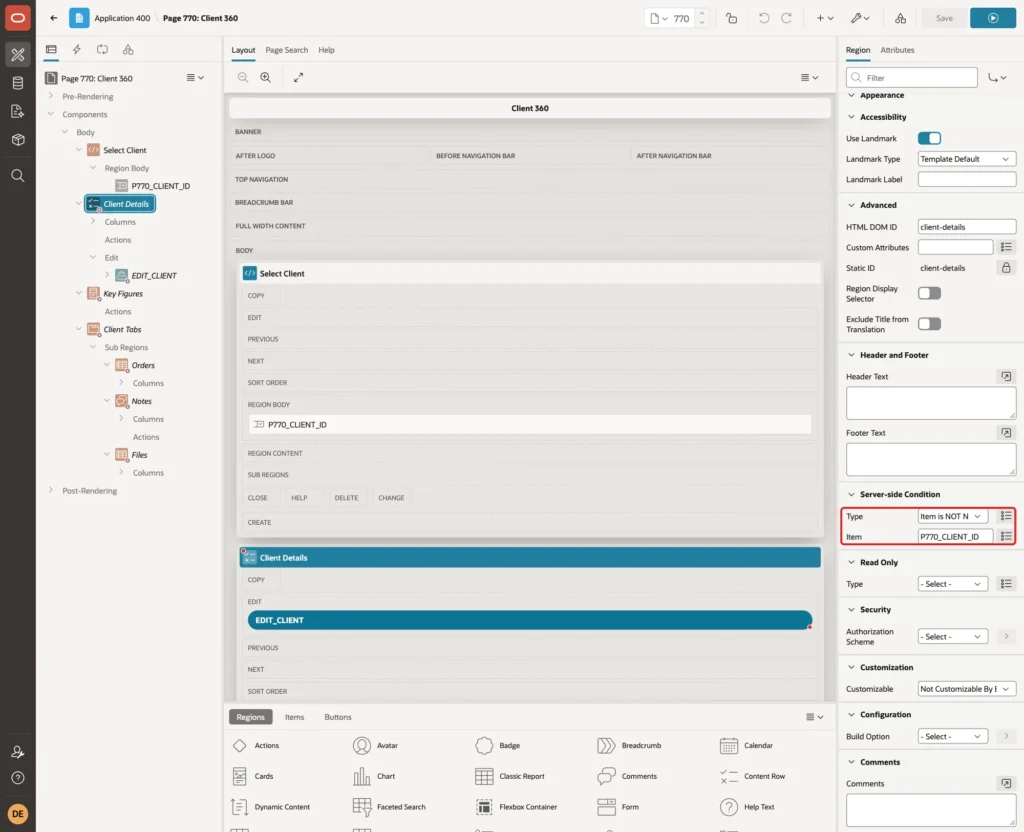
APEX_STRING.GET_INITIALS returns the first letters of the name for the avatar. Under Server-side Condition, set Type to Item is NOT NULL and Item to P770_CLIENT_ID, so the region shows only after a client is picked:
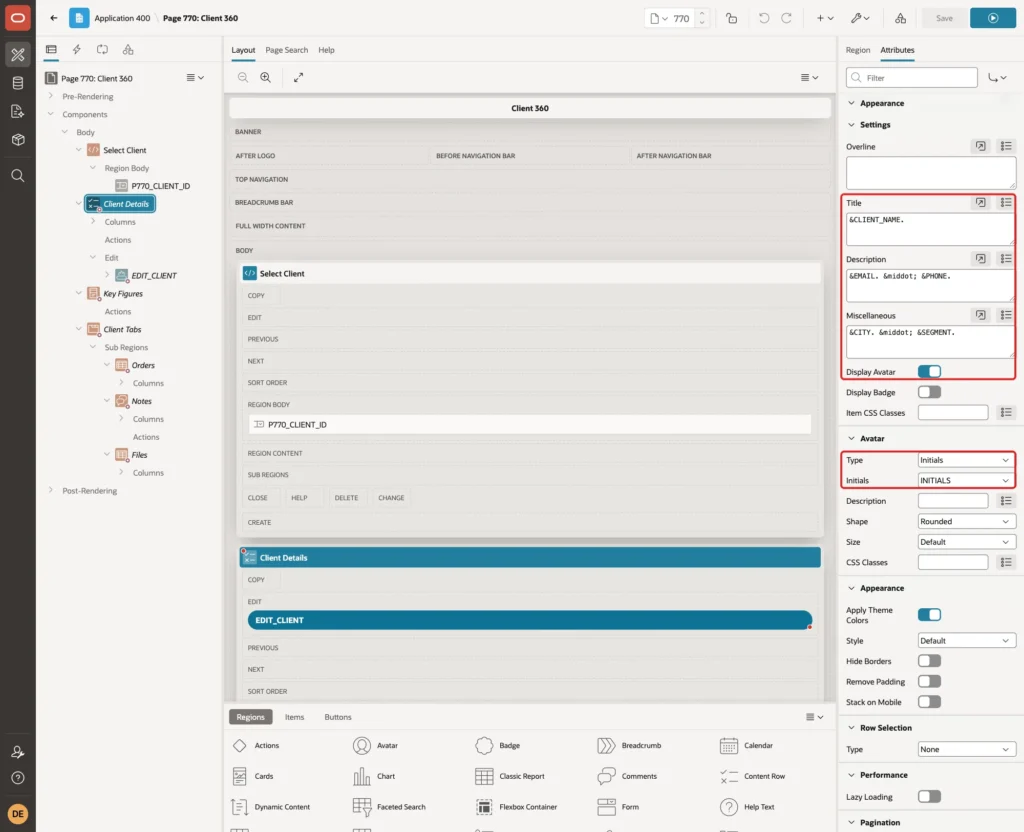
On the Attributes tab, set Title to &CLIENT_NAME., Description to &EMAIL. · &PHONE. and Miscellaneous to &CITY. · &SEGMENT. Turn on Display Avatar, and set Avatar Type to Initials and Initials to INITIALS:
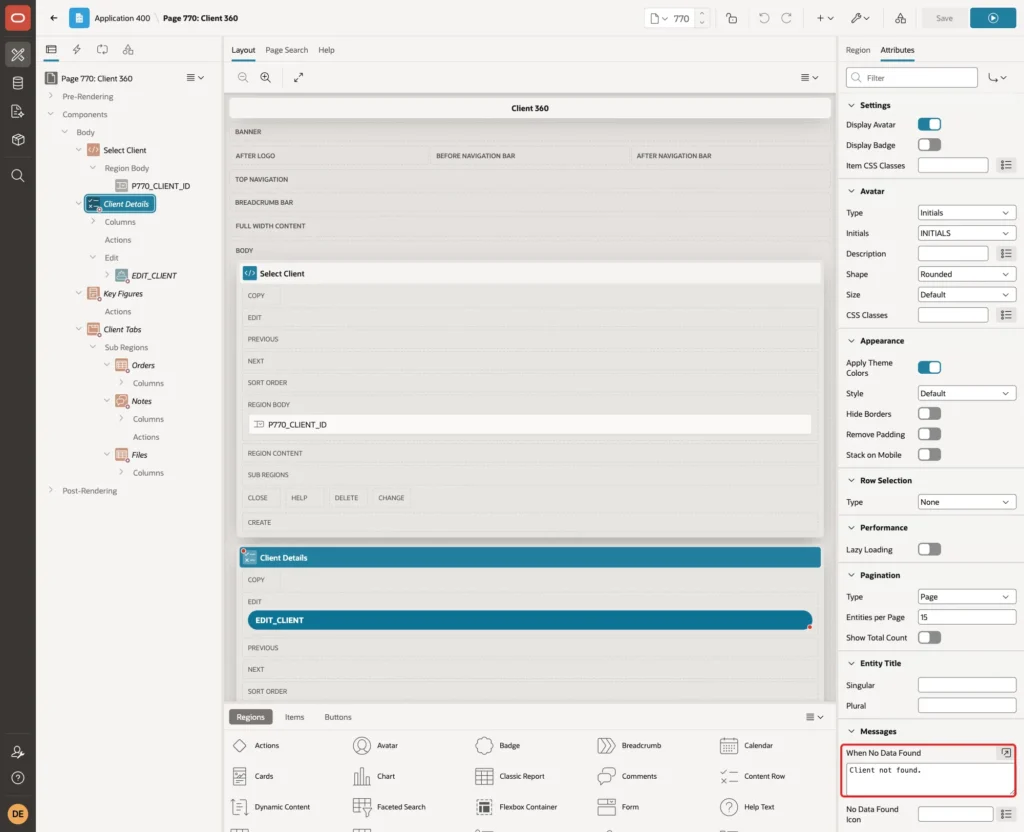
Under Messages, set When No Data Found to Client not found.:
Step 8: Add the Edit Client Button
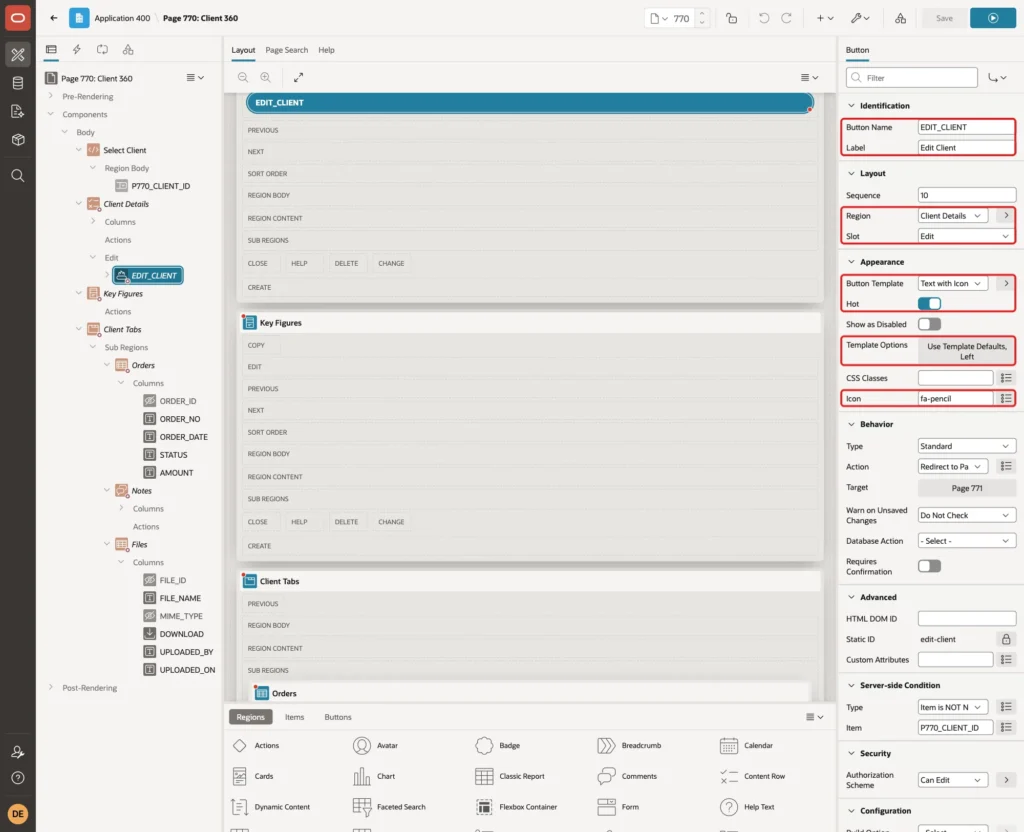
Right-click Client Details, select Create Button, and set Button Name to EDIT_CLIENT and Label to Edit Client. Put it in the Edit slot of Client Details. Set Button Template to Text with Icon, turn on Hot, set Template Options Icon Position to Left, and set Icon to fa-pencil:
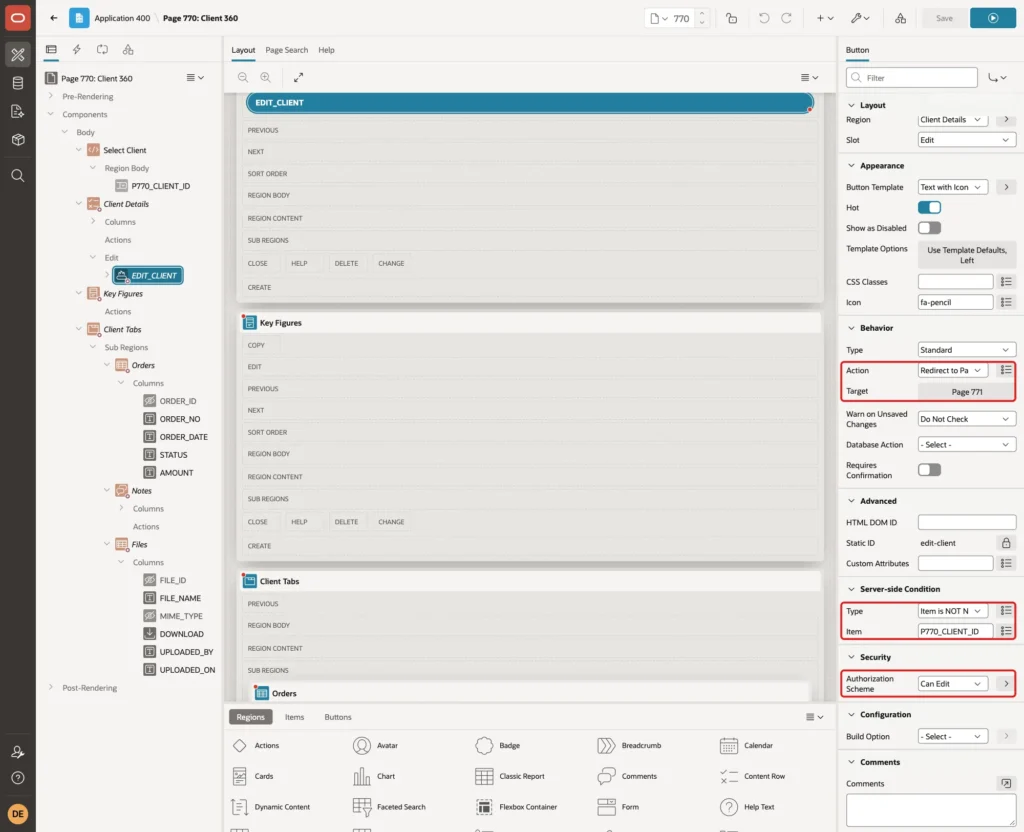
Set Behavior Action to Redirect to Page in this Application. In Target, choose page 771, set item P771_CLIENT_ID to &P770_CLIENT_ID. and Clear Cache to 771. Add the same Server-side Condition as the region, and set Security Authorization Scheme to Can Edit:
Because page 771 is a modal dialog, APEX opens the link as a dialog over page 770 and adds the checksum to the URL itself.
Step 9: Refresh the Header After the Dialog Closes
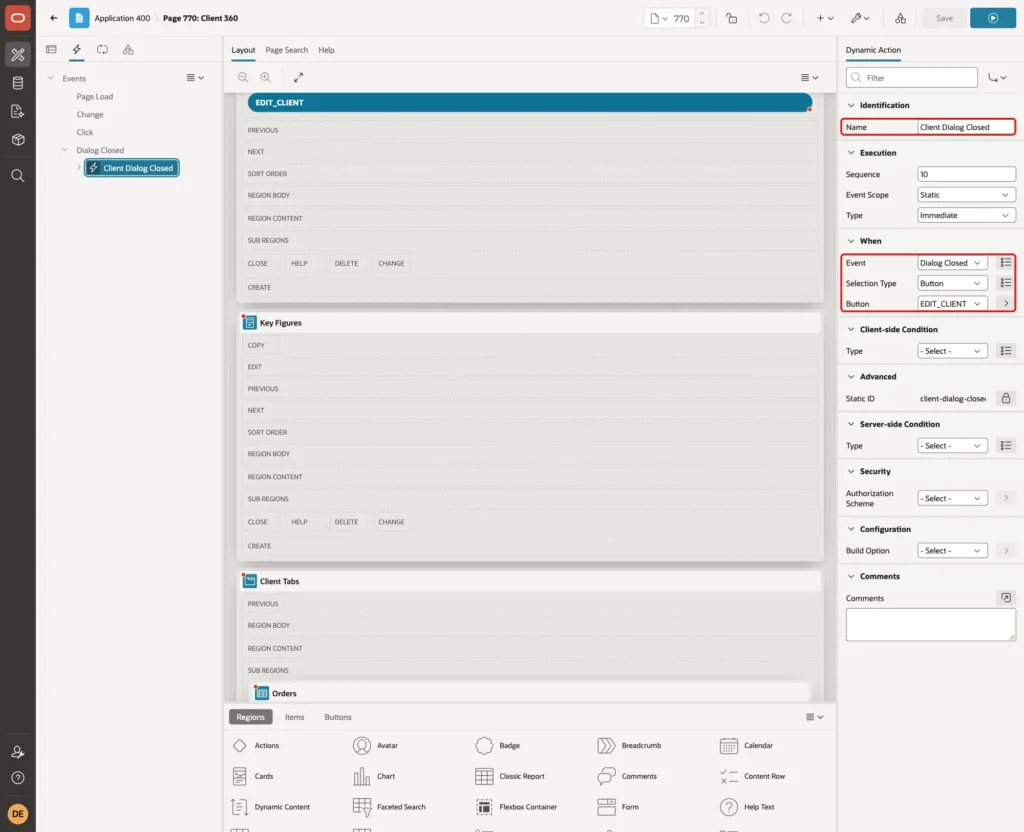
On the Dynamic Actions tab, create a dynamic action named Client Dialog Closed. Set When Event to Dialog Closed, Selection Type to Button and Button to EDIT_CLIENT:
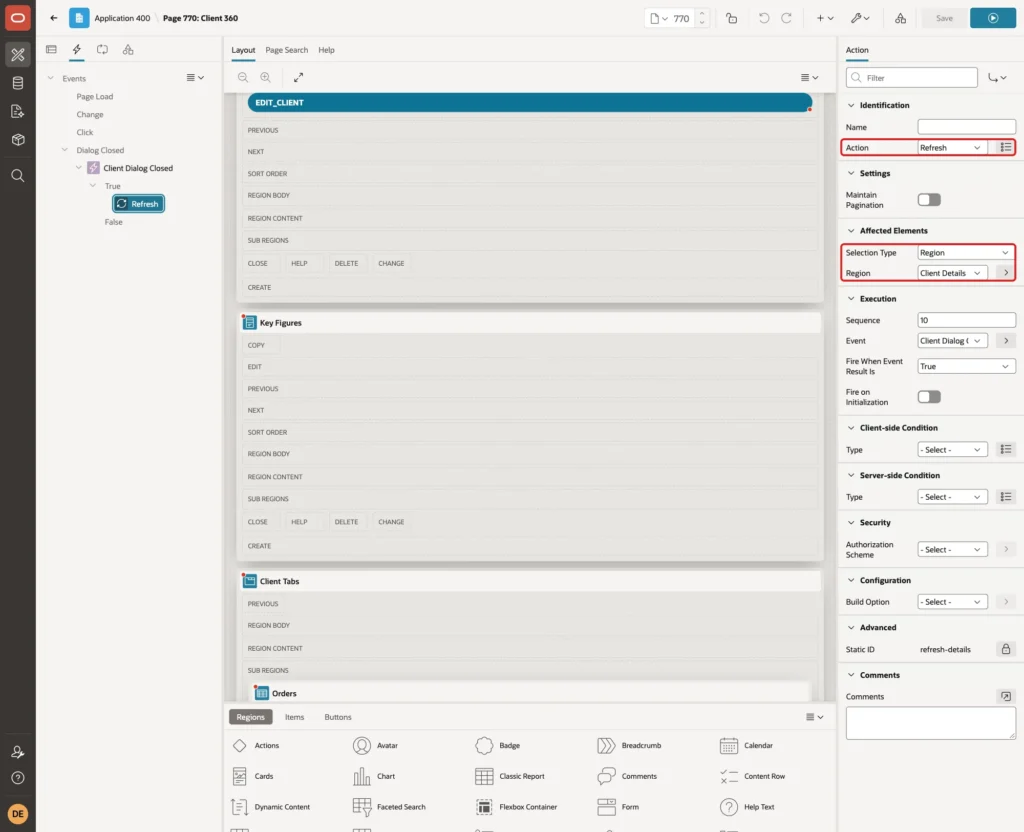
Set the True action to Refresh with Affected Elements Selection Type Region and Region Client Details:
In a first test, the dynamic action also refreshed P770_CLIENT_ID to pick up a changed name. That cleared the select list, which fired its Submit Page action, and the page reloaded with no client. So only the region is refreshed; a renamed client shows its new name in the select list the next time the page loads.
Step 10: Add the Key Figures Cards
Add a region named Key Figures below Client Details. Set Type to Cards, Source Type to SQL Query, enter the query from Step 3, and set Page Items to Submit to P770_CLIENT_ID:
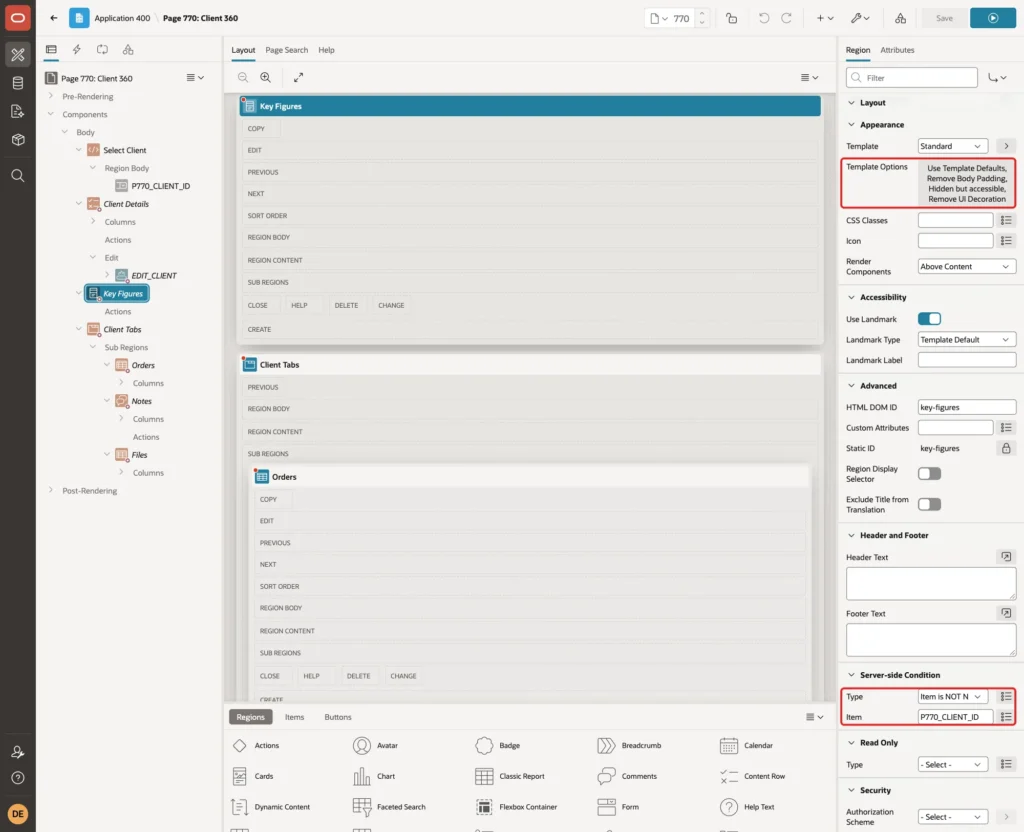
In Template Options, select Remove Body Padding, Header Hidden but accessible and Remove UI Decoration, so the cards stand on their own. Add the same Server-side Condition (Item is NOT NULL, P770_CLIENT_ID):
On the Attributes tab, set Grid Columns to 3 Columns, Title Column to VALUE, Subtitle Column to LABEL, Icon Source to Icon Class Column and Icon Column to ICON:
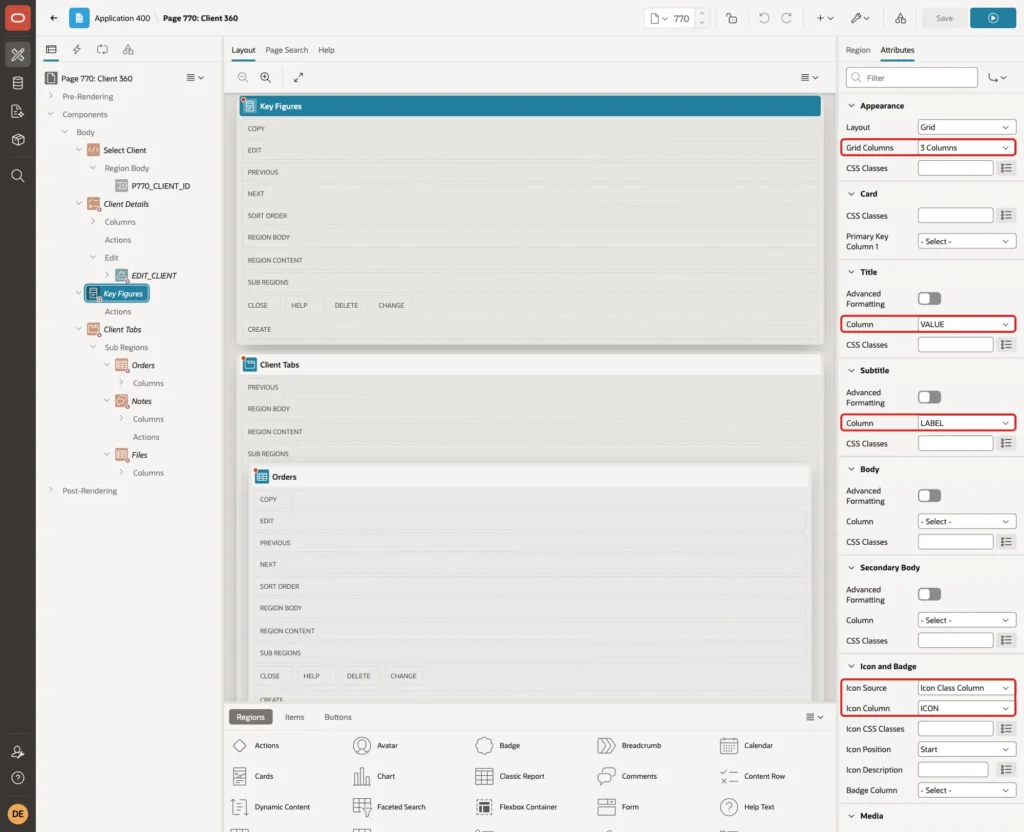
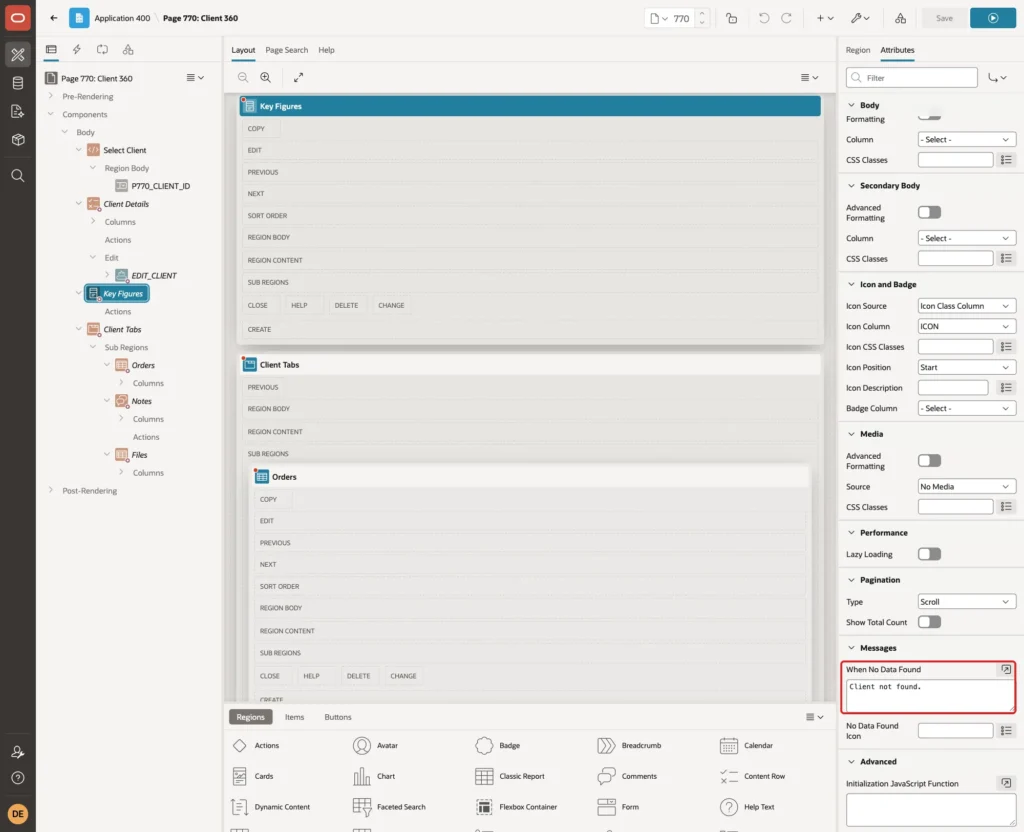
The icon column needs the full class, for example fa fa-money. In a first test the query returned only fa-money, and every card showed the same default icon. Under Messages, set When No Data Found to Client not found.:
Step 11: Add the Region Display Selector
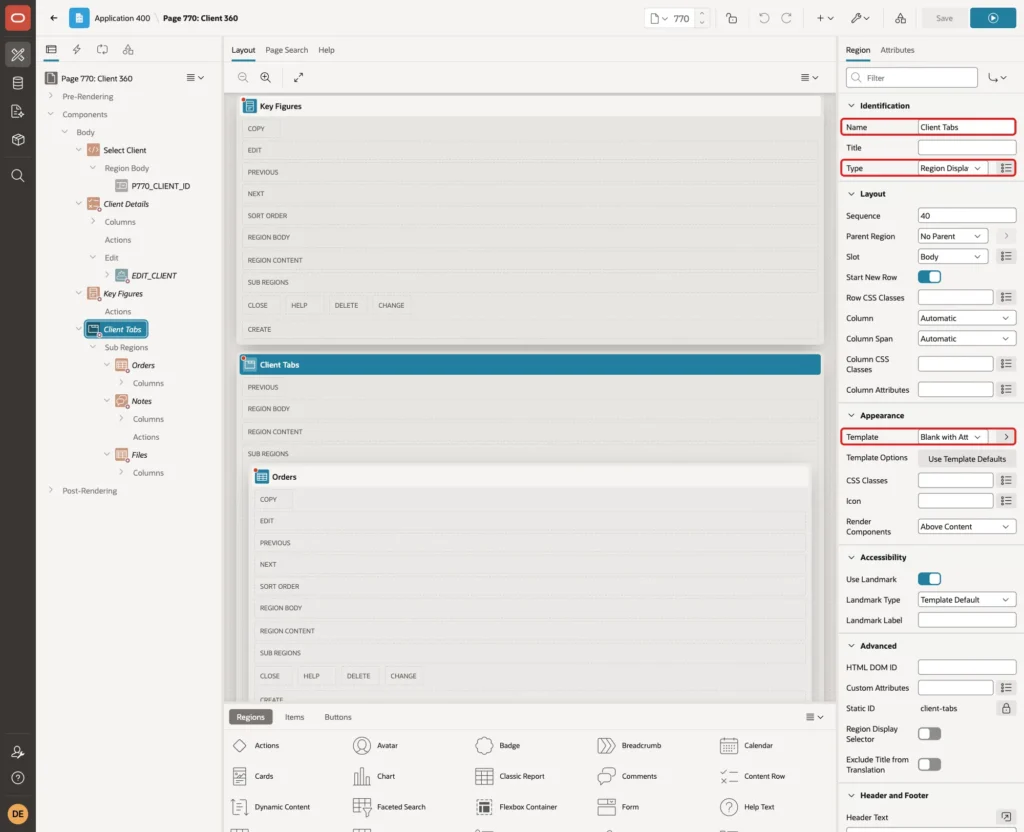
Add a region named Client Tabs below Key Figures. Set Type to Region Display Selector and Template to Blank with Attributes, and add the same Server-side Condition:
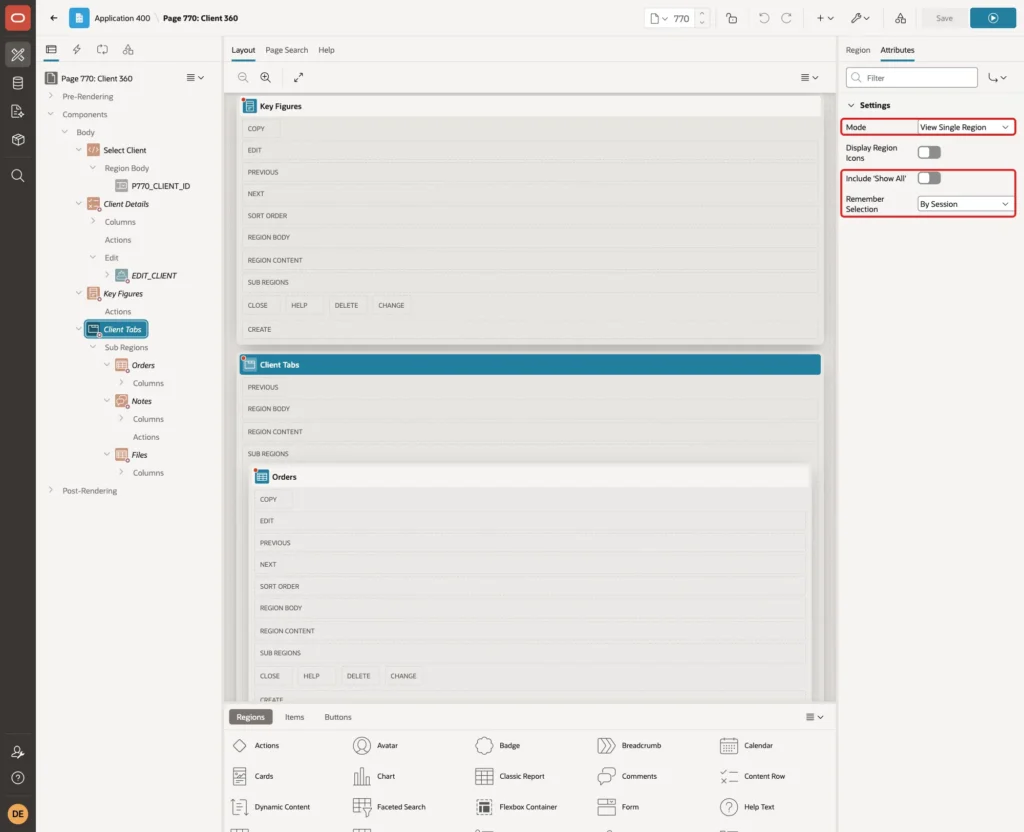
On the Attributes tab, set Mode to View Single Region, turn off Include 'Show All', and set Remember Selection to By Session:
Step 12: Add the Orders Tab
Each tab is a region placed inside Client Tabs. Right-click Client Tabs, select Create Sub Region, and name it Orders. Set Type to Classic Report, Source Type to SQL Query, Page Items to Submit to P770_CLIENT_ID, and enter this query:
Example:
select order_id,
       order_no,
       order_date,
       status,
       amount
from   client_orders
where  client_id = :P770_CLIENT_ID
order by order_date desc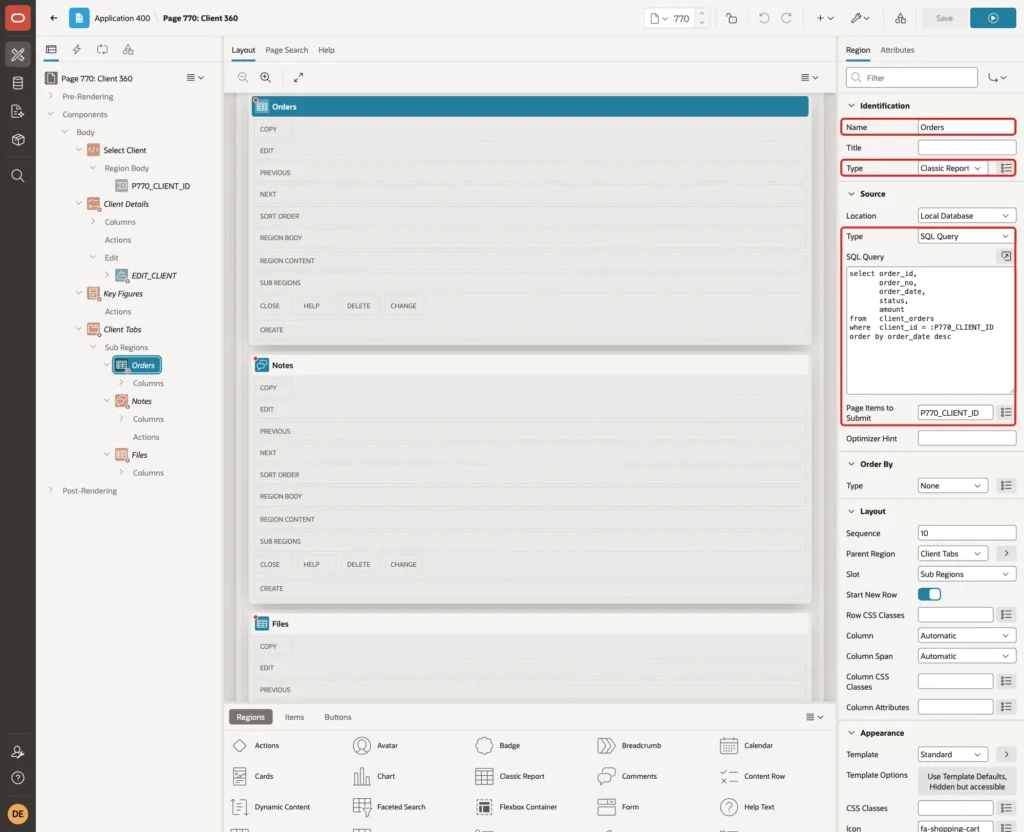
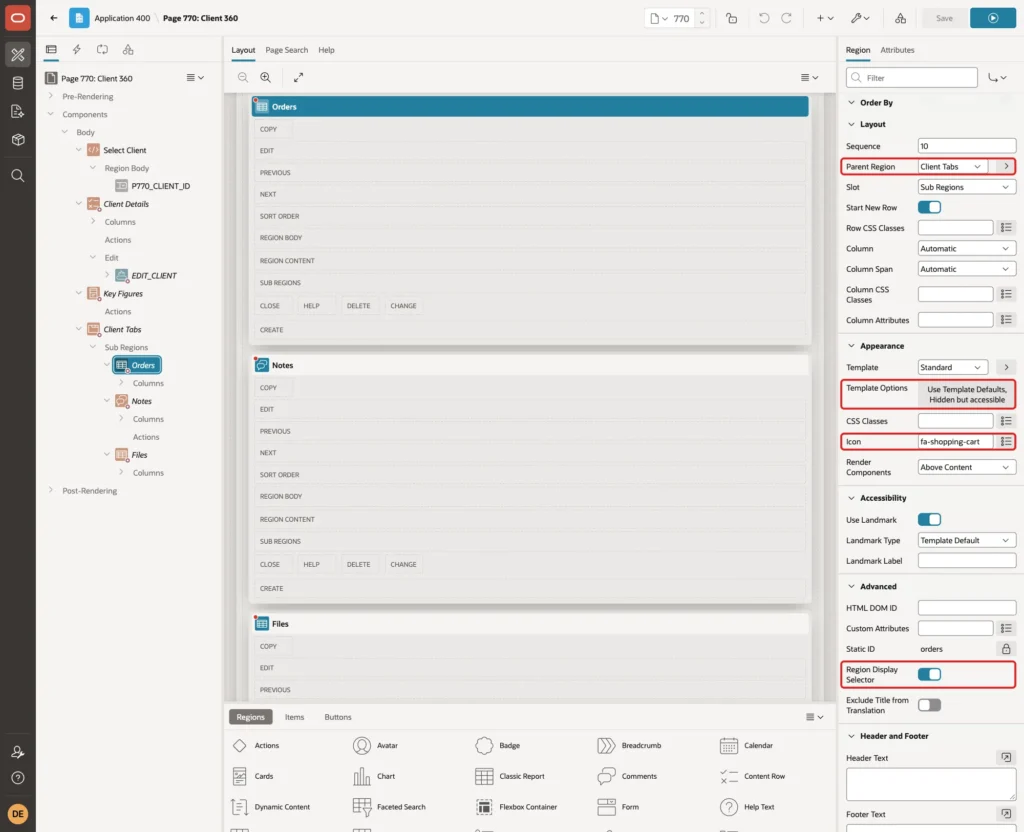
Check that Parent Region is Client Tabs. In Template Options, select Header Hidden but accessible, because the tab already shows the name. Set Icon to fa-shopping-cart, turn on Advanced > Region Display Selector, and add the Server-side Condition:
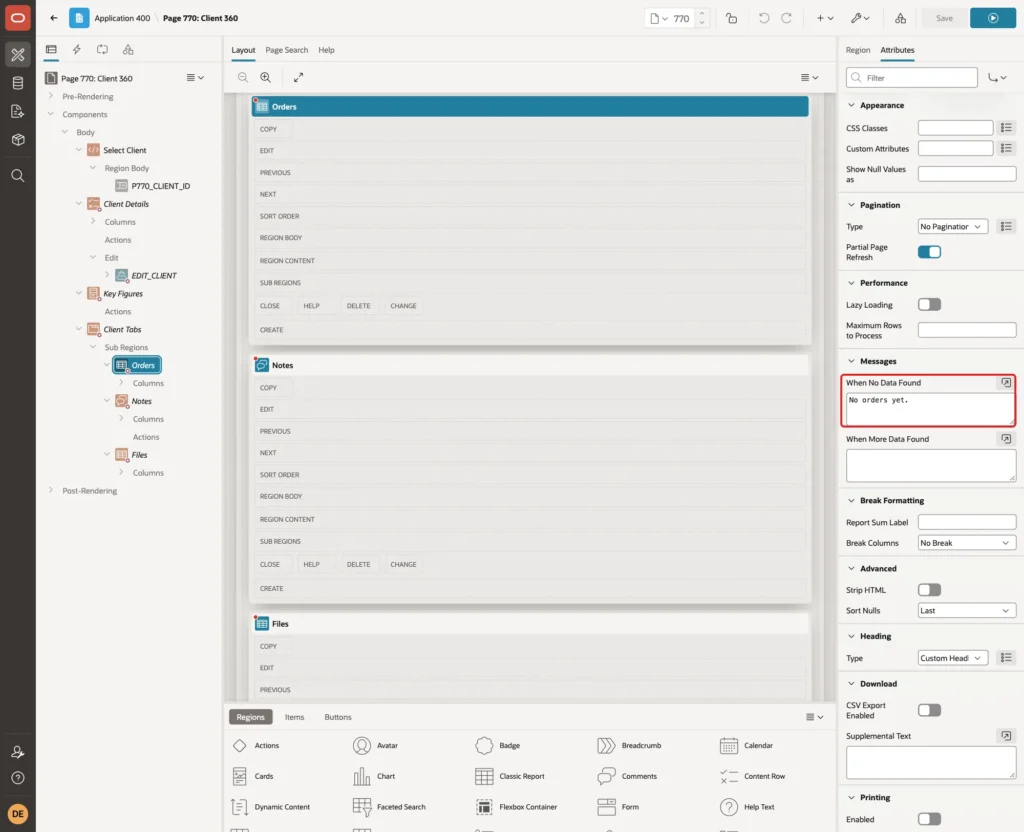
On the Attributes tab, set When No Data Found to No orders yet.:
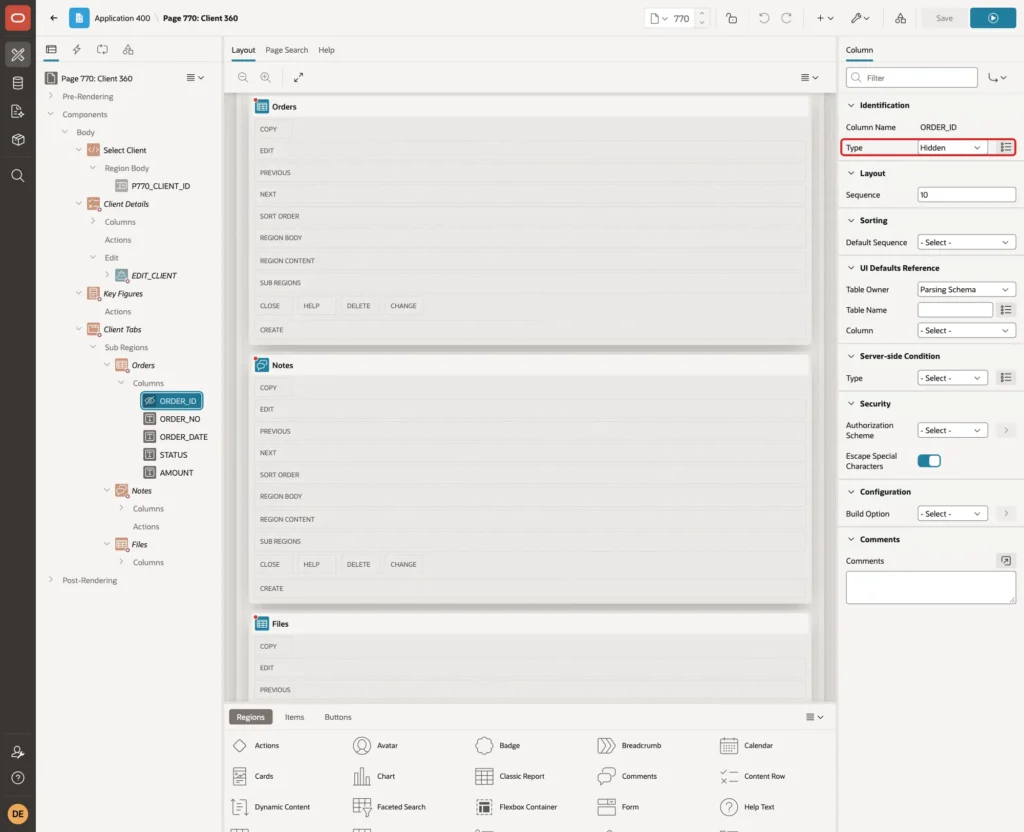
Expand the columns. Set ORDER_ID Type to Hidden:
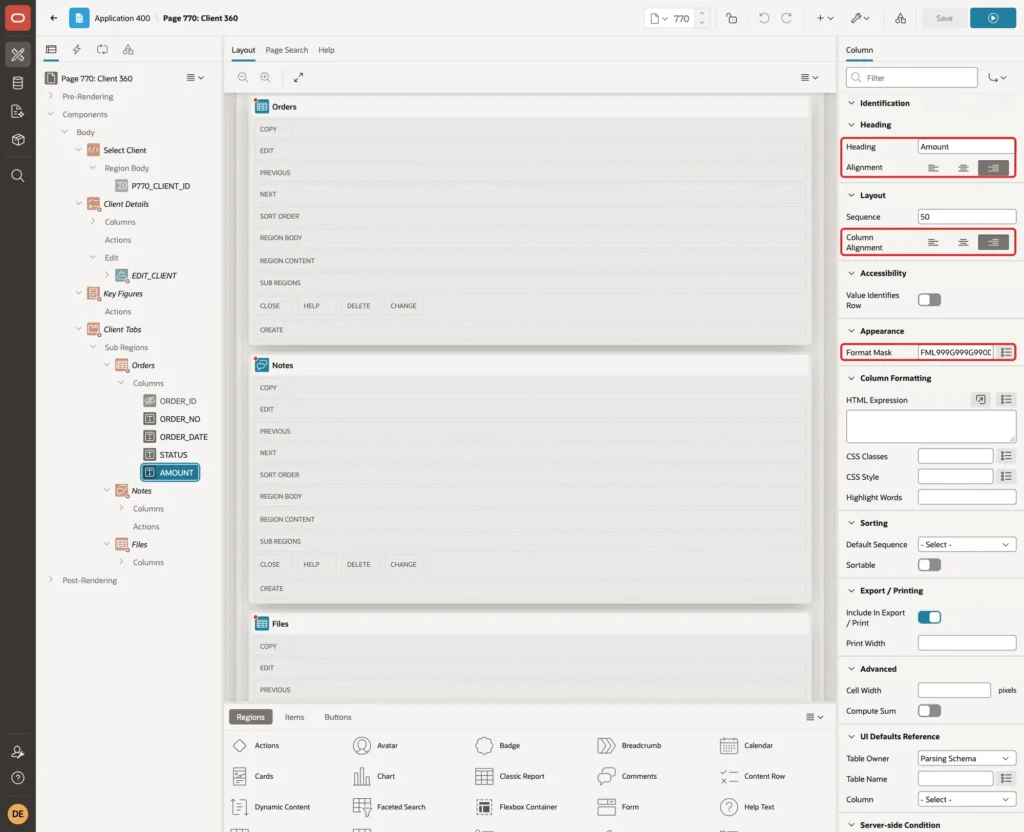
Set ORDER_DATE Format Mask to DD-Mon-YYYY. For AMOUNT, set Heading Alignment and Column Alignment to end and Format Mask to FML999G999G990D00:
Step 13: Add the Notes Tab
Create a second sub region of Client Tabs named Notes. Set Type to Comments, Source Type to SQL Query, Page Items to Submit to P770_CLIENT_ID, and enter this query:
Example:
select note_id,
       note_text,
       created_by,
       created_on,
       apex_string.get_initials(created_by) as initials
from   client_notes
where  client_id = :P770_CLIENT_ID
order by created_on desc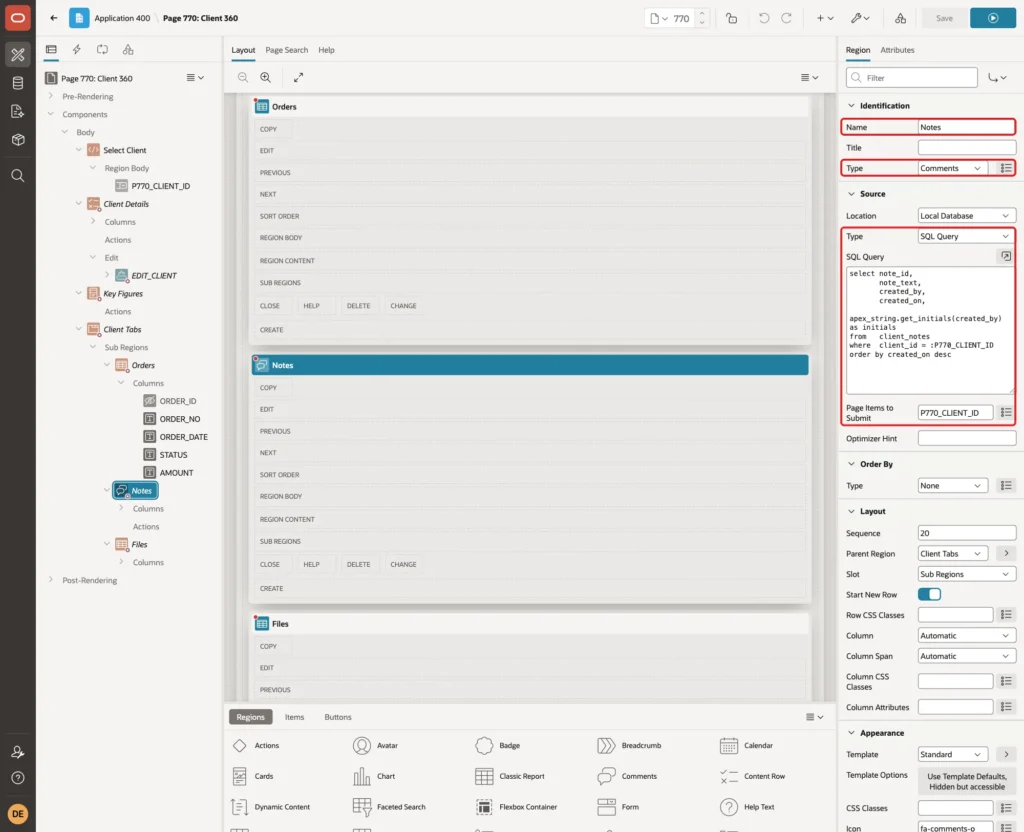
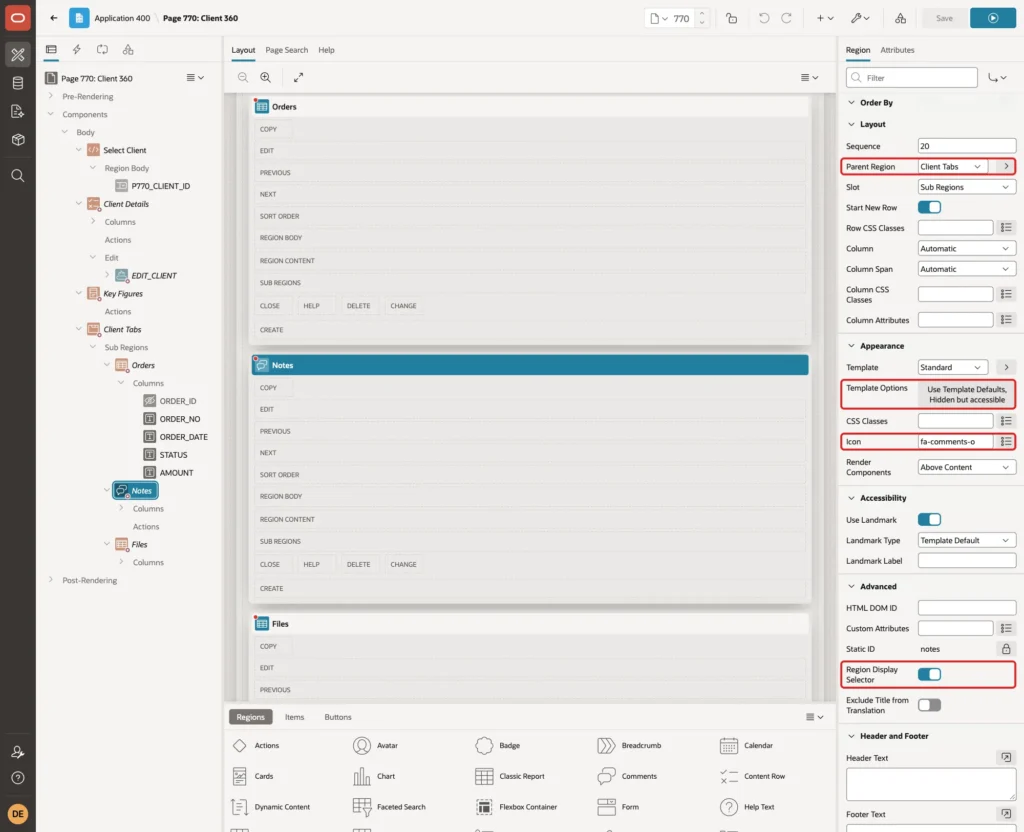
Set the same layout properties as the Orders tab, with Icon fa-comments-o:
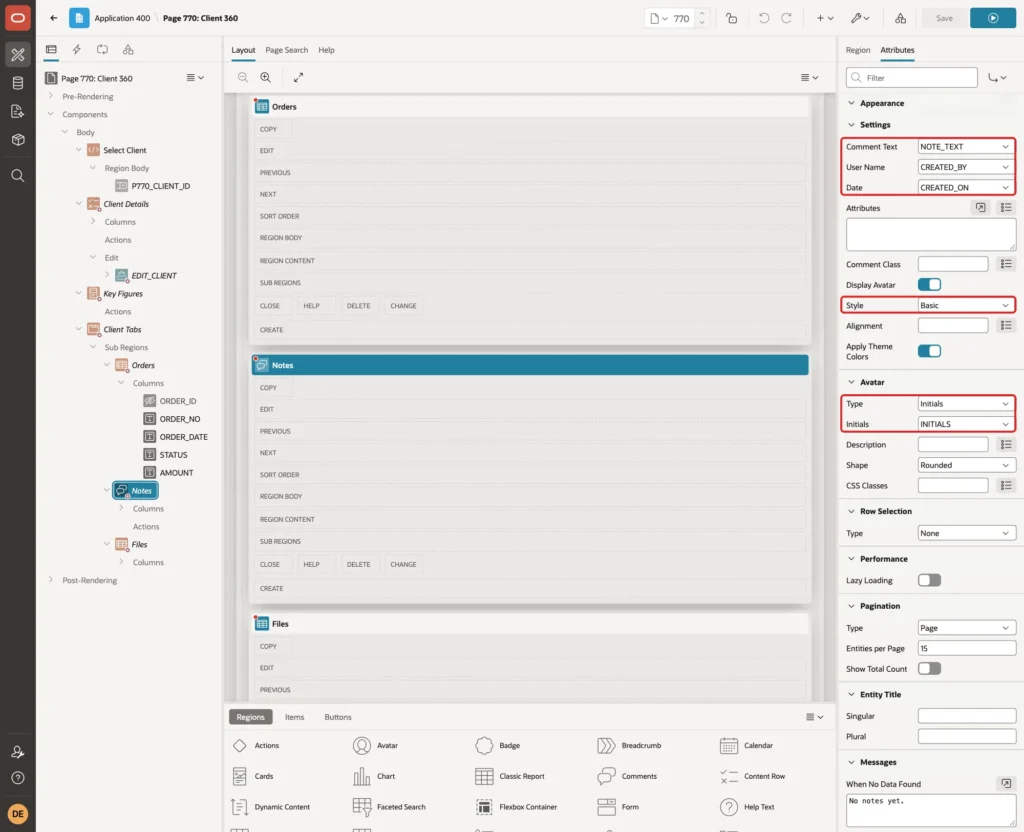
On the Attributes tab, set Comment Text to NOTE_TEXT, User Name to CREATED_BY, Date to CREATED_ON and Style to Basic. Set Avatar Type to Initials and Initials to INITIALS:
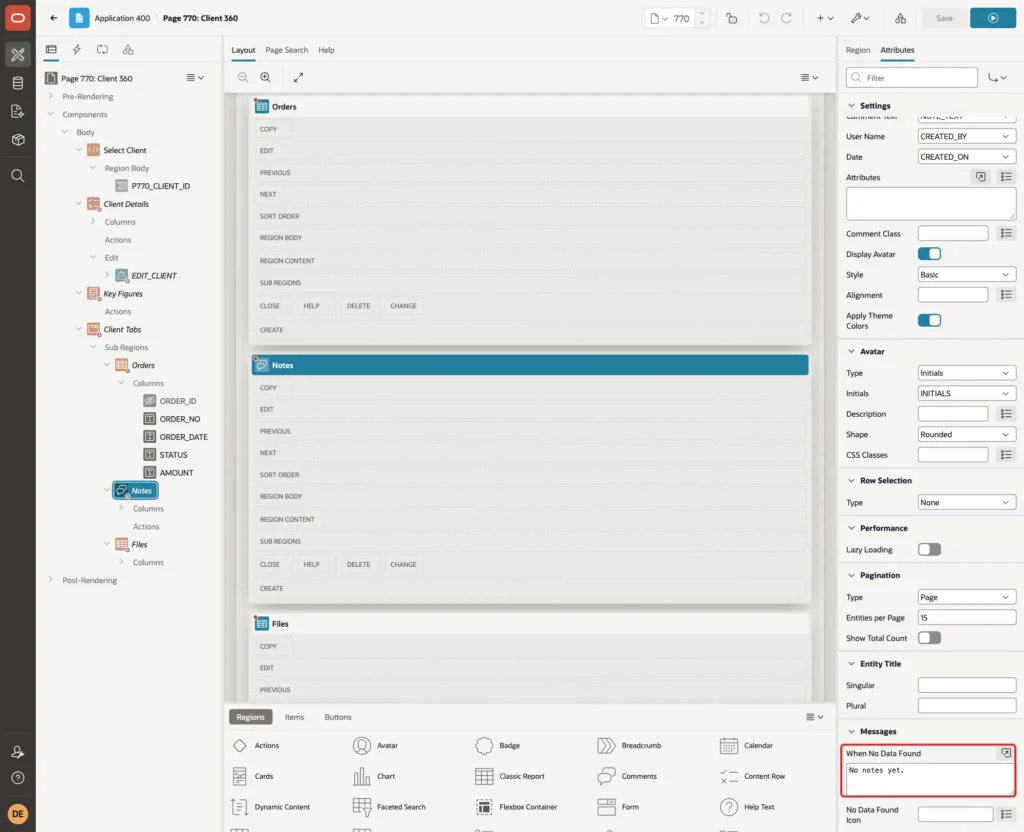
Set the CREATED_ON column Format Mask to DD-Mon-YYYY, and set When No Data Found to No notes yet.:
Step 14: Add the Files Tab
Create a third sub region named Files with Type Classic Report and this query. The DOWNLOAD column returns the BLOB length, which the Download BLOB column type needs:
Example:
select file_id,
       file_name,
       mime_type,
       dbms_lob.getlength(file_content) as download,
       uploaded_by,
       uploaded_on
from   client_files
where  client_id = :P770_CLIENT_ID
order by uploaded_on desc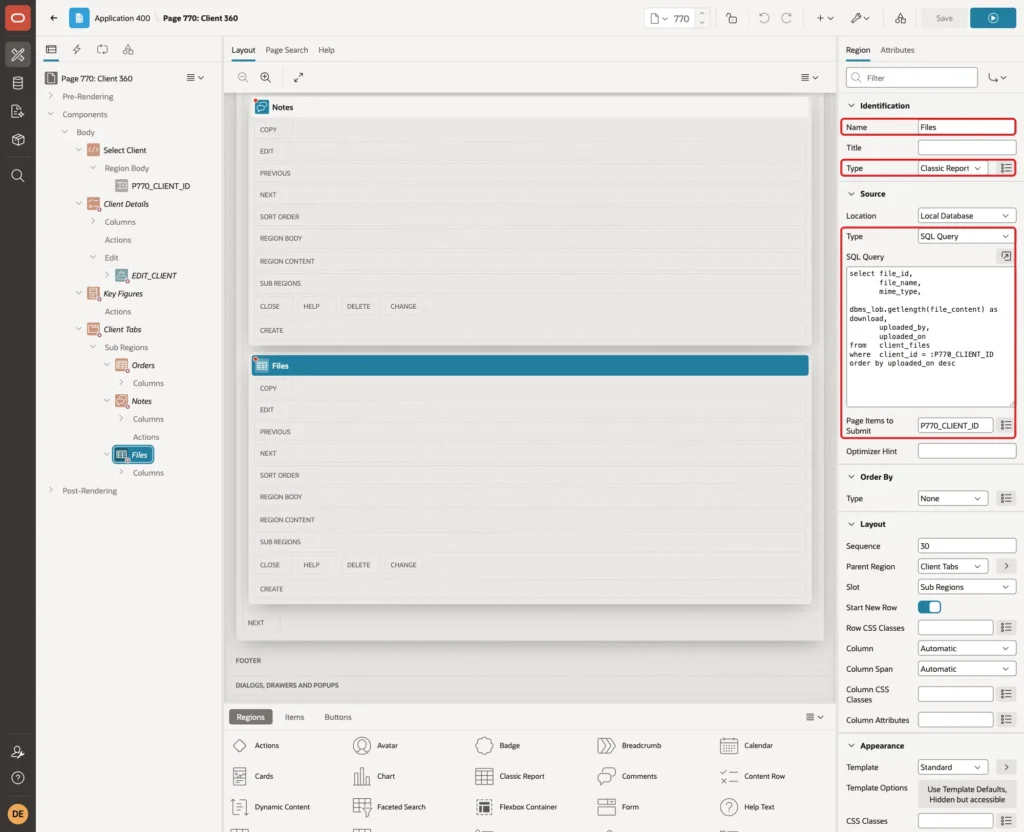
Set the layout properties like the other tabs, with Icon fa-paperclip:
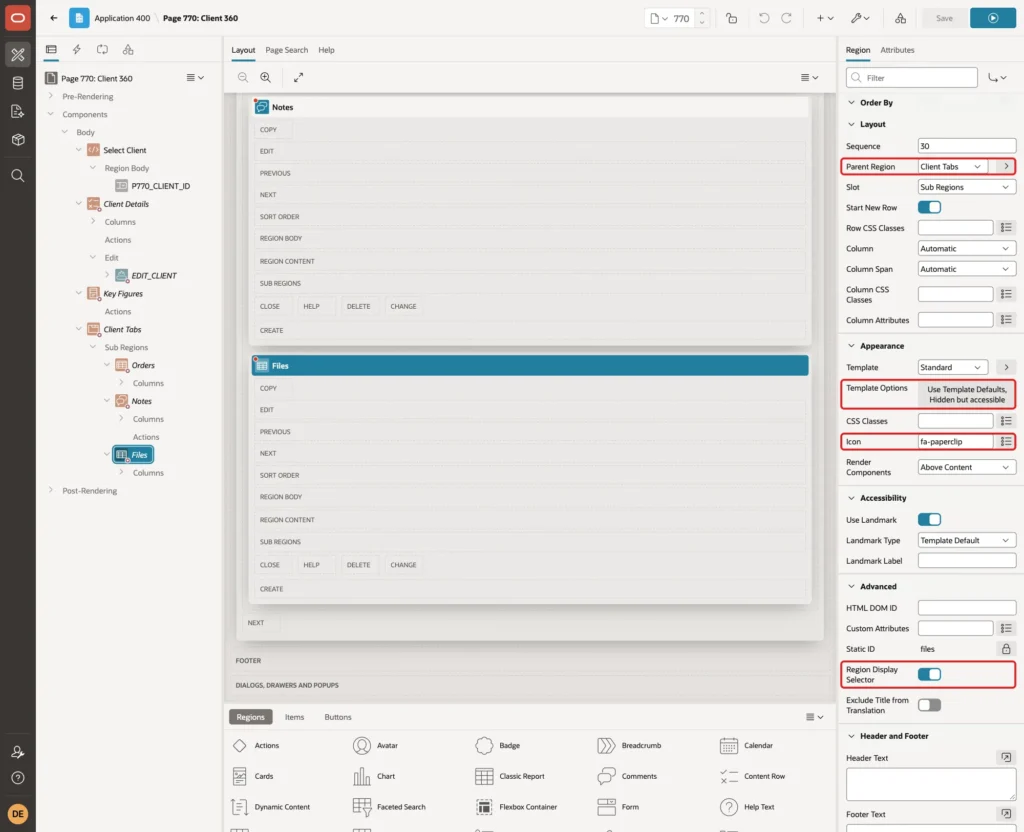
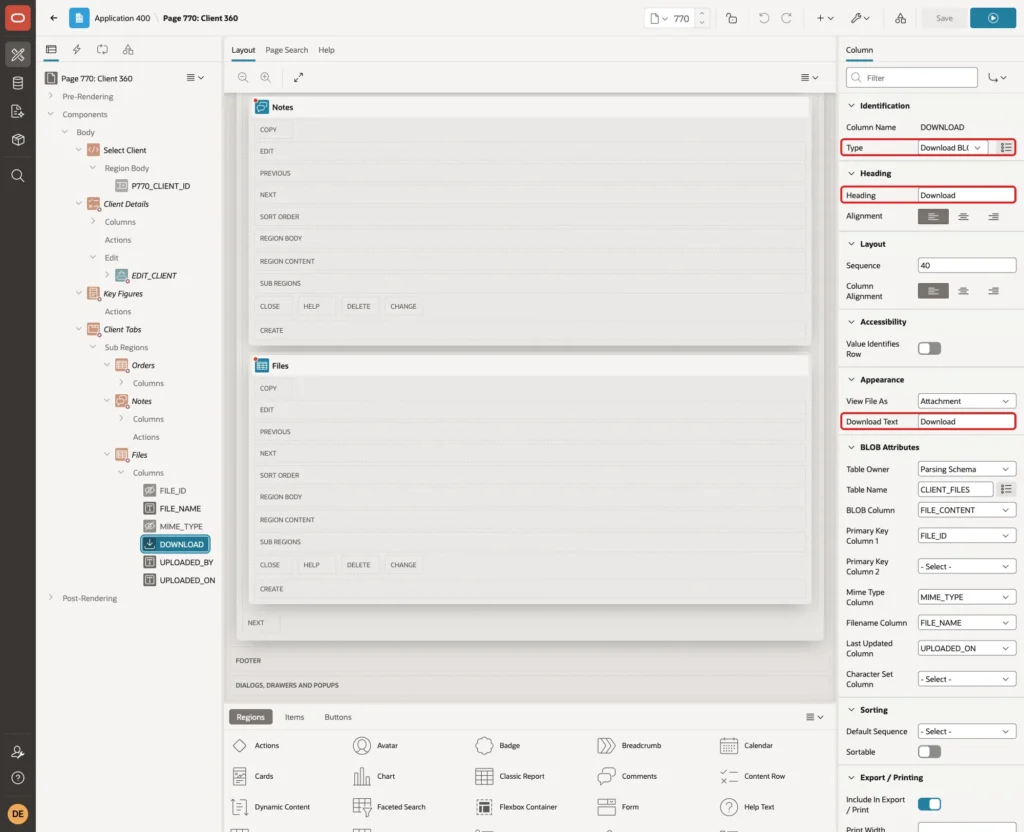
Set FILE_ID and MIME_TYPE to Hidden and the date Format Mask to DD-Mon-YYYY. Select the DOWNLOAD column, set Type to Download BLOB, Heading to Download and Download Text to Download:
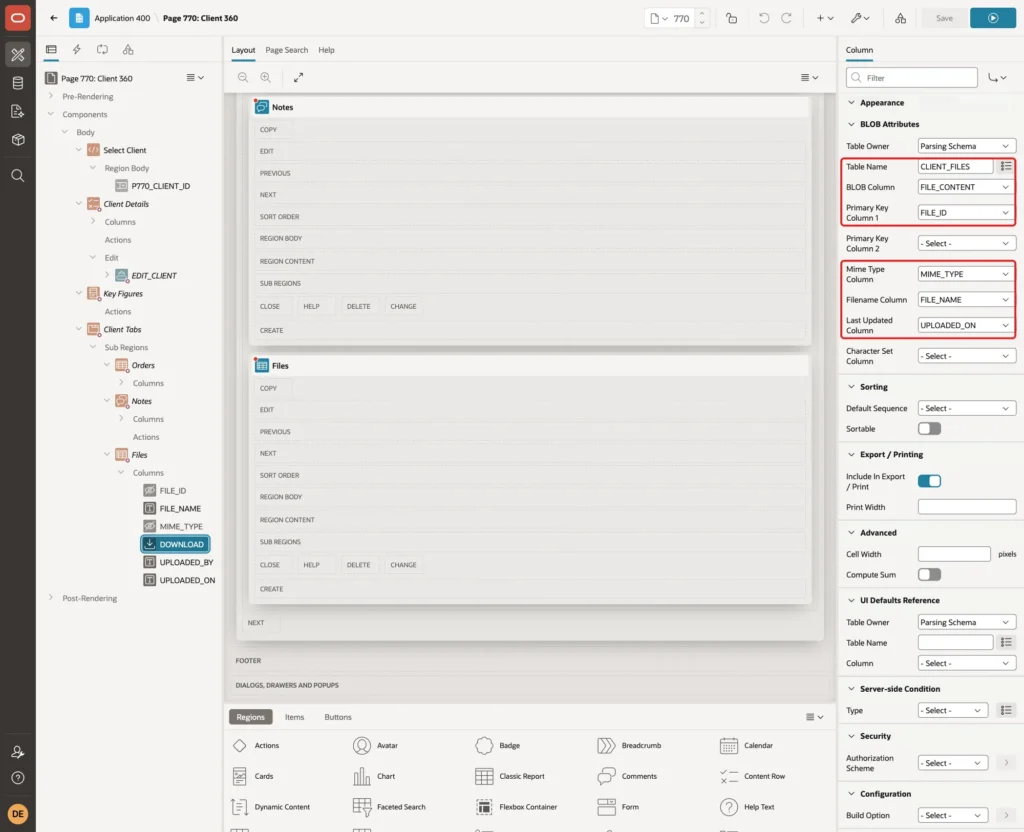
Under BLOB Attributes, set Table Name to CLIENT_FILES, BLOB Column to FILE_CONTENT, Primary Key Column 1 to FILE_ID, Mime Type Column to MIME_TYPE, Filename Column to FILE_NAME and Last Updated Column to UPLOADED_ON:
Save the page.
Step 15: Test the Page
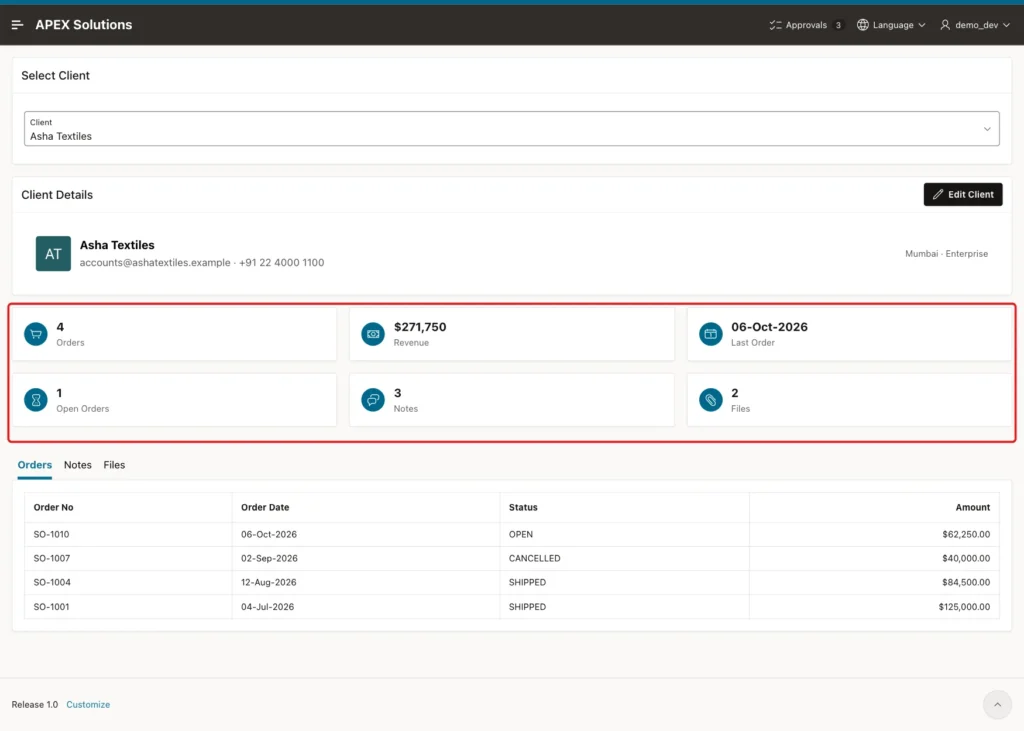
Run page 770 as a user with the Editor or Administrator role and pick Asha Textiles. The header, the six cards and the Orders tab appear:
Compare the cards with the tables. This query reads CLIENT_ORDERS directly, without the view:
Example:
select client_id,
       count(*)                                              as orders,
       sum(case when status <> 'CANCELLED' then amount end)  as revenue,
       count(case when status = 'OPEN' then 1 end)           as open_orders,
       to_char(max(order_date), 'DD-Mon-YYYY')               as last_order
from   client_orders
where  client_id in (1, 2)
group by client_id
order by client_id;
Output:
   CLIENT_ID    ORDERS    REVENUE    OPEN_ORDERS LAST_ORDER
____________ _________ __________ ______________ ______________
           1         4     271750              1 06-Oct-2026
           2         2      41300              1 21-Sep-2026
The page shows the same values: 4 orders, 271,750 revenue, 1 open order and 06-Oct-2026 for Asha Textiles, and 2 orders, 41,300, 1 open order and 21-Sep-2026 for Blue River Foods.
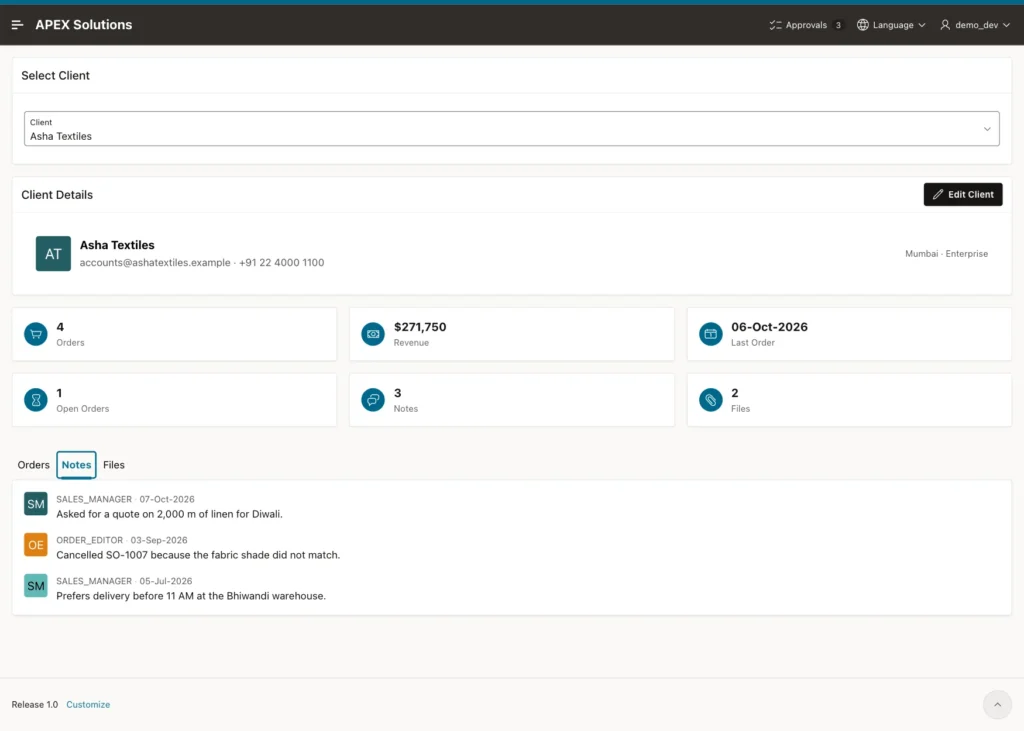
Click the Notes tab. The three notes appear with initials and dates, newest first:
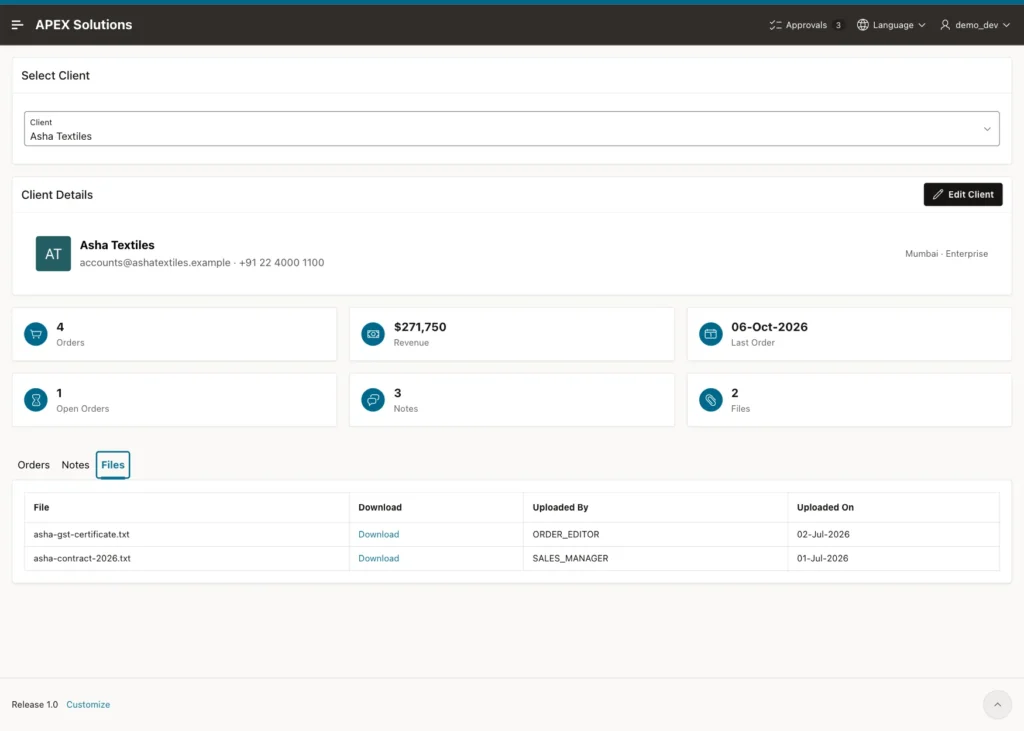
Click the Files tab. Both Download links returned the stored text files (asha-gst-certificate.txt and asha-contract-2026.txt) with their original content:
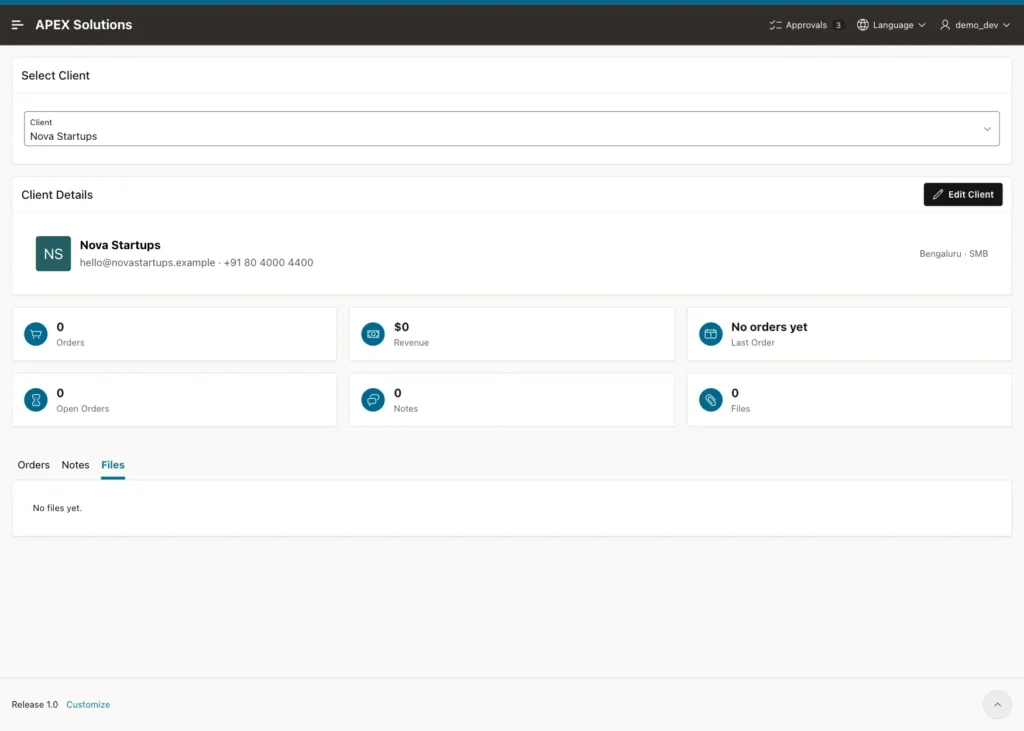
Now pick Nova Startups, the client with no related data. The page did not fail: the cards show 0, $0 and No orders yet, and the tab shows its no-data message. The Files tab stayed open after switching clients, because Remember Selection is By Session:
Edit a Client
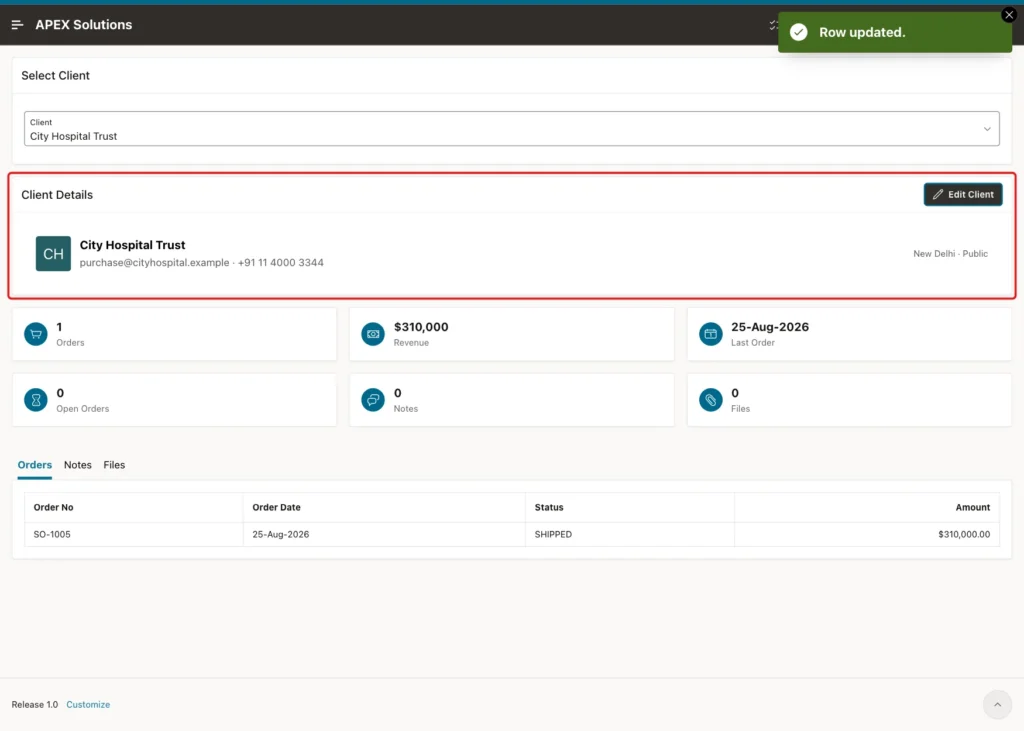
Pick City Hospital Trust and click Edit Client. The dialog opens with the client data. Change Phone to +91 11 4000 3344 and click Apply Changes:
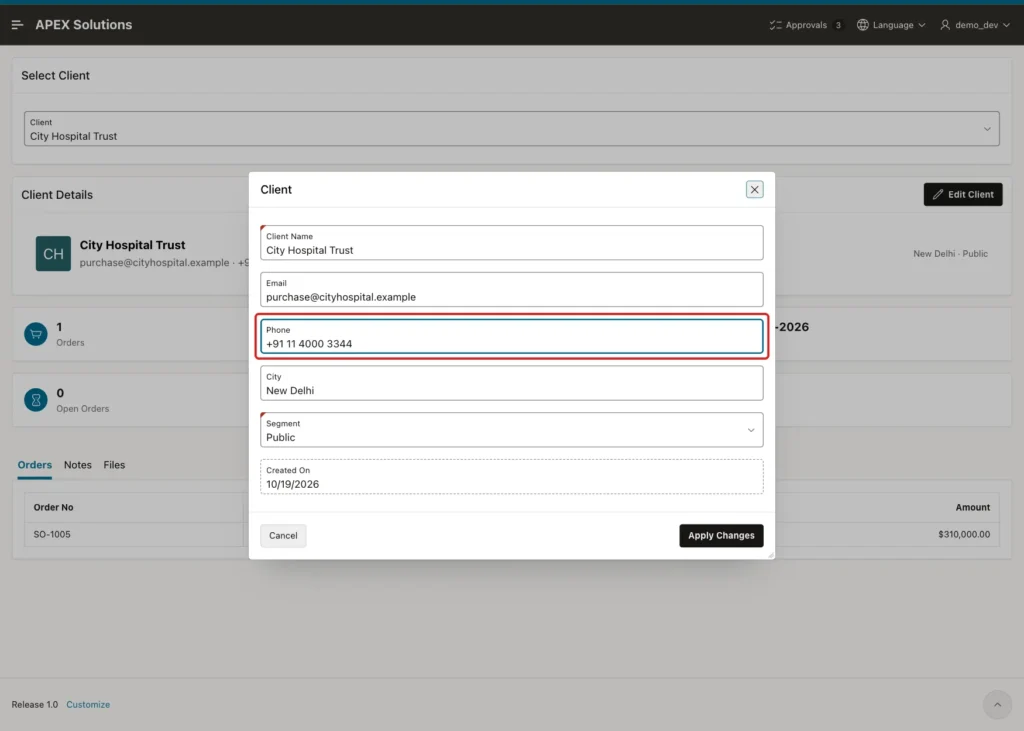
The dialog closes, APEX shows Row updated., and only the Client Details region reloads with the new phone number:
Check the table:
Example:
select client_id, client_name, phone from clients where client_id = 3;
Output:
   CLIENT_ID CLIENT_NAME            PHONE
____________ ______________________ ___________________
           3 City Hospital Trust    +91 11 4000 3344
Test as a Reader
Sign in as SALES_USER, a user with the Reader role, and pick Blue River Foods. All data is visible, but there is no Edit Client button:
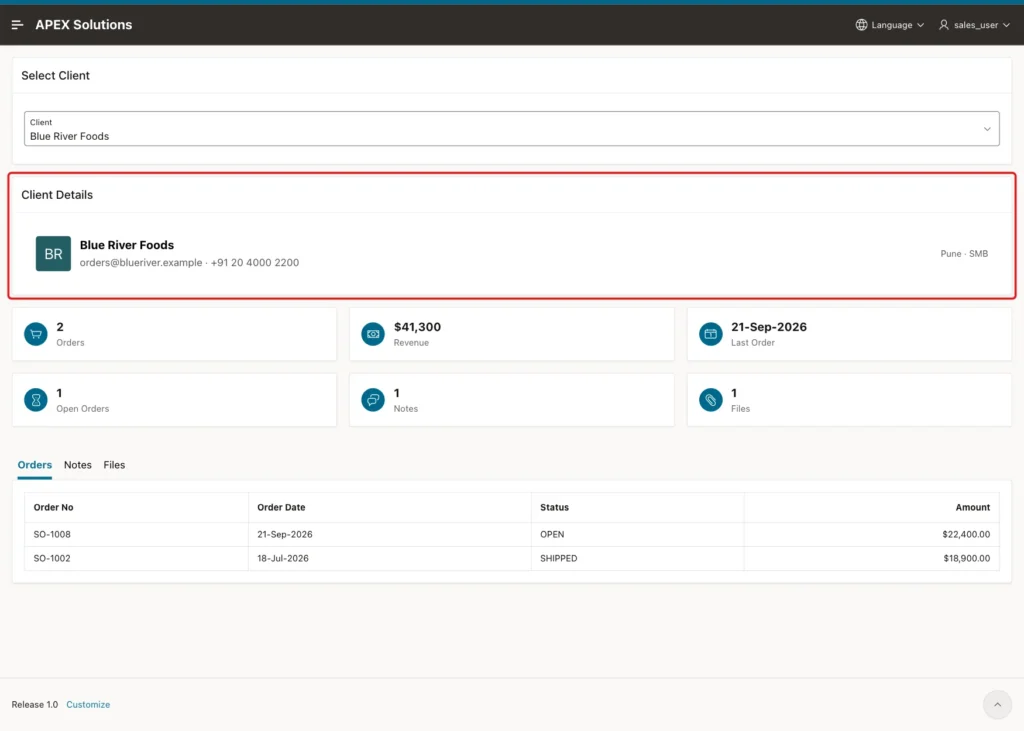
Page 771 uses the same Can Edit scheme. This block creates an APEX session for SALES_USER in SQL and checks the scheme:
Example:
set serveroutput on
begin
  apex_session.create_session(p_app_id => 400, p_page_id => 770, p_username => 'SALES_USER');
  dbms_output.put_line(v('APP_USER') || ': ' ||
    case when apex_authorization.is_authorized('Can Edit') then 'can edit' else 'read only' end);
  apex_session.delete_session;
end;
/
Output:
SALES_USER: read only

PL/SQL procedure successfully completed.
The same block for ORDER_EDITOR printed ORDER_EDITOR: can edit. Run each user in a new database session: the scheme is evaluated once per session, and when two users were checked in one SQL session, the second user got the cached result of the first.
Try a Forged Client ID
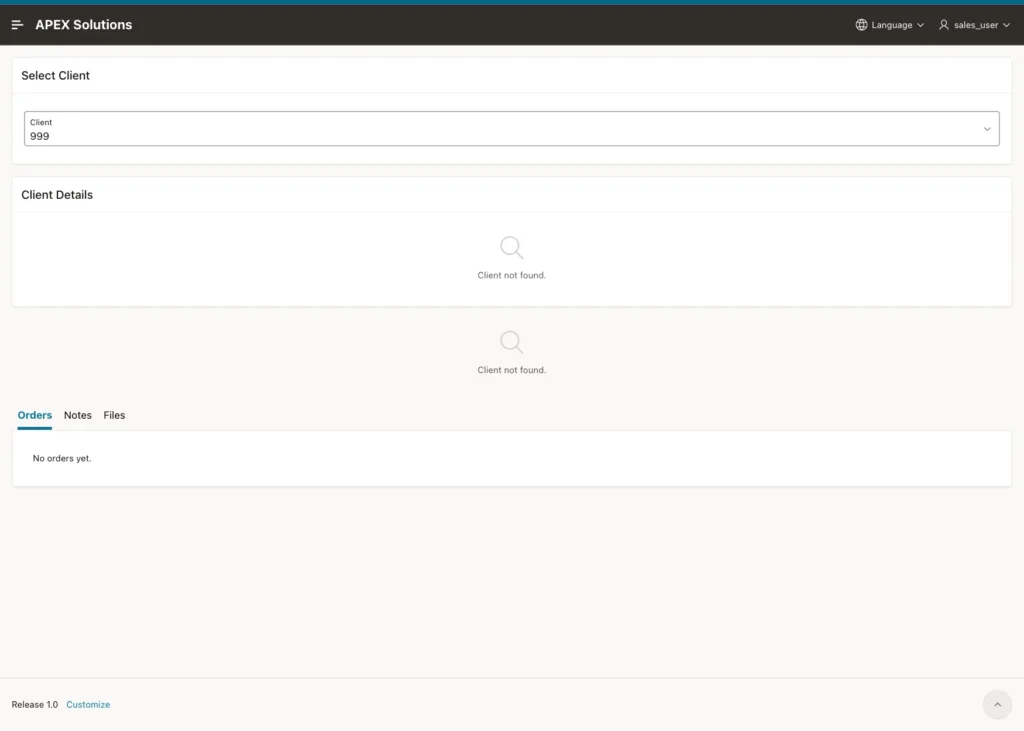
In the browser console, add an option 999 to the select list and submit the page. APEX accepted the value, as it does for any select list value sent by the browser. The page showed Client not found. and empty tabs; no data of another client appeared:
Next, open the page with a client ID in the URL and no checksum, for example client-360?session=...&p770_client_id=2. APEX refused it with a session state protection violation, because Page Access Protection is Arguments Must Have Checksum:
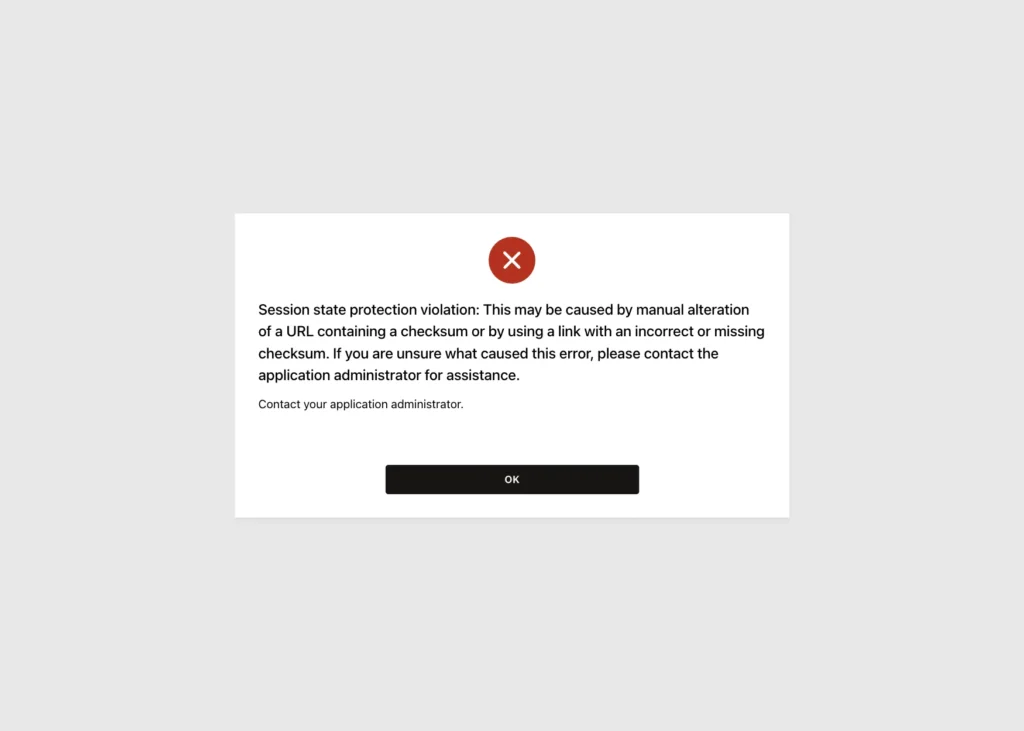
Links to the 360 page from other pages must be built by APEX (a link column or button with a target), so they carry a valid checksum.
Things to Know
- Never count child rows of several tables in one join. Group each child table first, then join the totals, as in the CLIENT_360_V view. The direct join counted 24 orders instead of 4.
- Use LEFT JOIN and NVL in the summary view, or clients without child rows disappear or show empty cards.
- Each region on a 360 page runs its own query. Index the foreign key column of every child table, because every query filters by it.
- In a Cards region, the icon column needs the full class (fa fa-money). With only fa-money, every card showed the same default icon.
- Refreshing a select list that has Page Action on Selection Submit Page clears it and submits the page. Refresh the regions instead.
- Authorization schemes evaluated once per session are cached for that session; test different users in separate sessions.
Related Guides
- How to Build a Dashboard Page with KPI Cards and Charts in Oracle APEX
- How to Attach Files to Orders in Oracle APEX
Conclusion
A 360 view page in Oracle APEX needs one selected record and one query per region. A summary view with pre-grouped child tables gives correct key figures, a Content Row region shows the header, Cards show the figures, and a Region Display Selector turns the related reports into tabs.
An edit dialog behind an authorization scheme keeps the page read-only for readers, and a Dialog Closed dynamic action refreshes the header after a save. The same layout works for projects, suppliers or any record with related data.
