
A dashboard gives users the state of the business on one page: a row of key figures at the top and a few charts below that show trends and breakdowns. Oracle APEX builds this from standard components. A Cards region, fed by one SQL query, shows the key figures as KPI cards, and Chart regions show the trends. The Create Page wizard can lay out the charts for you. This guide builds a sales dashboard with four KPI cards and three charts over orders data.
Step 1: Create the Dashboard Page
In App Builder, click Create Page and choose Dashboard. Enter a page number and name, and pick a layout. Primary and 2 secondary charts creates one wide chart and two smaller charts side by side:
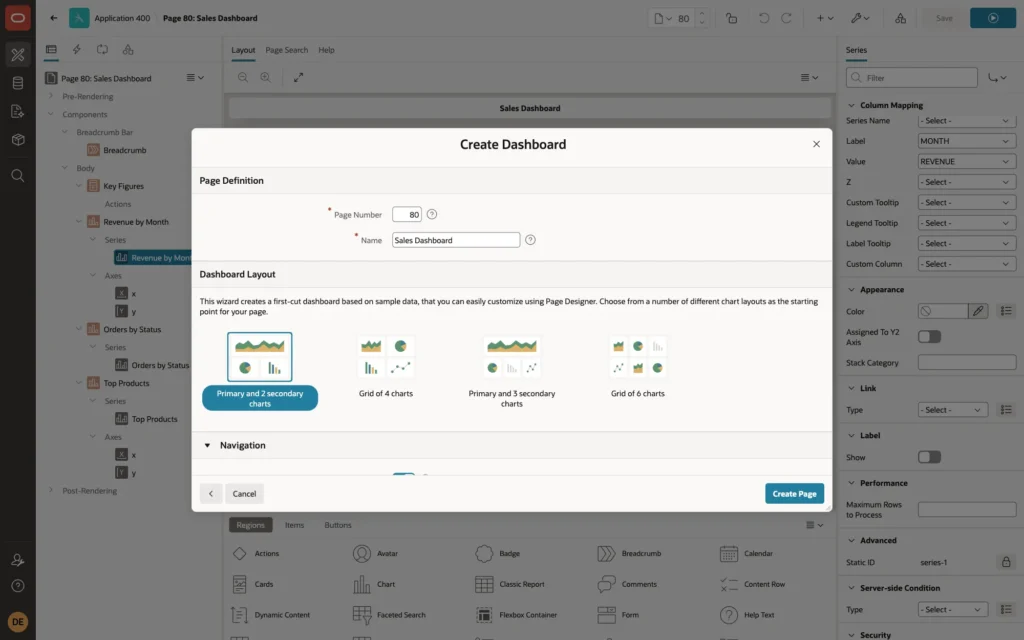
The wizard creates the chart regions with sample data. The next steps replace the sample data with queries on the application's own tables and add the KPI cards above the charts.
Step 2: The KPI Cards
Add a Cards region, Key Figures, before the first chart. One query returns one row per card, with the label, the formatted value, and an icon class:
Example:
select 1 as seq, 'Orders' as label,
       to_char(count(*), 'FM999G990') as value,
       'fa fa-shopping-cart' as icon
from   orders
union all
select 2, 'Revenue',
       to_char(sum(l.quantity * l.unit_price), 'FML999G999G990'),
       'fa fa-money'
from   order_lines l
join   orders o on o.order_id = l.order_id
where  o.status <> 'CANCELLED'
union all
select 3, 'Awaiting Approval',
       to_char(count(*), 'FM999G990'),
       'fa fa-hourglass-half'
from   orders
where  status = 'NEW'
union all
select 4, 'Customers',
       to_char(count(*), 'FM999G990'),
       'fa fa-users'
from   customers
order  by 1;
Output:
   SEQ LABEL                VALUE       ICON
______ ____________________ ___________ _______________________
     1 Orders               150         fa fa-shopping-cart
     2 Revenue              $239,820    fa fa-money
     3 Awaiting Approval    42          fa fa-hourglass-half
     4 Customers            42          fa fa-users

4 rows selected.
The values are formatted in the query, so each card can use its own format: a count for orders, a currency for revenue. Revenue leaves out cancelled orders. In the region's Attributes, set:
- Appearance: Layout Grid, Grid Columns 4, so the four cards fill one row.
- Title: Column VALUE. Subtitle: Column LABEL.
- Icon and Badge: Icon Source Icon Class Column, Icon Column ICON, Icon Position Start.
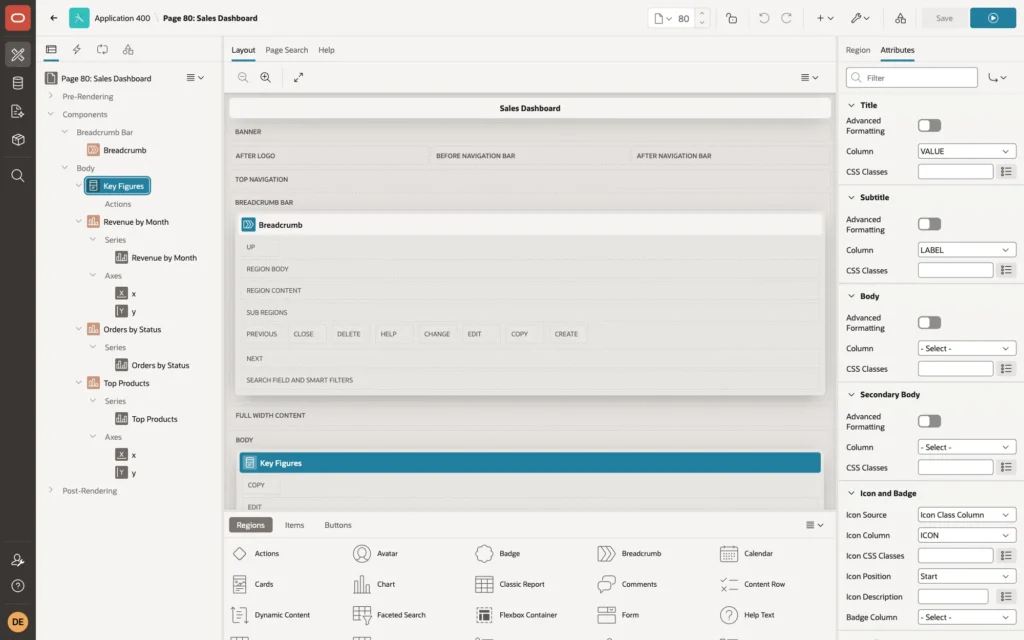
The icon column must hold the full class, fa fa-shopping-cart, not only fa-shopping-cart. In a first test with the short names, all four cards showed the same default icon: the rendered element had the fa-shopping-cart class but not the fa base class.
For a cleaner look, set the region's template options to hide the header and remove the region UI, so only the cards are shown.
Step 3: The Charts
Each chart region has a type and one or more series. A series has a SQL query and a column mapping: Label for the category, Value for the number. The Revenue by Month chart is a bar chart with this series:
Example:
select to_char(trunc(o.order_date, 'MM'), 'Mon YYYY') as month,
       sum(l.quantity * l.unit_price)               as revenue
from   orders o
join   order_lines l on l.order_id = o.order_id
where  o.status <> 'CANCELLED'
group  by trunc(o.order_date, 'MM')
order  by trunc(o.order_date, 'MM')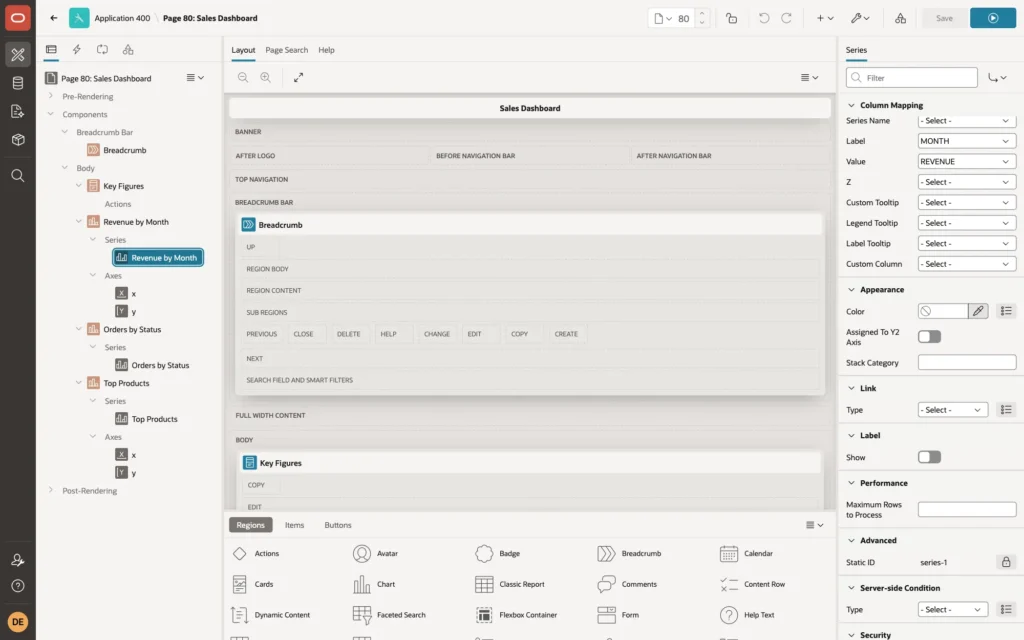
Grouping by the truncated date and sorting by it keeps the months in calendar order; sorting by the formatted text would put Apr before Jan. The other two charts:
- Orders by Status: type Donut, query select status, count(*) as orders from orders group by status, Label STATUS, Value ORDERS, with series labels shown. Set the chart's Value format to Decimal with 0 decimal places, or the slices show 48.00 instead of 48.
- Top Products: type Bar, a query of revenue per product ordered by revenue with fetch first 5 rows only, Label PRODUCT, Value REVENUE.
Charts that should sit side by side need Start New Row turned off in Layout for the second one; the wizard sets this for its secondary charts.
The Result
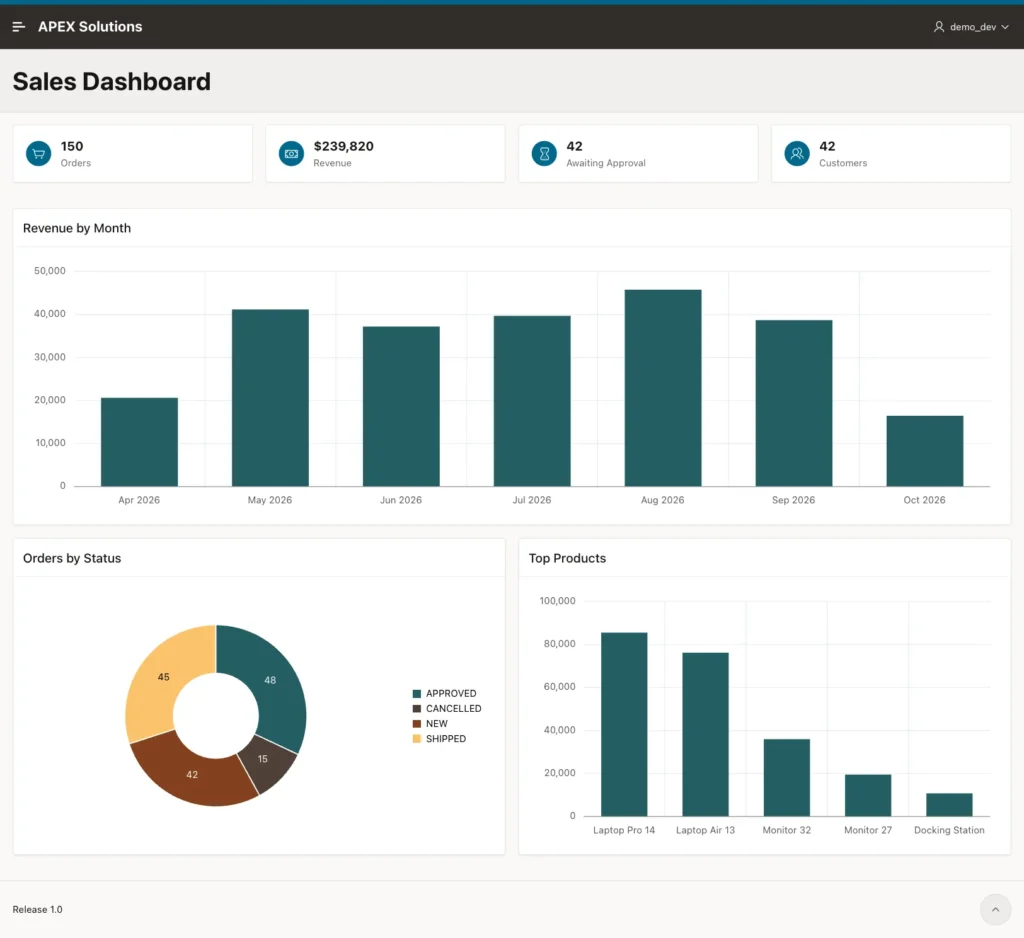
The 42 orders awaiting approval match the NEW slice of the donut, a quick check that the cards and charts read the same data.
Things to Know
- Each region runs its own query when the page is rendered. For a slow query in a Cards region, turn on Lazy Loading in its Attributes, so the page shows first and the cards load after.
- To make a card open a report, set the Cards region's Actions: a Full Card link to a page, with the label passed as a page item to filter the report.
- To filter the whole dashboard, for example by year, add a select list item and refer to it in every query; list it in Page Items to Submit of each region, and refresh the regions with a dynamic action on Change.
- For a dashboard many users open, keep the queries cheap: aggregate in a materialized view or a summary table, and let the regions read from it.
Related Guides
Conclusion
A dashboard page in Oracle APEX is a Cards region for the key figures and Chart regions for the trends. Return one row per card from a single query with the value already formatted, map it to the card's title, subtitle, and icon, and give each chart a series query with a label and a value column. The Dashboard page type lays out the charts for you.
