
Business records collect documents: a delivery note, a signed contract, a photo of a damaged package, a spreadsheet from the customer. Users expect to attach any number of such files to the record, download them later, and remove the wrong one, without leaving the application.
This guide builds file attachments for orders in Oracle APEX: a child table for the files, a drop zone that uploads several files at once with type and size limits, a report with download links, and a delete with confirmation.
It differs from storing one image in a column of the record itself, which the guide How to Upload an Image and Show It in a Form and a Report in Oracle APEX covers.
Step 1: Create the Table
The files go into their own table, ORDER_ATTACHMENTS, so an order can have any number of them. Its foreign key to ORDERS has ON DELETE CASCADE, so deleting an order deletes its files, and an index on ORDER_ID keeps the list of an order's files fast:
Example:
create table order_attachments (
    attachment_id number generated by default as identity
                  constraint order_attachments_pk primary key,
    order_id      number not null
                  constraint order_attachments_order_fk
                  references orders on delete cascade,
    file_name     varchar2(400) not null,
    mime_type     varchar2(255) not null,
    file_size     number not null
                  constraint order_attachments_size_ck check (file_size > 0),
    content       blob not null,
    uploaded_by   varchar2(255) default coalesce(sys_context('APEX$SESSION', 'APP_USER'), user) not null,
    uploaded_on   date default sysdate not null
);

create index order_attachments_order_ix on order_attachments (order_id);

insert into order_attachments (order_id, file_name, mime_type, file_size, content)
values (10, 'order-10-note.txt', 'text/plain', 26,
        utl_raw.cast_to_raw('Deliver to the back door.'||chr(10)));

commit;

select attachment_id, order_id, file_name, mime_type, file_size, uploaded_by
from   order_attachments;
Output:
Table ORDER_ATTACHMENTS created.

Index ORDER_ATTACHMENTS_ORDER_IX created.

1 row inserted.

Commit complete.

   ATTACHMENT_ID    ORDER_ID FILE_NAME            MIME_TYPE        FILE_SIZE UPLOADED_BY
________________ ___________ ____________________ _____________ ____________ ______________
1 10 order-10-note.txt text/plain 26 APXSOL- CONTENT holds the file itself as a BLOB, with FILE_NAME and MIME_TYPE for the download.
- FILE_SIZE has a check constraint against empty files.
- UPLOADED_BY defaults to the APEX user, read from the APEX$SESSION context, and to the database user outside APEX, as for the sample row.
ORDERS is the order table of the earlier guides:
Example:
create table customers (
    customer_id number generated by default as identity
                constraint customers_pk primary key,
    name        varchar2(100) not null,
    email       varchar2(120) not null
);

create table products (
    product_id number generated by default as identity
               constraint products_pk primary key,
    name       varchar2(60)  not null,
    category   varchar2(30)  not null,
    price      number(10, 2) not null
);

create table orders (
    order_id    number generated by default as identity
                constraint orders_pk primary key,
    customer_id number not null
                constraint orders_customer_fk references customers,
    order_date  date default sysdate not null,
    status      varchar2(12) default 'NEW' not null
                constraint orders_status_ck
                check (status in ('NEW', 'APPROVED', 'SHIPPED', 'CANCELLED')),
    approved_by varchar2(60),
    approved_on date
);

create table order_lines (
    line_id    number generated by default as identity
               constraint order_lines_pk primary key,
    order_id   number not null
               constraint order_lines_order_fk references orders on delete cascade,
    product_id number not null
               constraint order_lines_product_fk references products,
    quantity   number not null
               constraint order_lines_qty_ck check (quantity > 0),
    unit_price number(10, 2) not null,
    constraint order_lines_product_uk unique (order_id, product_id)
);

create index order_lines_order_ix on order_lines (order_id);
create index order_lines_product_ix on order_lines (product_id);
Step 2: Create the Page
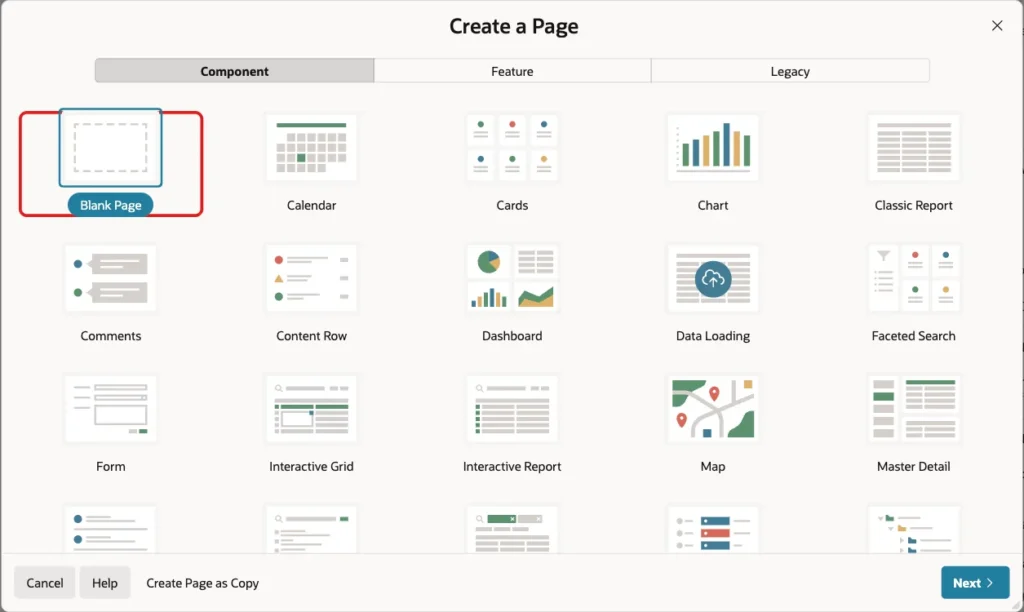
In App Builder, open the application and click Create Page. On the Component tab, click Blank Page:
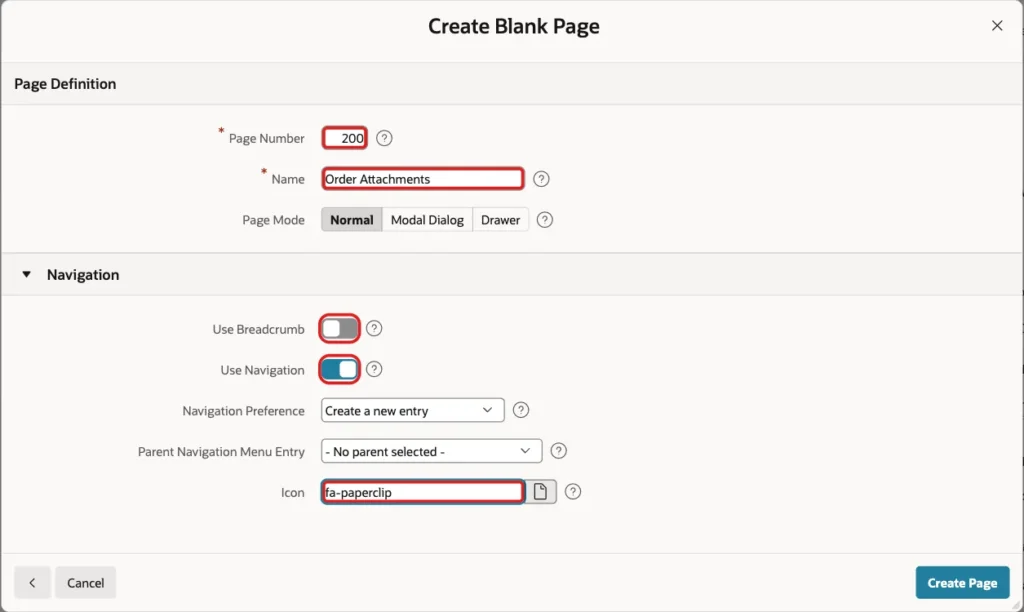
Enter Page Number 200 and Name Order Attachments, turn off Use Breadcrumb, keep Use Navigation on with Create a new entry, and set Icon to fa-paperclip. Click Create Page:
Step 3: Choose the Order
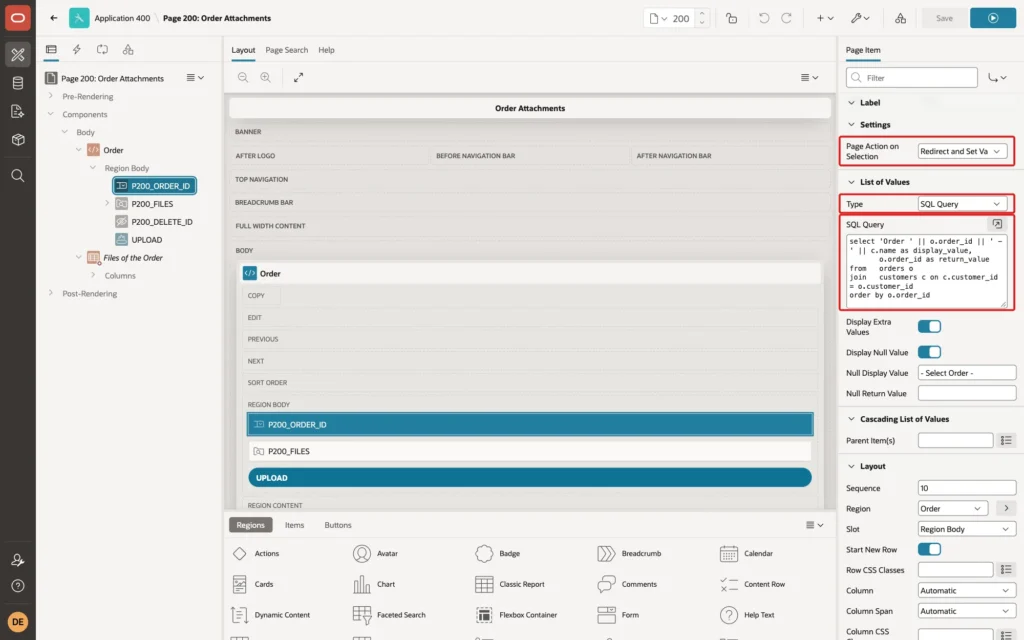
In Page Designer, create a Static Content region named Order. In it, create a Select List item, P200_ORDER_ID, label Order, with Value Required on, List of Values Type SQL Query, and this query:
Example:
select 'Order ' || o.order_id || ' - ' || c.name as display_value,
       o.order_id as return_value
from   orders o
join   customers c on c.customer_id = o.customer_id
order by o.order_id
Set Null Display Value to - Select Order -, and in the Settings group set Page Action on Selection to Redirect and Set Value. Choosing an order then reloads the page with that order, so its files appear at once, without a button:
Step 4: Add the Drop Zone for Several Files
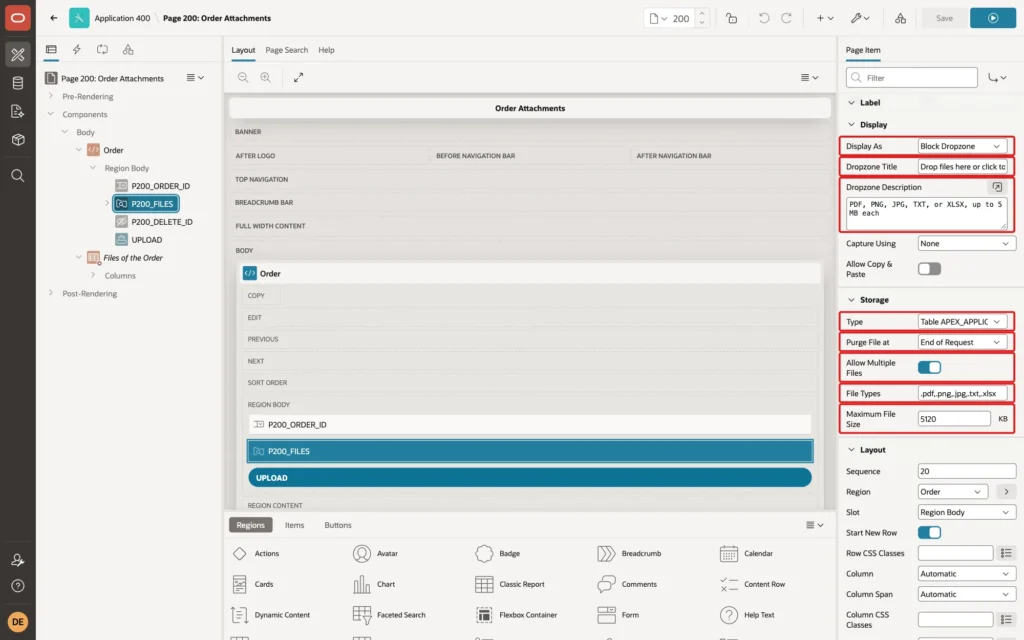
In the Order region, create a page item named P200_FILES with Type File Upload and label Files:
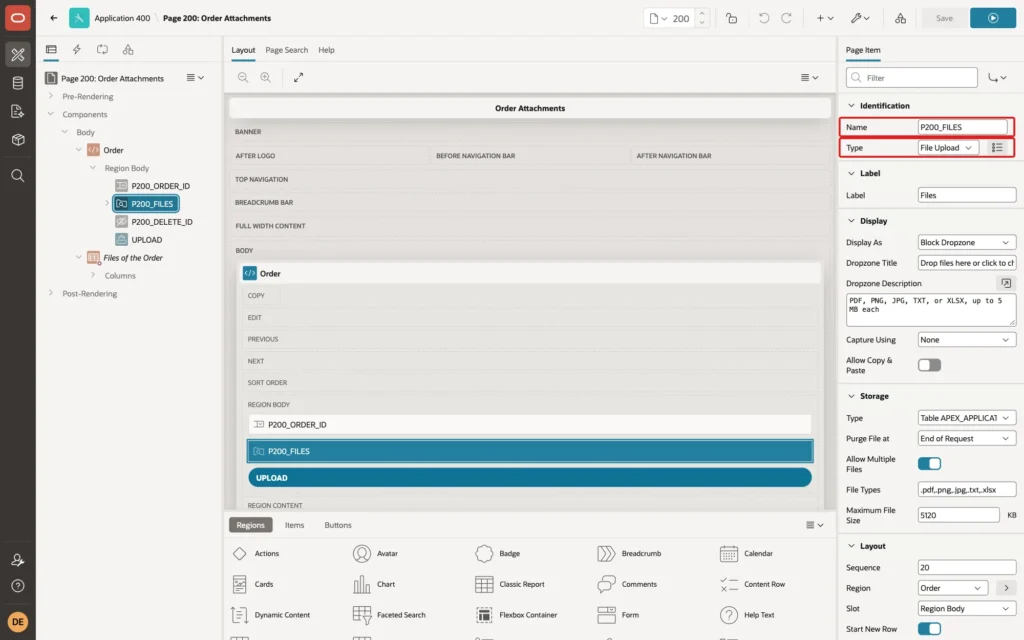
Set its Display and Storage properties:
- Display As: Block Dropzone, a large area to drop files on or click.
- Dropzone Title: Drop files here or click to choose. Dropzone Description: PDF, PNG, JPG, TXT, or XLSX, up to 5 MB each.
- Storage Type: Table APEX_APPLICATION_TEMP_FILES. APEX keeps the uploaded files there until the page's own code moves them.
- Purge File at: End of Request, so the temporary copies are removed after the page submit.
- Allow Multiple Files: on.
- File Types: .pdf,.png,.jpg,.txt,.xlsx.
- Maximum File Size: 5120, in KB, which is 5 MB.
Add a hidden item, P200_DELETE_ID, with Value Protected off; Step 7 sets it from JavaScript. Then add a button UPLOAD, label Upload, Hot, with Action Submit Page.
Step 5: Save the Files into the Table
When several files are uploaded, the item holds their names in APEX_APPLICATION_TEMP_FILES, separated by colons. In the Processing tab, create a process named Save attachments, Type Execute Code, with When Button Pressed UPLOAD, Success Message Files uploaded., and this code:
Example:
for f in (select filename, mime_type, blob_content,
                 dbms_lob.getlength(blob_content) as file_size
          from   apex_application_temp_files
          where  name in (select column_value
                          from   apex_string.split(:P200_FILES, ':')))
loop
    insert into order_attachments
           (order_id, file_name, mime_type, file_size, content)
    values (:P200_ORDER_ID, f.filename, f.mime_type, f.file_size, f.blob_content);
end loop;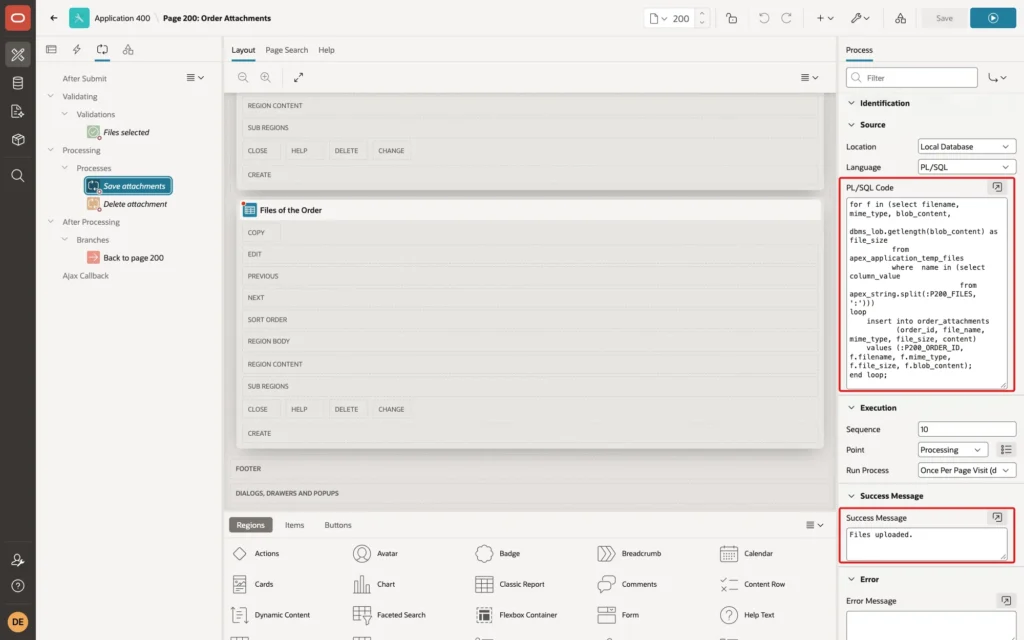
APEX_APPLICATION_TEMP_FILES has no size column; a first version of this code used DOC_SIZE and failed with ORA-00904, so the size comes from DBMS_LOB.GETLENGTH.
Add a validation, Files selected, of Type Item is NOT NULL on P200_FILES, with the error message Choose at least one file to upload. and When Button Pressed UPLOAD, and a branch to page 200 that sets P200_ORDER_ID to &P200_ORDER_ID., so the page stays on the same order.
Step 6: List the Files with Download Links
Create a Classic Report region, Files of the Order, with Server-side Condition Item is NOT NULL P200_ORDER_ID, Page Items to Submit P200_ORDER_ID, and this query:
Example:
select attachment_id,
       file_name,
       mime_type,
       round(file_size / 1024, 1) as size_kb,
       uploaded_by,
       uploaded_on,
       dbms_lob.getlength(content) as download,
       'Delete' as delete_link
from   order_attachments
where  order_id = :P200_ORDER_ID
order by uploaded_on desc, attachment_id desc
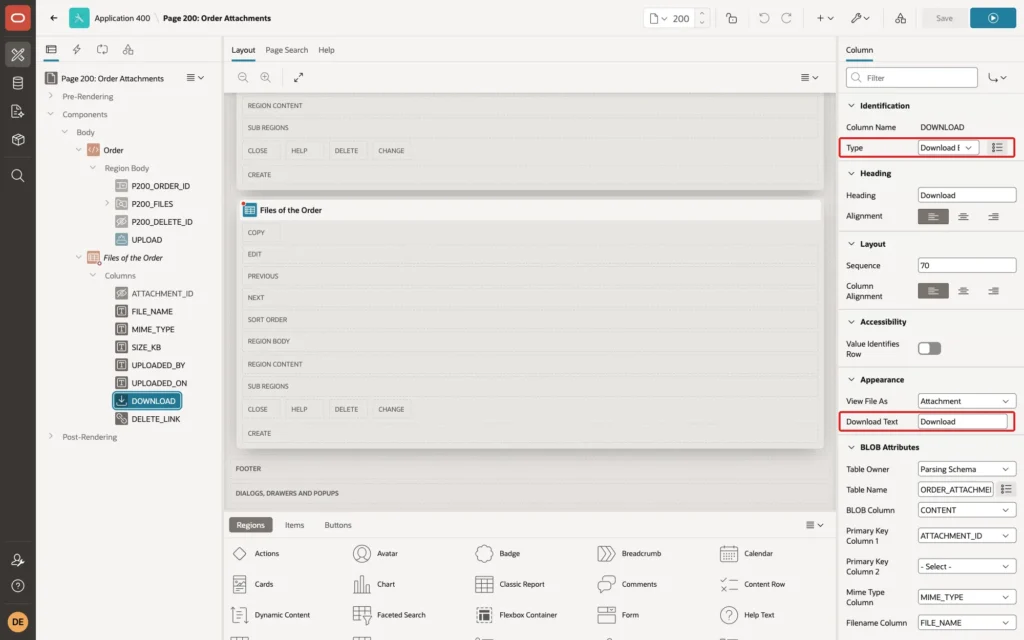
Set the column ATTACHMENT_ID to Hidden. The column DOWNLOAD returns the length of the BLOB, which APEX needs for a download column. Set its Type to Download BLOB and its Download Text to Download:
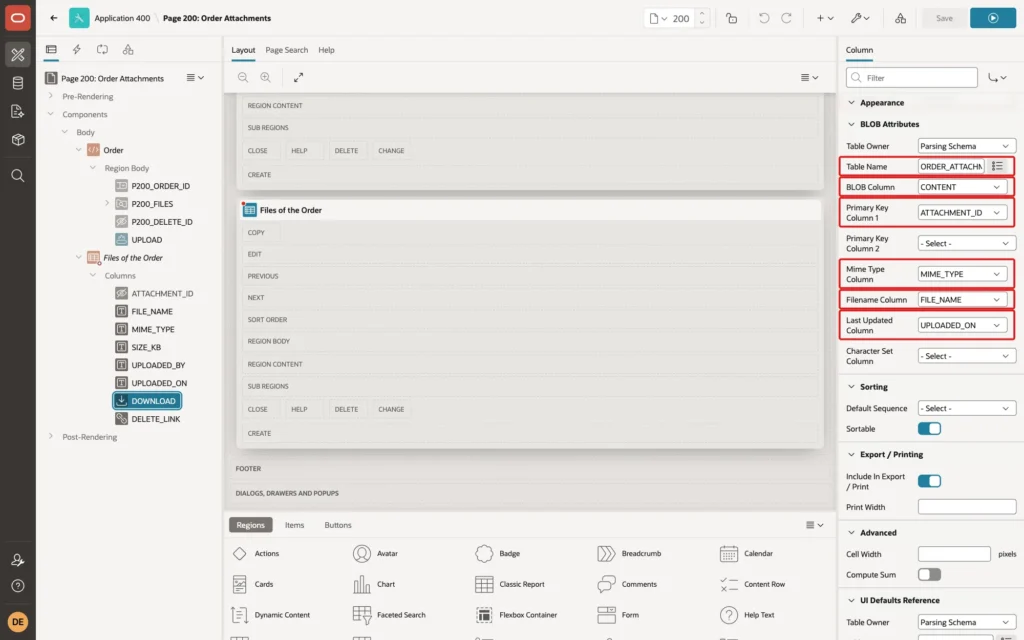
In its BLOB Attributes group, enter Table Name ORDER_ATTACHMENTS, BLOB Column CONTENT, Primary Key Column 1 ATTACHMENT_ID, Mime Type Column MIME_TYPE, Filename Column FILE_NAME, and Last Updated Column UPLOADED_ON:
Set the region's When No Data Found message to No files are attached to this order.
Step 7: Delete a File with Confirmation
Set the column DELETE_LINK to Type Link, with Link Text Delete, and a Target of Type URL with this URL:
Example:
javascript:apex.confirm('Delete #FILE_NAME#?', {request: 'DELETE', set: {'P200_DELETE_ID': '#ATTACHMENT_ID#'}});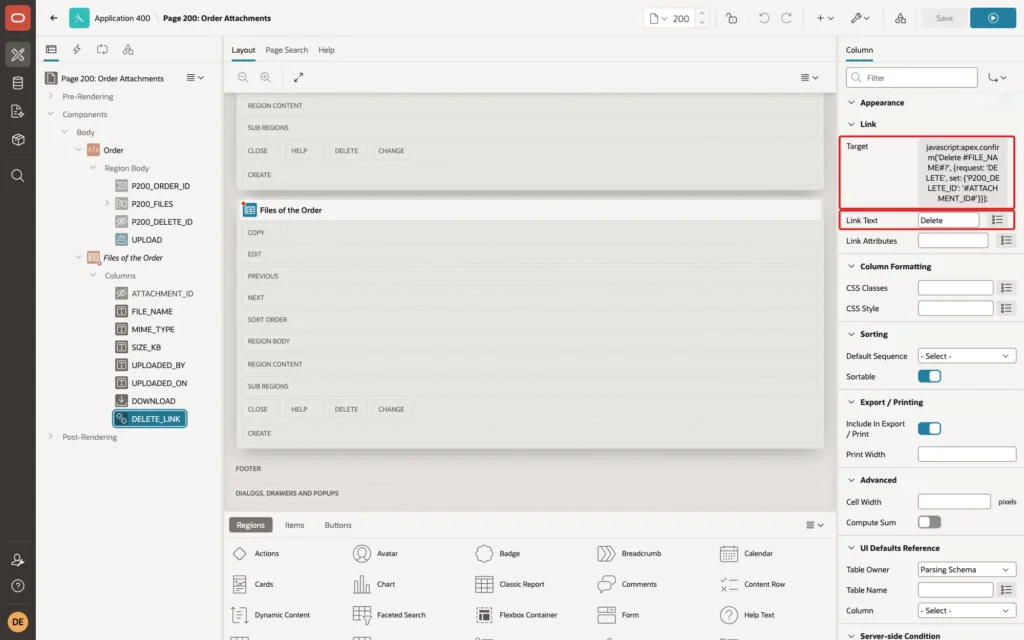
apex.confirm shows the question in an APEX dialog. On OK, it sets P200_DELETE_ID to the file's ID and submits the page with the request DELETE. Create a process, Delete attachment, Type Execute Code, with Server-side Condition Type Request = Value and Value DELETE, Success Message File deleted., and this code:
Example:
delete from order_attachments
where  attachment_id = :P200_DELETE_ID
and    order_id      = :P200_ORDER_ID;

if sql%rowcount = 0 then
    apex_error.add_error(
        p_message          => 'This file does not belong to the selected order.',
        p_display_location => apex_error.c_inline_in_notification);
end if;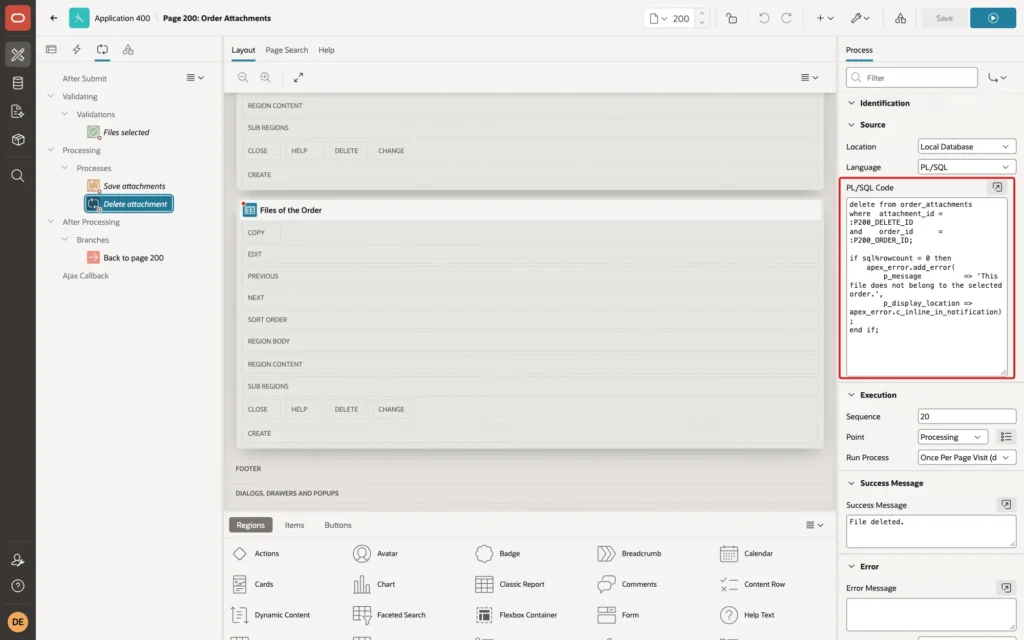
P200_DELETE_ID comes from the browser, so it can be changed. The condition on ORDER_ID makes sure a user deletes only files of the order on the page, and the error explains why nothing was deleted.
Step 8: Test It
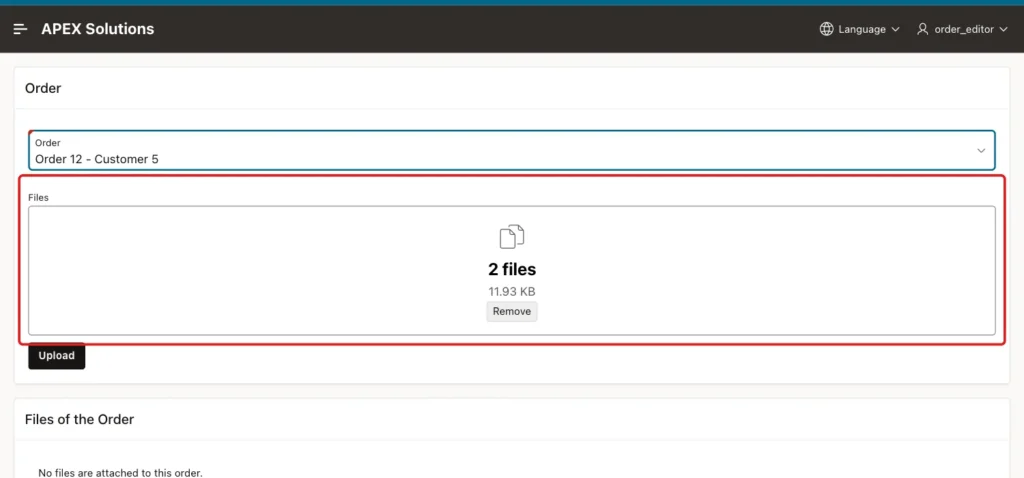
ORDER_EDITOR opened Order Attachments, chose Order 12, and dropped two files on the drop zone, a PDF and a PNG. The drop zone showed 2 files and their total size:
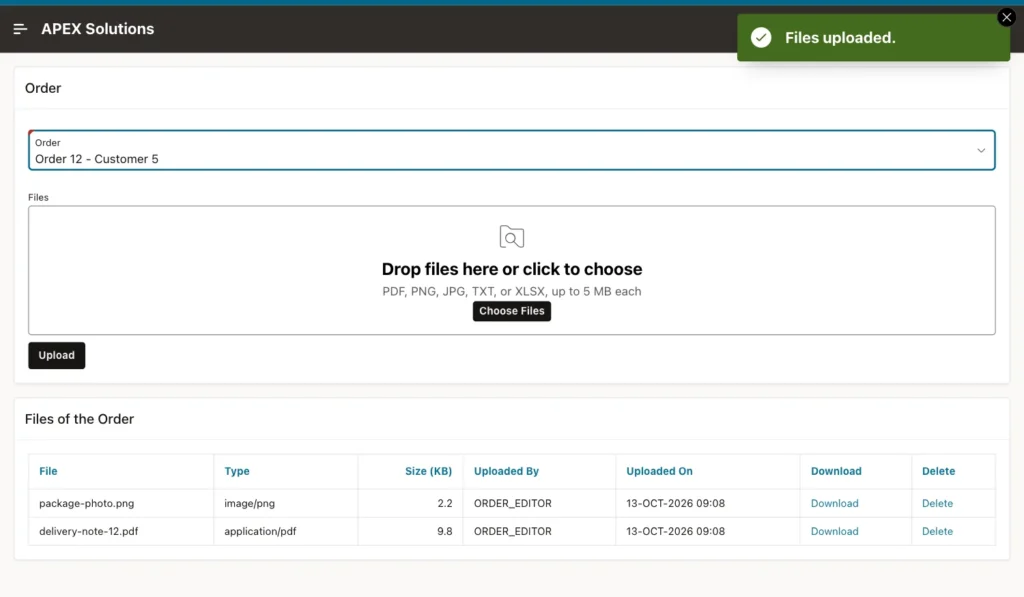
After Upload, the page showed Files uploaded. and both files, with type, size, the uploading user, and the time:
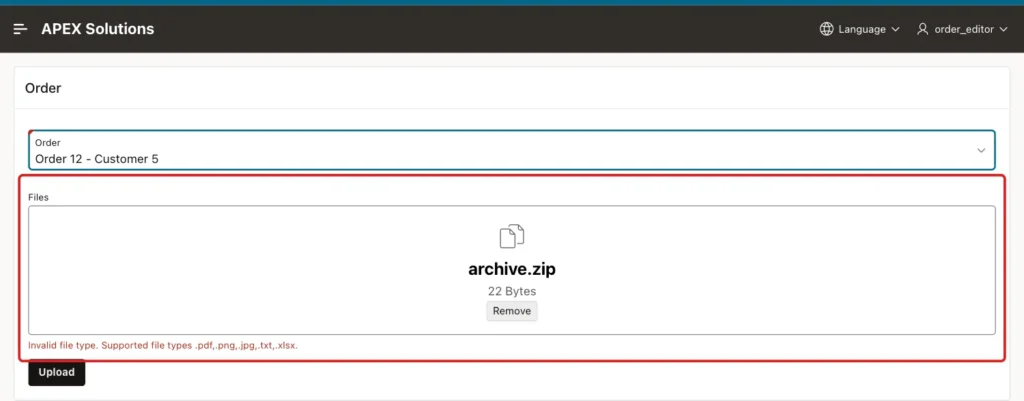
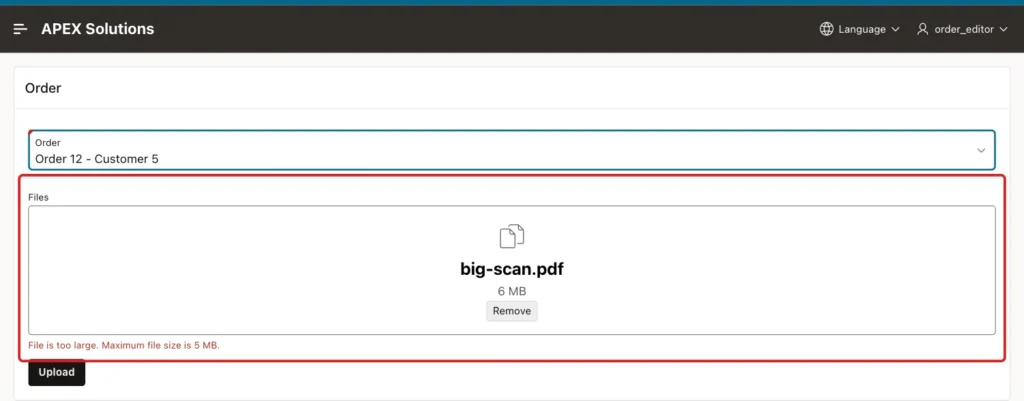
Download on delivery-note-12.pdf downloaded the file under its own name, with all 10,000 bytes. A ZIP file and a 6 MB PDF were rejected as soon as they were chosen, before anything was uploaded:
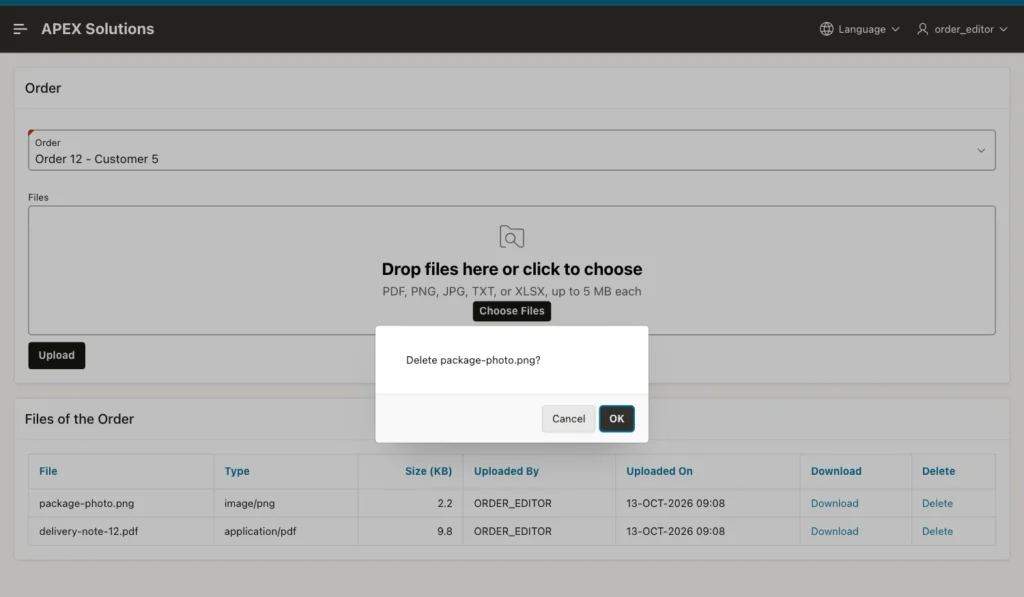
Delete on package-photo.png asked for confirmation:
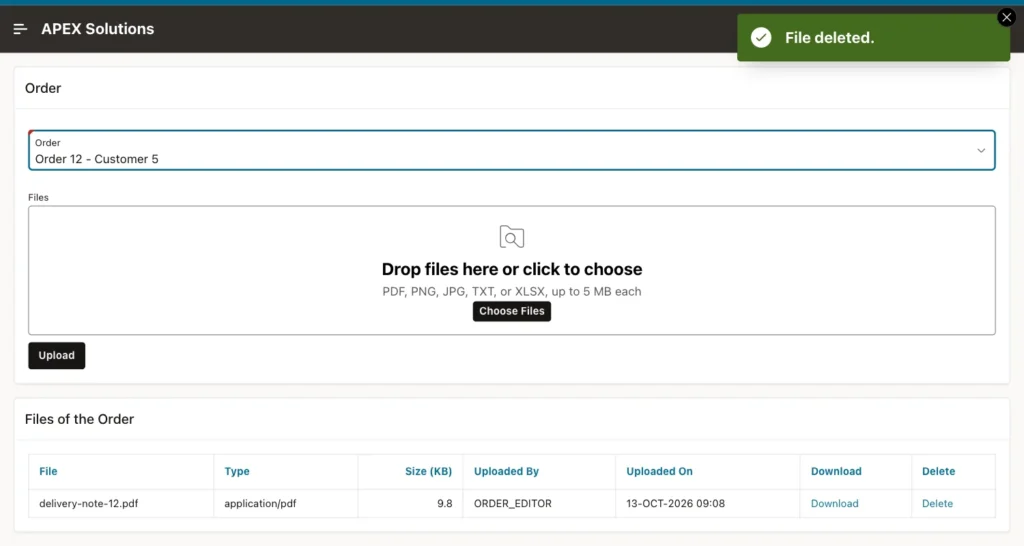
After OK, the page showed File deleted., and only the PDF was left:
Finally, the browser console was used to submit the DELETE request for attachment 1, which belongs to order 10, while order 12 was shown. The page answered This file does not belong to the selected order., and the file stayed in the table:
Example:
select order_id, file_name, mime_type, file_size, uploaded_by
from   order_attachments
order by order_id, attachment_id;
Output:
   ORDER_ID FILE_NAME               MIME_TYPE             FILE_SIZE UPLOADED_BY
___________ _______________________ __________________ ____________ _______________
         10 order-10-note.txt       text/plain                   26 APXSOL
         12 delivery-note-12.pdf    application/pdf           10000 ORDER_EDITOR
Things to Know
- The type and size messages appeared before the upload. For files that must be checked more strictly, also check the MIME type or extension in the Save attachments process.
- Files in a BLOB column are part of the database backup and of every export of the table, so watch the table's size.
- To show images from the table inside the report, use a Display Image column instead of Download BLOB; the image upload guide shows that column type.
Related Guides
- How to Upload an Image and Show It in a Form and a Report in Oracle APEX
- How to Build an Orders and Order Lines Master-Detail Page in Oracle APEX
Conclusion
To attach files to records in Oracle APEX, store them in a child table with a foreign key to the record, upload them with a File Upload item set to a block drop zone with multiple files, and copy them from APEX_APPLICATION_TEMP_FILES into the table in a process.
List them in a report with a Download BLOB column, delete them through apex.confirm and a process that checks the record, and limit the file types and sizes on the item.
