
Most applications have many short lists: priorities, categories, statuses, request types. When each list is hard-coded in a static list of values, every new entry needs a developer and a new release of the app.
A lookup table keeps all these lists in two tables, one for the list types and one for their values. In Oracle APEX, one master-detail page lets an administrator maintain every list. Shared lists of values then read the values, hide the ones that are no longer used, and still show them on old records.
This guide uses help requests with a priority and a category as the example. The tables and the page work for any list in any application.
Step 1: Create the Tables
LOOKUP_TYPES holds one row for each list, such as PRIORITY. LOOKUP_VALUES holds the codes and display texts of each list, with a sort sequence and an active flag. HELP_REQUESTS is the table that uses two of the lists.
The unique key on LOOKUP_TYPE and LOOKUP_CODE allows each code only once in a list. Check constraints keep the codes in upper case and the flag at Y or N:
Example:
create table lookup_types (
  lookup_type  varchar2(30 char)   not null,
  type_name    varchar2(80 char)   not null,
  description  varchar2(400 char),
  constraint lookup_types_pk primary key (lookup_type),
  constraint lookup_types_upper_ck check (lookup_type = upper(lookup_type))
);

create table lookup_values (
  lookup_value_id  number generated by default on null as identity,
  lookup_type      varchar2(30 char)  not null,
  lookup_code      varchar2(30 char)  not null,
  meaning          varchar2(80 char)  not null,
  display_seq      number default on null 10 not null,
  is_active        varchar2(1 char) default on null 'Y' not null,
  constraint lookup_values_pk primary key (lookup_value_id),
  constraint lookup_values_type_fk foreign key (lookup_type)
    references lookup_types (lookup_type),
  constraint lookup_values_code_uk unique (lookup_type, lookup_code),
  constraint lookup_values_upper_ck check (lookup_code = upper(lookup_code)),
  constraint lookup_values_active_ck check (is_active in ('Y', 'N'))
);

create table help_requests (
  request_id     number generated by default on null as identity,
  subject        varchar2(200 char)  not null,
  priority_type  varchar2(30 char) generated always as ('PRIORITY') virtual,
  priority_code  varchar2(30 char)  not null,
  category_type  varchar2(30 char) generated always as ('REQUEST_CATEGORY') virtual,
  category_code  varchar2(30 char),
  created_on     date default on null sysdate not null,
  constraint help_requests_pk primary key (request_id),
  constraint help_requests_priority_fk foreign key (priority_type, priority_code)
    references lookup_values (lookup_type, lookup_code),
  constraint help_requests_category_fk foreign key (category_type, category_code)
    references lookup_values (lookup_type, lookup_code)
);

create index help_requests_priority_ix on help_requests (priority_code);
create index help_requests_category_ix on help_requests (category_code);

insert into lookup_types (lookup_type, type_name, description)
values ('PRIORITY', 'Priority', 'How urgent a request is');
insert into lookup_types (lookup_type, type_name, description)
values ('REQUEST_CATEGORY', 'Request Category', 'What a request is about');

insert into lookup_values (lookup_type, lookup_code, meaning, display_seq)
values ('PRIORITY', 'LOW', 'Low', 10);
insert into lookup_values (lookup_type, lookup_code, meaning, display_seq)
values ('PRIORITY', 'MEDIUM', 'Medium', 20);
insert into lookup_values (lookup_type, lookup_code, meaning, display_seq)
values ('PRIORITY', 'HIGH', 'High', 30);
insert into lookup_values (lookup_type, lookup_code, meaning, display_seq)
values ('PRIORITY', 'URGENT', 'Urgent', 40);
insert into lookup_values (lookup_type, lookup_code, meaning, display_seq)
values ('REQUEST_CATEGORY', 'HARDWARE', 'Hardware', 10);
insert into lookup_values (lookup_type, lookup_code, meaning, display_seq)
values ('REQUEST_CATEGORY', 'SOFTWARE', 'Software', 20);
insert into lookup_values (lookup_type, lookup_code, meaning, display_seq)
values ('REQUEST_CATEGORY', 'ACCESS', 'Access', 30);

insert into help_requests (subject, priority_code, category_code)
values ('Laptop does not start', 'URGENT', 'HARDWARE');
insert into help_requests (subject, priority_code, category_code)
values ('Install the reporting tool', 'MEDIUM', 'SOFTWARE');
insert into help_requests (subject, priority_code, category_code)
values ('New user needs a VPN account', 'HIGH', 'ACCESS');
commit;

select lookup_type, lookup_code, meaning, display_seq, is_active
from   lookup_values
order  by lookup_type, display_seq;

select request_id, subject, priority_type, priority_code, category_code
from   help_requests
order  by request_id;
Output:
Table LOOKUP_TYPES created.

Table LOOKUP_VALUES created.

Table HELP_REQUESTS created.

Index HELP_REQUESTS_PRIORITY_IX created.

Index HELP_REQUESTS_CATEGORY_IX created.

1 row inserted.

1 row inserted.

1 row inserted.

1 row inserted.

1 row inserted.

1 row inserted.

1 row inserted.

1 row inserted.

1 row inserted.

1 row inserted.

1 row inserted.

1 row inserted.

Commit complete.

LOOKUP_TYPE         LOOKUP_CODE    MEANING        DISPLAY_SEQ IS_ACTIVE
___________________ ______________ ___________ ______________ ____________
PRIORITY            LOW            Low                     10 Y
PRIORITY            MEDIUM         Medium                  20 Y
PRIORITY            HIGH           High                    30 Y
PRIORITY            URGENT         Urgent                  40 Y
REQUEST_CATEGORY    HARDWARE       Hardware                10 Y
REQUEST_CATEGORY    SOFTWARE       Software                20 Y
REQUEST_CATEGORY    ACCESS         Access                  30 Y

7 rows selected.

   REQUEST_ID SUBJECT                         PRIORITY_TYPE    PRIORITY_CODE    CATEGORY_CODE
_____________ _______________________________ ________________ ________________ ________________
            1 Laptop does not start           PRIORITY         URGENT           HARDWARE
            2 Install the reporting tool      PRIORITY         MEDIUM           SOFTWARE
3 New user needs a VPN account PRIORITY HIGH ACCESS- DISPLAY_SEQ and IS_ACTIVE use DEFAULT ON NULL, so a new value gets sequence 10 and the flag Y without any code.
- PRIORITY_TYPE and CATEGORY_TYPE in HELP_REQUESTS are virtual columns with a fixed value. They let a normal foreign key check the code against the right list.
- The unique key on LOOKUP_VALUES starts with LOOKUP_TYPE, so its index also serves the foreign key to LOOKUP_TYPES.
Test the foreign keys. The first insert uses a code from another list, and the second a code that does not exist:
Example:
insert into help_requests (subject, priority_code, category_code)
values ('Printer is offline', 'HARDWARE', 'HARDWARE');

insert into help_requests (subject, priority_code, category_code)
values ('Printer is offline', 'CRITICAL', 'HARDWARE');
Output:
Error starting at line : 1 File @ b52/01-fk-test.sql
In command -
insert into help_requests (subject, priority_code, category_code)
values ('Printer is offline', 'HARDWARE', 'HARDWARE')
Error report -
ORA-02291: integrity constraint (APXSOL.HELP_REQUESTS_PRIORITY_FK) violated -
parent key not found
Help: https://docs.oracle.com/error-help/db/ora-02291/

Error starting at line : 4 File @ b52/01-fk-test.sql
In command -
insert into help_requests (subject, priority_code, category_code)
values ('Printer is offline', 'CRITICAL', 'HARDWARE')
Error report -
ORA-02291: integrity constraint (APXSOL.HELP_REQUESTS_PRIORITY_FK) violated -
parent key not found
Help: https://docs.oracle.com/error-help/db/ora-02291/
HARDWARE is a valid code, but it belongs to REQUEST_CATEGORY, not to PRIORITY. Both inserts were rejected by HELP_REQUESTS_PRIORITY_FK, so the database itself keeps wrong codes out. No trigger is needed.
Step 2: Create the Master-Detail Page
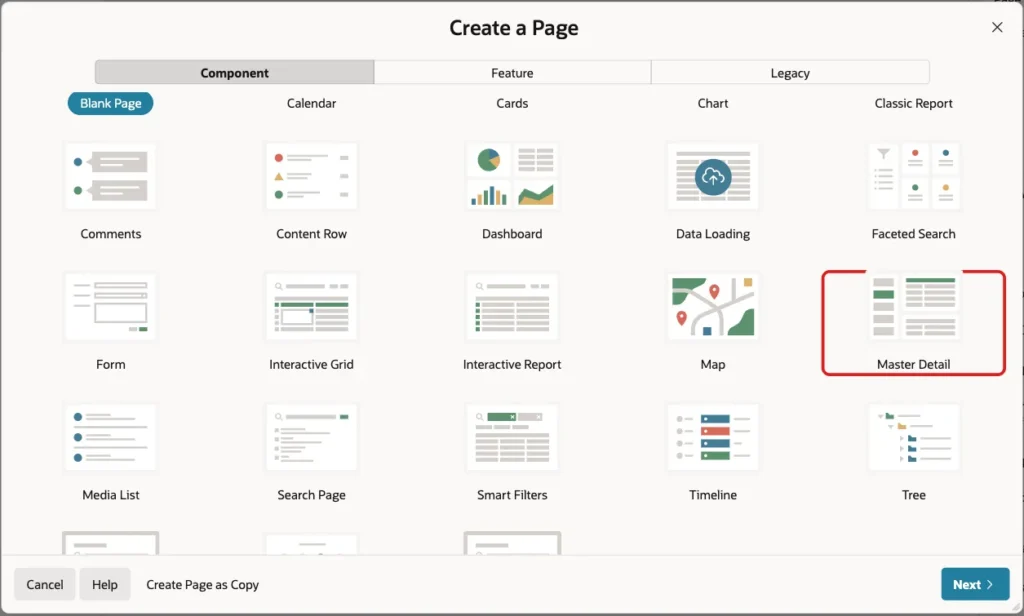
In App Builder, open the application and click Create Page. On the Component tab, click Master Detail:
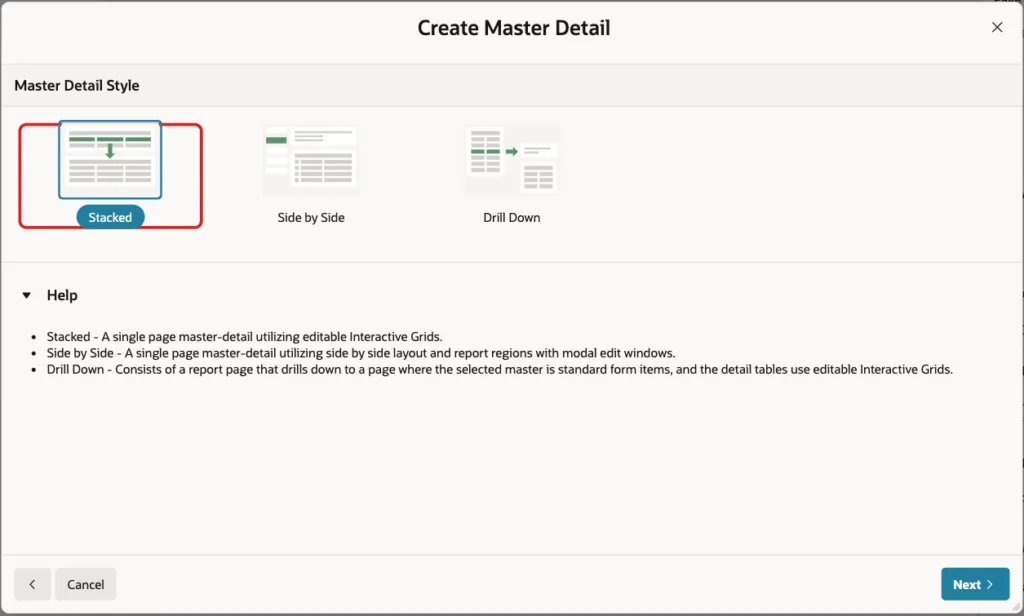
Click the Stacked style. It puts two editable interactive grids on one page, the types above and the values below. Click Next:
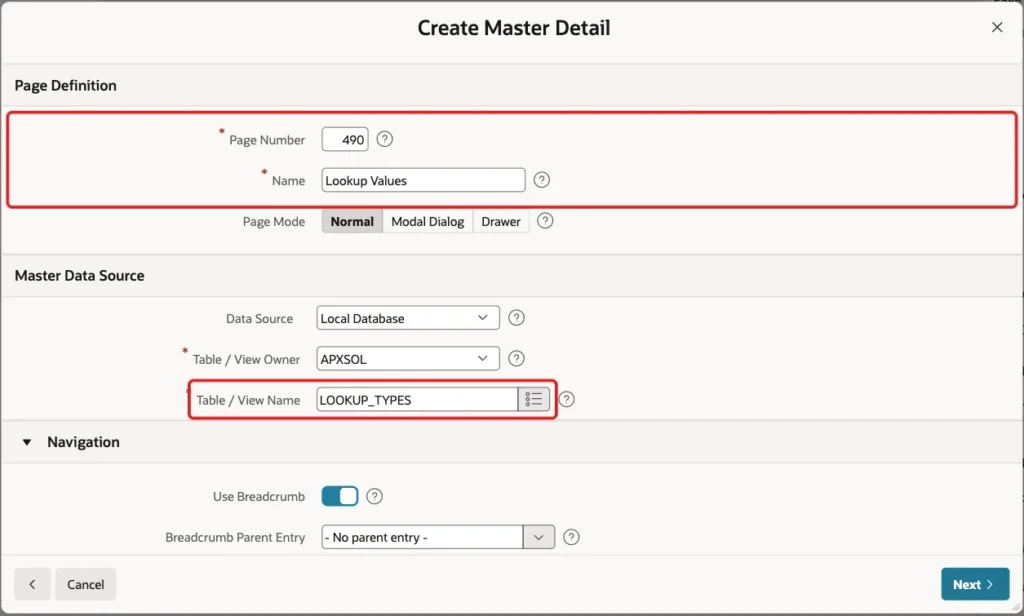
Enter Page Number 490 and Name Lookup Values. In the Master Data Source section, enter LOOKUP_TYPES as the Table / View Name:
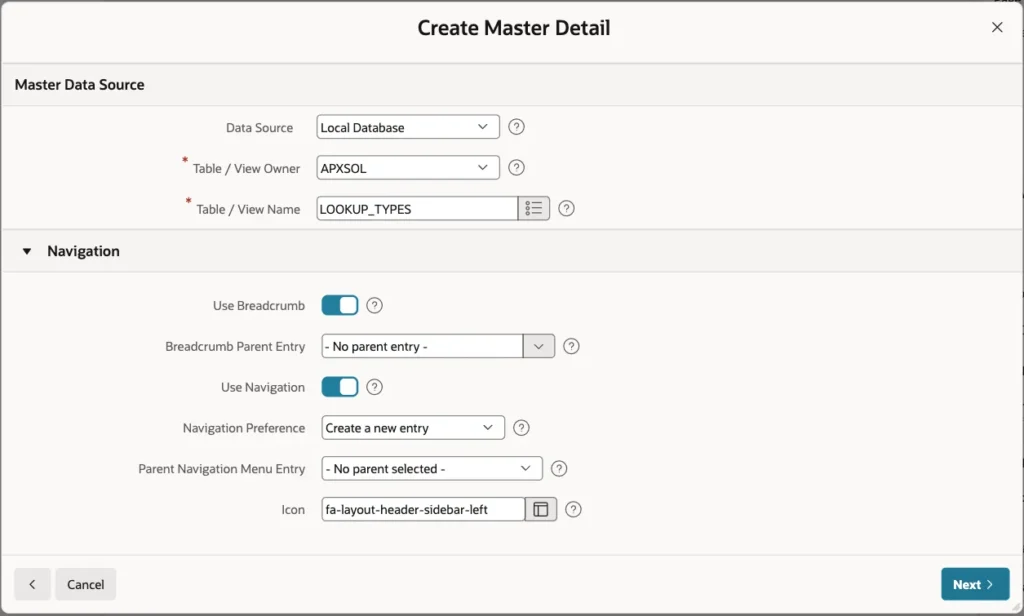
Keep the Navigation settings, so the wizard adds a breadcrumb and a navigation menu entry. Click Next:
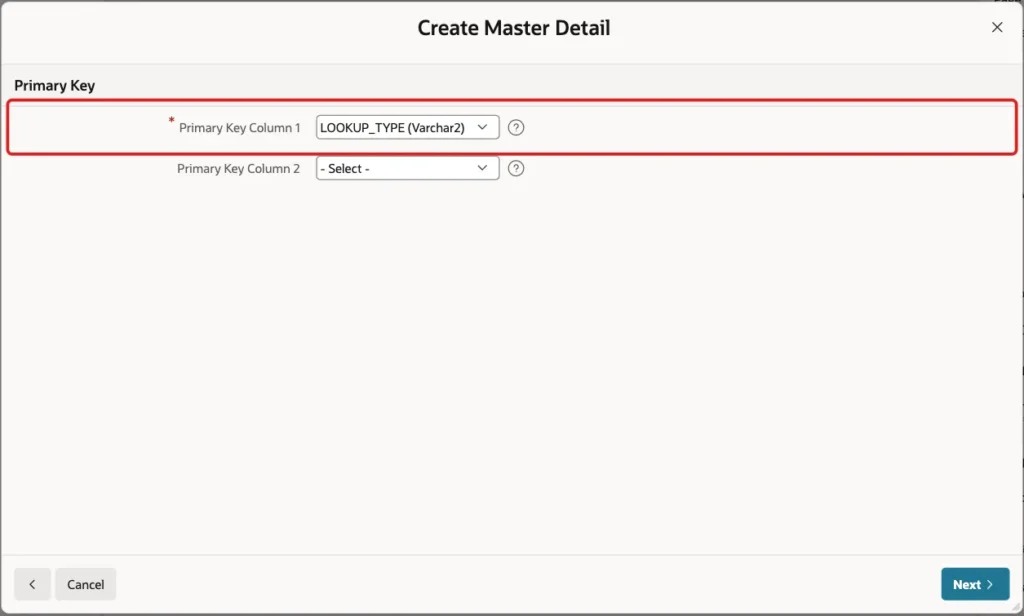
On the Primary Key screen, select LOOKUP_TYPE (Varchar2) as Primary Key Column 1 and click Next:
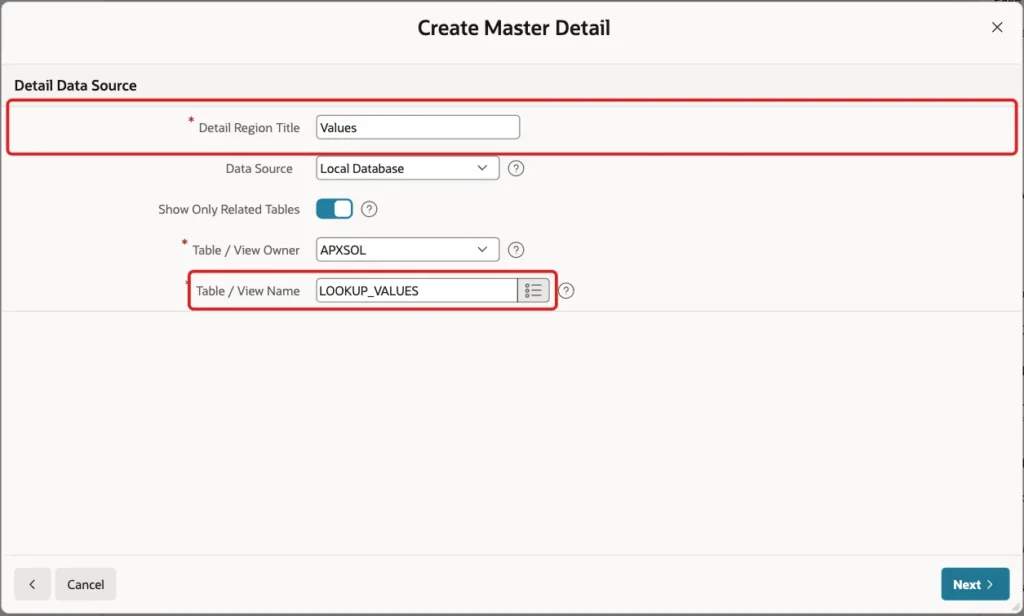
On the Detail Data Source screen, enter Values as the Detail Region Title and LOOKUP_VALUES as the Table / View Name. Click Next:
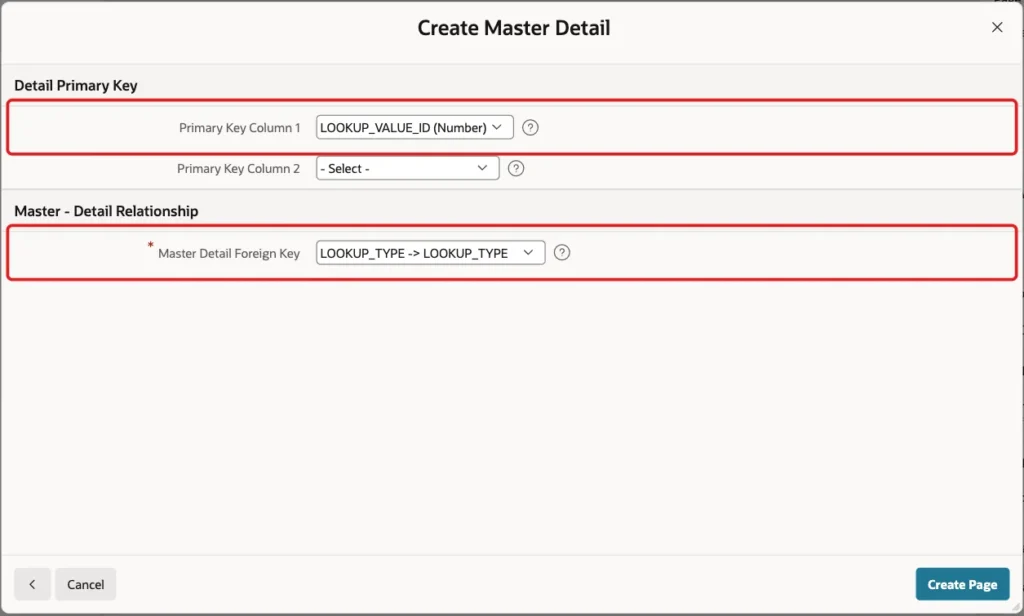
Select LOOKUP_VALUE_ID (Number) as Primary Key Column 1. In Master Detail Foreign Key, select LOOKUP_TYPE -> LOOKUP_TYPE and click Create Page:
Step 3: Make the Lookup Type Editable
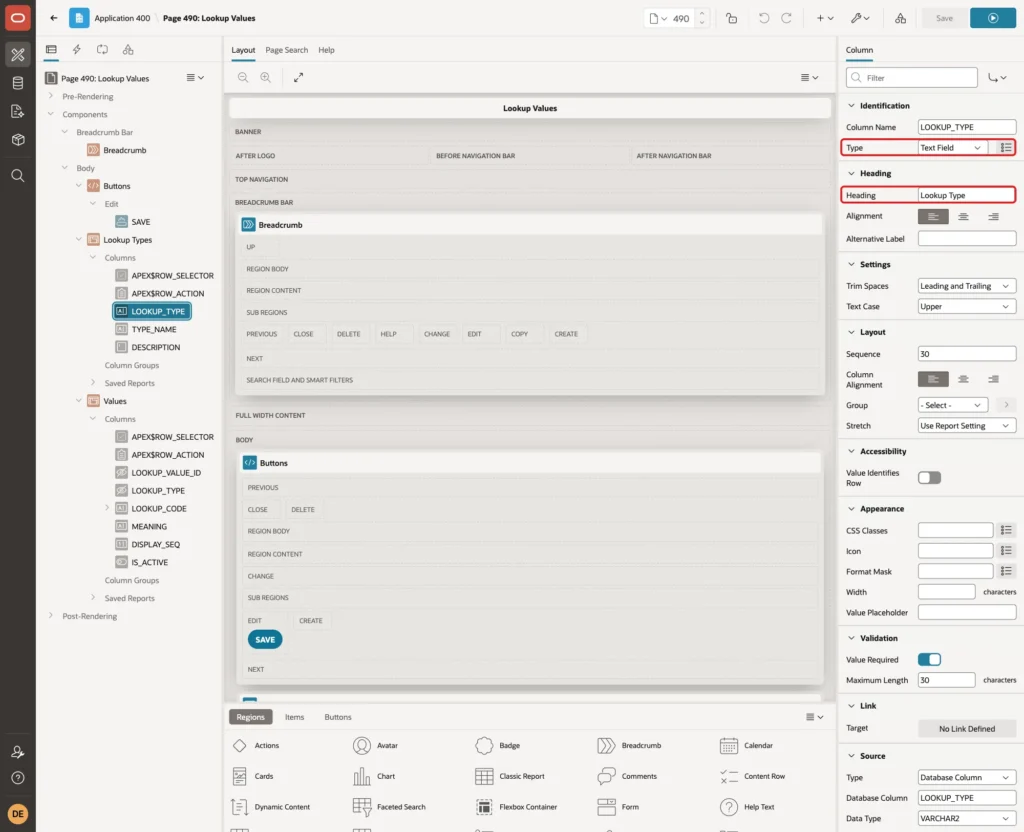
The wizard creates every primary key column as a Hidden column. That is right for LOOKUP_VALUE_ID, which the identity fills. But LOOKUP_TYPE is a code that the administrator must type, so a hidden column makes it impossible to add a new list.
Open page 490 in Page Designer. Select the first grid region and change its Name to Lookup Types, so the two grids are easy to tell apart:
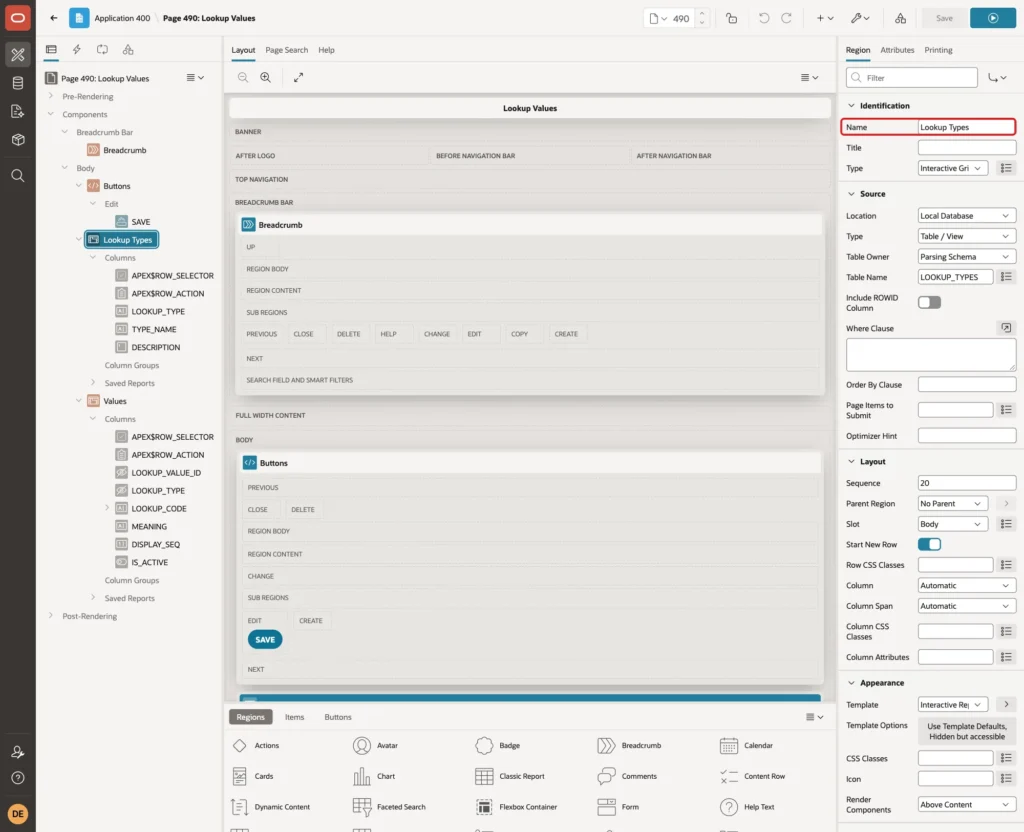
Under Lookup Types, expand Columns and select LOOKUP_TYPE. Set Type to Text Field and Heading to Lookup Type:
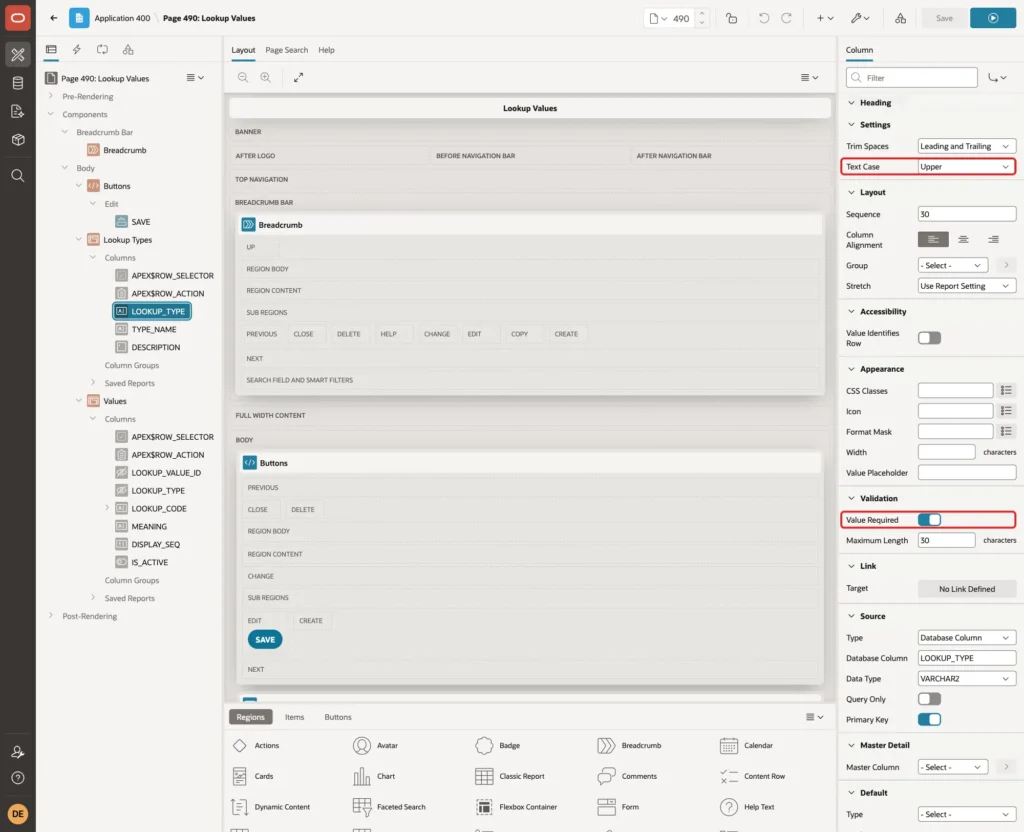
Under Settings, set Text Case to Upper. Under Validation, turn on Value Required:
Step 4: Set Up the Values Grid
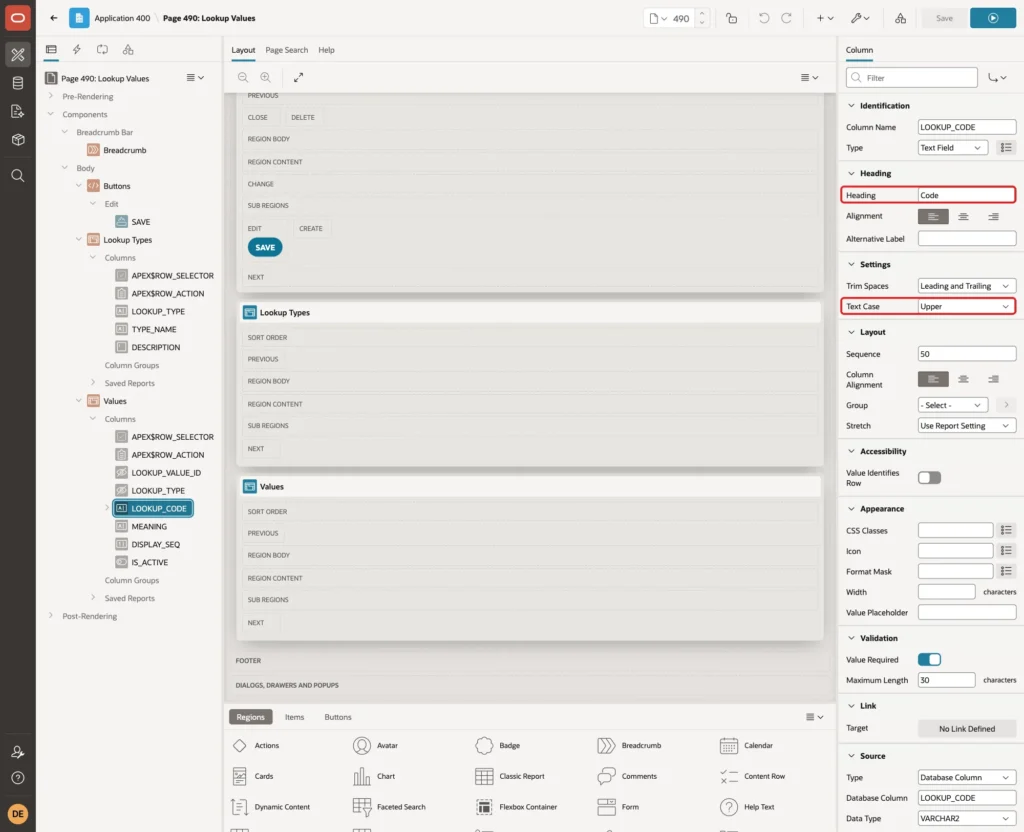
Under Values, select the LOOKUP_CODE column. Set Heading to Code and, under Settings, Text Case to Upper. A user can type "critical" and the grid saves CRITICAL, which matches the check constraint:
Select DISPLAY_SEQ and set its Heading to Sequence. Select MEANING and keep it as it is.
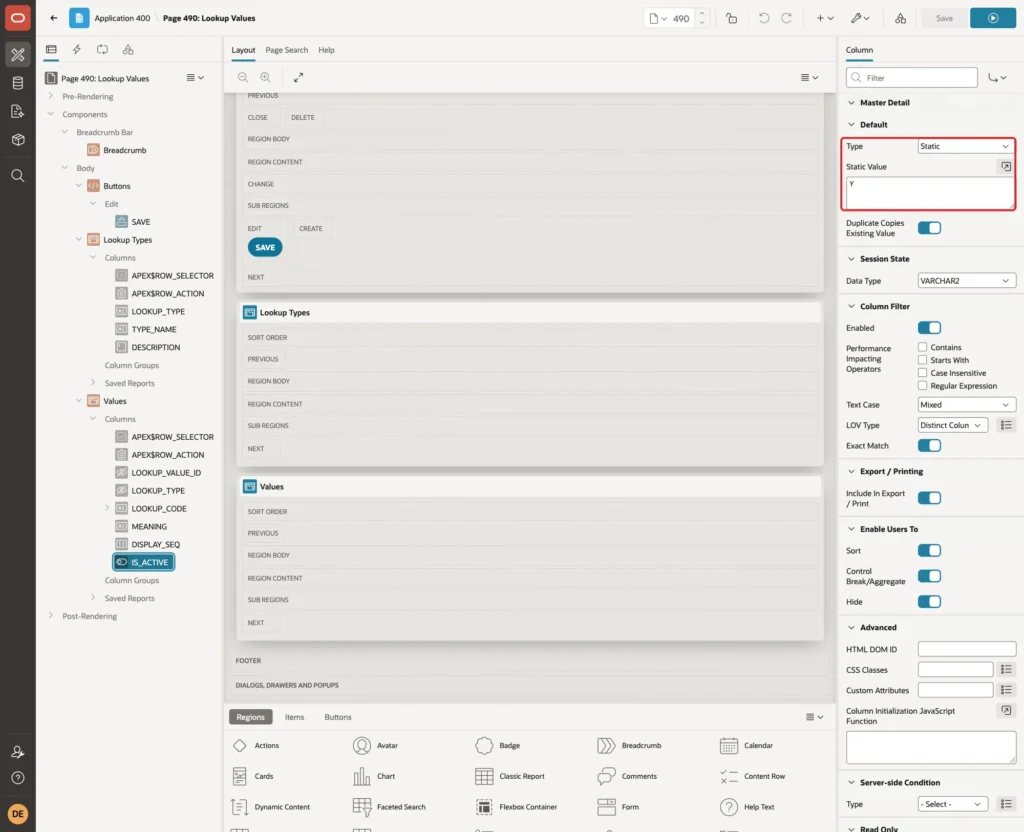
Select IS_ACTIVE. Set Type to Switch and Heading to Active. The switch uses the application defaults Y and N, which match the check constraint:
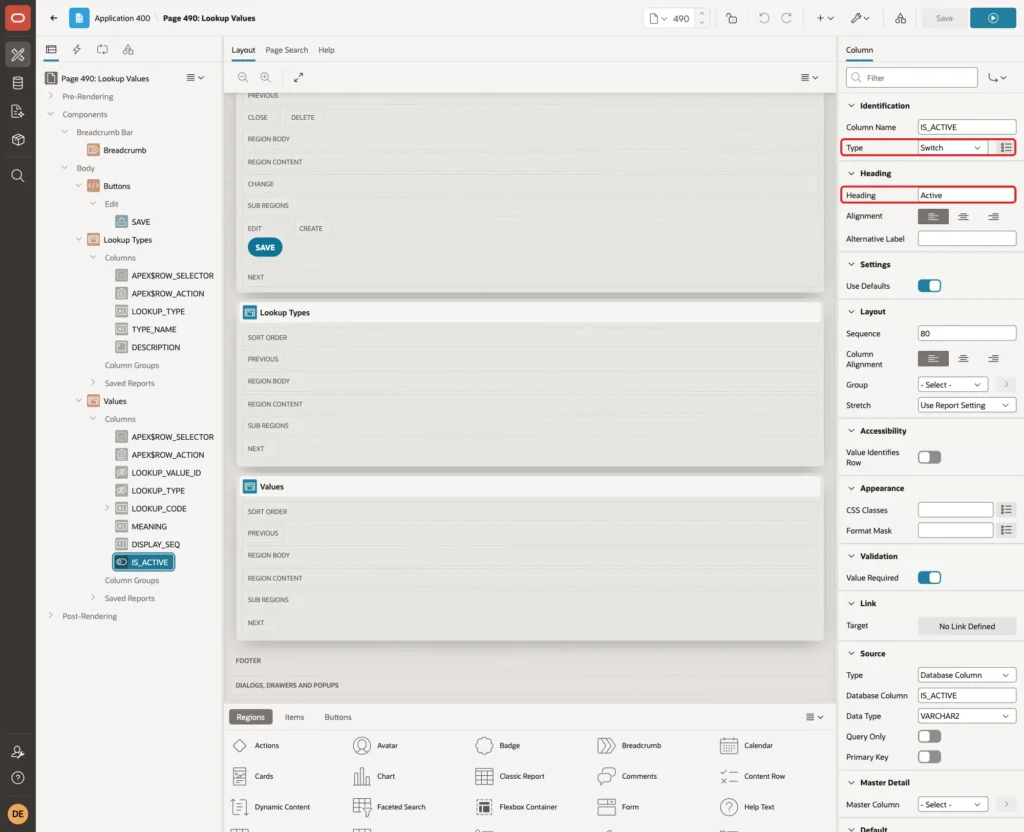
Under Default, set Type to Static and Static Value to Y, so a new row in the grid starts as active:
Step 5: Reject a Duplicate Code with a Clear Message
The unique key already stops a duplicate code. Test it in SQL:
Example:
insert into lookup_values (lookup_type, lookup_code, meaning)
values ('PRIORITY', 'HIGH', 'High again');
Output:
Error starting at line : 1 File @ b52/02-uk-test.sql
In command -
insert into lookup_values (lookup_type, lookup_code, meaning)
values ('PRIORITY', 'HIGH', 'High again')
Error report -
ORA-00001: unique constraint (APXSOL.LOOKUP_VALUES_CODE_UK) violated on table
APXSOL.LOOKUP_VALUES columns (LOOKUP_TYPE, LOOKUP_CODE)
ORA-03301: (ORA-00001 details) row with column values (LOOKUP_TYPE:'PRIORITY',
LOOKUP_CODE:'HIGH') already exists
Help: https://docs.oracle.com/error-help/db/ora-00001/
That message is fine for a developer but not for an administrator. A validation gives a readable message on the right cell.
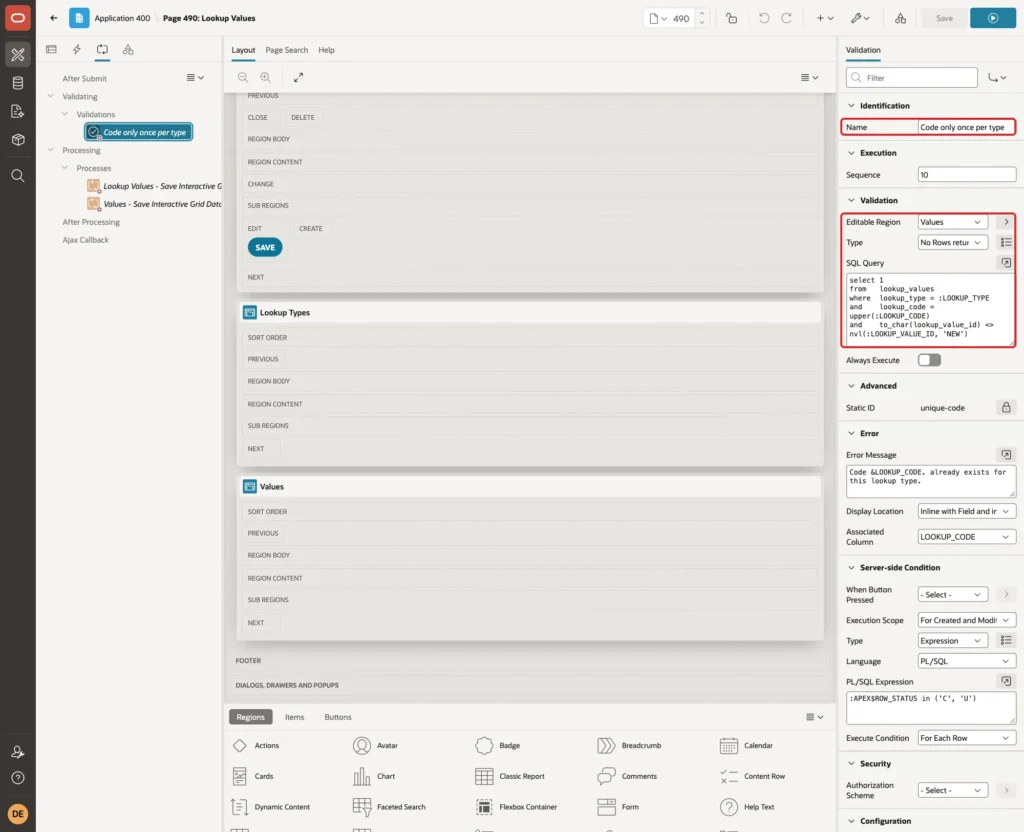
On the Processing tab, right-click Validating and click Create Validation. Enter Name Code only once per type, set Editable Region to Values and Type to No Rows returned, and enter this query:
Example:
select 1
from   lookup_values
where  lookup_type = :LOOKUP_TYPE
and    lookup_code = upper(:LOOKUP_CODE)
and    to_char(lookup_value_id) <> nvl(:LOOKUP_VALUE_ID, 'NEW')
Set Error Message to Code &LOOKUP_CODE. already exists for this lookup type. and Associated Column to LOOKUP_CODE. Under Server-side Condition, set Type to Expression, Language PL/SQL, and enter this expression:
Example:
:APEX$ROW_STATUS in ('C', 'U')The validation then runs only for created and updated rows:
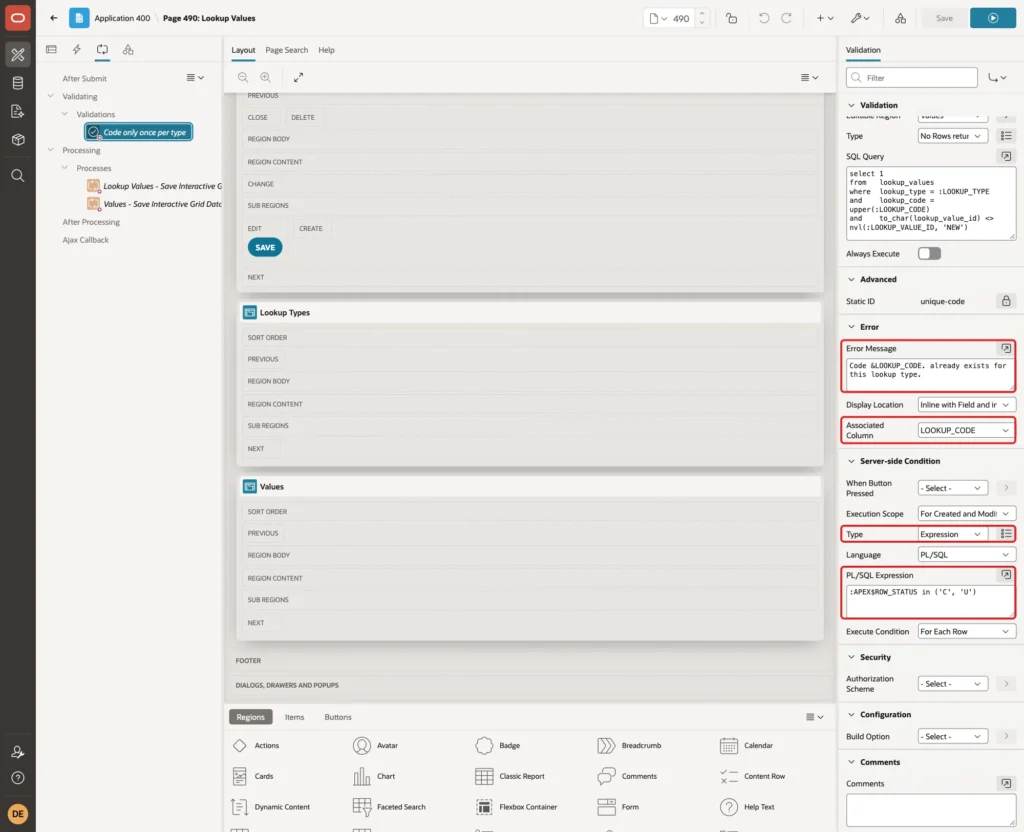
A new row has no LOOKUP_VALUE_ID yet, so the query compares it with the text NEW. The UPPER call matches the Text Case setting of the column. Click Save.
Step 6: Sort the Values by Sequence
Run page 490. The values appear in no fixed order, because an interactive grid uses its own saved report for sorting. In a first test, an ORDER BY in the grid's SQL query was not kept: after an update, URGENT (40) was shown after CRITICAL (50).
Sign in to App Builder in the same browser, so the page runs as a developer. In the Values grid, click Actions, then Data, then Sort:
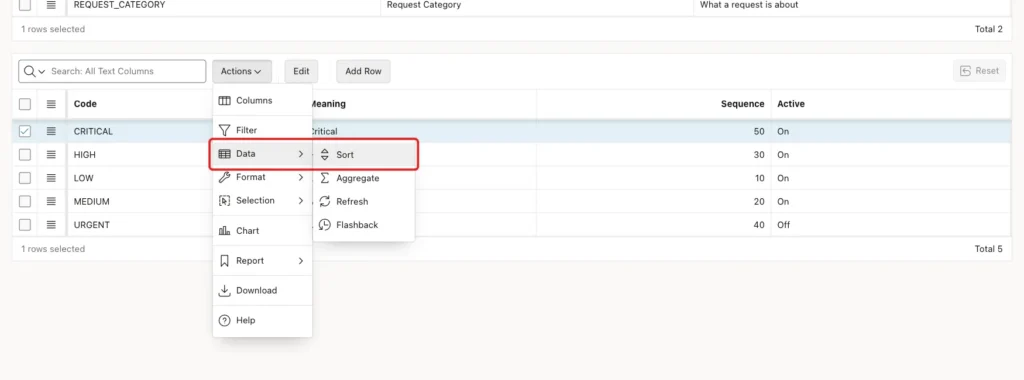
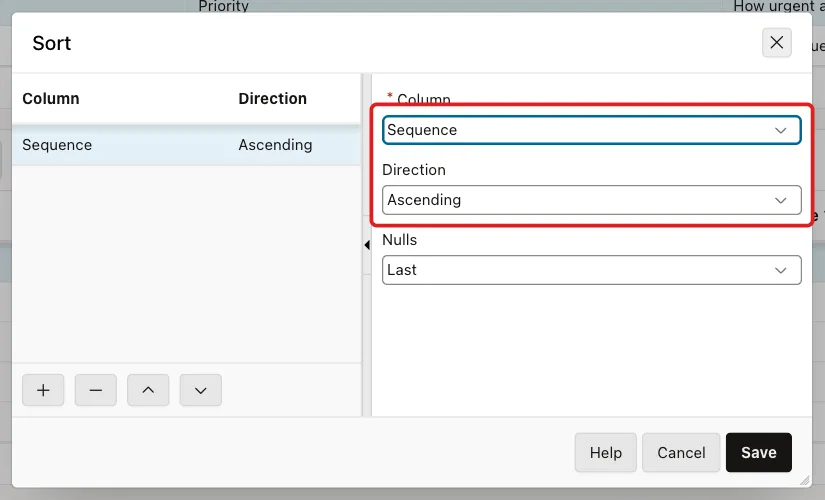
Select Column Sequence and Direction Ascending, and click Save:
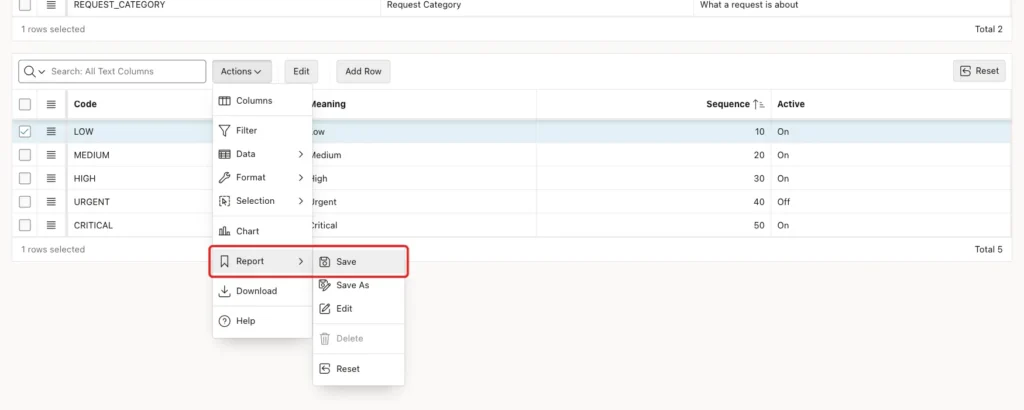
Click Actions, then Report, then Save. APEX shows "Default report saved for all users":
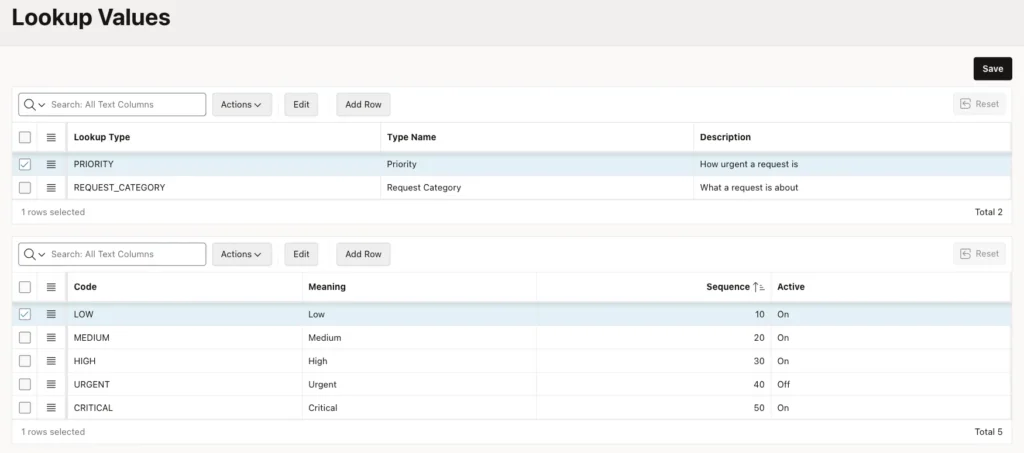
After the save, ORDER_EDITOR, who is not a developer, saw the values in sequence order:
Step 7: Create a Shared List of Values for a Lookup Type
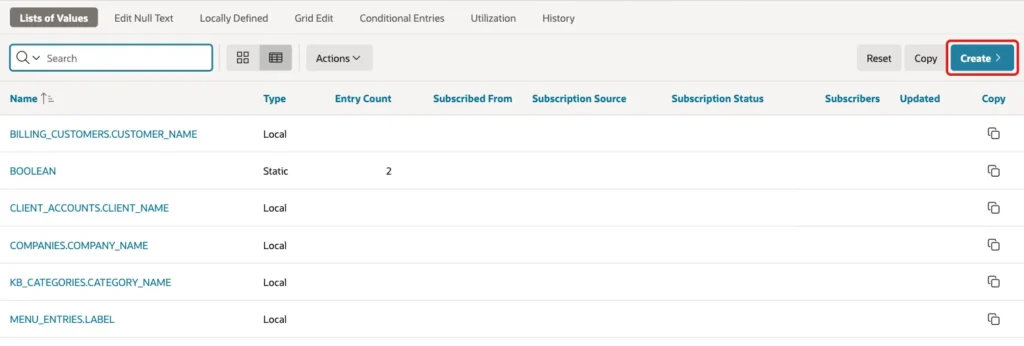
Each list gets its own shared list of values. Open Shared Components, click Lists of Values, and click Create:
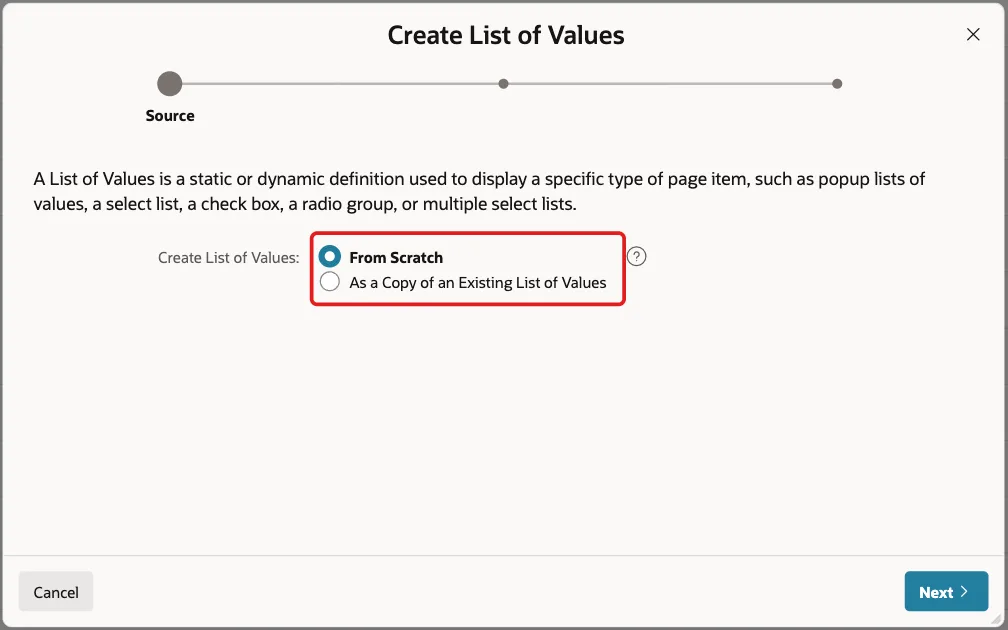
Keep From Scratch and click Next:
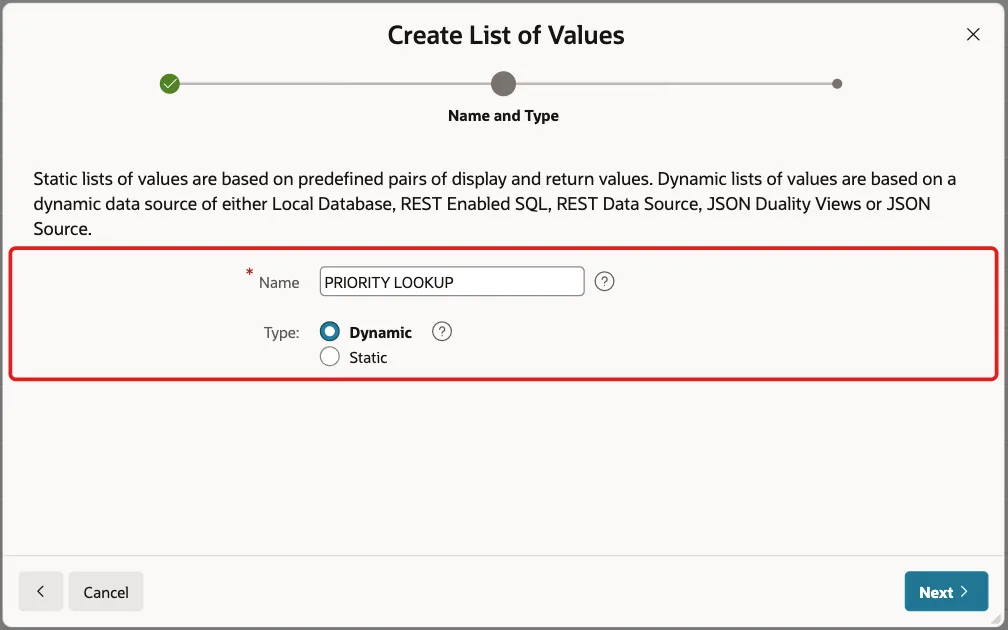
Enter Name PRIORITY LOOKUP, keep Type Dynamic, and click Next:
Select Source Type SQL Query and enter this query. Click Next:
Example:
select meaning     as display_value,
       lookup_code as return_value,
       display_seq
from   lookup_values
where  lookup_type = 'PRIORITY'
and    (is_active = 'Y' or lookup_code = :P492_PRIORITY_CODE)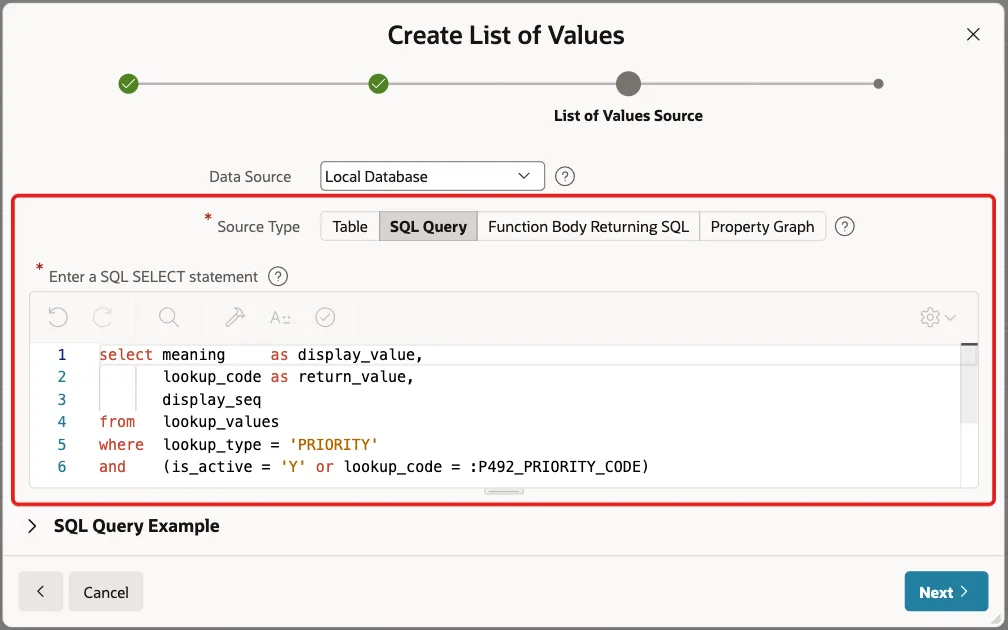
The condition on IS_ACTIVE hides values that are no longer used. The OR part keeps the value that the record already has. Without it, an old request with an inactive priority would show the code instead of its text, or nothing at all.
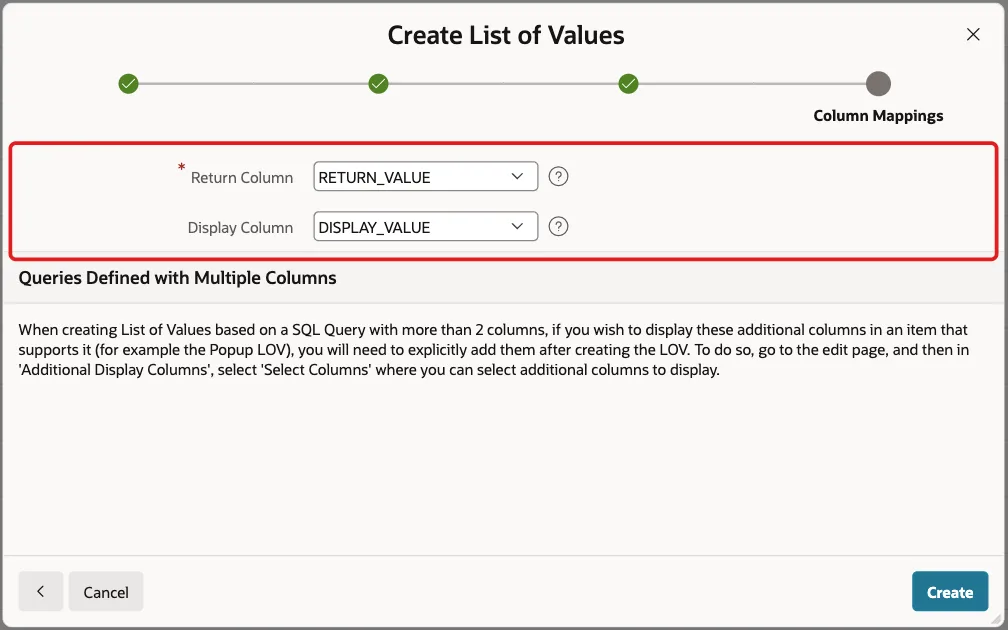
Select RETURN_VALUE as the Return Column and DISPLAY_VALUE as the Display Column. Click Create:
Click PRIORITY LOOKUP in the list to edit it. Under Column Mapping, set Default Sort to DISPLAY_SEQ and click Apply Changes:
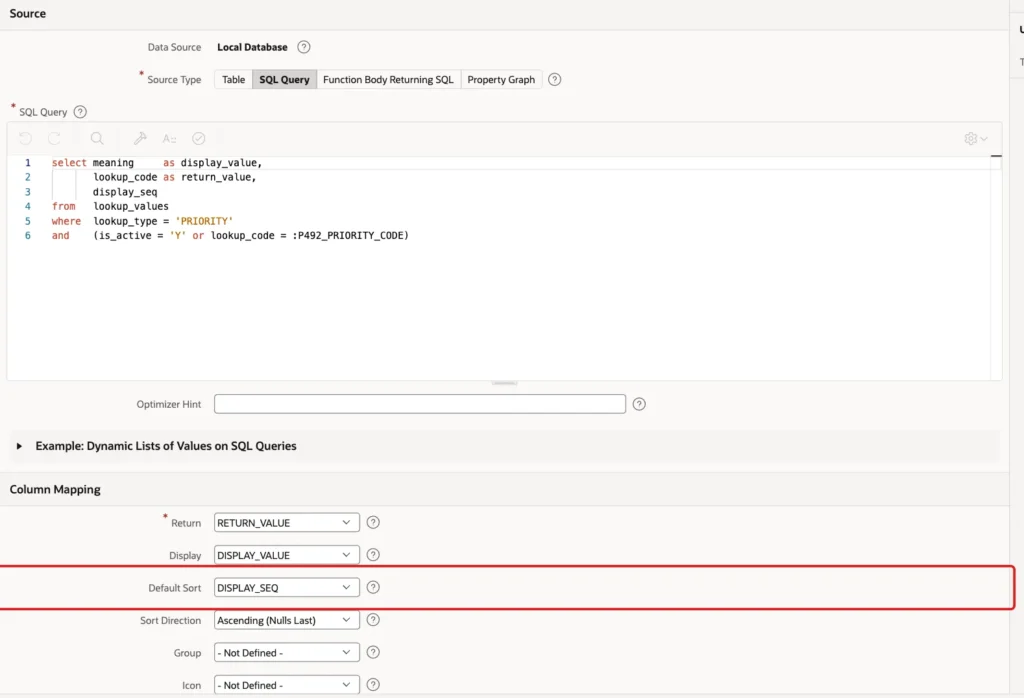
Create a second list of values, REQUEST CATEGORY LOOKUP, in the same way, with this query and the same Default Sort:
Example:
select meaning     as display_value,
       lookup_code as return_value,
       display_seq
from   lookup_values
where  lookup_type = 'REQUEST_CATEGORY'
and    (is_active = 'Y' or lookup_code = :P492_CATEGORY_CODE)
Step 8: Create the Report and Form Pages
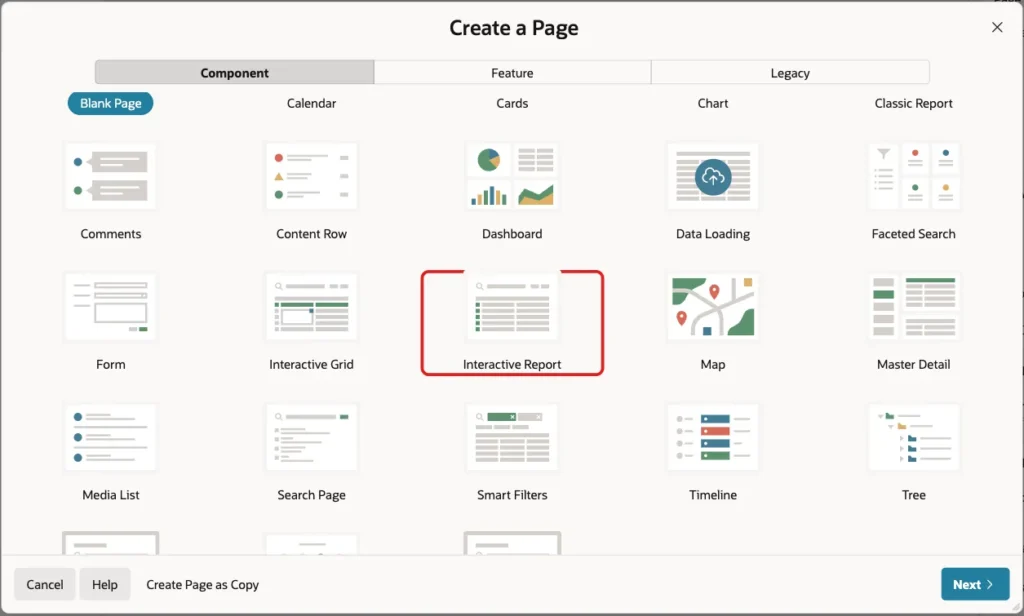
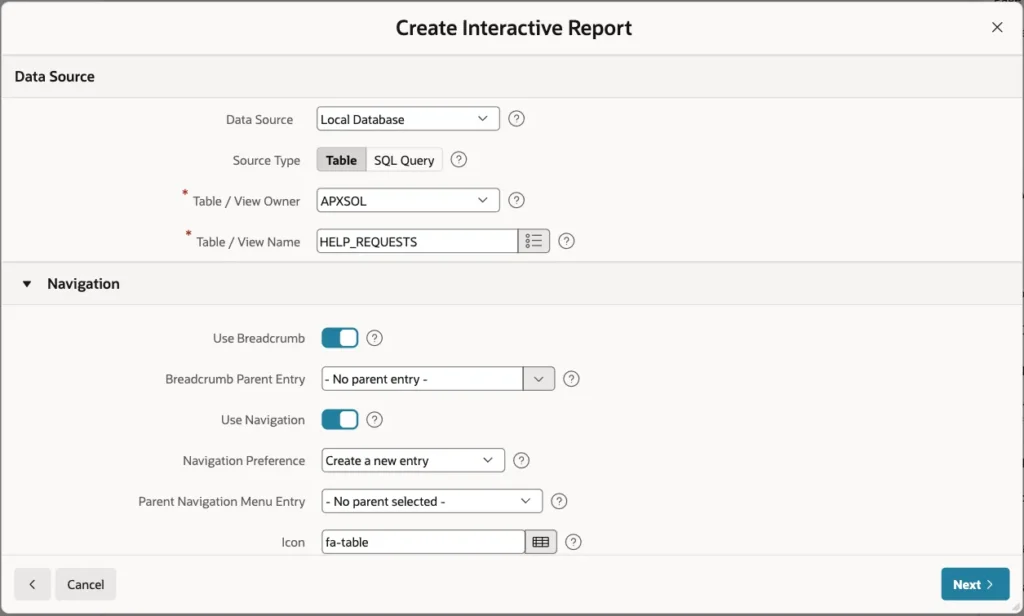
Click Create Page. On the Component tab, click Interactive Report:
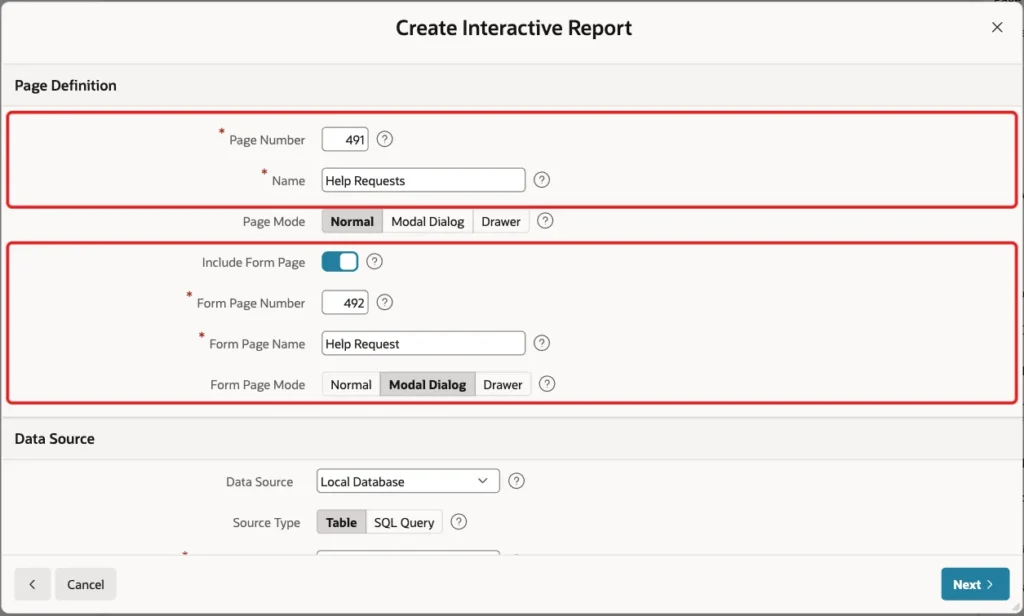
Enter Page Number 491 and Name Help Requests. Turn on Include Form Page, enter Form Page Number 492 and Form Page Name Help Request, and select Form Page Mode Modal Dialog:
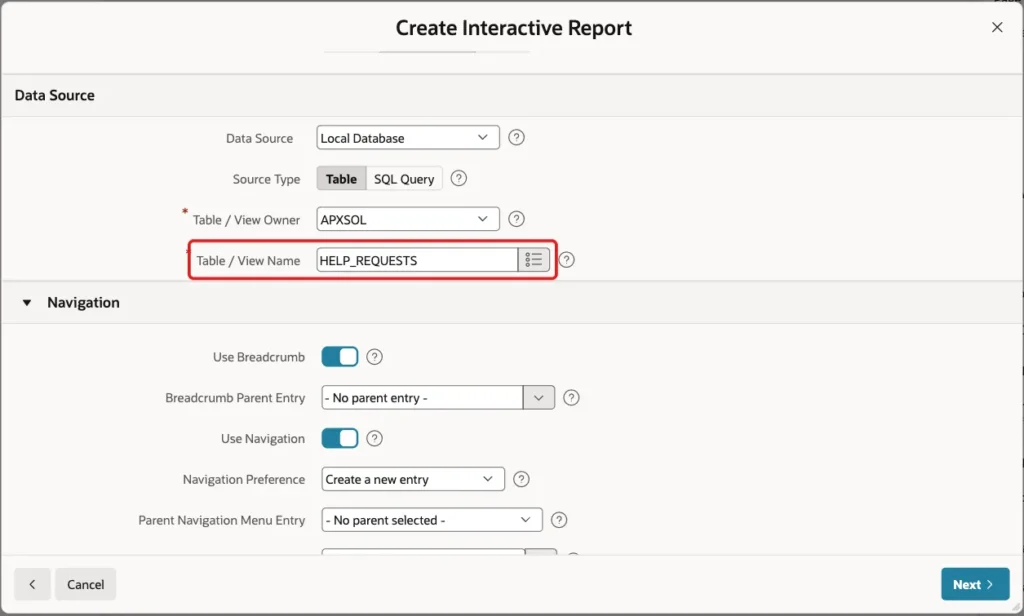
Enter HELP_REQUESTS as the Table / View Name:
Keep the Navigation settings and click Next:
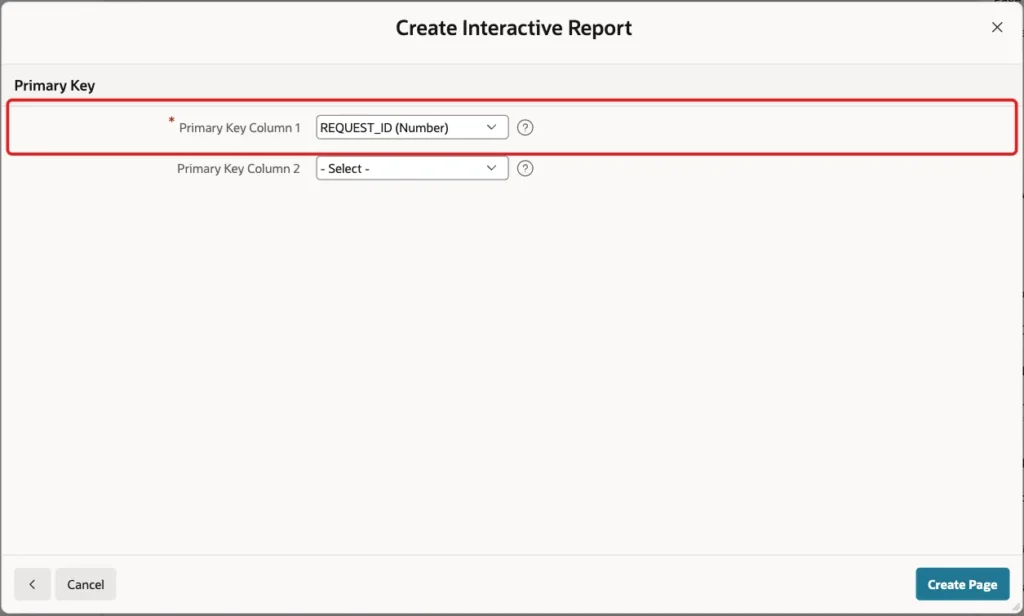
Select REQUEST_ID (Number) as Primary Key Column 1 and click Create Page:
Because of the composite foreign keys, the wizard creates select lists for PRIORITY_TYPE, PRIORITY_CODE, CATEGORY_TYPE and CATEGORY_CODE. It also creates two shared lists of values on LOOKUP_VALUES, LOOKUP_VALUES.LOOKUP_TYPE and LOOKUP_VALUES.LOOKUP_TYPE_1. They do not filter by list or by active flag, so they are not useful here.
Step 9: Use the Shared Lists of Values in the Form
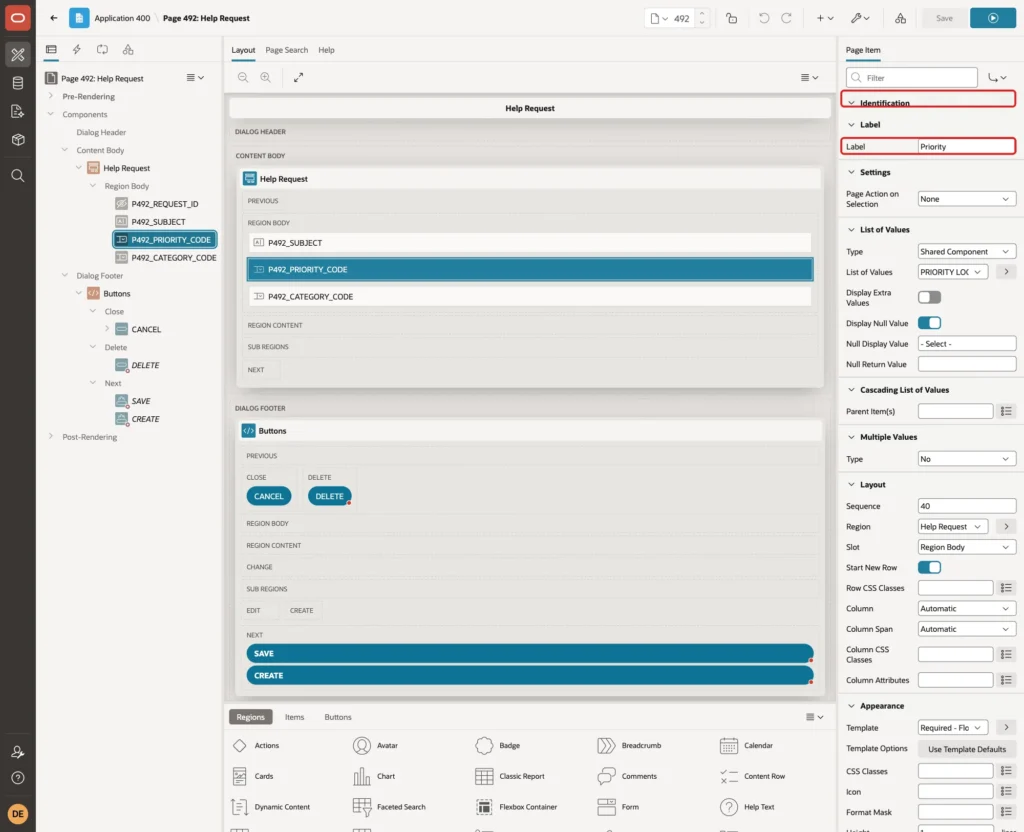
Open page 492 in Page Designer. Delete the items P492_PRIORITY_TYPE and P492_CATEGORY_TYPE, because virtual columns cannot be inserted or updated. Delete P492_CREATED_ON too, because the column default fills it.
Select P492_PRIORITY_CODE. Keep Type Select List and change the Label to Priority:
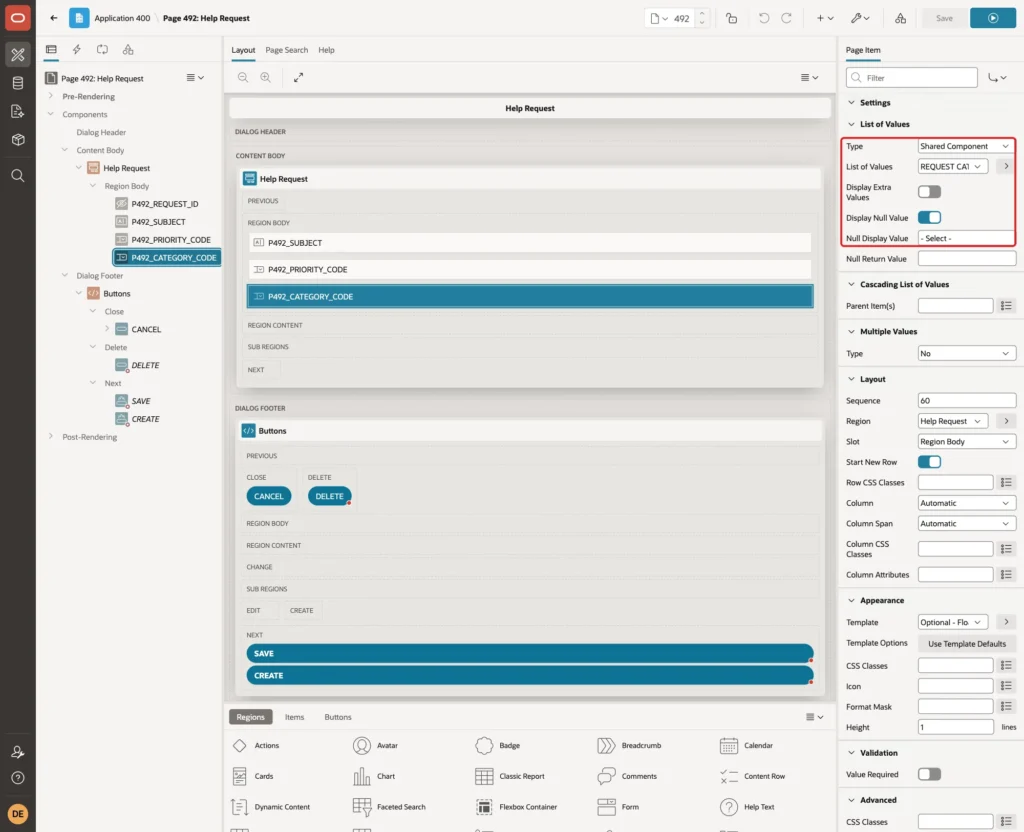
Under List of Values, set Type to Shared Component and List of Values to PRIORITY LOOKUP. Turn off Display Extra Values, turn on Display Null Value, and enter - Select - as the Null Display Value:
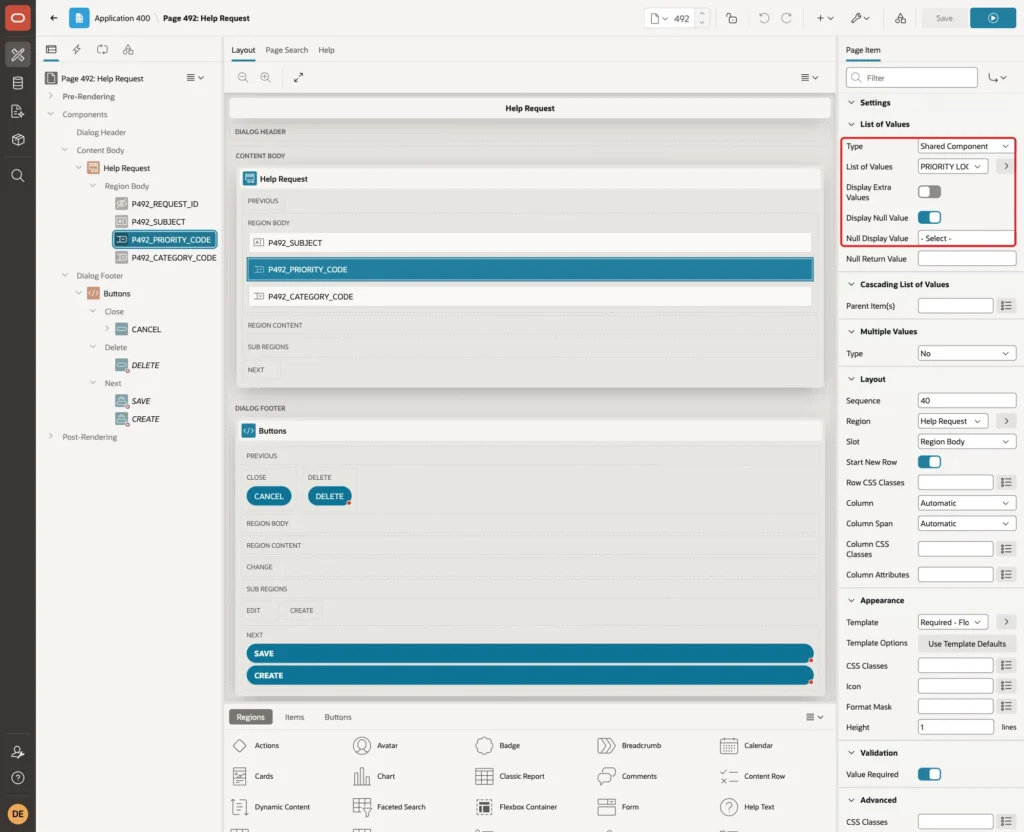
Select P492_CATEGORY_CODE, change its Label to Category, and set the same List of Values properties with REQUEST CATEGORY LOOKUP:
Click Save.
Step 10: Show the Meanings in the Report
The report must show Urgent for an old request even though Urgent is no longer active. The shared lists of values hide inactive values, so the report joins LOOKUP_VALUES directly.
Open page 491 and select the Help Requests region. Under Source, set Type to SQL Query and enter this query:
Example:
select r.request_id,
       r.subject,
       p.meaning as priority,
       c.meaning as category,
       r.created_on
from   help_requests r
join   lookup_values p
  on   p.lookup_type = r.priority_type
 and   p.lookup_code = r.priority_code
left   join lookup_values c
  on   c.lookup_type = r.category_type
 and   c.lookup_code = r.category_code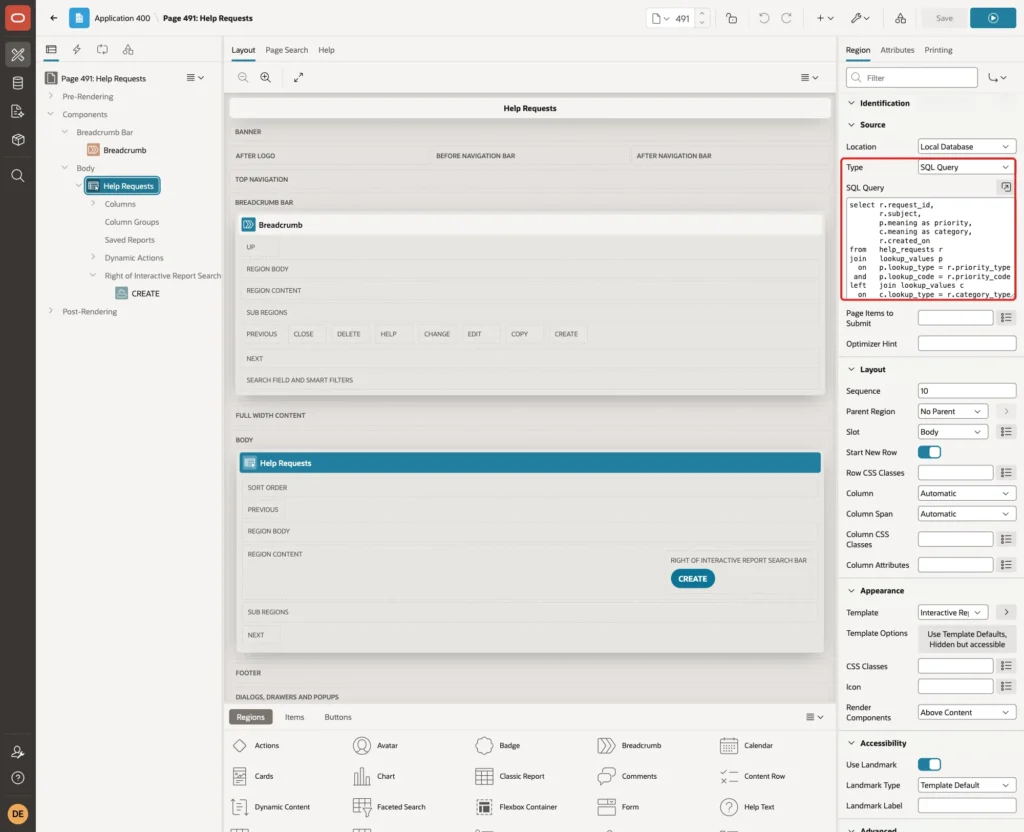
The join uses the virtual columns, so each code is looked up in its own list. Set the Heading of PRIORITY to Priority and of CATEGORY to Category, and click Save.
Now nothing uses the two lists of values that the wizard created. In Shared Components, delete LOOKUP_VALUES.LOOKUP_TYPE and LOOKUP_VALUES.LOOKUP_TYPE_1.
Step 11: Add a New Value
Run page 490 as an administrator and select PRIORITY in the Lookup Types grid. In the Values grid, click Add Row, type critical as the Code, Critical as the Meaning and 50 as the Sequence:
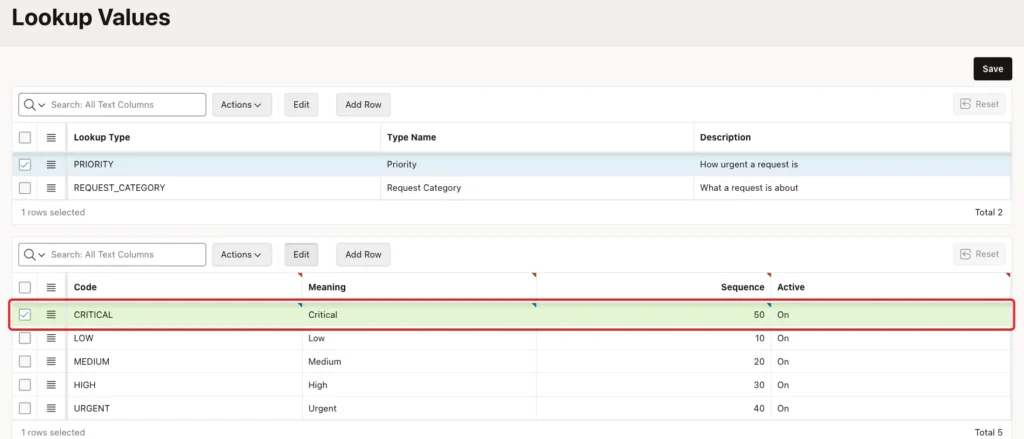
The Active switch is On by default. Click Save. The grid saves the row:
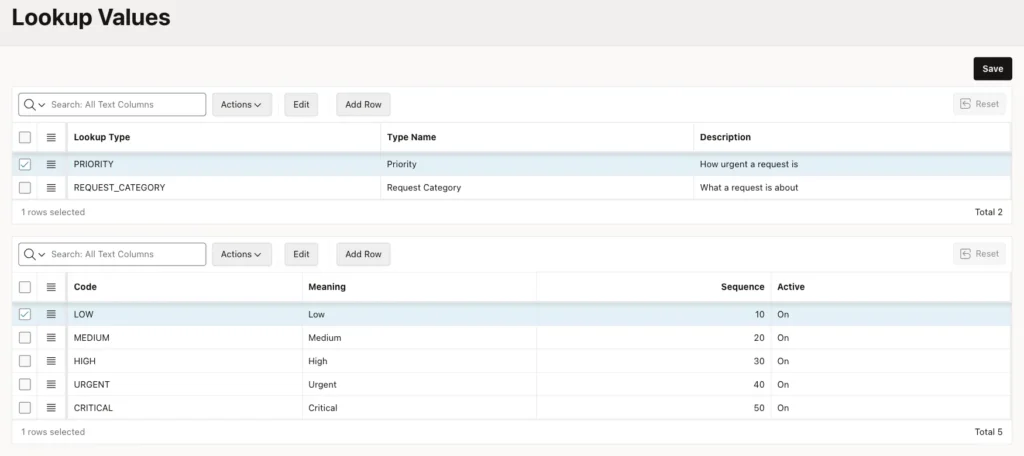
Check the table:
Example:
select lookup_type, lookup_code, meaning, display_seq, is_active
from   lookup_values
order  by lookup_type, display_seq;
Output:
LOOKUP_TYPE         LOOKUP_CODE    MEANING        DISPLAY_SEQ IS_ACTIVE
___________________ ______________ ___________ ______________ ____________
PRIORITY            LOW            Low                     10 Y
PRIORITY            MEDIUM         Medium                  20 Y
PRIORITY            HIGH           High                    30 Y
PRIORITY            URGENT         Urgent                  40 Y
PRIORITY            CRITICAL       Critical                50 Y
REQUEST_CATEGORY    HARDWARE       Hardware                10 Y
REQUEST_CATEGORY    SOFTWARE       Software                20 Y
REQUEST_CATEGORY    ACCESS         Access                  30 Y

8 rows selected.
Step 12: Deactivate a Value
A value that is already used cannot be deleted, so it is deactivated. In the Values grid, set the Active switch of URGENT to Off and click Save:
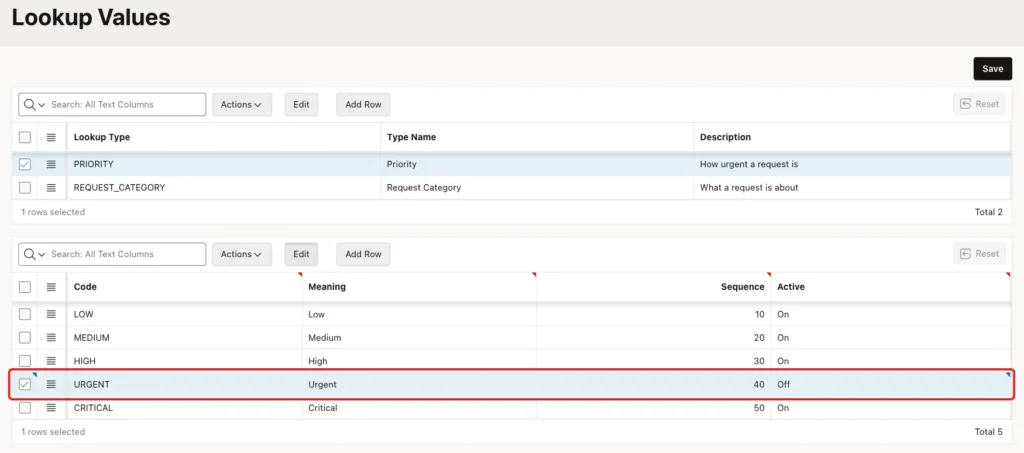
Output:
LOOKUP_TYPE         LOOKUP_CODE    MEANING        DISPLAY_SEQ IS_ACTIVE
___________________ ______________ ___________ ______________ ____________
PRIORITY            LOW            Low                     10 Y
PRIORITY            MEDIUM         Medium                  20 Y
PRIORITY            HIGH           High                    30 Y
PRIORITY            URGENT         Urgent                  40 N
PRIORITY            CRITICAL       Critical                50 Y
REQUEST_CATEGORY    HARDWARE       Hardware                10 Y
REQUEST_CATEGORY    SOFTWARE       Software                20 Y
REQUEST_CATEGORY    ACCESS         Access                  30 Y

8 rows selected.
Step 13: Test the Select List
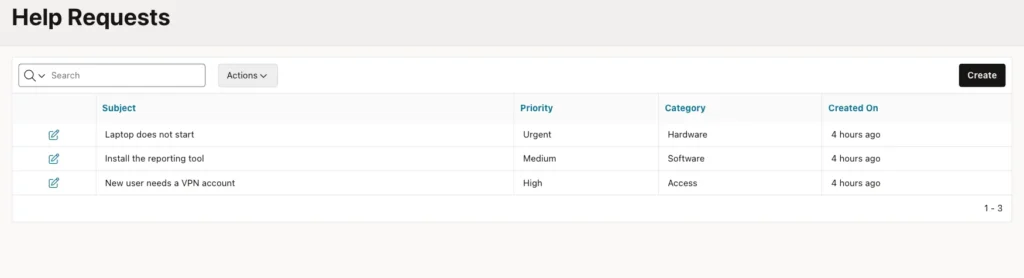
Sign in as ORDER_EDITOR and open Help Requests. The report shows the meaning of each code, and Urgent for the old request even though Urgent is no longer active:
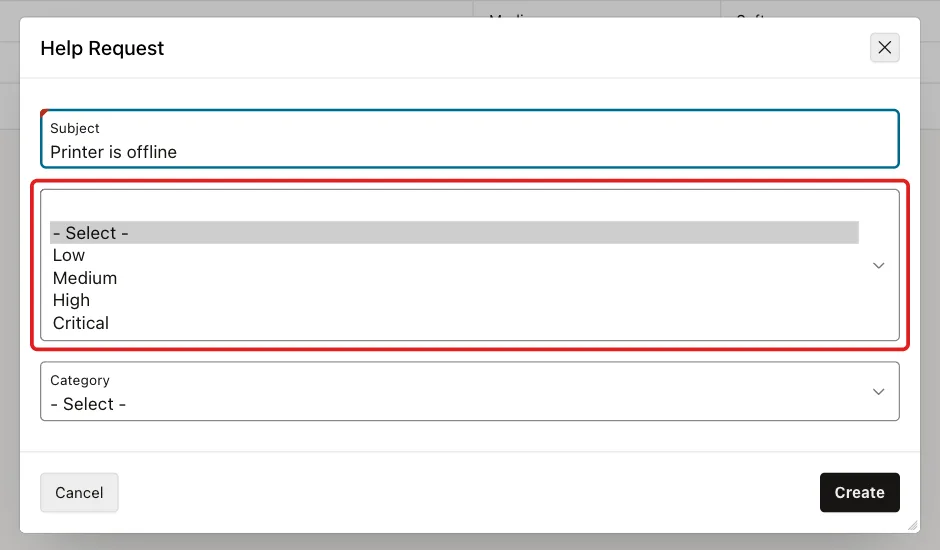
Click Create. The Priority list shows Low, Medium, High and Critical. Critical is there without any change to the app, and Urgent is gone:
Enter the subject Printer is offline, select Critical and Hardware, and click Create. APEX shows "Row created." and the report lists the new request with priority Critical.
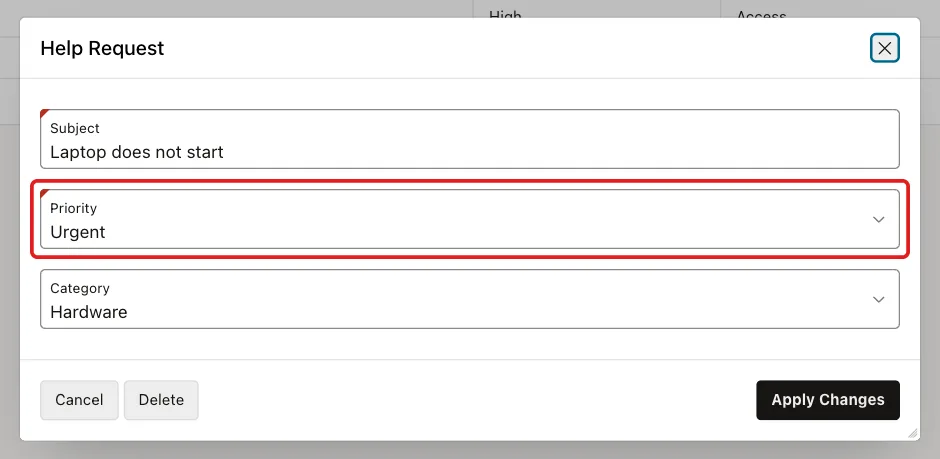
Open the request Laptop does not start. Its priority is Urgent, and the select list shows it, because the list of values keeps the current value of the record:
Step 14: Block an Inactive Value on the Server
In a first test, a browser script added Urgent to the Priority list of a new request and clicked Create. APEX saved the request with the inactive value:
Output:
   REQUEST_ID SUBJECT                         PRIORITY_CODE    PRIORITY    IS_ACTIVE
_____________ _______________________________ ________________ ___________ ____________
            1 Laptop does not start           URGENT           Urgent      N
            2 Install the reporting tool      MEDIUM           Medium      Y
            3 New user needs a VPN account    HIGH             High        Y
           21 Printer is offline              CRITICAL         Critical    Y
           22 Forced inactive priority        URGENT           Urgent      N
APEX checks a select list value against its list of values on submit. But the list of values includes the item's own value, and that value is the forced URGENT, so the check passed. A validation closes this gap.
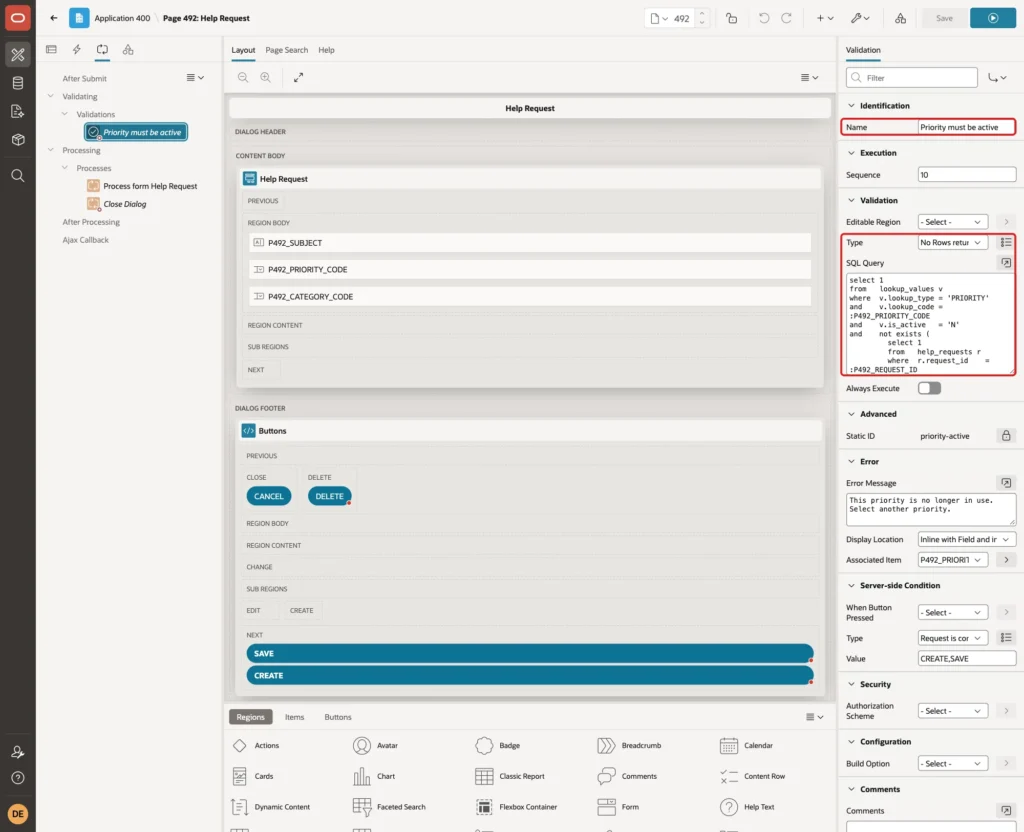
On page 492, open the Processing tab, right-click Validating and click Create Validation. Enter Name Priority must be active, set Type to No Rows returned, and enter this query:
Example:
select 1
from   lookup_values v
where  v.lookup_type = 'PRIORITY'
and    v.lookup_code = :P492_PRIORITY_CODE
and    v.is_active   = 'N'
and    not exists (
         select 1
         from   help_requests r
         where  r.request_id    = :P492_REQUEST_ID
         and    r.priority_code = v.lookup_code
       )
Set Error Message to This priority is no longer in use. Select another priority. Set Associated Item to P492_PRIORITY_CODE. Under Server-side Condition, set Type to Request is contained in Value and Value to CREATE,SAVE:
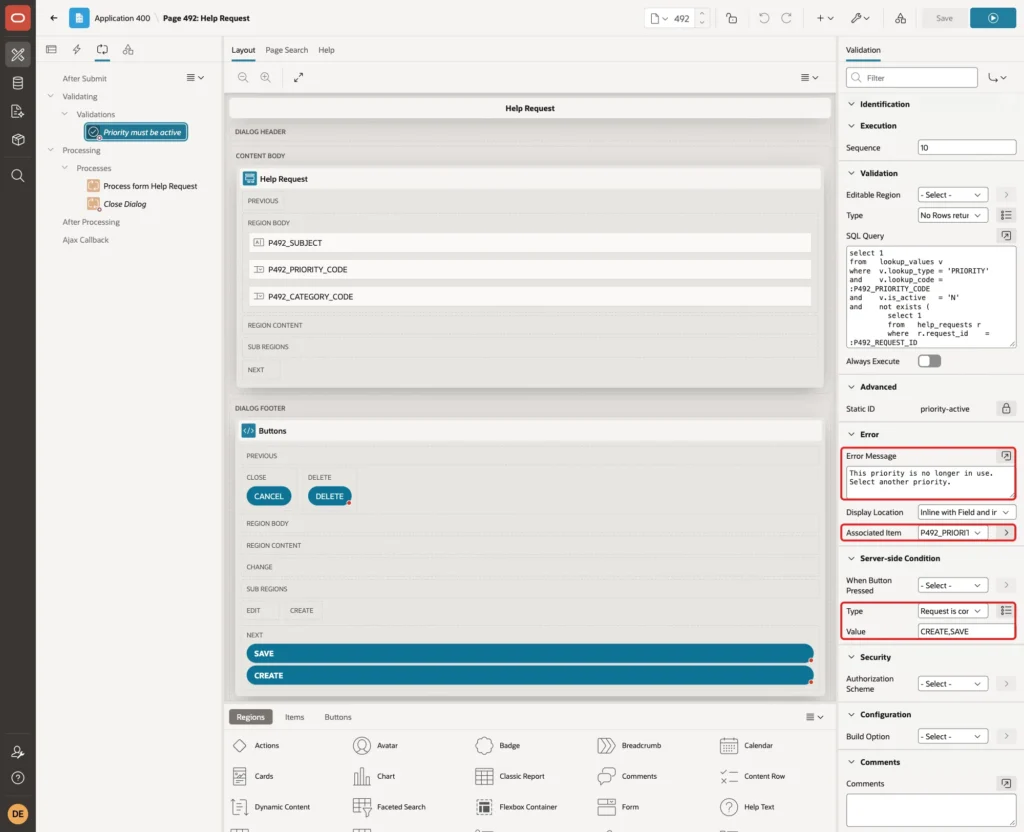
The NOT EXISTS part allows the inactive value only when the stored record already has it. Click Save. The forced request from the first test was deleted, and the same test was run again:
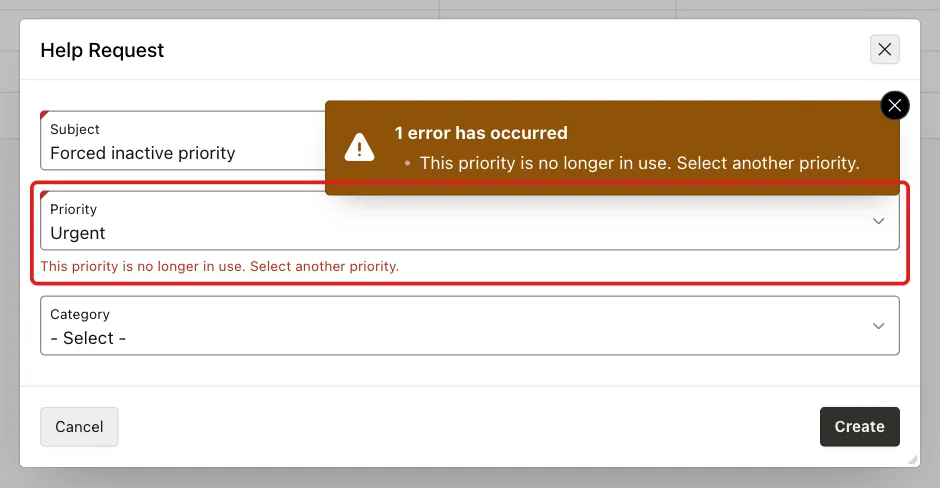
Two more tests followed. ORDER_EDITOR changed the subject of the Urgent request and kept Urgent: the save worked. Then a script set Urgent on the Medium request: the validation rejected it. The table after all tests:
Output:
   REQUEST_ID SUBJECT                               PRIORITY_CODE    PRIORITY    IS_ACTIVE
_____________ _____________________________________ ________________ ___________ ____________
            1 Laptop does not start after update    URGENT           Urgent      N
            2 Install the reporting tool            MEDIUM           Medium      Y
            3 New user needs a VPN account          HIGH             High        Y
           21 Printer is offline                    CRITICAL         Critical    Y
Step 15: Test Duplicate Codes and Used Values
In the Values grid of PRIORITY, click Add Row and enter high, High again and 60. Click Save. The validation from Step 5 stops the save, shows its message and marks the Code cell:
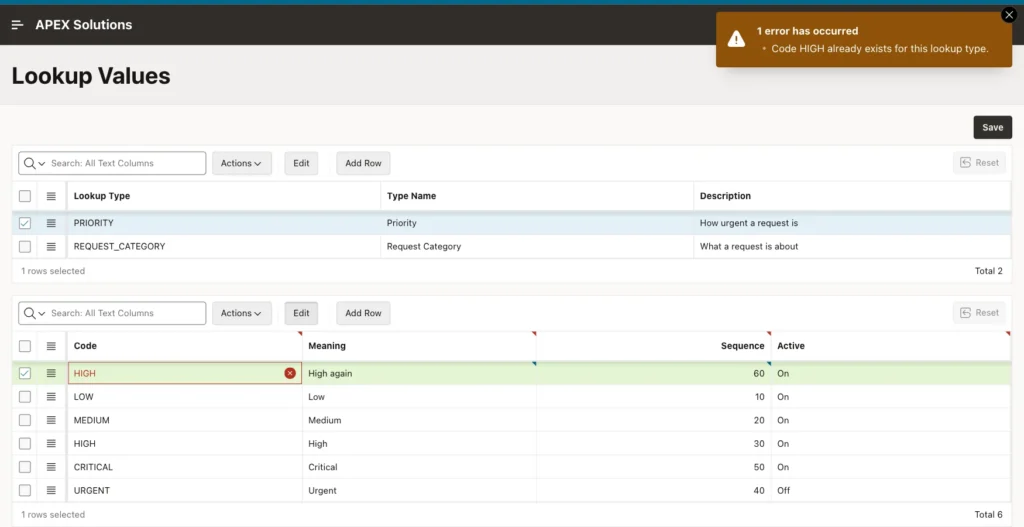
Now delete the MEDIUM row, which the request Install the reporting tool uses, and click Save. The foreign key HELP_REQUESTS_PRIORITY_FK stops the delete:
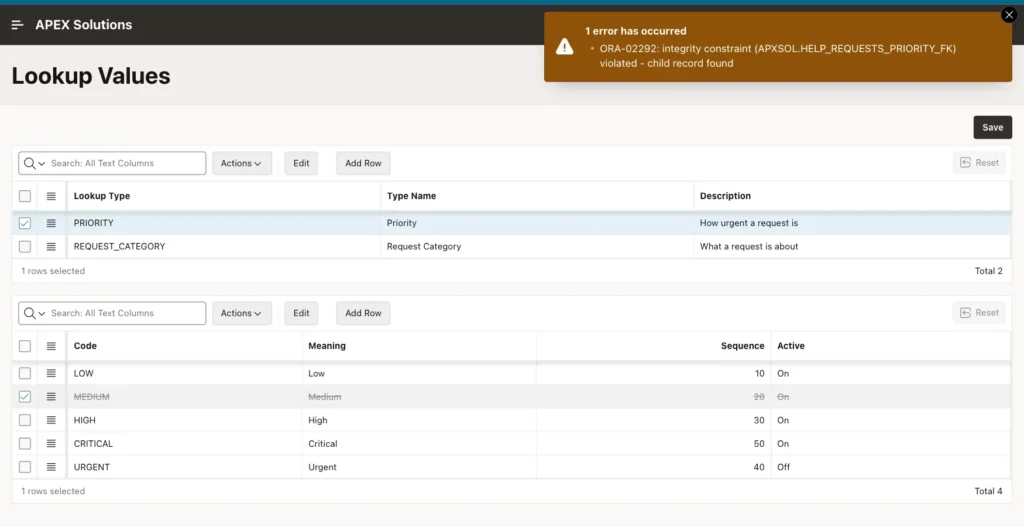
Output:
LOOKUP_TYPE         LOOKUP_CODE    MEANING        DISPLAY_SEQ IS_ACTIVE
___________________ ______________ ___________ ______________ ____________
PRIORITY            LOW            Low                     10 Y
PRIORITY            MEDIUM         Medium                  20 Y
PRIORITY            HIGH           High                    30 Y
PRIORITY            URGENT         Urgent                  40 N
PRIORITY            CRITICAL       Critical                50 Y
REQUEST_CATEGORY    HARDWARE       Hardware                10 Y
REQUEST_CATEGORY    SOFTWARE       Software                20 Y
REQUEST_CATEGORY    ACCESS         Access                  30 Y

8 rows selected.
MEDIUM is still in the table. Deactivate a used value instead of deleting it.
Things to Know
- A virtual column with a fixed list name, such as PRIORITY_TYPE, lets a normal composite foreign key check that a code belongs to the right list.
- The Master Detail wizard creates every primary key column as Hidden. Change a natural key such as LOOKUP_TYPE to a Text Field, or no new list can be added.
- An interactive grid ignores the ORDER BY of its source query. Set the sort with Actions, Data, Sort and save the primary report as a developer.
- Including the item's own value in the list of values keeps old records readable, but it also lets a forced inactive value pass the built-in check. Add a validation like the one in Step 14 for every item that uses this pattern.
- The form wizard creates unusable shared lists of values and select lists for composite foreign keys with virtual columns. Delete them and use one list of values per lookup type.
- The ORA-02292 message for a used value comes straight from the database. Deactivating is the safe way to retire a value.
Related Guides
- How to Let Users Add a New Value from a Popup LOV in Oracle APEX
- How to Create Cascading Select Lists (Parent-Child LOVs) in Oracle APEX
Conclusion
To manage all lookup values from one page in Oracle APEX, store the lists in a type table and a value table, and build a Stacked master-detail page on them. Each list gets a shared list of values that hides inactive values but keeps the current value of a record.
Constraints and virtual-column foreign keys protect the data in the database. A validation on the form blocks forced inactive values, and the saved grid report keeps the values in sequence order for every user.
