
Some fields are required only in certain cases. A discount needs a reason, but a full-price entry does not. The Value Required switch of a page item is always on or always off, so it cannot express "required when". If you leave it off and check nothing, users save discounts with no explanation.
This guide makes Discount Reason required only when Discount % is more than 0. The browser shows the required marker and blocks the save at once, a server-side validation repeats the rule, and a check constraint protects the table. The guide uses price quotes as the example; the same steps work for any table.
The older post How to Show or Hide Fields Based on Another Item's Value in Oracle APEX shows and hides fields. Here the field stays visible, and only its required state changes with the value of another item.
Step 1: Create the Tables
The example needs two tables. CLIENT_ACCOUNTS lists the clients. PRICE_QUOTES stores one quote per row, with DISCOUNT_PCT and an optional DISCOUNT_REASON.
The rule itself is part of the table: the check constraint PRICE_QUOTES_REASON_CK allows an empty reason only when the discount is 0. Create the tables, the index and the sample data:
Example:
create table client_accounts (
  client_id     number generated by default on null as identity,
  client_name   varchar2(100 char) not null,
  constraint client_accounts_pk primary key (client_id),
  constraint client_accounts_name_uk unique (client_name)
);

create table price_quotes (
  quote_id        number generated by default on null as identity,
  client_id       number             not null,
  quote_date      date               default on null sysdate not null,
  amount          number(12,2)       not null,
  discount_pct    number(4,1)        default on null 0 not null,
  discount_reason varchar2(200 char),
  created_by      varchar2(255)      default on null
                    coalesce(sys_context('APEX$SESSION', 'APP_USER'), user) not null,
  constraint price_quotes_pk primary key (quote_id),
  constraint price_quotes_client_fk foreign key (client_id)
    references client_accounts (client_id),
  constraint price_quotes_amount_ck check (amount > 0),
  constraint price_quotes_discount_ck check (discount_pct between 0 and 50),
  constraint price_quotes_reason_ck check (discount_pct = 0 or discount_reason is not null)
);

create index price_quotes_client_ix on price_quotes (client_id);

insert into client_accounts (client_name) values ('Blue Harbor Ltd');
insert into client_accounts (client_name) values ('Cedar Point Labs');
insert into client_accounts (client_name) values ('Northwind Traders');

insert into price_quotes (client_id, quote_date, amount, discount_pct, discount_reason, created_by)
values (1, date '2026-10-01', 12000, 0, null, 'DEMO_DEV');
insert into price_quotes (client_id, quote_date, amount, discount_pct, discount_reason, created_by)
values (2, date '2026-10-05', 8500, 10, 'Two-year contract', 'SALES_MANAGER');
insert into price_quotes (client_id, quote_date, amount, discount_pct, discount_reason, created_by)
values (3, date '2026-10-09', 4300, 0, null, 'DEMO_DEV');
commit;

select q.quote_id, c.client_name, q.amount, q.discount_pct, q.discount_reason
from   price_quotes q
join   client_accounts c on c.client_id = q.client_id
order  by q.quote_id;
Output:
Table CLIENT_ACCOUNTS created.

Table PRICE_QUOTES created.

Index PRICE_QUOTES_CLIENT_IX created.

1 row inserted.

1 row inserted.

1 row inserted.

1 row inserted.

1 row inserted.

1 row inserted.

Commit complete.

   QUOTE_ID CLIENT_NAME             AMOUNT    DISCOUNT_PCT DISCOUNT_REASON
___________ ____________________ _________ _______________ ____________________
          1 Blue Harbor Ltd          12000               0
          2 Cedar Point Labs          8500              10 Two-year contract
3 Northwind Traders 4300 0- PRICE_QUOTES_CLIENT_FK links each quote to a client, and PRICE_QUOTES_CLIENT_IX indexes that foreign key.
- PRICE_QUOTES_DISCOUNT_CK allows discounts from 0 to 50, and PRICE_QUOTES_AMOUNT_CK only positive amounts.
- DISCOUNT_PCT, QUOTE_DATE and CREATED_BY use DEFAULT ON NULL, so the table fills them when a value is missing. No trigger is needed.
Step 2: Create the Report and Form Pages
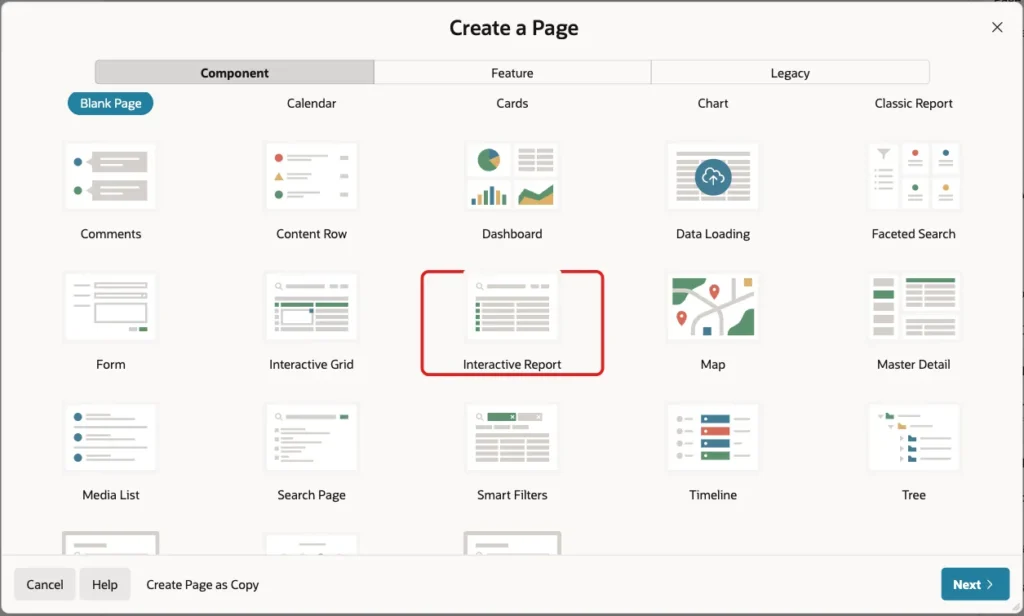
In App Builder, open the application and click Create Page. On the Component tab, click Interactive Report:
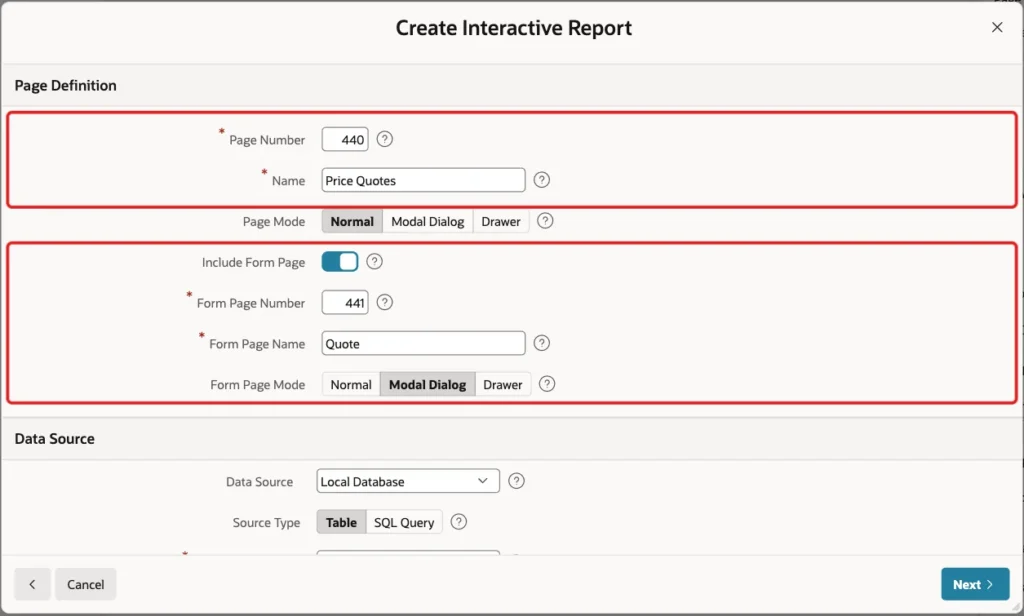
Enter Page Number 440 and Name Price Quotes. Turn on Include Form Page, enter Form Page Number 441 and Form Page Name Quote, and keep Form Page Mode Modal Dialog:
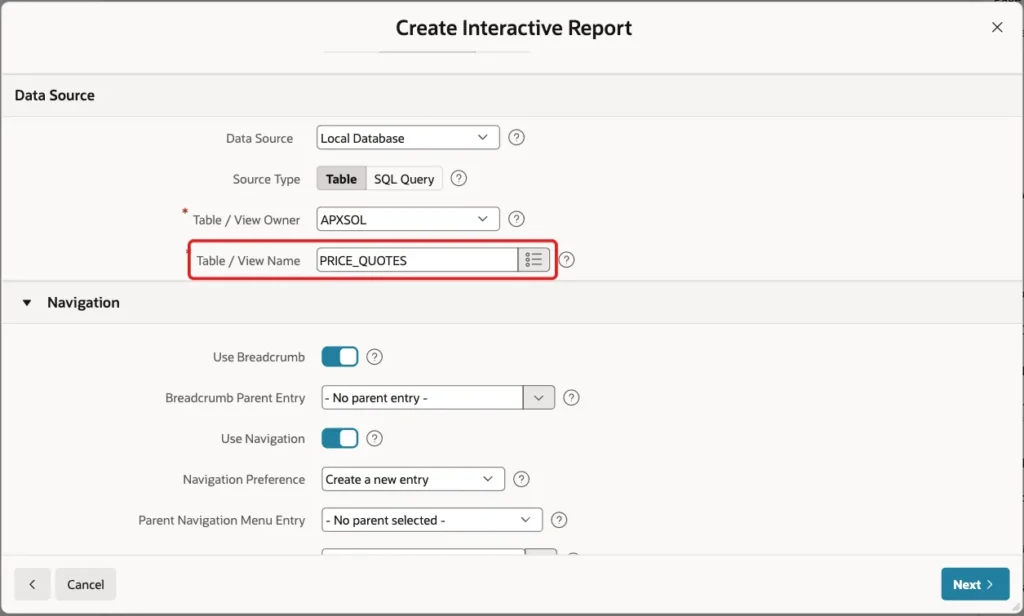
Under Data Source, keep Local Database and Source Type Table, and enter Table / View Name PRICE_QUOTES:
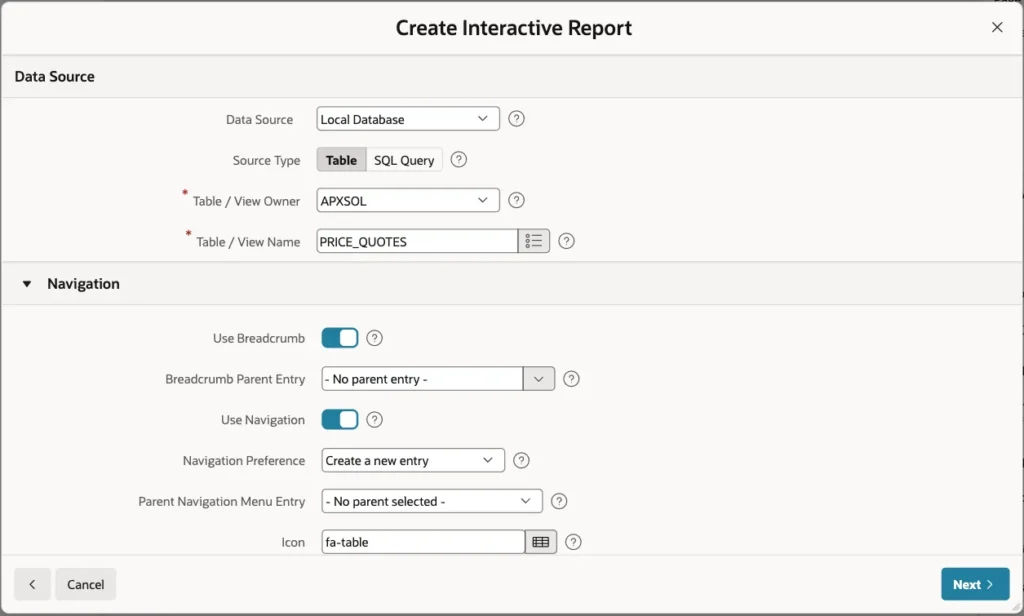
Keep Use Breadcrumb and Use Navigation on, so the report page gets a menu entry, and click Next:
On the Primary Key screen, select QUOTE_ID (Number) as Primary Key Column 1 and click Create Page:
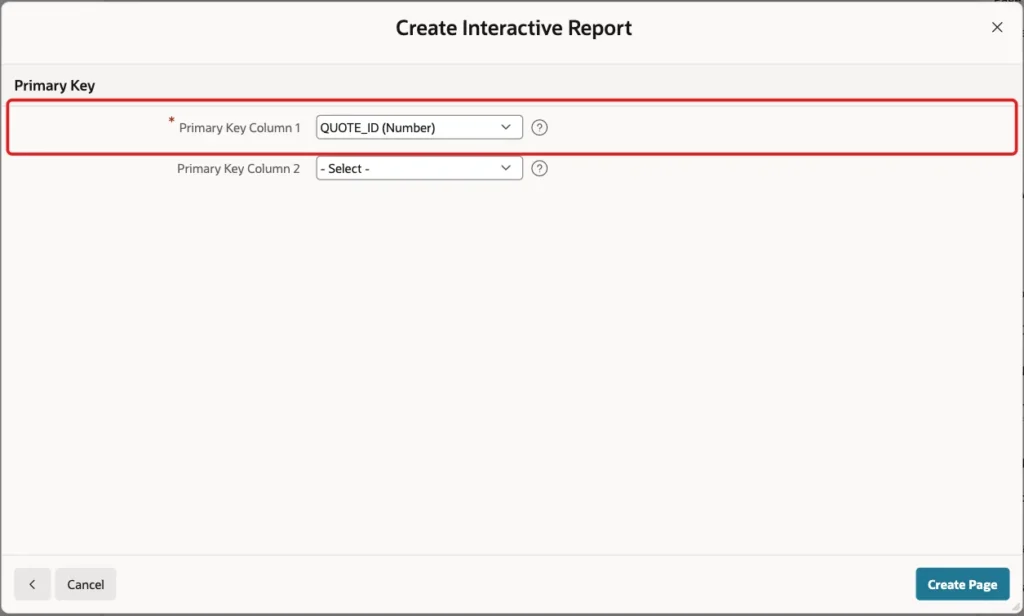
APEX creates the Price Quotes report on page 440 and the Quote modal form on page 441. The wizard turned on Value Required for the NOT NULL columns. DISCOUNT_REASON is nullable, so P441_DISCOUNT_REASON got Value Required off and the template Optional - Floating.
Step 3: Remove the Audit Item
The wizard also created P441_CREATED_BY. The table fills this column with DEFAULT ON NULL, so users should not type it. Open page 441 in Page Designer, right-click P441_CREATED_BY in the Rendering tree and choose Delete:
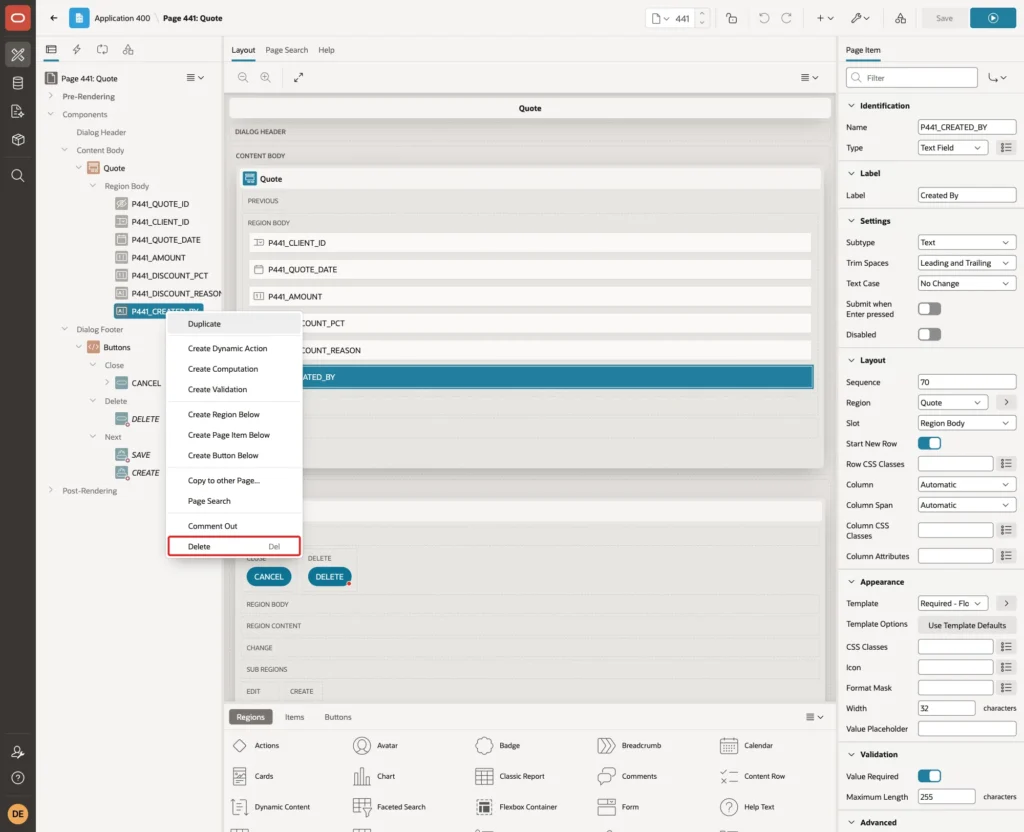
Click Save.
Step 4: Set Up the Discount Item
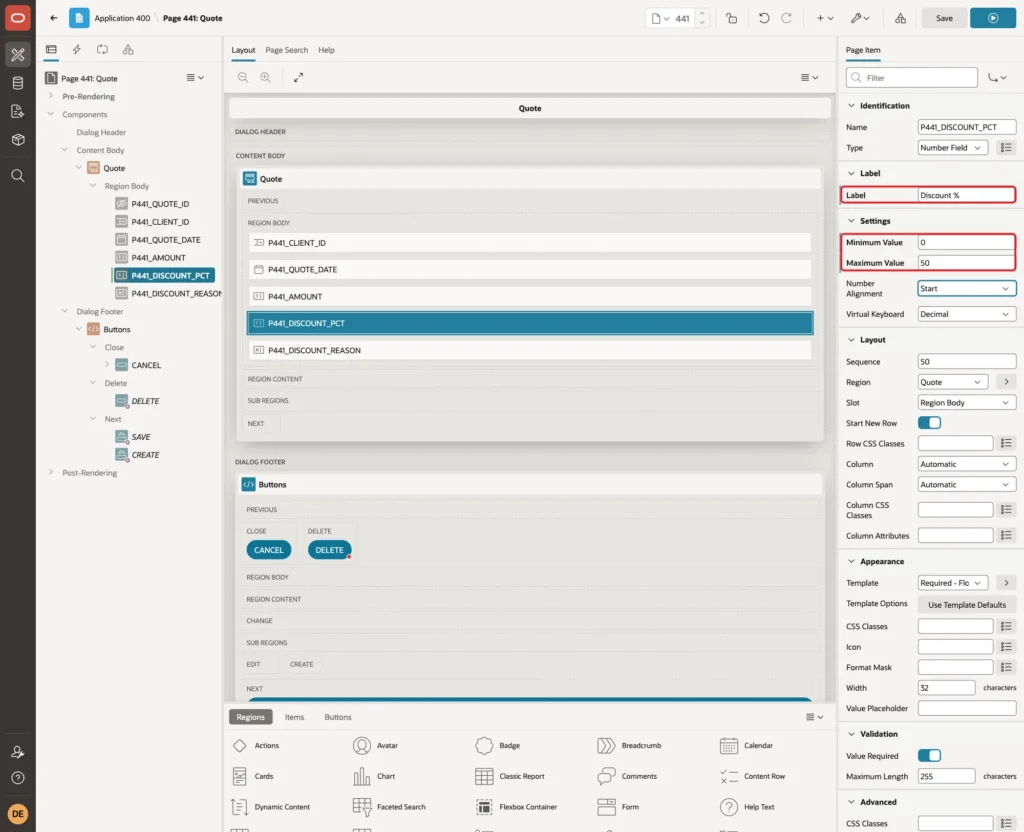
Select P441_DISCOUNT_PCT. Change Label to Discount %, and in the Settings group enter Minimum Value 0 and Maximum Value 50, the same range as the check constraint:
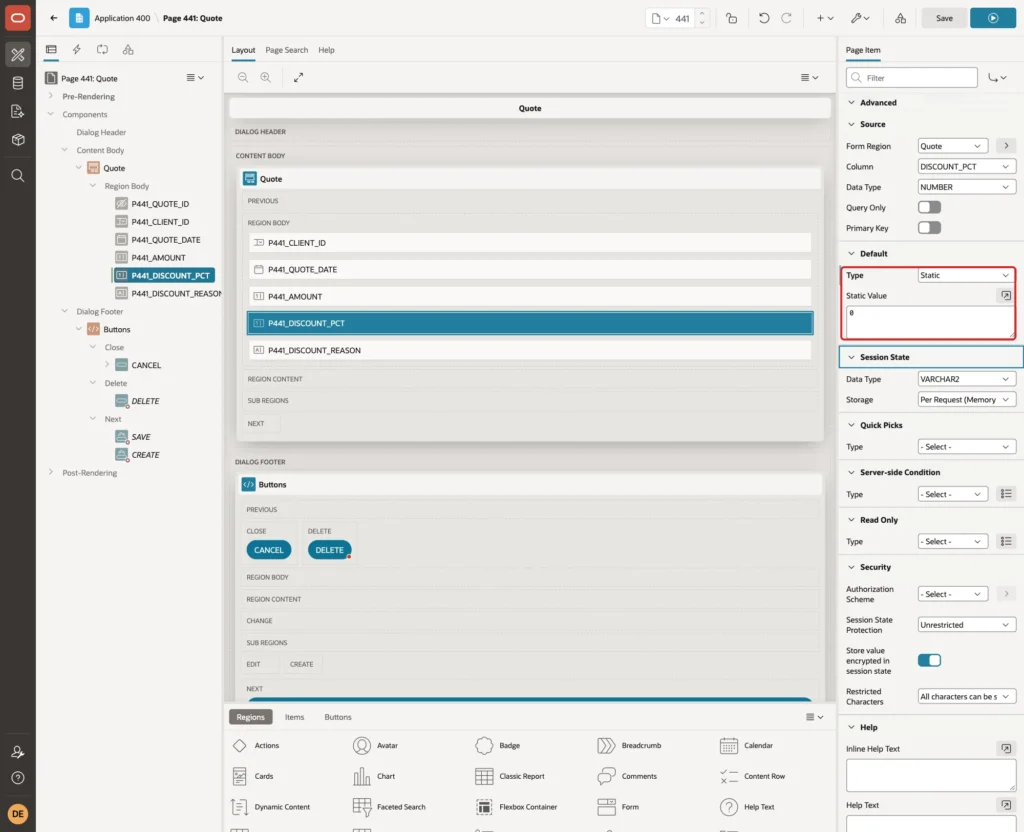
Scroll to the Default group. Set Type Static and Static Value 0, so a new quote starts without a discount:
Step 5: Prepare the Reason Item
Select P441_DISCOUNT_REASON. In the Appearance group, change Template to Required - Floating. Leave Validation > Value Required off:
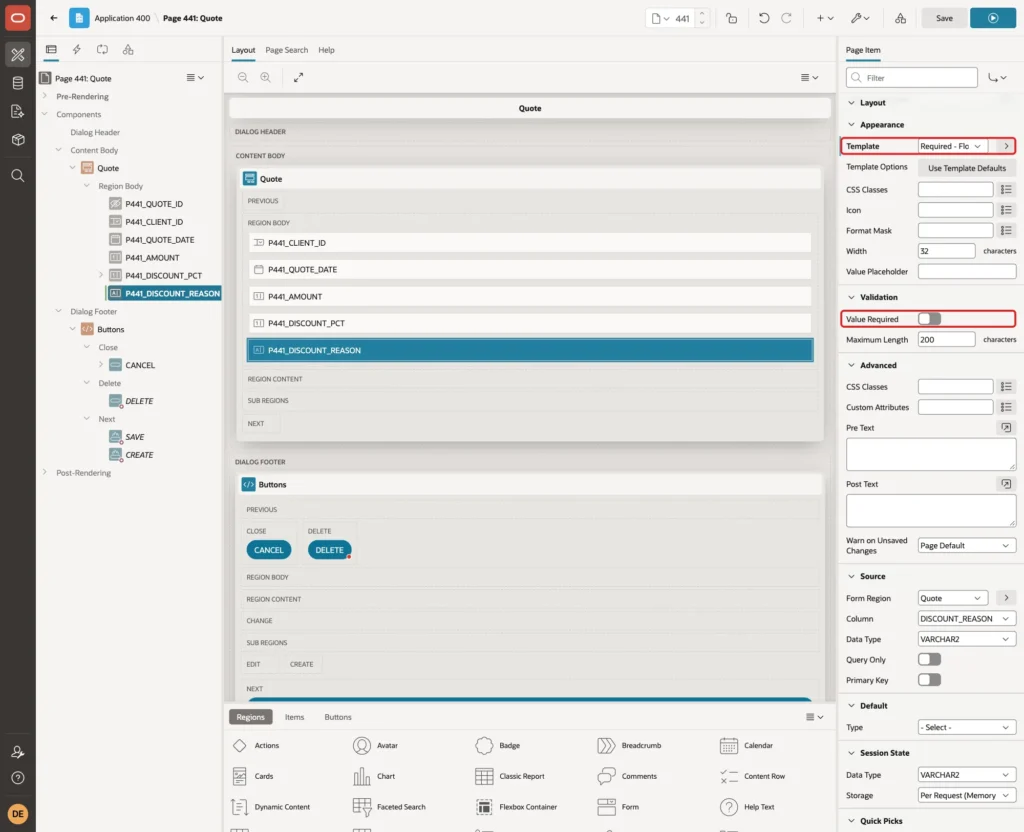
The two settings do different jobs. The template only adds the markup for the required marker, the small red corner of the field. Value Required would make the field required in every case, which is not the rule here.
In a first test, the dynamic action of the next step ran with the Optional - Floating template. The field became required, but no marker appeared, because that template has no marker element.
In the Help group, enter Inline Help Text Required when the discount is more than 0. The rule is then visible below the field:
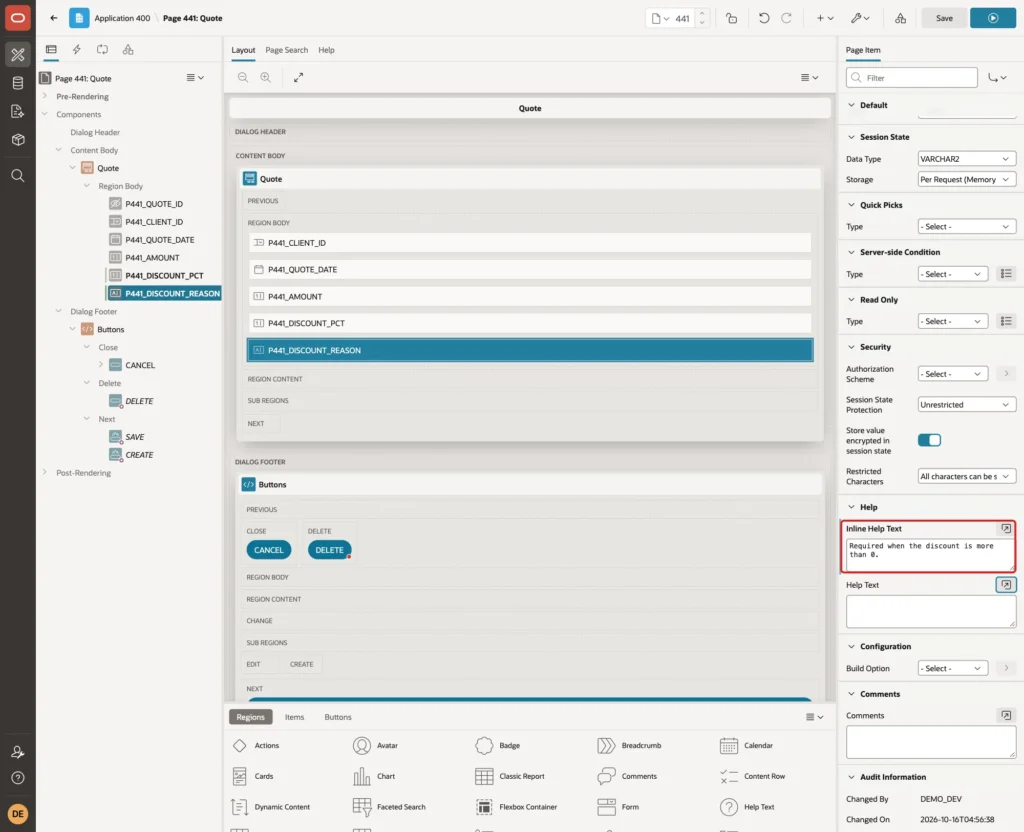
Click Save.
Step 6: Toggle the Required State in the Browser
Right-click P441_DISCOUNT_PCT in the Rendering tree and choose Create Dynamic Action:
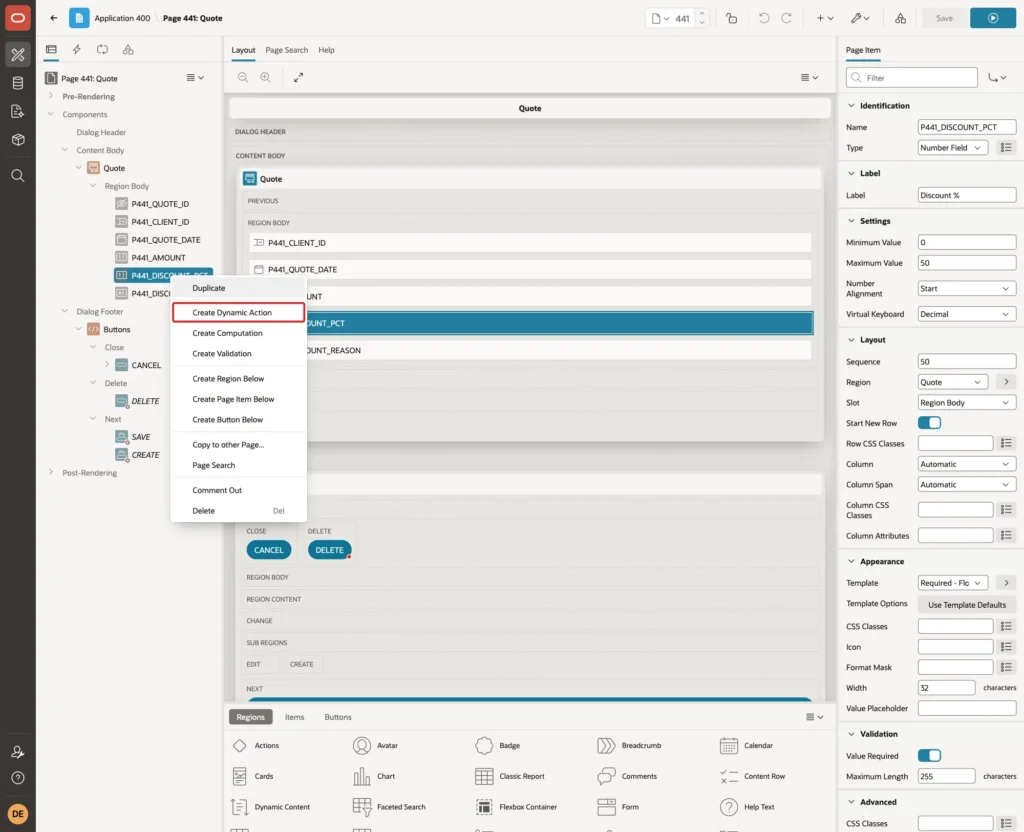
Set Name Toggle Reason Required. Event Change, Selection Type Item(s) and Item(s) P441_DISCOUNT_PCT are already filled in:
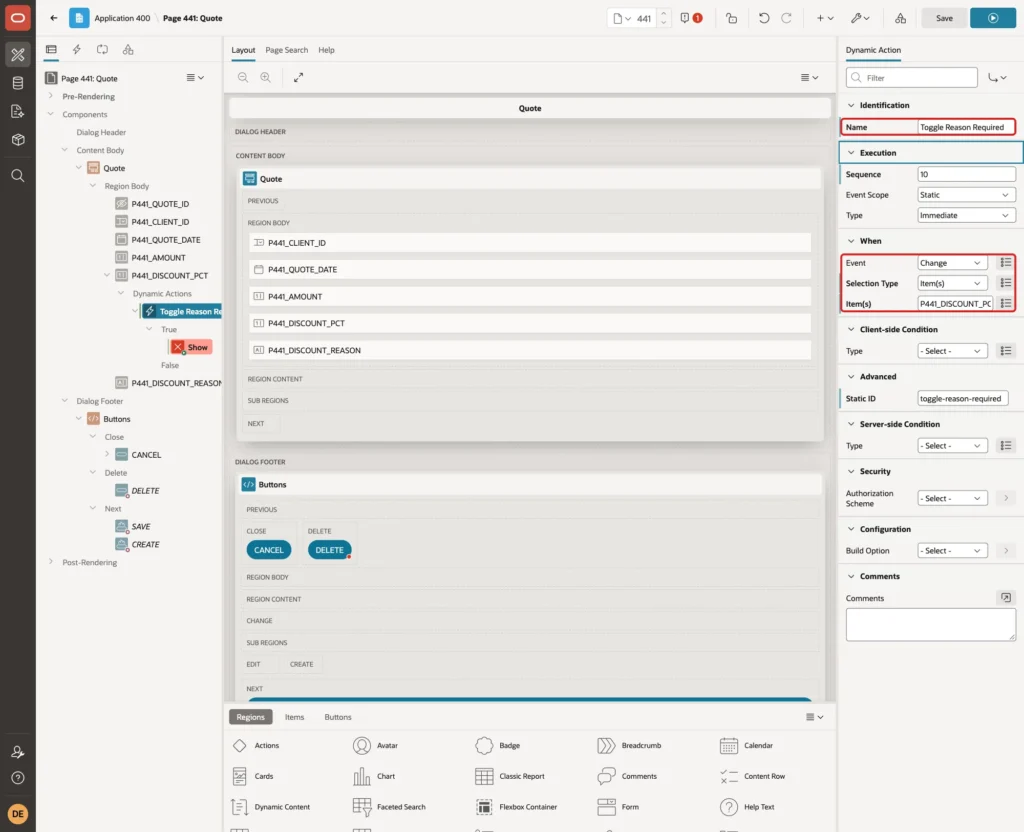
Select the Show action under True. Change Action to Execute JavaScript Code and enter this code:
Example:
var needed = Number(apex.item('P441_DISCOUNT_PCT').getValue()) > 0;
$('#P441_DISCOUNT_REASON').prop('required', needed);
$('#P441_DISCOUNT_REASON_CONTAINER').toggleClass('is-required', needed);
Turn on Fire on Initialization and click Save:
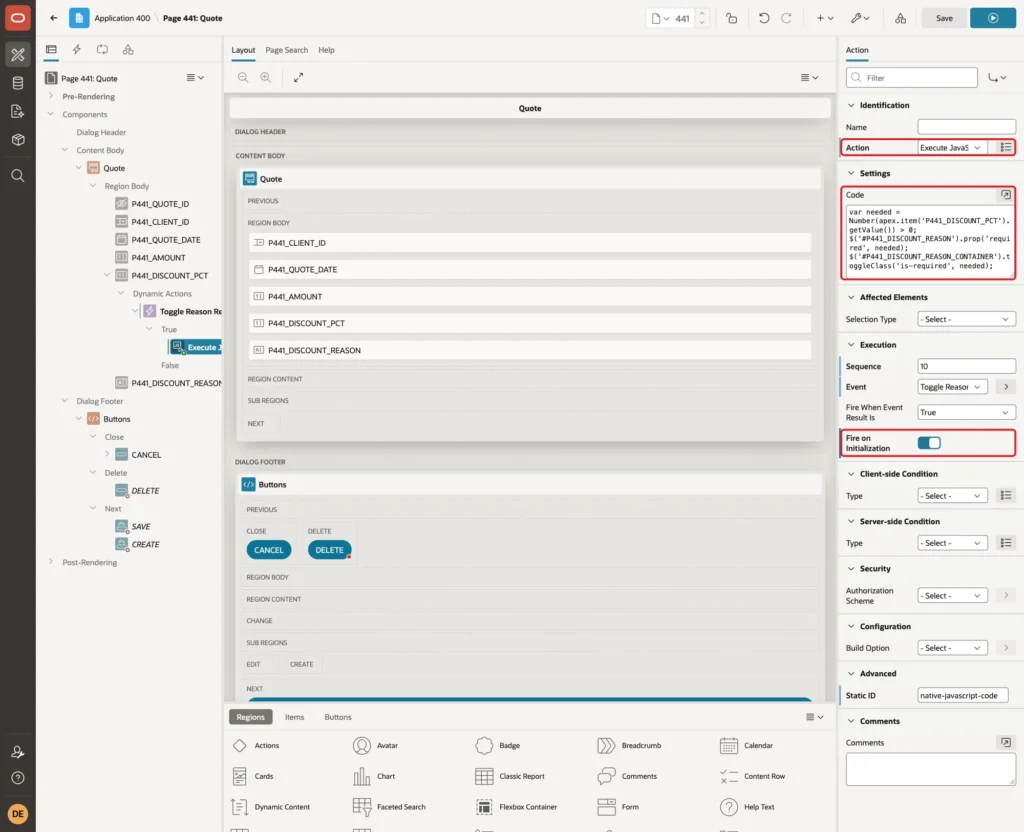
The first line checks whether the discount is more than 0. The second line sets the HTML required attribute of the input, which the browser checks when the page is submitted. The third line adds or removes the is-required class on P441_DISCOUNT_REASON_CONTAINER, the wrapper that APEX renders around the item. That class shows the red marker.
No client-side condition and no False action are needed, because the code passes true or false itself. Fire on Initialization runs the code when the dialog opens. A new quote with 0 loses the marker that the template added, and an existing discounted quote gets it at once.
Step 7: Add the Server-Side Validation
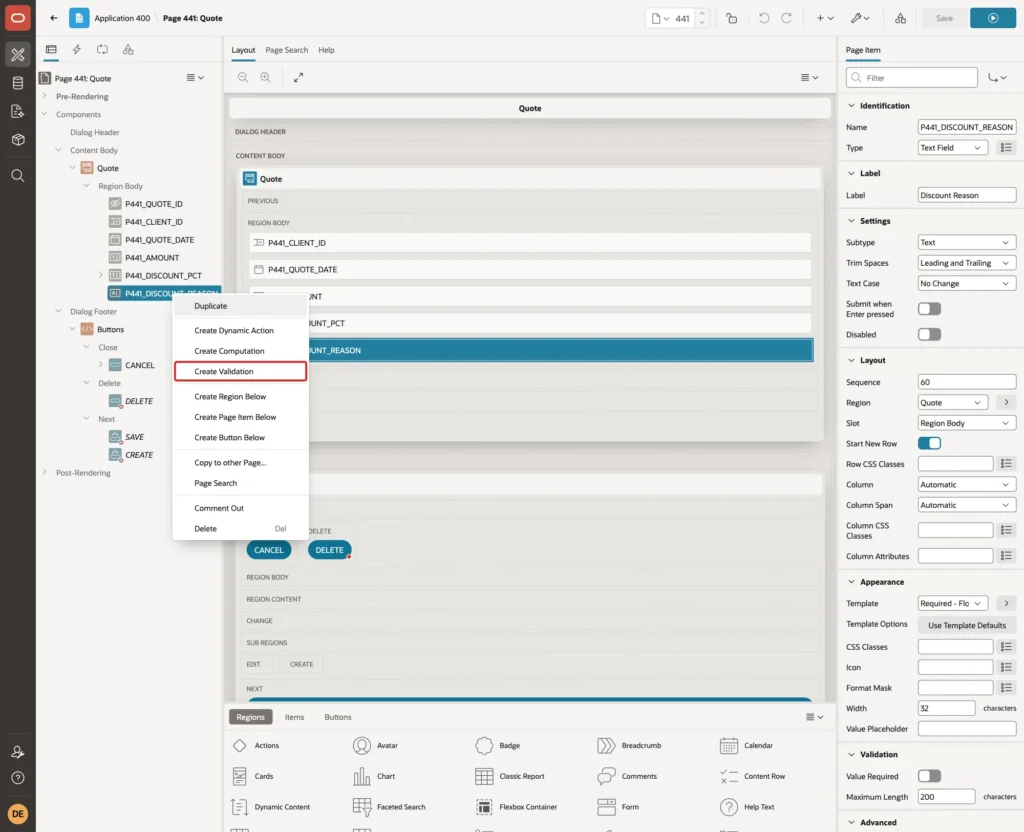
The browser check helps users, but anything in the browser can be bypassed. A validation repeats the rule on the server. Right-click P441_DISCOUNT_REASON and choose Create Validation:
Set Name Discount Reason Required. Change Validation > Type to Item is NOT NULL and enter Item P441_DISCOUNT_REASON. Enter Error Message Enter a reason for the discount. Associated Item is already P441_DISCOUNT_REASON.
Then set Server-side Condition > Type to Expression, keep Language PL/SQL and enter this PL/SQL Expression:
Example:
to_number(:P441_DISCOUNT_PCT) > 0
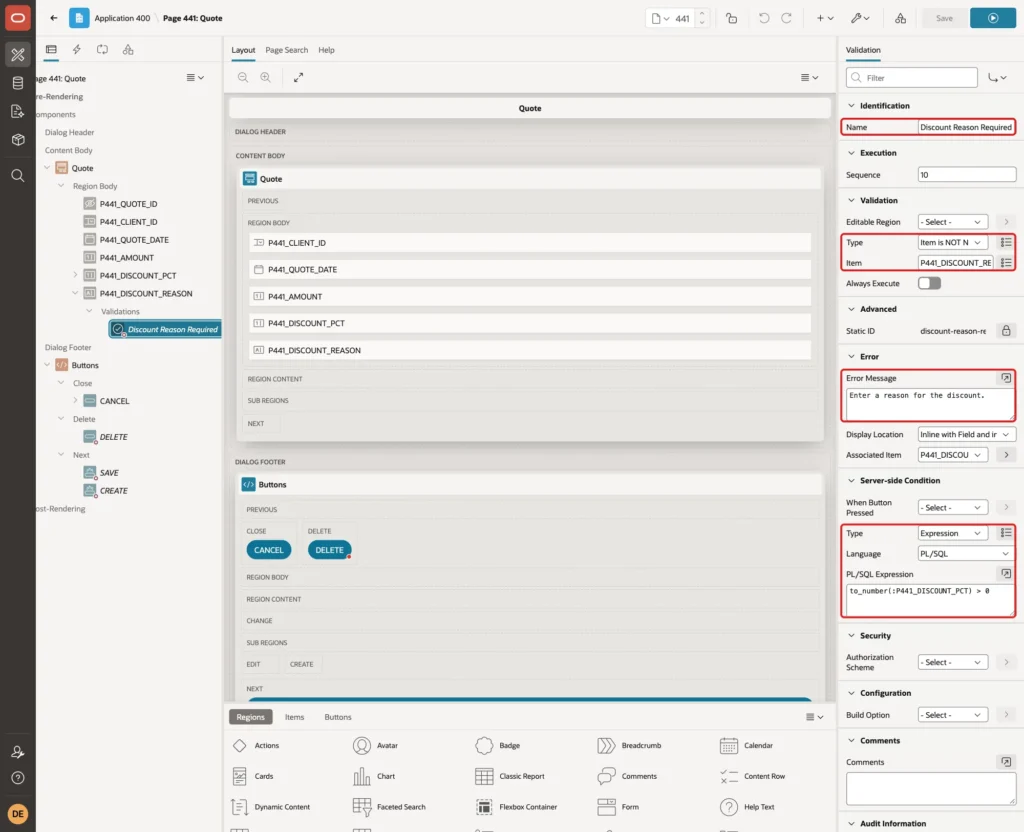
The condition decides whether the validation runs at all. With Discount % 0 it is skipped, and an empty reason is fine. Page item values are strings in session state, so TO_NUMBER makes the comparison numeric. Click Save.
Step 8: Test the Rule
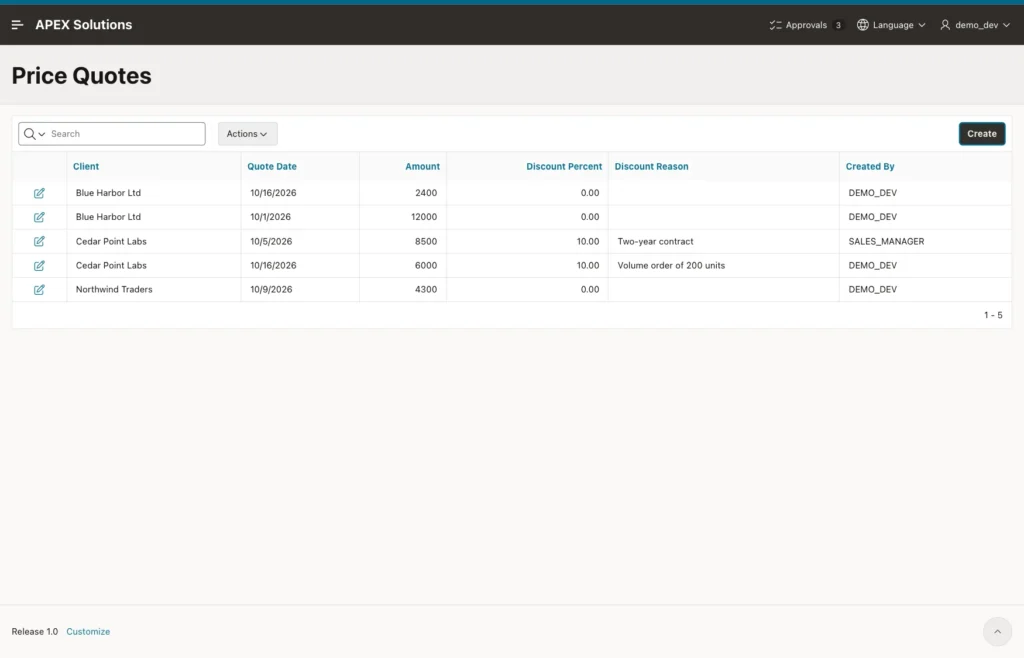
Run page 440. The report lists the three sample quotes:
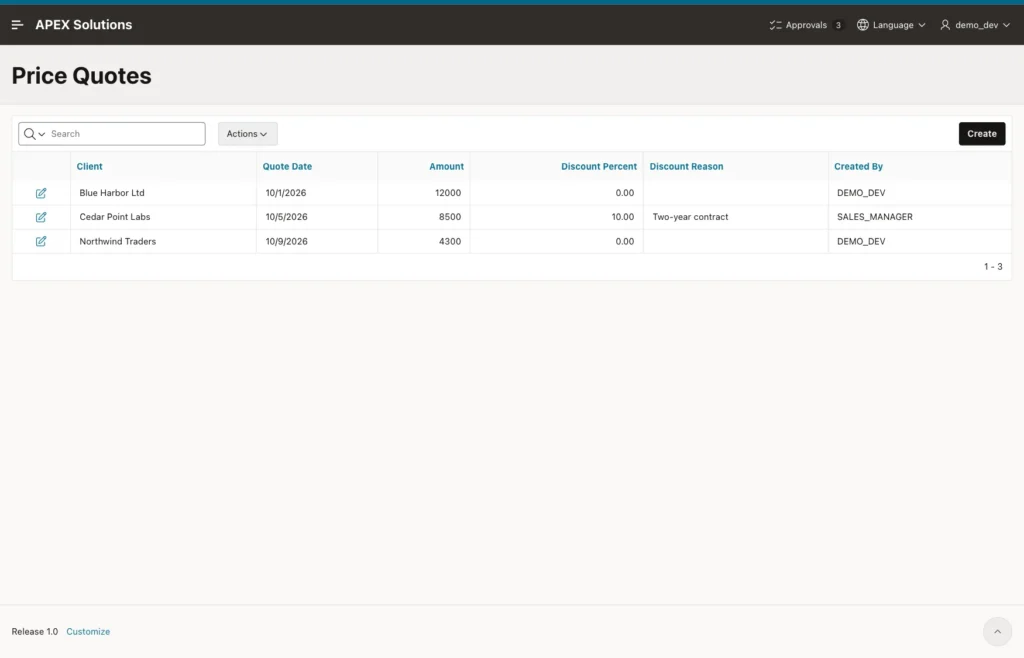
A Quote Without a Discount
Click Create. Discount % starts at 0, and Discount Reason has no required marker:
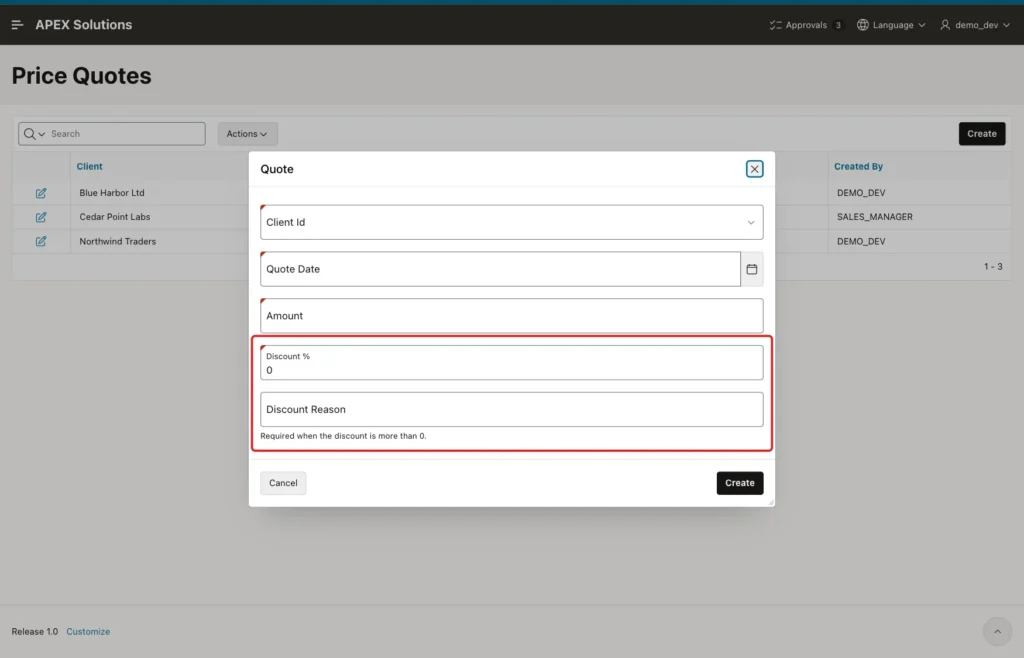
Select Blue Harbor Ltd, enter a Quote Date and Amount 2400, keep Discount % 0 and click Create. The dialog closed and the quote was saved without a reason.
A Discount Without a Reason
Click Create again. Select Cedar Point Labs, enter a Quote Date and Amount 6000, then type 10 in Discount %. When the field loses focus, the red marker appears on Discount Reason:
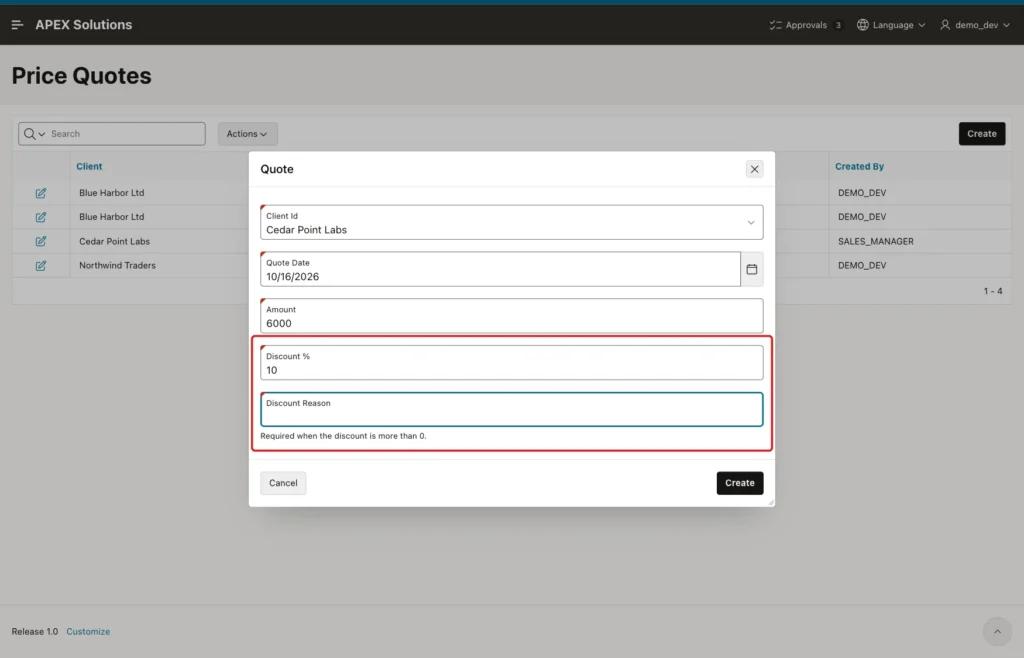
Leave the reason empty and click Create. The browser stops the submit:
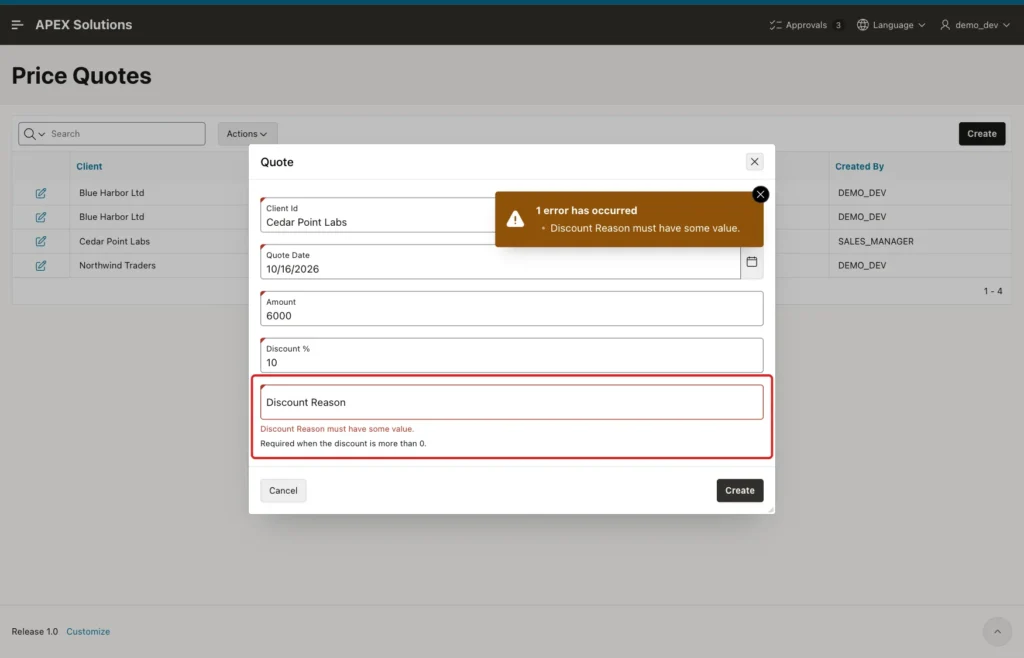
The message Discount Reason must have some value. is the standard APEX text for a required item. In the test, no request was sent to the server. Typing 10 and clicking Create directly also worked, because the Change event fires when the field loses focus, before the click.
A Forced Submit (Negative Test)
To check the server side, the same form was submitted from the browser console with the client-side checks turned off:
Example:
apex.page.submit({ request: 'CREATE', validate: false });This time the request reached the server, and the validation stopped it:
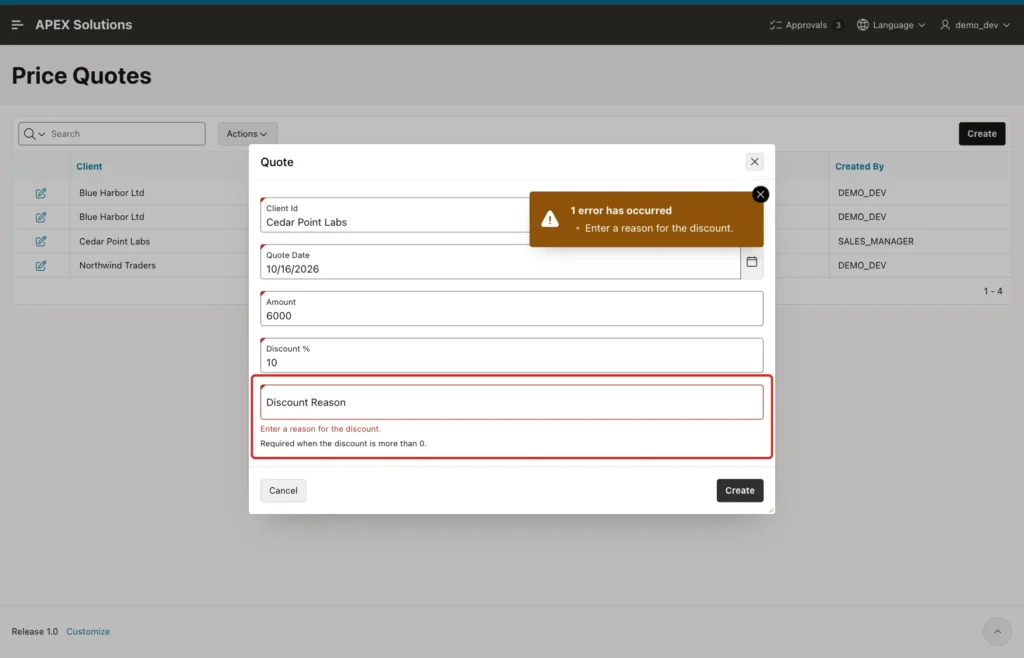
The message is now the validation's own text, Enter a reason for the discount. No row was inserted. After the page reloaded with the error, the marker was still shown, because Fire on Initialization ran again for Discount % 10.
A Discount With a Reason
Enter Discount Reason Volume order of 200 units and click Create. The dialog closes and the report shows the new quote:
Editing an Existing Quote
Click the edit icon of the Cedar Point Labs quote with the reason Two-year contract. The marker is there as soon as the dialog opens:
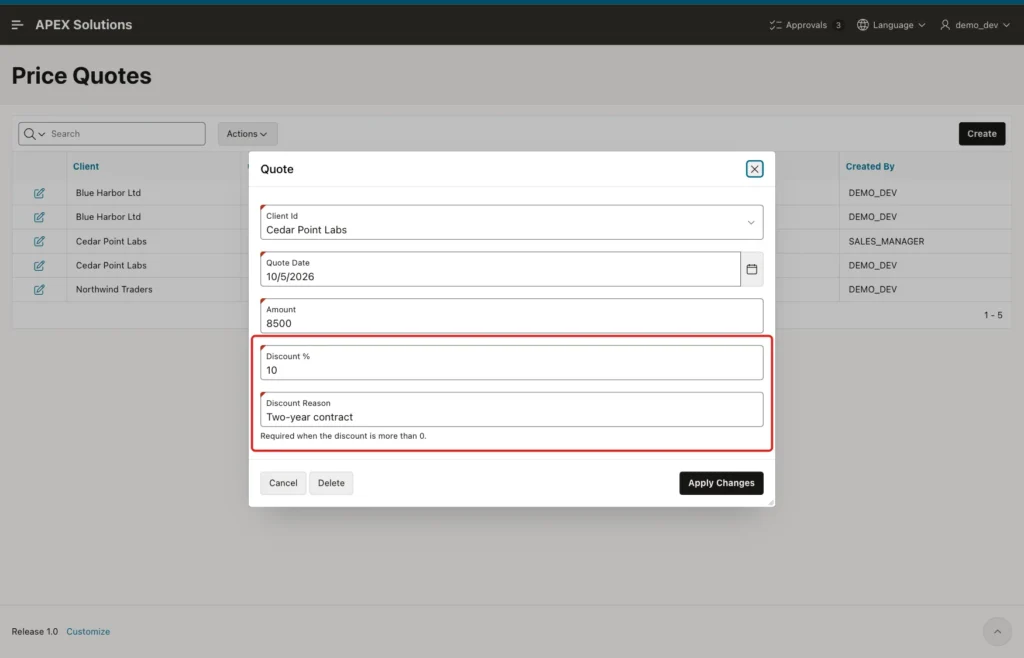
Changing Discount % to 0 removed the marker and the required attribute, and 12.5 or 0.5 turned them on again. The table confirms what was saved:
Example:
select q.quote_id, c.client_name, q.amount, q.discount_pct, q.discount_reason, q.created_by
from   price_quotes q
join   client_accounts c on c.client_id = q.client_id
order  by q.quote_id;
Output:
   QUOTE_ID CLIENT_NAME             AMOUNT    DISCOUNT_PCT DISCOUNT_REASON              CREATED_BY
___________ ____________________ _________ _______________ ____________________________ ________________
          1 Blue Harbor Ltd          12000               0                              DEMO_DEV
          2 Cedar Point Labs          8500              10 Two-year contract            SALES_MANAGER
          3 Northwind Traders         4300               0                              DEMO_DEV
         21 Blue Harbor Ltd           2400               0                              DEMO_DEV
         22 Cedar Point Labs          6000              10 Volume order of 200 units    DEMO_DEV
The two new rows are quotes 21 and 22. The quote without a discount has no reason, and the discounted one has its reason.
The Constraint as the Last Guard
Other paths into the table, such as a script or a REST service, skip the page. The check constraint still applies to them:
Example:
insert into price_quotes (client_id, amount, discount_pct, discount_reason)
values (3, 1500, 5, null);

insert into price_quotes (client_id, amount, discount_pct, discount_reason)
values (3, 1500, 5, 'Early payment');

rollback;
Output:
Error starting at line : 1 File @ b47/11-constraint.sql
In command -
insert into price_quotes (client_id, amount, discount_pct, discount_reason)
values (3, 1500, 5, null)
Error report -
ORA-02290: check constraint (APXSOL.PRICE_QUOTES_REASON_CK) violated
Help: https://docs.oracle.com/error-help/db/ora-02290/

1 row inserted.

Rollback complete.
The insert without a reason failed with ORA-02290, and the same insert with a reason worked. The ROLLBACK removed the test row.
Things to Know
- Use the Required template, not Value Required, for a field that is required only sometimes. Value Required makes the field required in every case.
- The is-required class works with the item's container, which APEX names ITEM_CONTAINER, for example P441_DISCOUNT_REASON_CONTAINER.
- The Minimum Value and Maximum Value of a Number Field are checked in the browser too. In the test, Discount % 60 showed Discount % must be a number between 0 and 50. without a request.
- The browser check never replaces the validation. The forced submit in the test reached the server, and only the validation stopped it.
Related Guides
- How to Show or Hide Fields Based on Another Item's Value in Oracle APEX
- How to Validate Email and Phone Formats with Regular Expressions in Oracle APEX
Conclusion
A conditionally required field in Oracle APEX needs the rule in three places. A dynamic action with Fire on Initialization turns the required attribute and the marker on and off in the browser. A validation with a server-side condition repeats the rule for every submit.
A check constraint keeps the data right for every other path into the table. Give the field the Required template with Value Required off, so the marker can appear only when the rule applies, and add inline help text so users know why.
