
A form that accepts any text in an email or phone field soon fills the table with values like "john@company" or "555 0100". Emails bounce, and nobody can call the number. The best time to stop a bad value is when the user types it, with a clear message next to the field.
Oracle APEX has a validation type for this: Item matches Regular Expression. This guide uses it for an email and a phone field, adds the HTML5 email and phone input types, and backs both checks with REGEXP_LIKE check constraints in the database, so even data loaded outside the form must follow the same format.
The guide uses supplier contacts as the example; the same steps work for any table. The post Oracle Apex Validation: PL/SQL Function Returning Error Text shows a general validation written in PL/SQL. This one needs no code: it is only about format checks with regular expressions.
Step 1: Create the Tables
The example needs two tables. SUPPLIERS holds the companies, and SUPPLIER_CONTACTS holds one row per contact person with an email and a phone number. EMAIL is required; PHONE is optional.
Both format rules are check constraints with REGEXP_LIKE. Create the tables, the indexes and the sample data:
Example:
create table suppliers (
  supplier_id    number generated by default on null as identity,
  supplier_name  varchar2(100) not null,
  constraint suppliers_pk primary key (supplier_id),
  constraint suppliers_name_uk unique (supplier_name)
);

create table supplier_contacts (
  contact_id   number generated by default on null as identity,
  supplier_id  number        not null,
  full_name    varchar2(100) not null,
  email        varchar2(254) not null,
  phone        varchar2(25),
  created_on   date          default on null sysdate not null,
  constraint supplier_contacts_pk primary key (contact_id),
  constraint supplier_contacts_supplier_fk foreign key (supplier_id)
    references suppliers (supplier_id),
  constraint supplier_contacts_email_ck check (
    regexp_like(email, '^[A-Za-z0-9._%+-]+@[A-Za-z0-9-]+(\.[A-Za-z0-9-]+)*\.[A-Za-z]{2,}$')),
  constraint supplier_contacts_phone_ck check (
    regexp_like(phone, '^\+[1-9]([ -]?[0-9]){7,14}$'))
);

create unique index supplier_contacts_email_uk on supplier_contacts (lower(email));
create index supplier_contacts_supplier_ix on supplier_contacts (supplier_id);

insert into suppliers (supplier_name) values ('Northwind Traders');
insert into suppliers (supplier_name) values ('Blue Harbor Supplies');
insert into suppliers (supplier_name) values ('Alpine Components');

insert into supplier_contacts (supplier_id, full_name, email, phone)
values (1, 'Laura Chen', 'laura.chen@northwind.example.com', '+1 415 555 0142');
insert into supplier_contacts (supplier_id, full_name, email, phone)
values (1, 'Mark Weber', 'm.weber@northwind.example.com', '+49 30 1234567');
insert into supplier_contacts (supplier_id, full_name, email, phone)
values (2, 'Priya Nair', 'priya.nair@blueharbor.example.in', '+91 98765 43210');
insert into supplier_contacts (supplier_id, full_name, email, phone)
values (2, 'Tom Fisher', 'tom+orders@blueharbor.example.in', null);
insert into supplier_contacts (supplier_id, full_name, email, phone)
values (3, 'Anna Rossi', 'anna.rossi@alpine.example.it', '+39-02-555-0199');
commit;

select c.contact_id, s.supplier_name, c.full_name, c.email, c.phone
from   supplier_contacts c join suppliers s on s.supplier_id = c.supplier_id
order  by c.contact_id;
Output:
Table SUPPLIERS created.

Table SUPPLIER_CONTACTS created.

Index SUPPLIER_CONTACTS_EMAIL_UK created.

Index SUPPLIER_CONTACTS_SUPPLIER_IX created.

1 row inserted.

1 row inserted.

1 row inserted.

1 row inserted.

1 row inserted.

1 row inserted.

1 row inserted.

1 row inserted.

Commit complete.

   CONTACT_ID SUPPLIER_NAME           FULL_NAME     EMAIL                               PHONE
_____________ _______________________ _____________ ___________________________________ __________________
            1 Northwind Traders       Laura Chen    laura.chen@northwind.example.com    +1 415 555 0142
            2 Northwind Traders       Mark Weber    m.weber@northwind.example.com       +49 30 1234567
            3 Blue Harbor Supplies    Priya Nair    priya.nair@blueharbor.example.in    +91 98765 43210
            4 Blue Harbor Supplies    Tom Fisher    tom+orders@blueharbor.example.in
5 Alpine Components Anna Rossi anna.rossi@alpine.example.it +39-02-555-0199- SUPPLIER_CONTACTS_EMAIL_CK accepts a name part of letters, digits and . _ % + -, then @, then a domain with at least one dot and a top-level part of two or more letters.
- SUPPLIER_CONTACTS_PHONE_CK accepts a + sign, then 8 to 15 digits in total (the international E.164 length). A single space or dash may sit between digits.
- A check constraint passes when the value is NULL, so a contact without a phone number is allowed.
- SUPPLIER_CONTACTS_EMAIL_UK is a unique function-based index on LOWER(EMAIL). It stops the same address from being stored twice in a different case.
- CREATED_ON gets SYSDATE from DEFAULT ON NULL, so neither the form nor a trigger has to fill it.
Step 2: Test the Patterns in SQL
Before you put a pattern into a form, test it with a list of good and bad values. This query runs both patterns against sample strings:
Example:
with emails (val) as (
  select 'laura.chen@northwind.example.com' from dual union all
  select 'tom+orders@blueharbor.example.in' from dual union all
  select 'laura.chen@northwind'             from dual union all
  select 'laura chen@northwind.com'         from dual union all
  select 'laura@@northwind.com'             from dual union all
  select '@northwind.com'                   from dual
)
select val as email,
       case when regexp_like(val, '^[A-Za-z0-9._%+-]+@[A-Za-z0-9-]+(\.[A-Za-z0-9-]+)*\.[A-Za-z]{2,}$')
            then 'valid' else 'invalid' end as result
from   emails;

with phones (val) as (
  select '+1 415 555 0142'  from dual union all
  select '+39-02-555-0199'  from dual union all
  select '+919876543210'    from dual union all
  select '415 555 0142'     from dual union all
  select '+1 (415) 555-0142' from dual union all
  select '+1 415 555'       from dual union all
  select '+0 415 555 0142'  from dual
)
select val as phone,
       case when regexp_like(val, '^\+[1-9]([ -]?[0-9]){7,14}$')
            then 'valid' else 'invalid' end as result
from   phones;
Output:
EMAIL                               RESULT
___________________________________ __________
laura.chen@northwind.example.com    valid
tom+orders@blueharbor.example.in    valid
laura.chen@northwind                invalid
laura chen@northwind.com            invalid
laura@@northwind.com                invalid
@northwind.com                      invalid

6 rows selected.

PHONE                RESULT
____________________ __________
+1 415 555 0142      valid
+39-02-555-0199      valid
+919876543210        valid
415 555 0142         invalid
+1 (415) 555-0142    invalid
+1 415 555           invalid
+0 415 555 0142      invalid

7 rows selected.
The email pattern rejects a missing top-level domain, a space, a double @ and an empty name part. The phone pattern rejects a number without +, brackets, a number that is too short, and a country code starting with 0.
Now try to insert bad rows directly in SQL. The constraints reject them, and the unique index rejects an existing email typed in a different case:
Example:
insert into supplier_contacts (supplier_id, full_name, email, phone)
values (1, 'Bad Email', 'laura.chen@northwind', '+1 415 555 0100');

insert into supplier_contacts (supplier_id, full_name, email, phone)
values (1, 'Bad Phone', 'bad.phone@northwind.example.com', '415-555-0100');

insert into supplier_contacts (supplier_id, full_name, email, phone)
values (1, 'Same Email', 'Laura.Chen@Northwind.Example.com', null);

select count(*) as contacts from supplier_contacts;
Output:
Error starting at line : 1 File @ b42/11-bad-rows.sql
In command -
insert into supplier_contacts (supplier_id, full_name, email, phone)
values (1, 'Bad Email', 'laura.chen@northwind', '+1 415 555 0100')
Error report -
ORA-02290: check constraint (APXSOL.SUPPLIER_CONTACTS_EMAIL_CK) violated
Help: https://docs.oracle.com/error-help/db/ora-02290/

Error starting at line : 4 File @ b42/11-bad-rows.sql
In command -
insert into supplier_contacts (supplier_id, full_name, email, phone)
values (1, 'Bad Phone', 'bad.phone@northwind.example.com', '415-555-0100')
Error report -
ORA-02290: check constraint (APXSOL.SUPPLIER_CONTACTS_PHONE_CK) violated
Help: https://docs.oracle.com/error-help/db/ora-02290/

Error starting at line : 7 File @ b42/11-bad-rows.sql
In command -
insert into supplier_contacts (supplier_id, full_name, email, phone)
values (1, 'Same Email', 'Laura.Chen@Northwind.Example.com', null)
Error report -
ORA-00001: unique constraint (APXSOL.SUPPLIER_CONTACTS_EMAIL_UK) violated on
table APXSOL.SUPPLIER_CONTACTS columns (SYS_NC00007$)
ORA-03301: (ORA-00001 details) row with column values
(SYS_NC00007$:'laura.chen@northwind.example.com') already exists
Help: https://docs.oracle.com/error-help/db/ora-00001/

   CONTACTS
___________
          5
The table still has its five rows.
Two details of Oracle regular expressions matter for the patterns. Oracle does not read \d as a digit inside brackets, and a pattern without the ^ and $ anchors matches any value that only contains a valid part:
Example:
select case when regexp_like('+1 415 555 0142', '^\+[\d ]+$')
            then 'match' else 'no match' end as d_in_brackets,
       case when regexp_like('+1 415 555 0142', '^\+[0-9 ]+$')
            then 'match' else 'no match' end as zero_to_nine_in_brackets
from   dual;

select case when regexp_like('call me: ann@shop.example.com',
                             '[A-Za-z0-9._%+-]+@[A-Za-z0-9-]+(\.[A-Za-z0-9-]+)*\.[A-Za-z]{2,}')
            then 'match' else 'no match' end as without_anchors,
       case when regexp_like('call me: ann@shop.example.com',
                             '^[A-Za-z0-9._%+-]+@[A-Za-z0-9-]+(\.[A-Za-z0-9-]+)*\.[A-Za-z]{2,}$')
            then 'match' else 'no match' end as with_anchors
from   dual;
Output:
D_IN_BRACKETS    ZERO_TO_NINE_IN_BRACKETS
________________ ___________________________
no match         match

WITHOUT_ANCHORS    WITH_ANCHORS
__________________ _______________
match              no match
So use [0-9] or [[:digit:]] inside brackets, and always anchor the whole pattern. The database is now the last line of defense. The next steps add friendly checks in the form, so users never see these ORA errors for a wrong format.
Step 3: Create the Report and Form Pages
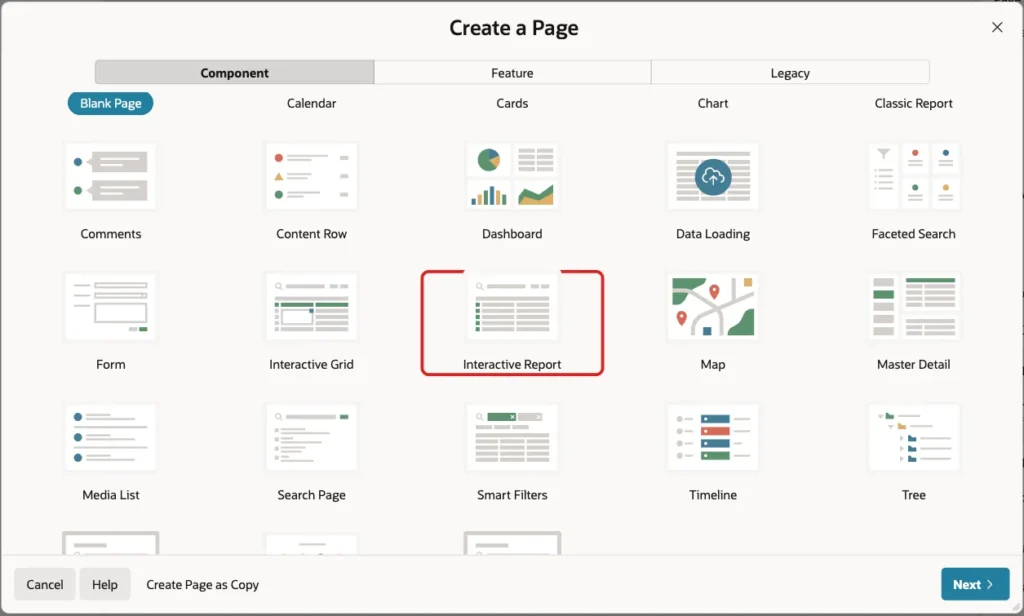
In App Builder, open the application and click Create Page. On the Component tab, click Interactive Report:
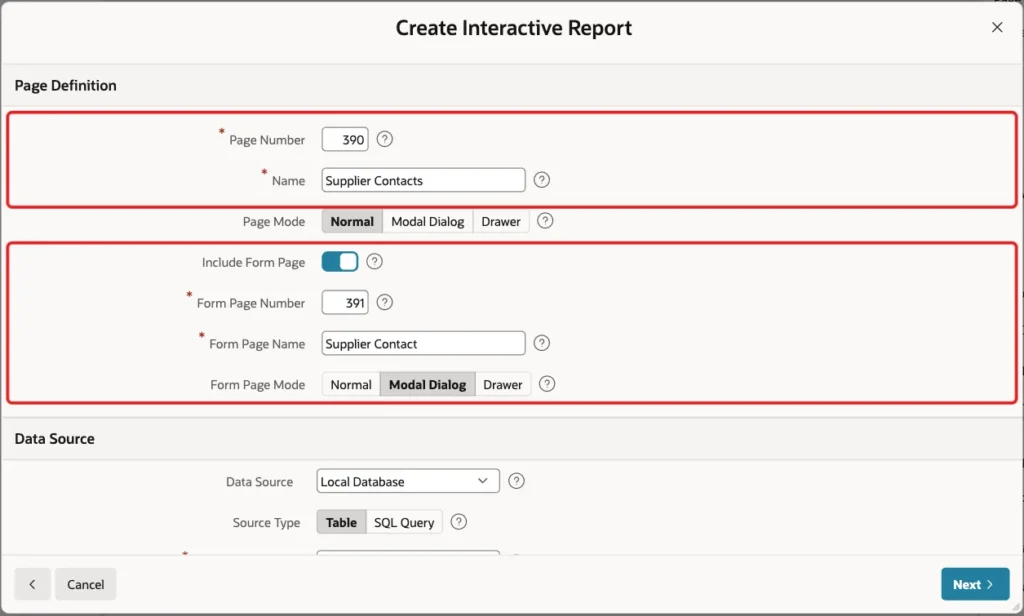
Enter Page Number 390 and Name Supplier Contacts. Turn on Include Form Page, enter Form Page Number 391 and Form Page Name Supplier Contact, and set Form Page Mode to Modal Dialog:
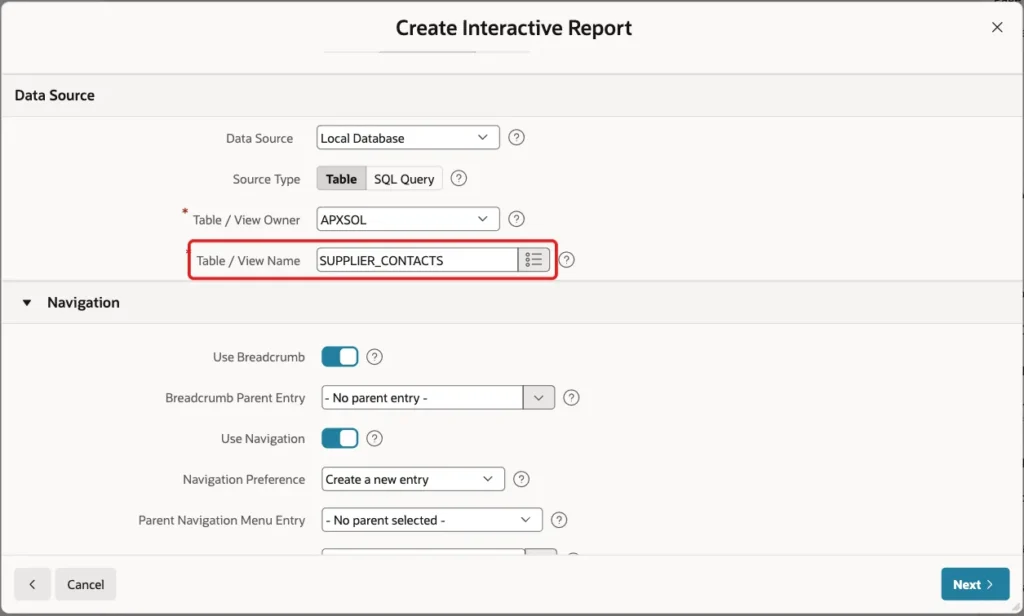
Scroll down to Data Source. Keep Source Type Table and enter SUPPLIER_CONTACTS as the Table / View Name. Keep the Navigation settings, so the report gets a menu entry, and click Next:
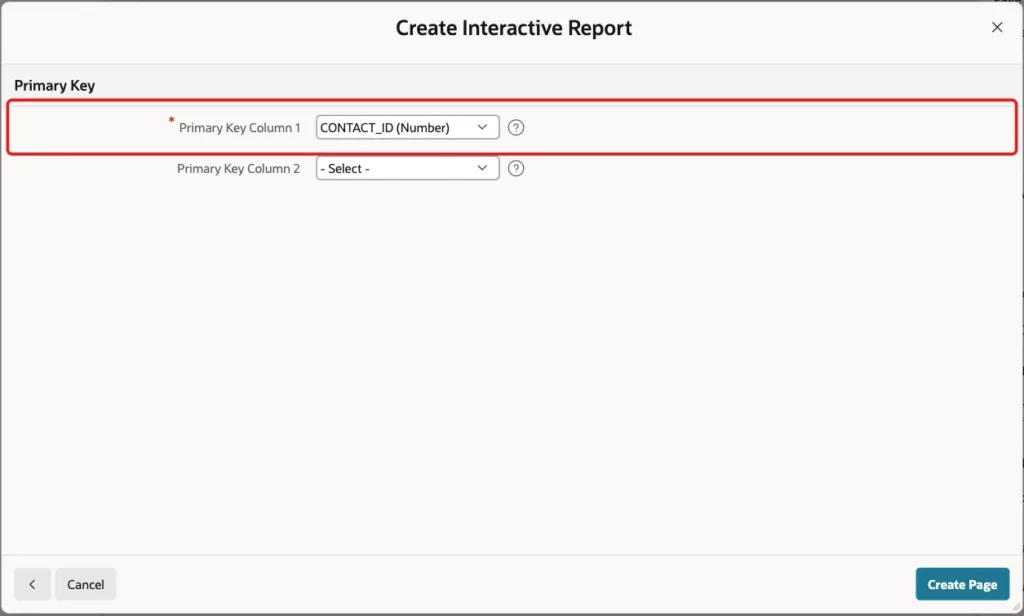
The wizard reads the primary key of the table and fills Primary Key Column 1 with CONTACT_ID. Click Create Page:
The wizard creates page 390 with the report and page 391 with the form. It also reads the SUPPLIER_ID foreign key. It creates a shared list of values named SUPPLIERS.SUPPLIER_NAME, makes P391_SUPPLIER_ID a select list on it, and shows supplier names in the report.
Step 4: Tidy Up the Form Items
Open page 391 in Page Designer. Select P391_SUPPLIER_ID and, under List of Values, set Null Display Value to "- Select Supplier -", so an empty select list asks for a choice:
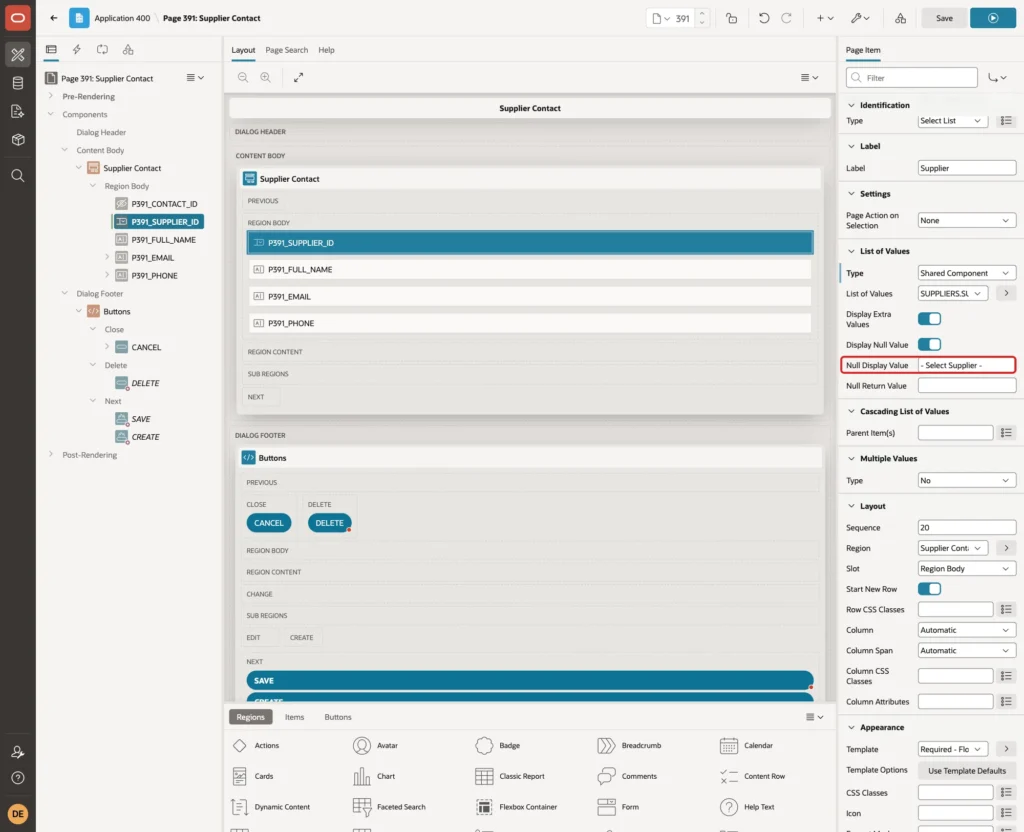
The wizard also added P391_CREATED_ON as a required date picker. The database fills that column itself, so right-click P391_CREATED_ON and choose Delete. DEFAULT ON NULL then stamps the date when a new contact is saved.
Step 5: Use the Email and Phone Input Types
Select P391_EMAIL. Under Settings, set Subtype to E-Mail. Under Appearance, set Value Placeholder to name@company.com:
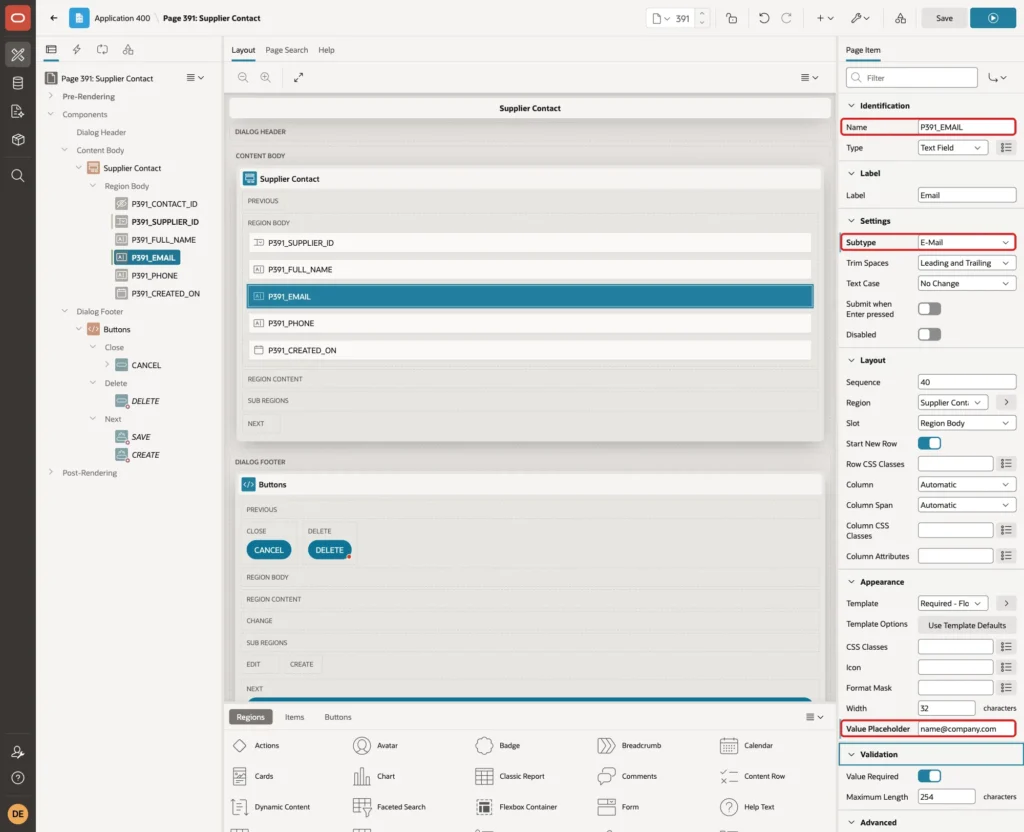
Subtype E-Mail renders the field as input type="email", so the browser runs its own email check before the page is submitted. Step 8 shows what that check catches and what it lets through.
Select P391_PHONE. Set Subtype to Phone Number and Value Placeholder to +1 415 555 0142:
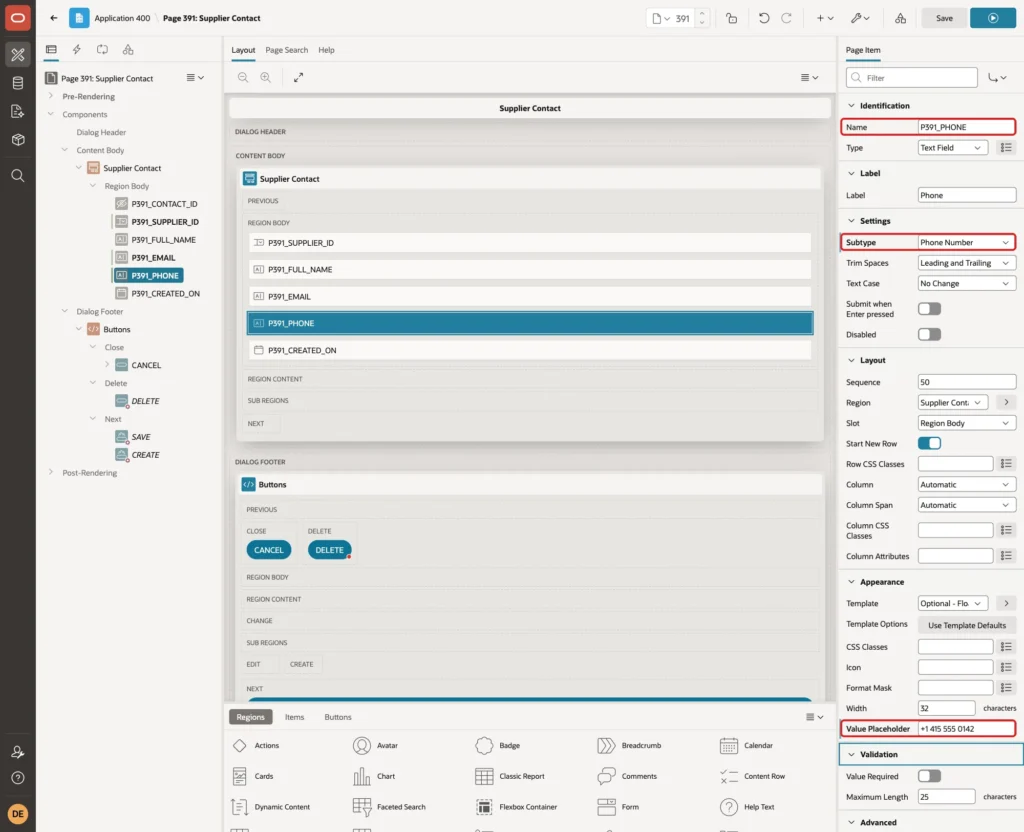
Subtype Phone Number renders input type="tel". The browser does not check the format of a tel field: in Step 8 it let 415 555 0100 through. The regular expression in Step 7 does that check.
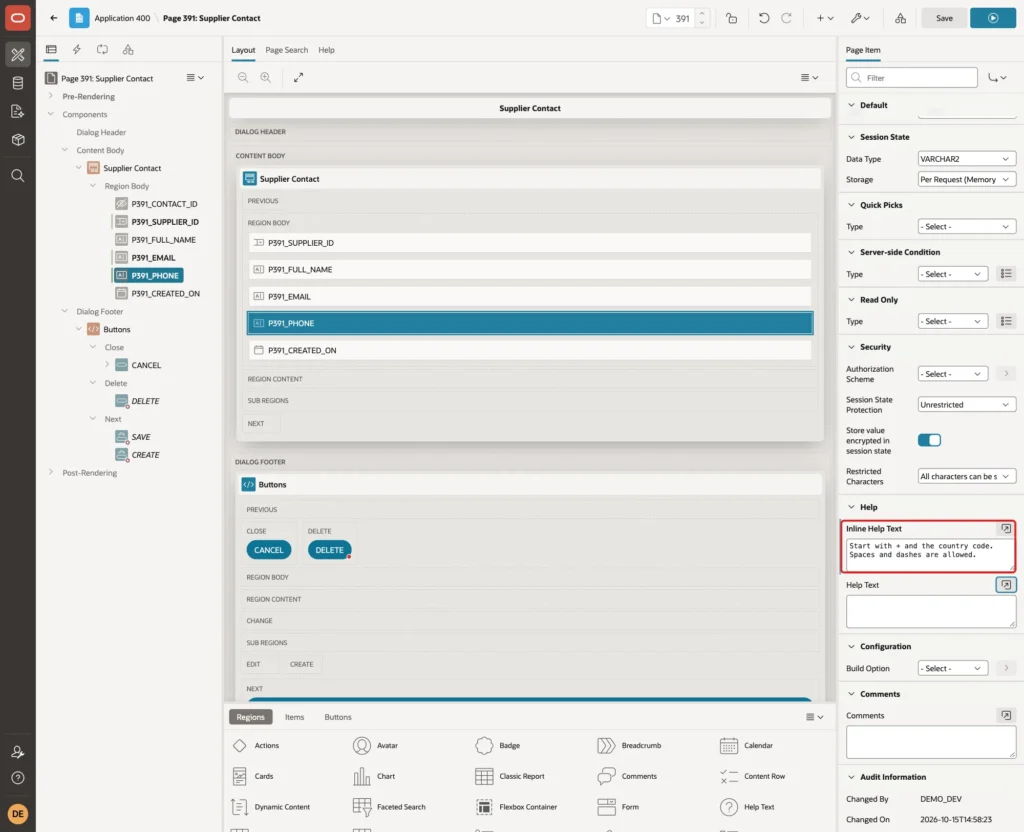
Scroll down to Help and enter this Inline Help Text: "Start with + and the country code. Spaces and dashes are allowed.":
Step 6: Validate the Email Format
Open the Processing tab. Right-click Validating and choose Create Validation. Set Name to Email format and Type to Item matches Regular Expression. Select P391_EMAIL as the Item and enter this Regular Expression:
Example:
^[A-Za-z0-9._%+-]+@[A-Za-z0-9-]+(\.[A-Za-z0-9-]+)*\.[A-Za-z]{2,}$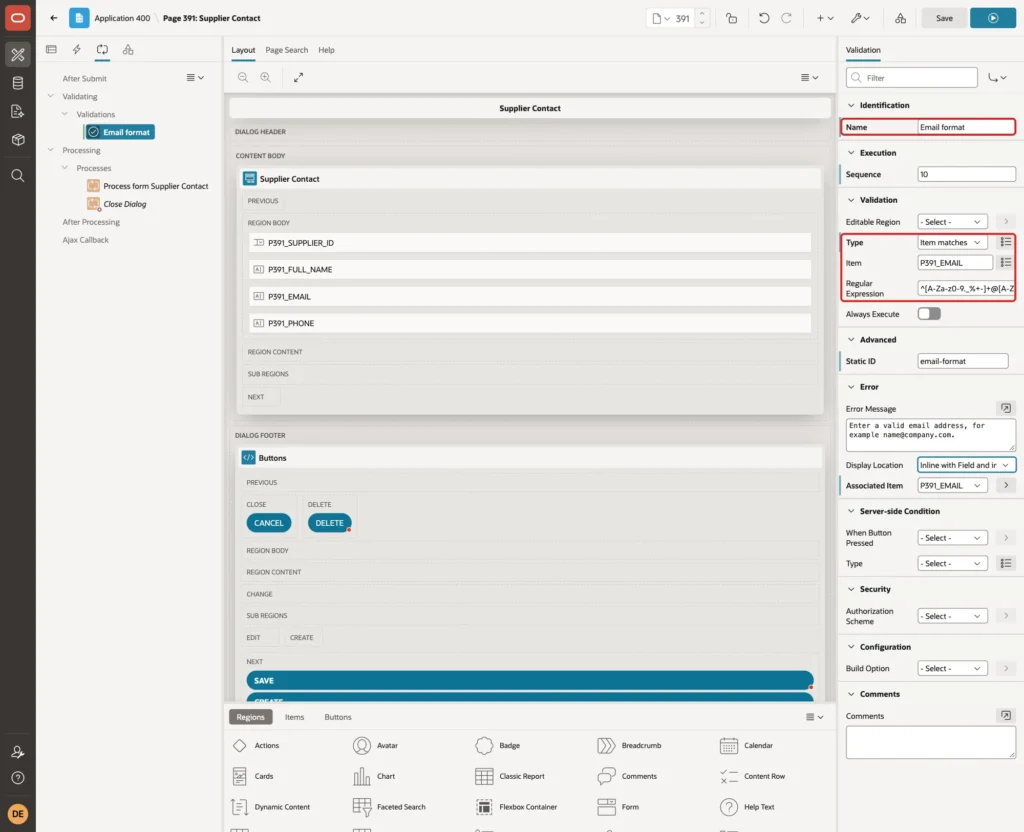
It is the same pattern as SUPPLIER_CONTACTS_EMAIL_CK, so the form and the table follow one rule. The ^ and $ anchors make the whole value match, not just a part of it.
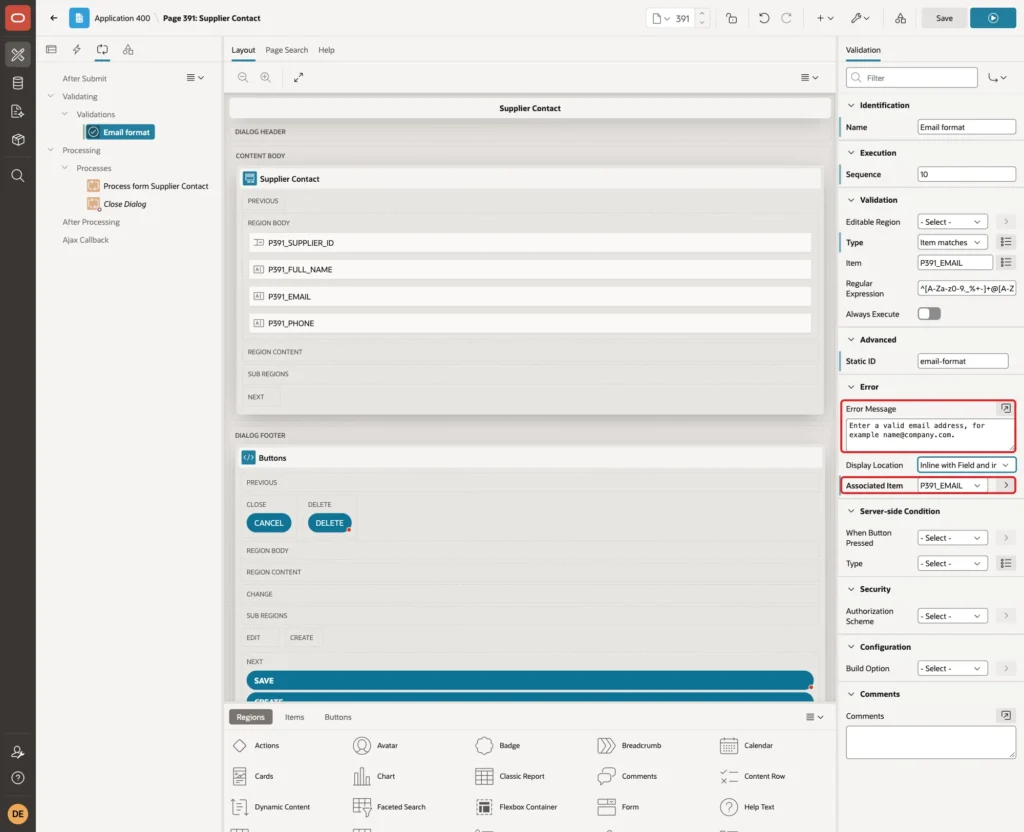
Under Error, enter the Error Message "Enter a valid email address, for example name@company.com." and set Associated Item to P391_EMAIL. Keep Display Location Inline with Field and in Notification:
Step 7: Validate the Phone Format
Right-click Validating again and choose Create Validation. Set Name to Phone format, Type to Item matches Regular Expression, Item to P391_PHONE, and enter this Regular Expression:
Example:
^\+[1-9]([ -]?[0-9]){7,14}$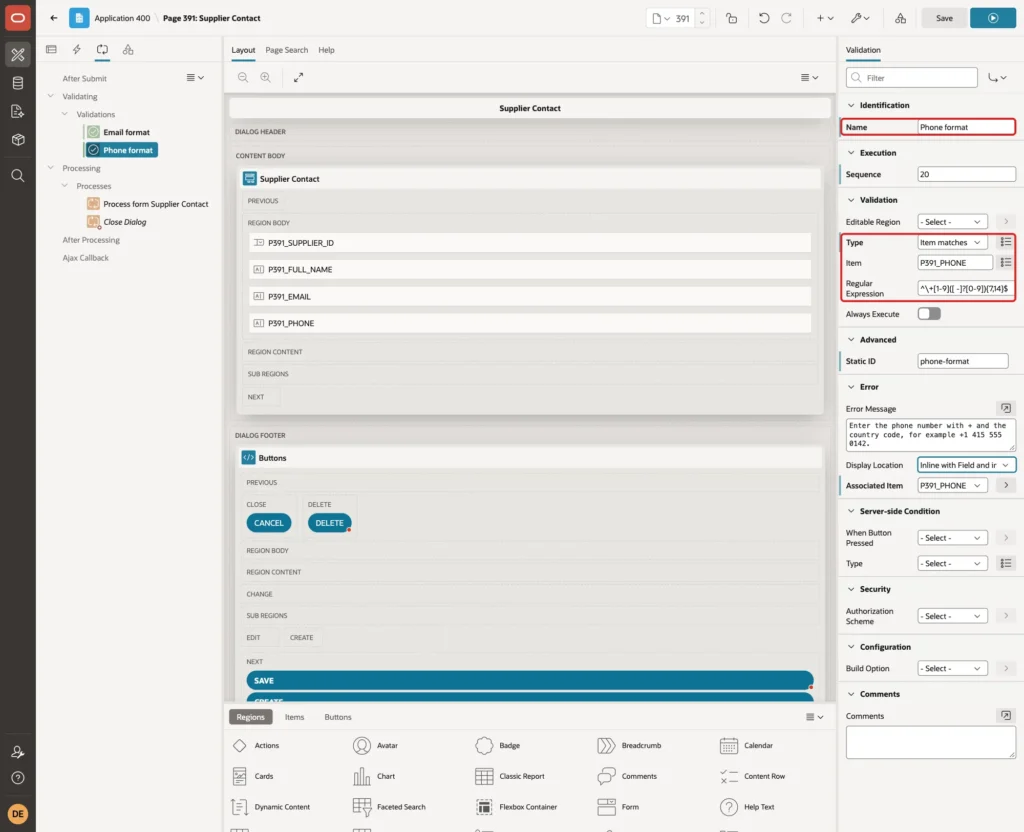
Read the pattern from left to right: a + sign, one digit from 1 to 9, then 7 to 14 more digits, each with an optional space or dash before it.
Under Error, enter the Error Message "Enter the phone number with + and the country code, for example +1 415 555 0142." and set Associated Item to P391_PHONE:
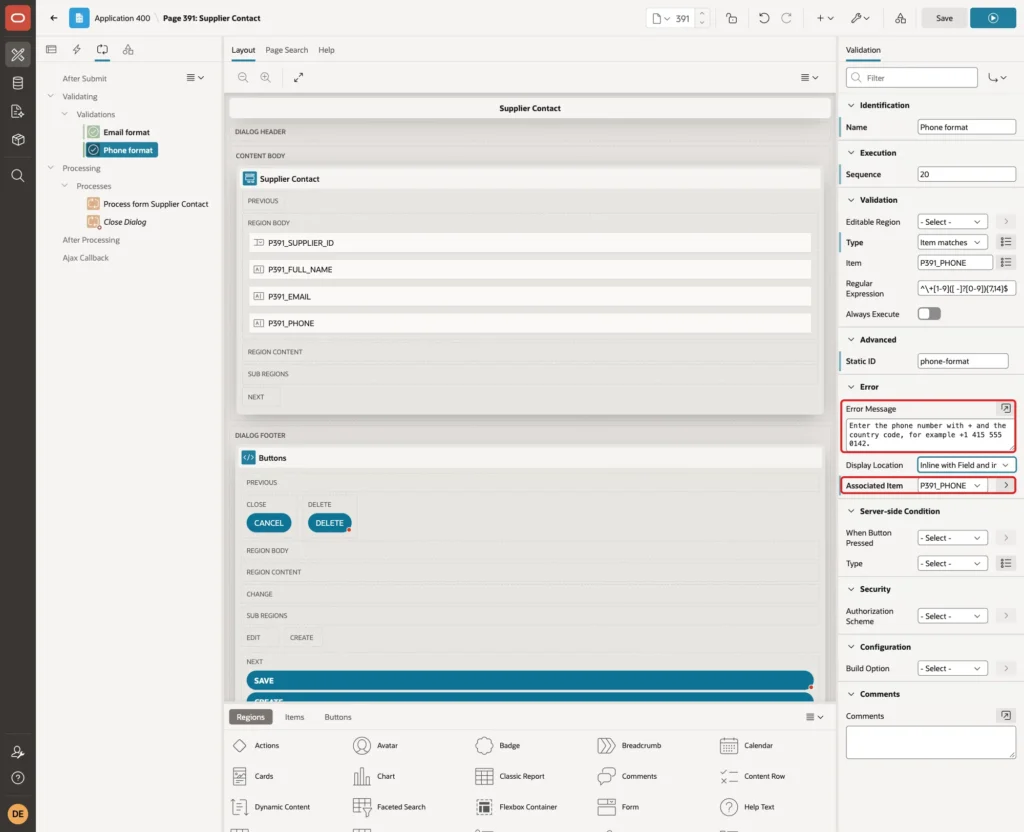
Save the page. The Delete button that the wizard created has Execute Validations turned off, so these checks never block a delete.
Step 8: Test the Form
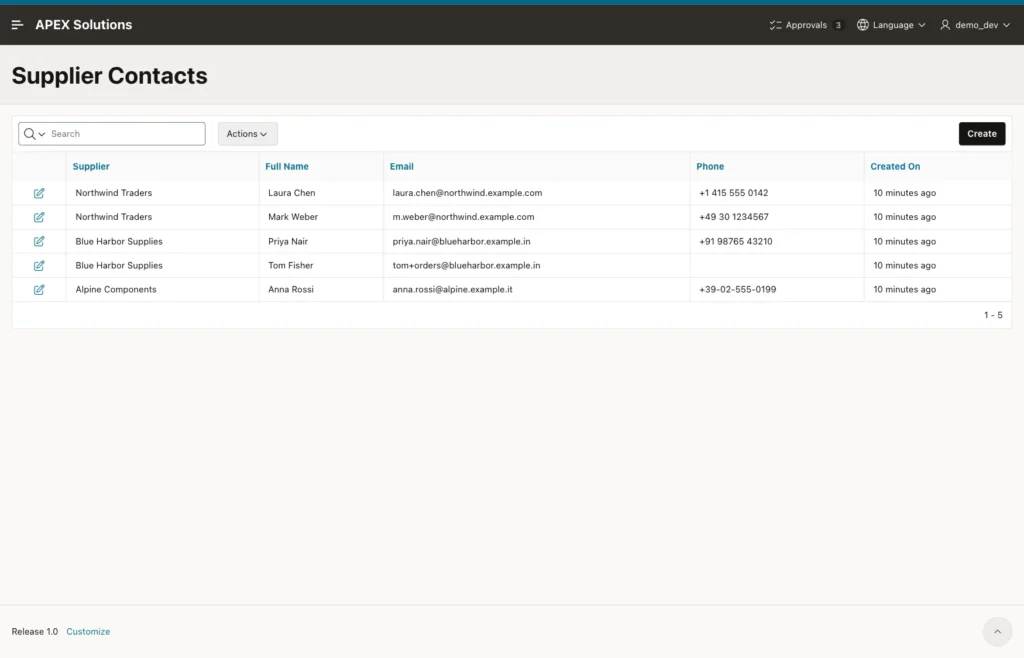
Run page 390. The report lists the five sample contacts:
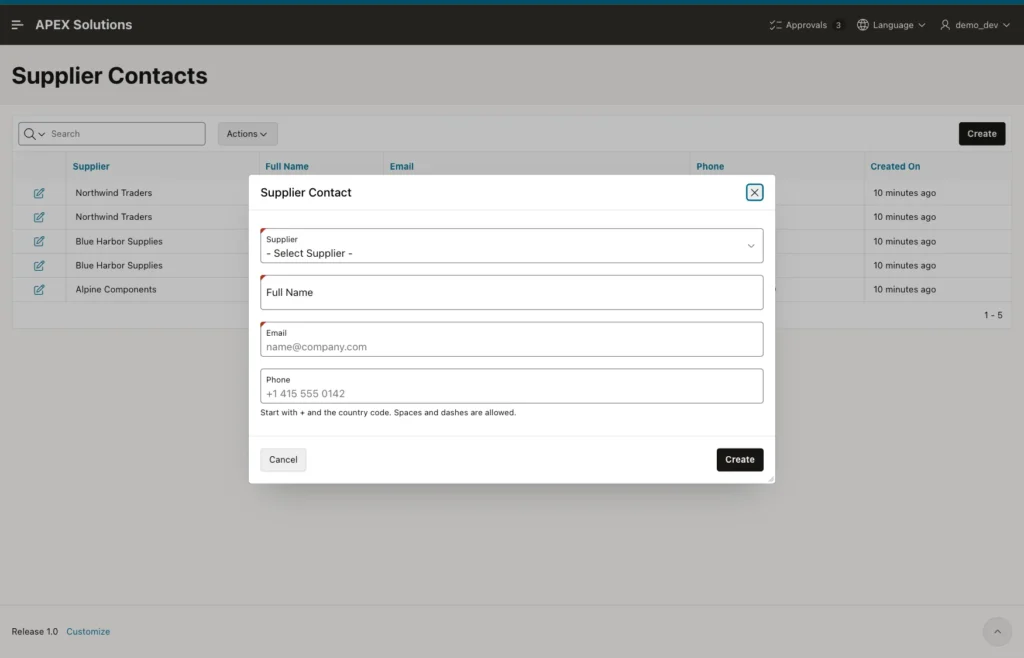
Click Create. The email and phone fields show their placeholders, and the help text sits below the phone field:
Select Northwind Traders, enter Sara Klein, the email sara.klein@northwind and the phone 415 555 0100, and click Create. Both validations fail. APEX lists the errors in the notification and shows each message below its field:
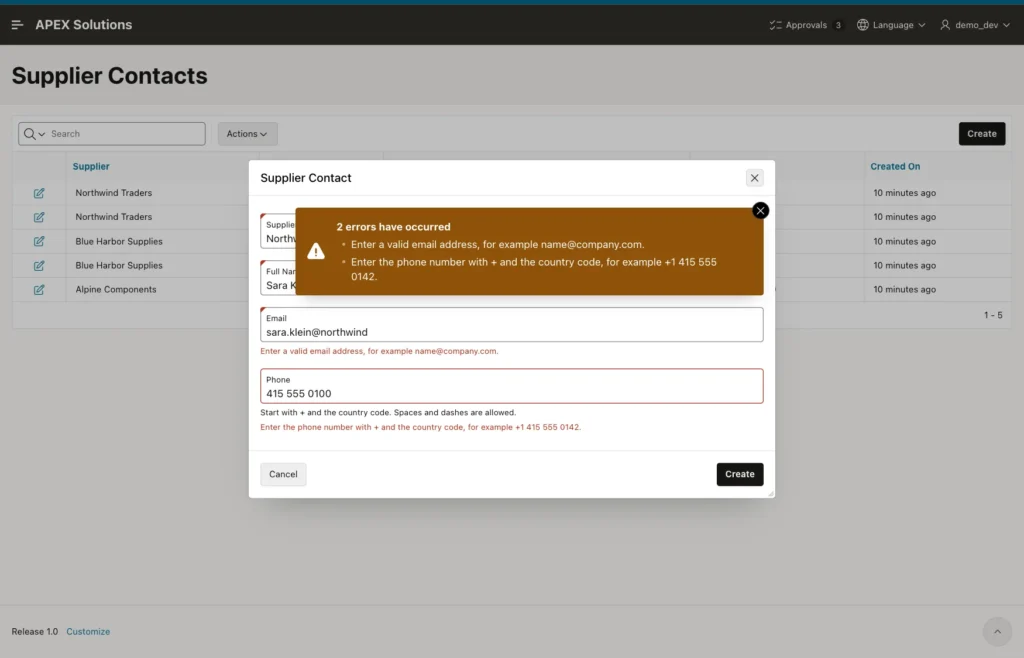
The email sara.klein@northwind passed the browser's own check. HTML5 email fields accept an address without a dot in the domain, so the type="email" check alone would let it through. Only the regular expression caught it.
Now change the email to "sara klein@northwind.example.com" with a space, and the phone to +1 415 555 0100. Click Create again:
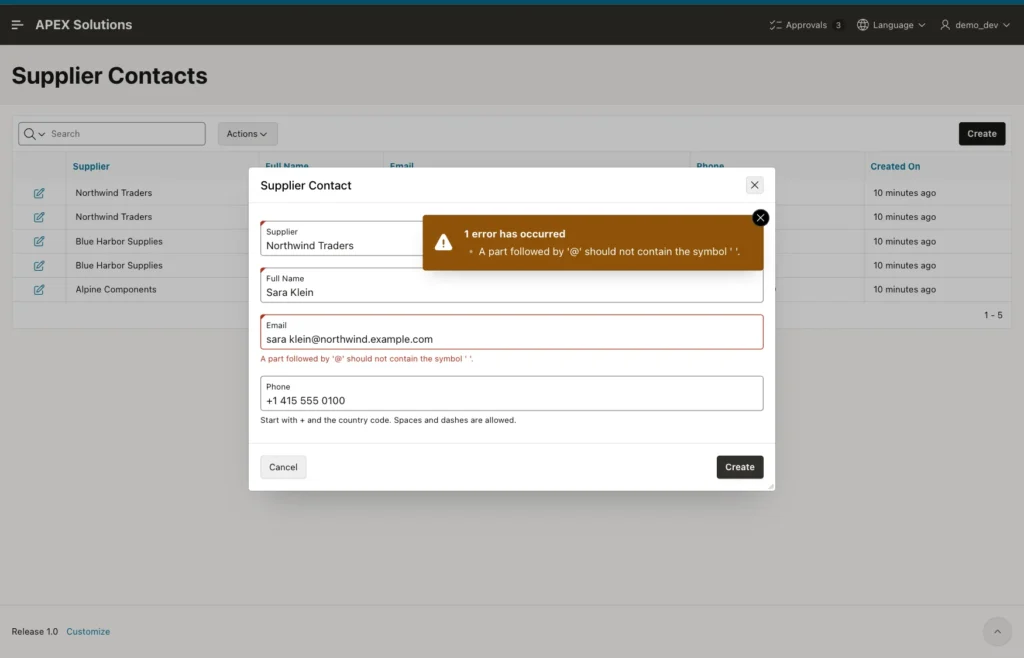
This time the browser's email check found the space. APEX showed the browser's message in its own error style, and no request reached the server: the browser log of this test had no POST at all. The message text comes from the browser, so it depends on the browser and its language.
Finally, correct the email to sara.klein@northwind.example.com and click Create. The dialog closes, and Sara Klein appears in the report:
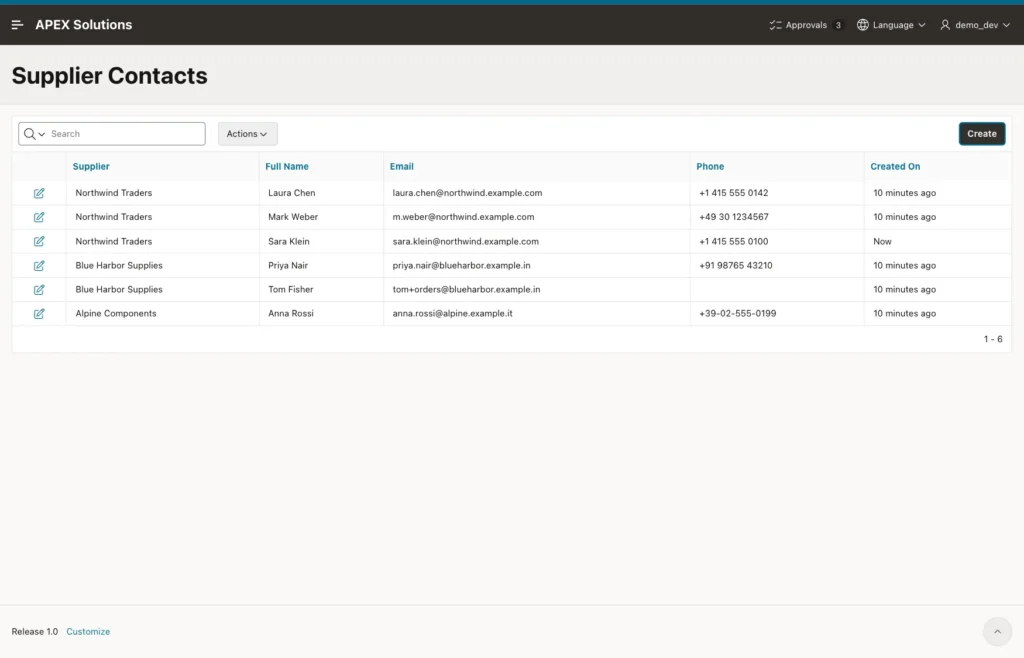
Next, create Ken Ito for Alpine Components with the email ken.ito@alpine.example.it and an empty phone. The contact is saved: the Phone format validation does not fail on an empty value, just like the check constraint. Both new rows are in the table:
Example:
select contact_id, full_name, email, nvl(phone, '(none)') as phone
from   supplier_contacts
where  full_name in ('Sara Klein', 'Ken Ito', 'Laura C.')
order  by contact_id;
Output:
   CONTACT_ID FULL_NAME     EMAIL                               PHONE
_____________ _____________ ___________________________________ __________________
           21 Sara Klein    sara.klein@northwind.example.com    +1 415 555 0100
           22 Ken Ito       ken.ito@alpine.example.it           (none)
The new IDs do not follow on from 5 because the identity column hands out cached values. That is normal and does not affect the example.
One more test: a new contact with the email Laura.Chen@Northwind.example.com. The format is valid, so both validations pass. The unique index then rejects the row, and the form shows "ORA-00001: unique constraint (APXSOL.SUPPLIER_CONTACTS_EMAIL_UK) violated" in the notification. Format checks do not find duplicates; the index does.
Things to Know
- Item matches Regular Expression runs on the server after submit. The HTML5 email check runs in the browser before submit and is less strict: it let sara.klein@northwind through. Keep the server check.
- Write the same pattern in the validation and in the check constraint. The validation gives a friendly message; the constraint protects data loaded by scripts, APIs and imports.
- Oracle does not read \d as a digit inside brackets. Use [0-9] or [[:digit:]] there, and anchor every pattern with ^ and $ (Step 2).
- No regular expression proves that a mailbox exists. To be sure, send a confirmation link or code to the address.
- A duplicate email still ends in a raw ORA-00001 message. Add a separate validation that looks for an existing row, or translate the error in an error handling function.
Related Guides
Conclusion
Format checks in Oracle APEX need no code. The Item matches Regular Expression validation shows a clear message below the field, the E-Mail and Phone Number subtypes give the right keyboard and a first browser check, and placeholders and help text show the expected format.
The same patterns in REGEXP_LIKE check constraints keep the table clean when data arrives from anywhere else. The tests showed each layer at work: the browser stopped a space, the regular expression stopped a missing top-level domain and a phone without a country code, and the database stopped bad rows inserted in SQL.
