
Many forms have fields that apply only in some cases: a company name and tax ID only for business customers, a delivery address only for delivery orders. Showing such fields only when they apply keeps the form short and clear. In Oracle APEX this is a dynamic action with Show and Hide actions, but hiding a field in the browser is only half the job: a hidden field still holds and submits its value, and the server cannot rely on what the browser showed. This guide builds the client-side behavior and the two server-side pieces that make it reliable.
The Form
The page is a form on a CUSTOMERS table with a Customer Type radio group, P40_CUSTOMER_TYPE, offering Person and Company, with Person as the default. Two items apply only to companies: P40_COMPANY_NAME and P40_TAX_ID.
Step 1: The Dynamic Action
In Page Designer, right-click P40_CUSTOMER_TYPE and choose Create Dynamic Action. Name it Show company fields and set:
- When: Event Change, Selection Type Item(s), Item P40_CUSTOMER_TYPE.
- Client-side Condition: Type Item = Value, Item P40_CUSTOMER_TYPE, Value COMPANY.
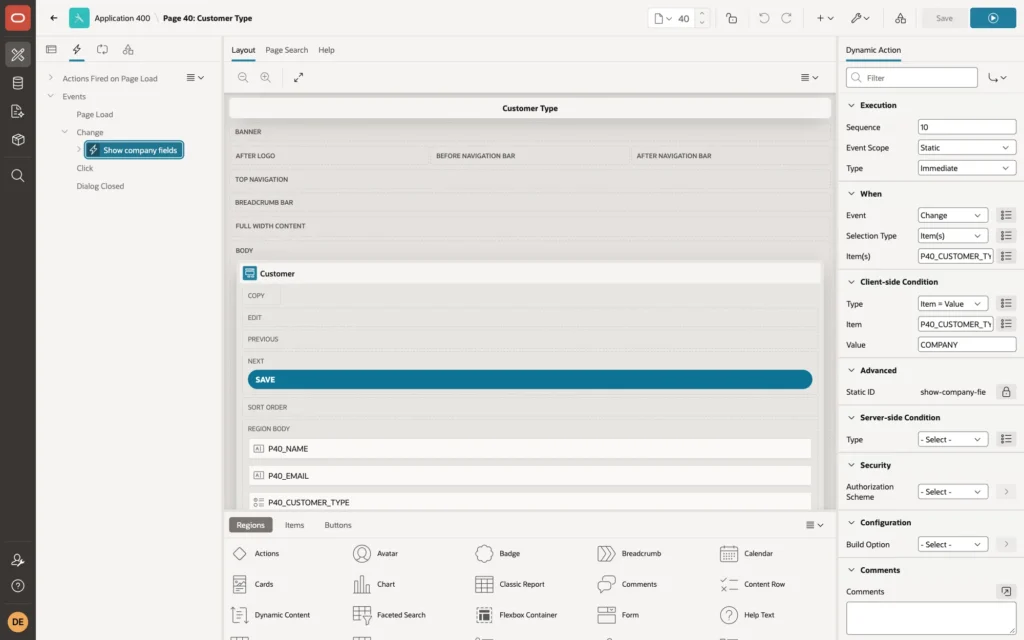
The condition decides which branch runs: True when the type is COMPANY, False otherwise.
Step 2: The Show and Hide Actions
- True action: Show, with Affected Elements Item(s) P40_COMPANY_NAME and P40_TAX_ID.
- False action: Hide, with the same two items.
Turn on Fire on Initialization for both actions:
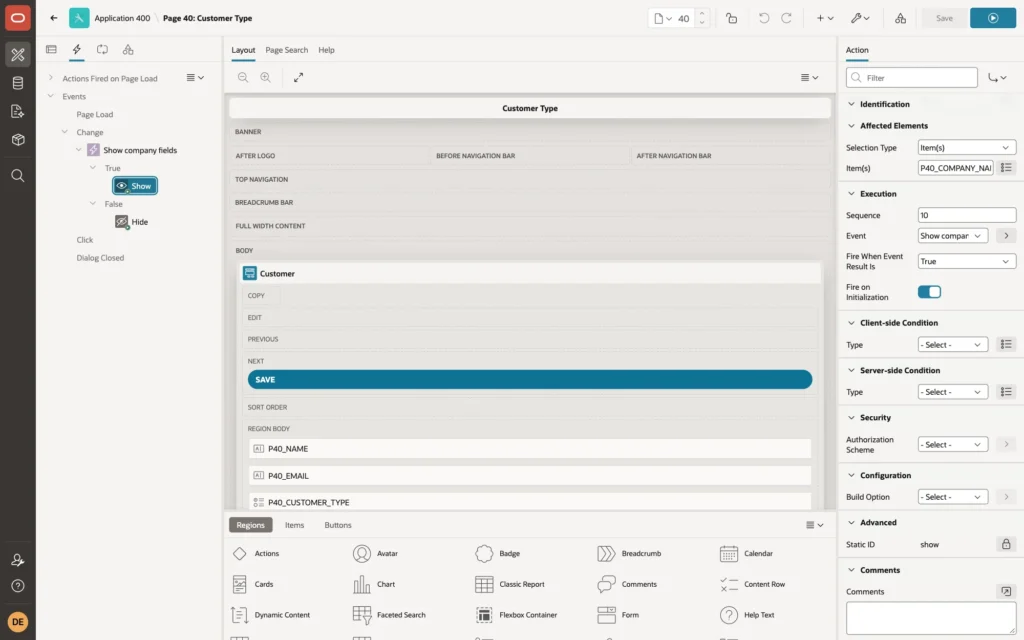
Fire on Initialization runs the action once when the page loads, with the condition evaluated against the item's current value. Without it, the fields would be visible on a new form until the user first changed the type, and an existing company record would open with its fields hidden.
The Result in the Browser
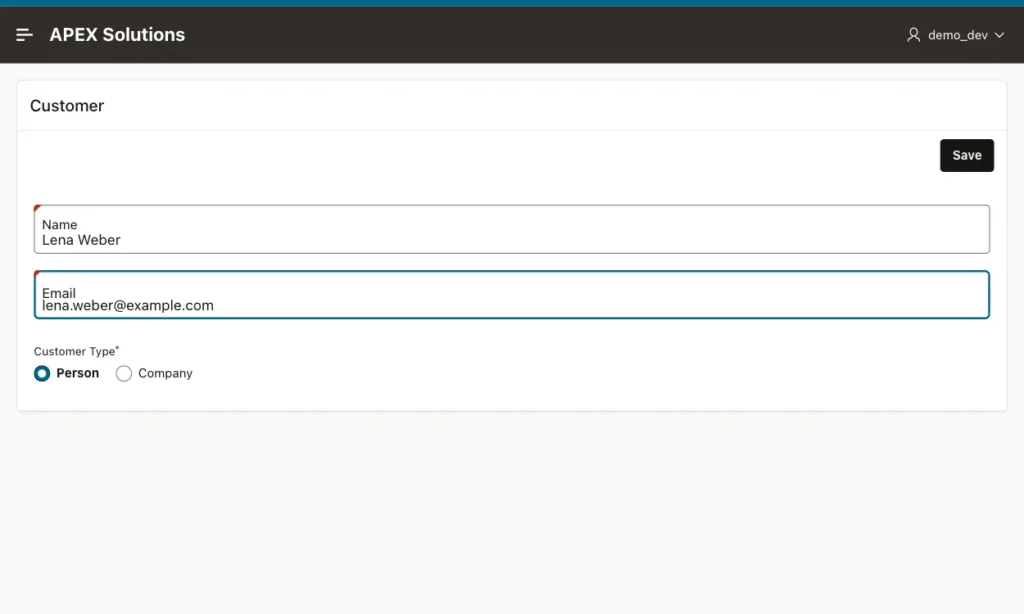
For a person, the company fields are not shown:
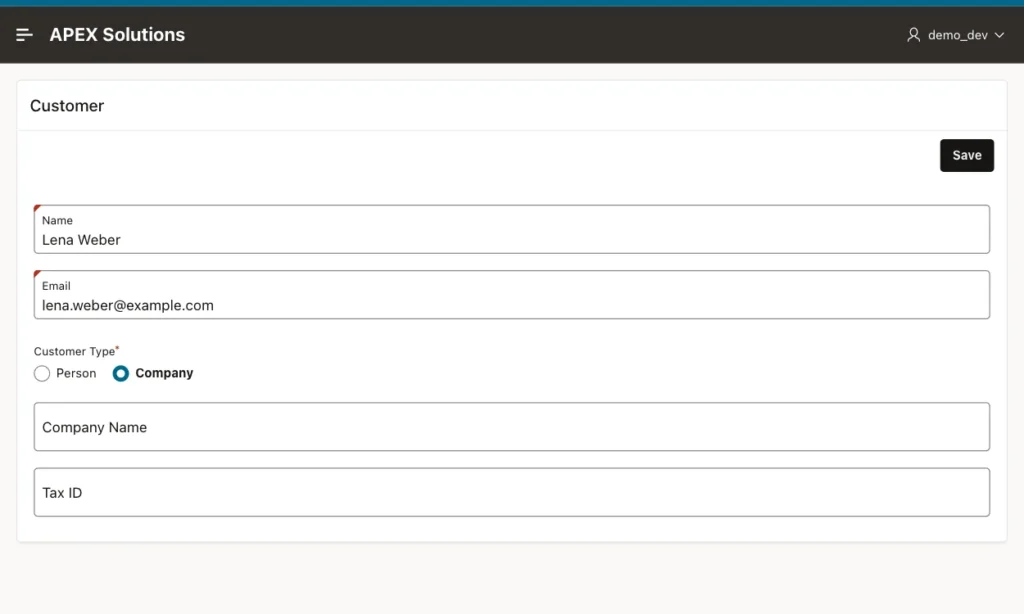
Selecting Company shows them at once, without a page submit:
Step 3: Validate Only When the Field Applies
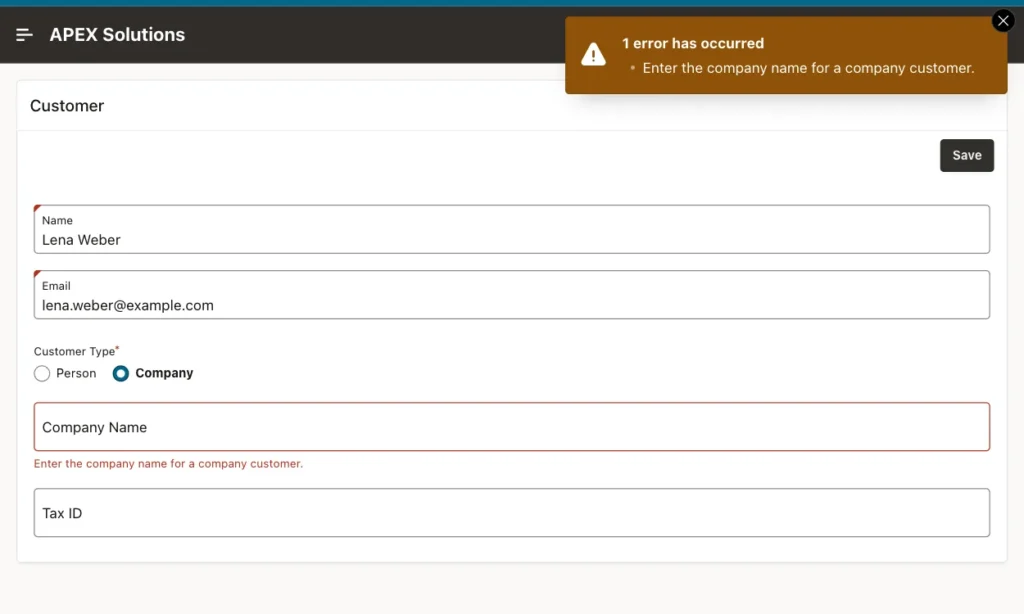
The company name is required for companies, but not for persons, so the Value Required switch of the item cannot be used. Instead, create a validation of type Item is NOT NULL on P40_COMPANY_NAME with a server-side condition:
- Validation: Type Item is NOT NULL, Item P40_COMPANY_NAME.
- Error Message: Enter the company name for a company customer. Associated Item: P40_COMPANY_NAME.
- Server-side Condition: Type Item = Value, Item P40_CUSTOMER_TYPE, Value COMPANY.
Step 4: Clear Values of Hidden Fields
Hiding a field does not clear it. If a user types a company name, then switches back to Person, the name is still submitted. A PL/SQL process before the form's DML process removes such values:
Example:
if :P40_CUSTOMER_TYPE = 'PERSON' then
    :P40_COMPANY_NAME := null;
    :P40_TAX_ID       := null;
end if;
Give it a lower sequence than the Process form step, so it runs first. A test: a person saved after company values were typed and hidden again:
Example:
select name, customer_type, company_name, tax_id
from   customers
where  email = 'lena.weber@example.com';
Output:
NAME          CUSTOMER_TYPE    COMPANY_NAME    TAX_ID
_____________ ________________ _______________ _________
Lena Weber    PERSON
The company fields were stored as NULL, as they should be for a person.
Things to Know
- To show or hide a group of fields, put them in their own region and choose Region as the affected element.
- For a list of values, use Item is in List as the client-side condition, with the values separated by commas.
- Server-side conditions on items decide whether they are rendered at all, when the page loads. Dynamic actions are for changes while the user works on the page.
- A database check constraint, such as company name required when the type is COMPANY, protects the rule for every other path into the table too.
Related Guides
- Oracle APEX Dynamic Actions: A Complete Guide
- Oracle APEX Validations: Checking Data Before It Is Saved
Conclusion
Show or hide fields with a dynamic action on the controlling item: a client-side condition, Show as the True action, Hide as the False action, and Fire on Initialization on both. Then make the server side match: validate the fields only when they apply, and clear their values when they do not.
