
The navigation menu of an Oracle APEX application is normally a static list. Every new page, label change or role rule means a change in App Builder and a new deployment. When administrators want to rename, reorder or hide menu entries themselves, a static list gets in the way.
A dynamic list solves this. Its entries come from a SQL query, so the menu can live in a table. This guide stores the menu in a MENU_ENTRIES table with groups, icons, target pages, required roles and an active flag. It then turns the table into the application's navigation menu and adds an admin page to edit it.
The older post Oracle Apex Dynamic Popup Navigation Menu Example builds a popup menu from a tree table without roles. The post Oracle APEX Navigation: Lists, Menus, and Breadcrumbs explains lists in general. This guide is different: the menu shows each user only the entries their Access Control roles allow.
Step 1: Create the Table
One table holds the whole menu. A row with no target page is a group heading, and PARENT_ID puts an entry under a group. REQUIRED_ROLES holds the static IDs of the roles that may see the entry, separated by colons. An empty value means every user sees it.
Create the table, the index and the sample menu:
Example:
create table menu_entries (
  entry_id        number generated by default on null as identity,
  parent_id       number,
  label           varchar2(60) not null,
  icon_css        varchar2(60),
  target_page     number(6),
  sort_seq        number(4) default on null 10 not null,
  required_roles  varchar2(200),
  is_active       varchar2(1) default on null 'Y' not null,
  constraint menu_entries_pk primary key (entry_id),
  constraint menu_entries_parent_fk foreign key (parent_id)
    references menu_entries (entry_id),
  constraint menu_entries_label_uk unique (parent_id, label),
  constraint menu_entries_active_ck check (is_active in ('Y', 'N')),
  constraint menu_entries_parent_ck check (parent_id <> entry_id)
);

create index menu_entries_parent_ix on menu_entries (parent_id);

insert into menu_entries (entry_id, parent_id, label, icon_css, target_page, sort_seq, required_roles)
values (1, null, 'Home', 'fa-home', 1, 10, null);
insert into menu_entries (entry_id, parent_id, label, icon_css, target_page, sort_seq, required_roles)
values (2, null, 'Orders', 'fa-shopping-cart', null, 20, null);
insert into menu_entries (entry_id, parent_id, label, icon_css, target_page, sort_seq, required_roles)
values (3, 2, 'New Order', 'fa-plus', 30, 10, 'administrator:editor');
insert into menu_entries (entry_id, parent_id, label, icon_css, target_page, sort_seq, required_roles)
values (4, 2, 'Order Board', 'fa-columns', 270, 20, null);
insert into menu_entries (entry_id, parent_id, label, icon_css, target_page, sort_seq, required_roles)
values (5, 2, 'Approve Orders', 'fa-check-square-o', 70, 30, 'administrator');
insert into menu_entries (entry_id, parent_id, label, icon_css, target_page, sort_seq, required_roles)
values (6, null, 'Products', 'fa-cubes', null, 30, null);
insert into menu_entries (entry_id, parent_id, label, icon_css, target_page, sort_seq, required_roles)
values (7, 6, 'Product List', 'fa-table', 110, 10, null);
insert into menu_entries (entry_id, parent_id, label, icon_css, target_page, sort_seq, required_roles)
values (8, 6, 'Product Cards', 'fa-th-large', 320, 20, null);
insert into menu_entries (entry_id, parent_id, label, icon_css, target_page, sort_seq, required_roles)
values (9, null, 'Billing', 'fa-money', null, 40, null);
insert into menu_entries (entry_id, parent_id, label, icon_css, target_page, sort_seq, required_roles)
values (10, 9, 'Invoices', 'fa-file-text-o', 340, 10, 'administrator:editor');
insert into menu_entries (entry_id, parent_id, label, icon_css, target_page, sort_seq, required_roles)
values (11, 9, 'Quote Lines', 'fa-calculator', 260, 20, 'administrator:editor');
insert into menu_entries (entry_id, parent_id, label, icon_css, target_page, sort_seq, required_roles)
values (12, null, 'Sales Dashboard', 'fa-bar-chart', 80, 50, null);
insert into menu_entries (entry_id, parent_id, label, icon_css, target_page, sort_seq, required_roles)
values (13, null, 'Administration', 'fa-gear', null, 90, 'administrator');
insert into menu_entries (entry_id, parent_id, label, icon_css, target_page, sort_seq, required_roles)
values (14, 13, 'Order Cleanup Settings', 'fa-sliders', 170, 10, null);
insert into menu_entries (entry_id, parent_id, label, icon_css, target_page, sort_seq, required_roles)
values (15, 13, 'Login History', 'fa-history', 90, 20, null);
insert into menu_entries (entry_id, parent_id, label, icon_css, target_page, sort_seq, required_roles)
values (16, 13, 'Menu Entries', 'fa-list', 380, 30, null);
insert into menu_entries (entry_id, parent_id, label, icon_css, target_page, sort_seq, required_roles, is_active)
values (17, null, 'Schedule', 'fa-calendar', 120, 60, null, 'N');

commit;

alter table menu_entries modify entry_id
  generated by default on null as identity (start with limit value);

select lpad(' ', 2 * (level - 1)) || label as menu_tree,
       target_page, required_roles, is_active
  from menu_entries
 start with parent_id is null
connect by prior entry_id = parent_id
 order siblings by sort_seq;
Output:
Table MENU_ENTRIES created.

Index MENU_ENTRIES_PARENT_IX created.

1 row inserted.

1 row inserted.

1 row inserted.

1 row inserted.

1 row inserted.

1 row inserted.

1 row inserted.

1 row inserted.

1 row inserted.

1 row inserted.

1 row inserted.

1 row inserted.

1 row inserted.

1 row inserted.

1 row inserted.

1 row inserted.

1 row inserted.

Commit complete.

Table MENU_ENTRIES altered.

MENU_TREE                      TARGET_PAGE REQUIRED_ROLES          IS_ACTIVE
___________________________ ______________ _______________________ ____________
Home                                     1                         Y
Orders                                                             Y
  New Order                             30 administrator:editor    Y
  Order Board                          270                         Y
  Approve Orders                        70 administrator           Y
Products                                                           Y
  Product List                         110                         Y
  Product Cards                        320                         Y
Billing                                                            Y
  Invoices                             340 administrator:editor    Y
  Quote Lines                          260 administrator:editor    Y
Sales Dashboard                         80                         Y
Schedule                               120                         N
Administration                             administrator           Y
  Order Cleanup Settings               170                         Y
  Login History                         90                         Y
  Menu Entries                         380                         Y

17 rows selected.
- MENU_ENTRIES_PARENT_FK is a self-referencing foreign key, so an entry can only point to an existing group. MENU_ENTRIES_PARENT_CK stops an entry from being its own parent.
- MENU_ENTRIES_LABEL_UK prevents two entries with the same label in one group.
- SORT_SEQ and IS_ACTIVE use DEFAULT ON NULL, and MENU_ENTRIES_ACTIVE_CK allows only Y and N. No trigger is needed.
- The sample rows use fixed IDs so the parents are easy to read. The last ALTER TABLE moves the identity past them.
The role static IDs come from Application Access Control. This application has the roles administrator, editor and reader, created as shown in the guide on Access Control roles. DEMO_DEV is an Administrator, ORDER_EDITOR an Editor and SALES_USER a Reader.
Step 2: Write the Menu Query
A dynamic list query returns one row per entry with the columns in this order: level, label, target, is current, and image (the icon). The query below builds the tree with CONNECT BY and filters the rows by role:
Example:
select level as lvl,
       label,
       case when target_page is not null
            then apex_page.get_url(p_page => target_page)
       end as target,
       case when target_page = :APP_PAGE_ID then 'YES' else 'NO' end as is_current,
       icon_css as image
  from (select *
          from menu_entries e
         where e.is_active = 'Y'
           and (e.required_roles is null
                or exists (select null
                             from apex_appl_acl_user_roles ur
                            where ur.application_id = :APP_ID
                              and ur.user_name = upper(:APP_USER)
                              and ur.role_static_id in (
                                    select column_value
                                      from apex_string.split(e.required_roles, ':')))))
 where not (target_page is null and connect_by_isleaf = 1)
 start with parent_id is null
connect by prior entry_id = parent_id
order siblings by sort_seq- The inner query keeps only active entries the user may see. An entry passes when REQUIRED_ROLES is empty or when APEX_APPL_ACL_USER_ROLES has one of its roles for :APP_USER.
- The filter runs before CONNECT BY. When a group is filtered out, its entries are never reached, so Administration hides all its pages at once.
- The outer WHERE removes a group heading that is left with no visible entries (no target page and CONNECT_BY_ISLEAF = 1).
- APEX_PAGE.GET_URL builds the link with the session. IS_CURRENT is YES for the entry of the page being shown.
Before using the query in APEX, test it for each user in an APEX session. This script creates a session for SALES_USER, sets the three bind variables and runs the query:
Example:
set pagesize 100
column menu_tree format a28
variable APP_ID number
variable APP_USER varchar2(100)
variable APP_PAGE_ID number
begin
  apex_session.create_session(p_app_id => 400, p_page_id => 1, p_username => 'SALES_USER');
  :APP_ID := 400;
  :APP_USER := v('APP_USER');
  :APP_PAGE_ID := 1;
end;
/
select lpad(' ', 2 * (lvl - 1)) || label as menu_tree,
       nvl2(target, 'Yes', 'No') as has_link, is_current, image
  from (
select level as lvl,
       label,
       case when target_page is not null
            then apex_page.get_url(p_page => target_page)
       end as target,
       case when target_page = :APP_PAGE_ID then 'YES' else 'NO' end as is_current,
       icon_css as image
  from (select *
          from menu_entries e
         where e.is_active = 'Y'
           and (e.required_roles is null
                or exists (select null
                             from apex_appl_acl_user_roles ur
                            where ur.application_id = :APP_ID
                              and ur.user_name = upper(:APP_USER)
                              and ur.role_static_id in (
                                    select column_value
                                      from apex_string.split(e.required_roles, ':')))))
 where not (target_page is null and connect_by_isleaf = 1)
 start with parent_id is null
connect by prior entry_id = parent_id
 order siblings by sort_seq
       );

exec apex_session.delete_session
Output:
PL/SQL procedure successfully completed.

MENU_TREE          HAS_LINK    IS_CURRENT    IMAGE
__________________ ___________ _____________ ___________________
Home               Yes         YES           fa-home
Orders             No          NO            fa-shopping-cart
  Order Board      Yes         NO            fa-columns
Products           No          NO            fa-cubes
  Product List     Yes         NO            fa-table
  Product Cards    Yes         NO            fa-th-large
Sales Dashboard    Yes         NO            fa-bar-chart

7 rows selected.

PL/SQL procedure successfully completed.
The reader sees no New Order, Approve Orders or Administration. The Billing group is gone too, because both of its entries need the Administrator or Editor role. Schedule is missing because IS_ACTIVE is N.
The same script for ORDER_EDITOR returns the Editor entries and the Billing group:
Output:
PL/SQL procedure successfully completed.

MENU_TREE          HAS_LINK    IS_CURRENT    IMAGE
__________________ ___________ _____________ ___________________
Home               Yes         YES           fa-home
Orders             No          NO            fa-shopping-cart
  New Order        Yes         NO            fa-plus
  Order Board      Yes         NO            fa-columns
Products           No          NO            fa-cubes
  Product List     Yes         NO            fa-table
  Product Cards    Yes         NO            fa-th-large
Billing            No          NO            fa-money
  Invoices         Yes         NO            fa-file-text-o
  Quote Lines      Yes         NO            fa-calculator
Sales Dashboard    Yes         NO            fa-bar-chart

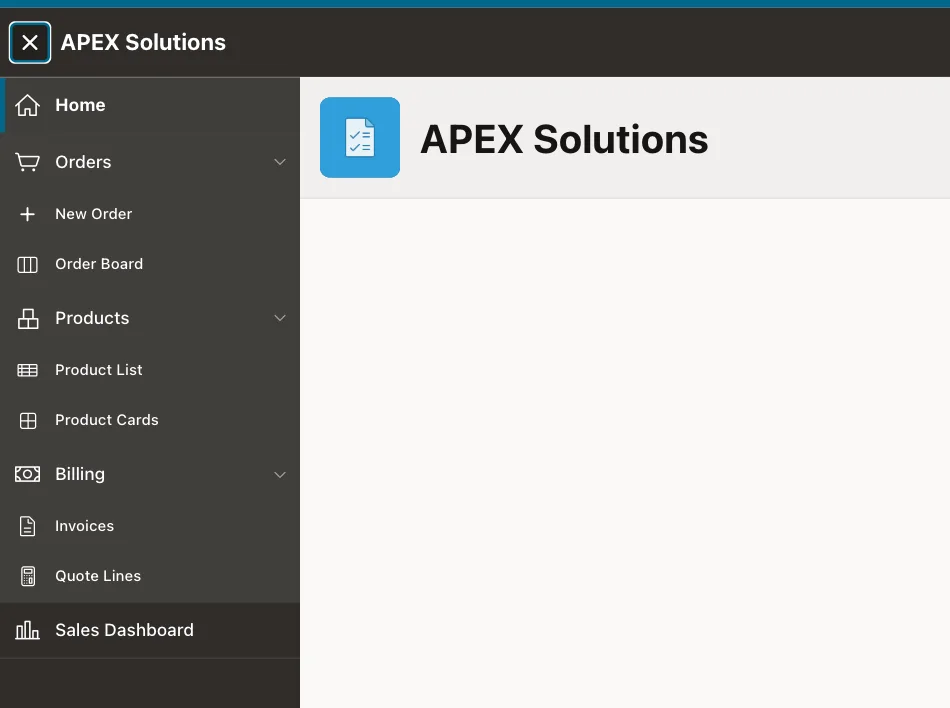
11 rows selected.

PL/SQL procedure successfully completed.
And for DEMO_DEV, the administrator, it returns all 16 active entries:
Output:
PL/SQL procedure successfully completed.

MENU_TREE                   HAS_LINK    IS_CURRENT    IMAGE
___________________________ ___________ _____________ ____________________
Home                        Yes         YES           fa-home
Orders                      No          NO            fa-shopping-cart
  New Order                 Yes         NO            fa-plus
  Order Board               Yes         NO            fa-columns
  Approve Orders            Yes         NO            fa-check-square-o
Products                    No          NO            fa-cubes
  Product List              Yes         NO            fa-table
  Product Cards             Yes         NO            fa-th-large
Billing                     No          NO            fa-money
  Invoices                  Yes         NO            fa-file-text-o
  Quote Lines               Yes         NO            fa-calculator
Sales Dashboard             Yes         NO            fa-bar-chart
Administration              No          NO            fa-gear
  Order Cleanup Settings    Yes         NO            fa-sliders
  Login History             Yes         NO            fa-history
  Menu Entries              Yes         NO            fa-list

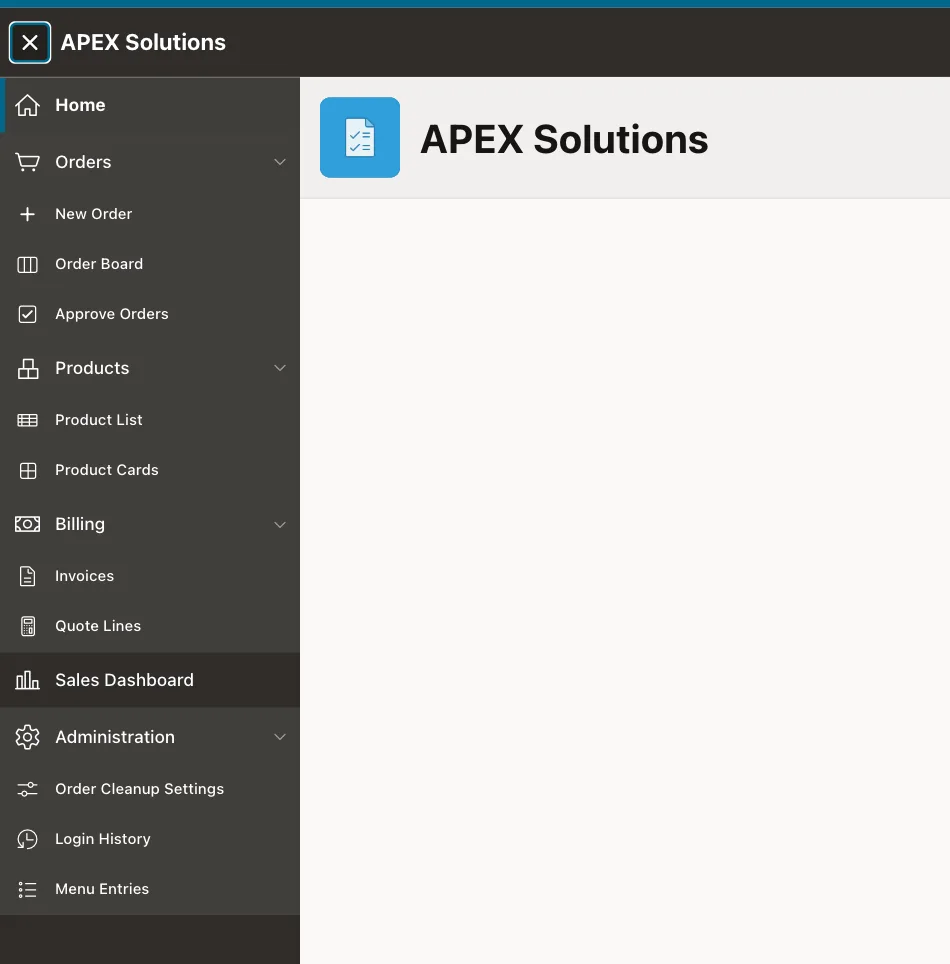
16 rows selected.

PL/SQL procedure successfully completed.
In a first test, the query used APEX_ACL.HAS_USER_ROLE for the role check. In this example it returned FALSE for every user and role, even in a PL/SQL block, while APEX_ACL.HAS_USER_ANY_ROLES returned TRUE. Reading the APEX_APPL_ACL_USER_ROLES view gave the right result, so the guide uses the view.
Step 3: Create the Dynamic List
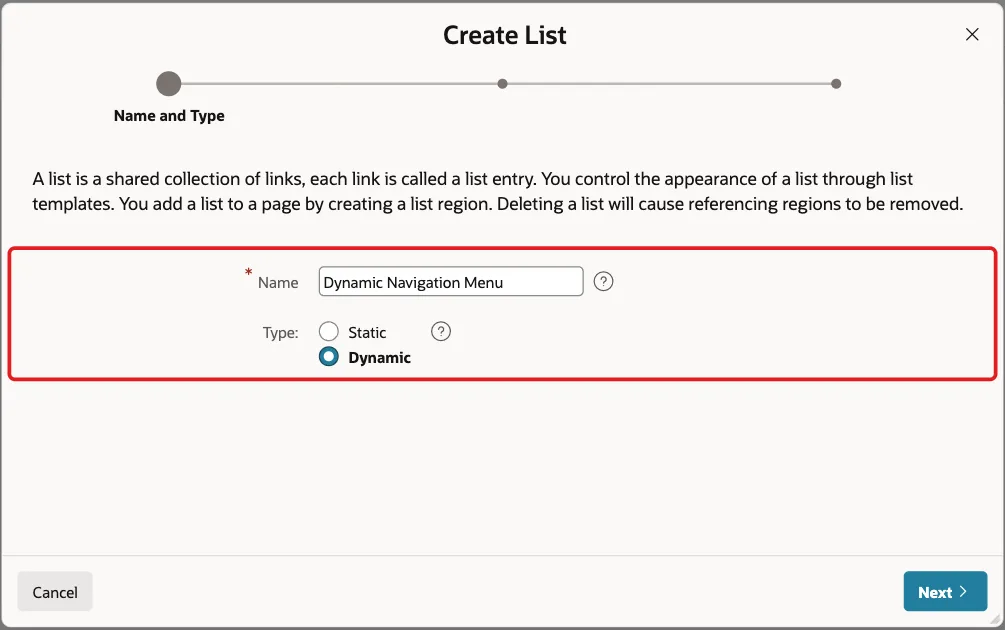
In App Builder, open the application, click Shared Components, and under Navigation and Search click Lists. Click Create. On the first screen, enter Name Dynamic Navigation Menu, select Type Dynamic and click Next:
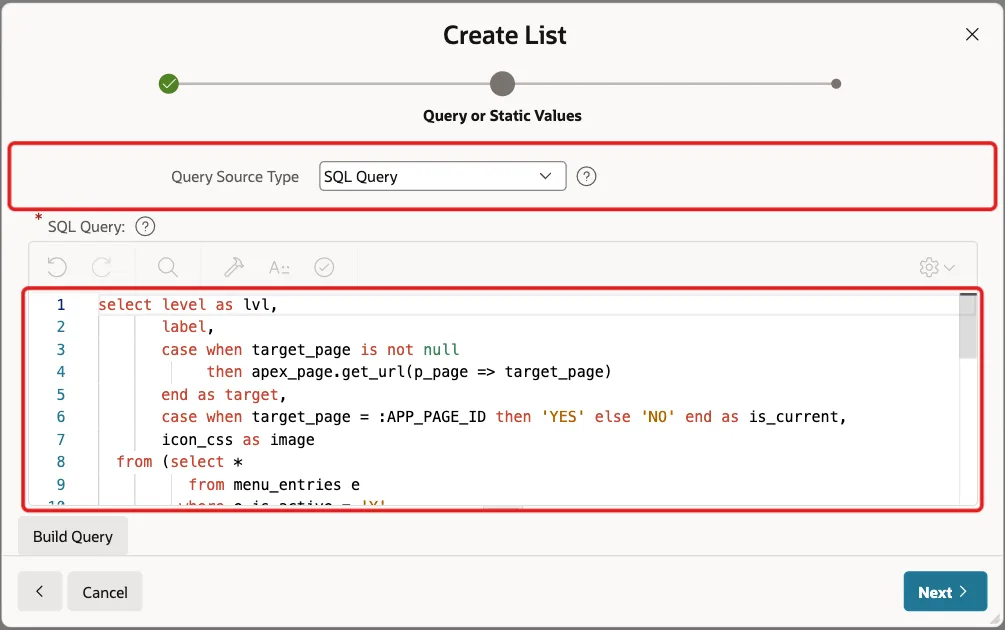
On the Query or Static Values screen, keep Query Source Type SQL Query and paste the menu query of Step 2. Click Next:
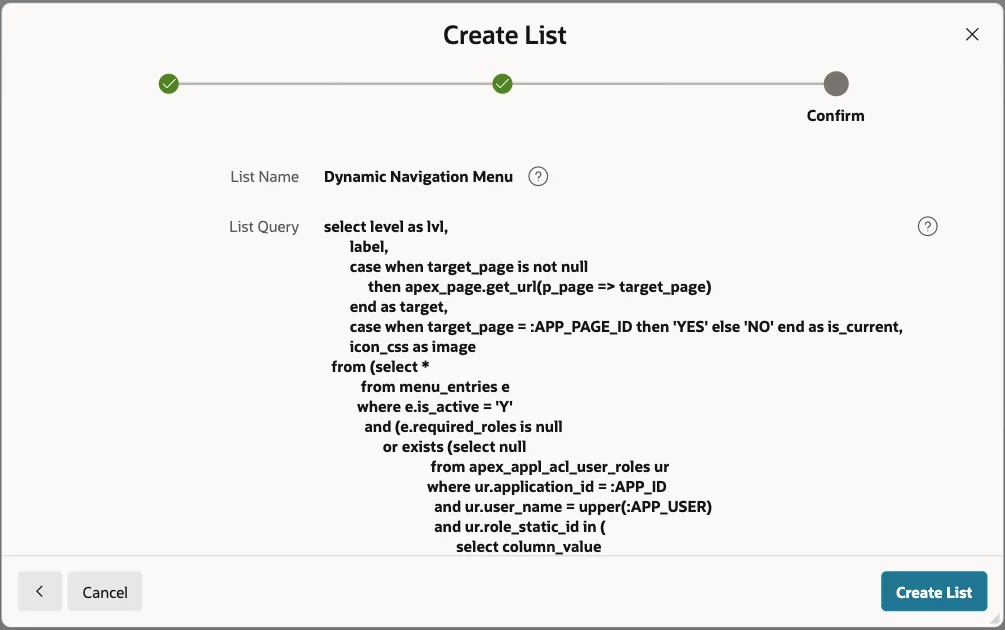
The Confirm screen shows the name and the query. Click Create List:
Step 4: Use the List as the Navigation Menu
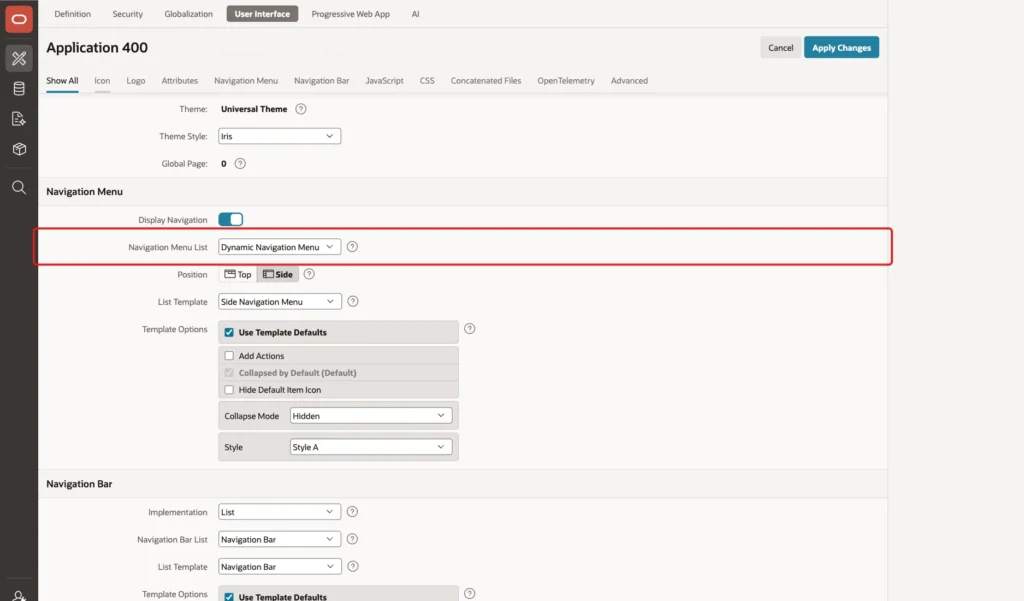
Go back to Shared Components and click User Interface Attributes. In the Navigation Menu section, change Navigation Menu List from Navigation Menu to Dynamic Navigation Menu. Keep Position Side and List Template Side Navigation Menu, and click Apply Changes:
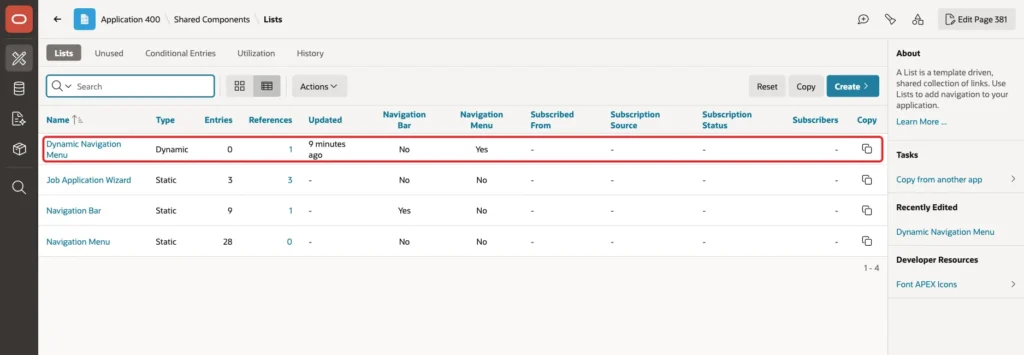
The Lists page now shows Yes under Navigation Menu for the new list. The old static Navigation Menu list stays in the application with 0 references, so you can switch back at any time:
Step 5: Create the Menu Admin Pages
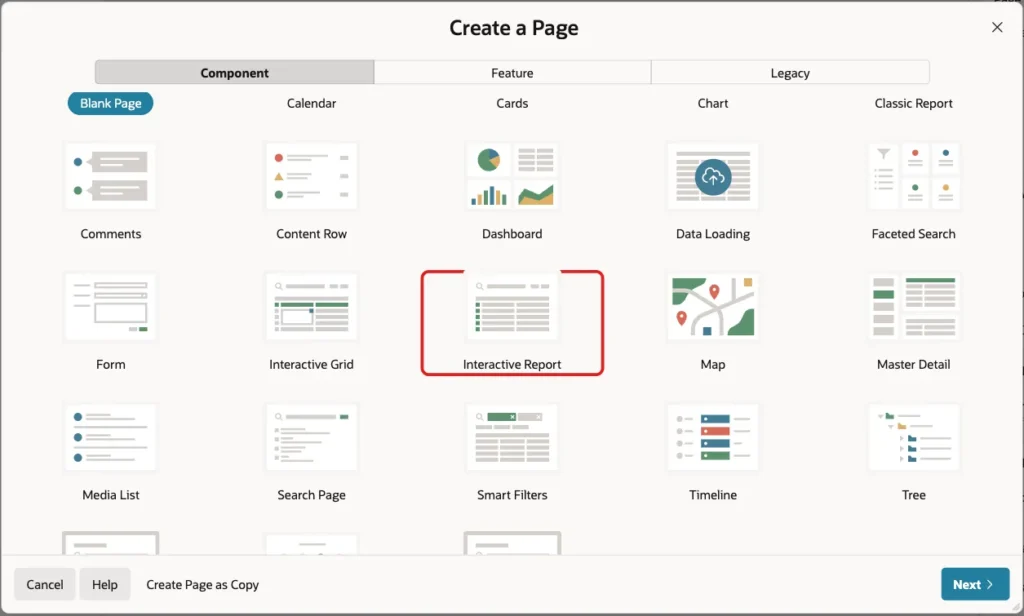
Administrators need a page to maintain the table. Open any page in Page Designer, click the Create menu (plus icon) and click Page. Select Interactive Report:
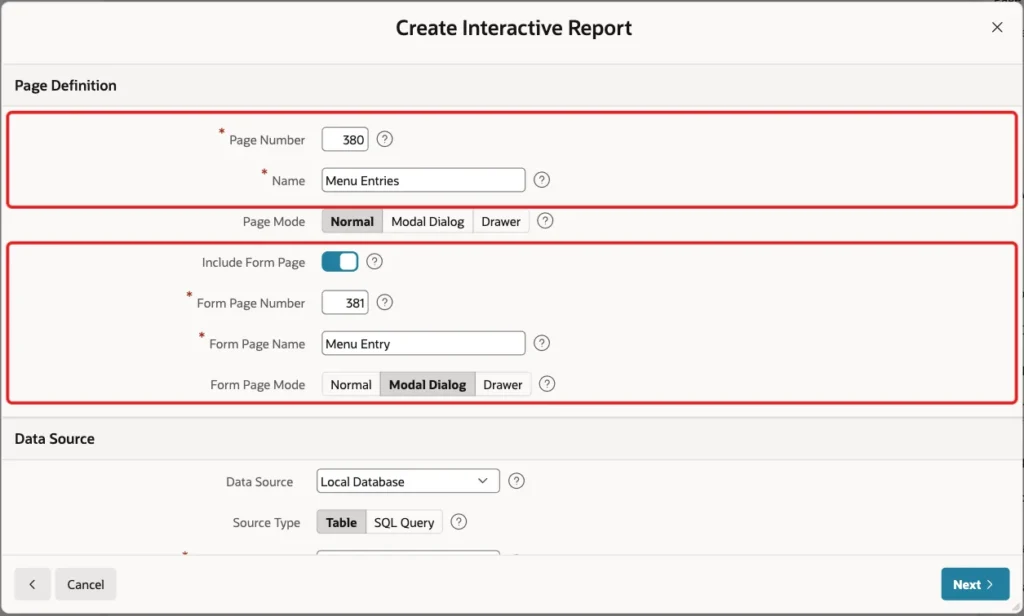
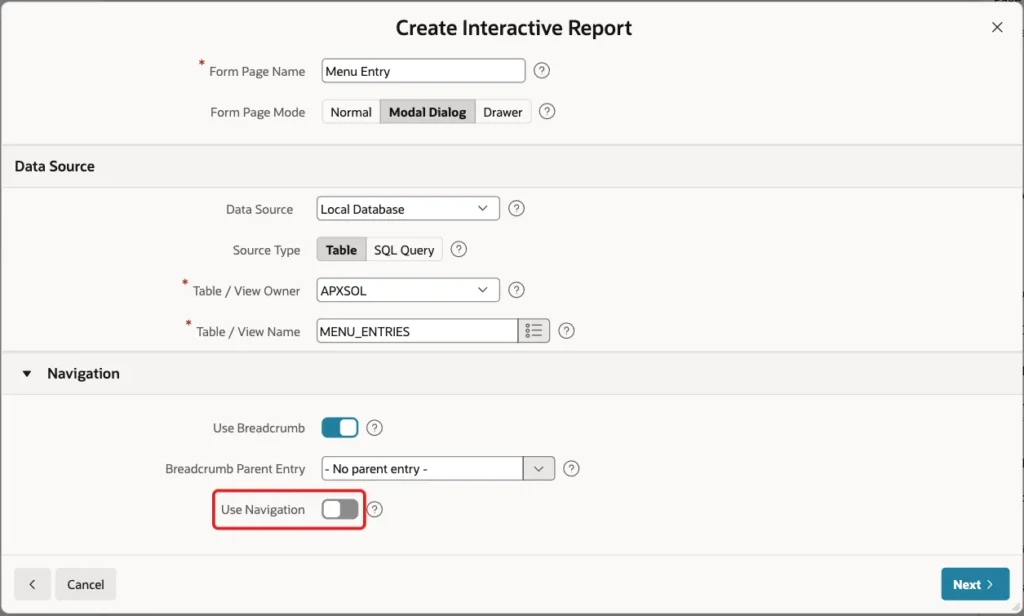
Enter Page Number 380 and Name Menu Entries. Turn on Include Form Page, enter Form Page Number 381 and Form Page Name Menu Entry, and select Form Page Mode Modal Dialog:
Under Data Source, keep Table and enter MENU_ENTRIES as the Table / View Name:
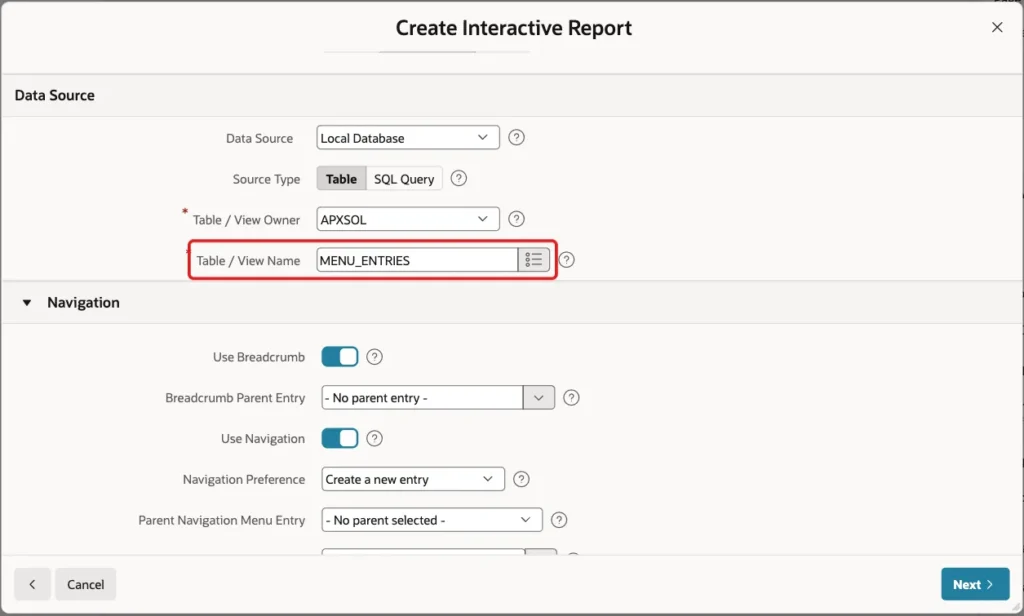
Under Navigation, turn off Use Navigation. The wizard would add an entry to the static list, but this menu comes from the table. Click Next:
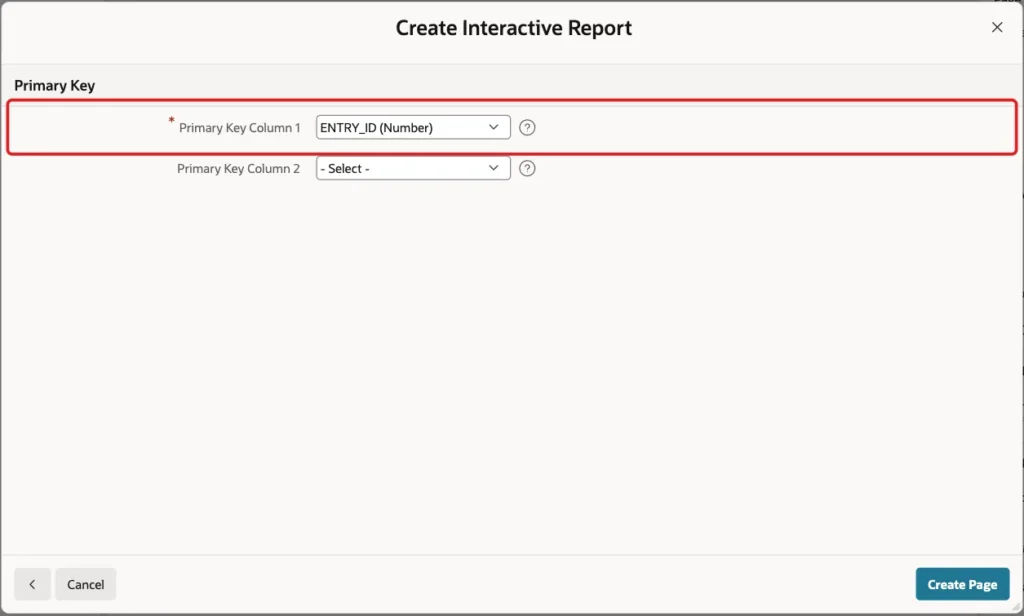
On the Primary Key screen, keep ENTRY_ID (Number) and click Create Page:
The sample data already has an entry for page 380 (Menu Entries) under Administration, so the new page appears in the menu at once.
Step 6: Allow Only Administrators
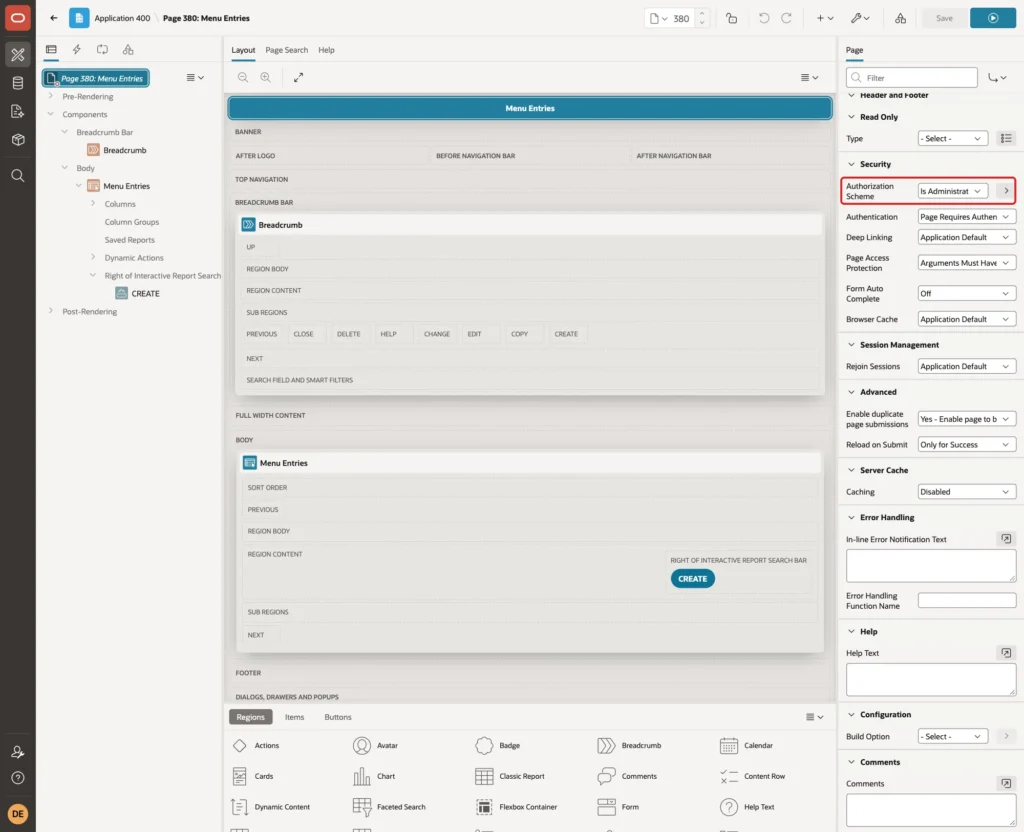
Hiding a menu entry does not protect the page, because anyone can type its URL. Open page 380 in Page Designer, click the page node, and under Security set Authorization Scheme to Is Administrator:
Set the same Authorization Scheme on page 381, the form page:
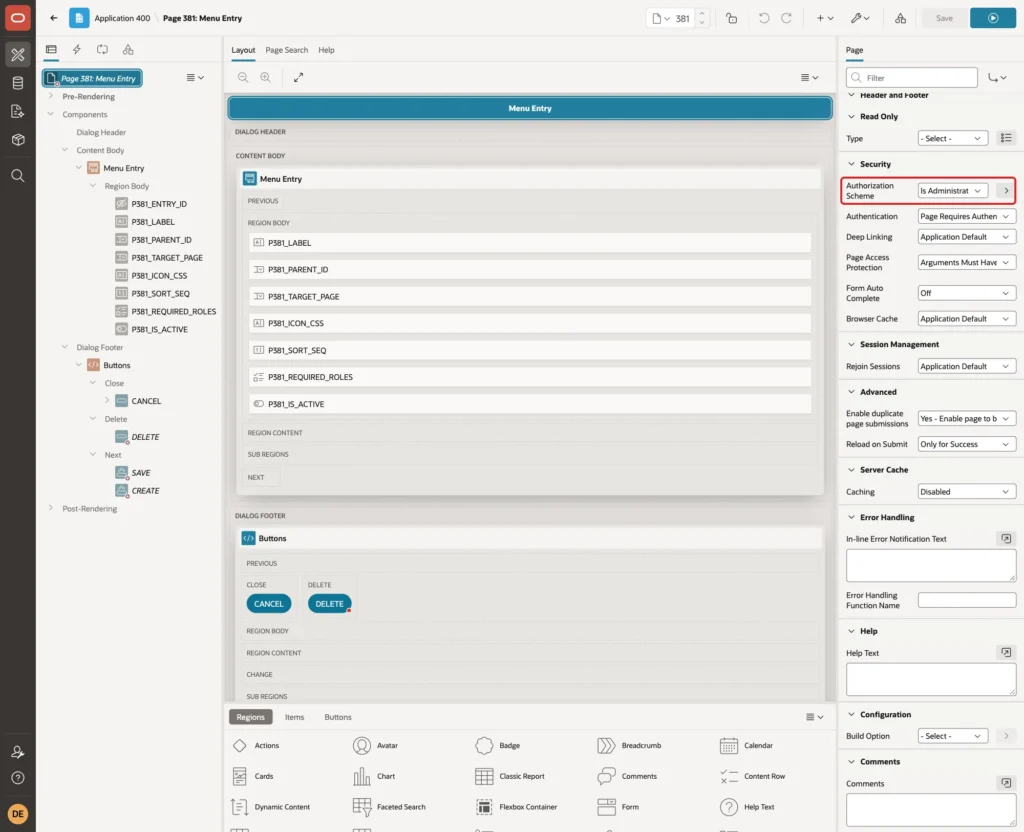
Is Administrator is an authorization scheme of type Is In Role or Group that checks the Administrator role.
Step 7: Improve the Form Items
The wizard creates a text field for every column. Open page 381 and change the items so that administrators pick values instead of typing IDs. First set the Sequence under Layout so the items appear in this order: P381_LABEL 10, P381_PARENT_ID 20, P381_TARGET_PAGE 30, P381_ICON_CSS 40, P381_SORT_SEQ 50, P381_REQUIRED_ROLES 60, P381_IS_ACTIVE 70.
Select P381_PARENT_ID. Set Label to Parent Group. Under List of Values, set Type to SQL Query, turn on Display Null Value, set Null Display Value to "- Top level -", and enter this query:
Example:
select label as display_value,
       entry_id as return_value
  from menu_entries
 where target_page is null
 order by sort_seq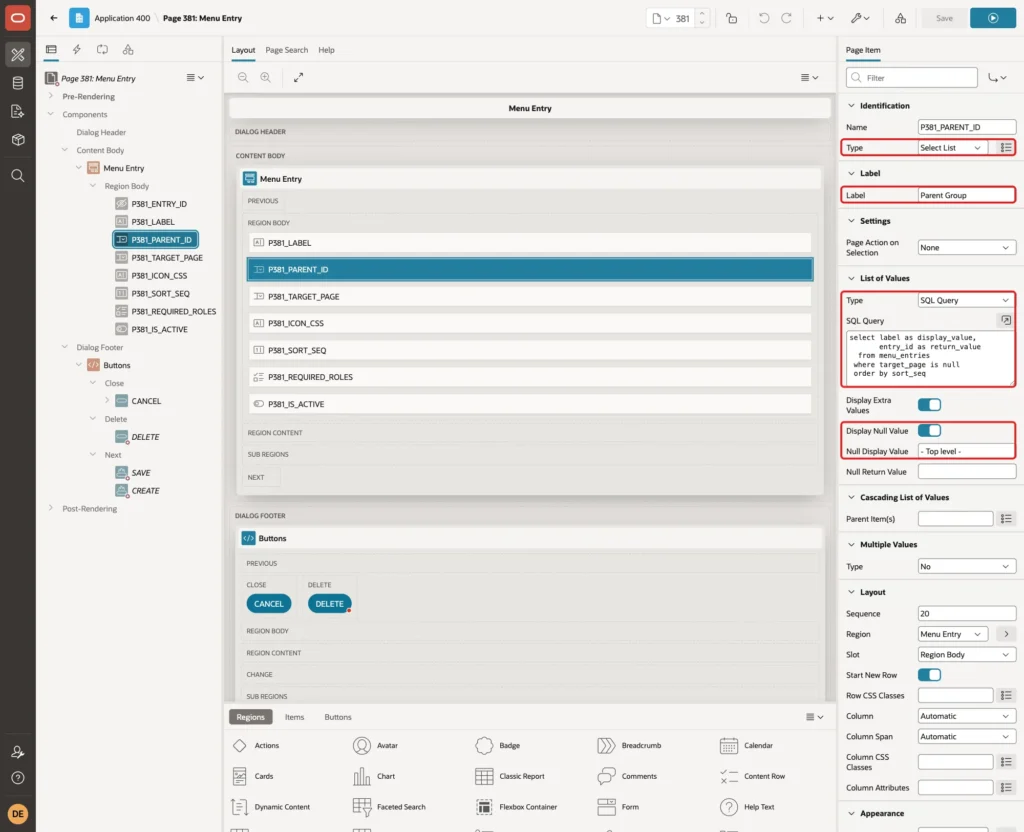
Select P381_TARGET_PAGE. Set Type to Select List. Under List of Values, set Type to SQL Query, turn on Display Null Value, set Null Display Value to "- None (group heading) -", and enter this query:
Example:
select page_id || ' - ' || page_name as display_value,
       page_id as return_value
  from apex_application_pages
 where application_id = :APP_ID
   and page_mode = 'Normal'
   and page_id not in (0, 9999)
 order by page_id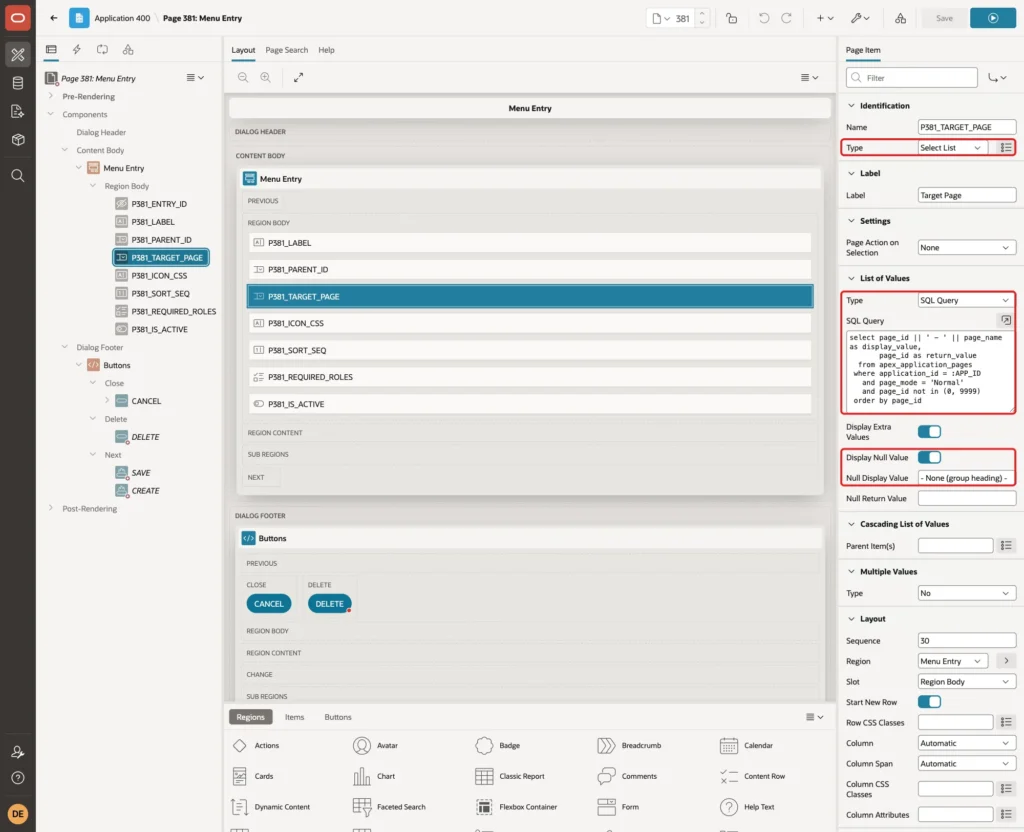
Select P381_ICON_CSS. Set Label to Icon and, under Help, Inline Help Text to "Font APEX class, for example fa-home.". Select P381_SORT_SEQ and set Label to Sequence.
Select P381_REQUIRED_ROLES. Set Type to Checkbox Group and Number of Columns to 3. Under List of Values, set Type to SQL Query and enter this query:
Example:
select role_name as display_value,
       role_static_id as return_value
  from apex_appl_acl_roles
 where application_id = :APP_ID
 order by role_name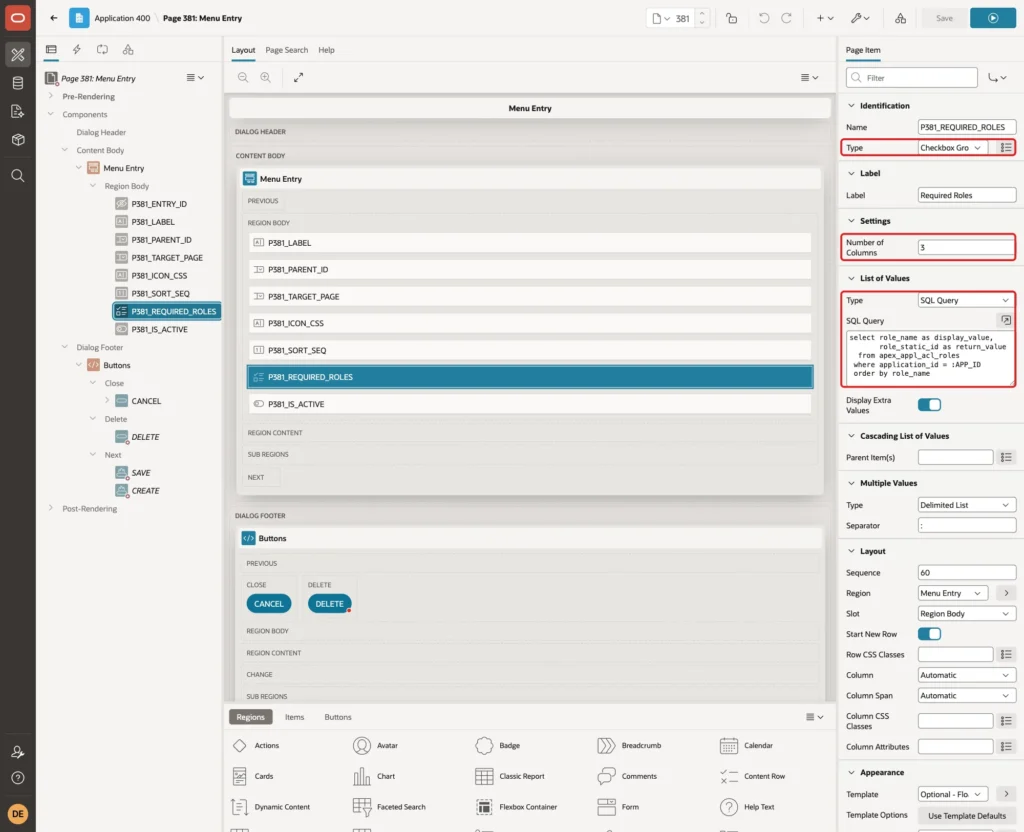
A checkbox group saves the checked values as one string separated by colons, such as administrator:editor. That is the format the menu query splits with APEX_STRING.SPLIT. Under Help, set Inline Help Text to "Leave all unchecked to show the entry to every user.".
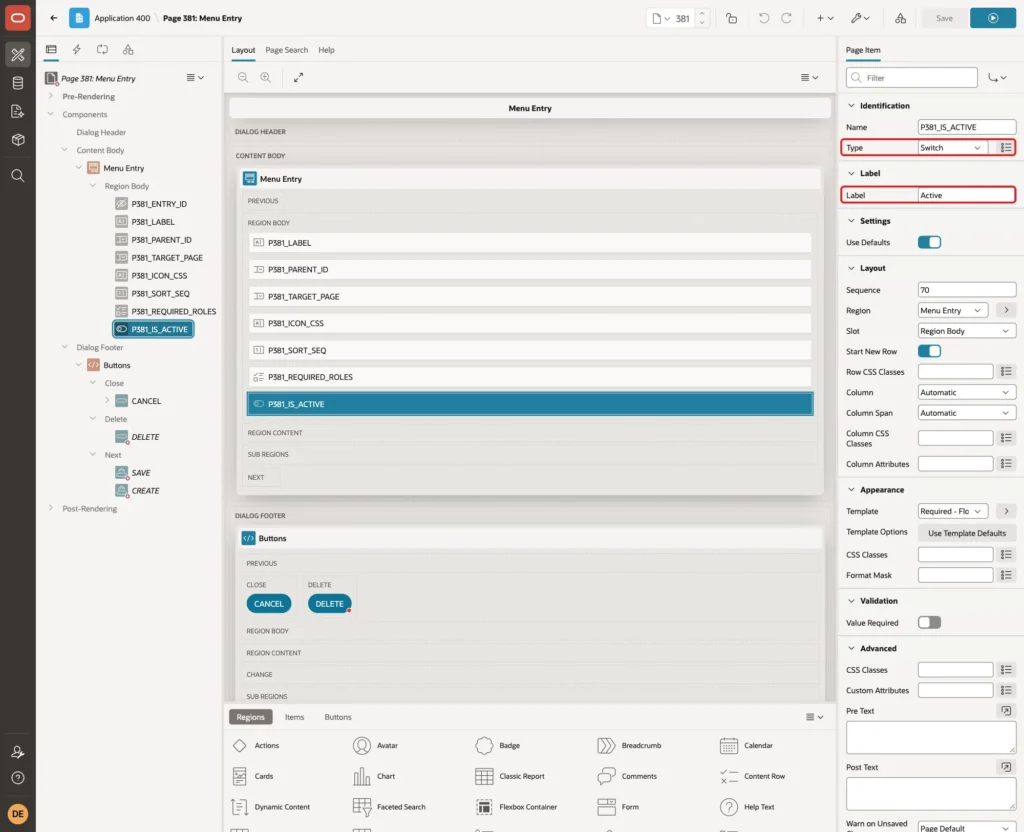
Select P381_IS_ACTIVE. Set Type to Switch and Label to Active. The switch uses the application defaults Y and N, which match the check constraint:
Under Default, set Type to Static and Static Value to Y, so a new entry starts as active:
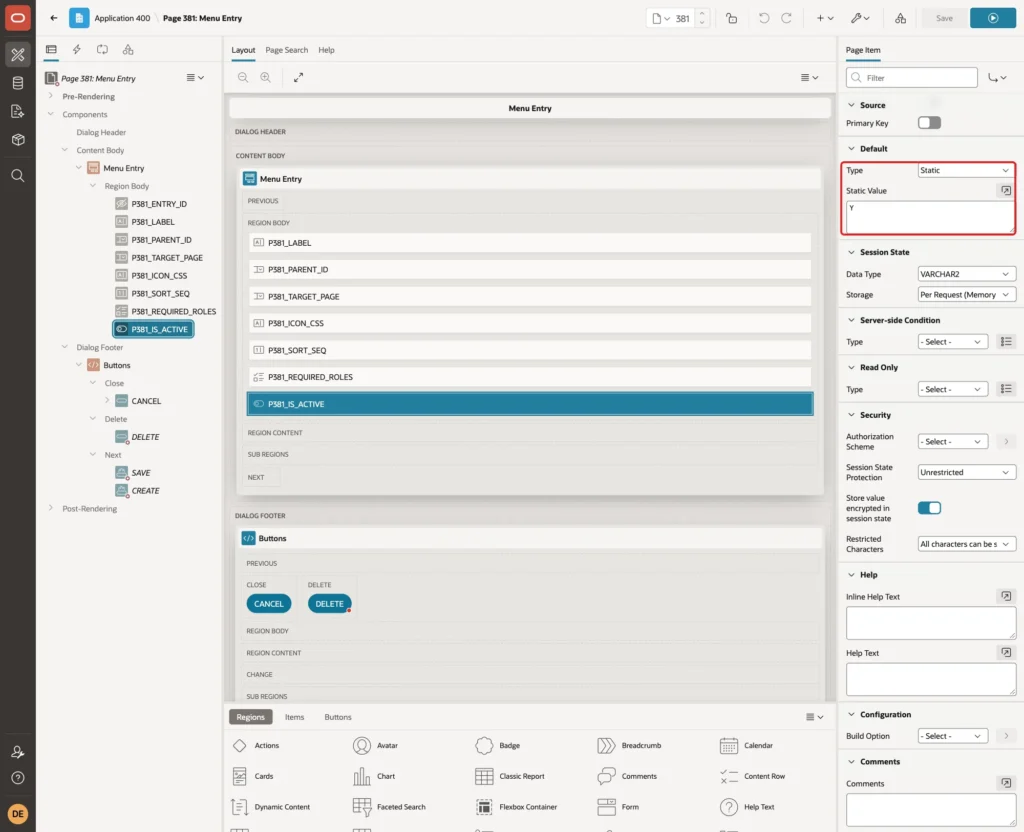
Click Save. On page 380, you can also change the column headings Icon Css, Is Active and Sort Seq to Icon, Active and Sequence.
Step 8: Test the Menu for Each Role
Run the application as DEMO_DEV and open the navigation menu. All groups are expanded for the screenshots; in normal use, the side menu opens one group at a time. The administrator sees every active entry:
Sign in as ORDER_EDITOR. The Editor sees New Order and the Billing group, but not Approve Orders or Administration:
Sign in as SALES_USER. The Reader sees only the entries without required roles. The empty Billing group is removed:
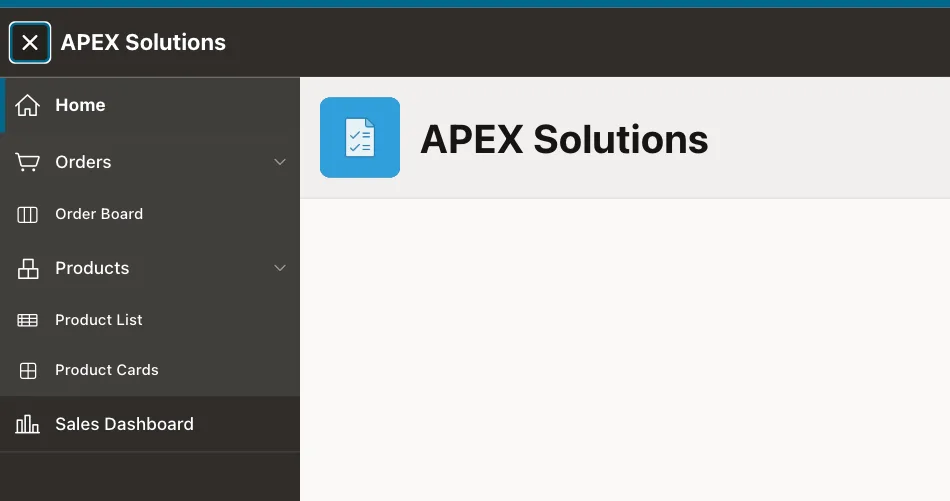
As SALES_USER, click Order Board. The IS_CURRENT column marks the entry, and APEX opens its group and highlights it:
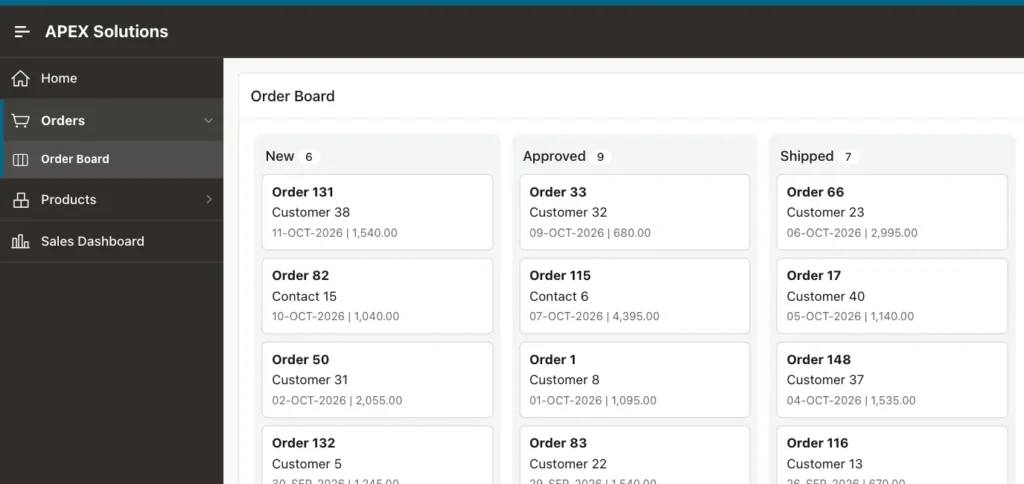
Now try to open the admin page directly. Still as SALES_USER, change the page alias in the URL to menu-entries. APEX stops the request:
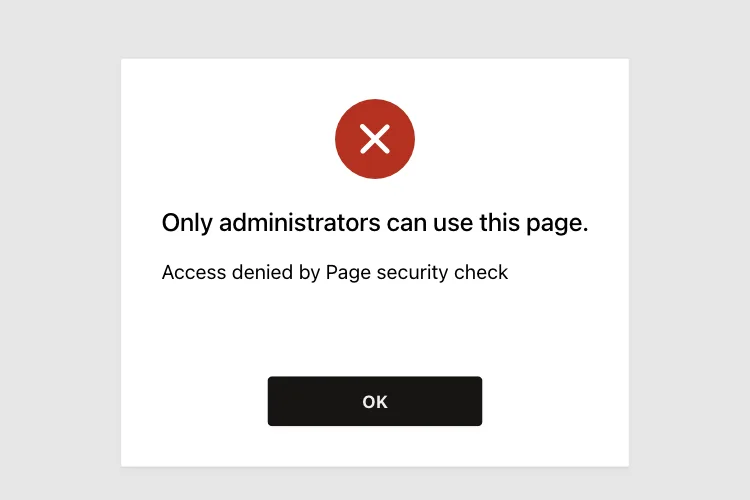
Step 9: Add an Entry from the Admin Page
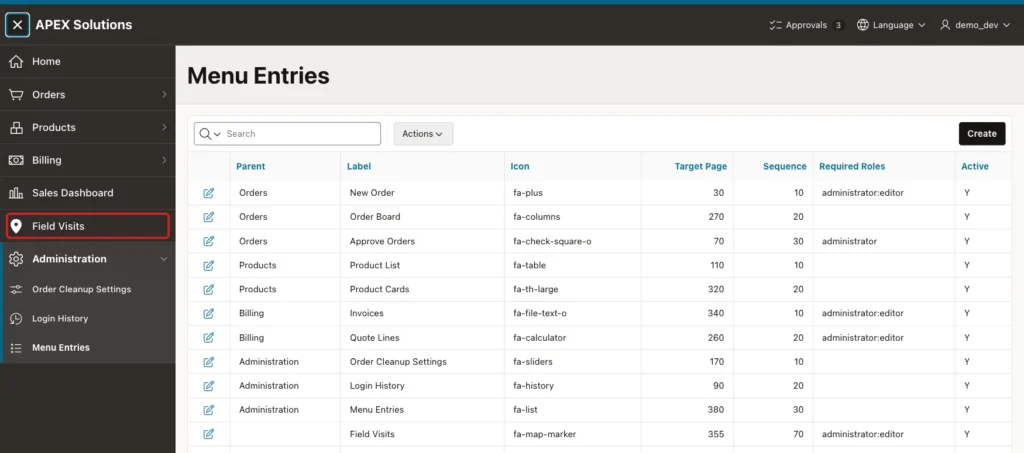
Sign in as DEMO_DEV and click Menu Entries in the Administration group. The report lists all entries:
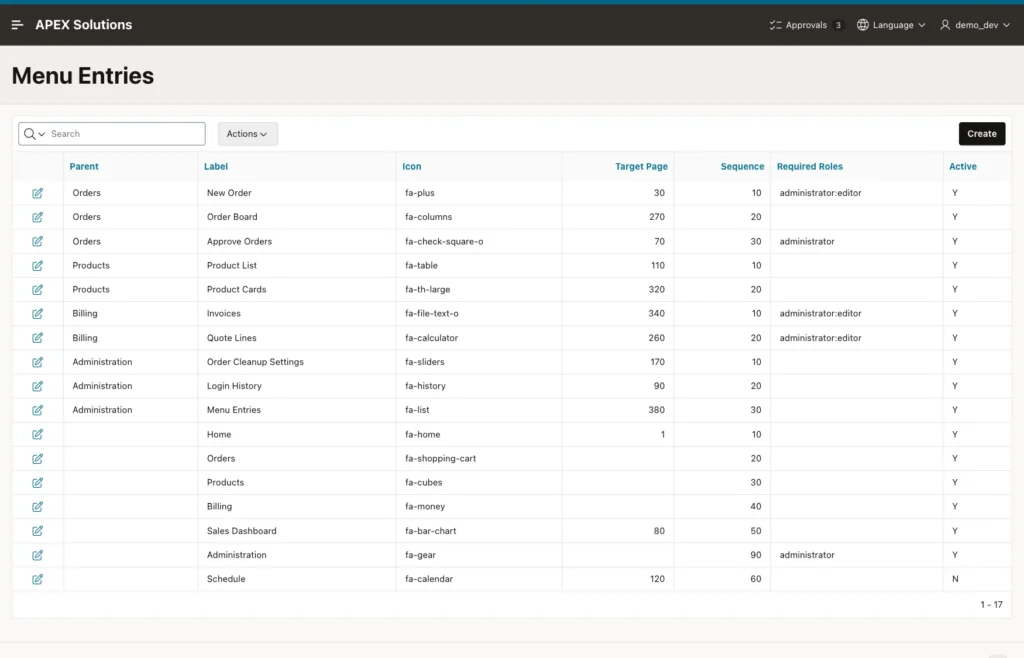
Click Create and fill in the form: Label Field Visits, Parent Group "- Top level -", Target Page 355, Icon fa-map-marker, Sequence 70. Check Administrator and Editor, keep Active on, and click Create:
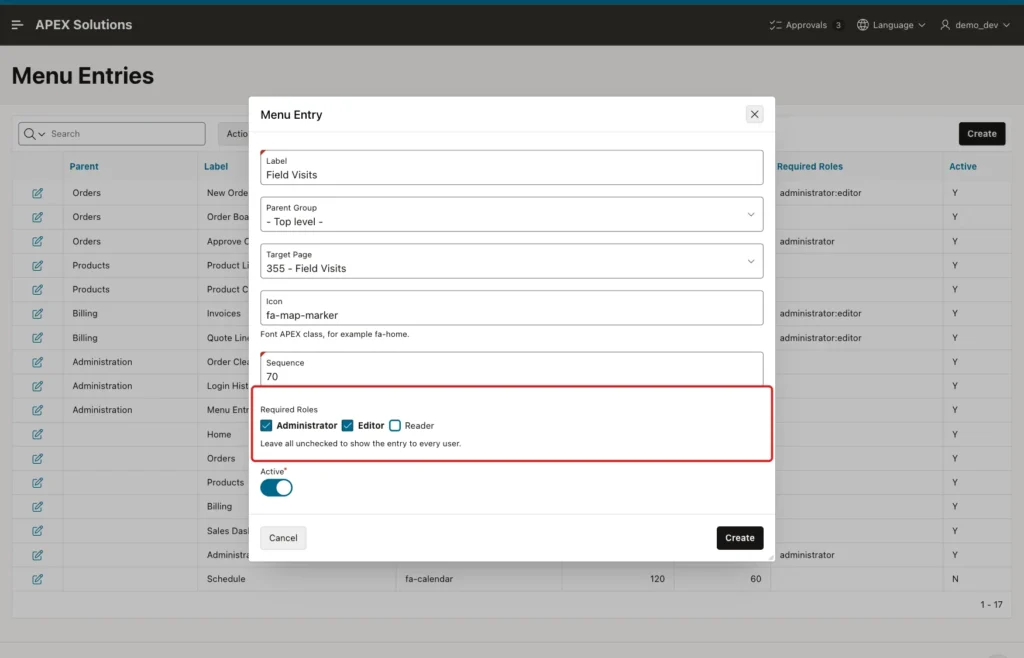
The dialog closes and the report shows the new row, but the side menu does not change yet. APEX builds the navigation menu when a page is rendered, so the entry appears on the next page load:
Check the new row in SQL:
Example:
set pagesize 50
select entry_id, parent_id, label, icon_css, target_page, sort_seq, required_roles, is_active
  from menu_entries
 where label = 'Field Visits';
Output:
   ENTRY_ID    PARENT_ID LABEL           ICON_CSS            TARGET_PAGE    SORT_SEQ REQUIRED_ROLES          IS_ACTIVE
___________ ____________ _______________ ________________ ______________ ___________ _______________________ ____________
         19              Field Visits    fa-map-marker               355          70 administrator:editor    Y
The checkbox group saved the roles as administrator:editor. Running the test script of Step 2 again shows that ORDER_EDITOR now gets Field Visits:
Output:
PL/SQL procedure successfully completed.

MENU_TREE          HAS_LINK    IS_CURRENT    IMAGE
__________________ ___________ _____________ ___________________
Home               Yes         YES           fa-home
Orders             No          NO            fa-shopping-cart
  New Order        Yes         NO            fa-plus
  Order Board      Yes         NO            fa-columns
Products           No          NO            fa-cubes
  Product List     Yes         NO            fa-table
  Product Cards    Yes         NO            fa-th-large
Billing            No          NO            fa-money
  Invoices         Yes         NO            fa-file-text-o
  Quote Lines      Yes         NO            fa-calculator
Sales Dashboard    Yes         NO            fa-bar-chart
Field Visits       Yes         NO            fa-map-marker

12 rows selected.

PL/SQL procedure successfully completed.
SALES_USER does not get it, because the Reader role is not in the list:
Output:
PL/SQL procedure successfully completed.

MENU_TREE          HAS_LINK    IS_CURRENT    IMAGE
__________________ ___________ _____________ ___________________
Home               Yes         YES           fa-home
Orders             No          NO            fa-shopping-cart
  Order Board      Yes         NO            fa-columns
Products           No          NO            fa-cubes
  Product List     Yes         NO            fa-table
  Product Cards    Yes         NO            fa-th-large
Sales Dashboard    Yes         NO            fa-bar-chart

7 rows selected.

PL/SQL procedure successfully completed.
Step 10: Try to Delete a Group with Entries
Open the Orders group in the form and click Delete. The foreign key does not allow it, because New Order, Order Board and Approve Orders still point to the group:
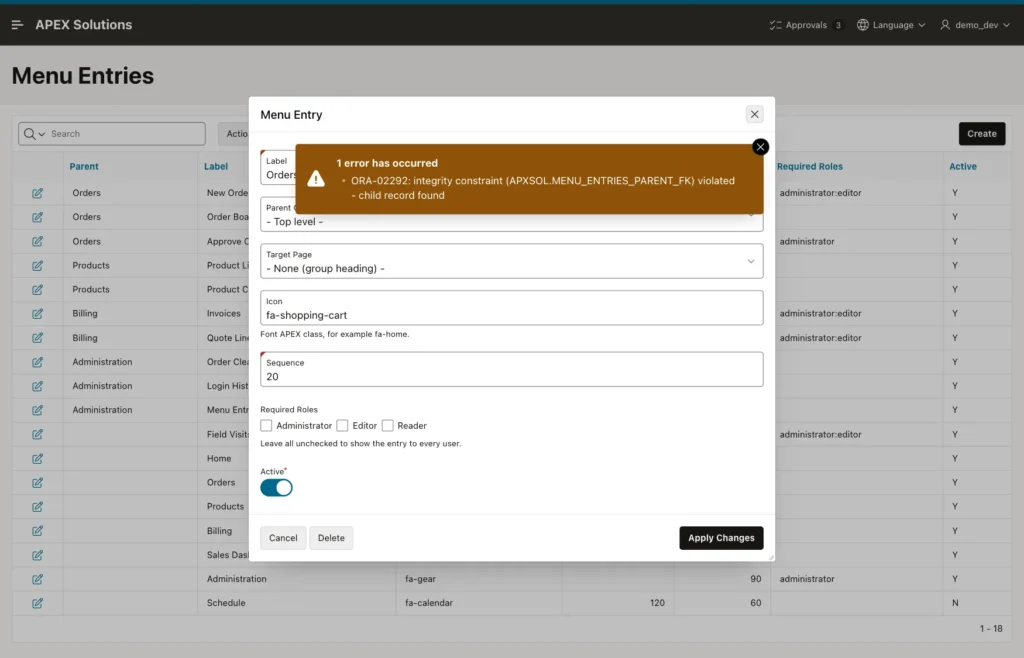
Move or delete the entries of a group first, or set the group to inactive. In a test, setting Billing to inactive hid Invoices and Quote Lines too, because the menu query filters the group before CONNECT BY.
Things to Know
- Hiding a menu entry is not security. Protect every page with an authorization scheme, as Step 6 did for pages 380 and 381.
- The menu query runs when each page is rendered. A change in MENU_ENTRIES shows after the next page load, not right after the dialog closes.
- Put the role and active filters in an inline view before CONNECT BY. Then a hidden group also hides its entries, and the outer CONNECT_BY_ISLEAF check removes groups left empty.
- In this example, APEX_ACL.HAS_USER_ROLE returned FALSE for all users when called from an APEX session in SQL, so the query reads APEX_APPL_ACL_USER_ROLES. Test the role check for each user before you switch the menu.
- Keep the static Navigation Menu list. To roll back, select it again in User Interface Attributes.
Related Guides
- How to Give Users Roles (Admin, Editor, Reader) with Access Control in Oracle APEX
- How to Hide Buttons and Regions Based on the User's Role in Oracle APEX
Conclusion
A table-driven navigation menu in Oracle APEX needs one table, one dynamic list query, and one change in User Interface Attributes. The query builds the tree with CONNECT BY, filters entries by Access Control roles, and drops empty groups.
An interactive report with a modal form lets administrators add, reorder and hide entries without a new deployment. The tests showed a different menu for each role, the current page highlighted, a blocked direct URL, and a foreign key that keeps the tree consistent.
