
Every page of an application shows the same navigation: a menu down the side, a bar at the top right, a breadcrumb above the title. All three are shared components, defined once and rendered everywhere, and all three rest on the same two ideas.
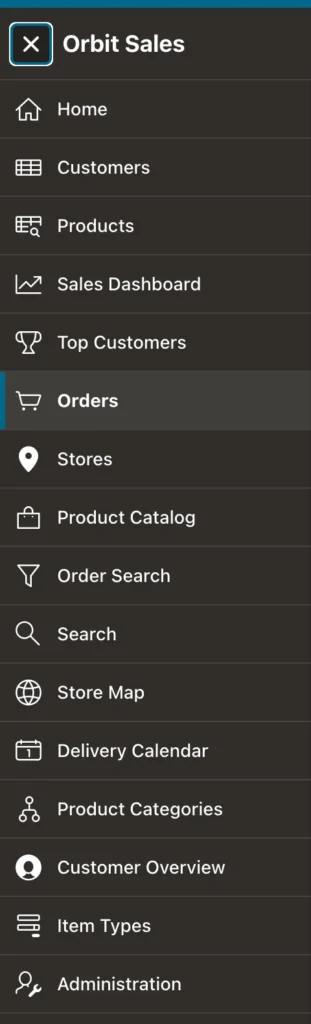
A list holds entries with labels, icons, and targets. A list template turns that list into HTML. Separate those two concepts and the whole of Oracle APEX navigation becomes straightforward, including the part most applications get wrong: what happens when a flat menu grows past a dozen entries.
Lists
A list is a shared component holding entries, each with a label, an icon, a target, an optional parent, a condition, and an authorization scheme. Your application already has several: the navigation menu, the navigation bar, and whatever the wizard generated for the home page and administration screens.
What a list does not have is an appearance. That comes from the template used to render it, and Universal Theme offers many: side and top navigation menus, mega menus, tabs, navigation bar, cards, media list, links list, badge list, menu bar, menu popup, and wizard progress. The same list can appear as a side menu on one page and as cards on another, which is worth remembering before you build a second list containing the same entries.
Static and Dynamic Lists
A static list has entries you define one by one. A dynamic list builds them from a query, with one row per entry and columns in a fixed order: level, label, target, whether the entry is current, then the icon.
select null                                        as lvl,
       customer_name                               as label,
       apex_page.get_url(p_page   => 19,
                         p_items  => 'P19_CUSTOMER_ID',
                         p_values => customer_id)  as target,
       null                                        as is_current,
       'fa-user'                                   as image
  from orb_customers
 order by customer_name
 fetch first 5 rows only
Note the target column. Building that URL with apex_page.get_url rather than string concatenation is what gives each entry a valid checksum, so the links work on pages that require one.
Dynamic lists suit entries that come from data: the five most recent customers, a catalog's categories, the reports a user has saved. Static lists suit everything structural.
The Navigation Menu
Which list is the navigation menu, whether it sits at the side or on top, and which template renders it are all set in the application's User Interface Attributes. Changing the menu is therefore not a page-level job at all.
Grouping Entries
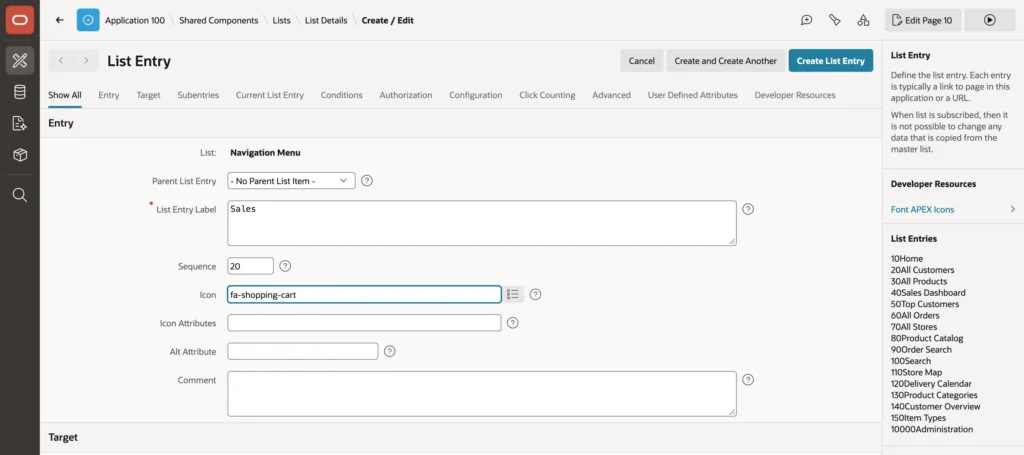
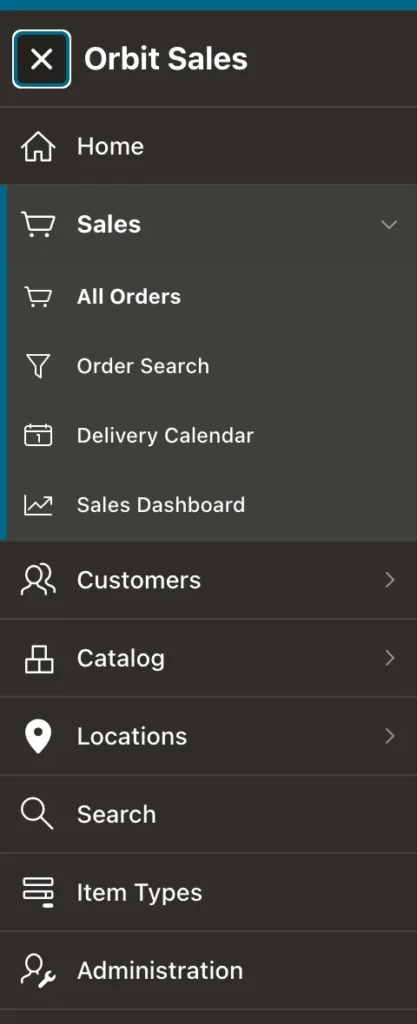
Give an entry a parent and it becomes a sub-entry, which the side menu renders as an expandable group. A group entry needs no target of its own, because its only job is to hold others.
The work is mostly naming. Rename the existing page entries so the group names are free, create the group entries with their own sequences and icons, then set each page entry's parent and its sequence within that group.
One thing will stop you the first time. Creating a group named after an entry you just renamed fails, complaining that the static ID must be unique. Static IDs are generated from the label at creation and deliberately do not change when you rename an entry, precisely so references to them stay stable. Give the new group its own static ID and move on.
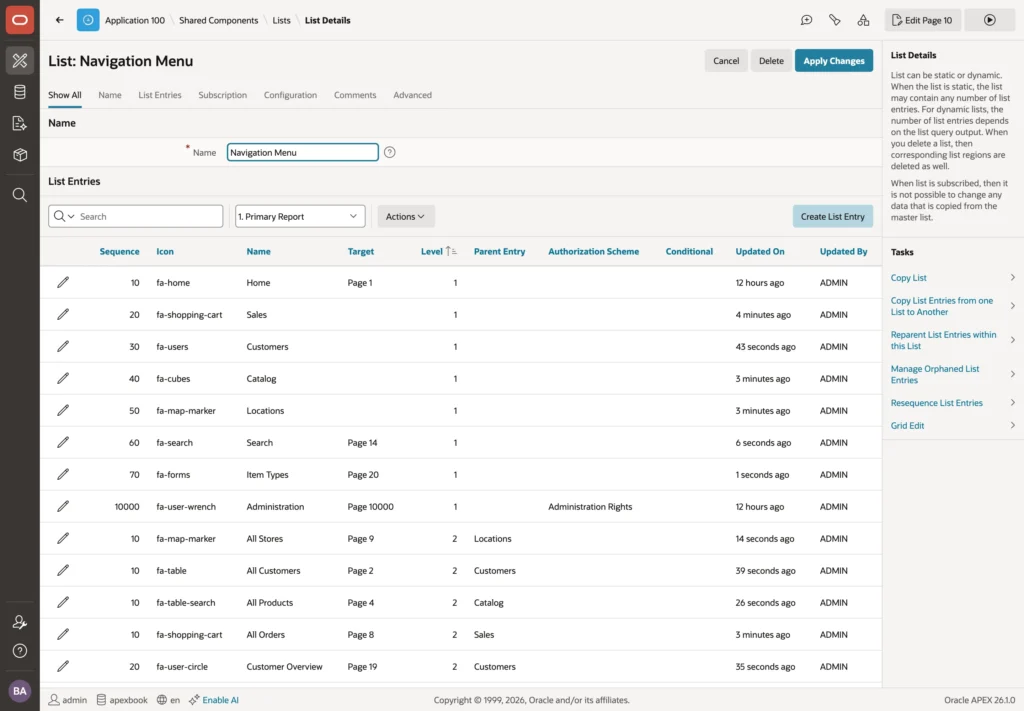
Two tasks on the right of that report save real time on a reorganization: Reparent List Entries and Resequence List Entries, plus Grid Edit for changing many entries at once.
Which Entry Is Current
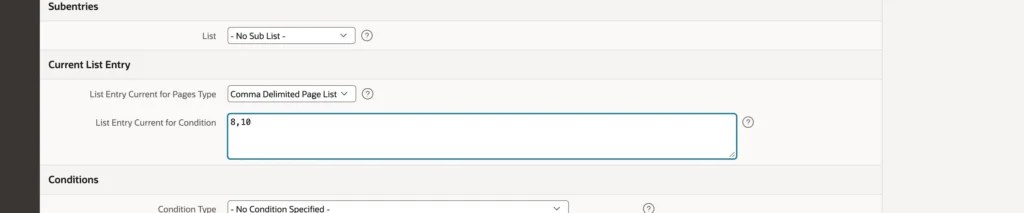
By default an entry is current only when its target is the page you are on, which is why opening a form from a report leaves the menu with nothing highlighted. Users read that as "I have left the section", which is not what happened.
Set the entry's Current for Pages type to a comma-delimited page list and include the related pages: the report and the form it opens, the catalog and the product drawer. The other types cover cases page numbers cannot express, including queries and expressions.
Conditions and Authorization
Every entry takes a condition and an authorization scheme, and an entry users cannot use should always be hidden with one. The generated Administration entry works this way, appearing only for users with administration rights.
Hiding the entry is courtesy, not security. The page behind it needs its own authorization, because a hidden menu entry stops nobody typing the URL.
The Navigation Bar
The row of links at the top right is another list, named in the same User Interface Attributes and rendered with the Navigation Bar template. It usually holds feedback, help, and the user menu with sign out.
Template Attributes
List templates define up to twenty user-defined attributes whose meaning depends on the template. The entry form shows them labeled, so you do not have to remember numbers.
| Navigation Bar attribute | Meaning |
|---|---|
| 1 | Badge value |
| 2 | List item CSS classes |
| 4 | Title attribute |
The Cards template uses its attributes differently again, for a description, secondary text, and initials in place of an icon. Same mechanism, different meanings per template.
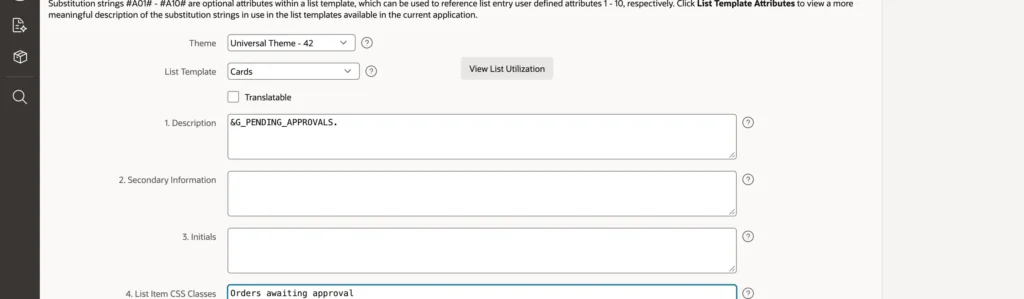
A badge showing a count is one of the highest-value additions you can make to an application. Point the badge value at an application item holding the count, and add a condition so the entry disappears when the count is zero, because a badge reading zero is worse than no badge.

Link Attributes
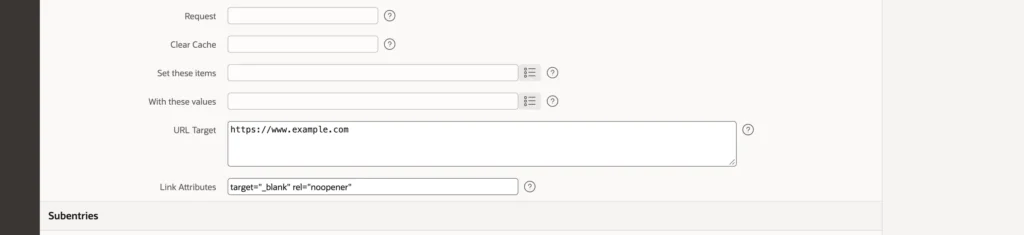
List entries have a Link Attributes property whose text is added straight to the link, which covers anything no template attribute provides. Opening an external site in a new tab is the classic case.
target="_blank" rel="noopener"
Include the rel value rather than just the target. Without it, the page you opened can reach back and control the tab it came from, which is a real vulnerability rather than a formality.

One collision to avoid: the Navigation Bar template already writes a title attribute from its own attribute 4, so setting a title in Link Attributes produces a second one that is ignored. Where a template offers its own attribute, use it.
Breadcrumbs
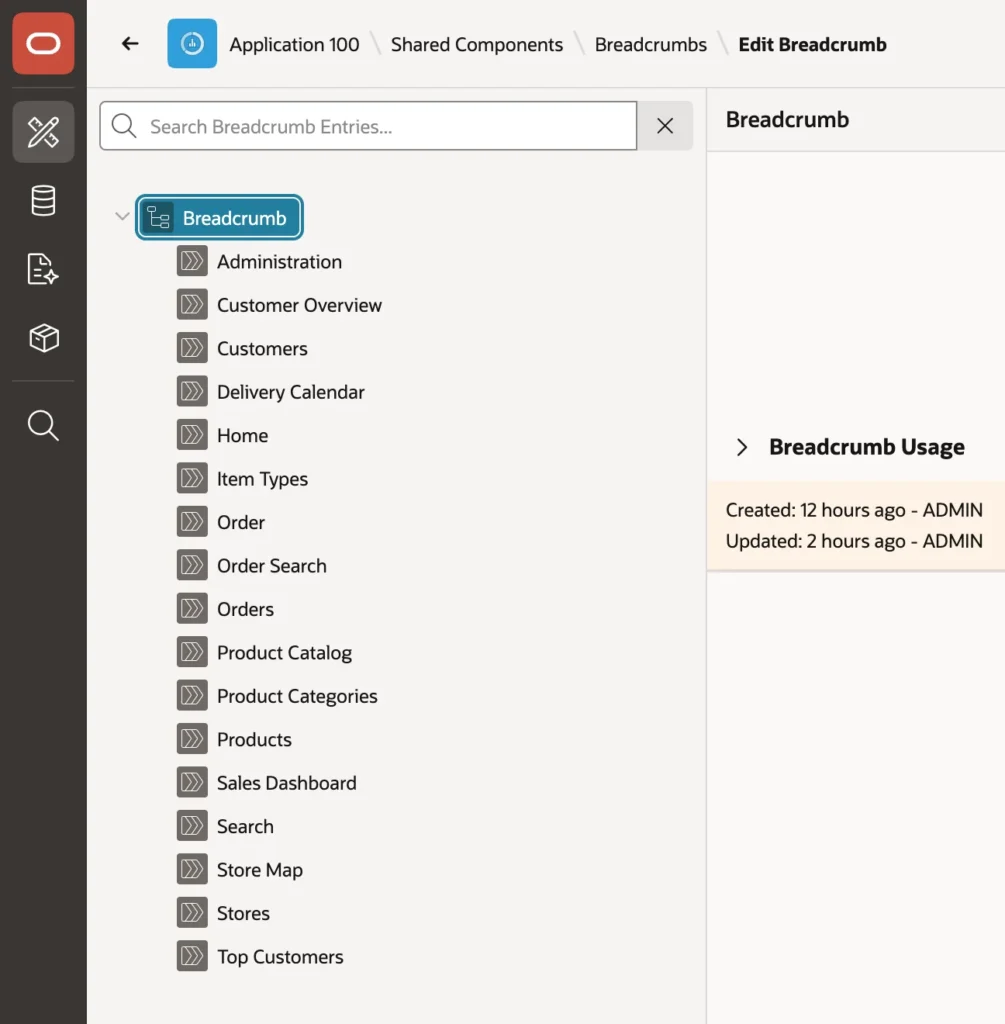
A breadcrumb shows where a page sits and links back up the path. It is a shared component with one entry per page, each naming a parent, and a Breadcrumb region renders the path from the root to the current page.
The Create Page wizard adds an entry for every page, but it cannot guess the parent, so it leaves them flat. A flat breadcrumb shows only the current page, which is a decoration rather than navigation, and it stays that way until somebody sets the parents.
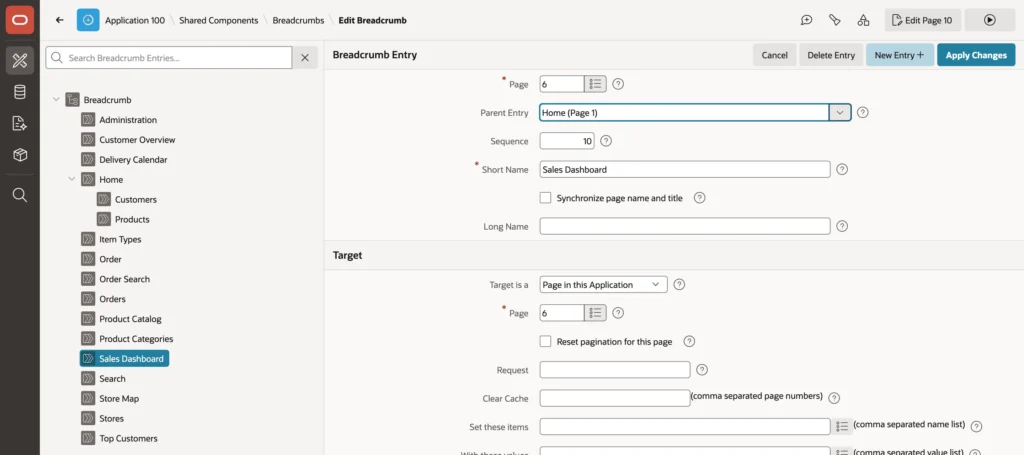
Work through the entries giving each a parent, following the same structure as the menu so the two agree. Where the menu says a form belongs under Orders, the breadcrumb should say the same.
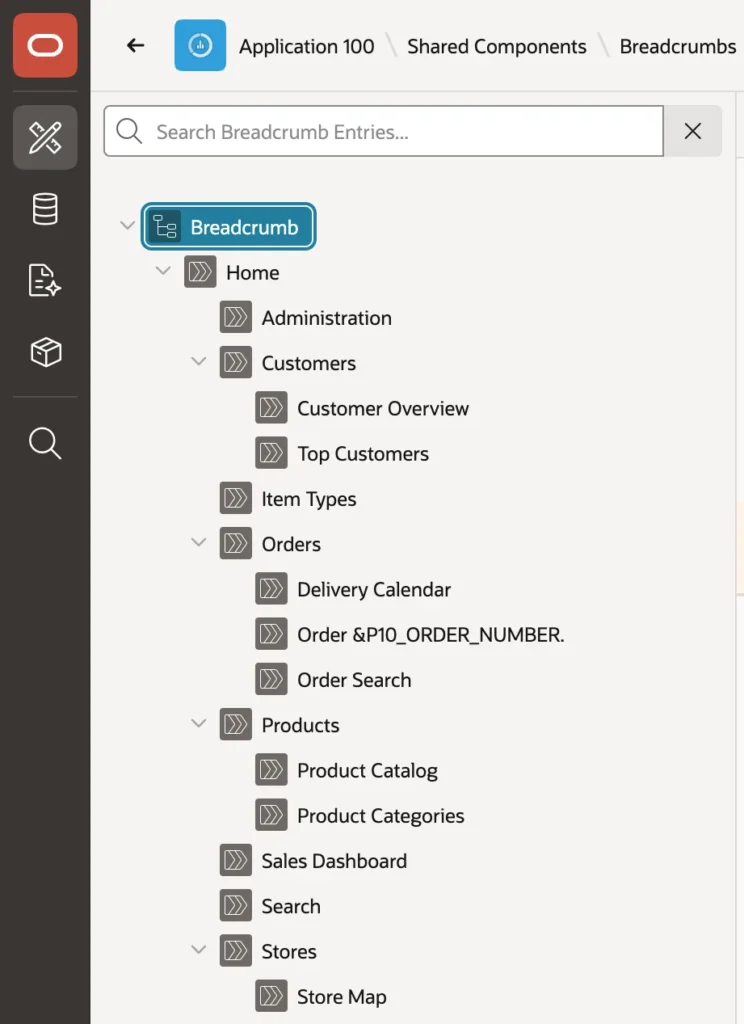
Breadcrumb labels accept substitutions, which is the detail that makes them genuinely useful. Set a form's short name to include the record's number or name, and the breadcrumb reads as the record being edited rather than a generic page title.

An entry's short name is its breadcrumb label, the long name is an optional longer text some templates show, and Synchronize page name and title keeps the short name matching the page name. Targets are usually the page itself but can be any link, with items set.
Conclusion
APEX navigation is lists plus templates, and almost every improvement comes from that separation. The navigation menu and navigation bar are ordinary lists named in the application's user interface attributes, so restructuring the menu means editing entries and parents rather than touching pages. Groups are entries without targets, Current for Pages keeps the right entry highlighted when a report opens a form, and conditions with authorization schemes hide what a user cannot use, while the page itself stays protected independently. Template attributes give each template its own extras, including the badge that puts a live count where people will see it, and Link Attributes covers whatever the template does not, with rel alongside target whenever you open a new tab. Dynamic lists build entries from data when the entries are data. And breadcrumbs, which arrive flat and useless, become real navigation once every entry has a parent and a form's label carries a substitution naming the record in front of you.
