
Most applications have users who may do different things: administrators change settings, editors change data, readers only look. Checking user names in conditions, such as :APP_USER = 'DEMO_DEV', breaks as soon as people join or leave, and nobody can see who is allowed to do what.
Oracle APEX has Application Access Control for this: you define roles in the application, assign users to roles, and check roles with authorization schemes on pages and components. This guide creates the roles Administrator, Editor, and Reader, assigns three users, protects a settings page for administrators only, and tests it with each user.
What You Need
Roles and role assignments are stored by APEX itself, so no tables are needed for them. You need application users who can sign in; this example uses APEX accounts of the workspace:
- DEMO_DEV, who will be an Administrator.
- ORDER_EDITOR, who will be an Editor.
- SALES_USER, who will be a Reader.
The page to protect is the Order Cleanup Settings page of the application, page 170, where the number of days for cancelling orders is changed.
Step 1: Create the Roles
In App Builder, open Shared Components and click Application Access Control. In the Roles section, click Add Role, and enter a Name and a Description. Create three roles:
- Administrator: Full access, including the settings pages.
- Editor: Can create and change orders and products.
- Reader: Can view data but not change it.
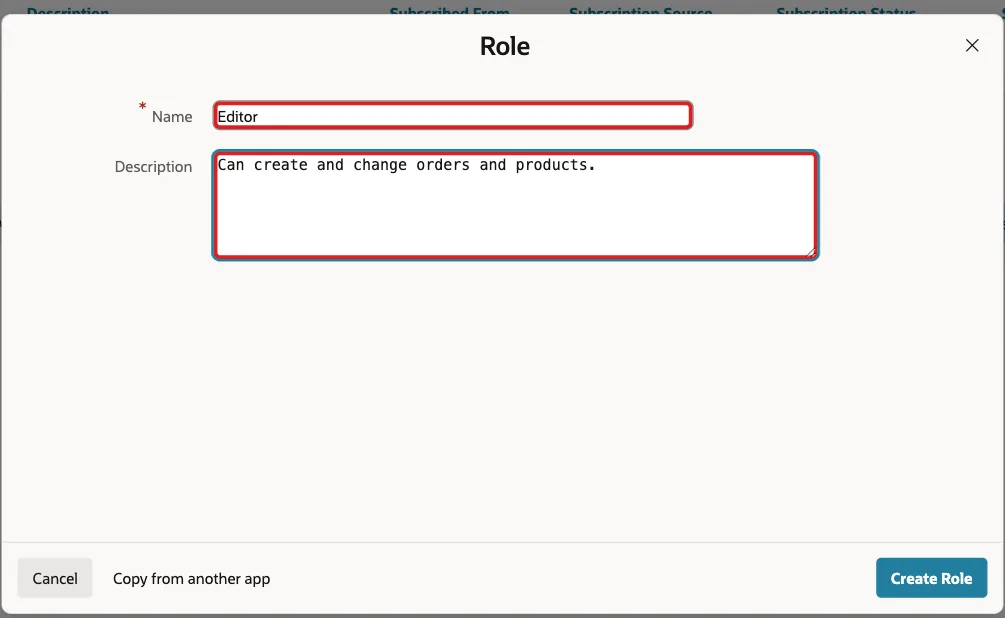
APEX gives each role a static ID from its name, such as administrator, editor, and reader.
Step 2: Assign Users to Roles
In the User Role Assignments section, click Add User Role Assignment, enter the User Name, and check the role:
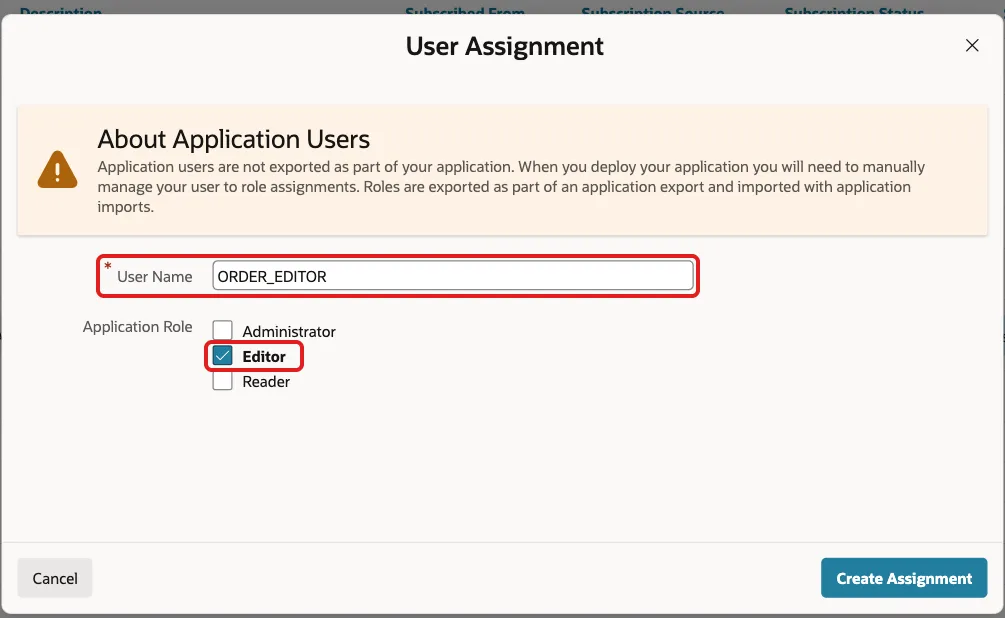
Assign DEMO_DEV to Administrator, ORDER_EDITOR to Editor, and SALES_USER to Reader. A user can have more than one role. The dialog points out an important detail: roles are exported with the application, but user role assignments are not, so after deploying to another environment you assign the users there again.
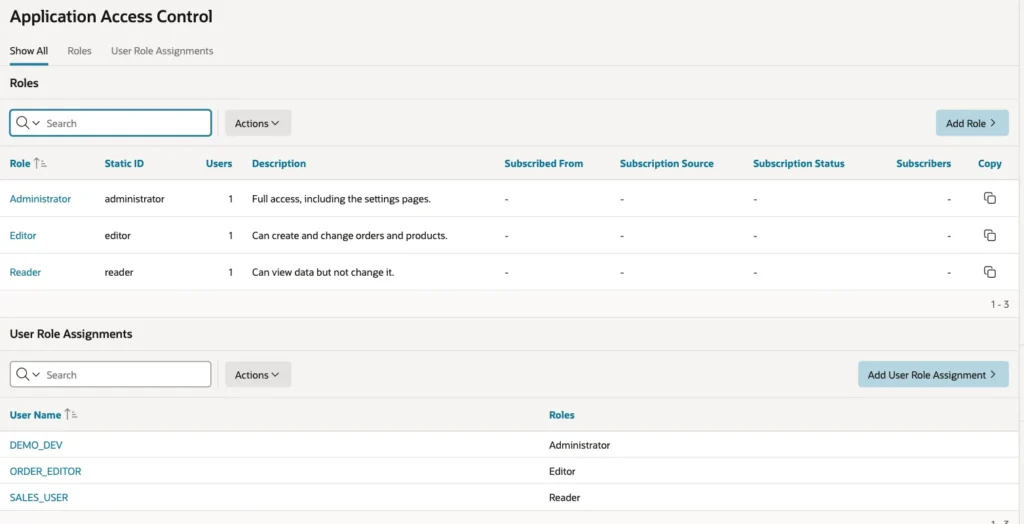
The assignments can also be checked in SQL:
Example:
select user_name, role_names
from   apex_appl_acl_users
where  application_id = 400
order  by user_name;
Output:
USER_NAME       ROLE_NAMES
_______________ ________________
DEMO_DEV        Administrator
ORDER_EDITOR    Editor
SALES_USER      Reader
Step 3: Create Authorization Schemes for the Roles
Pages and components do not check roles directly; they use authorization schemes. In Shared Components, click Authorization Schemes, then Create, choose From Scratch, and click Next. Enter:
- Name: Is Administrator.
- Scheme Type: Is In Role or Group.
- Type: Application Role.
- Name(s): Administrator.
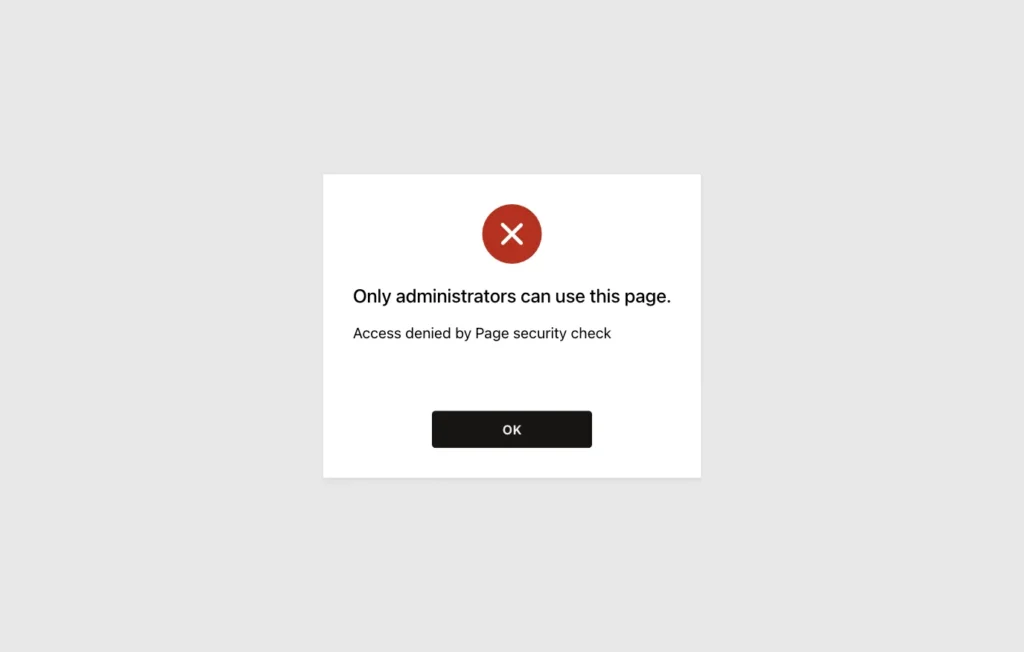
- Error message: Only administrators can use this page.
- Validate authorization scheme: Once per session.
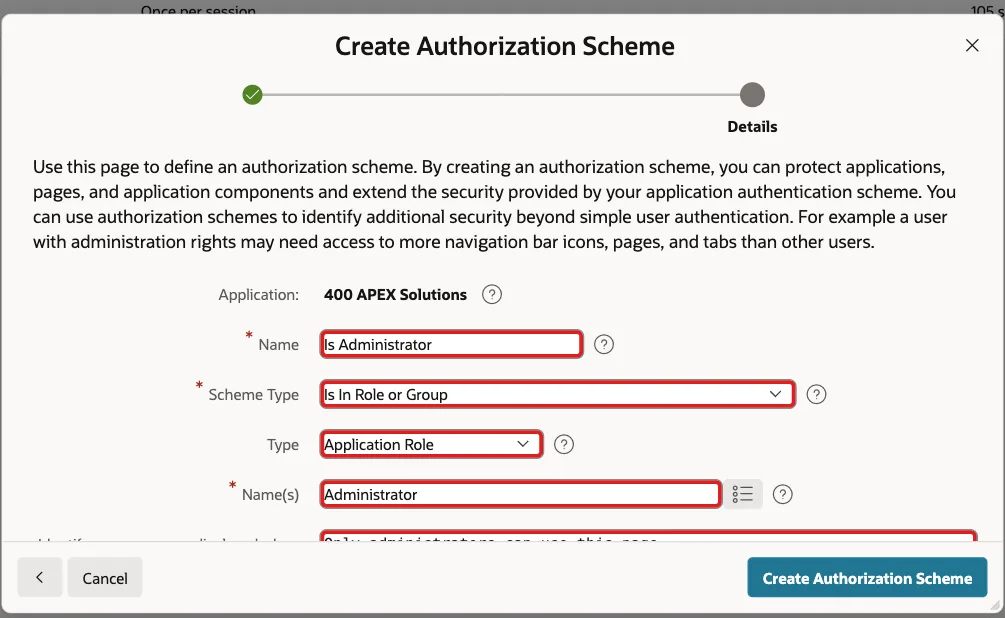
Create a second scheme the same way, named Can Edit, with Name(s) Administrator,Editor and the error message You are not allowed to change this data. A user passes the scheme when they have any of the listed roles. The next guide uses Can Edit on buttons and regions.
Step 4: Protect the Settings Page
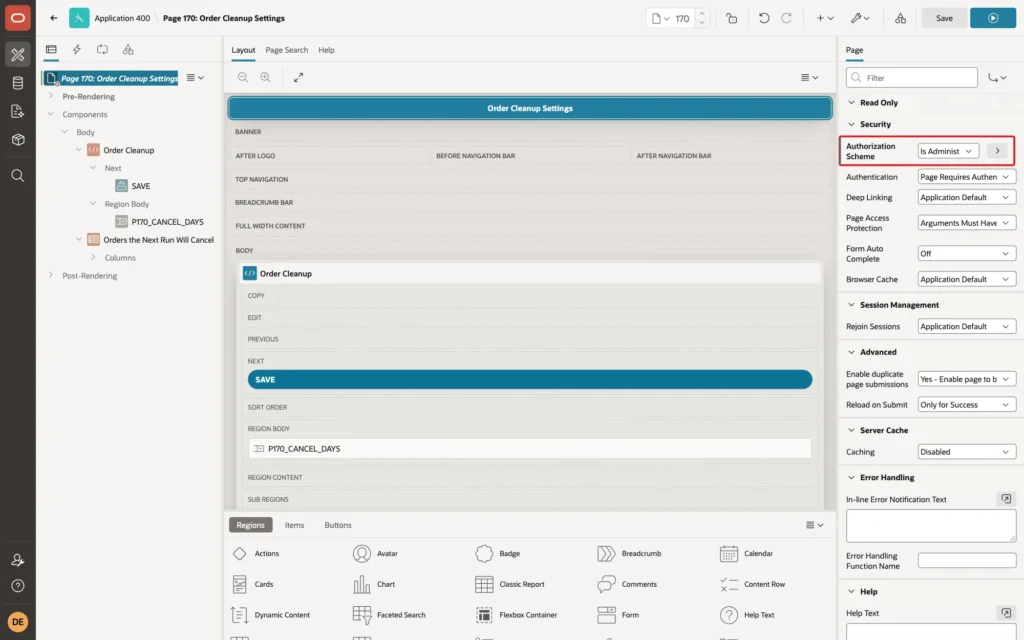
Open page 170 in Page Designer, select the page itself, and in the Security group set Authorization Scheme to Is Administrator. Save the page:
Step 5: Test with Each User
Each user signed in and opened page 170:
- DEMO_DEV, an Administrator: the page opened.
- ORDER_EDITOR, an Editor: blocked.
- SALES_USER, a Reader: blocked.
Blocked users see the scheme's error message instead of the page:
The check runs on the server for every request to the page, so it also stops users who type the page's URL by hand.
Things to Know
- Hide the navigation menu entry of a protected page too: set the same authorization scheme on the list entry, so users do not see links they cannot use.
- With Validate authorization scheme Once per session, APEX evaluates the scheme once per session and reuses the result. Choose Once per page view if a role change must apply without signing in again.
- Roles and assignments can be managed in PL/SQL with the APEX_ACL package, and read in the views APEX_APPL_ACL_ROLES, APEX_APPL_ACL_USERS, and APEX_APPL_ACL_USER_ROLES.
- Authorization schemes do not filter data. Rows a role must not see need a WHERE condition in the queries as well.
Related Guides
- Oracle APEX Authorization and Application Security
- How to Manage Sign-In, Roles, and Authorization from PL/SQL in Oracle APEX
Conclusion
To give users roles in Oracle APEX, define the roles in Application Access Control, assign users to them, and create authorization schemes of type Is In Role or Group that list the roles allowed.
Then set the scheme on pages and components. APEX checks it on the server for every request, and users without a matching role get the scheme's error message.
