
A chart shows totals, but users often want to see the rows behind a bar. With a drill-down, a click on a bar opens a report that shows exactly the rows counted in that bar. The user moves from the summary to the details in one click.
Oracle APEX supports this declaratively with a series link. This guide builds a bar chart page and a report page, passes the clicked value to a hidden page item, and filters the report with it. It also passes a column that the chart does not show, and tests the counts and a changed URL.
The overview post Oracle APEX Charts: A Complete Guide mentions series links in a few lines, and Tally-Style Drill-Down Reports in Oracle APEX with Keyboard Navigation drills from one report to the next. This guide is the complete build that starts from a chart click.
The guide uses orders as the example. The same steps work for any table.
Step 1: Create the Tables
The chart counts rows of the ORDERS table. The report also shows the customer name from CUSTOMERS and the order total from ORDER_LINES. If you start from scratch, create these tables with a few sample rows:
Example:
create table customers (
    customer_id number generated by default as identity
                constraint customers_pk primary key,
    name        varchar2(100) not null,
    email       varchar2(120) not null
);

create table products (
    product_id number generated by default as identity
               constraint products_pk primary key,
    name       varchar2(60)  not null,
    category   varchar2(30)  not null,
    price      number(10, 2) not null
);

create table orders (
    order_id    number generated by default as identity
                constraint orders_pk primary key,
    customer_id number not null
                constraint orders_customer_fk references customers,
    order_date  date default sysdate not null,
    status      varchar2(12) default 'NEW' not null
                constraint orders_status_ck
                check (status in ('NEW', 'APPROVED', 'SHIPPED', 'CANCELLED')),
    approved_by varchar2(60),
    approved_on date
);

create index orders_customer_ix on orders (customer_id);

create table order_lines (
    line_id    number generated by default as identity
               constraint order_lines_pk primary key,
    order_id   number not null
               constraint order_lines_order_fk references orders on delete cascade,
    product_id number not null
               constraint order_lines_product_fk references products,
    quantity   number not null
               constraint order_lines_qty_ck check (quantity > 0),
    unit_price number(10, 2) not null,
    constraint order_lines_product_uk unique (order_id, product_id)
);

create index order_lines_product_ix on order_lines (product_id);

insert into customers (name, email) values ('Customer 1', 'customer1@example.com');
insert into customers (name, email) values ('Customer 2', 'customer2@example.com');
insert into customers (name, email) values ('Customer 3', 'customer3@example.com');

insert into products (name, category, price) values ('Laptop Pro 14', 'Computers', 1450);
insert into products (name, category, price) values ('Monitor 27', 'Displays', 320);
insert into products (name, category, price) values ('Keyboard', 'Accessories', 45);

insert into orders (customer_id, order_date, status) values (1, trunc(sysdate) - 2, 'NEW');
insert into orders (customer_id, order_date, status) values (2, trunc(sysdate) - 5, 'NEW');
insert into orders (customer_id, order_date, status) values (3, trunc(sysdate) - 8, 'APPROVED');
insert into orders (customer_id, order_date, status) values (1, trunc(sysdate) - 12, 'SHIPPED');
insert into orders (customer_id, order_date, status) values (2, trunc(sysdate) - 15, 'CANCELLED');

insert into order_lines (order_id, product_id, quantity, unit_price) values (1, 1, 1, 1450);
insert into order_lines (order_id, product_id, quantity, unit_price) values (1, 3, 2, 45);
insert into order_lines (order_id, product_id, quantity, unit_price) values (2, 2, 2, 320);
insert into order_lines (order_id, product_id, quantity, unit_price) values (3, 1, 1, 1450);
insert into order_lines (order_id, product_id, quantity, unit_price) values (4, 2, 1, 320);
insert into order_lines (order_id, product_id, quantity, unit_price) values (5, 3, 4, 45);
commit;

select status, count(*) as orders
  from orders
 group by status
 order by status;
Output:
Table created.

Table created.

Table created.

Index created.

Table created.

Index created.

1 row created.

1 row created.

1 row created.

1 row created.

1 row created.

1 row created.

1 row created.

1 row created.

1 row created.

1 row created.

1 row created.

1 row created.

1 row created.

1 row created.

1 row created.

1 row created.

1 row created.

Commit complete.

STATUS           ORDERS
------------ ----------
APPROVED              1
CANCELLED             1
NEW                   2
SHIPPED               1

4 rows selected.
- ORDERS_CUSTOMER_FK and ORDER_LINES_ORDER_FK link the three tables, and ORDERS_STATUS_CK allows only four status values.
- ORDER_LINES_PRODUCT_UK stops the same product from appearing twice on one order.
- The screenshots in this guide use 150 orders, so the counts you see will differ from the five sample orders.
These are the two queries the charts will use, run against the 150 orders of the screenshots:
Example:
select status, count(*) as orders
  from orders
 group by status
 order by status;

select to_char(order_date, 'YYYYMM') as month_key,
       to_char(trunc(order_date, 'MM'), 'Mon YYYY') as month_label,
       count(*) as orders
  from orders
 where order_date >= add_months(trunc(sysdate, 'MM'), -5)
 group by to_char(order_date, 'YYYYMM'), to_char(trunc(order_date, 'MM'), 'Mon YYYY')
 order by month_key;
Output:
STATUS          ORDERS
____________ _________
APPROVED            51
CANCELLED           16
NEW                 36
SHIPPED             47

MONTH_KEY    MONTH_LABEL       ORDERS
____________ ______________ _________
202605       May 2026              25
202606       Jun 2026              25
202607       Jul 2026              25
202608       Aug 2026              26
202609       Sep 2026              26
202610       Oct 2026              10

6 rows selected.
The second query returns MONTH_KEY next to the readable MONTH_LABEL. The chart will show the label, and the link will pass the key.
Step 2: Create the Chart Page
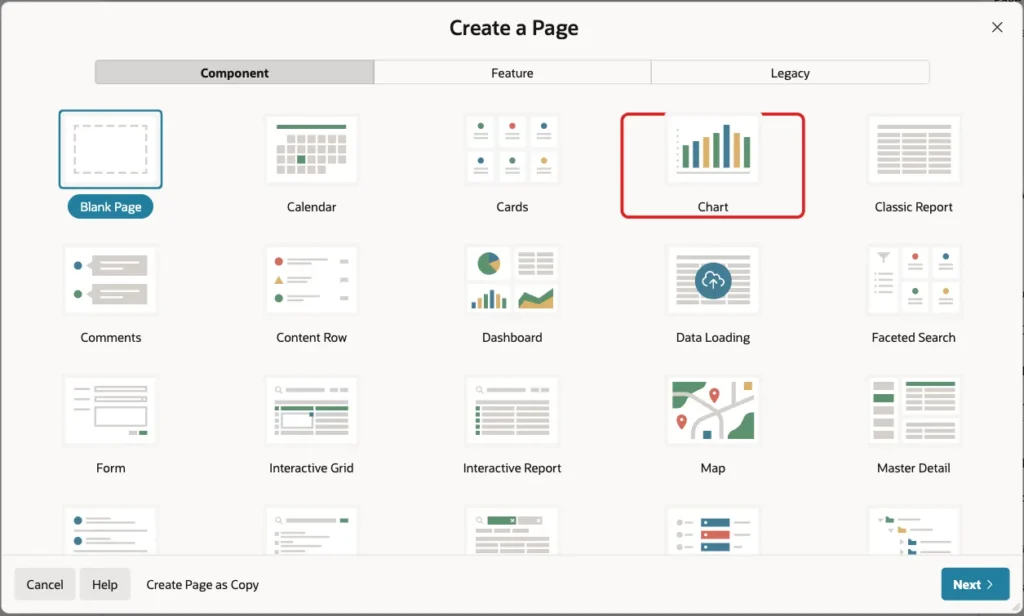
In App Builder, open the application and click Create Page. On the Component tab, click Chart:
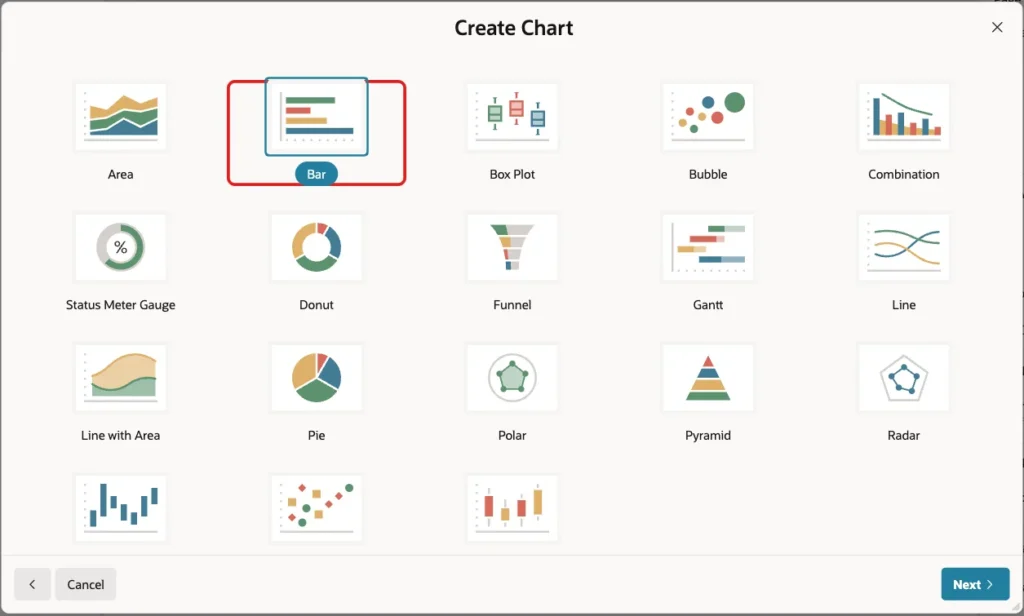
The wizard asks for the chart type first. Click Bar and then Next:
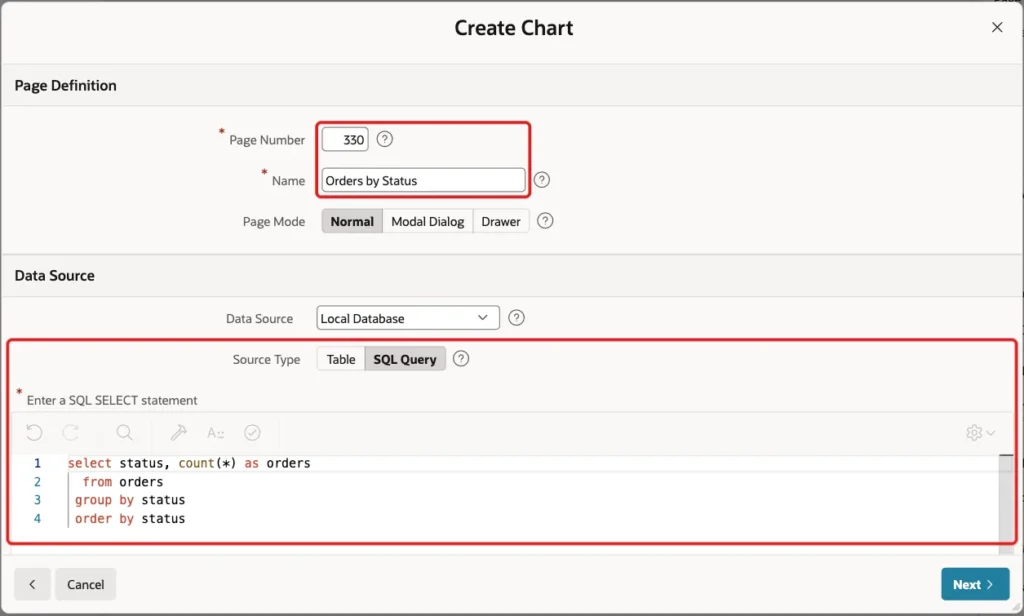
Enter Page Number 330 and Name Orders by Status. Set Source Type to SQL Query and enter the status query:
Example:
select status, count(*) as orders
  from orders
 group by status
 order by status
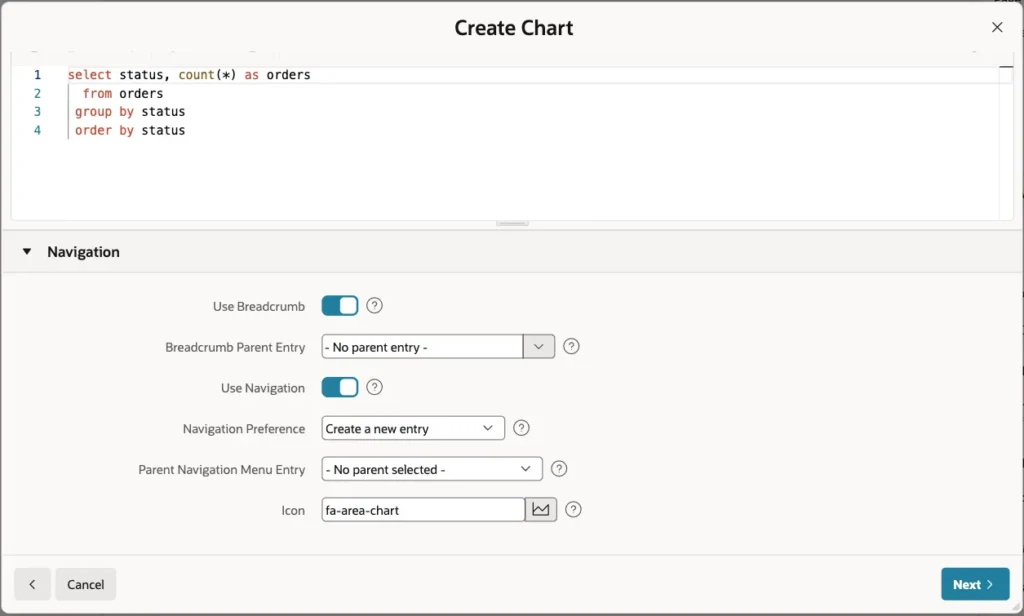
Scroll down to Navigation. Keep Use Breadcrumb and Use Navigation on, so the chart page gets a menu entry. Click Next:
On the last screen, set Label Column to STATUS and Value Column to ORDERS. Keep Orientation Vertical and click Create Page:
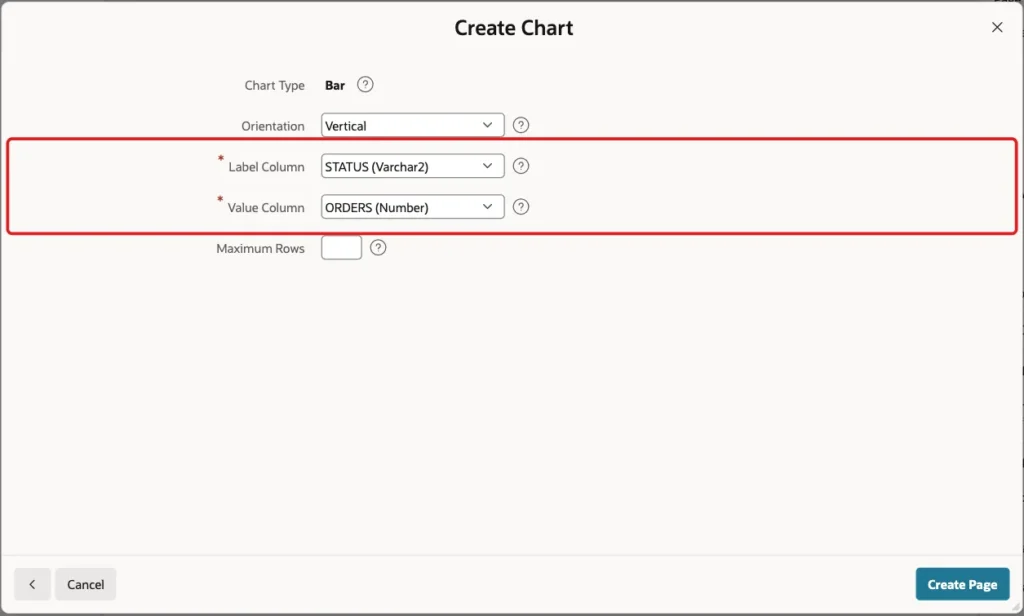
The wizard created page 330 with a chart region named Orders by Status and one series named Series 1.
Step 3: Create the Report Page
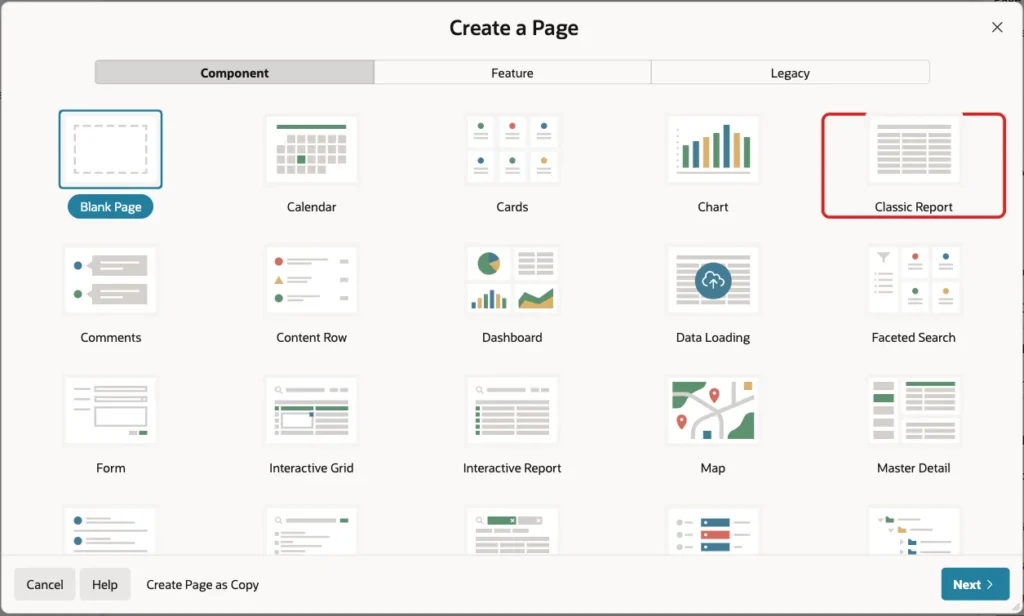
The report page shows the orders behind a bar. Click Create Page again and choose Classic Report:
Enter Page Number 331 and Name Order List. Set Source Type to SQL Query and enter this query:
Example:
select o.order_id,
       o.order_date,
       c.name as customer_name,
       o.status,
       (select nvl(sum(l.quantity * l.unit_price), 0)
          from order_lines l
         where l.order_id = o.order_id) as order_total
  from orders o
  join customers c on c.customer_id = o.customer_id
 where (:P331_STATUS is null or o.status = :P331_STATUS)
   and (:P331_MONTH is null or to_char(o.order_date, 'YYYYMM') = :P331_MONTH)
 order by o.order_id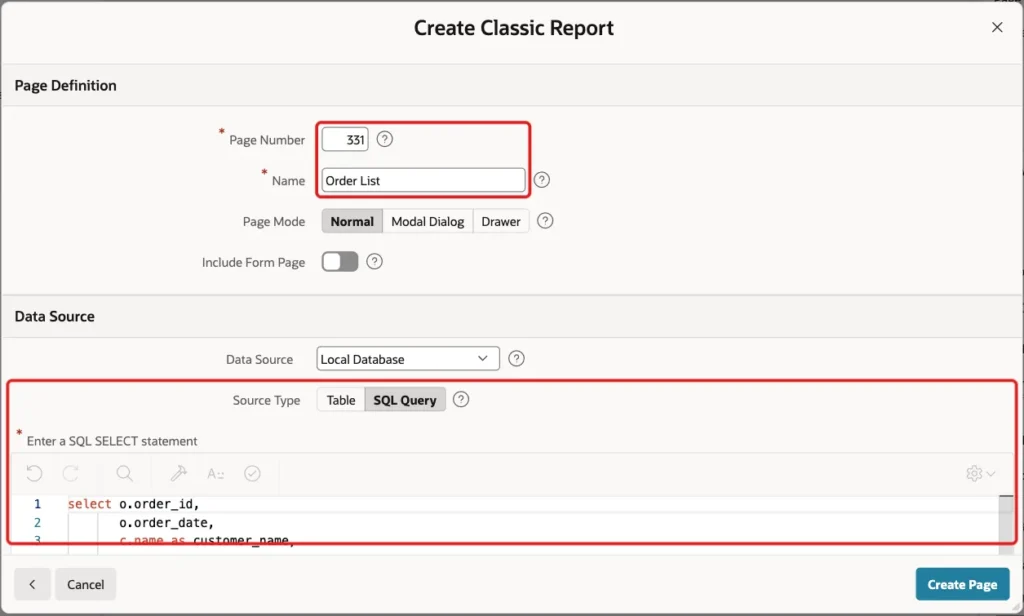
Each filter applies only when its item has a value. When the user comes from the status chart, only P331_STATUS is set. When the user comes from the month chart, only P331_MONTH is set.
The items P331_STATUS and P331_MONTH do not exist yet. The wizard accepted the query anyway; the next step creates them.
Scroll down to Navigation and turn off Use Navigation. Users reach this page only from the chart, so it needs no menu entry. Click Create Page:
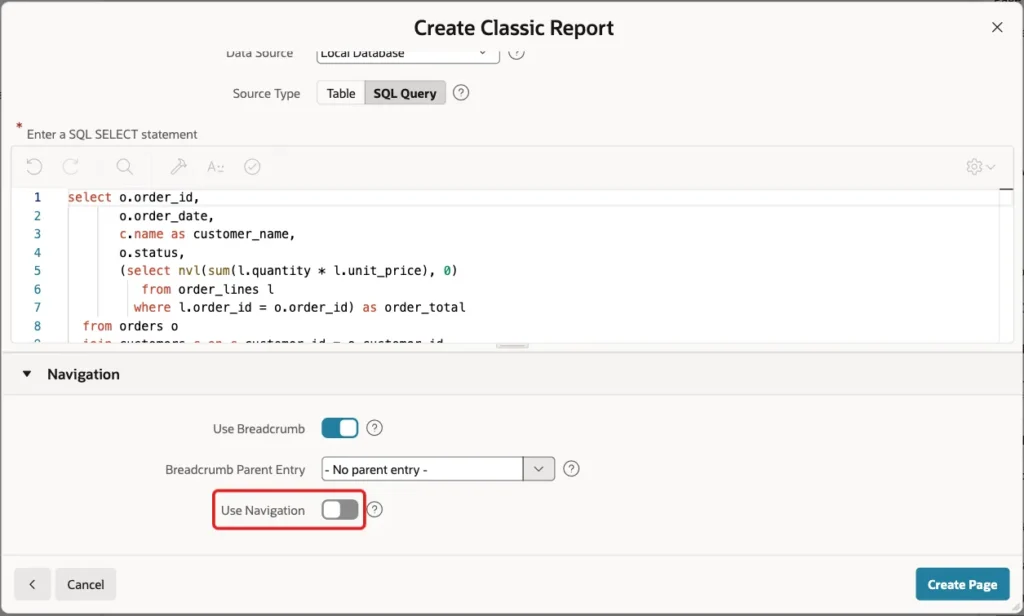
The Classic Report wizard has only this one screen.
Step 4: Add the Hidden Items and a Back Button
In Page Designer on page 331, right-click the Order List region and choose Create Page Item. Set Name to P331_STATUS and Type to Hidden. Keep Value Protected on:
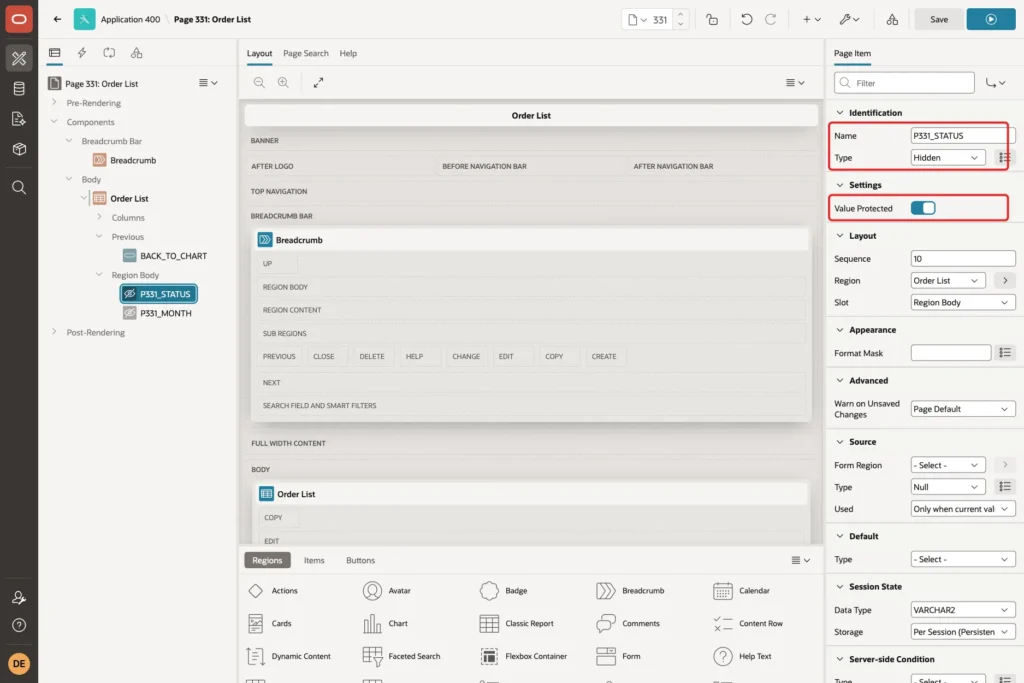
Create a second hidden item named P331_MONTH the same way. It receives the month key from the second chart.
Then right-click the Order List region again, choose Create Button, and set:
- Button Name: BACK_TO_CHART, Label: Back to Chart
- Slot: Previous
- Behavior, Action: Redirect to Page in this Application, Target: page 330
Step 5: Turn On Pagination with a Row Count
Select the Order List region and open the Attributes tab. The wizard set Pagination Type to No Pagination (Show All Rows), while Number of Rows was 15.
In a first test, the NEW bar opened a report with only 15 rows and no hint that 21 more existed. Set Pagination Type to Row Ranges X to Y of Z (with pagination):
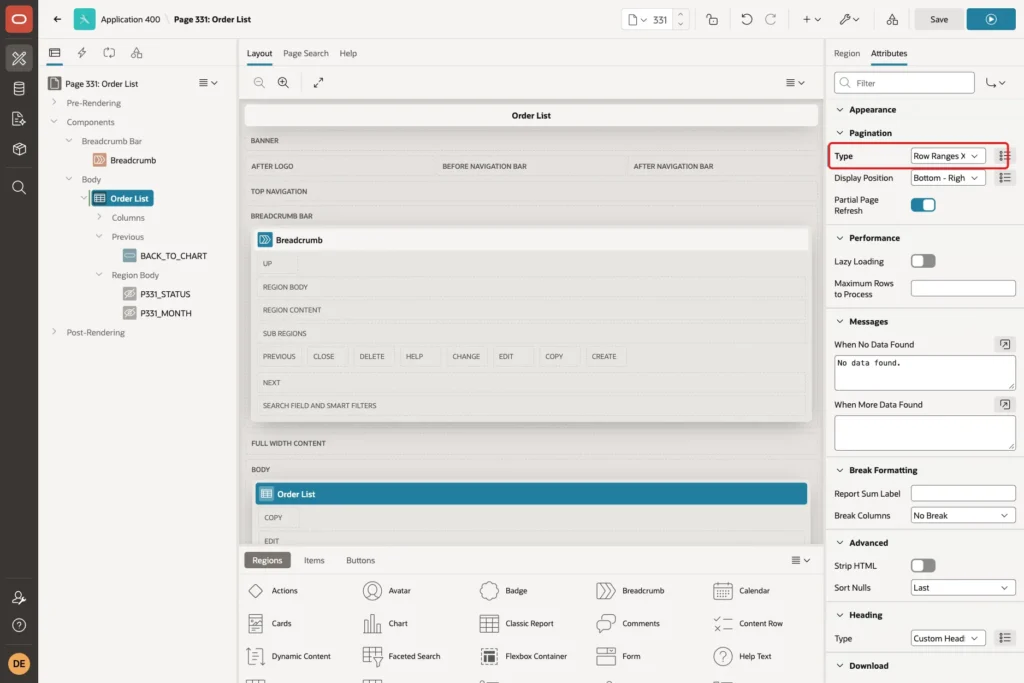
Do not pick Row Ranges X to Y of Z (no pagination). That option looks almost the same in the list, but with it the row count stayed hidden in this test. The report uses the template option Hide No Pagination.
Click Save.
Step 6: Add the Link to the Chart Series
Open page 330 in Page Designer and select Series 1 under the Orders by Status region. Set Name to Orders, so the tooltip shows a readable series name.
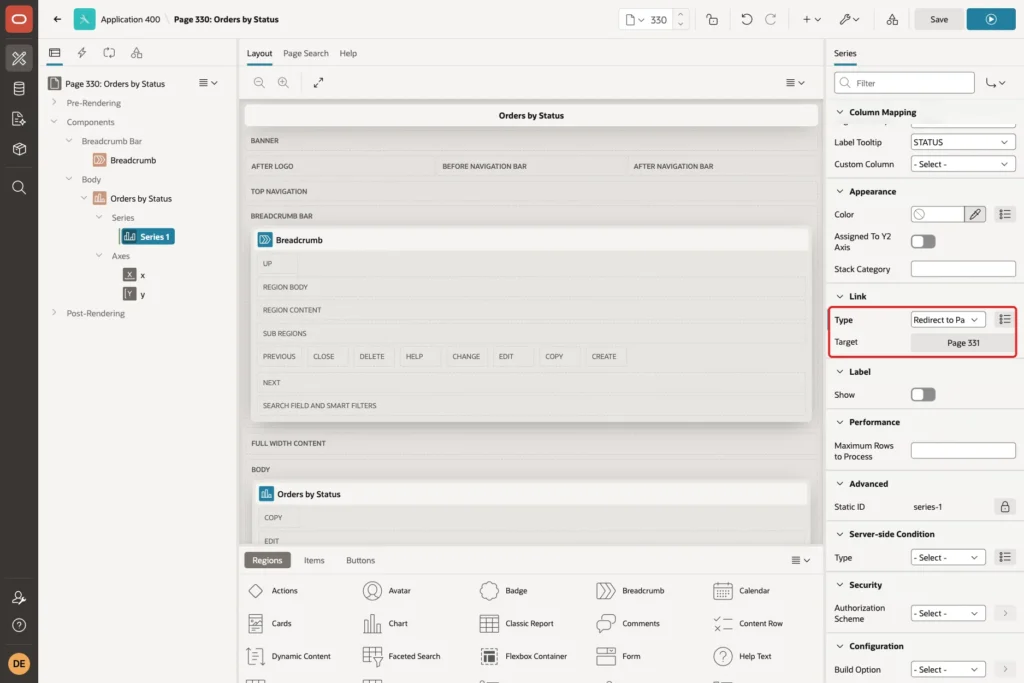
In the Link group, set Type to Redirect to Page in this Application. Then click Target to open the Link Builder:
- Page: 331
- Set Items: Name P331_STATUS, Value &STATUS.
- Clear Cache: 331
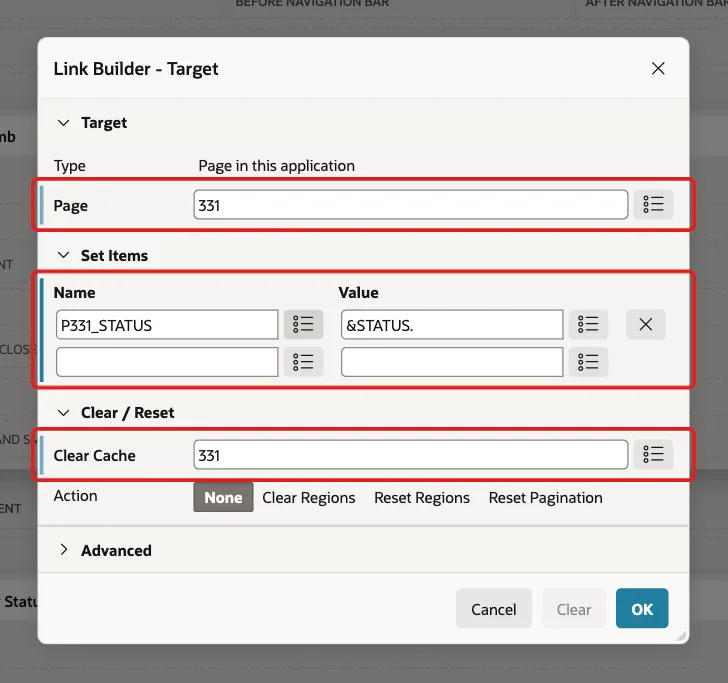
&STATUS. is replaced with the STATUS value of the bar the user clicks. Any column of the series query can be used this way.
Clear Cache 331 empties both hidden items before the new value is set. The items keep their values in session state, so this makes every drill-down start with empty filters.
Click OK. The Link group now shows Page 331 as the target:
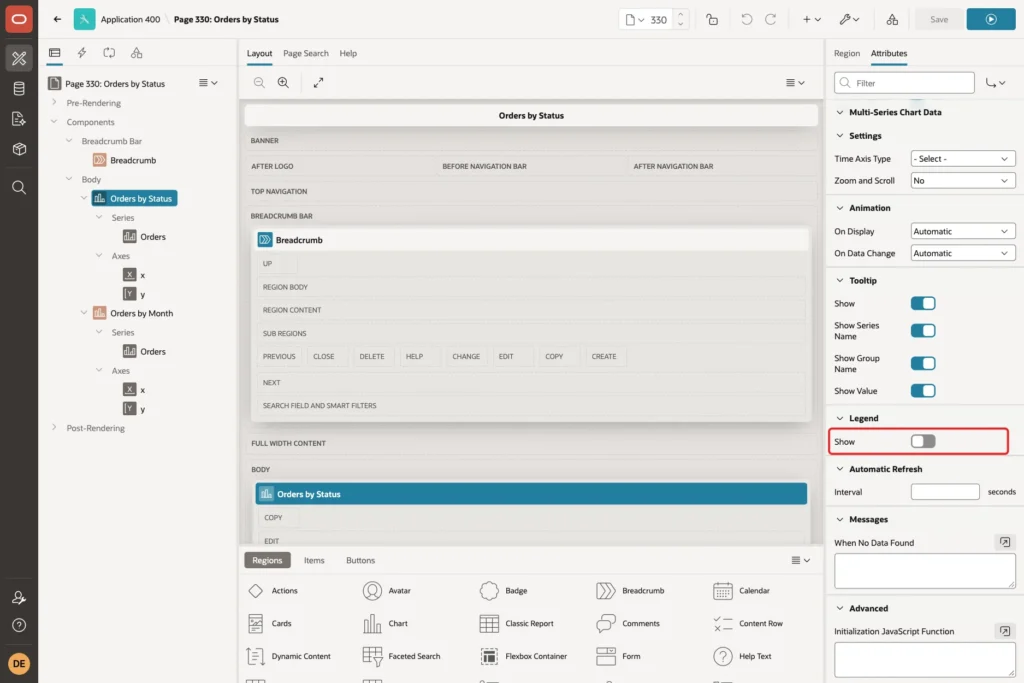
Select the Orders by Status region, open the Attributes tab, and turn off Show in the Legend group. With one series, the legend only repeats the series name:
Click Save.
Step 7: Add a Second Chart That Passes a Hidden Key
A link can pass a column that the chart does not display. The month chart shows labels like Aug 2026 but passes 202608, which is easier to compare in SQL.
On page 330, right-click Body and choose Create Region. Set Name to Orders by Month and Type to Chart. APEX adds a series named New, and the chart Type on the Attributes tab is Bar by default.
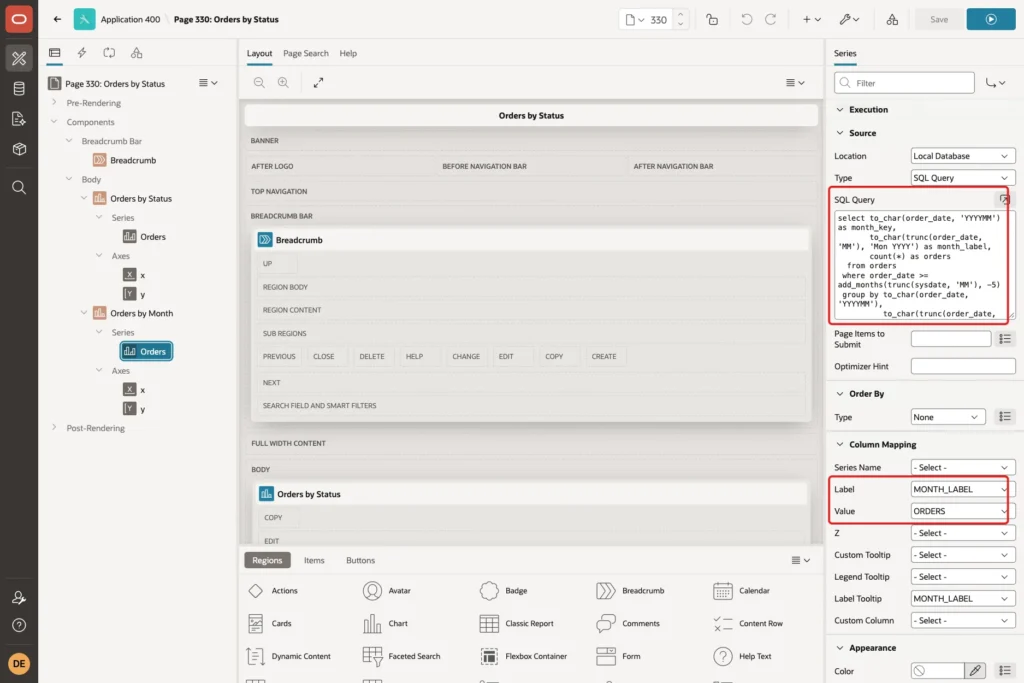
Select the new series and set its Name to Orders. Its Source Type starts as Table / View; change it to SQL Query and enter the month query:
Example:
select to_char(order_date, 'YYYYMM') as month_key,
       to_char(trunc(order_date, 'MM'), 'Mon YYYY') as month_label,
       count(*) as orders
  from orders
 where order_date >= add_months(trunc(sysdate, 'MM'), -5)
 group by to_char(order_date, 'YYYYMM'),
          to_char(trunc(order_date, 'MM'), 'Mon YYYY')
 order by month_key
Set Column Mapping Label to MONTH_LABEL and Value to ORDERS:
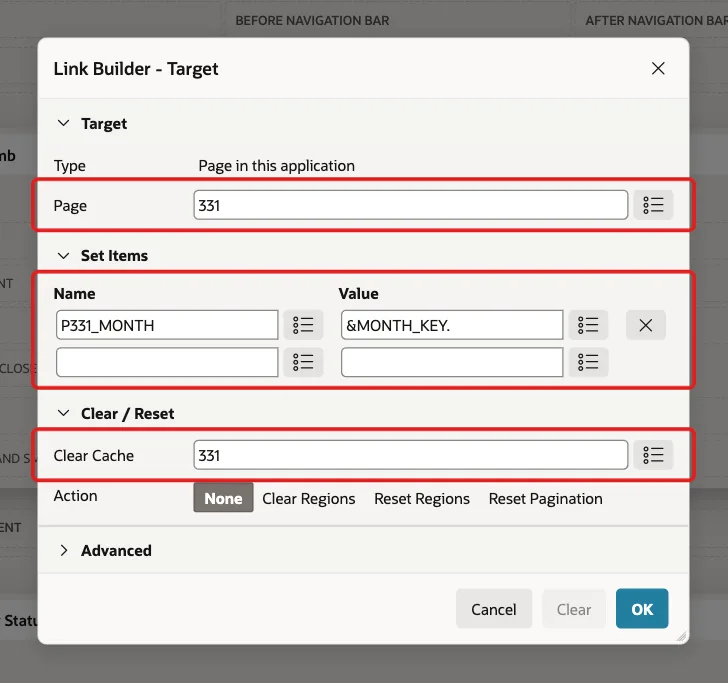
Set the series Link Type to Redirect to Page in this Application. In the Link Builder, set Page 331, item P331_MONTH to &MONTH_KEY. and Clear Cache 331:
Turn off the legend for this region too, and click Save.
Step 8: Test the Drill-Down
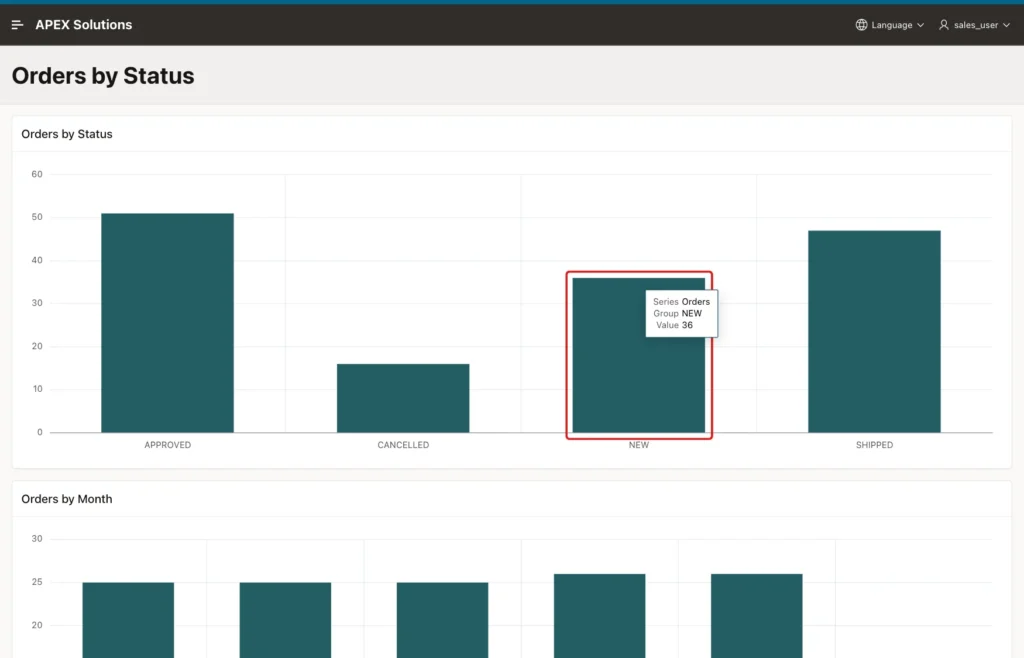
Run page 330. The screenshots use SALES_USER, a user with read-only access. Both charts appear on the page, and hovering over the NEW bar shows 36 orders:
Click the NEW bar. Page 331 opens and shows only NEW orders, with row(s) 1 - 15 of 36 at the bottom:
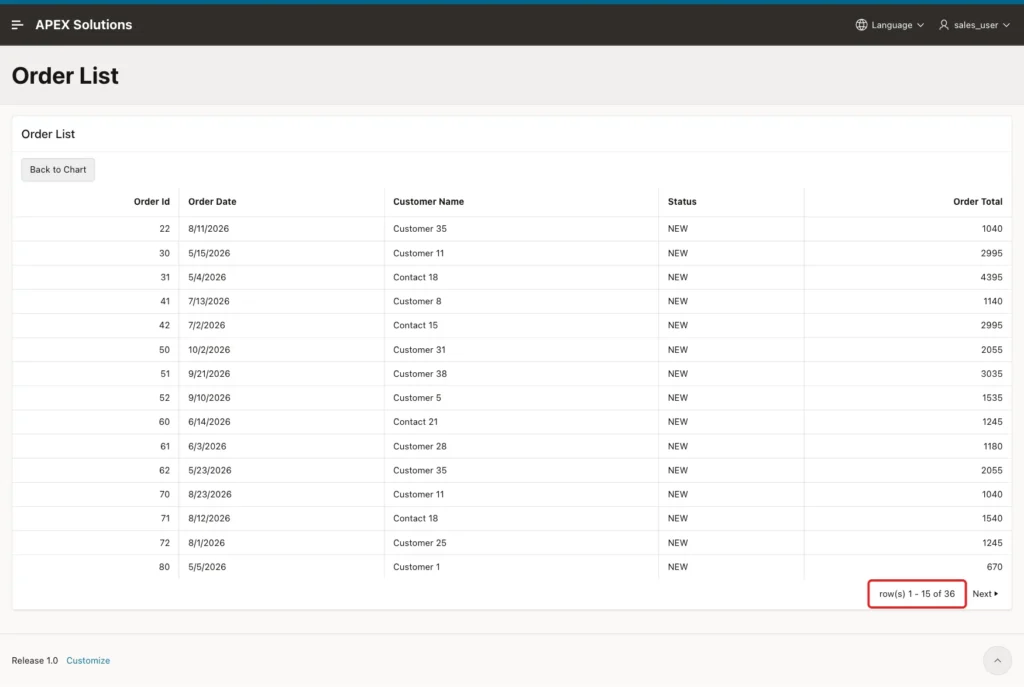
SQL gives the same count:
Example:
select count(*) as new_orders
  from orders
 where status = 'NEW';

select count(*) as aug_2026_orders
  from orders
 where to_char(order_date, 'YYYYMM') = '202608';
Output:
   NEW_ORDERS
_____________
           36

   AUG_2026_ORDERS
__________________
                26
The URL that the bar opened was:
Output:
.../order-list?p331_status=NEW&clear=331&session=...&cs=1Ty-mO_qskXM73J5...
The cs parameter is a checksum. Both new pages have Page Access Protection set to Arguments Must Have Checksum, and APEX added a checksum to the link of each bar on its own.
Click Back to Chart, then click the Aug 2026 bar in the month chart:
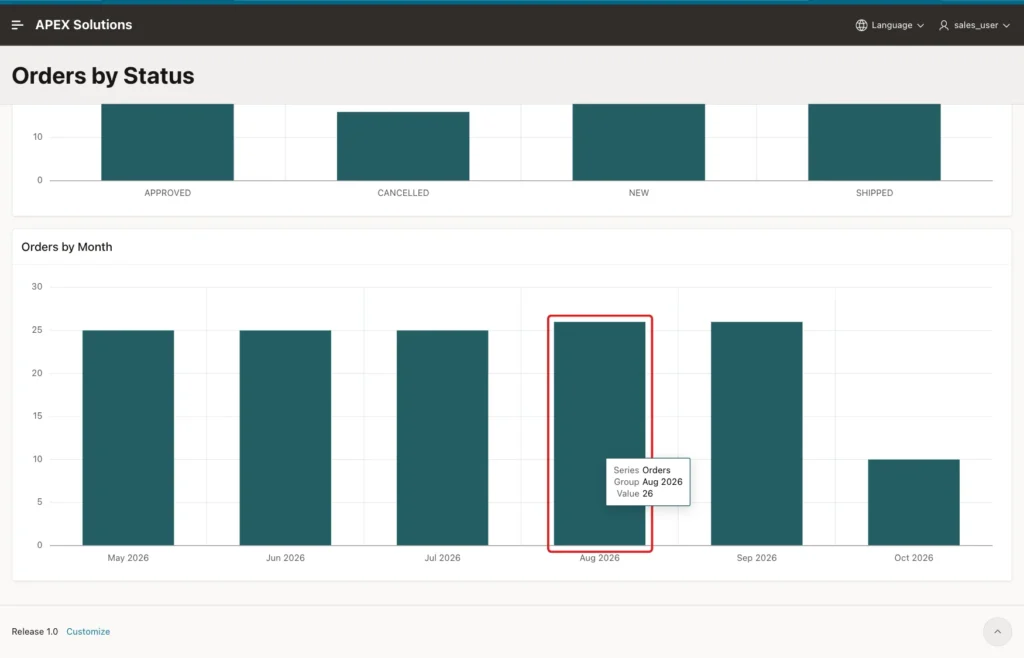
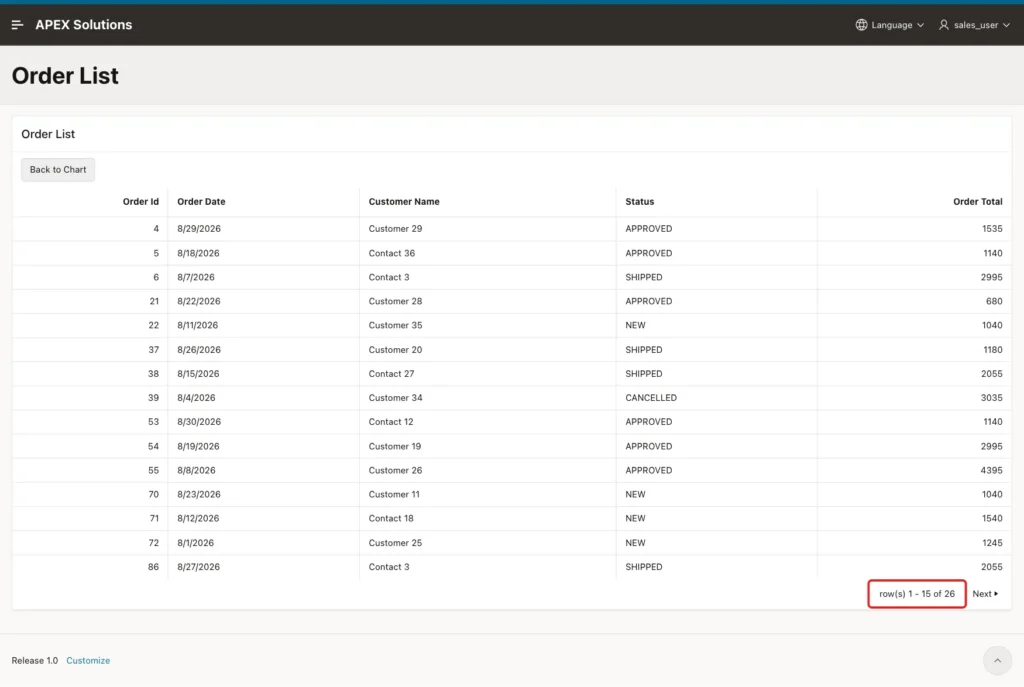
The report shows row(s) 1 - 15 of 26, and the URL contains p331_month=202608. All four statuses appear, so the NEW filter from the first click was cleared:
As a negative test, NEW in the first URL was changed to SHIPPED, keeping the checksum. APEX refused the page with this error. Removing the cs parameter gave the same error:
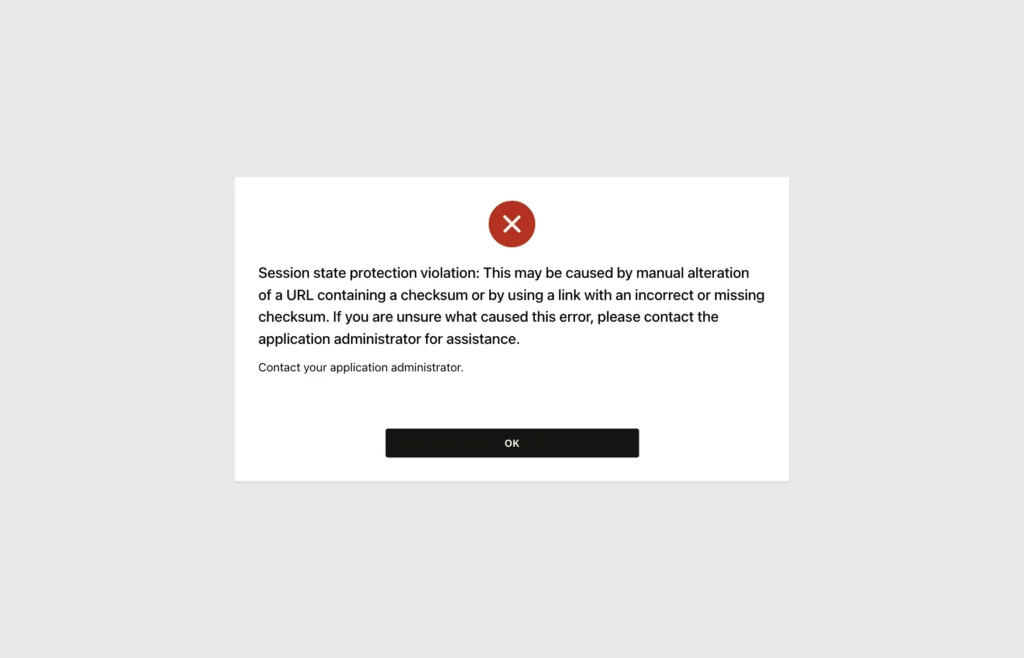
So users cannot open the report with a value that no bar offered. They can still see all orders the report query allows, so put real access rules into the query or an authorization scheme.
Things to Know
- A series link can use any column of the series query as a substitution, for example &STATUS. or &MONTH_KEY. The column does not have to be mapped to the label or value.
- Pass a key, not a display text, when the label is formatted. The month chart passes 202608 instead of Aug 2026.
- Clear the cache of the report page in the link, so a value from an earlier drill-down does not stay in session state. In the test, the month drill-down after a status drill-down showed all statuses.
- The Classic Report wizard created the report with No Pagination and 15 rows, which silently cut the list. Choose a pagination type with a row count.
- With Page Access Protection Arguments Must Have Checksum, chart links still work because APEX adds the checksum to each bar's URL. A changed or missing checksum gives a session state protection violation.
Related Guides
- Oracle APEX Charts: A Complete Guide
- How to Build a Dashboard Page with KPI Cards and Charts in Oracle APEX
Conclusion
To drill down from a chart in Oracle APEX, set the series Link to redirect to a report page and pass the clicked column into a hidden page item. Filter the report query with that item, and clear the report page cache in the link.
The tests showed that the report counts match SQL, that a hidden key column can be passed, and that a changed URL is rejected by the checksum. Turn on pagination with a row count, so users see how many rows are behind each bar.
