
Accounting users love Tally for one reason: they never touch the mouse. A highlight bar sits on a row, the arrow keys move it, Enter opens the details, and Esc goes back. Reports in Oracle APEX can work the same way.
This article builds a small sales application with three levels of Classic Reports, from sales by region to the customers of a region to the invoices of a customer, and an invoice form in a dialog at the end. One small JavaScript file, added once for the whole application, gives every report the keyboard navigation, a Print button, and a grand total that stays in view while long lists scroll.
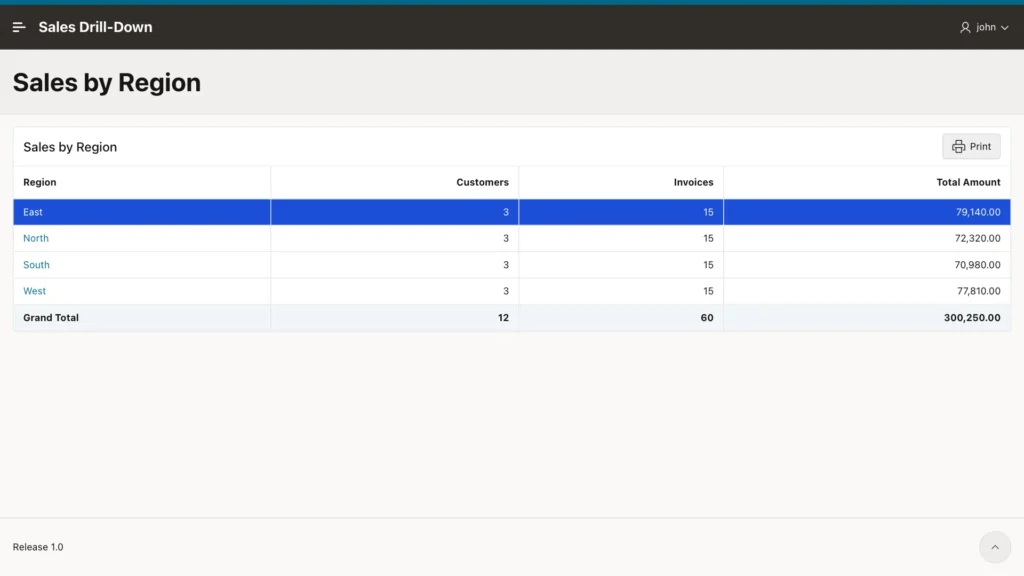
What You Will Build
| Level | Page | Enter opens |
|---|---|---|
| 1 | Sales by Region: customers, invoices, and total per region | The customers of the region |
| 2 | Customers of the region, with their totals | The invoices of the customer |
| 3 | Invoices of the customer | The invoice in a dialog |
| 4 | Invoice form (modal dialog) | - |
On every report page:
- Up and Down move the highlight bar, Home and End jump to the first and last row.
- Enter, or a click anywhere on a row, opens the next level.
- Esc goes back one level, and the row you came from is highlighted again. In the invoice dialog, Esc closes only the dialog.
- A Grand Total row stays at the bottom, and a Print button prints the report.
Step 1: Create the Tables
Run this script in your schema. It creates regions, customers, and invoices with sample data: 4 regions, 12 customers, and 60 invoices.
create table regions (
  region_id    number        primary key,
  region_name  varchar2(30)  not null
);

create table customers (
  customer_id    number generated by default as identity primary key,
  region_id      number        not null references regions,
  customer_name  varchar2(100) not null,
  city           varchar2(50)
);

create table invoices (
  invoice_id    number generated by default as identity primary key,
  customer_id   number        not null references customers,
  invoice_no    varchar2(20)  not null,
  invoice_date  date          not null,
  amount        number(12,2)  not null,
  status        varchar2(10)  default 'OPEN' not null check (status in ('OPEN', 'PAID'))
);

create index customers_region_ix on customers (region_id);
create index invoices_customer_ix on invoices (customer_id);

insert into regions values (1, 'North');
insert into regions values (2, 'South');
insert into regions values (3, 'East');
insert into regions values (4, 'West');

insert into customers (region_id, customer_name, city)
select r, n, c from (
  select 1 r, 'Acme Corporation' n, 'Chicago' c from dual union all
  select 1, 'Northwind Traders', 'Minneapolis' from dual union all
  select 1, 'Lakeside Supply', 'Detroit' from dual union all
  select 2, 'Globex Inc', 'Houston' from dual union all
  select 2, 'Sunbelt Foods', 'Atlanta' from dual union all
  select 2, 'Gulf Coast Marine', 'Tampa' from dual union all
  select 3, 'Initech LLC', 'New York' from dual union all
  select 3, 'Harbor Logistics', 'Boston' from dual union all
  select 3, 'Liberty Printing', 'Philadelphia' from dual union all
  select 4, 'Umbrella Ltd', 'Los Angeles' from dual union all
  select 4, 'Cascade Outdoor', 'Seattle' from dual union all
  select 4, 'Desert Solar', 'Phoenix' from dual
);

-- 5 invoices per customer
insert into invoices (customer_id, invoice_no, invoice_date, amount, status)
select c.customer_id,
       'INV-' || to_char(1000 + (c.customer_id - 1) * 5 + n.n),
       date '2026-09-30' - mod((c.customer_id * 7 + n.n * 13), 90),
       round(500 + mod(c.customer_id * 1237 + n.n * 3571, 9500), -1),
       case when mod(c.customer_id + n.n, 3) = 0 then 'OPEN' else 'PAID' end
from customers c
cross join (select level n from dual connect by level <= 5) n;

commit;
Step 2: Create the Application
In App Builder, click Create, then Use Create App Wizard, and name the application Sales Drill-Down. Add three report pages with Add Page, Interactive Report, and the Classic Report option:
- Sales by Region, on the table REGIONS
- Customers, on the table CUSTOMERS
- Invoices, on the table INVOICES, with Include Form turned on
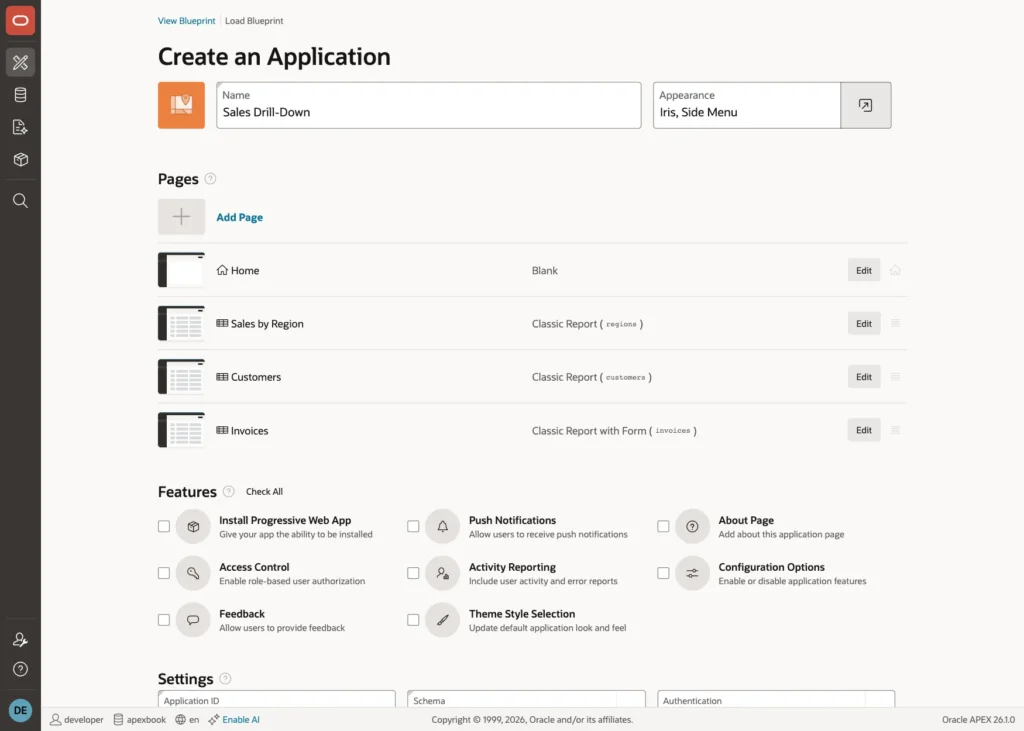
Click Create Application. The wizard creates the pages 2 (Sales by Region), 3 (Customers), 4 (Invoices), and 5 (the invoice form). To open the application on Sales by Region, set Home URL to page 2 in Shared Components, User Interface Attributes.
Step 3: Level 1, Sales by Region
Open page 2 in Page Designer and select the report region. Change Source, Type to SQL Query and enter:
select r.region_name,
       count(distinct c.customer_id) as customers,
       count(i.invoice_id)           as invoices,
       sum(i.amount)                 as total_amount,
       r.region_id
from regions r
left join customers c on c.region_id = r.region_id
left join invoices  i on i.customer_id = c.customer_id
group by r.region_id, r.region_name
order by r.region_name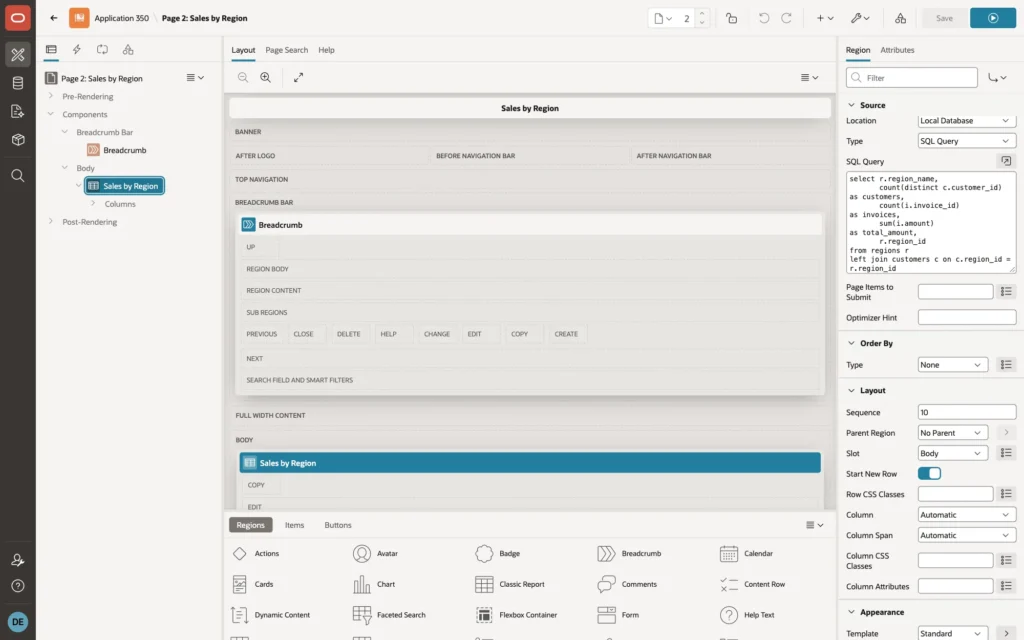
REGION_ID is the last column on purpose: APEX writes the Grand Total label into the first column of the query, so the first column must be a visible one.
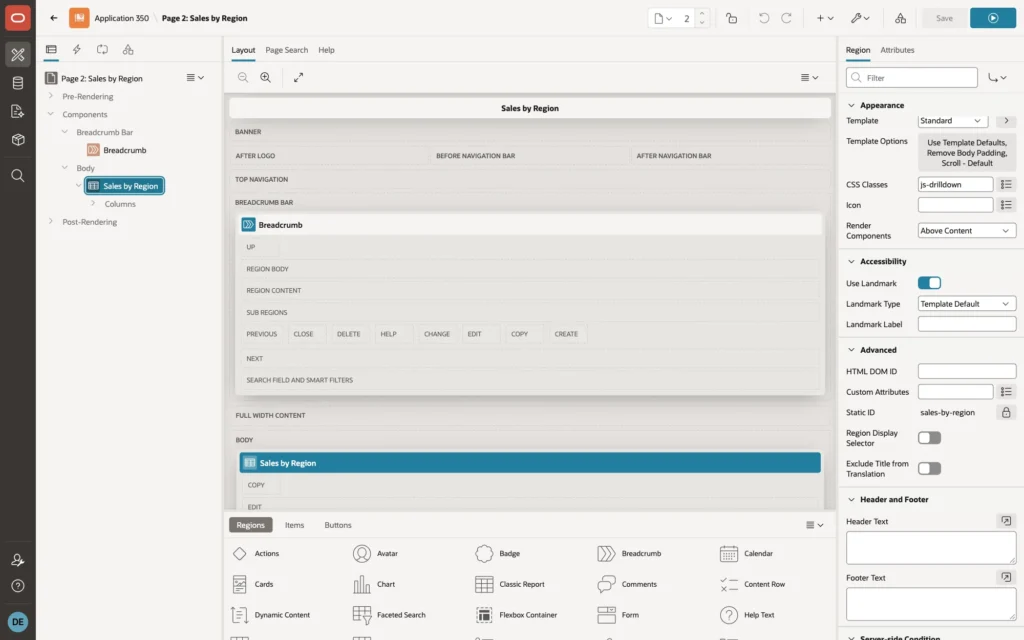
Under Appearance, set CSS Classes to js-drilldown. This class is all the keyboard code needs to find the report:
Click the Attributes tab and set:
- Layout, Number of Rows: 5000
- Pagination, Type: No Pagination
- Performance, Maximum Rows to Process: 5000
- Break Formatting, Report Sum Label: Grand Total
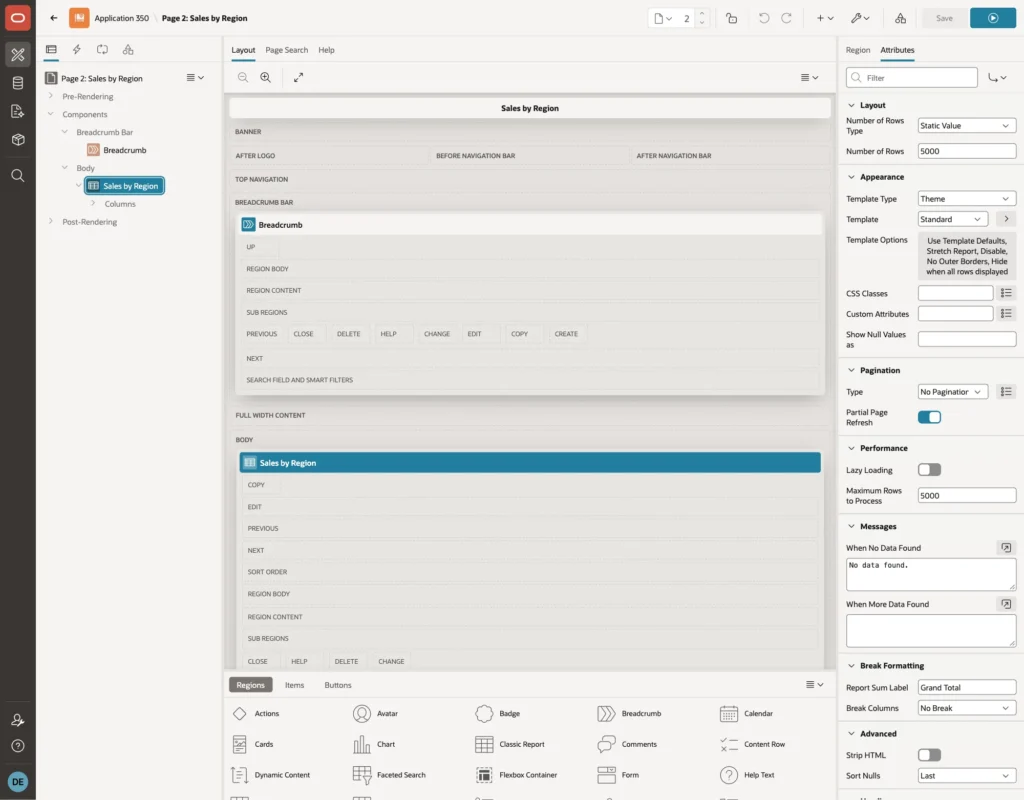
The wizard shows only 50 rows without page links, so longer lists would be cut silently. With 5000 rows and no pagination, the keys reach every row and the Grand Total includes all of them.
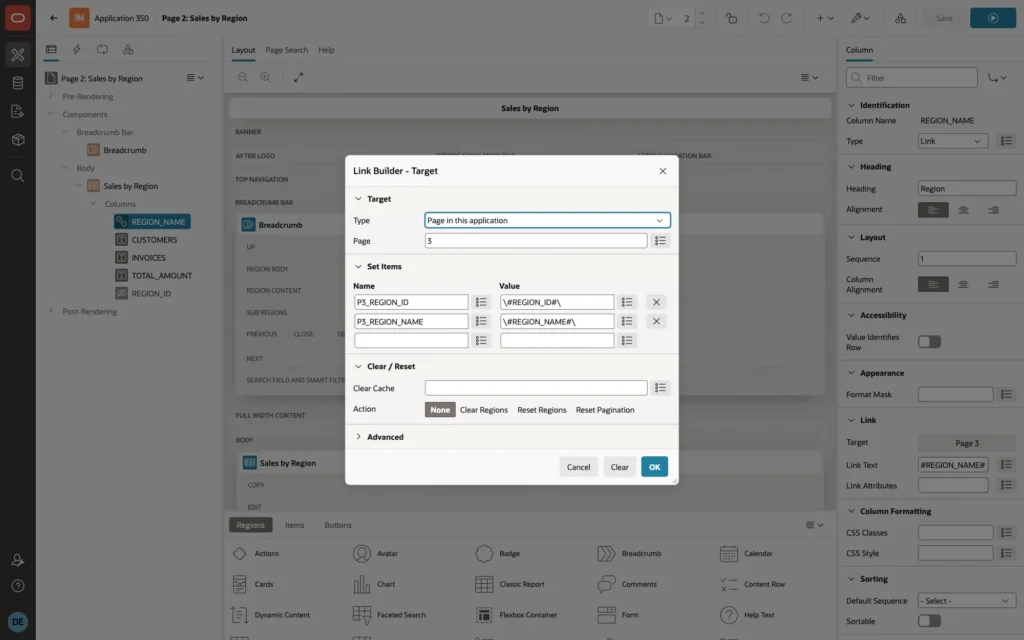
Under Columns, select REGION_NAME and set Type to Link. Click Target and link to page 3, setting the items P3_REGION_ID and P3_REGION_NAME to #REGION_ID# and #REGION_NAME#. Set Link Text to #REGION_NAME#.
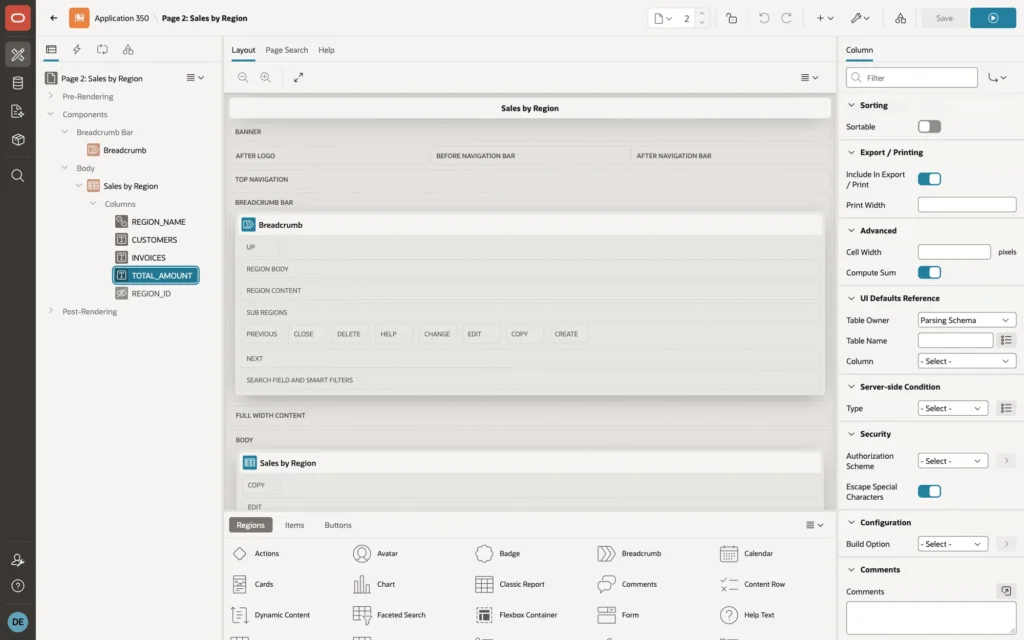
Set REGION_ID to Type Hidden Column. Finally, select CUSTOMERS, INVOICES, and TOTAL_AMOUNT one by one and turn on Advanced, Compute Sum. For TOTAL_AMOUNT, also set the Format Mask to 999G999G990D00.
Step 4: Level 2, Customers
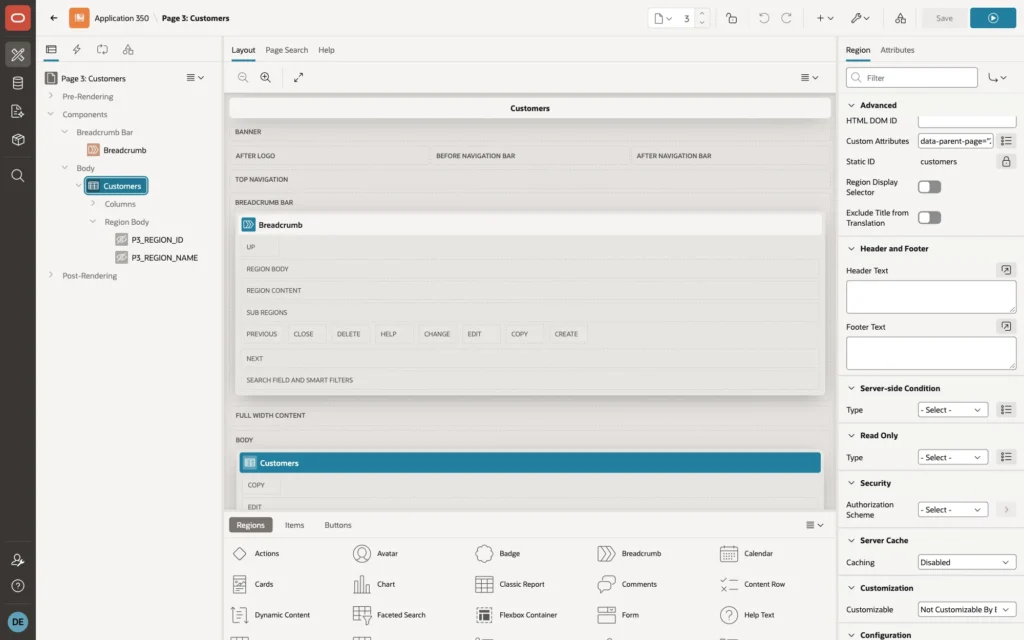
Open page 3. Create two hidden page items in the report region, P3_REGION_ID and P3_REGION_NAME. For both, check that Session State, Storage is Per Session (Persistent):
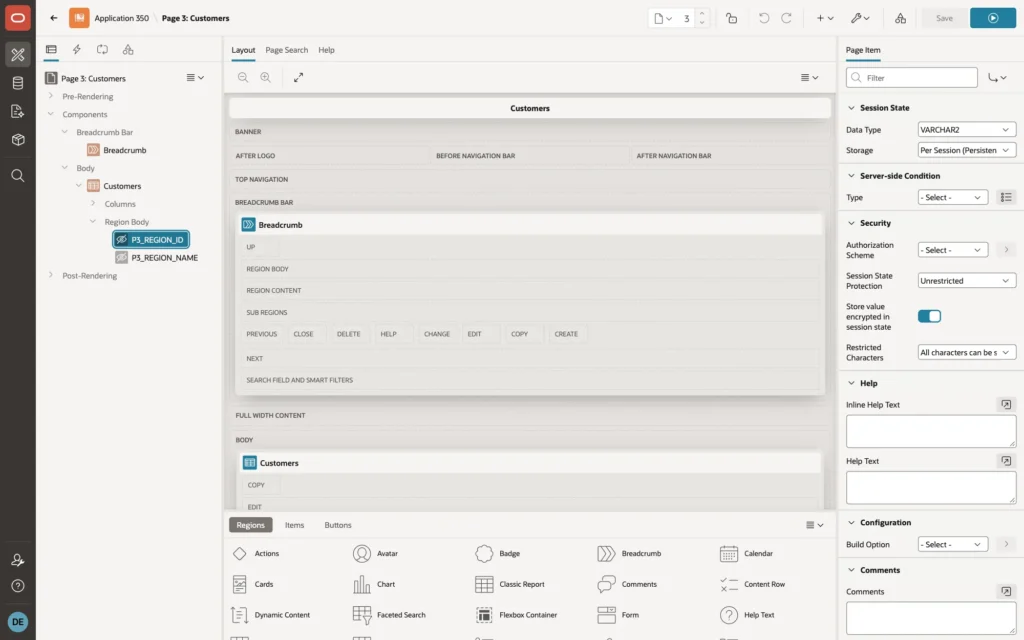
This matters: with Per Request storage, the item is empty again when the report refreshes or when you come back with Esc, and the report shows no rows.
Set the report's SQL query to:
select c.customer_name,
       c.city,
       count(i.invoice_id) as invoices,
       sum(i.amount)       as total_amount,
       c.customer_id
from customers c
left join invoices i on i.customer_id = c.customer_id
where c.region_id = :P3_REGION_ID
group by c.customer_id, c.customer_name, c.city
order by c.customer_name
Apply the same settings as on level 1: CSS Classes js-drilldown, Number of Rows and Maximum Rows to Process 5000, No Pagination, Report Sum Label Grand Total, Compute Sum on INVOICES and TOTAL_AMOUNT, and CUSTOMER_ID as a hidden column. Link CUSTOMER_NAME to page 4, setting P4_CUSTOMER_ID and P4_CUSTOMER_NAME to #CUSTOMER_ID# and #CUSTOMER_NAME#.
One setting is new. Under Advanced, set Custom Attributes to data-parent-page="2". This tells the keyboard code where Esc goes back to:
Step 5: Level 3, Invoices
Open page 4 and do the same once more: hidden items P4_CUSTOMER_ID and P4_CUSTOMER_NAME (Per Session), CSS Classes js-drilldown, Custom Attributes data-parent-page="3", the report settings from level 1, and Compute Sum on AMOUNT. The query:
select invoice_no,
       invoice_date,
       amount,
       status,
       invoice_id
from invoices
where customer_id = :P4_CUSTOMER_ID
order by invoice_date desc
Link INVOICE_NO to page 5, the invoice form, setting P5_INVOICE_ID to #INVOICE_ID#. APEX opens it as a dialog, because page 5 is a modal dialog page. The wizard has already added a dynamic action that refreshes the report when the dialog closes.
For new invoices, edit the Create button's target and also set P5_CUSTOMER_ID to &P4_CUSTOMER_ID., so the form starts with the customer of the list.
Step 6: The Invoice Dialog
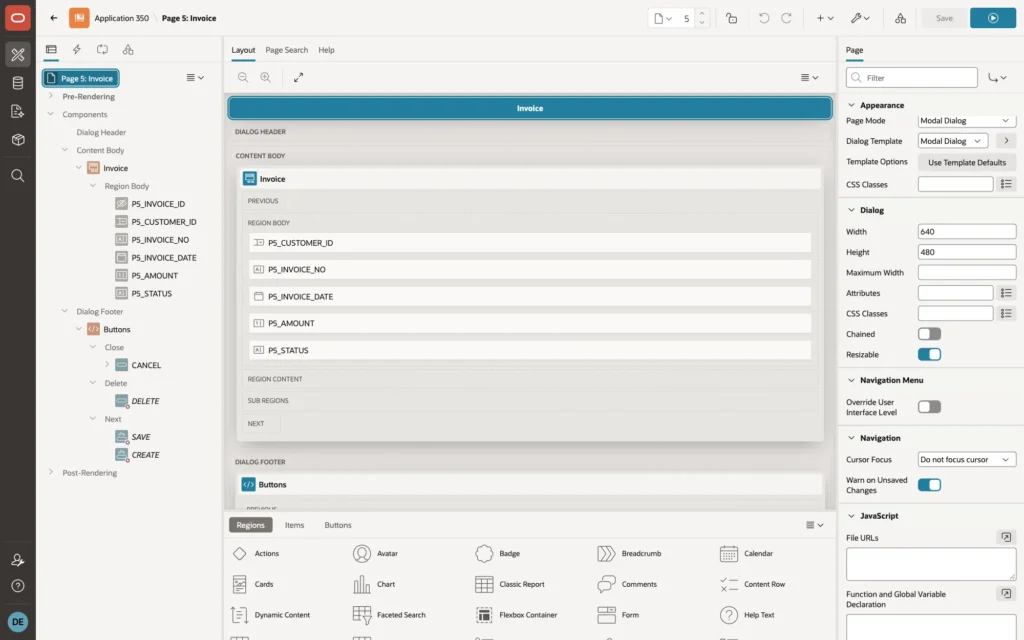
The wizard creates page 5 as a drawer, which is always as high as the window. Open page 5 and set:
- Appearance, Dialog Template: Modal Dialog
- Dialog, Width: 640, and Height: 480
Step 7: Breadcrumb Titles
The breadcrumb at the top of each page shows where the user is, like "Sales by Region › South › Gulf Coast Marine". In Shared Components, Breadcrumbs, edit the wizard's entries:
- Customers (page 3): Short Name &P3_REGION_NAME., Parent Entry Sales by Region
- Invoices (page 4): Short Name &P4_CUSTOMER_NAME., Parent Entry Customers
Delete the breadcrumb's Home entry. In Shared Components, Navigation Menu, delete the entries Home, Customers, and Invoices too, because those pages are only reached by drilling down. Page 1, Home, is no longer needed and can be deleted.
Step 8: Add the Keyboard Code
Create a file named drilldown.js with this content:
/* Keyboard drill-down for Classic Reports with the CSS class js-drilldown:
   Up/Down/Home/End move the highlight, Enter or a click opens the row's link,
   Esc goes back to the page in the region's data-parent-page attribute.
   It also adds a Print button and keeps the Grand Total row in view. */
(function ($) {
  var region, rows = $(), current = 0;

  function storageKey() { return 'drilldown-' + $v('pFlowStepId'); }

  function highlight(index) {
    rows = region.find('tbody tr').filter(function () { return $(this).find('a').length > 0; });
    region.find('tbody tr').not(rows).each(function () {           // the Grand Total row
      $(this).addClass($(this).children('td').length > 1 ? 'is-total' : 'is-spacer');
    });
    if (!rows.length) { return; }
    current = Math.max(0, Math.min(index, rows.length - 1));
    rows.removeClass('is-current');
    rows.eq(current).addClass('is-current')[0].scrollIntoView({ block: 'nearest' });
  }

  // on desktop the rows scroll between the headings and the Grand Total,
  // and the report ends right on top of the page footer (or the window's bottom)
  function fitHeight() {
    var wrap = region.find('.t-Report-tableWrap');
    if (!wrap.length) { return; }
    wrap.css('max-height', '');
    if (window.innerWidth < 768) { return; }
    var footer = $('.t-Footer:visible');
    var footerTop = footer.length ? footer[0].getBoundingClientRect().top + window.scrollY
                                   : document.documentElement.scrollHeight;
    var below = footerTop - (region[0].getBoundingClientRect().bottom + window.scrollY);  // space under the report
    var room = window.innerHeight - (footer.outerHeight() || 0) - below
             - (wrap[0].getBoundingClientRect().top + window.scrollY)
             - (region[0].getBoundingClientRect().bottom - wrap[0].getBoundingClientRect().bottom);
    wrap.css('max-height', Math.max(200, Math.floor(room)) + 'px');
  }

  $(function () {
    region = $('.js-drilldown').first();
    if (!region.length) { return; }

    // start on the row the user opened last time, or on the first row
    highlight(parseInt(sessionStorage.getItem(storageKey()), 10) || 0);
    fitHeight();
    $(window).on('resize', fitHeight);
    region.on('apexafterrefresh', function () { highlight(current); fitHeight(); });

    // a Print button in the report's header
    $('<button type="button" class="t-Button t-Button--icon t-Button--iconLeft">'
      + '<span class="t-Icon t-Icon--left fa fa-print" aria-hidden="true"></span>Print</button>')
      .on('click', function () { window.print(); })
      .prependTo(region.find('.t-Region-headerItems--buttons').first());

    // a click anywhere on a row works like Enter
    region.on('click', 'tbody tr', function (e) {
      var link = $(this).find('a')[0];
      if (!link) { return; }                       // e.g. the Grand Total row
      highlight(rows.index(this));
      sessionStorage.setItem(storageKey(), current);
      if (!$(e.target).closest('a').length) { link.click(); }
    });

    // remember whether a dialog was open when the key was pressed,
    // before the dialog handles the key (Esc closes it)
    var dialogOpen = false;
    document.addEventListener('keydown', function () {
      dialogOpen = $('.ui-dialog:visible').length > 0;
    }, true);

    $(document).on('keydown', function (e) {
      // while a dialog is open, Esc only closes the dialog
      if (dialogOpen) {
        if (e.key === 'Escape' && $('.ui-dialog:visible').length) {
          $('.ui-dialog:visible .ui-dialog-content').last().dialog('close');
          e.preventDefault();
        }
        return;
      }
      // keys typed in a field are not ours
      if ($(e.target).is('input, textarea, select')) { return; }
      switch (e.key) {
        case 'ArrowDown': highlight(current + 1); break;
        case 'ArrowUp':   highlight(current - 1); break;
        case 'Home':      highlight(0); break;
        case 'End':       highlight(rows.length - 1); break;
        case 'Enter':
          if (!rows.length) { return; }
          sessionStorage.setItem(storageKey(), current);
          rows.eq(current).find('a')[0].click();
          break;
        case 'Escape':
          var parentPage = region.data('parent-page');
          if (!parentPage) { return; }
          sessionStorage.removeItem(storageKey());
          apex.navigation.redirect(apex.util.makeApplicationUrl({ pageId: parentPage }));
          break;
        default: return;
      }
      e.preventDefault();
    });
  });
})(apex.jQuery);
What it does:
- highlight marks one row with the class is-current and scrolls it into view. Only rows with a link can be highlighted, so the Grand Total row is skipped.
- The row number is saved in sessionStorage when you drill down, so after Esc the same row is highlighted again.
- fitHeight makes the rows scroll inside the report on desktop screens, so the column headings and the Grand Total stay in view, right on top of the page footer.
- The keydown handler moves the bar, clicks the row's link on Enter, and goes to the page in data-parent-page on Esc. While a dialog is open, Esc only closes the dialog.
- A Print button is added to every drill-down report and calls the browser's print dialog.
Create a second file named drilldown.css:
/* the highlighted row of a drill-down report; it moves instantly, without the theme's fade */
.js-drilldown tbody tr,
.js-drilldown tbody td {
  transition: none !important;
}
.js-drilldown tbody tr.is-current td {
  background-color: #1d4ed8 !important;
  color: #ffffff;
}
.js-drilldown tbody tr.is-current td a {
  color: #ffffff;
}
.js-drilldown tbody tr { cursor: pointer; }

/* long lists on desktop: the rows scroll, the headings and the Grand Total stay in view */
@media screen and (min-width: 768px) {
  .js-drilldown .t-Report-tableWrap { overflow-y: auto; }
  .js-drilldown thead th {
    position: sticky;
    top: 0;
    z-index: 1;
    background-color: #ffffff;
  }
  .js-drilldown tbody tr.is-total td {
    position: sticky;
    bottom: 0;
    z-index: 1;
    background-color: #f1f5f9;
  }
  .js-drilldown tbody tr { scroll-margin: 44px 0; }
  /* no space between the report and the footer */
  .js-drilldown.t-Region { margin-bottom: 0; }
  .t-Body-contentInner:has(.js-drilldown) { padding-bottom: 0; }
}
.js-drilldown tbody tr.is-spacer { display: none; }

/* printing: only the report, in black on white */
@media print {
  .t-Header, .t-Body-nav, .t-Footer, .t-Body-actions,
  .t-Region-headerItems--buttons { display: none !important; }
  .t-Body, .t-Body-main, .t-Body-content { margin: 0 !important; padding: 0 !important; }
  .t-Body-title { position: static !important; }
  .js-drilldown .t-Report-tableWrap { max-height: none !important; overflow: visible !important; }
  .js-drilldown tbody tr.is-current td,
  .js-drilldown tbody tr.is-current td a,
  .js-drilldown a { background-color: transparent !important; color: #000000 !important; text-decoration: none; }
}
It colors the highlight bar, removes the theme's color fade so the bar does not flicker when a key is held down, keeps the headings and the Grand Total sticky, and prints only the report, in black on white.
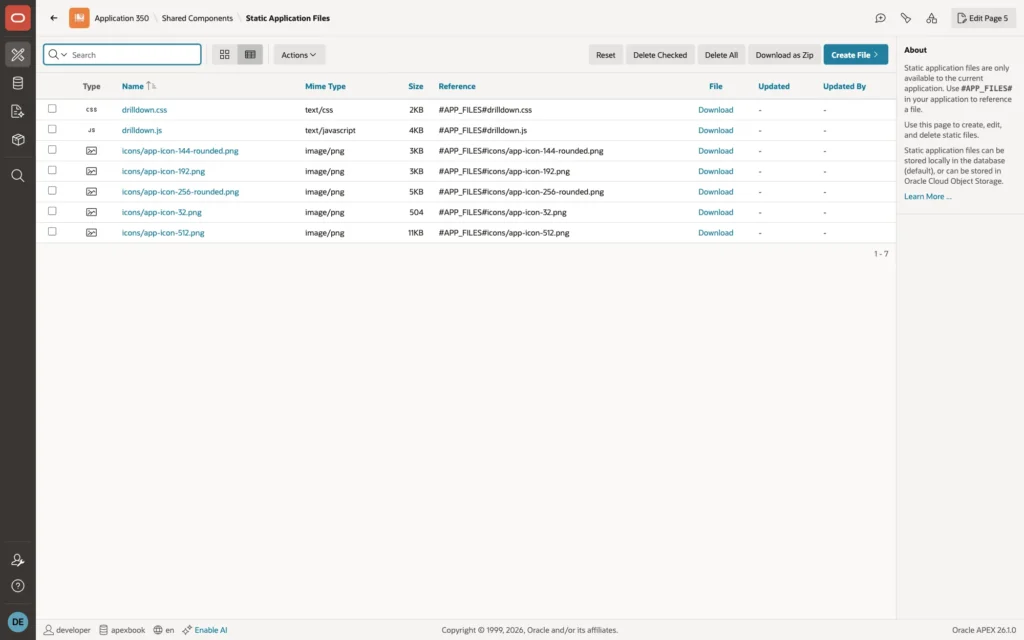
Upload both files in Shared Components, Static Application Files, Create File:
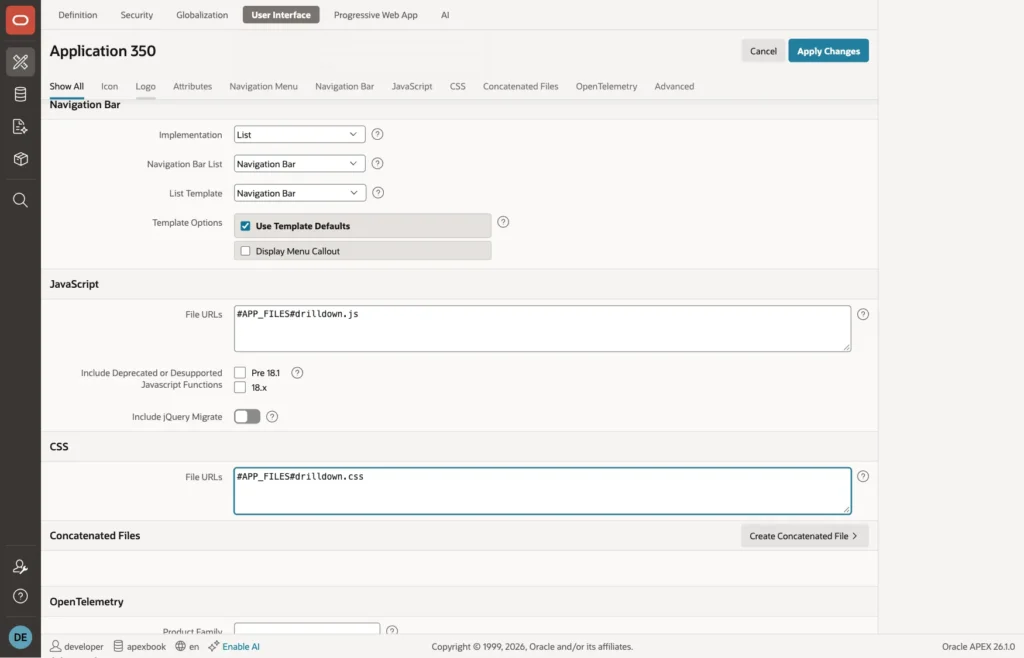
Then load them on every page. In Shared Components, User Interface Attributes, set JavaScript, File URLs to #APP_FILES#drilldown.js and CSS, File URLs to #APP_FILES#drilldown.css:
The Result
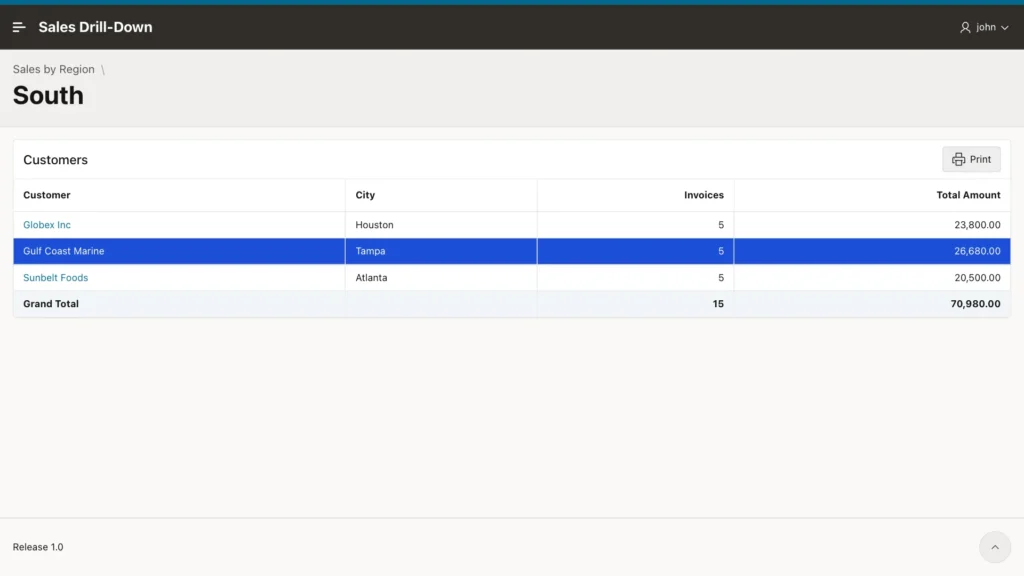
Run the application, press Down twice and Enter on South. The customers of South open, with the region in the title:
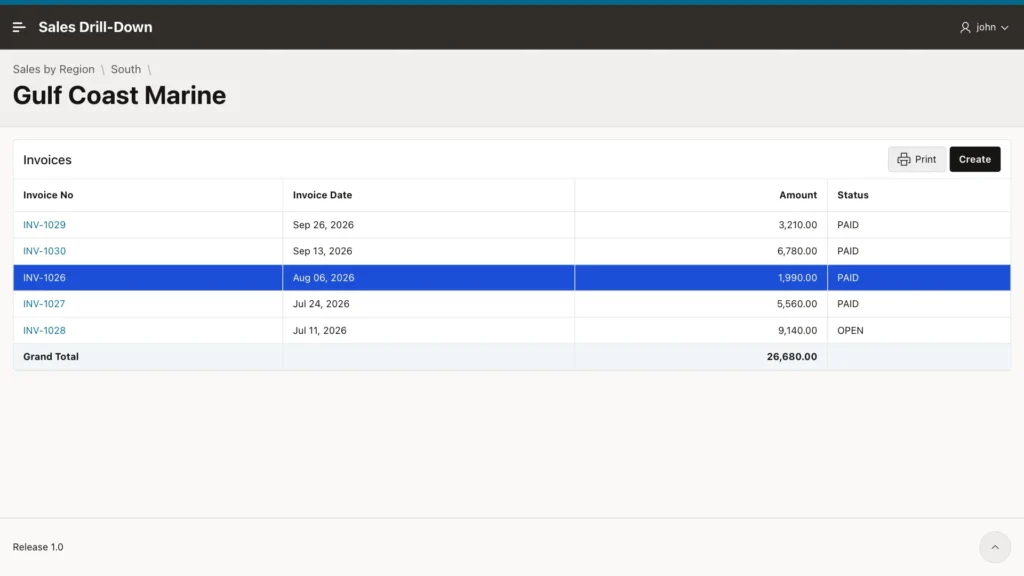
Enter on Gulf Coast Marine shows its invoices:
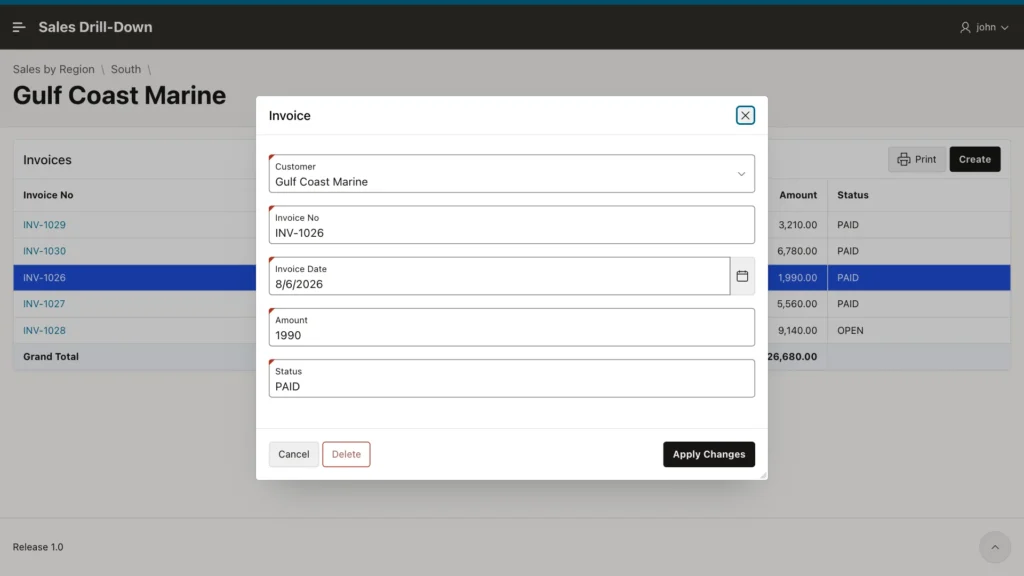
Enter on an invoice opens it for editing. Apply Changes saves and closes the dialog, the list refreshes, and the highlight stays on the same invoice. Esc closes the dialog without saving.
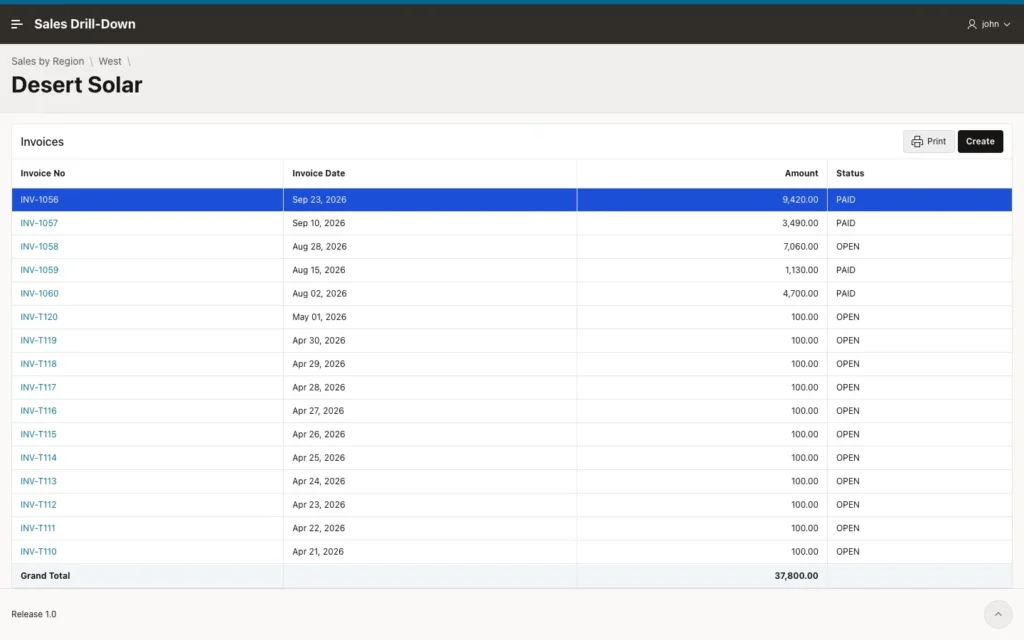
With many rows, the rows scroll and the headings and Grand Total stay in place. Here a customer has 125 invoices:
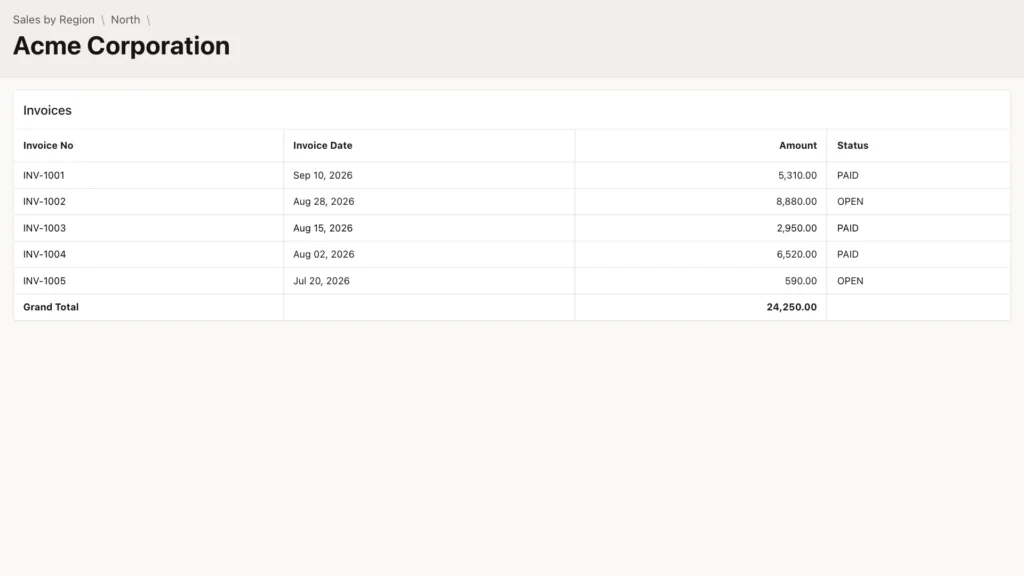
The Print button, or Ctrl+P, prints only the report with its breadcrumb and Grand Total:
Good to Know
- Any Classic Report becomes a drill-down report with the CSS class js-drilldown, a link column, and, for Esc, data-parent-page. The JavaScript and CSS do not change.
- The page items that carry the selection (here the region and the customer) need Per Session storage.
- Browsers cache static files. When you change drilldown.js or drilldown.css, upload the new version in Static Application Files; APEX then changes the file URL so browsers load it again.
- For lists that can grow to thousands of rows, add a date range filter, like a period in Tally, instead of loading everything.
- On phones, the reports scroll with the page as usual; the sticky headings and Grand Total are for screens at least 768 pixels wide.
Summary
Three Classic Reports, a dialog form, and one JavaScript and one CSS file give an Oracle APEX application the Tally way of working: the arrow keys move a highlight bar, Enter drills down, Esc goes back to the same row, a Grand Total stays in view, and every report can be printed. Adding another level is a matter of one more Classic Report with a CSS class and a link.
See my articles more often when you search Google.
