
A comments thread lets users discuss a record right where they work on it. Sales notes a delivery request, the warehouse confirms the stock, and everyone sees who said what and when, without emails or spreadsheets on the side.
Oracle APEX has a Comments page type and a Comments region built on a template component. This guide stores the comments of each order in its own table, shows them as a chat thread with initials and "time ago" dates, adds a form for new comments, and lets users delete only their own comments, checked on the server.
The guide How to Build an Approval Flow for Orders with Human Tasks in Oracle APEX used the comments that come with a human task. Those comments belong to the task. The thread in this guide belongs to the order itself, so you can use the same pattern for customers, products or any other table.
Step 1: Create the Tables
The comments belong to rows of the ORDERS table. If you start from scratch, create ORDERS and CUSTOMERS with two sample orders, 149 and 150:
Example:
create table customers (
    customer_id number generated by default as identity
                constraint customers_pk primary key,
    name        varchar2(100) not null,
    email       varchar2(120) not null
);

create table orders (
    order_id    number generated by default as identity
                constraint orders_pk primary key,
    customer_id number not null
                constraint orders_customer_fk references customers,
    order_date  date default sysdate not null,
    status      varchar2(12) default 'NEW' not null
                constraint orders_status_ck
                check (status in ('NEW', 'APPROVED', 'SHIPPED', 'CANCELLED'))
);

create index orders_customer_ix on orders (customer_id);

insert into customers (customer_id, name, email)
values (4, 'Customer 4', 'customer4@example.com');
insert into customers (customer_id, name, email)
values (11, 'Customer 11', 'customer11@example.com');

insert into orders (order_id, customer_id, order_date, status)
values (149, 4, trunc(sysdate) - 4, 'CANCELLED');
insert into orders (order_id, customer_id, order_date, status)
values (150, 11, trunc(sysdate) - 3, 'NEW');
commit;

alter table customers modify customer_id
    generated by default as identity (start with limit value);
alter table orders modify order_id
    generated by default as identity (start with limit value);
The inserts use fixed IDs, so the two ALTER TABLE statements move the identity columns past them. New rows then get the next free number.
Now create the ORDER_COMMENTS table with a few sample comments:
Example:
create table order_comments (
    comment_id   number generated by default as identity
                 constraint order_comments_pk primary key,
    order_id     number not null
                 constraint order_comments_order_fk
                 references orders on delete cascade,
    comment_text varchar2(1000) not null
                 constraint order_comments_text_ck
                 check (trim(comment_text) is not null),
    created_by   varchar2(255) default on null
                 coalesce(sys_context('APEX$SESSION', 'APP_USER'),
                          sys_context('USERENV', 'SESSION_USER')),
    created_on   date default on null sysdate
);

create index order_comments_order_ix on order_comments (order_id, created_on);

insert into order_comments (order_id, comment_text, created_by, created_on)
values (150, 'Customer asked to deliver before Friday.', 'SALES_MANAGER', sysdate - 2);

insert into order_comments (order_id, comment_text, created_by, created_on)
values (150, 'Stock is reserved. Waiting for approval.', 'ORDER_EDITOR', sysdate - 1);

insert into order_comments (order_id, comment_text, created_by, created_on)
values (149, 'Cancelled at the customer''s request.', 'SALES_MANAGER', sysdate - 3);

insert into order_comments (order_id, comment_text)
values (149, 'Refund confirmed by finance.');

commit;

select comment_id, order_id, created_by,
       to_char(created_on, 'DD-MON HH24:MI') created_on, comment_text
from   order_comments
order  by order_id, created_on;
Output:
Table ORDER_COMMENTS created.

Index ORDER_COMMENTS_ORDER_IX created.

1 row inserted.

1 row inserted.

1 row inserted.

1 row inserted.

Commit complete.

   COMMENT_ID    ORDER_ID CREATED_BY       CREATED_ON      COMMENT_TEXT
_____________ ___________ ________________ _______________ ___________________________________________
            3         149 SALES_MANAGER    11-OCT 12:56    Cancelled at the customer's request.
            4         149 APXSOL           14-OCT 12:56    Refund confirmed by finance.
            1         150 SALES_MANAGER    12-OCT 12:56    Customer asked to deliver before Friday.
2 150 ORDER_EDITOR 13-OCT 12:56 Stock is reserved. Waiting for approval.- ORDER_COMMENTS_ORDER_FK ties each comment to an order. ON DELETE CASCADE removes the comments when the order is deleted.
- ORDER_COMMENTS_TEXT_CK refuses a comment that has only spaces.
- CREATED_BY and CREATED_ON are filled by DEFAULT ON NULL, so no trigger is needed. Inside APEX, CREATED_BY gets the APEX user from APEX$SESSION. Outside APEX, it falls back to the database user.
- That is why comment 4 shows APXSOL: it was inserted from SQL as the schema owner, not from an APEX page.
- ORDER_COMMENTS_ORDER_IX covers the foreign key and the query of the thread, which reads the comments of one order sorted by date.
The constraints also work outside APEX. A blank comment and a comment for an order that does not exist both fail:
Example:
insert into order_comments (order_id, comment_text)
values (150, '   ');

insert into order_comments (order_id, comment_text)
values (9999, 'Order does not exist.');
Output:
Error starting at line : 1 File @ b31/01-constraints.sql
In command -
insert into order_comments (order_id, comment_text)
values (150, '   ')
Error report -
ORA-02290: check constraint (APXSOL.ORDER_COMMENTS_TEXT_CK) violated
Help: https://docs.oracle.com/error-help/db/ora-02290/

Error starting at line : 4 File @ b31/01-constraints.sql
In command -
insert into order_comments (order_id, comment_text)
values (9999, 'Order does not exist.')
Error report -
ORA-02291: integrity constraint (APXSOL.ORDER_COMMENTS_ORDER_FK) violated -
parent key not found
Help: https://docs.oracle.com/error-help/db/ora-02291/
Step 2: Create the Page with the Comments Wizard
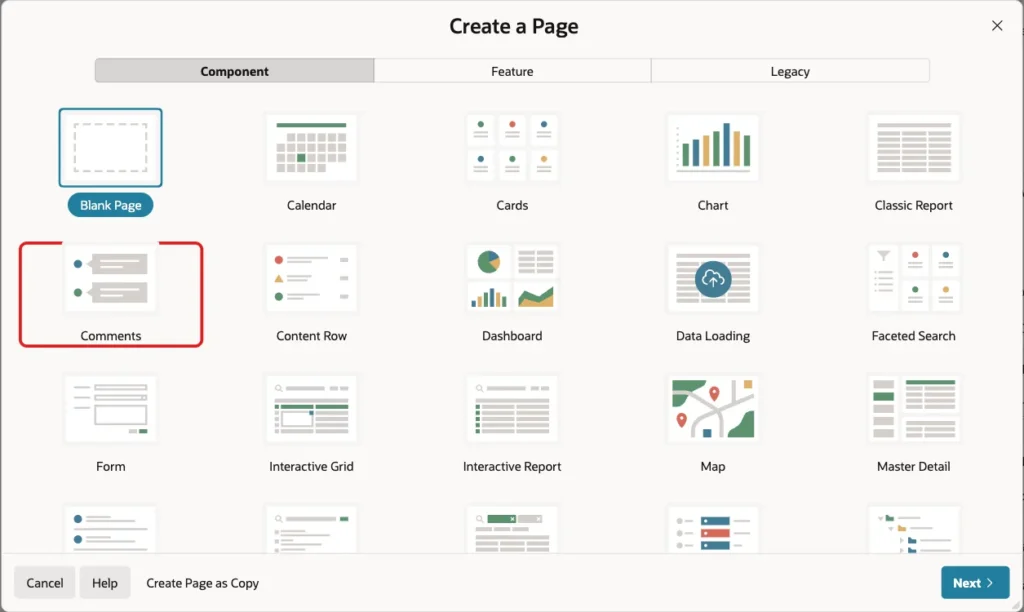
In App Builder, open the application and click Create Page. On the Component tab, click Comments:
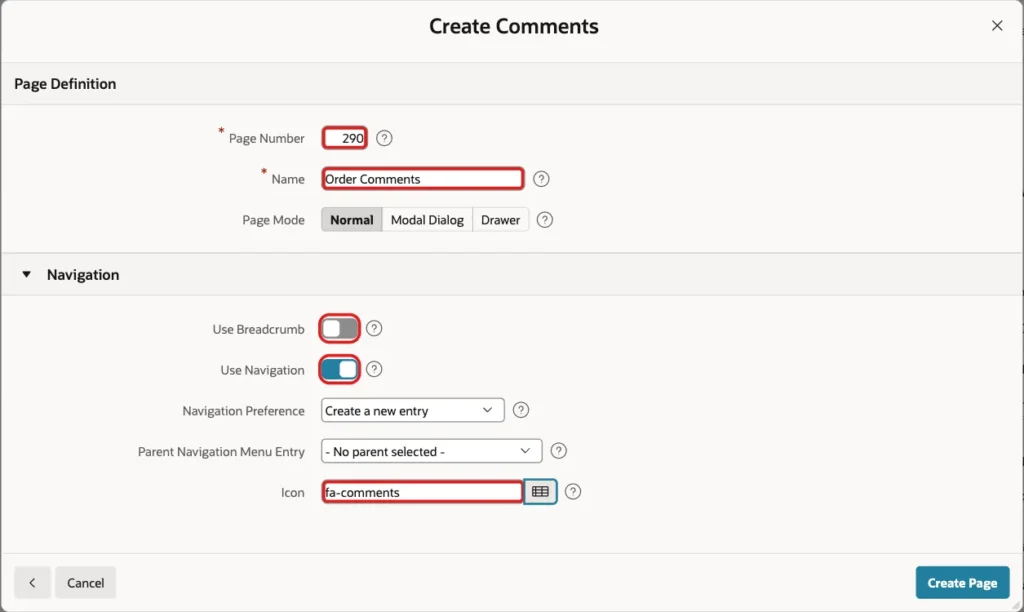
Enter Page Number 290 and Name Order Comments. In the Navigation section, turn off Use Breadcrumb, keep Use Navigation on, and set Icon to fa-comments. Click Create Page:
The wizard has no data source screen. It creates a Comments region on the built-in sample data (Tasks) and a select list P290_ORDER_BY to sort it:
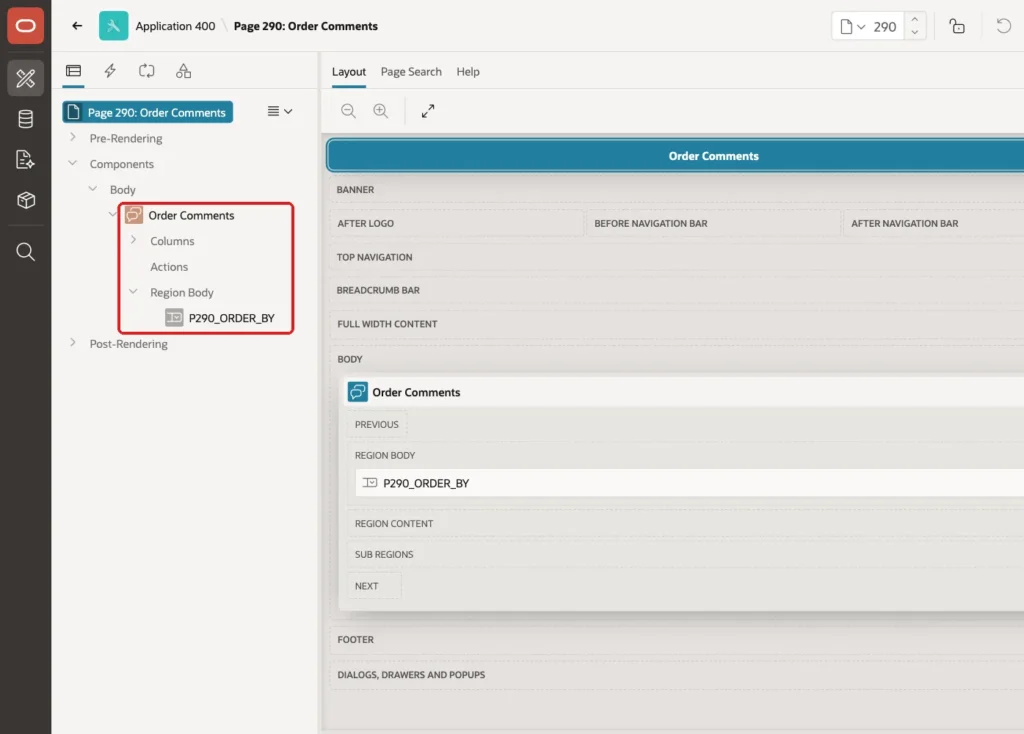
The next steps replace the sample data with ORDER_COMMENTS. Right-click P290_ORDER_BY and choose Delete. A thread is always sorted by date, so the sort item is not needed.
Step 3: Add the Order Selector
Right-click Body and choose Create Region. Set Name to Order and keep Type Static Content. Drag it above the comments region.
Right-click the Order region and choose Create Page Item. Set Name to P290_ORDER_ID, Type to Select List and Label to Order. In the Settings group, set Page Action on Selection to Redirect and Set Value. In List of Values, set Type to SQL Query, enter this query and set Null Display Value to - Select Order -:
Example:
select 'Order ' || o.order_id || ' - ' || c.name
       || ' (' || o.status || ')' as display_value,
       o.order_id as return_value
from   orders o
join   customers c on c.customer_id = o.customer_id
order by o.order_id desc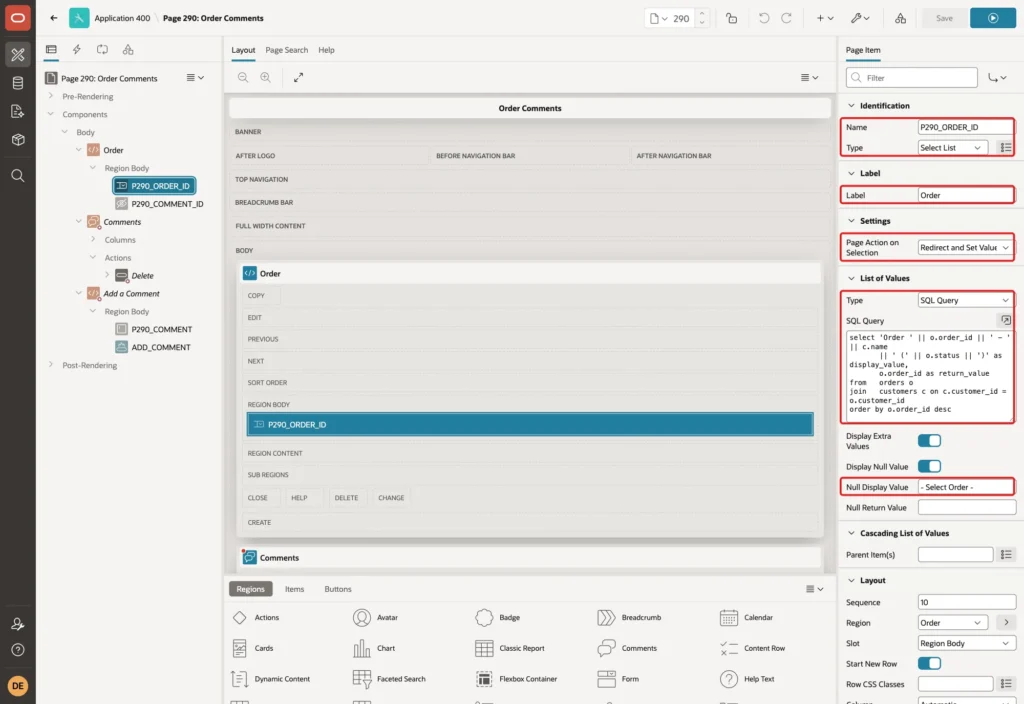
Redirect and Set Value stores the order in session state and reloads the page. The thread and the new comment form then work on that order.
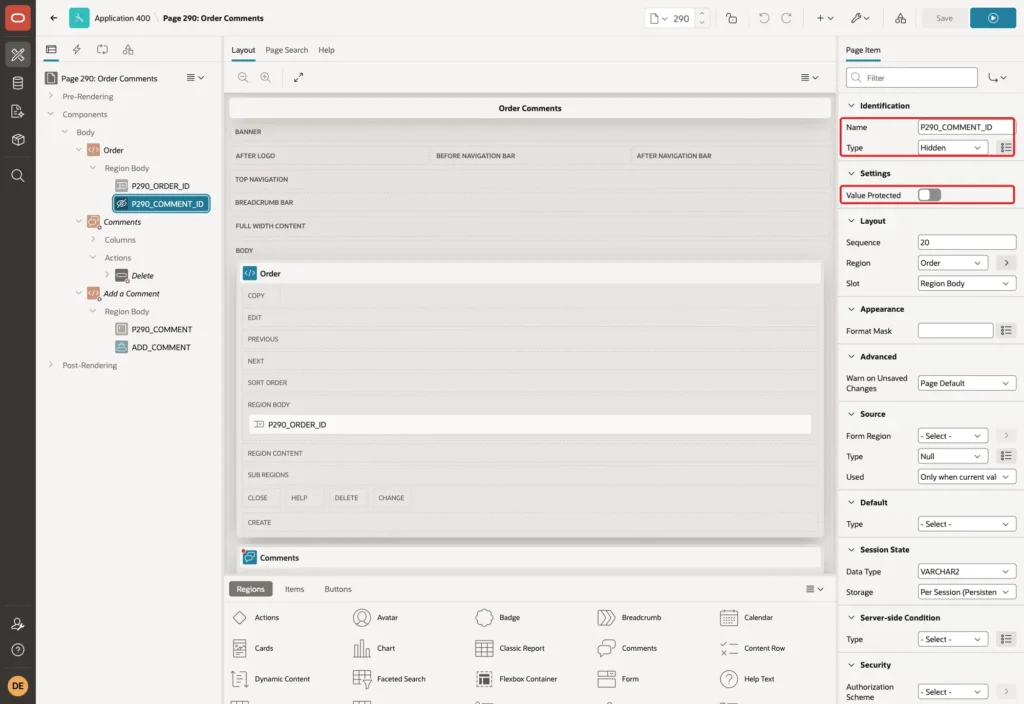
Add one more item to the Order region: P290_COMMENT_ID, Type Hidden. Turn off Value Protected. The Delete action of Step 7 sets this item in the browser. Value Protected is meant for items whose value never changes on the client.
Step 4: Point the Comments Region to the Table
Click the region Order Comments and set Name to Comments. In the Source group, set Location to Local Database, Type to SQL Query, and enter this query. Set Page Items to Submit to P290_ORDER_ID:
Example:
select comment_id,
       comment_text,
       created_by,
       created_on,
       apex_string.get_initials(created_by) as initials
from   order_comments
where  order_id = :P290_ORDER_ID
order by created_on, comment_id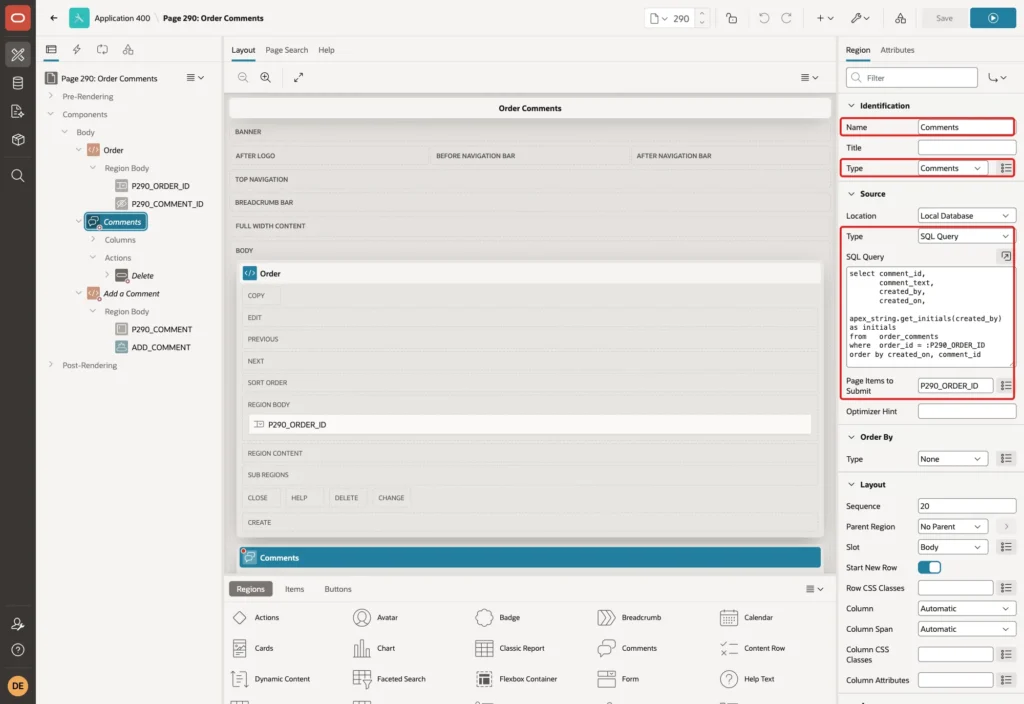
APEX_STRING.GET_INITIALS builds the avatar text from the user name, for example SM for SALES_MANAGER and OE for ORDER_EDITOR.
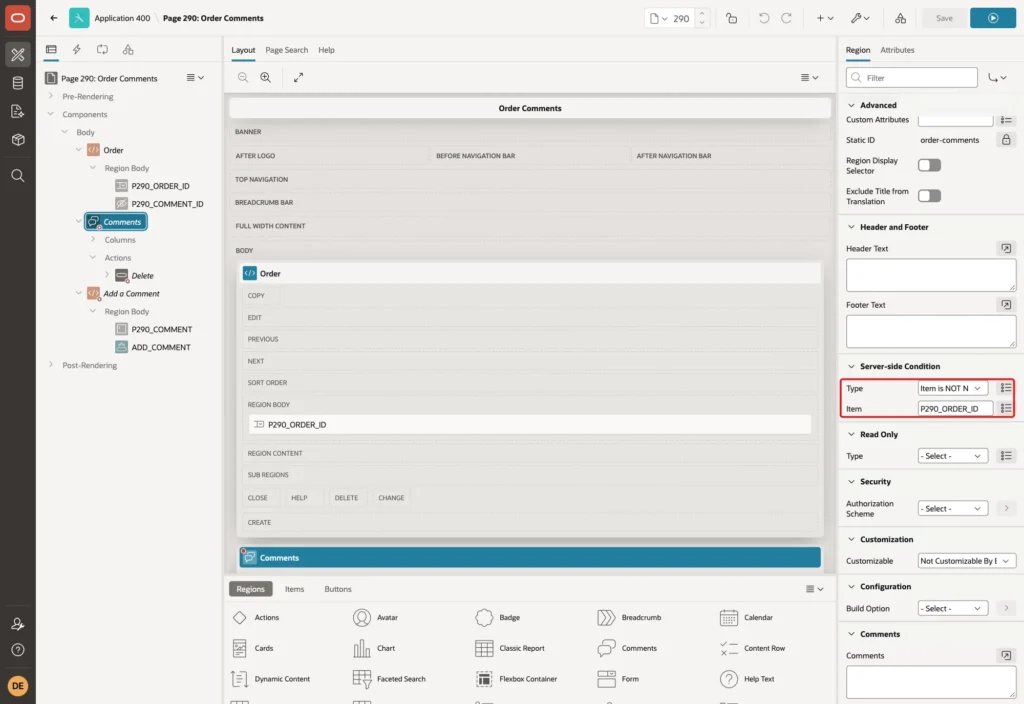
In the Server-side Condition group, set Type to Item is NOT NULL and Item to P290_ORDER_ID. Before an order is selected, the region is not shown:
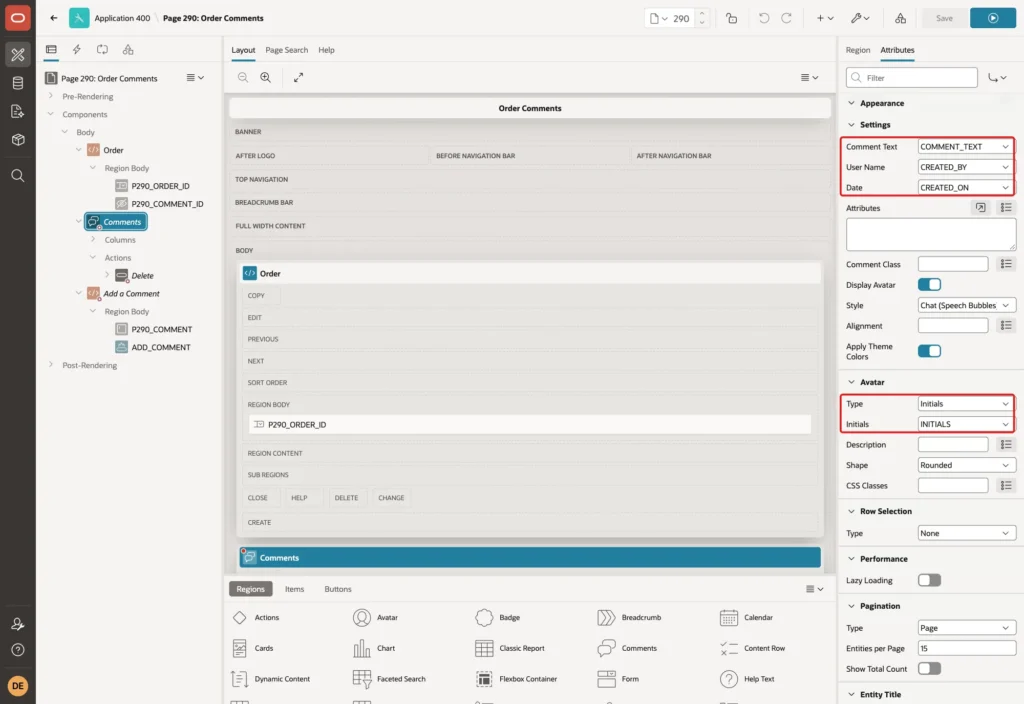
Open the Attributes tab. Map the columns of the query to the parts of a comment: Comment Text to COMMENT_TEXT, User Name to CREATED_BY and Date to CREATED_ON. In the Avatar group, set Type to Initials and Initials to INITIALS. Keep Style Chat (Speech Bubbles).
Further down in the same tab, set When No Data Found in the Messages group to No comments yet.
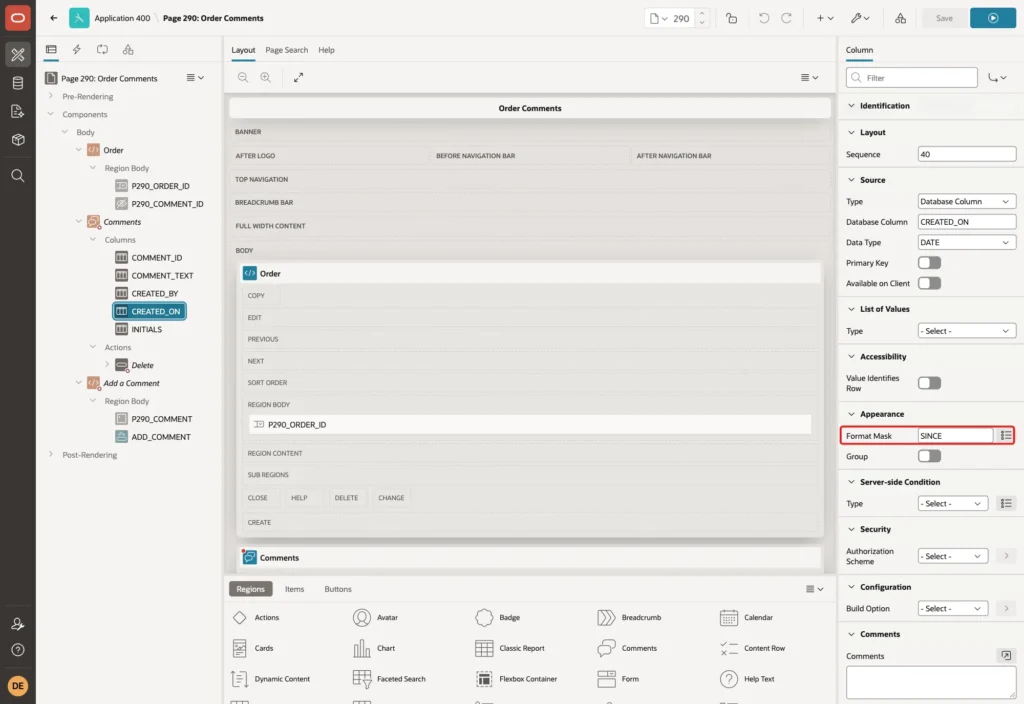
Expand Columns under the region and click CREATED_ON. Set Format Mask to SINCE. APEX then shows the date as "2 days ago" or "24 hours ago" instead of a timestamp:
Step 5: Add the New Comment Form
Right-click Body and choose Create Region. Set Name to Add a Comment and keep Type Static Content. Give it the same server-side condition as the thread: Item is NOT NULL, P290_ORDER_ID.
Right-click the new region and choose Create Page Item. Set Name to P290_COMMENT, Type to Textarea and Label to Comment. In the Validation group, turn on Value Required and set Maximum Length to 1000, the size of the column:
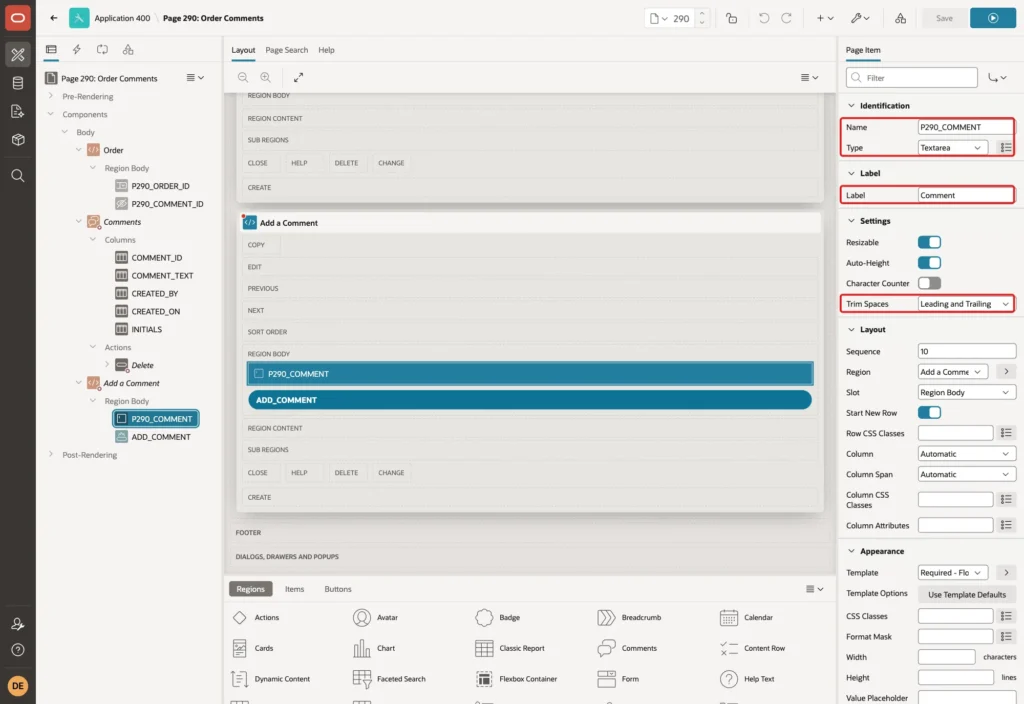
Keep Trim Spaces at its default, Leading and Trailing. A comment with only spaces then becomes empty, and Value Required stops it before it reaches the check constraint.
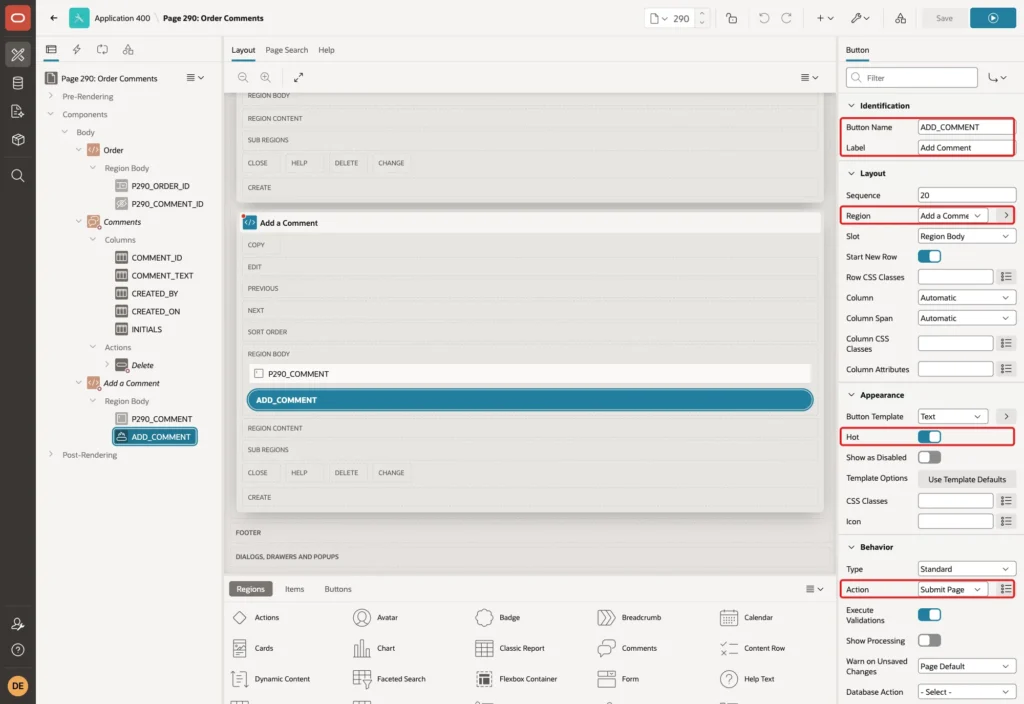
Right-click the region again and choose Create Button. Set Button Name to ADD_COMMENT and Label to Add Comment, turn on Hot, and keep Action Submit Page:
Step 6: Save the Comment and Return to the Order
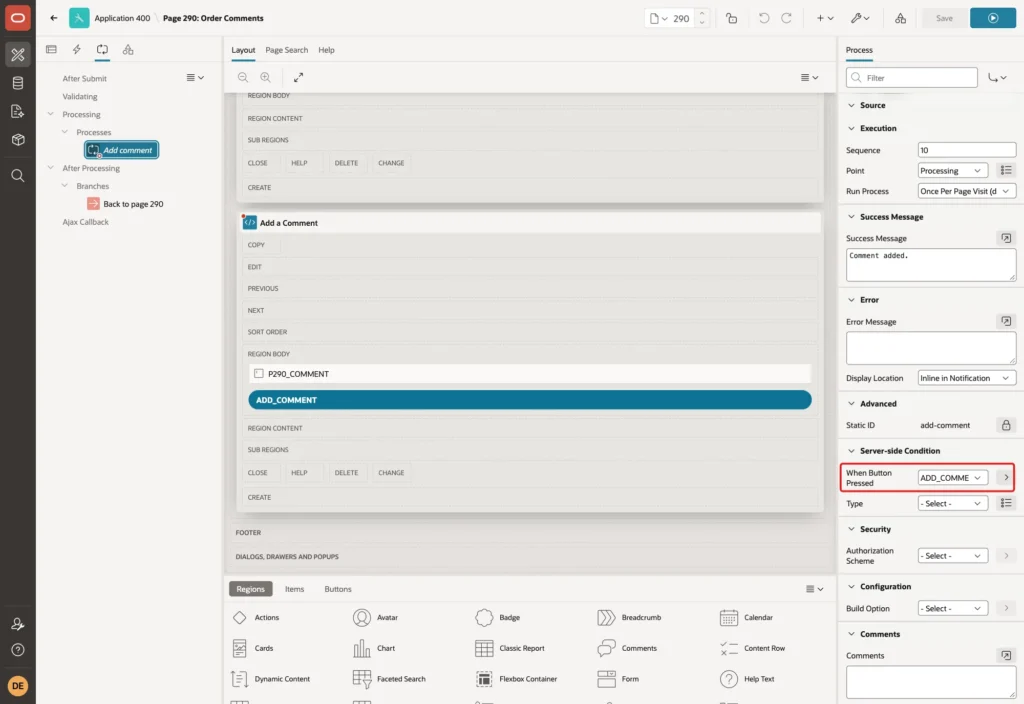
Open the Processing tab, right-click Processes and choose Create Process. Set Name to Add comment, keep Type Execute Code, and enter this PL/SQL Code. Set Success Message to Comment added.
Example:
insert into order_comments (order_id, comment_text)
values (:P290_ORDER_ID, :P290_COMMENT);
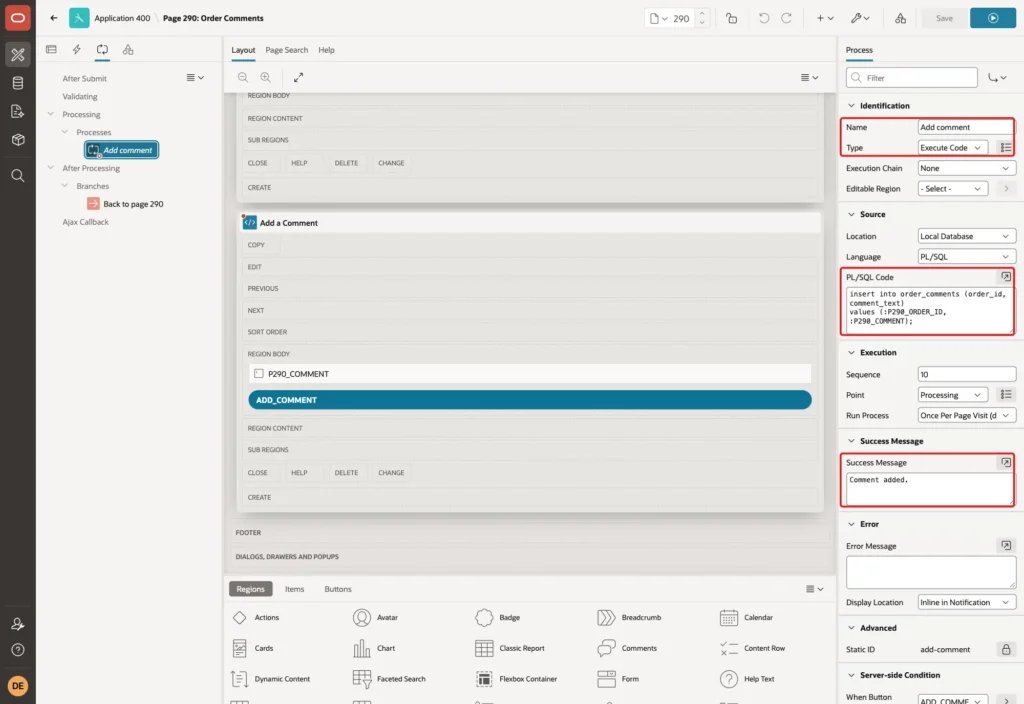
The insert gives only the order and the text. The DEFAULT ON NULL clauses of Step 1 fill in the author and the time. Nobody can post a comment in someone else's name, because the page never sends a user name.
In the Server-side Condition group, set When Button Pressed to ADD_COMMENT:
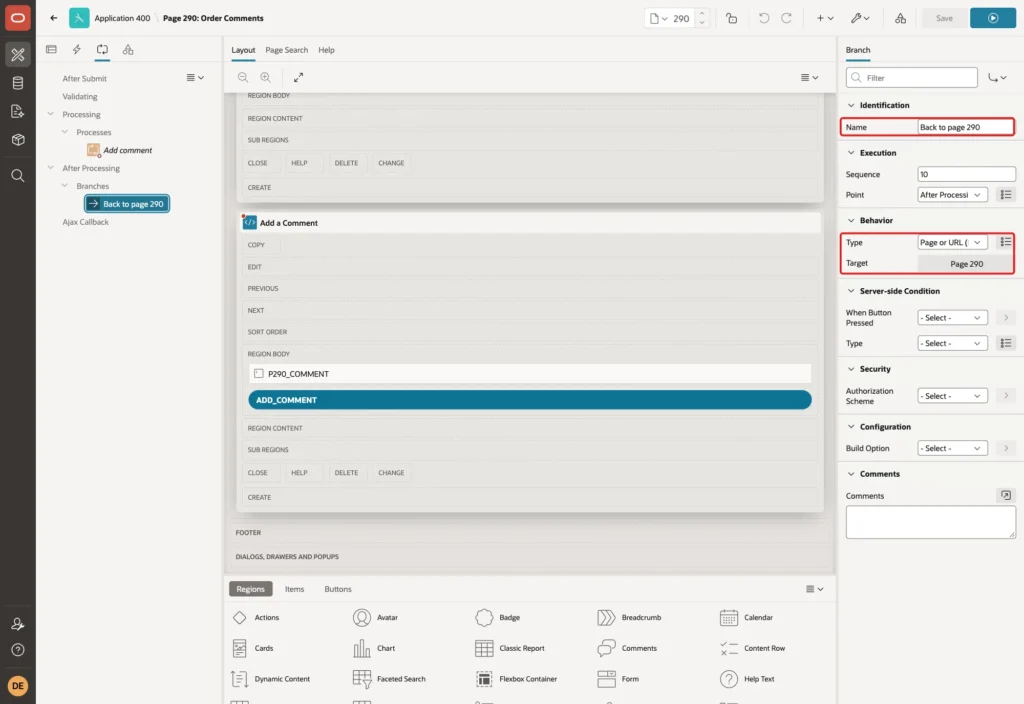
Right-click Branches under After Processing and choose Create Branch. Set Name to Back to page 290. Set the Target to page 290, set item P290_ORDER_ID to &P290_ORDER_ID., and clear the cache of page 290. Clearing the cache empties the textarea for the next comment:
Step 7: Add a Delete Action for Your Own Comments
Template components such as Comments can show actions on each row. In the Rendering tree, right-click Actions under the Comments region and choose Create Action. Set Position to Actions, Label to Delete and Type to Trigger Action.
In the Server-side Condition group, set Type to Expression, Language to PL/SQL, PL/SQL Expression to :CREATED_BY = :APP_USER, and keep Execute Condition For Each Row:
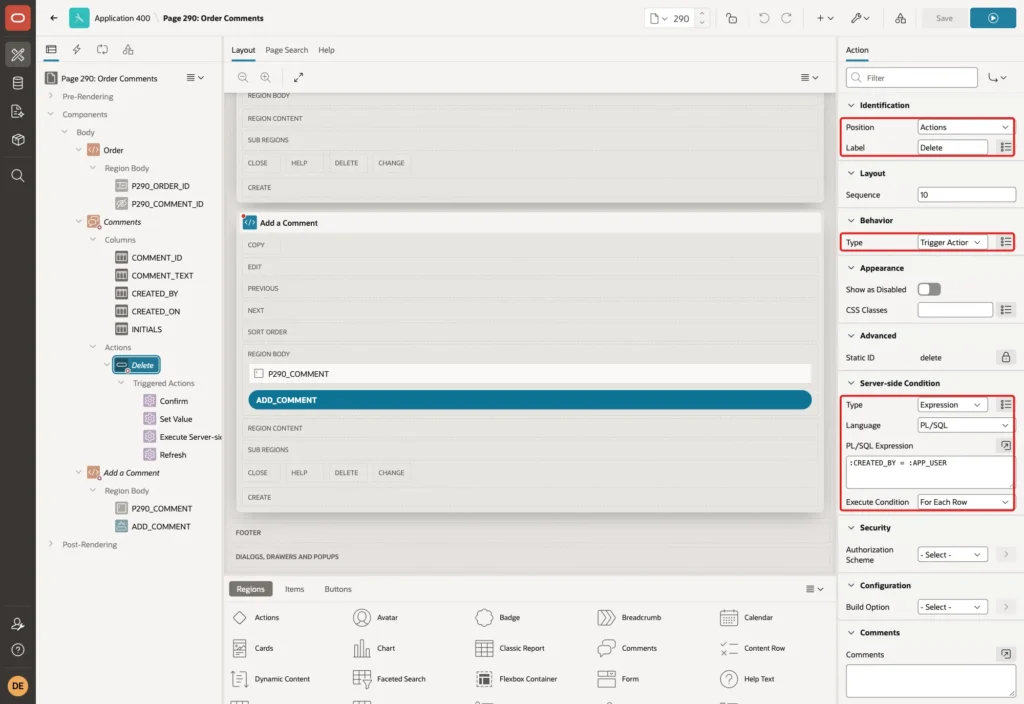
For Each Row checks the condition once per comment, and the condition can read the columns of that row. APEX renders the Delete link only on the comments that the signed-in user wrote.
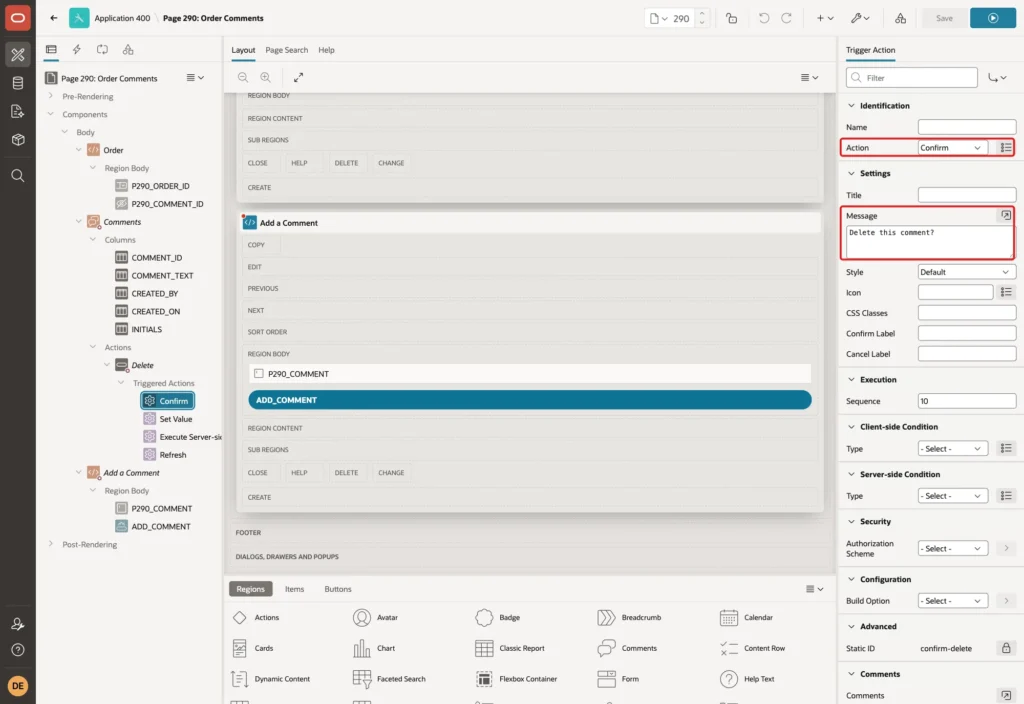
Type Trigger Action adds a Triggered Actions node under the action. These work like the true actions of a dynamic action. APEX creates one Execute Server-side Code action there. Add three more and order them as shown in the next screenshots.
First, a Confirm action with Message Delete this comment?:
Second, a Set Value action. Set Set Type to JavaScript Expression, enter this.recordId, and set Affected Elements to the item P290_COMMENT_ID:
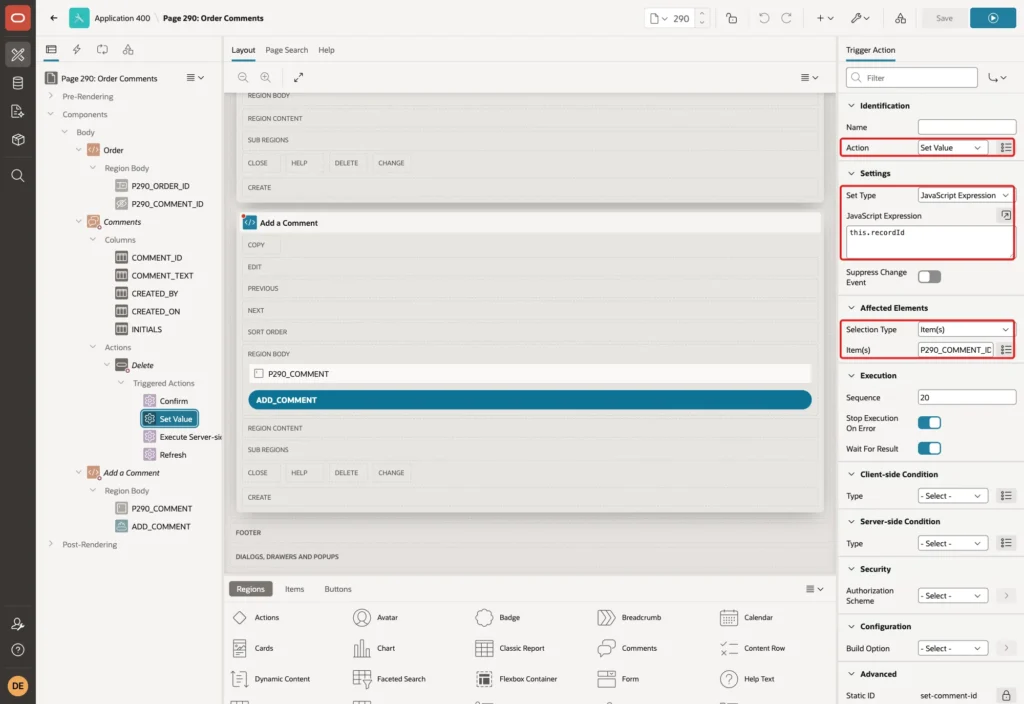
Each Delete link carries the primary key of its row, the COMMENT_ID column. In a test that logged the context of the triggered action, this.recordId held that value.
Third, the Execute Server-side Code action. Enter this PL/SQL Code and set Items to Submit to P290_COMMENT_ID:
Example:
delete from order_comments
where  comment_id = :P290_COMMENT_ID
and    created_by = :APP_USER;

if sql%rowcount = 0 then
    raise_application_error(-20001,
        'You can delete only your own comments.');
end if;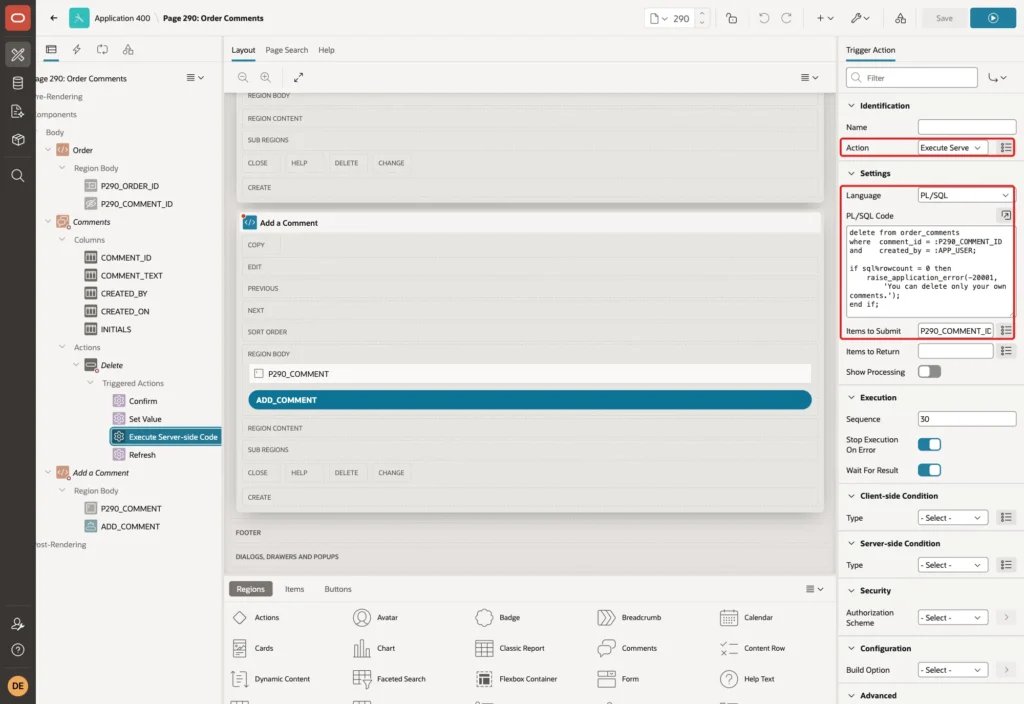
The condition on the action only hides the link. The real rule is the created_by = :APP_USER filter in the DELETE statement. If the ID belongs to another user, no row is deleted and the code raises an error.
Last, a Refresh action on the region Comments, so the deleted comment disappears without a page reload:
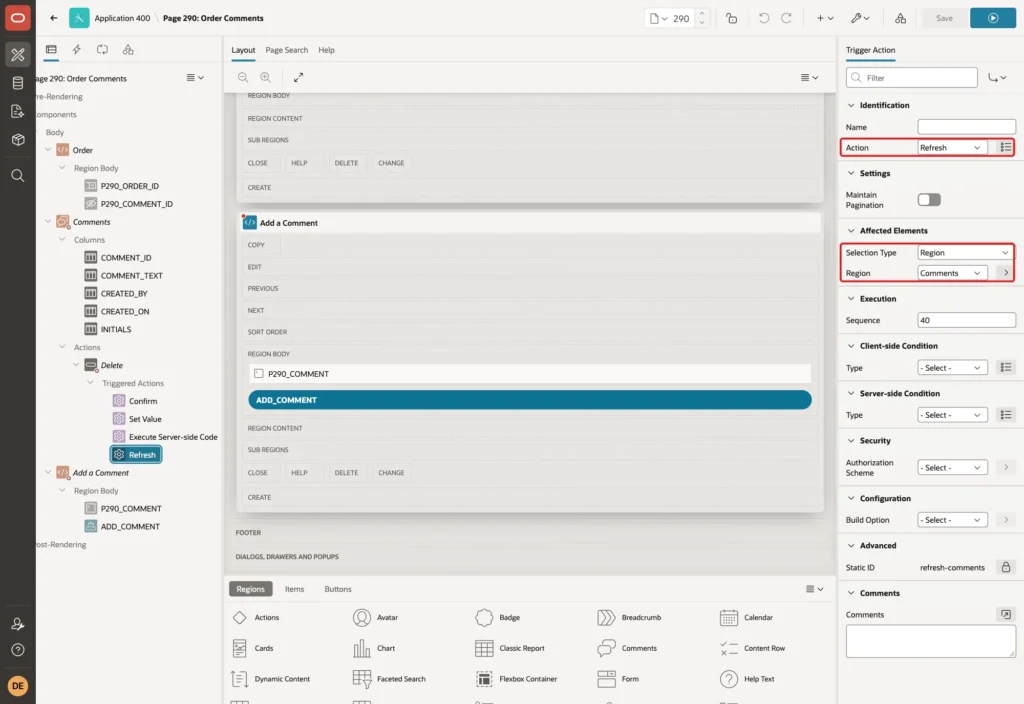
Click Save.
Step 8: Test the Comments Thread
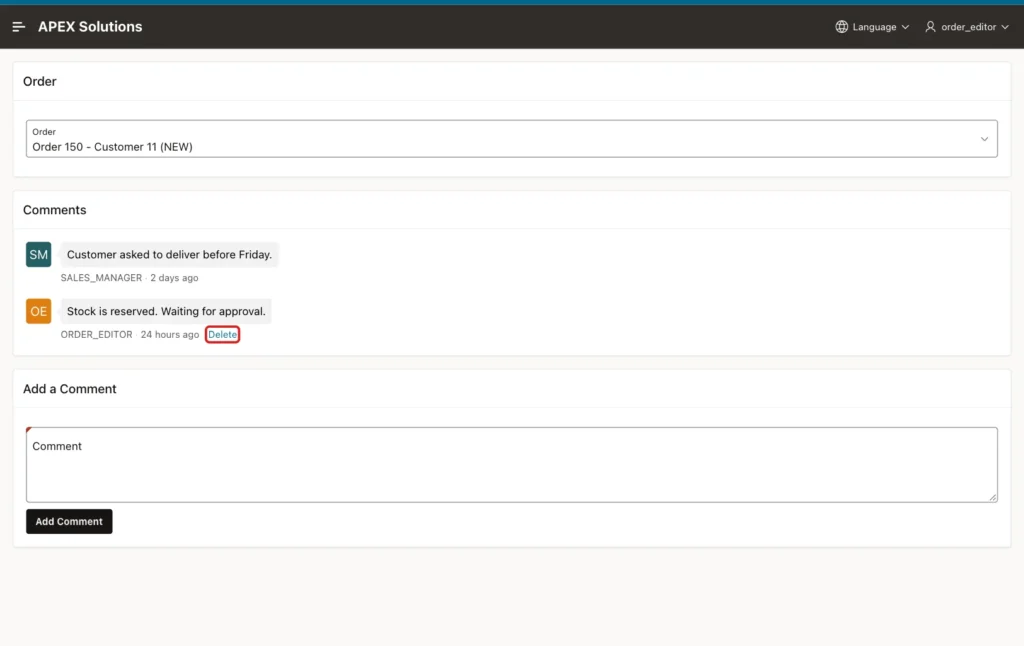
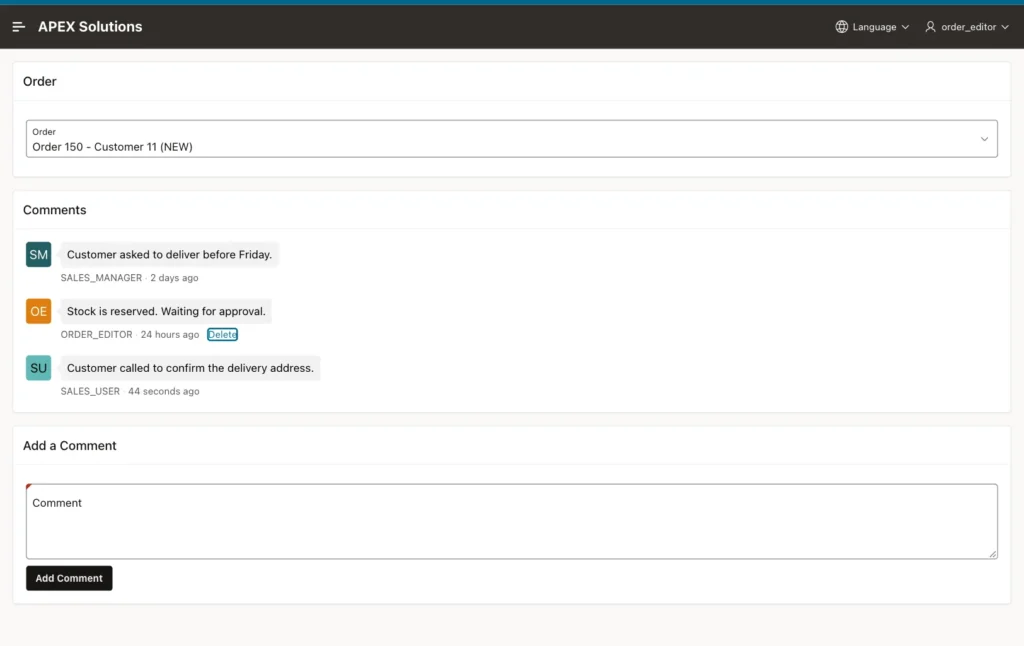
Run the page as ORDER_EDITOR and select Order 150. The thread shows two comments. Only the comment written by ORDER_EDITOR has a Delete link:
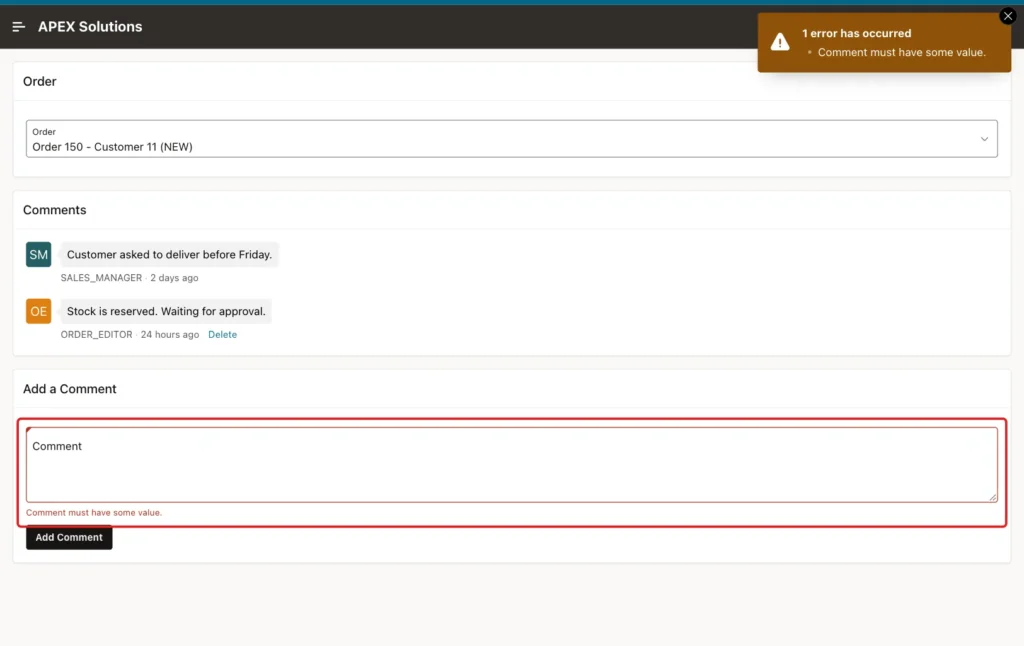
Enter only spaces in Comment and click Add Comment. Trim Spaces removes them, and Value Required shows an error:
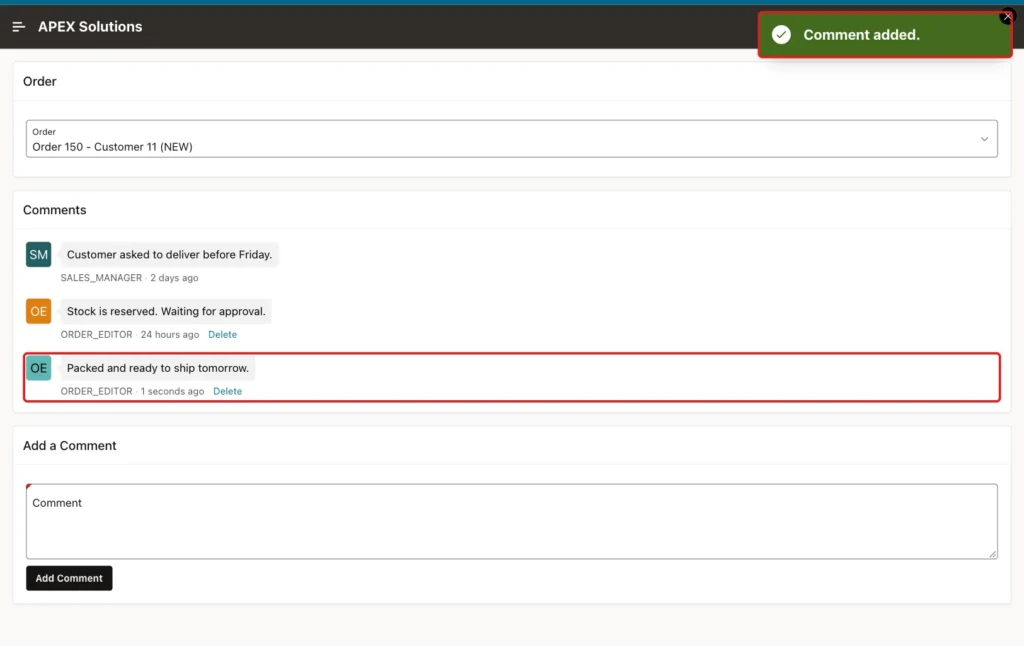
Enter Packed and ready to ship tomorrow. and click Add Comment. The success message appears, and the new comment shows at the end of the thread with the initials OE:
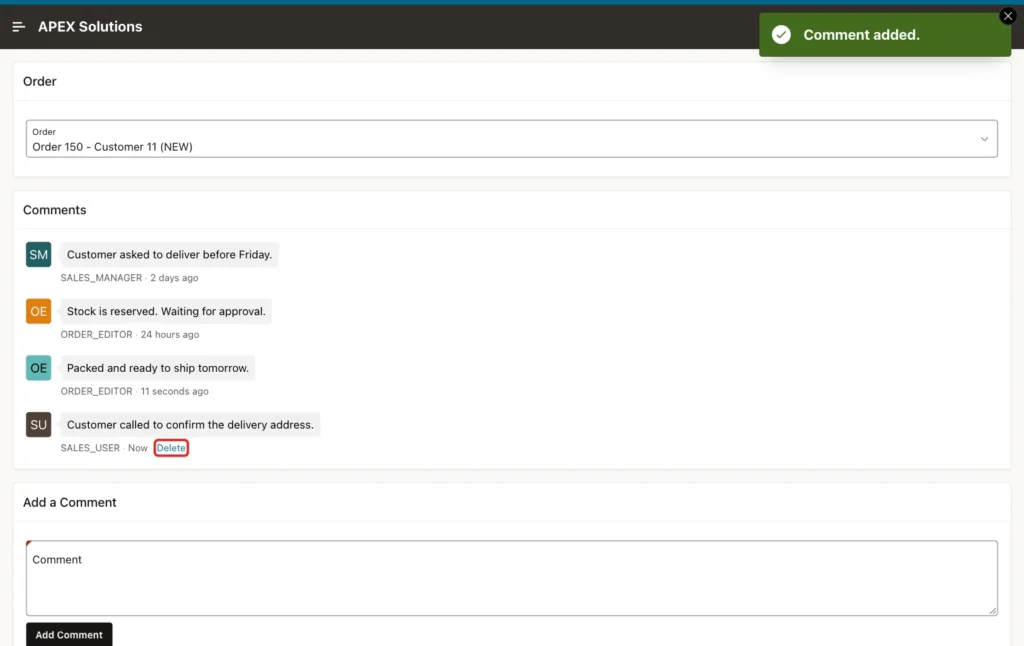
Now sign in as SALES_USER, open the same order, and add Customer called to confirm the delivery address. SALES_USER sees a Delete link only on this new comment. The comments of ORDER_EDITOR have none:
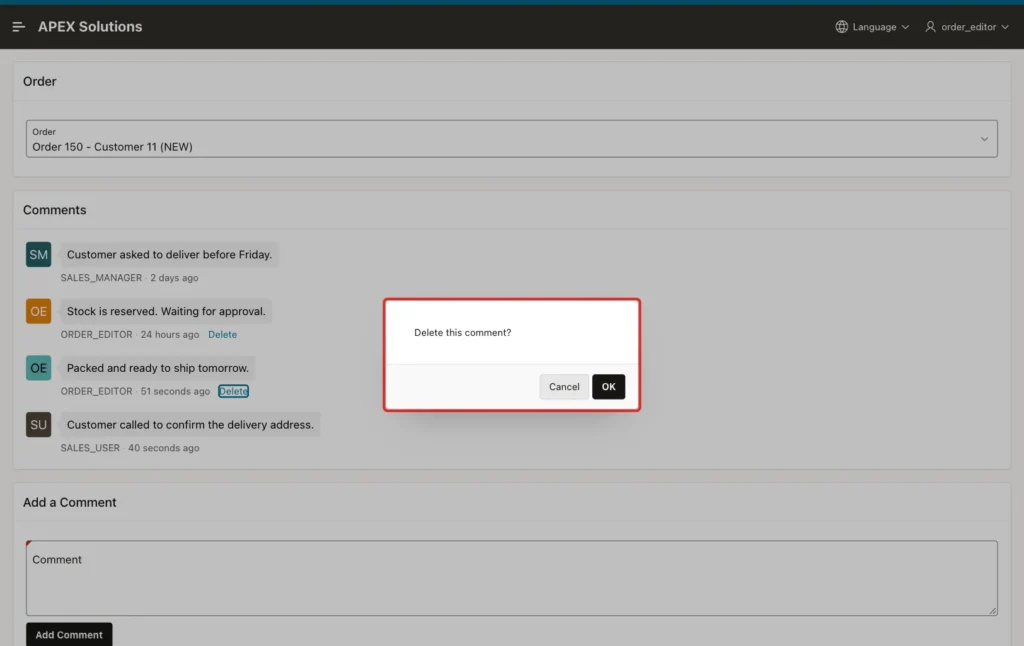
Sign in as ORDER_EDITOR again and click Delete on Packed and ready to ship tomorrow. The confirmation appears:
Click OK. The comment is deleted and the thread refreshes without reloading the page:
Step 9: Try to Delete Someone Else's Comment
A hidden link is not a security check. To test the server, run this in the browser console as ORDER_EDITOR on order 150. It makes the Set Value step write 26, the ID of the SALES_USER comment, and then clicks ORDER_EDITOR's own Delete link:
Example:
const item = apex.item("P290_COMMENT_ID");
const setOriginal = item.setValue.bind(item);
item.setValue = () => setOriginal("26");
document.querySelector(".t-Comments-actions a").click();
Click OK in the confirmation. The server refuses the delete:
Output:
Ajax call returned server error ORA-20001: You can delete only your own comments. for Execute Server-Side Code.
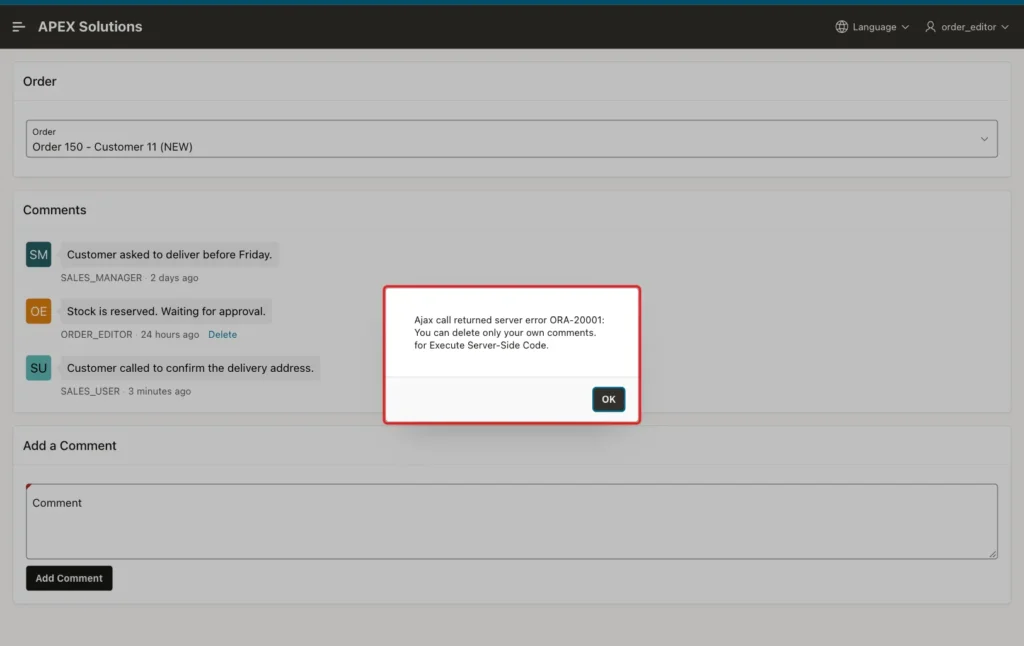
In a first try, the console script only changed the recordId in the href of the Delete link and clicked it. Nothing happened at all: APEX did not run the triggered actions for a record that has no Delete action on the page. The script above goes one step further and still fails on the server.
Check the comments of order 150 in SQL. The SALES_USER comment is still there, and only the deleted comment of ORDER_EDITOR is gone:
Example:
select comment_id, created_by,
       to_char(created_on, 'DD-MON HH24:MI') created_on, comment_text
from   order_comments
where  order_id = 150
order  by created_on;
Output:
   COMMENT_ID CREATED_BY       CREATED_ON      COMMENT_TEXT
_____________ ________________ _______________ ___________________________________________________
            1 SALES_MANAGER    12-OCT 12:56    Customer asked to deliver before Friday.
            2 ORDER_EDITOR     13-OCT 12:56    Stock is reserved. Waiting for approval.
           26 SALES_USER       14-OCT 13:18    Customer called to confirm the delivery address.
Finally, deleting an order removes its comments through the cascade. This test creates an order with a comment, deletes the order, and rolls back:
Example:
variable order_id number

begin
    insert into orders (customer_id, order_date, status)
    values (1, sysdate, 'NEW')
    returning order_id into :order_id;

    insert into order_comments (order_id, comment_text)
    values (:order_id, 'Test comment for a new order.');
end;
/

select count(*) as comments_before
from   order_comments
where  order_id = :order_id;

delete from orders where order_id = :order_id;

select count(*) as comments_after
from   order_comments
where  order_id = :order_id;

rollback;
Output:
PL/SQL procedure successfully completed.

   COMMENTS_BEFORE
__________________
                 1

1 row deleted.

   COMMENTS_AFTER
_________________
                0

Rollback complete.
Things to Know
- The Comments page wizard has only one screen and always starts on sample data. Change the region source to your own table right after creating the page.
- A server-side condition with Execute Condition For Each Row can read the columns of each row, so actions can depend on the data of the row.
- In a triggered action, this.recordId holds the key of the row whose action was clicked. In this example, COMMENT_ID is the column marked as Primary Key in the region columns.
- Hiding a link is not security. Always repeat the rule in the PL/SQL that changes the data, here created_by = :APP_USER.
- The error from Execute Server-side Code is shown as "Ajax call returned server error ... for Execute Server-Side Code." It is fine for a forged request, which a normal user never sends.
- The SINCE format mask shows "1 seconds ago" for a brand-new comment and "Now" for a few moments before that.
- To add comments to customers or products, copy the table with a foreign key to that table and change the order selector and the WHERE clause.
Related Guides
- How to Build an Approval Flow for Orders with Human Tasks in Oracle APEX
- How to Attach Files to Orders in Oracle APEX
Conclusion
To add a comments thread to orders in Oracle APEX, store the comments in a child table with DEFAULT ON NULL for the author and the date, create a page with the Comments wizard, and point its region to that table. A textarea and one insert process add new comments.
A Delete action with a For Each Row condition shows the link only on the user's own comments. Its triggered actions confirm, pass the record ID, delete on the server with a created_by check, and refresh the thread, so even a forged request cannot remove another user's comment.
