
Many business processes need a second person to say yes: an order must be approved by a manager before it is shipped, an expense before it is paid. Building that by hand means status columns, extra pages, and code to decide who may approve what, and it is easy to leave gaps, such as people approving their own requests.
Oracle APEX has Human Tasks for this. A task definition describes the approval: its subject, who can approve, and what happens on Approve and Reject. A page process creates a task for a record, and APEX provides the task list and the task details page with Approve and Reject buttons.
This guide builds an approval flow for orders, step by step, and tests it with a requester and an approver.
Step 1: The Tables
The approval works on ORDERS. Its STATUS column has a check constraint with the values NEW, APPROVED, SHIPPED, and CANCELLED, and the columns APPROVED_BY and APPROVED_ON record who approved an order and when. Here are the order tables with their keys:
Example:
create table customers (
    customer_id number generated by default as identity
                constraint customers_pk primary key,
    name        varchar2(100) not null,
    email       varchar2(120) not null
);

create table products (
    product_id number generated by default as identity
               constraint products_pk primary key,
    name       varchar2(60)  not null,
    category   varchar2(30)  not null,
    price      number(10, 2) not null
);

create table orders (
    order_id    number generated by default as identity
                constraint orders_pk primary key,
    customer_id number not null
                constraint orders_customer_fk references customers,
    order_date  date default sysdate not null,
    status      varchar2(12) default 'NEW' not null
                constraint orders_status_ck
                check (status in ('NEW', 'APPROVED', 'SHIPPED', 'CANCELLED')),
    approved_by varchar2(60),
    approved_on date
);

create table order_lines (
    line_id    number generated by default as identity
               constraint order_lines_pk primary key,
    order_id   number not null
               constraint order_lines_order_fk references orders on delete cascade,
    product_id number not null
               constraint order_lines_product_fk references products,
    quantity   number not null
               constraint order_lines_qty_ck check (quantity > 0),
    unit_price number(10, 2) not null,
    constraint order_lines_product_uk unique (order_id, product_id)
);

create index order_lines_order_ix on order_lines (order_id);
create index order_lines_product_ix on order_lines (product_id);
The flow in this guide:
- An editor, ORDER_EDITOR, picks a NEW order and requests approval.
- Every user with the Administrator role can approve; here that is DEMO_DEV. The roles come from Application Access Control.
- Approve sets the order to APPROVED with APPROVED_BY and APPROVED_ON. Reject sets it to CANCELLED.
Step 2: Create the Task Definition
In App Builder, open Shared Components and click Task Definitions, then Create. Enter:
- Name: Order Approval.
- Type: Approval Task.
- Subject: Approve order &ORDER_ID. for &CUSTOMER_NAME. The substitutions come from the columns of the task's SQL query, set in the next step.
- Priority: 2-High.
- Potential Owner: DEMO_DEV, a first value that Step 4 replaces with all administrators.
- Business Admin: DEMO_DEV, the administrator of the tasks of this definition.
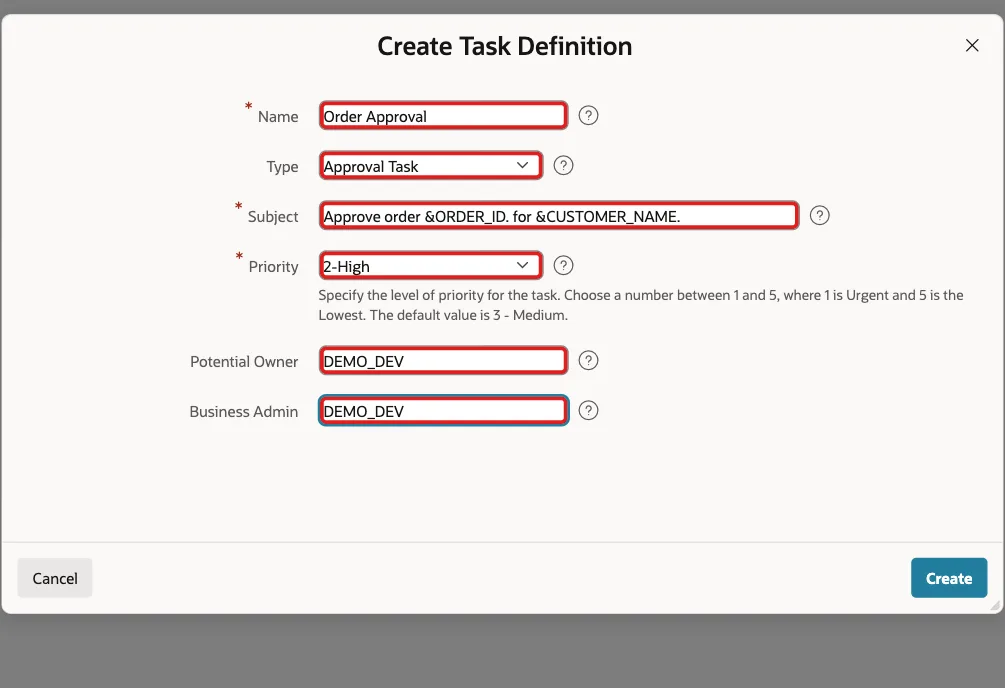
Click Create. APEX opens the edit page of the task definition. In its Settings, keep Initiator Can Complete off, so the user who requests an approval is not allowed to complete the task.
Step 3: Connect the Task to the Order
Each task stores the primary key of its record, the order ID. In Settings, set Actions Source to SQL Query, and enter this Actions SQL Query. :APEX$TASK_PK is the primary key of the task:
Example:
select o.order_id,
       c.name as customer_name,
       o.order_date,
       (select sum(l.quantity * l.unit_price)
        from   order_lines l
        where  l.order_id = o.order_id) as order_total
from   orders o
join   customers c on c.customer_id = o.customer_id
where  o.order_id = :APEX$TASK_PK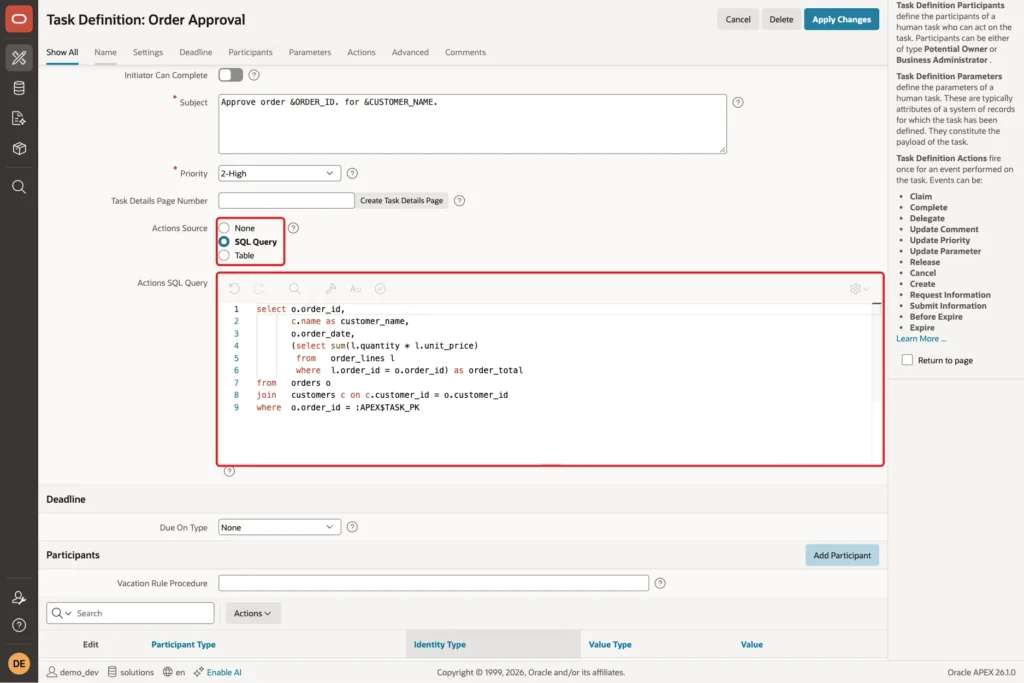
Click Apply Changes. The columns ORDER_ID and CUSTOMER_NAME now fill the subject, so a task reads like Approve order 10 for Customer 31.
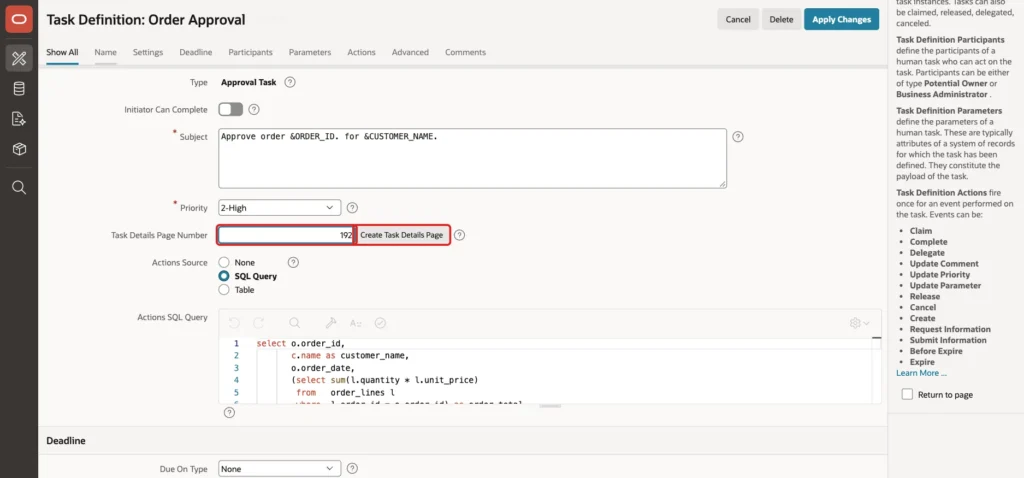
Open the task definition again. In Task Details Page Number, enter 192, and click Create Task Details Page. APEX creates page 192, Task Details, a drawer with the task's subject, Approve and Reject buttons, comments, and history, and links it to the task definition:
Step 4: Let All Administrators Approve
A fixed user name stops working as soon as that person leaves. In the Participants section, click the edit icon of the Potential Owner row, and set Value Type to SQL Query with this query. It returns every user who has the Administrator role in the application:
Example:
select user_name
from   apex_appl_acl_user_roles
where  application_id = :APP_ID
and    role_static_id = 'administrator'
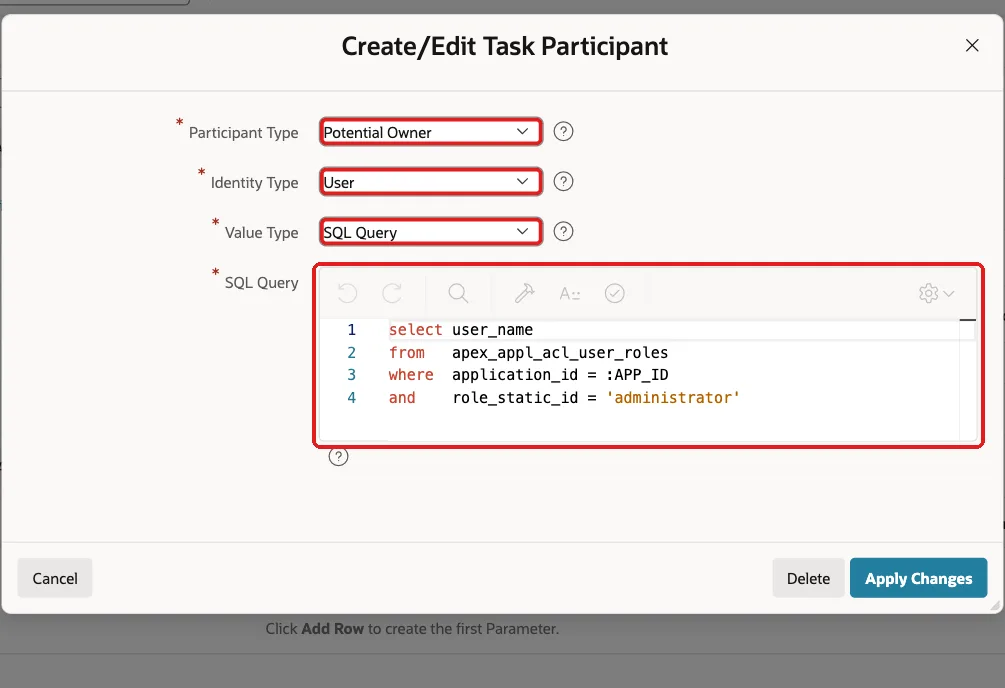
Click Apply Changes. When a task is created, APEX runs the query and makes each user a potential owner. When the query returns one user, the task is assigned to that user at once.
Step 5: Update the Order on Approve and Reject
In the Actions section, click Add Action. Enter:
- Name: Approve order.
- Type: Execute Code.
- On Event: Complete.
- Outcome: Approved.
Enter this code. :APEX$TASK_PK is the order ID, and :APP_USER is the user who approves:
Example:
update orders
set    status      = 'APPROVED',
       approved_by = :APP_USER,
       approved_on = sysdate
where  order_id = :APEX$TASK_PK;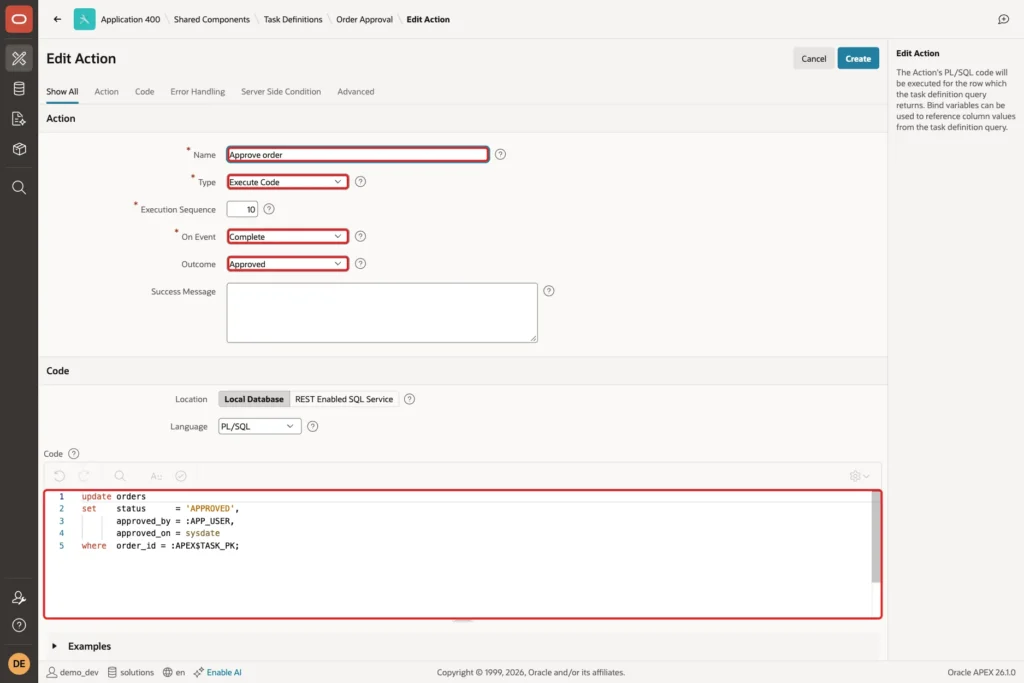
Click Create. Add a second action, Reject order, with On Event Complete, Outcome Rejected, and this code:
Example:
update orders
set    status = 'CANCELLED'
where  order_id = :APEX$TASK_PK;
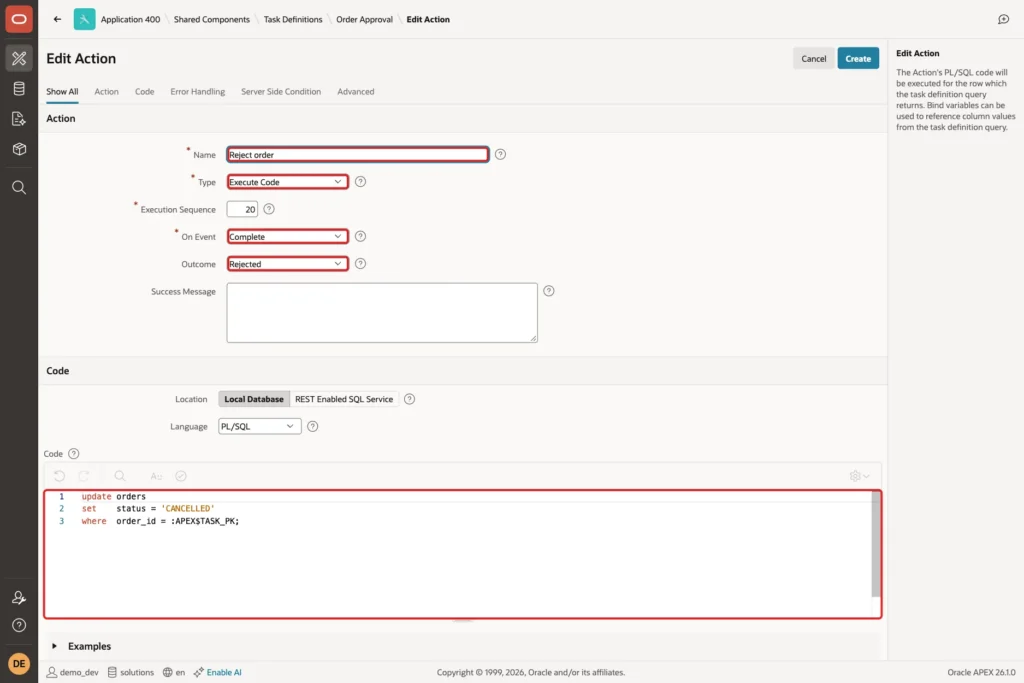
Click Create. The task definition is complete.
Step 6: Show the Order Lines on the Task Details Page
The approver should see what is being approved. Open page 192 in Page Designer, and create a Classic Report region named Order Lines in the Content Body, with this SQL query and Page Items to Submit P192_TASK_ID:
Example:
select p.name as product,
       l.quantity,
       l.unit_price,
       l.quantity * l.unit_price as amount
from   order_lines l
join   products p on p.product_id = l.product_id
where  l.order_id = (select to_number(t.detail_pk)
                     from   apex_tasks t
                     where  t.task_id = :P192_TASK_ID)
order by p.name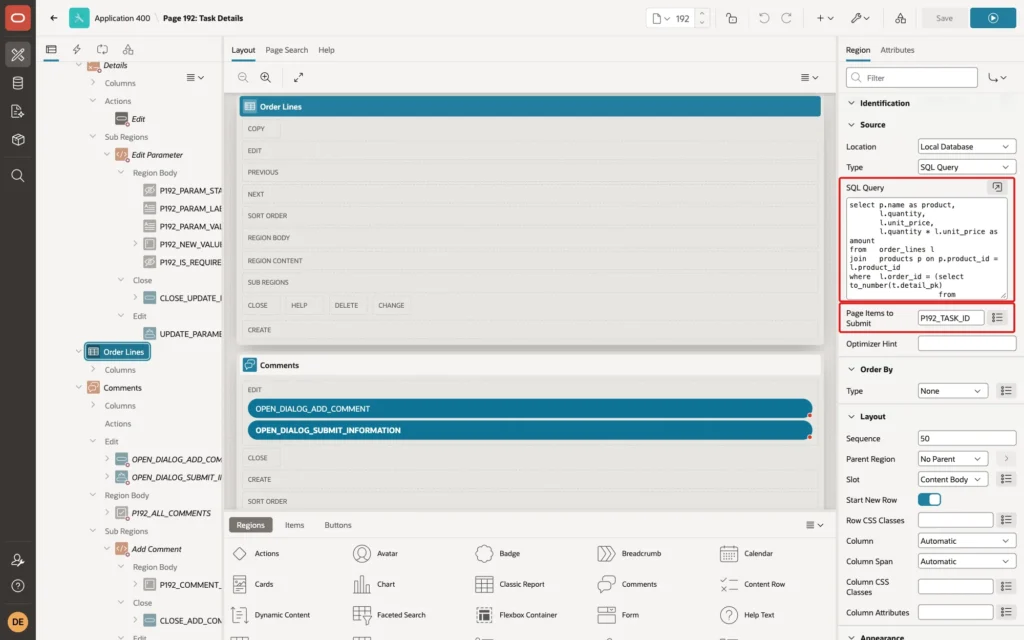
P192_TASK_ID holds the task the page shows, and the view APEX_TASKS stores the order ID of each task in DETAIL_PK, as text. Set the Format Mask of UNIT_PRICE and AMOUNT to FML999G999G990D00.
Step 7: A Page to Request Approval
Create a Blank Page, page 190, named Request Order Approval, and add a Static Content region, Request Order Approval, with:
- A Select List item, P190_ORDER_ID, label Order, with Value Required on.
- A button REQUEST, label Request Approval, Hot, with Action Submit Page.
The select list offers NEW orders that do not have an open approval task yet, so nobody requests the same approval twice. Set its List of Values Type to SQL Query, and Null Display Value to - Select Order -:
Example:
select 'Order ' || o.order_id || ' - ' || c.name as display_value,
       o.order_id as return_value
from   orders o
join   customers c on c.customer_id = o.customer_id
where  o.status = 'NEW'
and    not exists (
           select 1
           from   apex_tasks t
           where  t.task_def_static_id = 'order-approval'
           and    t.detail_pk = to_char(o.order_id)
           and    t.state_code in ('UNASSIGNED', 'ASSIGNED'))
order by o.order_id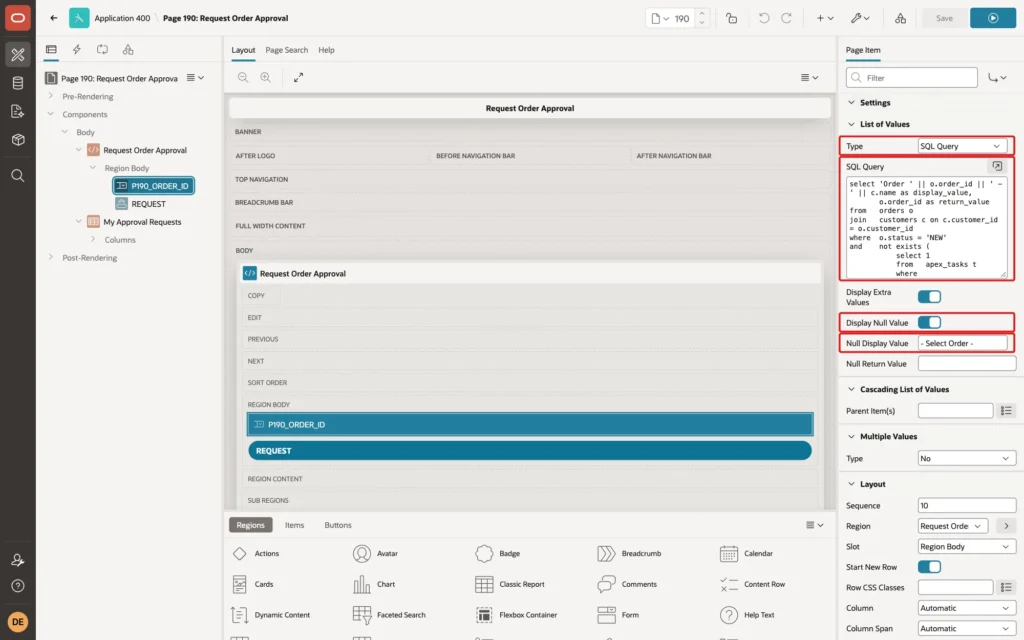
order-approval is the Static ID of the task definition, in its Advanced section.
Step 8: Create the Task When the Button Is Pressed
In the Processing tab, right-click Processing and click Create Process. Enter:
- Name: Request approval.
- Type: Human Task - Create.
- Human Task, Definition: Order Approval.
- Details Primary Key Item: P190_ORDER_ID, the order the task is for.
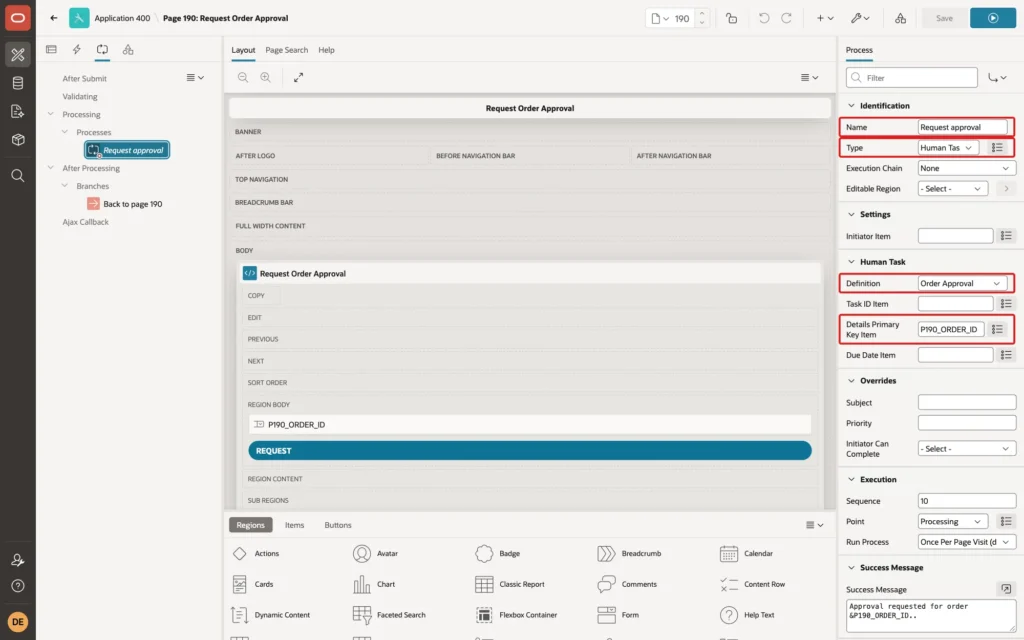
Set Success Message to Approval requested for order &P190_ORDER_ID.. (the second period ends the sentence), and When Button Pressed to REQUEST:
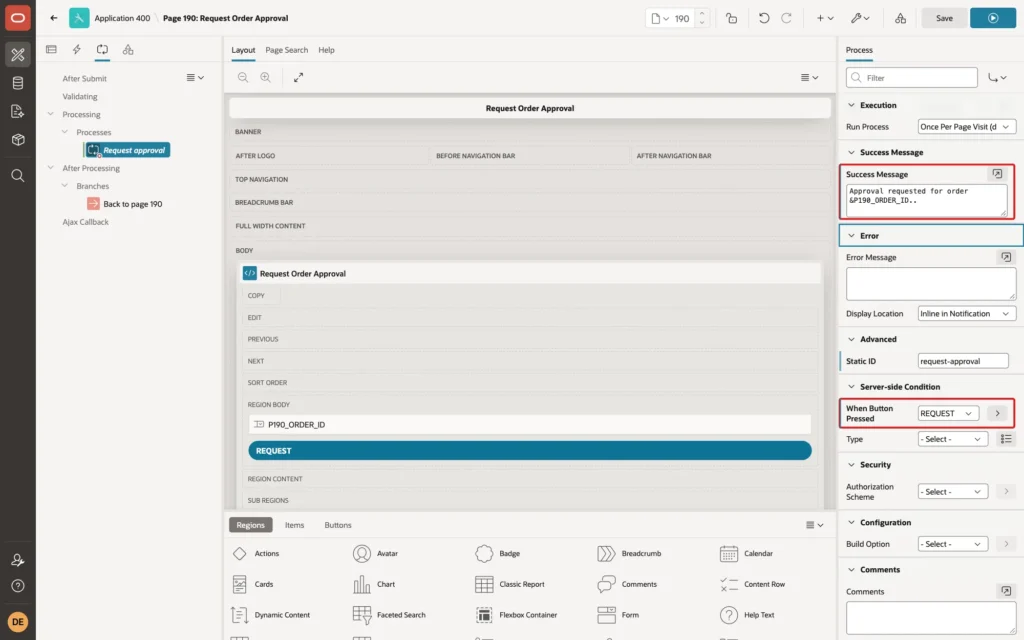
The user who submits the page becomes the task's initiator. Add a branch After Processing to page 190 with Clear Cache 190.
So the requester can follow their requests, add a Classic Report region, My Approval Requests, with this query:
Example:
select detail_pk as order_id,
       subject,
       state,
       outcome,
       actual_owner as approver,
       created_on
from   apex_tasks
where  task_def_static_id = 'order-approval'
and    initiator = :APP_USER
order by created_on desc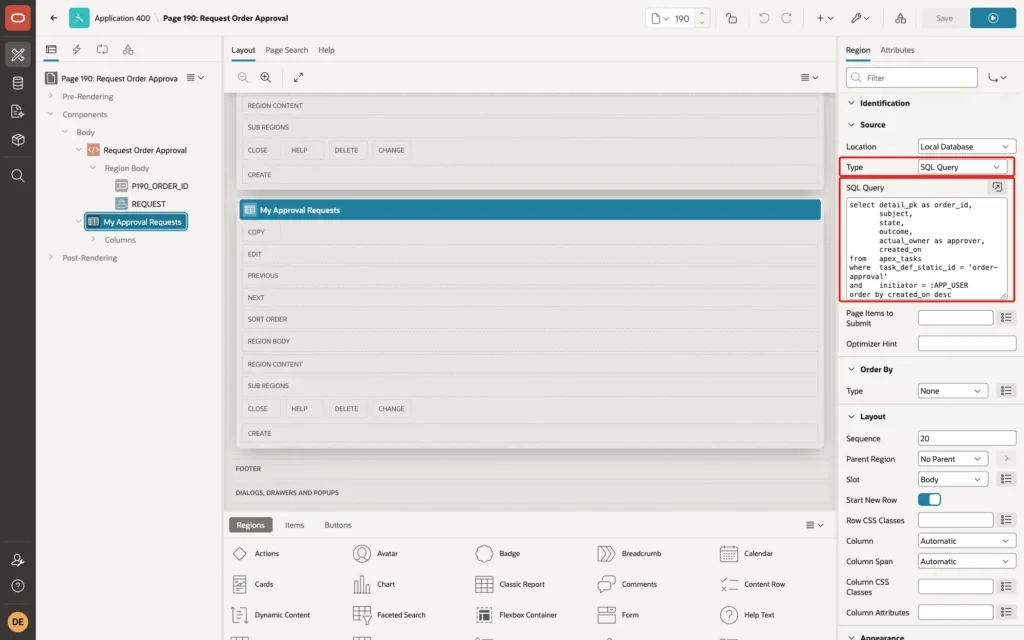
Add the page to the navigation menu as Request Order Approval: in Shared Components, Lists, Navigation Menu, click Create List Entry, with Target page 190.
Step 9: A Task List for the Approvers
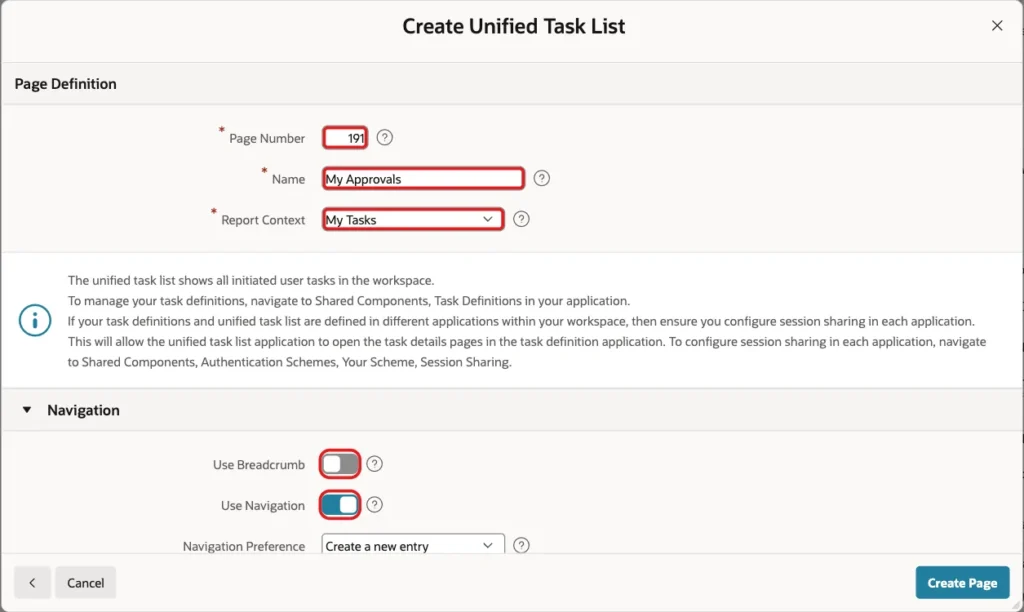
Approvers need one place to see their open tasks. Click Create Page, and on the Component tab click Unified Task List:
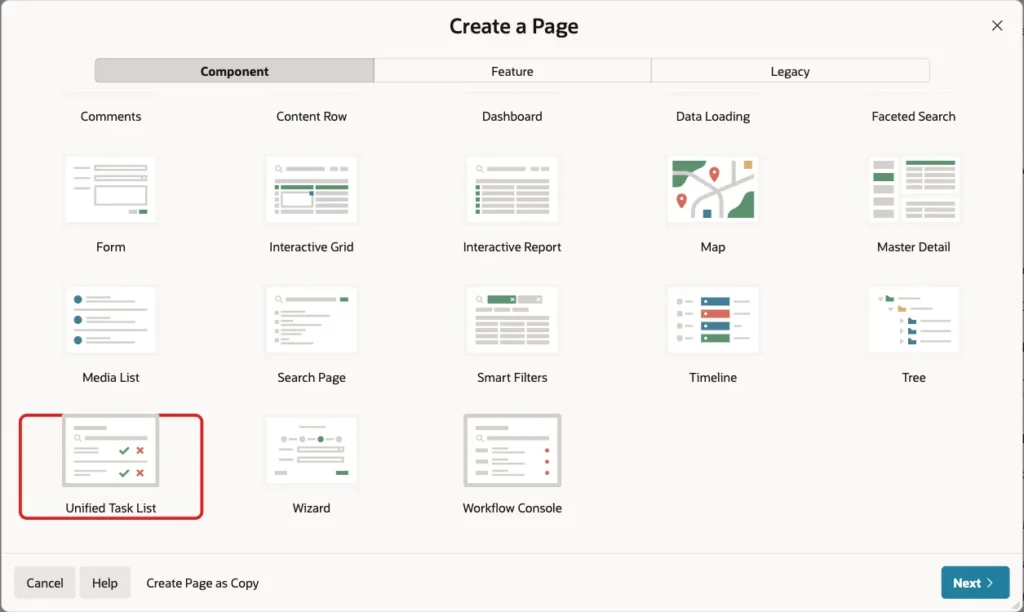
Enter Page Number 191, Name My Approvals, and Report Context My Tasks, which lists the tasks the signed-in user can work on. Turn off Use Breadcrumb, keep Use Navigation on so the page gets a menu entry, and click Create Page:
Step 10: Test the Approval Flow
ORDER_EDITOR signed in, opened Request Order Approval, selected order 10, and clicked Request Approval:
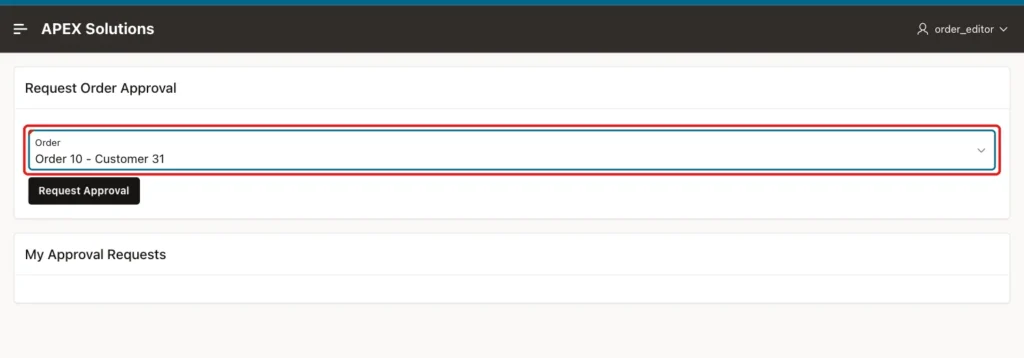
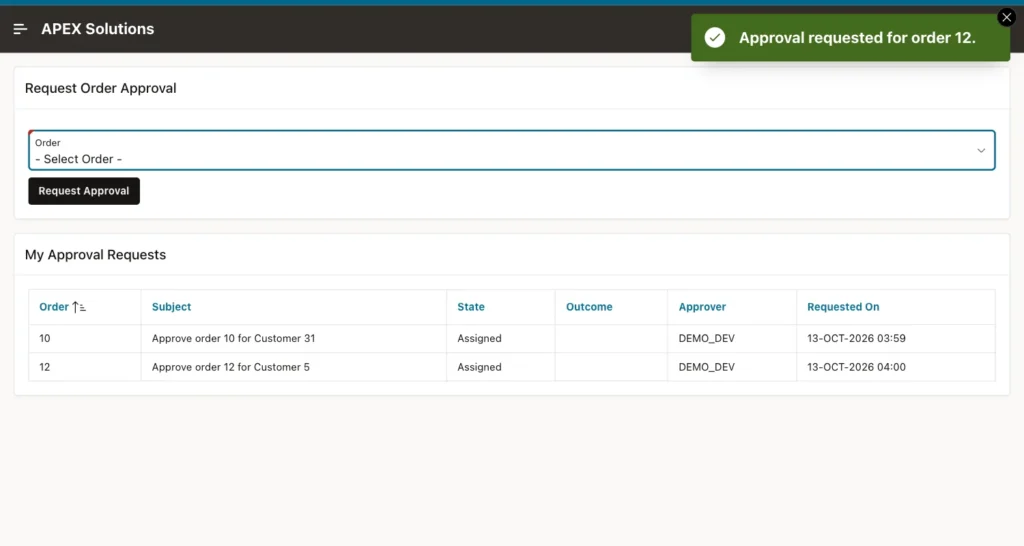
The page showed Approval requested for order 10., and order 10 was no longer in the select list. The editor requested order 12 the same way. Both tasks appeared in My Approval Requests as Assigned to DEMO_DEV, the only administrator:
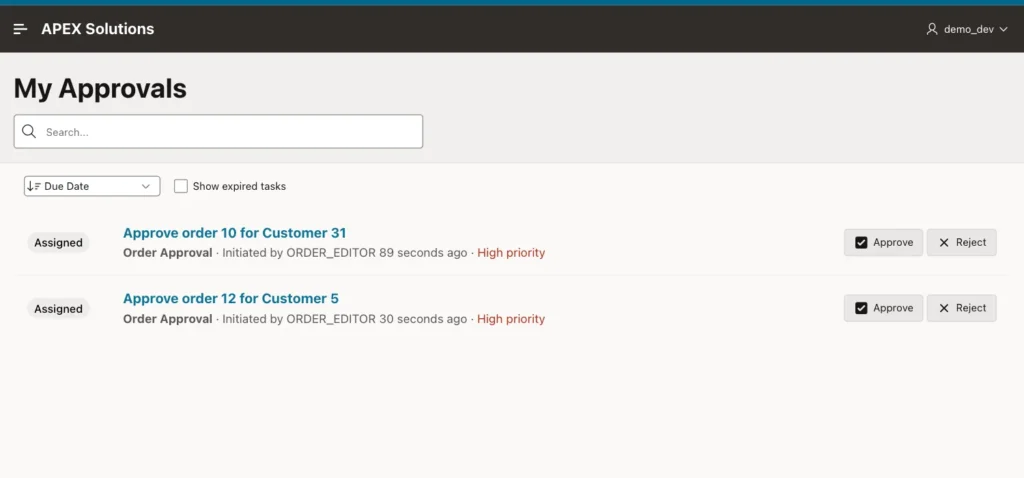
On My Approvals, ORDER_EDITOR saw No tasks found: an editor is not a potential owner. DEMO_DEV saw both tasks:
DEMO_DEV clicked the subject of order 10. The task details page opened as a drawer, with the order lines:
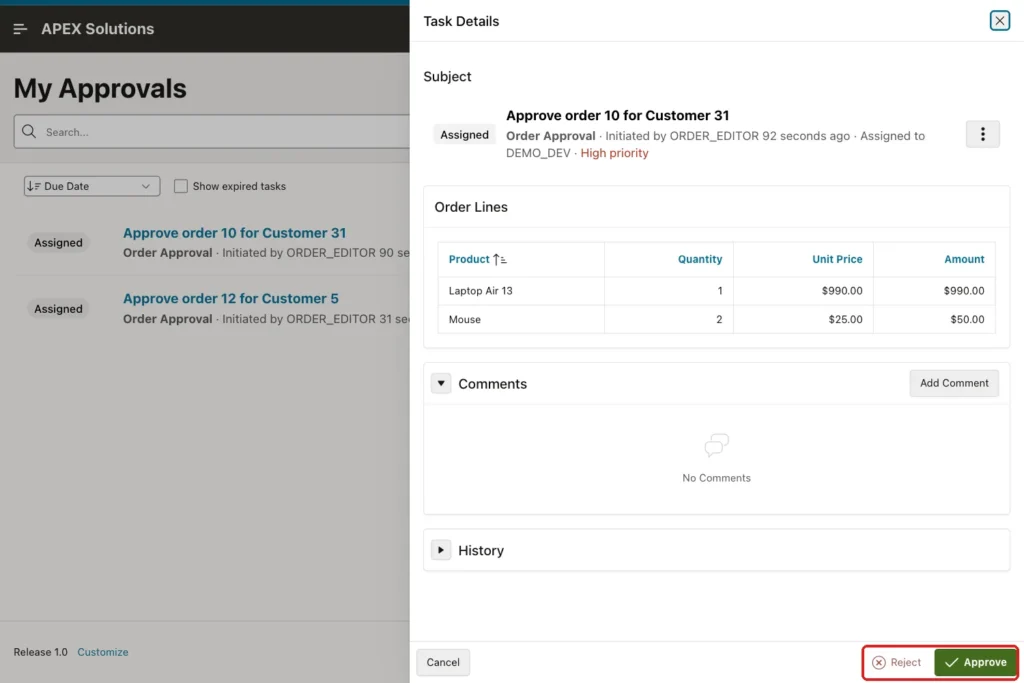
DEMO_DEV clicked Approve, and APEX showed Task approved. Then DEMO_DEV opened order 12 and clicked Reject, and APEX showed Task rejected. The task list was empty again, and the requester's report showed both decisions:
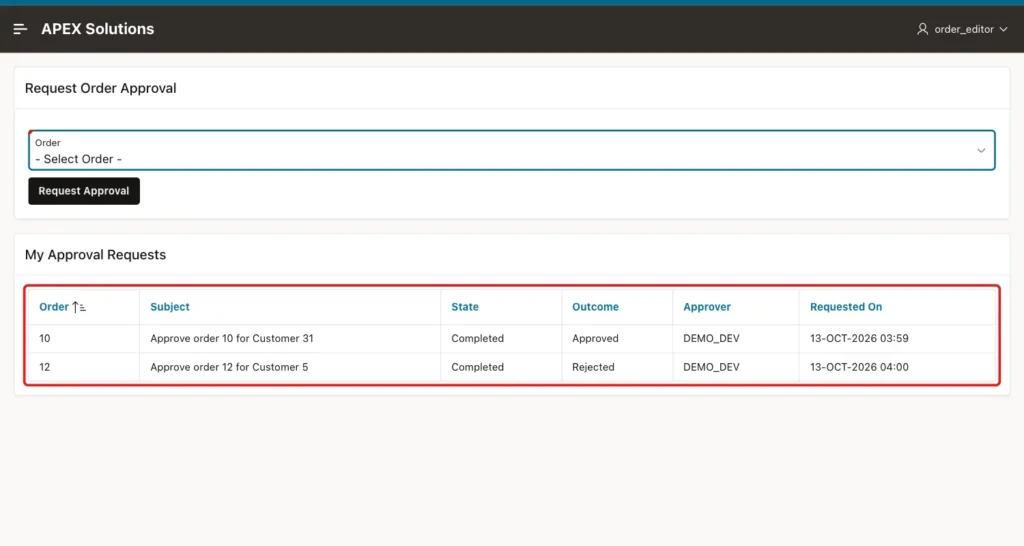
The actions updated the orders:
Example:
select order_id, status, approved_by, to_char(approved_on, 'DD-MON-YYYY') as approved_on
from   orders
where  order_id in (10, 12)
order by order_id;

select detail_pk as order_id, state, outcome, initiator, actual_owner
from   apex_tasks
where  task_def_static_id = 'order-approval'
order by task_id;
Output:
   ORDER_ID STATUS       APPROVED_BY    APPROVED_ON
___________ ____________ ______________ ______________
         10 APPROVED     DEMO_DEV       13-OCT-2026
         12 CANCELLED

ORDER_ID    STATE        OUTCOME     INITIATOR       ACTUAL_OWNER
___________ ____________ ___________ _______________ _______________
10          Completed    Approved    ORDER_EDITOR    DEMO_DEV
12          Completed    Rejected    ORDER_EDITOR    DEMO_DEV
Order 10 is APPROVED by DEMO_DEV with the approval date, and order 12 is CANCELLED.
Things to Know
- Besides Complete, actions can run on events such as Create, Claim, Delegate, and Expire, for example to send an email to the approvers when a task is created.
- Participants can also have the Identity Type Authorization Scheme. This guide uses a SQL query on the role assignments, which is easy to test in SQL.
Related Guides
- Oracle APEX Approvals, Tasks, and Workflows
- How to Give Users Roles (Admin, Editor, Reader) with Access Control in Oracle APEX
Conclusion
To build an approval flow in Oracle APEX, create an Approval Task definition with a SQL query on the record, potential owners from a query, and Execute Code actions for the Approved and Rejected outcomes, and let APEX create the task details page.
Then create tasks with a Human Task - Create process that passes the record's primary key, and give approvers a Unified Task List page. Requesters, approvers, and the order data then stay in step without any status code of your own.
