
Once users have roles, the pages should match them: a reader should not see a Create button they cannot use, an editor should not see Delete, and fields should be read-only for users who may only look. A clean page shows each user what they can do, and nothing more.
In Oracle APEX, buttons, regions, items, and columns have an Authorization Scheme property, and regions can be made read-only with a condition. This guide applies the roles Administrator, Editor, and Reader to a product report and form, and tests each role. It also shows why hiding a button is not enough: in testing, an editor deleted a product without a Delete button, until the form's own edit authorization was set.
Step 1: The Table and the Pages
The example uses a PRODUCTS table:
Example:
create table products (
    product_id number generated by default as identity
               constraint products_pk primary key,
    name       varchar2(60)  not null,
    category   varchar2(30)  not null,
    price      number(10, 2) not null
               constraint products_price_ck check (price >= 0)
);

insert into products (name, category, price) values ('Laptop Pro 14', 'Computers', 1450);
insert into products (name, category, price) values ('Monitor 27', 'Displays', 320);
insert into products (name, category, price) values ('Headset', 'Audio', 95);
commit;
Output:
Table PRODUCTS created.
On it, page 110 is a report of products with a Create button, and page 111 is a form on PRODUCTS with the buttons Copy, Apply Changes, Create, Delete, and Cancel. Create both with the Create Page wizard: a report page and a form page on PRODUCTS.
The roles come from the previous guide: in Application Access Control, DEMO_DEV is an Administrator, ORDER_EDITOR an Editor, and SALES_USER a Reader. Two authorization schemes of type Is In Role or Group check them:
- Can Edit: roles Administrator and Editor.
- Is Administrator: role Administrator.
Step 2: Hide the Buttons
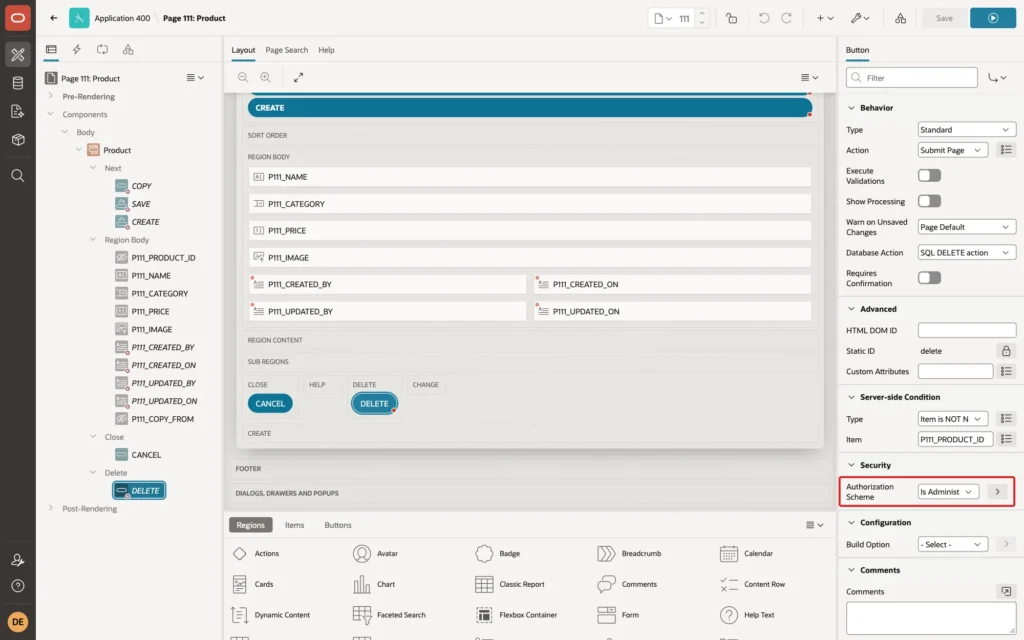
In Page Designer, select a button, and in its Security group set Authorization Scheme. A button whose scheme fails is not rendered at all:
- Page 110, CREATE: Can Edit.
- Page 111, COPY, SAVE (Apply Changes), and CREATE: Can Edit.
- Page 111, DELETE: Is Administrator.
- CANCEL: no scheme, so every user can leave the form.
Step 3: Make the Form Read-Only for Readers
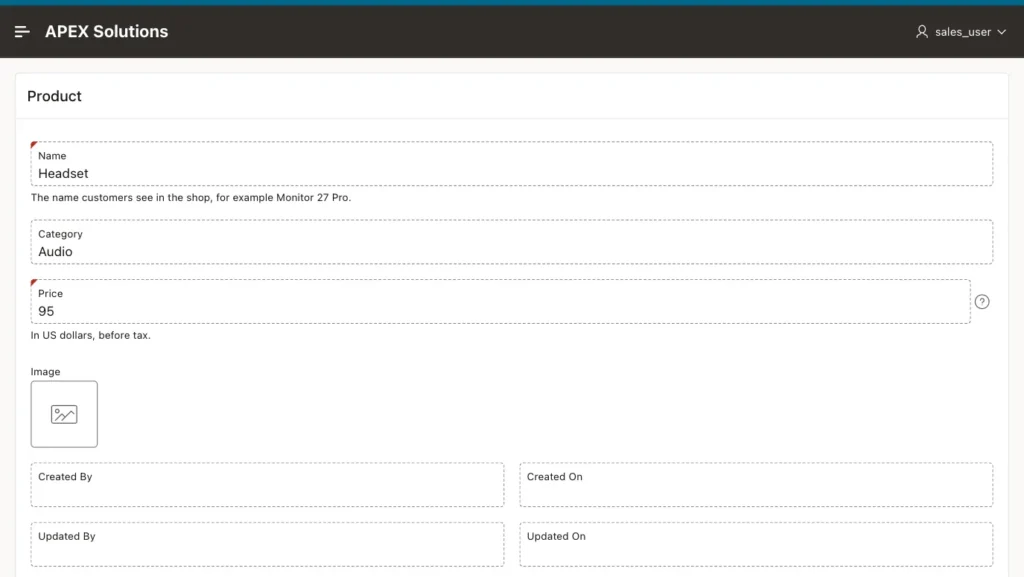
Hiding the save buttons is not enough for a good page: a reader would still see editable fields. Select the form region, Product, and in its Read Only group set Type to Expression, Language PL/SQL, and this PL/SQL Expression:
Example:
not apex_authorization.is_authorized('Can Edit')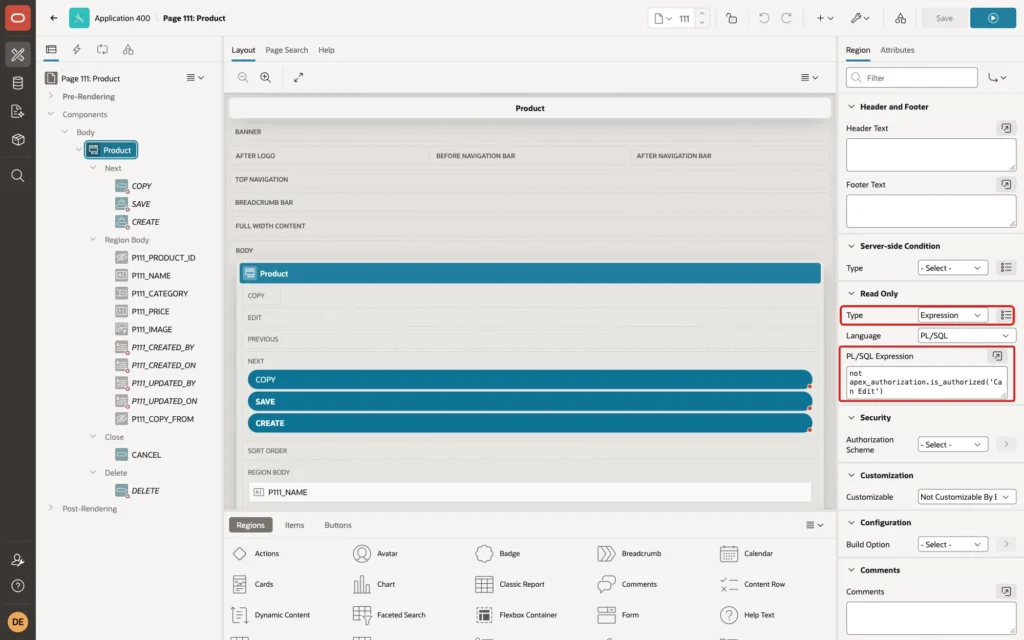
APEX_AUTHORIZATION.IS_AUTHORIZED checks a scheme by its name in PL/SQL, the same check the Authorization Scheme property does. When the region is read-only, all its items are displayed as text.
Step 4: Protect the Operations, Not Only the Buttons
In a test, ORDER_EDITOR opened a product, had no Delete button, and ran this in the browser console:
Example:
apex.submit( { request: "DELETE" } );The product was deleted. The form's processing ran the delete for the request DELETE, whether or not the button was on the page. A hidden button only hides a control; the server must check the operation itself.
Select the Product region, open its Attributes tab, and set the Edit Authorization group: Add and Update Can Edit, Delete Is Administrator:
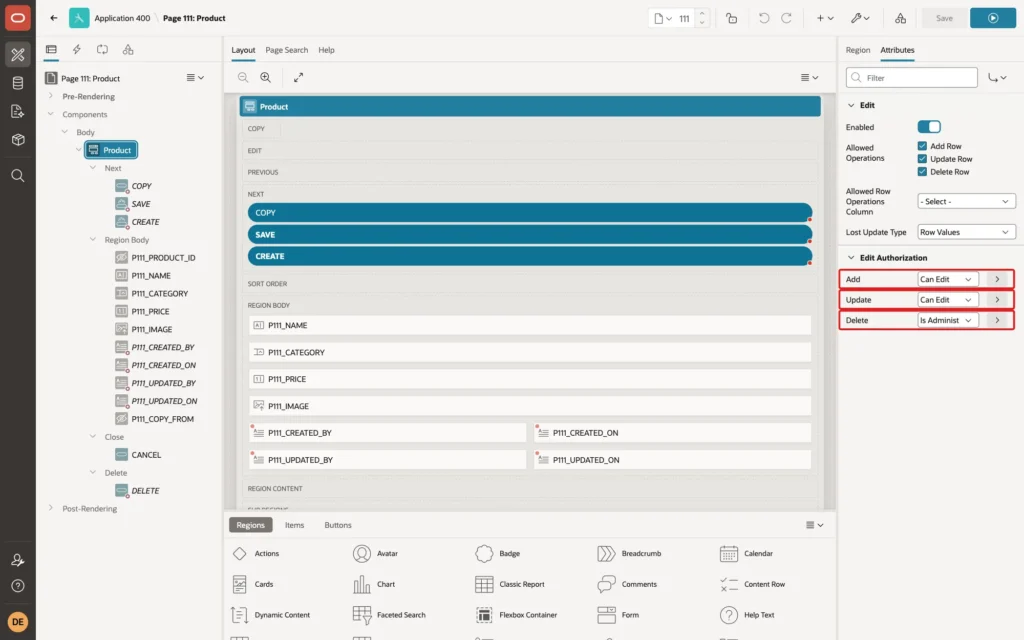
Repeated with a new test product, the same forced DELETE no longer removed the row: the product was still in the table. ORDER_EDITOR could still change its price with Apply Changes, the audit columns recorded UPDATED_BY ORDER_EDITOR, and DEMO_DEV could delete it with the Delete button.
Step 5: Test Each Role
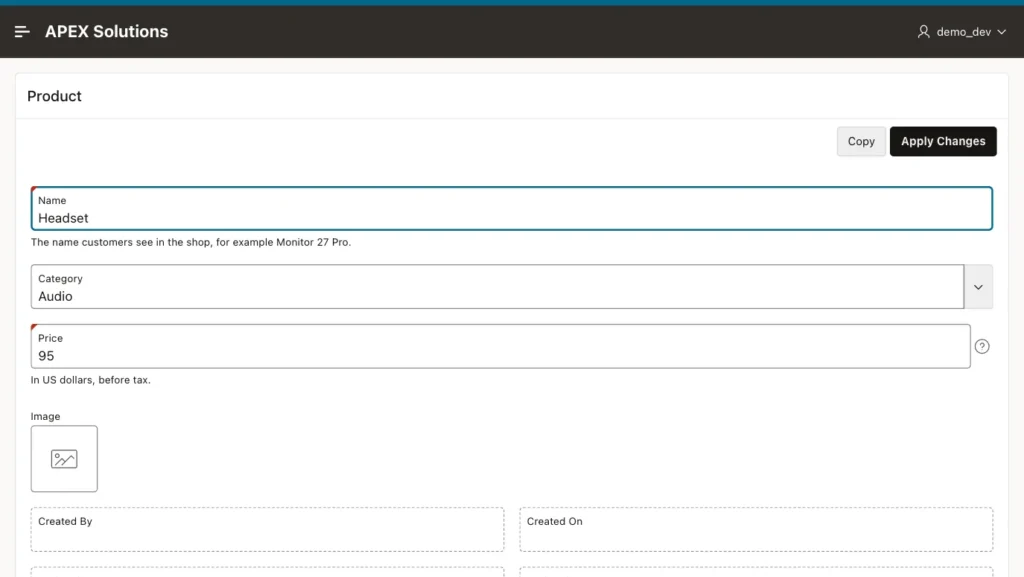
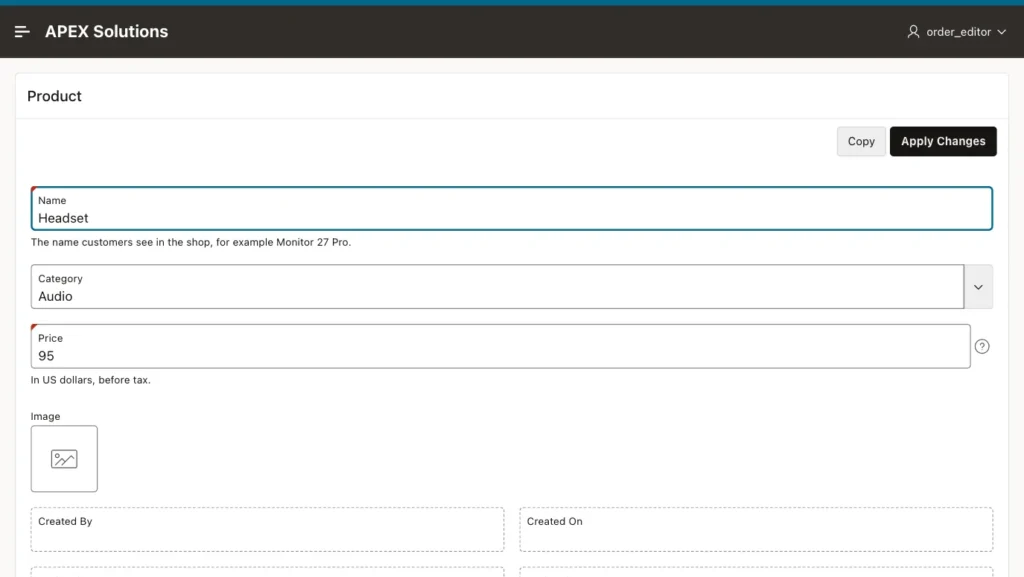
The three users opened the Products report and the Headset product:
- DEMO_DEV, Administrator: Create on the report; Copy, Apply Changes, Cancel, and Delete on the form.
- ORDER_EDITOR, Editor: Create on the report; Copy, Apply Changes, and Cancel on the form, no Delete.
- SALES_USER, Reader: no Create on the report; only Cancel on the form, and all fields read-only.
Things to Know
- Regions, items, report and grid columns, list entries, and processes all have an Authorization Scheme property; use it on regions to hide whole sections, such as an audit or cost section, from some roles.
- Interactive Grids have the same Edit Authorization group for add, update, and delete.
- For a process that does its own DML, set the Authorization Scheme on the process too, or check APEX_AUTHORIZATION.IS_AUTHORIZED in its code.
- Combine roles freely in schemes: a scheme can list several roles, and a component can use the negated form of a scheme, such as {Not Can Edit}, to show something only to readers.
Related Guides
- How to Give Users Roles (Admin, Editor, Reader) with Access Control in Oracle APEX
- How to Protect Oracle APEX Pages from URL Tampering
Conclusion
To hide buttons and regions based on the user's role in Oracle APEX, set Authorization Scheme on the components, and make forms read-only with not apex_authorization.is_authorized('Can Edit') as the region's Read Only expression.
Then protect the operations on the server: set the form's Edit Authorization for add, update, and delete, because a hidden button does not stop a request. Test every role, including what happens when a user sends a request the page does not offer.
