
Orders and their lines, invoices and invoice items, projects and tasks: many applications have a parent table with child rows. Users want to pick a parent and see and edit its children on the same page, without opening a second page for each order.
Oracle APEX builds this with the Master Detail page type. The Stacked style places two editable Interactive Grids on one page: selecting an order in the top grid shows its lines in the bottom grid, and new lines get the order's ID automatically. This guide starts from the tables and their keys, goes through every wizard step, makes the generated page easier to read, and tests adding a line.
Step 1: Create the Tables
The example uses four tables. ORDERS is the master table and ORDER_LINES the detail table; CUSTOMERS and PRODUCTS are lookups for them. Run the script in SQL Workshop, SQL Commands, or in SQLcl, in the schema of your APEX workspace:
Example:
create table customers (
    customer_id number generated by default as identity
                constraint customers_pk primary key,
    name        varchar2(100) not null,
    email       varchar2(120) not null
);

create table products (
    product_id number generated by default as identity
               constraint products_pk primary key,
    name       varchar2(60)  not null,
    category   varchar2(30)  not null,
    price      number(10, 2) not null
);

create table orders (
    order_id    number generated by default as identity
                constraint orders_pk primary key,
    customer_id number not null
                constraint orders_customer_fk references customers,
    order_date  date default sysdate not null,
    status      varchar2(12) default 'NEW' not null
                constraint orders_status_ck
                check (status in ('NEW', 'APPROVED', 'SHIPPED', 'CANCELLED')),
    approved_by varchar2(60),
    approved_on date
);

create table order_lines (
    line_id    number generated by default as identity
               constraint order_lines_pk primary key,
    order_id   number not null
               constraint order_lines_order_fk references orders on delete cascade,
    product_id number not null
               constraint order_lines_product_fk references products,
    quantity   number not null
               constraint order_lines_qty_ck check (quantity > 0),
    unit_price number(10, 2) not null,
    constraint order_lines_product_uk unique (order_id, product_id)
);

create index order_lines_order_ix on order_lines (order_id);
create index order_lines_product_ix on order_lines (product_id);
Output:
Table CUSTOMERS created.

Table PRODUCTS created.

Table ORDERS created.

Table ORDER_LINES created.

Index ORDER_LINES_ORDER_IX created.

Index ORDER_LINES_PRODUCT_IX created.
The keys are what the master-detail page is built on:
- Each table has a primary key: CUSTOMERS_PK, PRODUCTS_PK, ORDERS_PK, and ORDER_LINES_PK. The grids use them to identify the rows they update and delete.
- ORDER_LINES_ORDER_FK links each line to its order. The wizard reads this foreign key to link the two grids, so it must exist before you create the page. ON DELETE CASCADE deletes the lines of a deleted order.
- ORDERS_CUSTOMER_FK and ORDER_LINES_PRODUCT_FK make sure every order has a valid customer and every line a valid product.
- ORDER_LINES_PRODUCT_UK allows each product only once per order, so quantities are entered on one line instead of on duplicate lines.
- The two indexes on ORDER_LINES support the foreign keys: the detail grid queries the lines by ORDER_ID every time the user selects an order.
Add a few rows to test with:
Example:
insert into customers (name, email) values ('Contact 12', 'contact12@example.com');
insert into customers (name, email) values ('Contact 15', 'contact15@example.com');

insert into products (name, category, price) values ('Monitor 27', 'Displays', 320);
insert into products (name, category, price) values ('Docking Station', 'Accessories', 180);
insert into products (name, category, price) values ('Headset', 'Audio', 95);

insert into orders (customer_id, order_date, status) values (1, date '2026-05-22', 'NEW');
insert into orders (customer_id, order_date, status) values (2, date '2026-09-20', 'NEW');

insert into order_lines (order_id, product_id, quantity, unit_price) values (1, 1, 2, 320);
insert into order_lines (order_id, product_id, quantity, unit_price) values (1, 2, 3, 180);
insert into order_lines (order_id, product_id, quantity, unit_price) values (2, 3, 1, 95);

commit;
Check the constraints in the data dictionary:
Example:
select table_name, constraint_name, constraint_type
from   user_constraints
where  table_name in ('CUSTOMERS', 'PRODUCTS', 'ORDERS', 'ORDER_LINES')
and    constraint_type in ('P', 'R', 'U')
order  by table_name, constraint_type;
Output:
TABLE_NAME    CONSTRAINT_NAME          CONSTRAINT_TYPE
___________   ______________________   _______________
CUSTOMERS     CUSTOMERS_PK             P
ORDERS        ORDERS_PK                P
ORDERS        ORDERS_CUSTOMER_FK       R
ORDER_LINES   ORDER_LINES_PK           P
ORDER_LINES   ORDER_LINES_ORDER_FK     R
ORDER_LINES   ORDER_LINES_PRODUCT_FK   R
ORDER_LINES   ORDER_LINES_PRODUCT_UK   U
PRODUCTS      PRODUCTS_PK              P

8 rows selected.
Constraint type P is a primary key, R a foreign key, and U a unique key. The screenshots below come from a lab with more sample data: 150 orders for 40 customers.
Step 2: Create the Page with the Master Detail Wizard
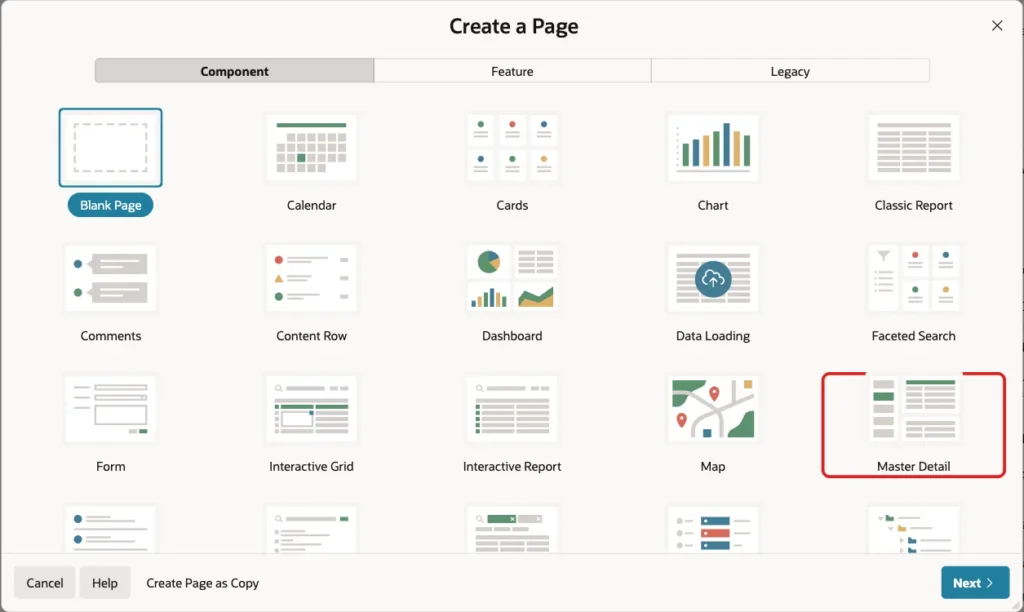
In App Builder, open the application, click Create Page, and select Master Detail on the Component tab:
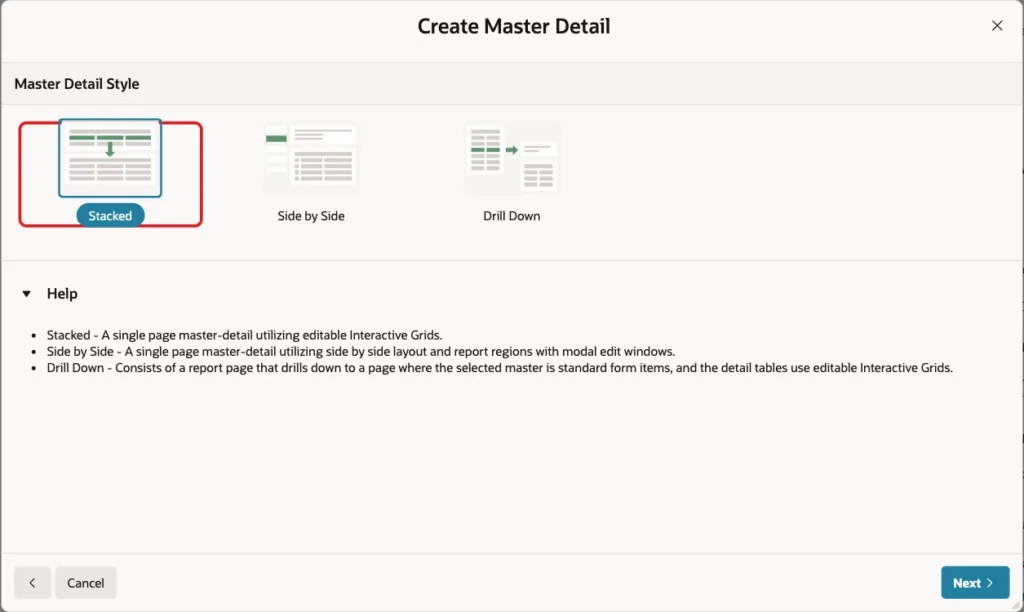
Select the Stacked style. It creates one page with two editable Interactive Grids, the master above the detail; clicking the style moves to the next step:
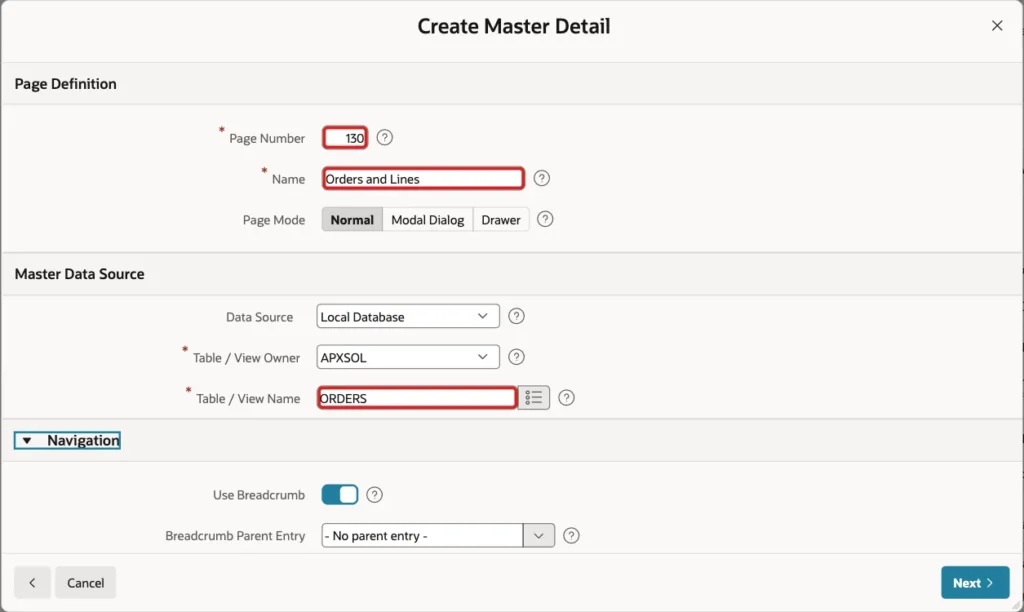
Enter the page and the master table:
- Page Number: 130. Name: Orders and Lines. Page Mode: Normal.
- Master Data Source: Local Database, Table / View Owner your schema, and Table / View Name ORDERS.
- Navigation: keep the defaults, which add a breadcrumb and a navigation menu entry for the page.
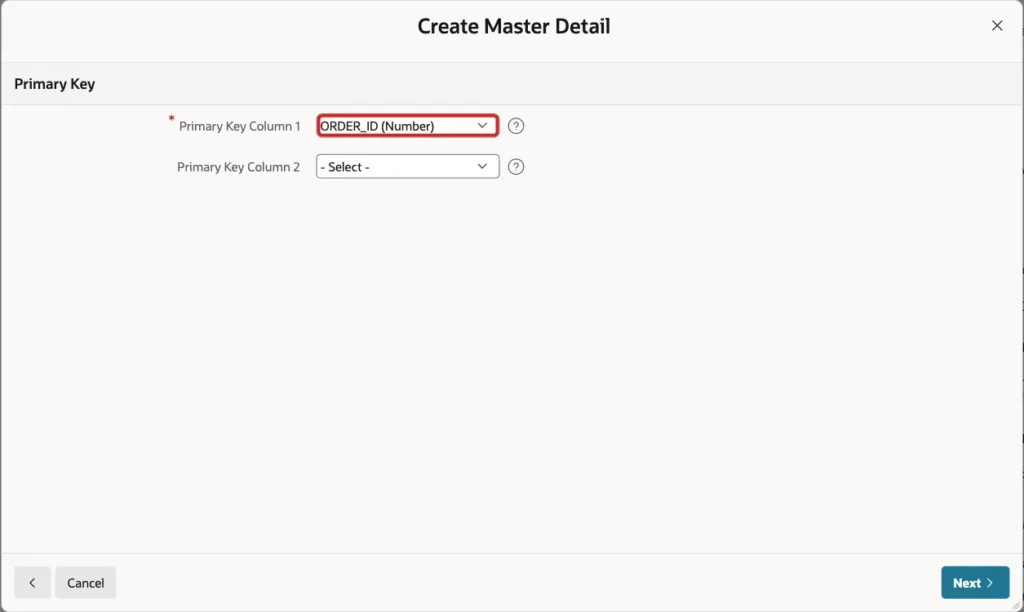
Click Next. The wizard proposes the master's primary key from the table's primary key constraint. Keep ORDER_ID:
Click Next, and enter the detail table. Detail Region Title is the heading of the lower grid. With Show Only Related Tables on, the list offers only tables with a foreign key to ORDERS:
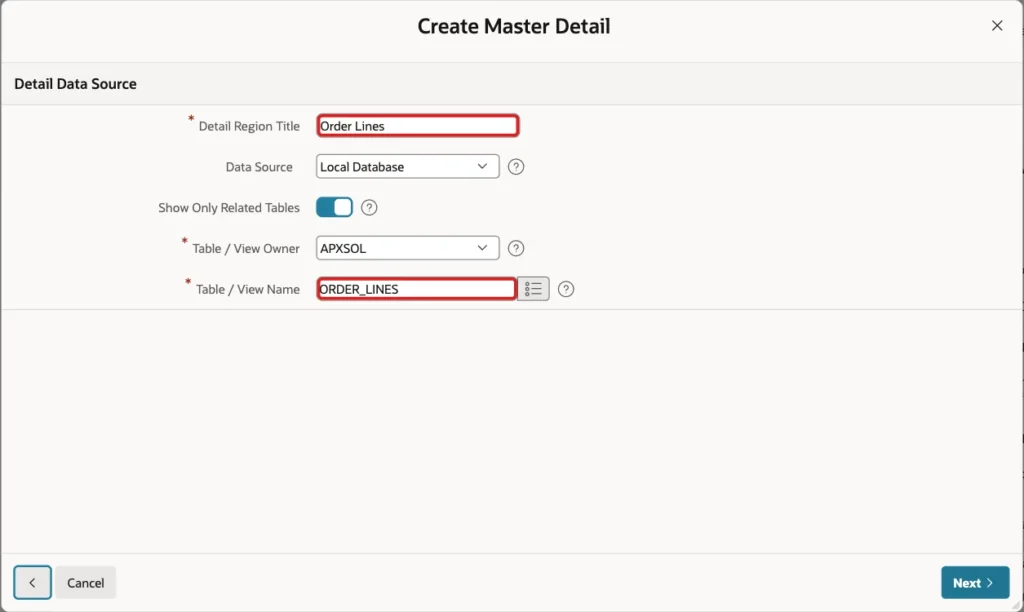
Click Next. Keep LINE_ID as the detail's primary key, and choose the foreign key that links the tables, ORDER_ID -> ORDER_ID. This is the ORDER_LINES_ORDER_FK constraint from step 1:
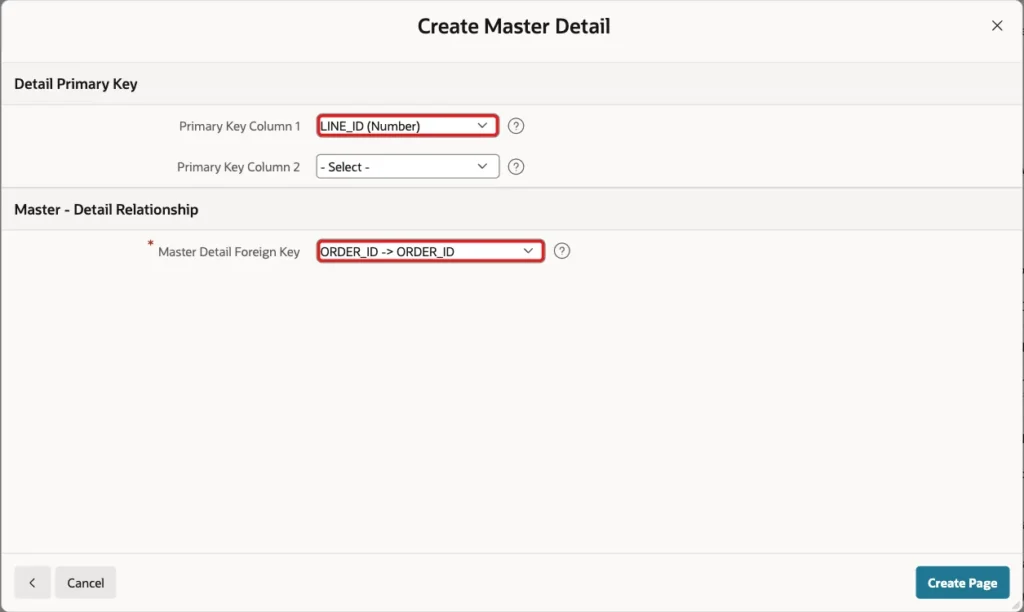
Click Create Page. APEX creates page 130 with the two grids, a Save button, and an Interactive Grid - Automatic Row Processing (DML) process for each grid.
How the Two Grids Are Linked
The link between the grids is two properties set by the wizard. On the detail grid, Master Region names the master grid:
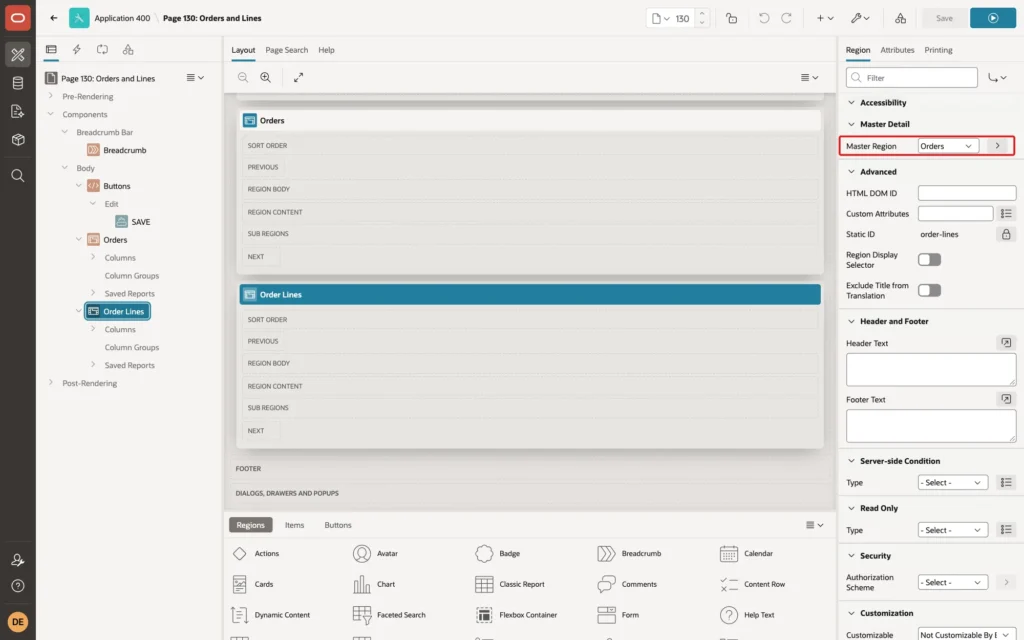
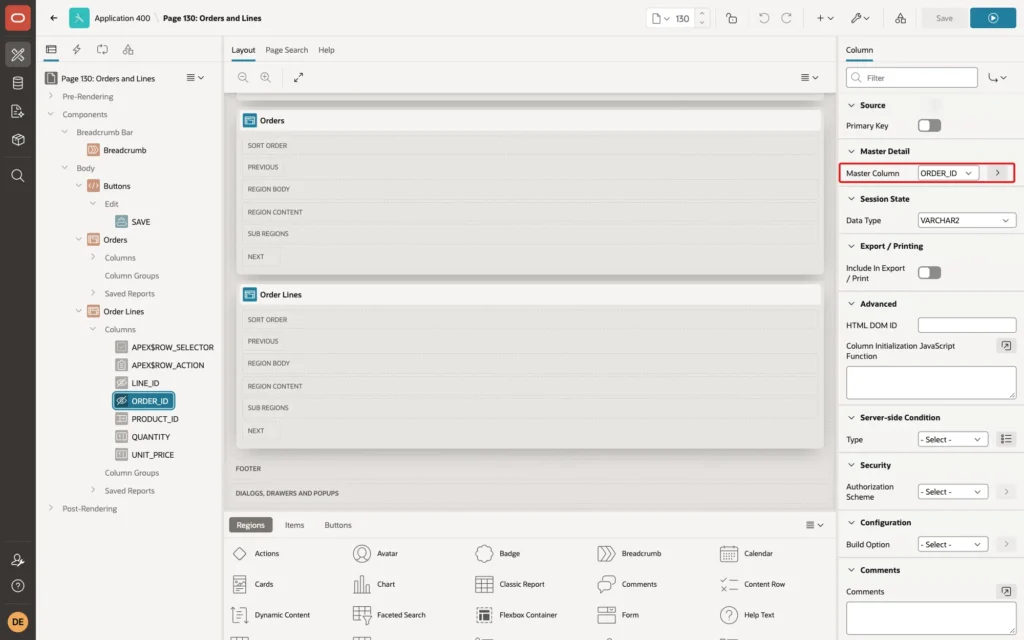
On the detail grid's ORDER_ID column, Master Column names the master's key column. The detail grid shows only rows whose ORDER_ID equals the selected order, and sets ORDER_ID on new rows:
Step 3: Make the Page Easier to Read
The generated grids show raw IDs and a hidden order number. Three changes in Page Designer make the page usable.
First, show names instead of IDs. Select the CUSTOMER_ID column of the Orders grid and set Type to Select List, Heading to Customer, and the List of Values to Type SQL Query with this query:
Example:
select name, customer_id
from   customers
order  by name
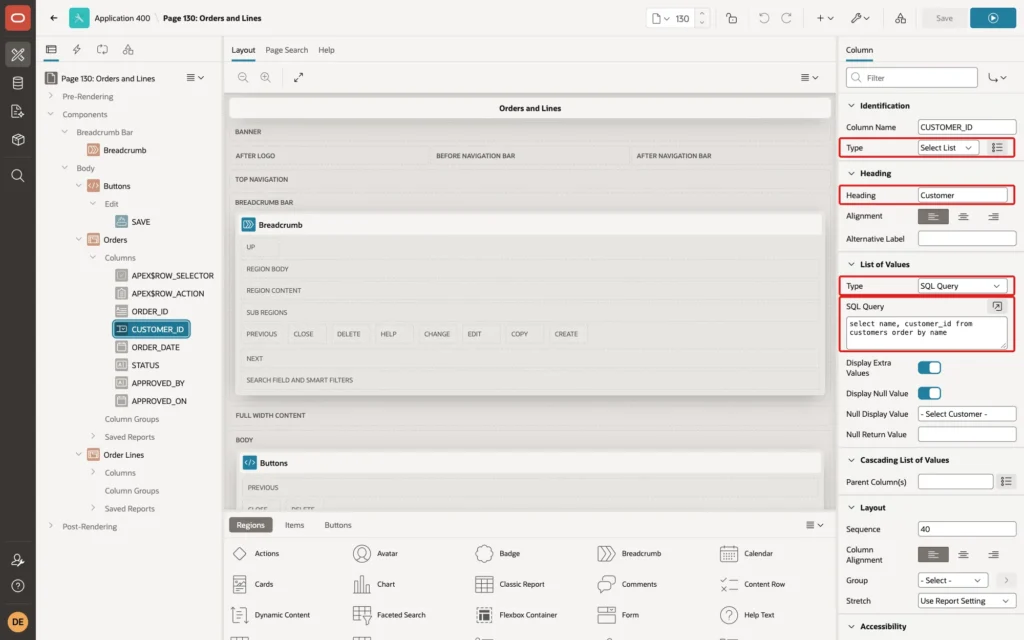
Do the same for the PRODUCT_ID column of the Order Lines grid, with Heading Product and the query select name, product_id from products order by name.
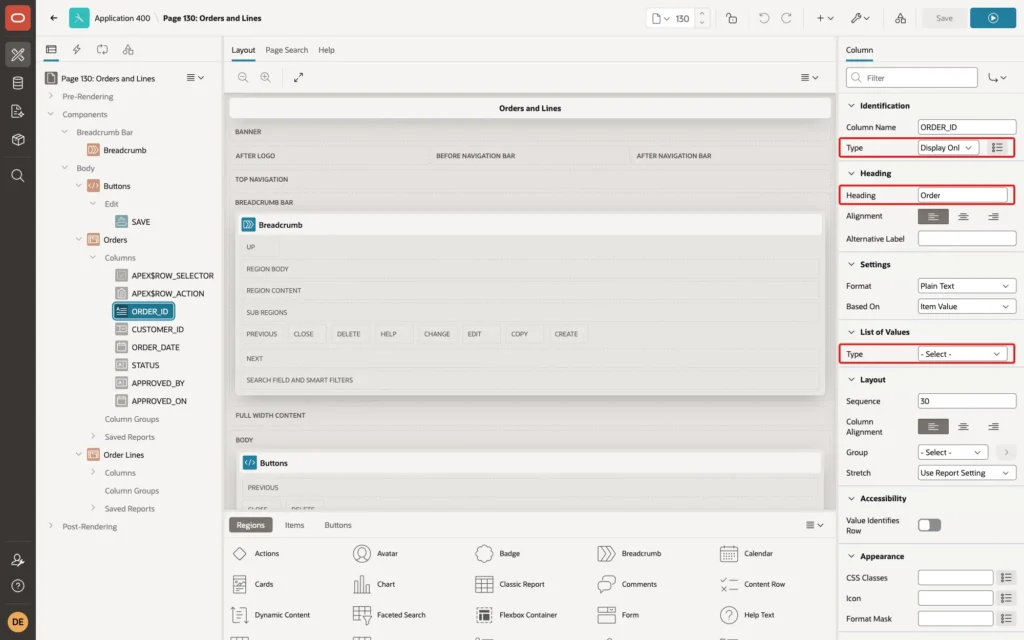
Second, show the order number. The wizard makes the primary key column ORDER_ID of the Orders grid hidden. Set its Type to Display Only and its Heading to Order:
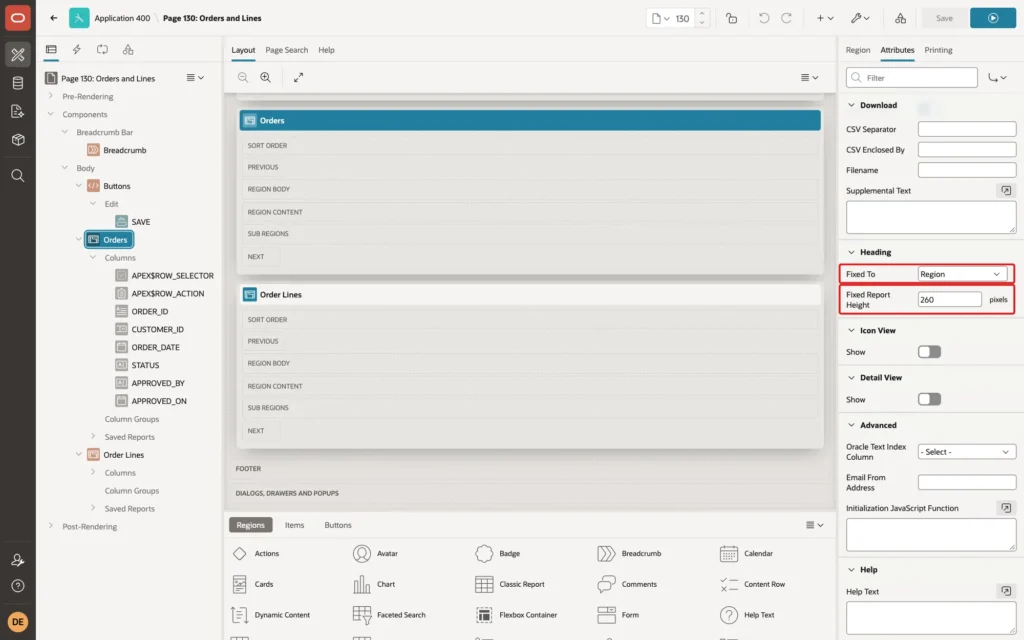
Third, give the Orders grid a fixed height. Select the Orders region, open its Attributes tab, and in the Heading group set Fixed To Region and Fixed Report Height 260 pixels:
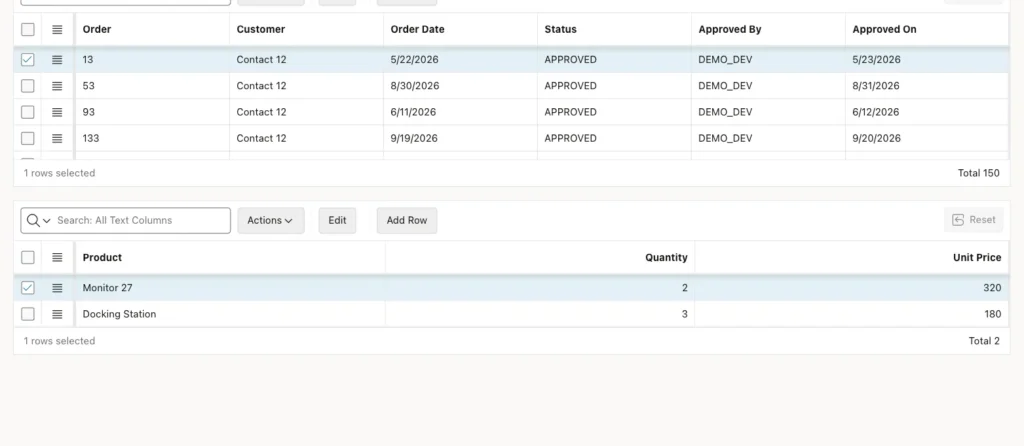
Without it, the 150 orders filled the screen and pushed the lines grid out of view. With it, the orders scroll inside their grid, and both grids are visible at once:
Step 4: Test Adding a Line
Run the page and click an order in the top grid. With order 13 selected, click Add Row in the lines grid, select the product Headset, and enter quantity 2 and unit price 95:
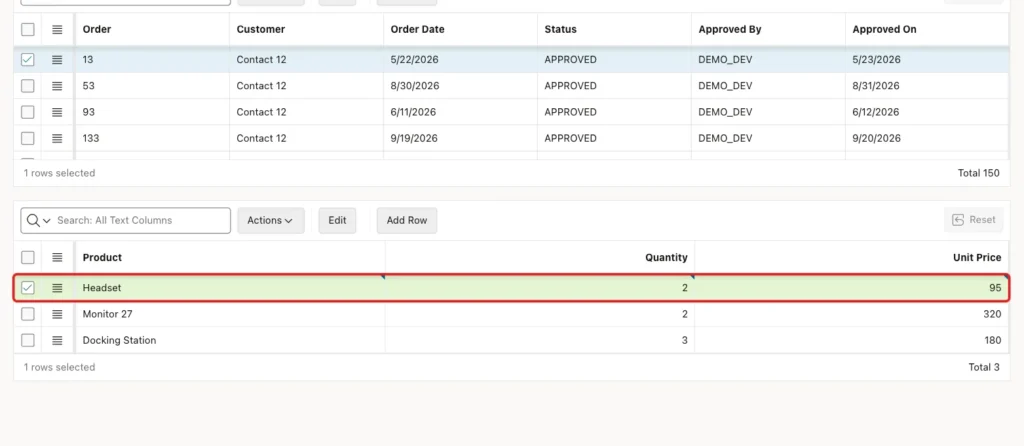
Click Save. The new row has ORDER_ID 13, although the user never entered it; the master-detail link set it from the selected order:
Example:
select l.line_id, l.order_id, p.name as product, l.quantity, l.unit_price
from   order_lines l
join   products p on p.product_id = l.product_id
where  l.order_id = 13
order  by l.line_id;
Output:
   LINE_ID    ORDER_ID PRODUCT               QUANTITY    UNIT_PRICE
__________ ___________ __________________ ___________ _____________
        79          13 Monitor 27                   2           320
       229          13 Docking Station              3           180
      2263          13 Headset                      2            95
Adding Headset to order 13 a second time is rejected by the unique key ORDER_LINES_PRODUCT_UK, so the order keeps one line per product.
Things to Know
- The page's Save button saves the changes of both grids, so users can edit an order and its lines and save once.
- Remove Add Row from the orders grid if orders should be created elsewhere, by removing add from the grid's Allowed Operations.
- Validations on the detail grid work per row as on any editable grid, for example a quantity range or a friendly message for duplicate products.
- The Side by Side style shows a list of masters with a detail report and modal edit pages, and Drill Down opens a separate page per master; choose them when the detail rows are many or wide.
Related Guides
- How to Validate Interactive Grid Rows Before Saving in Oracle APEX
- Oracle APEX Interactive Grid: A Complete Guide
Conclusion
To build an orders and order lines page in Oracle APEX, first create the tables with primary keys and a foreign key from the lines to the orders. Then run the Master Detail wizard with the Stacked style: it reads the keys and links the two grids through the detail grid's Master Region and its key column's Master Column.
Finally, make the grids readable with select lists for IDs, a visible order number, and a fixed height for the master grid, and test that new lines get the order ID.
